How To: Add Products to Campaigns
Managedorg
Go to your Admin Portal and go to Campaign Management
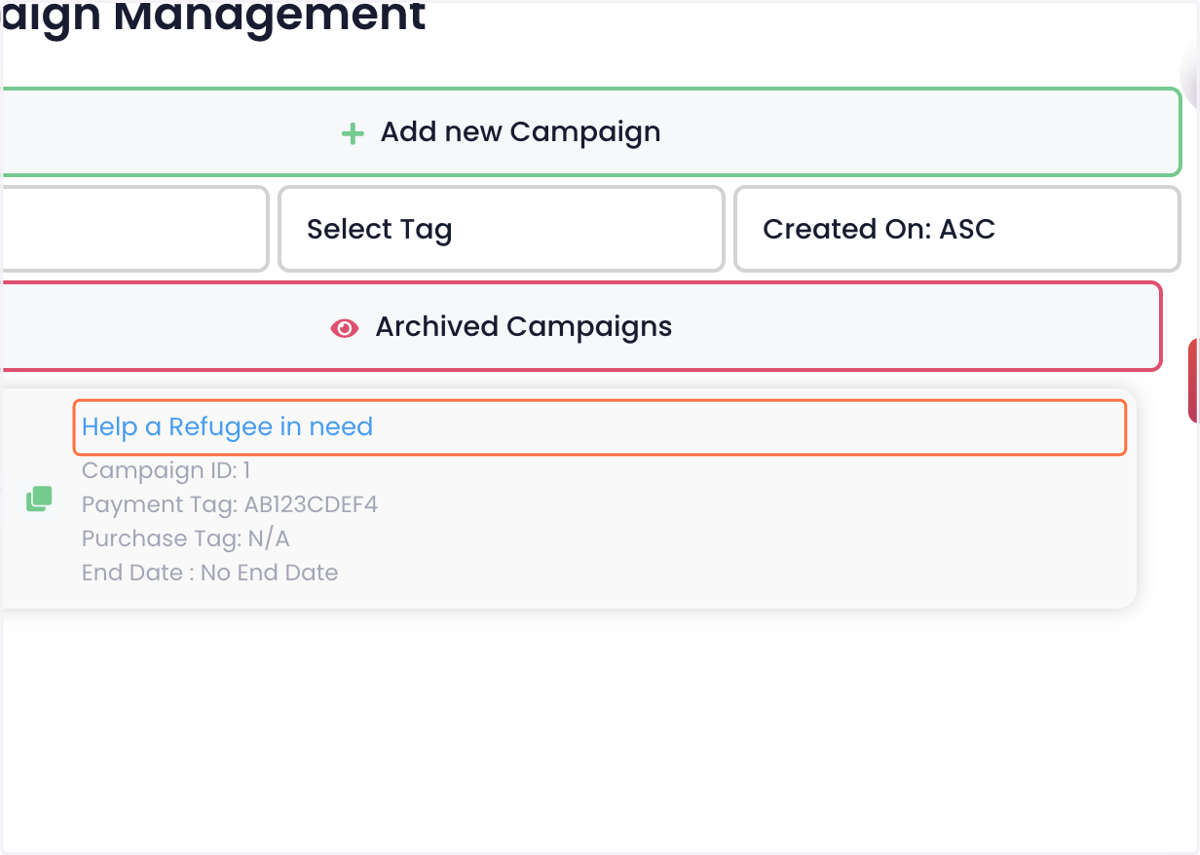
1. Click on the campaign you want to add products to
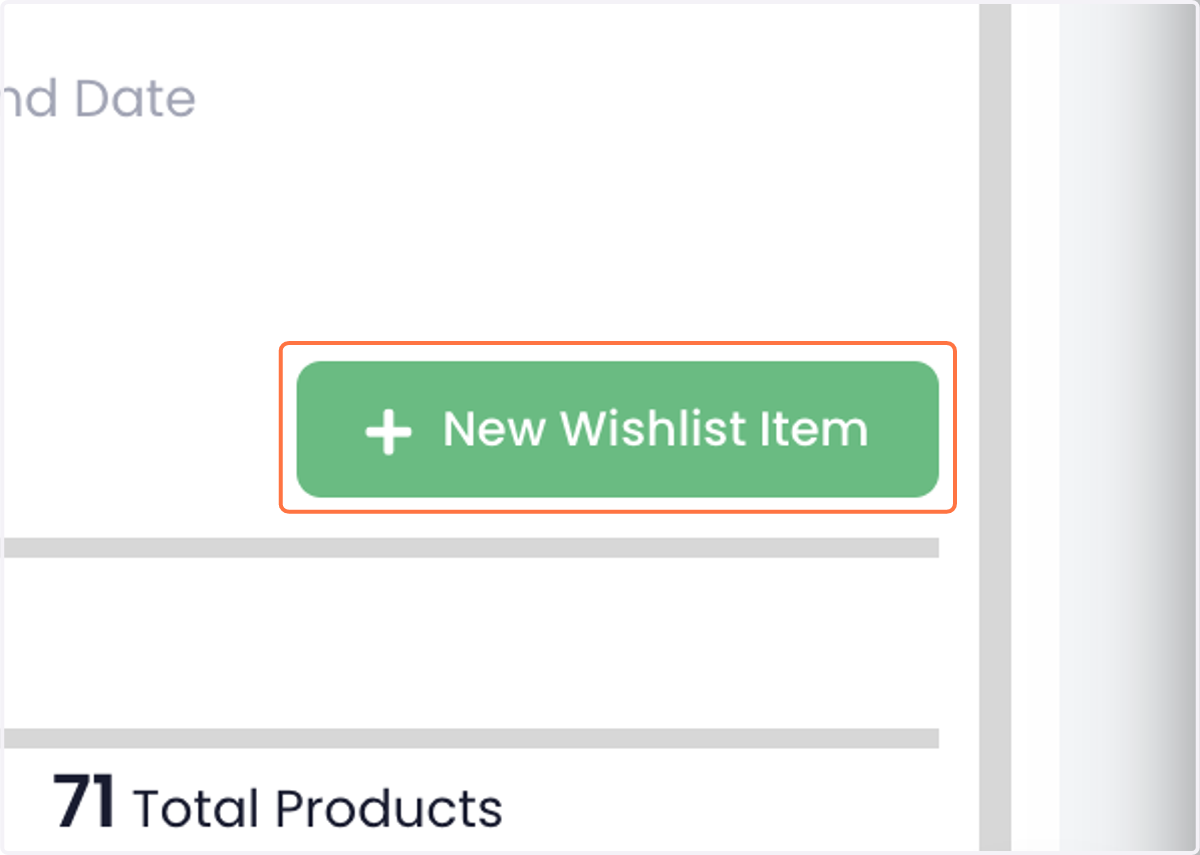
2. Click on New Wishlist Item
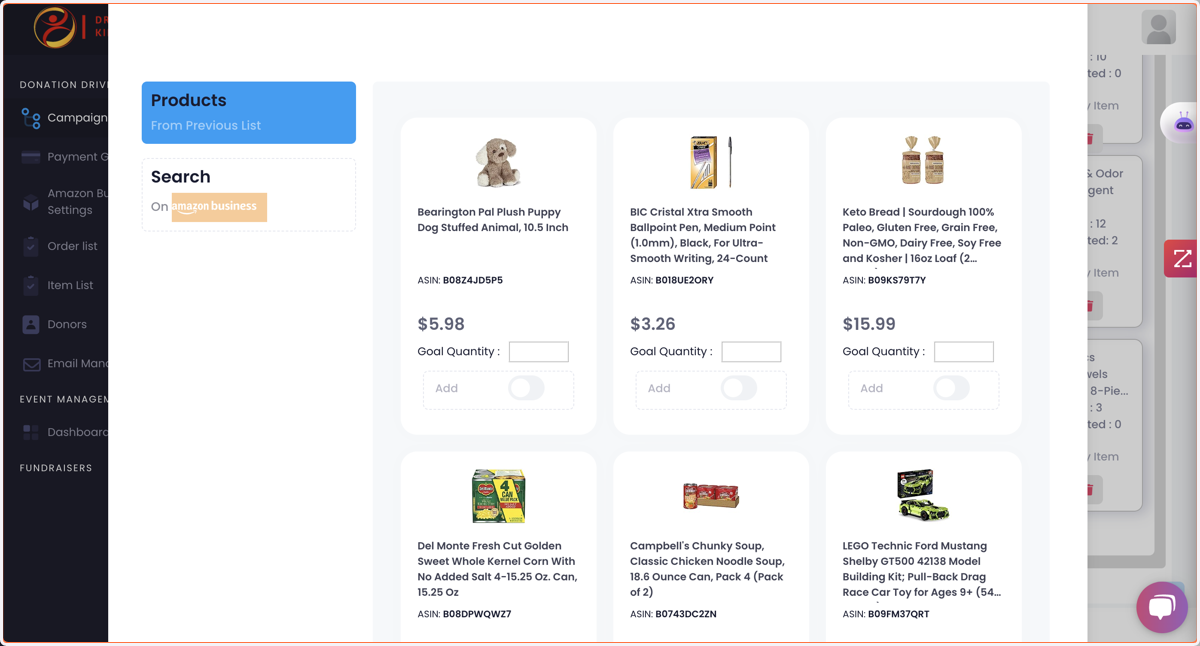
3. Click on search
4. To bulk import, click on Download sample csv
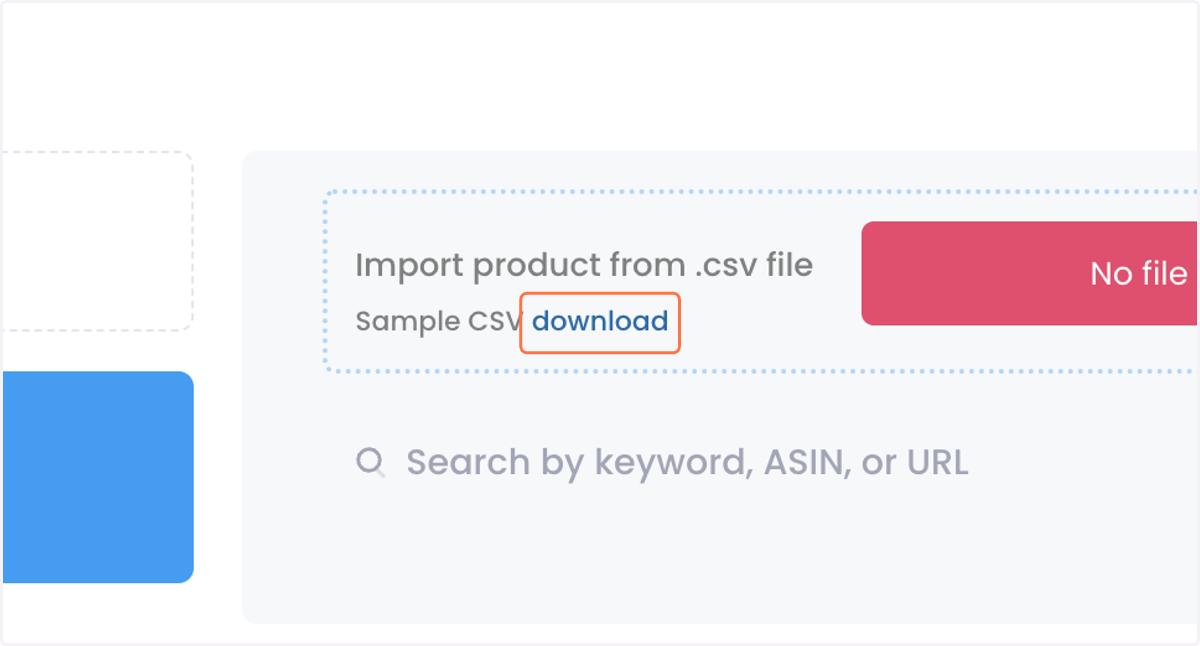
5. The CSV file will load
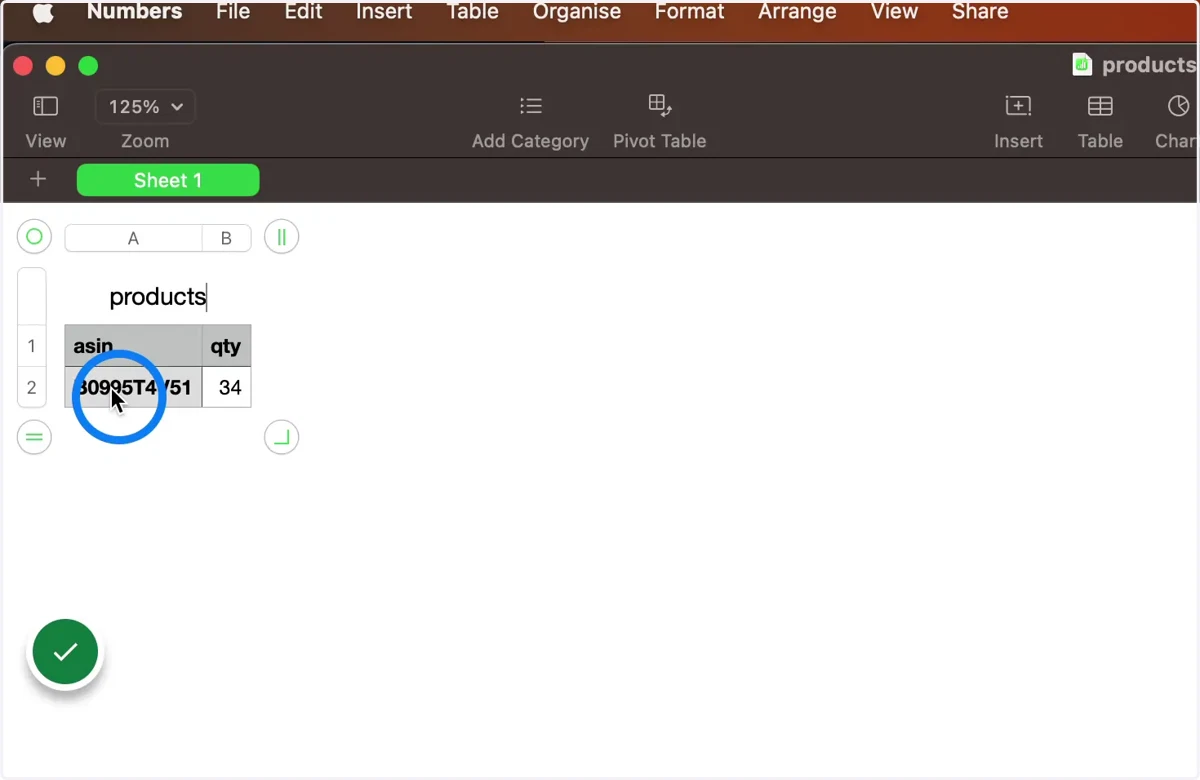
6. Add your product ASINs here and add a quantity. Once you are done, save and ensure the file name remains "products.csv"
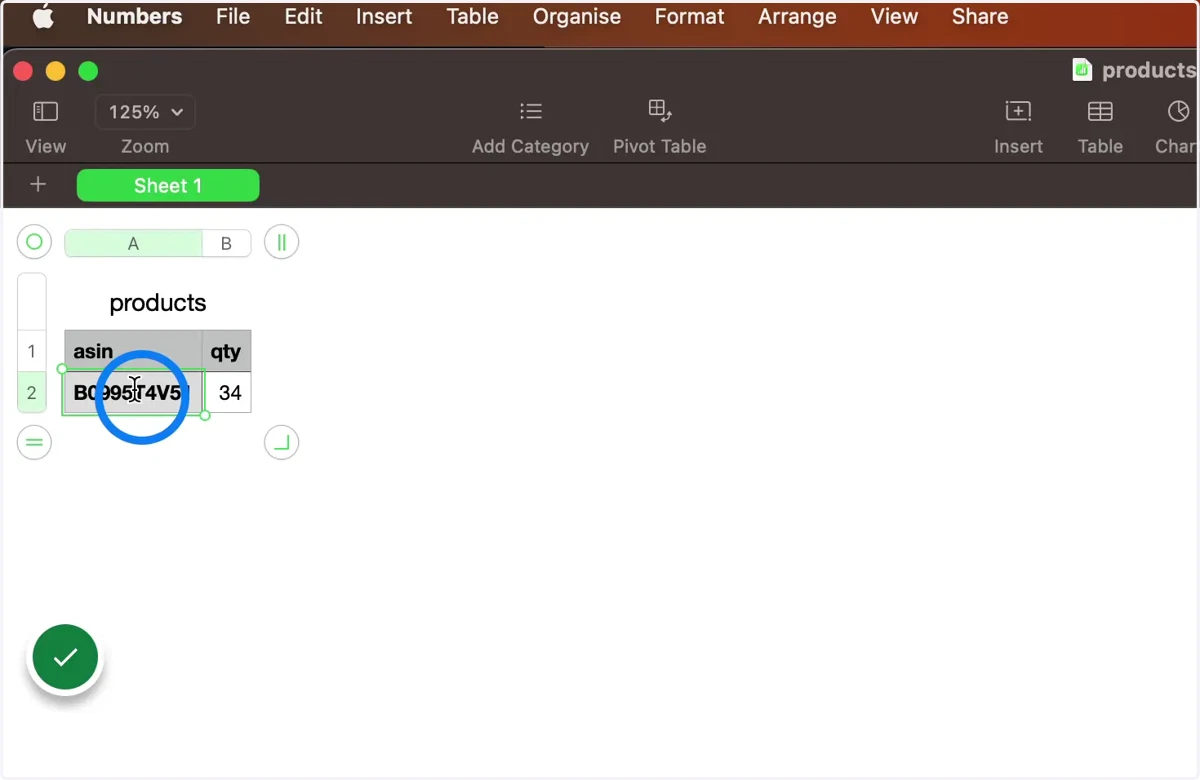
7. Upload the csv file
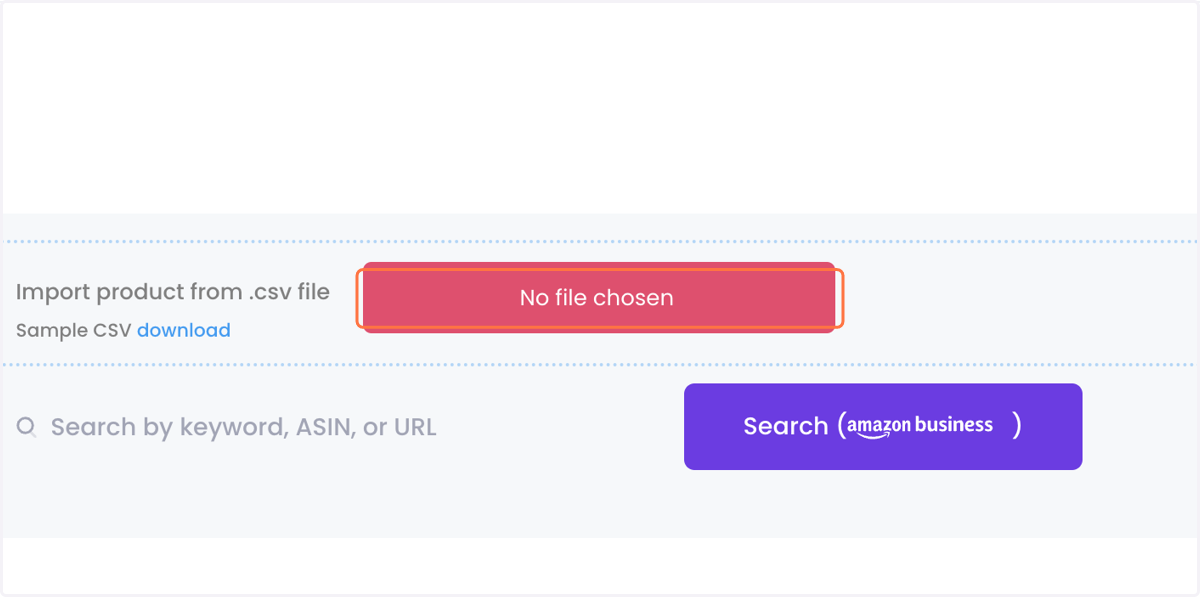
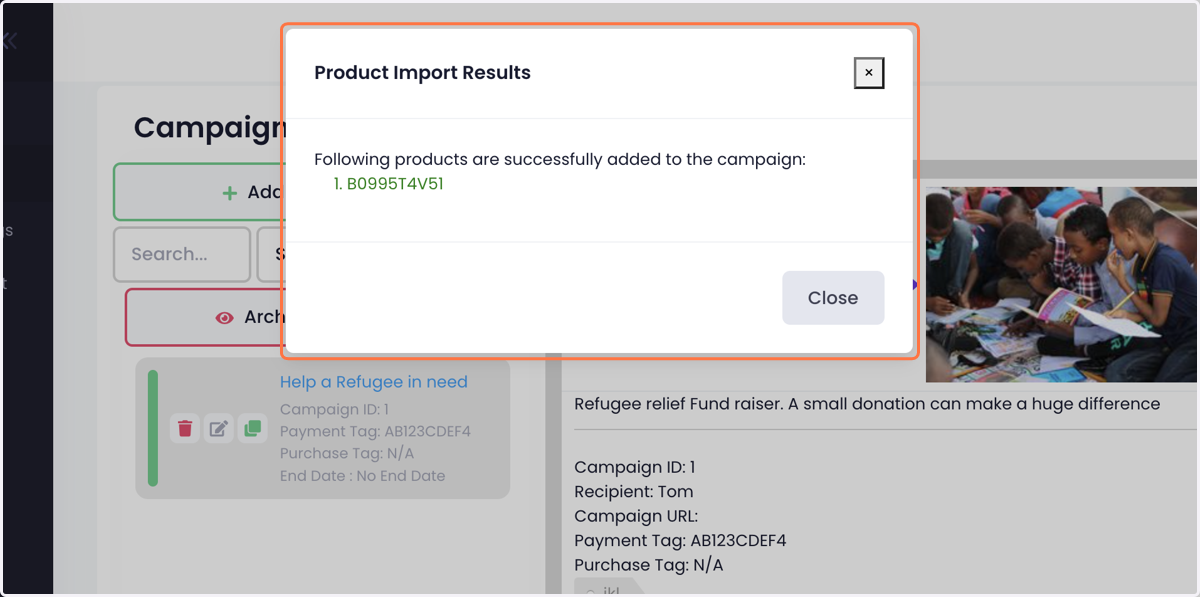
8. Depending on the amount of products, this may take 2-3 minutes. On success you will see all the products add and those that weren't able to be added.
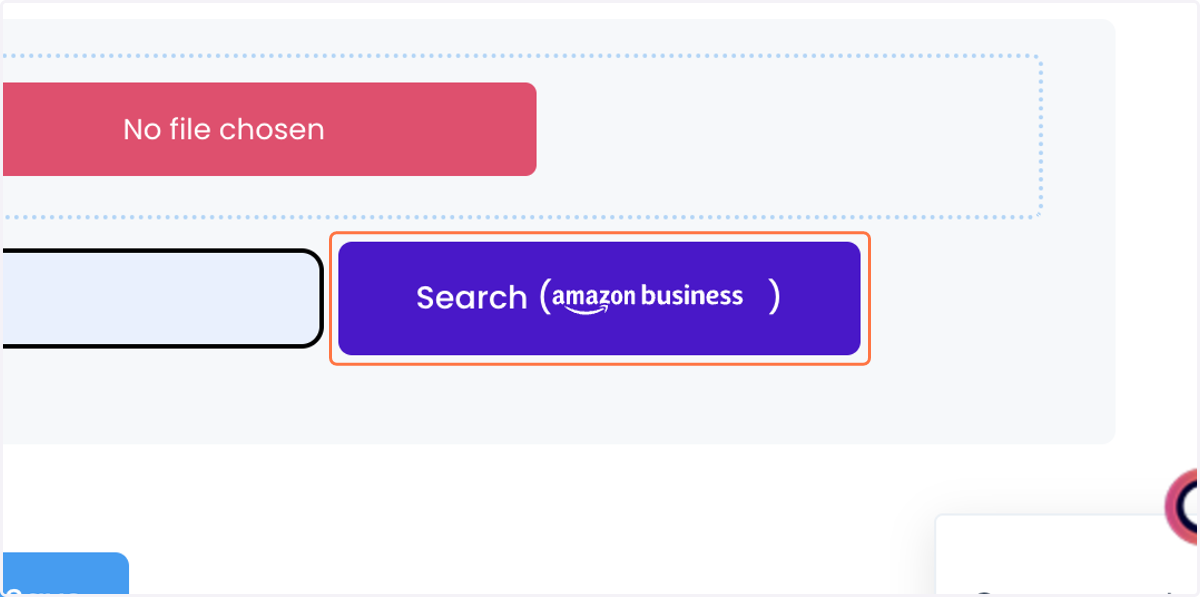
9. If you prefer to search for individual items, type your product keyword or ASIN and click search
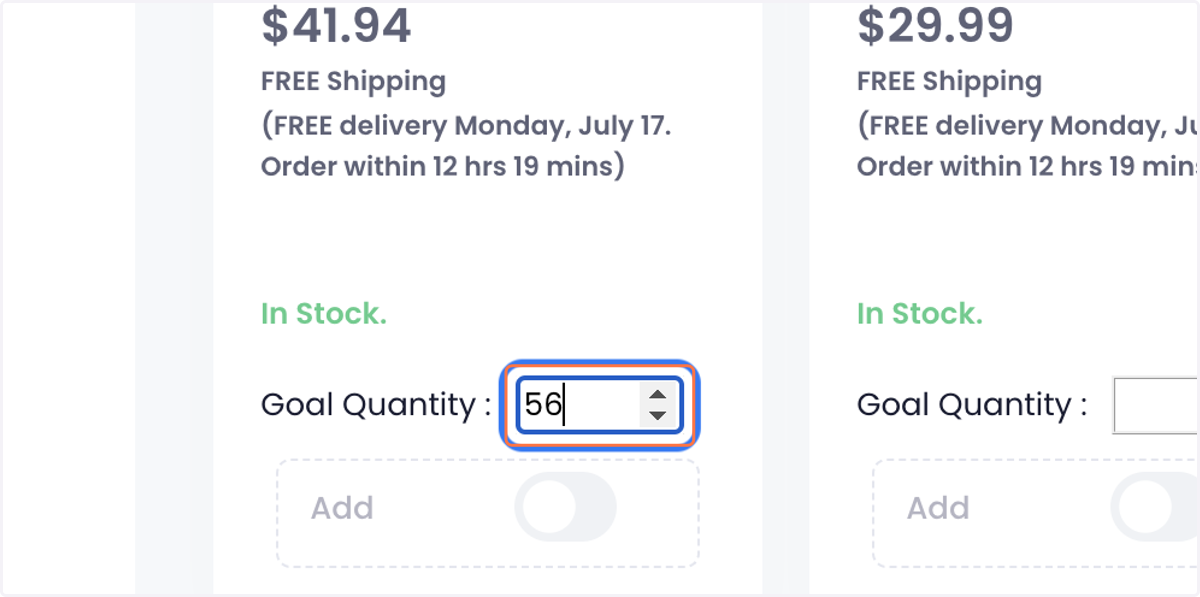
10. Once you have found your product, add a goal quantity
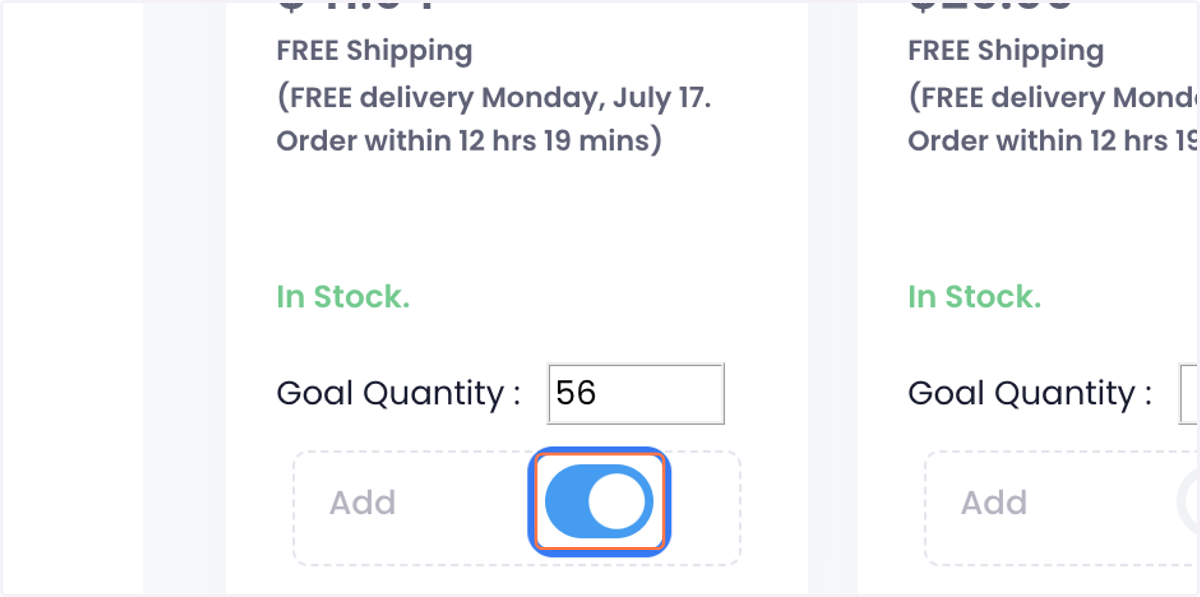
11. Click Add
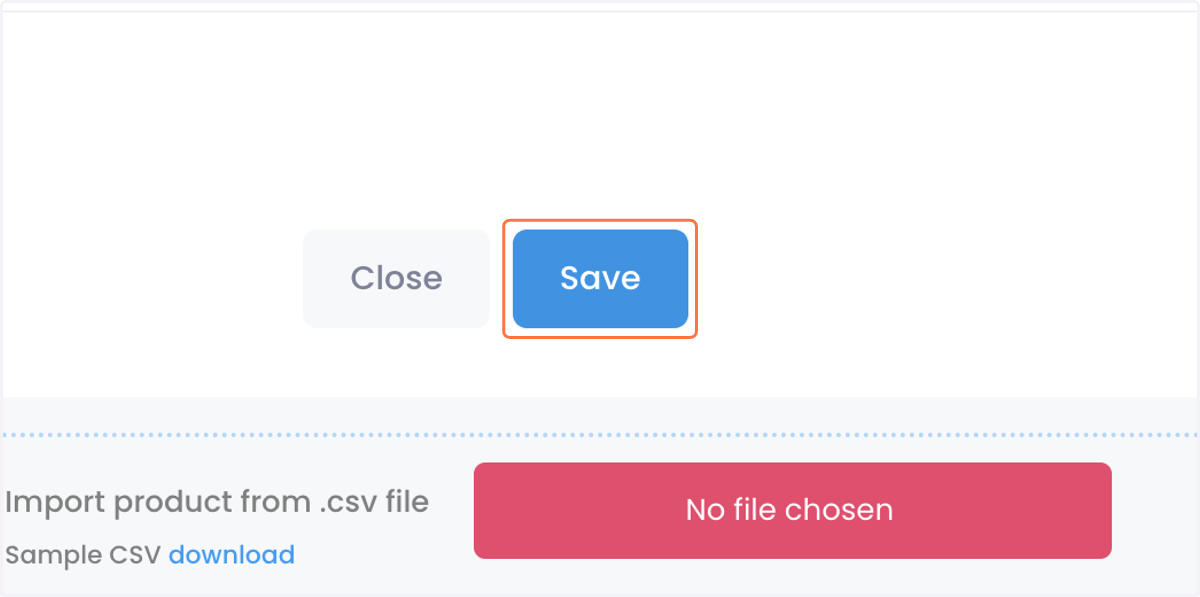
12. Click on Save
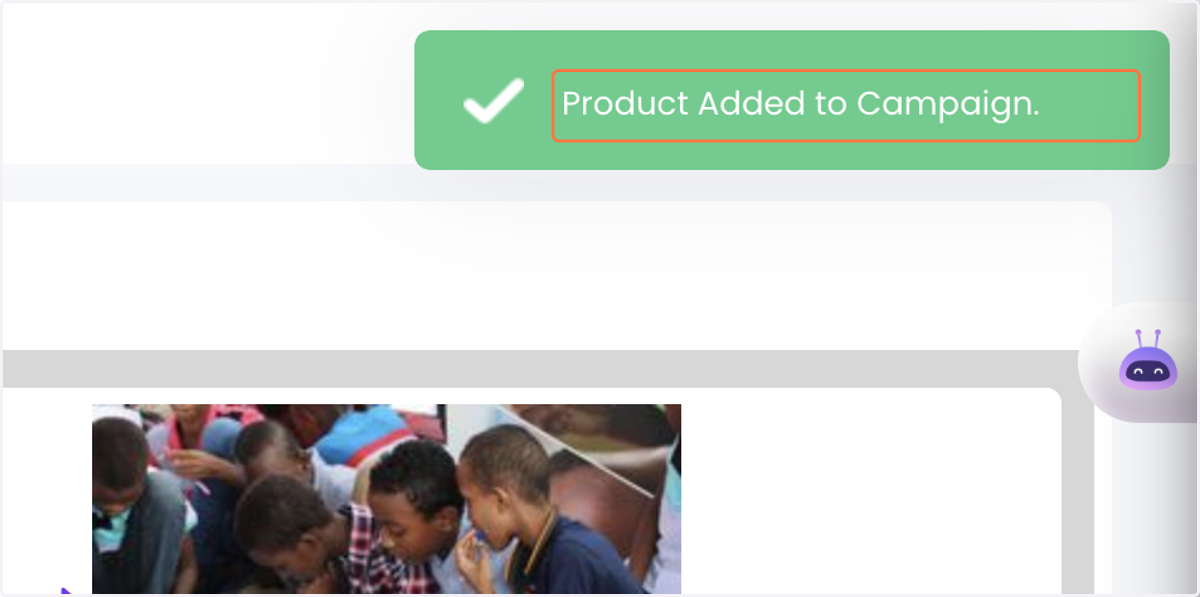
13. See success message and your product is added.