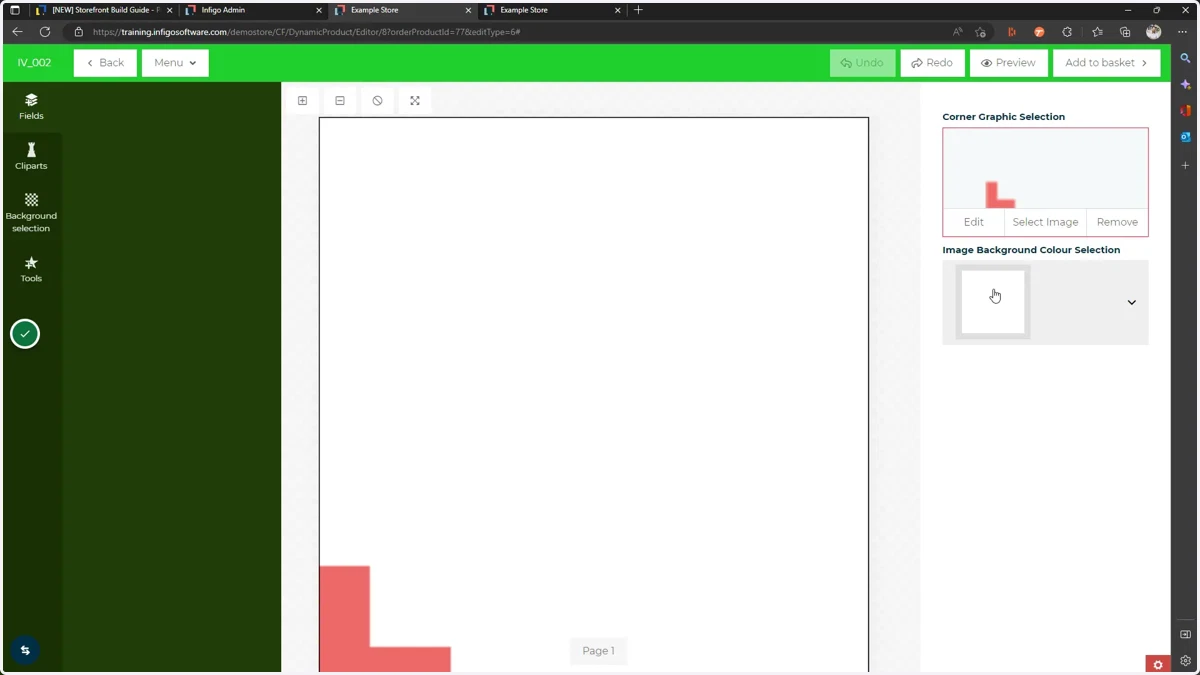
Creating and utilising a Colour Set resource set
In this tutorial, we will learn how to create and utilise Colour Set resources and link them to the background of one of our variable fields.
We will begin by creating a Colour Set resource containing several colour options.
Next, we will create an Colour variable and link it to the Colour set.
Finally, we will link the Image variable to background of an image frame on our canvas.
Some key terms of note:
Variables within Invent are used to create forms for your products. They can take the form of text, boolean (true/false), dropdown and more.
Resources are collections of assets that can be used to help create a MegaEdit product. There are several forms of assets available through Invent, including backgrounds, cliparts and fonts.
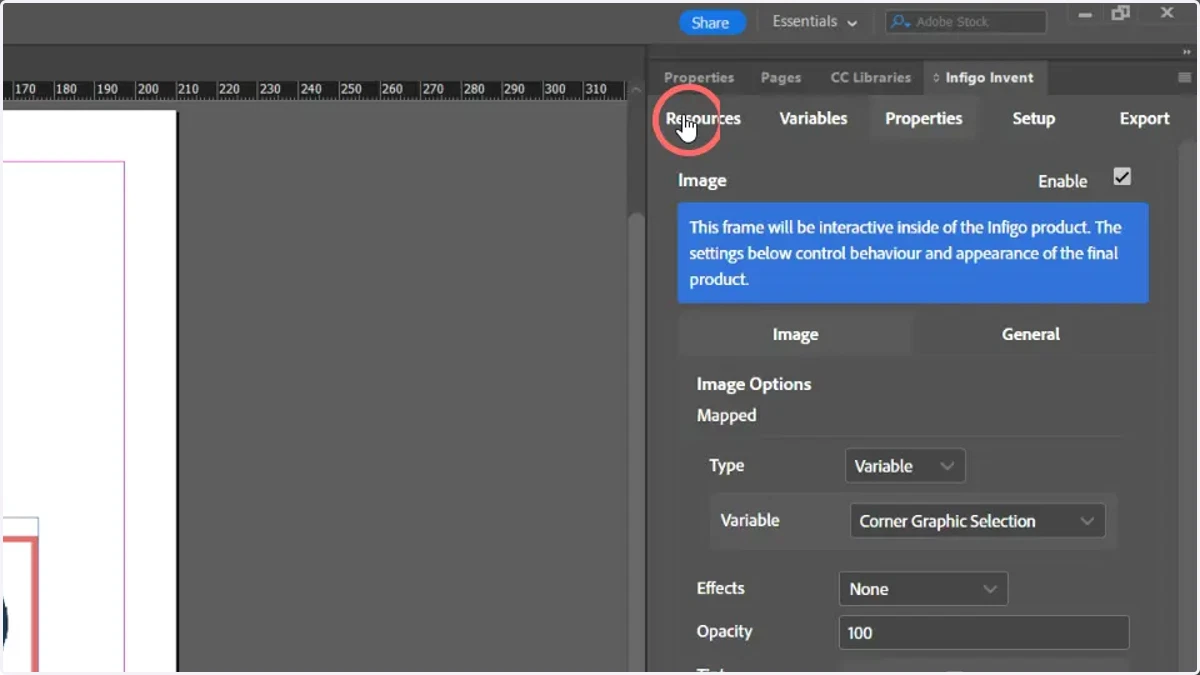
1. Click Resources
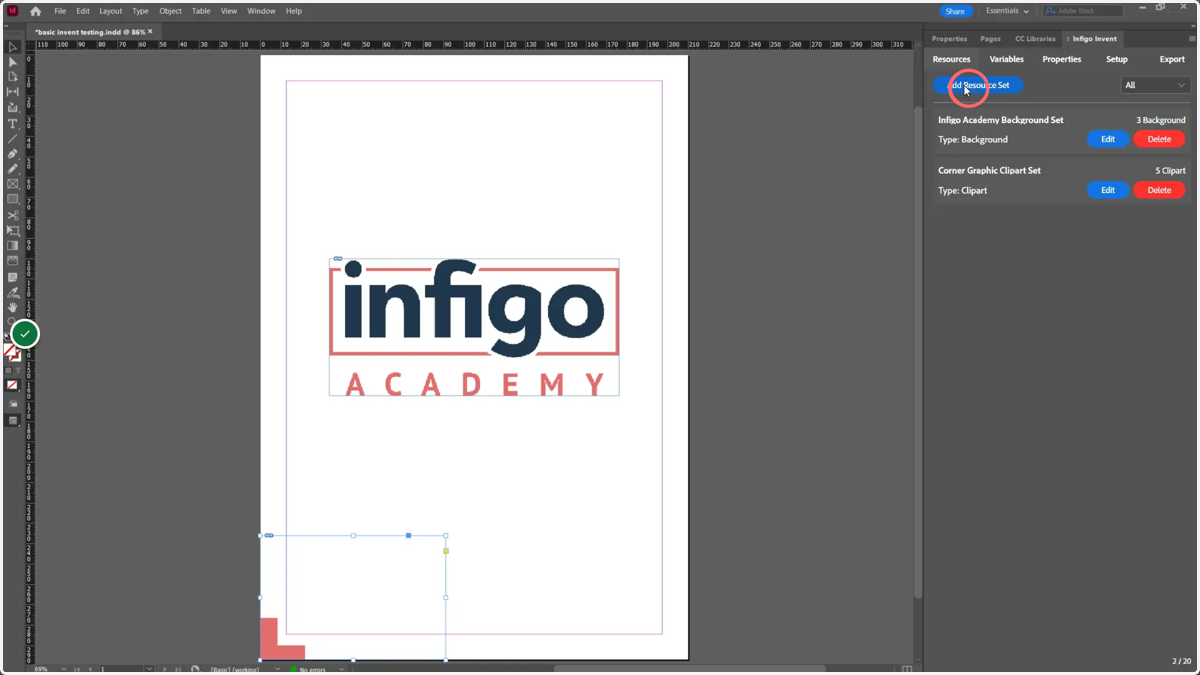
2. Click Add Resource Set
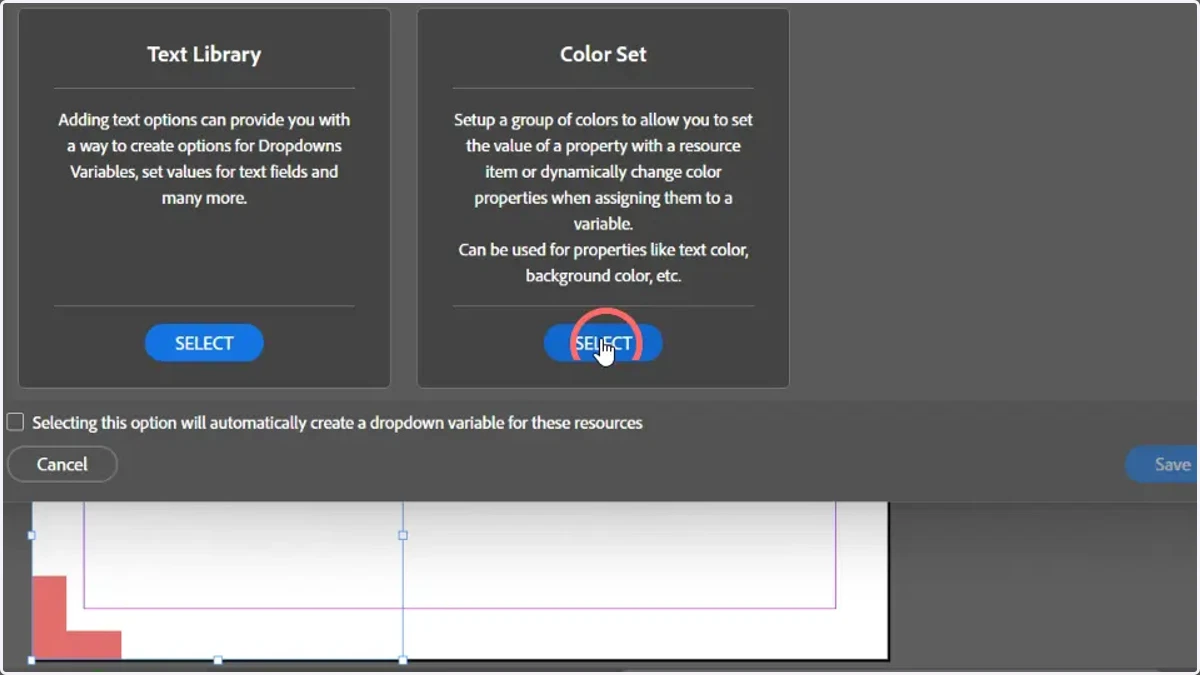
3. Click Color Set
A resource group containing colours to allow you to set the value of a property with a resource item, or dynamically change colour properties when assigning them to a variable.
This can be used for properties like text colour, field background colour, etc.
4. Enter a name for the Color Set
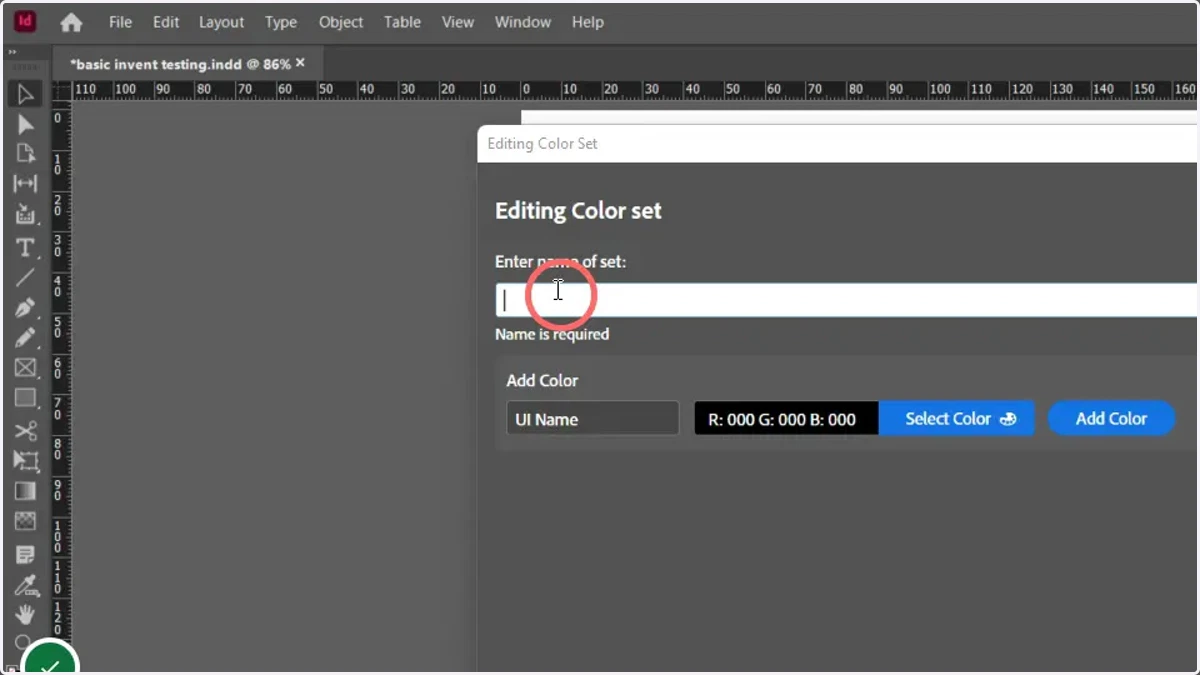
5. To begin adding a new colour, enter a UI name for your first colour
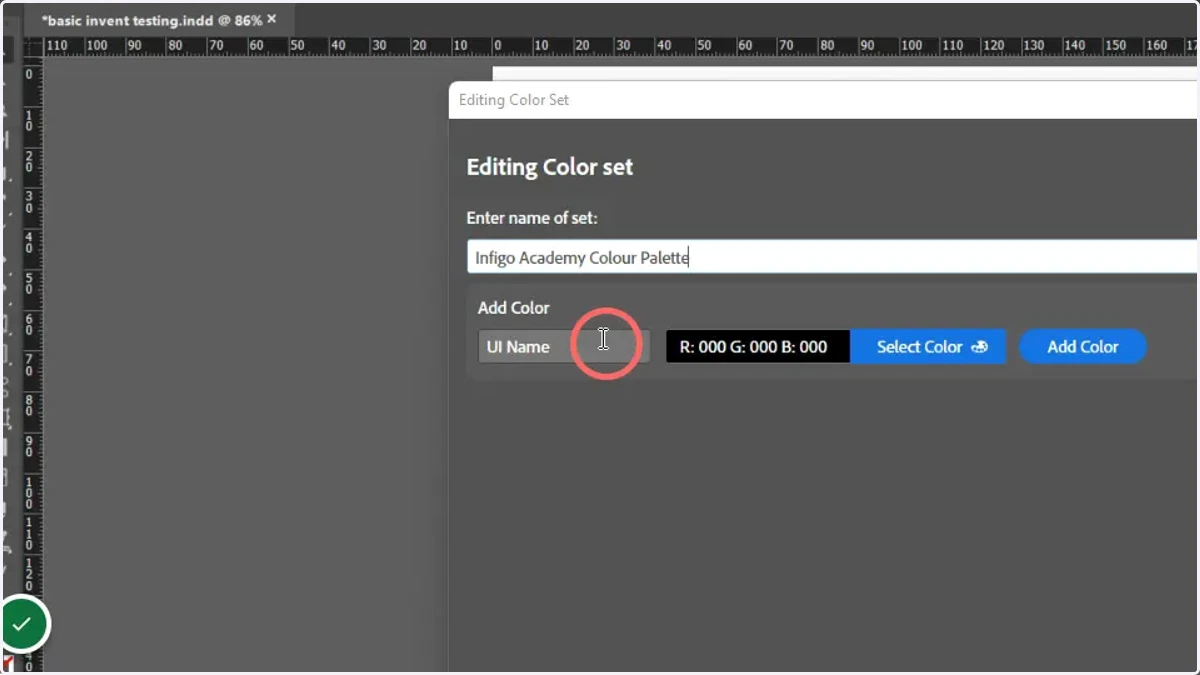
6. Click Select Color
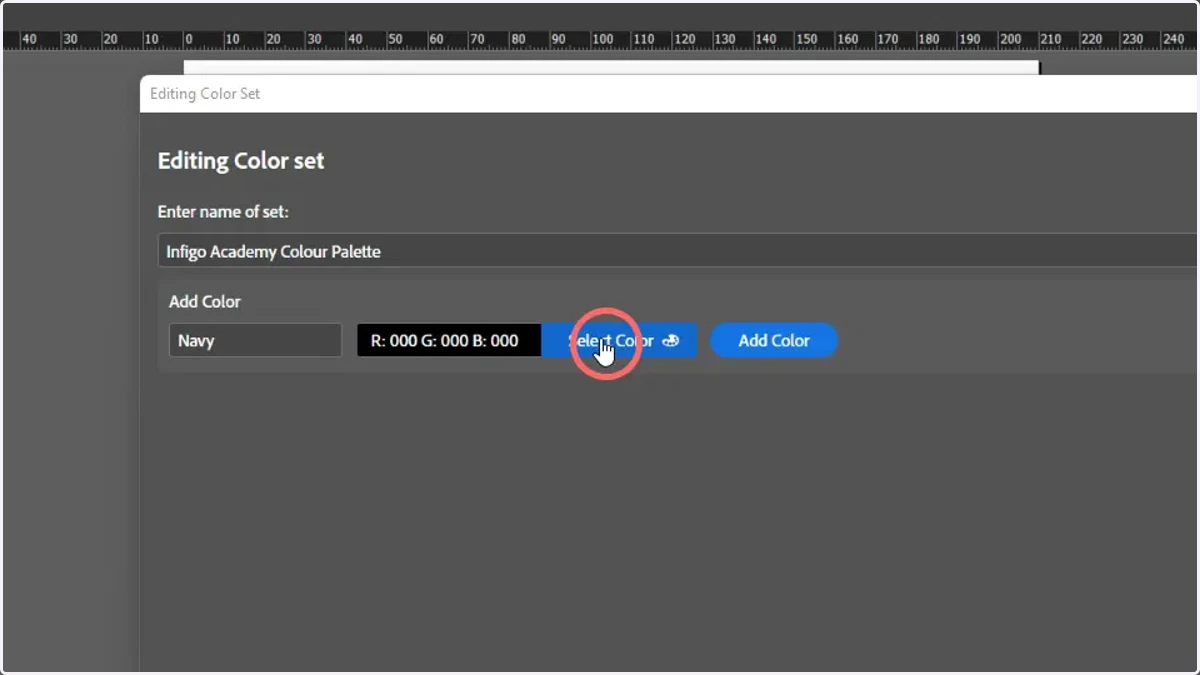
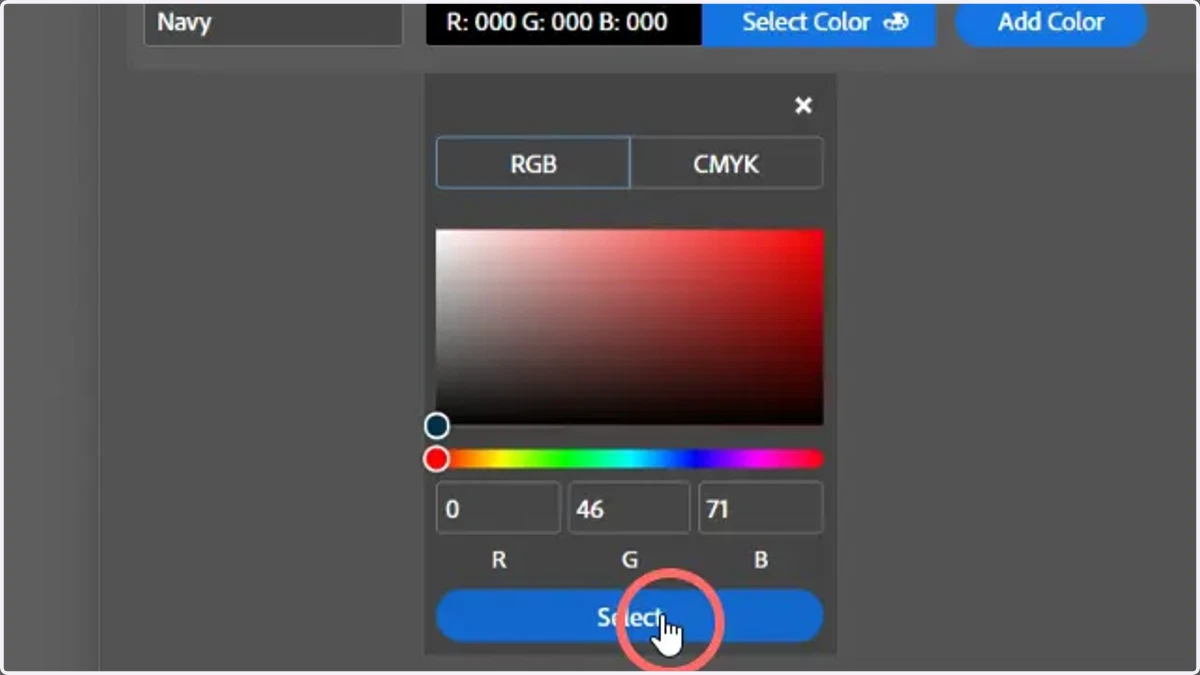
7. Enter or select colour data
Use the colour picker, or enter RGB or CMYK formats.
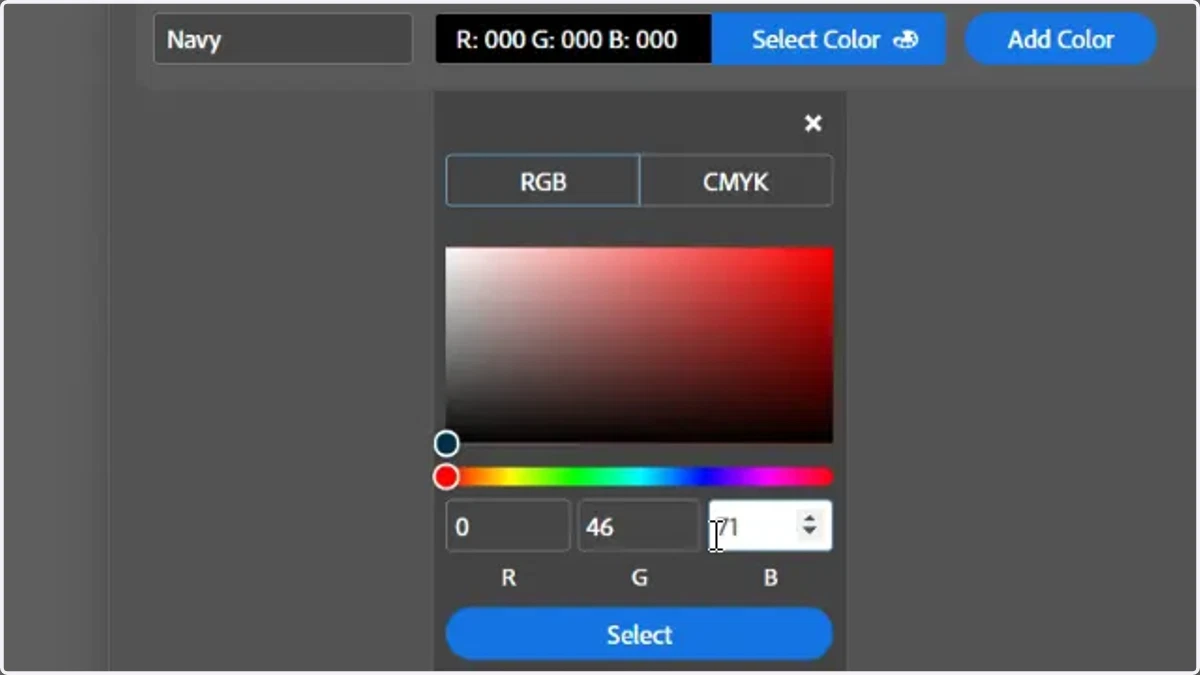
8. Click Select
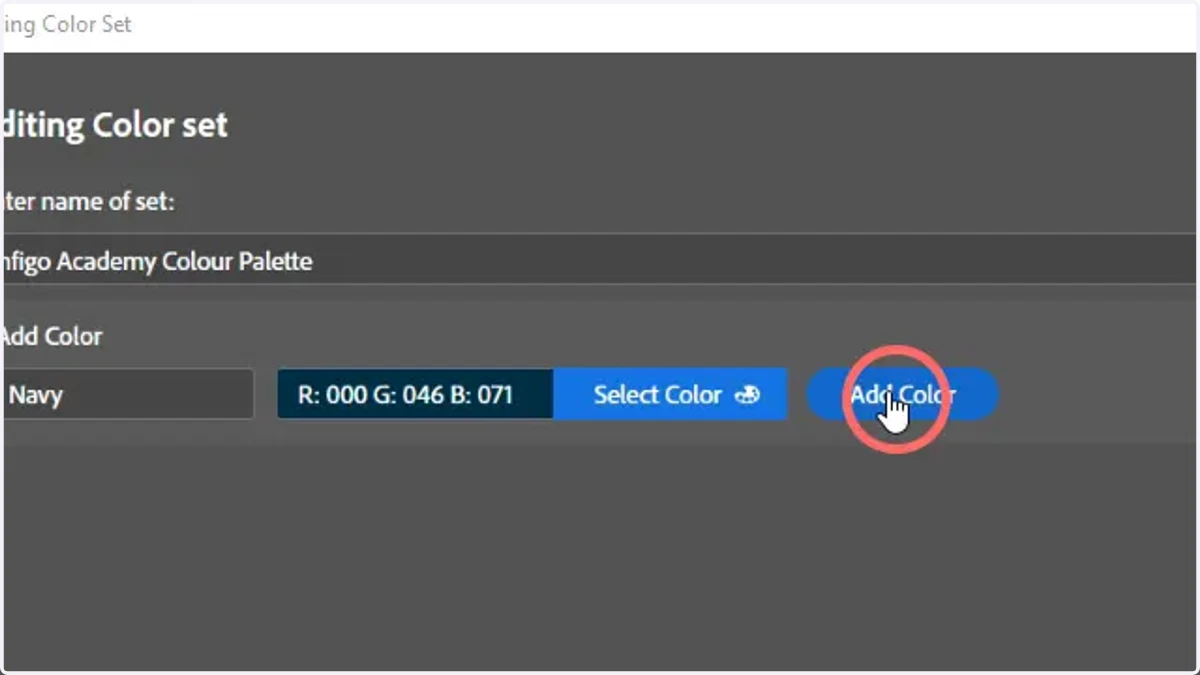
9. Click Add Color to add this entry to your Color Set resource
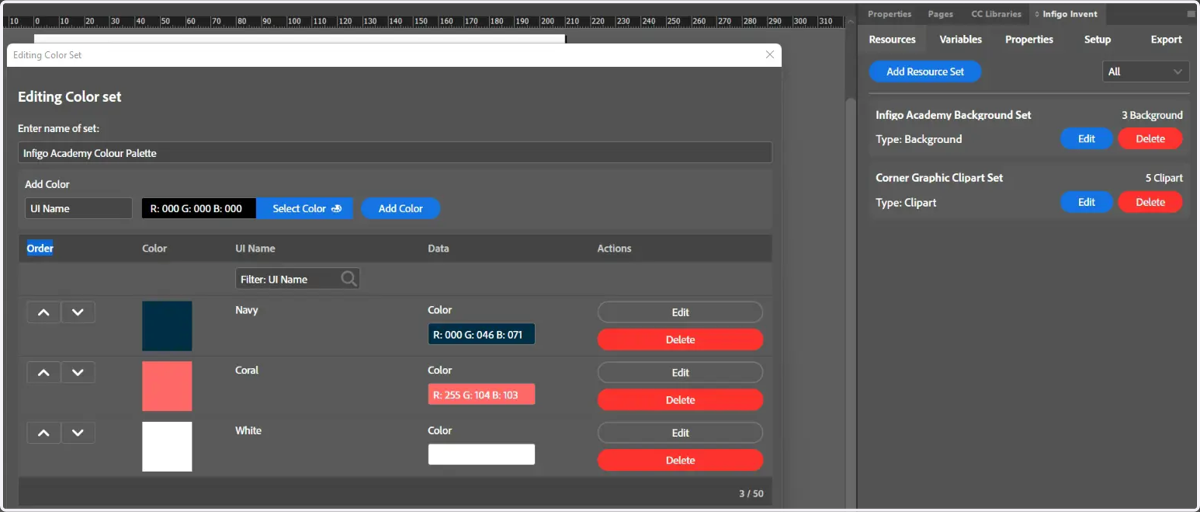
10. Multiple colours can be applied to a Colour Set resource group
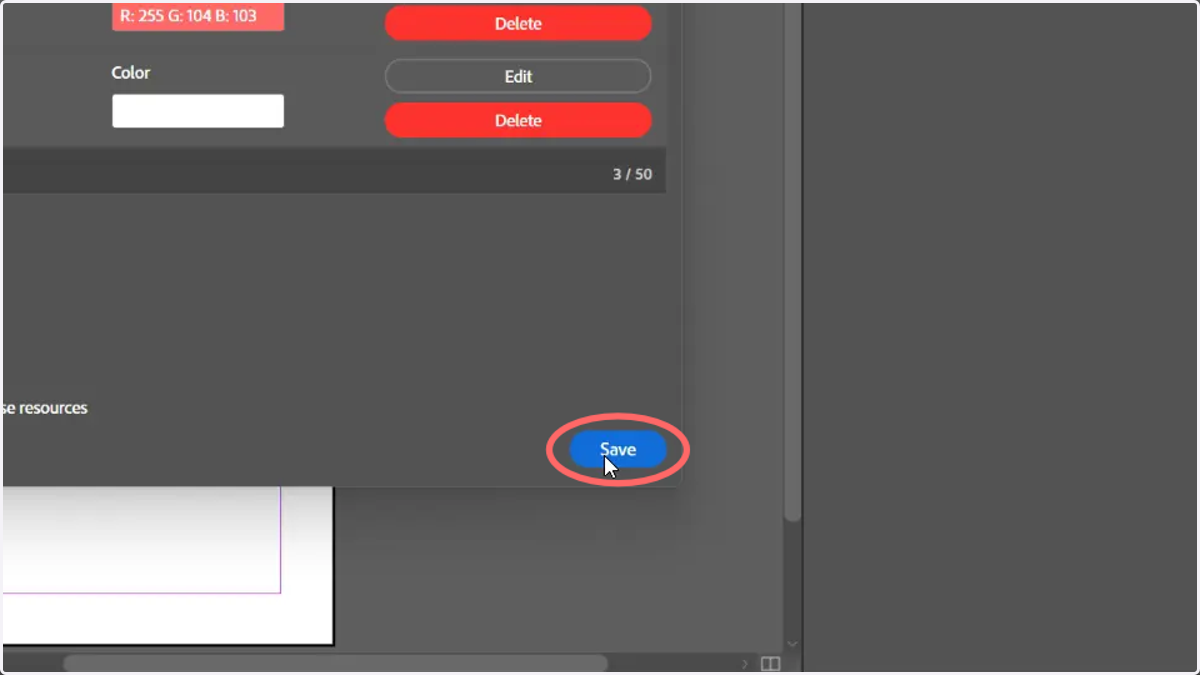
11. Click Save
12. Click Variables
Next, we will create a variable to control this Colour Set resource
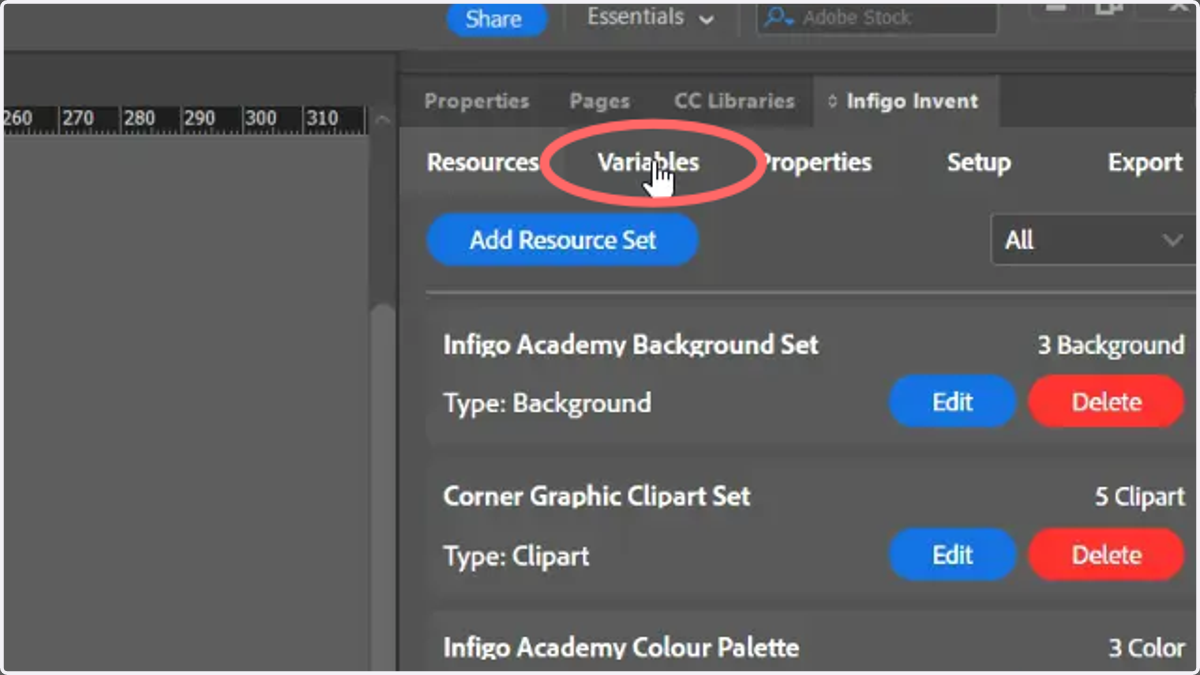
13. Click Add Variable
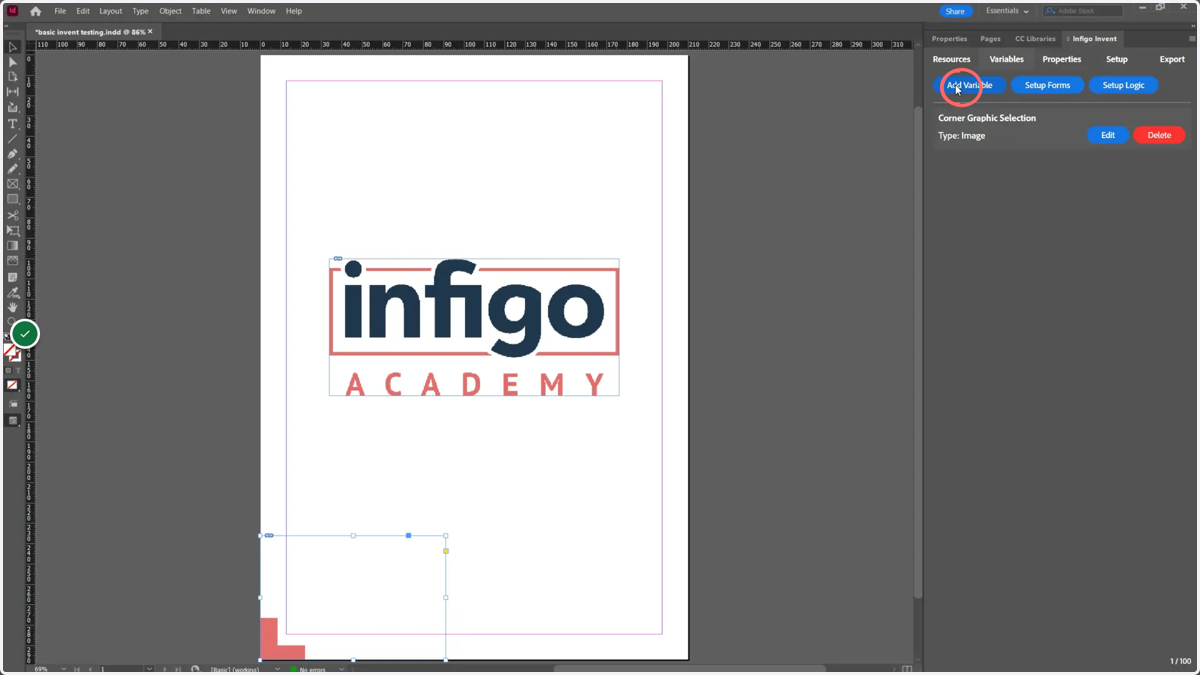
14. Click Color Variable
Color variables allow users to define a selected color via a form entry in MegaEdit.
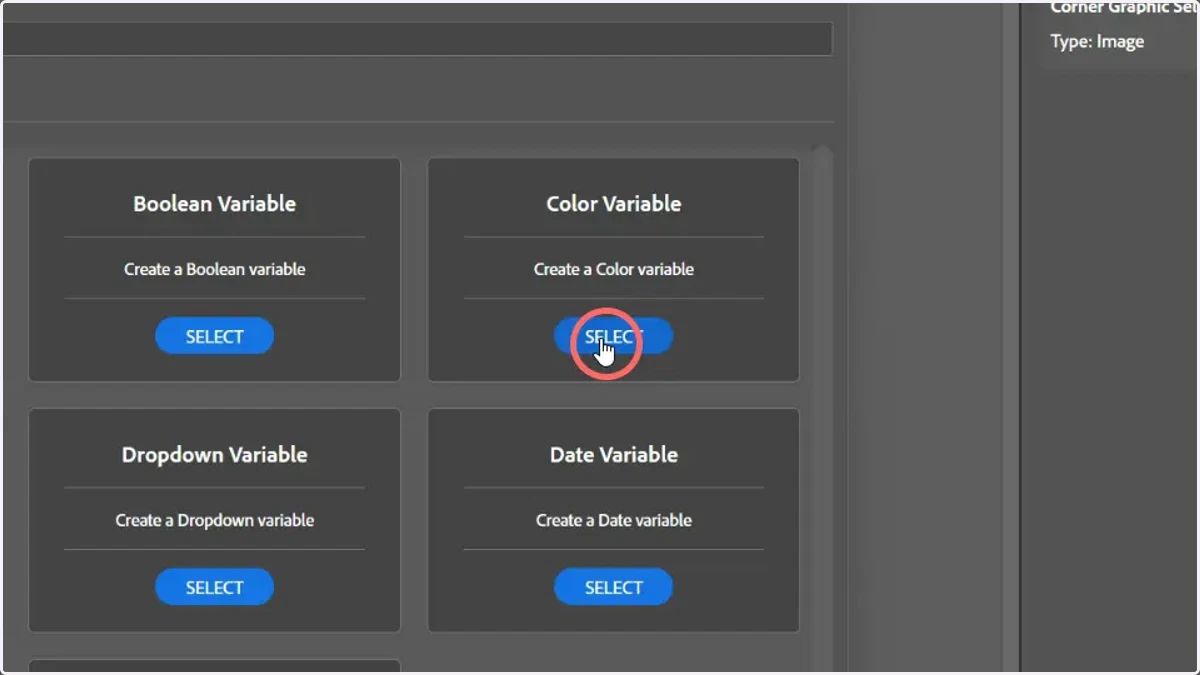
15. Enter a variable name
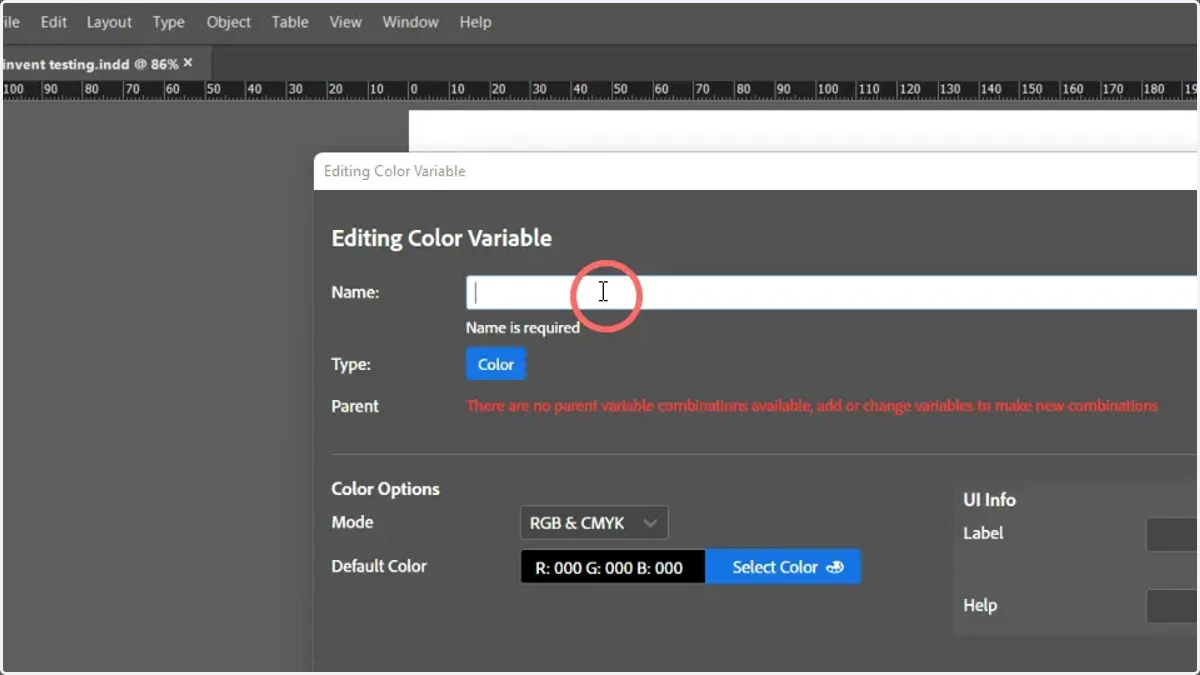
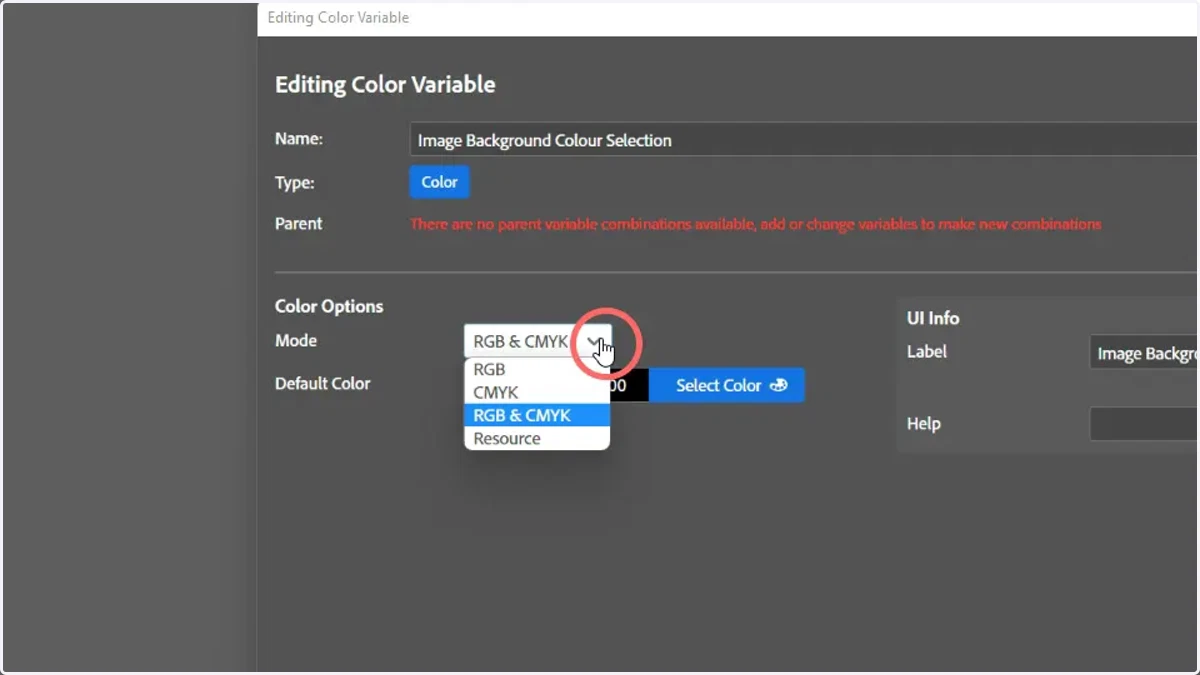
16. Select Resources as the Mode to source the colours
RGB, CMYK and RGB & CMYK options will give the customer access to a colour picker / input.
The Resource option allows you to link to specified Colour Set resources
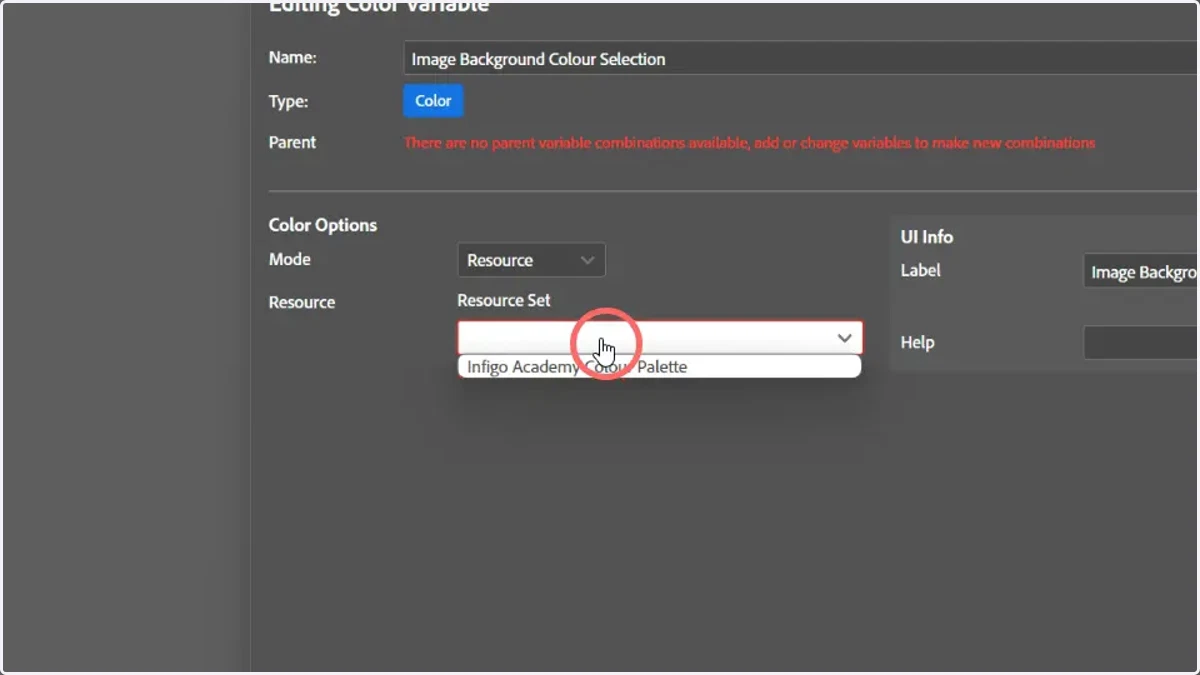
17. Select a Color Set from the Resource list
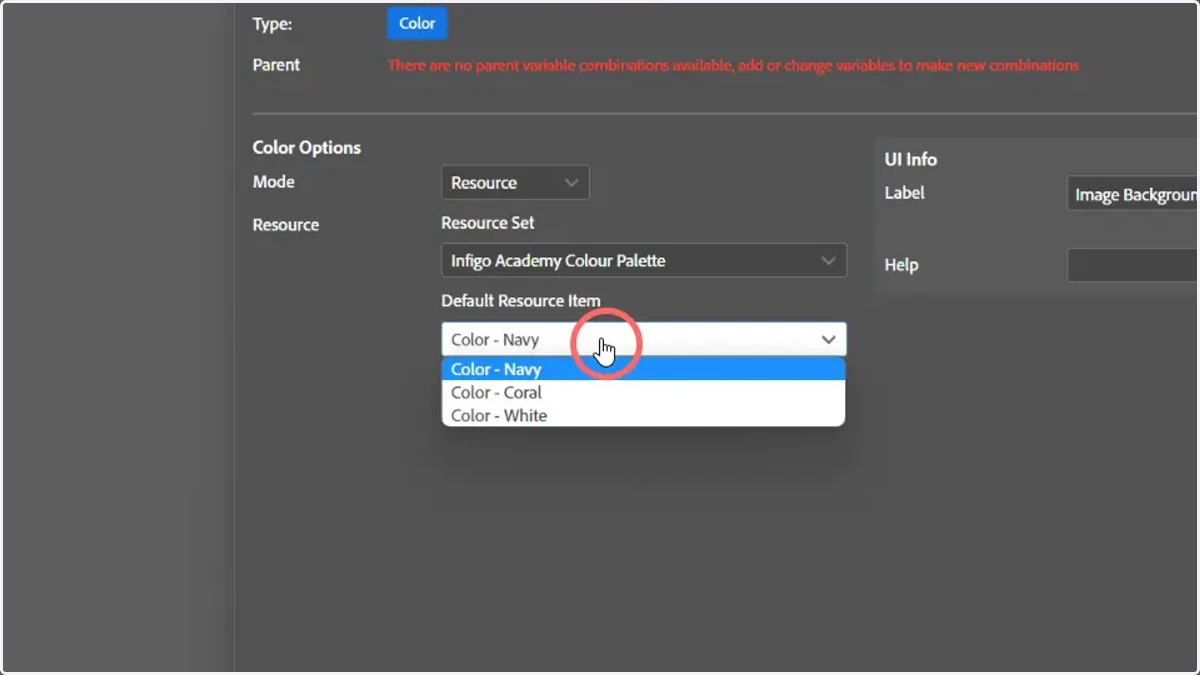
18. Select a default value from the resource set
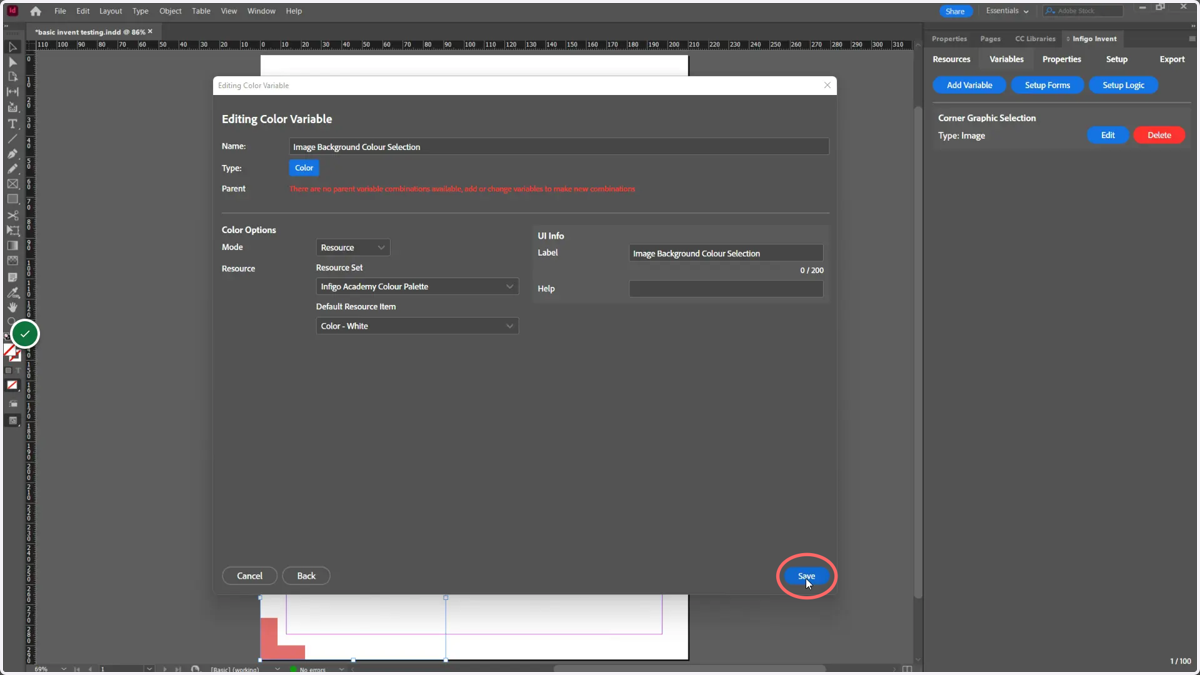
19. Click Save
20. Select an image or text field for which we will amend the background colour
If selecting an image field, the image requires a transparent background for any background colour specification to take effect.
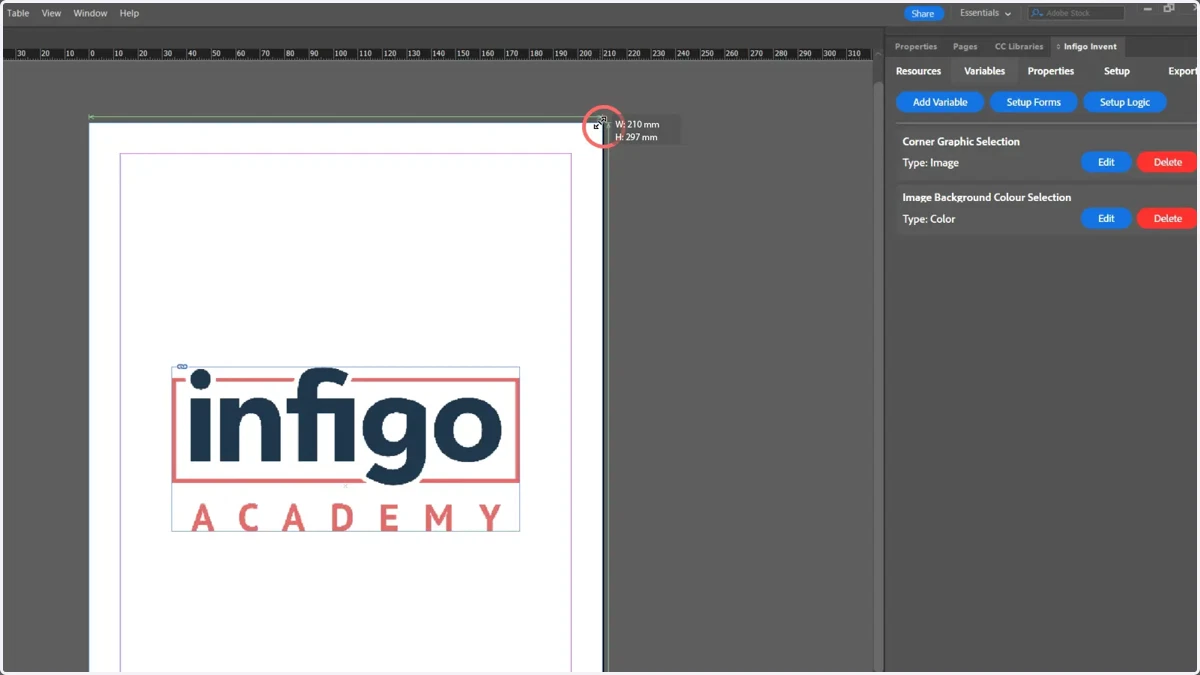
In our example, the selected image frame has been resized to cover the whole canvas. This will result in an effect of adjusting the background colour of the whole canvas, and is an alternative method to the Background Selection options covered in a previous tutorial.
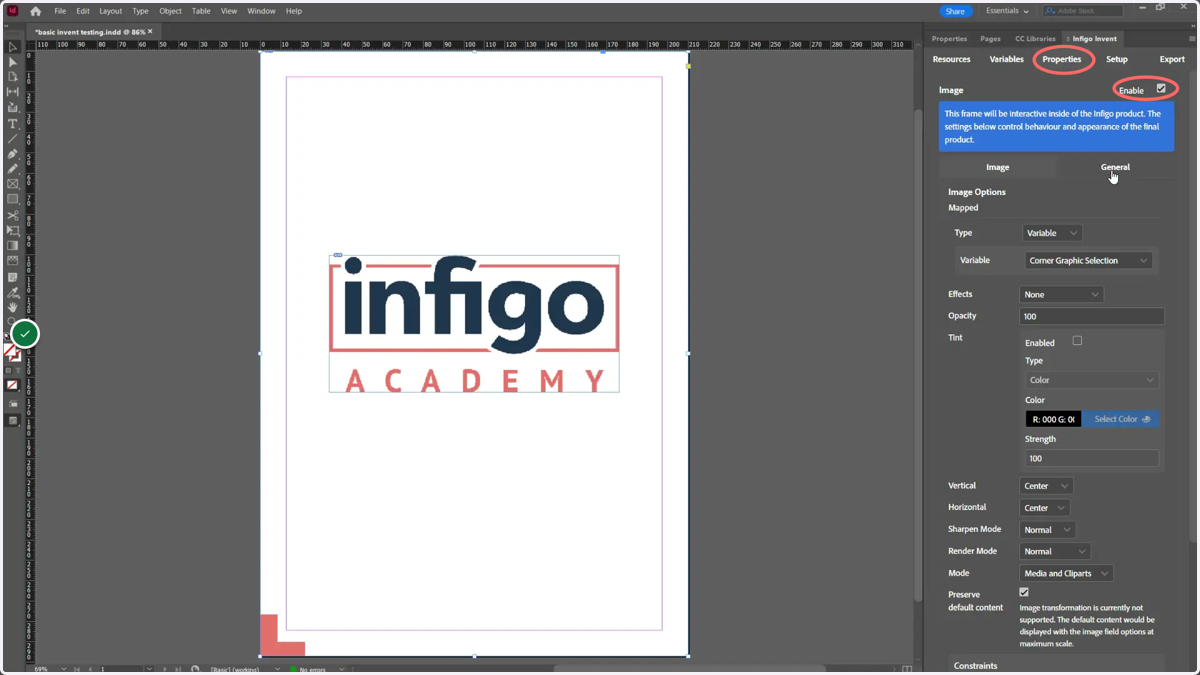
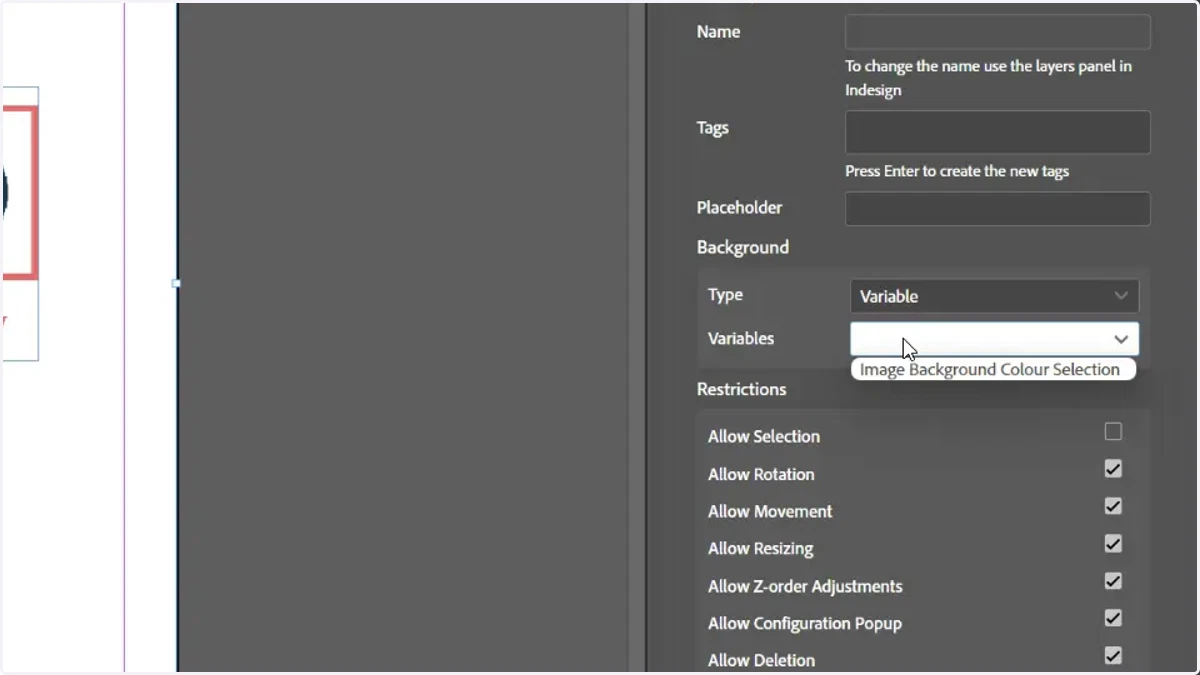
21. Click Properties and Enable dynamic adjustment of the field
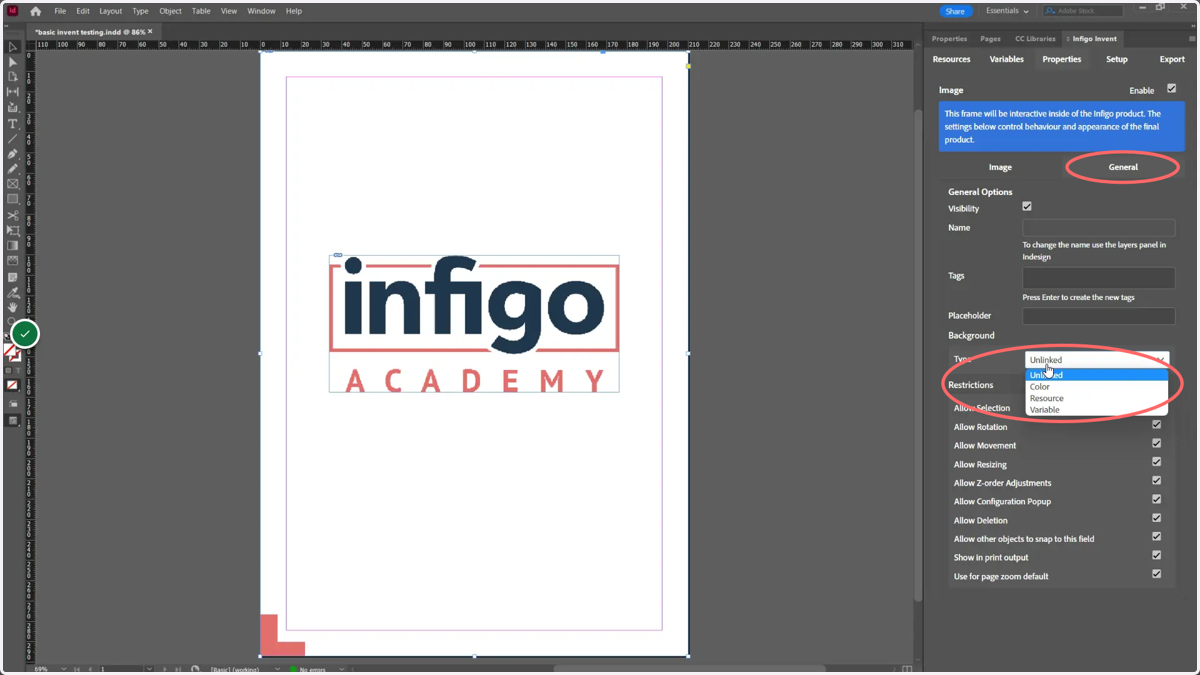
22. Select General and navigate to the Background Type dropdown
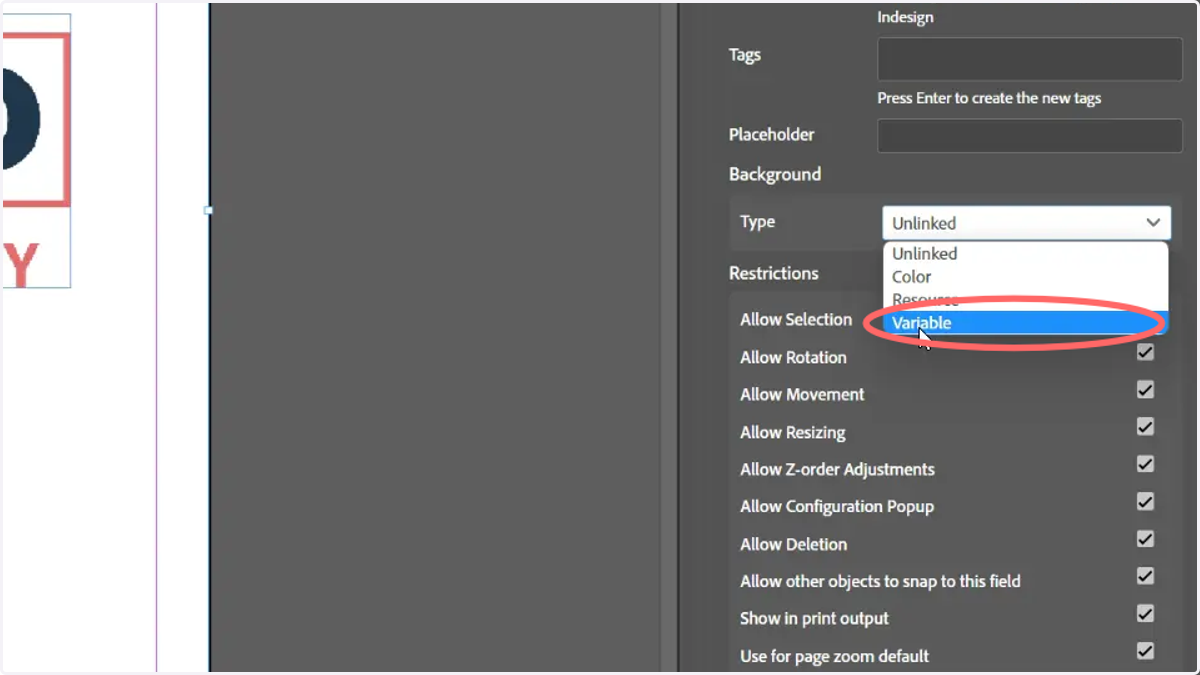
23. Click Variable
This allows to to link the background of this field to a defined variable.
24. Select the variable to be used
25. Click Export, Start Validations and resolve any issues
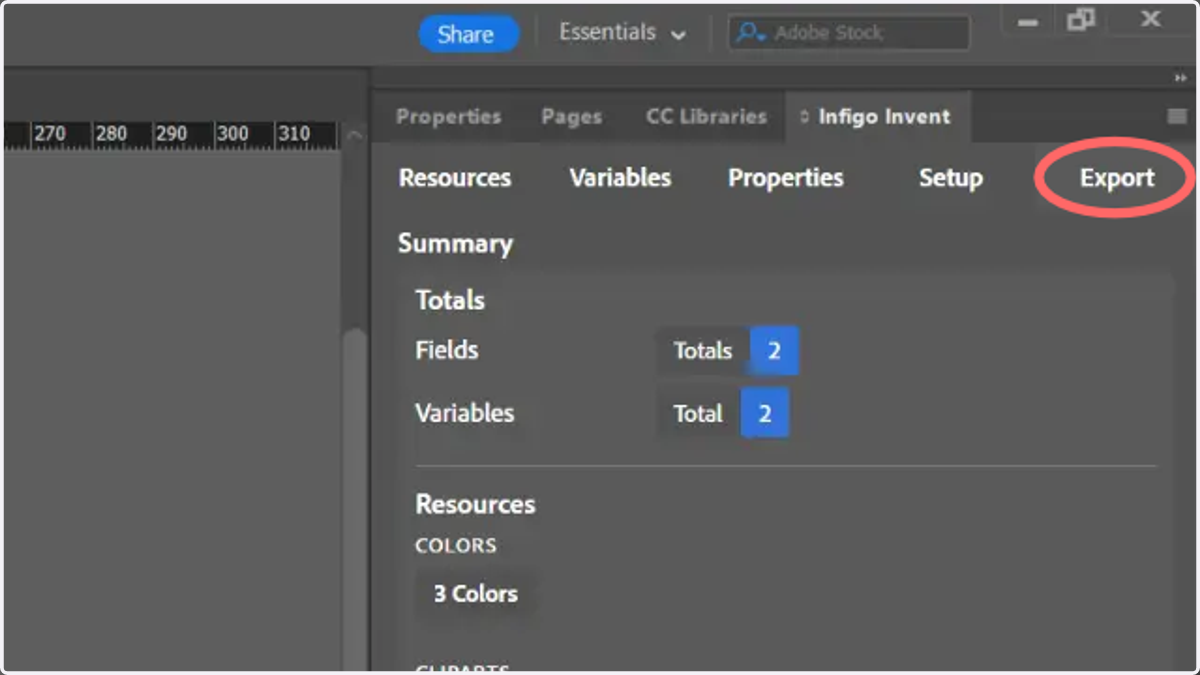
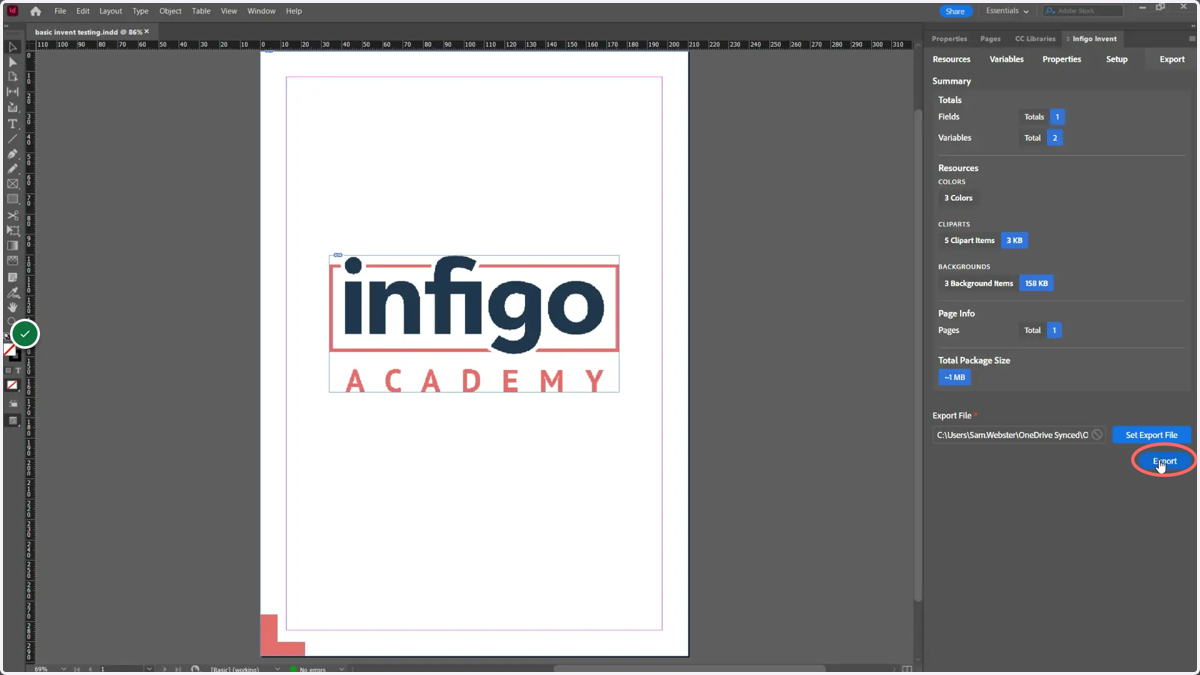
26. Click Export
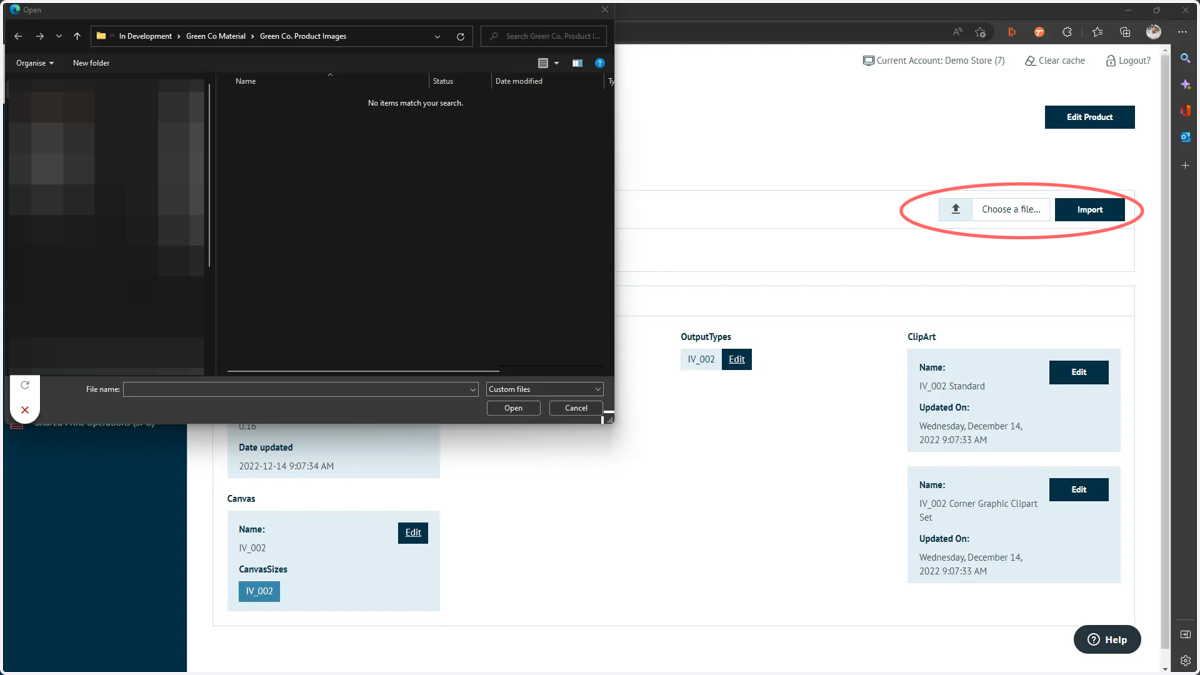
27. Update the MEX file used for the relevant MegaEdit product within Infigo
Navigate to your products MegaEdit configuration settings, click MEX Import and upload the new version.
See earlier tutorials in this series if further information on these steps are required.
28. Launch the MegaEdit editor for this product
A colour selector variable will now be available as part of the form displayed on the right.
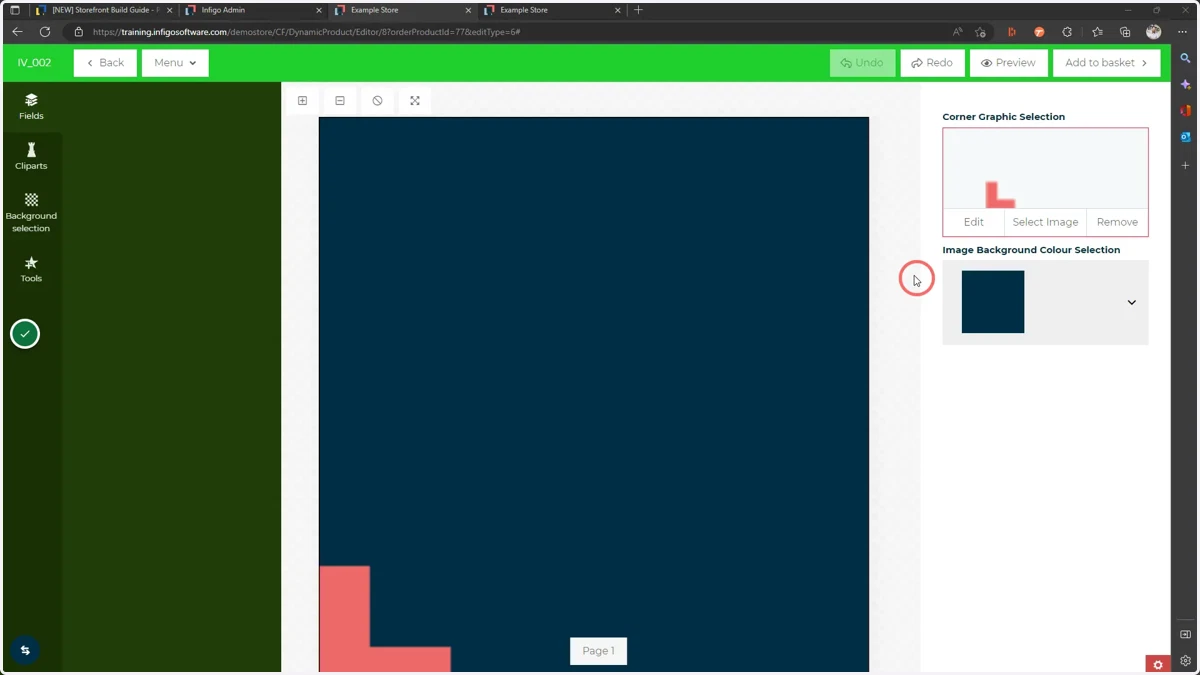
29. Click the colour selector to open a separate window listing available colours
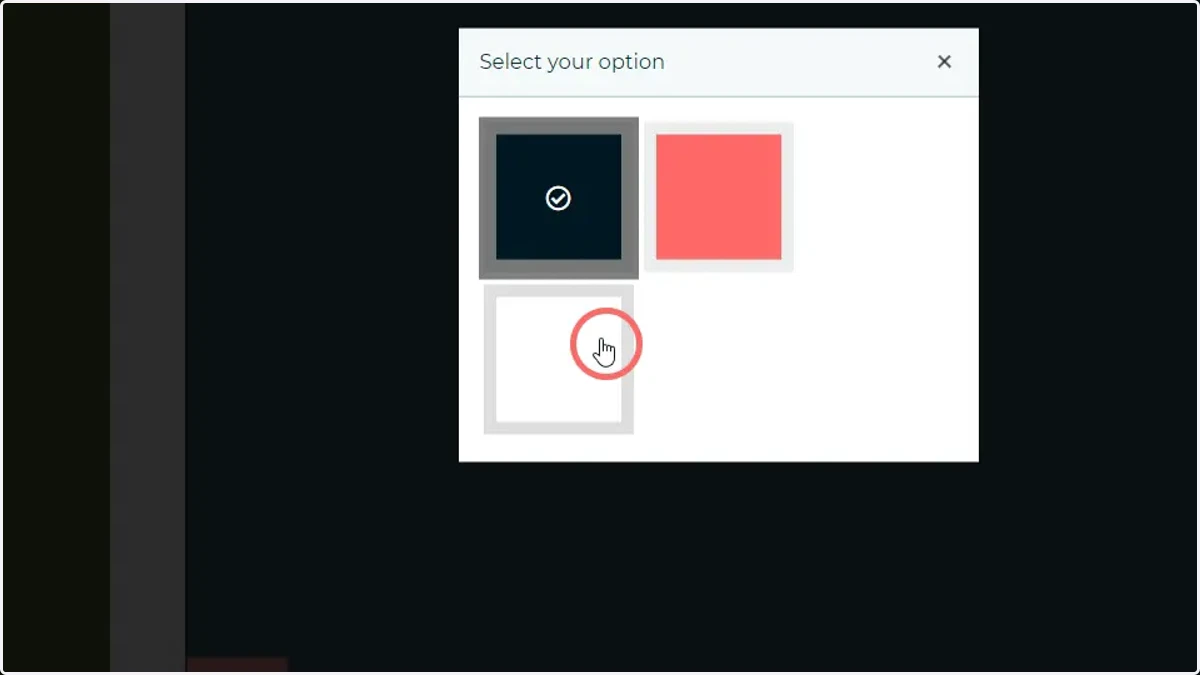
30. Selecting a new colour will update the background colour of our chosen image field