Switching Primary Resident in Senior CRM
This tango will walk you through how to switch the primary and secondary resident in CRM before they move in.
Senior CRM
Both Residents must be in Future status with NO quote sheet generated. If there is an active quote sheet it MUST be deleted before continuing.
1. Go to the Current Primary Resident and confirm the second resident is attached

2. Click on the Unit tab on the primary resident

3. Change the Unit associated with the current primary resident. Switching to a waitlisted Unit is the easiest, but it can be any unit
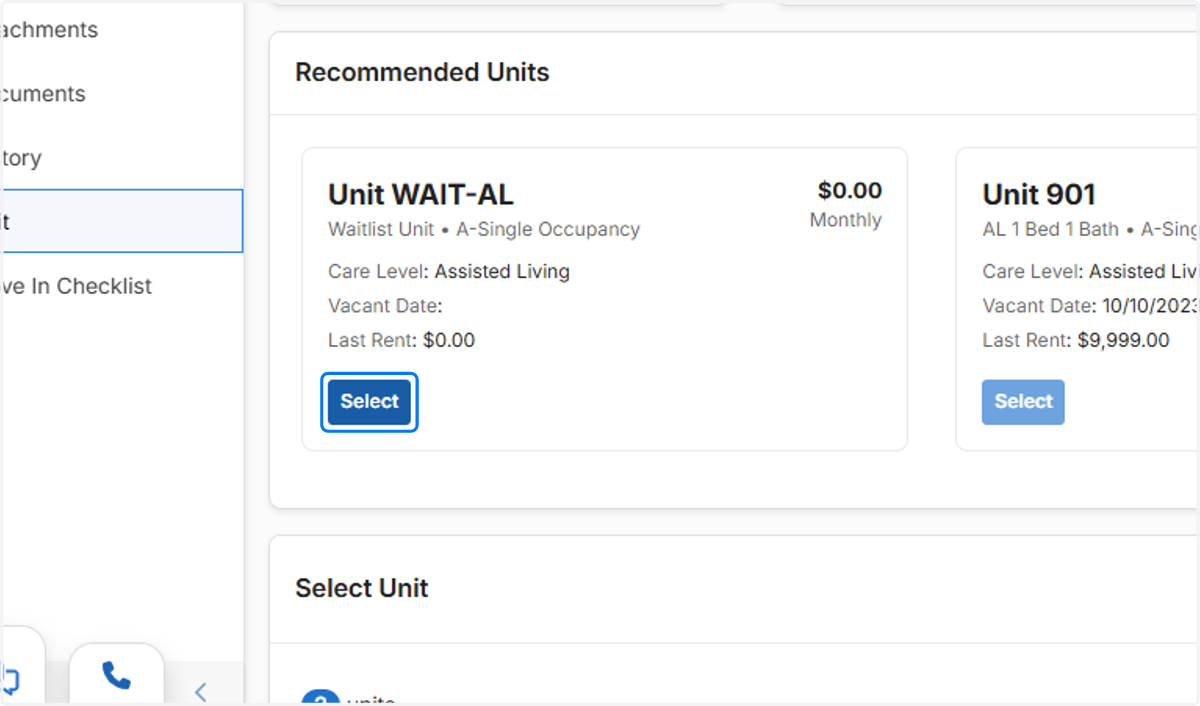
4. After changing the Unit for the current primary, go to Actions and Detach the Co-Occupant

5. Click on OK

6. A new box will pop up where itll ask you to pick a unit for the Second Resident. This is where you will select the actual Unit they will be moving to

7. Select the correct Unit for the Second Resident AKA the new Primary Resident

8. Click on Save

9. Go back to the dashboard and find the Resident you want to be the Primary Resident. They should still be showing as a Future Resident

10. This Resident will show the correct unit now

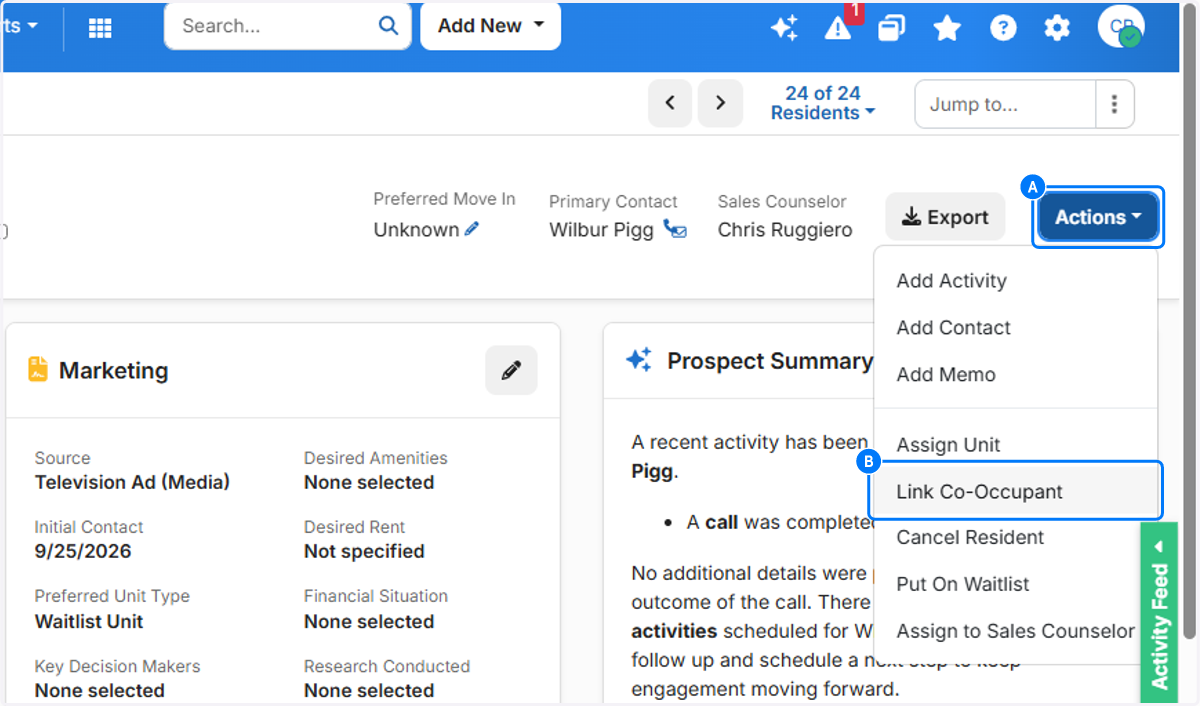
11. A. Click on Actions
11. B. Click on Link Co-Occupant
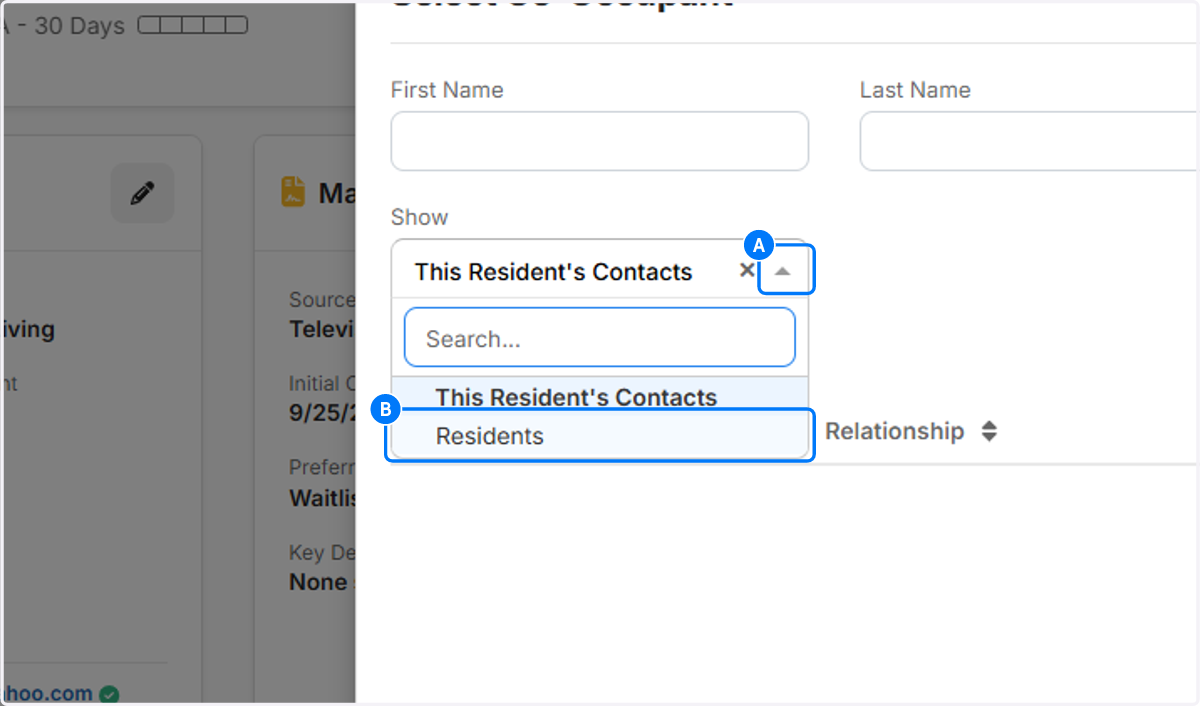
12. A. Click on the arrow under show to pull up the drop down
12. B. Select Residents
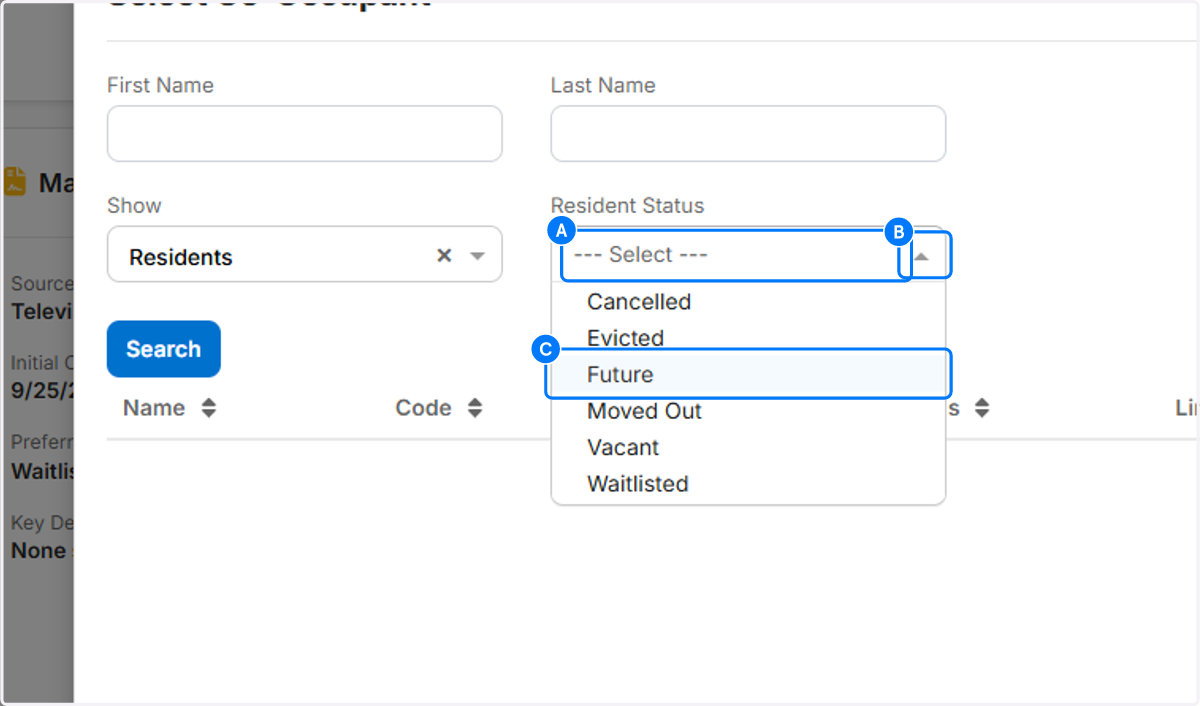
13. A. Click on dropdown under Resident Status
13. B. Click the drop down arrow
13. C. Select Future
14. Click on Search

15. Click on Link on the appropriate Resident. This will link them as the Second Resident now

16. Click on OK

17. Share all appropriate contacts and confirm who the primary payer is

18. Youll see that the old Second Resident is now the Primary Resident

19. And the old Primary Resident is now the Secondary Resident
