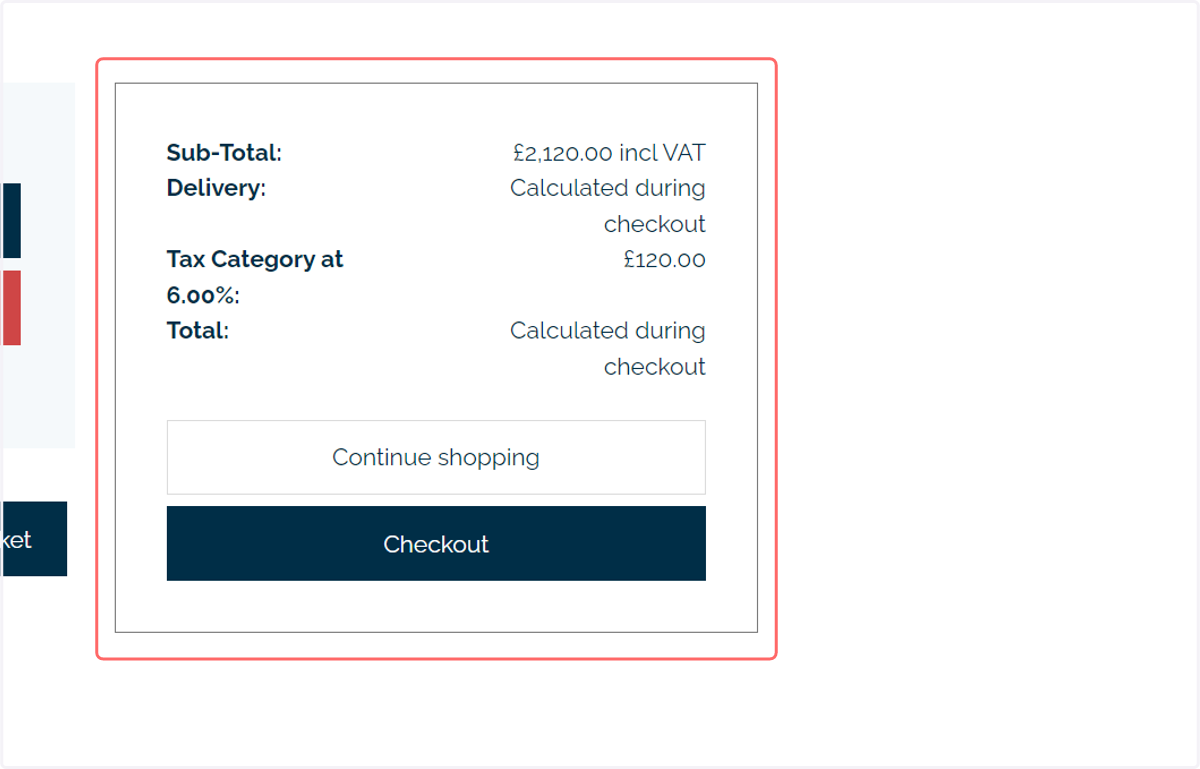
Connecting and configuring TaxJar
TaxJar is a sales tax compliance software for which we have created an integration with Infigo. This allows our users to calculate sales tax rates during the ordering process.
Traditionally, this functionality was only available to our US customers, who often have to deal with complex sales tax rates between states. However, we are now rolling out this functionality to all countries supported by the TaxJar API. This covers the EU, Canada, the US, Australia and the UK.
If you'd like to take advantage the TaxJar integration then you will require the professional version of their product which then includes the API look ups. At the time of writing, TaxJar do offer a 30 day trial of their professional version, which does include API access.
To sign up, please go to - https://taxjar.grsm.io/infigosoftware
1. To begin, navigate to Tax Providers
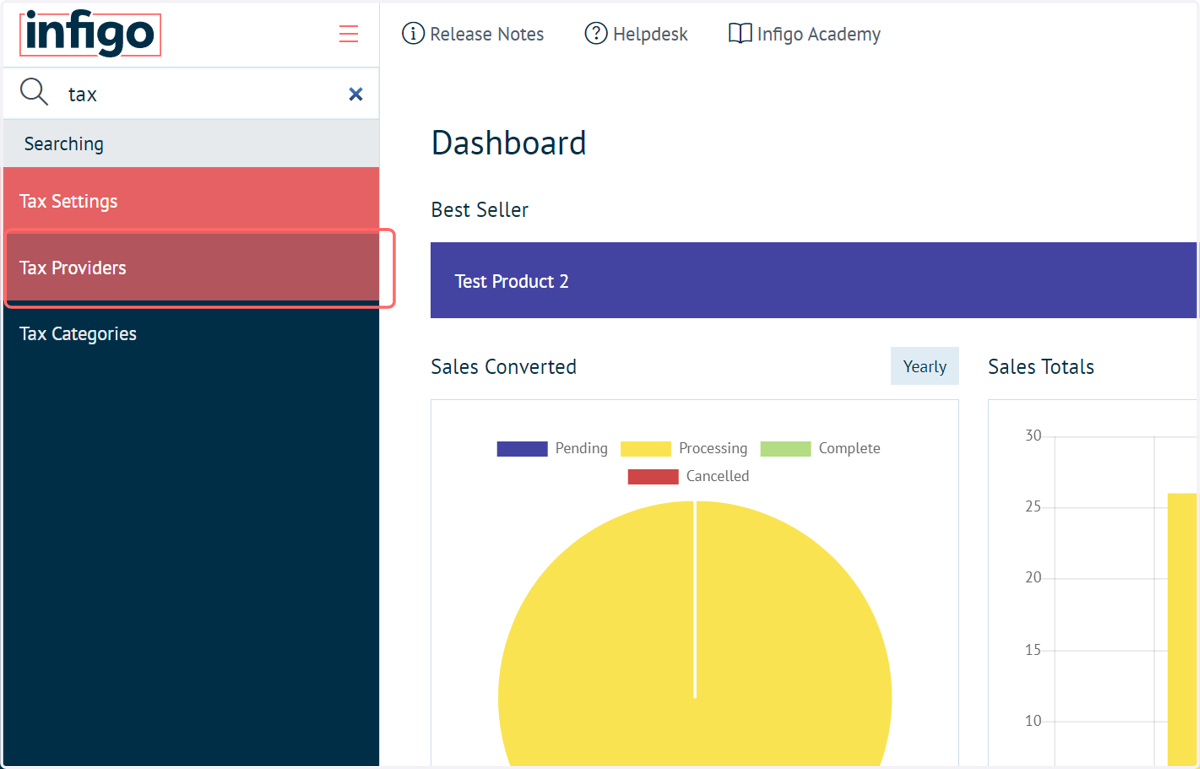
2. If enabled, a TaxJar entry will be displayed in the Tax Providers screen
If this is your first time configuring TaxJar with Infigo, we will likely need to enable it on your platform. Please submit a support ticket under a New Module enquiry to request it.
We will let you know once this is enabled.
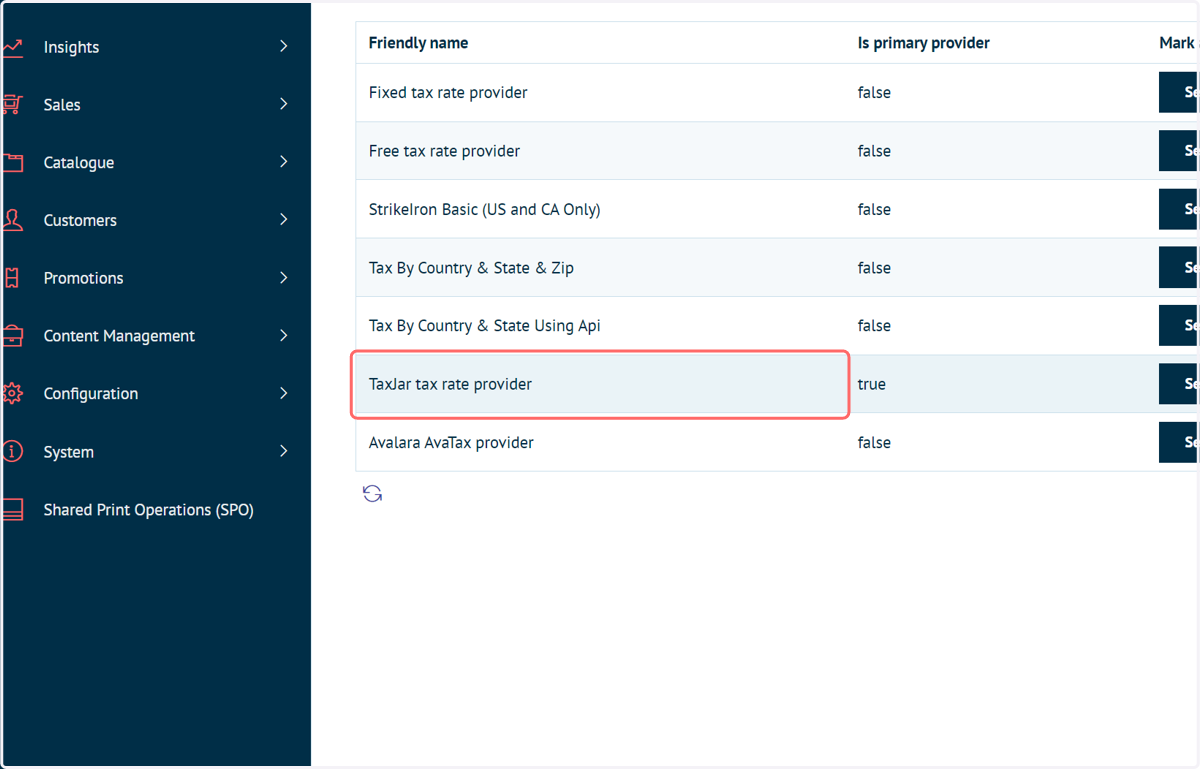
3. Mark TaxJar as the primary tax provider by clicking Select on the relevant row
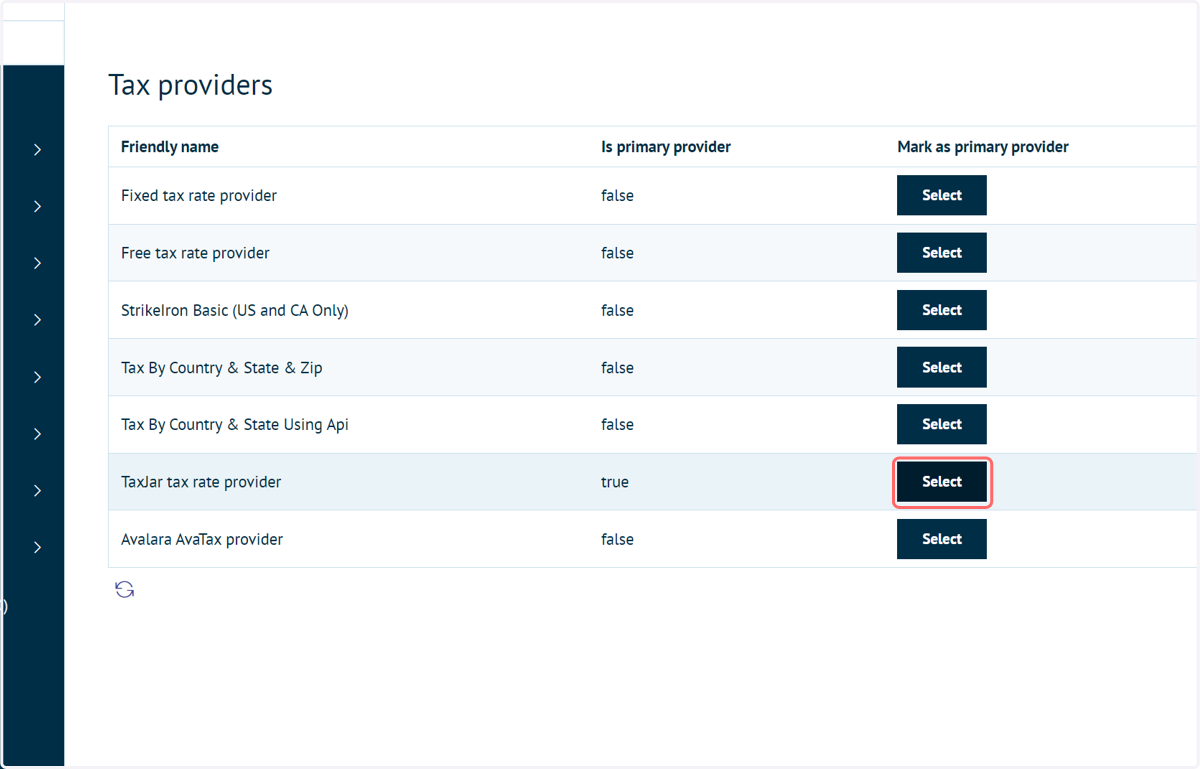
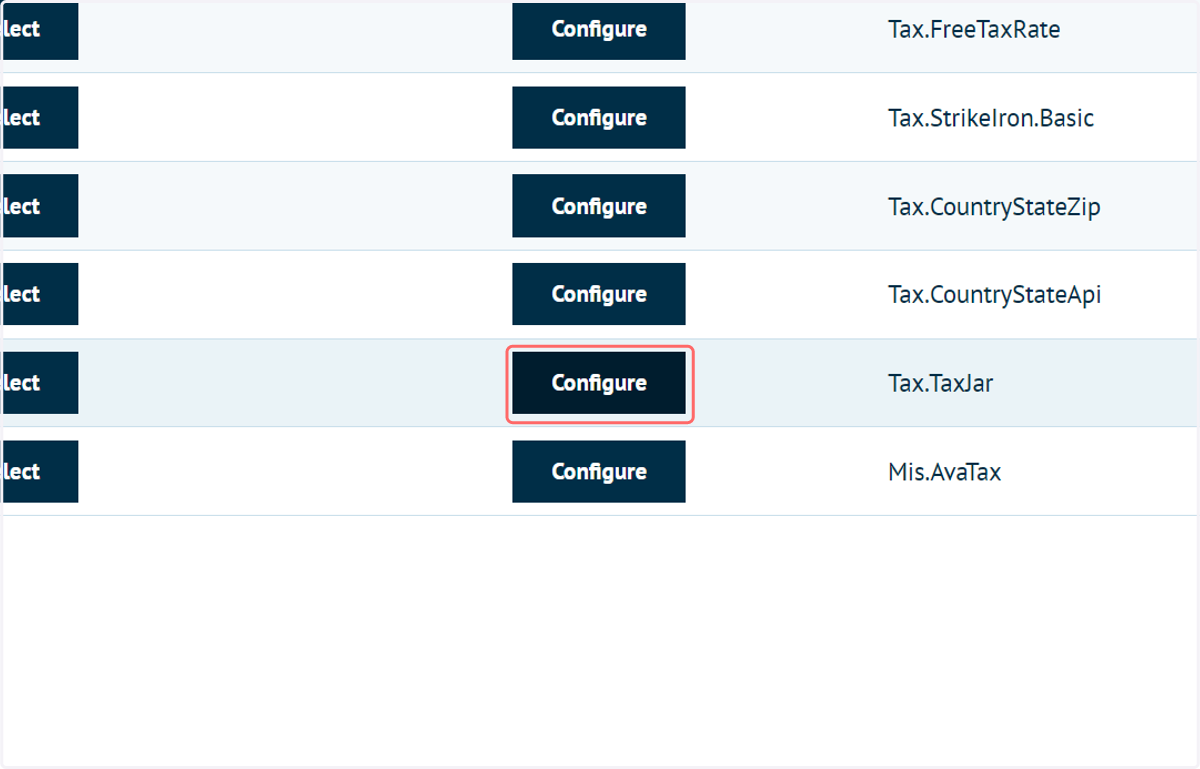
4. Click on Configure to access additional settings
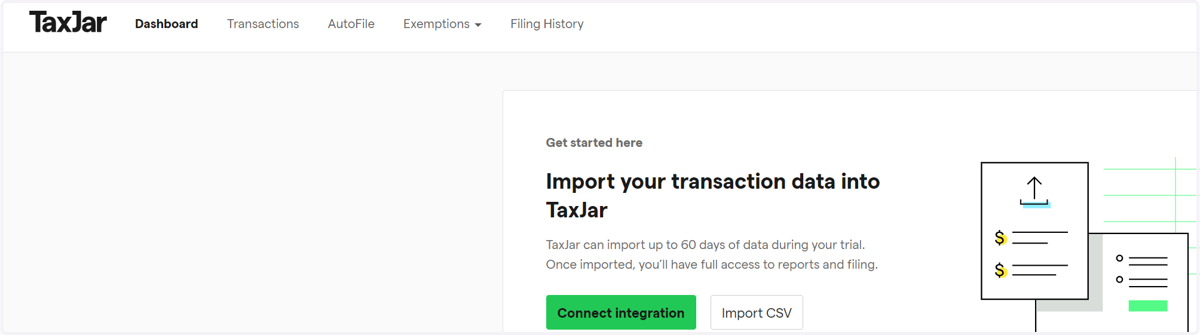
5. Next, you will need to obtain your API key from your TaxJar account. Begin by navigating to TaxJar and logging in to your account
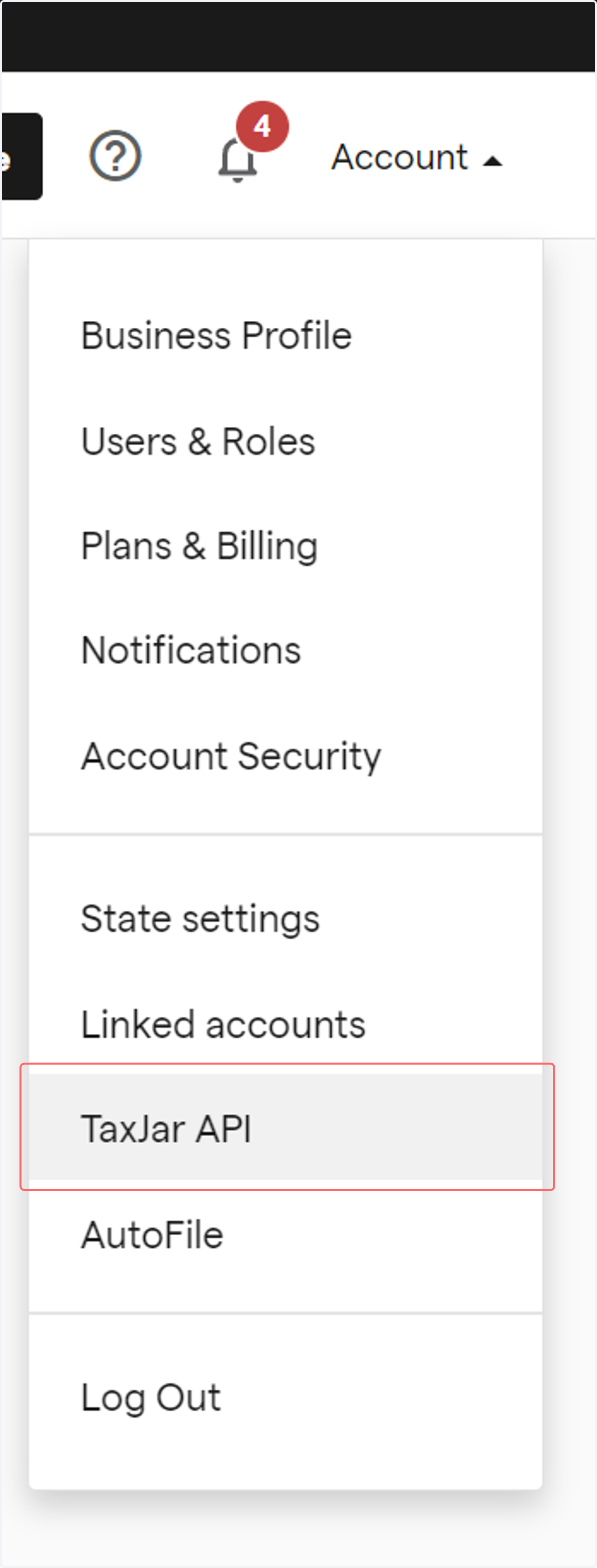
6. Navigate to the TaxJar API page
At the time of writing, this was located under the Account dropdown
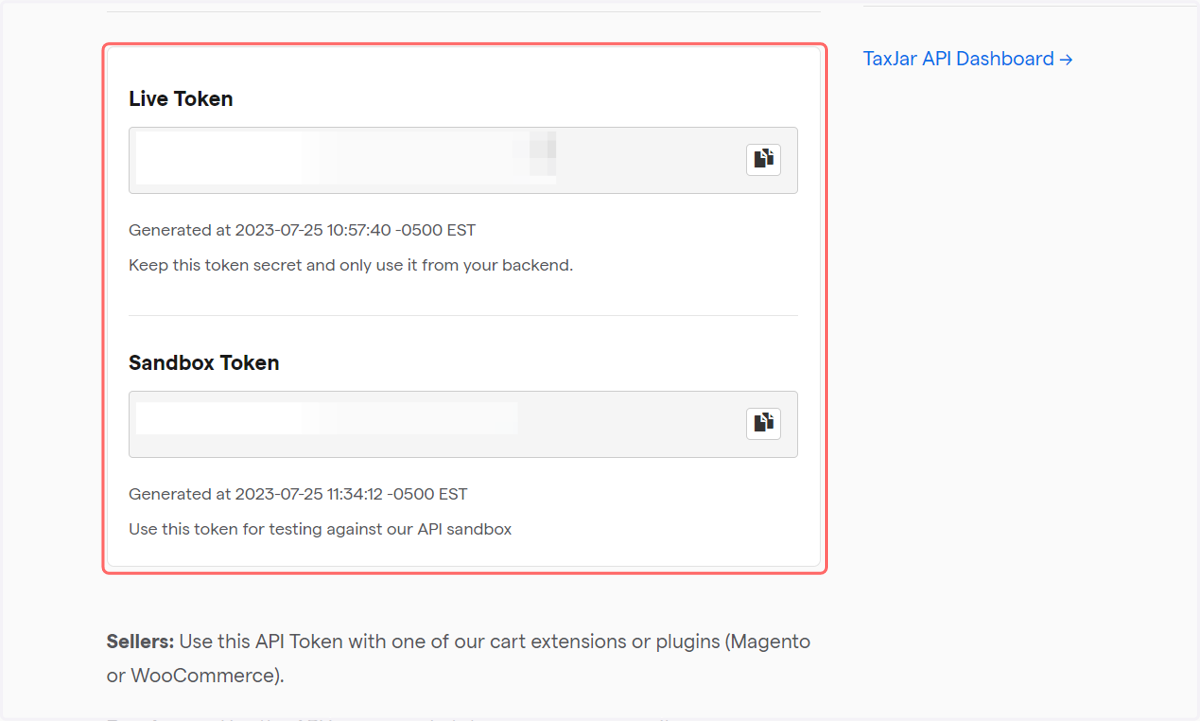
7. You will have access to a Live Token, along with the ability to generate and use a Sandbox Token (for testing purposes)
Copy the relevant token and return to the TaxJar configuration page within Infigo.
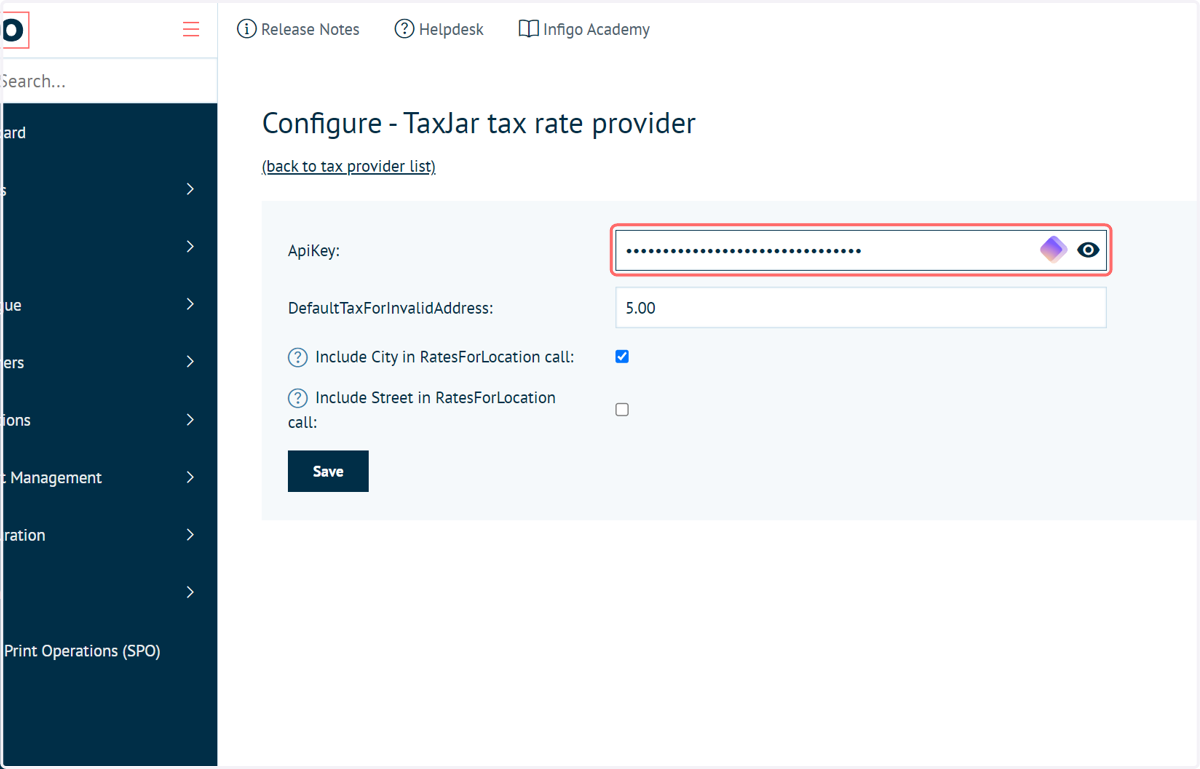
8. Input the copied token into the ApiKey field of your Infigo TaxJar configuration
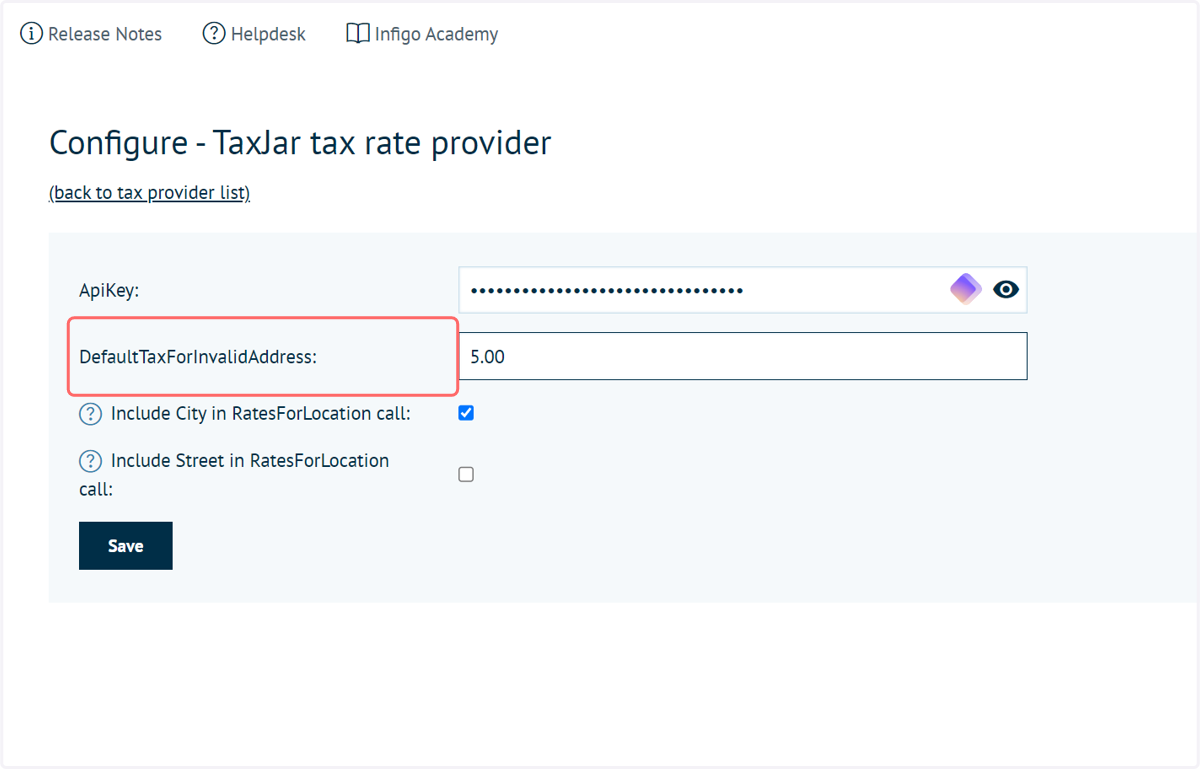
9. DefaultTaxForInvalidAddress:
Here, you can specify a default tax value for use if the address is classed as invalid and a price cannot be obtained from TaxJar.
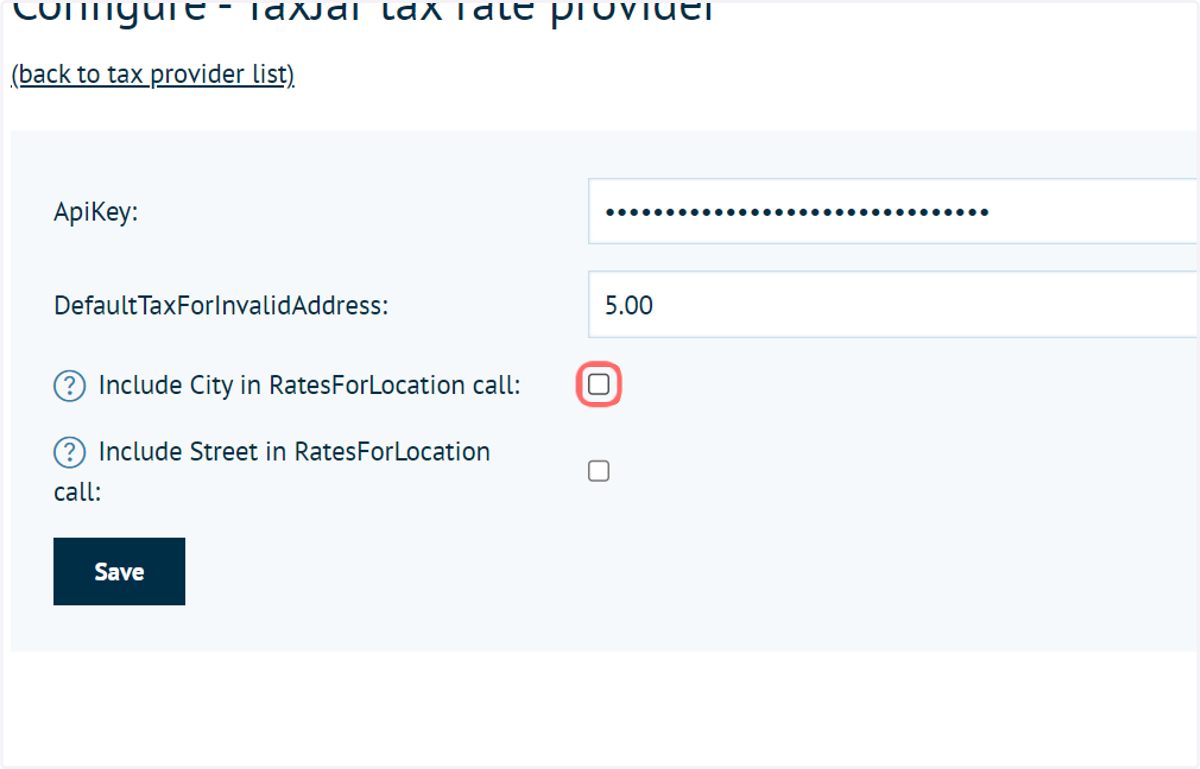
10. Include City in RatesForLocation call
Allows further refinement of the rates calculation by including the city field. This field is drawn from either the default customer address, or the "Tax Based On" setting under "Tax Settings". This setting allows selection of the billing, shipping or default address.
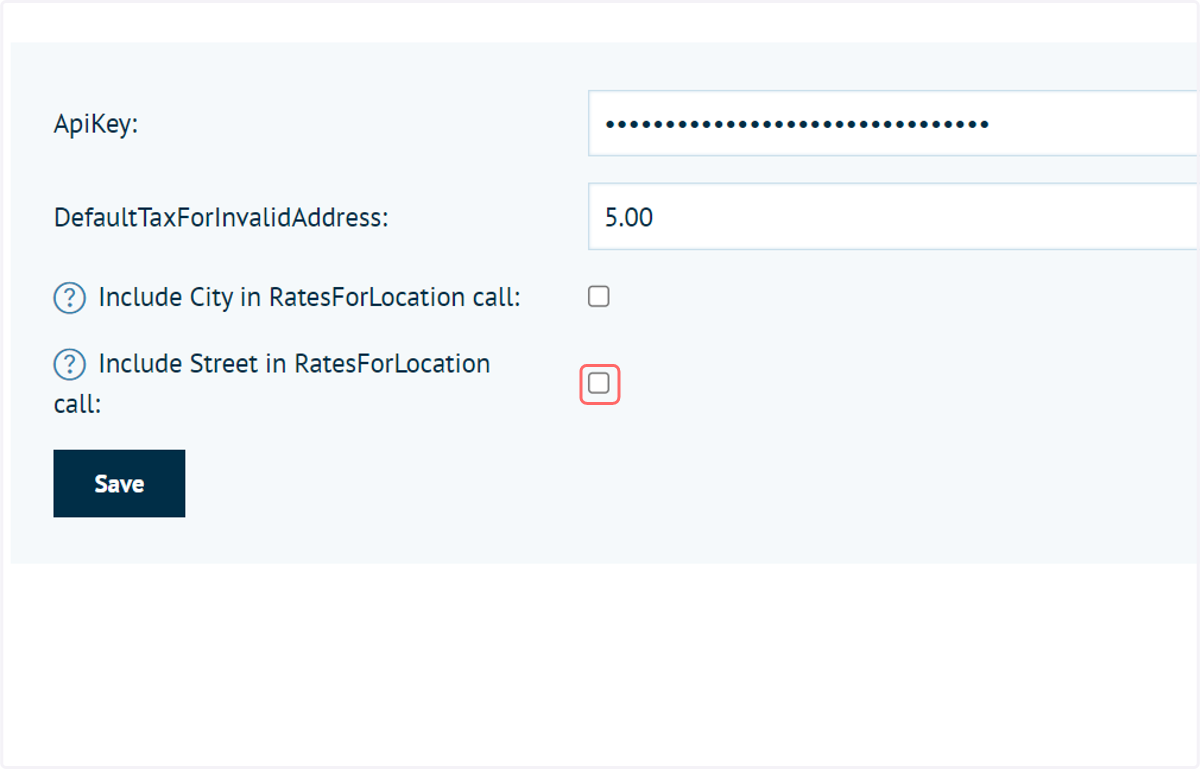
11. Include Street in RatesForLocation call
Allows further refinement of the rates calculation by including the first address line field. This field is drawn from either the default customer address, or the "Tax Based On" setting under "Tax Settings". This setting allows selection of the billing, shipping or default address.
12. Click on Save
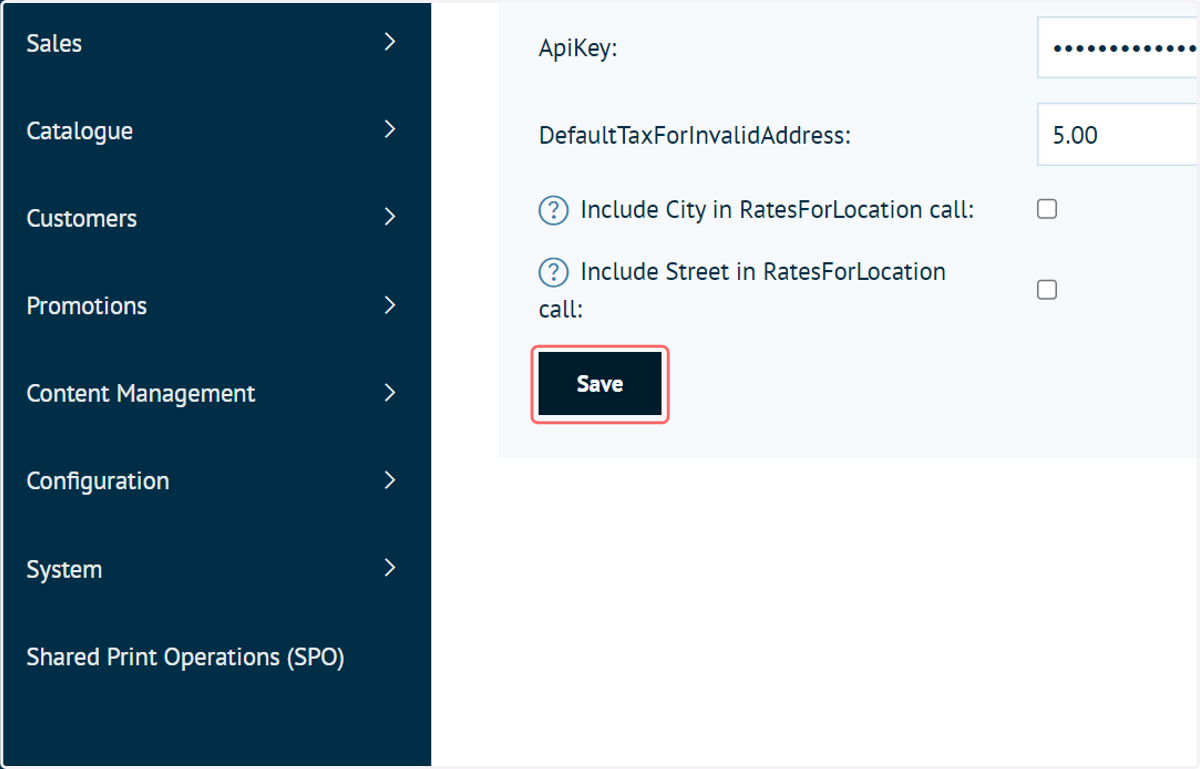
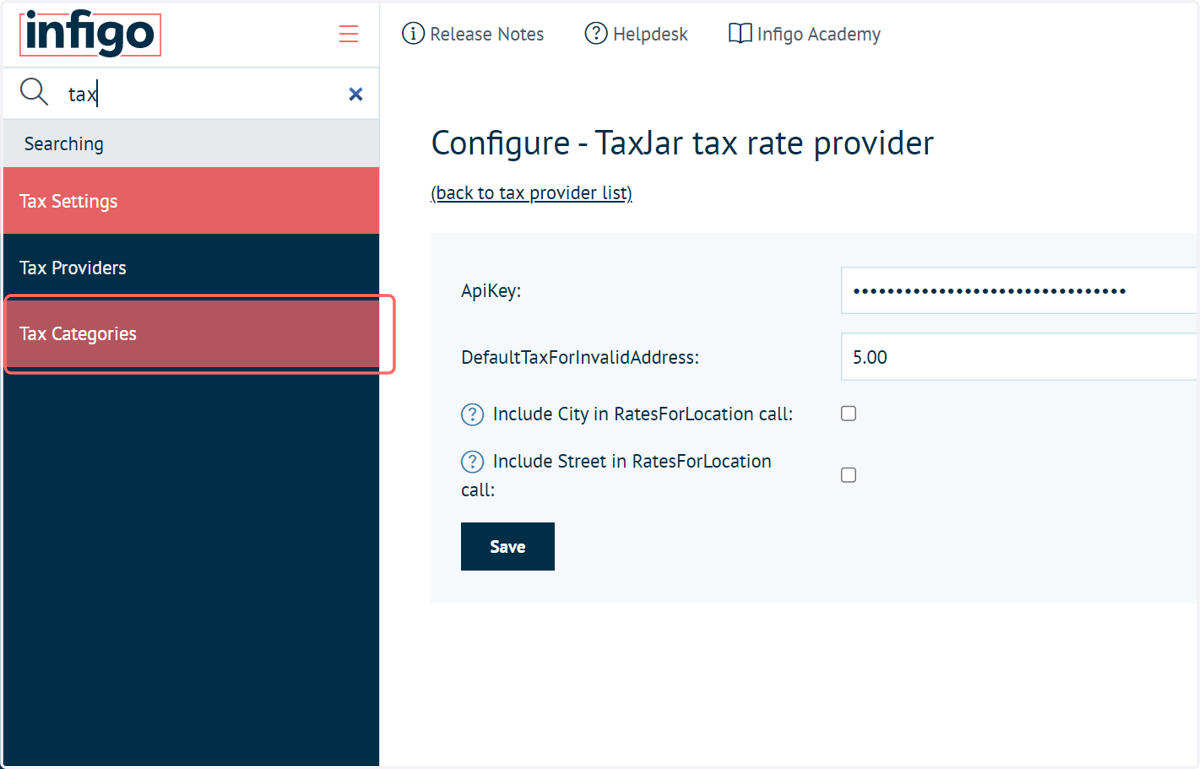
13. Next, navigate to Tax Categories
Products requiring tax calculated by TaxJar require a tax category to be specified. We create these using the Tax Categories screen.
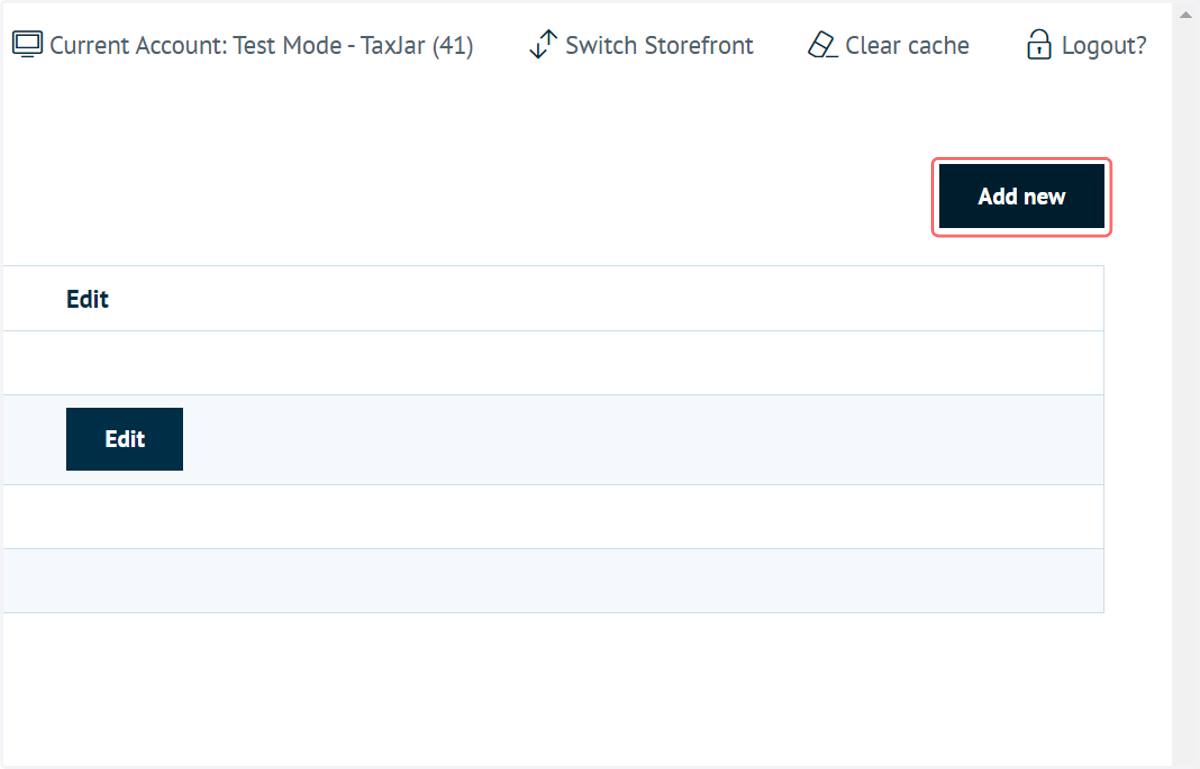
14. Click on Add new
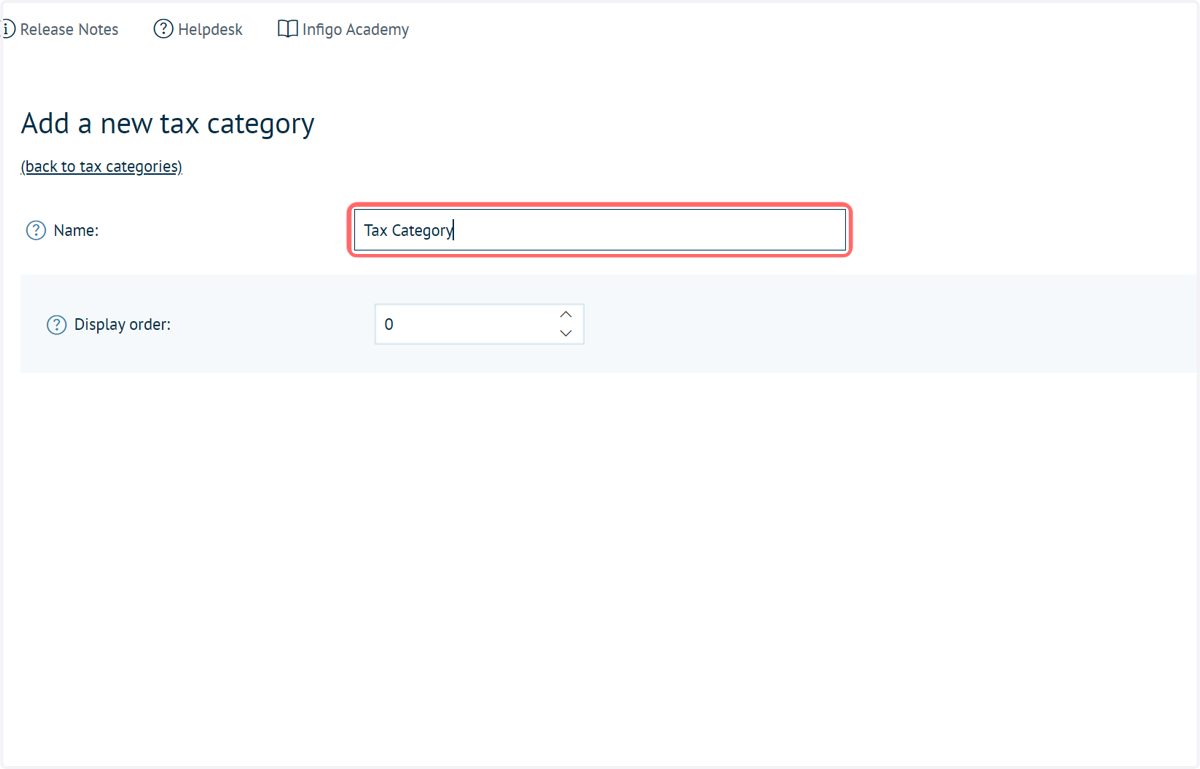
15. Type a tax category name
Your Tax Categories are the different bands of Tax that can be applied to products. On the Tax Categories screen, you are specifying little more than a category name. How this category is used, such as its rate, is specified in other areas of Infigo.
Depending on the scenario, a tax category may relate to particular rates, the behaviour for a country or, in this case, we may simply create a category specifically to be assigned for TaxJar.
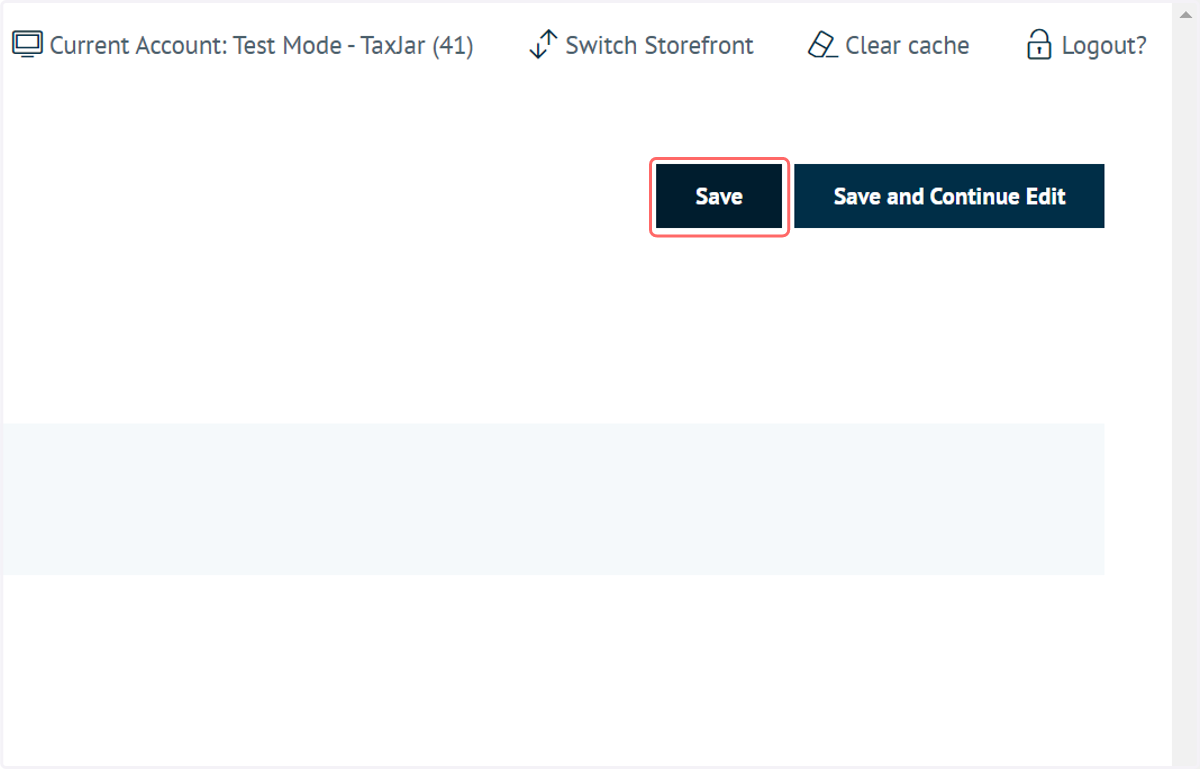
16. Click on Save
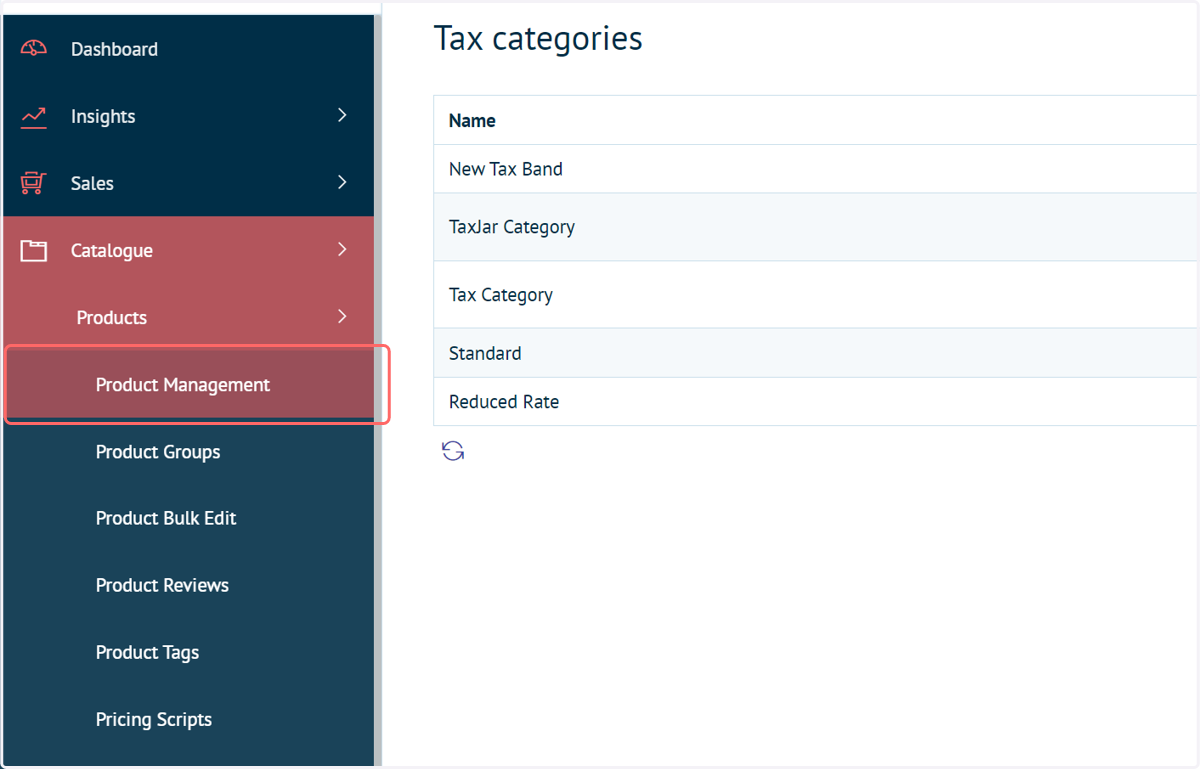
17. Navigate to Product Management
We must assign a tax category to the products we wish to have rates calculated by TaxJar.
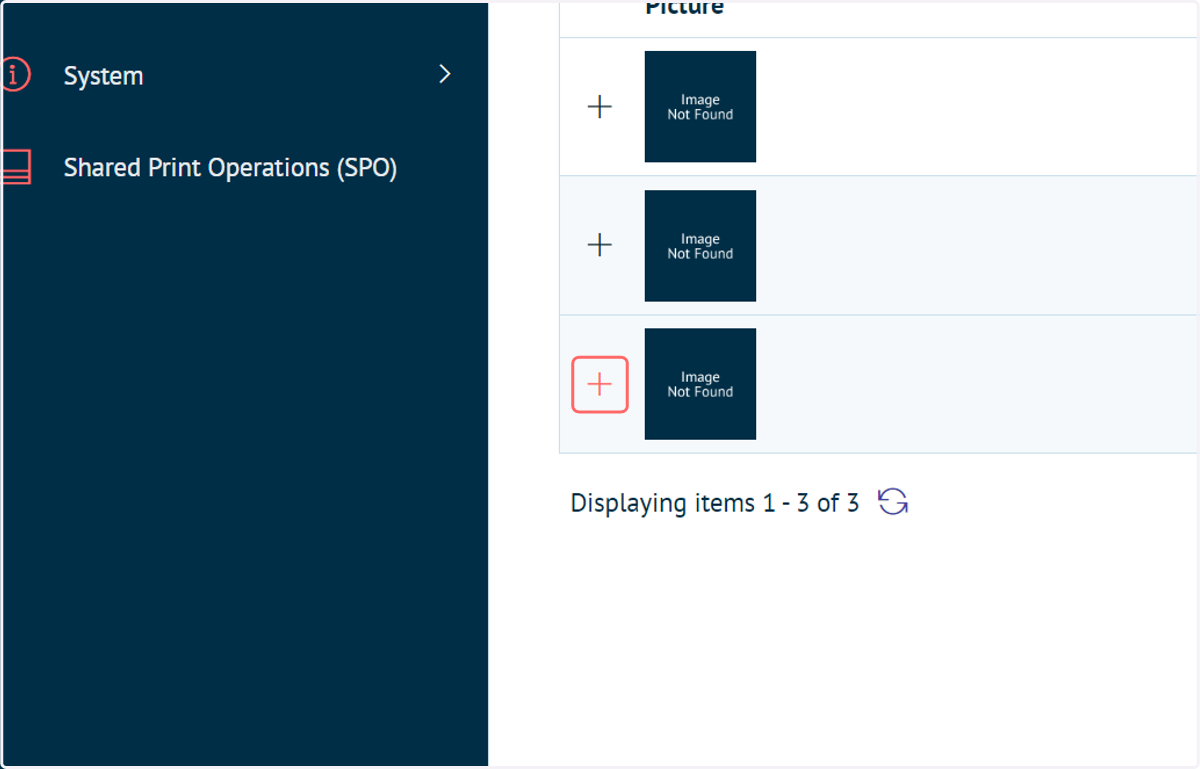
18. These options are defined in the Product Variant settings. Easily access these by clicking the '+' icon next to your product of interest
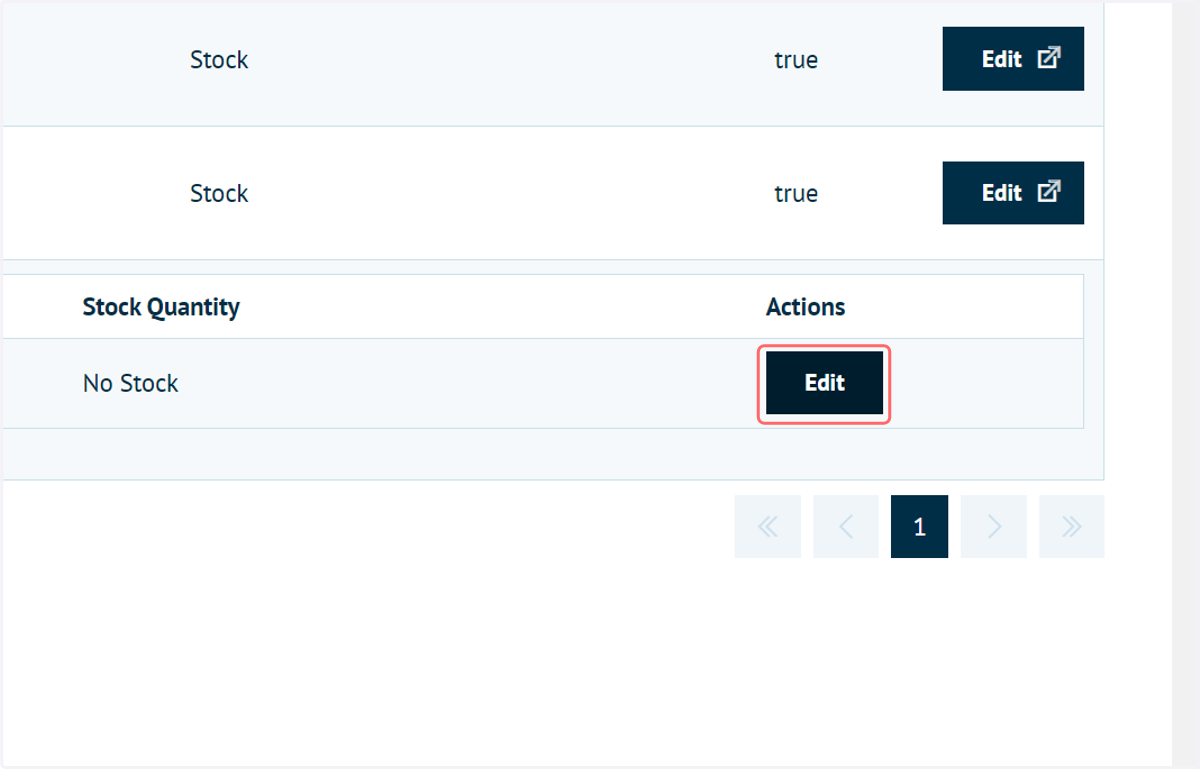
19. Click on Edit in the Product Variant table
20. Click on the Info tab
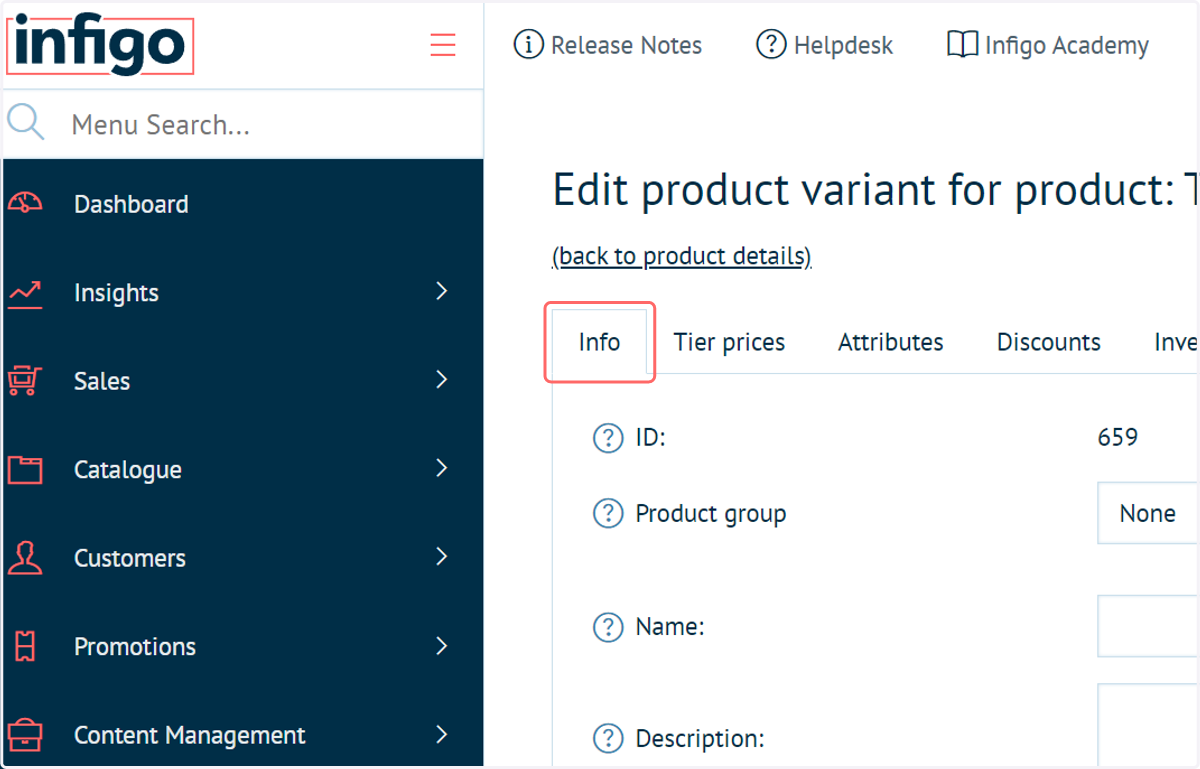
21. Select your tax category under the "Available Tax Categories" option.
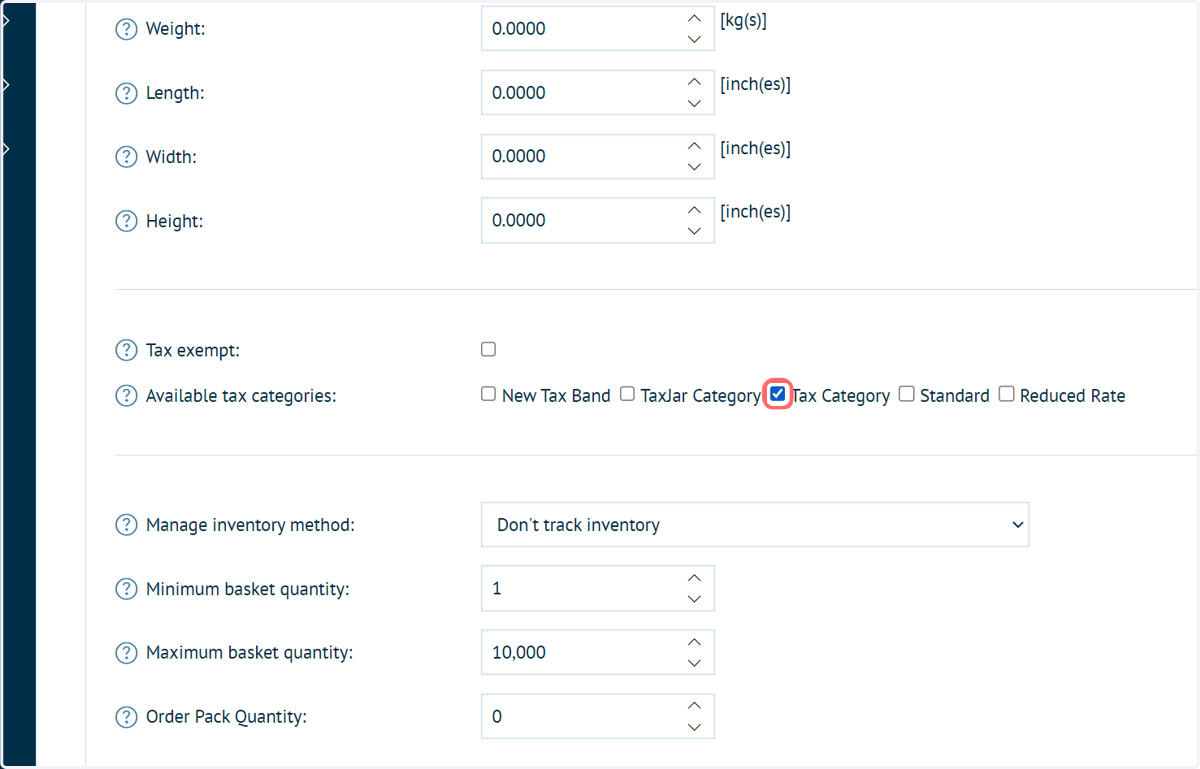
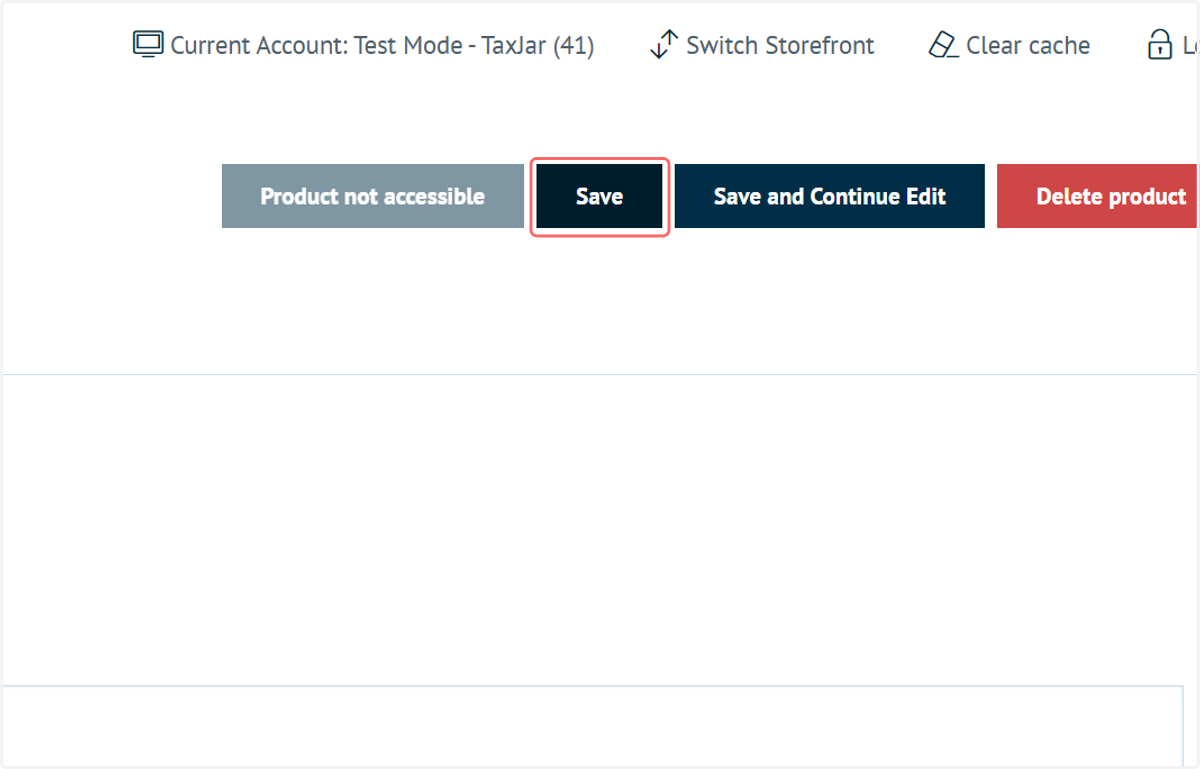
22. Click on Save
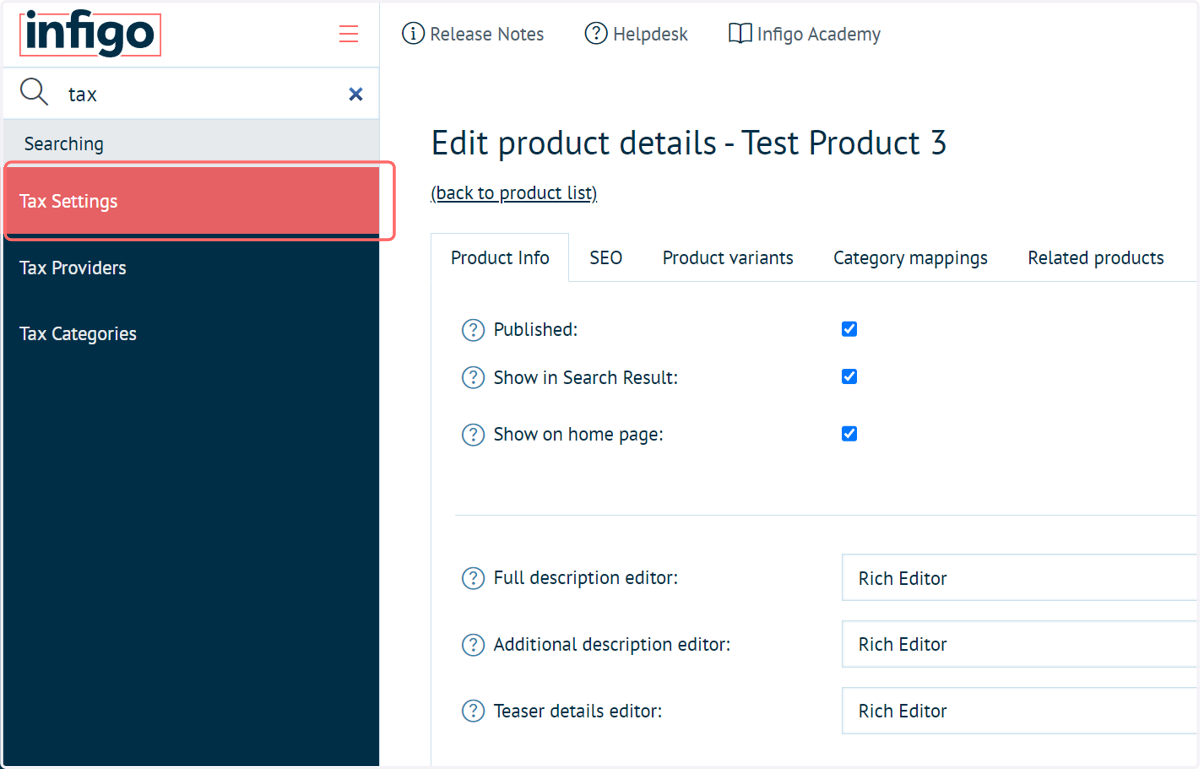
23. Finally, navigate to Tax Settings
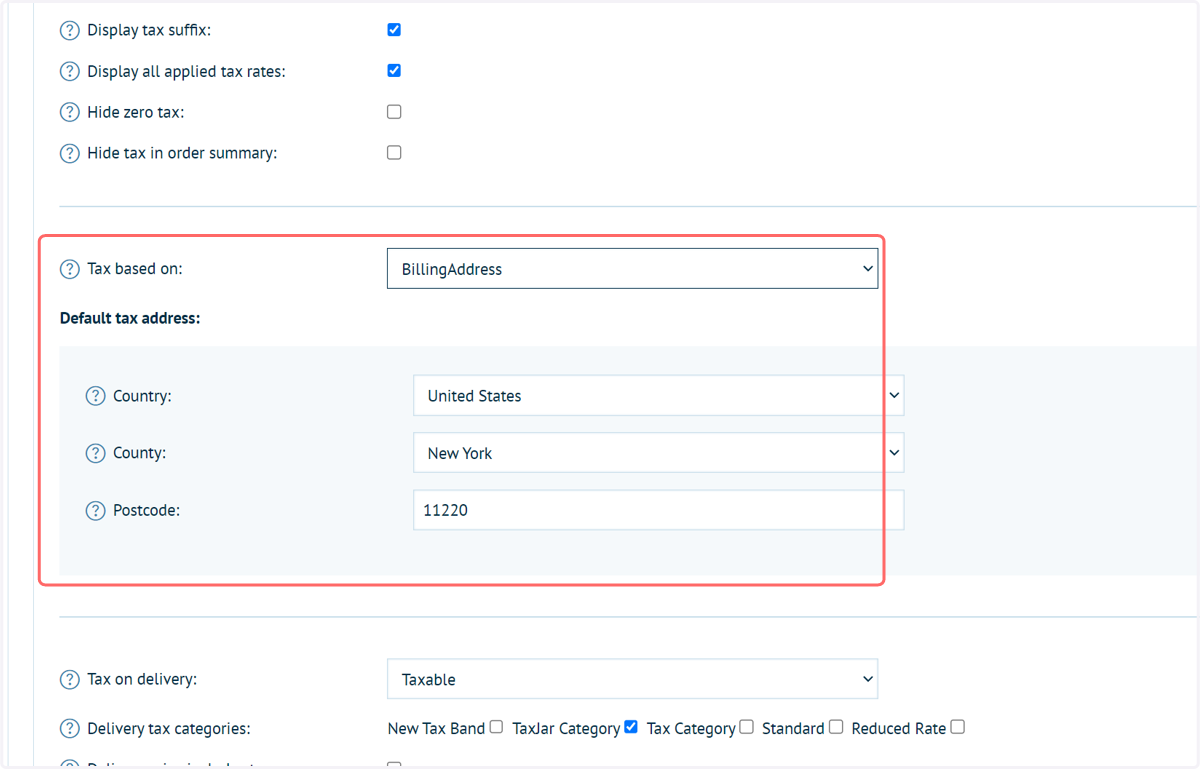
24. "Tax based on" allows you to choose whether the billing or shipping address of a customer is used for tax purposes.
Default can also be selected in this dropdown, at which point the following Default tax address details are used.
These default details also act as a fallback, should the primary option not be available.
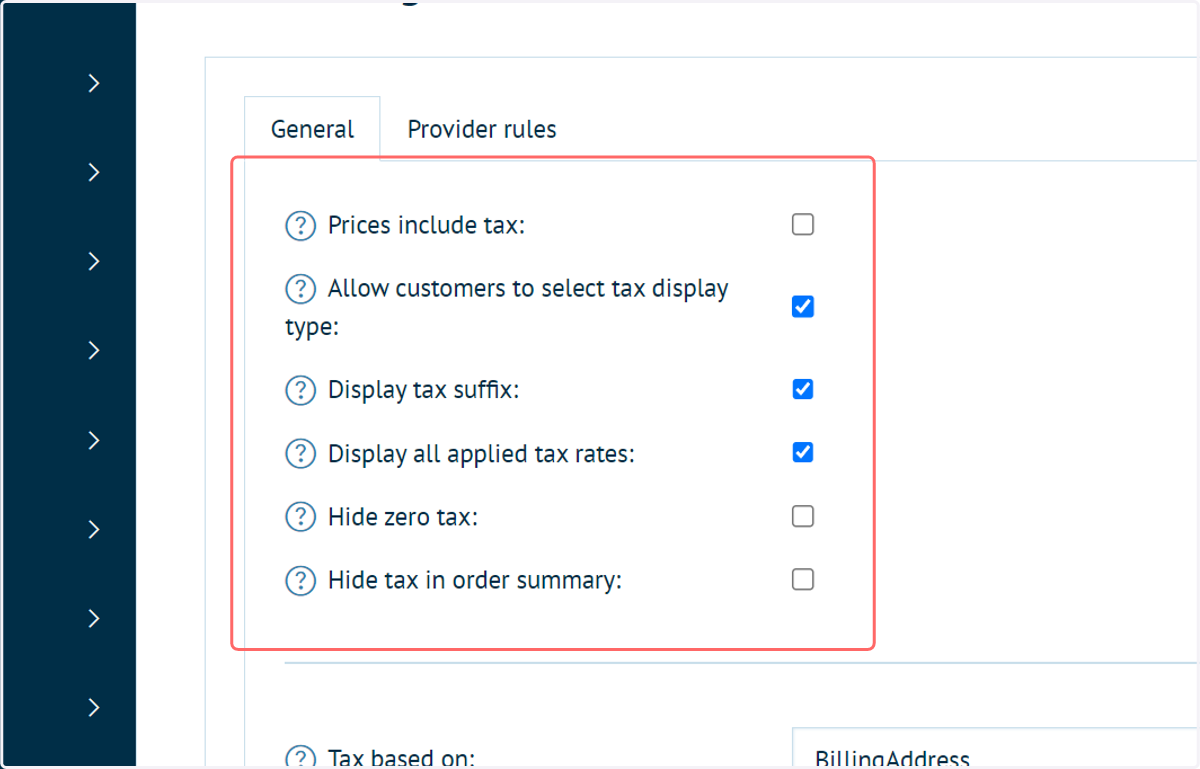
25. Tax display options
There is no requirement to modify these for the TaxJar plugin, however it can be useful in order to see it functioning.
Highlighted here are a selection of display options which will impact how tax is displayed to the end user whilst they are navigating the front end of your storefront.
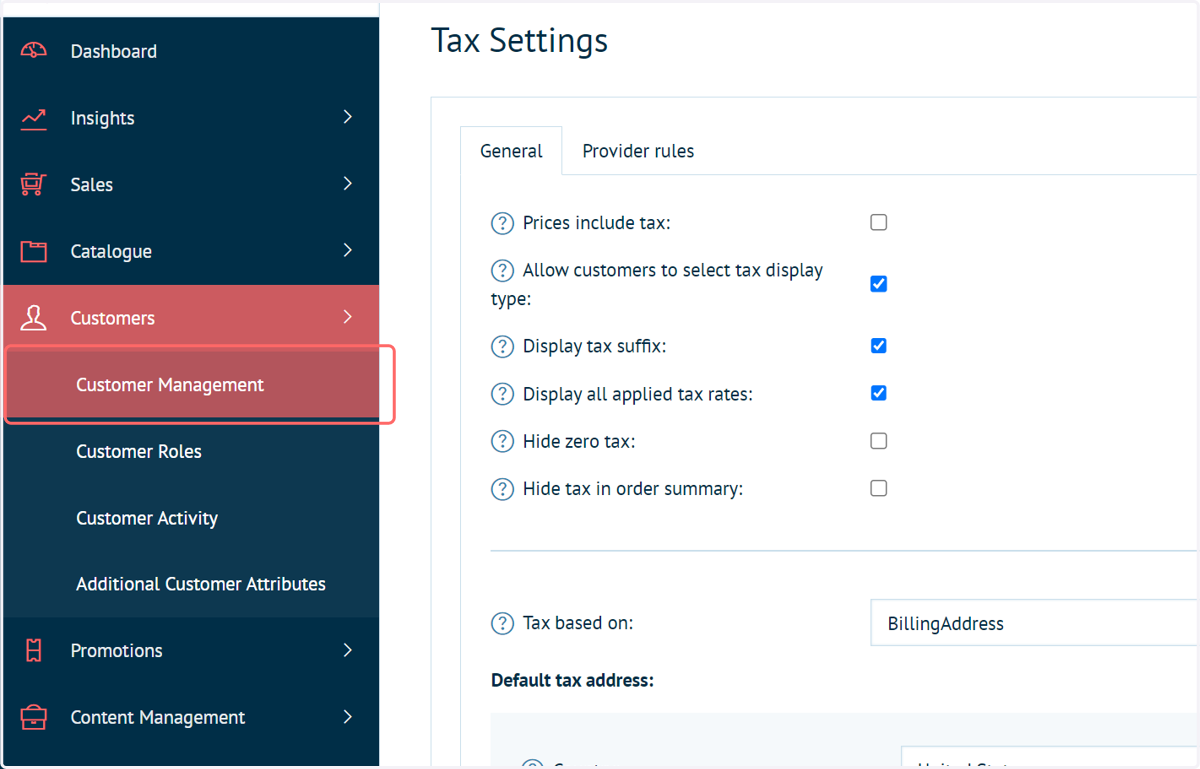
26. Navigate to Customer Management
Next, we will test whether the plugin is working.
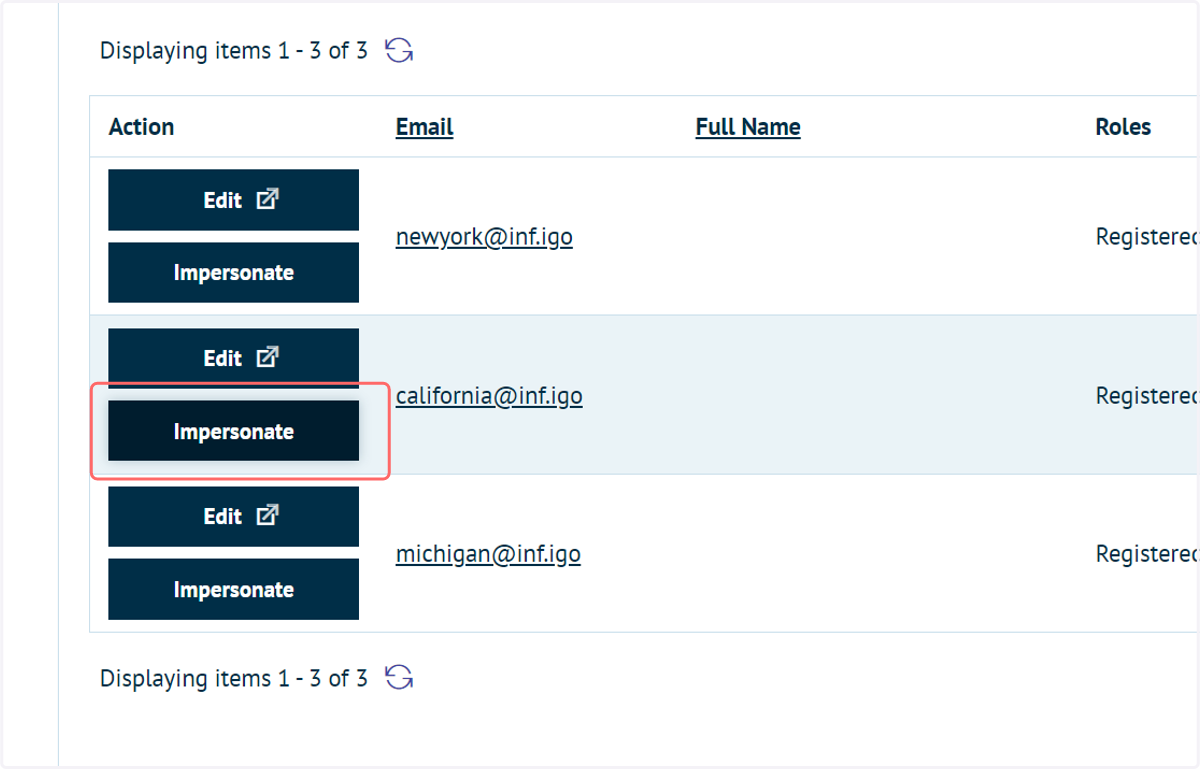
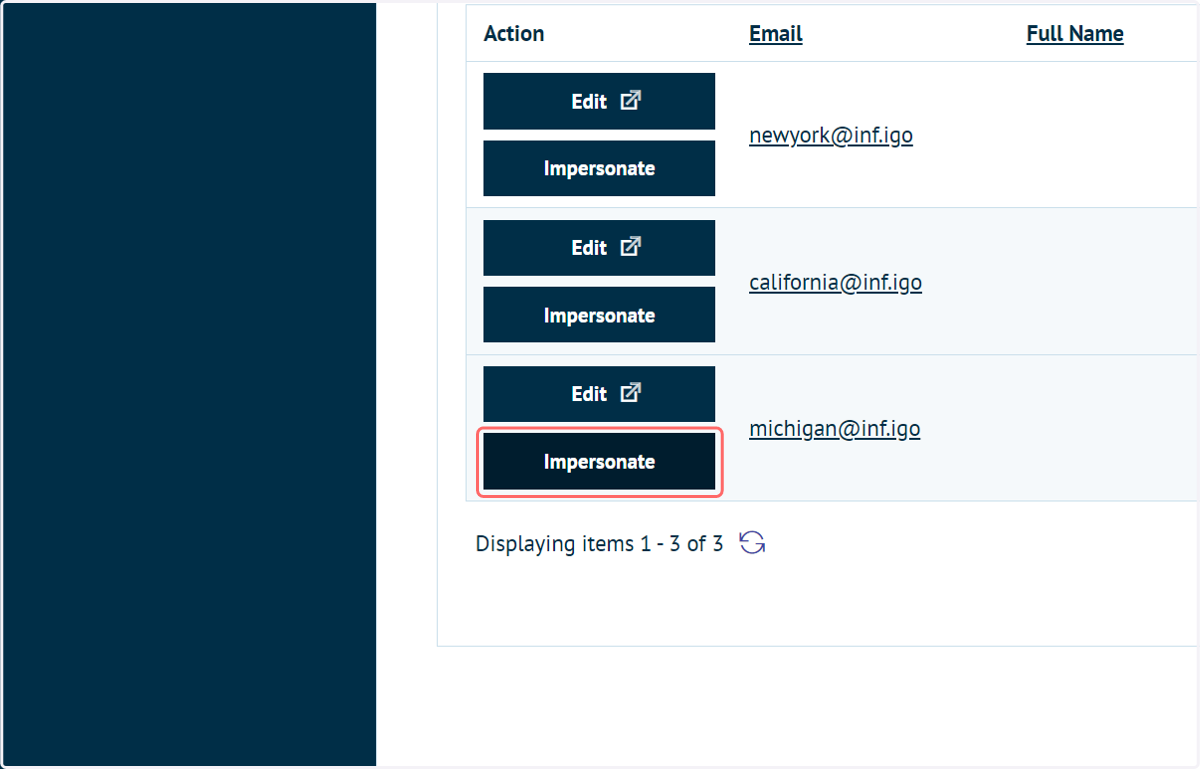
27. Impersonate test users
In order to test the TaxJar plugin, I have created several test users.
The shipping and billing addresses for these users have been specified within various US states.
Impersonate one of these users to view the front end of your storefront as they would.
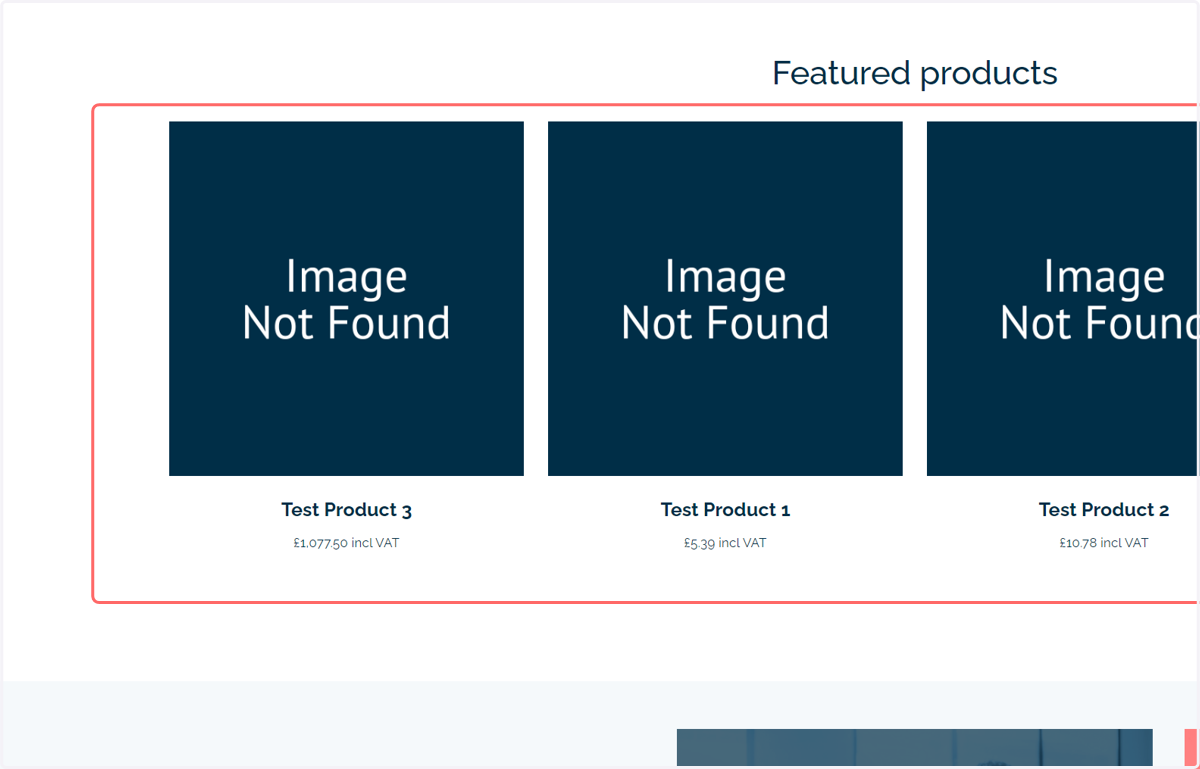
28. Depending on your tax settings, updated tax information will be displayed as early as the home page
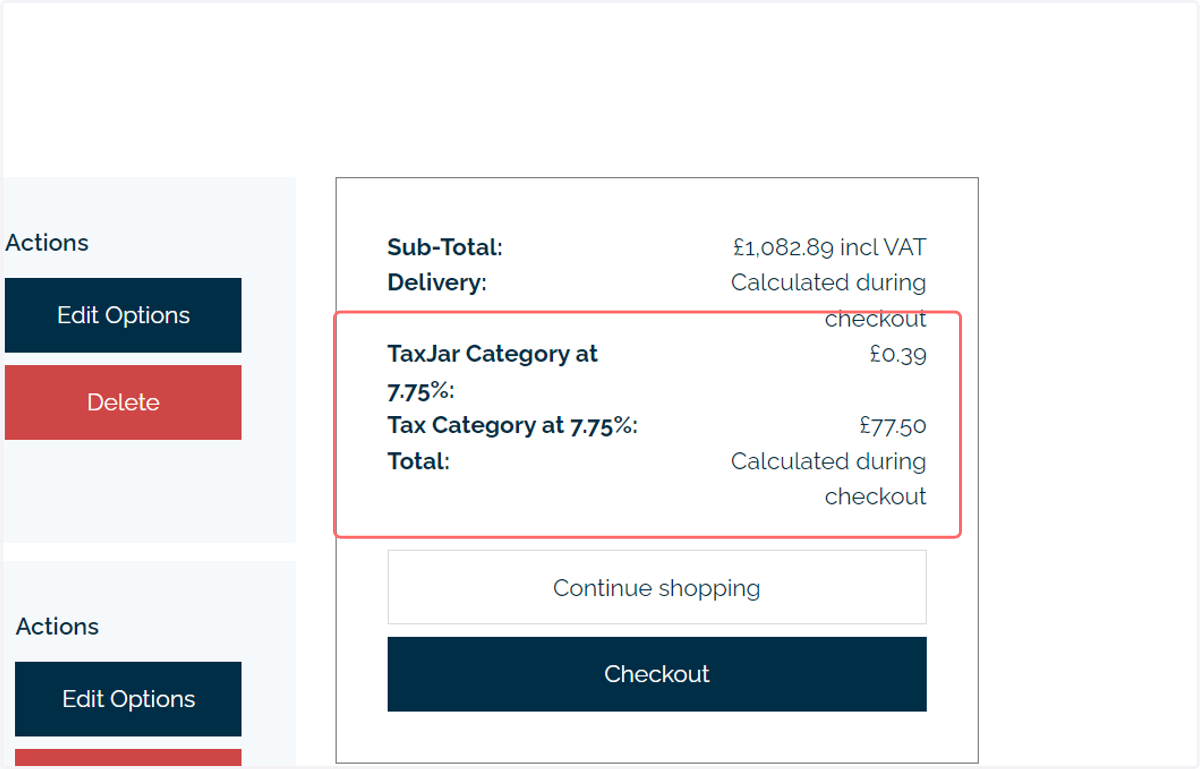
29. The basket can be configured to display the amount of tax calculated, along with the rate drawn from TaxJar.
In this case, we can see two tax fees, this is due to the different products in the basket being in different tax categories.
30. We will now impersonate a user located in a different state
31. The differing tax rules between the two states has resulted in a different tax rate being utilised. This information has been calculated by TaxJar via the provided plugin.