Connect: printIQ Product Sync | Configuration
Infigo have introduced new functionality into our Connect: printIQ plugin, allowing products and categories to be automatically synced from printIQ into Infigo.
Product Sync Feature:
The product sync feature streamlines the creation and management of products across printIQ and Infigo platforms.
Users can create products in printIQ and sync them to Infigo, eliminating the need for manual duplication and saving valuable time.
It allows for seamless syncing of product information such as name, description, activation status, SKU, dimensions, and images.
Stock and print-on-demand products can be synced using this functionality.
Category Sync Feature:
The category sync feature enables the synchronization of categories between printIQ and Infigo platforms.
Users can create categories in printIQ and sync them to Infigo, ensuring consistency and uniformity across platforms.
It simplifies the process of categorizing products by allowing users to sync category information such as name, description, and hierarchy.
The sync only functions from printIQ into Infigo, not the other way around.
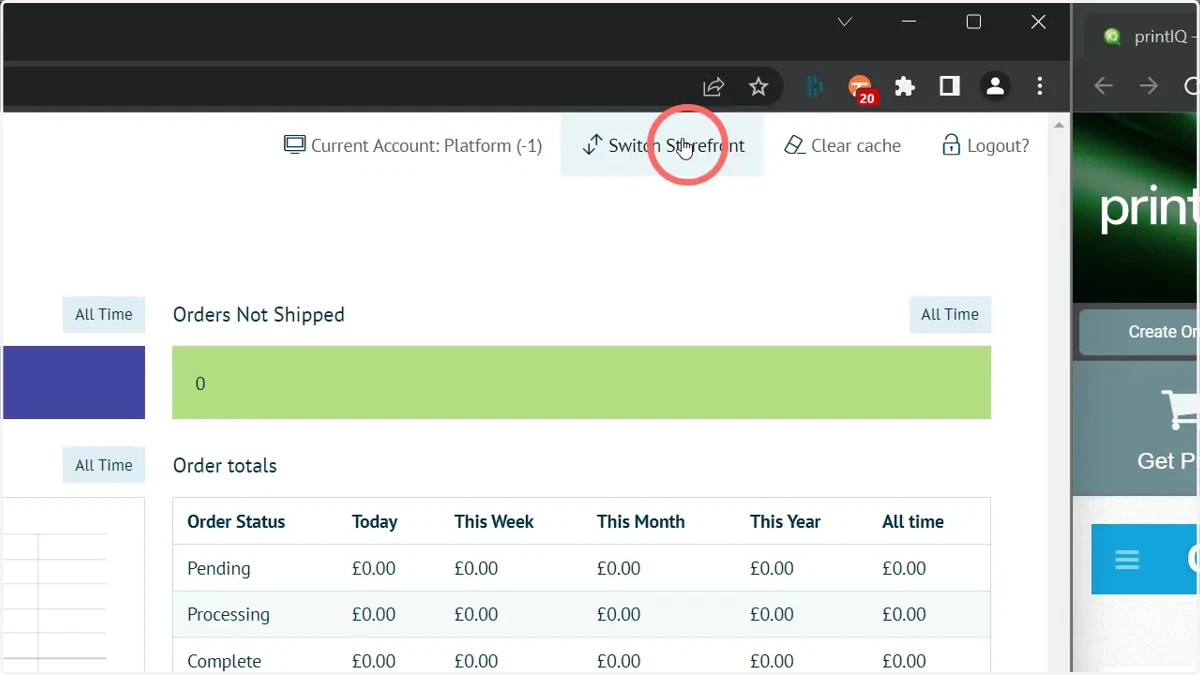
1. Click on Switch Storefront
We must first specify one or more 'master' storefronts to act as an API relay between other storefronts on our platform.
This is specified on the platform level, so begin by clicking Switch Storefront.
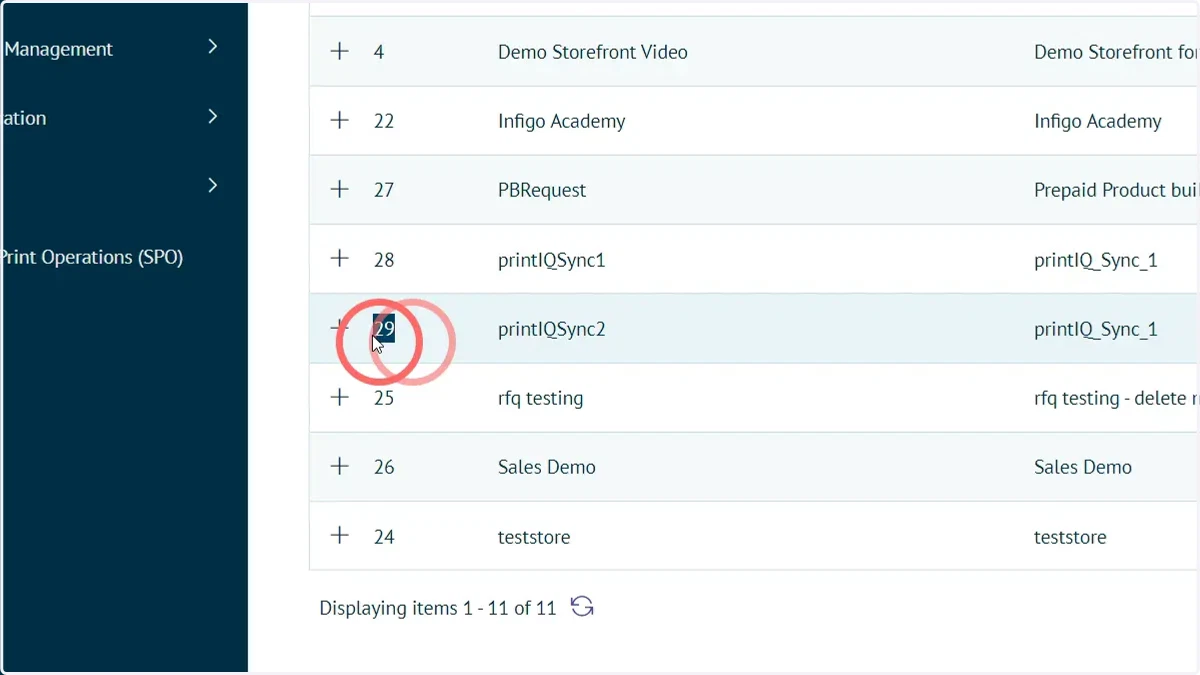
2. Note the ID of the storefront(s) you wish to set as the master storefronts
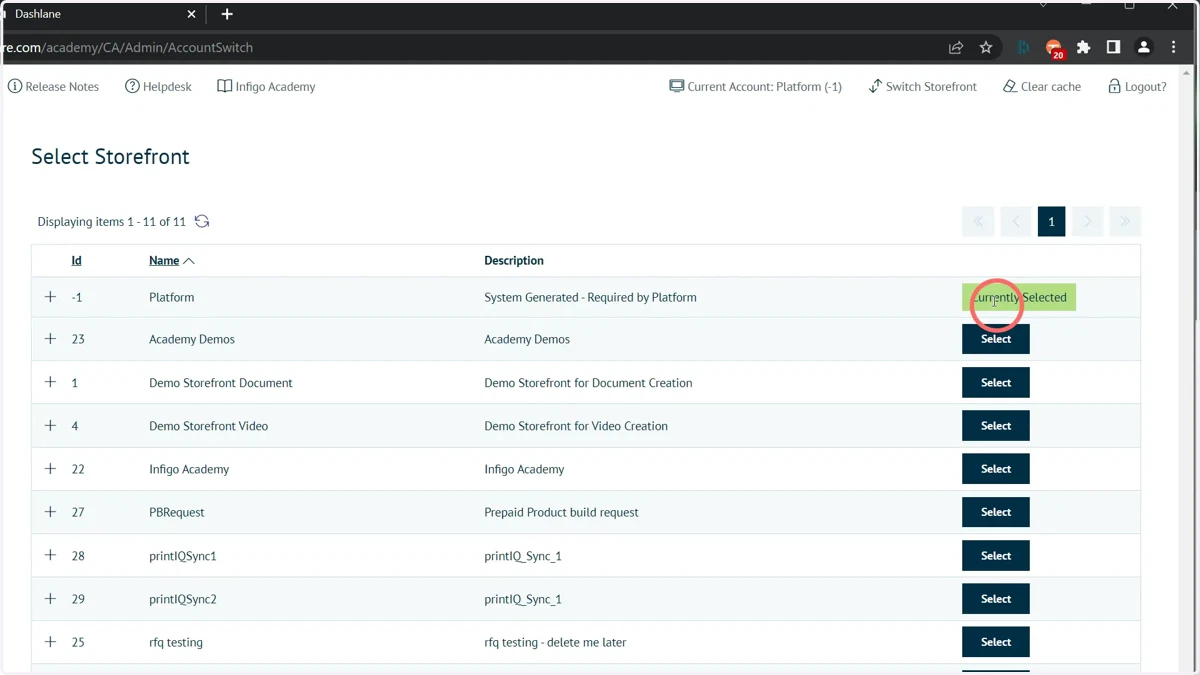
3. Select the platform entry
4. Navigate to the Connect Settings screen
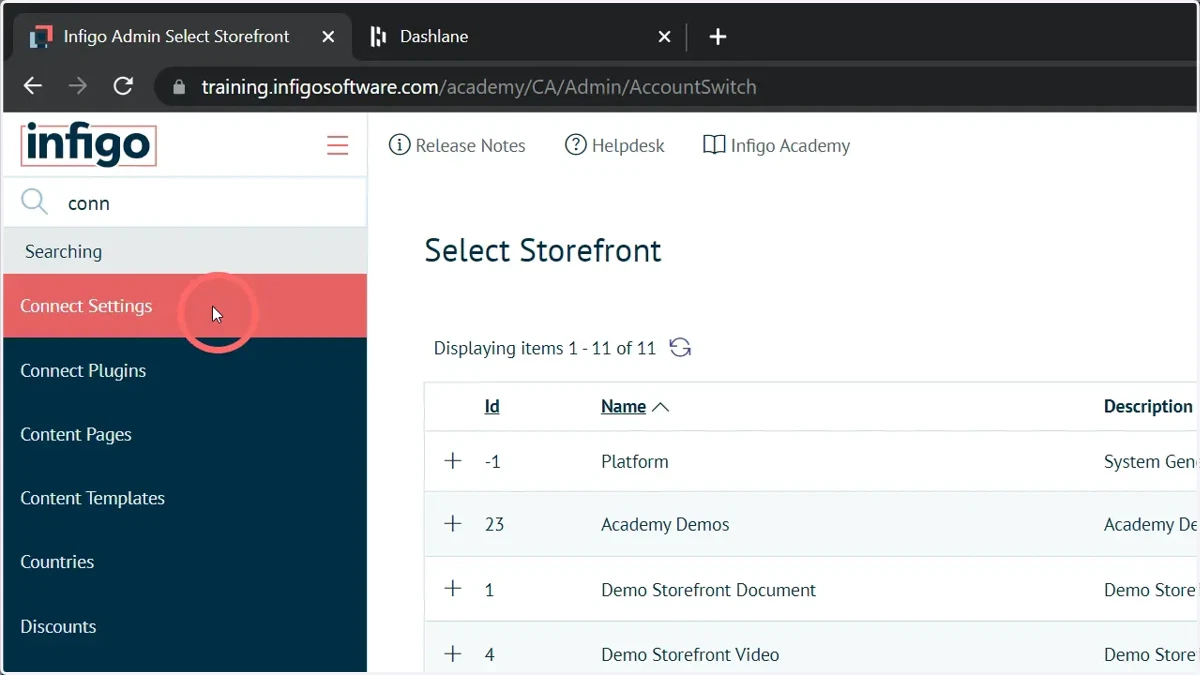
5. Enter the ID of the storefront(s) you wish to set as master storefront(s)
This setting allows users to specify a master storefront ID, which acts as a relay to all other storefronts.
The purpose of this setting is to streamline the process of setting up an API connection between Infigo and printIQ.
Prior to this development, storefronts in Infigo were independent and didn't have visibility or access to each other. By introducing the "switch context" setting and designating a master storefront, requests coming into the system can be associated with the appropriate storefront and relayed accordingly.
The "switch context" option is part of the configuration process in Infigo and is specifically relevant to connecting with the printIQ API and managing webhooks for product and inventory synchronization (discussed later).
It helps ensure that the appropriate storefront receives the notifications and data related to product creation or editing in Print IQ.
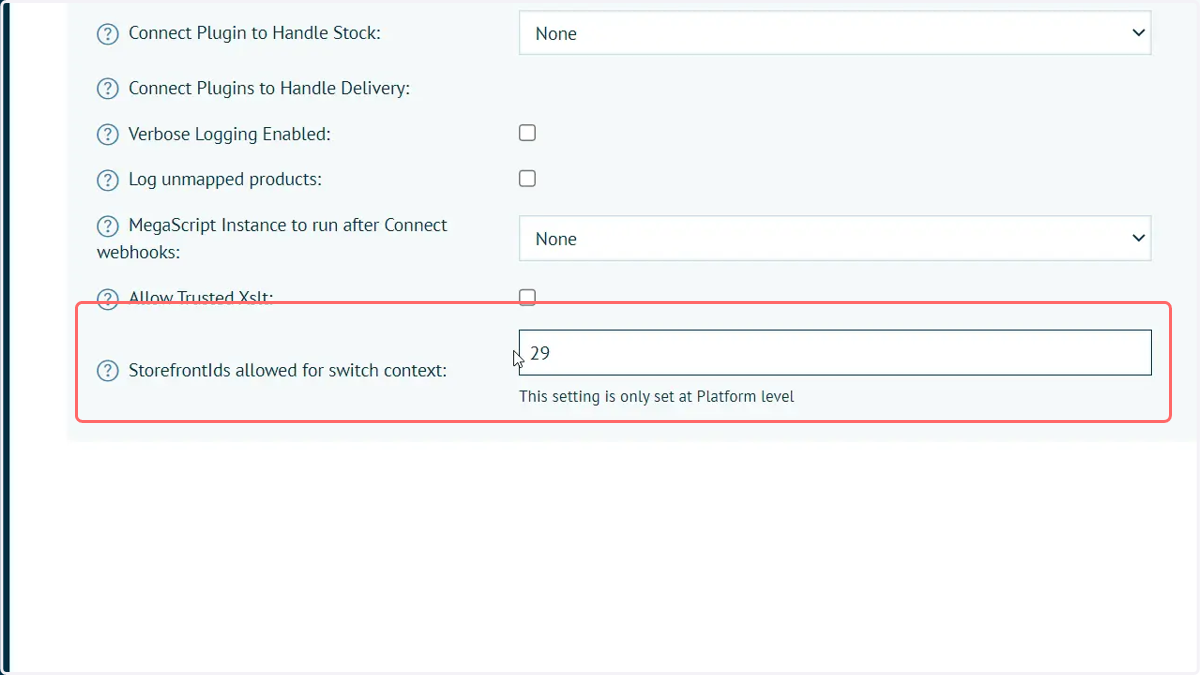
6. Click Save to confirm these inputs
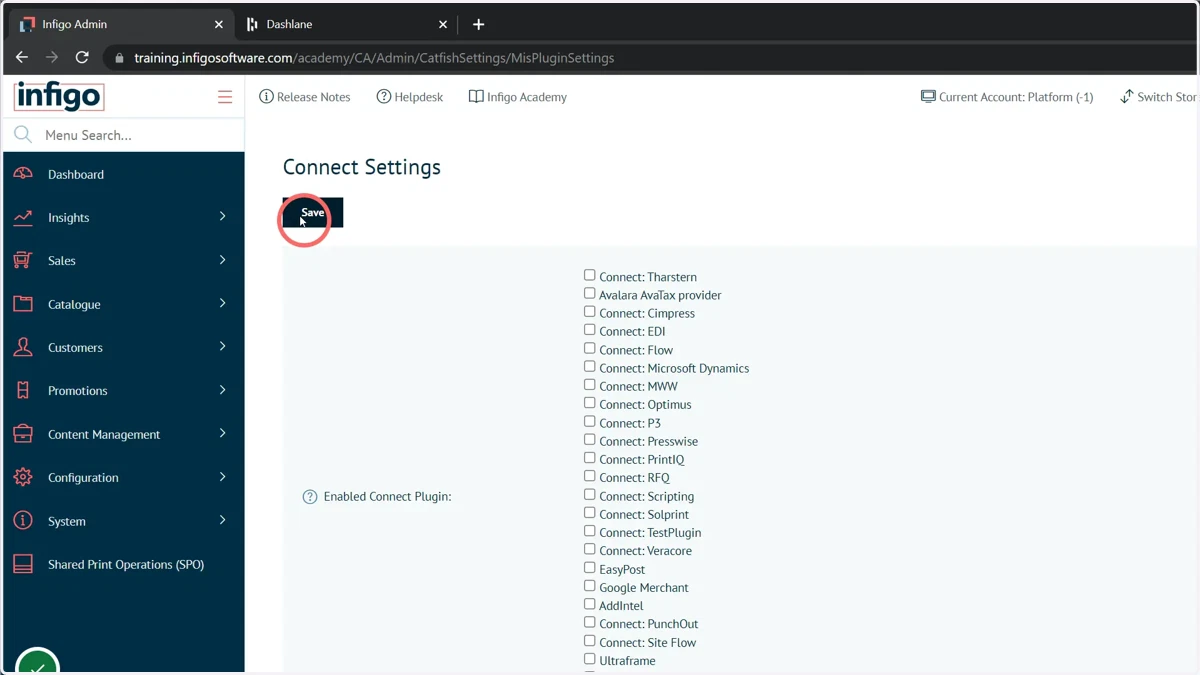
7. Click on Switch Storefront
Navigate back to the storefront of interest.
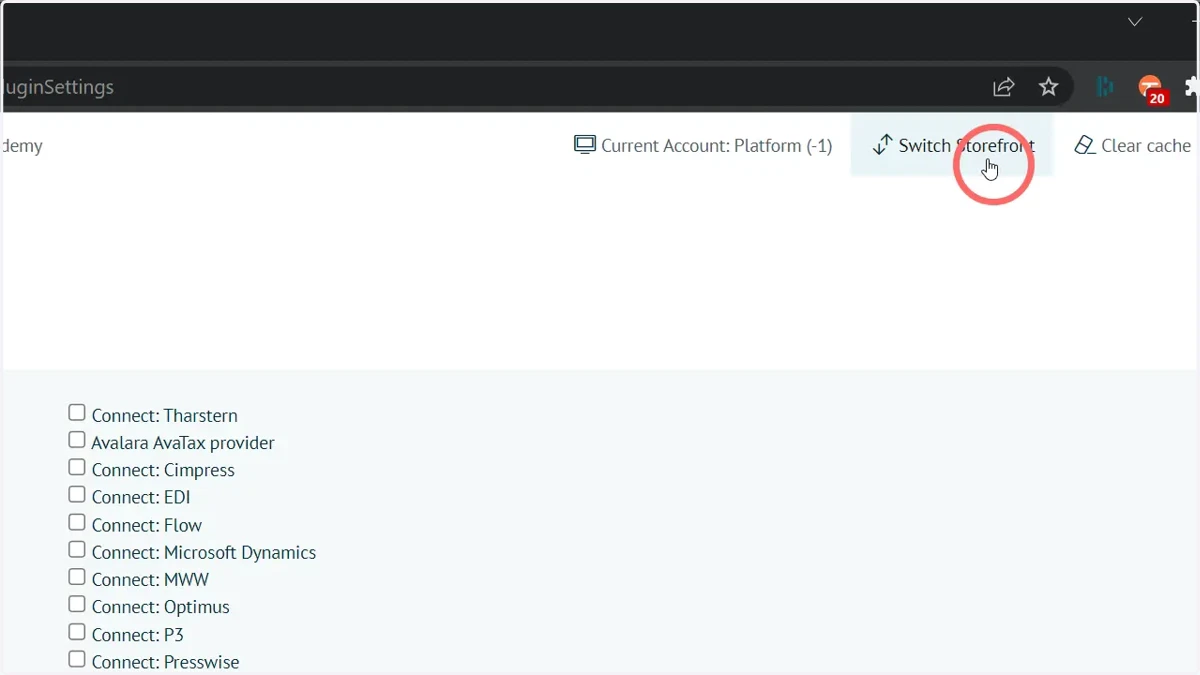
8. Select your storefront of interest
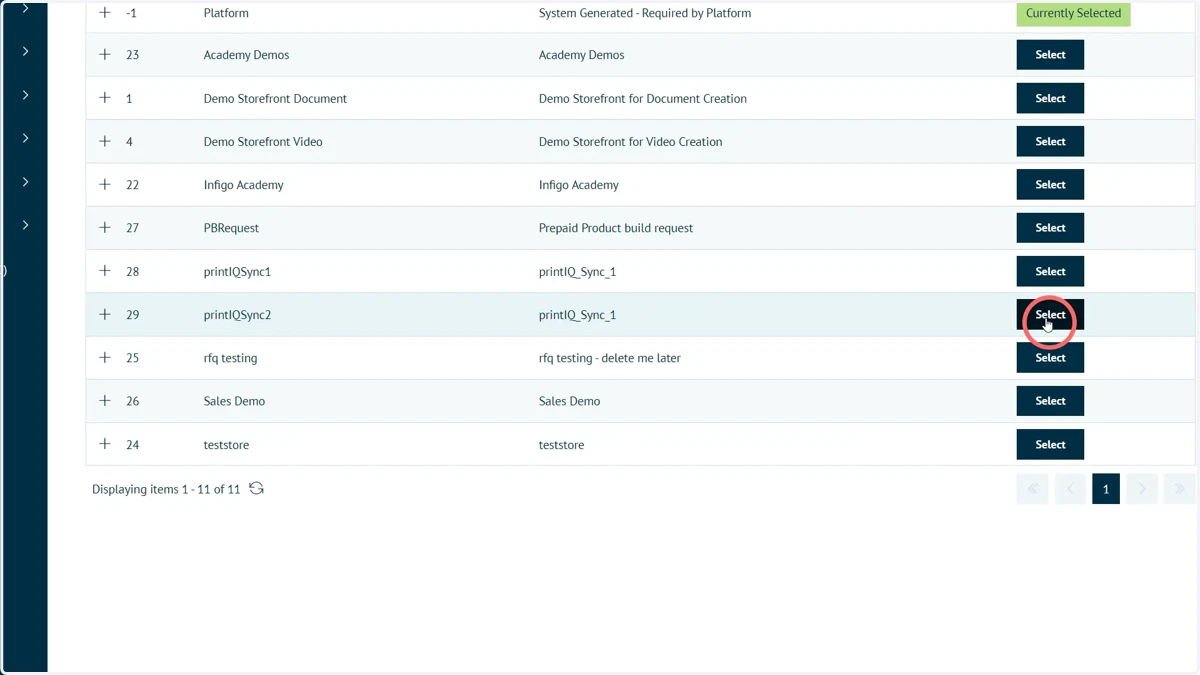
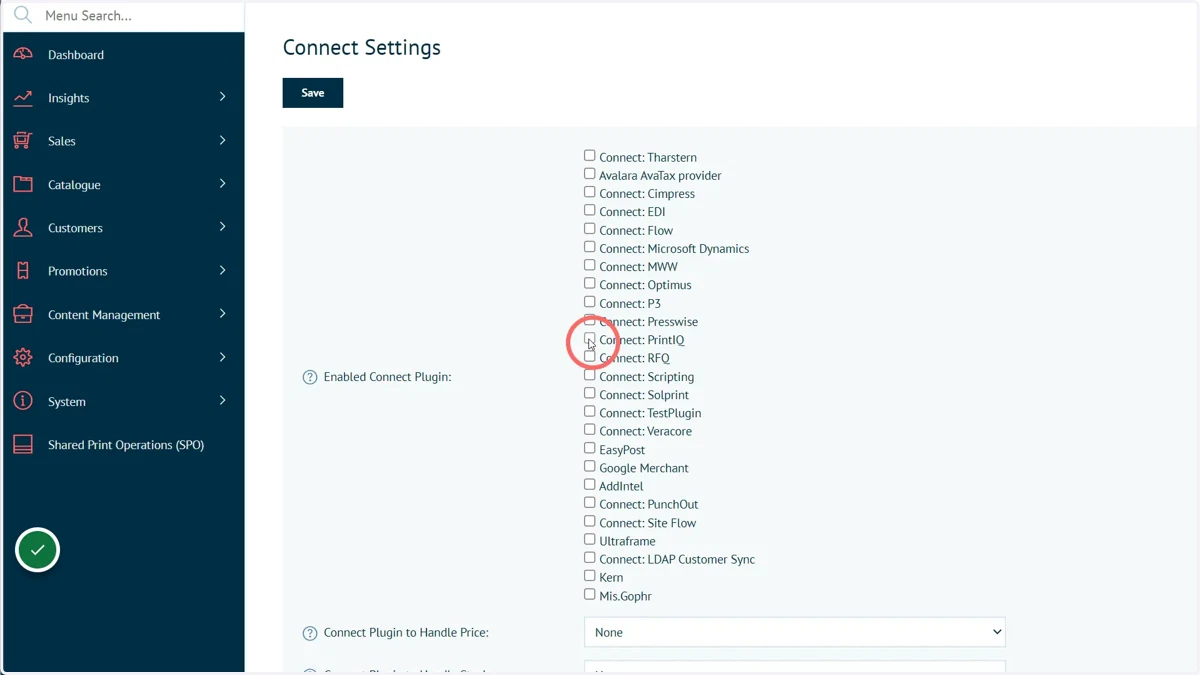
9. Ensure the Connect: printIQ plugin is active within the Connect Settings screen
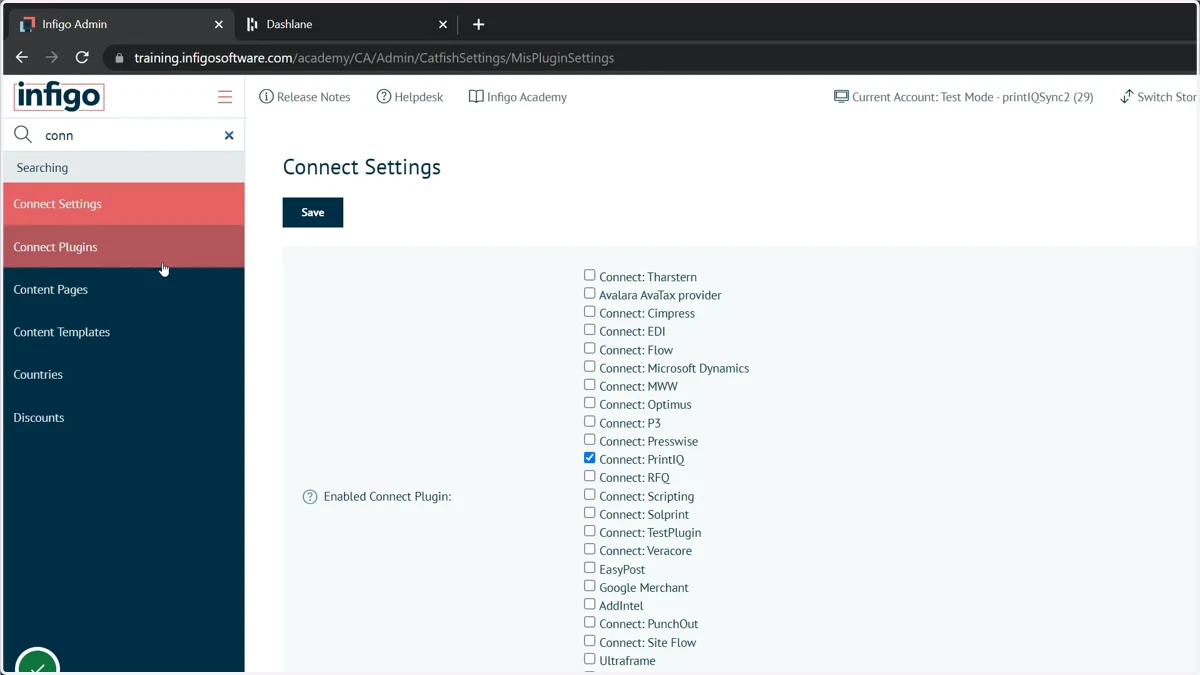
10. Navigate to the Connect Plugins screen
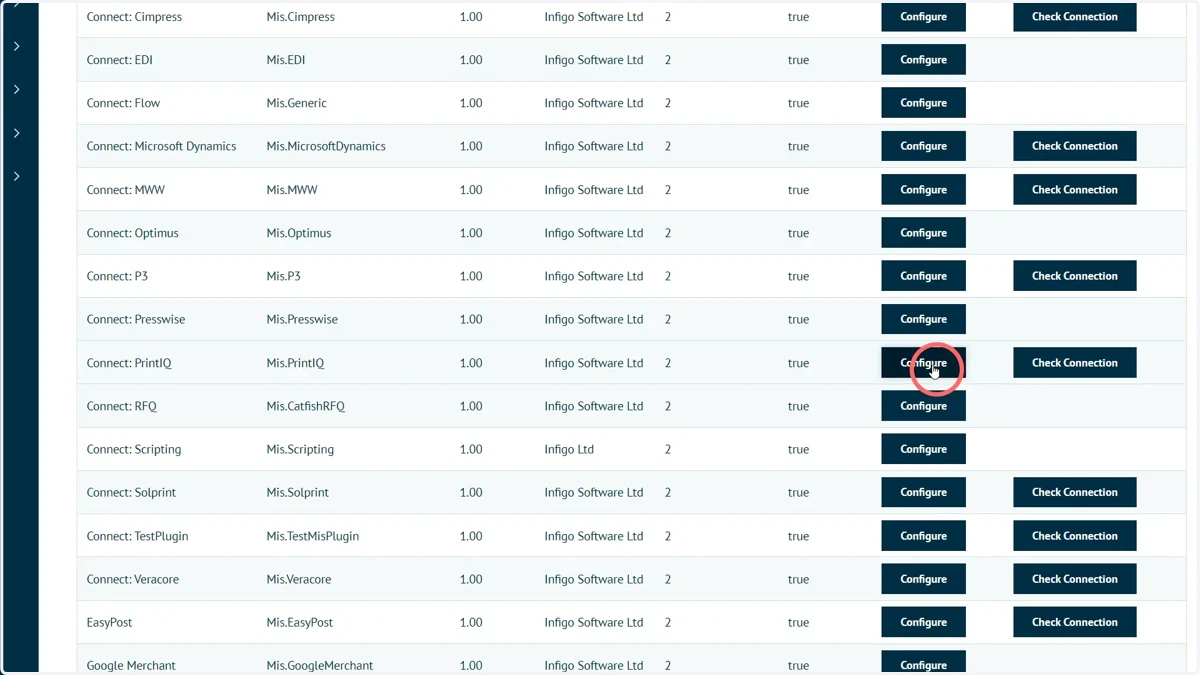
Now, we will begin to configure relevant settings for the product sync within the Connect: printIQ module.
11. Click Configure on the Connect: printIQ module
12. Input v1 Credentials
The Base64 token must be input in order to facilitate the product sync capability. This token can by obtained by contacting printIQ.
The base64 token is a form of authentication or access token that is generated by printIQ and provided to Infigo. This token allows Infigo to authenticate and authorize its requests when communicating with print IQ, ensuring secure and authorized access to the necessary resources and functionalities.

13. Navigate to the Product Sync settings
There is a section containing settings specific to the product sync capabilities of the Connect: printIQ plugin.
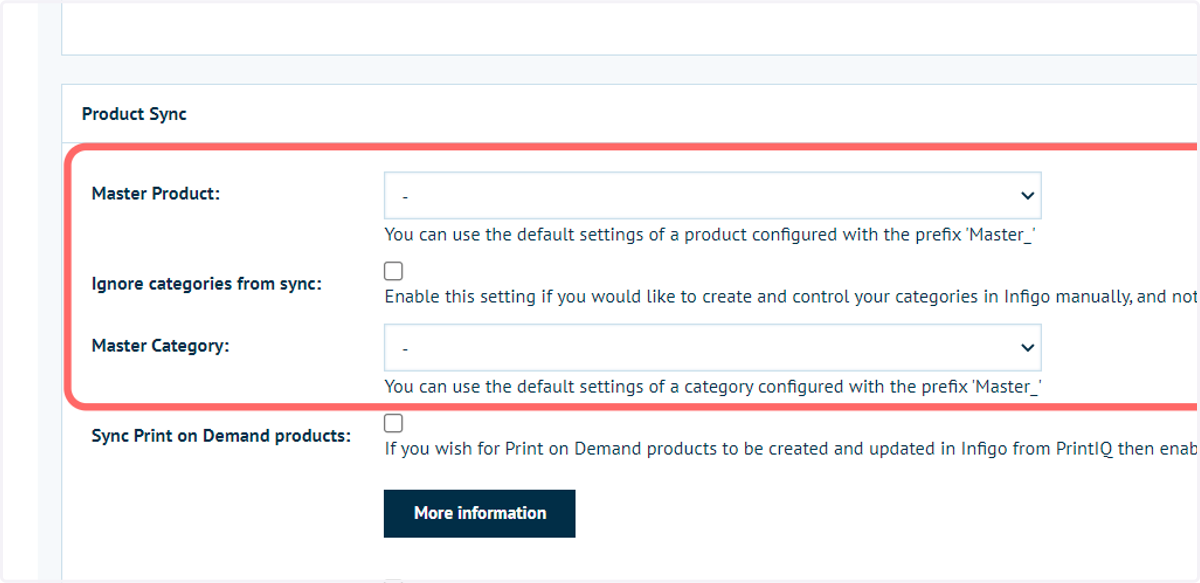
We will begin with the Master product and category options.
Products and categories contain many configuration options. To save time when syncing either from printIQ, you can define a master product and a master category to act as a settings template.
Any products or categories containing the required prefix in their name field will be shown in these dropdown lists.
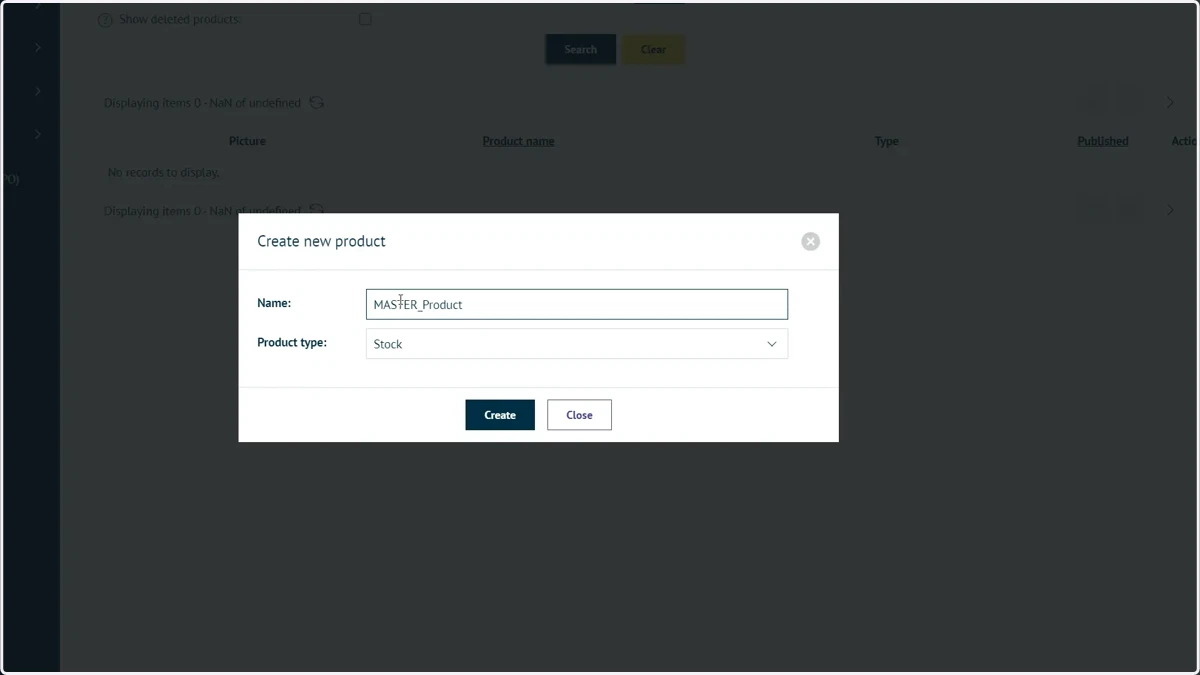
14. Create a new product with the prefix "MASTER_"
For example, the product name can be "MASTER_product".
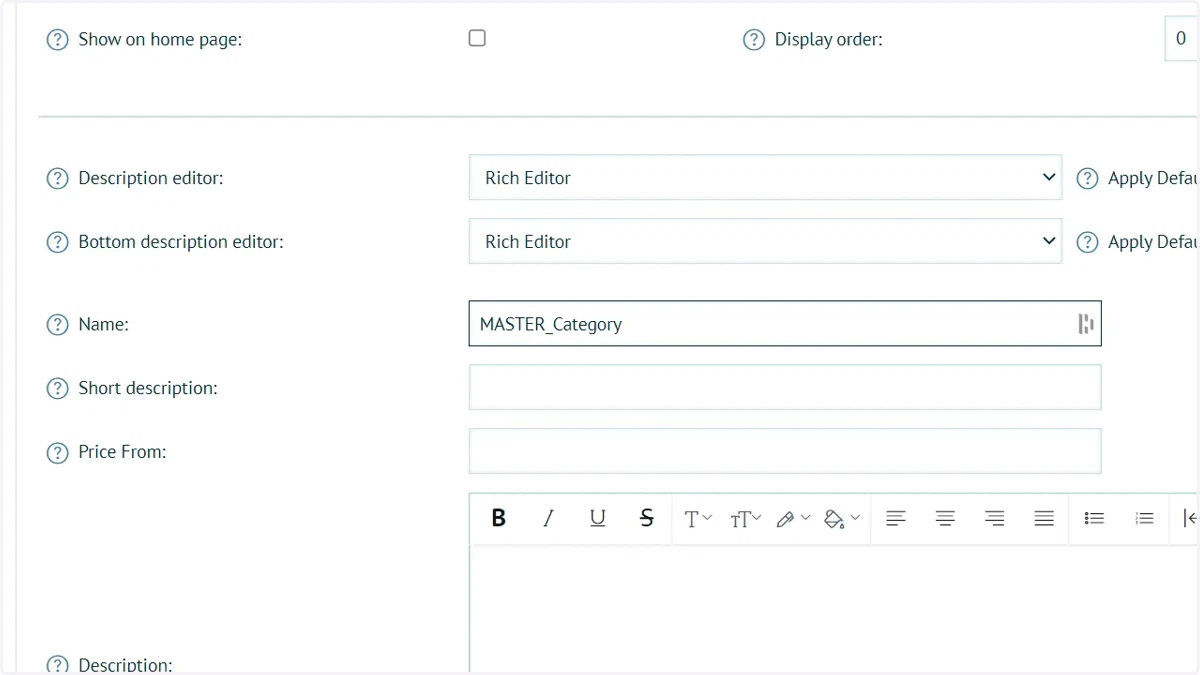
15. Create a new category with the prefix "MASTER_"
For example "Master_Category"
16. Return to the printIQ configuration settings and define the master items
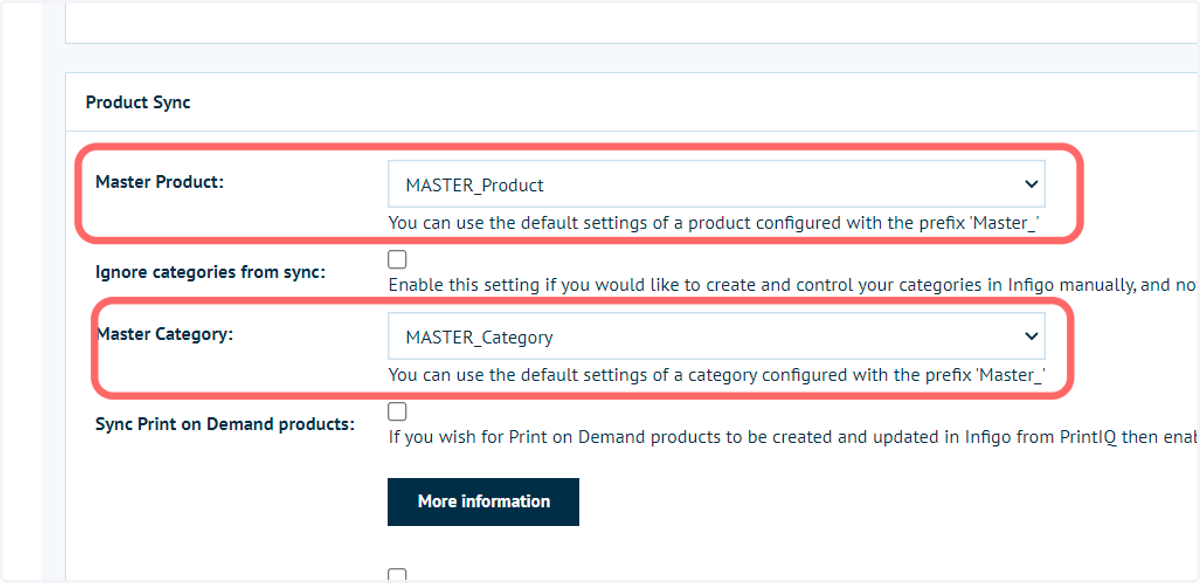
17. It is not necessary to sync categories if not required
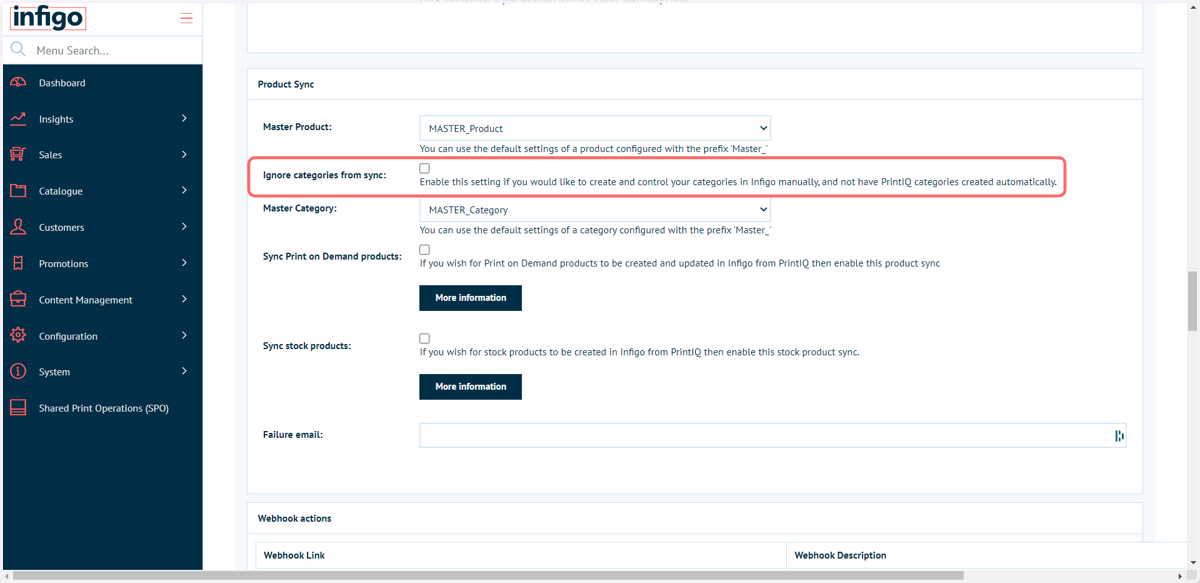
Click "Ignore categories from sync" to exclude the automatic creation of a category structure. This will allow you to create a category structure manually within Infigo.
Even if categories are synced, further manual changes can be made within Infigo, such as applying a product to a second category.
If this option is checked, the "Master Category" field will change to a "Default Product Category" field, allowing you to specify a category that all synced products are added to by default.
18. Specify product types to sync
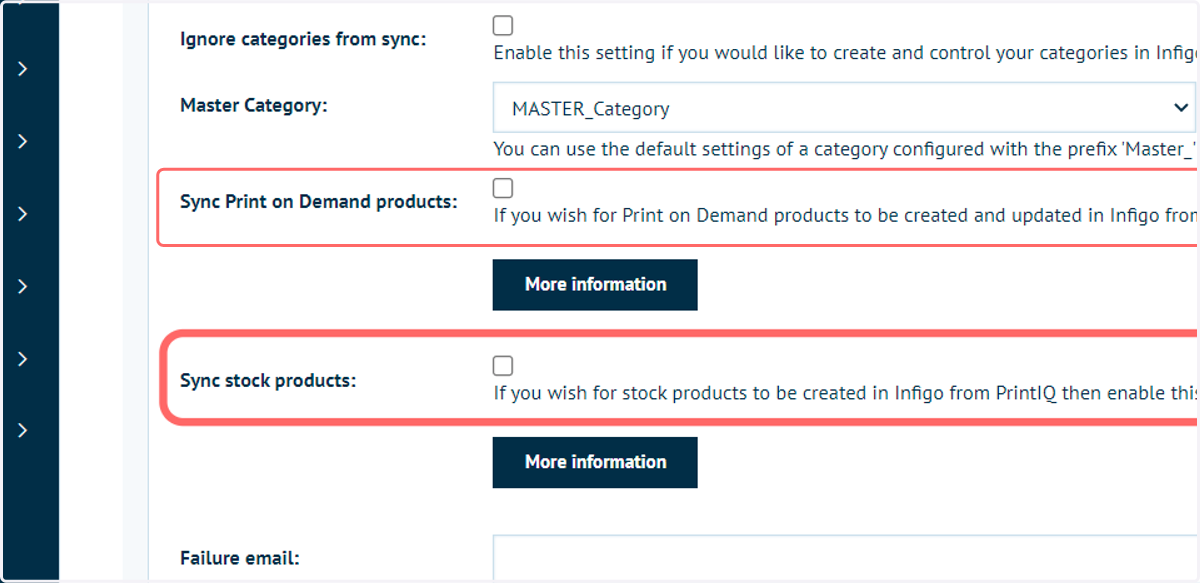
Stock or print-on-demand (Static PDF) products can be synced using this functionality.
The sync of each product type is controlled independently, and can be activated within the Connect: printIQ product sync settings.
19. Click More Information
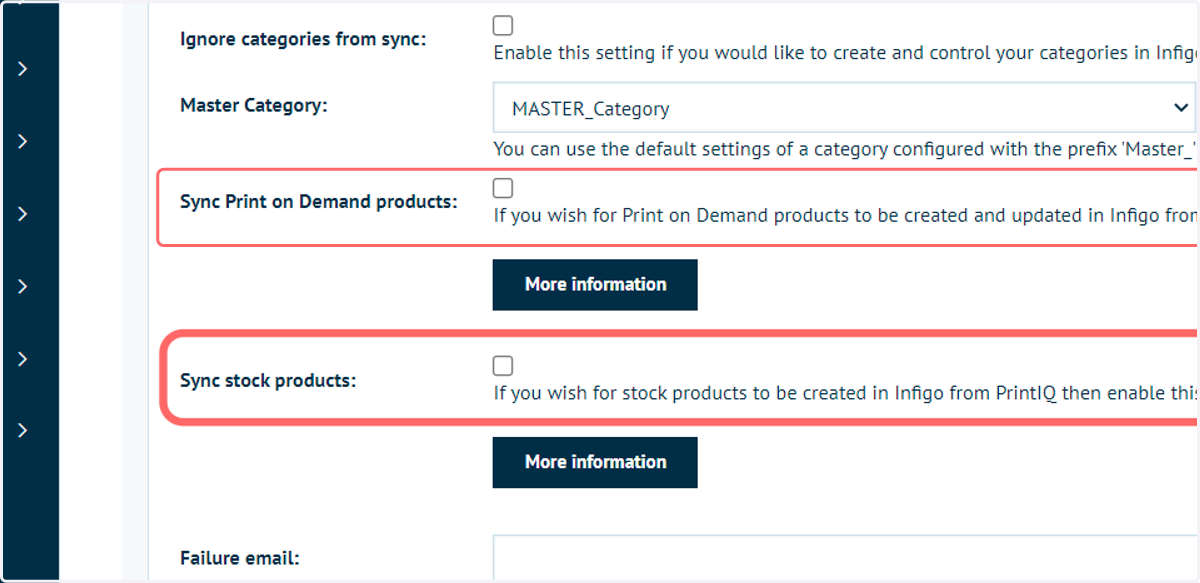
The "More Information" buttons will give you additional details on the fields which are mapped between printIQ and Infigo for either of the two synced product types.
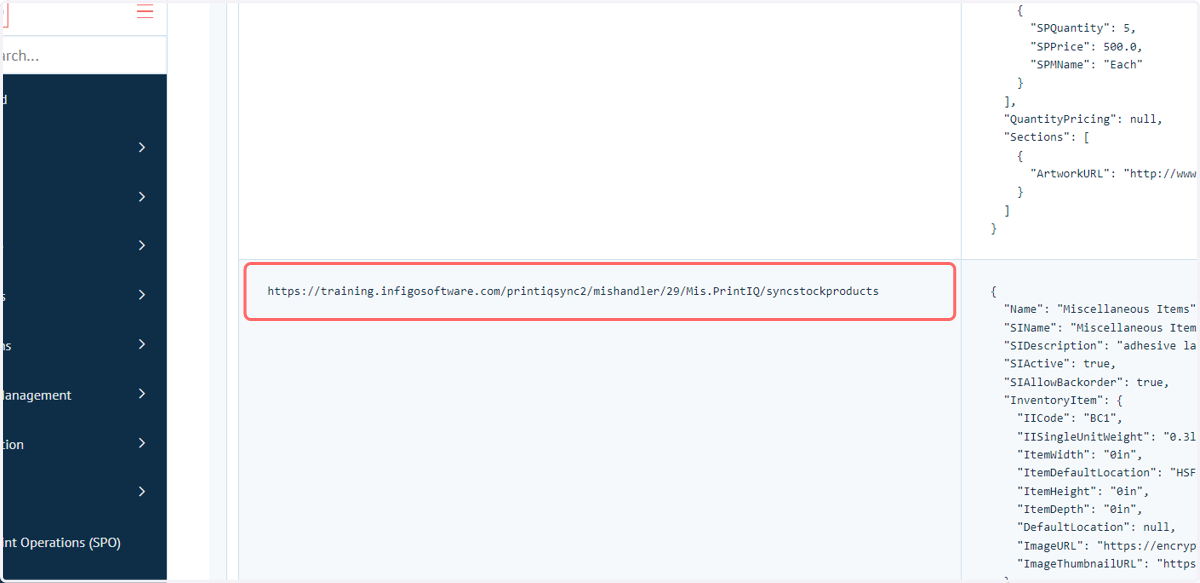
20. A webhook require setup in printIQ in order to facilitate the syncing of print-on-demand products.
The product sync feature works through a webhook, specifically a print-on-demand products webhook and a stock products webhook. These webhooks are set up in printIQ to notify the system when a product is created or edited.
In the past, printIQ had limitations in setting up webhooks, allowing only a single webhook to be used. To overcome this, the "switch context" setting (discussed earlier) was introduced in Infigo, where the storefront ID of the master storefront is added.
This master storefront acts as a relay for all the other storefronts, ensuring that the information from webhooks is added to the relevant accounts in Infigo.
Both product sync and inventory sync rely on webhooks to receive notifications about product creation or editing. By setting up webhooks and obtaining a base64 token from printIQ, users can enable the functionality of product sync and inventory sync in Infigo.
printIQ support can assist with the setup of these webhooks.
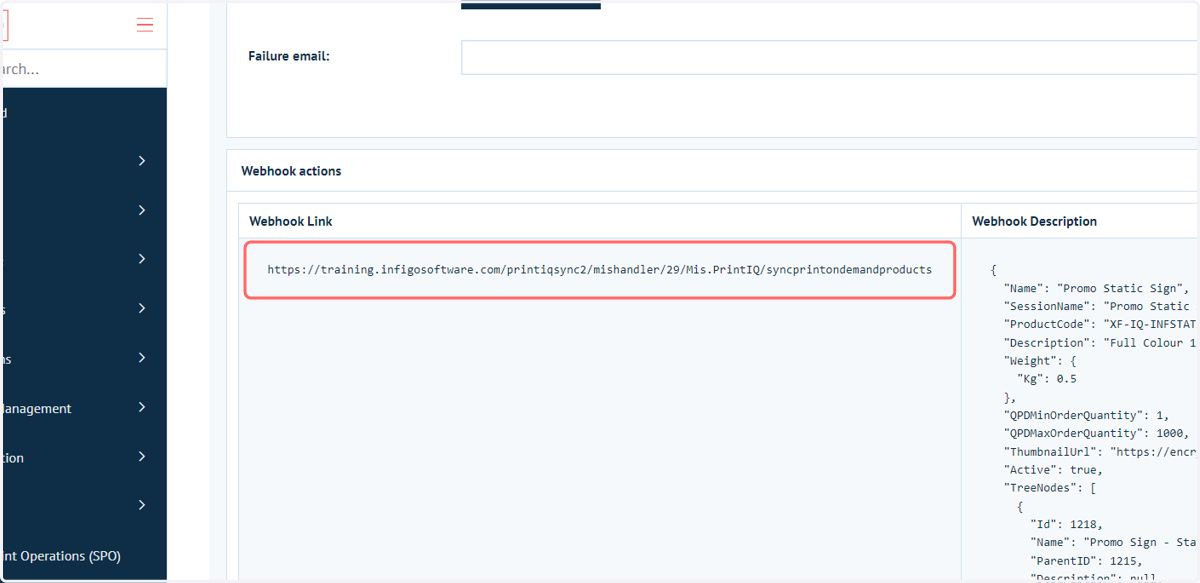
21. A separate webhook requires setup to facilitate syncing of stock products