Managing the MegaEdit left pane
Many users desire greater control over the tabs displayed in the MegaEdit left pane, with some even wishing to disable it completely for certain products.
The tabs displayed in the left pane depend on a number of factors, including:
Customer roles of the user viewing the MegaEdit product
MegaEdit product settings
The viewing rights of the resources shown in the left pane
In this tutorial, we will dig deeper into these factors and learn how to control what you see in the MegaEdit left pane.
1. Default left pane
Shown here is the default configuration of the left pane, with most resource types included in the MegaEdit product.
Tabs will generally be hidden until their content is required. For example, you will not see Clipars, Backgrounds or Layouts unless those assets are relevant to this particular MegaEdit product.
It is important to note that when viewing a MegaEdit product as an administrator, you will ALWAYS see the MegaEdit left pane, regardless of the configuration options discussed here.
This applies even when emulating what the user sees.
The only way to gain a true user experience with the MegaEdit left pane is to log in as that user and access the product.
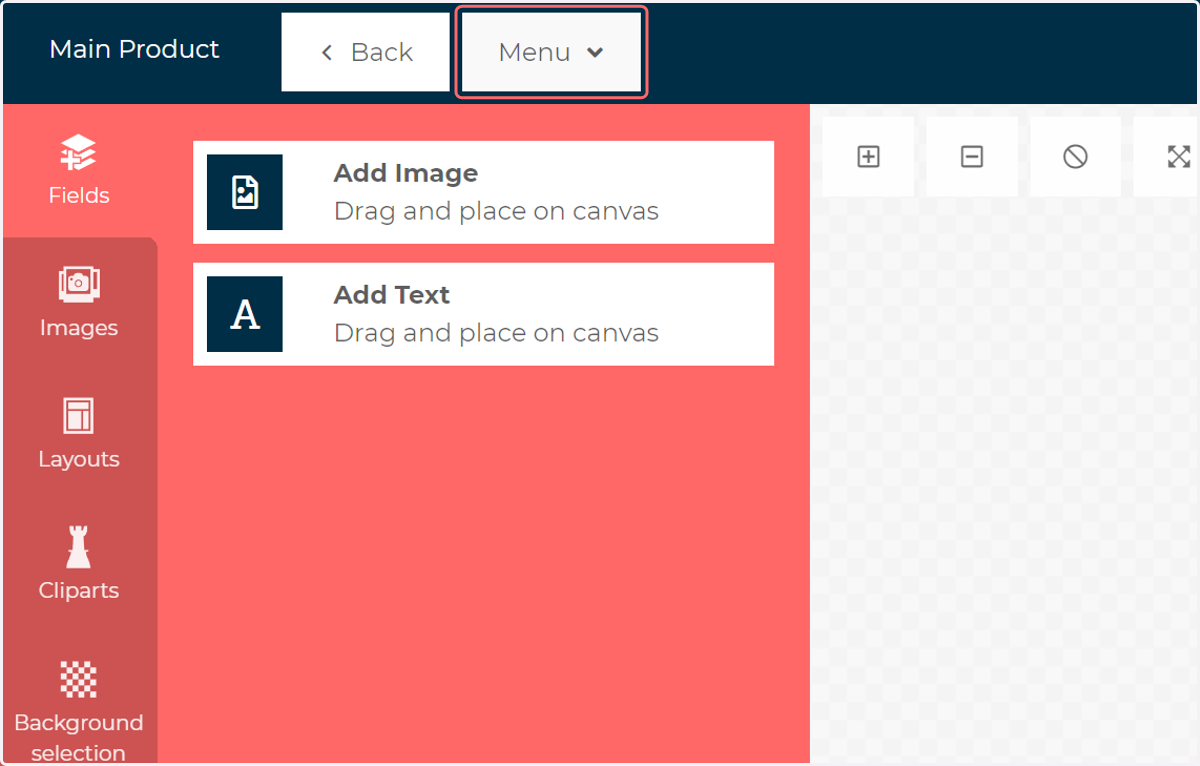
2. To begin disabling unwanted tabs, click Menu
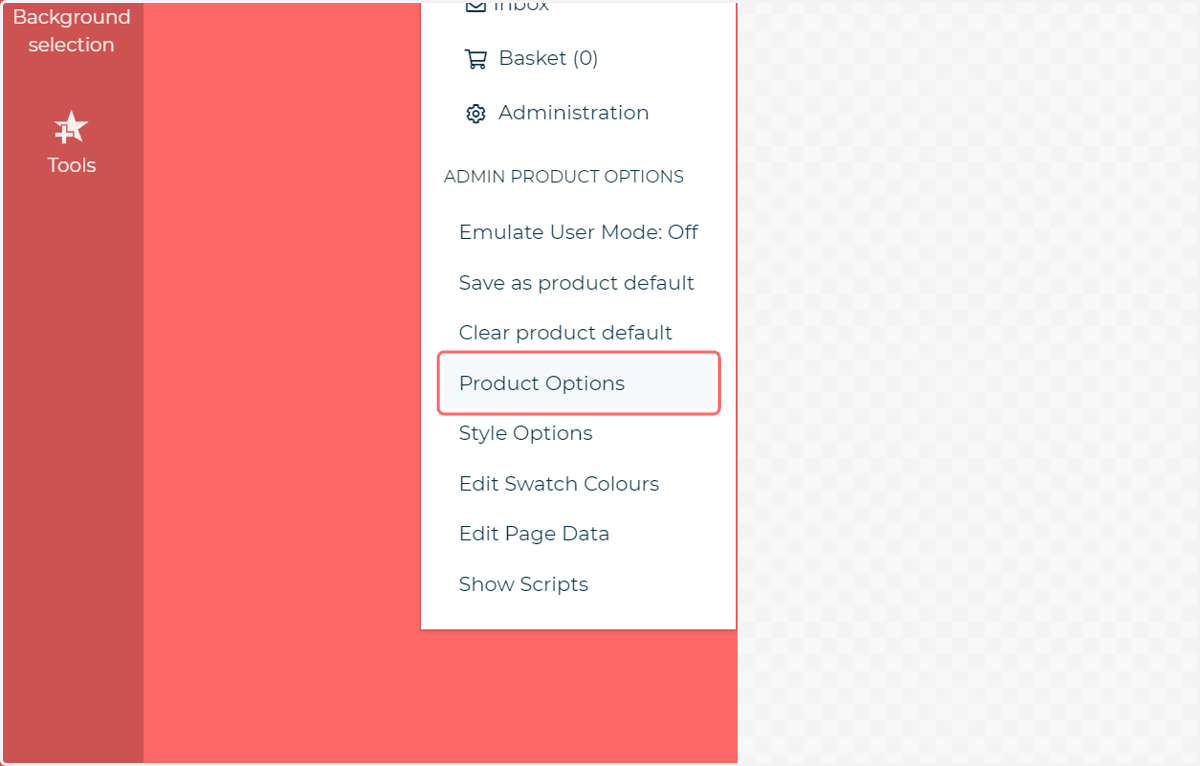
3. Click on Product Options
4. Navigate to the Left Pane section of the Product Options
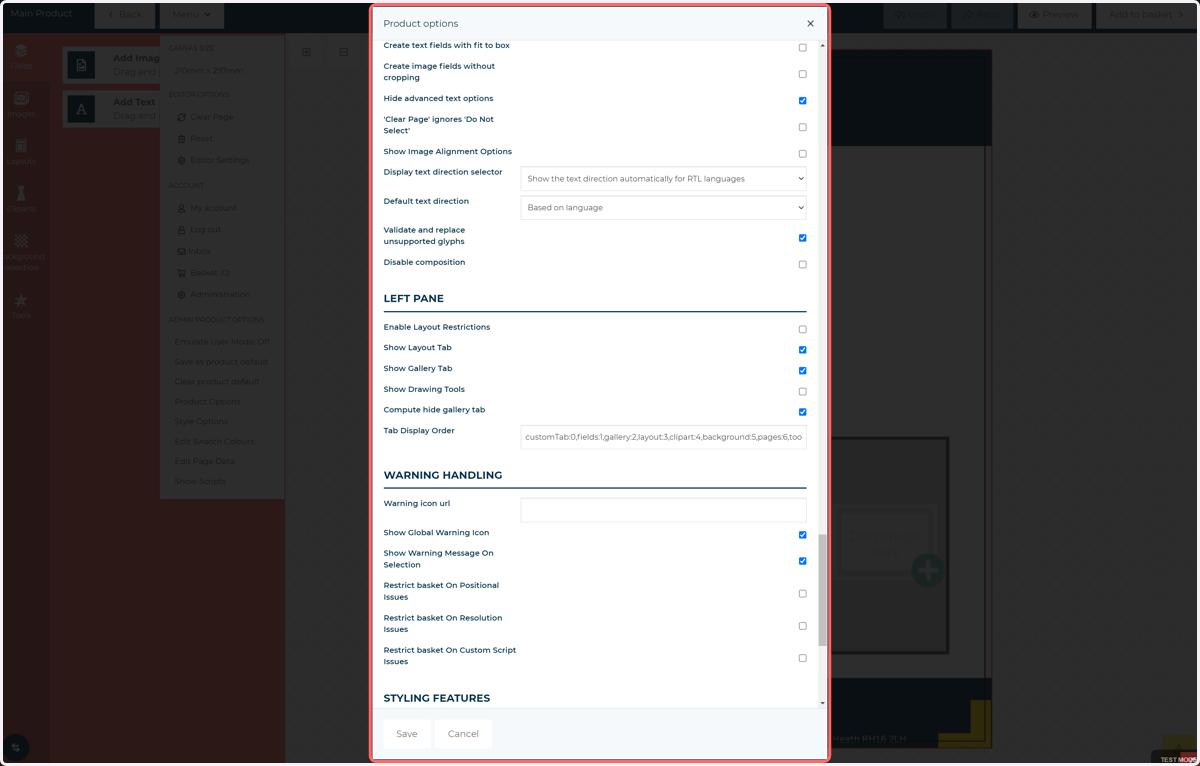
5. Uncheck Show Layout Tab
Toggles the display of the Layout tab, which allows prespecified page element configurations.
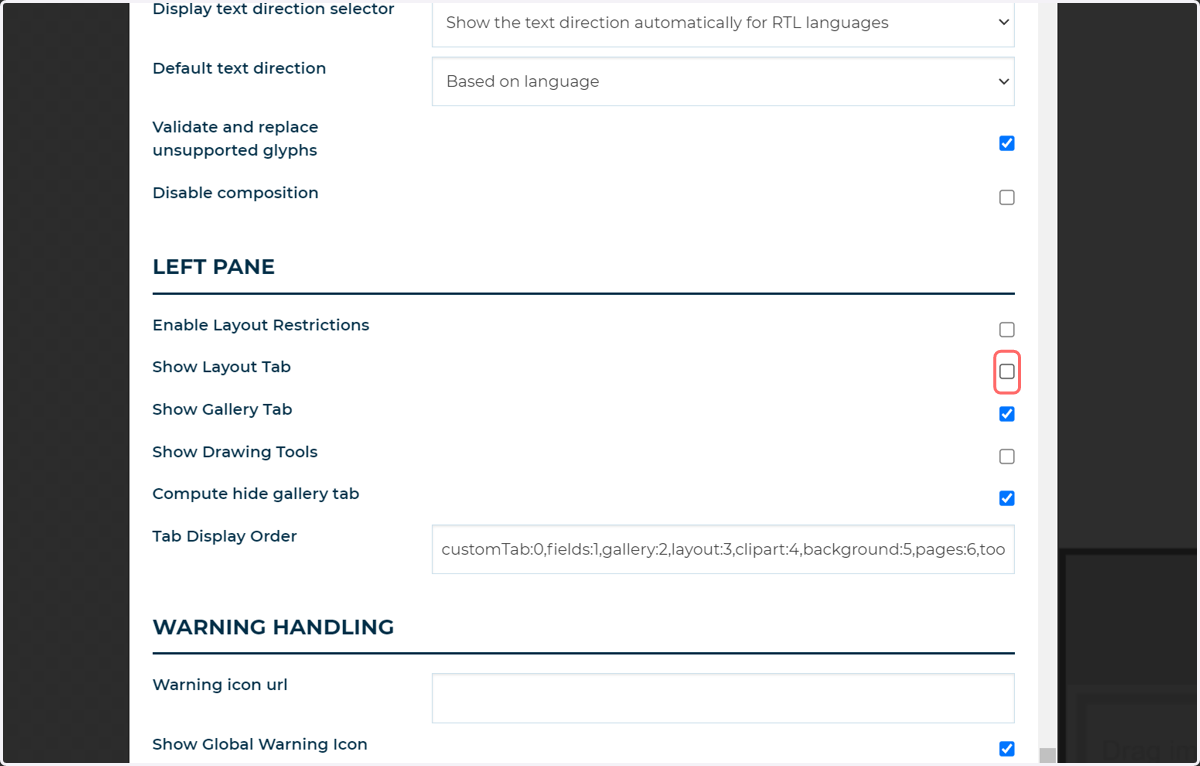
6. Uncheck Show Gallery Tab
Toggles the display of the Gallery tab which allows users to upload and select imagery from their user albums.
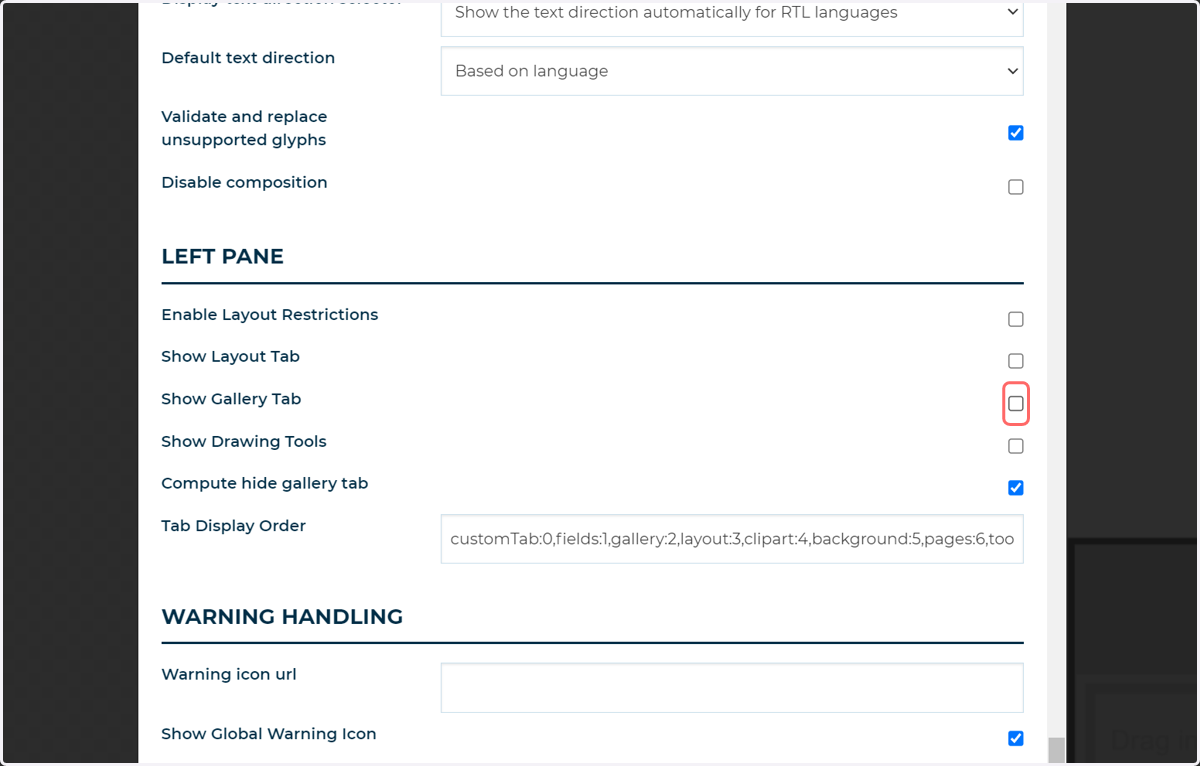
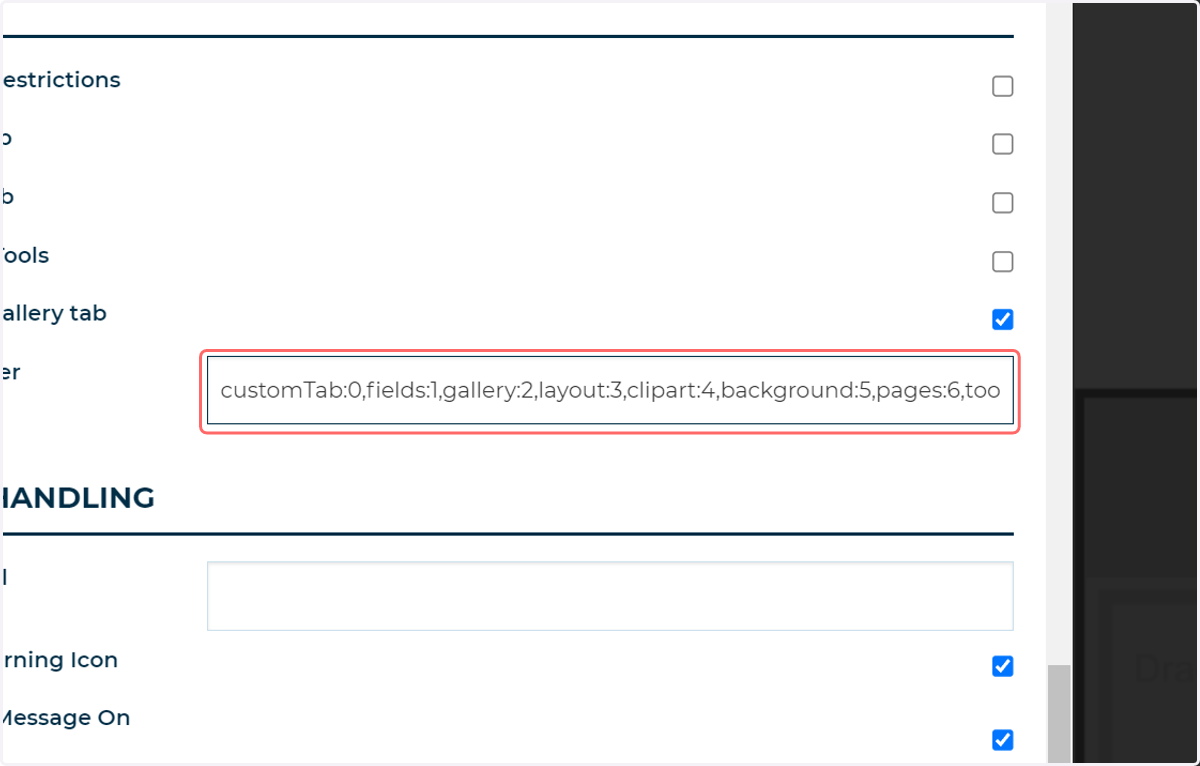
7. Modify the Tab Display Order if required
Admins have the ability to control the order in which tabs are displayed in the left pane.
Simple place the tab name followed by a colon and an ID number of its position.
Separate the different tabs with a comma.
For example:
layout:1,pages:2,background:3
8. Navigate to the Styling Features section of the Product Options
This section allows direct toggling of many of the MegaEdit left pane tabs.
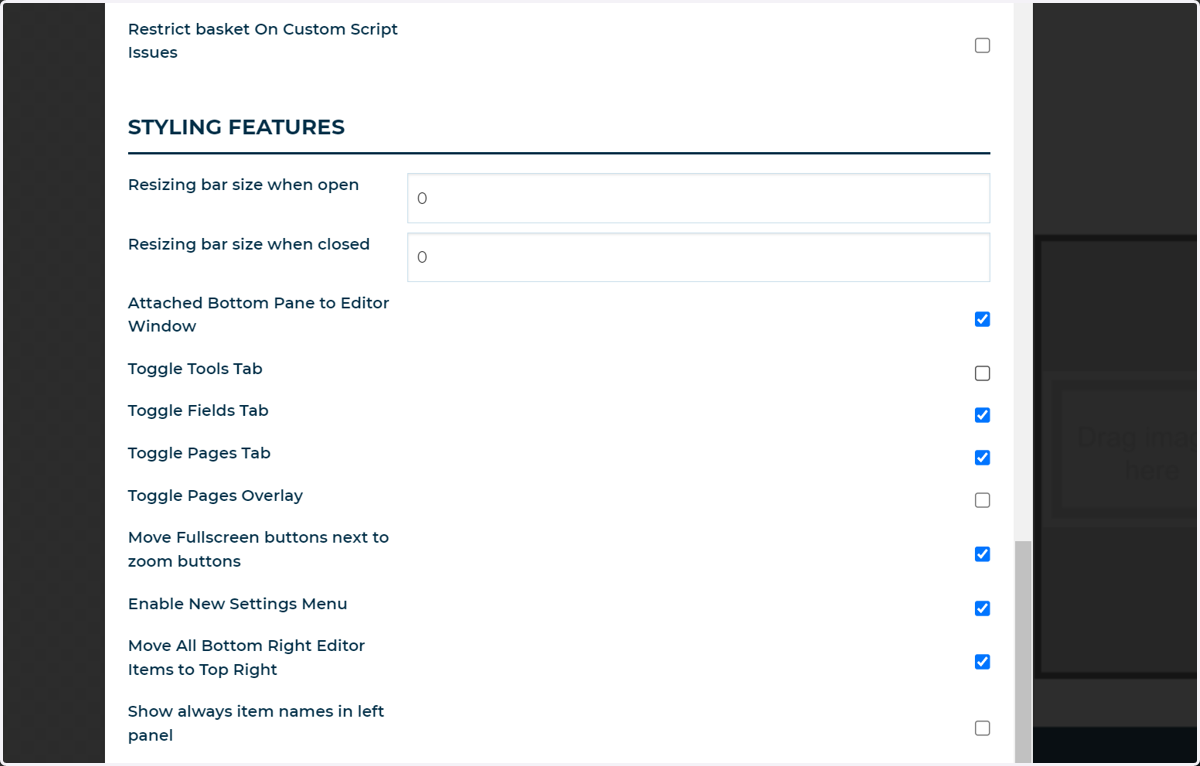
9. Uncheck Toggle Tools Tab
Controls the visibility of the Tools tab
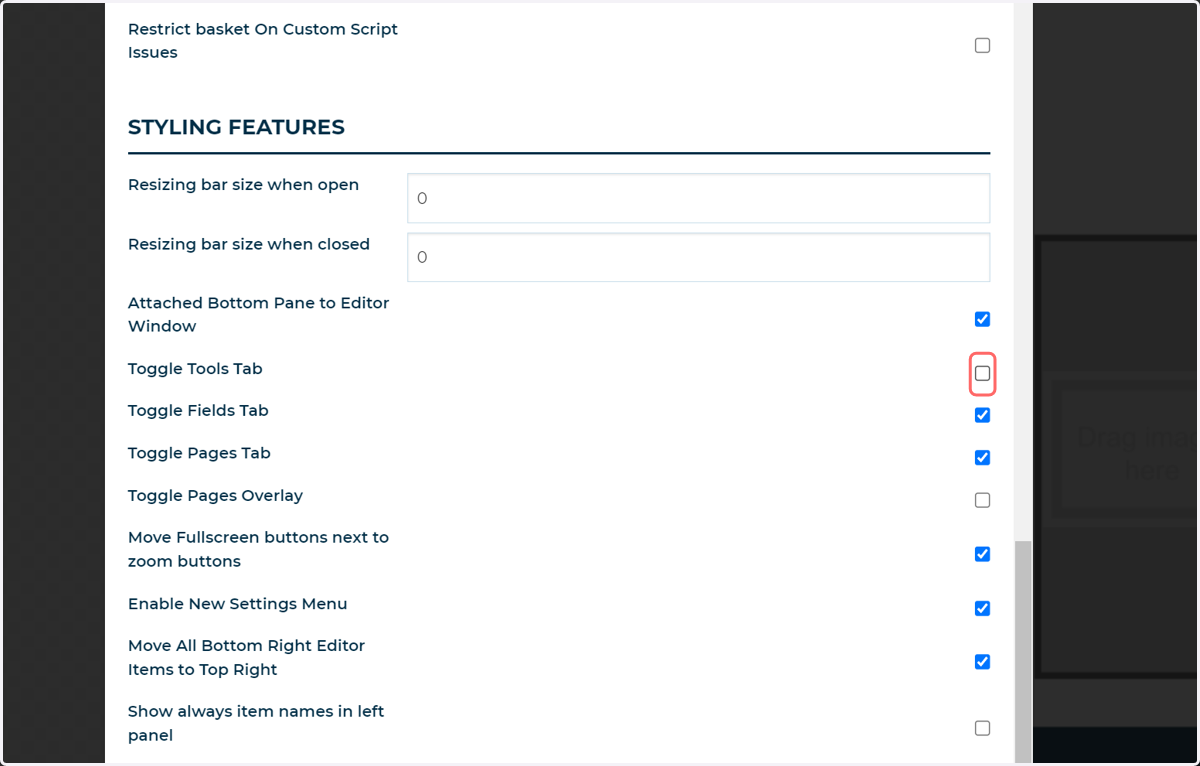
10. Uncheck Toggle Fields Tab
Controls the visibility of the Fields tab
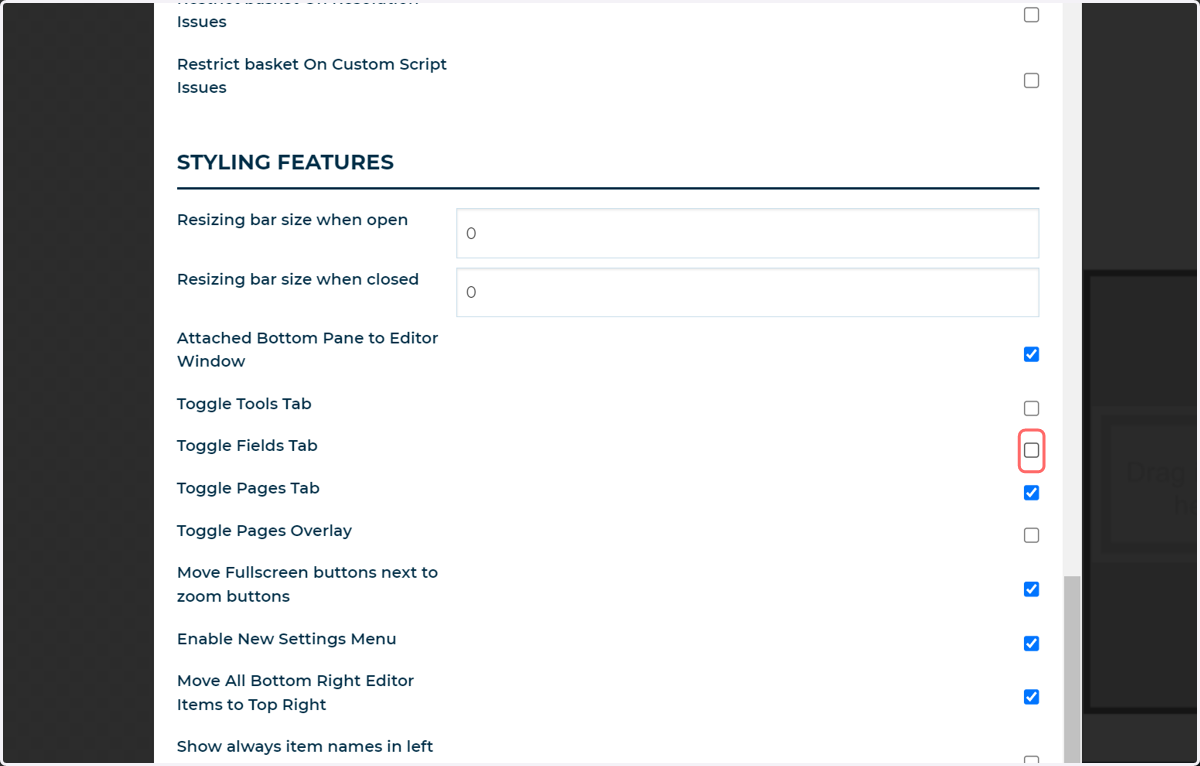
11. Uncheck Toggle Pages Tab
Controls the visibility of the Pages tab
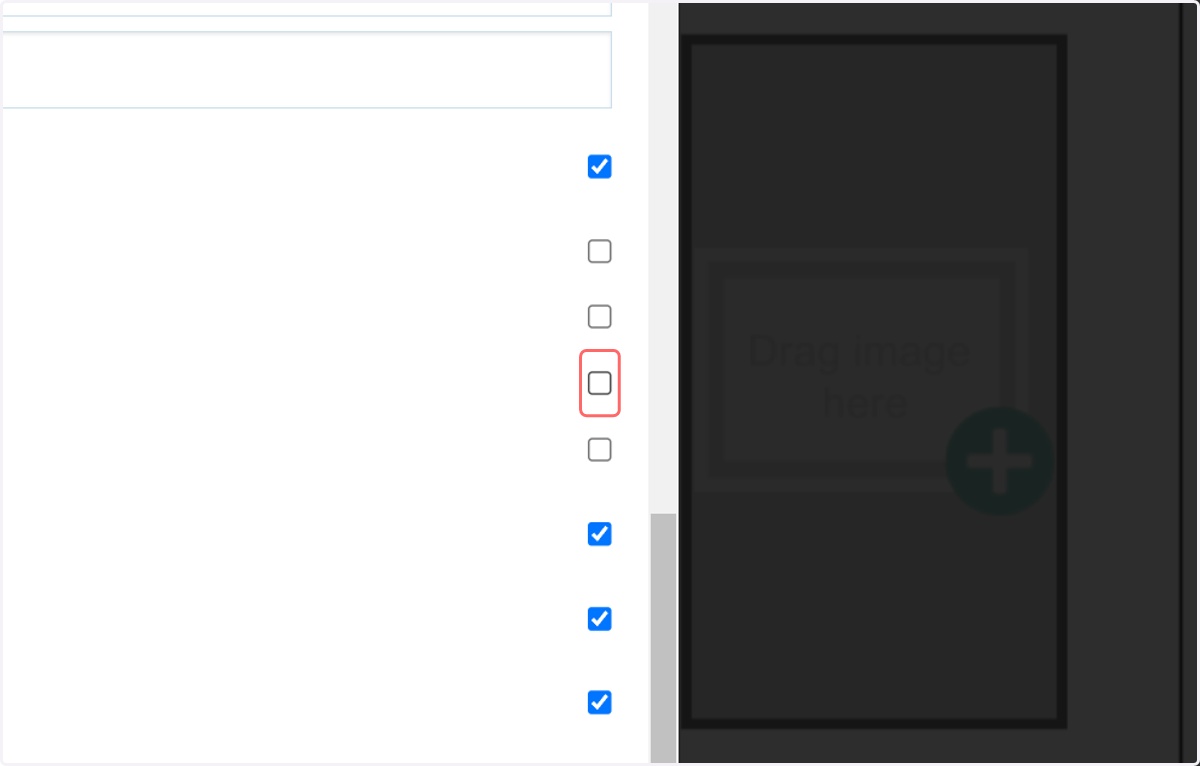
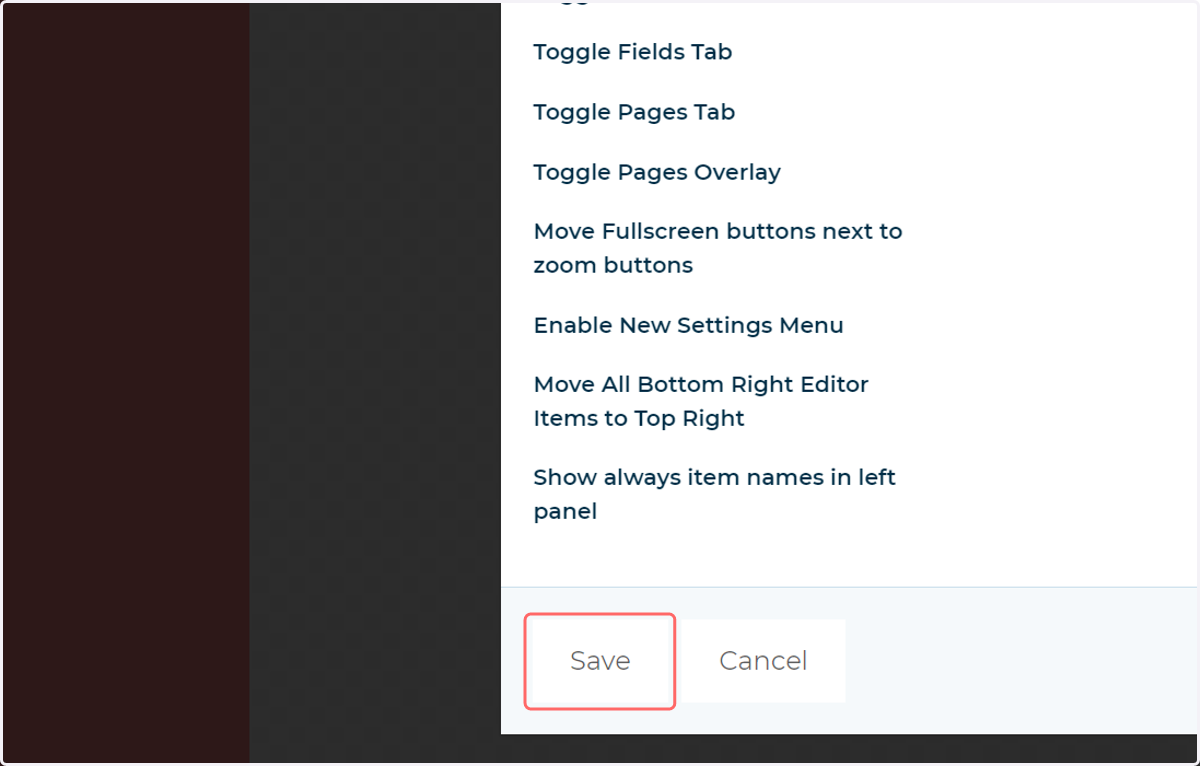
12. Click on Save
13. Remaining tabs
The majority of the tabs have now been removed from the left pane.
The remaining tabs are those associated with resources we have within this particular MegaEdit product.
In this example, cliparts and backgrounds are specified so their tab remains.
Any resources have to be created with either "Admin Only" or "Admin and User" access rights.
As such, when logged in as an admin, you will always see these tabs.
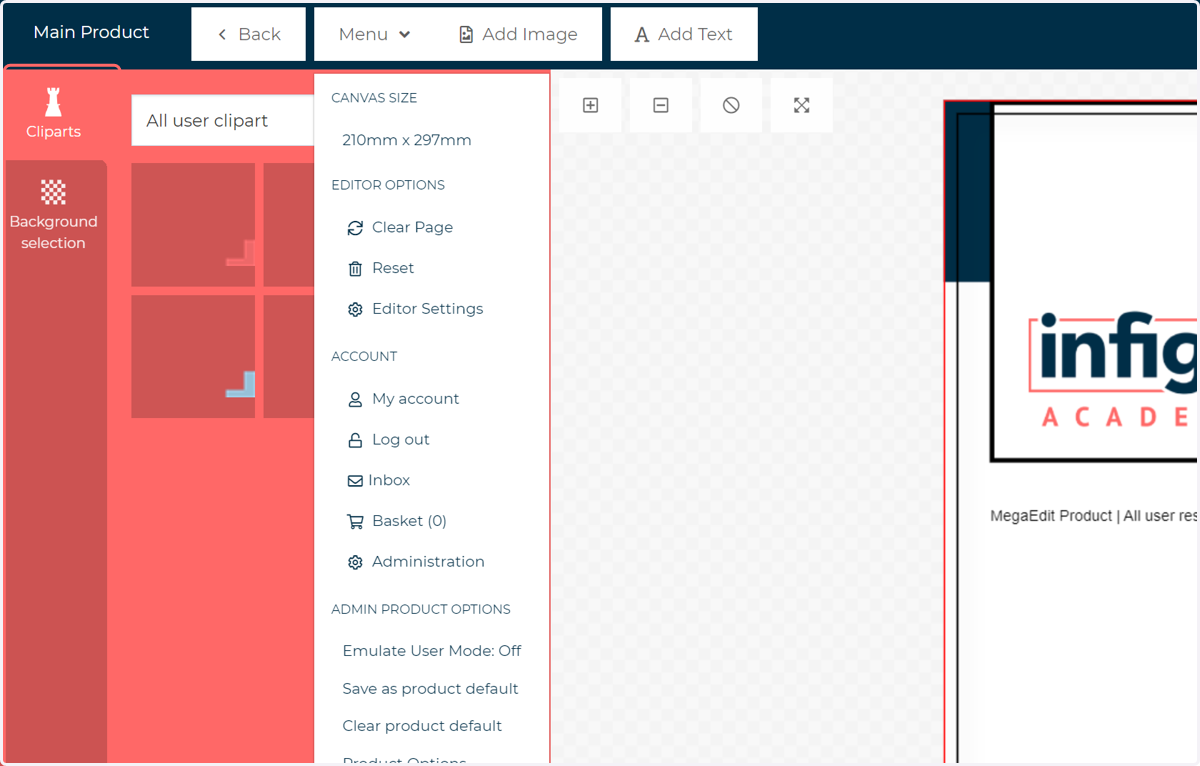
14. Click on Emulate User Mode
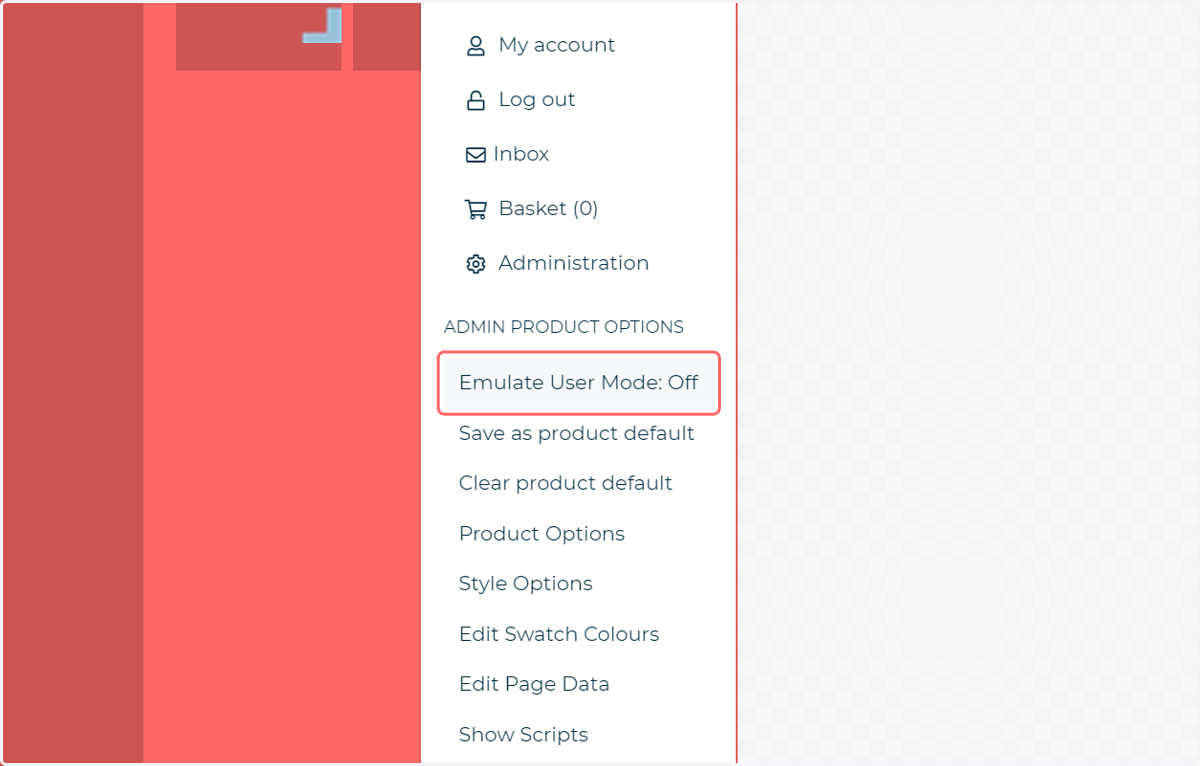
15. Click on Cliparts…
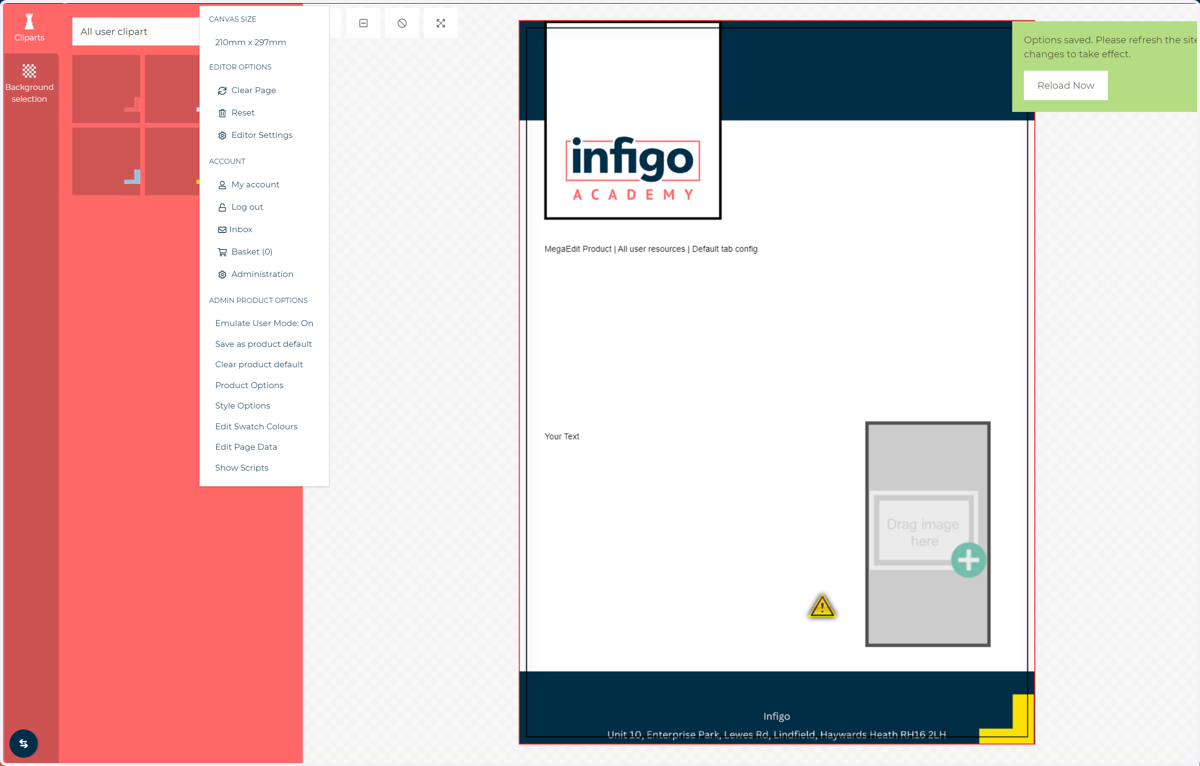
Note, even when using the Emulation mode inside MegaEdit (to interact with a product as they would) the Admin tabs will persist.
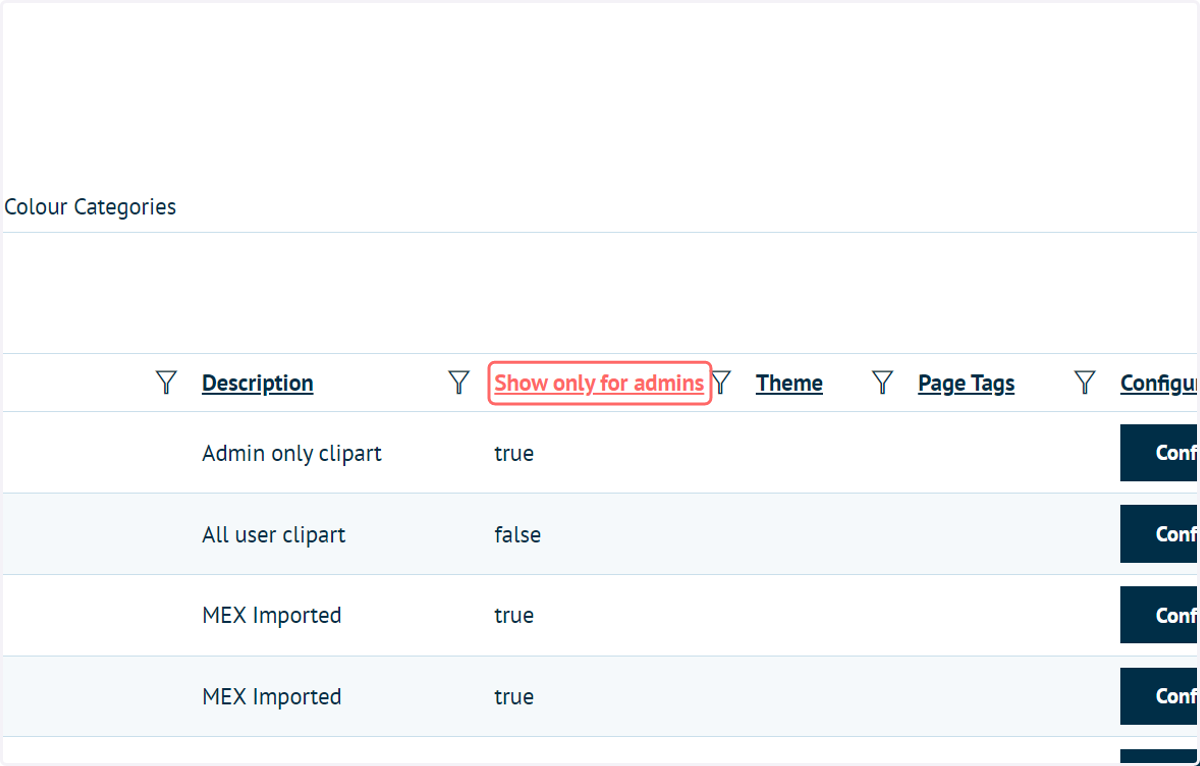
16. Show only for admins
A large factor in the content shown within the MegaEdit left pane is the admin status of the associated resources.
Here, we've navigated to our Clipart categories as an example, but the same logic applies to most resources.
If Show only for admins is set to true, those resources and their associated tabs in the MegaEdit left pane will be hidden from general users.
If Show only for admins is set to false, users will see and can interact with those resources.
17. Examples
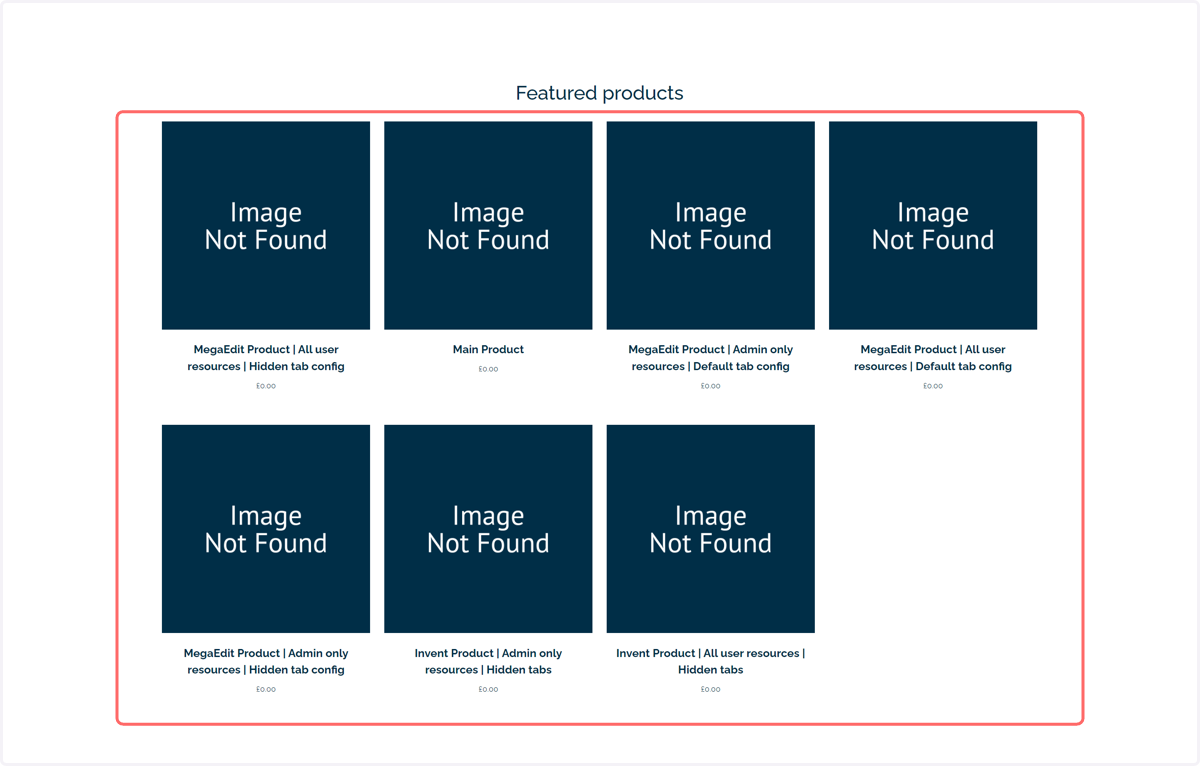
Here, we have set up a few basic examples to show how these configurations of settings might impact what your end user sees when accessing your MegaEdit product.
We are logged in as the end user, with no administrator rights. All of the following MegaEdit editor windows are viewed from that perspective.
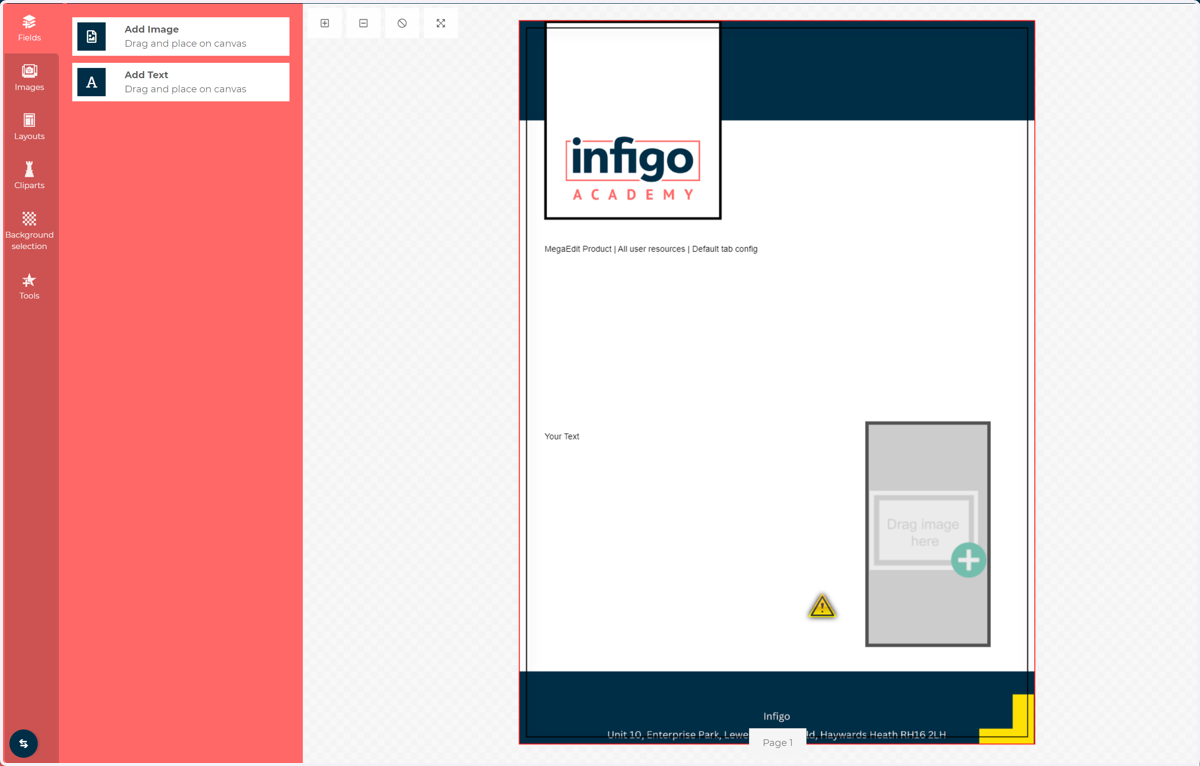
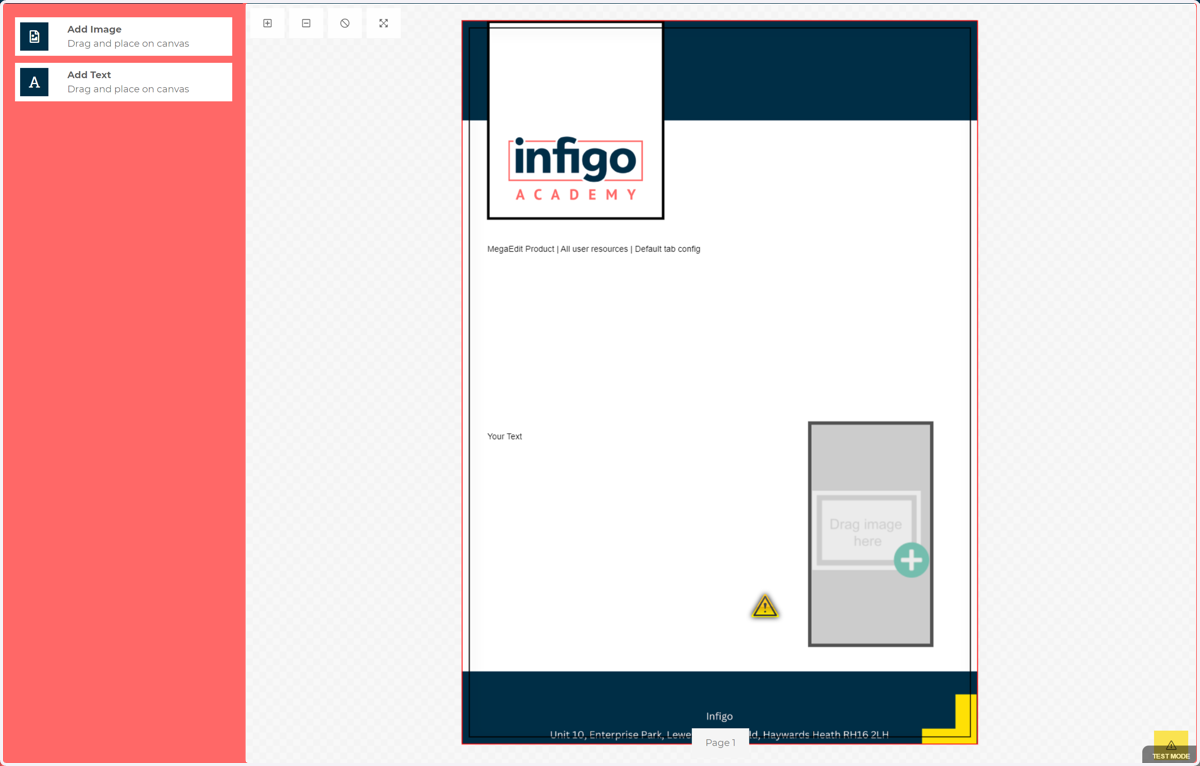
18. Example 1 | Default tab configuration | Resources accessible to all
Here, we have not modified the Product Options to hide certain tabs, with resources accessible to both administrators and general users.
A range of tabs are visible on the left pane, including tabs such as Clipart and Backgrounds containing artwork resource.
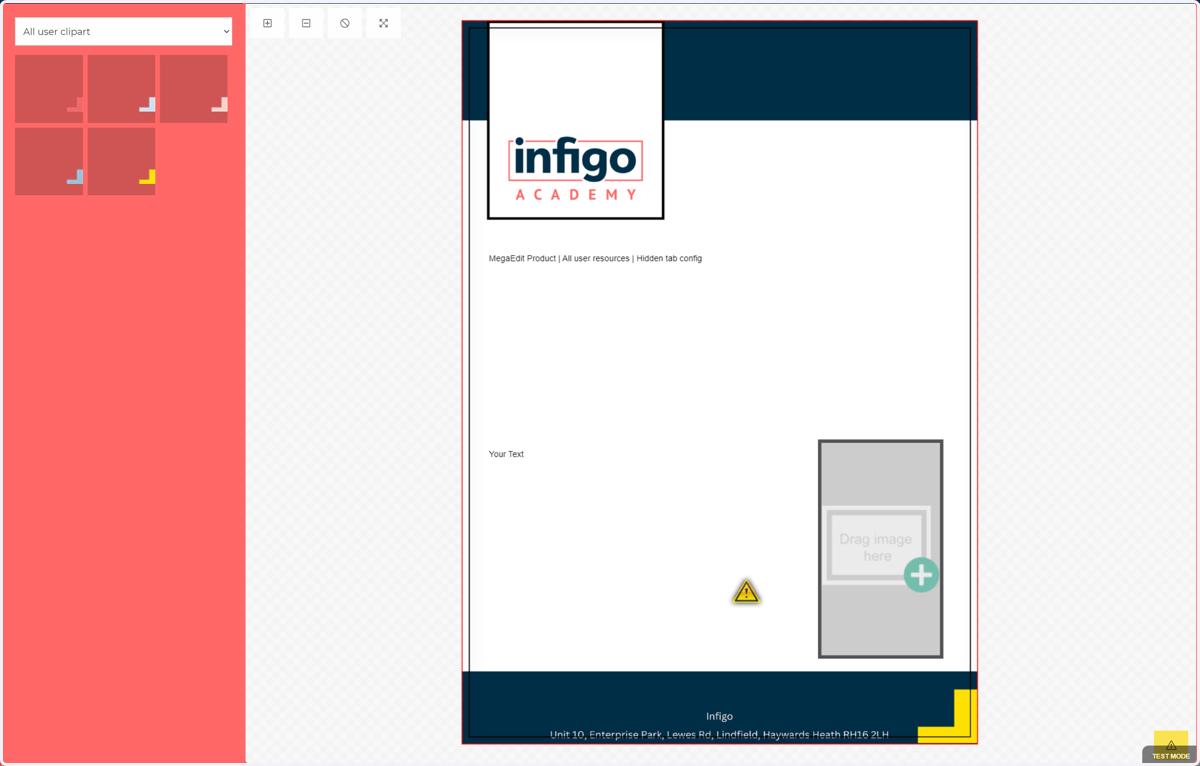
19. Example 2 | Modified tab configuration | Resources accessible to all
Here, the tab toggles in the Product Options have been modified to hide all available tabs.
As artwork resources are accessible to users and administrators, those tabs are still visible.
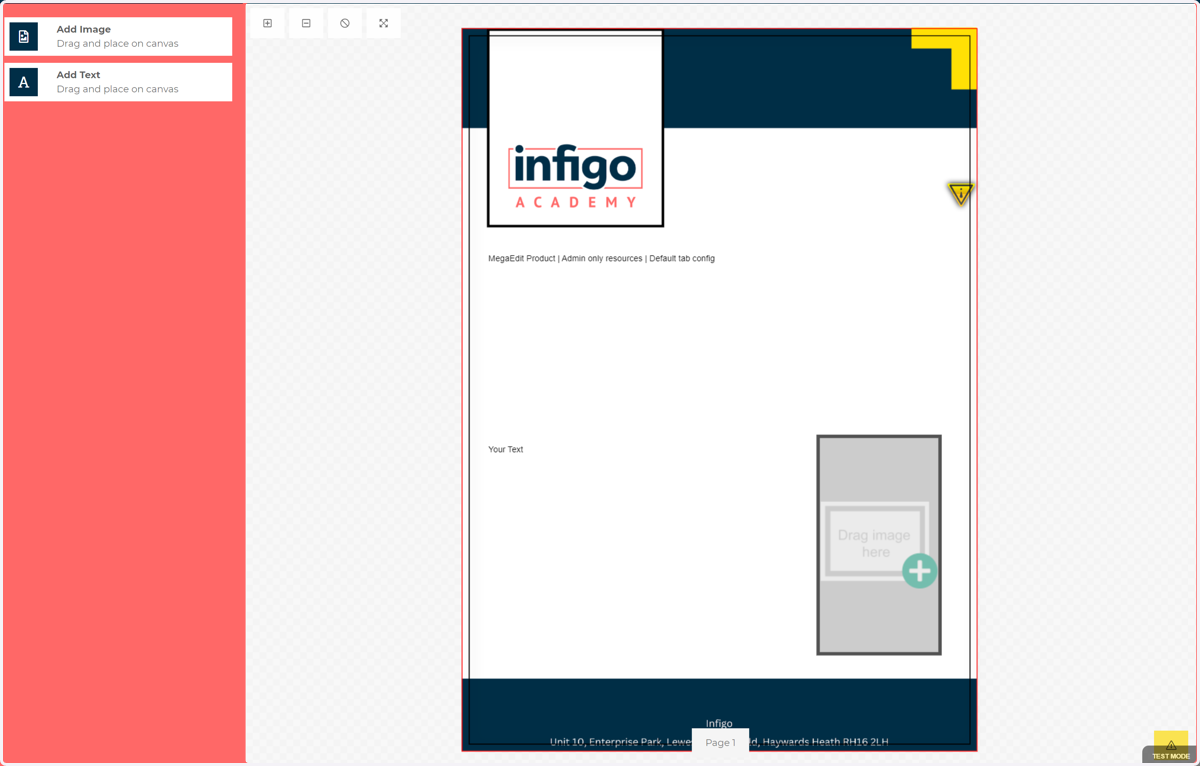
20. Example 3 | Default tab configuration | Admin only resources
Here, we have the default selection of tabs, however the resource tabs are not displayed to the end user as they are set to Admin only.
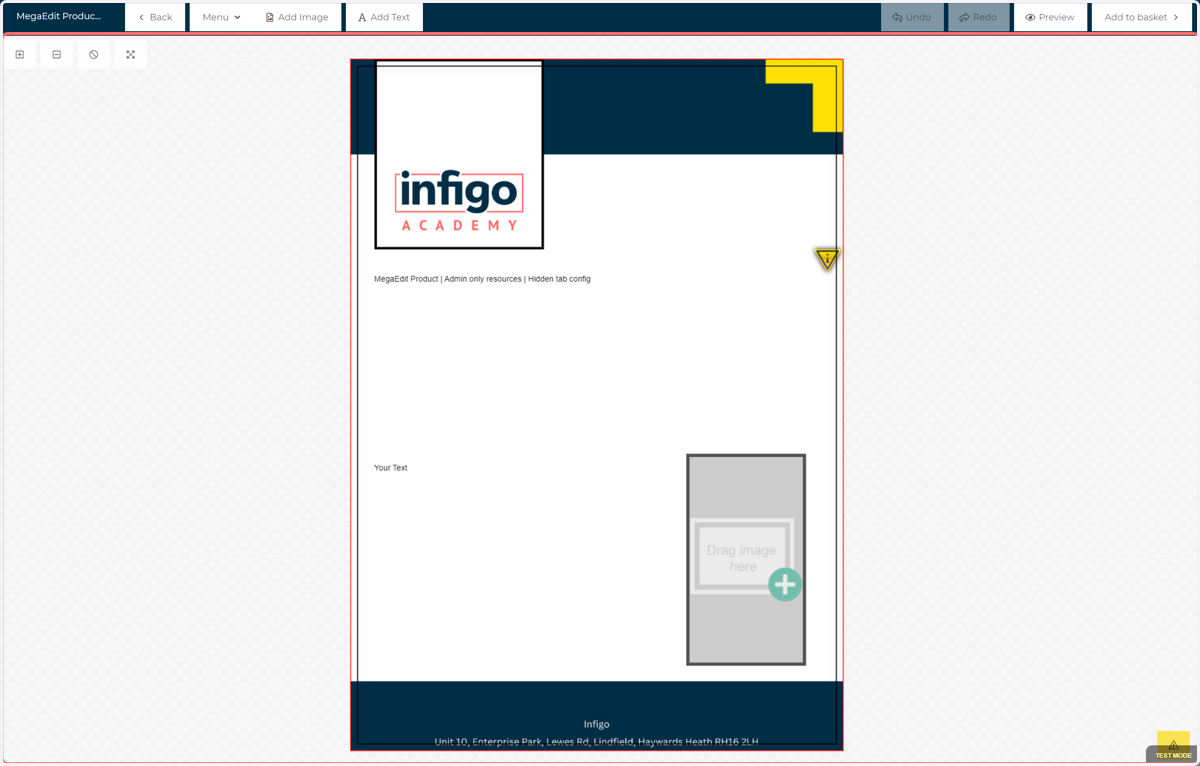
21. Example 4 | Modified tab configuration | Admin only resources
As all tabs are now disabled due to Product Options and admin only resources, the left pane is no longer required and is completely hidden from view for the end user.
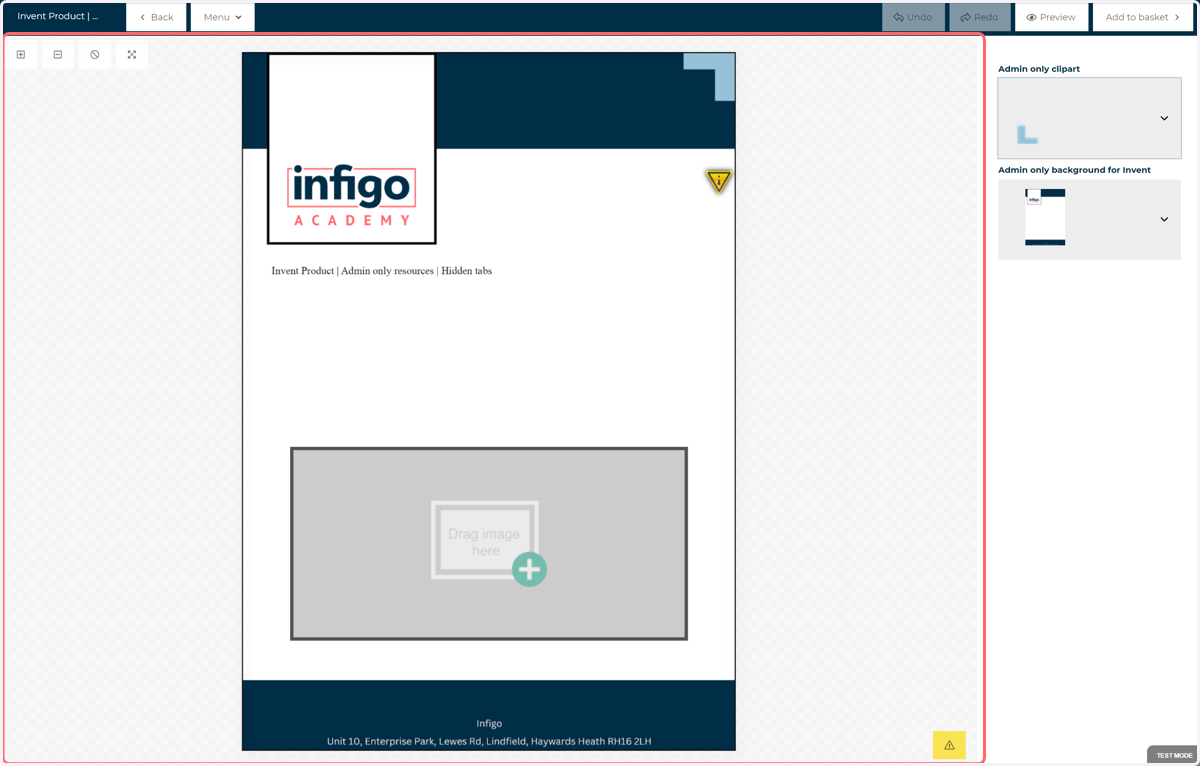
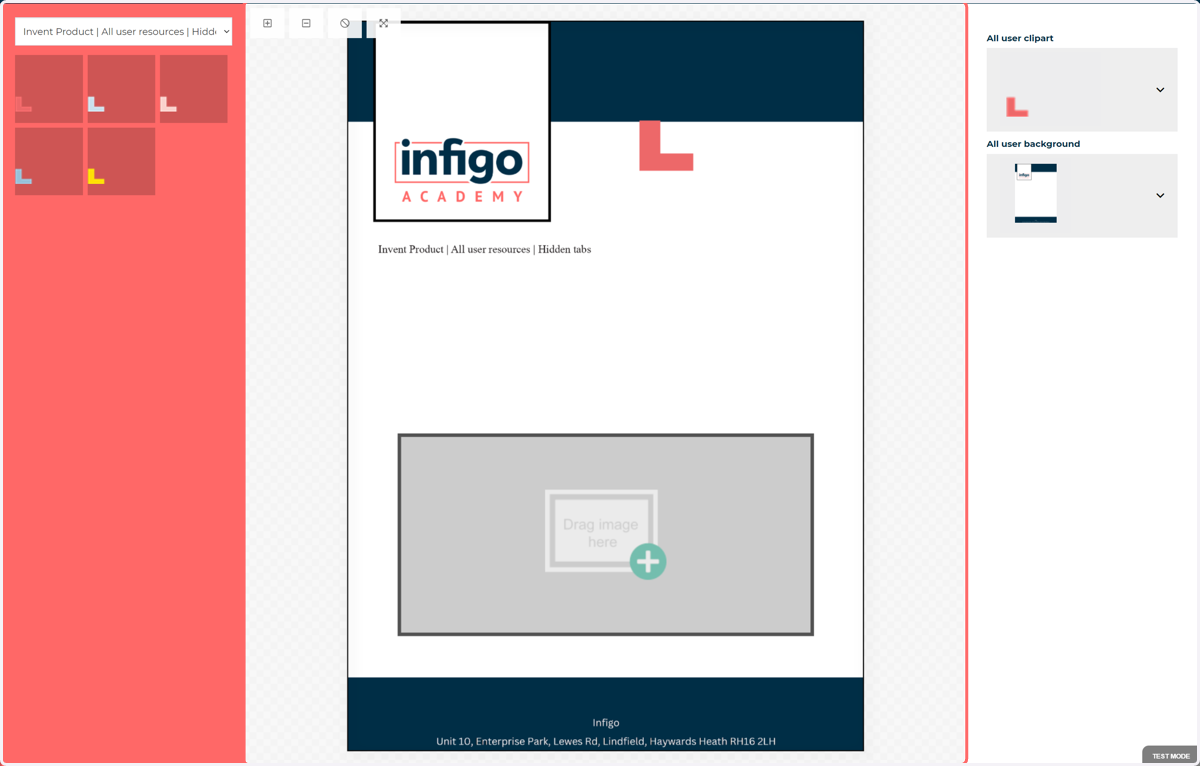
22. Example 5 | Invent product | Modified tab configuration | Resources accessible to all
This is an example product created using Infigo Invent for Adobe InDesign.
Most tabs have been hidden with the Product Options, however we still see the resource tabs, as they are accessible to the end user.
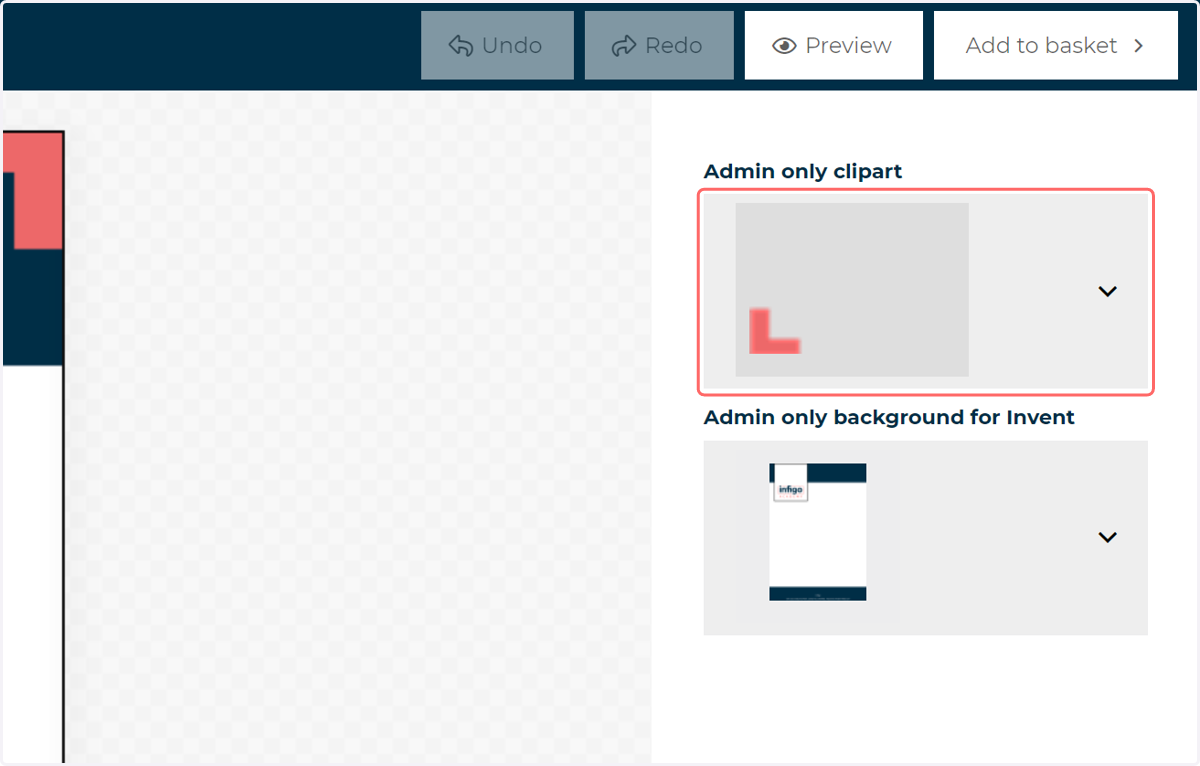
This Invent product was set up utilising a form. As a result, resources can be switched from two locations using this product configuration.
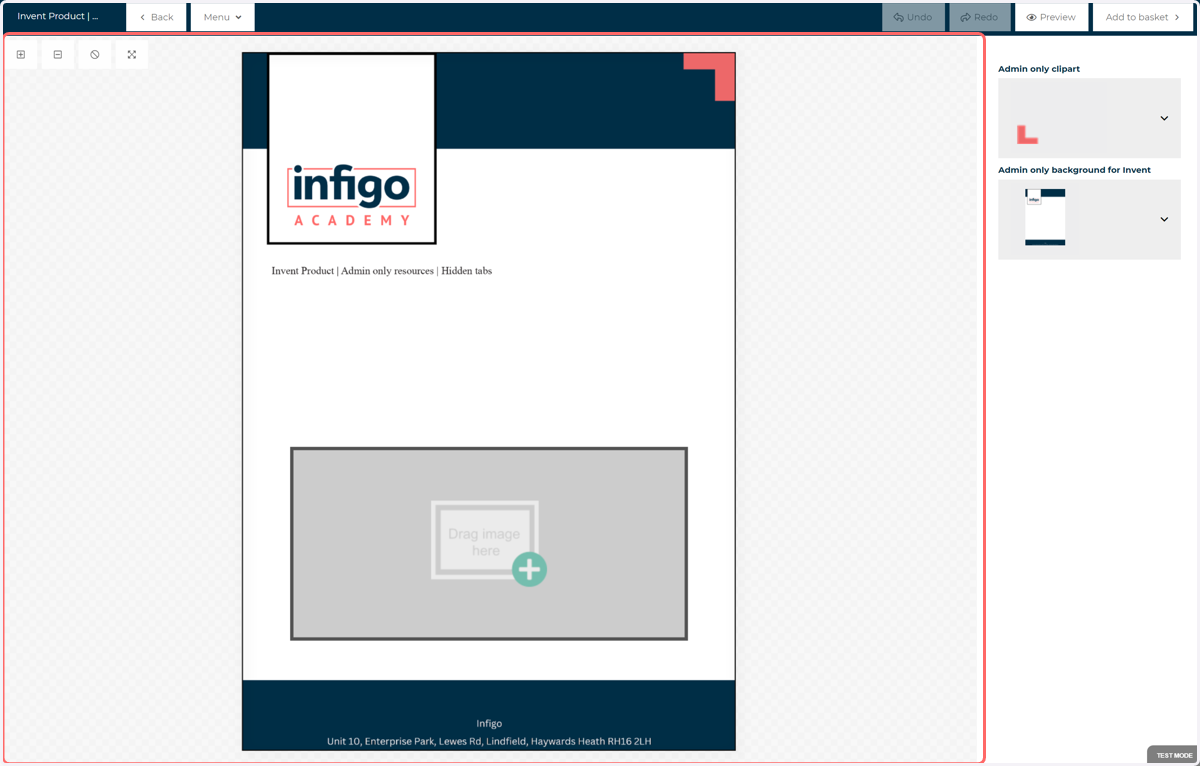
23. Example 5 | Invent product | Modified tab configuration | Admin only resources
This is an example product created using Invent.
The left pane is completely hidden as there are no active tabs. Product Options are set to hide tabs and resources are set to admin only.
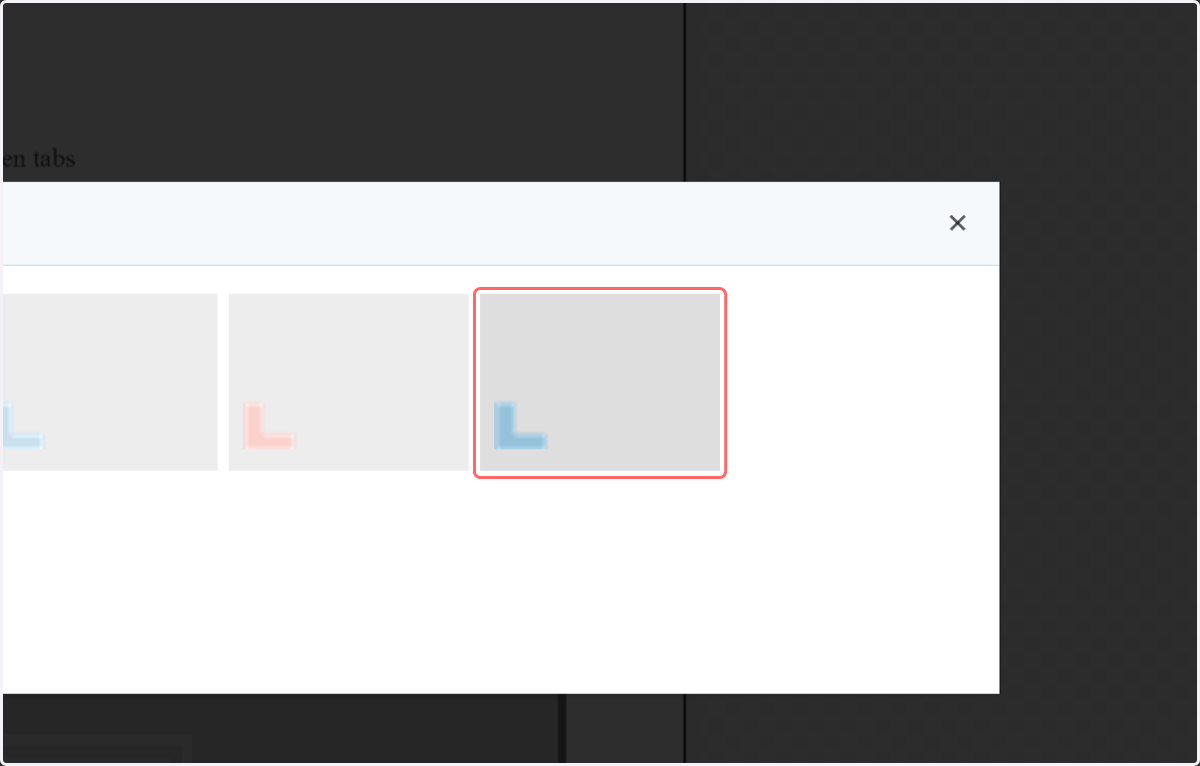
However, despite being marked as Admin Only, resources can still be switched using the preconfigured Invent form, which is linked to a resource set in Invent.
24. Click one of the form options
25. Click on Select your option…
26. Changed clipart