Placing orders without artwork | GT_PR_012
This tutorial introduces the functionality allowing orders for products to be placed, without the initial specification of artwork. This applies to products which traditionally require artwork to be provided, such as Multi Part products.
This functionality allows you to proceed through the ordering process and place the order. The order will be registered but will not proceed through the Infigo system until the user uploads the artwork for that job from their My Orders page.
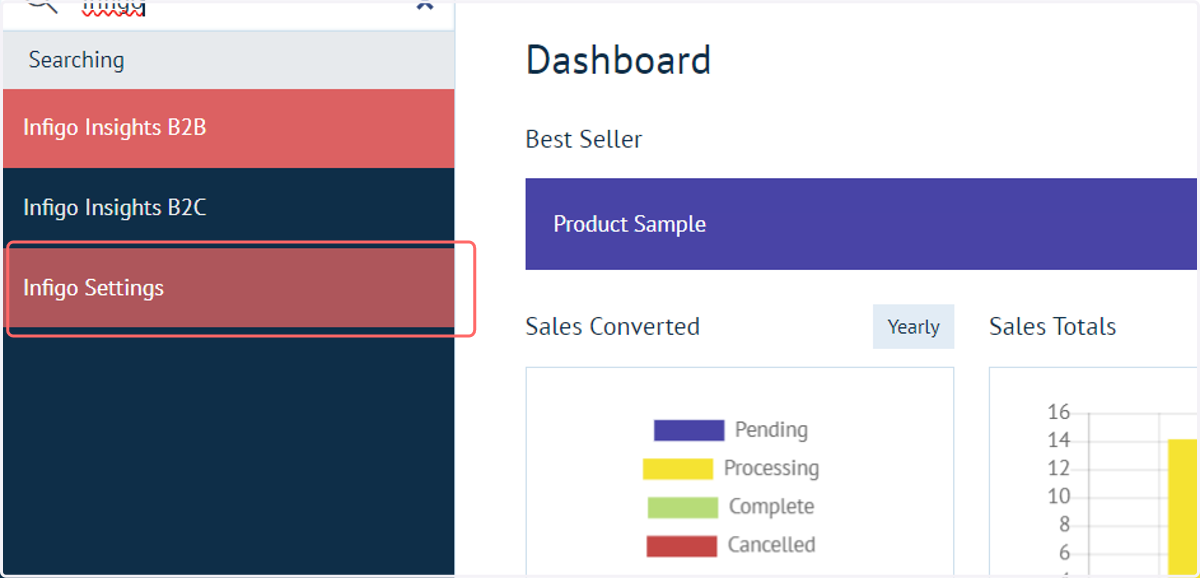
1. Navigate to Infigo Settings
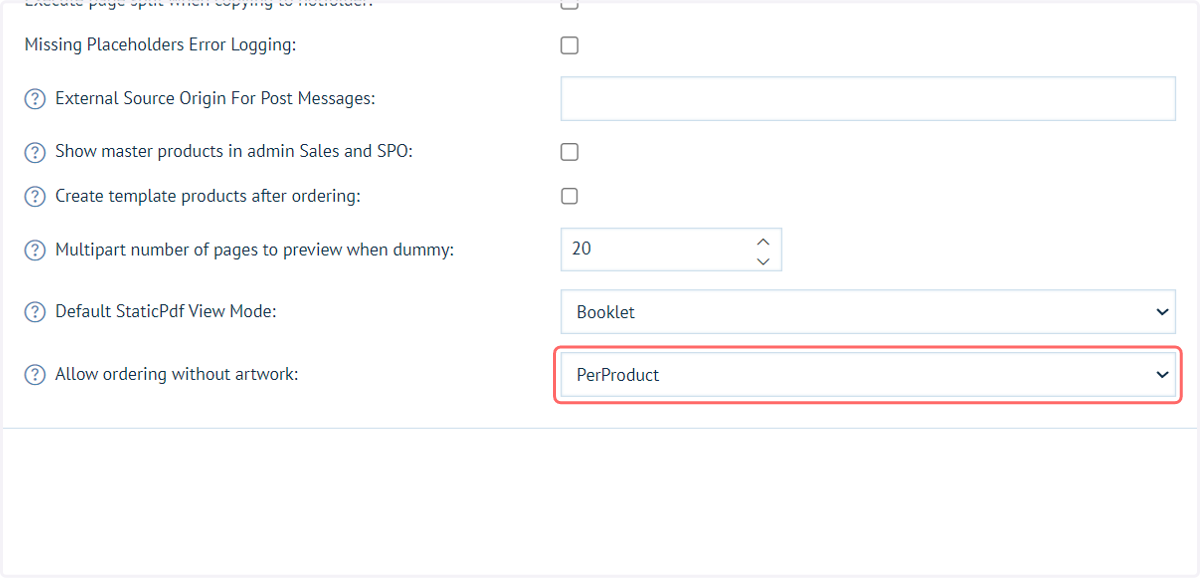
2. Navigate to Allow ordering without artwork
This setting allows you to define the scope of this functionality. It can be disabled completely, globally enabled for all relevant products or can be defined on a per product basis.
In our example, I'll set this to Per Product. This will mean additional configuration for each product we wish to apply this to.
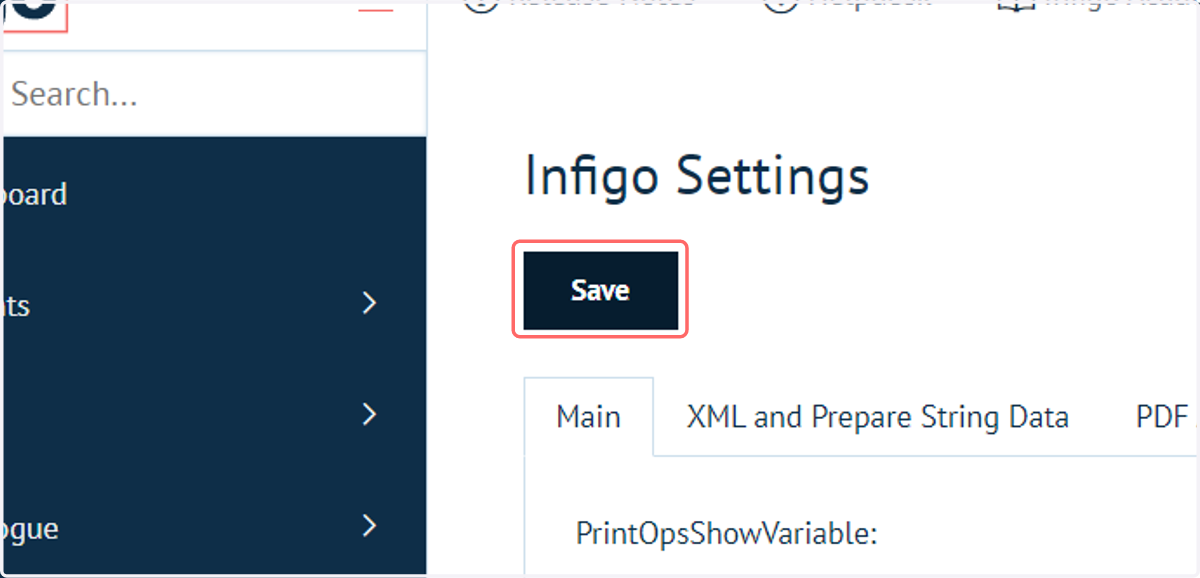
3. Click on Save
4. Navigate to Product Management
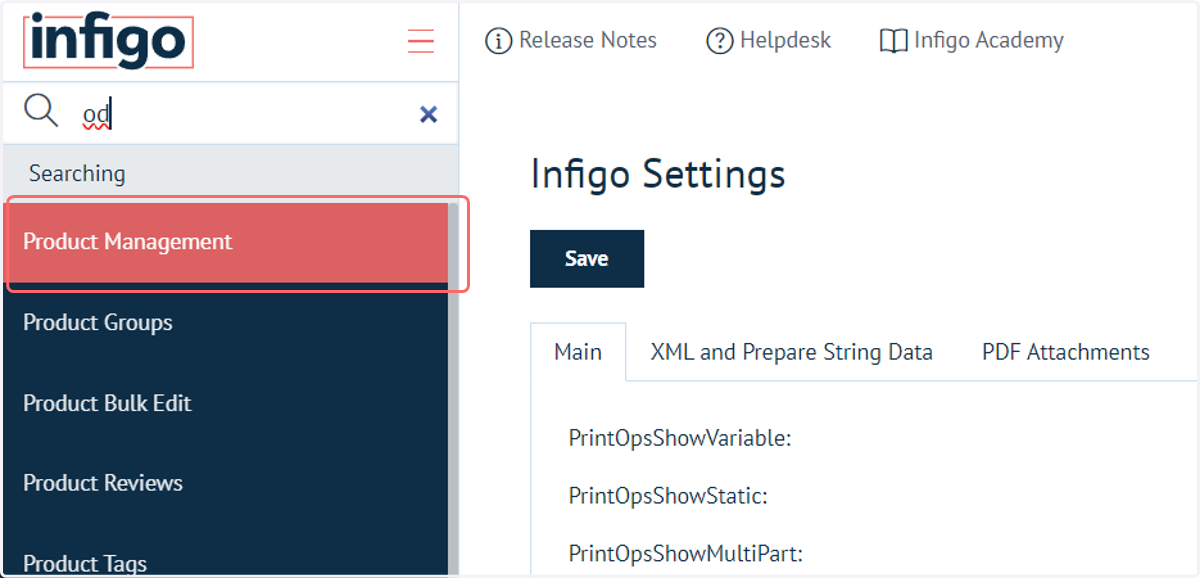
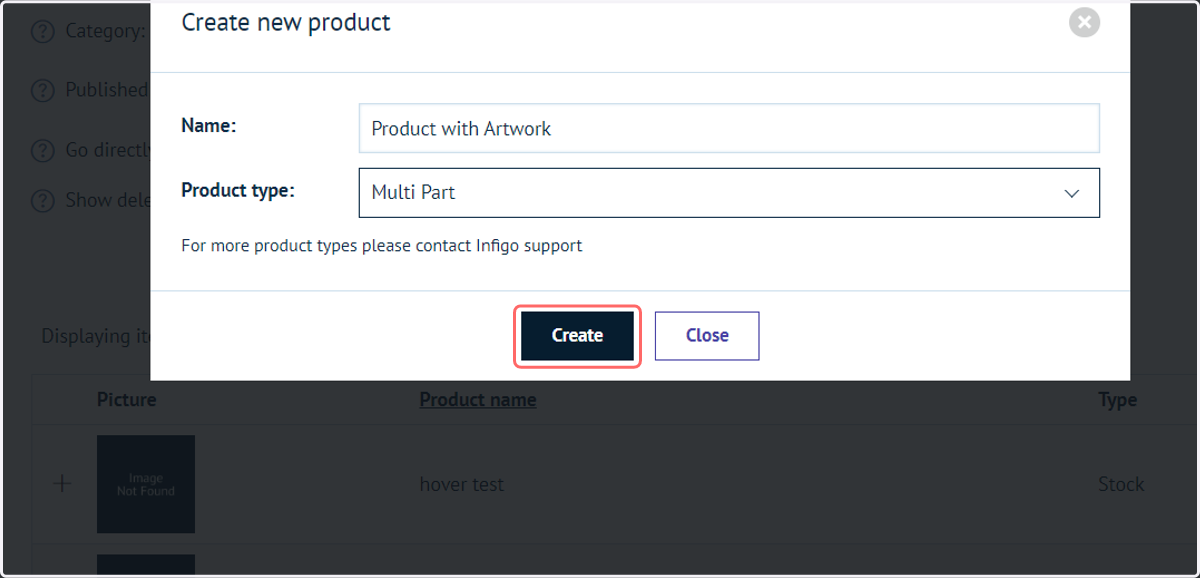
5. Locate or create a relevant product, such as a Multi Part product
As a reminder, Multi part products require a PDF to be uploaded by the end user.
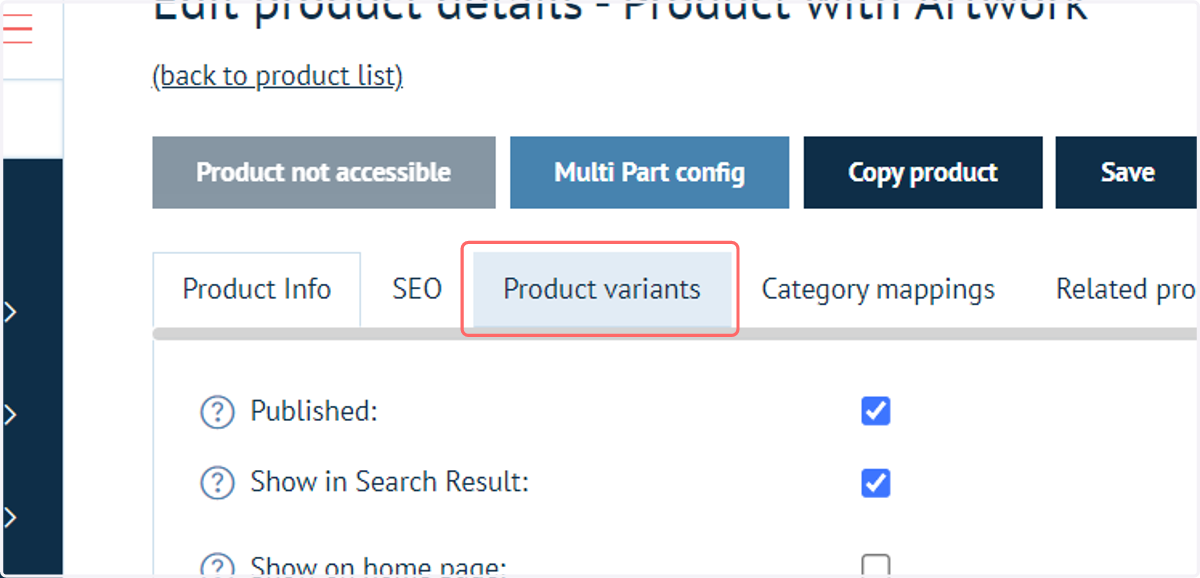
6. Navigate to Product variants
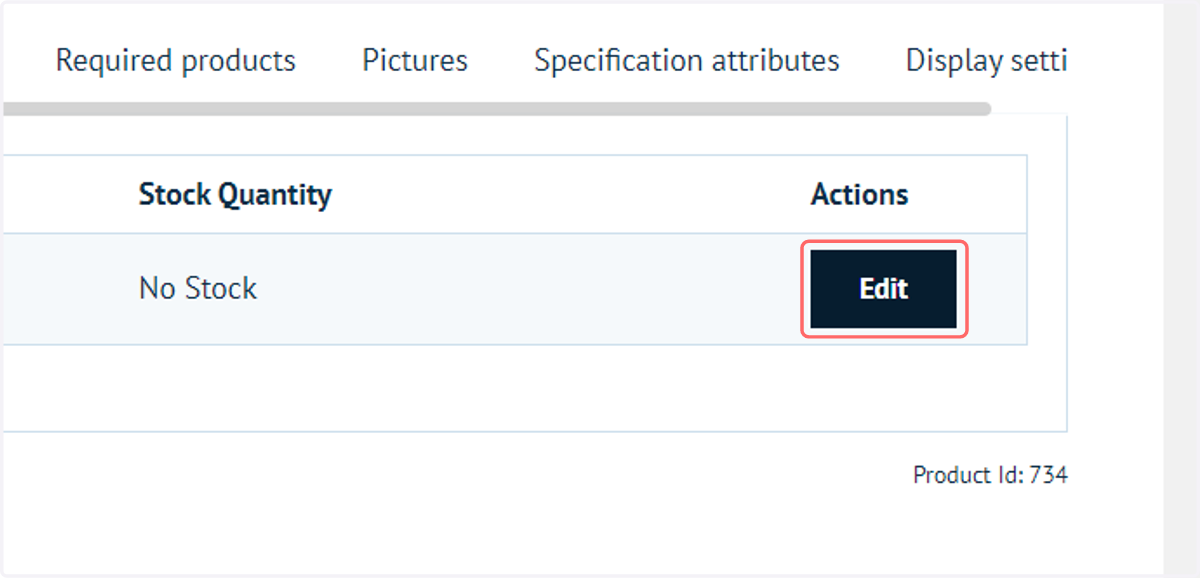
7. Click on Edit
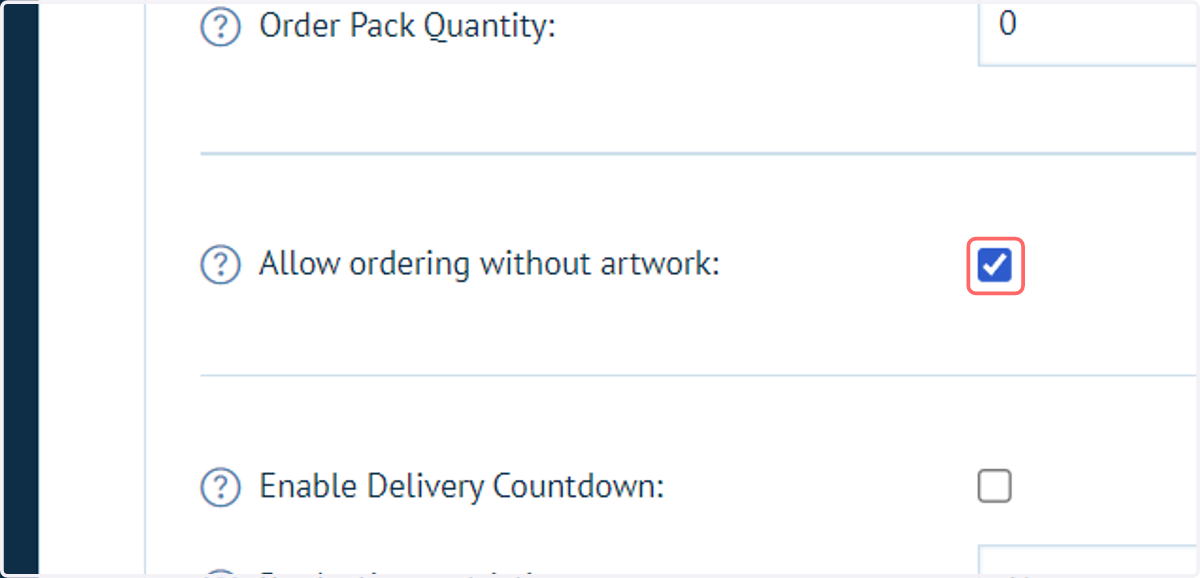
8. Check the setting Allow ordering without artwork
This setting is only applicable if the Infigo Settings option is set to Per Product
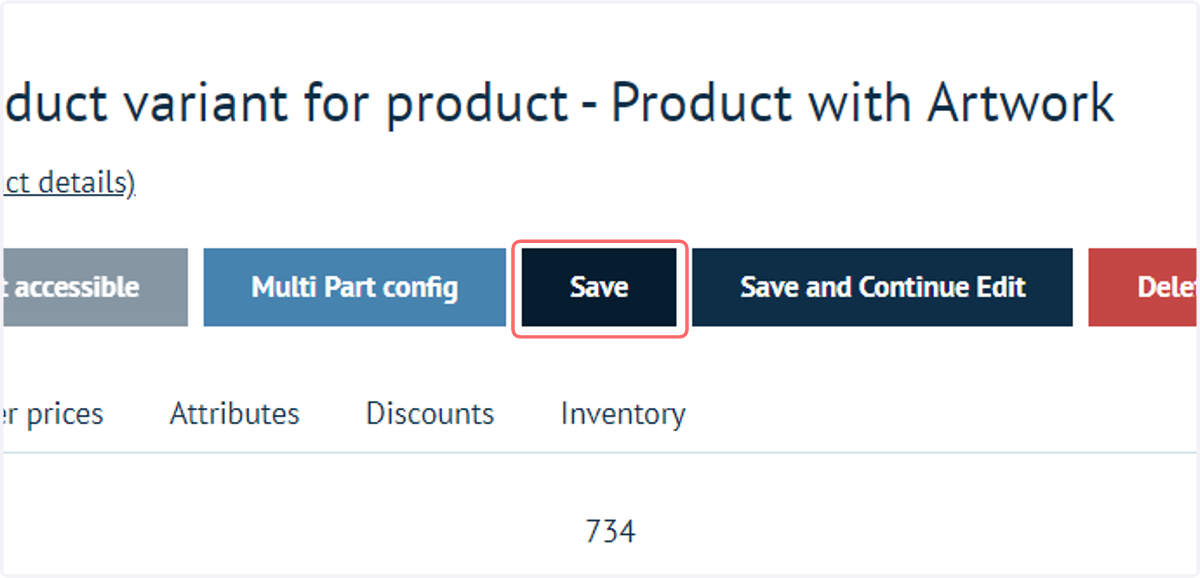
9. Click on Save
10. Product landing page
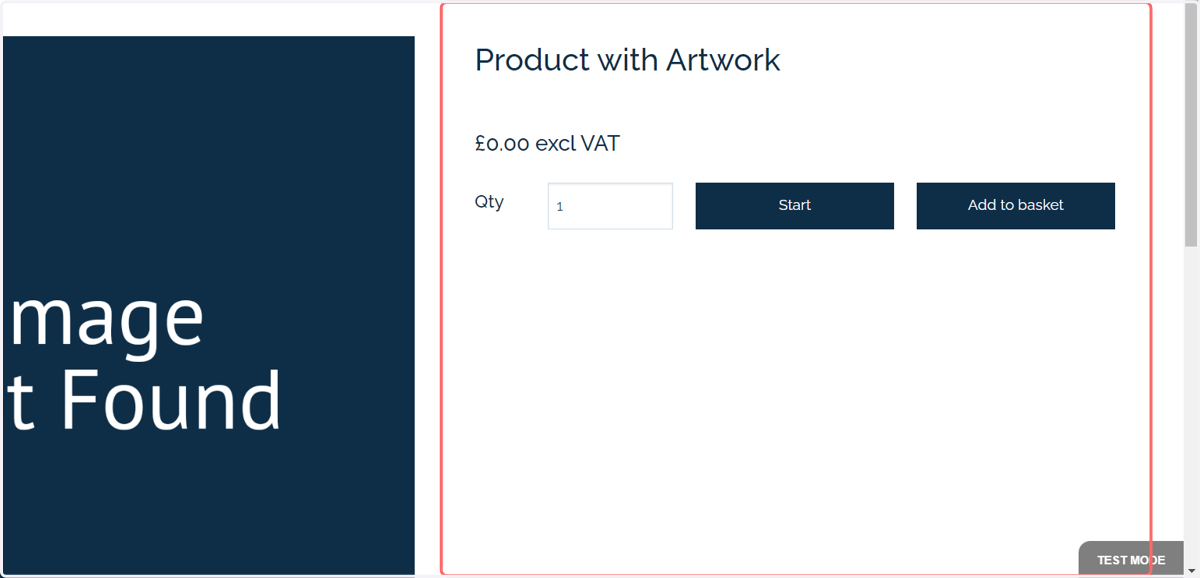
Navigate to the product landing page.
In addition to the standard Start button (which takes you to the PDF upload page for a Multi Part product), you can also see an Add to basket button.
This bypasses the requirement to immediately upload our artwork
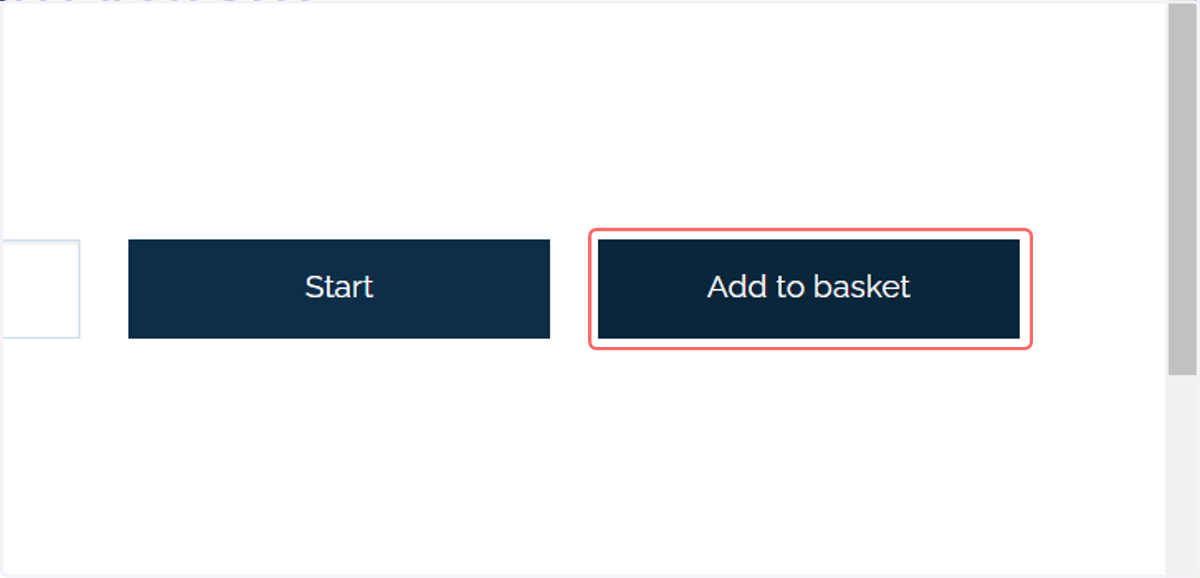
11. Click Add to basket
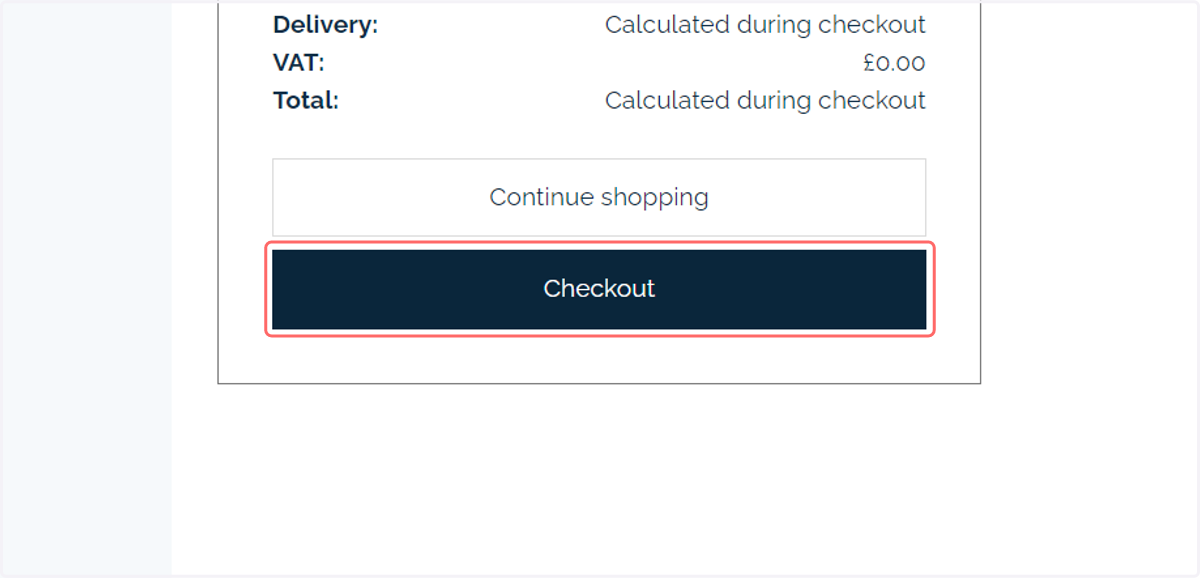
12. Proceed through checkout and place the order
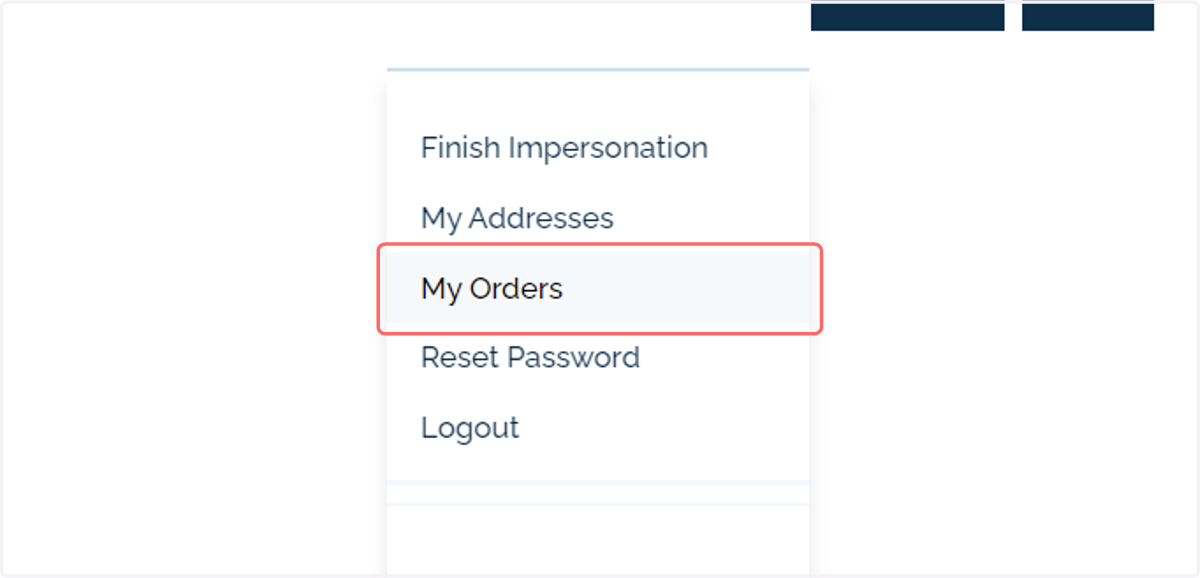
13. Click on My Orders
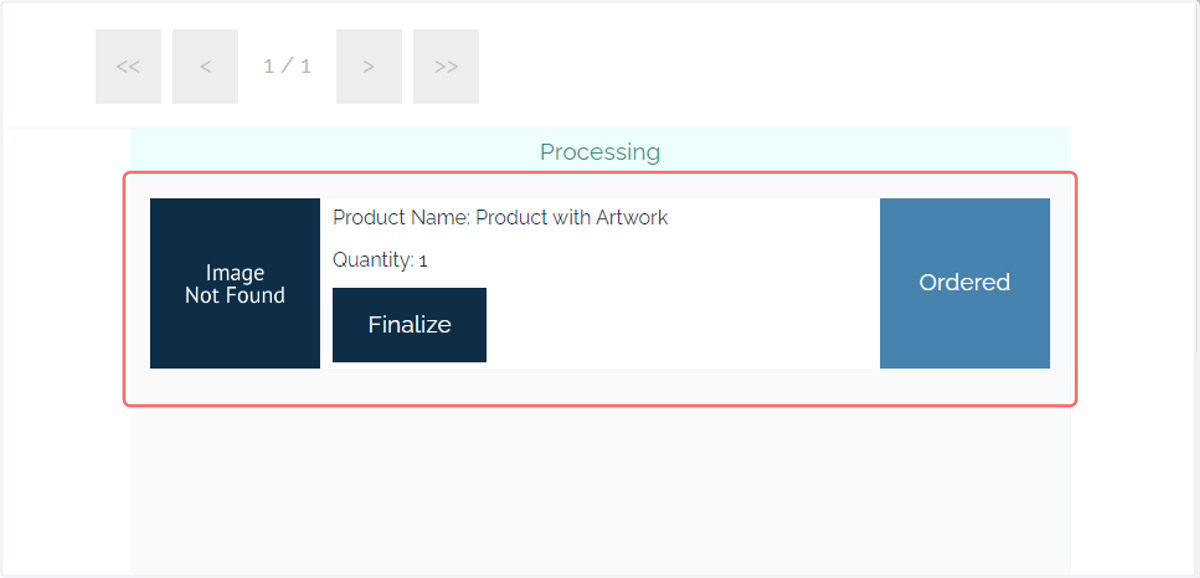
14. My Orders
The recently placed order can be seen within the My Orders page, however we can see an additional button suggesting the product requires finalization.
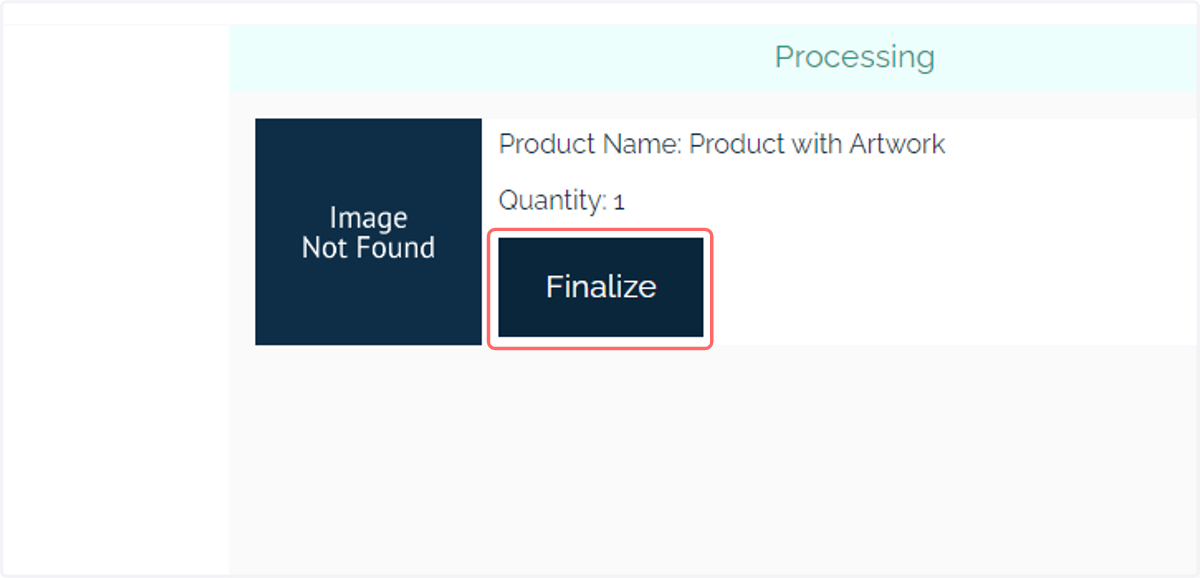
15. Click on Finalize
16. Upload artwork
You will be taken to a page where you can provide the necessary artwork.
Select a PDF to upload
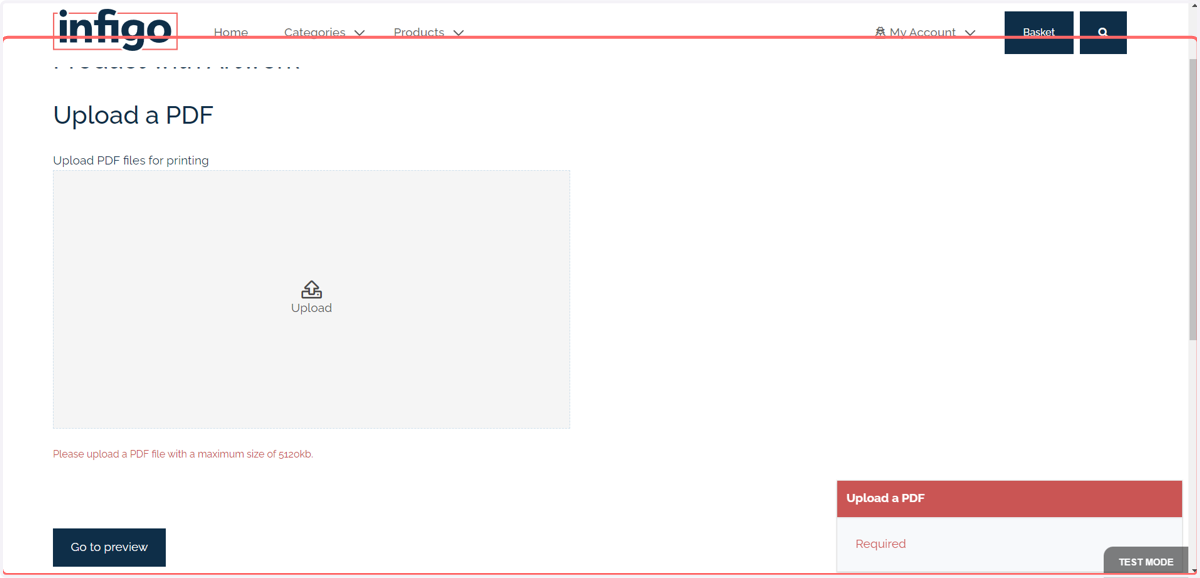
17. Click on Go to preview
18. Click on Save
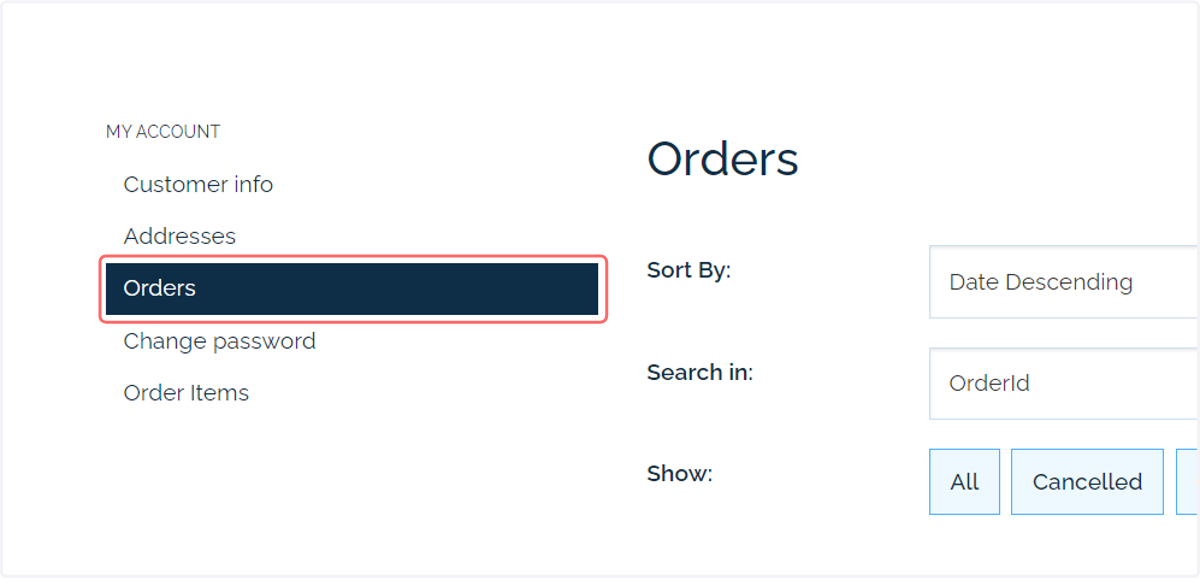
19. Navigate back to the Orders tab
20. Click on Click Here To Show/Hide Order Details
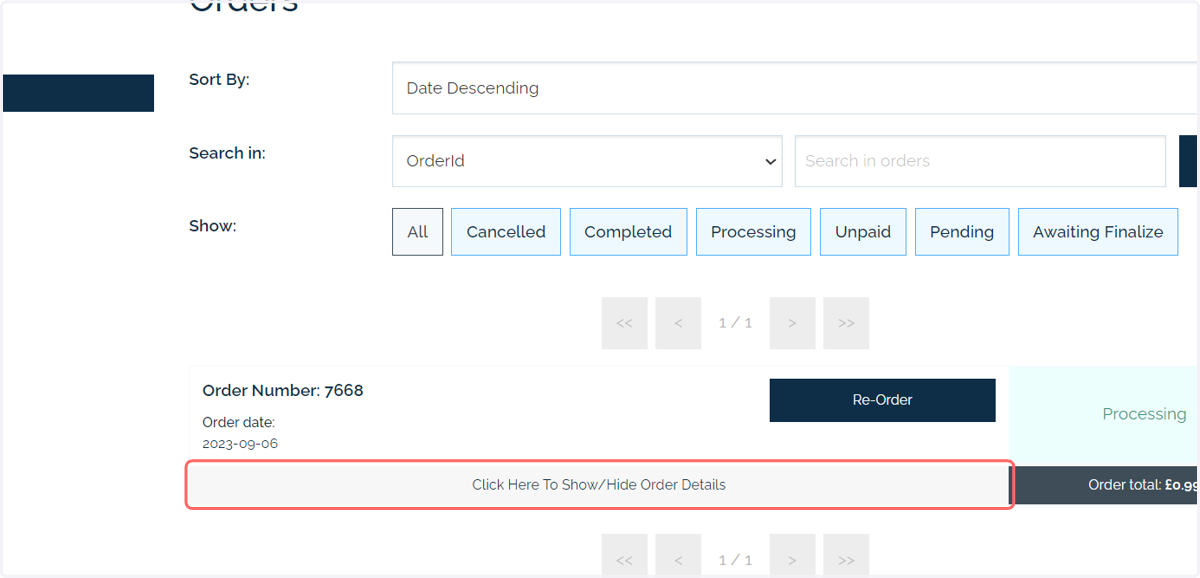
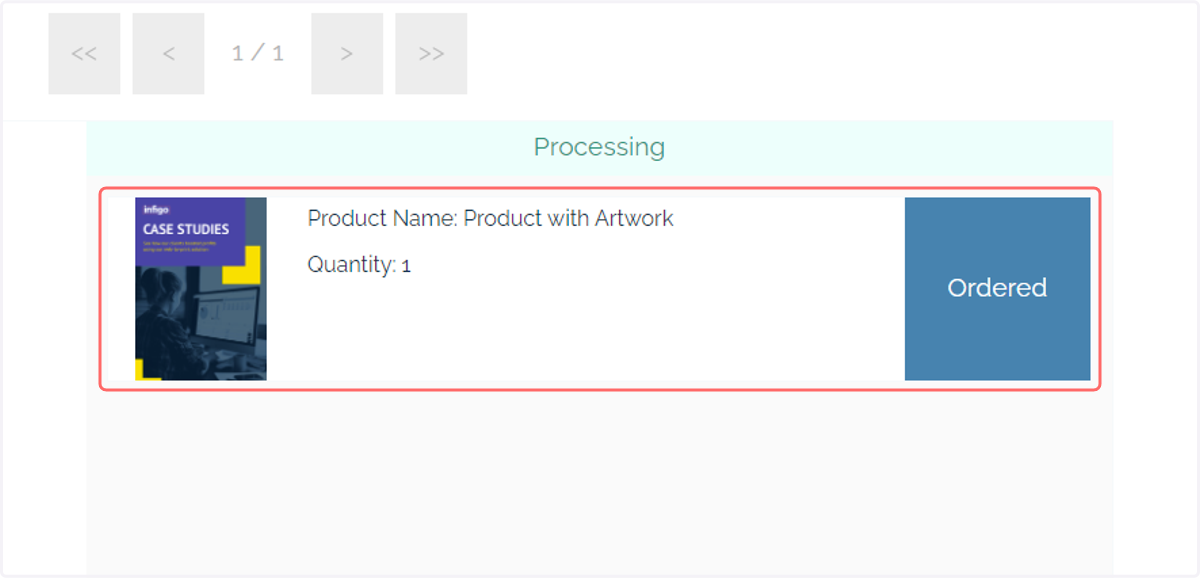
21. The artwork is now shown and the order has been finalized.
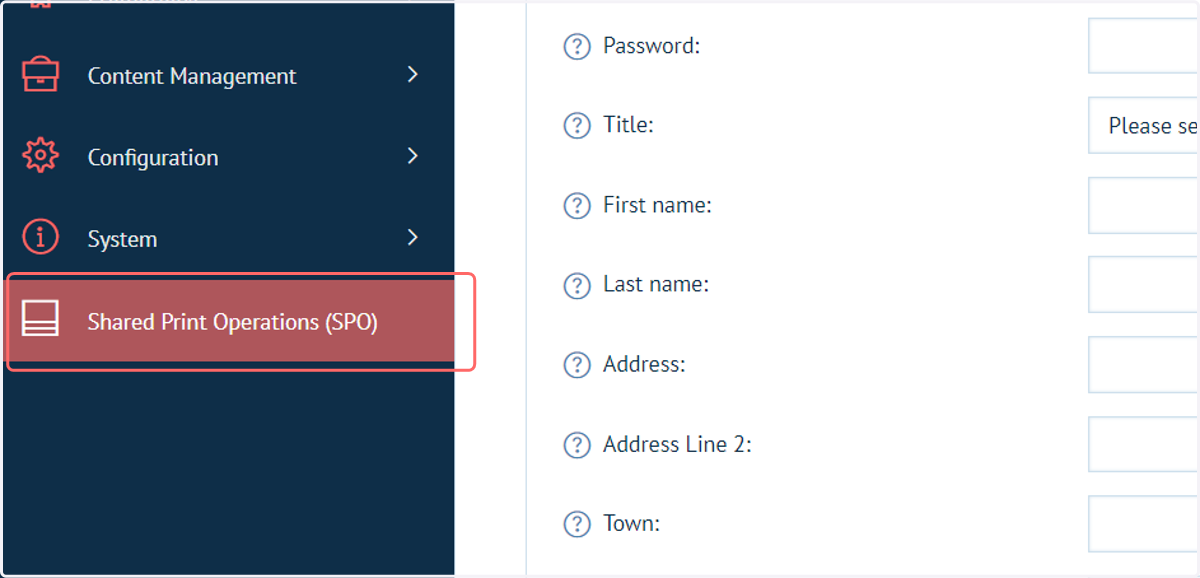
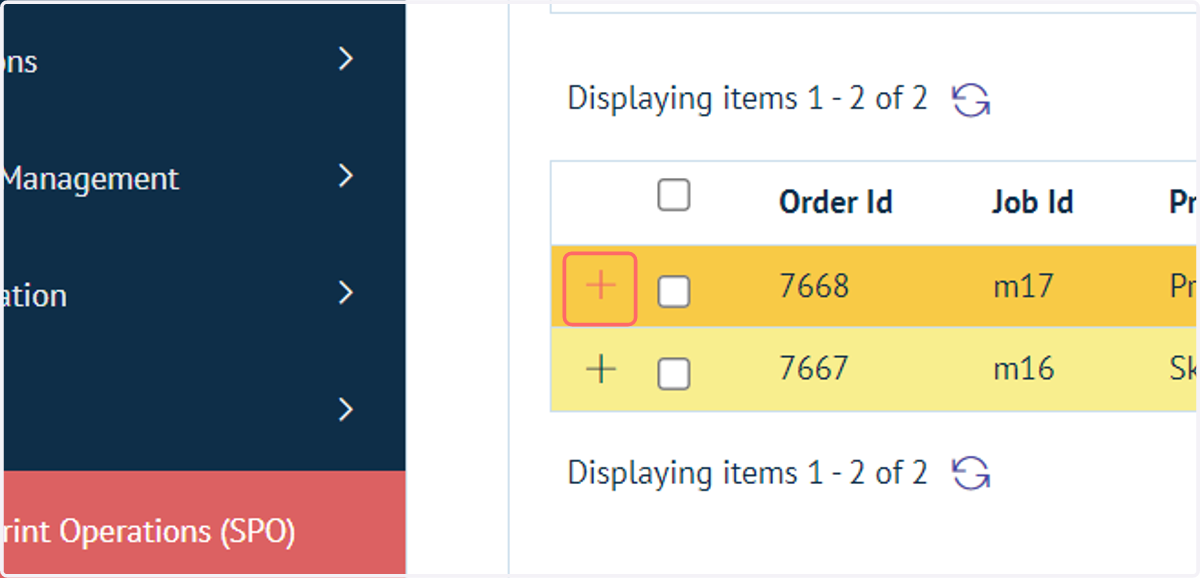
22. Navigate to Shared Print Operations (SPO) in the admin area
We will take a look at the changes in order status as we have completed this process.
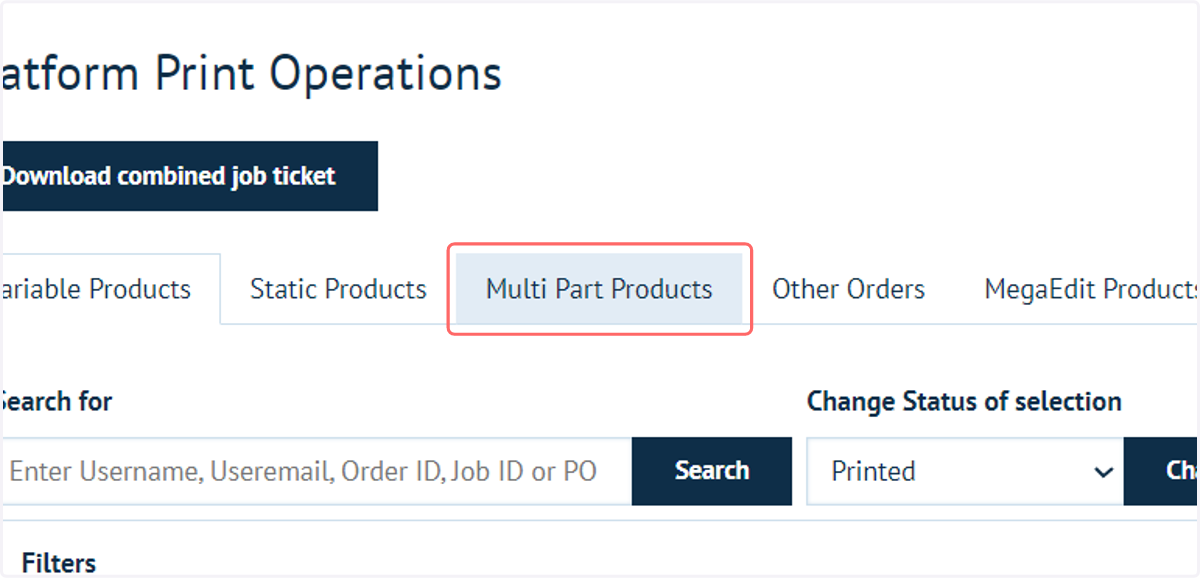
23. Click on Multi Part Products
24. Click on the '+' icon to expand the job
25. Click on Show All to view Status History
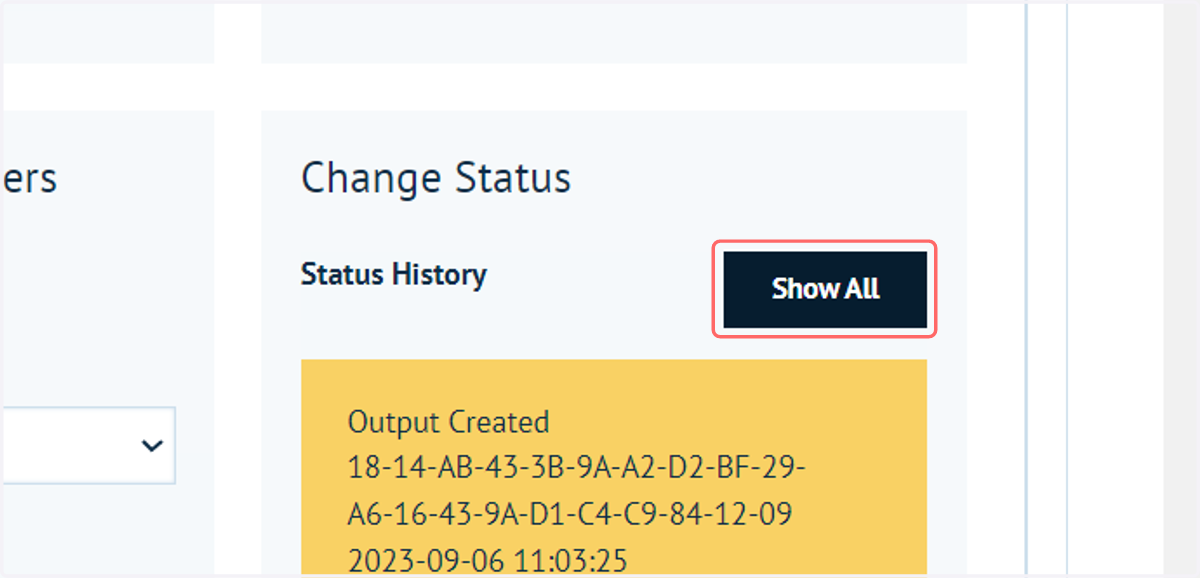
26. Click on Change Status…
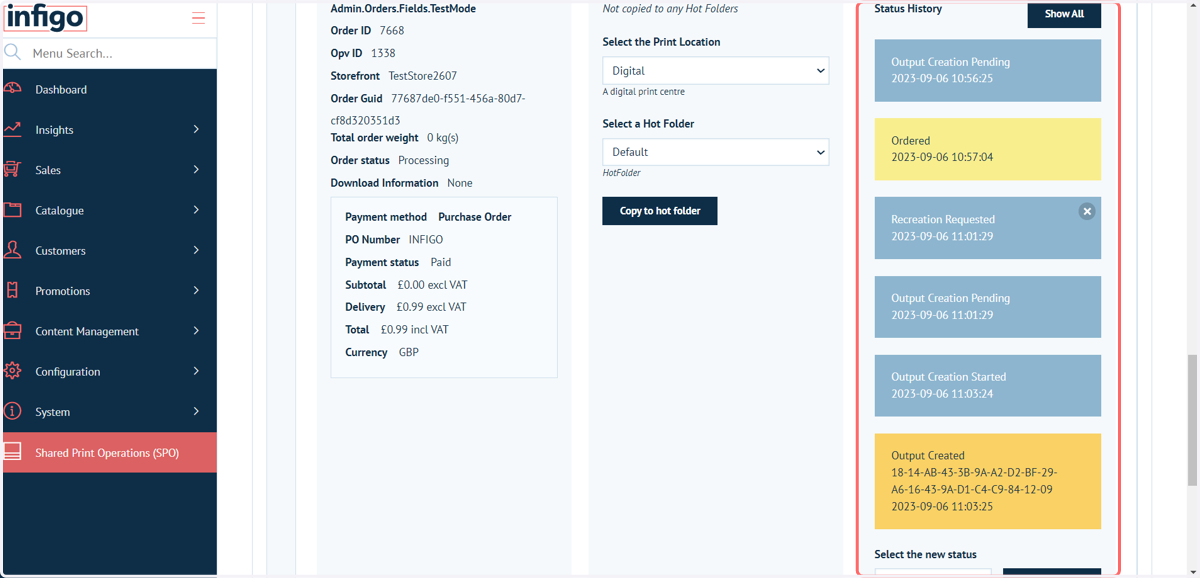
The changes in order status throughout this process can be seen here.
We see the job was initially ordered, however when the artwork was eventually provided a task was triggered to generate the required output files.