Saving Content Template Sets | BG_062
In this tutorial, we'll take a look at how you can save as templates, then reuse, your page content configured using Content Templates.
This allows you to create complex page content using our Content Template editor, then reuse it time and time again to save a lot of time and ensure a consistent layout between pages.
1. Click Save Set
Starting in an existing configuration page where Content Templates have been used to create the page content. This could be any area where Content Templates can be utilised, such as Editable Content, Product pages, Blog pages and more.
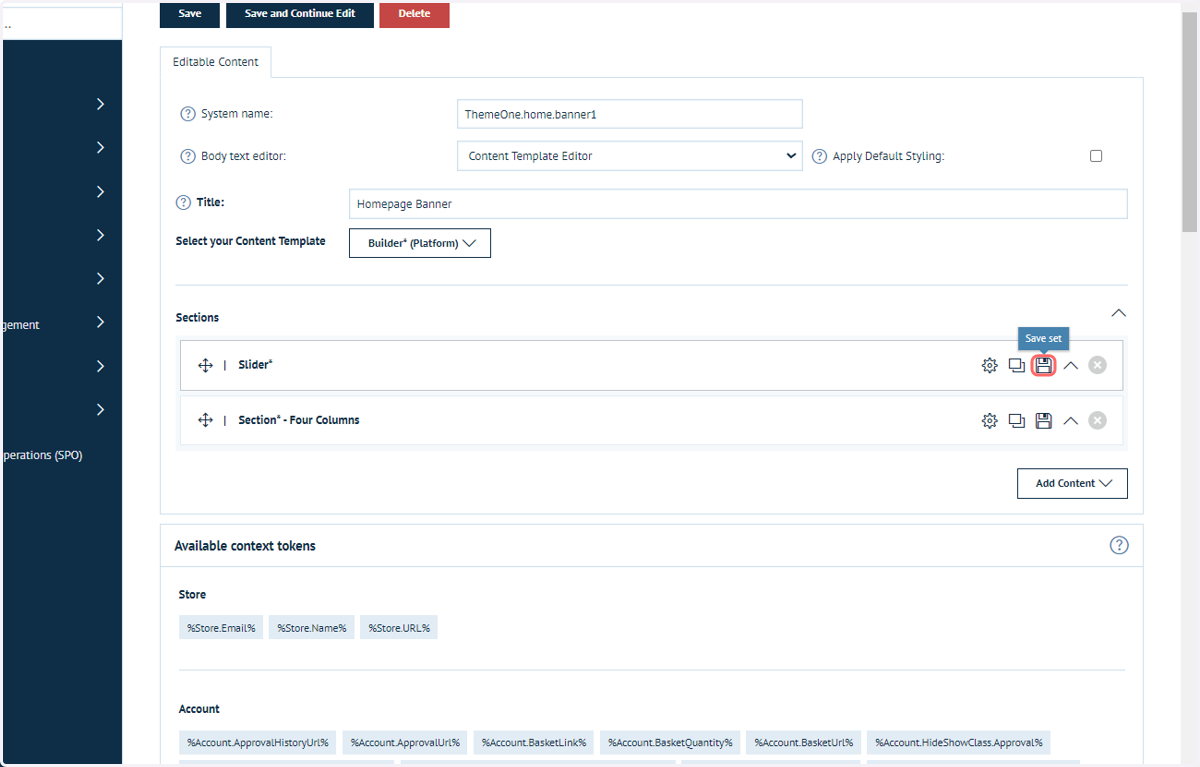
You will notice the Save icon next to different building blocks within your Content Template. You an save your "Set" at any of these available levels, although you will only be able to add them again to a new Content Template in areas where they are directly applicable.
For example, here I'm saving a slider, which is placed directly into the Sections area of the Builder template. You will only be able to duplicate this Slider into areas where a slider could also be manually constructed.
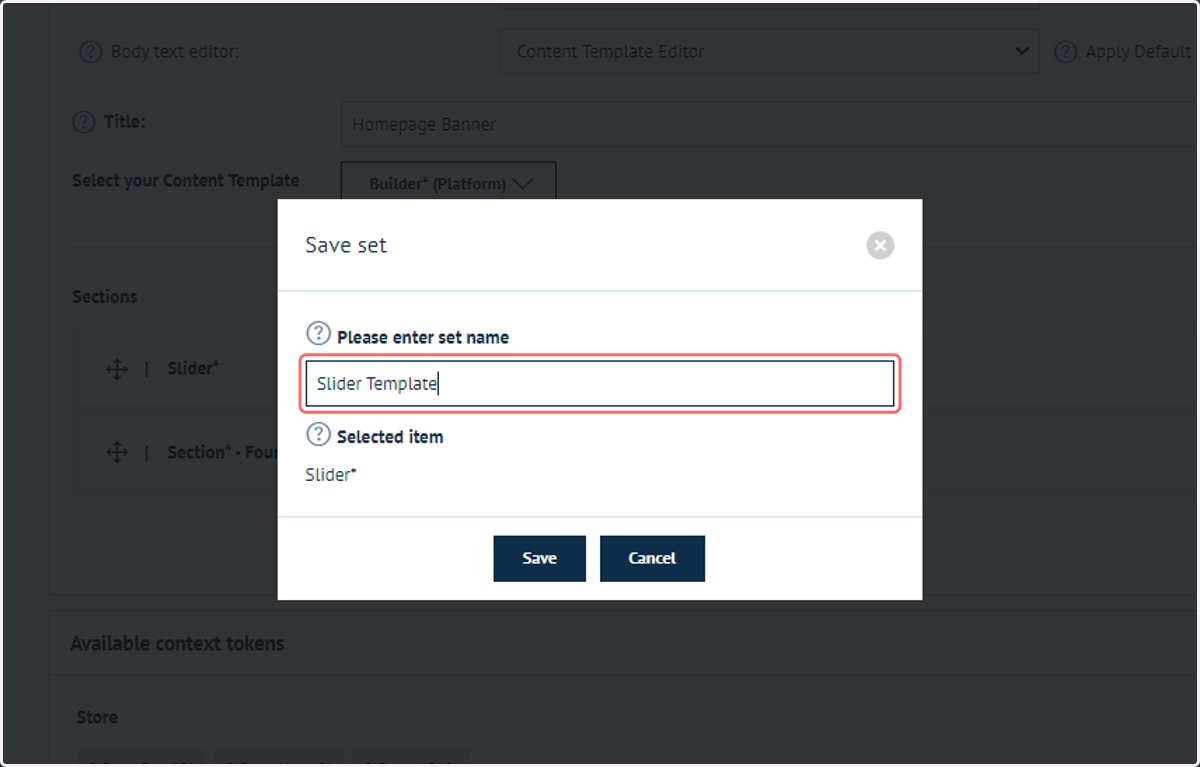
2. Type a set name
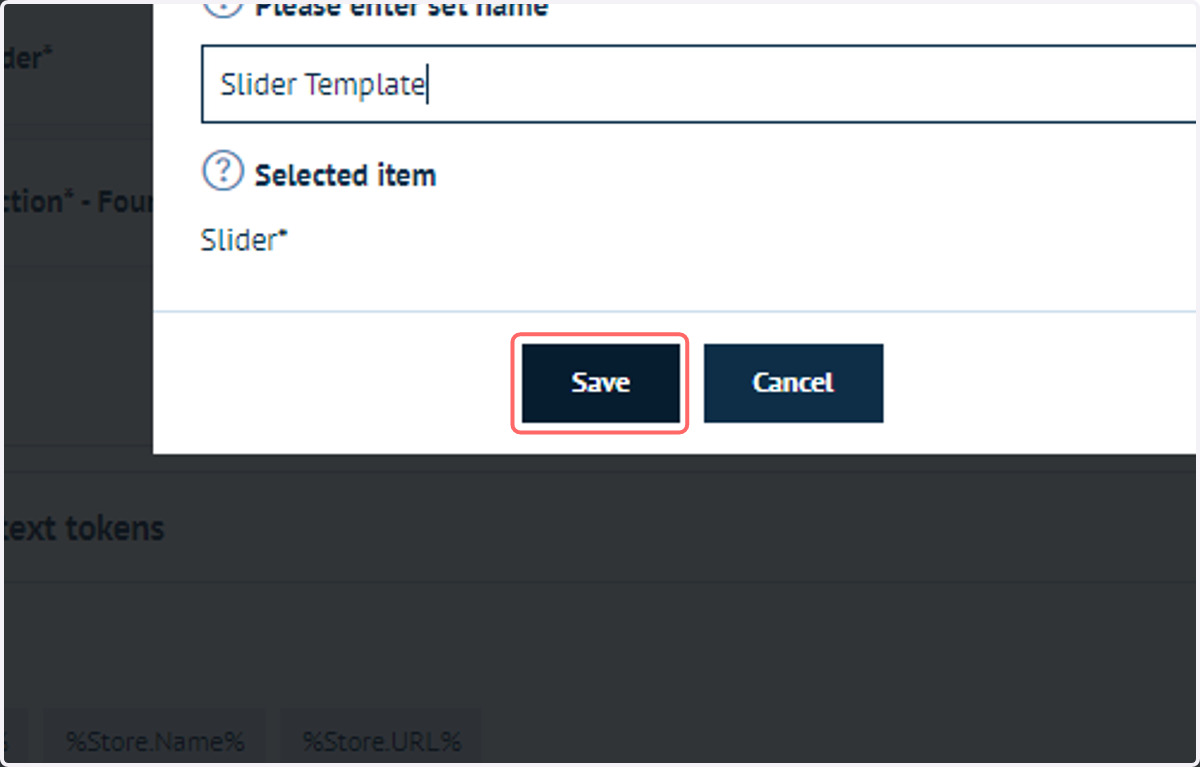
3. Click on Save
This template, including all of its contents such as images and text, are now saved as a set.
4. To test this in action, navigate to a different area where Content Templates can be utilised
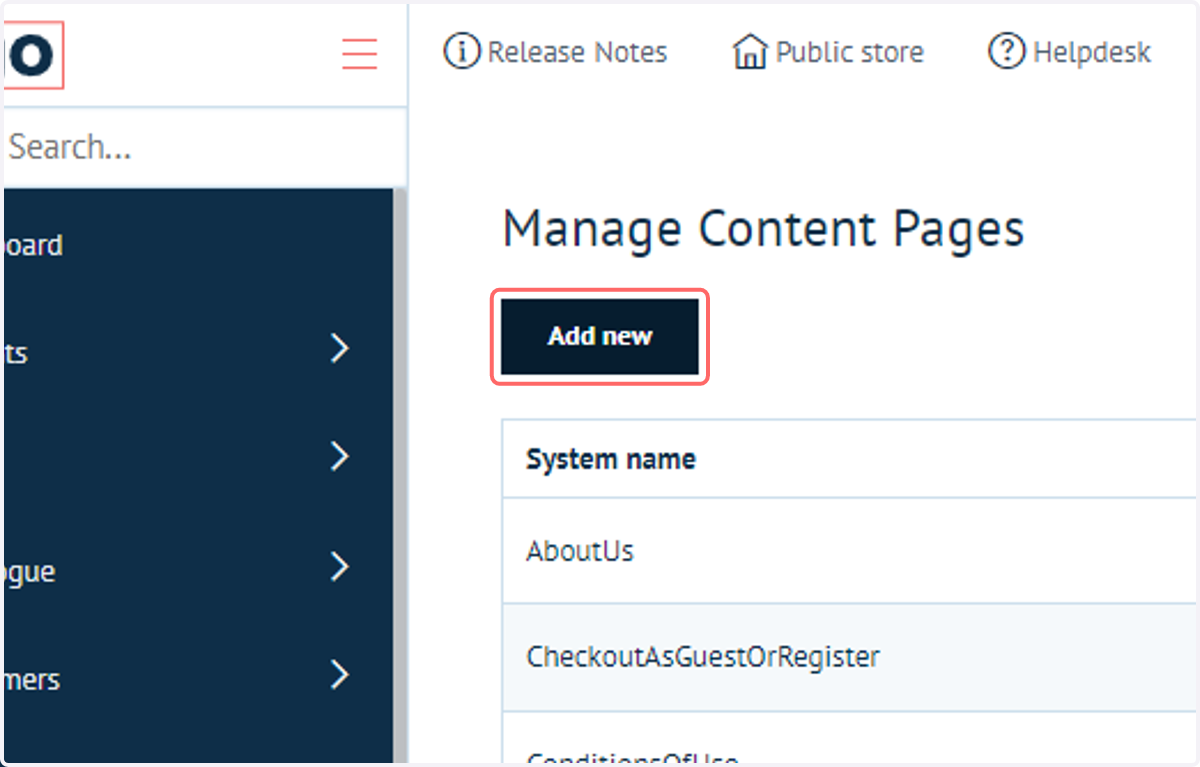
In my example, I've created a new Content Page.
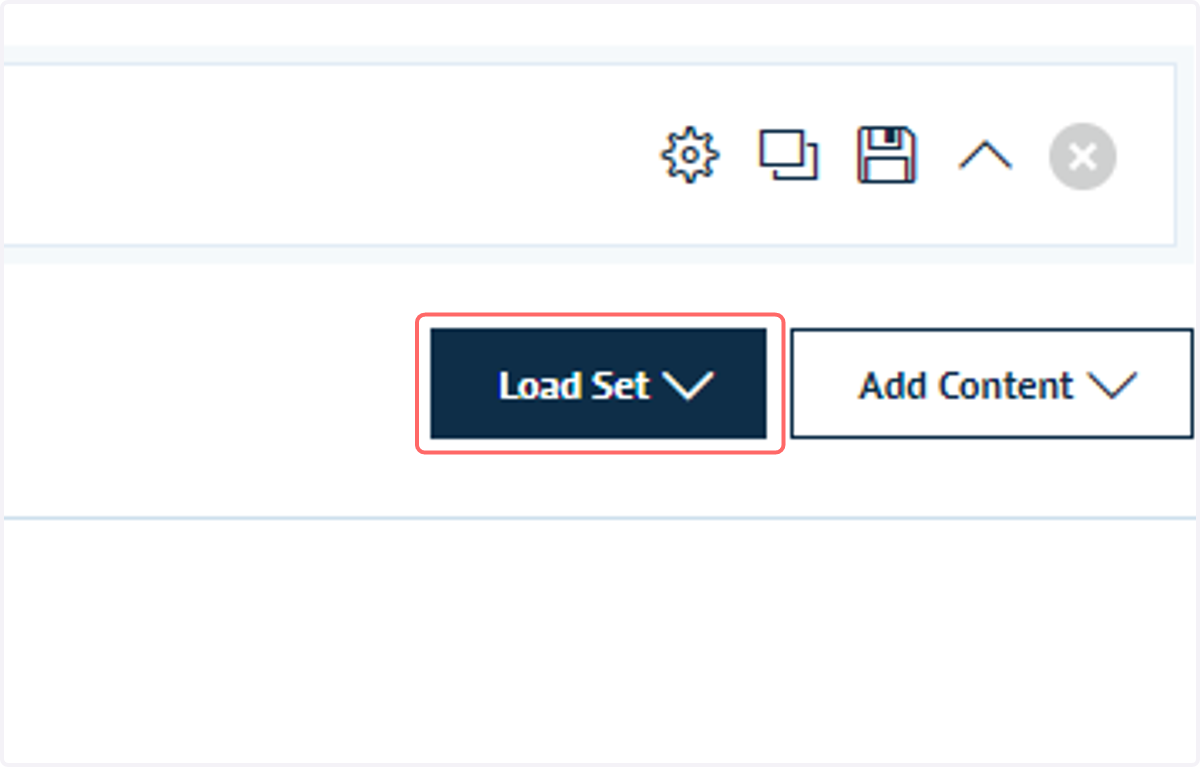
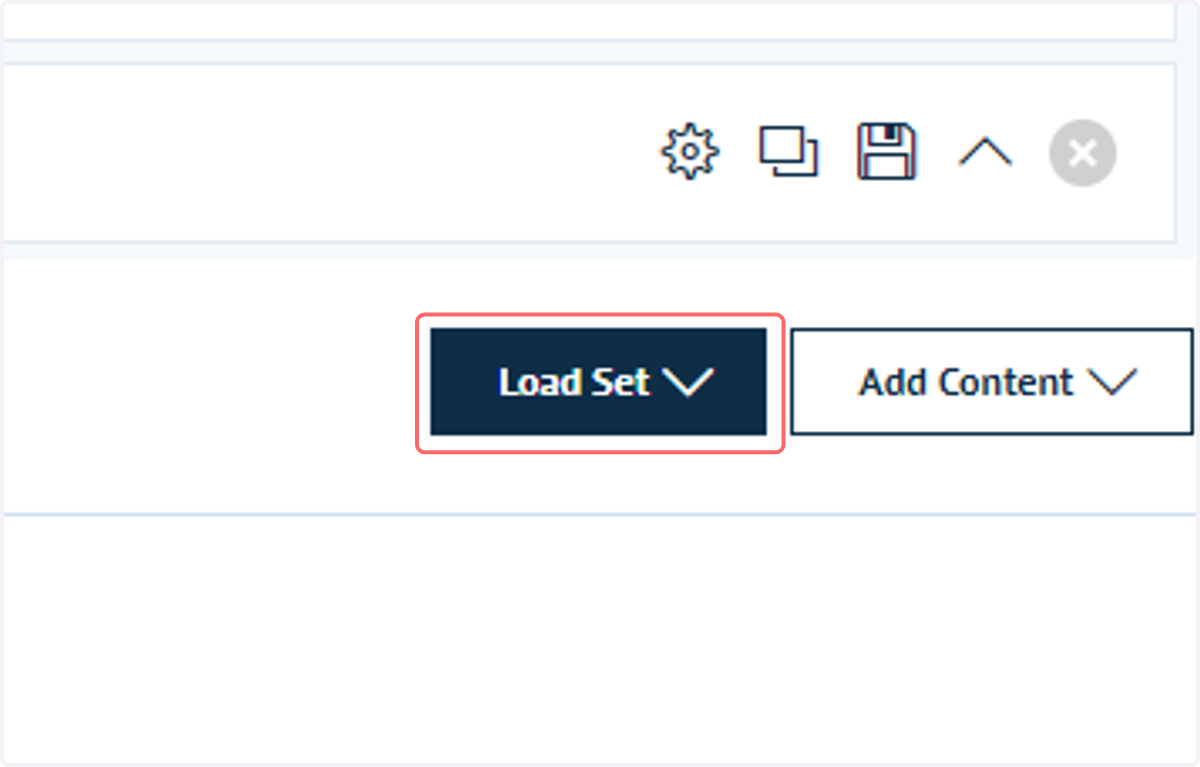
5. Click on Load Set
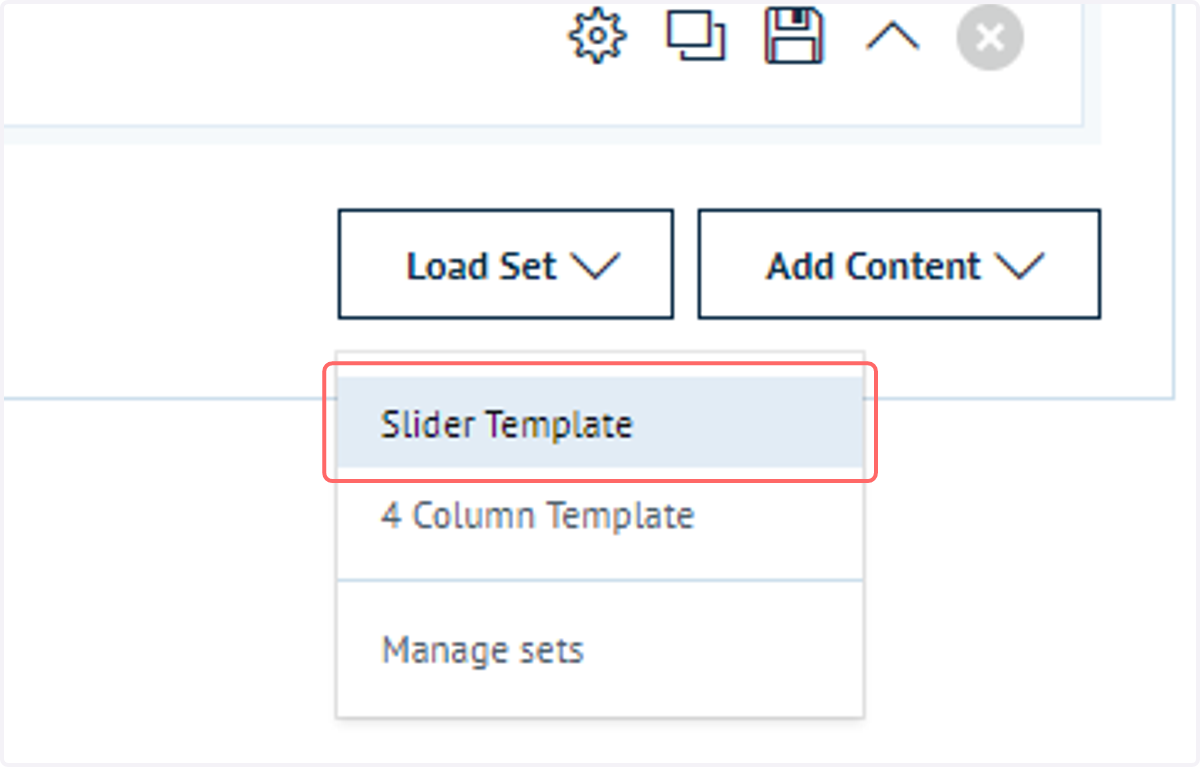
6. Any contextual and relevant saved sets will be available in the dropdown list that appears
Click the set to add the saved template
7. The saved template will be added
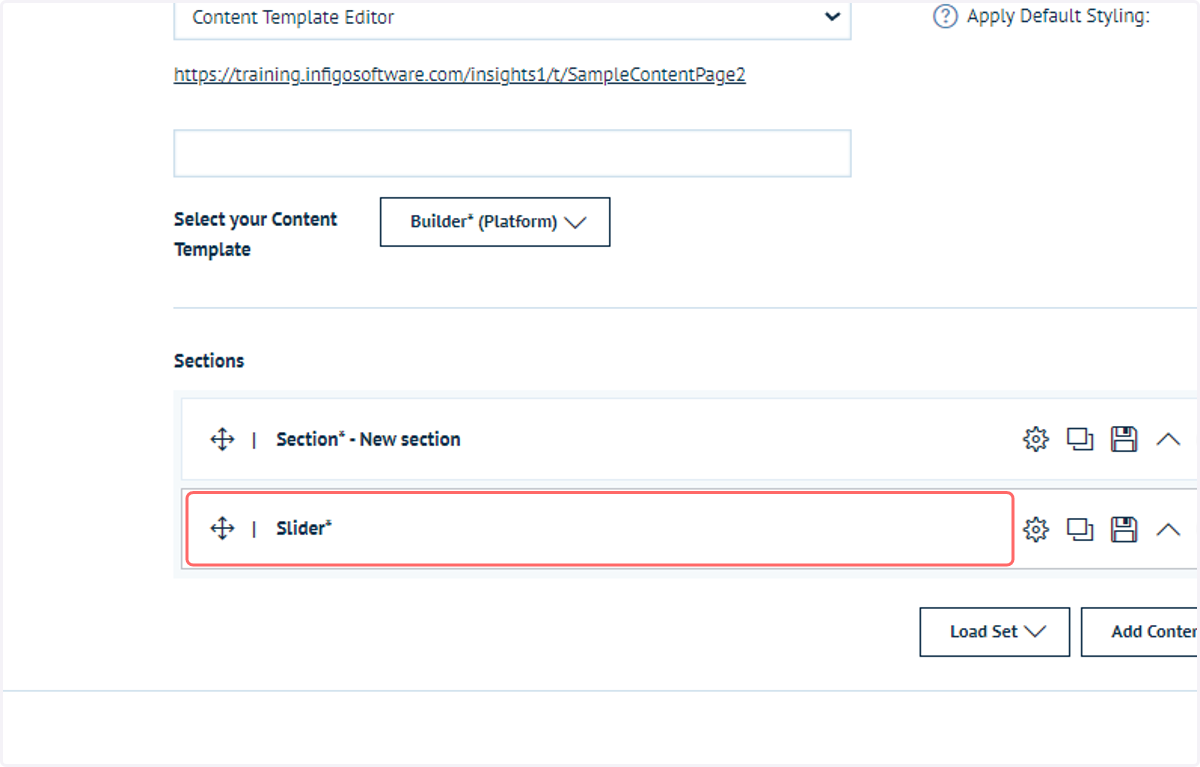
8. It's original contents will also be included
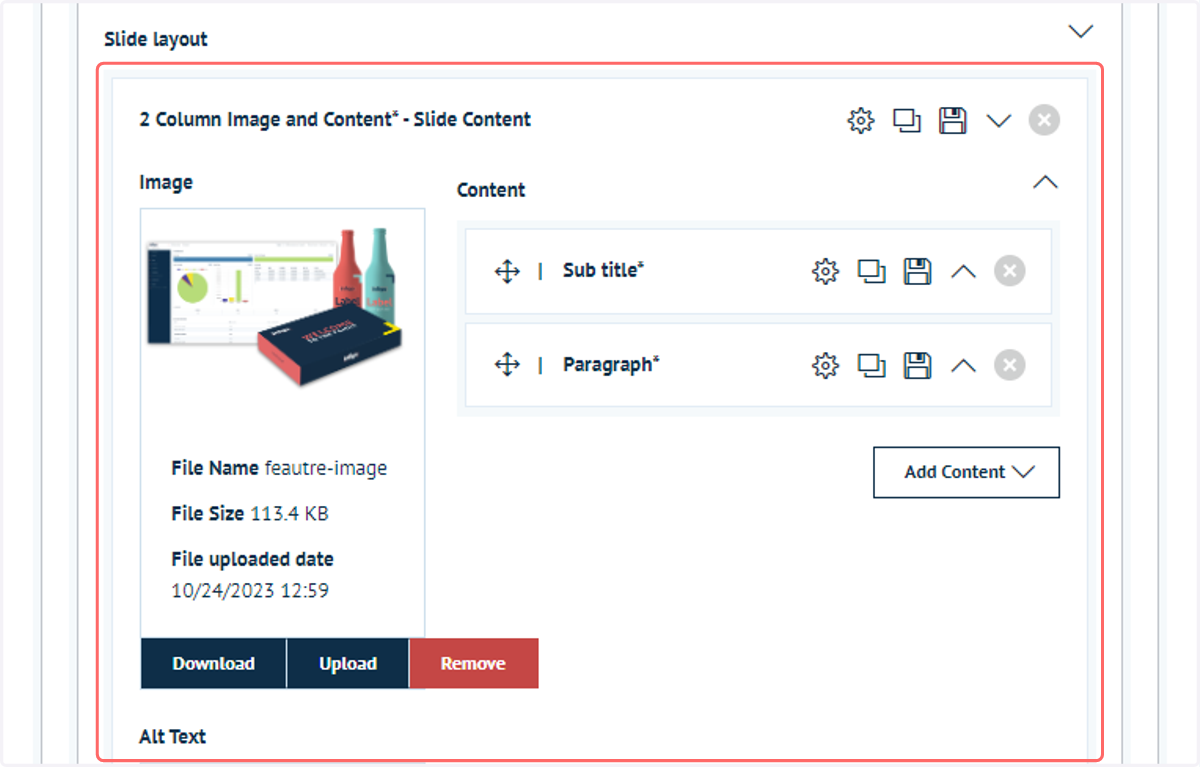
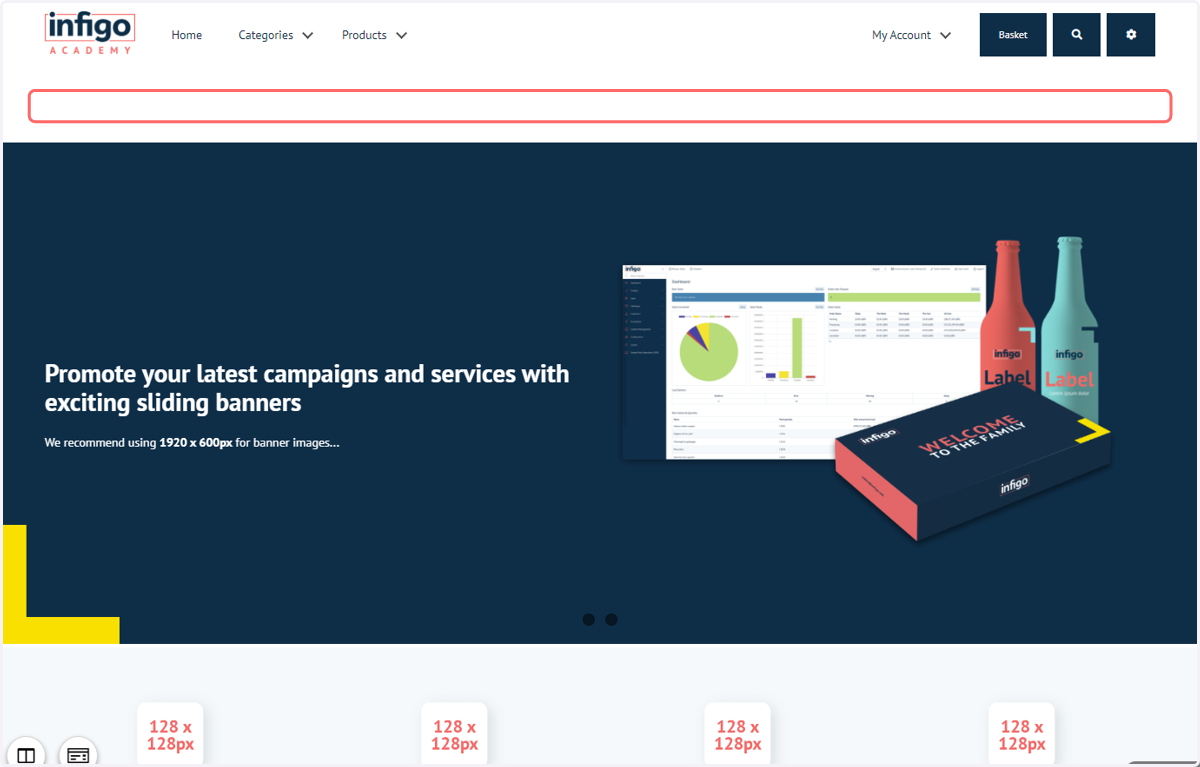
9. Populated page
10. Click on Load Set
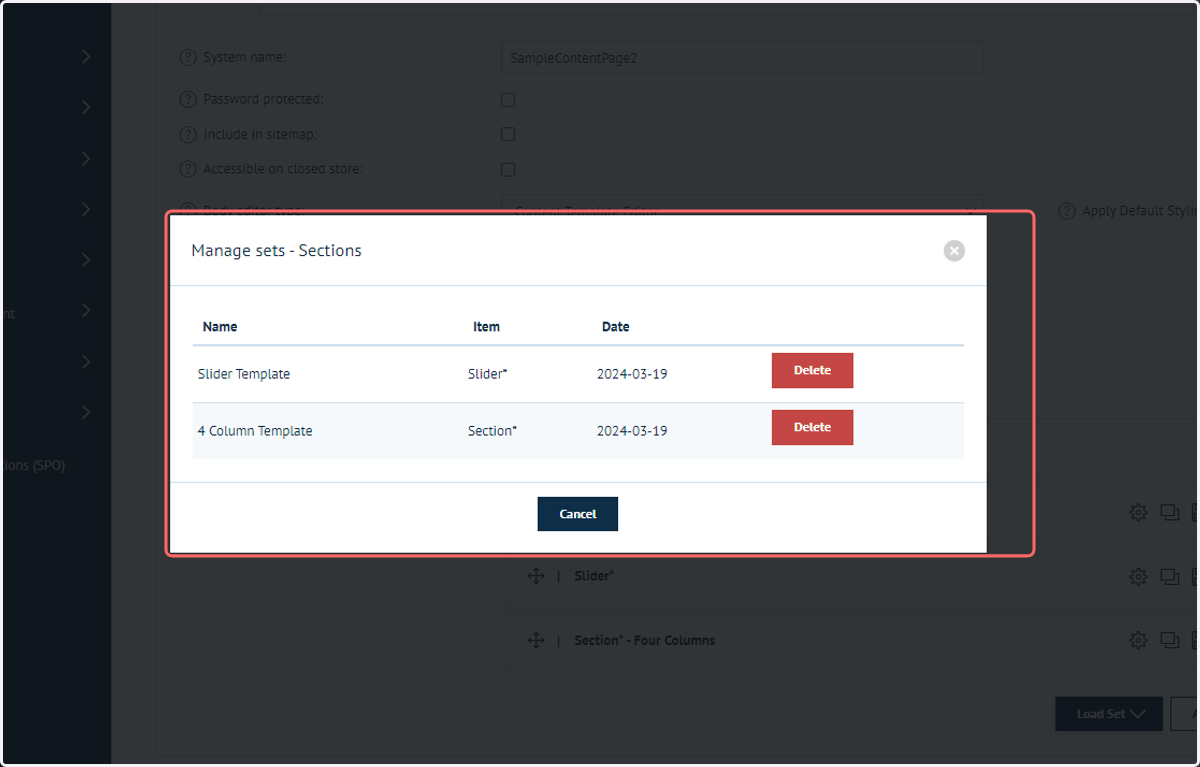
11. Click on Manage sets
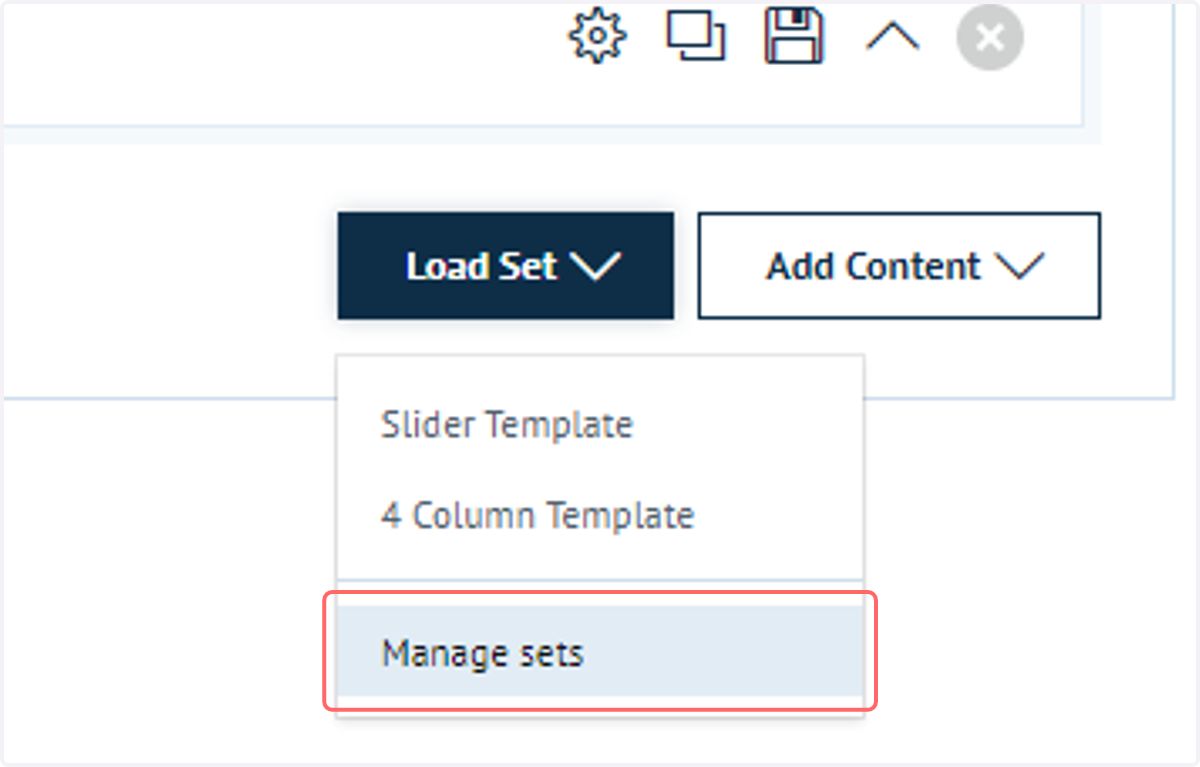
12. You can see existing saved sets, where they are applicable and delete them, if required