Creating multi-image masks
In this tutorial we will learn how to create and utilise a mask that covers multiple customisable image field.
The Mask Category functionality explained in an earlier tutorial (ME_013) applies to adding a separate mask to each image field. Here, we will learn how we can use a separate clipart image to mask multiple image fields.
Infigosoftware
1. The finished product
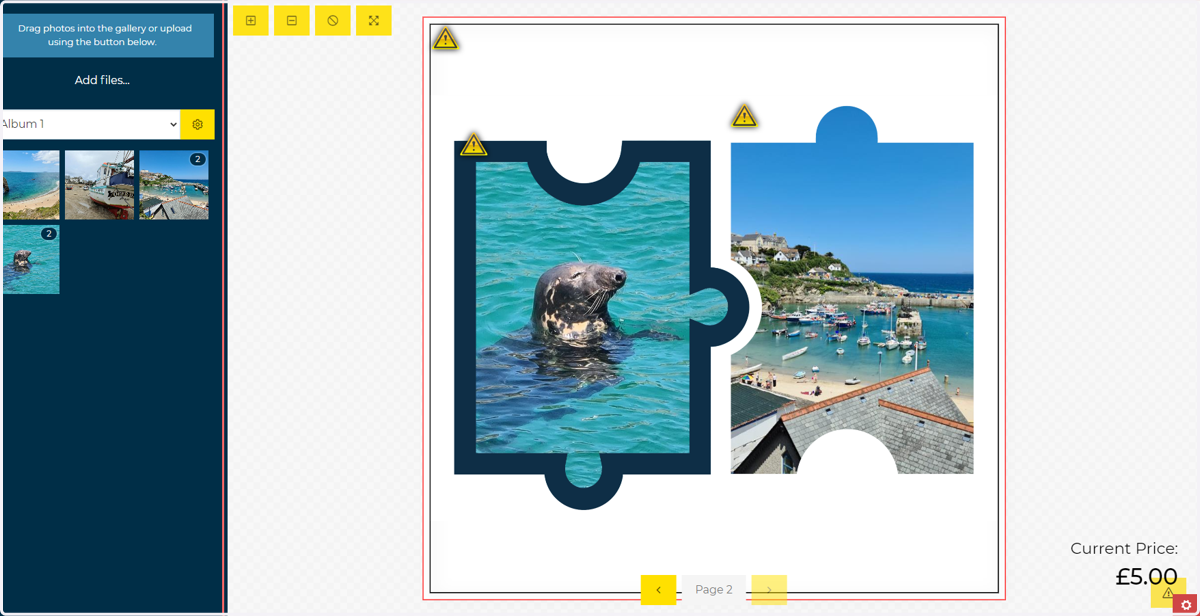
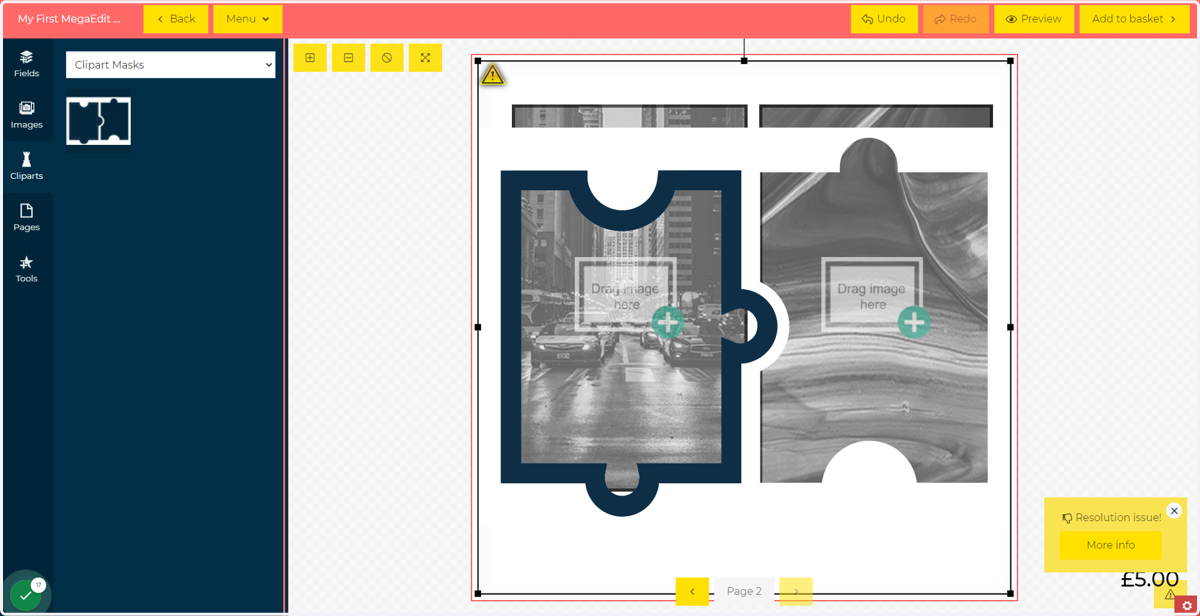
The sample image below is what we are intending to create. This simple artwork has two user-customisable image fields masked by a single, pre-prepared clipart frame.
Next, we will look at how to set this up from a blank canvas. Please ensure you have the following applied to your MegaEdit product before continuing. All of this can be achieved using methods described in previous tutorials.
A Clipart Category created and applied to your product.
A clipart image within this category containing transparent space where the customisable image fields are to appear.
Images available within the MegaEdit editor (for testing purposes)
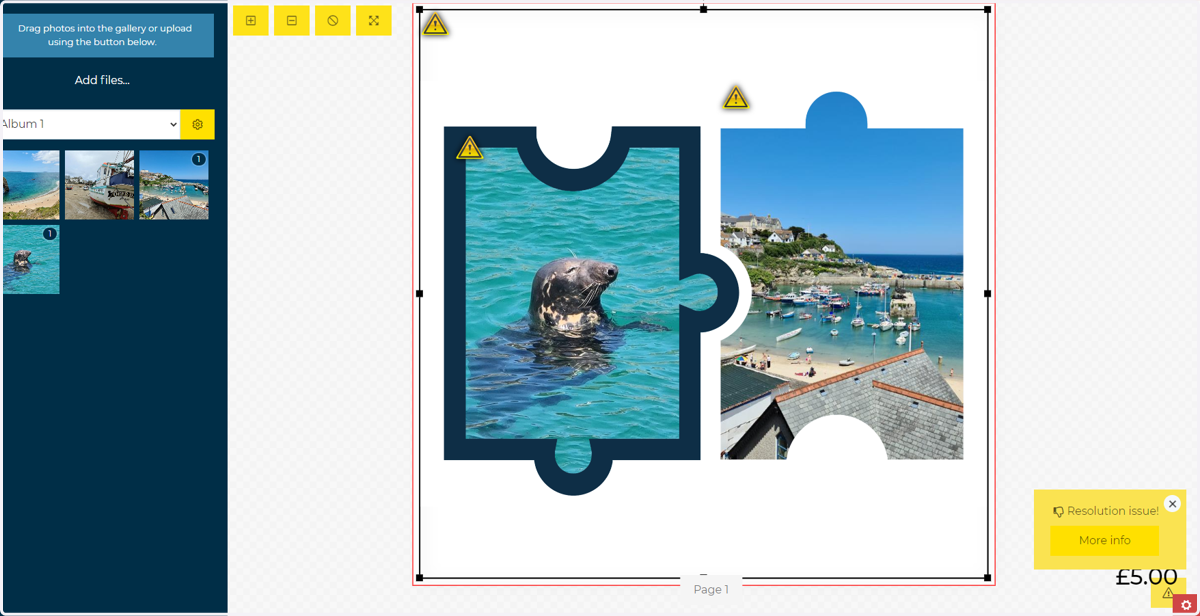
2. Create and position image fields
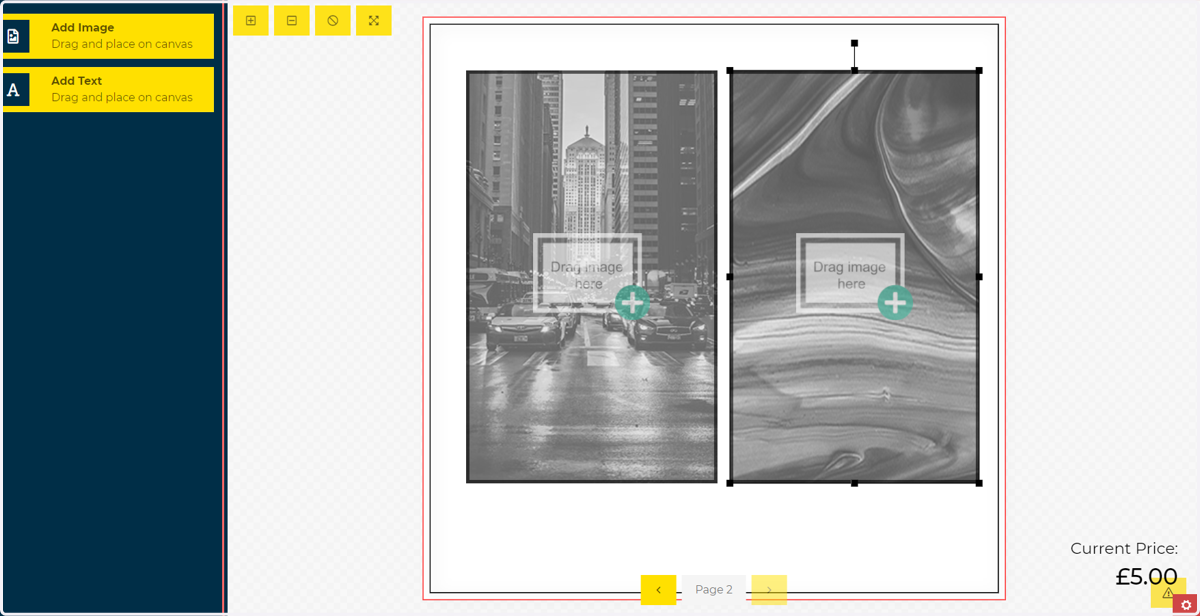
To begin, create the image fields and approximately position them on the canvas.
Infigosoftware
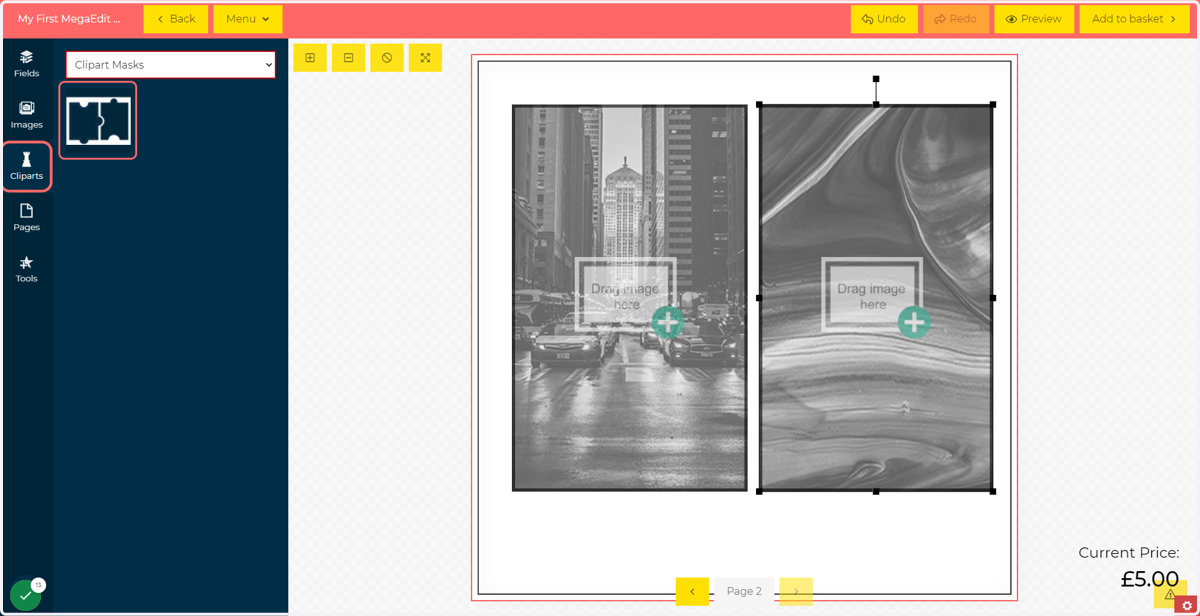
3. Click on Cliparts and locate your clipart mask
4. Add the clipart to the canvas
Add your clipart image to the canvas. Resize and reposition as necessary.
5. Arrange the frame Z position
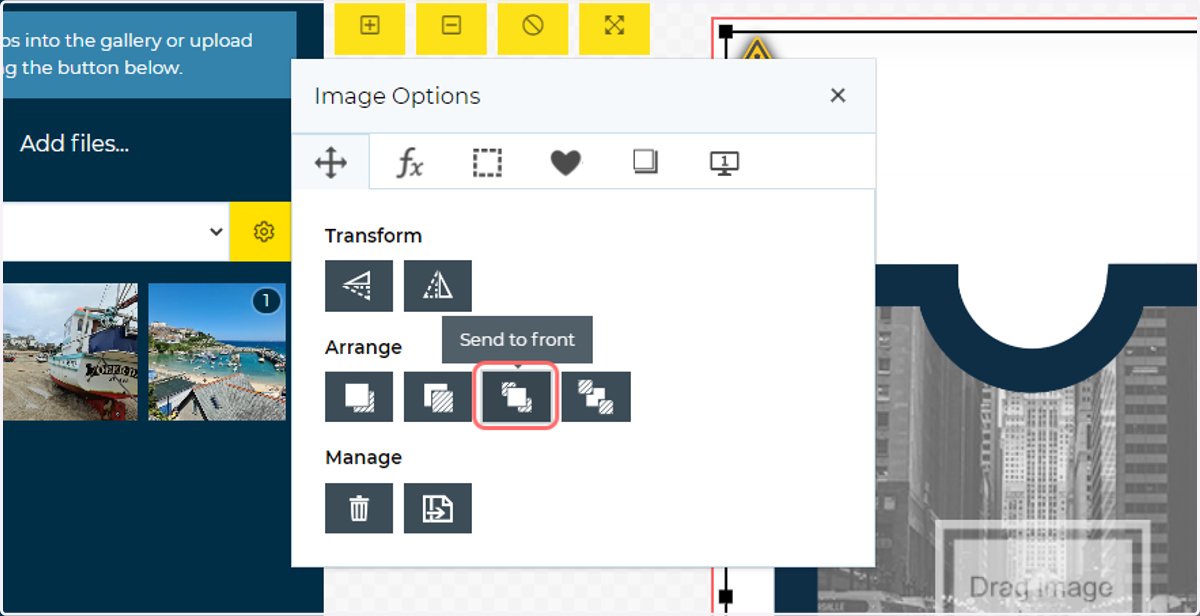
Double click any of the frames to bring up the Image Options pop up.
Make good use of the Arrange section to move the frames forward and backwards. This is useful when positioning your image fields relative to the clipart masks.
Ensure the final order sees the clipart mask at the front, covering the image fields.
Infigosoftware
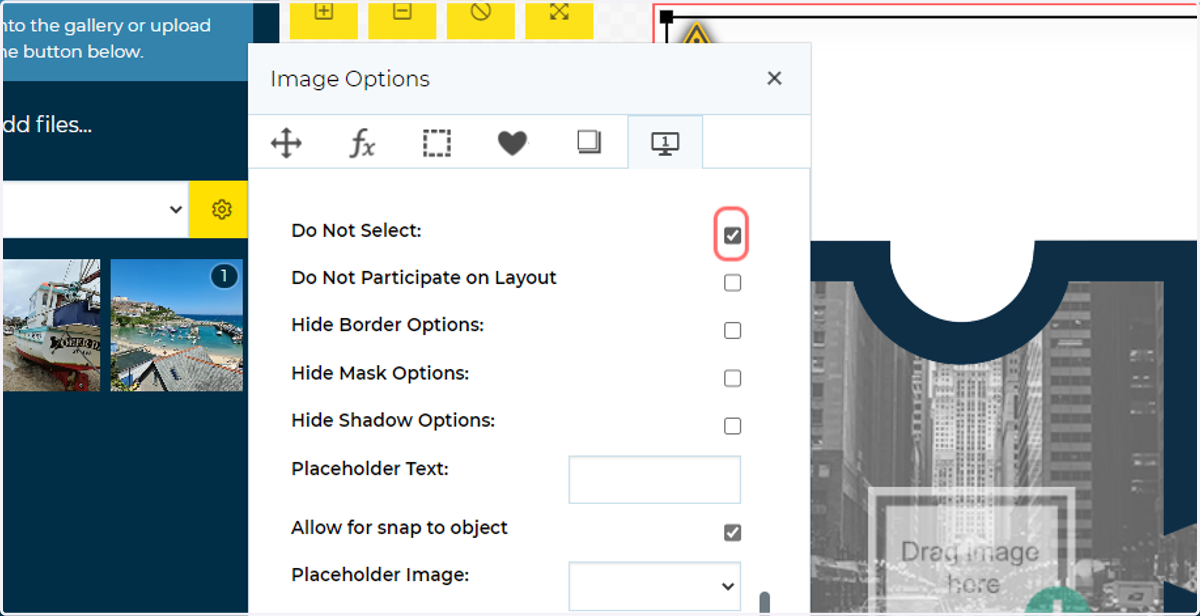
6. Ensure customers cannot select the frame
Navigate to the Details tab and select the Do Not Select checkbox.
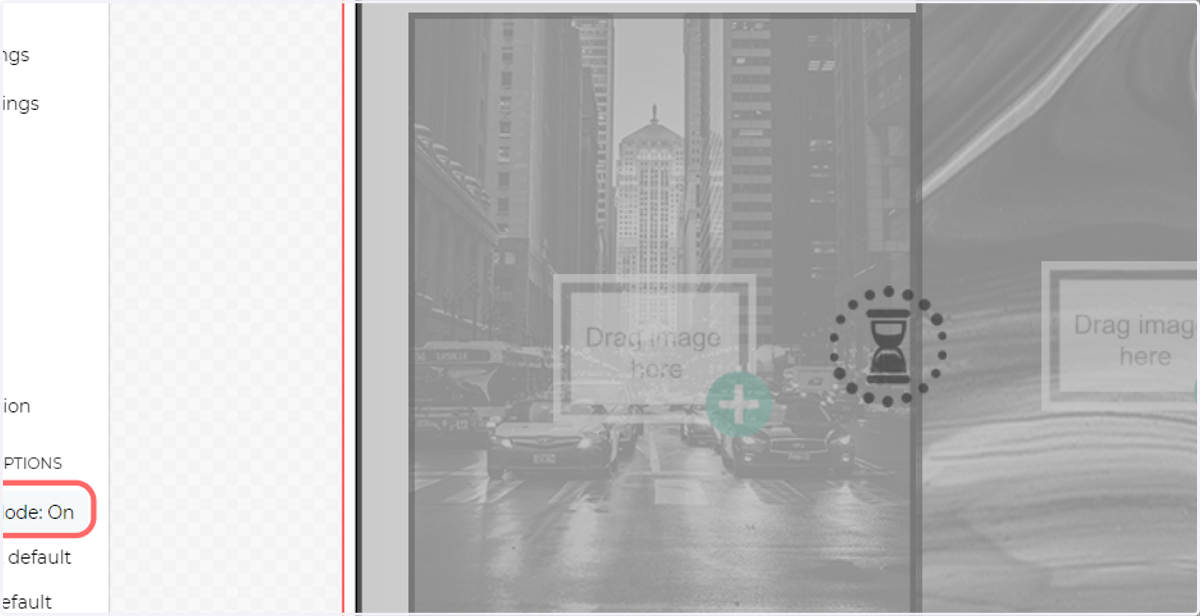
7. Click Menu and Emulate User Mode
This allows you to view and interact with your dynamic canvas as a customer would.
8. Populate the image fields
Drag items from the Images tab into the image fields.
Your mask will now be fully defined.