Creating Google Tag Manager Container

Google

  1. 1. Go to Google Tag Manager

  2. 2. Click on the three-dots button for the appropriate Google Tag Manager account
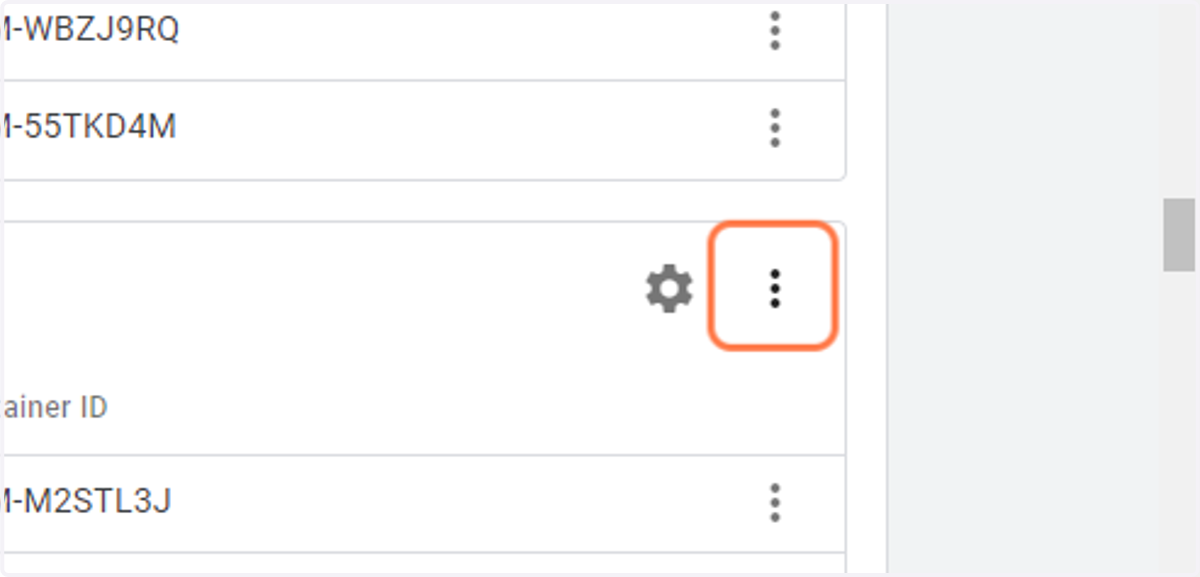
    Click on the three-dots button for the appropriate Google Tag Manager account
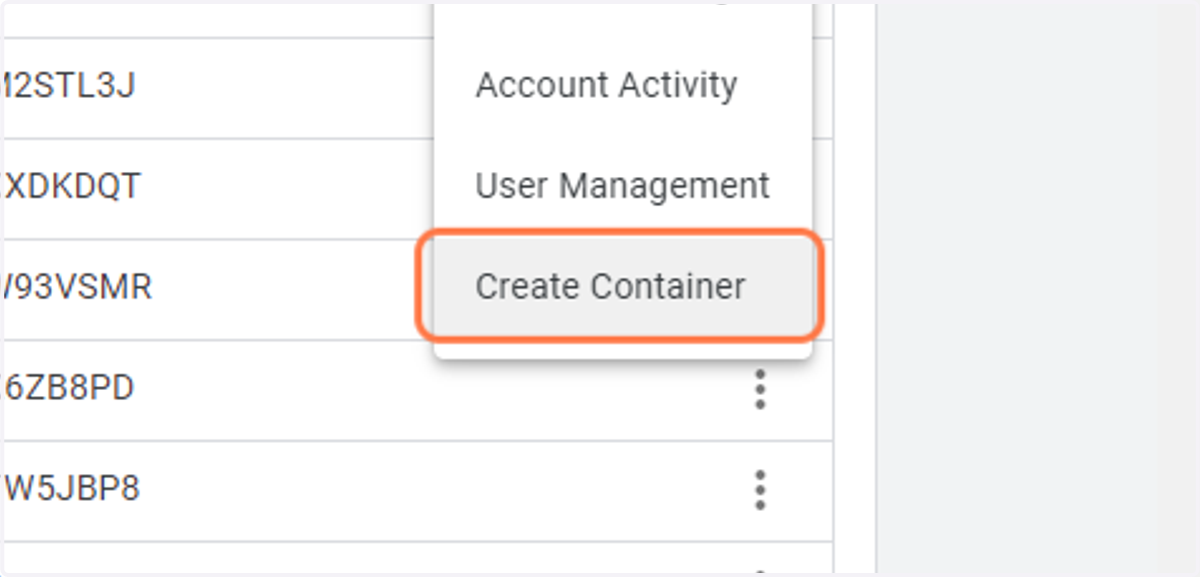
  3. 3. Click on Create Container

    Click on Create Container
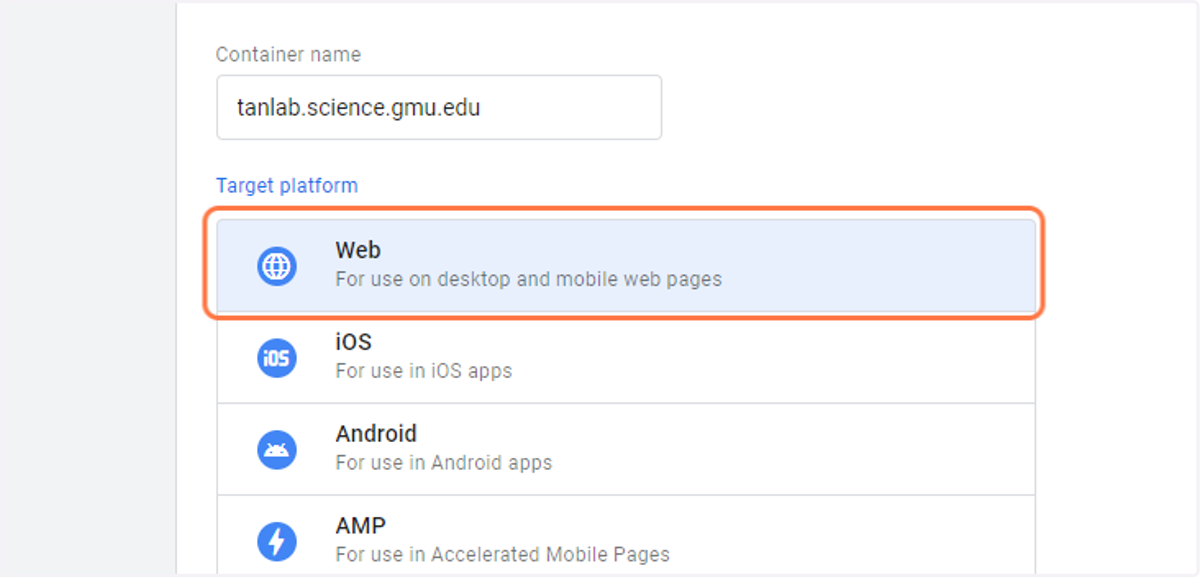
  4. 4. Paste the domain name of the website into the "Container Name" field
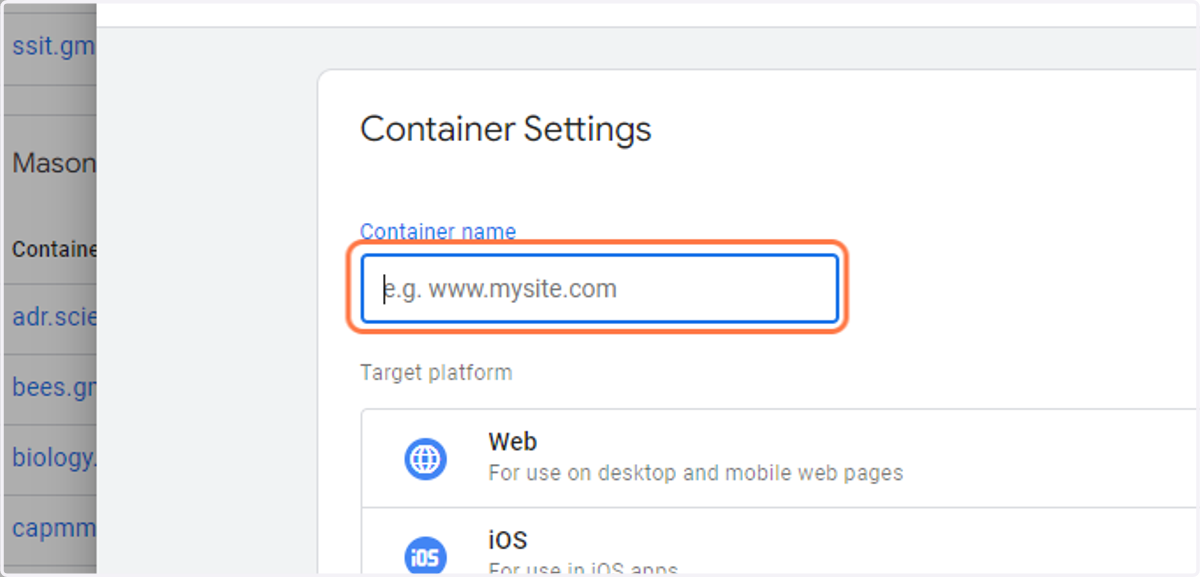
    Paste the domain name of the website into the "Container Name" field
  5. 5. Click on Web…

    Click on Web…
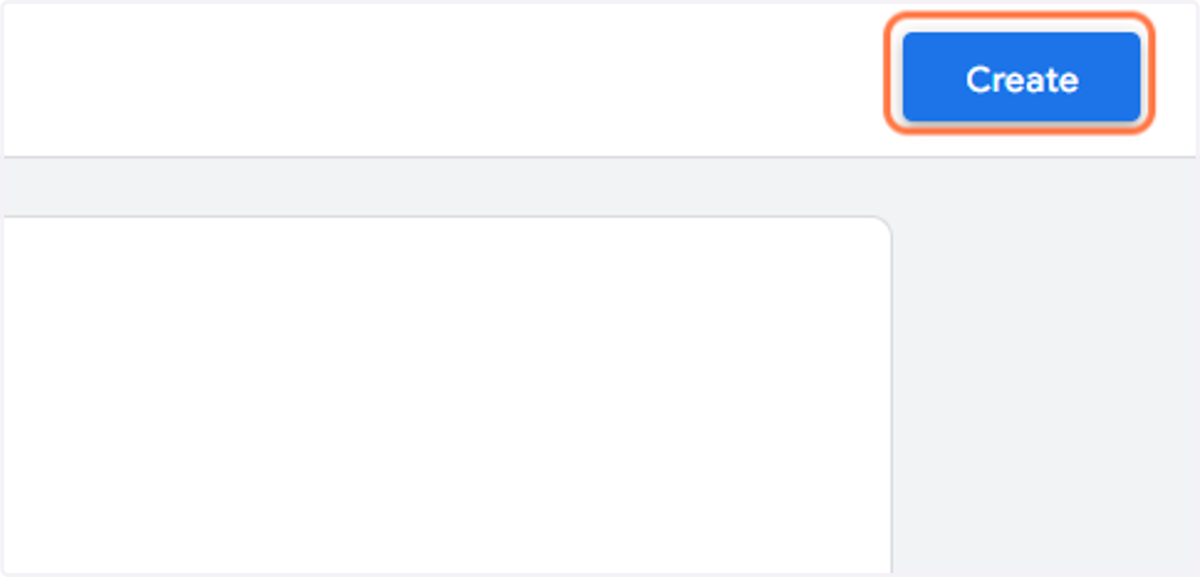
  6. 6. Click on Create

    Click on Create
  7. 7. Click to close the pop-up modal window
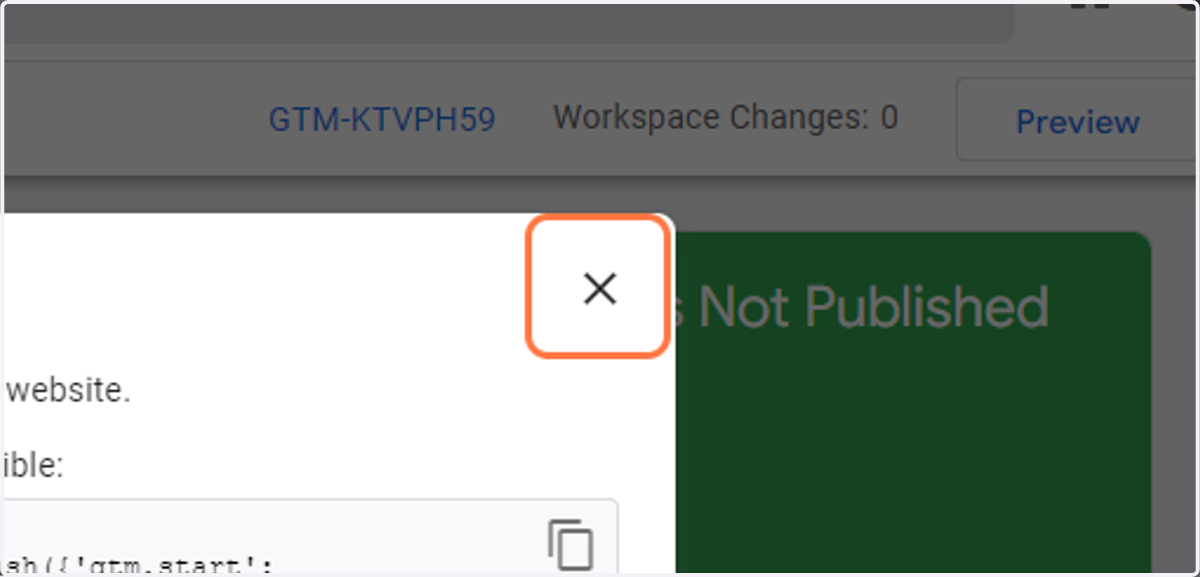
    Click to close the pop-up modal window
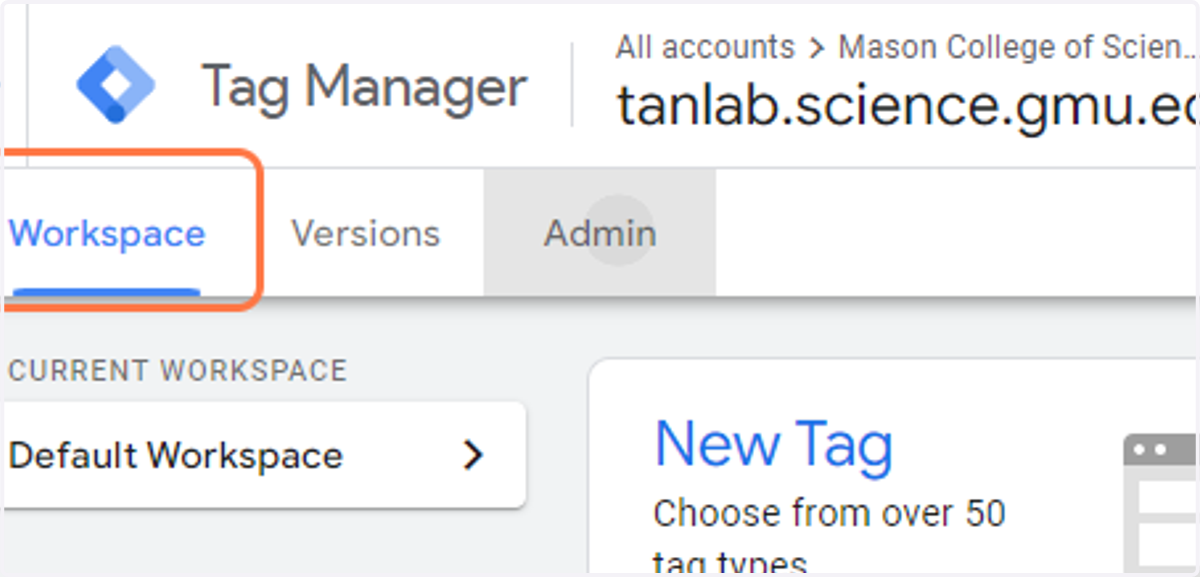
  8. 8. Click on Admin

    Click on Admin
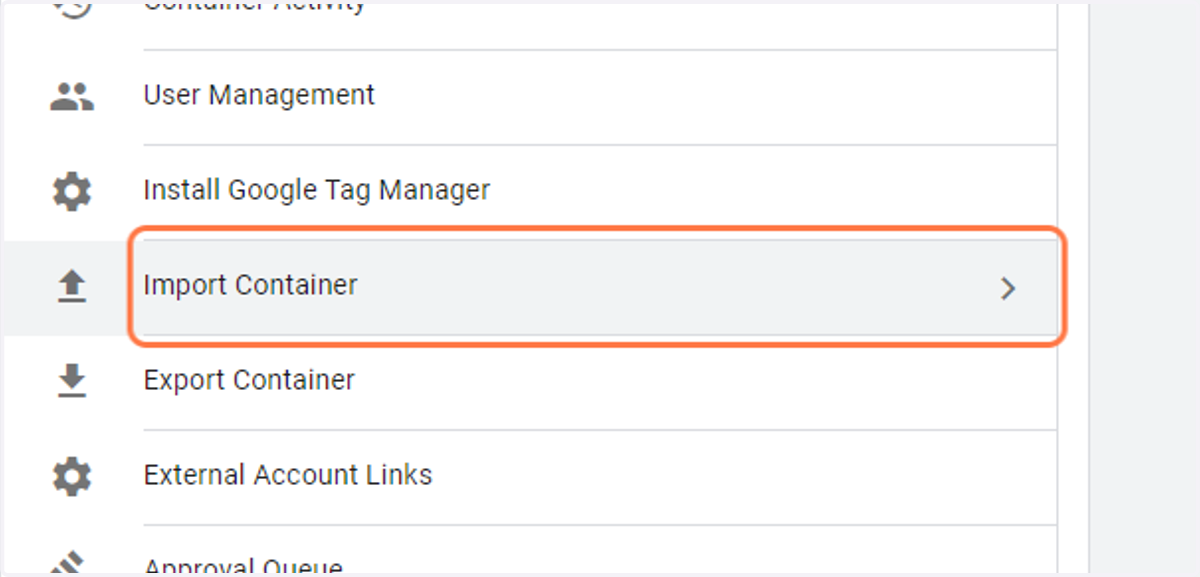
  9. 9. Click on Import Container

    Click on Import Container
  10. 10. Select the Mason Standard GTM container file from file upload menu
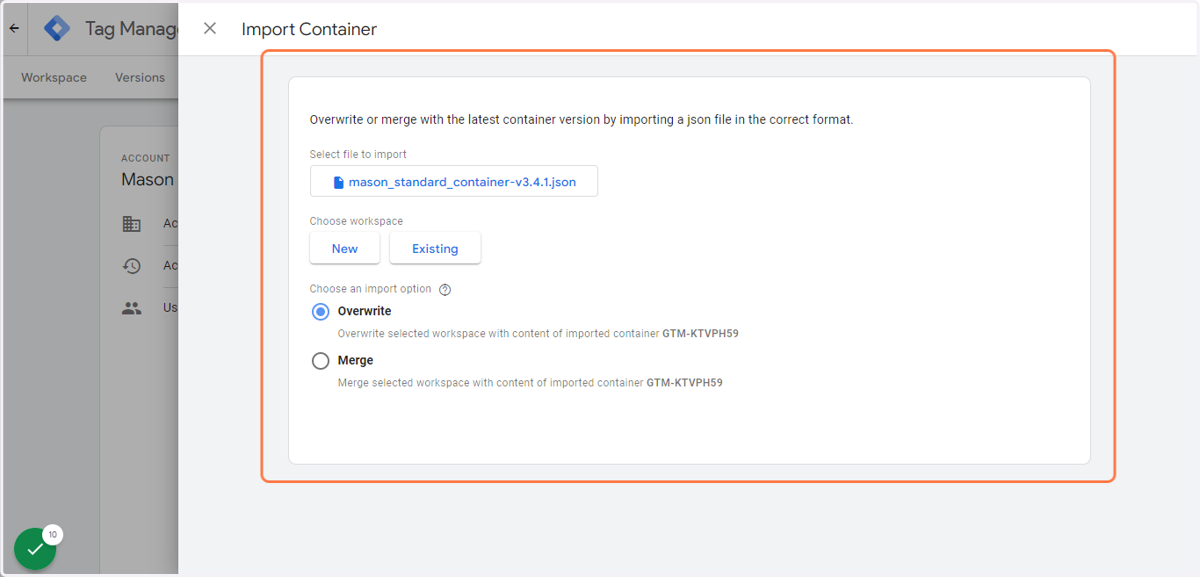
    Select the Mason Standard GTM container file from file upload menu
  11. 11. Click on Existing under Workspace
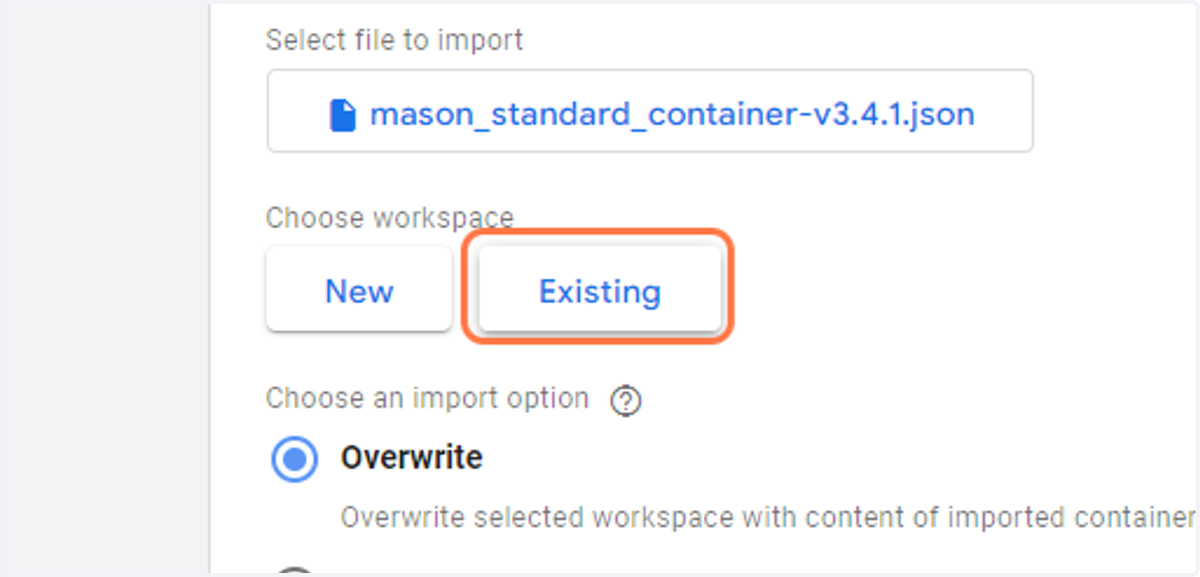
    Click on Existing under Workspace
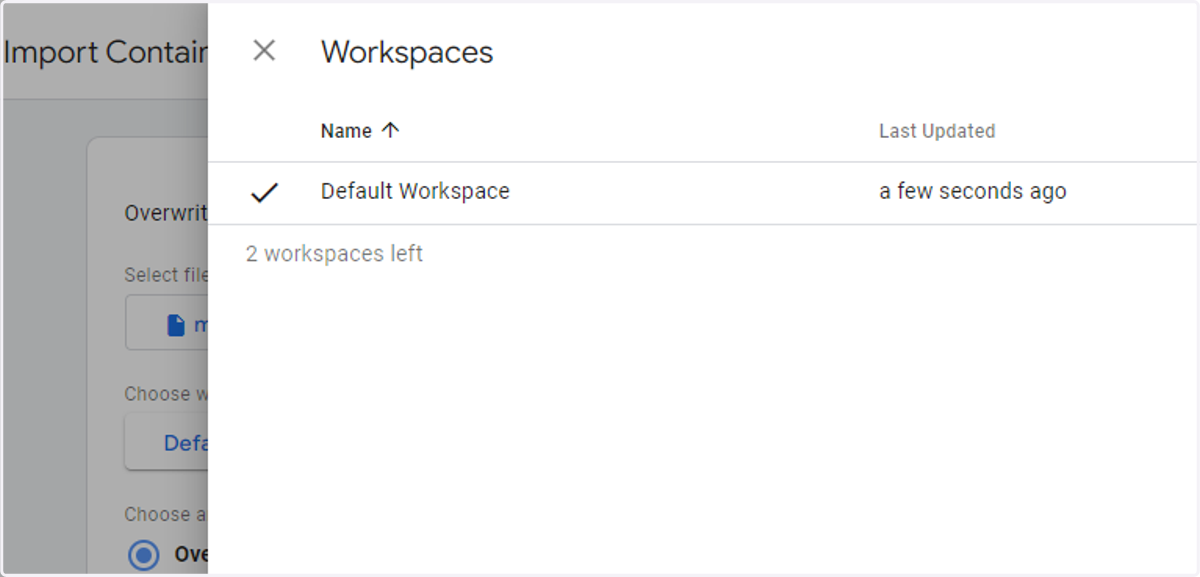
  12. 12. Click on Default Workspace…

    Click on Default Workspace…
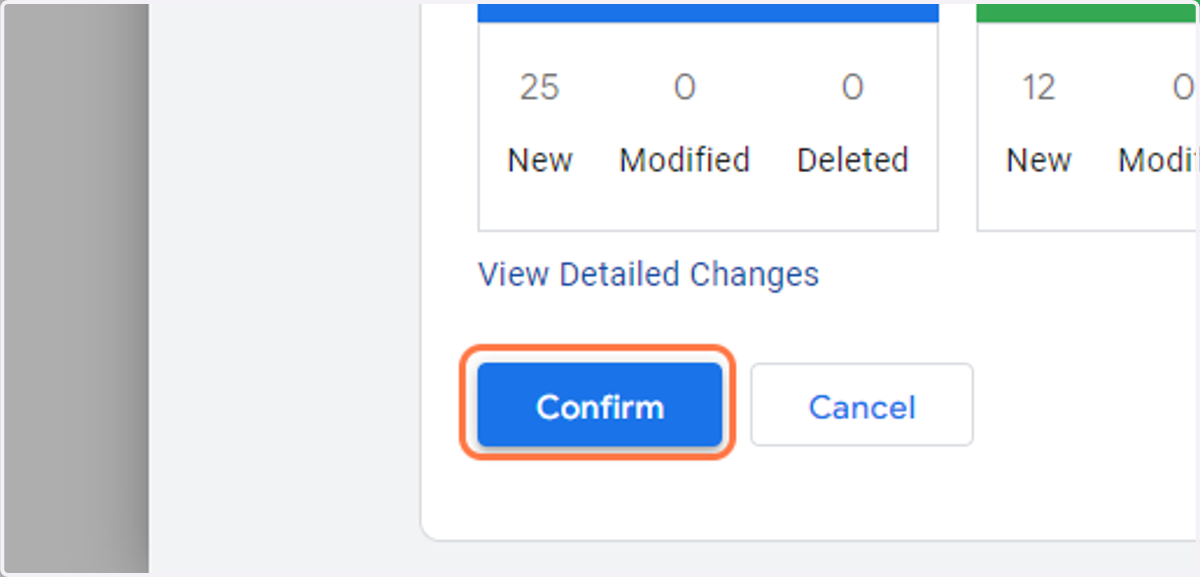
  13. 13. Click on Confirm

    Click on Confirm
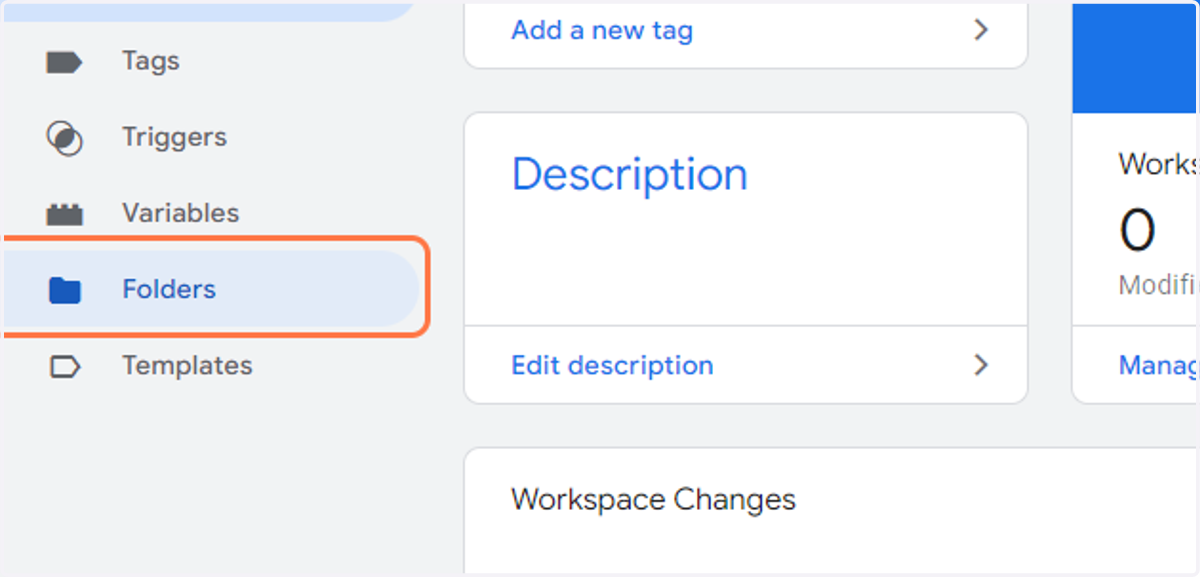
  14. 14. Click on Folders

    Click on Folders
  15. 15. Click to open the folder "00 standard configuration settings"
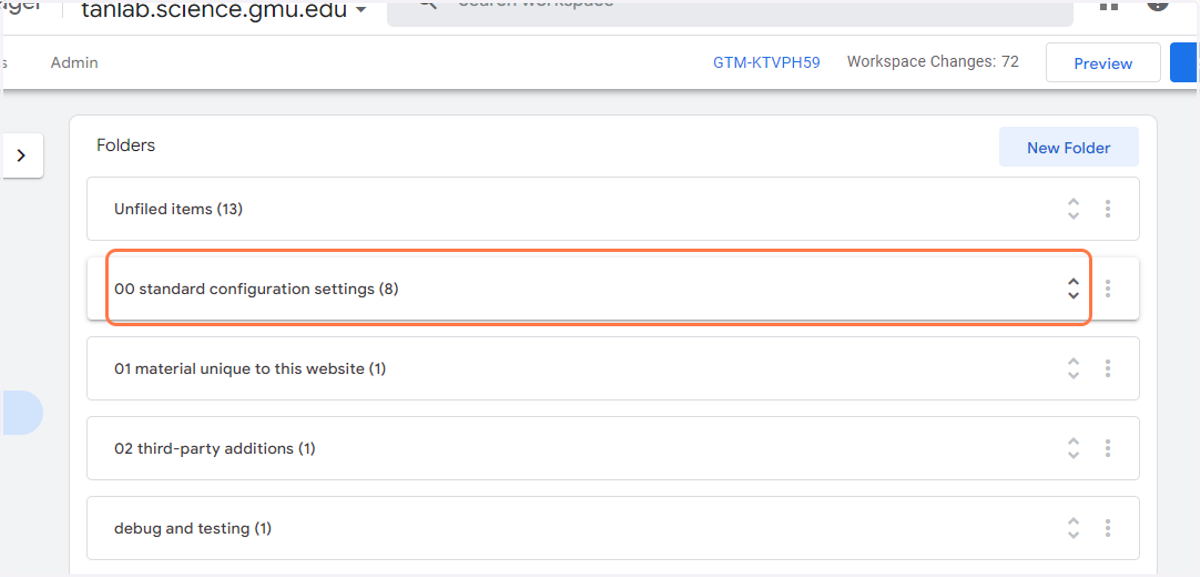
    Click to open the folder "00 standard configuration settings"
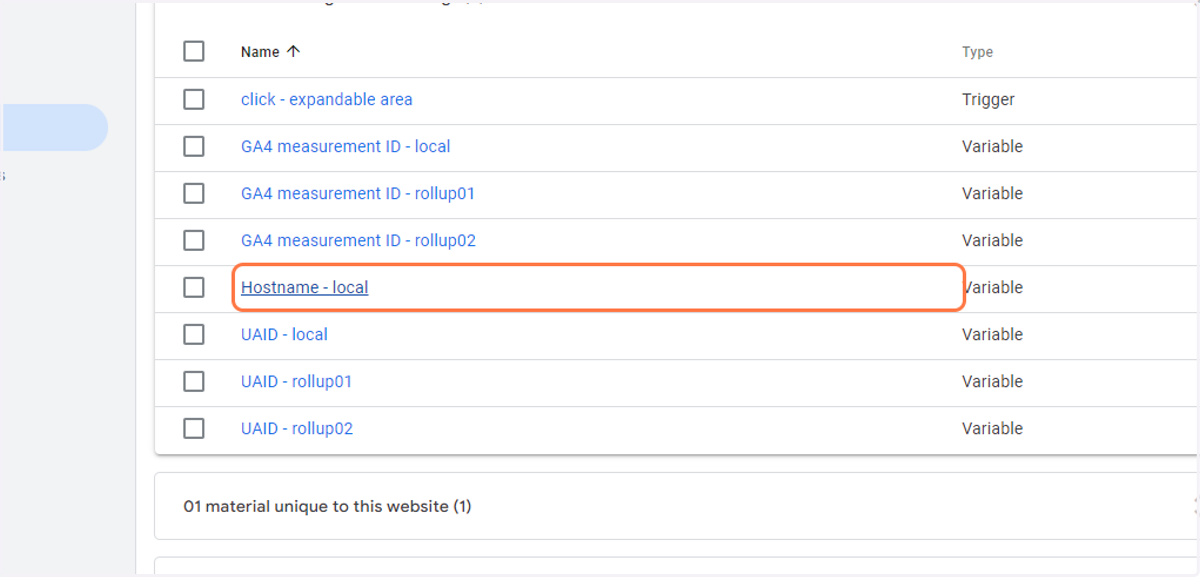
  16. 16. Click on Hostname - local

    Click on Hostname - local
  17. 17. Enter the domain name of the website in the "Value" field
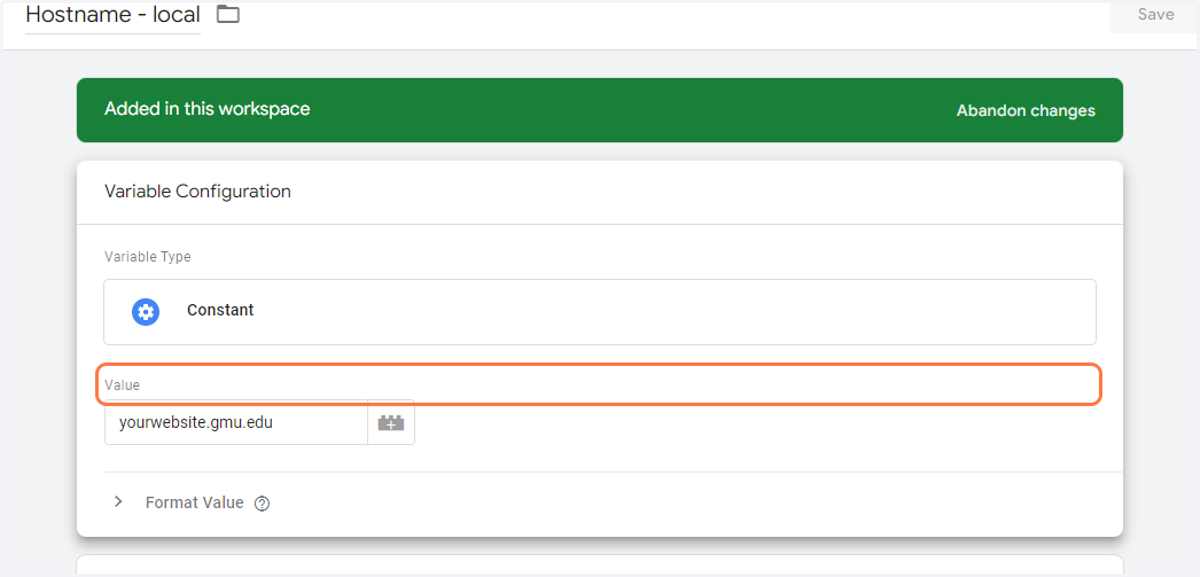
    Enter the domain name of the website in the "Value" field
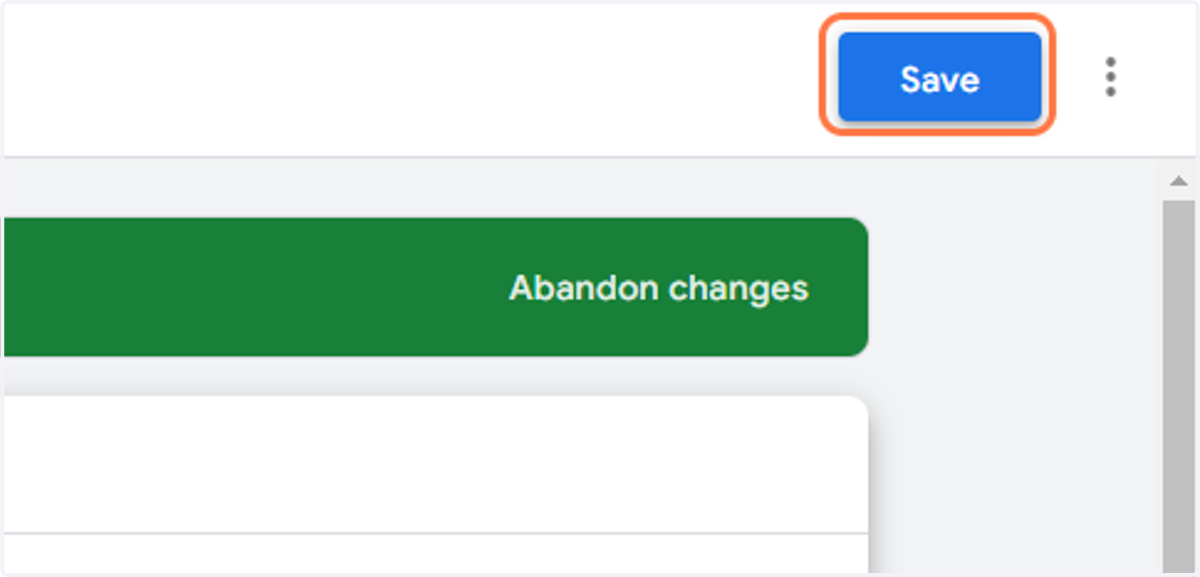
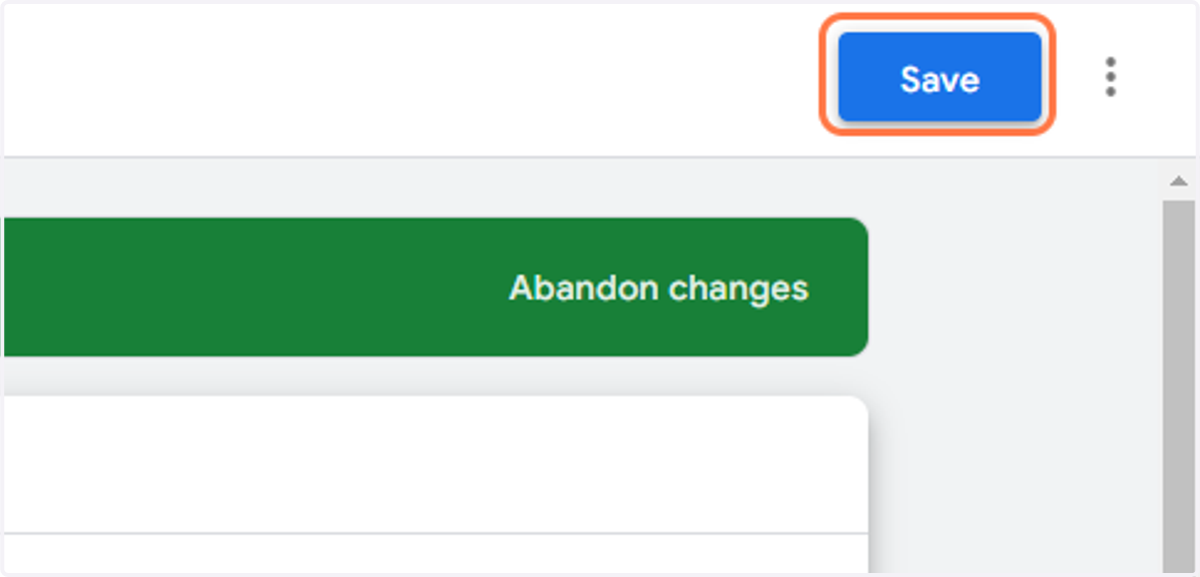
  18. 18. Click on Save

    Click on Save
  19. 19. Click on GA4 measurement ID - local
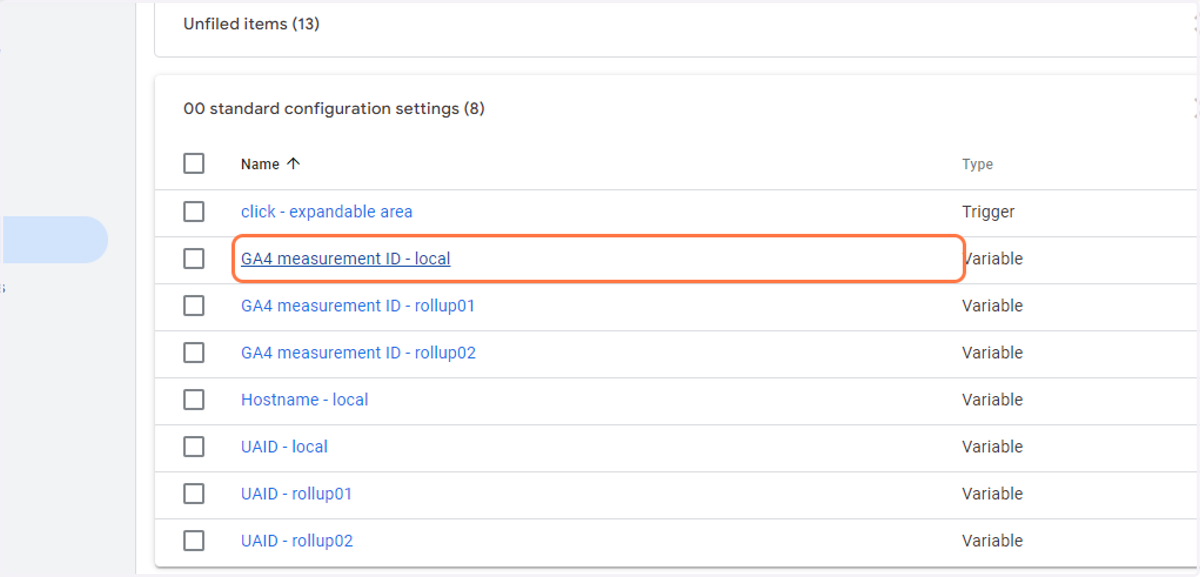
    Click on GA4 measurement ID - local
  20. 20. Enter the appropriate GA Measurement ID into the "Value" field
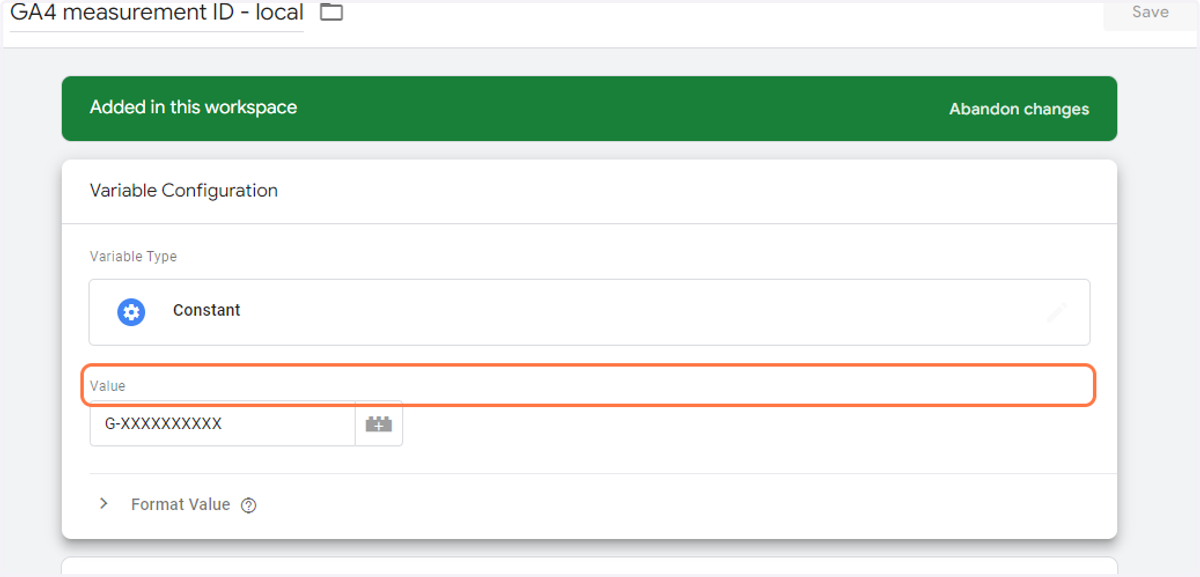
    Enter the appropriate GA Measurement ID into the "Value" field
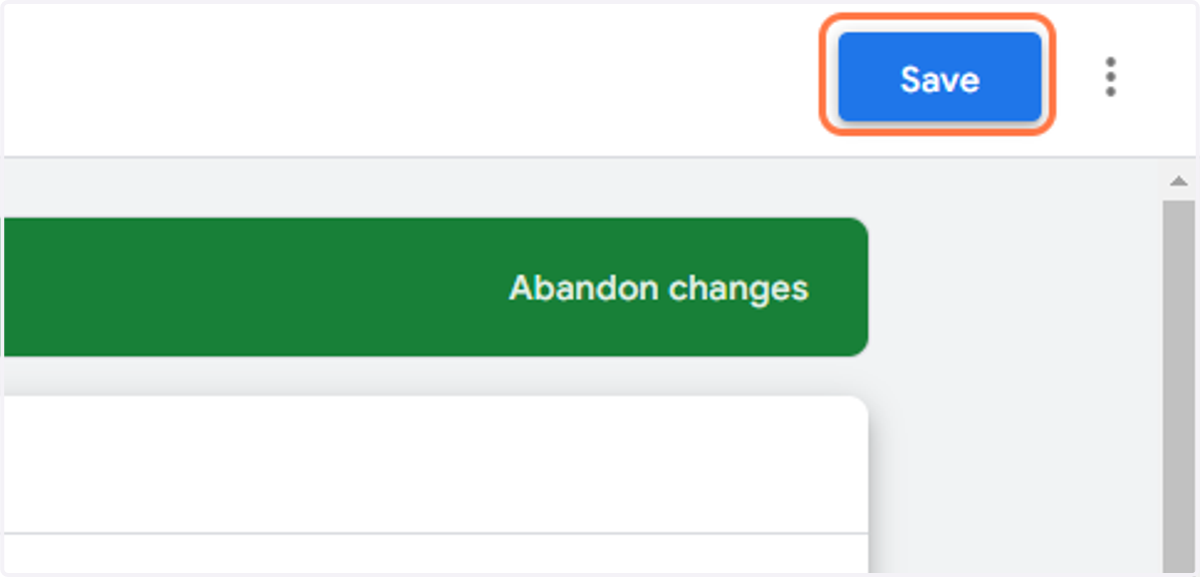
  21. 21. Click on Save

    Click on Save
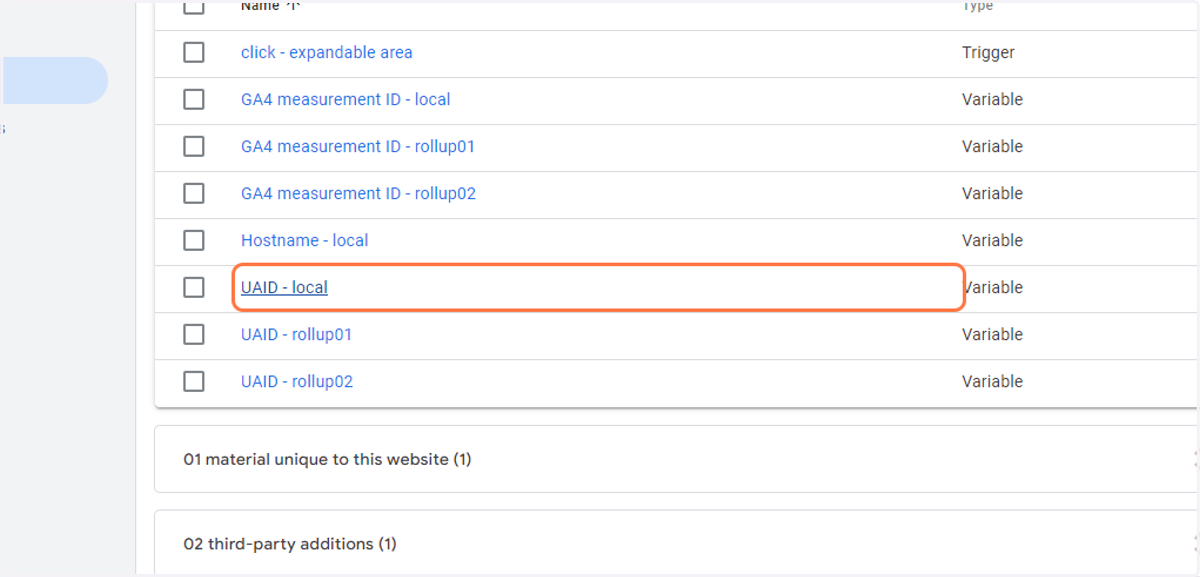
  22. 22. Click on UAID - local

    Click on UAID - local
  23. 23. Enter the appropriate GA universal analytics property ID into the "Value" field
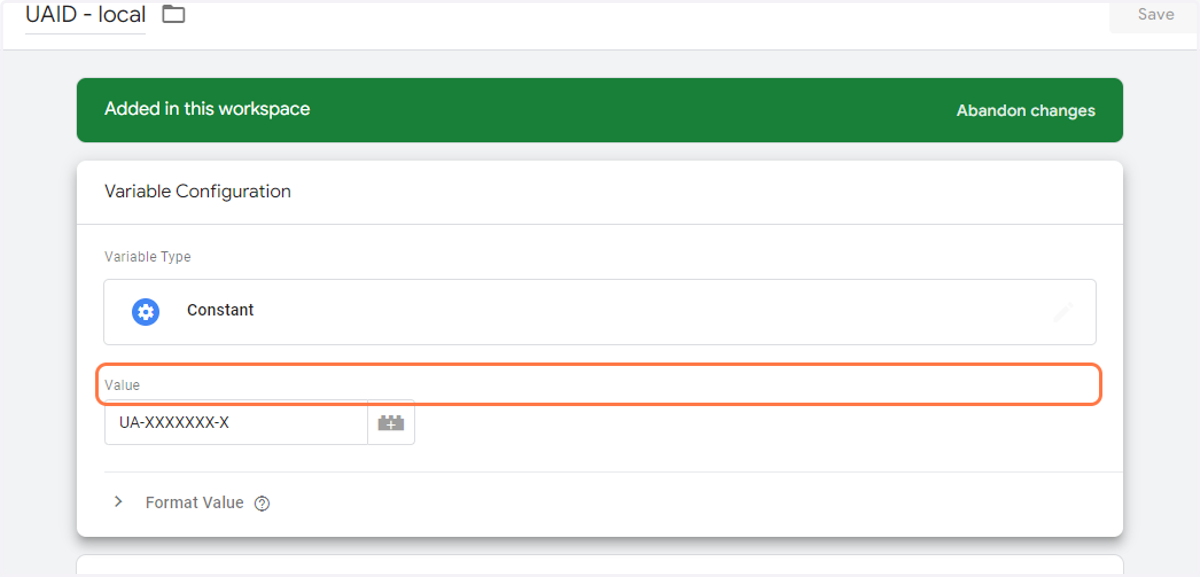
    Enter the appropriate GA universal analytics property ID into the "Value" field
  24. 24. Click on Save

    Click on Save
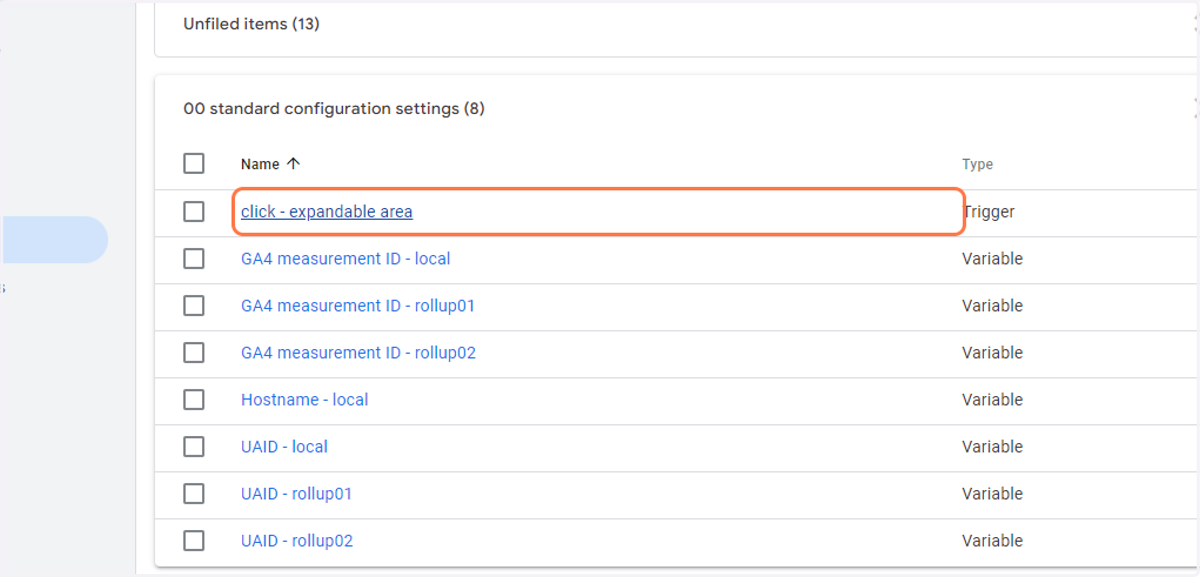
  25. 25. Click on click - expandable area

    Click on click - expandable area
  26. 26. For WordPress websites, enter ".collapseomatic" in the field as shown
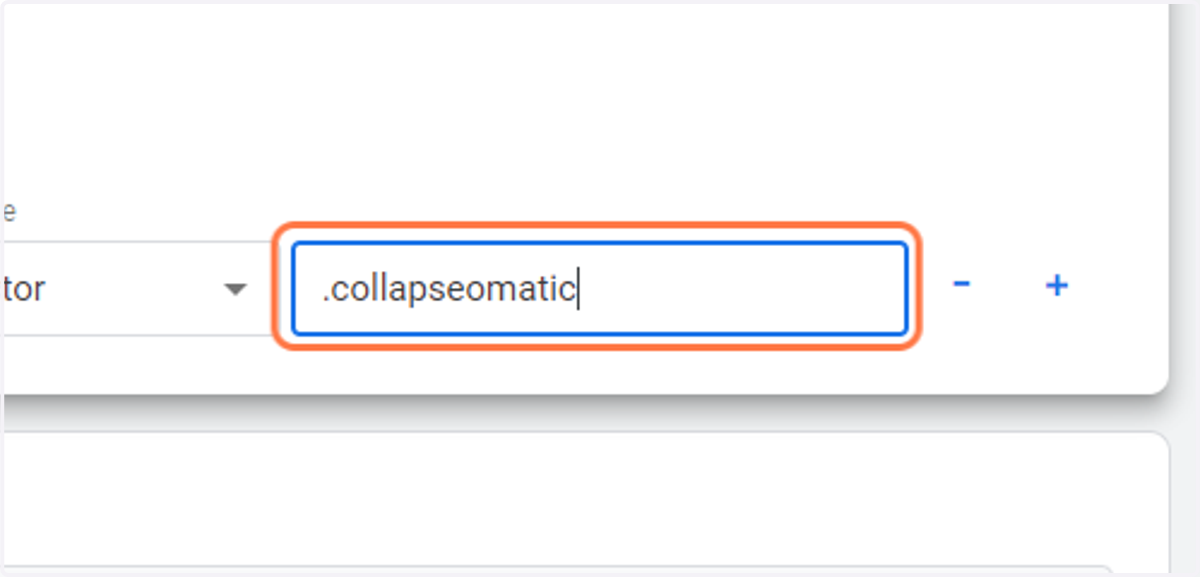
    For WordPress websites, enter ".collapseomatic" in the field as shown
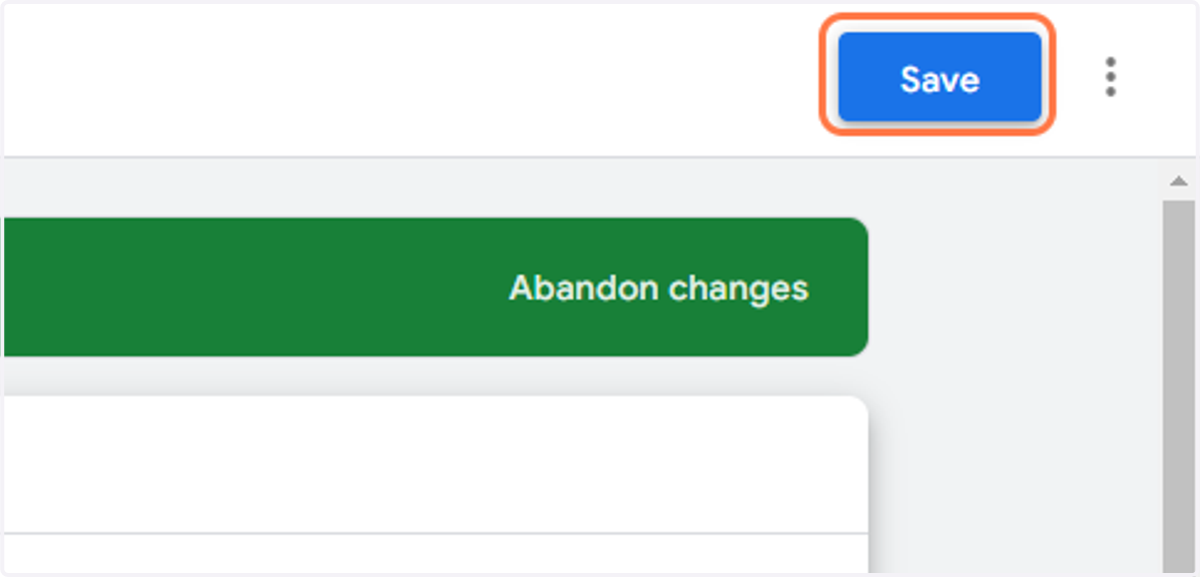
  27. 27. Click on Save

    Click on Save
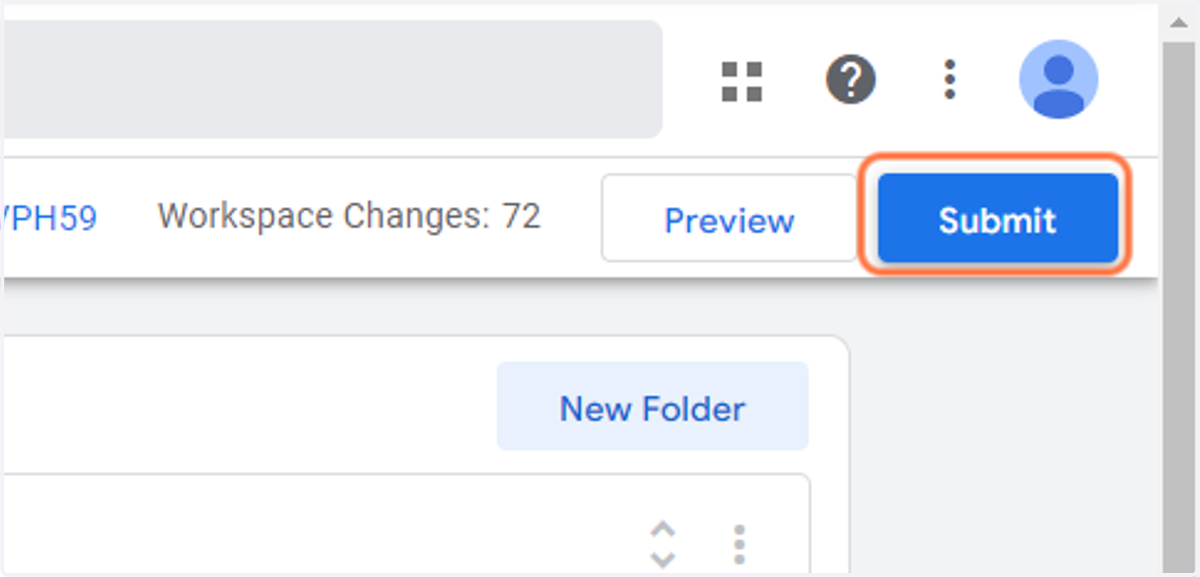
  28. 28. Click on Submit

    Click on Submit
  29. 29. For the "Version Name" field, enter the current date in YYYYMMDD format, and add a sequence number like "-01" at the end as shown
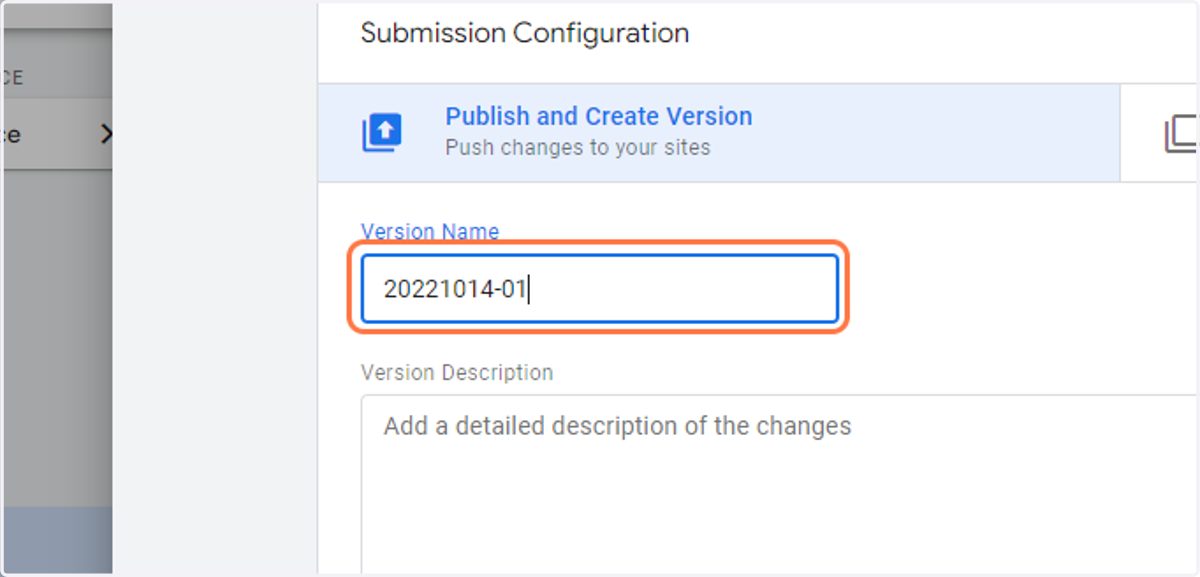
    For the "Version Name" field, enter the current date in YYYYMMDD format, and add a sequence number like "-01" at the end as shown
  30. 30. For the "Version Description" field, enter "Implements version 3.4.1 of the Mason Standard GTM container."
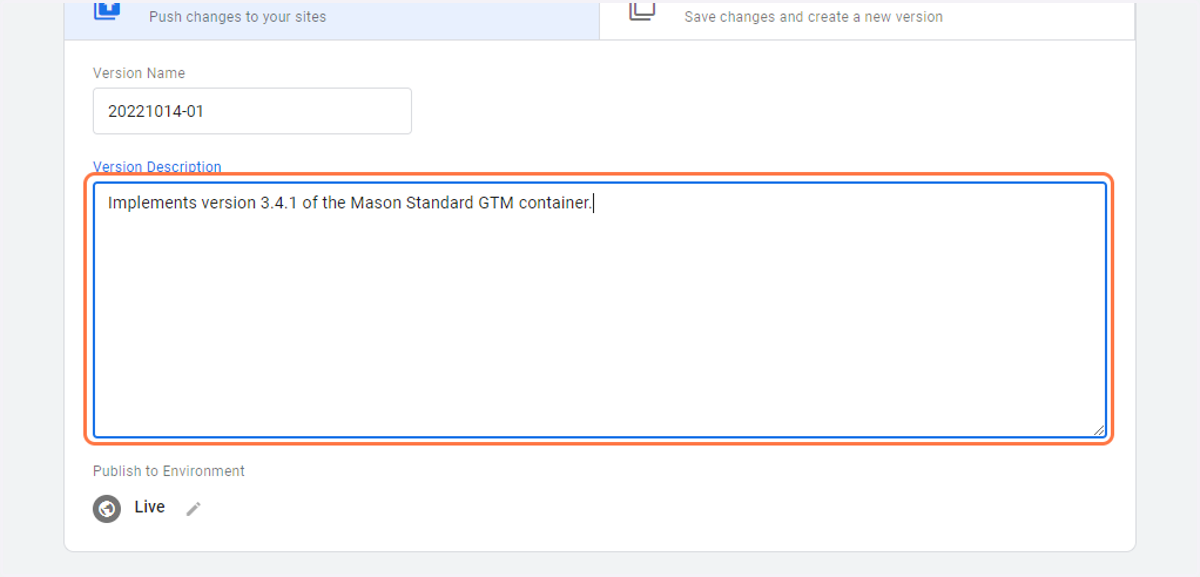
    For the "Version Description" field, enter "Implements version 3.4.1 of the Mason Standard GTM container."
  31. 31. Click on Publish

    Click on Publish
  32. 32. Click to close the version summary modal window
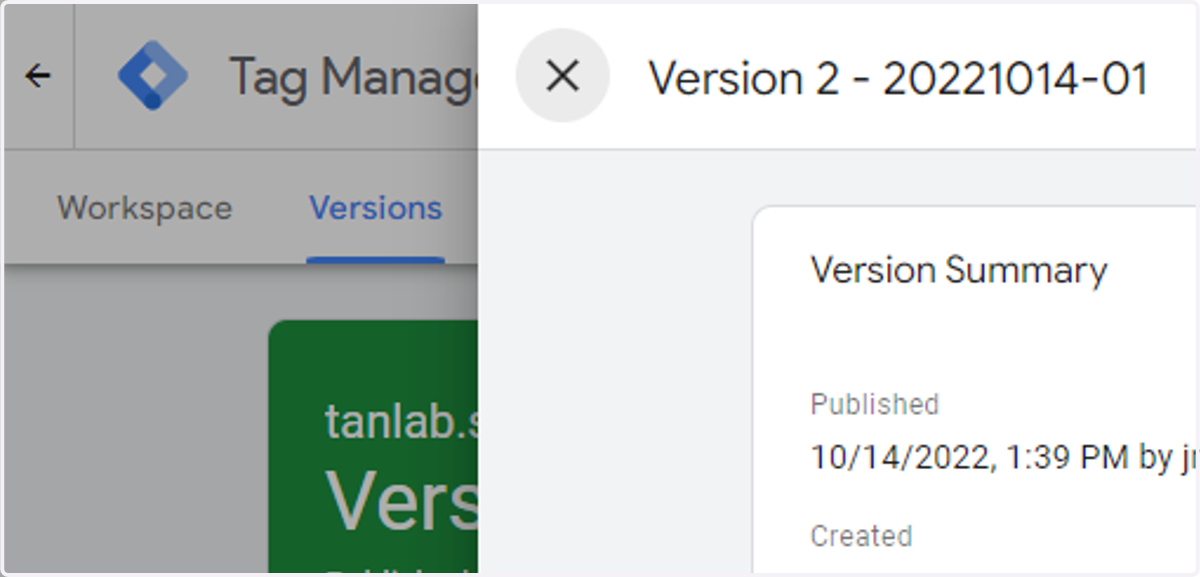
    Click to close the version summary modal window
  33. 33. Click on Admin

    Click on Admin
  34. 34. Copy the container's GTM ID number and make note of it
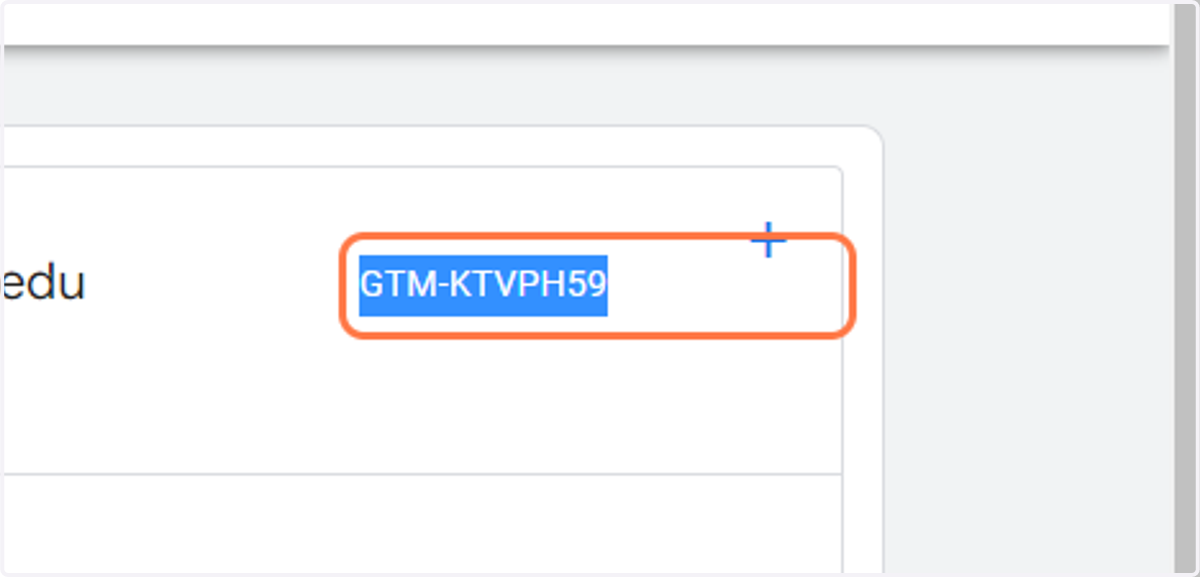
    Copy the container's GTM ID number and make note of it