Create mode (Form Builder) | FB_031
In this tutorial, we'll take a look at one of the Form Builder's available modes, which tailor the experience directly to how you wish your end users to interact with this product.
Here, we'll be taking a look at the Create mode. This allows fields to be created and formatted from within the Form Builder's user-facing form. This is great when you want your users to be able to freely design some elements of their own artwork.
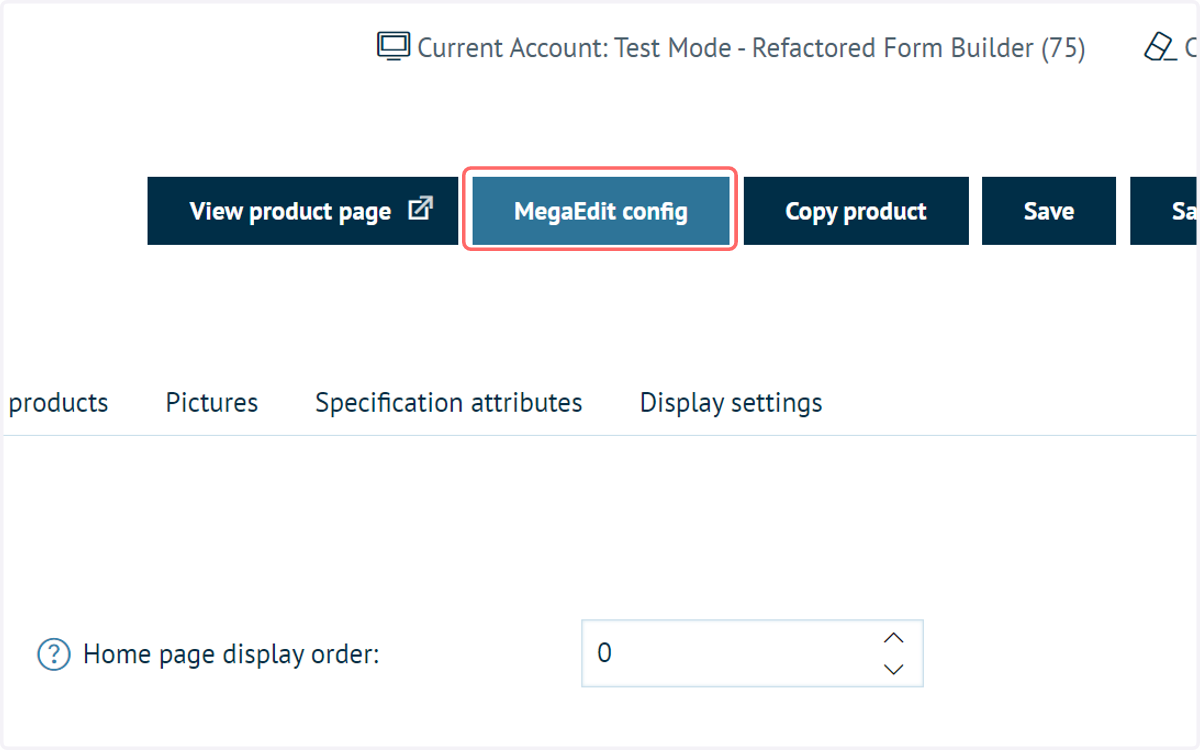
1. Click on MegaEdit config
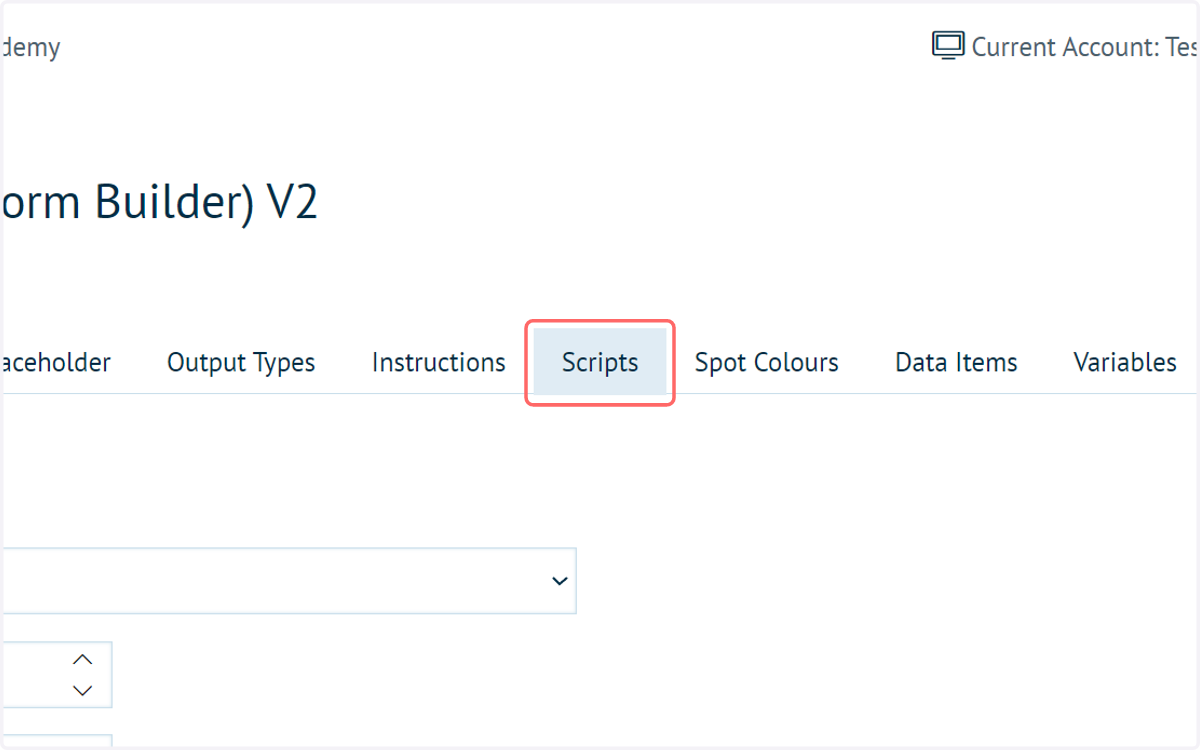
2. Click on Scripts
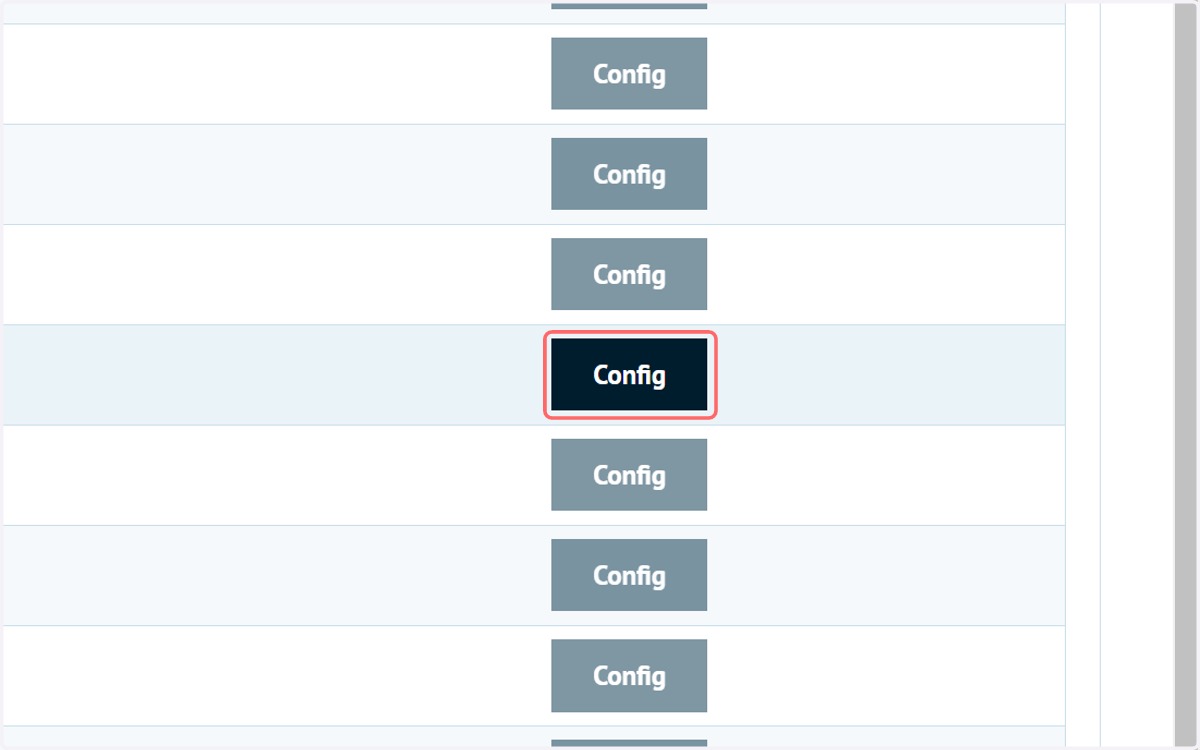
3. As usual with the Form Builder tutorials, begin with a product already set up to use the Form Builder script, then launch the script Config screen
If you need advice on configuring the basics of the Form Builder, take a look at earlier tutorials on the Infigo Academy.
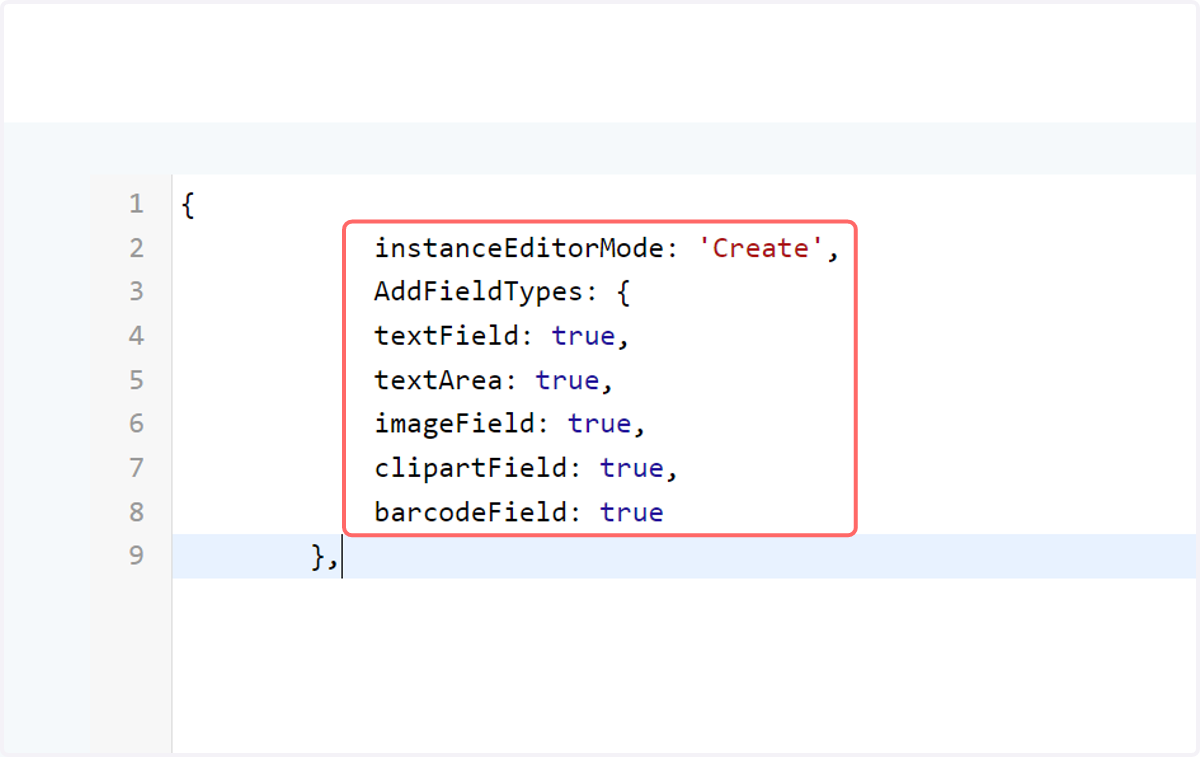
4. Input the instanceEditorMode and AddFieldTypes lines to your script config
The instanceEditorMode line allows you to select the mode the Form Builder will use. By default, and what we've discussed in the majority of the Form Builder tutorials, is the "Form" mode.
Other options are Upload, Create and Guided.
In this tutorial, we'll utilise 'Create'.
The AddFieldTypes section allows you to define which field types will be available for end users to add whilst using the Create mode. Simply specify each field type with 'true' or 'false'.
5. Click on Save and Continue Edit
6. Launch the MegaEdit product
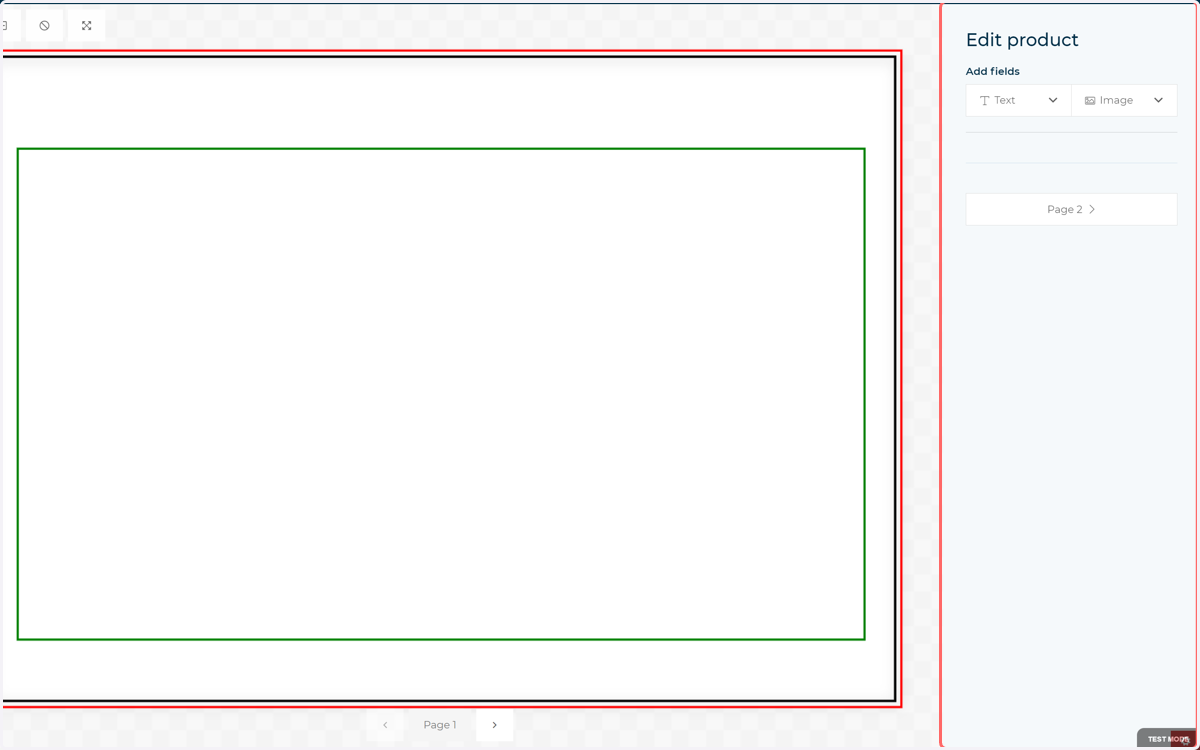
7. The product will launch will the user-facing form providing the ability to add new fields.
8. Add a single line text box
Remember, this is the user-facing form and is how they will interact with the product
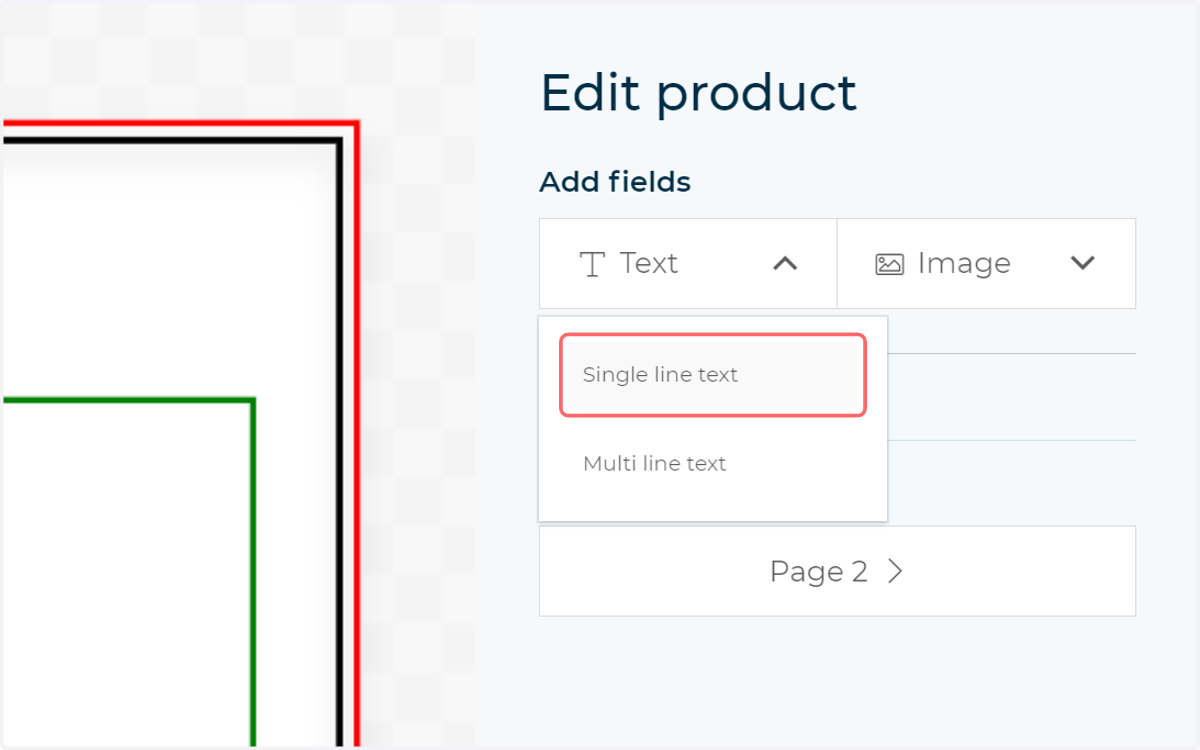
9. Users will have the ability to edit the field they just added, including formatting and the arrangement relative to other fields
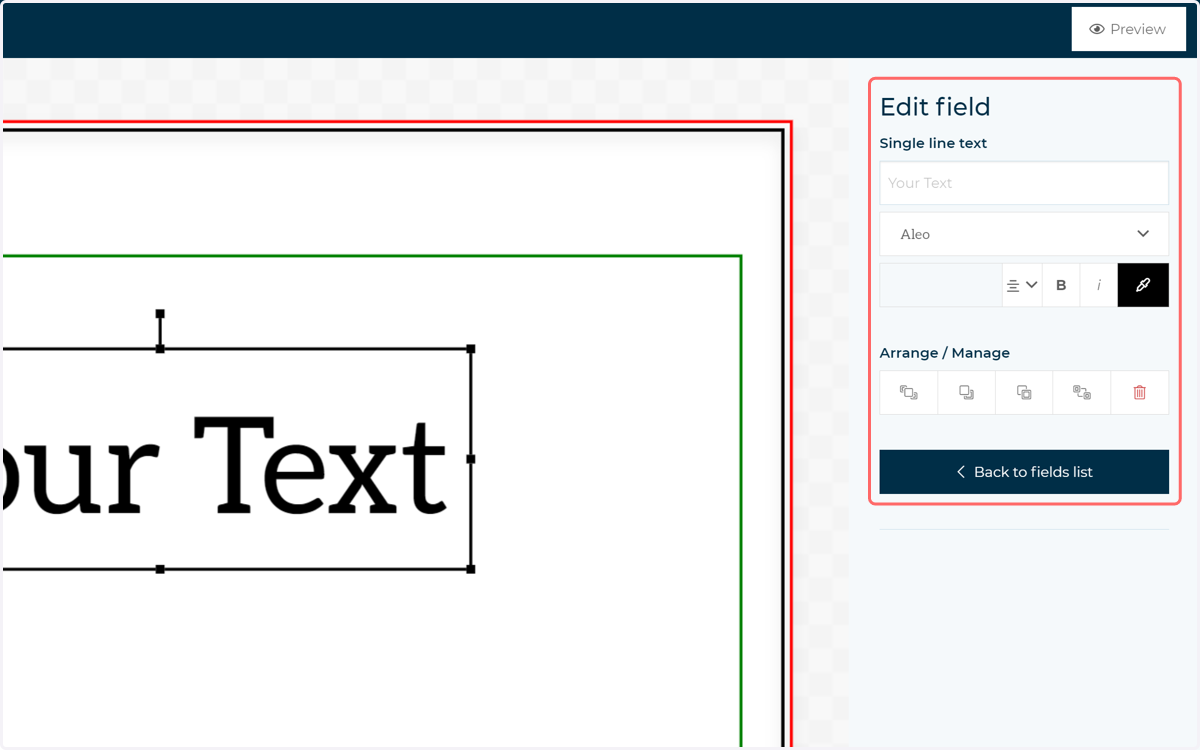
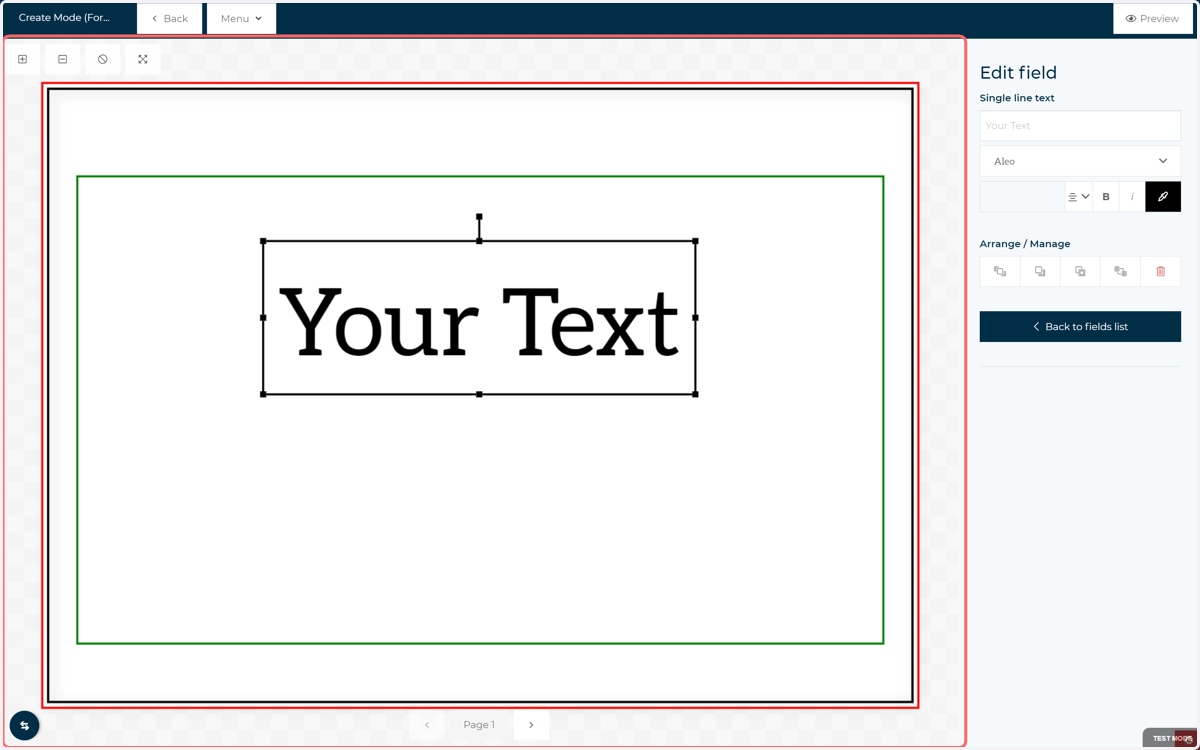
10. Newly added text box
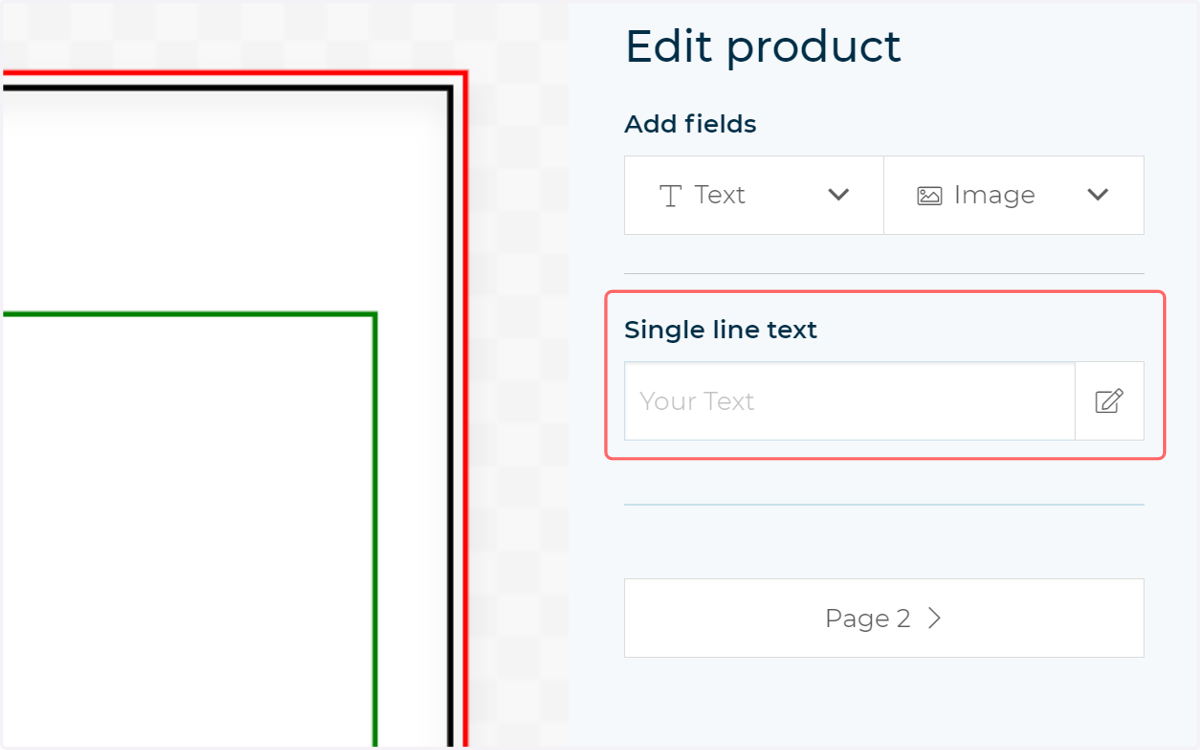
11. When no fields are selected, your users will see a form showing inputs for all added fields, in addition to options to add new fields
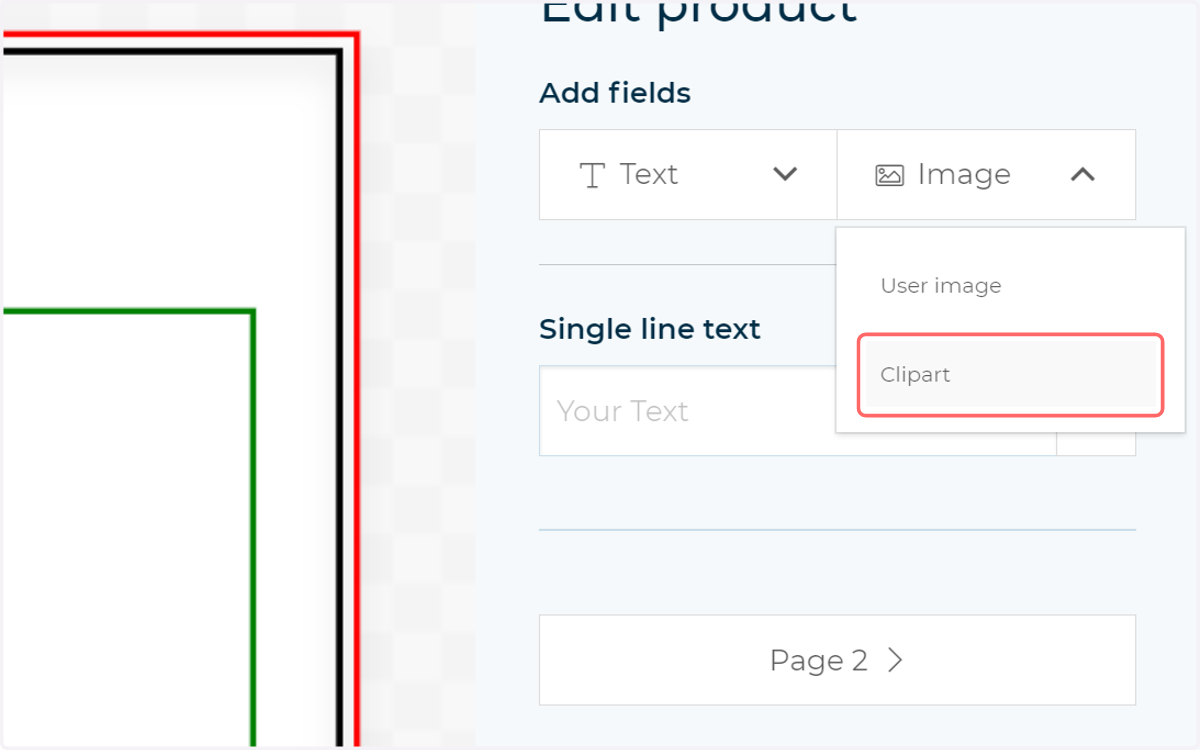
12. Add a new clipart field
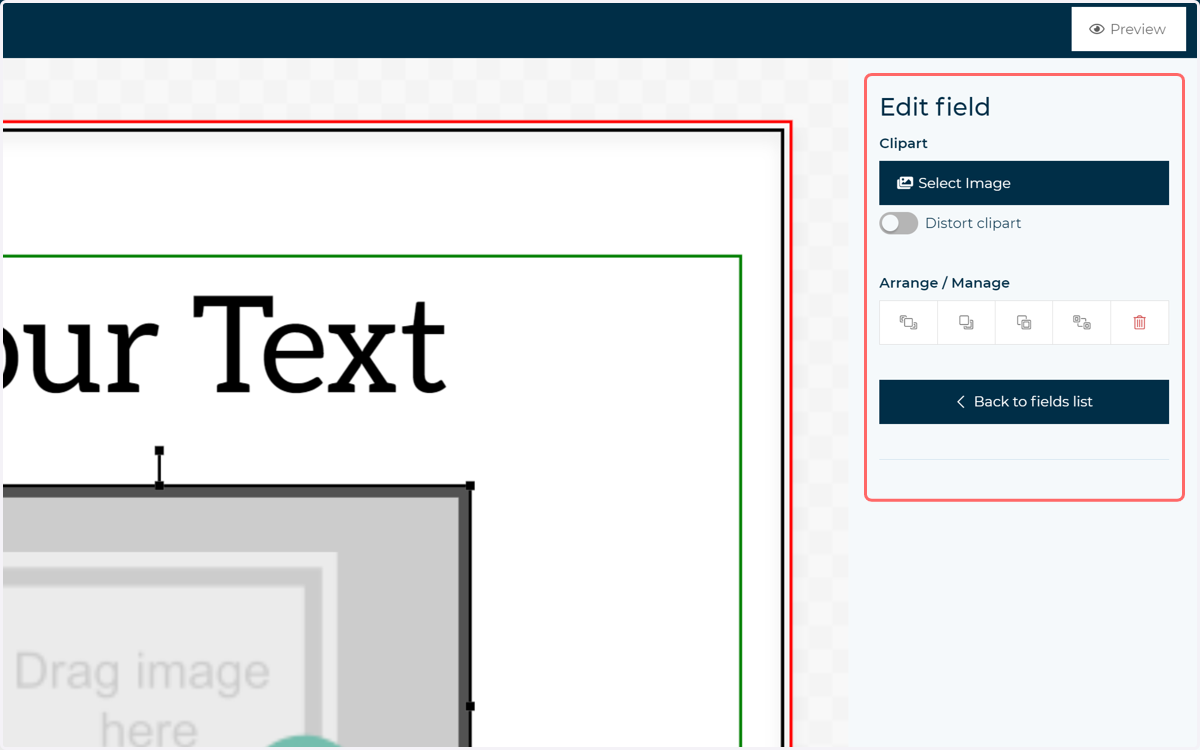
13. Again, your users will be given options to edit the newly added field
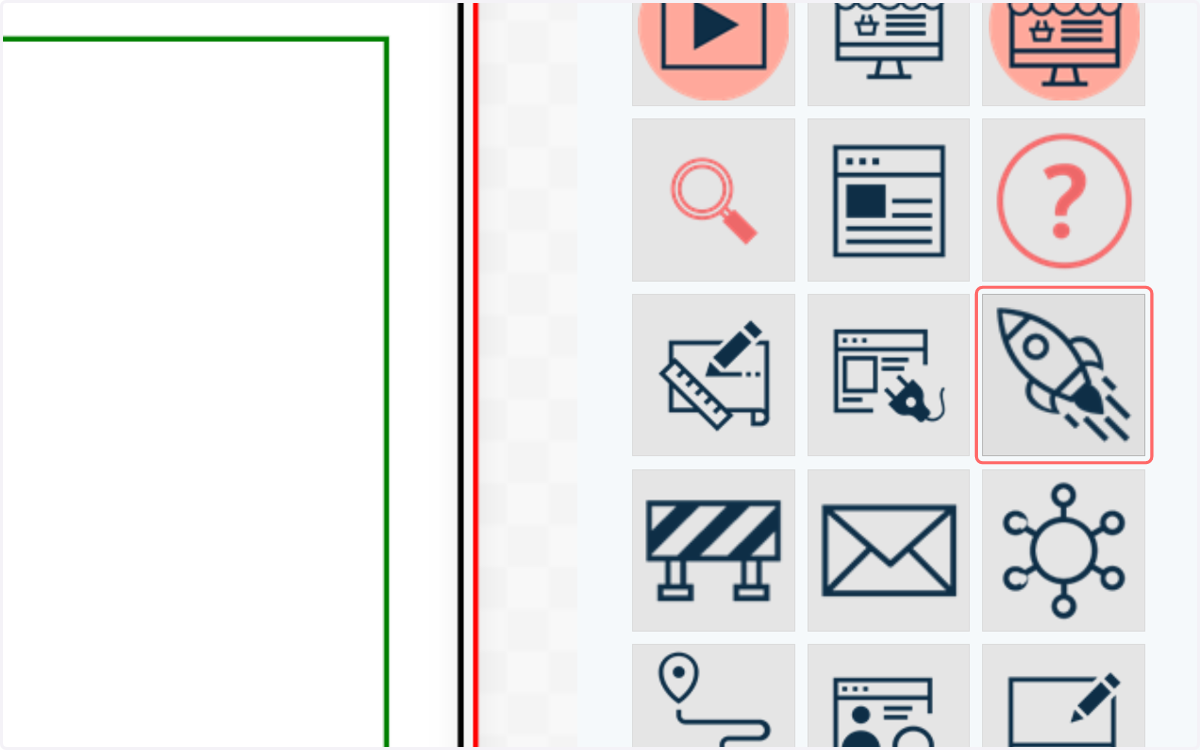
14. By default, clipart fields will give access to all clipart categories assigned to a product
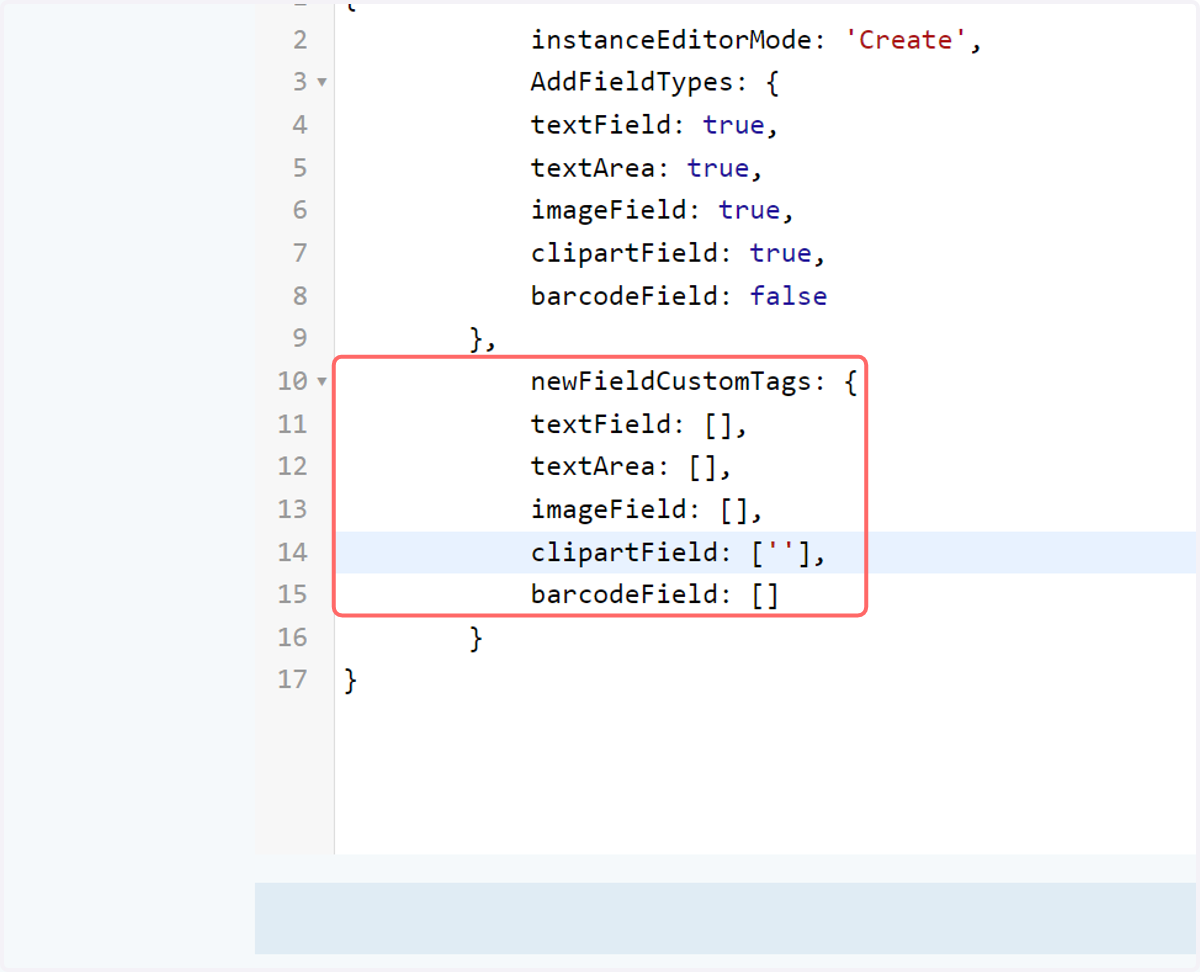
But what happens if we want to limit the accessible clipart categories? We can do this by specifically defining field tags within the script config
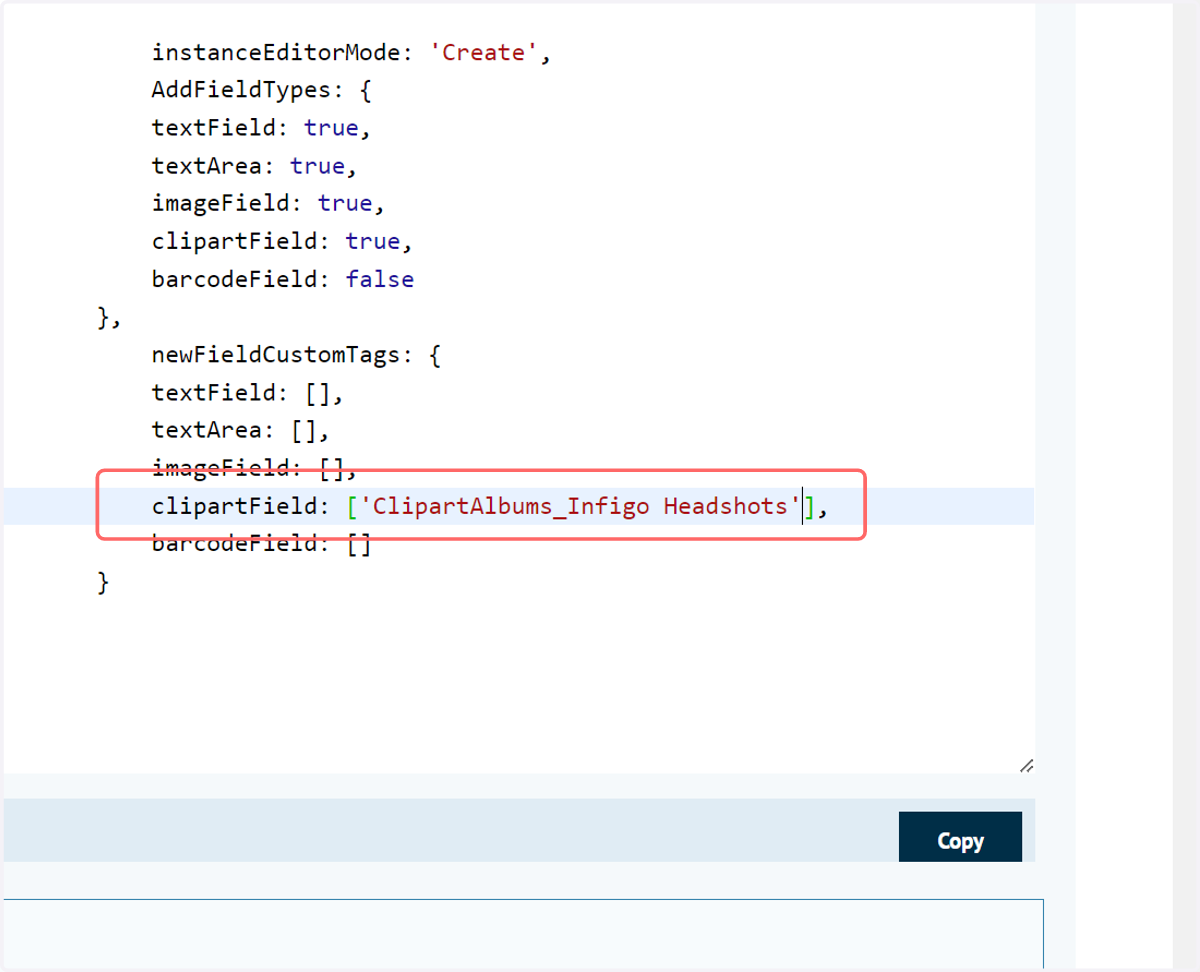
15. Add a new section to the script config named newFieldCustomTags
This section allows us to define specific field tags on each different field type.
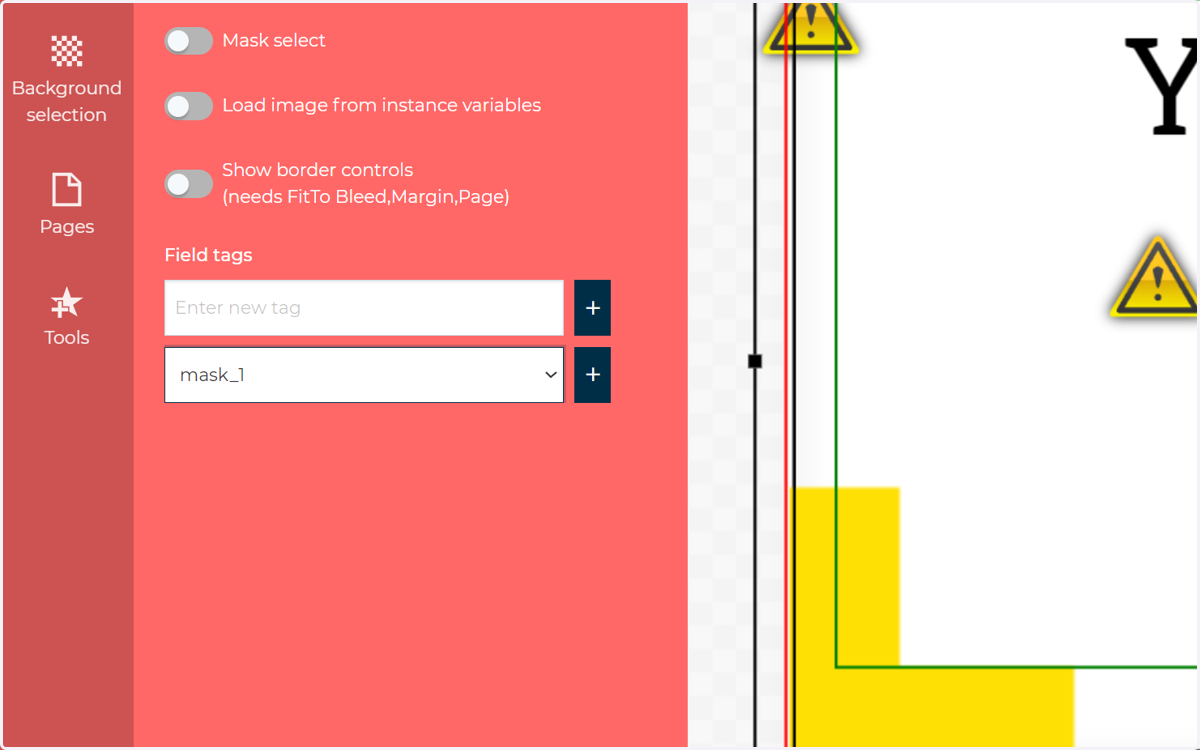
We need to identify the relevant field tags. This is easiest to do on the product itself
16. Assign a clipart category to your product
This will generate a field tag which we will need to copy and input into our script config
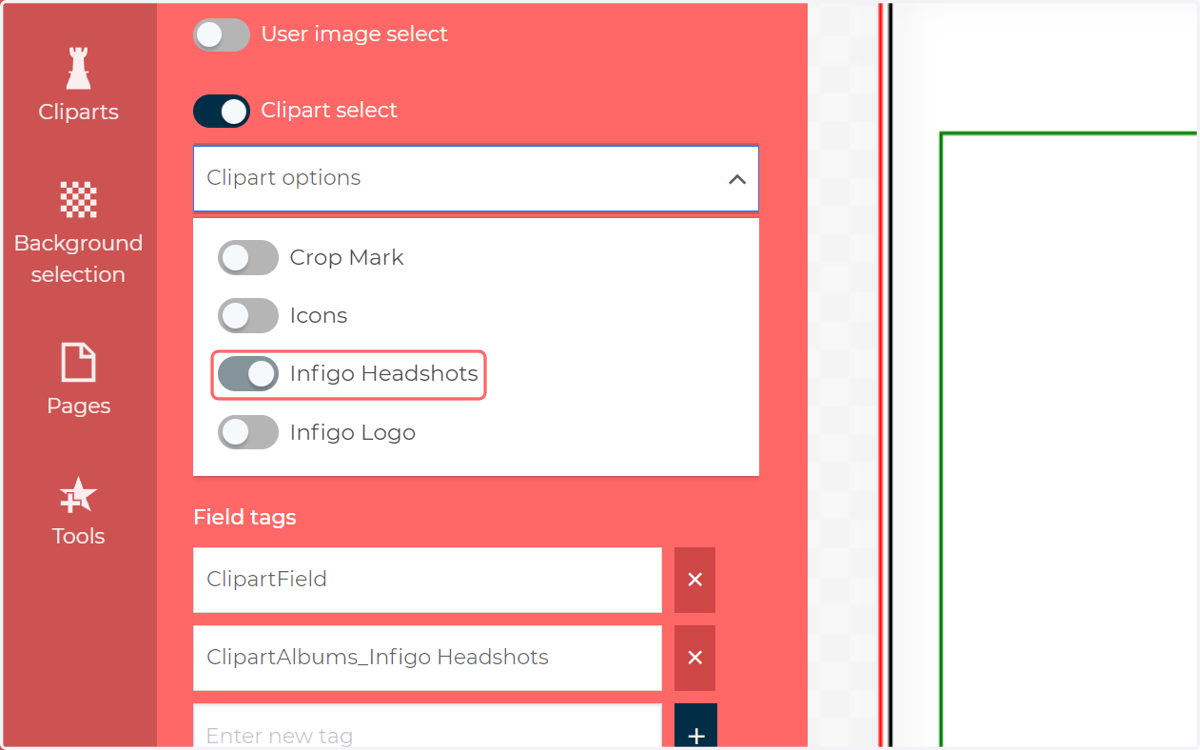
17. Locate and copy the field tag relating to the selected clipart categories
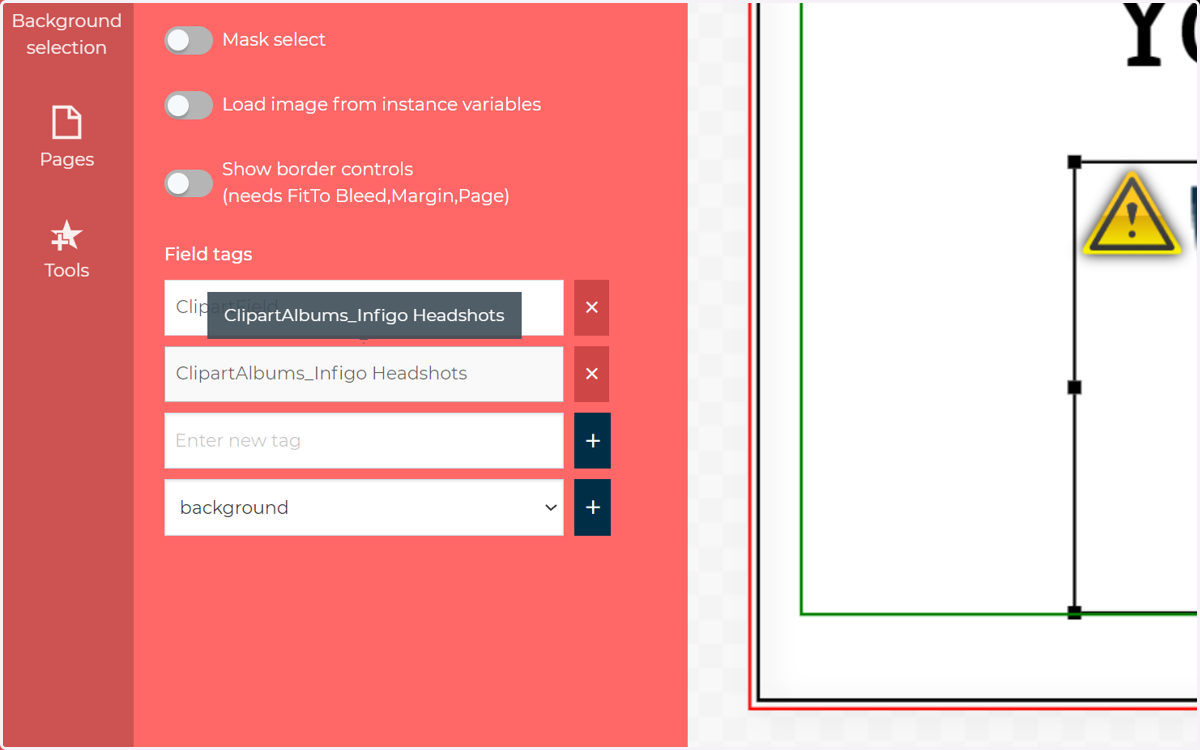
18. Input the clipart field tag into the relevant area of the newFieldCustomTags area.
19. Click on Save and Continue Edit
20. Reload the MegaEdit product and add a new clipart field
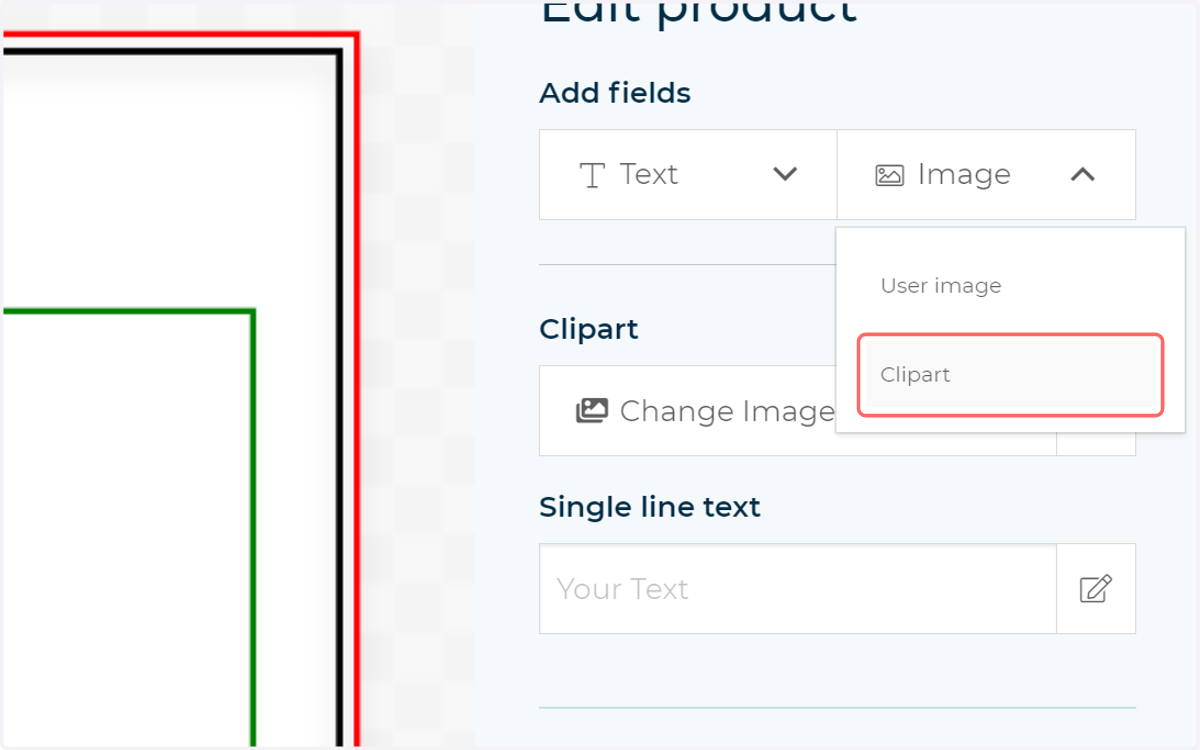
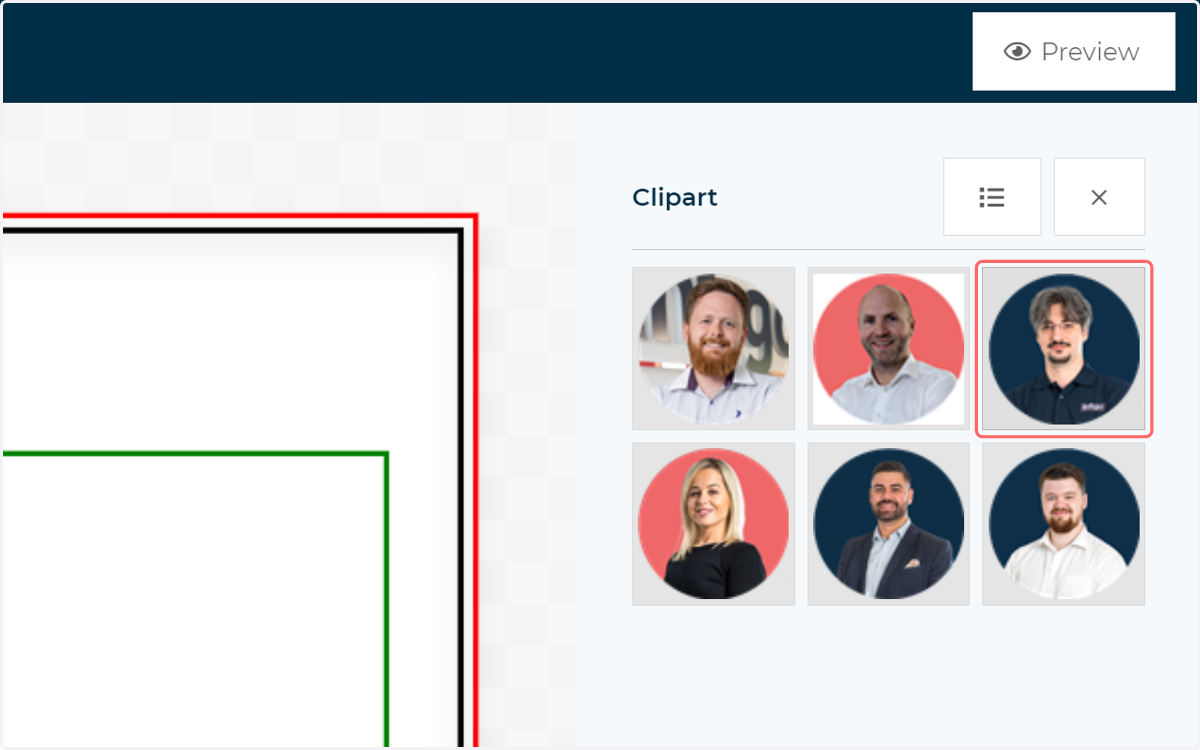
21. Available cliparts will now be limited to the categories specified in the script
22. Click on Custom Tab
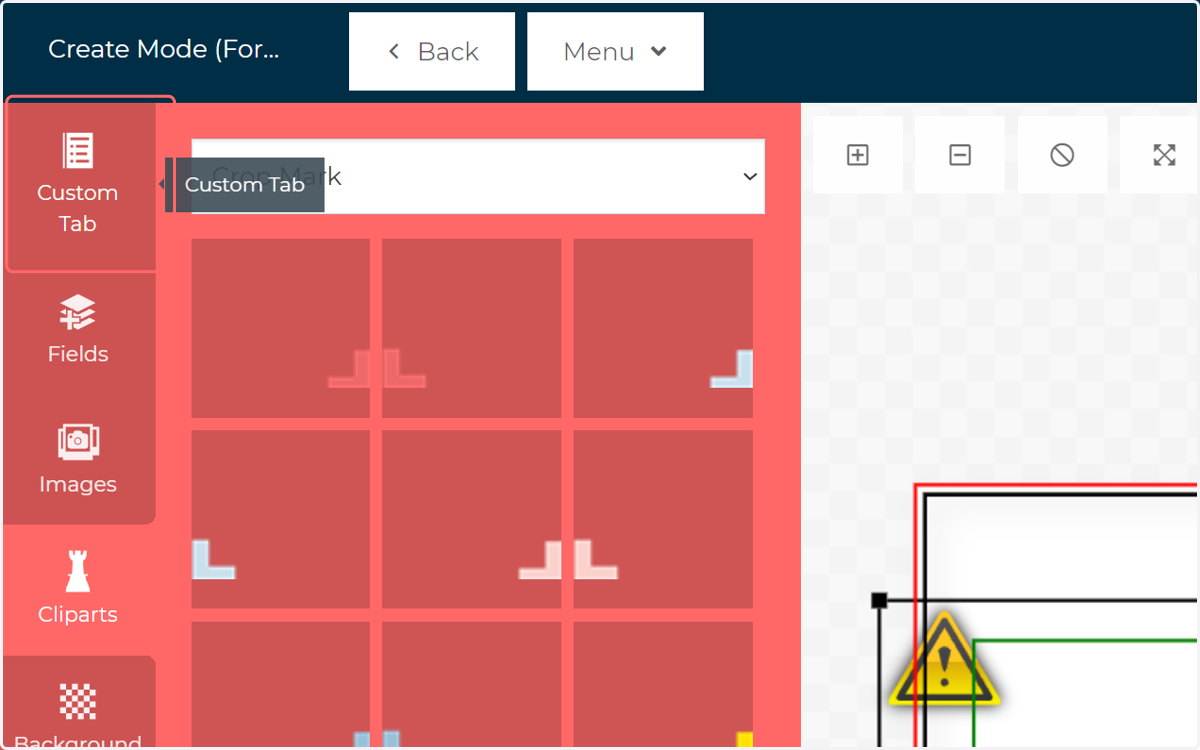
23. Click on Custom Tab
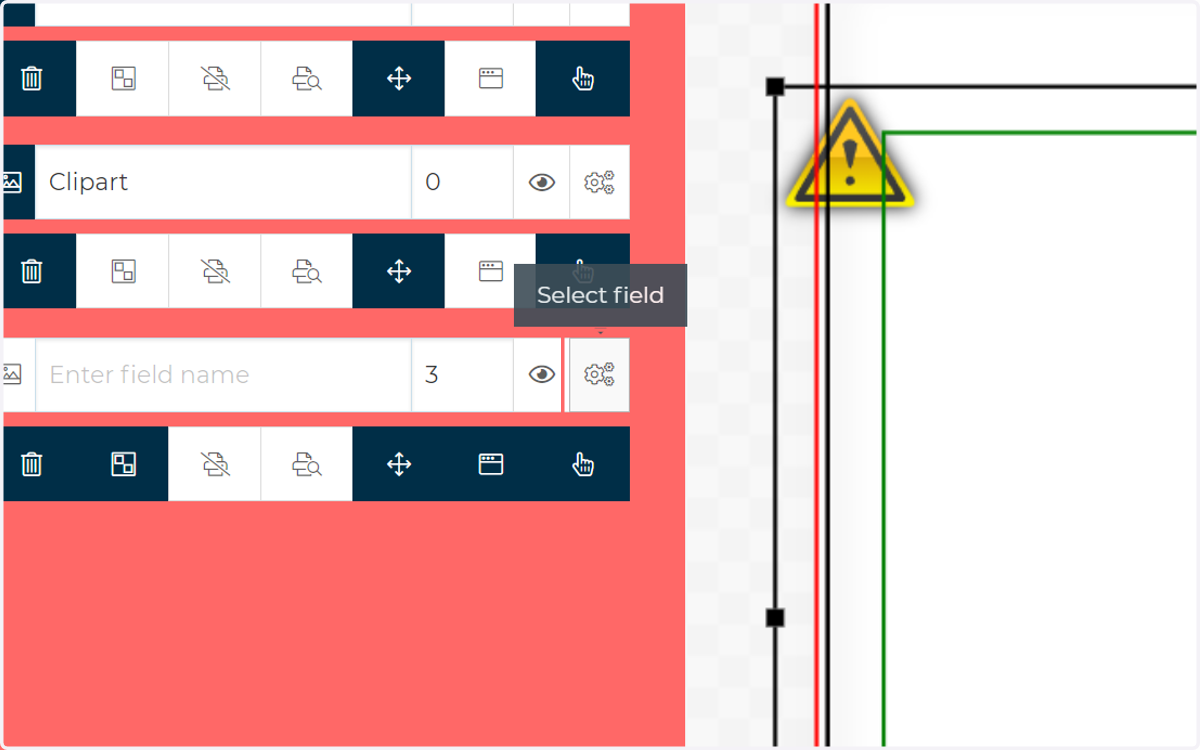
24. Remember, if you want to make static, unchangable fields on the product, the tools exist to do this.
Other tutorials go into this in more detail, however you can make use of mask and background layers, along with specifying that a field cannot be interacted with.