Connect: CERM | Working with Products
(CERM) Products are generally the equivalent of (Infigo) Jobs. They are a static piece of work, and are associated with the (CERM) Estimate from which they were created.
Another way to think of (CERM) Products is as the equivalent of an (Infigo) Stock Product. It is an orderable entry where there are no variable elements to the work.
(CERM) Products are created from (CERM) Estimates, the specification of a piece of work, but with variable artwork.
Each (CERM) Estimate must be attached to a (CERM) Contact, an individual user. As a result (CERM) Products are also associated with that individual user.
The Connect: CERM integration gives users the ability to explore (CERM) Products assigned to their (CERM) Contact entry. From here, they can perform additional actions such as re-ordering, deleting and viewing the order history.
(CERM) Products can be re-ordered multiple times, with each being registered as an order which is then associated with the (CERM) Product.
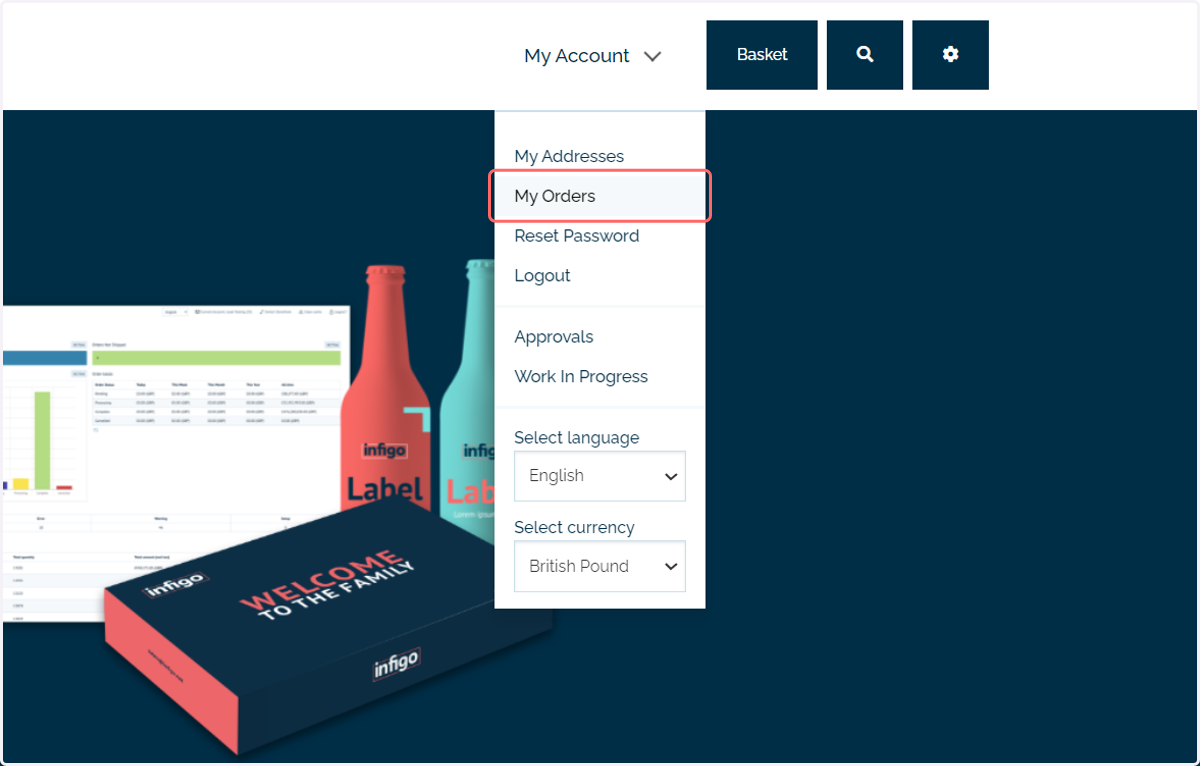
1. Navigate to My Orders
(CERM) Products can be viewed on the My Orders page when viewing the storefront front-end. This will be available to your (Infigo) Customers.
2. Click on Products
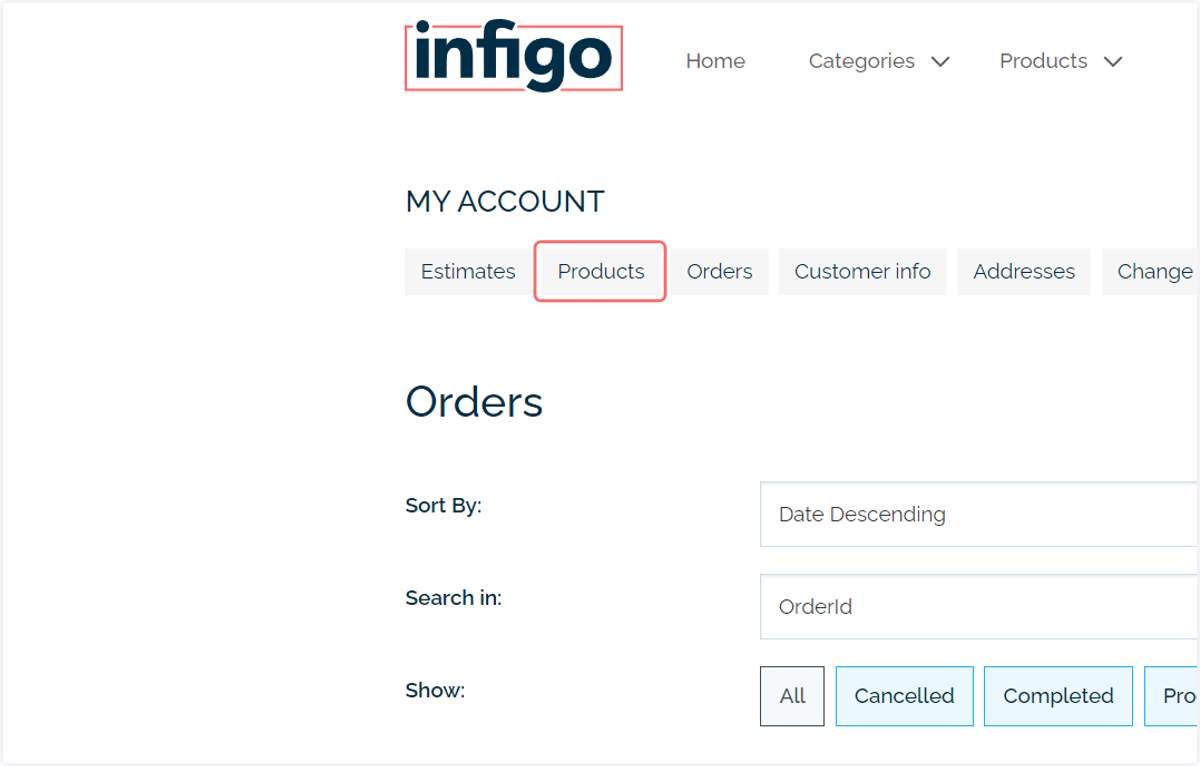
With the Connect: CERM plugin active, users will have access to additional tabs on the My Account page.
Estimate, Products and Orders tabs are available. These have an active link with your CERM system and will display up to date information.
As we are interfacing between CERM and Infigo, it's important to distinguish between the different terminology used by both pieces of software.
(CERM) Estimates | (Infigo) Quotes - A specification for a currently unplaced piece of work. They have a fixed specification, but variable artwork.
(CERM) Products | (Infigo) Job - A piece of work with fixed specification and artwork, generated from the specification above
(CERM) Order - An instance where the (CERM) Product has been purchased.
The tabs listed in the My Accounts page are using CERM terminology.
In this tutorial, we will be focusing on the Products tab.
3. Displayed Products
By default, all (CERM) Products available to the current logged in user will be displayed.
This page is paginated, meaning that only a certain number of (CERM) Products are displayed at any one time. This ensures we can maintain a high speed link between the two systems, as only a limited data set is being requested at any one time.
(CERM) Products are created when a (CERM)Estimate is taken through the checkout / ordering process. The (CERM) Estimate will still exist, but will then have the newly created (CERM) Product associated with it.
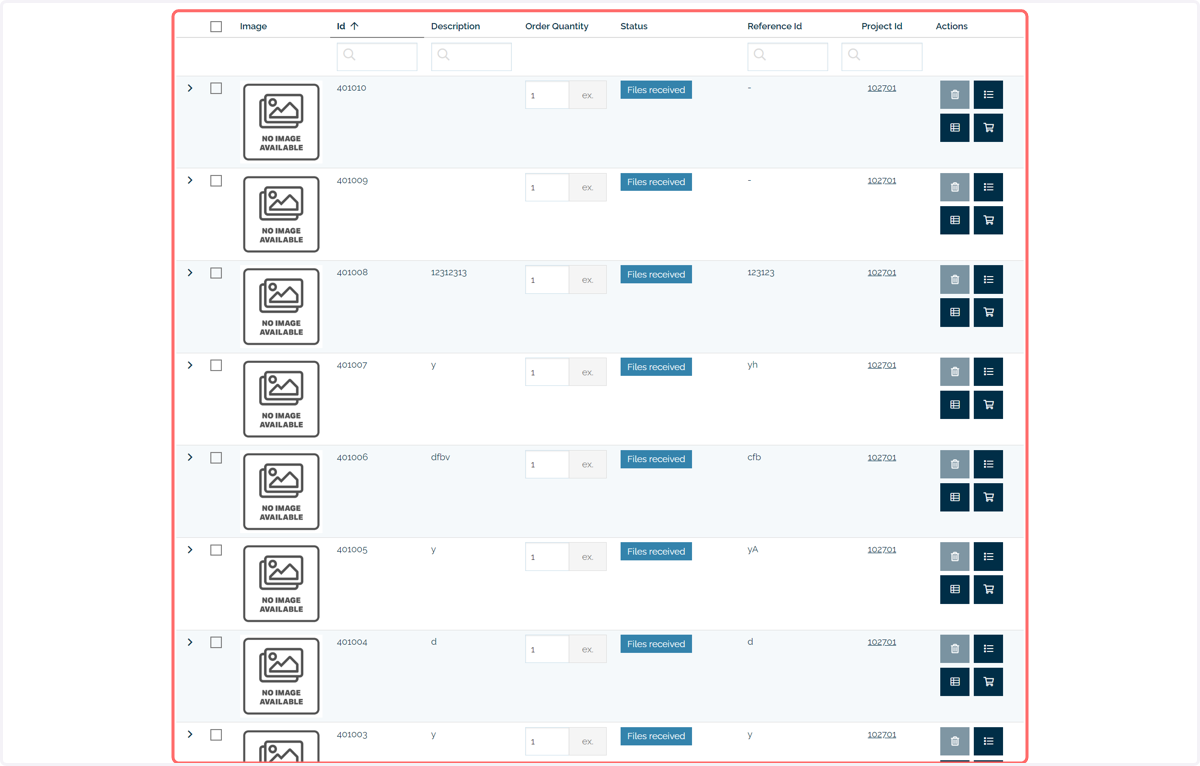
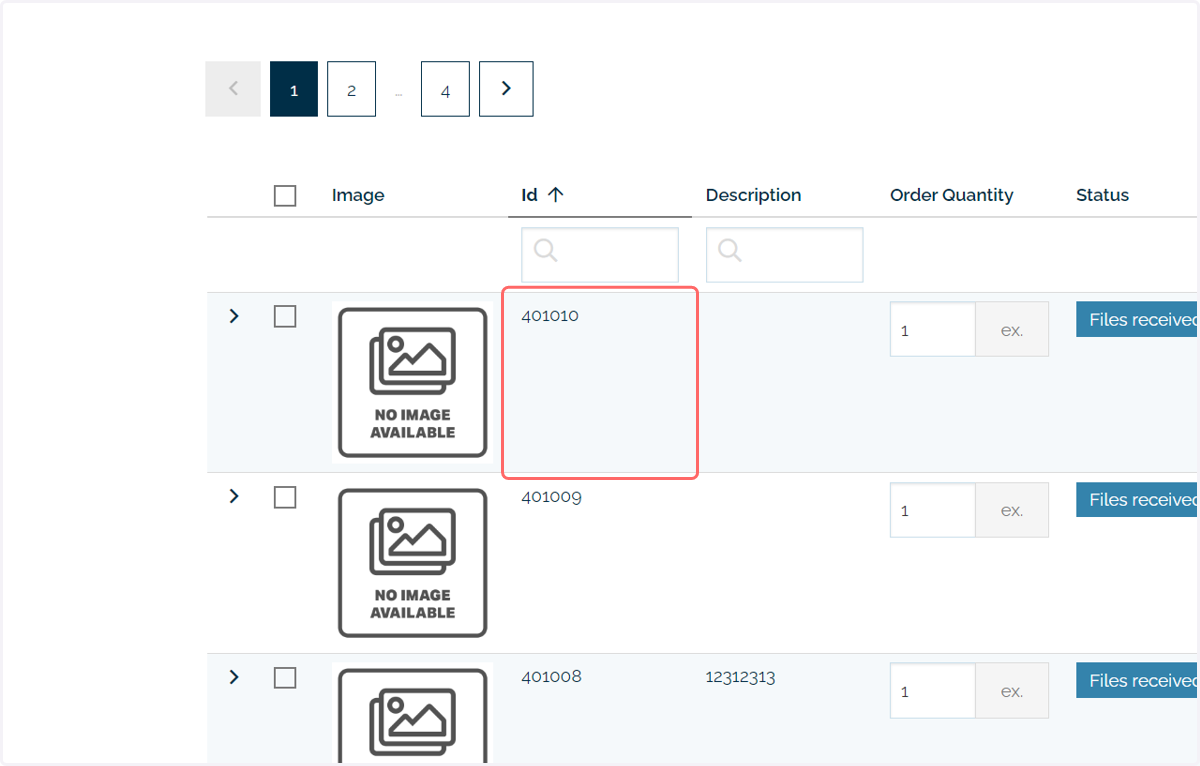
4. This page has a searchable ID column
(CERM) Product IDs can be searched and filtered
5. File Status
(CERM) Products can be created from (CERM) Estimates without artwork being provided.
This process also works in Infigo, with orders able to be placed and (Infigo) Jobs created without an artwork file.
The Status column will show whether there are outstanding files for each (CERM) Product. If not currently provided, users can utilise this column to upload the required artwork.
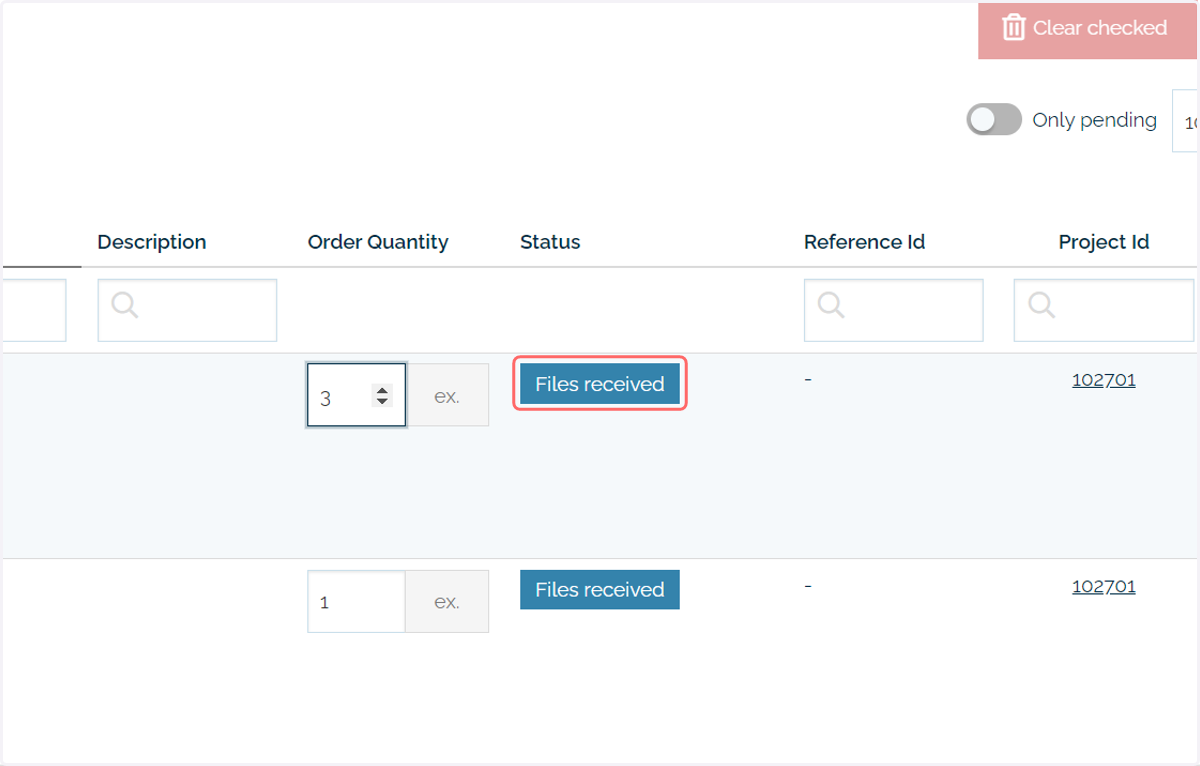
Example Store-Products
6. Click on Upload your artwork
Where artwork is still required on a (CERM) Product, click "Upload your artwork".
This will take users to one of two possible interfaces.
If the (CERM) Product was created from within Infigo, the user will be taken to the artwork upload page seen in (Infigo) Multi Part Products.
If the (CERM) Product was created from within CERM, the user will be shown a pop up where the artwork can be uploaded directly to the CERM system.

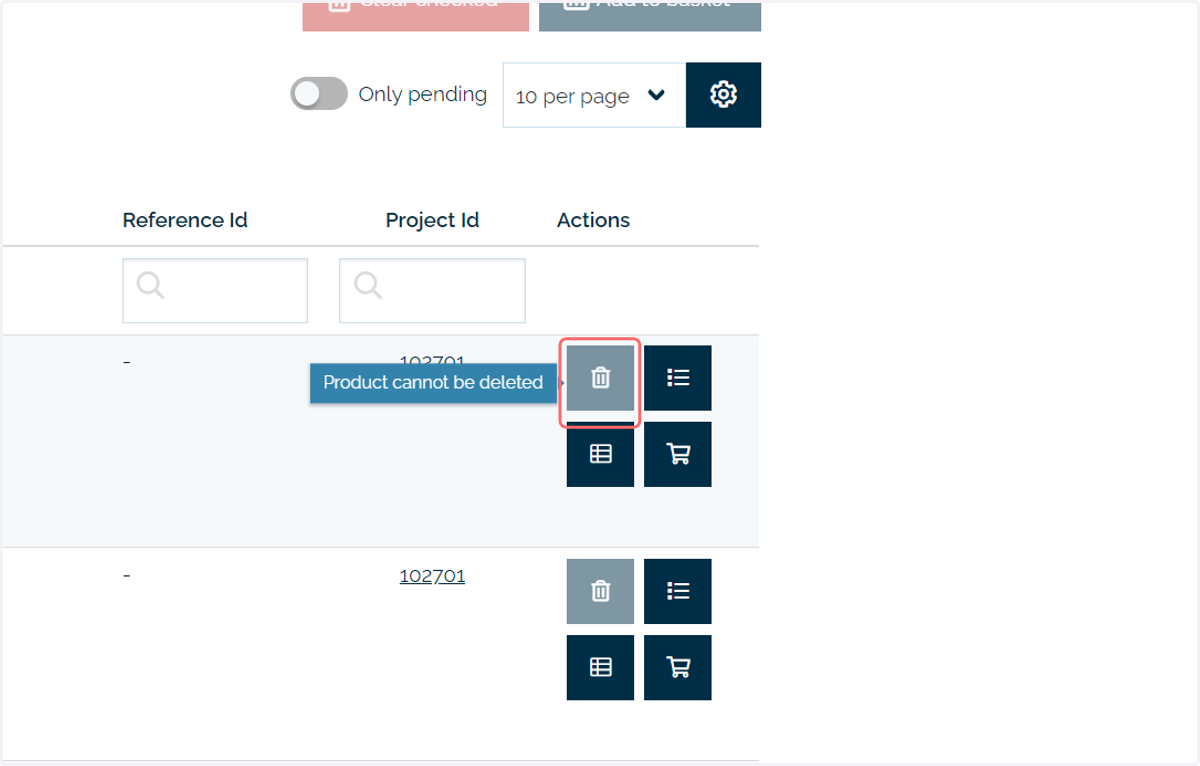
7. Actions > Delete
Under some scenarios, the user will have the ability to delete the (CERM) Product and hide it from view.
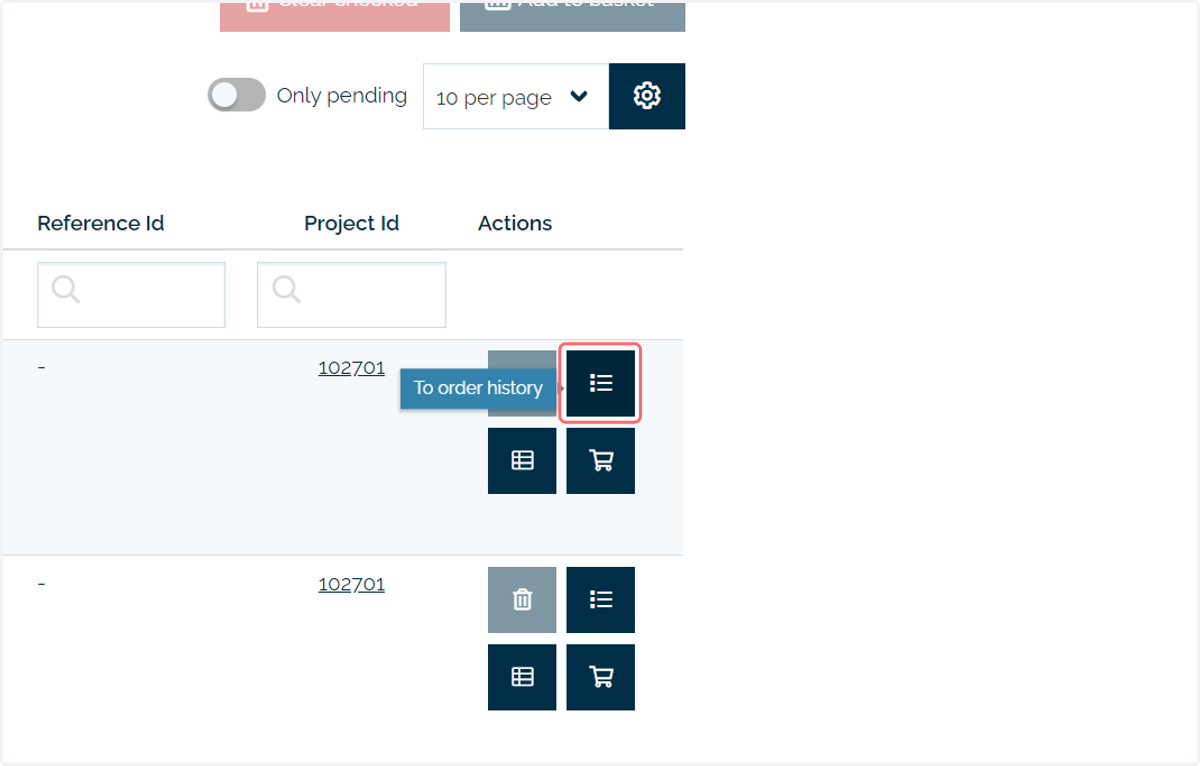
8. Actions > Order History
Navigates to the Orders tab to see the orders that have been placed for this (CERM) Product.
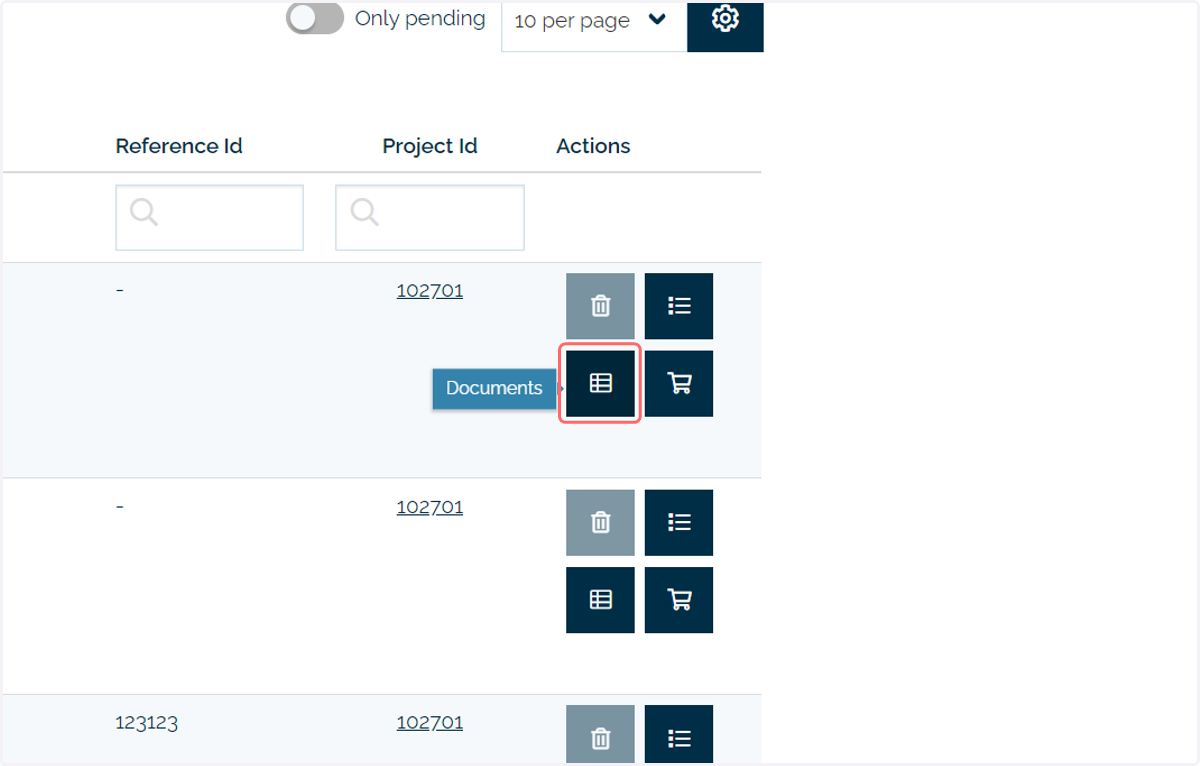
9. Actions > Documents
Provides access to documents associated with this particular (CERM) Product within the CERM system.
This information is drawn from CERM. You cannot upload additional documentation via Infigo.
These documents can cover a range of associated items, such as:
Order notes
Thumbnails
Preflight reports
etc
10. Actions > Add to basket / Reorder
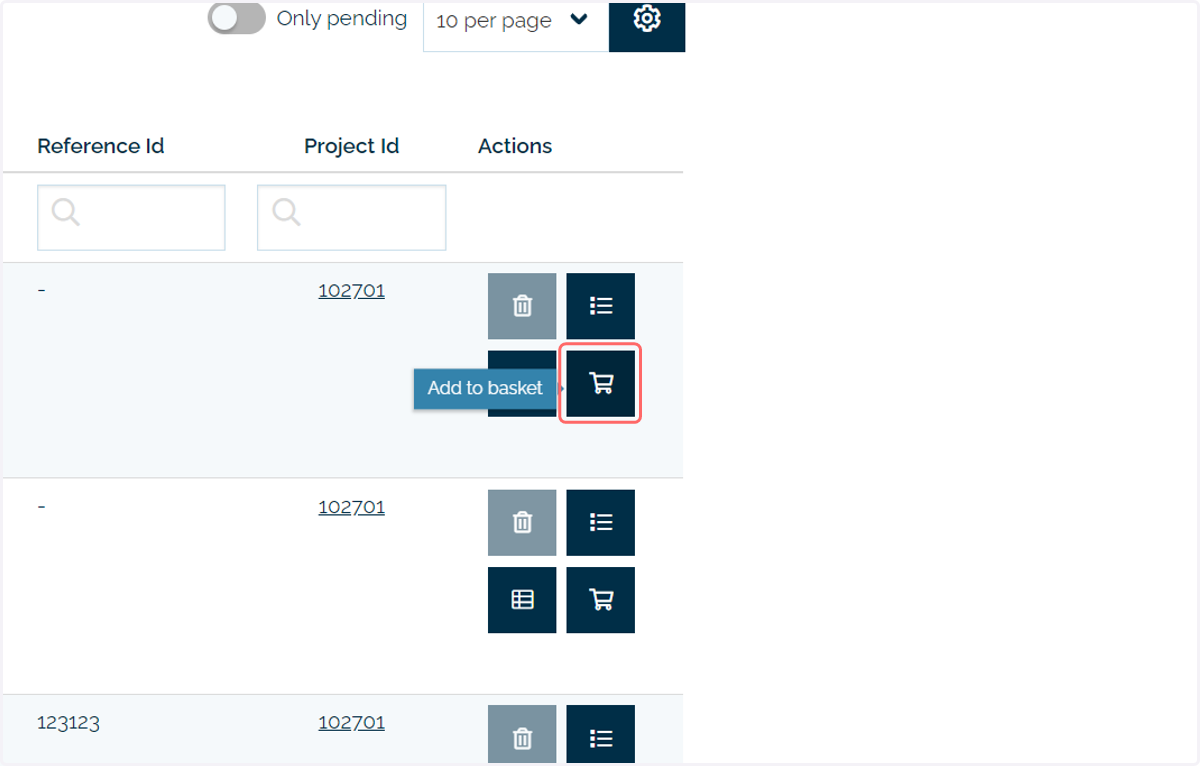
The basket icon in the Products page allows for the (CERM) Product to be re-ordered and (CERM) Order registered from the (CERM) Product.
Users would reorder from a (CERM) Product in situations where the specification and artwork of the piece of work are identical.
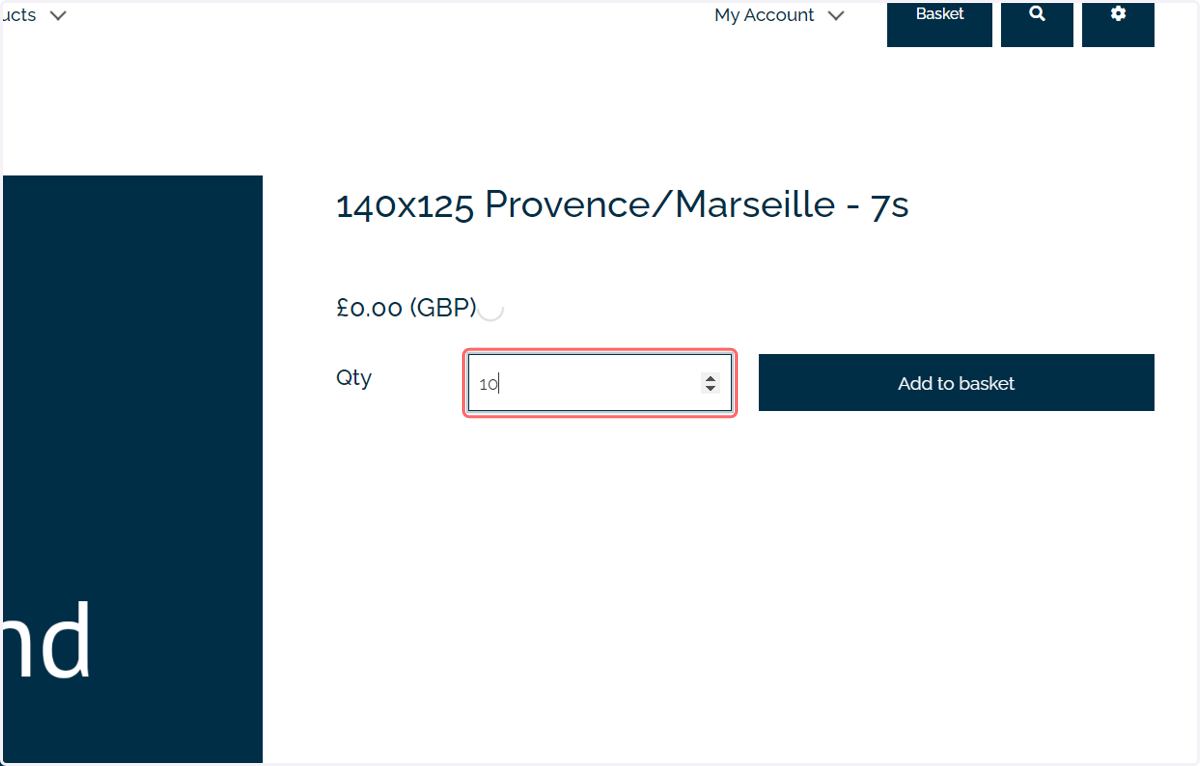
Users will not be able to change the specification or artwork associated with the (CERM) Product and will only be able to change the quantity being ordered.
Note: Reordering from a (CERM) Product will result in the utilisation of one of the "Master_" (Infigo) Product templates discussed in previous tutorials. This allows the (CERM) Product to be utilised in the context of an (Infigo) Stock Product.
As the specification is static, the (Infigo) Stock Product "Master_" template will be used.
Users add the (CERM) Product to their basket as an (Infigo) Stock Product and proceed through the checkout process as normal.
Once placed, the (CERM) Product will still be available, with the same options available, however a new (CERM) Order will be associated with it.
This is because a new (CERM) Order has been created from this (CERM) Product and associated with it.
11. When reordering, the product page of a stock product is displayed
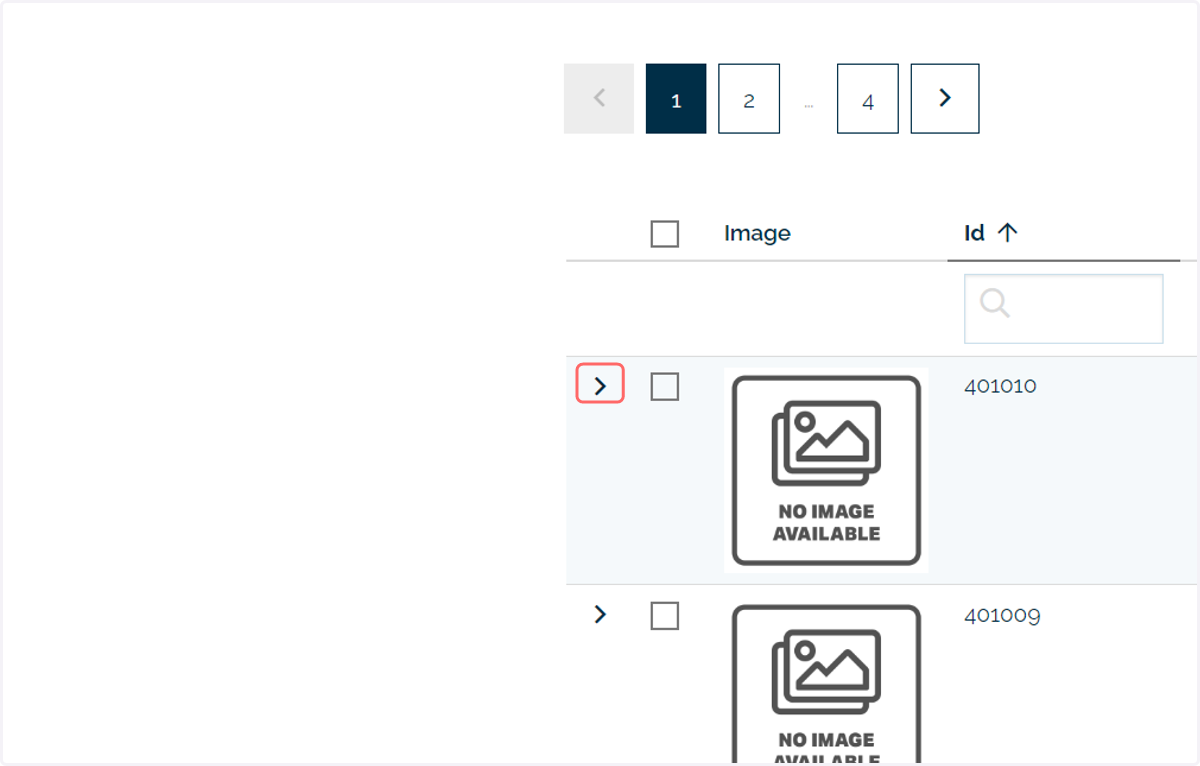
12. Access additional Product details with >
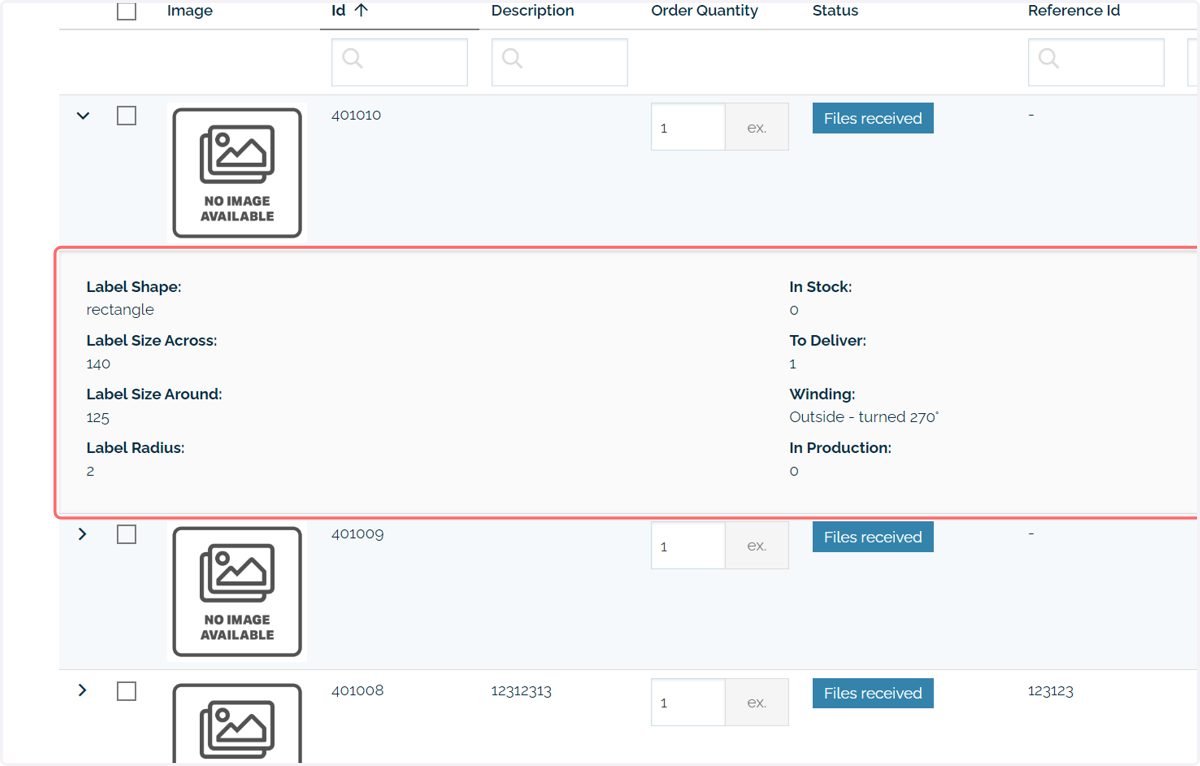
Click the arrow icon next to a (CERM) Product to access additional details on the specification of that (CERM) Product.
13. Additional specification data
Additional specification data can be viewed, but not changed.