HBA Academy - Adding a Promotion to ALL Academy Products
Creating the Promo Code
The first step in this process is to create your promo code that you want to apply to all HBA Academy Products
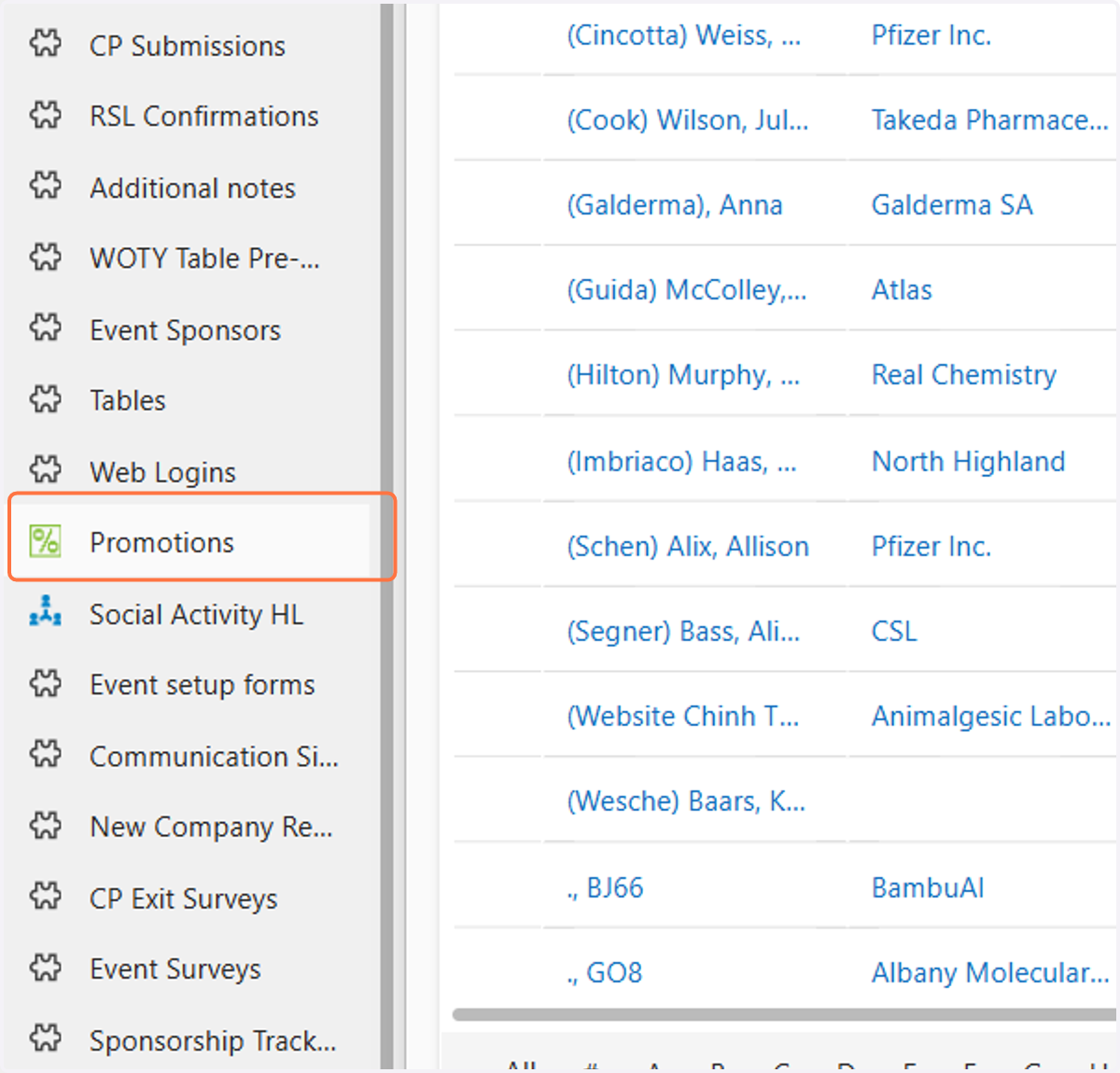
1. Click on Promotions
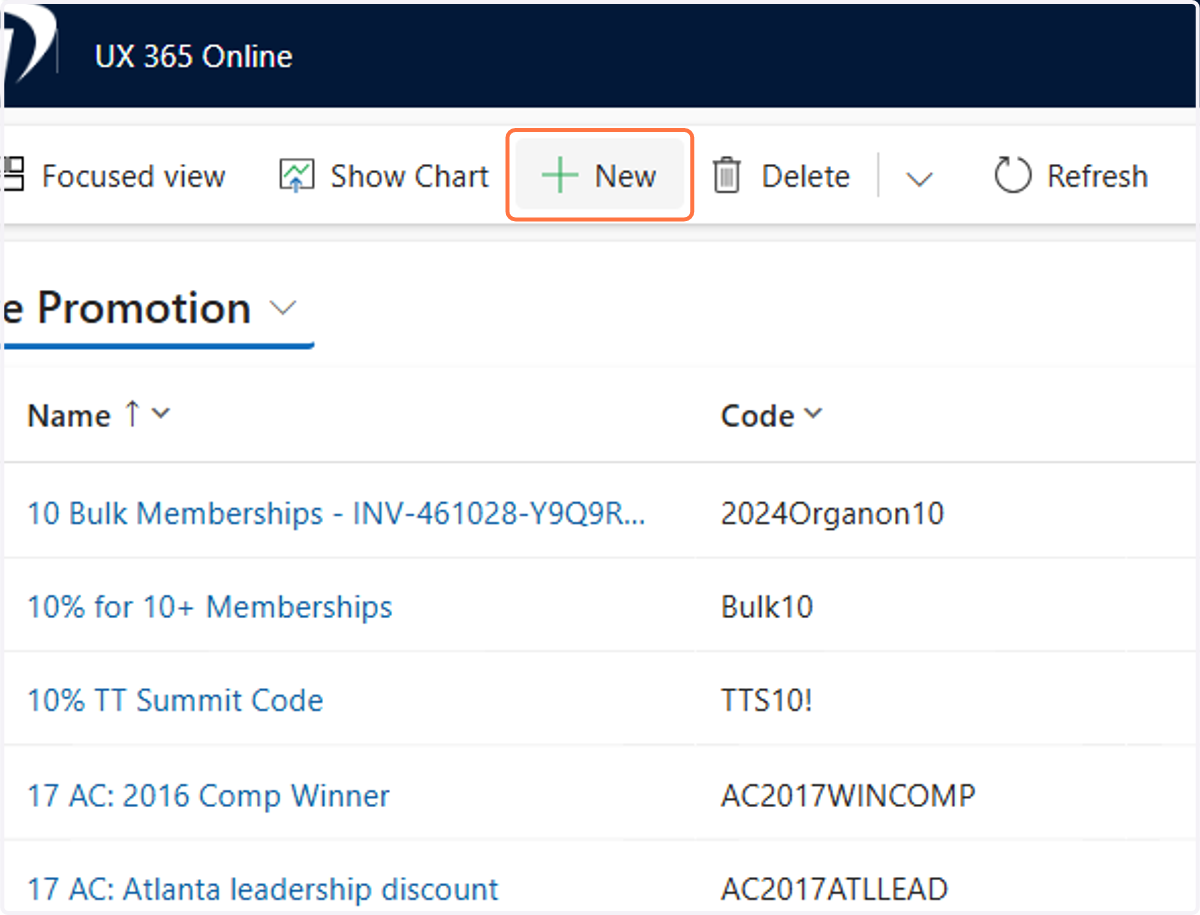
2. Click on New
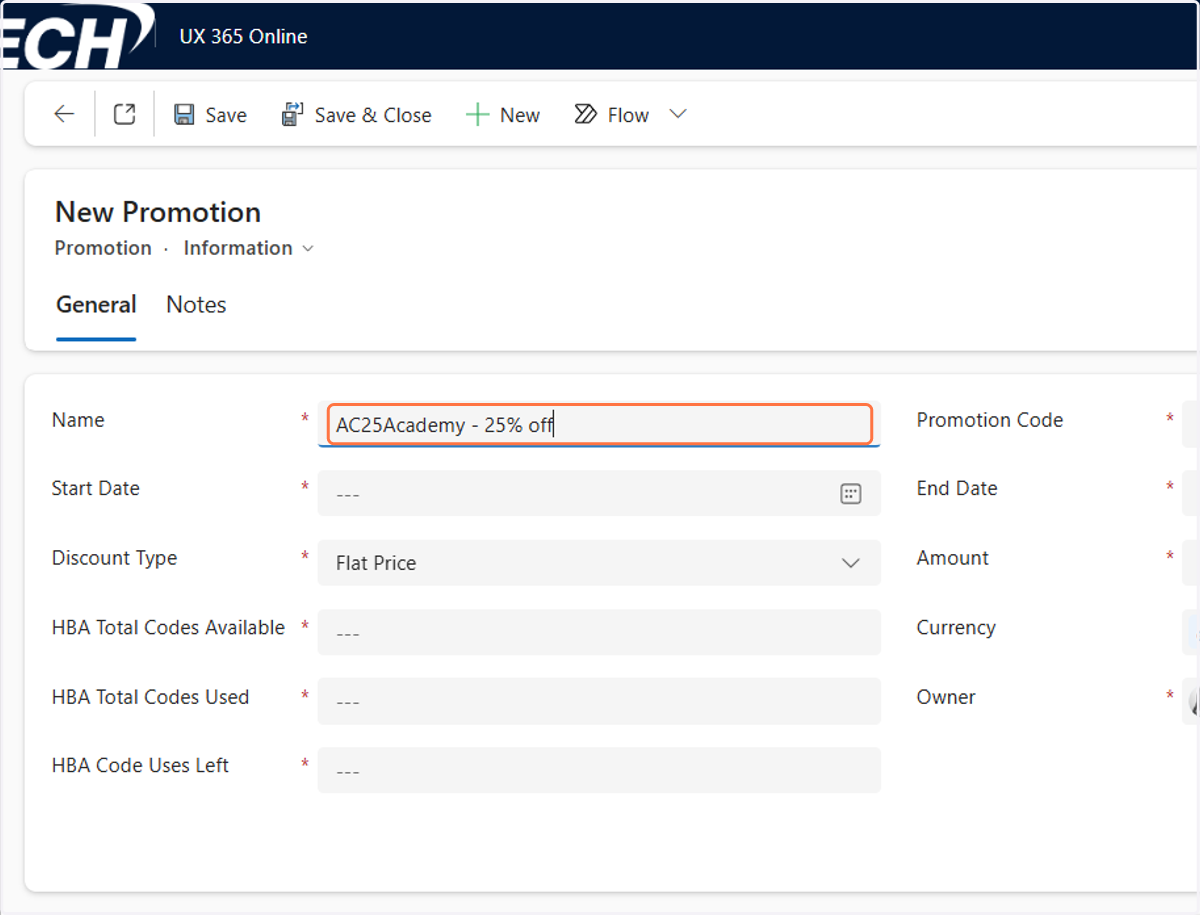
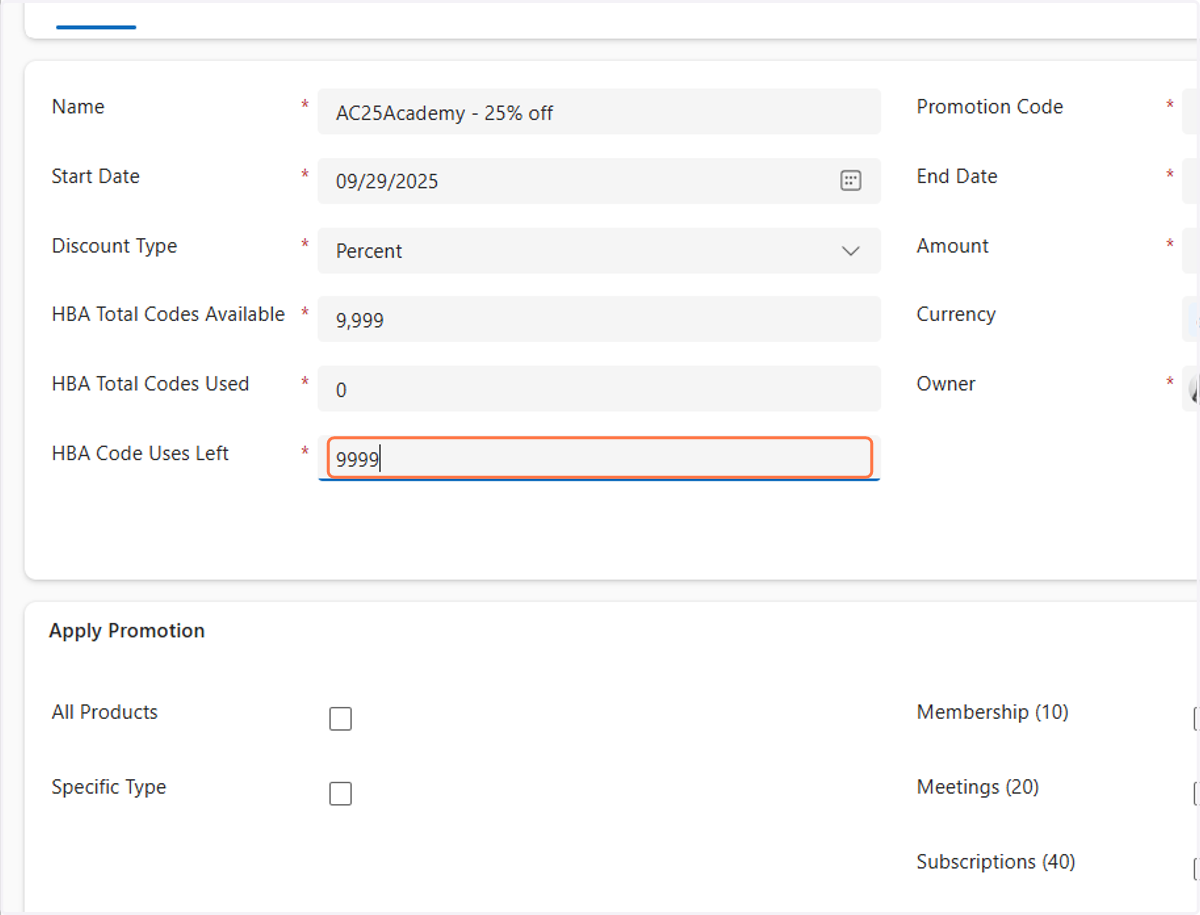
3. In the Name field, type the name of your code. In this example we are using "AC25Academy - 25% off"
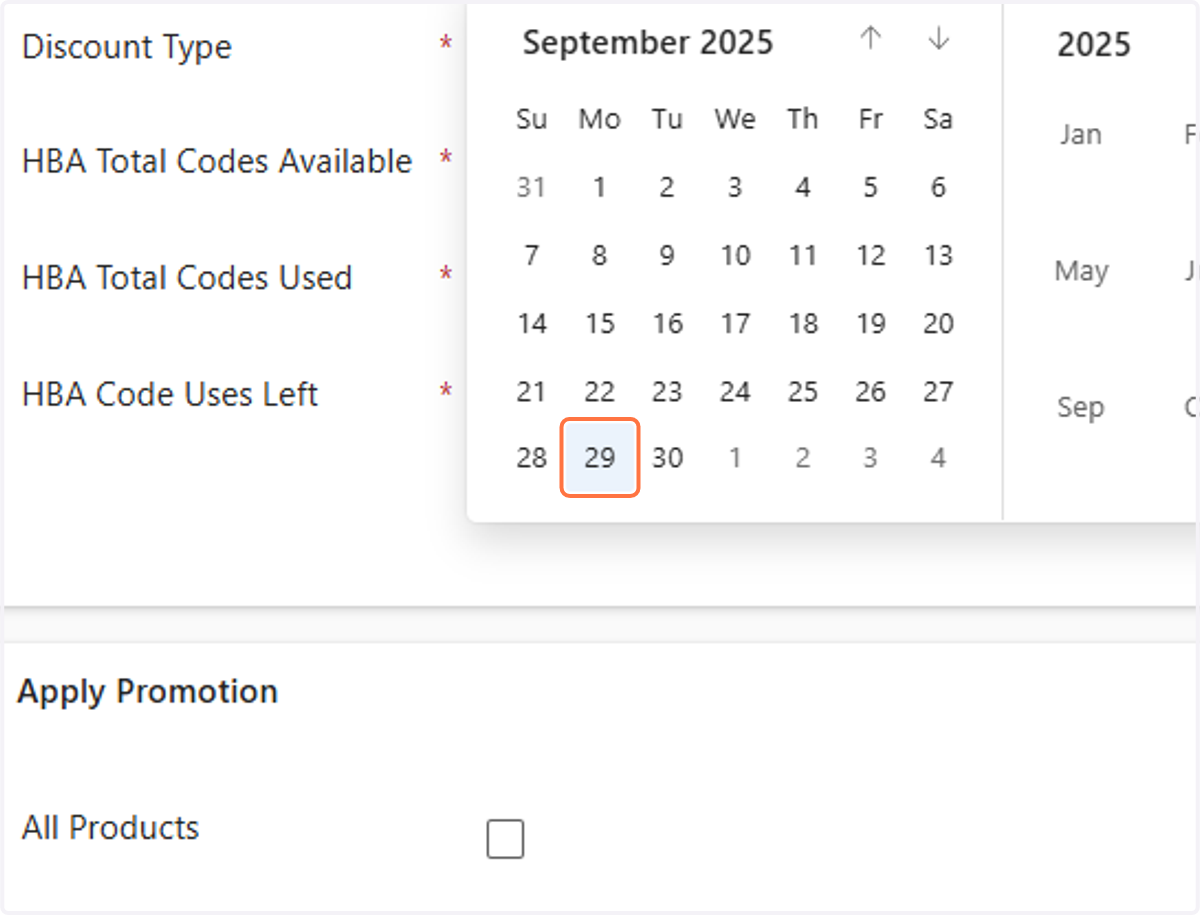
4. In the Start Date field, enter the start date for the promo code to be used. In this example we are using September 29, 2025
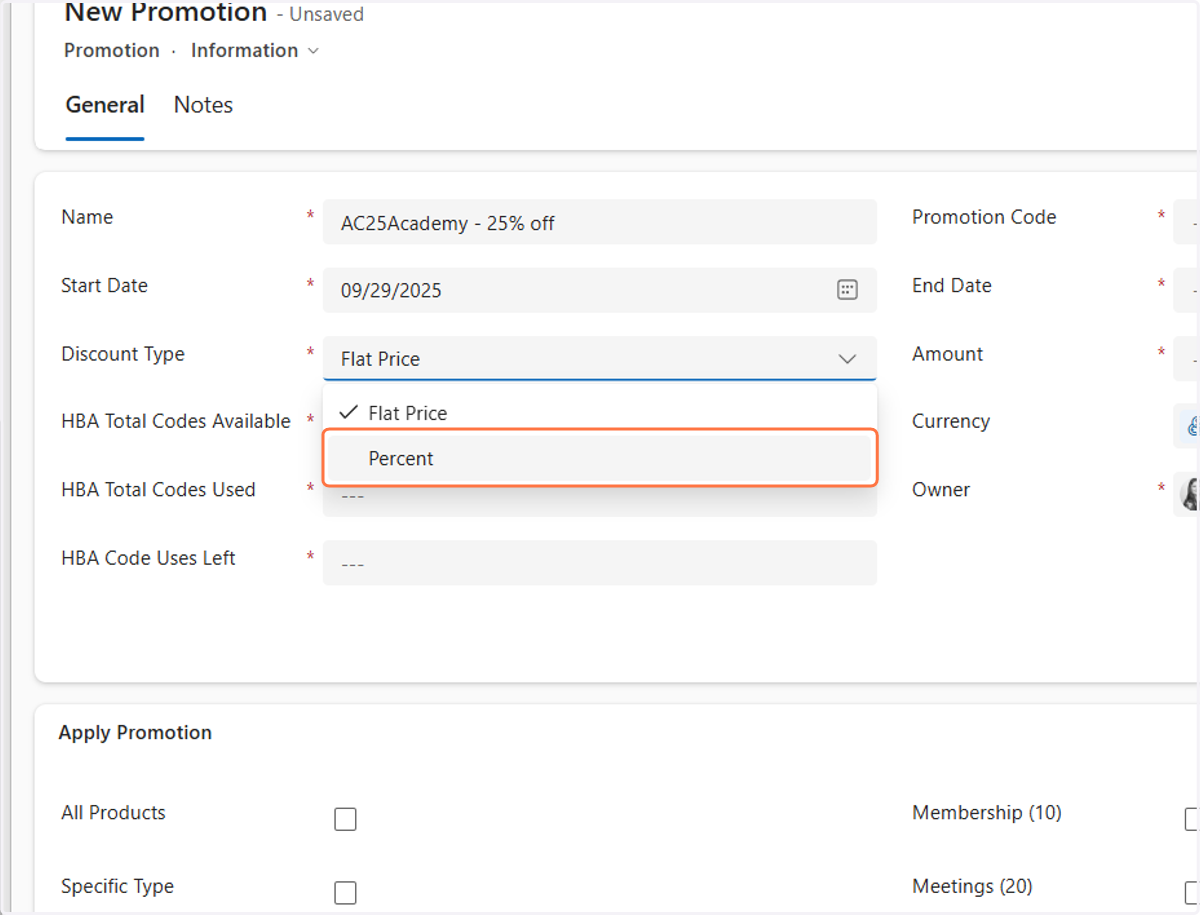
5. In the Discount Type field, select if it is a Percent off or Flat Price off. In this example we are using a 25% discount so we will select Percent
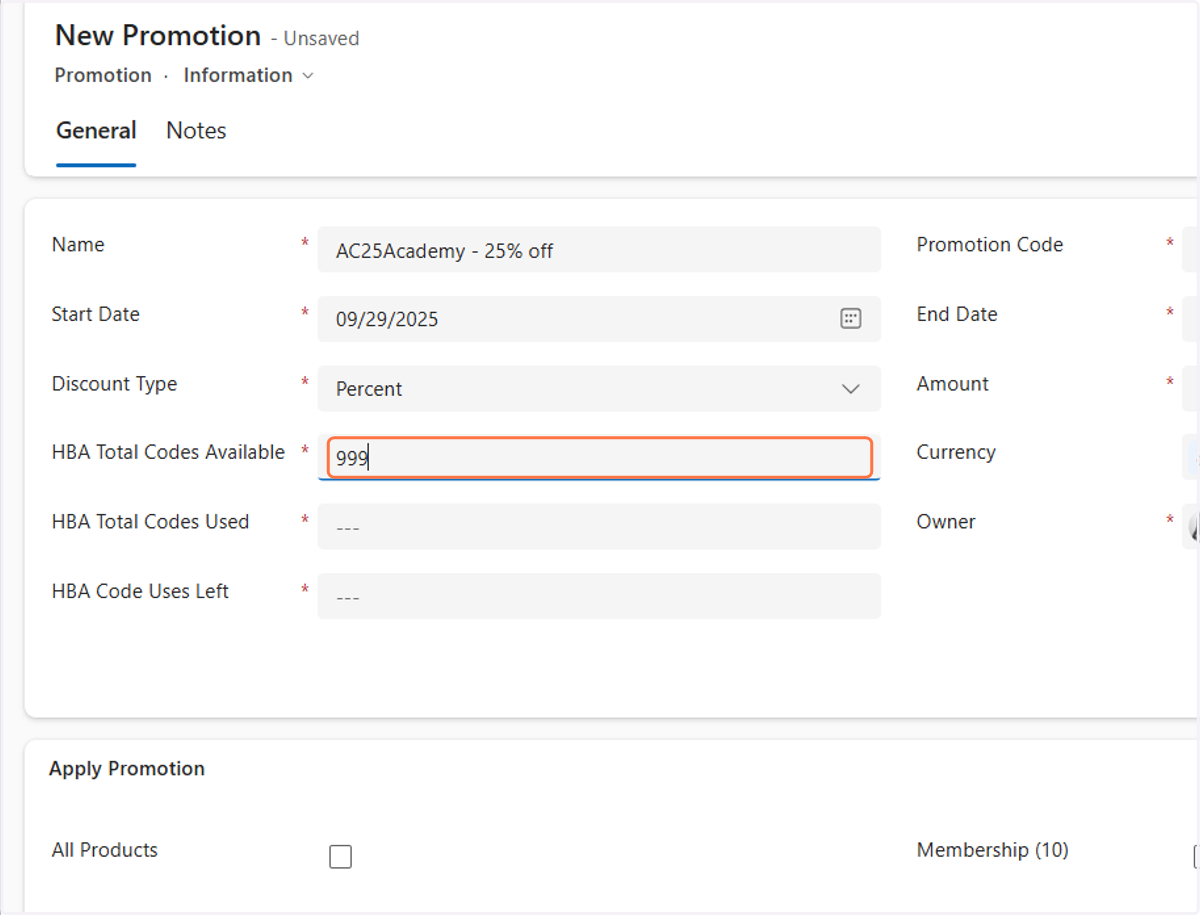
6. In the HBA Total Codes Available field type "9999"
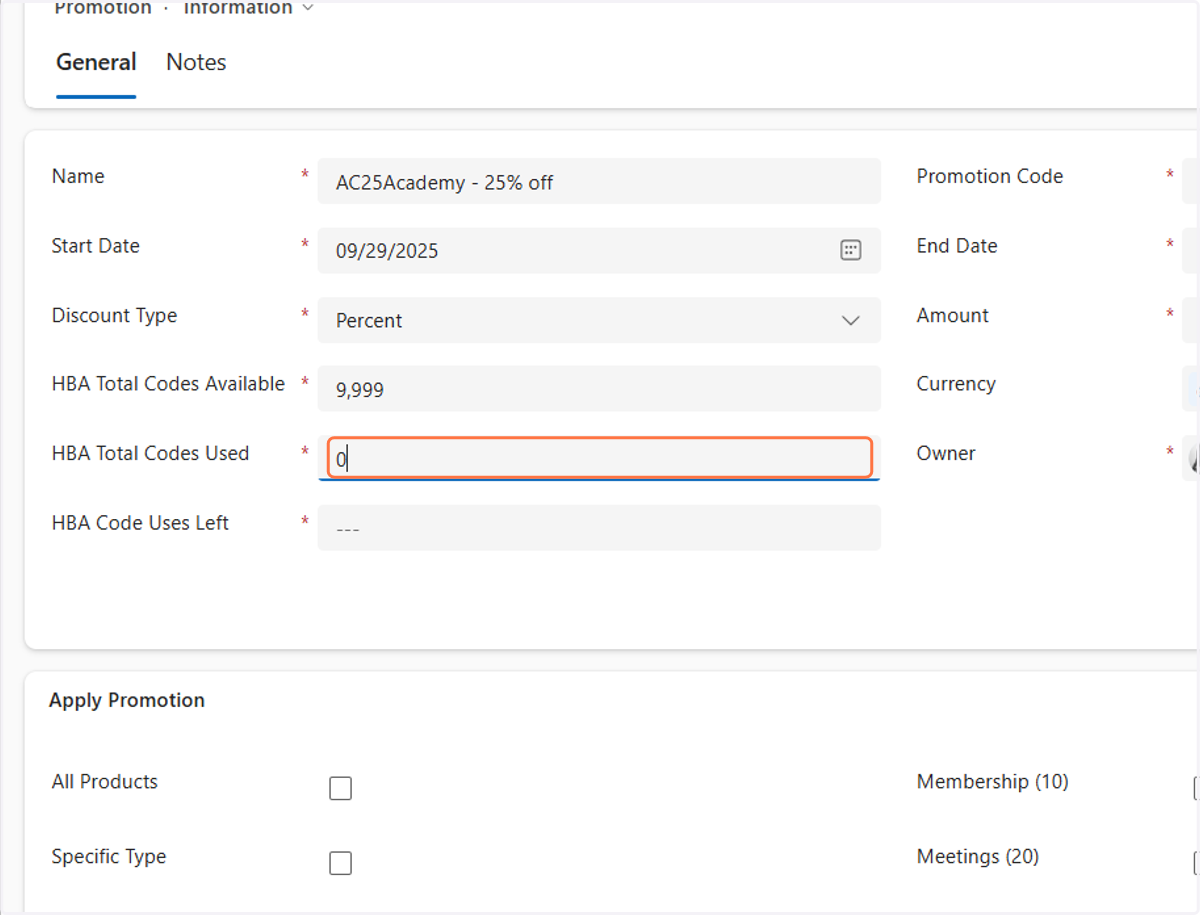
7. In the HBA Total Codes Used type "0"
8. In the HBA Code Uses Left field type "9999"
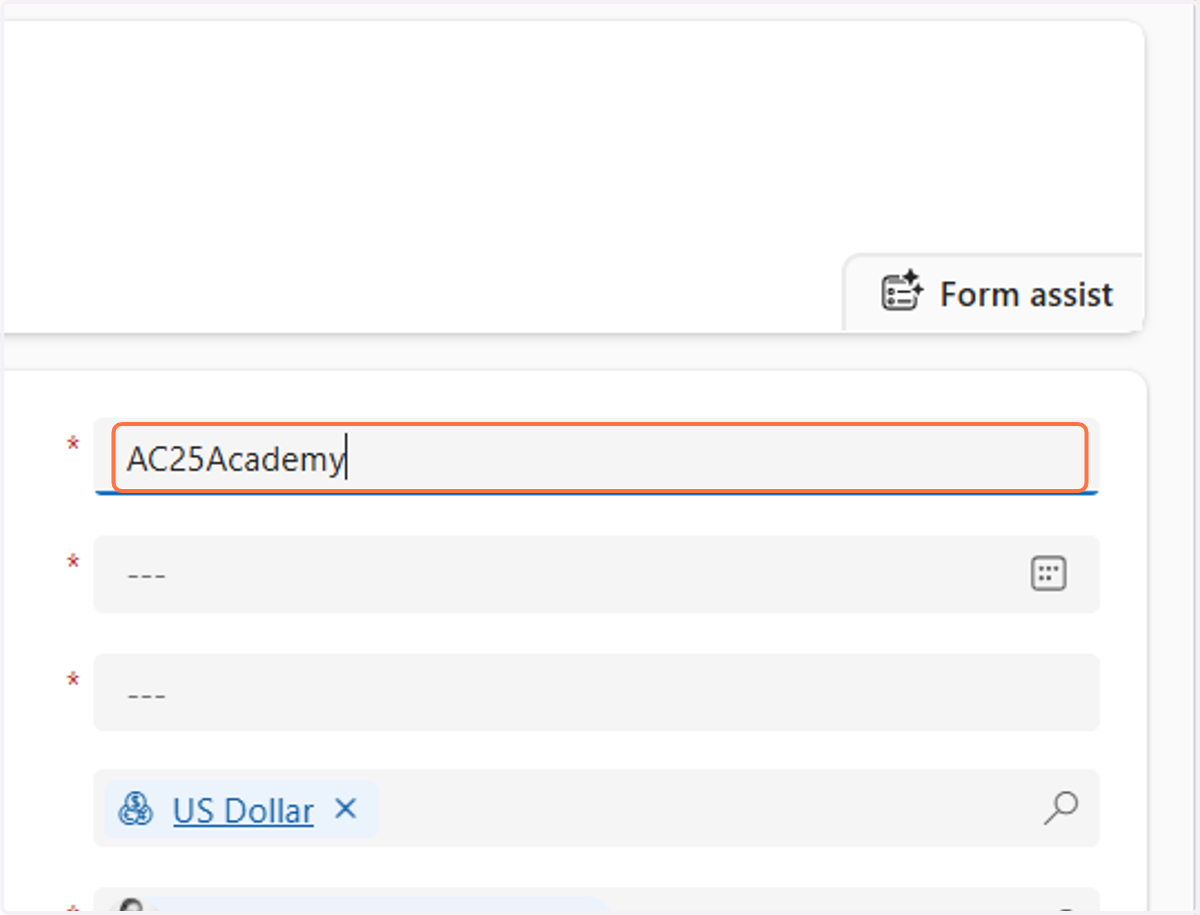
9. In the Promotion Code field type the name of the code you want to use. In this example we are using "AC25Academy"
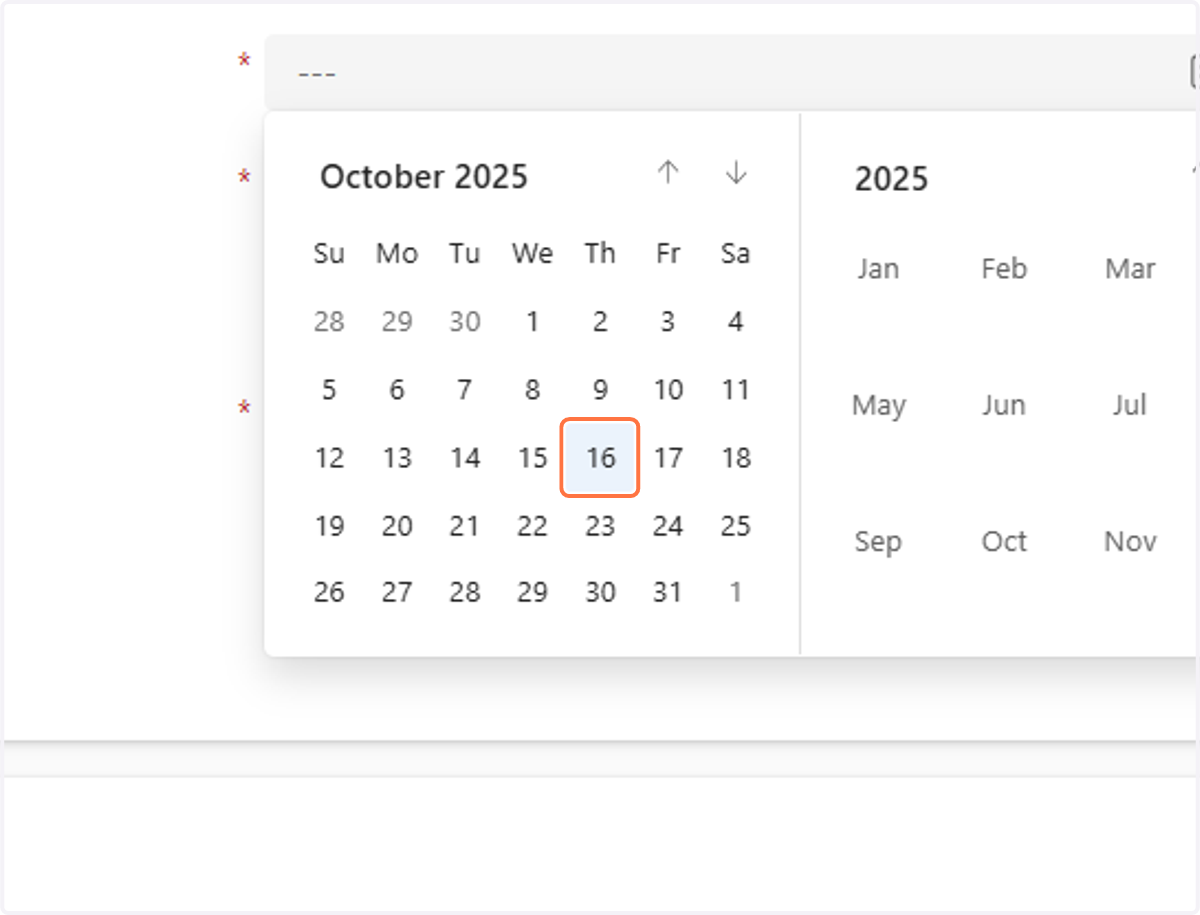
10. In the End Date field, enter the day after you want the code to expire on. In this example the code will expire on October 15, 2025, so we select October 16, 2025 as the end date.
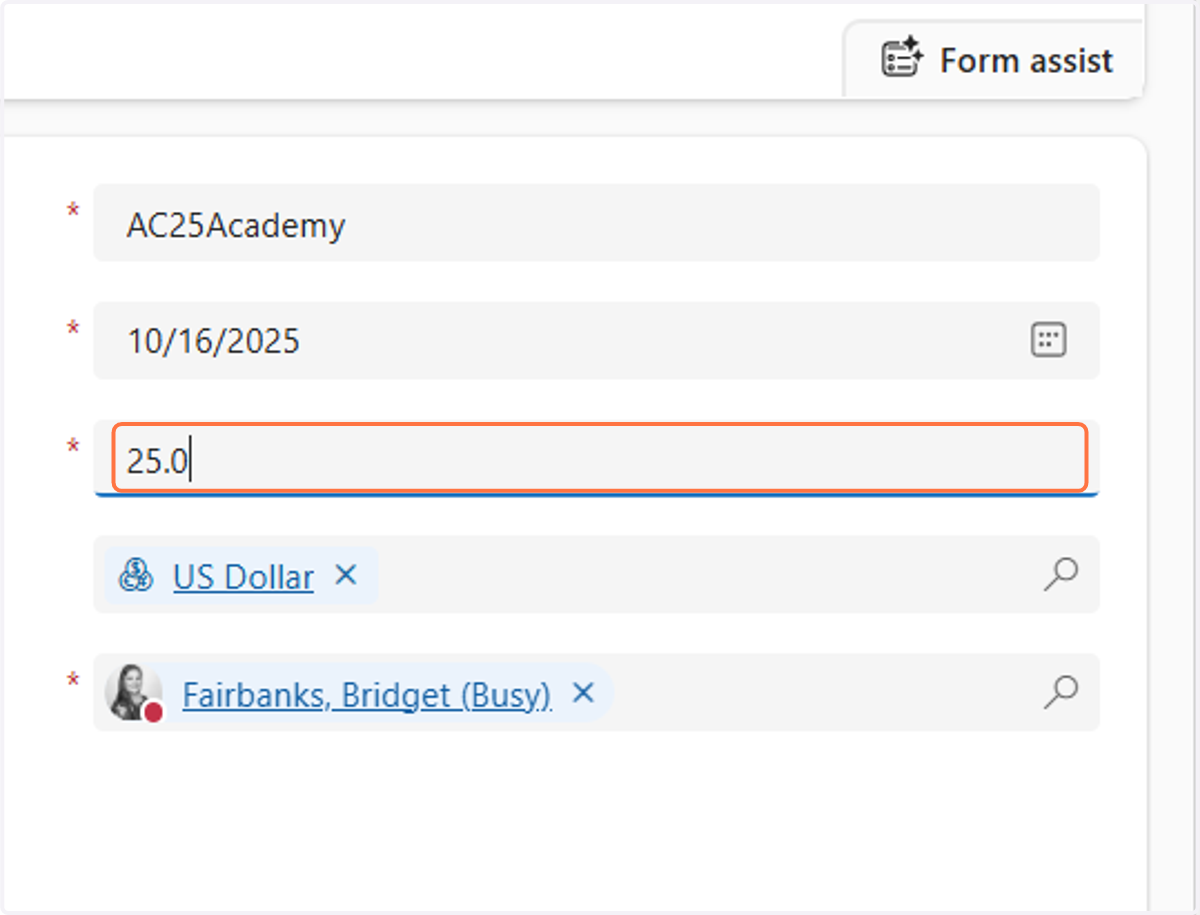
11. In the Amount field type the percentage off that the promo code is for. In this example the code is for 25% off so we will type "25.00"
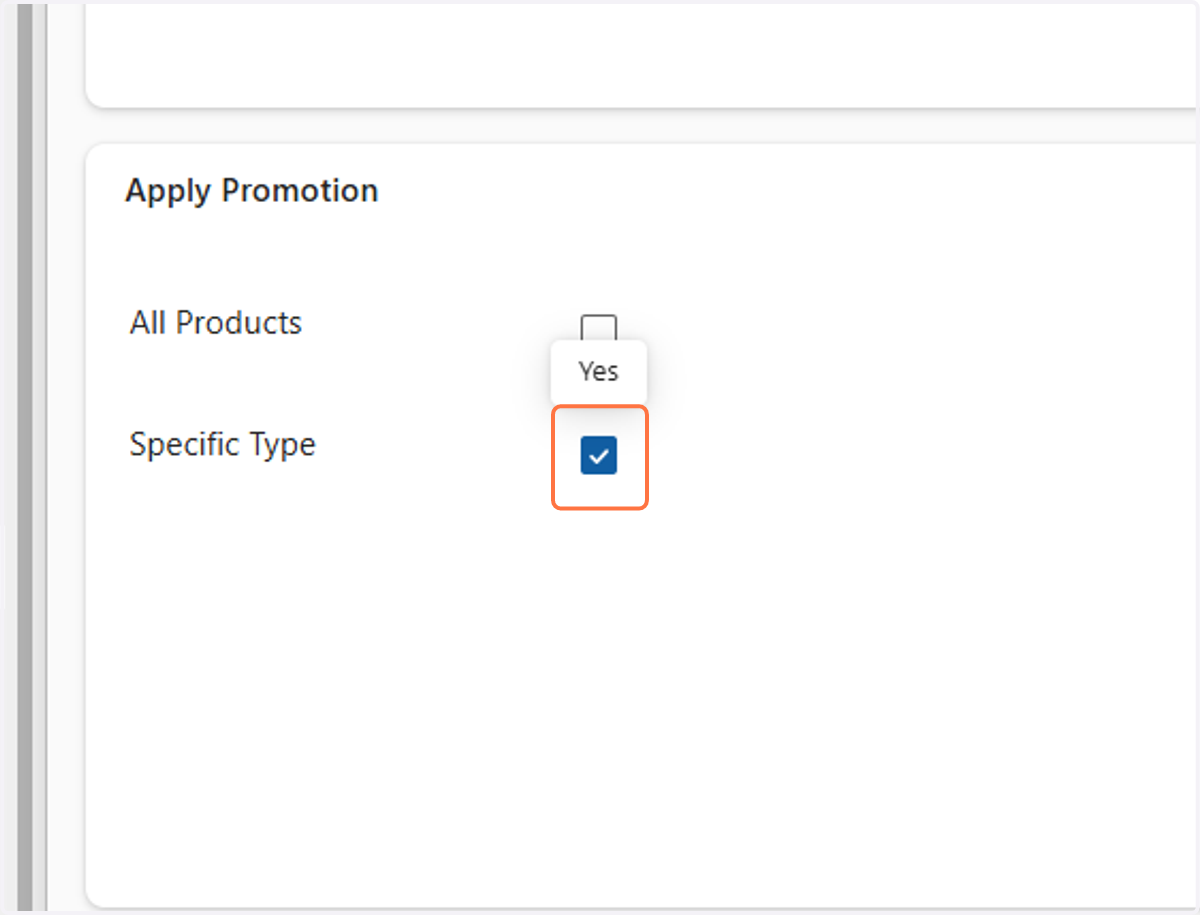
12. Check the box that says "Specific Type"
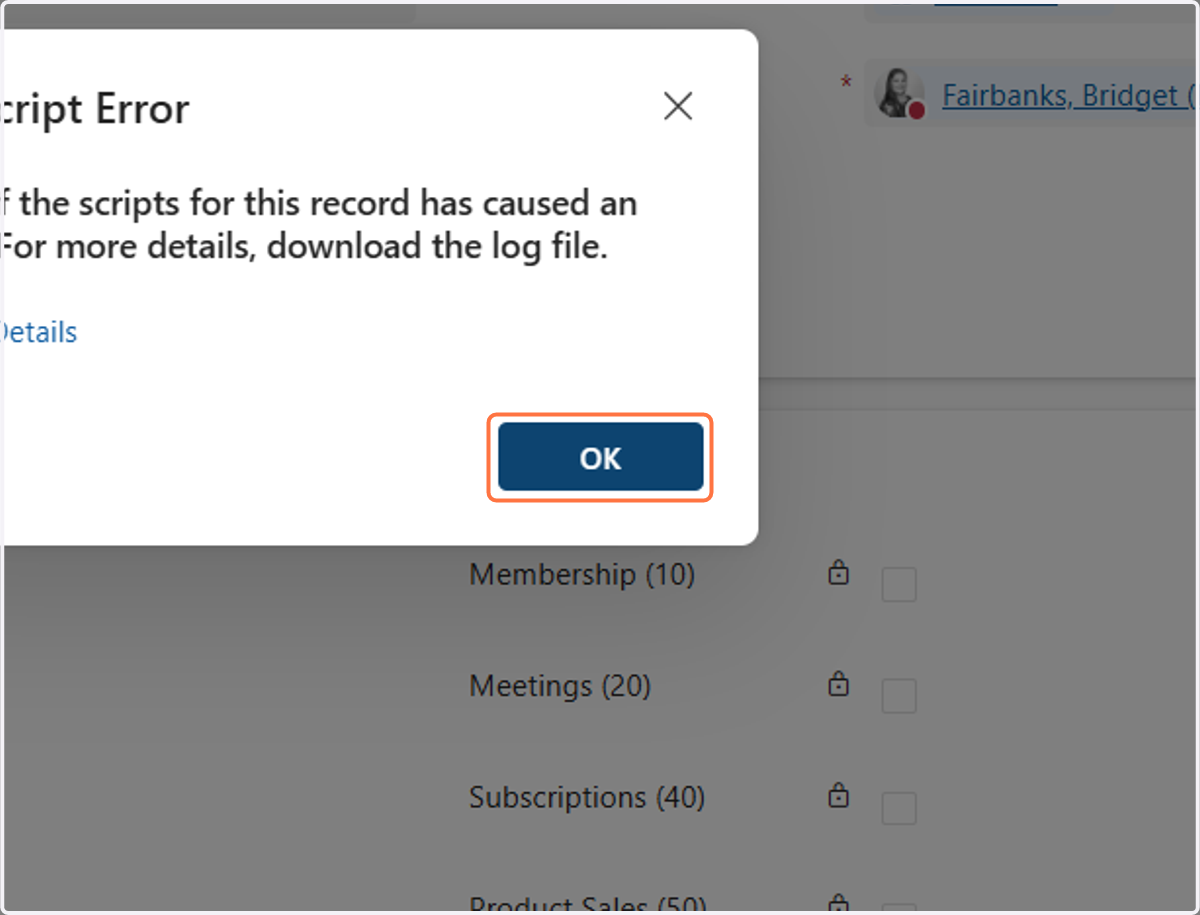
13. If an Script Error box appears just click OK
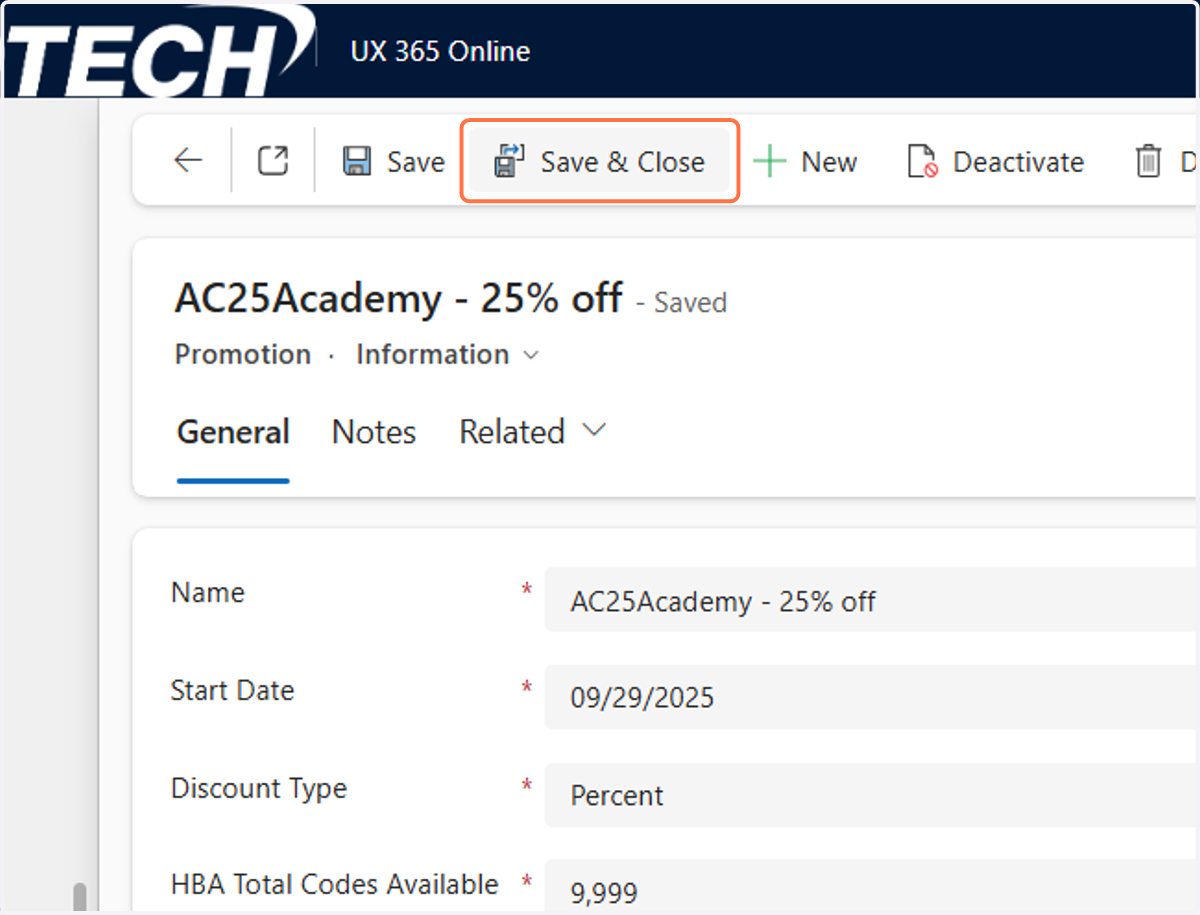
14. Click on Save & Close
The Second Step is to update the workflow with the promo code you just created.
15. Open a new internet browser and go to: https://hba-uxprod.crm.dynamics.com/main.aspx?settingsonly=true#133512455
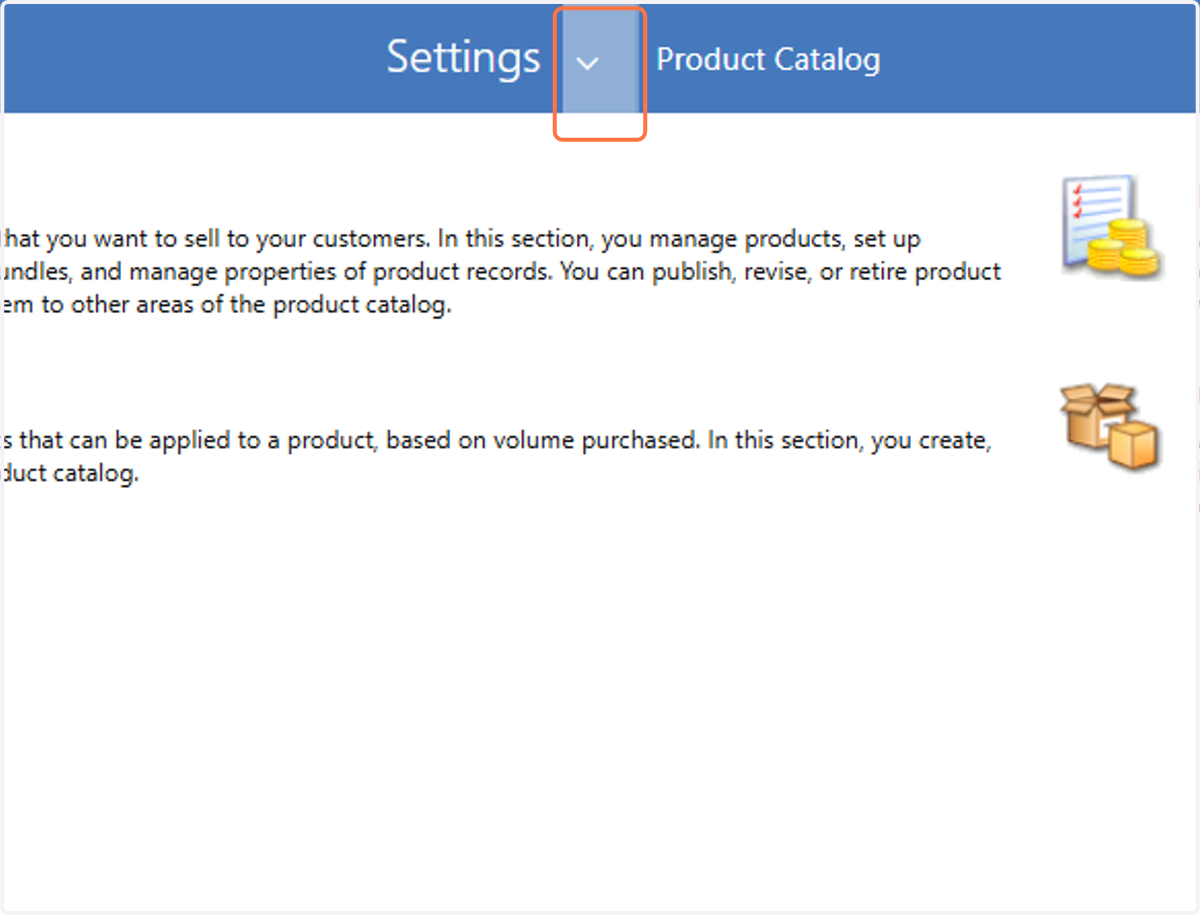
16. Click on Settings…
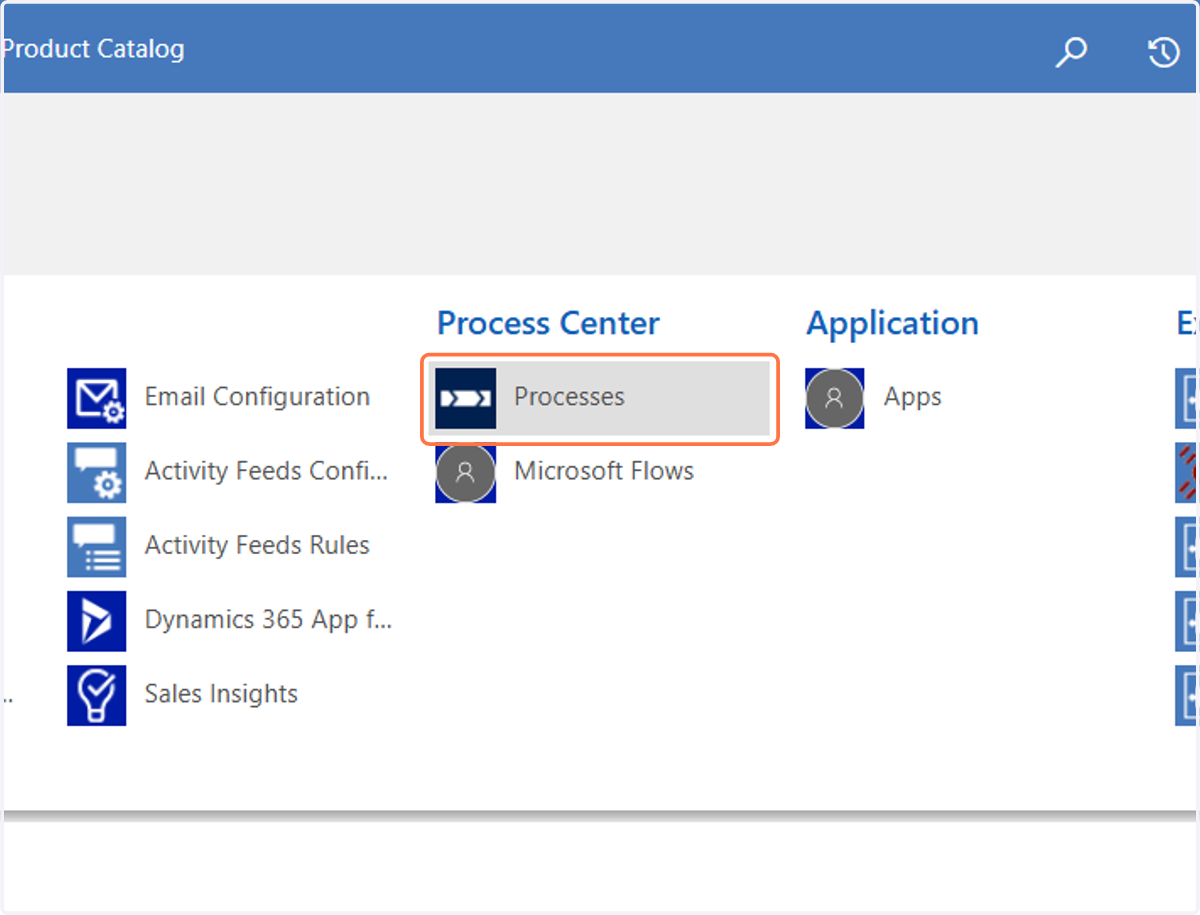
17. Click on Processes
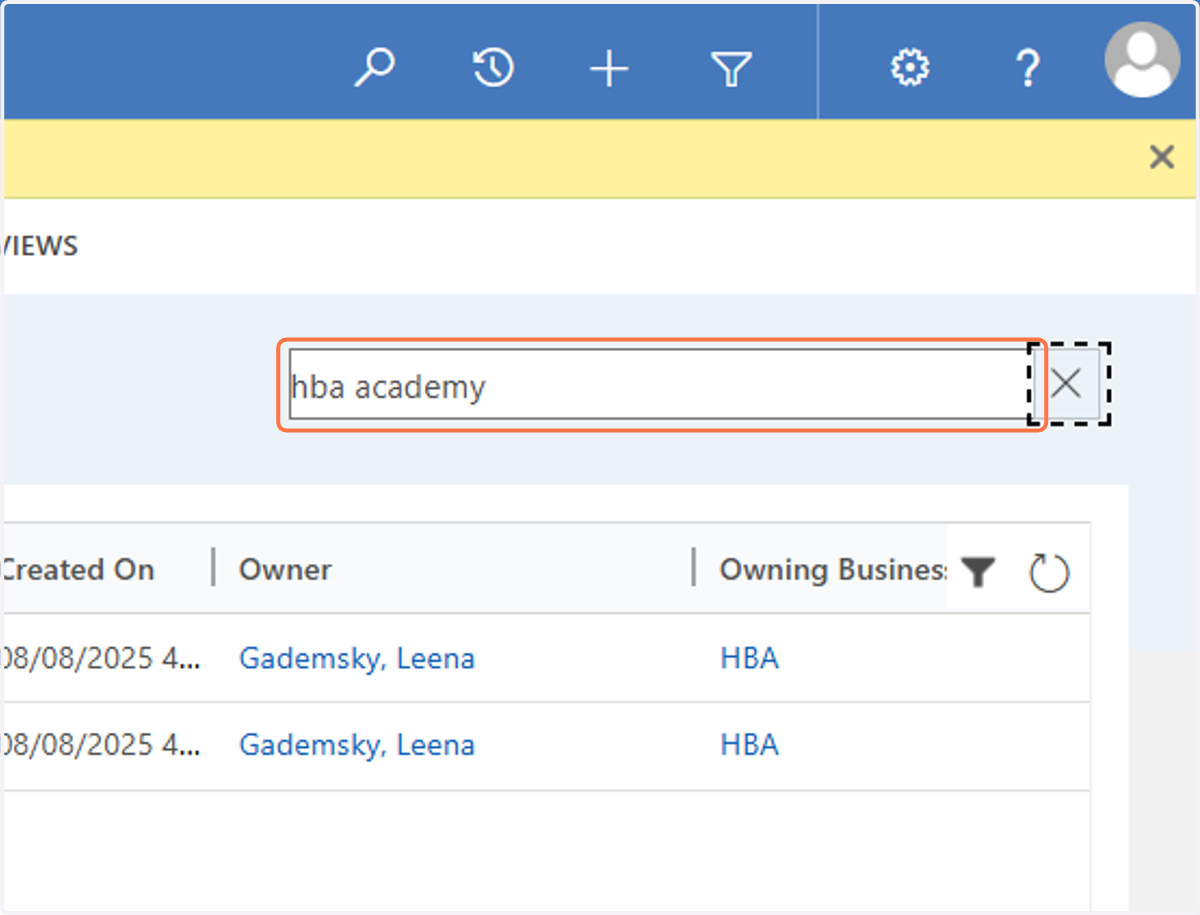
18. In the search bar type "hba academy"
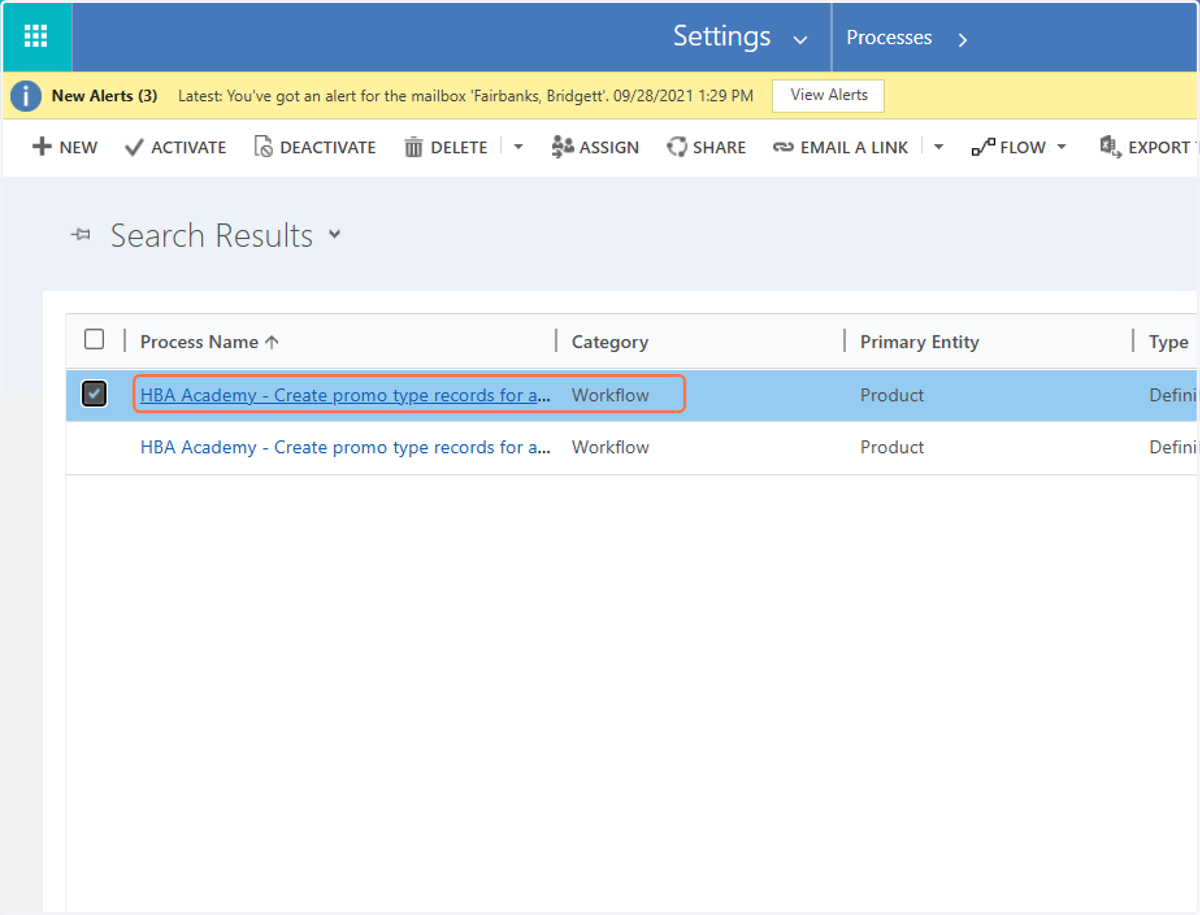
19. Double click on the "HBA Academy - Create promo type records for academy products" NOTE: Make sure you are selecting the one that says Activated under the status column.
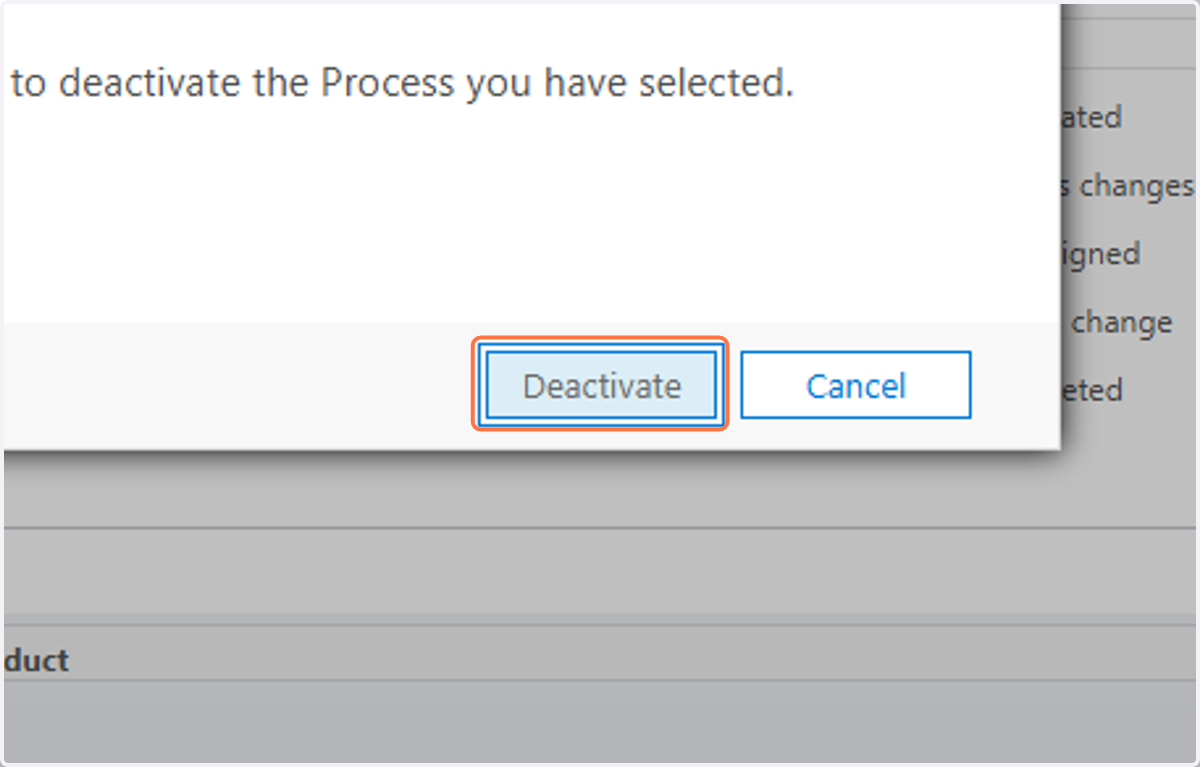
20. Click on Deactivate
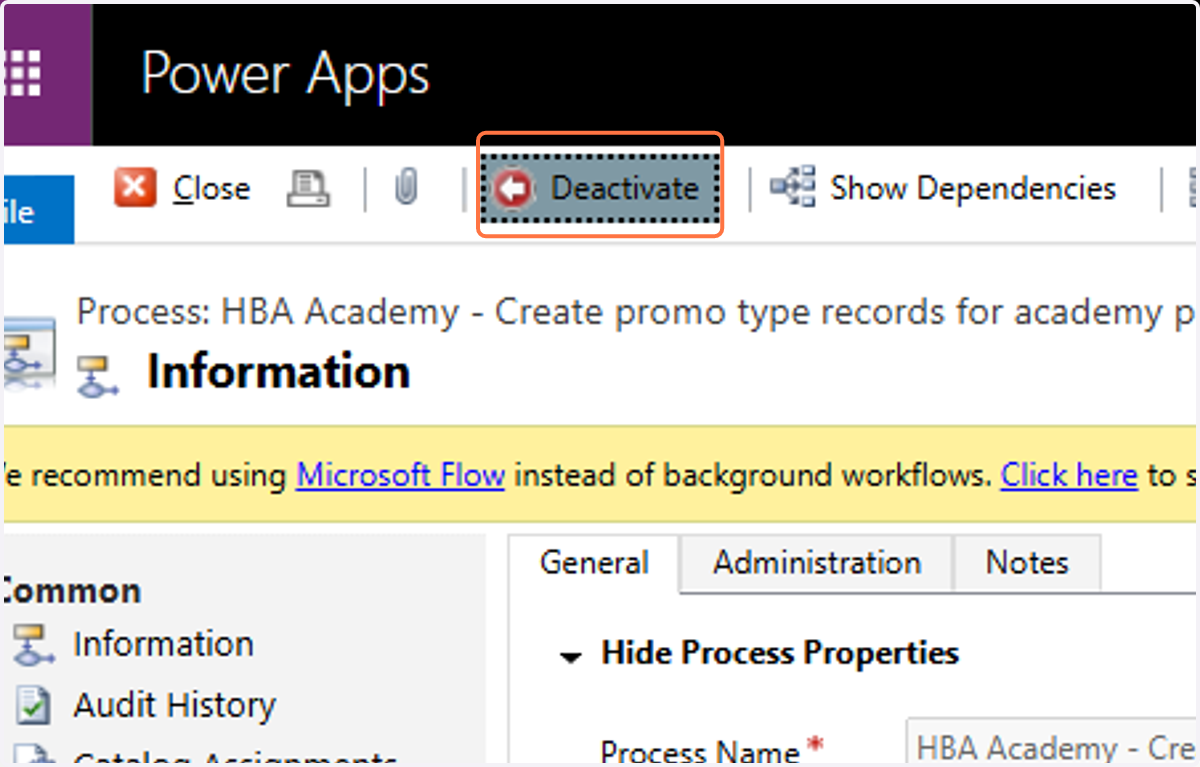
21. Click on Deactivate
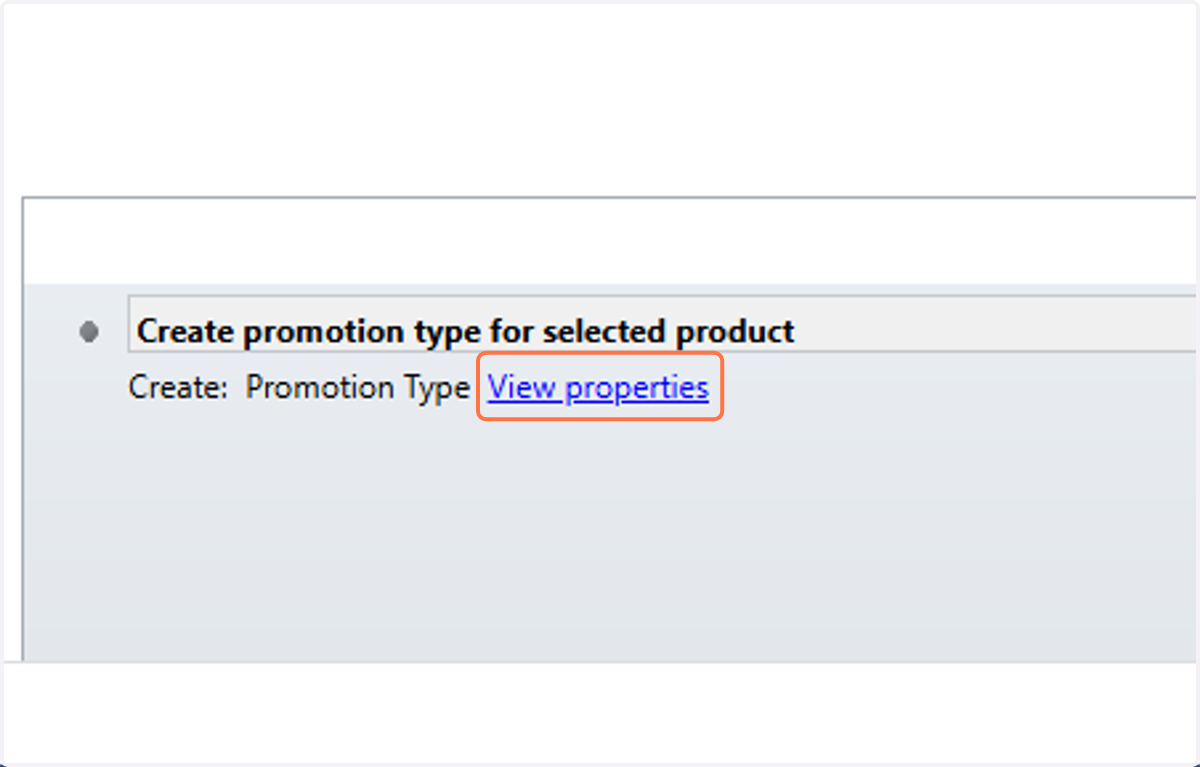
22. Click on View properties
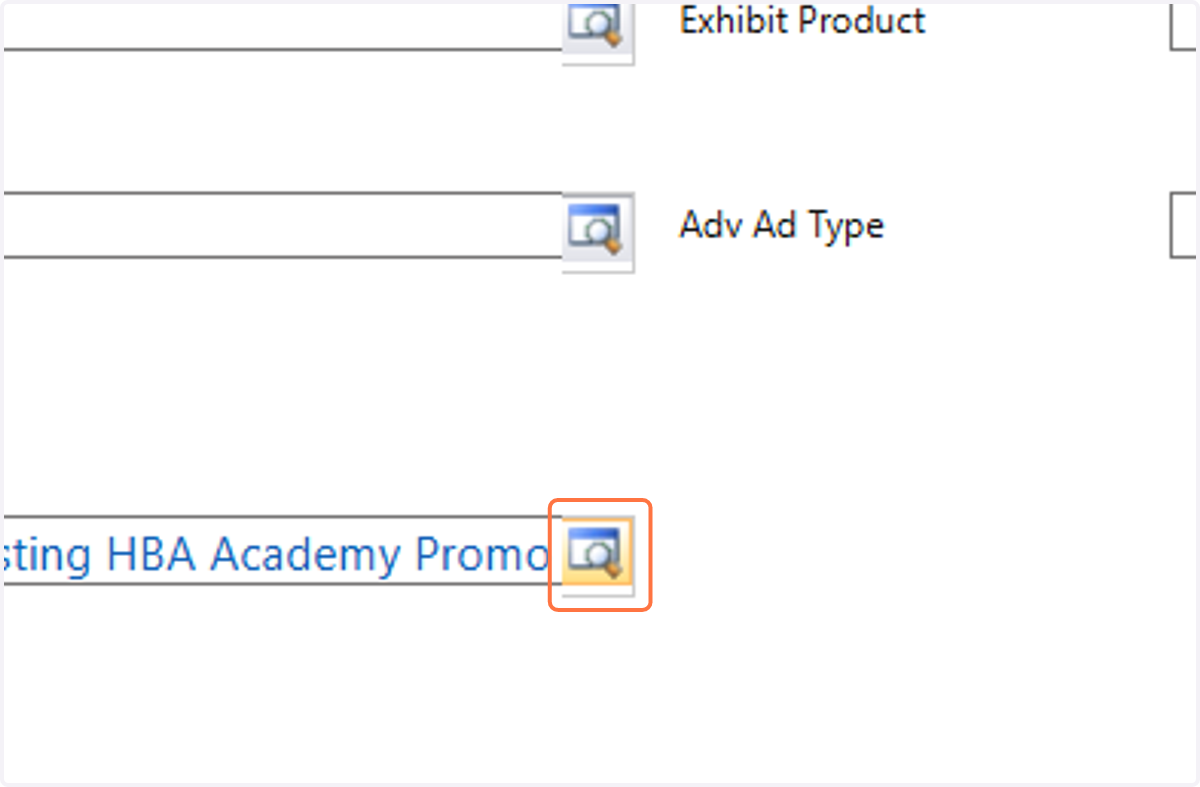
23. In the promotion field, click on the search icon
24. Click on Look Up More Records
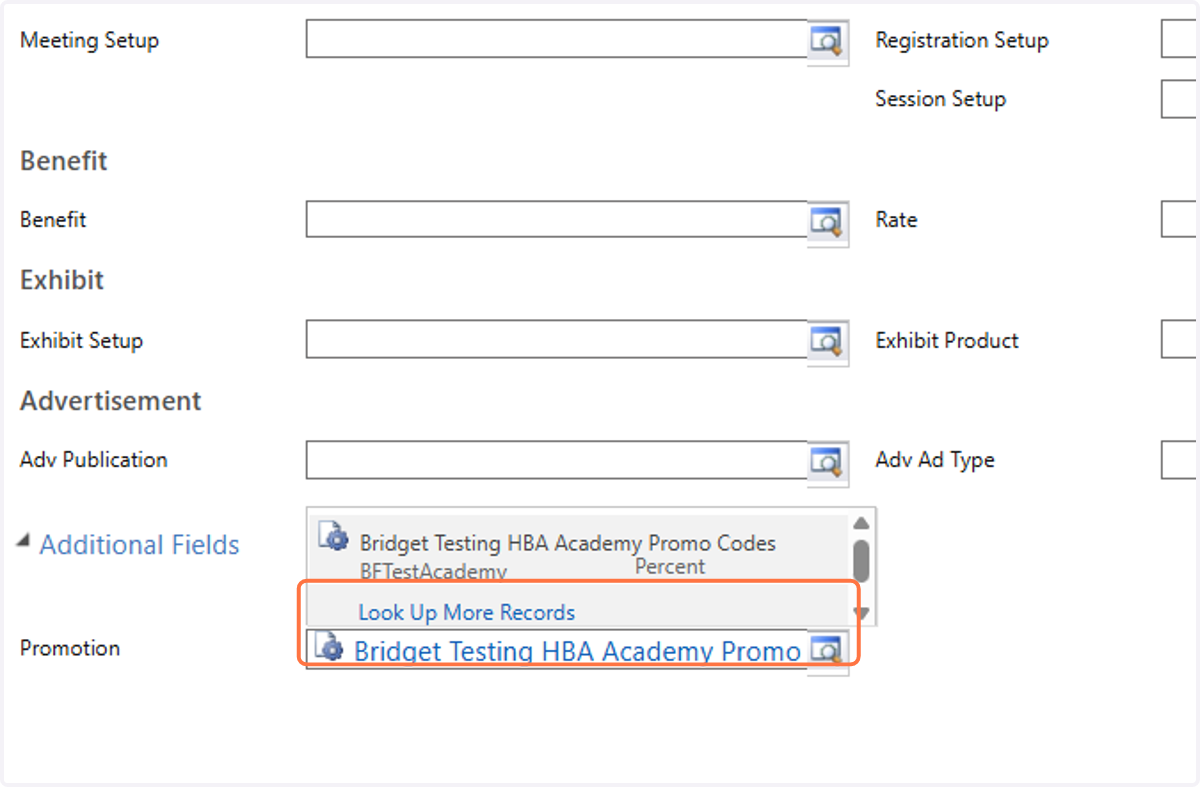
25. In the search field type the promo code you want to add. In this example we are using "ac25academy"
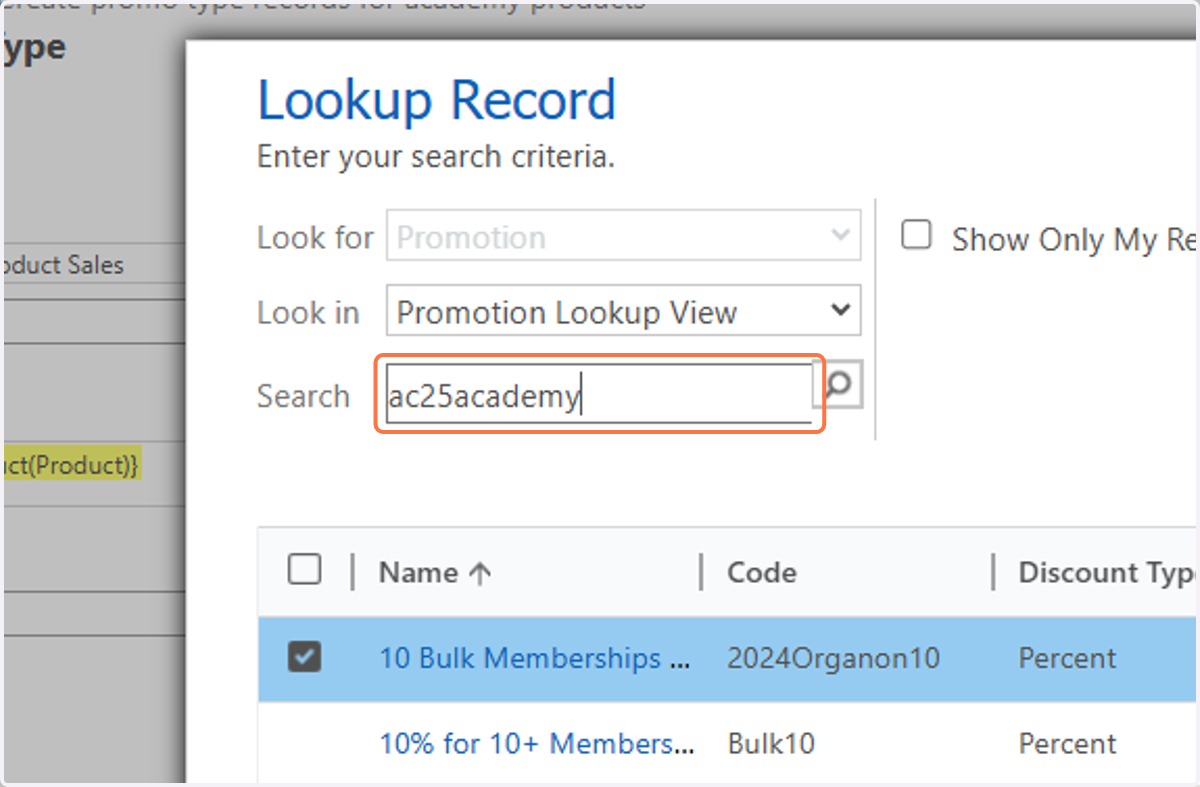
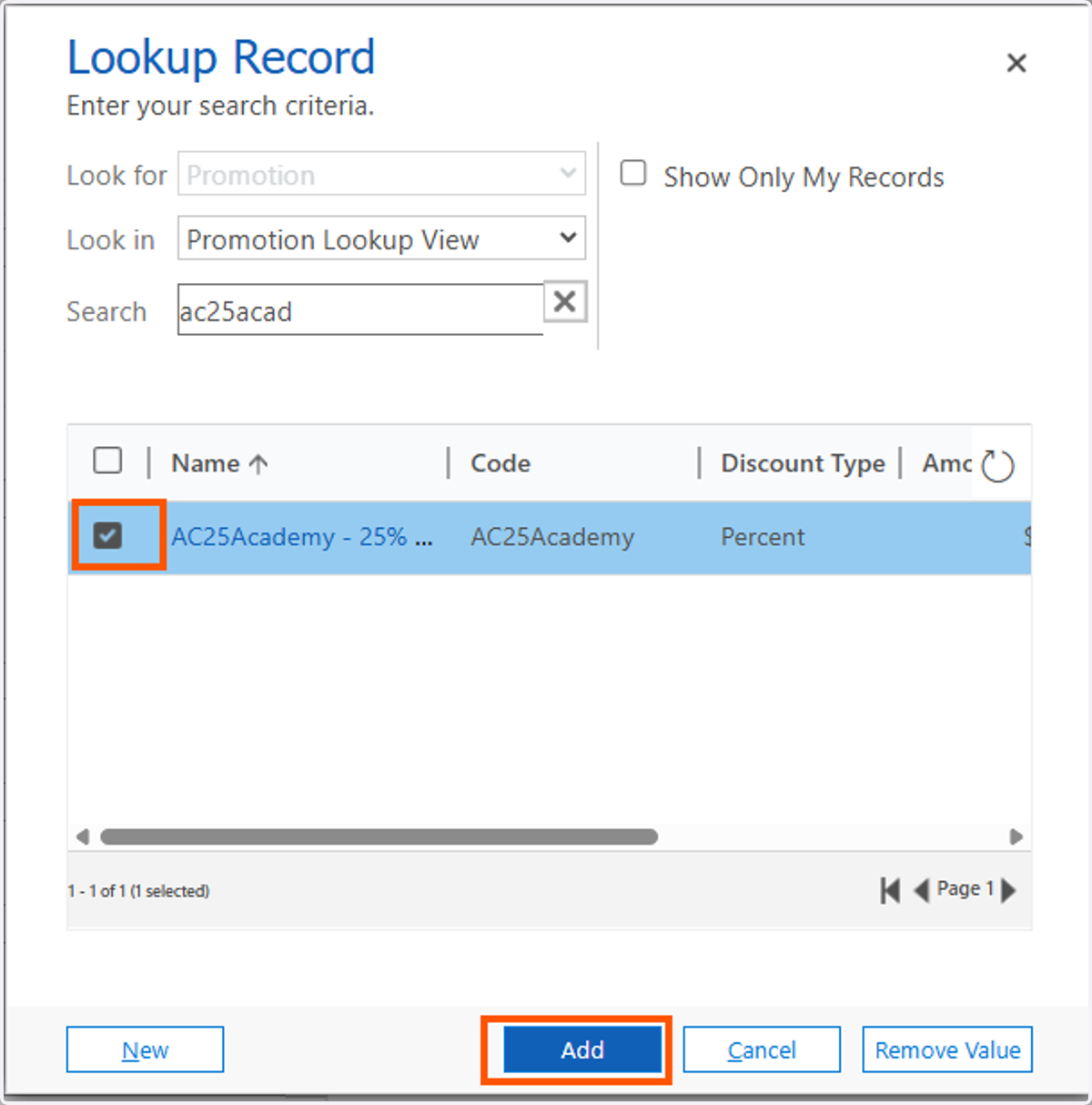
26. Select the promo code and click Add
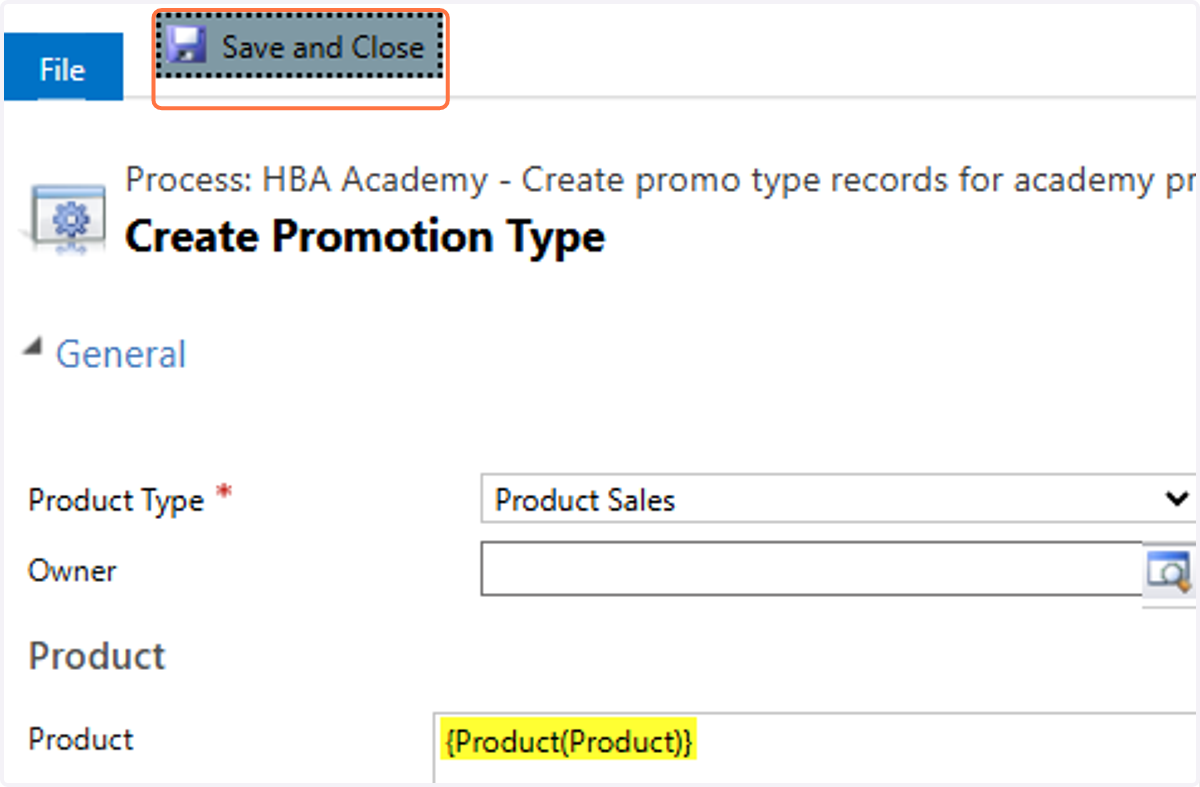
27. Click on Save and Close
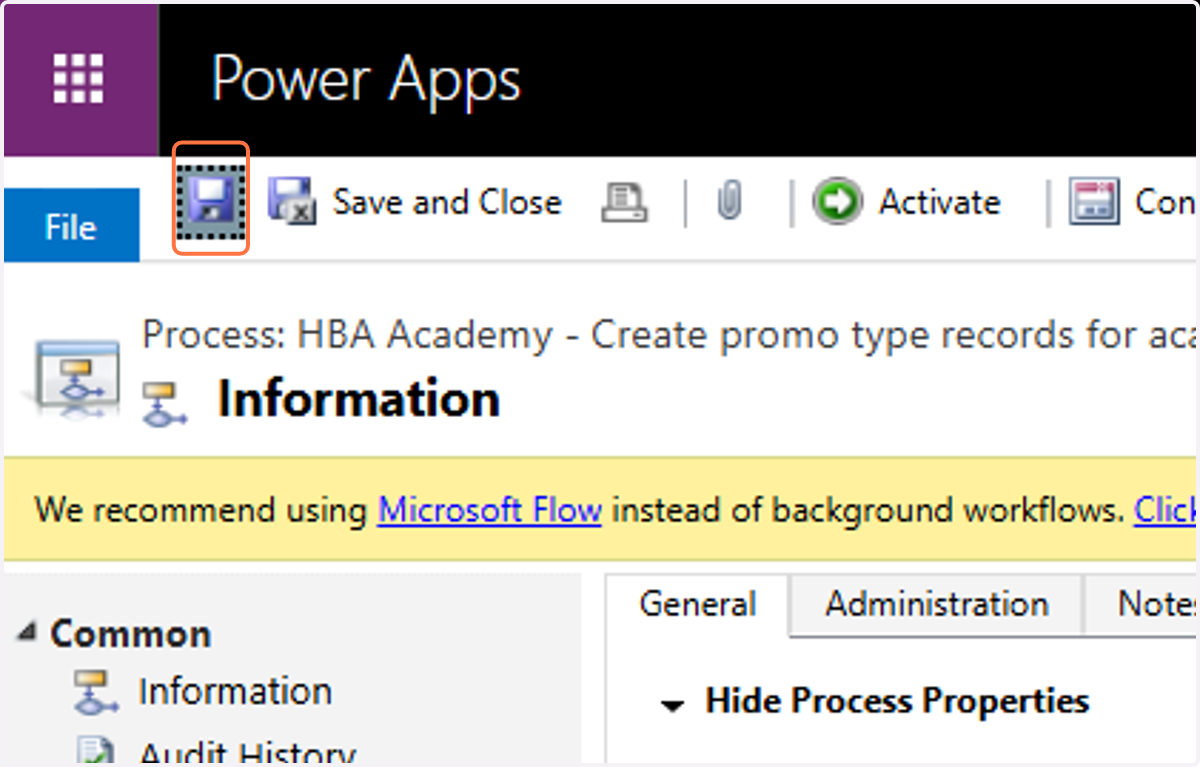
28. Click on Save
29. Click on Activate
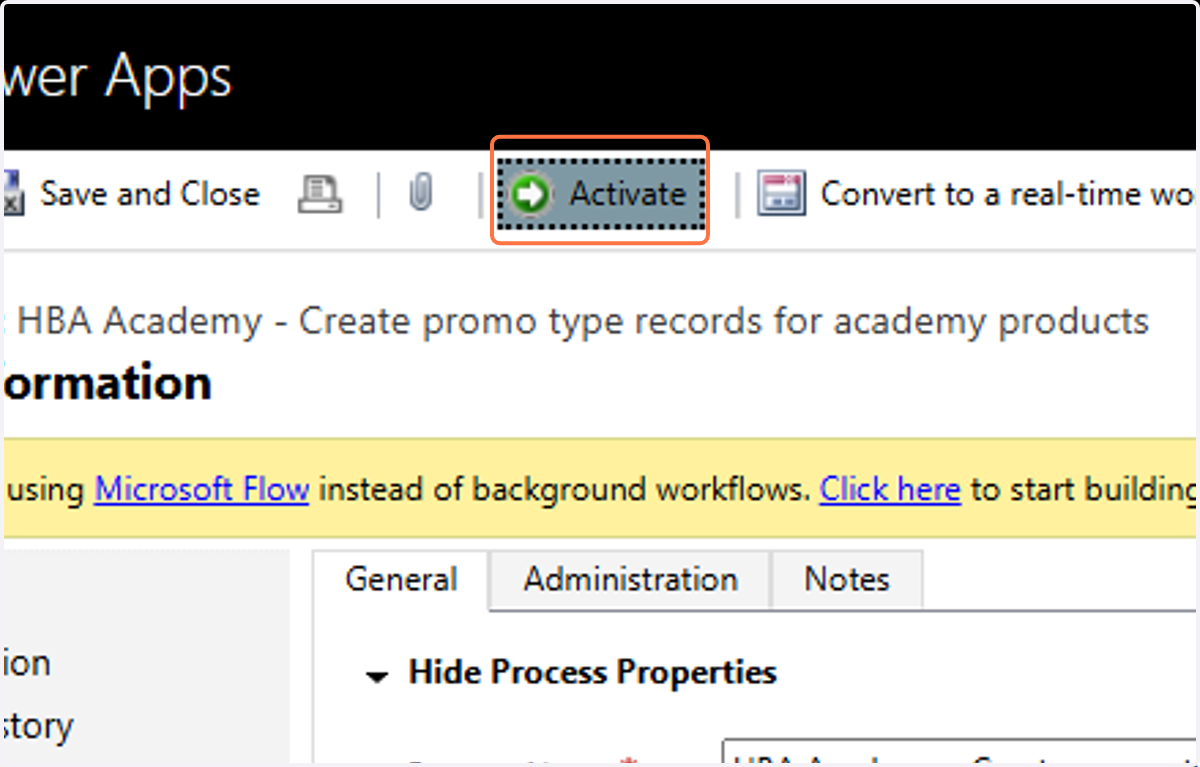
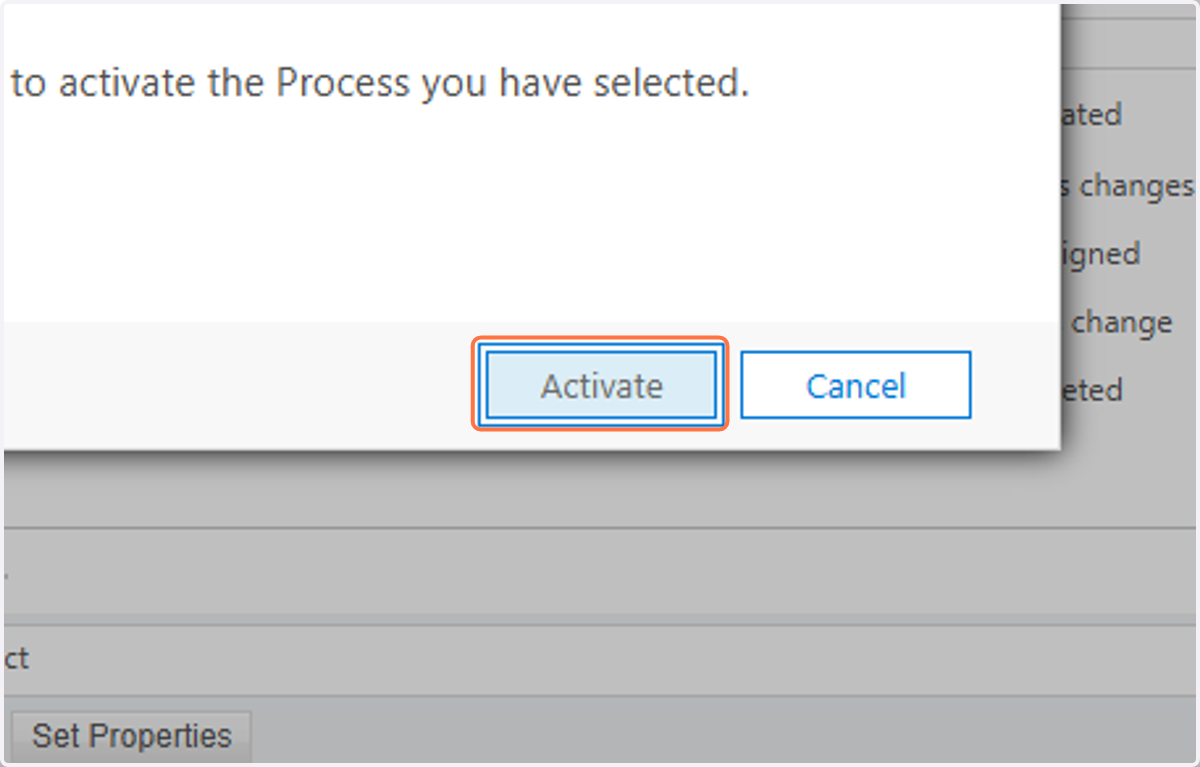
30. Click on Activate
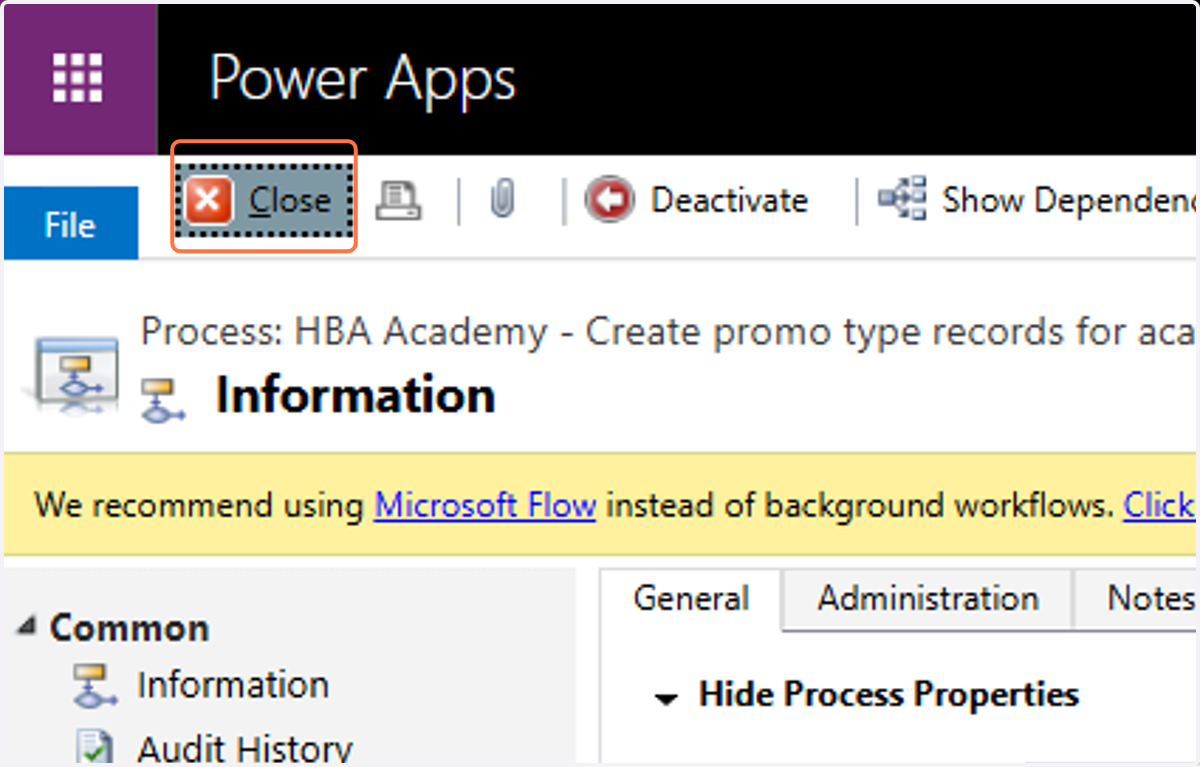
31. Click on Close
The Last step is to run the workflow and attach it to all the Academy Products
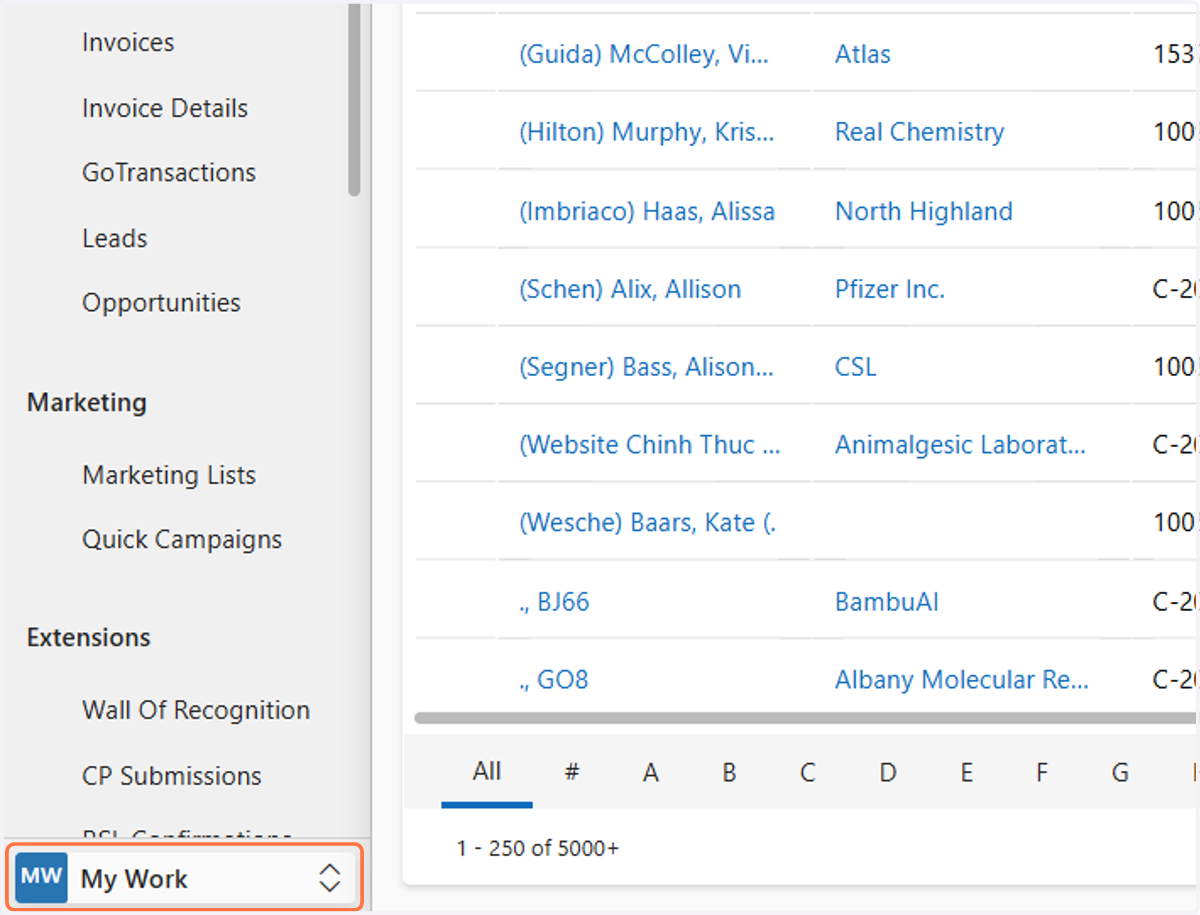
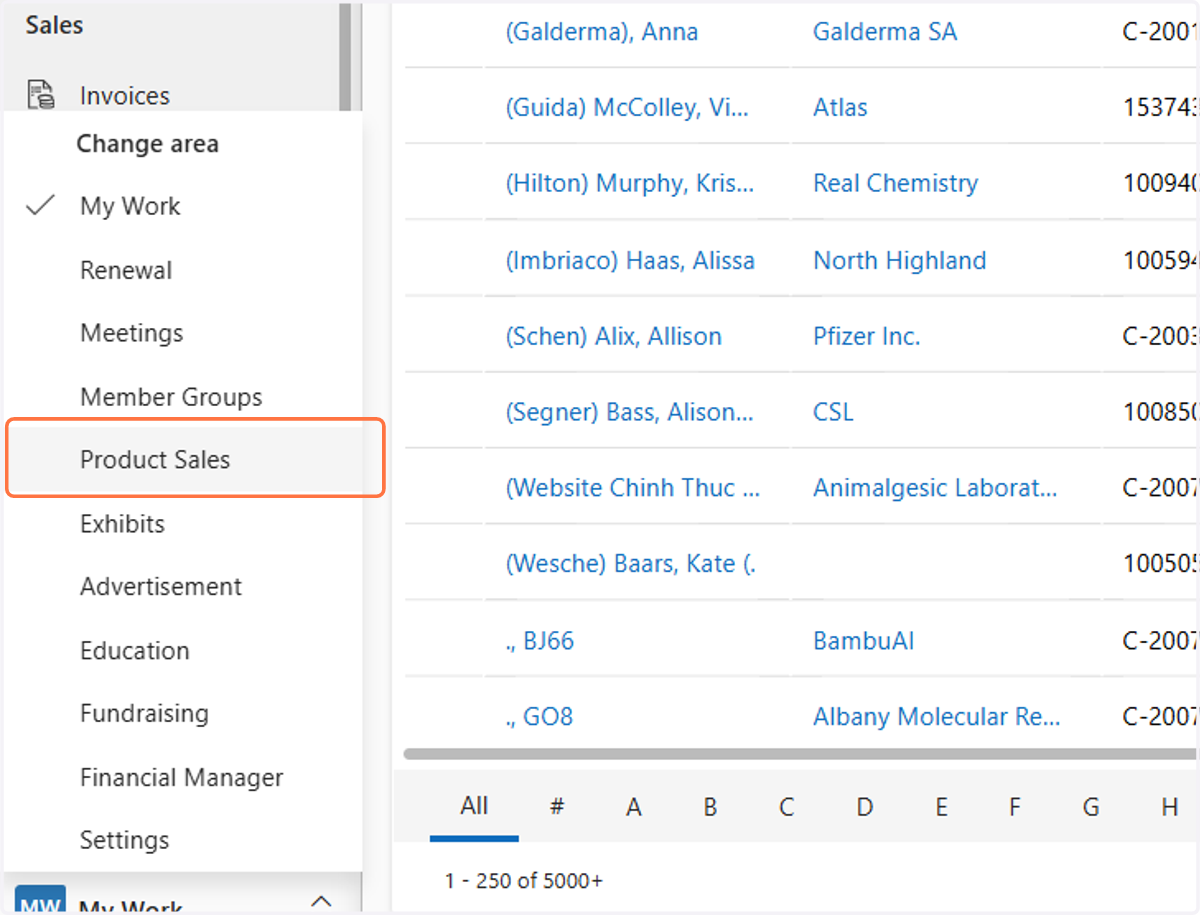
32. Click on My Work
33. Click on Product Sales
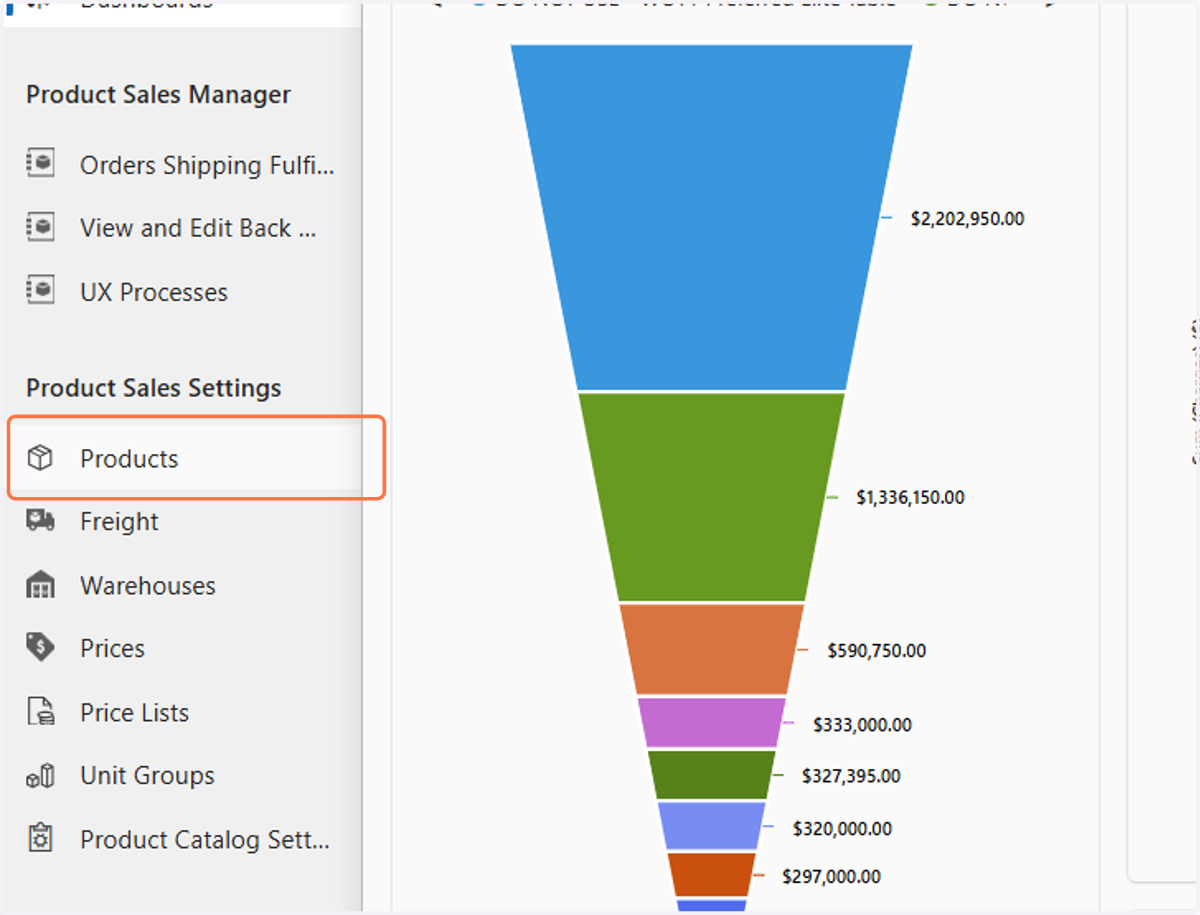
34. Click on Products
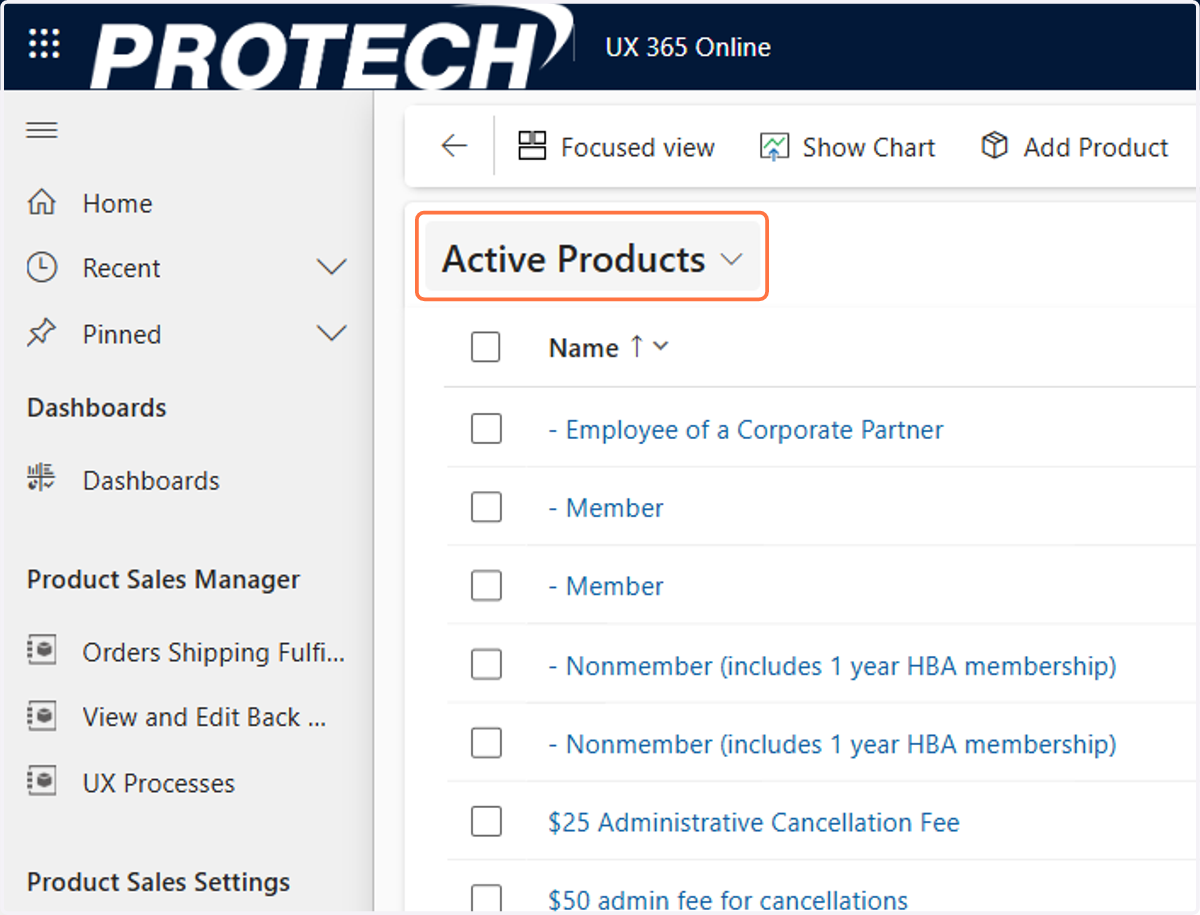
35. Click on Active Products
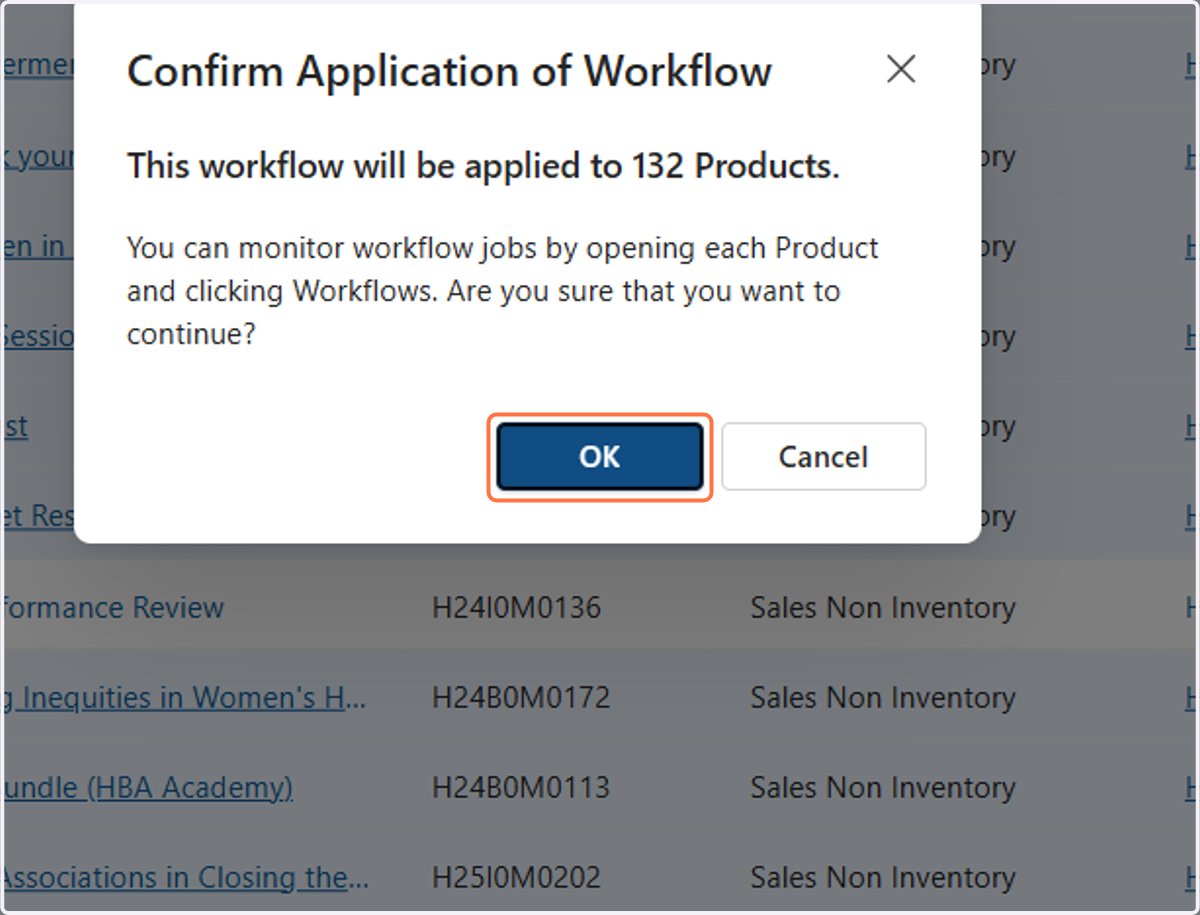
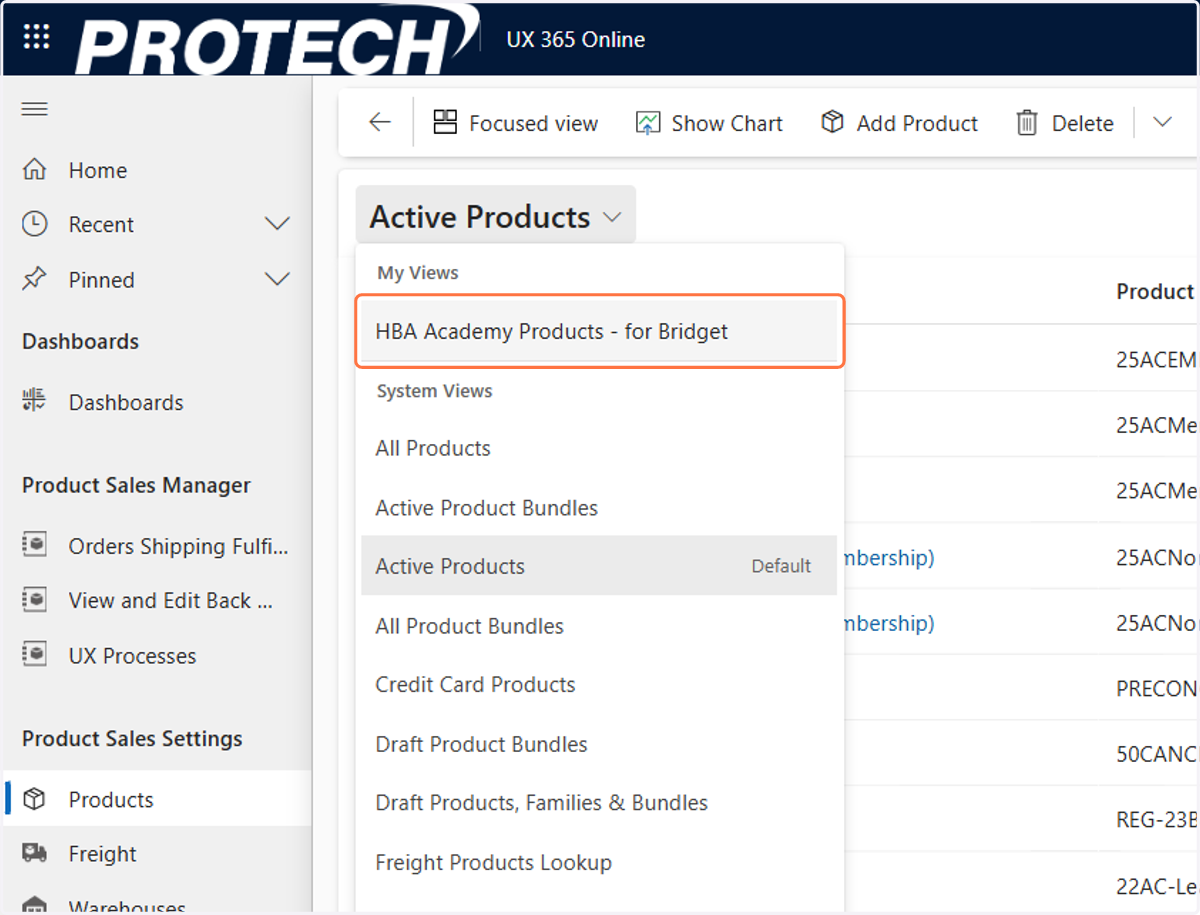
36. Click on HBA Academy Products - for Bridget
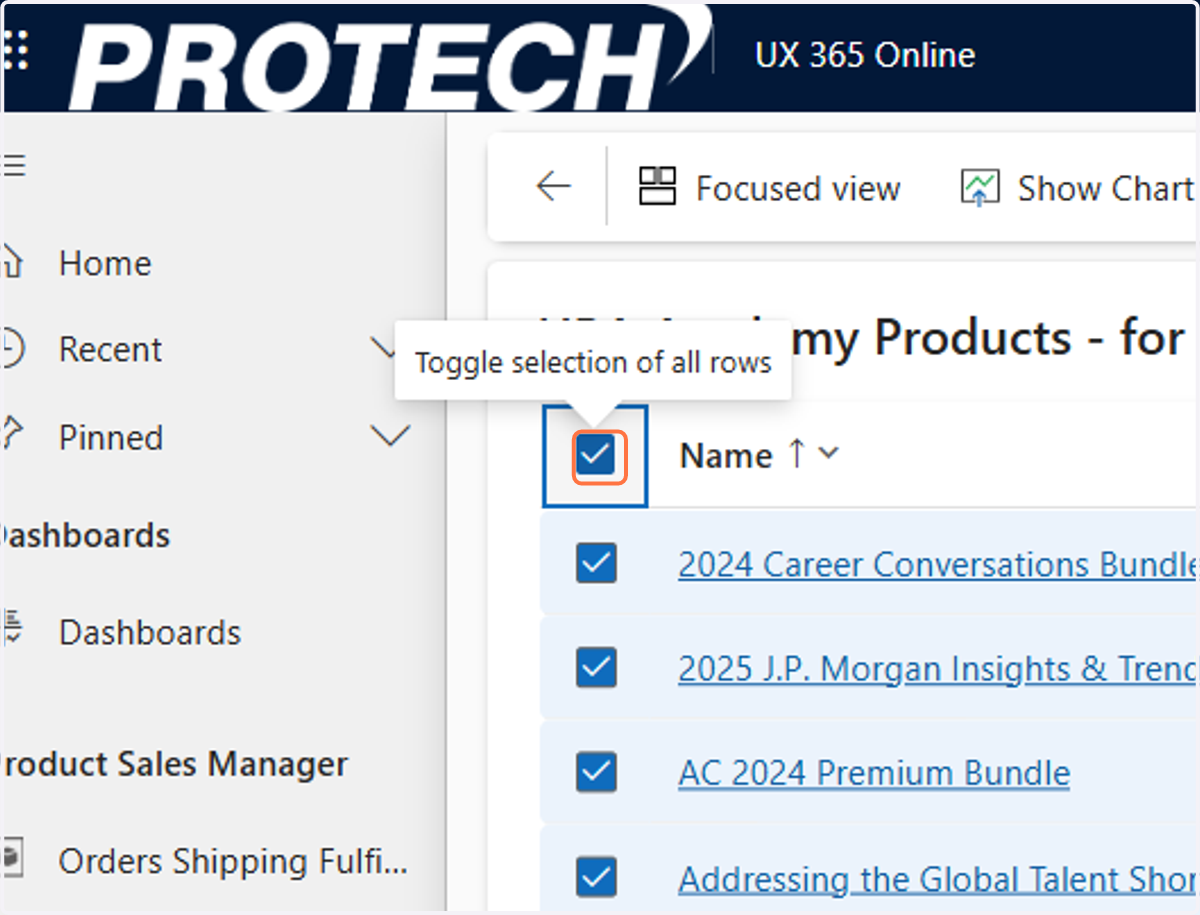
37. Click on the check box to select all the Academy Products
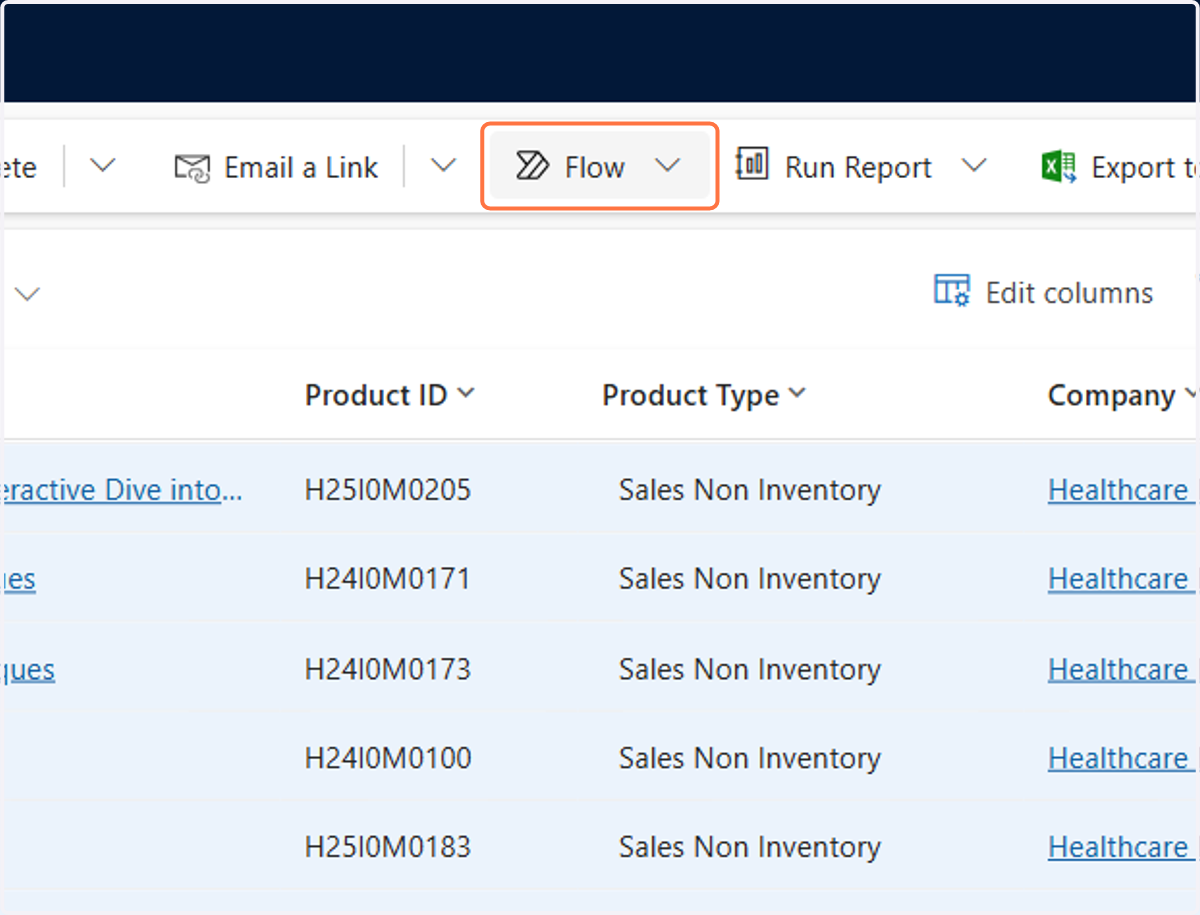
38. Click on Flow
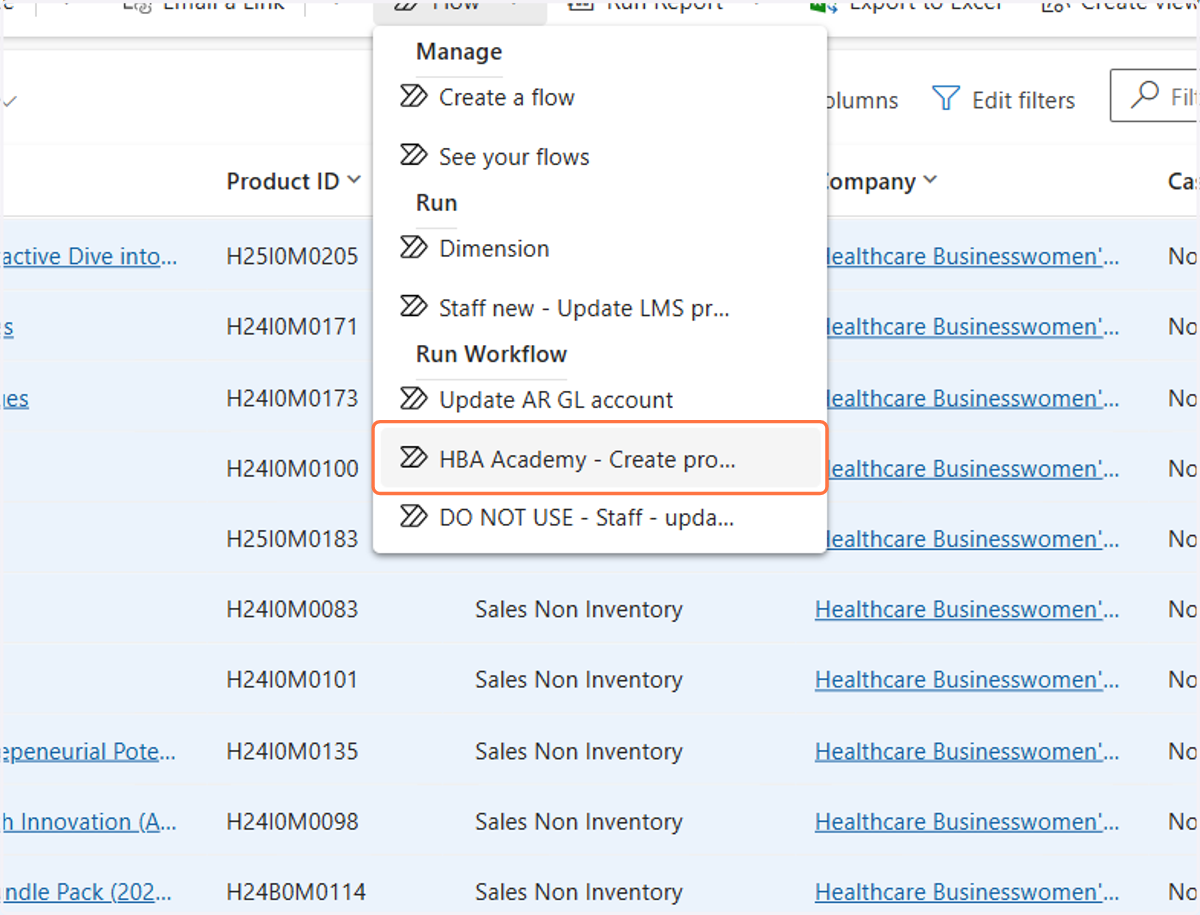
39. Click on HBA Academy - Create promo type records for academy products
40. Click on OK