Chats in Workmate
This guide will show how to manage chats in WorkMate, including starting, switching between and deleting chats
Open Workmate Chat Tab
1. Ask a question
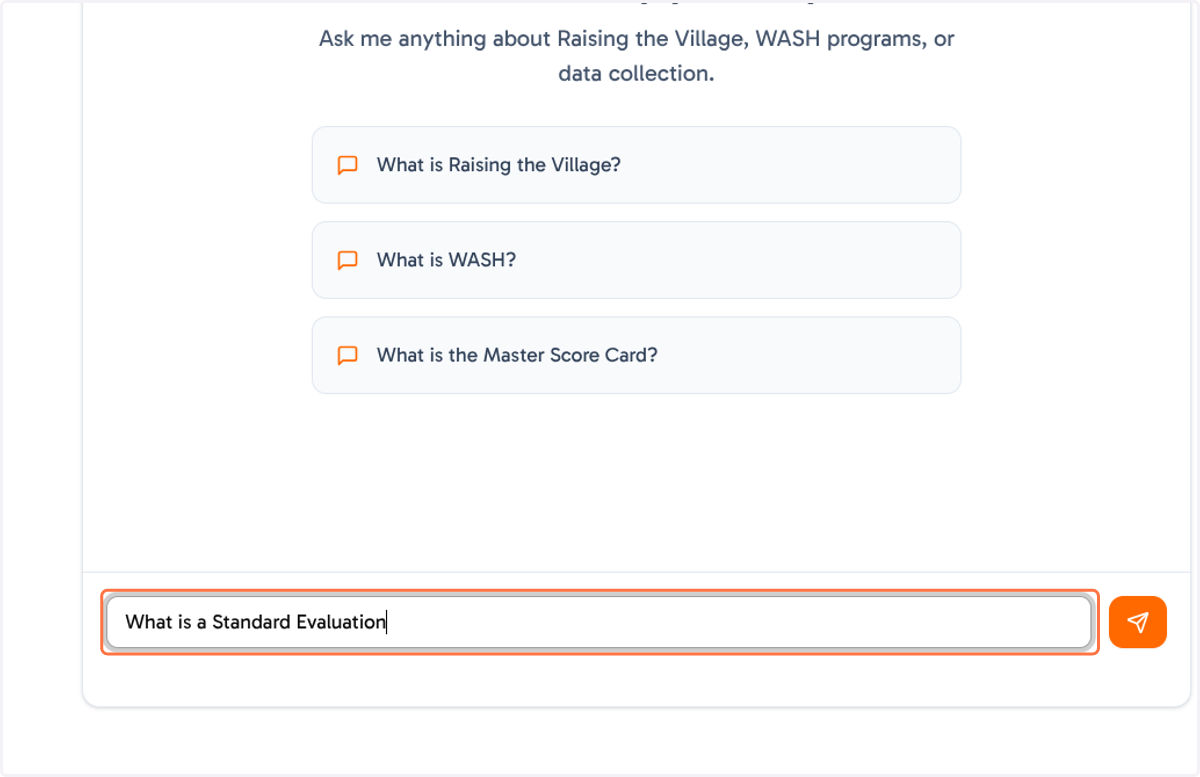
The chatbot is a question and answer tool to provide you quick access to RTV resources and information. You can ask a question by typing in the input area provided as below
2. Click on Send
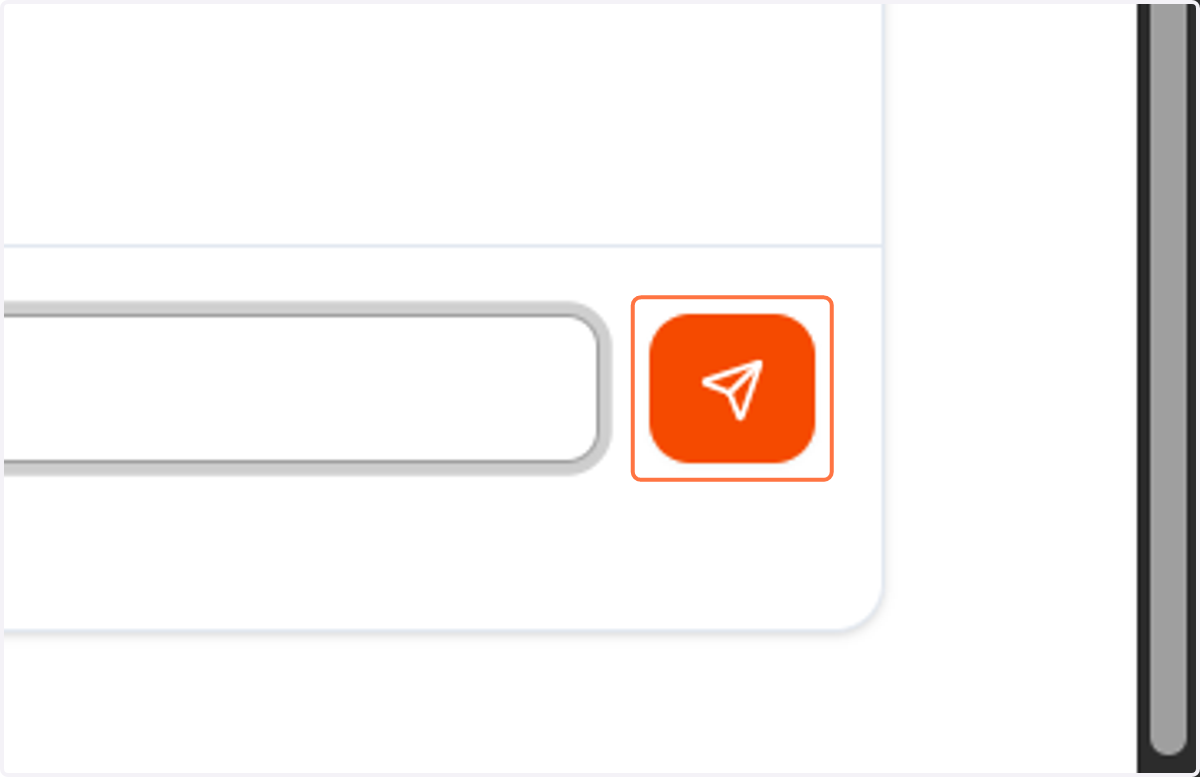
After typing your question, you can submit clicking send, or by pressing Enter on the keyboard.
3. Start a New Chat
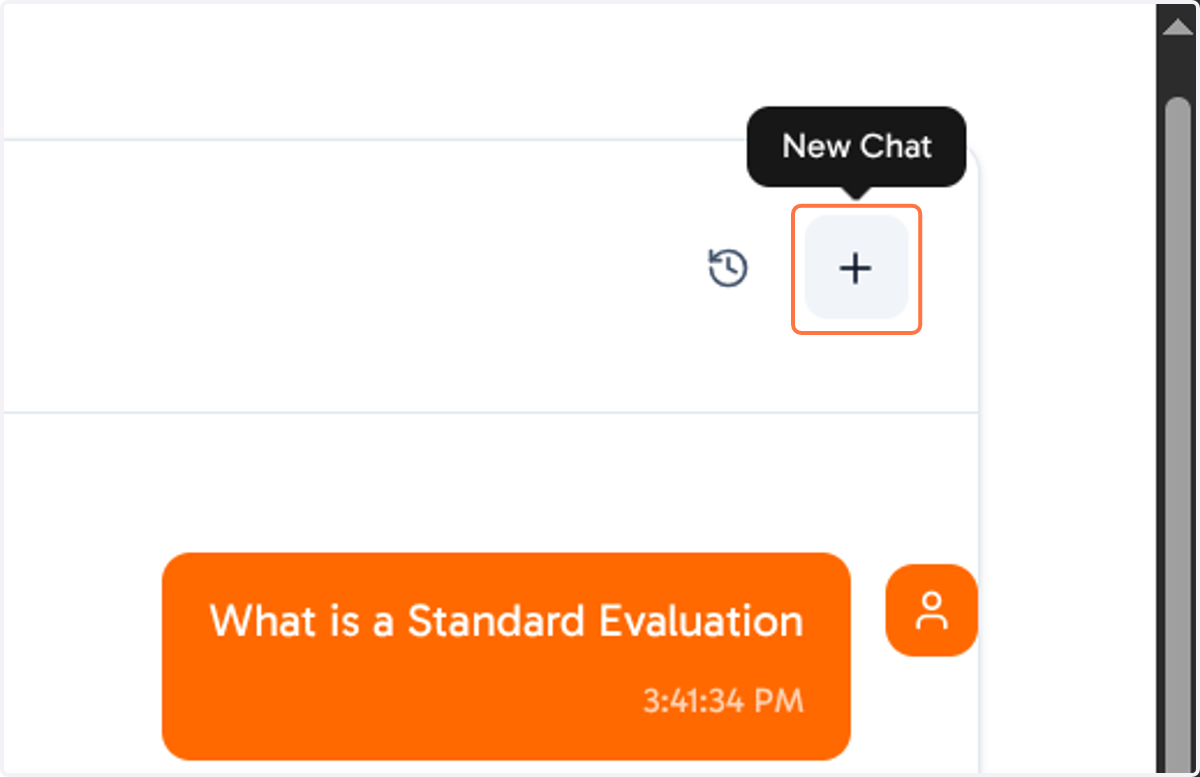
You can start a new chat by clicking on the "+" in the top right of the chat box.
4. View your Chat History
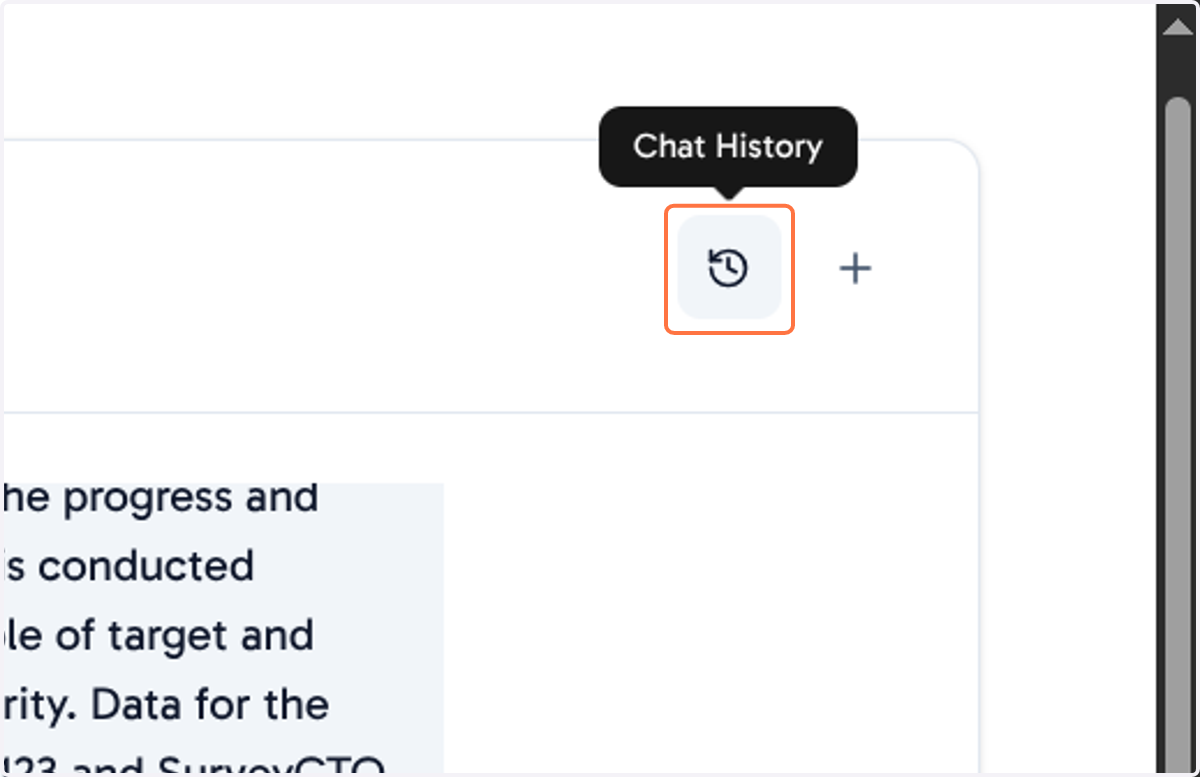
To view all chats you've opened, you can use the round clock button in the top right of the chat box.
5. Switch between Chats
In the side bar that opens, you can select and switch to an older chat
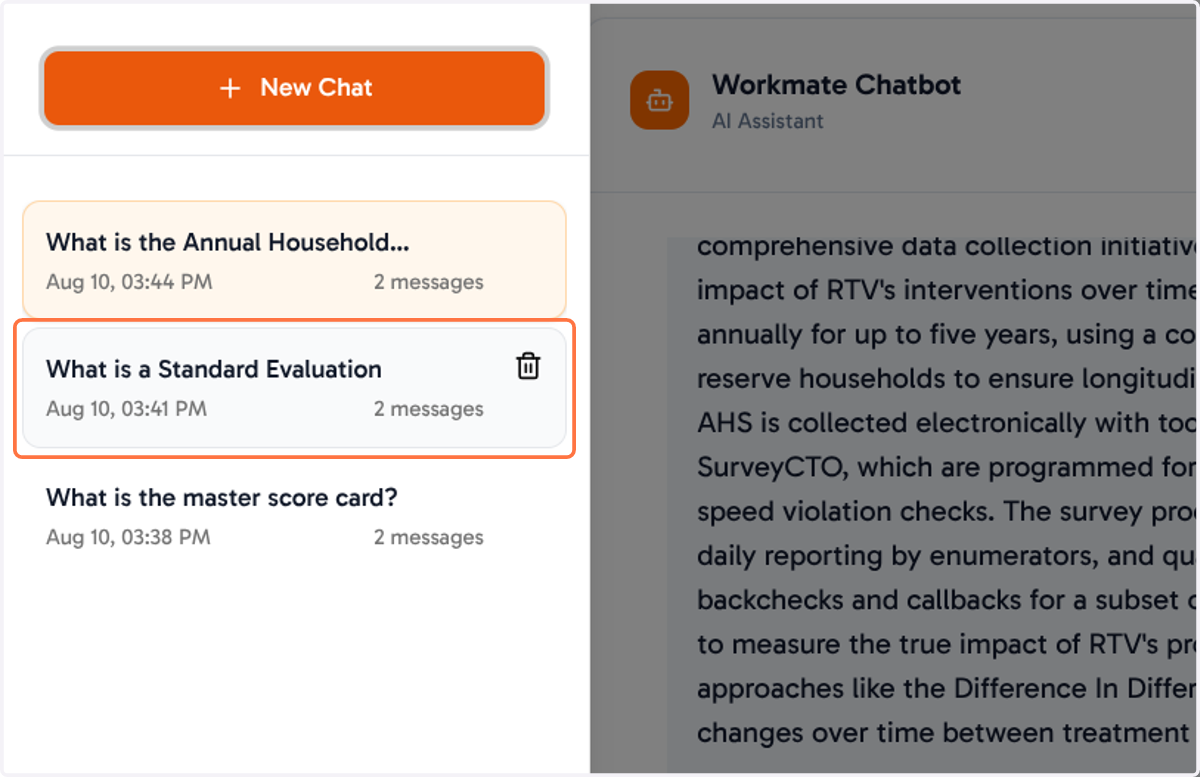
6. Delete Chats
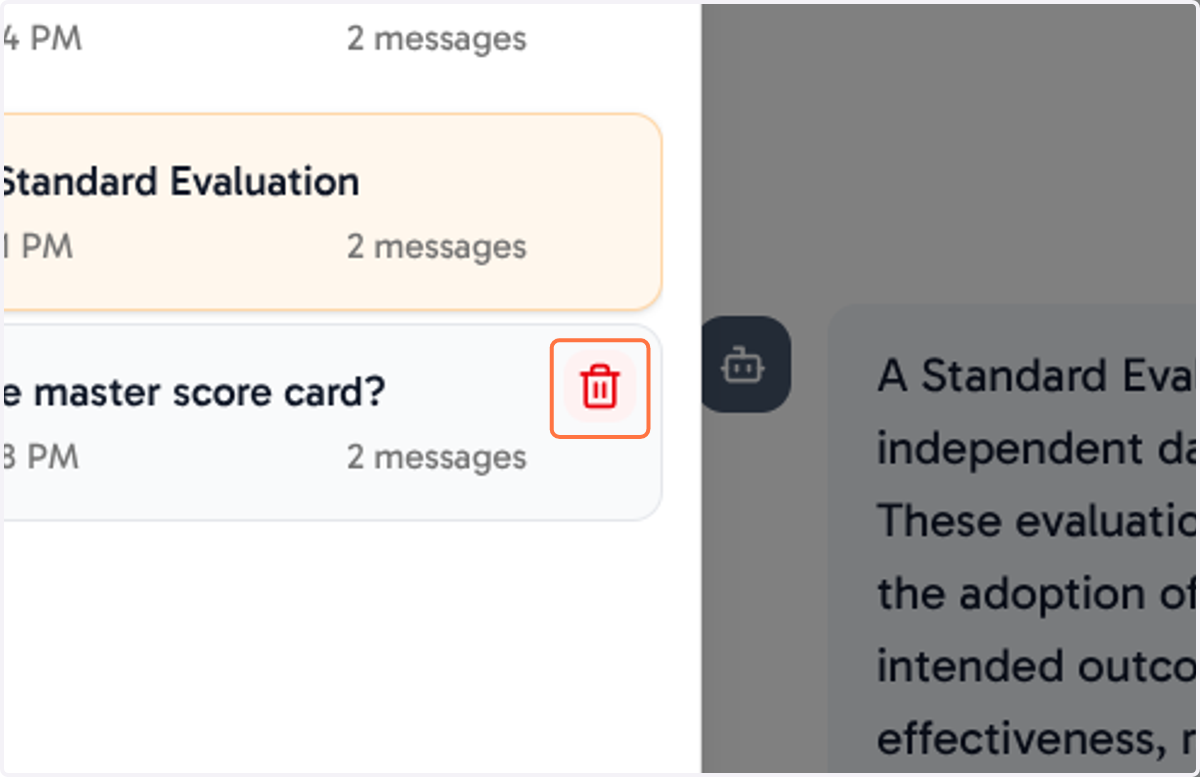
You can also delete older or unwanted chats from history by using the bin button.
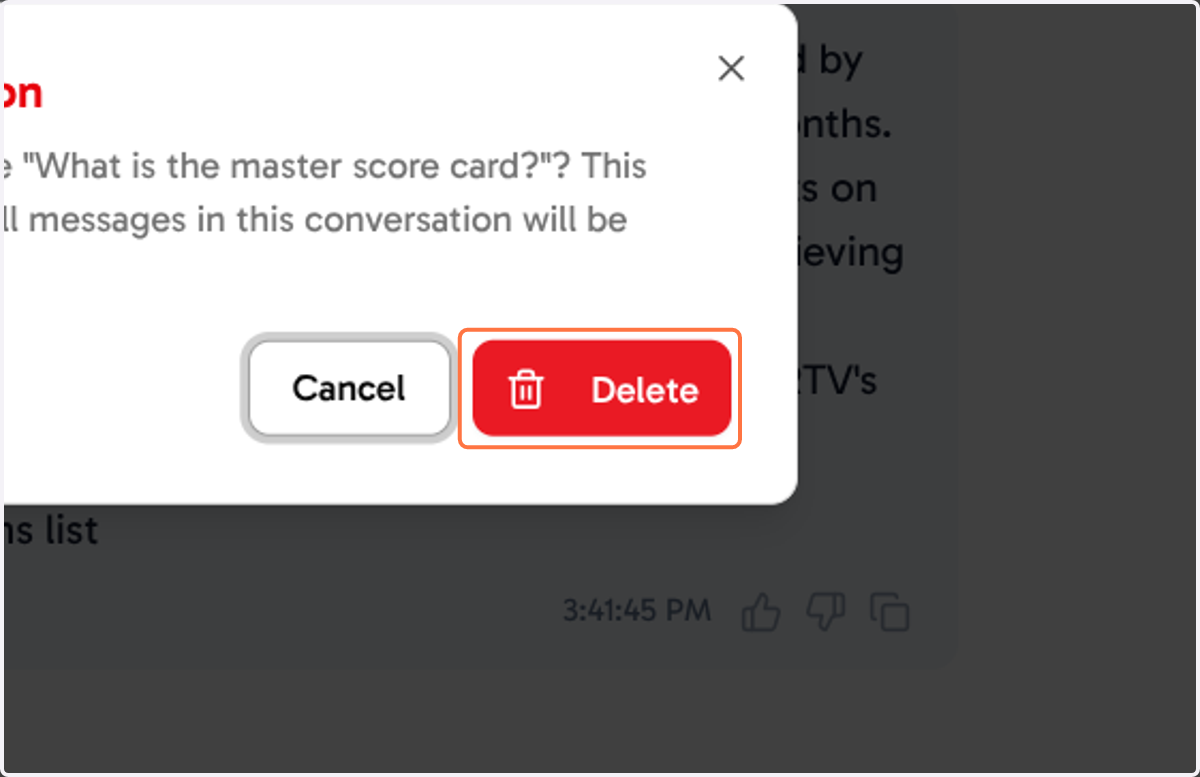
7. Confirm Delete
To delete a chat, you will be required to confirm, you can do this by using the "Delete" button on the pop up.
8. Contact us for support
If you have any persistent problems with your chats, don't hesitate to contact us at workmate@raisingthevillage.org