Connect: CERM | Mapping Infigo products to CERM estimates
Here, we will learn how to map (Infigo) Products to (CERM) Estimates or Calculations.
This simple process consists of locating the element requiring mapping within Infigo and specifying the corresponding ID from CERM.
This mapping generally occurs at a level of the full (Infigo) Product Variant. Useful for mapping an (Infigo) Product where there is no variation via (Infigo) Attributes (such as size or material).
Mapping also occurs at an (Infigo) Attribute Combination level. This is where a specific selection of (Infigo) attributes result in a specific configuration of a product. In general Infigo usage, this would allow unique SKU and stock level to be specified.
When mapping to CERM it can be linked to a (CERM) Estimate or Calculation which has a matching configuration.
This means when a specific (Infigo) product configuration is selected on the (Infigo) product landing page, a corresponding (CERM) Estimate can be retrieved.
The (CERM) Estimates mapped in this section should be associated with the Generic Web User.
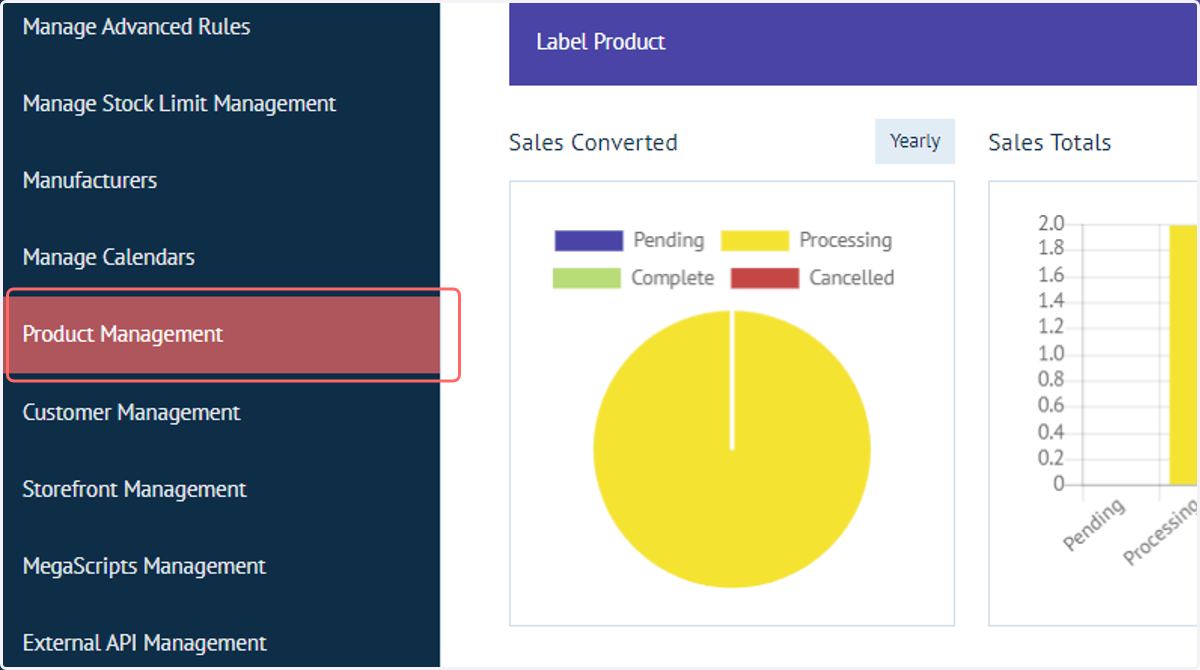
1. Navigate to Product Management
2. Click on the '+' icon
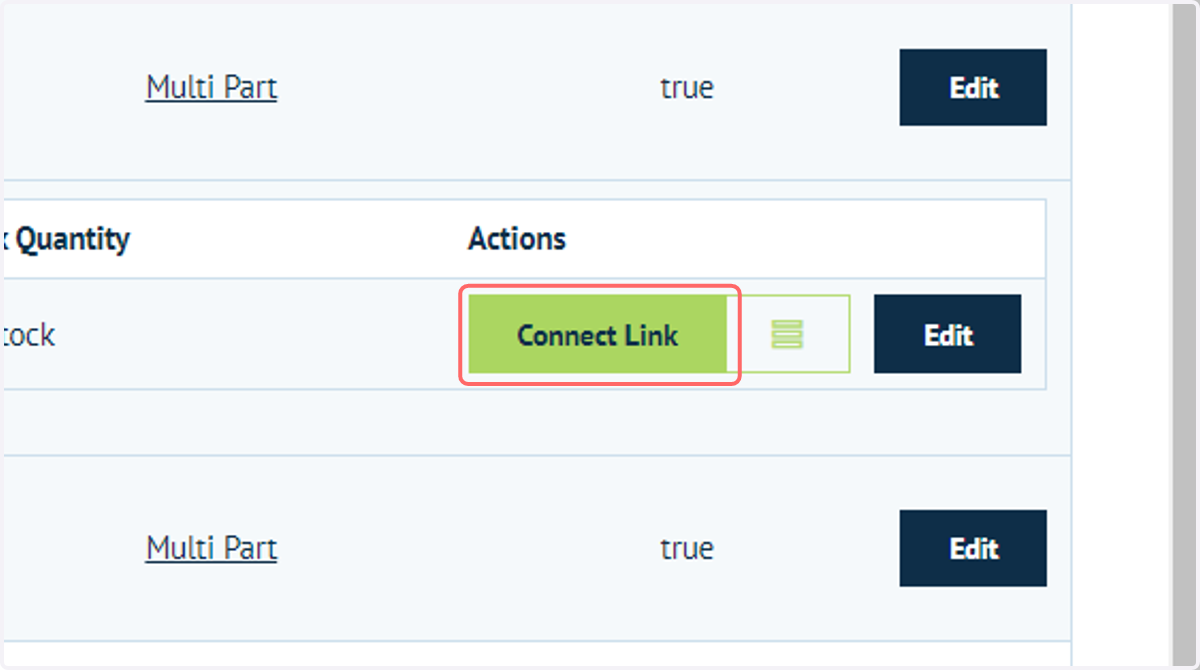
3. Click on Connect Link
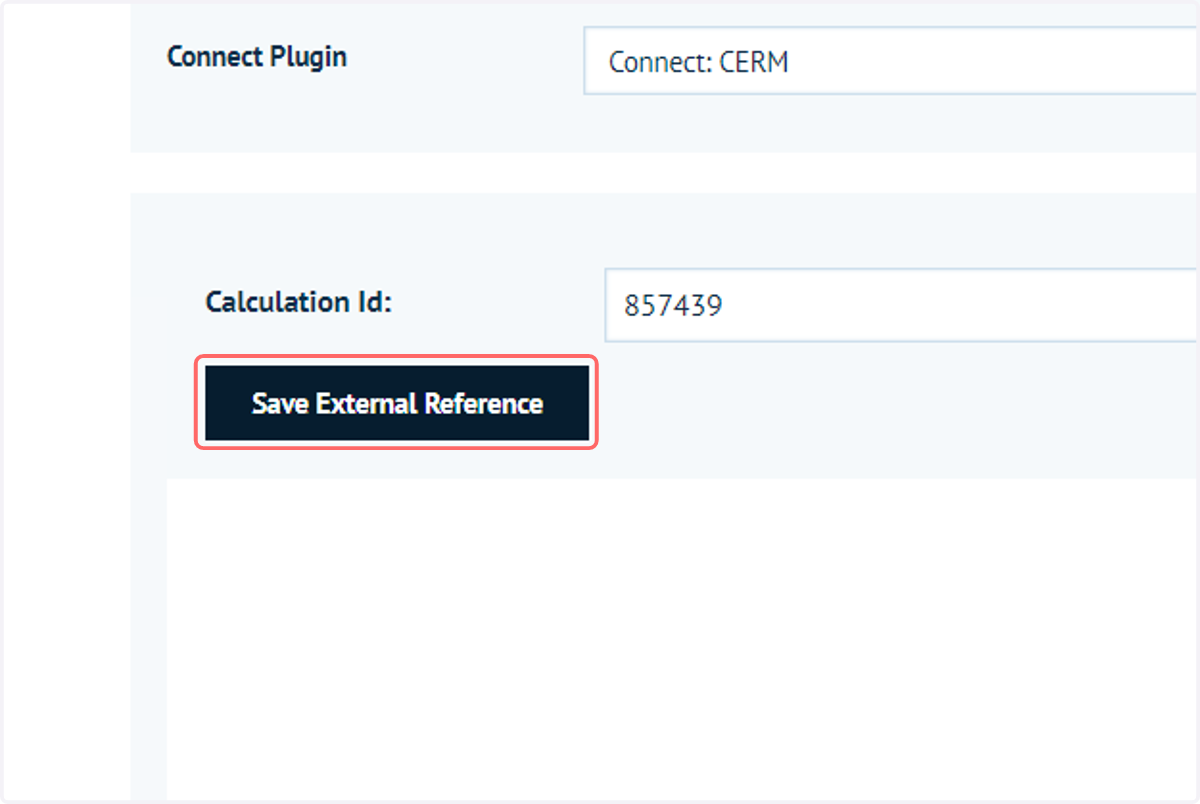
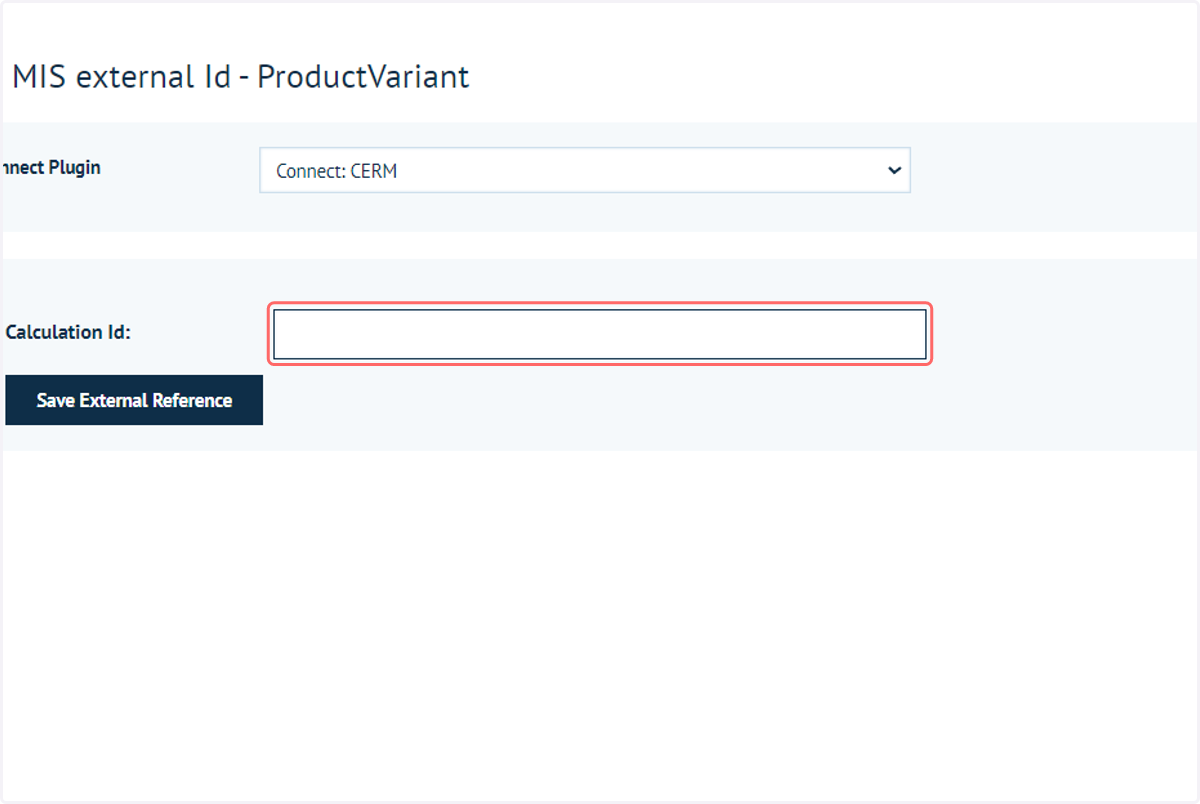
4. Enter the Calculation ID
Enter the (CERM) Calculation ID for this product.
It is recommended to use this area for a product which does not have any variable attributes such as size, colour, stock, etc.
This means selecting this (Infigo) product will immediately load the corresponding (CERM) Estimate.
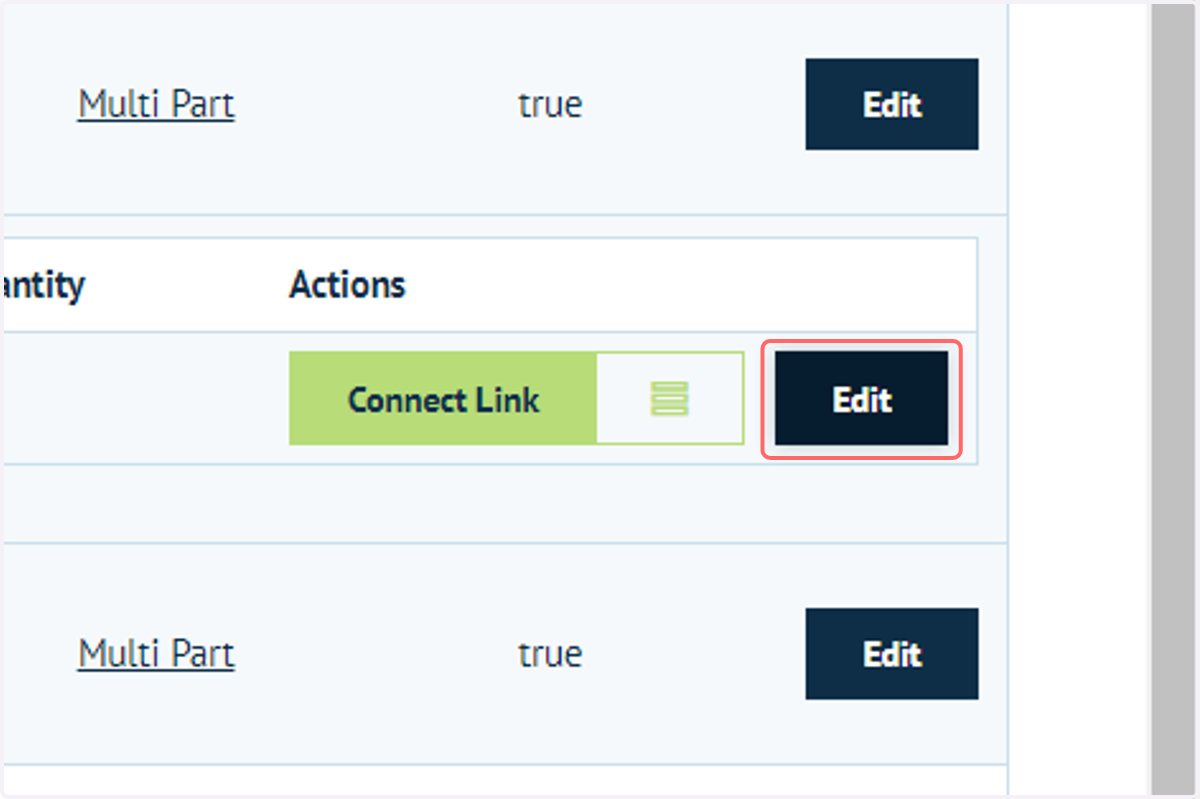
5. For products with variable attributes, click on Edit
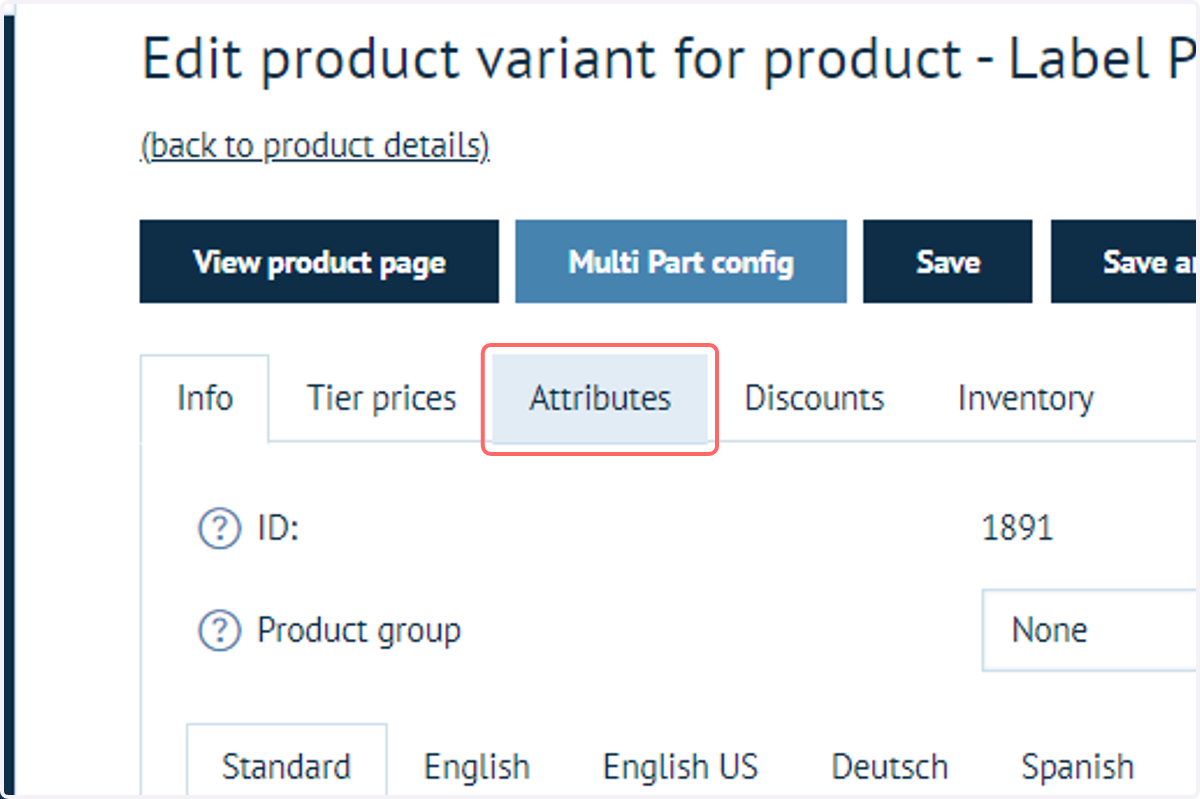
6. Click on Attributes
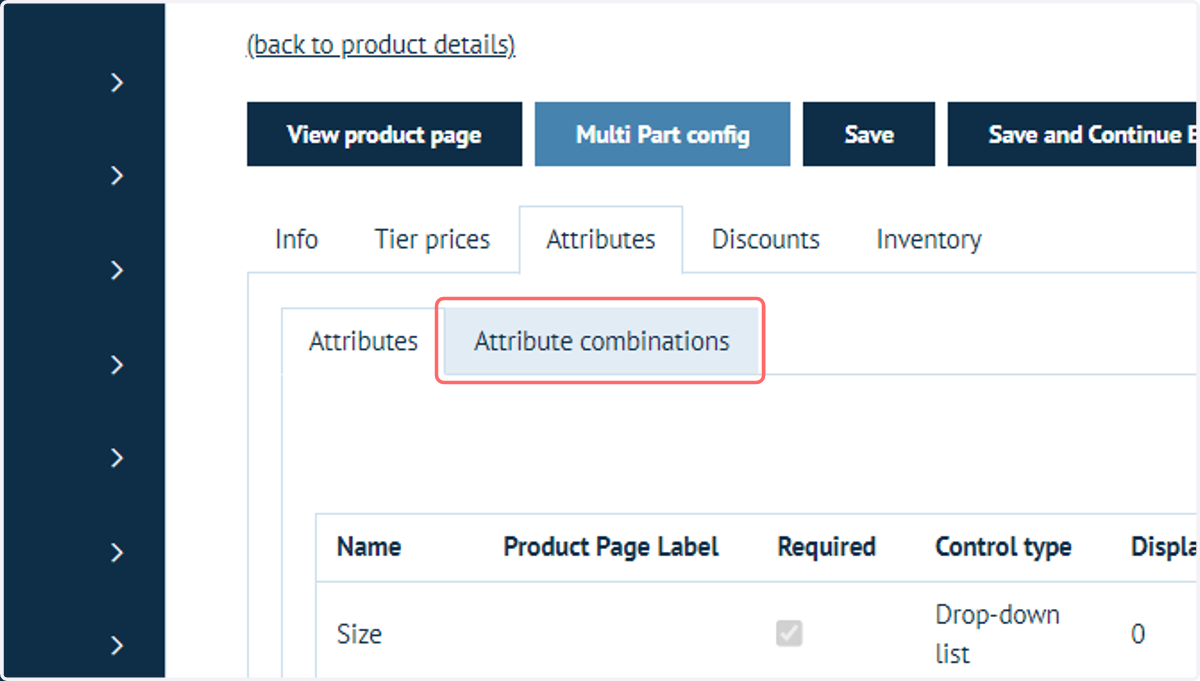
7. Click on Attribute combinations
8. Create required (Infigo) Attribute Combinations
(Infigo) Attribute Combinations allow you to define what happens when a specific selection of option is chosen on the (Infigo) Product Landing Page.
Taking the example of an item of clothing, choosing a large red t-shirt and a small blue t-shirt would result in completely different stock levels, SKUs and potentially pricing.
Create (Infigo) Attribute Combinations to cover all variations of your (Infigo) Product.
Then, create (CERM) Estimates to cover all of the same possibilities.
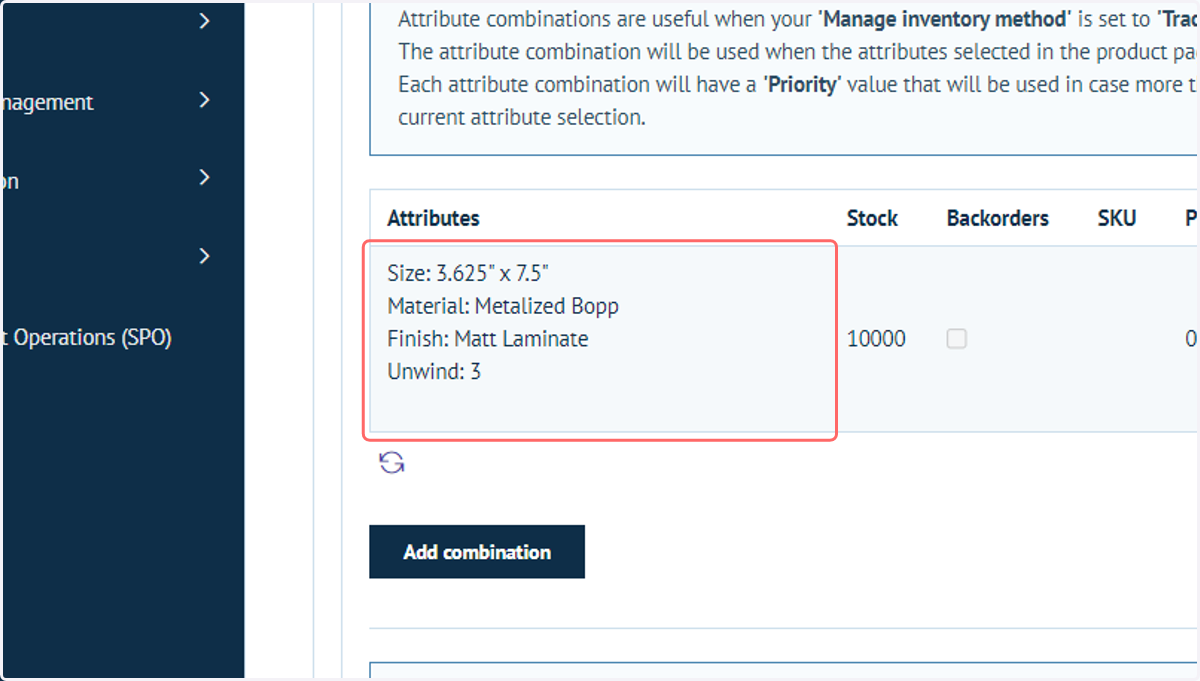
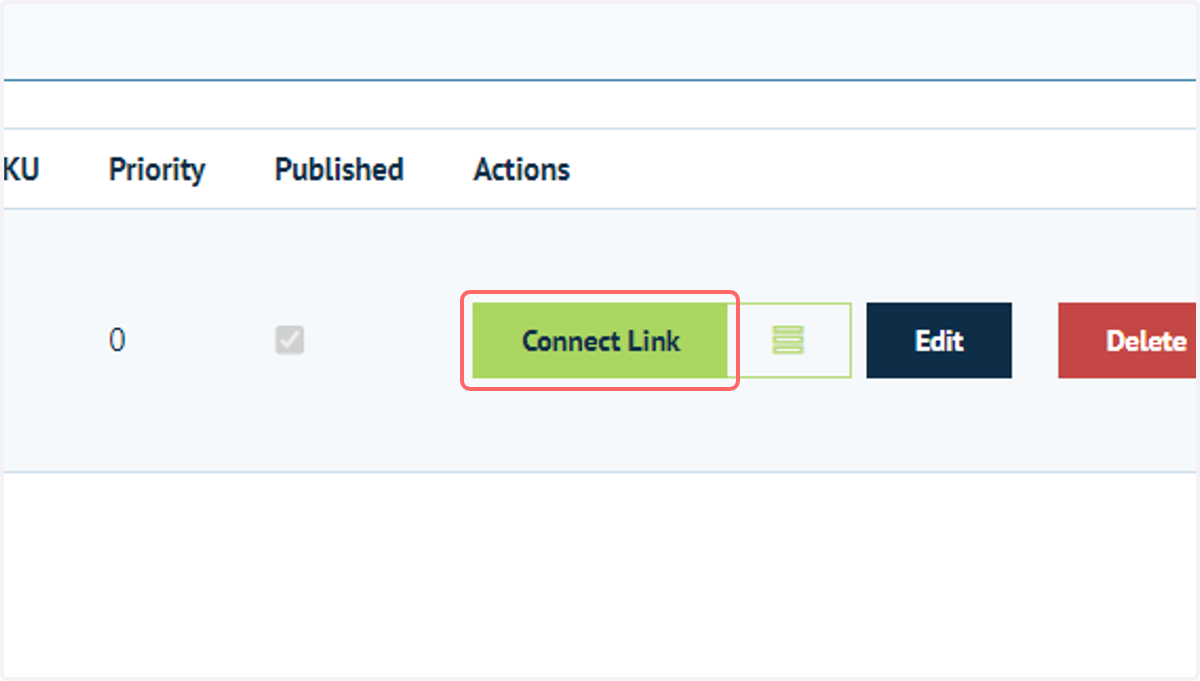
9. Click on Connect Link
10. Input the Calculation ID into the input field
Input the (CERM) Calculation ID into the Connect Link page.
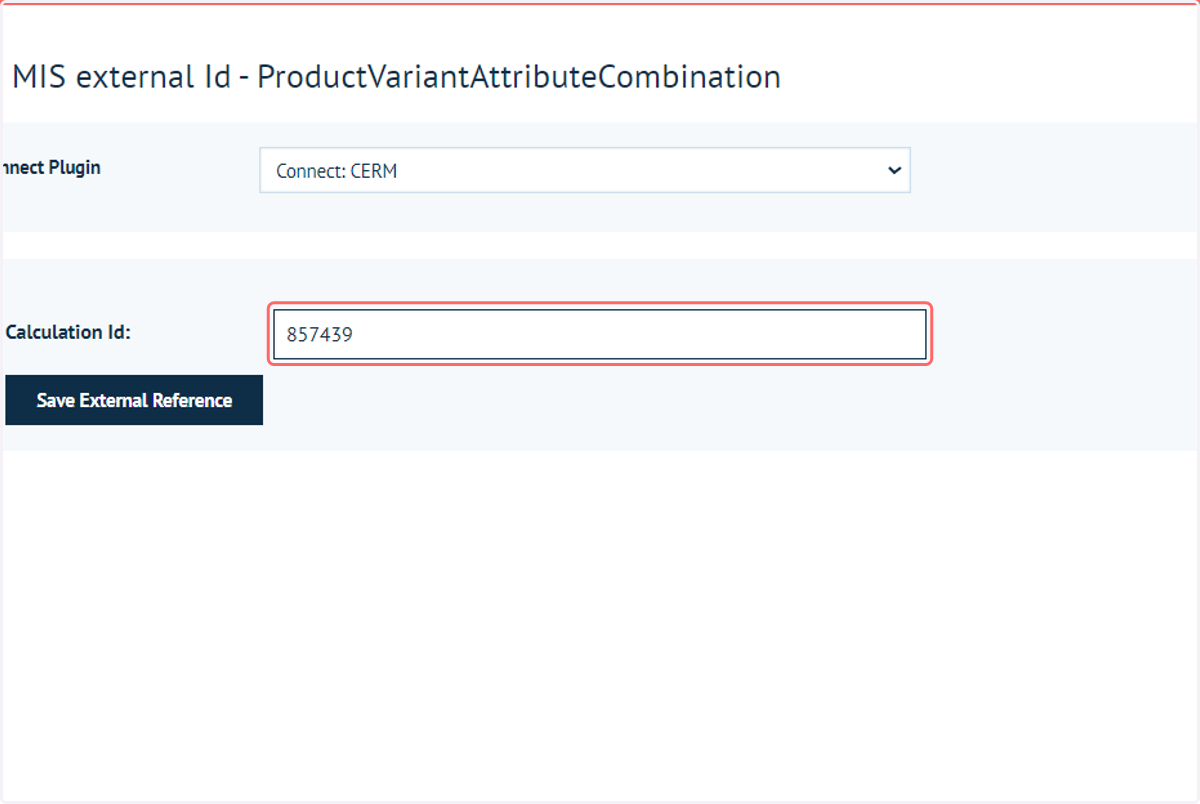
11. Click on Save External Reference
A link is now saved between the (Infigo) Product Attribute Combination and (CERM) Estimate.