Beta-Testing (Internal and Client)
Using Airtable to Document Tasks during Beta Testing Phase of the LKF Web Process
Go to airtable.com and login
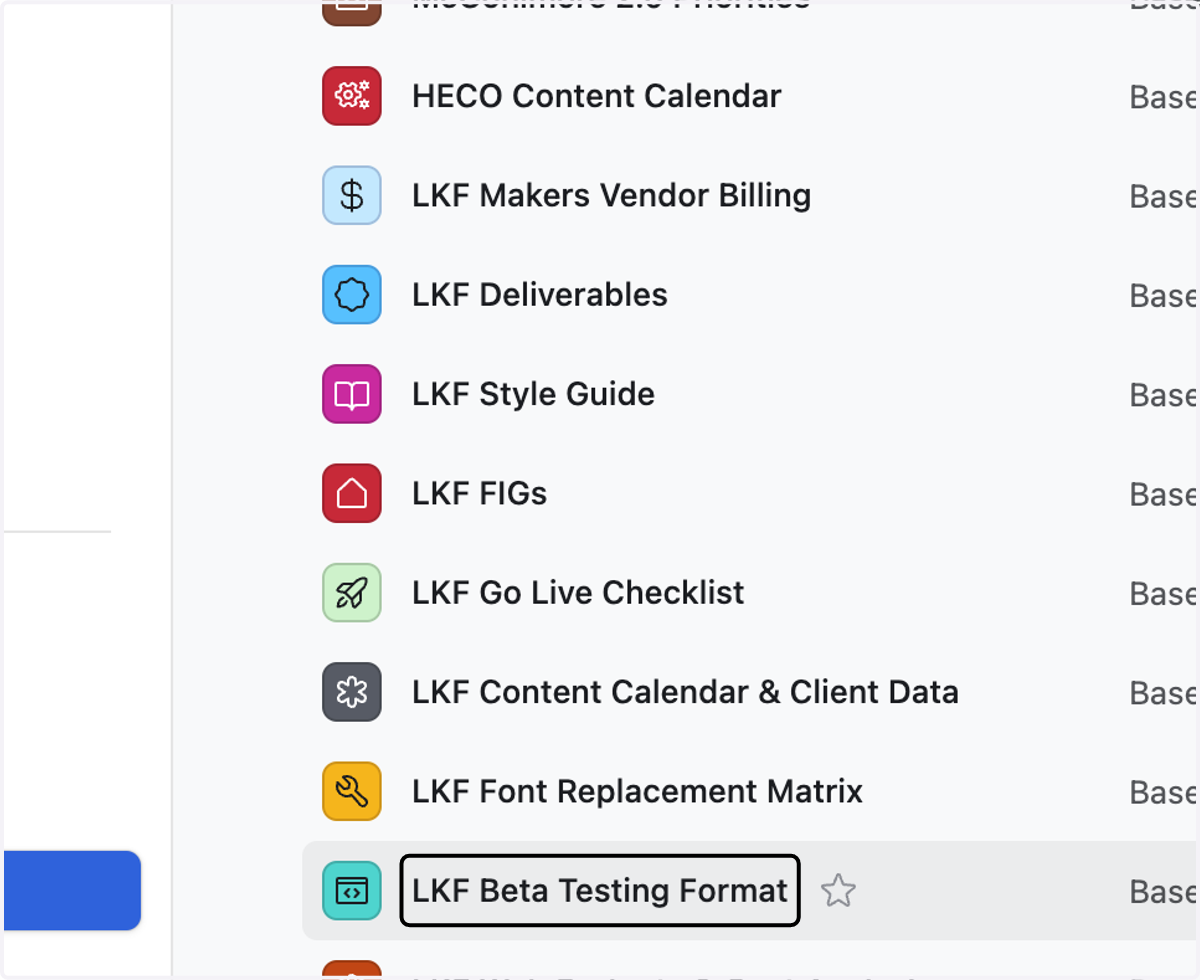
1. Click on LKF Beta Testing Format
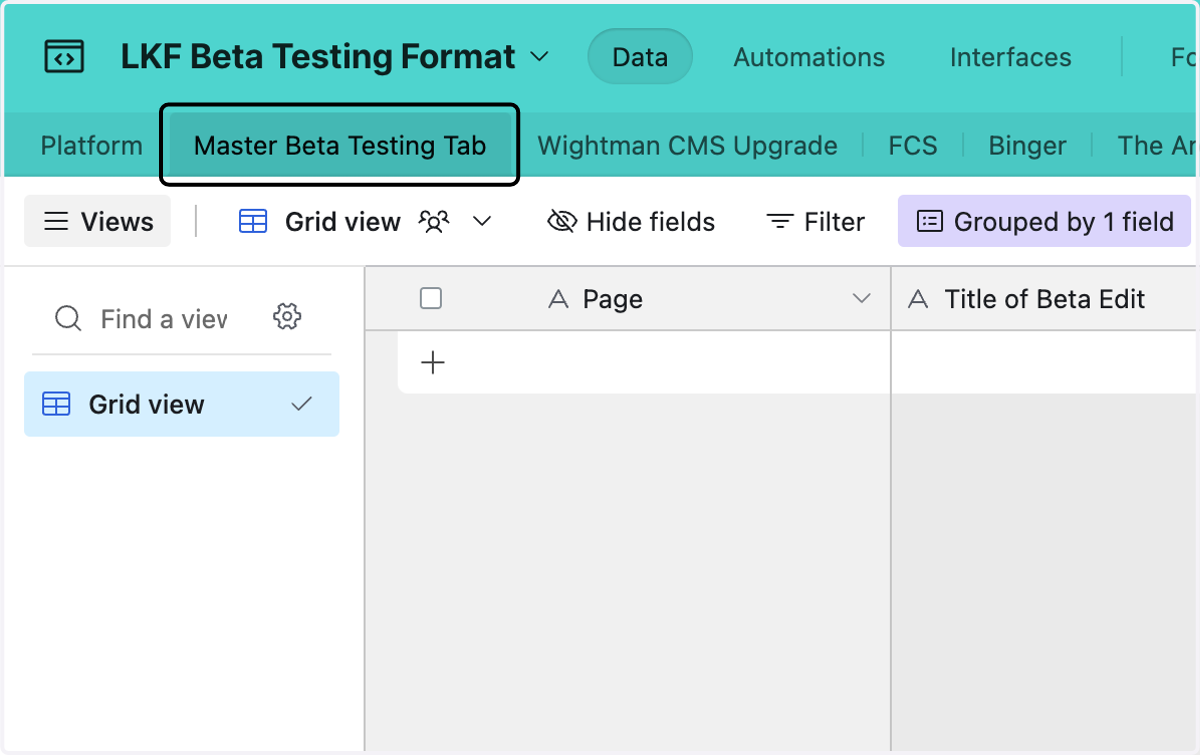
2. Click on Master Beta Testing Tab
3. Right click on Master Beta Testing Tab table options
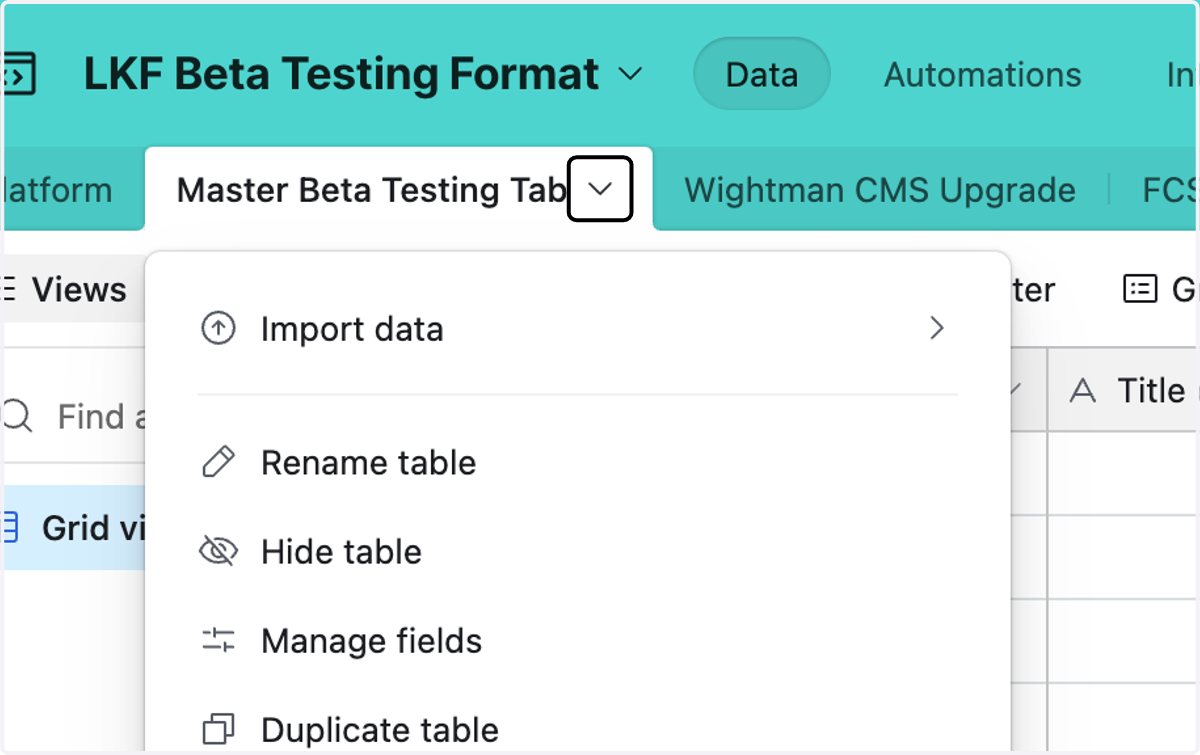
4. Right click on Master Beta Testing Tab table options
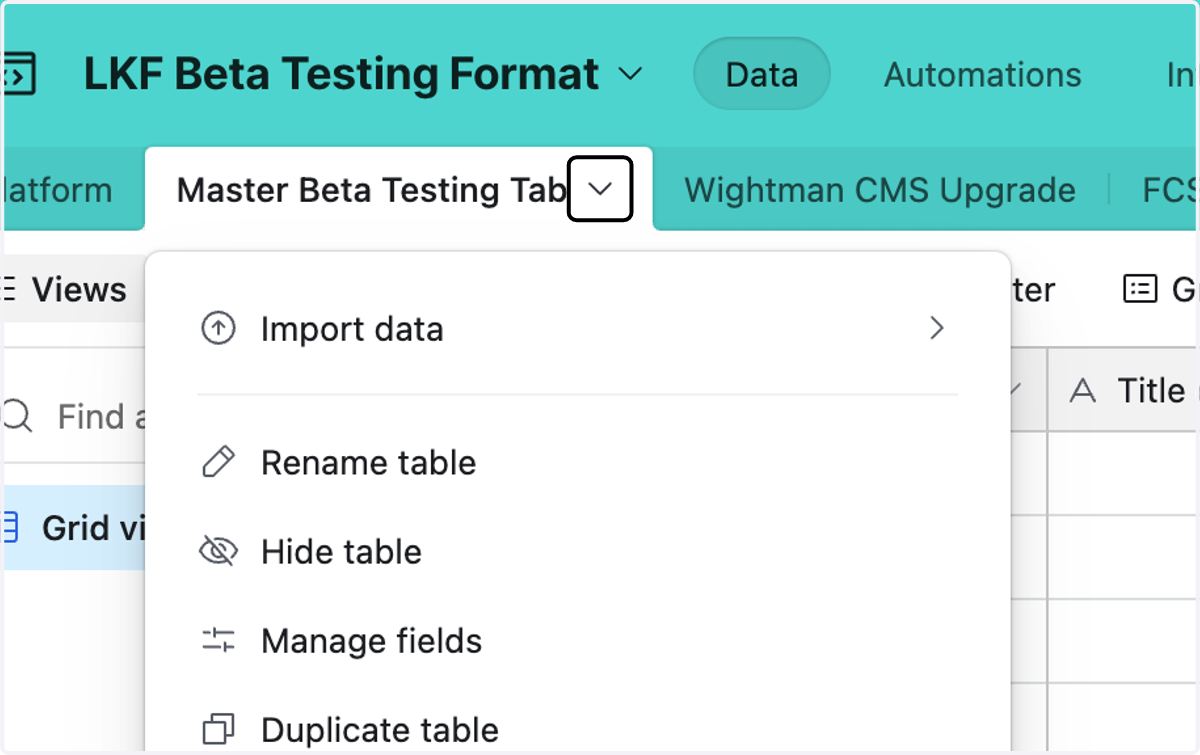
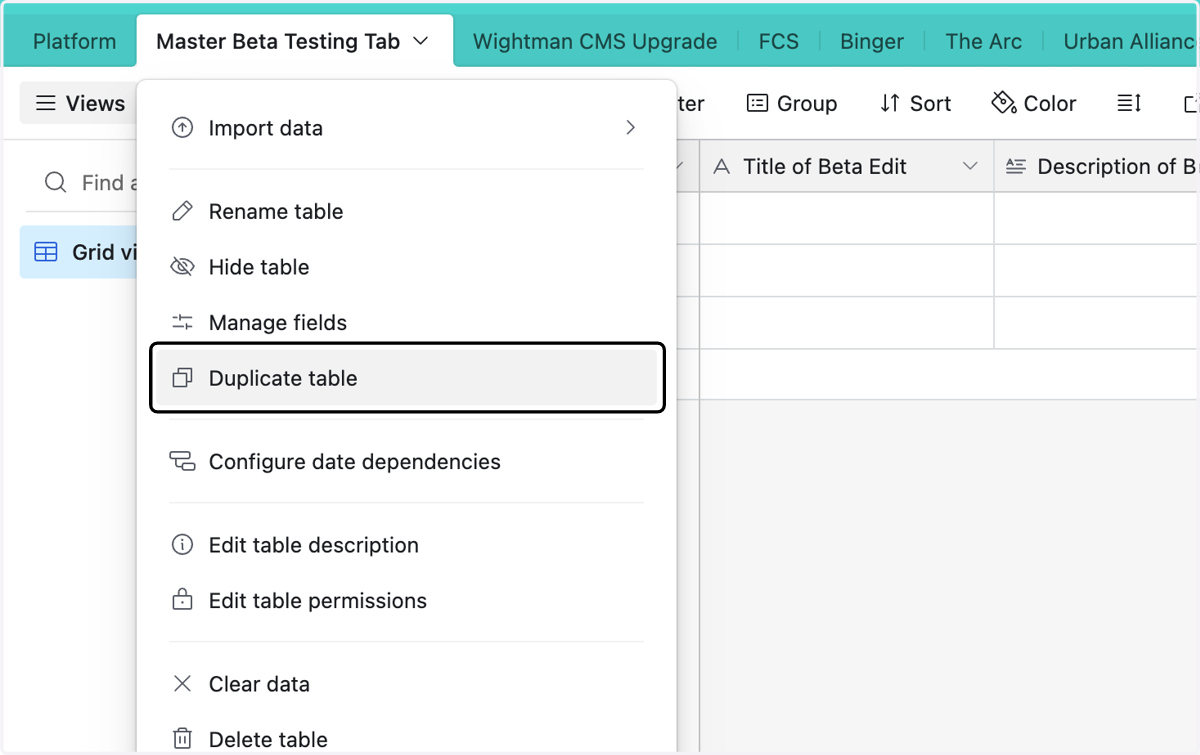
5. Click on Duplicate table
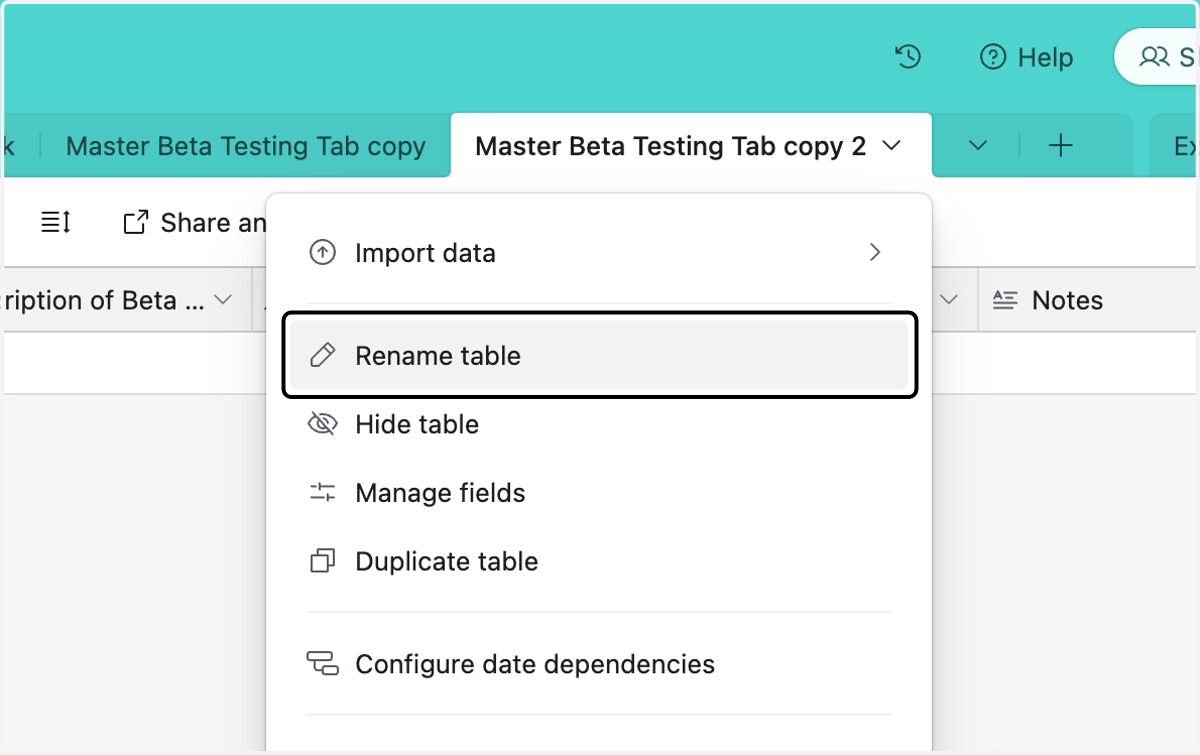
6. Click on Rename table
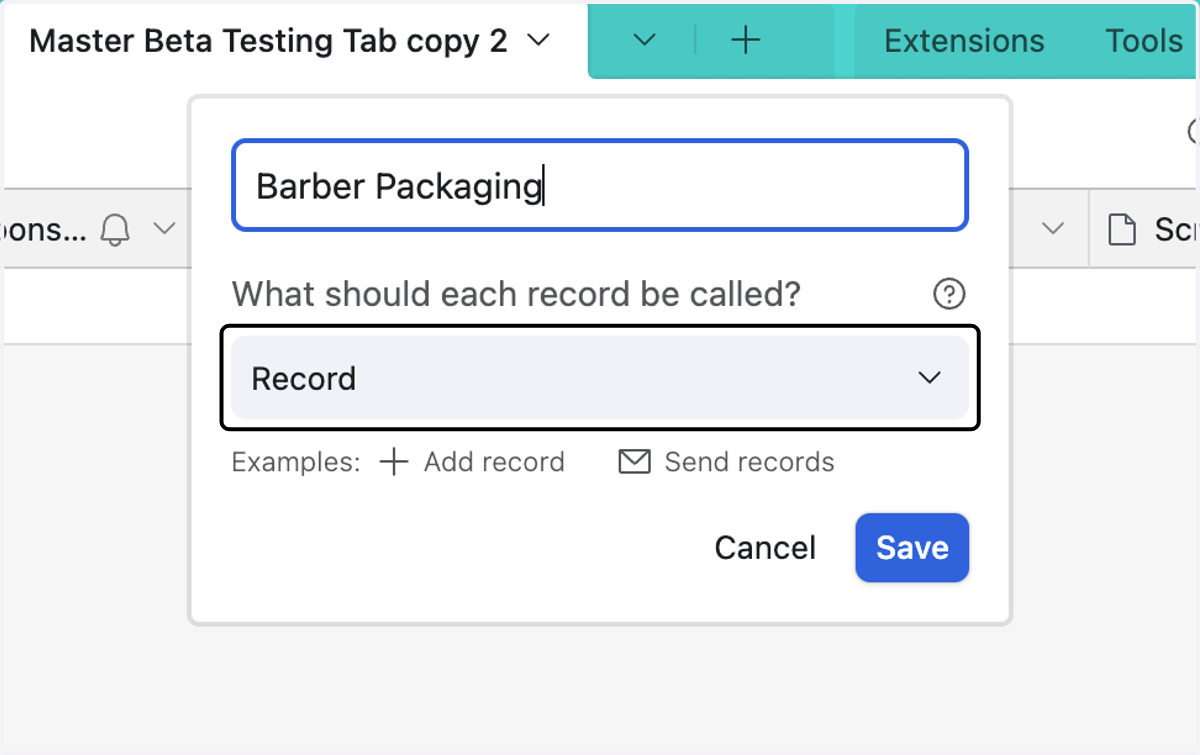
7. Type the name of the website you are beta testing
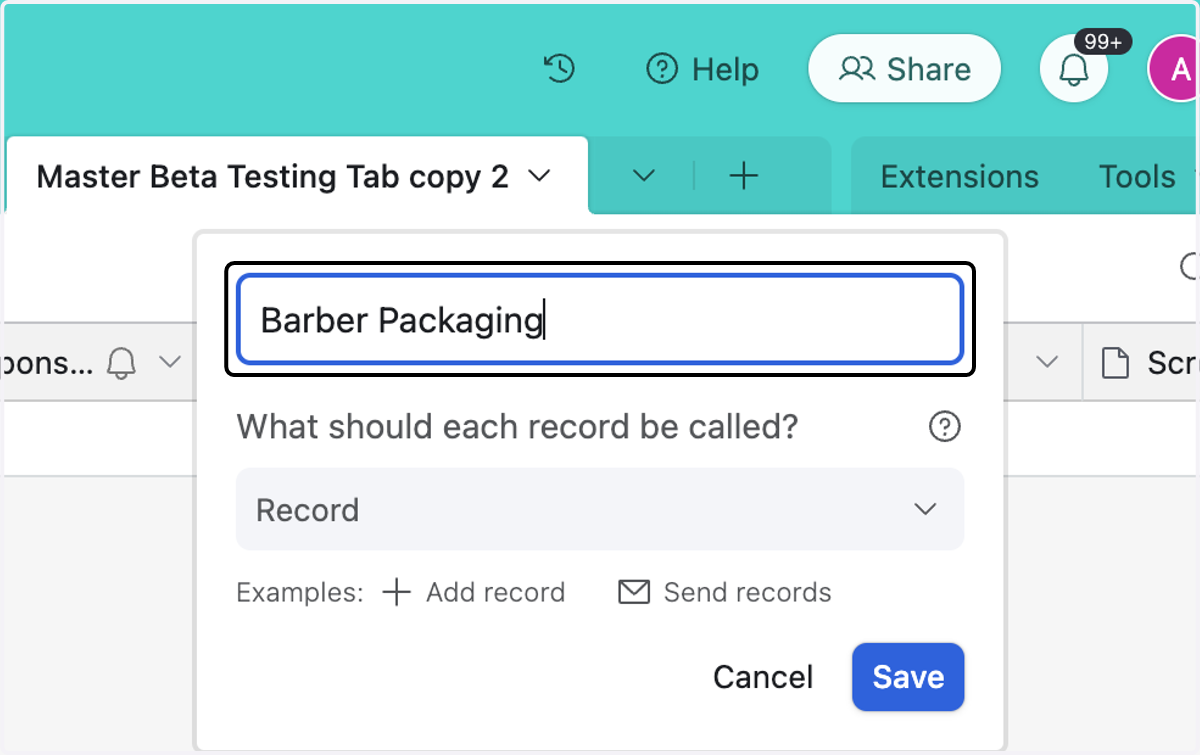
8. Click on Record
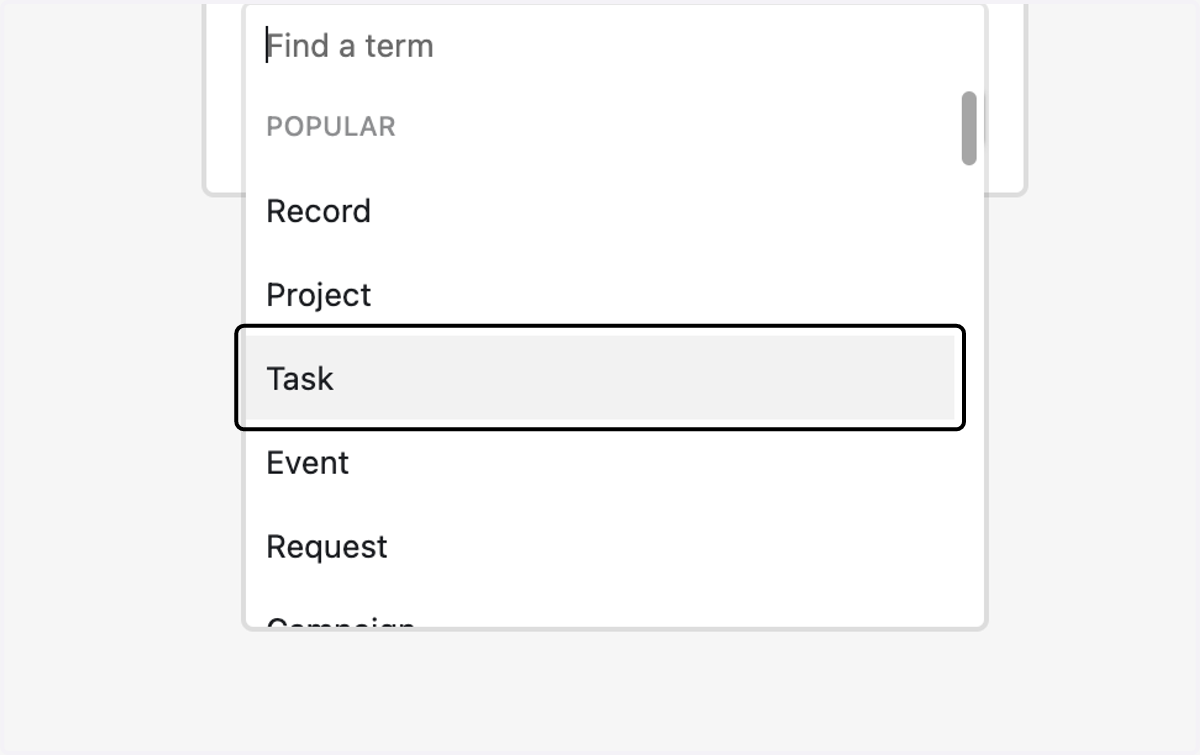
9. Click on Task
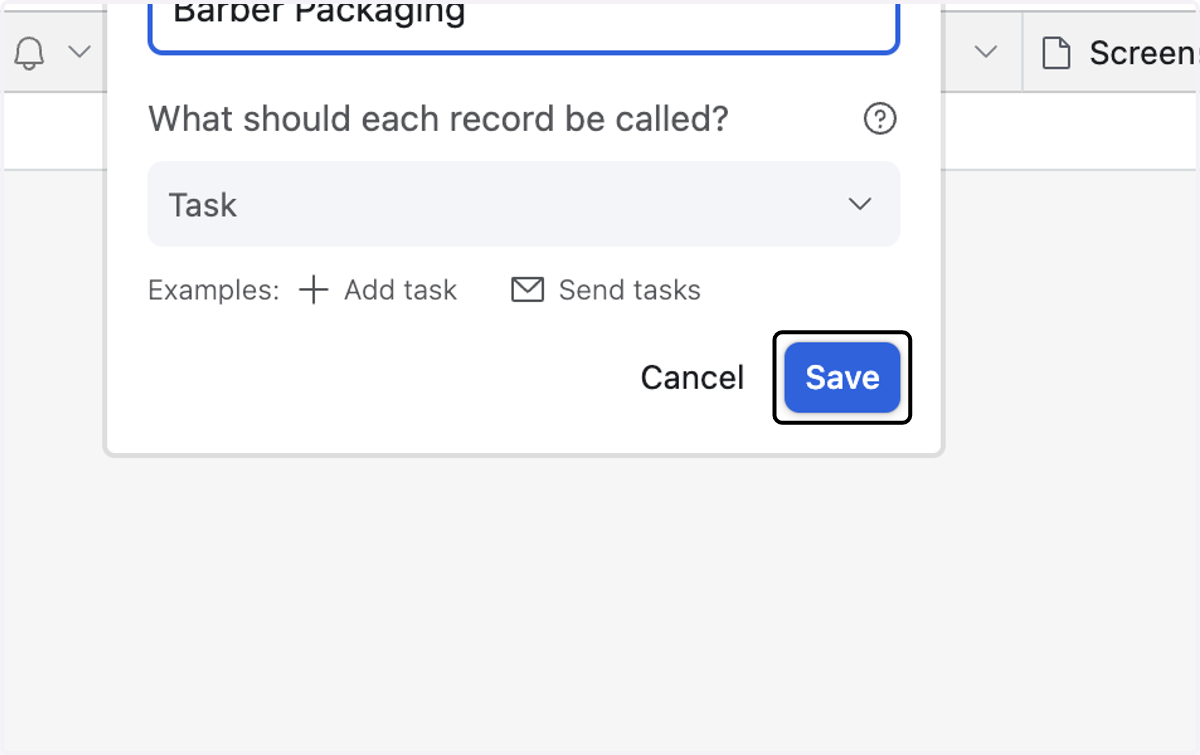
10. Click on Save
11. Click on + to insert a new task
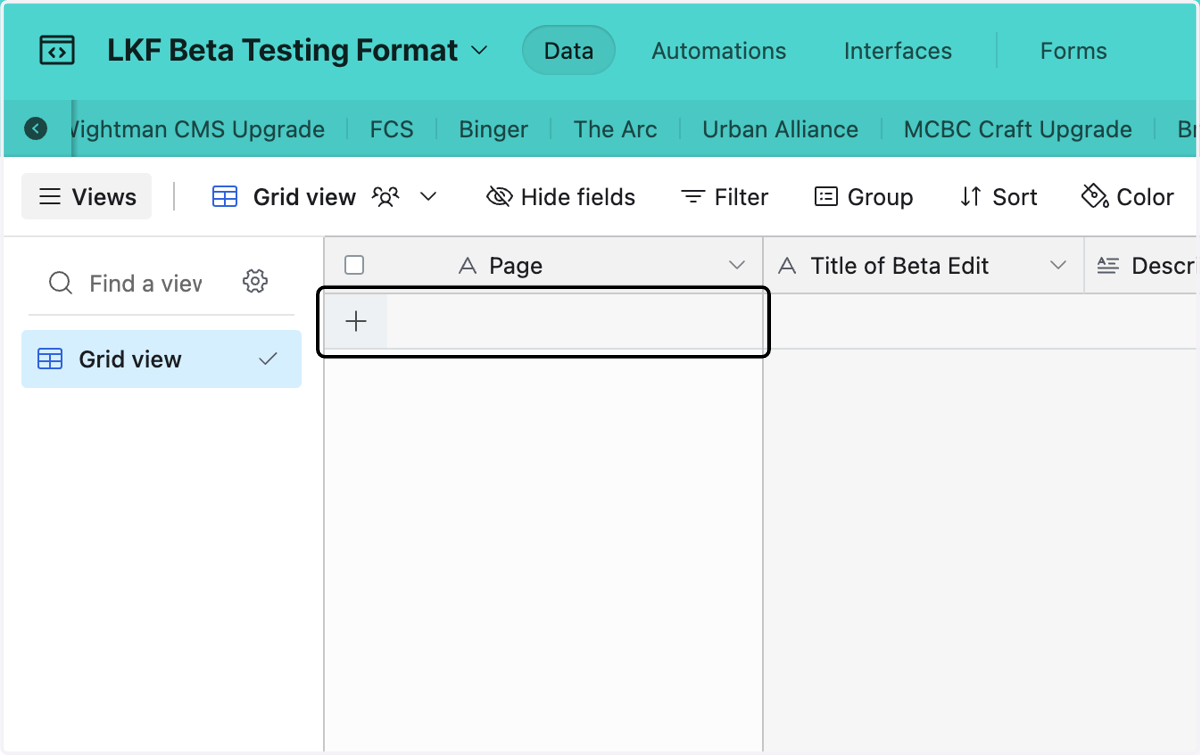
12. Type the name of the page you are making the task for, in this case "Home "
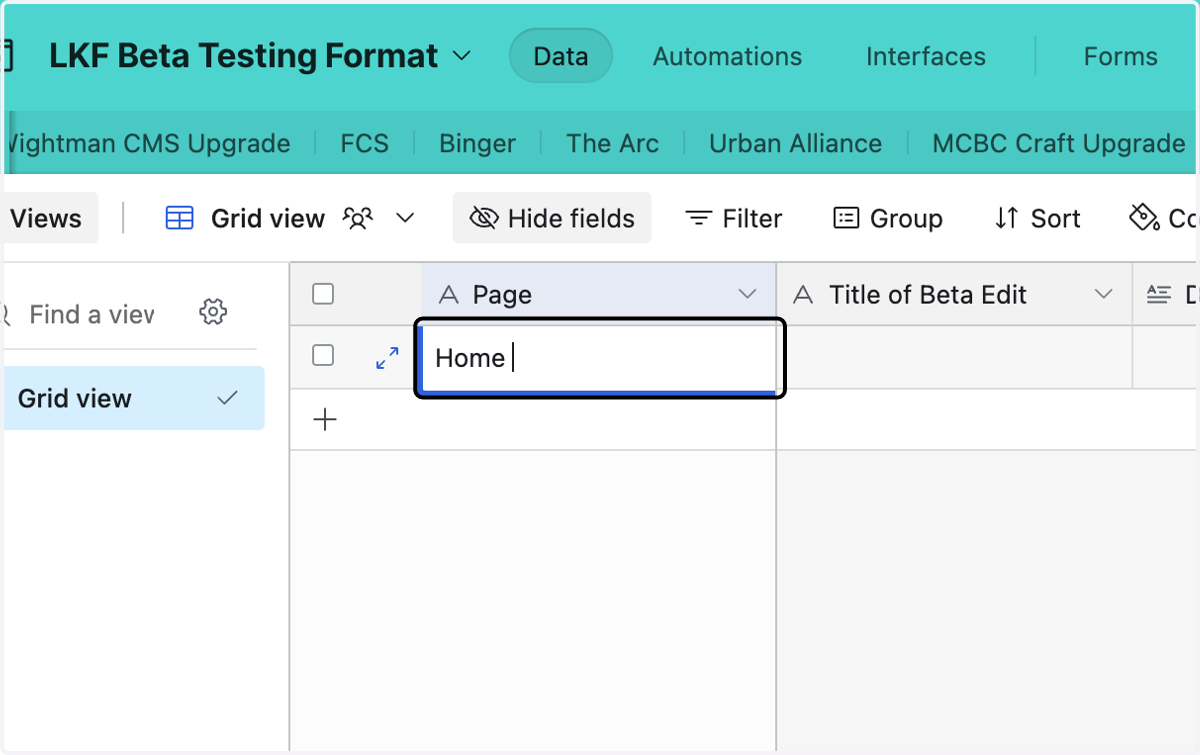
13. Add the title of the beta edit - keep it simple
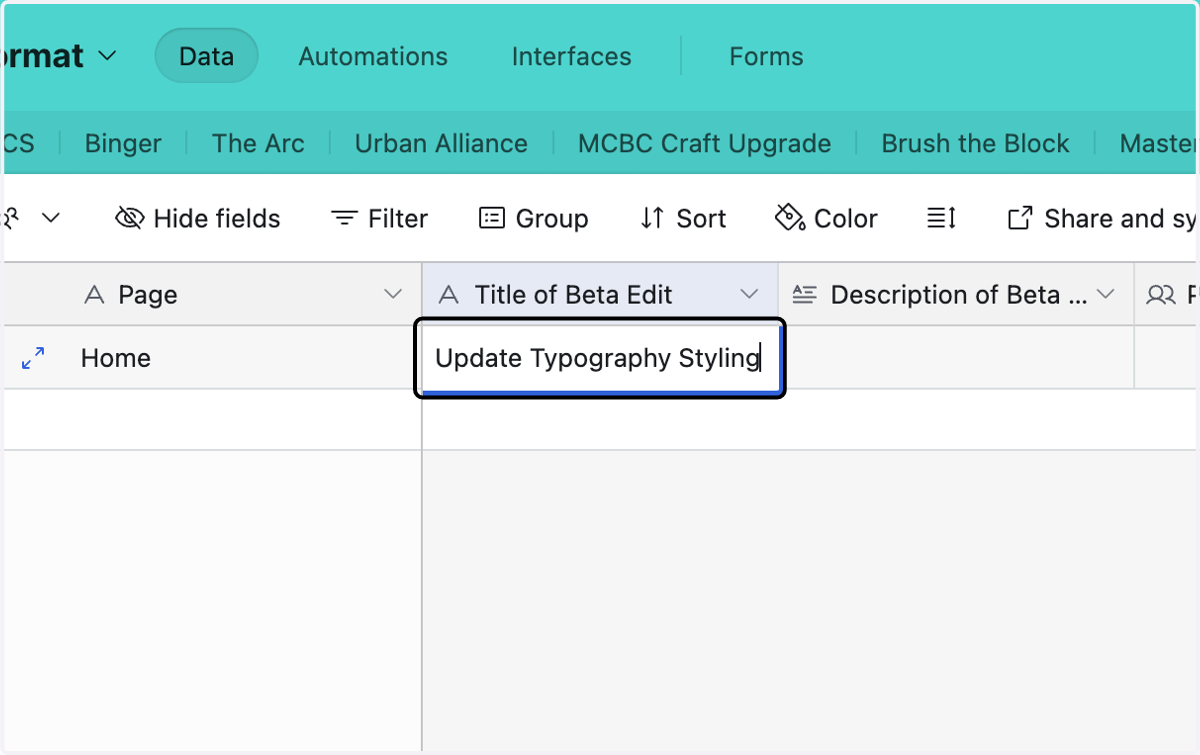
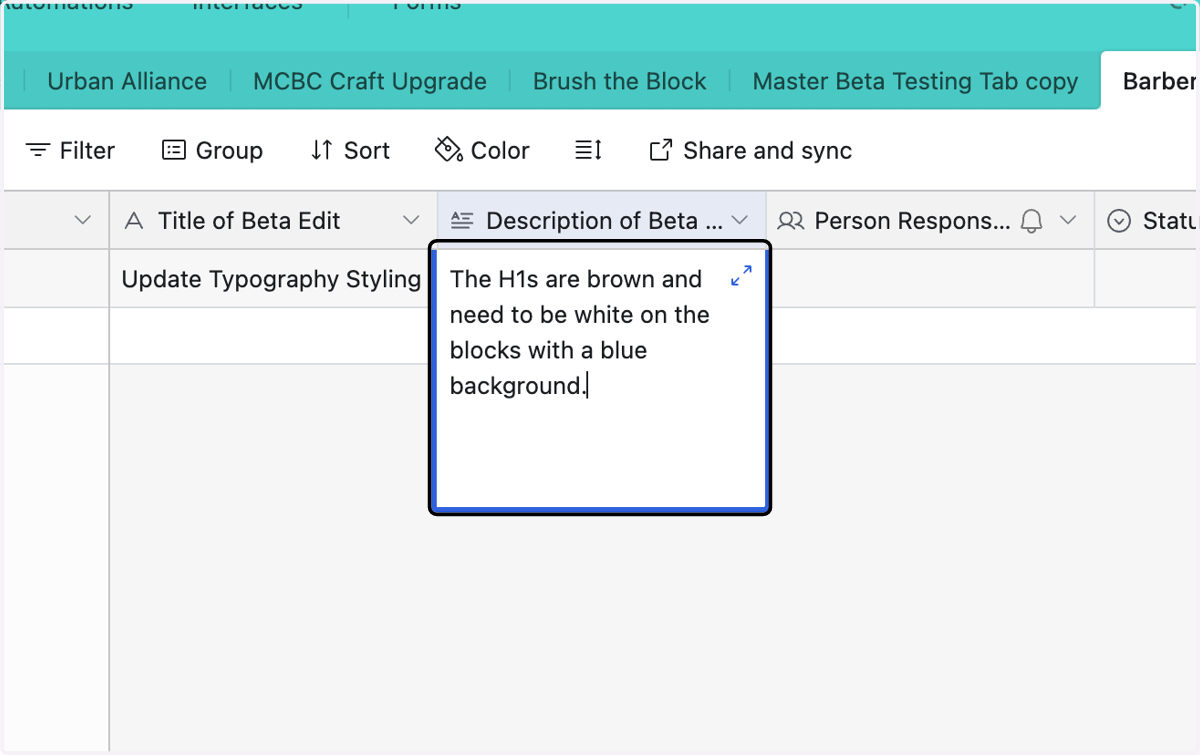
14. Add a more detailed description of the beta edit with specific instructions of what needs to change
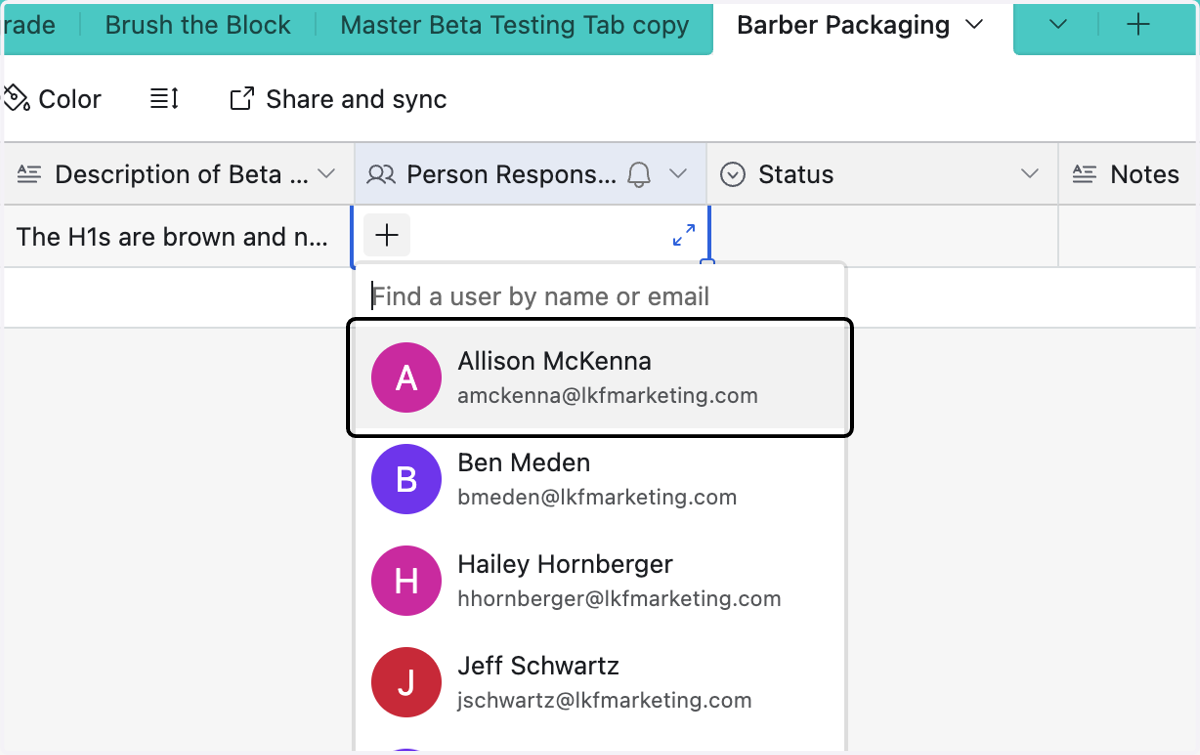
15. Click on the + to add a person, you can choose from the list or type in the person's name
16. Indicate what the status of the beta edit is, in this case To Do
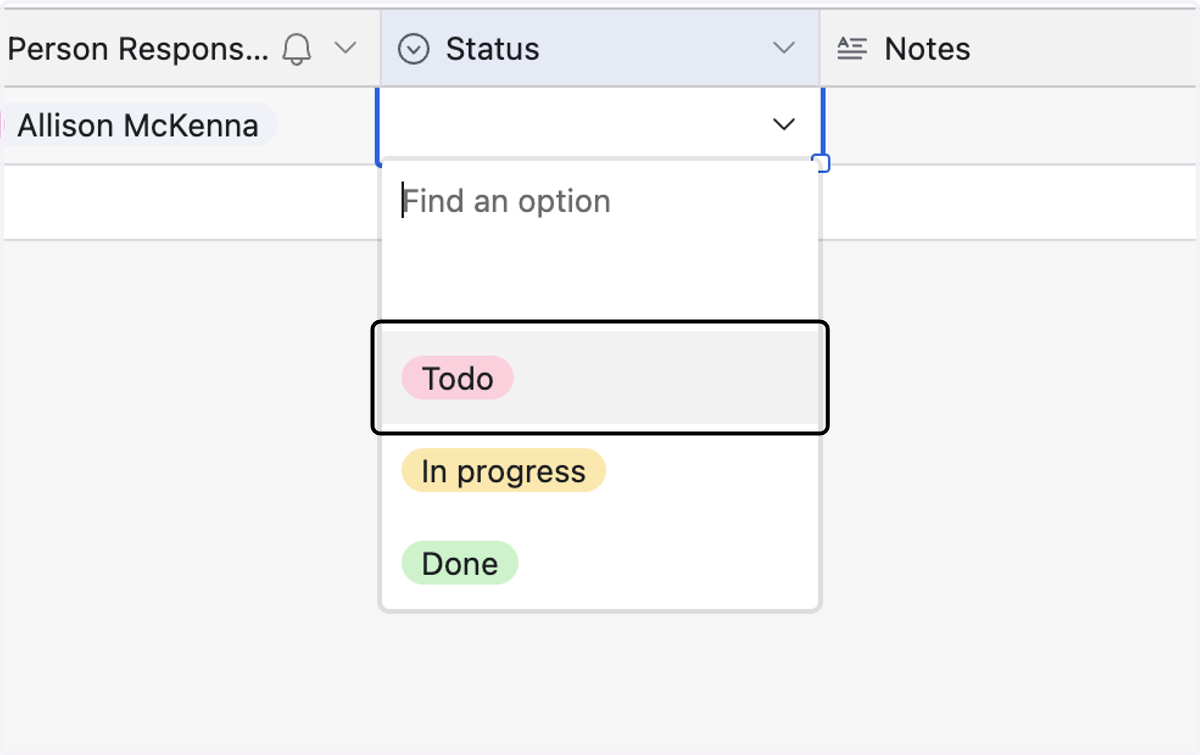
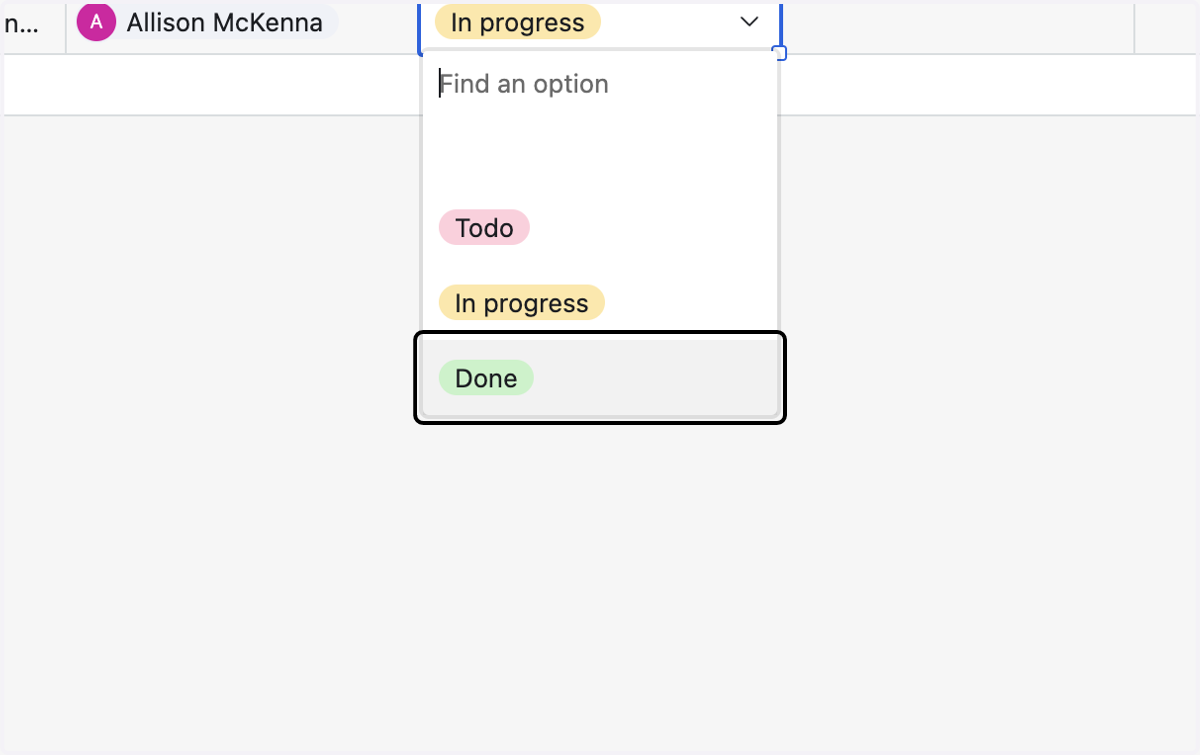
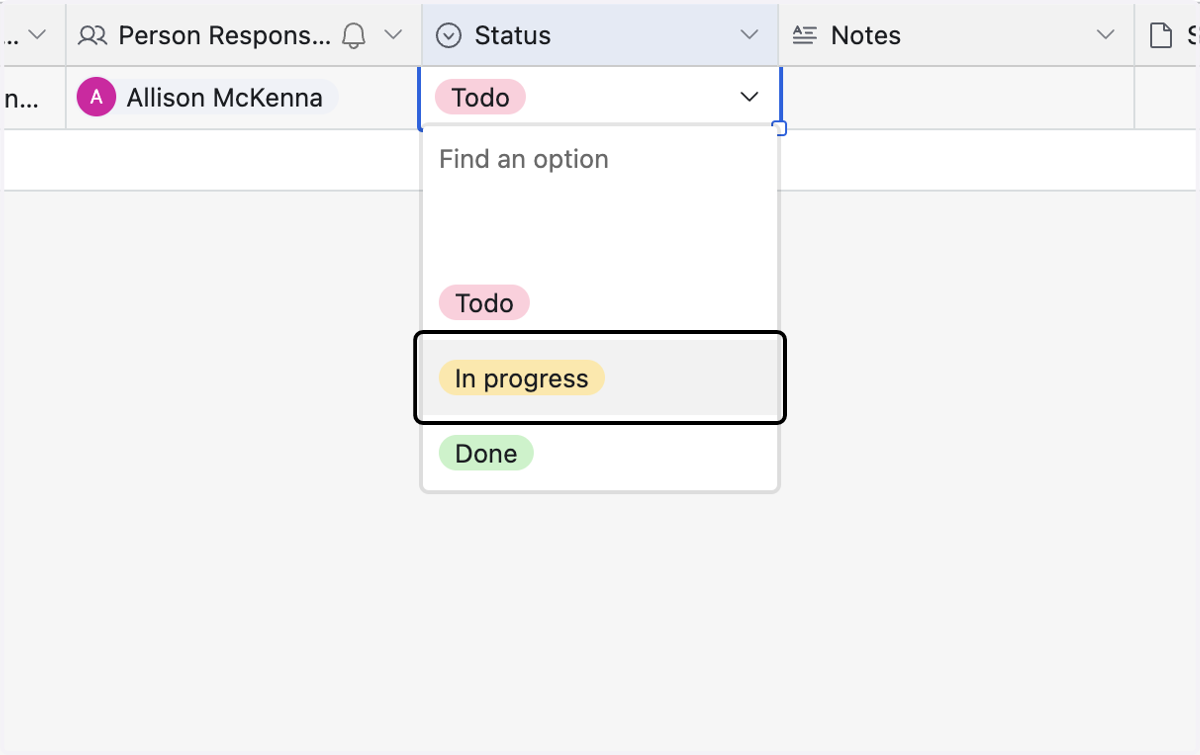
17. If you are assigned a task, you can change the status to In progress
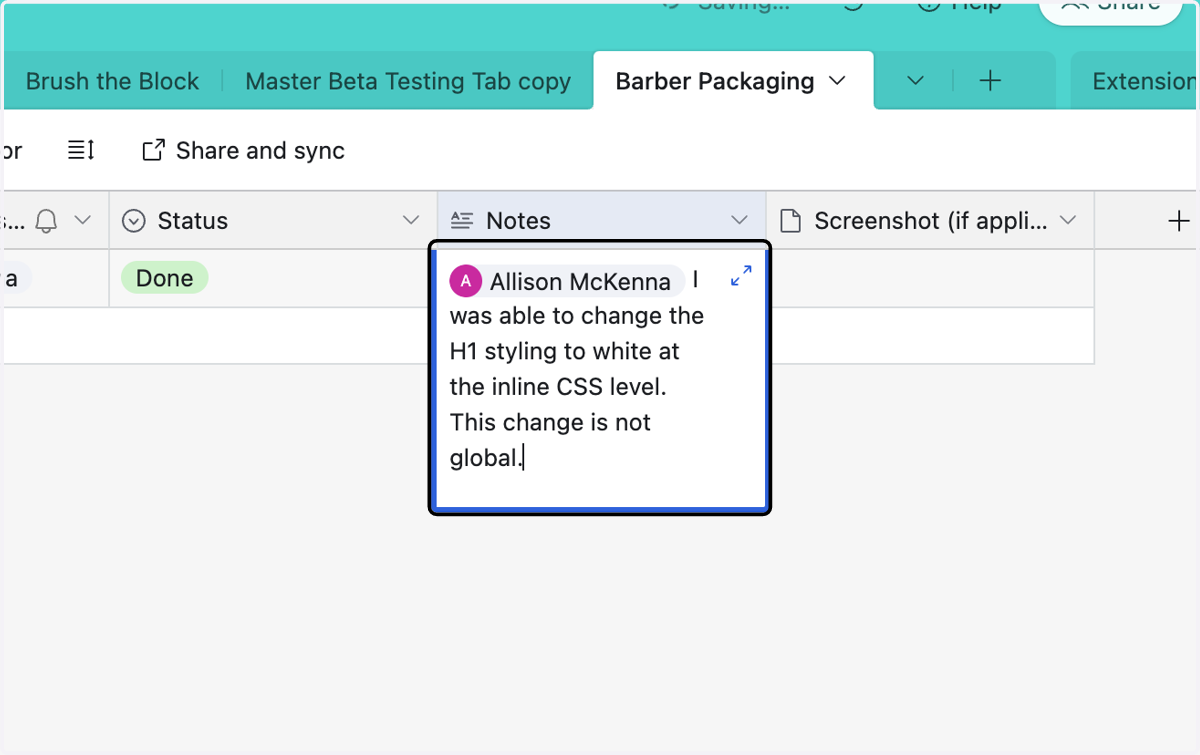
18. If you are stuck on an edit and need help or to pass the task to someone else with further instructions...first type @[name of person]

19. Type in your message, once you are finished adding content in that cell, the person tasked will receive an email from AirTable indicating they have a message.
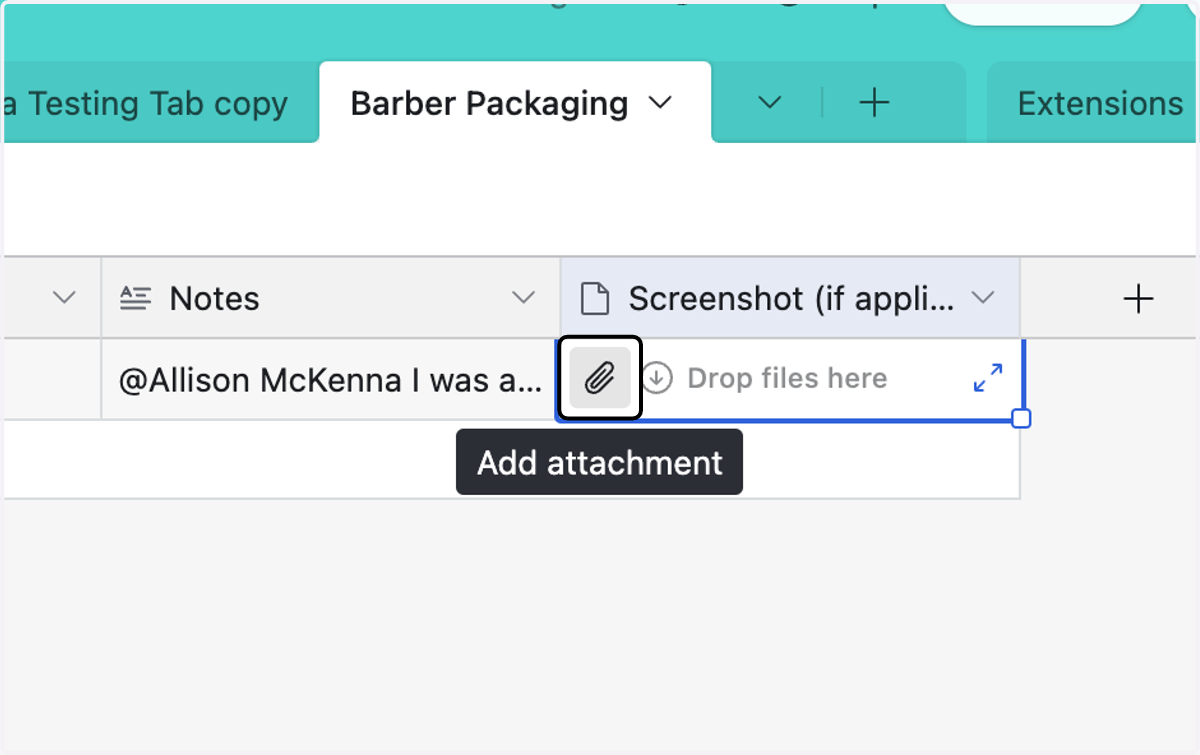
20. You can add a screenshot to help explain an issue by clicking on Add attachment
21. When the beta edit is complete, change the status to Done