Selecting brand colours and default fonts
In this tutorial, we will modify the primary appearance settings of your storefront, focusing on branding colours and font.
Infigosoftware
1. Our existing storefront
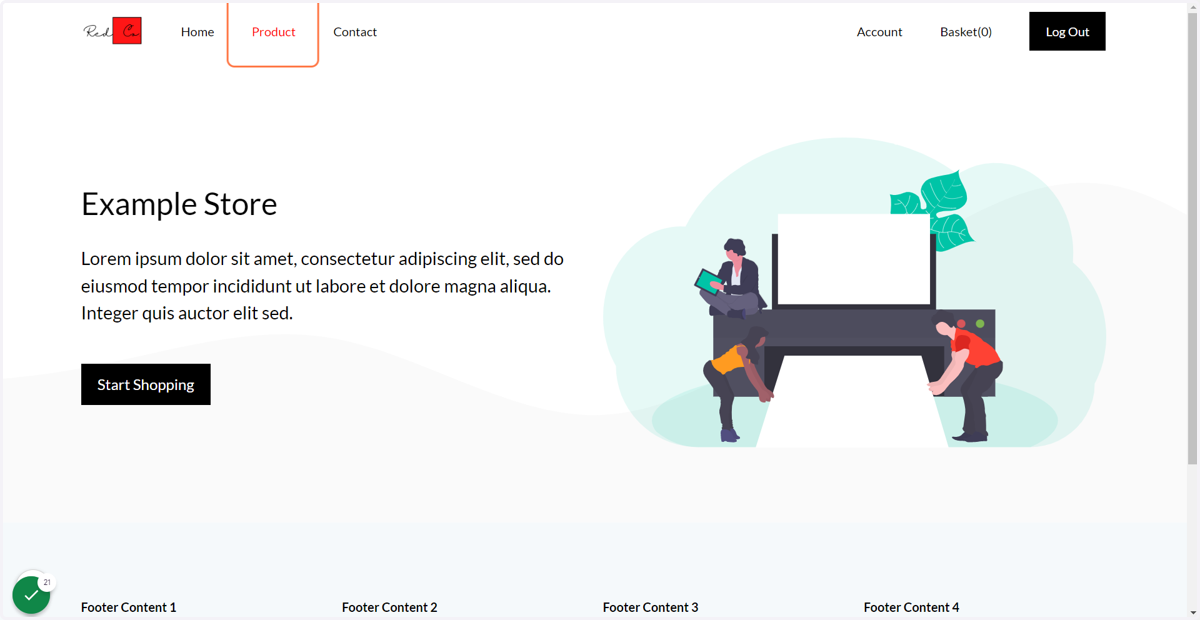
Below is an image of our existing storefront. Our logo has been applied, however the remainder of the branding is the storefront default.
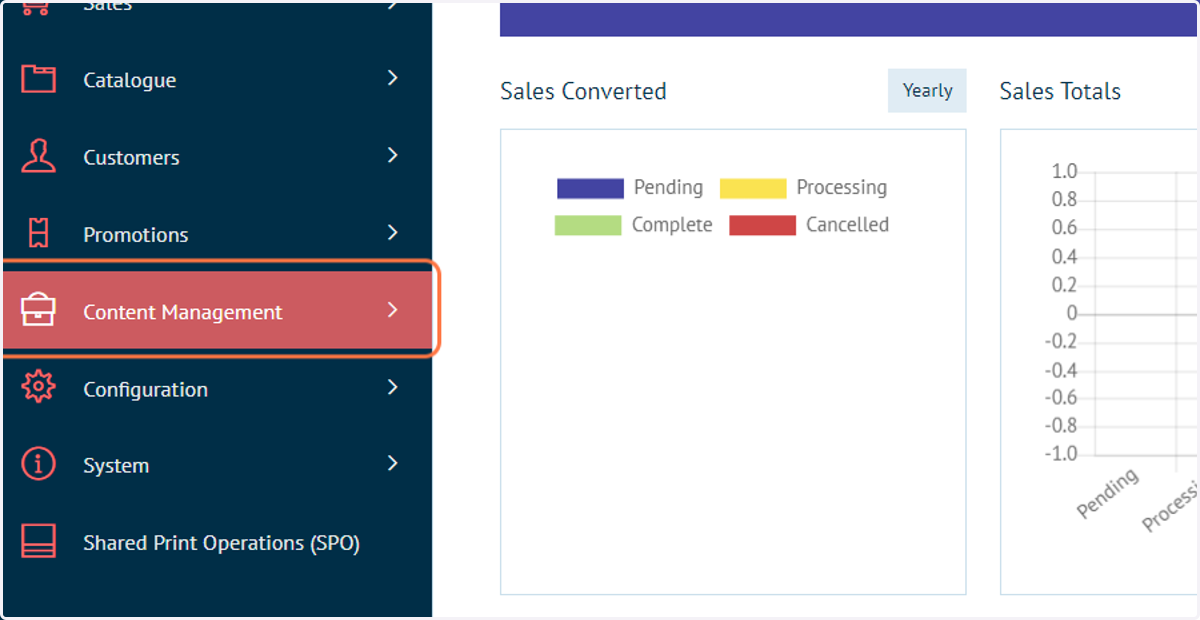
2. From Infigo admin, click Content Management
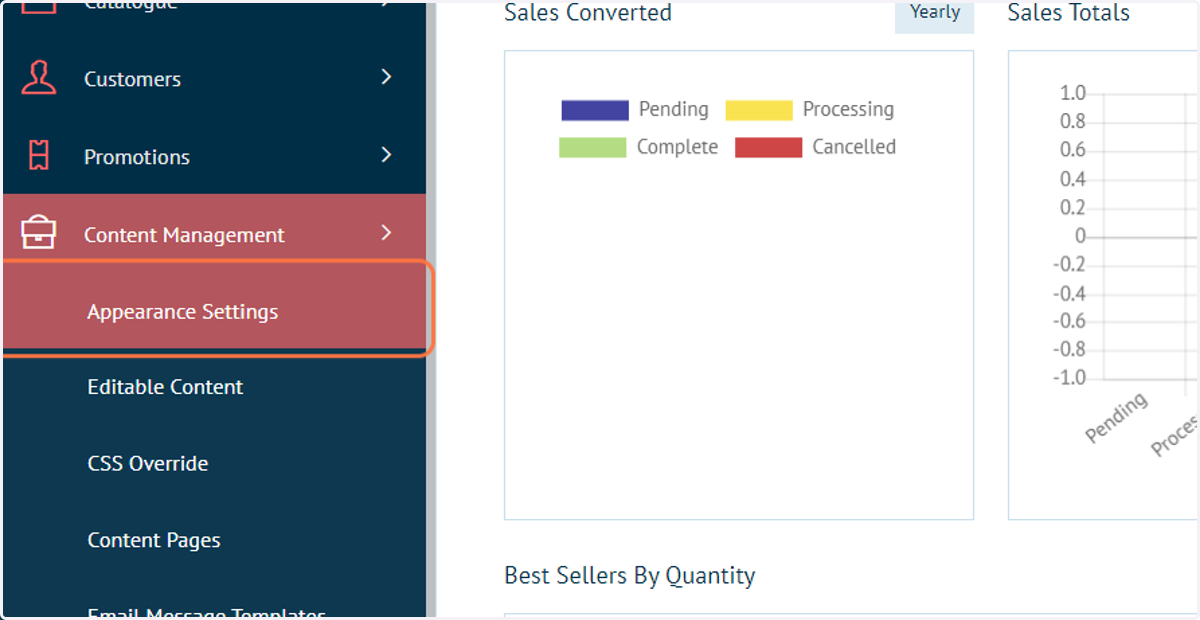
3. Click on Appearance Settings
4. The main colour and font settings are controlled in the Manage Theme window
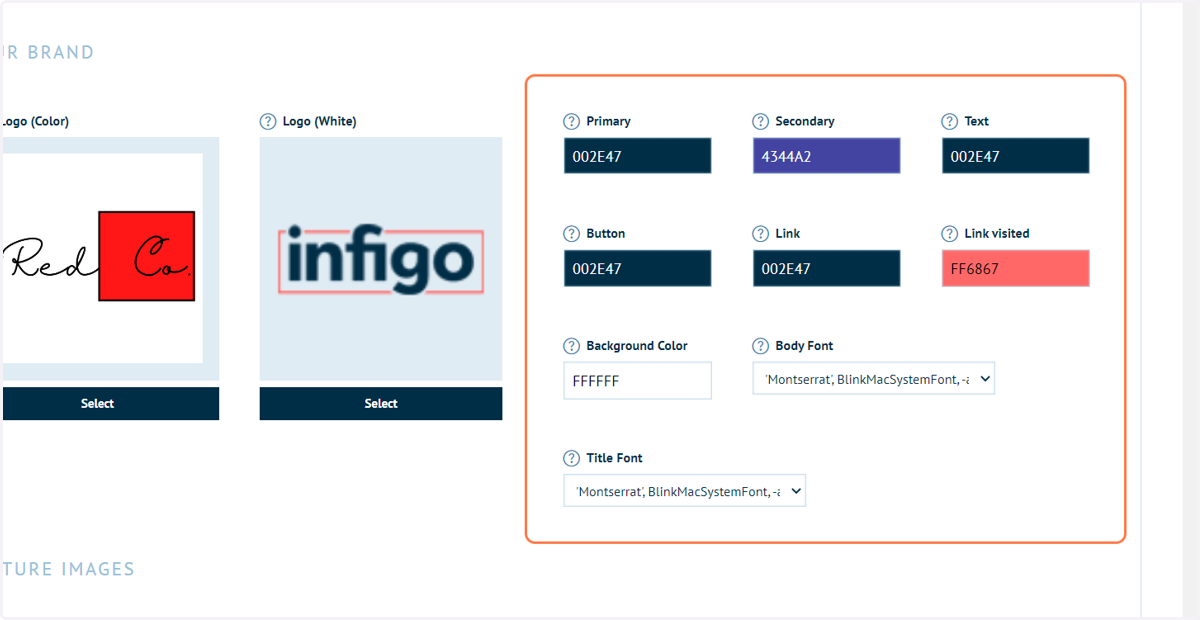
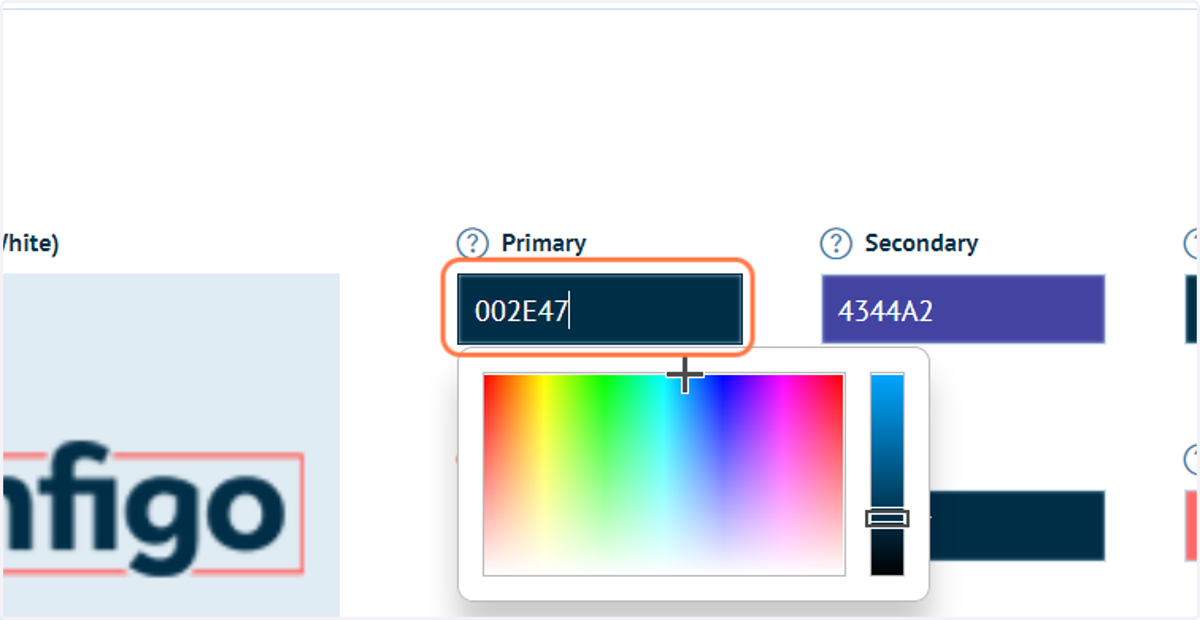
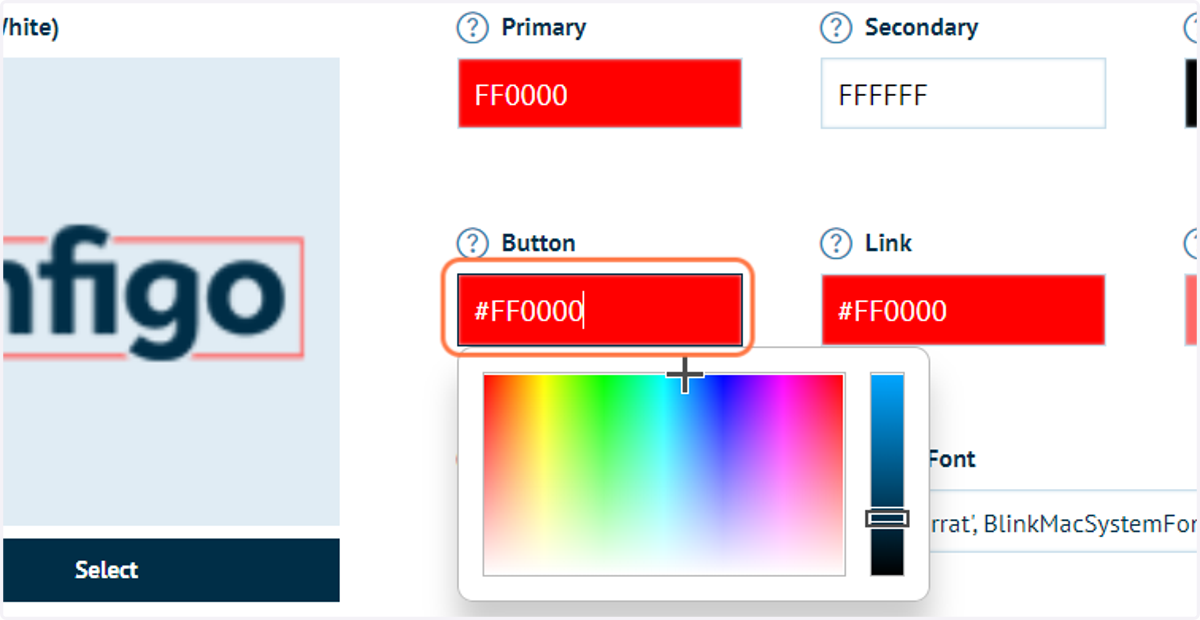
5. Define your primary colour with a hex value or using the colour picker
Primary and secondary colour will result in automatic changes to several other colour options. Those can be defined individually when required.
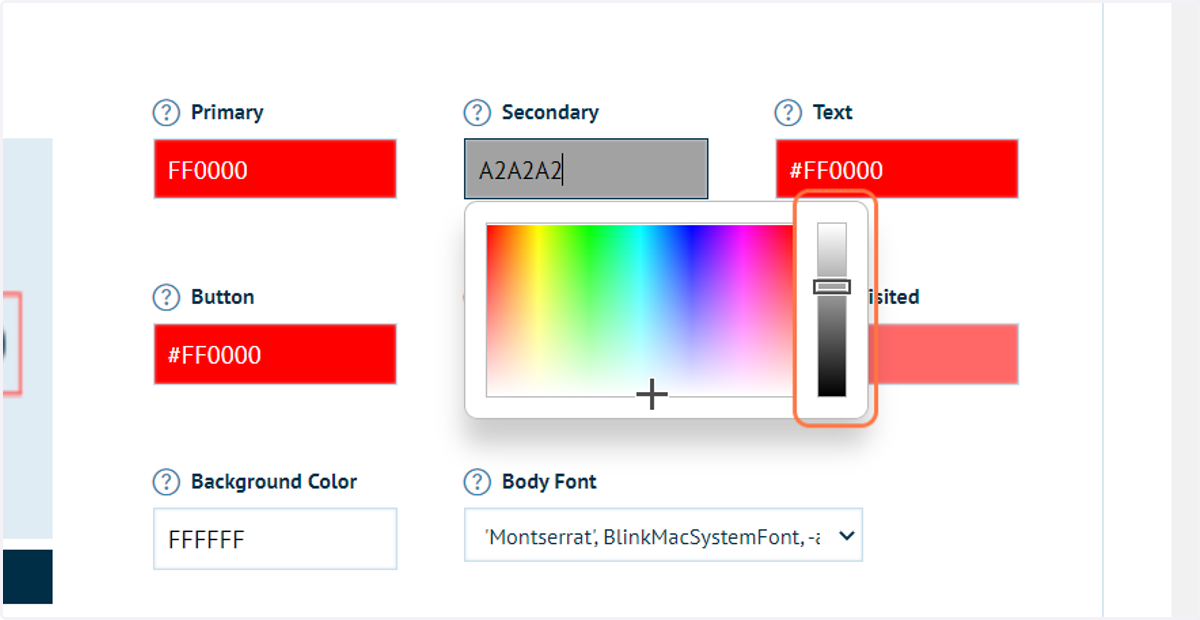
6. Define your secondary colour with a hex value or using the colour picker
Primary and secondary colour will result in automatic changes to several other colour options. Those can be defined individually when required.
Infigosoftware
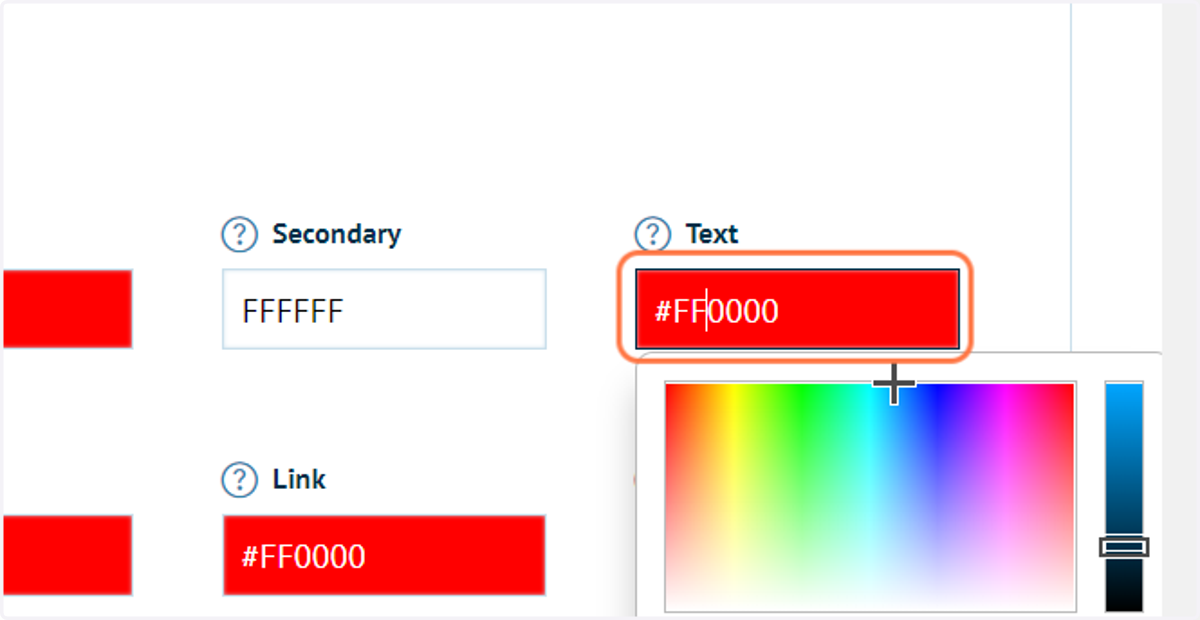
7. Define your text colour with a hex value or using the colour picker
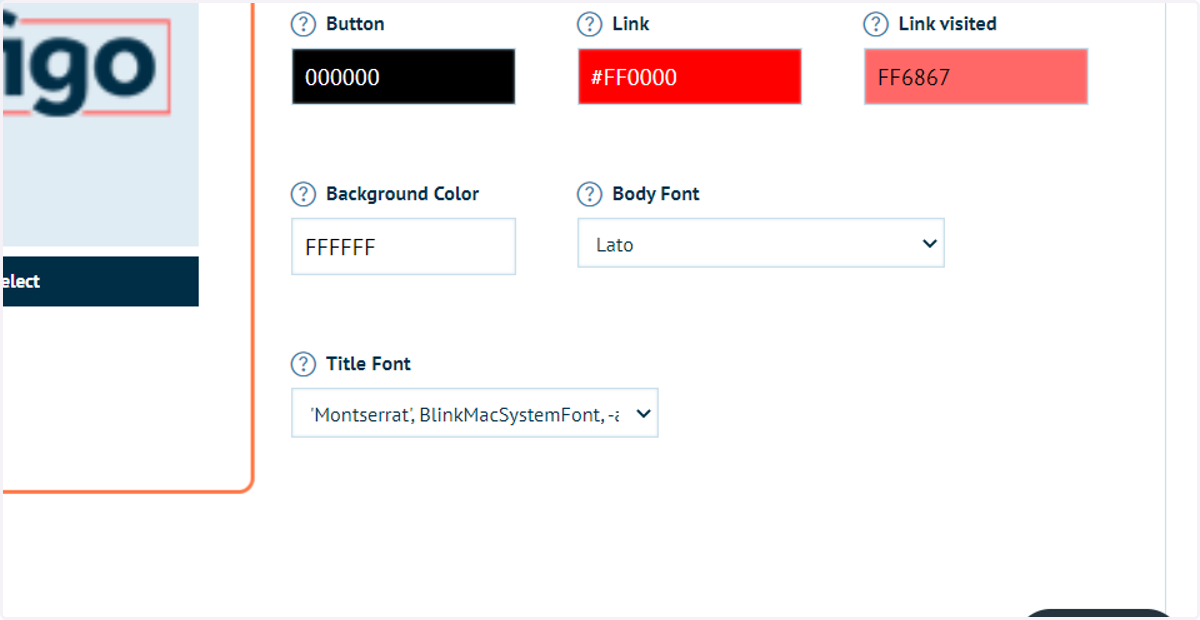
8. Define your button colour with a hex value or using the colour picker
9. Select your desired font
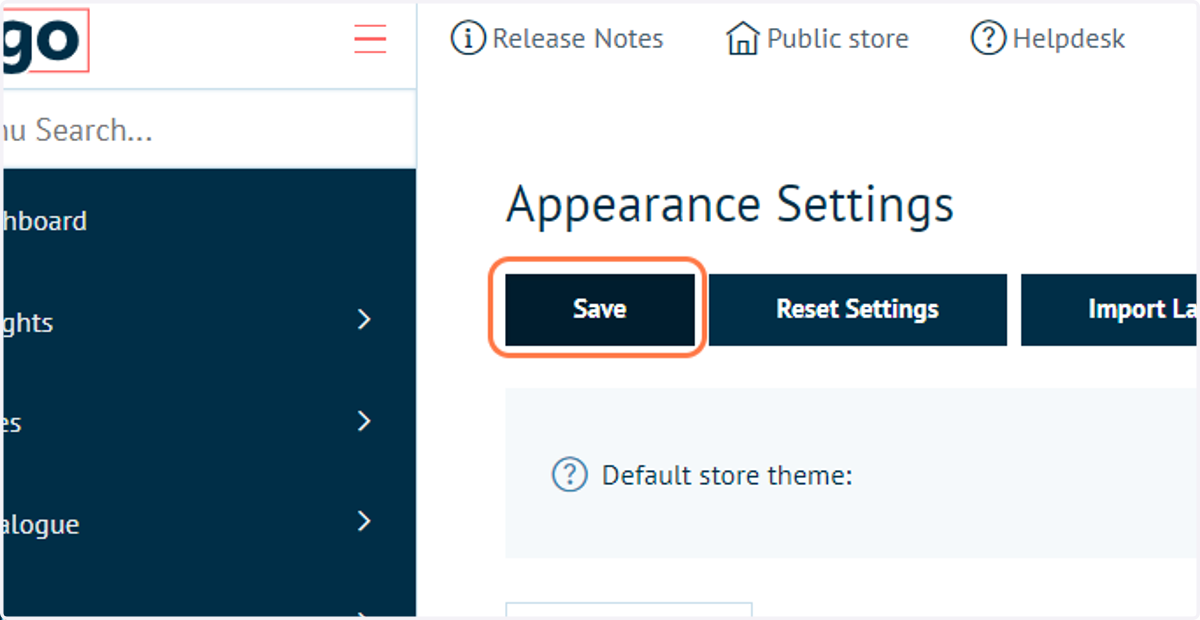
10. Click on Save
Infigosoftware
11. Click on Public store
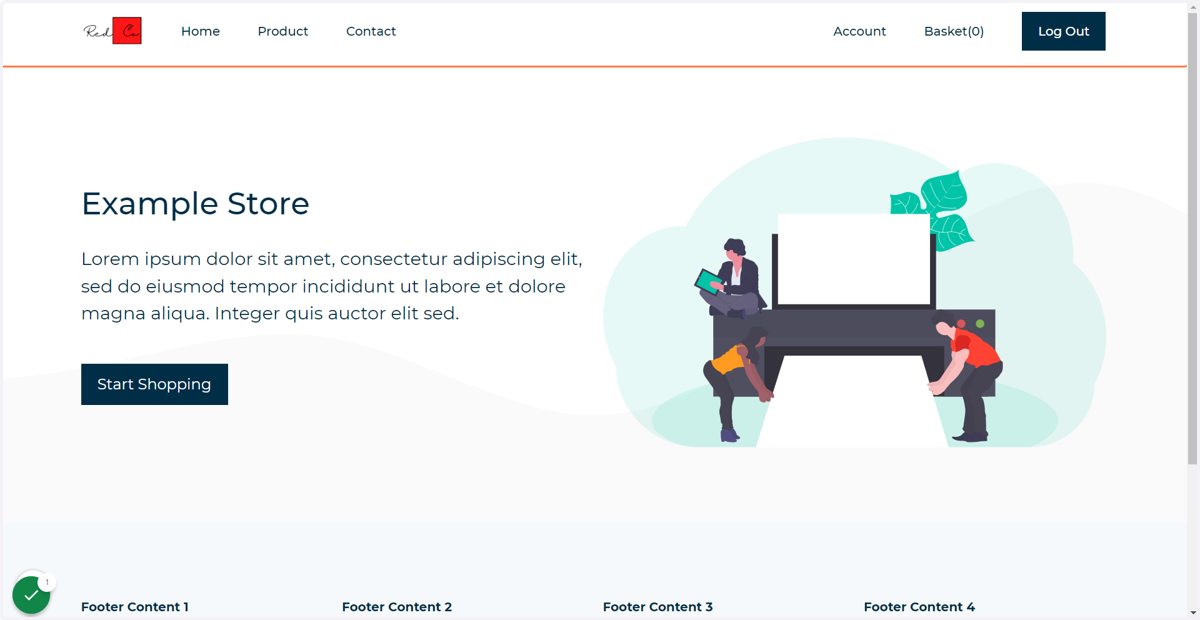
12. Your storefront will be using your updated appearance settings