WooCommerce Products
How to edit & update your WooCommerce Products
Clarewhiteart
1. Go to Dashboard ‹ Clare White - Local Artist — WordPress
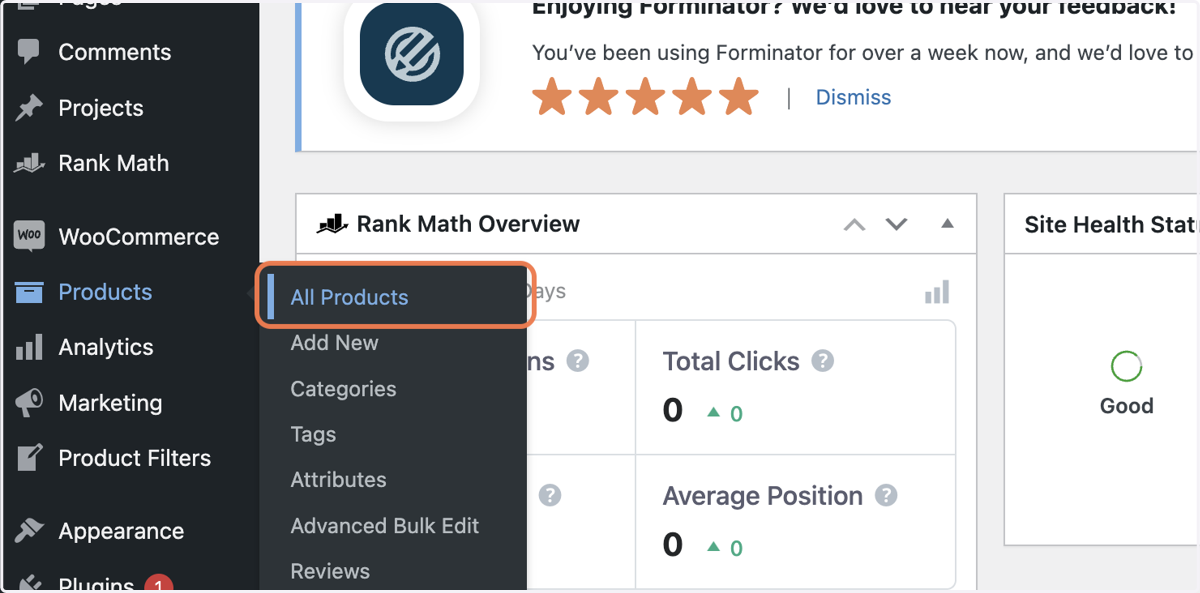
2. Click on All Products
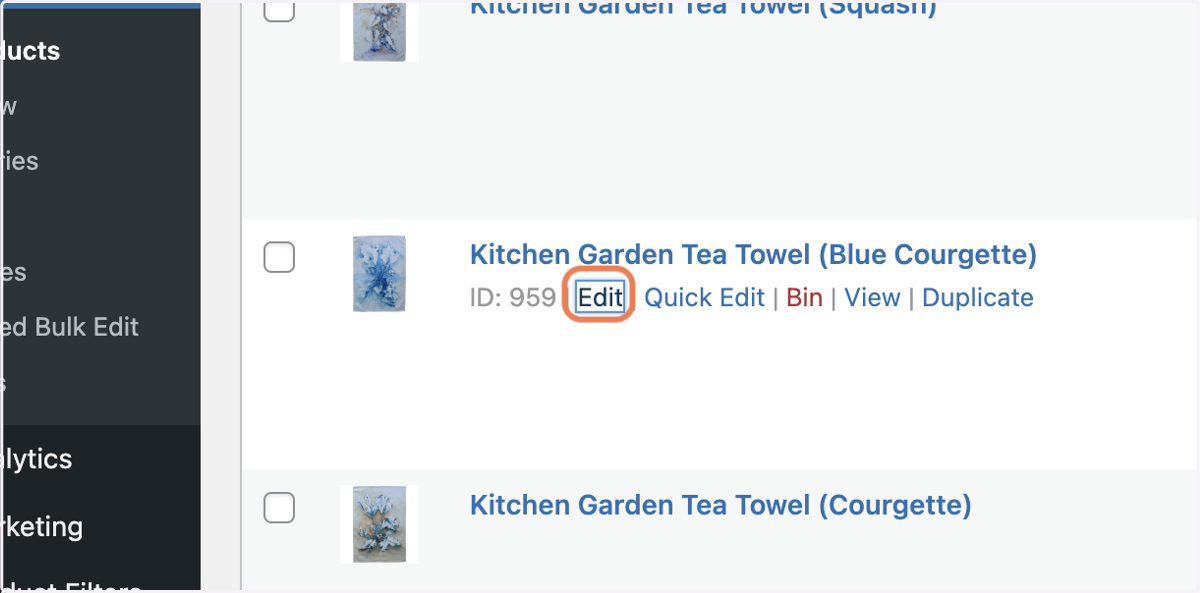
3. Click on Edit
Choose the product you want to edit
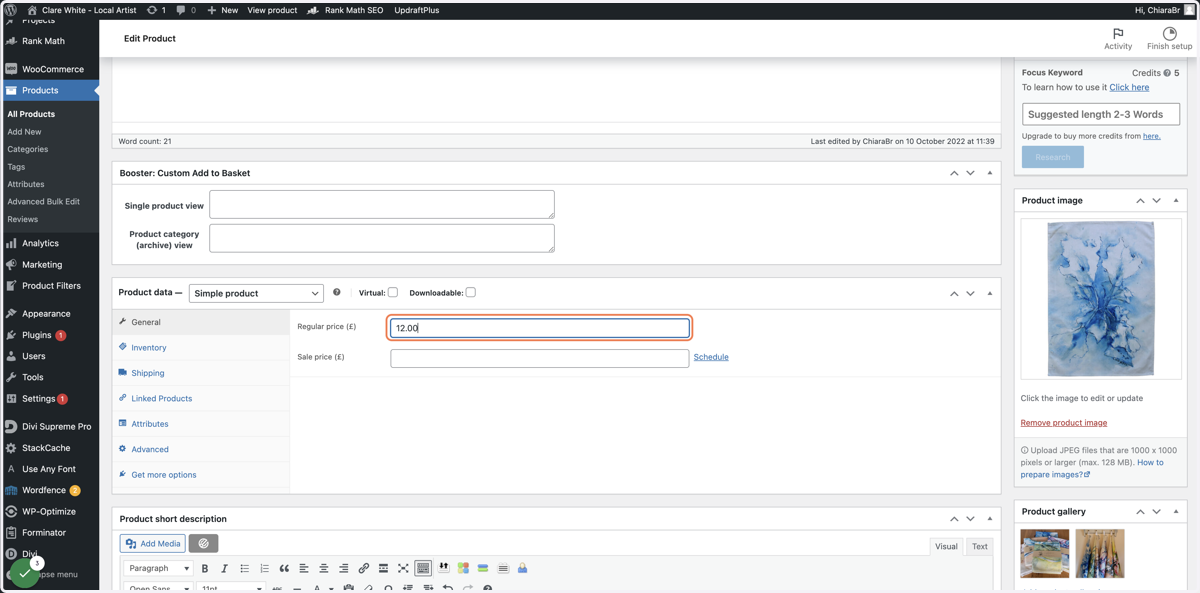
4. Update the Price
Scroll down to Product Data
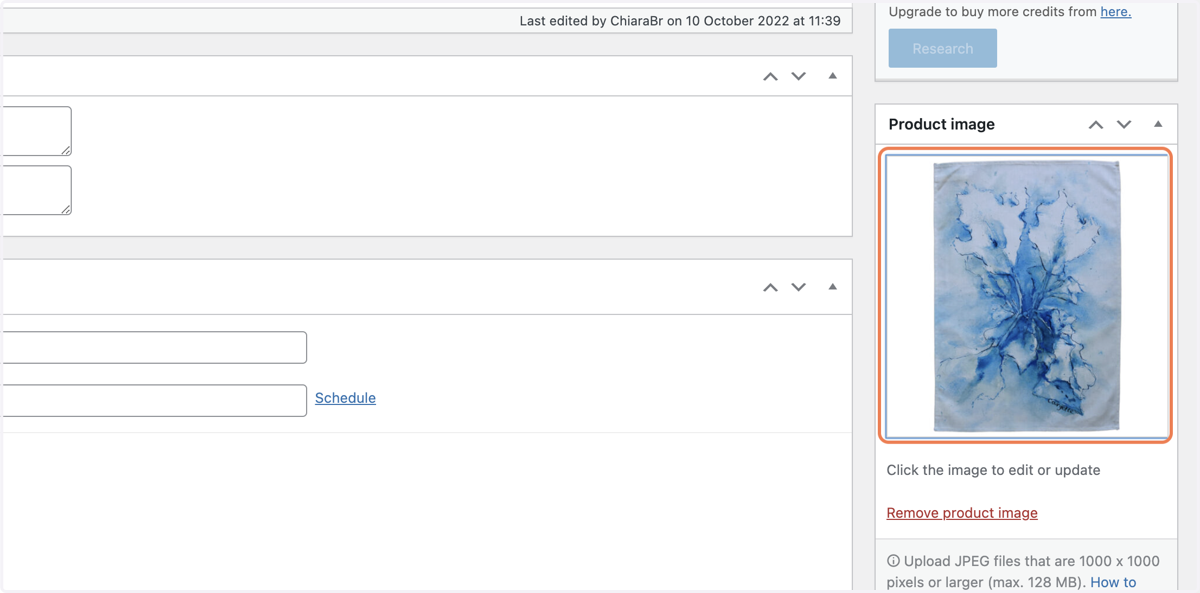
5. To change the product image
Look in the right-hand column and click on the image to edit or update
6. Choose a new image from the image library
if you need to upload a new image, click on the UPLOAD FILES tab at the top & select an image from your computer. Images MUST be square & 800x800px
You should also ensure they are optimised for the web so that they aren't larger than 100kb. For more info on how to do this, please read this article: https://chiarabroom.co.uk/adding-new-images-to-your-website/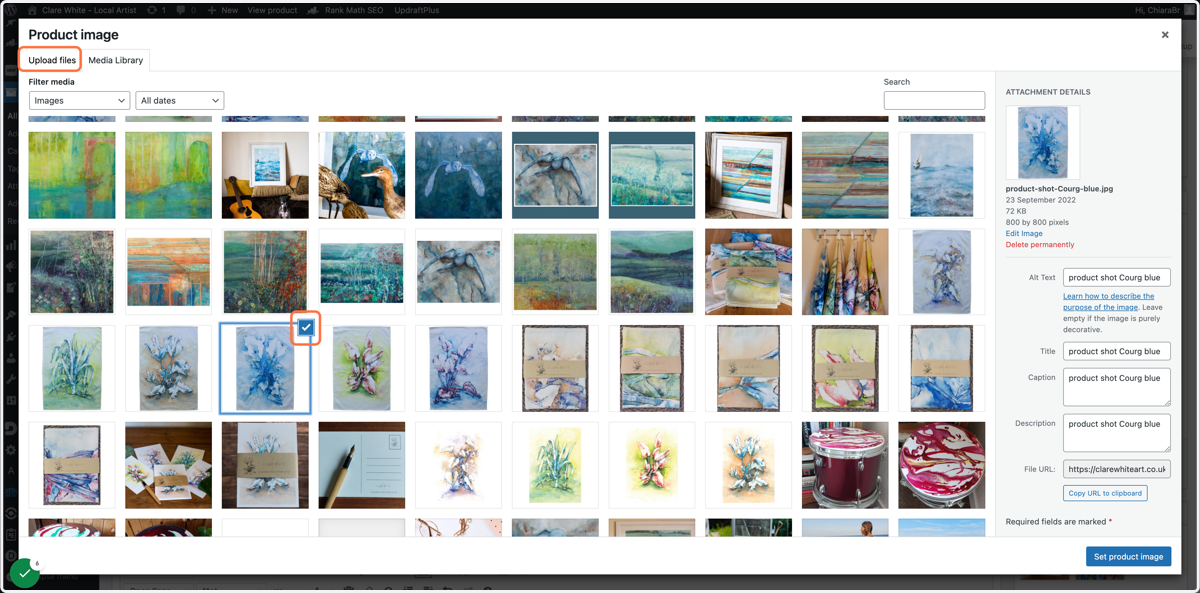
Clarewhiteart
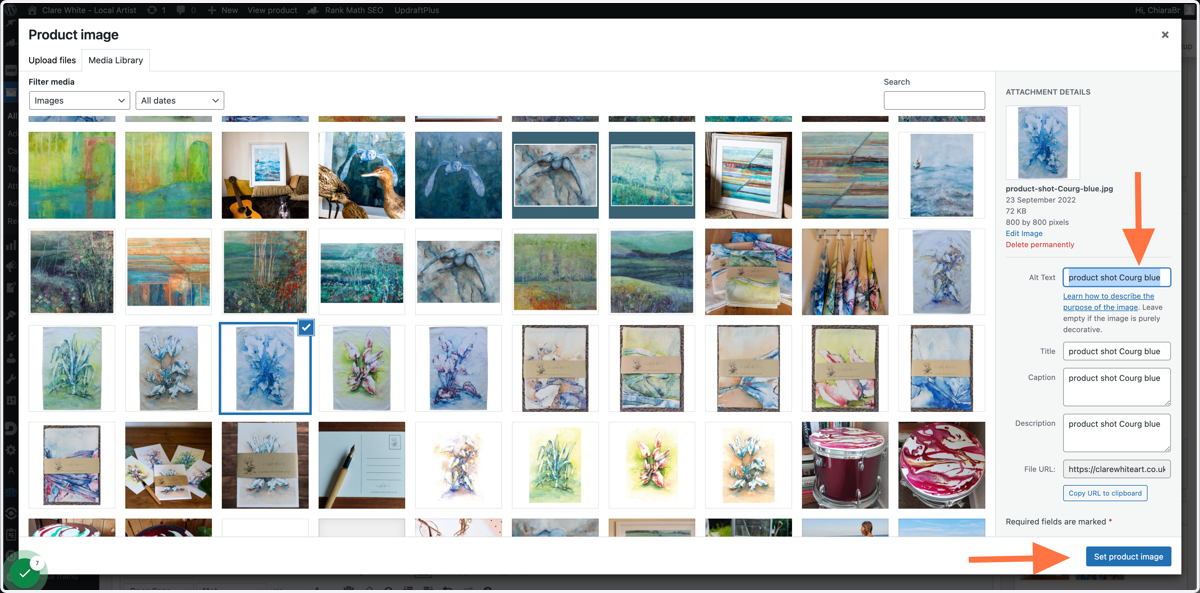
7. Add some keyword rich descriptive text here and click on Set Product Image
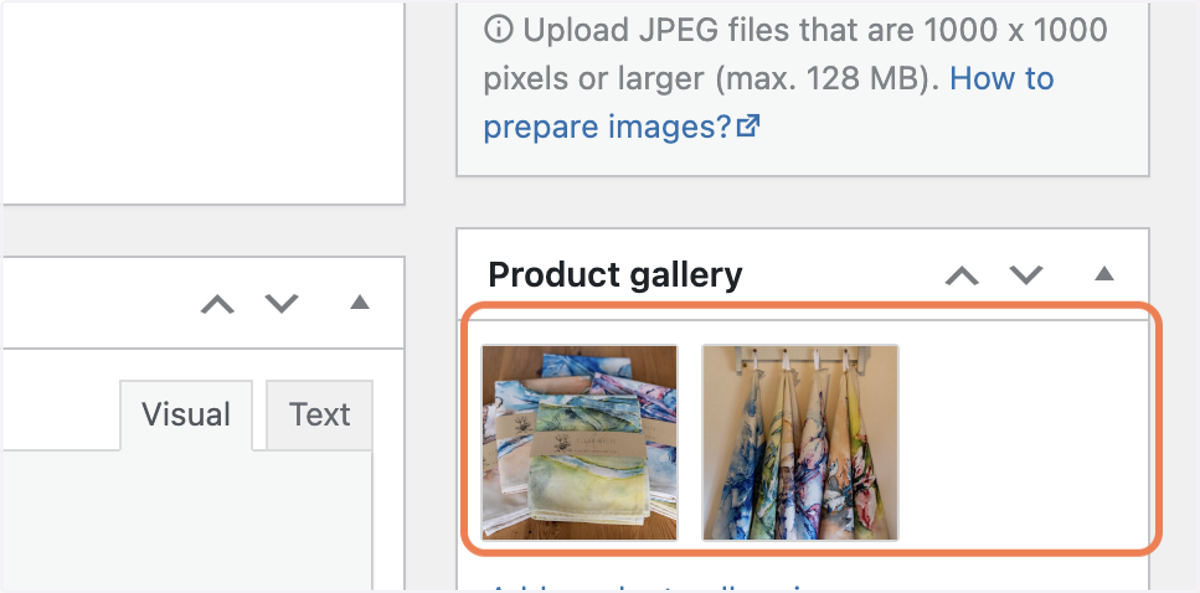
8. Click here to add or edit the images in the photo gallery.
then repeat step 7 above to save the images to the product
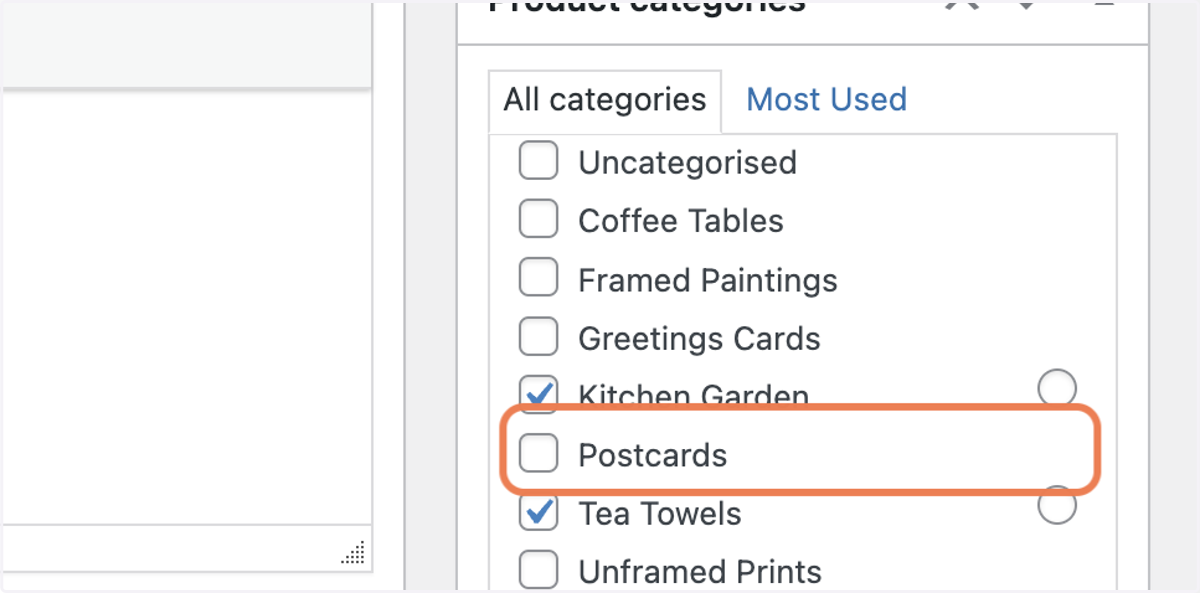
9. Change or update the product category so that it shows up in the correct place in your store
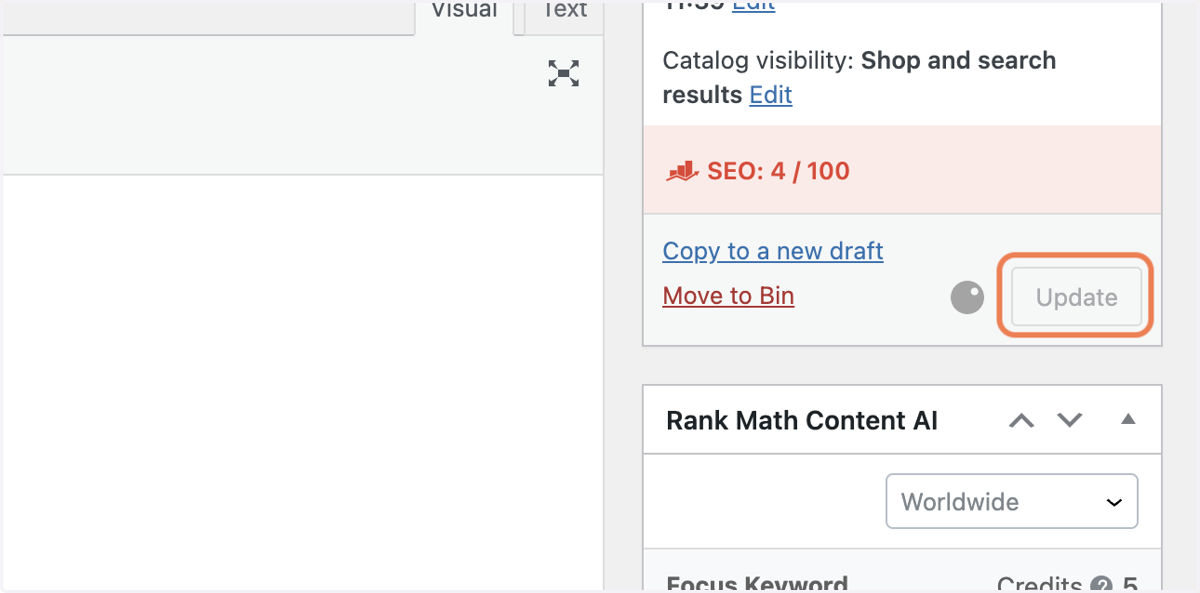
10. Click on "Update" to save your changes.
Then check on the live site to ensure they have saved correctly