5. ItsMiner Sitemap and Inspection
ItsMiner——Mining Monitoring Platform
1. In the inspection module, modeling the factory rooms, racks (or containers) and mapping to actual position, to achieve mining machine data statistics and status management related to real locations.
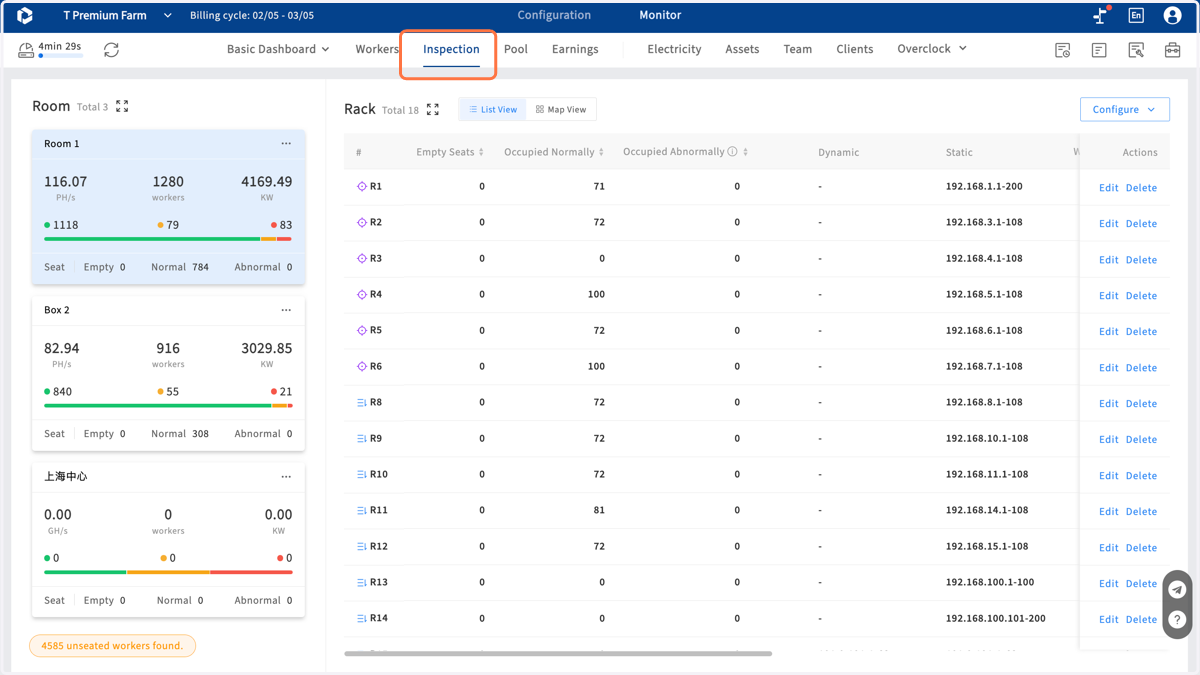
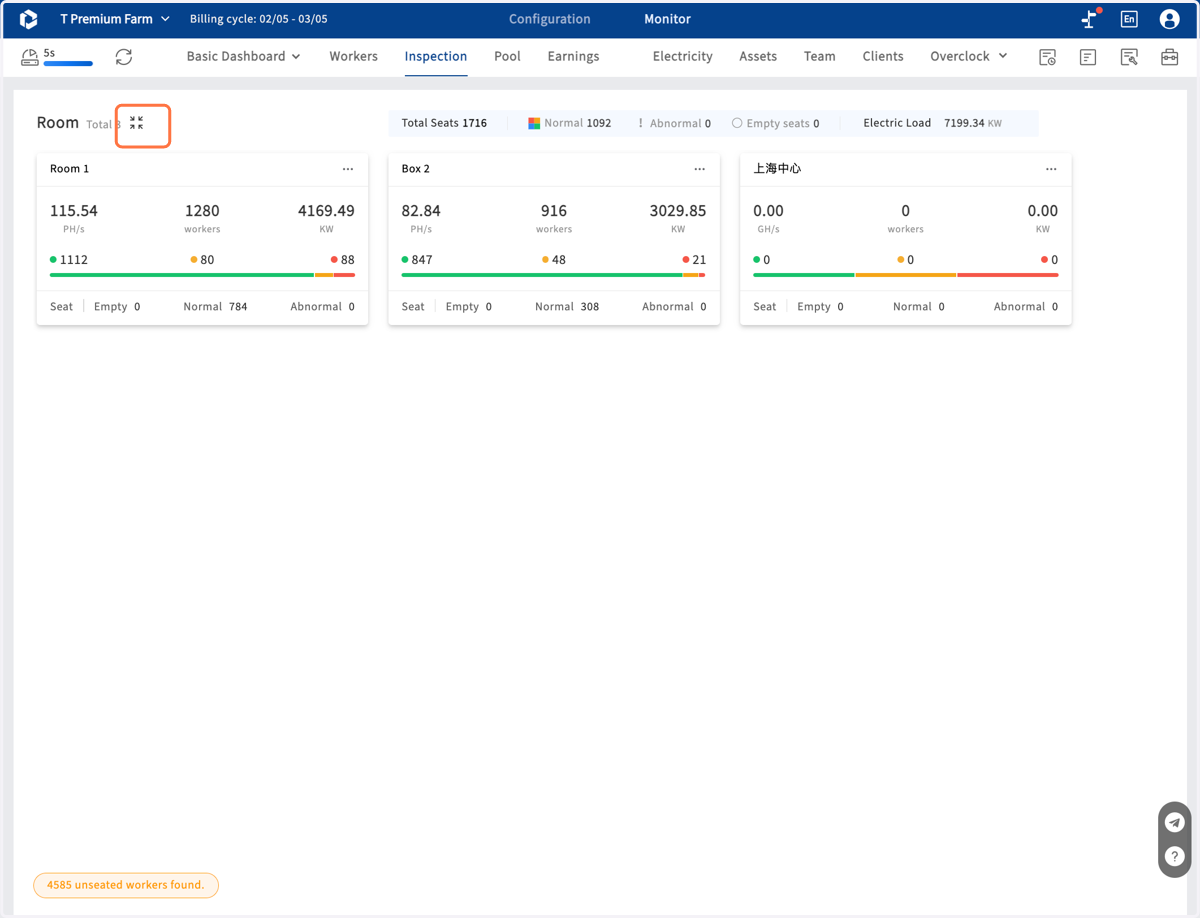
2. You can expand the room view to fullscreen
3. Also you can expand the rack view to fullscreen
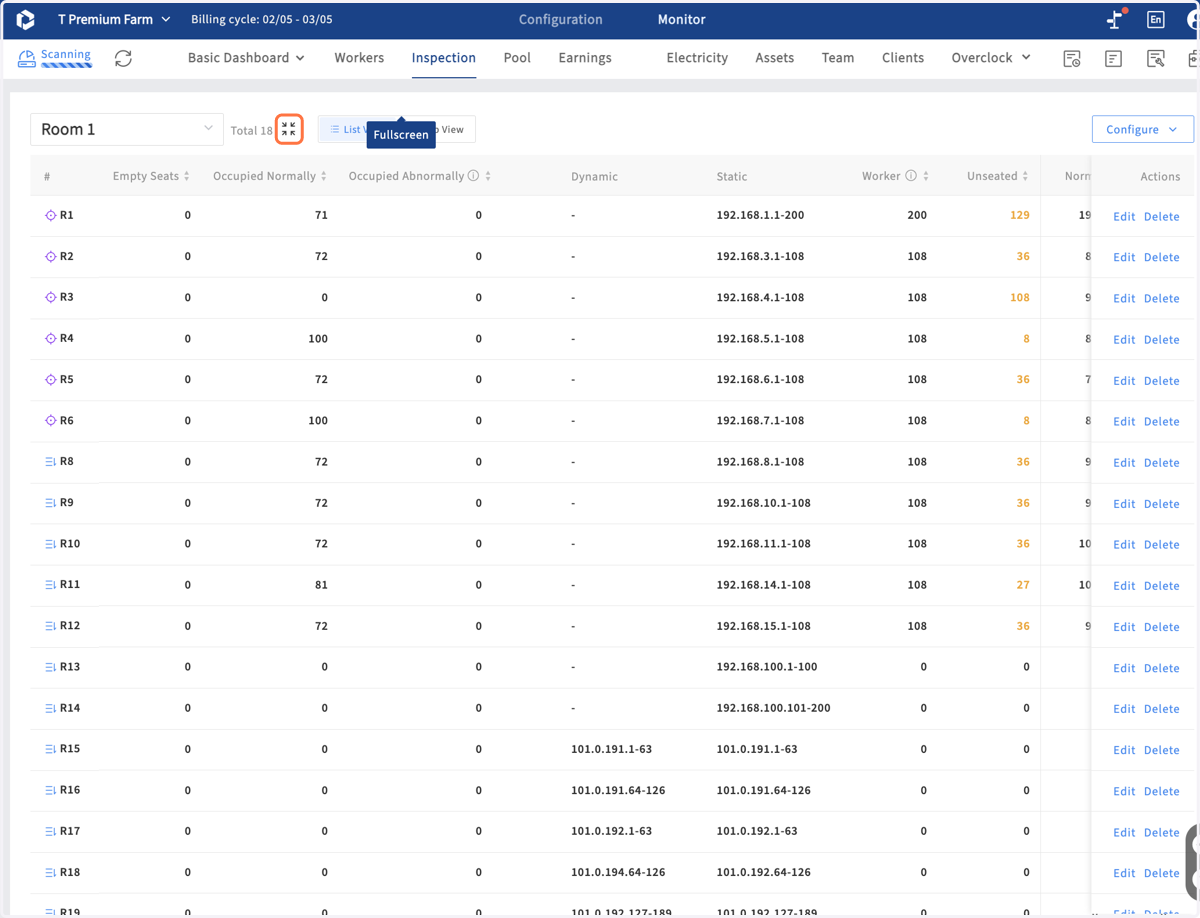
4. List view and map view
List view show some attributes and statistic data for each rack,like IP, miner quatity,power load, seat occupancy situation,etc.The map view displays the location, status, and rack position of all mining machines. These correspond one-to-one with reality
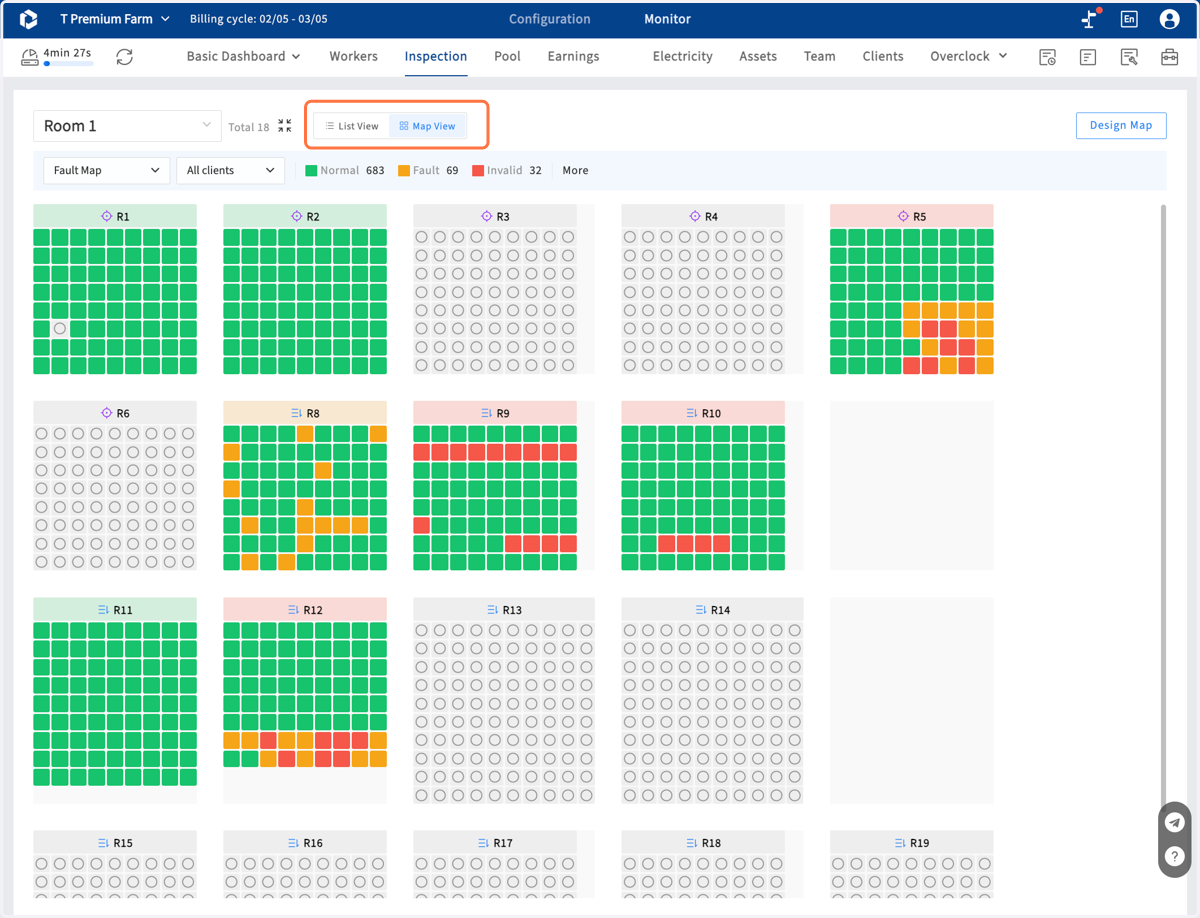
5. Select room to show the map of this room
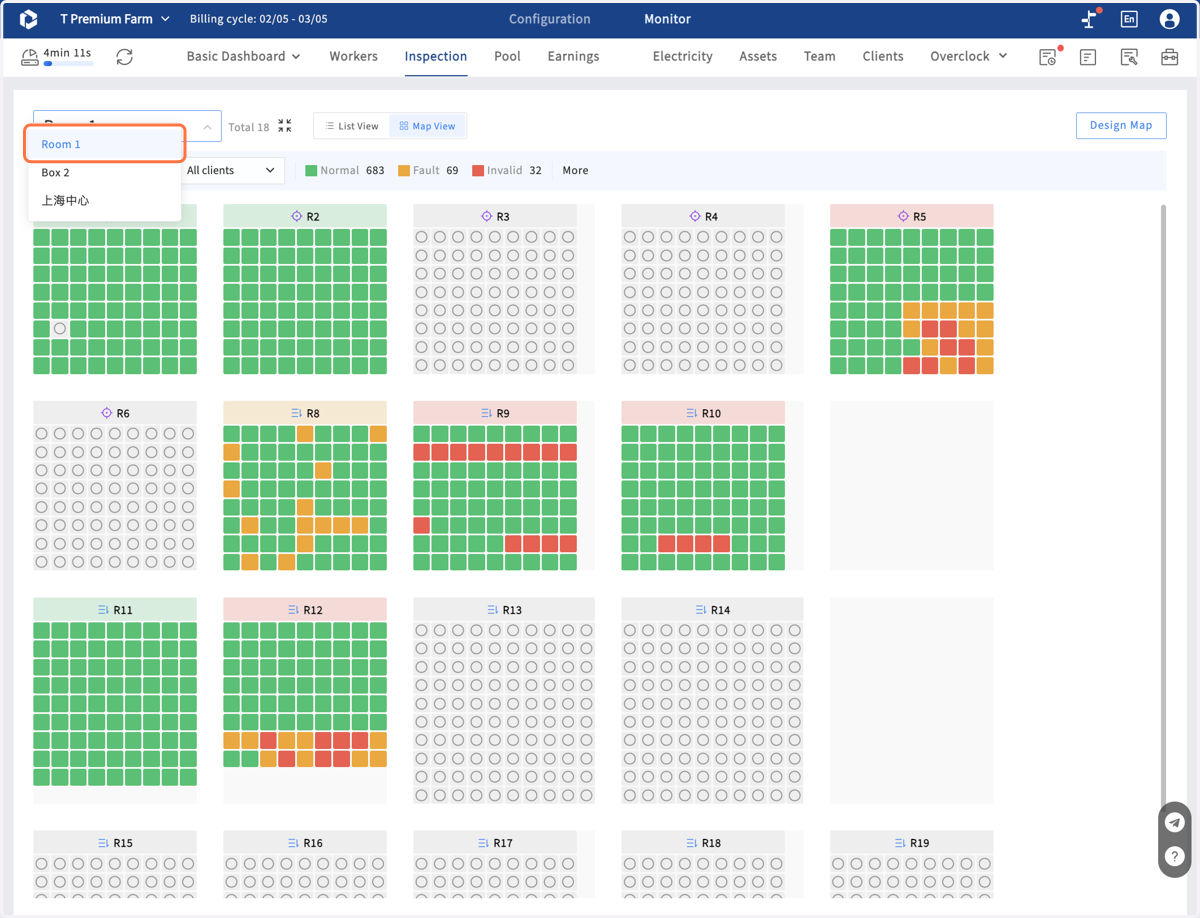
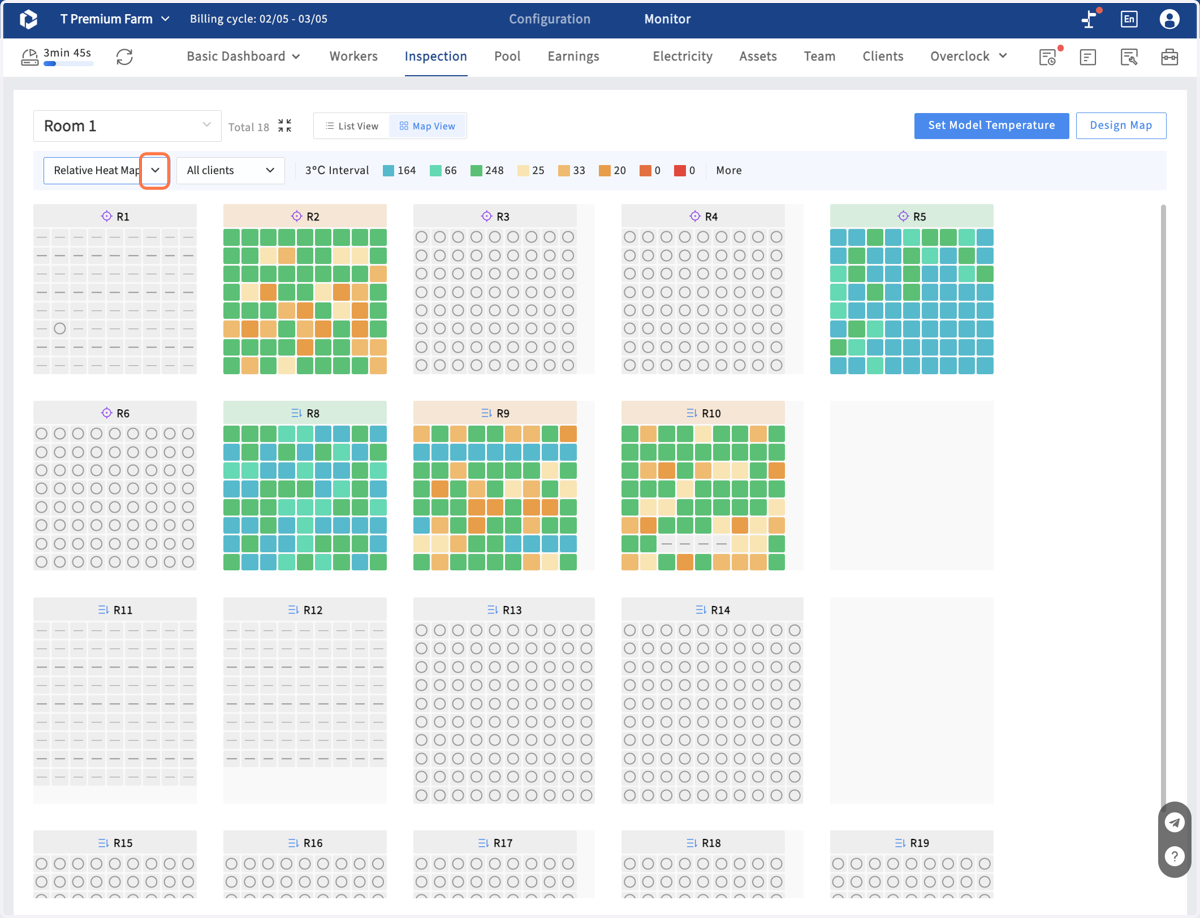
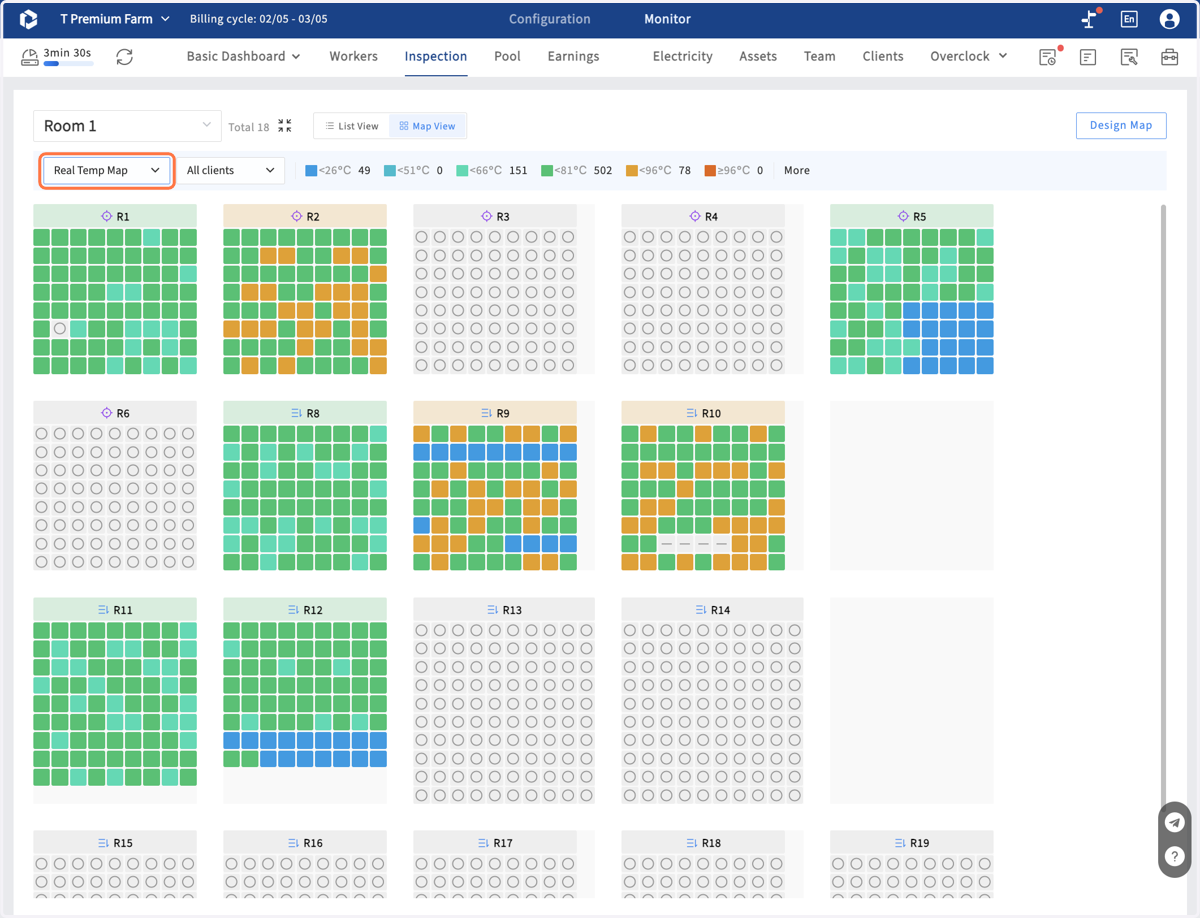
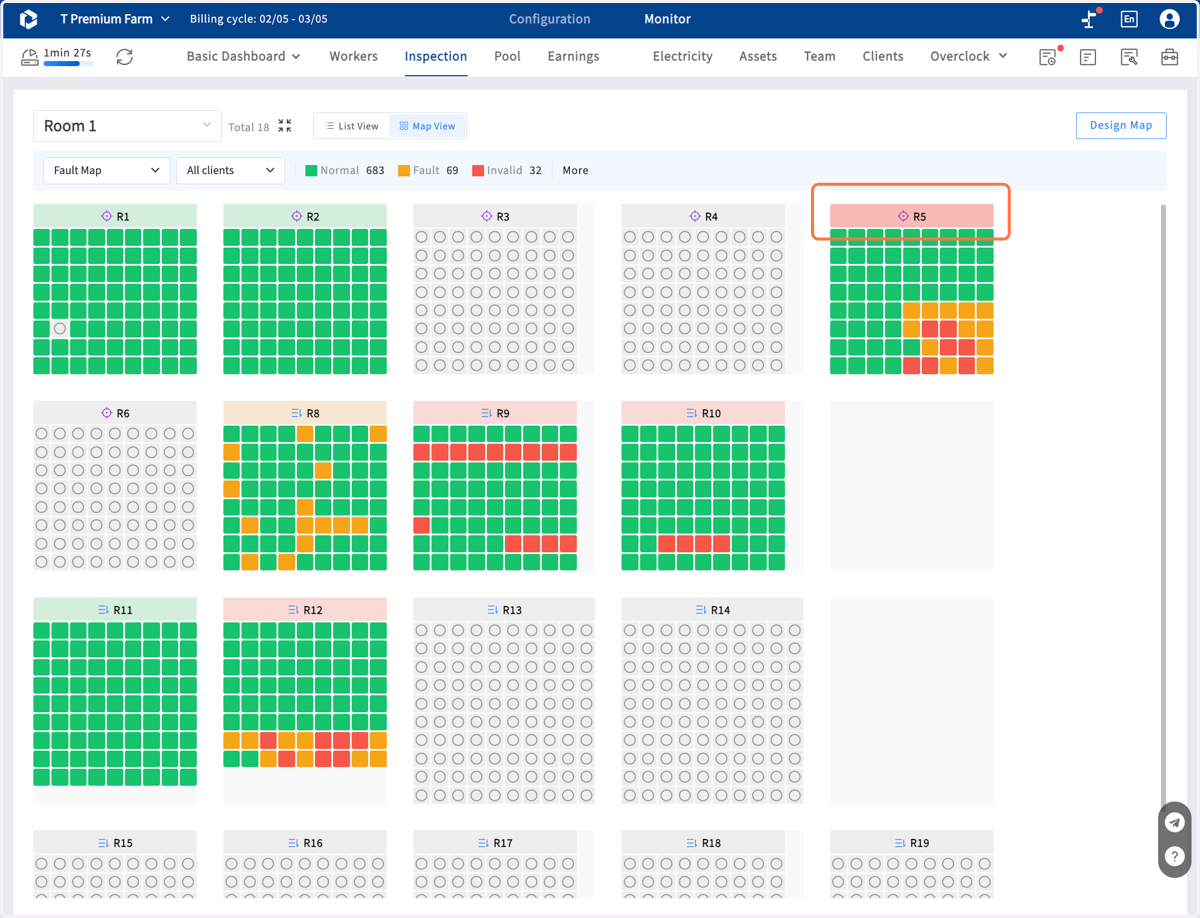
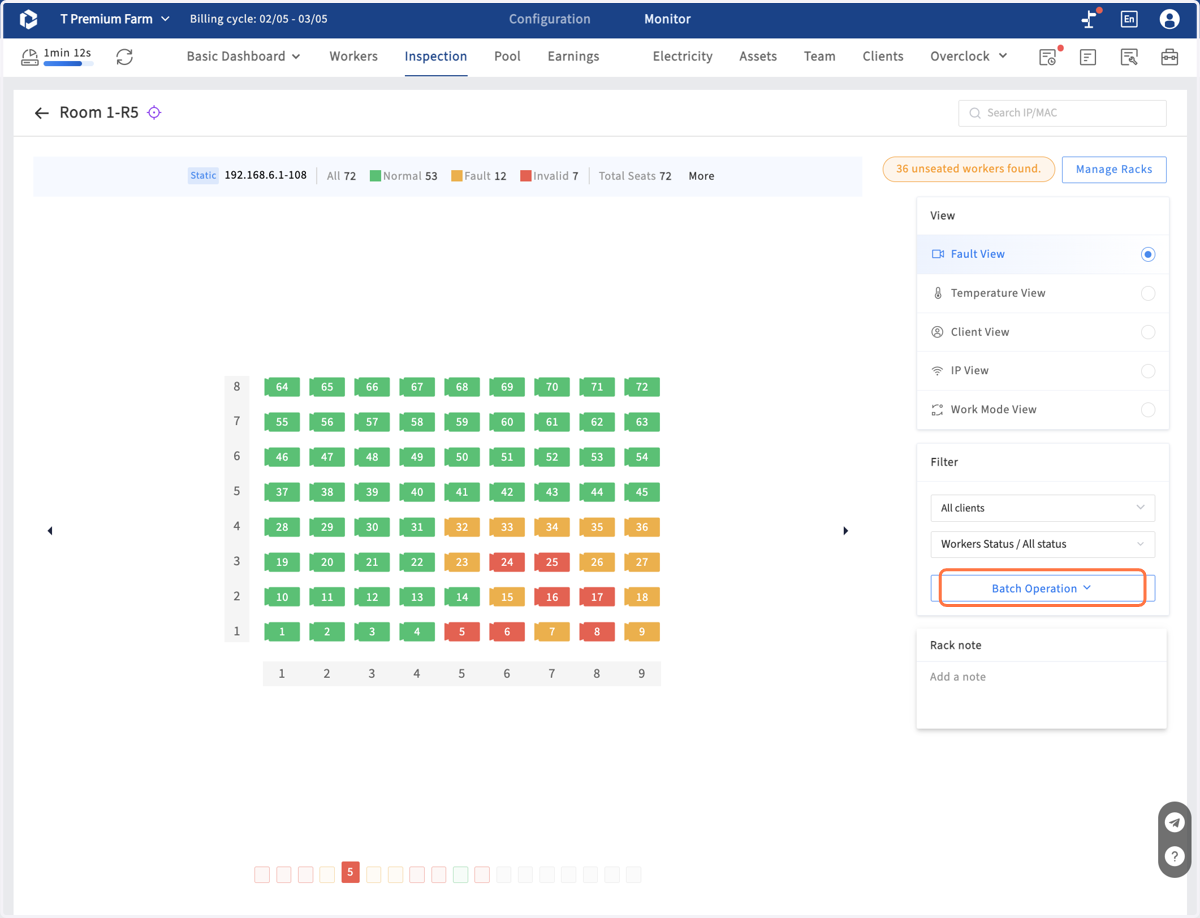
6. The map have 4 layers, and show the fault map as default, which displays the real-time status of each miner
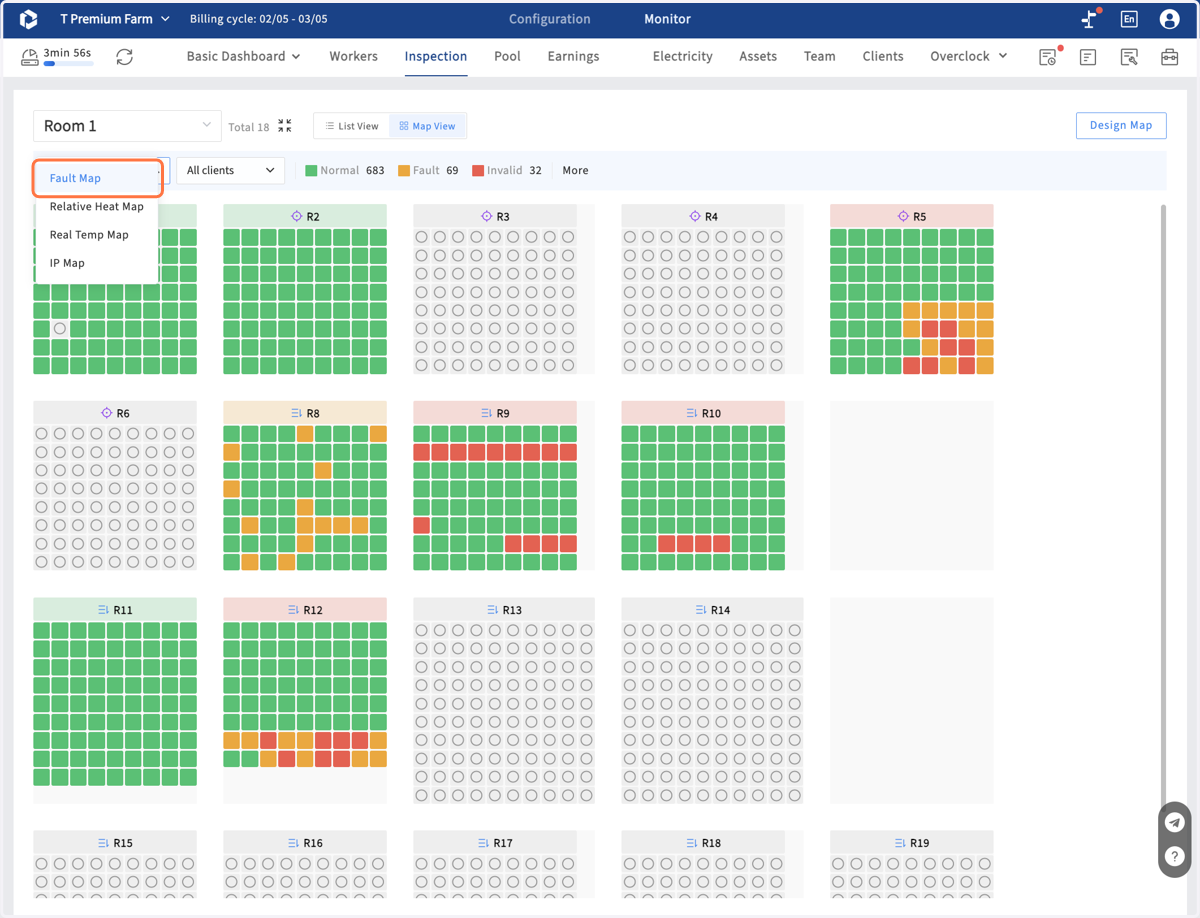
7. Relative Heap Map displays relative map to identifing the miners with relatively high temperatures within the same model
8. Real Temp Map is show the real temprature degree of each miner
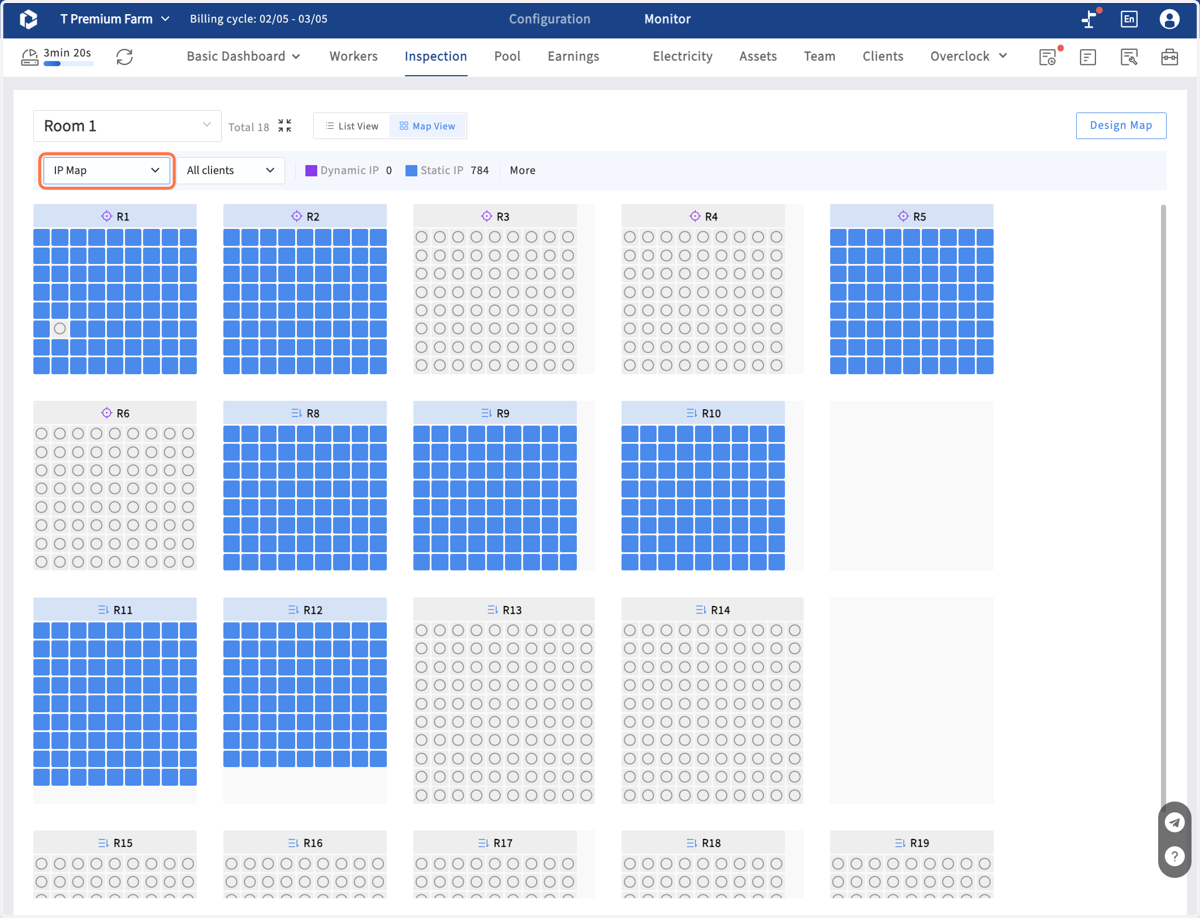
9. IP Map displays if the miner is static ip or dynamic ip, for the rack with both this 2 types of IP
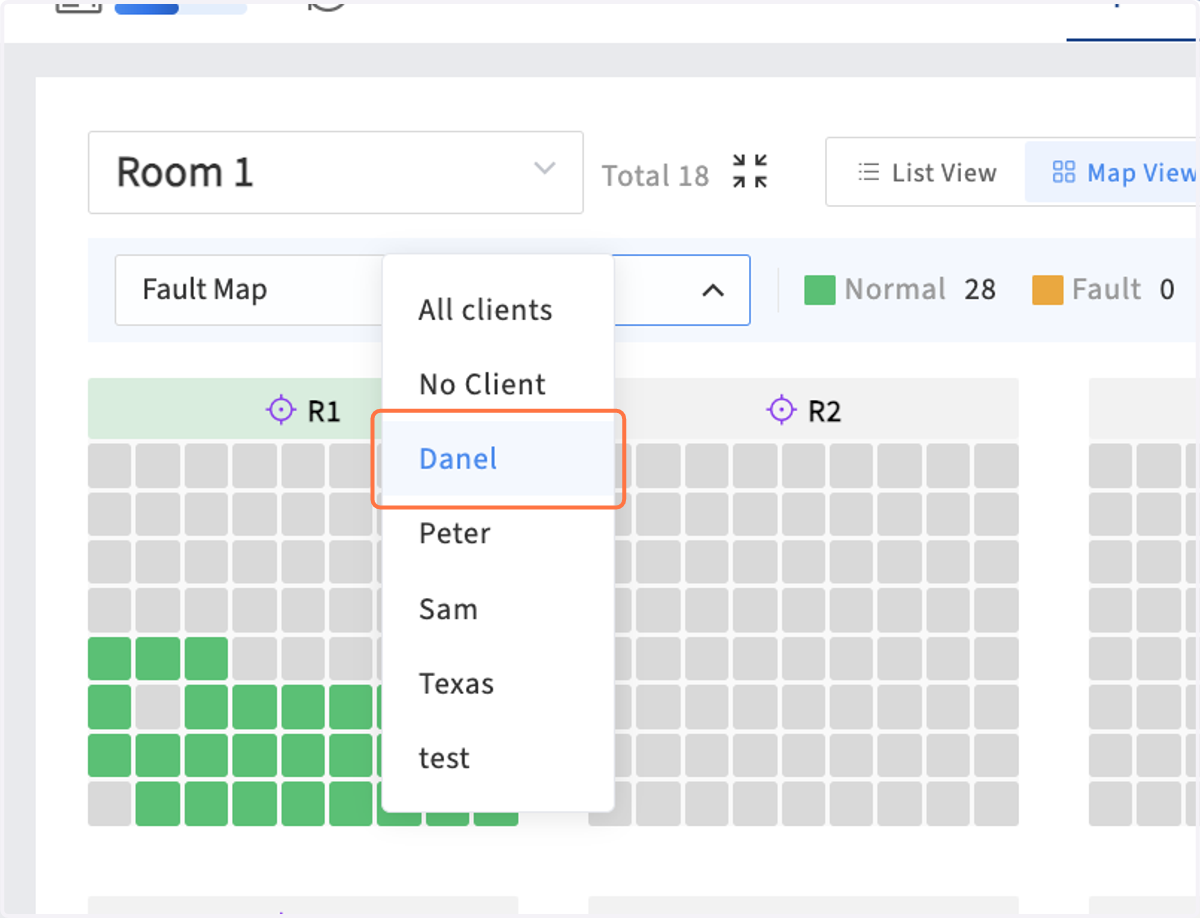
10. Select client to show the miners only belong to this client.
11. Click on top bar of rack, to get into the home page of this rack
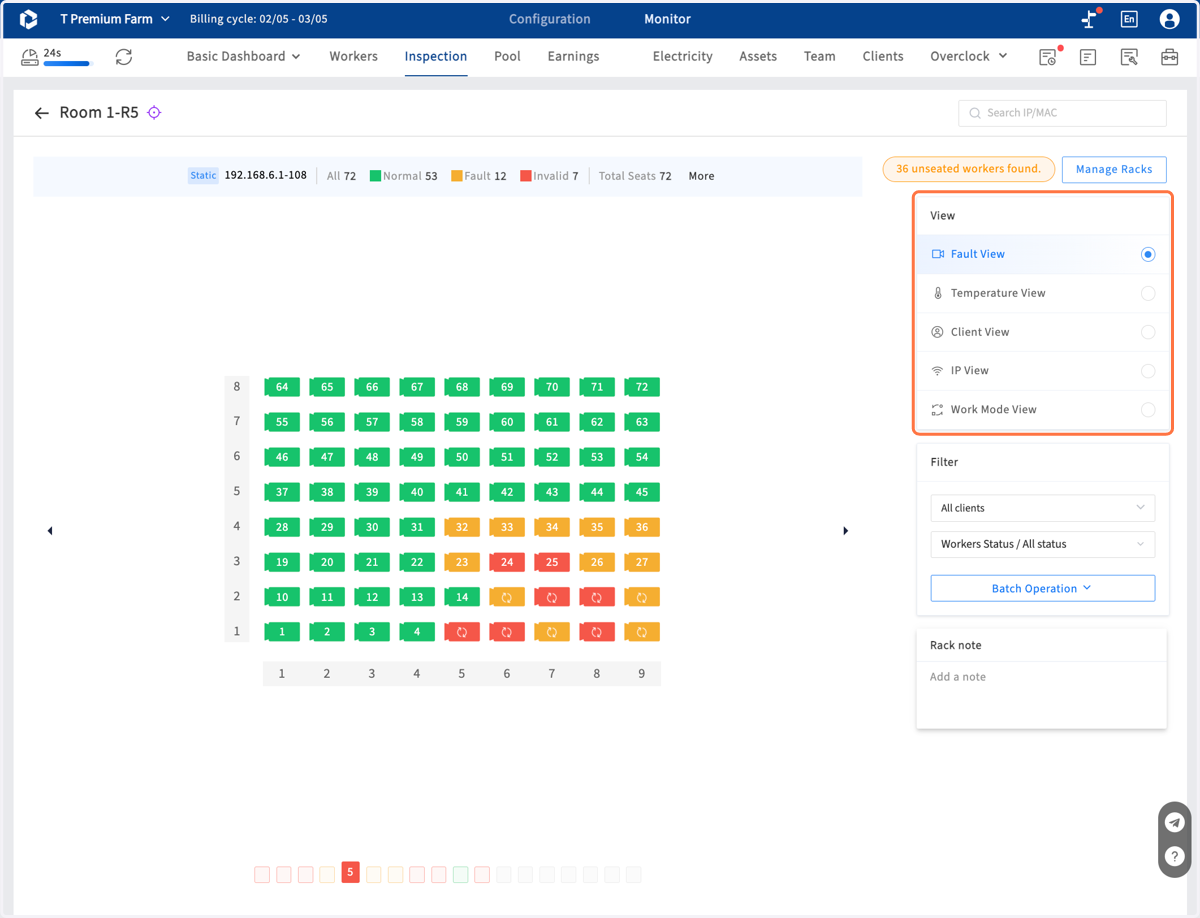
12. In the rack home page, select the right view layer you want ,and filter miners by client and fault status.
13. Batch Operation
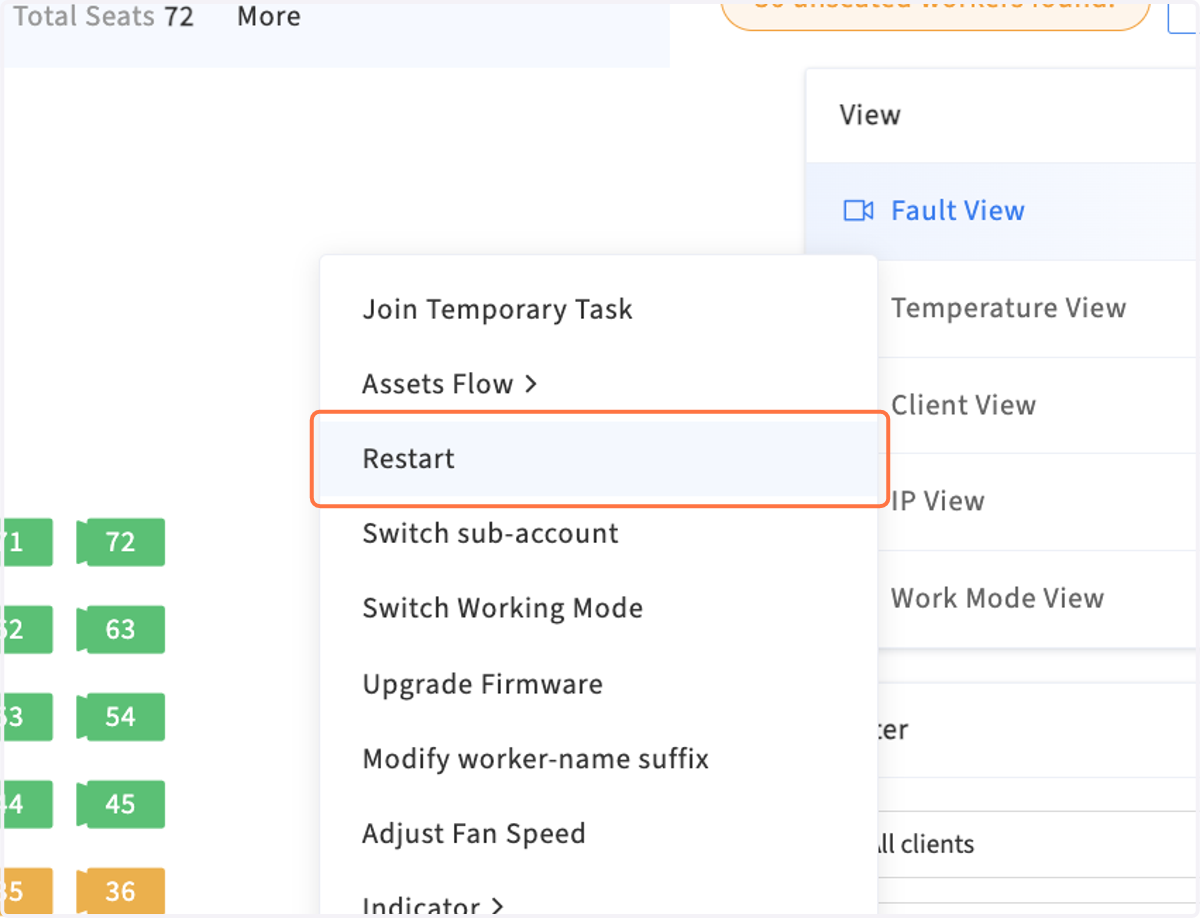
14. Batch Operation - select one operation command like Restart
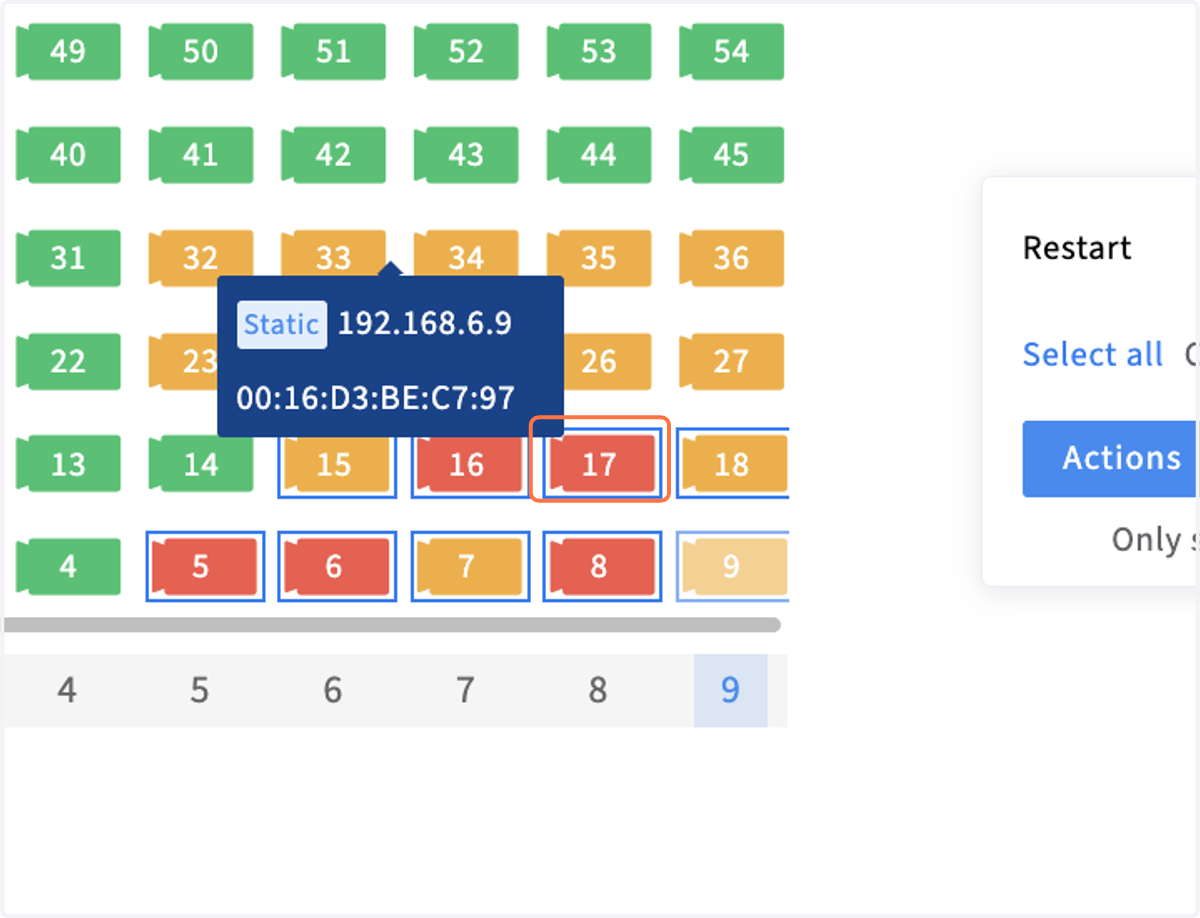
15. Batch Operation - and select miners in rack
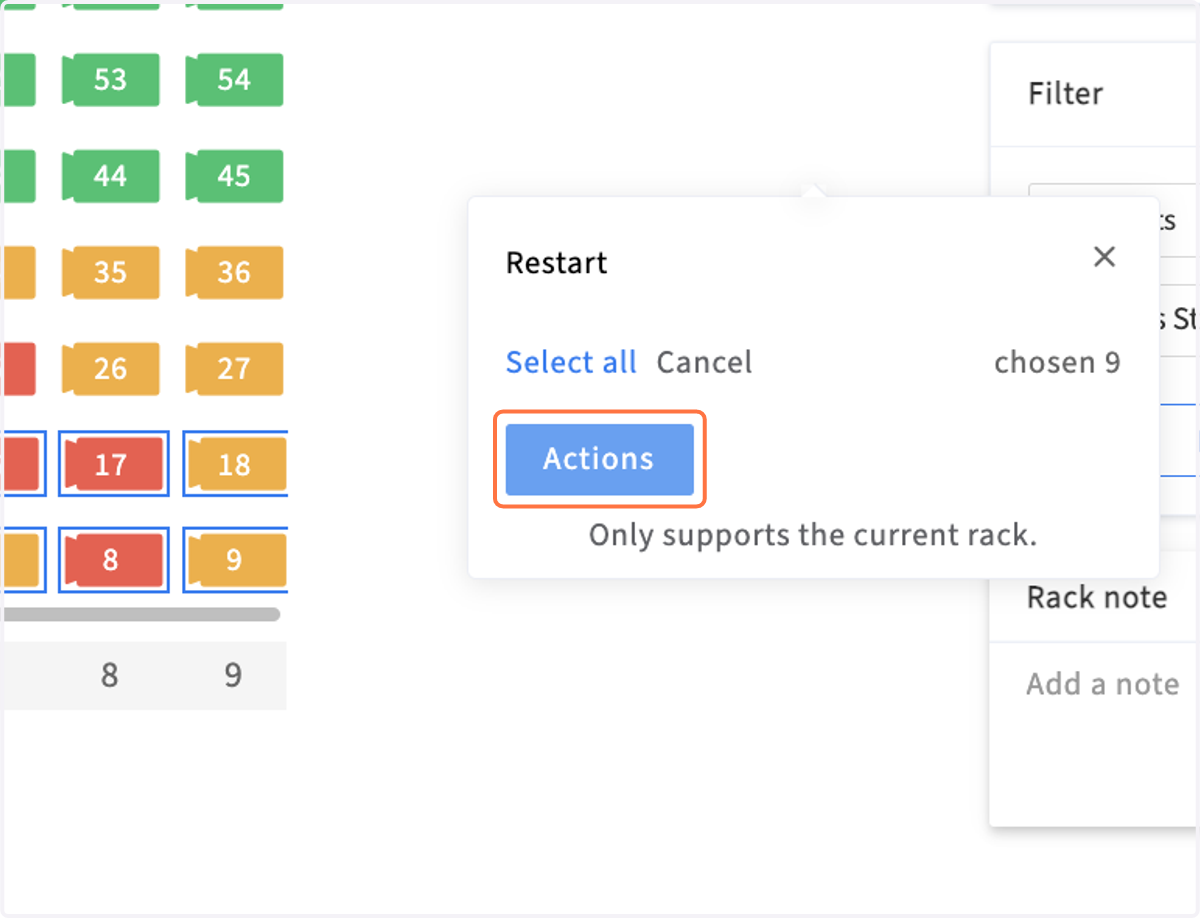
16. Batch Operation - click on Actions to send out the command
17. UntitleImport miner position data -import your miners with position data in excel following the format of the templated step
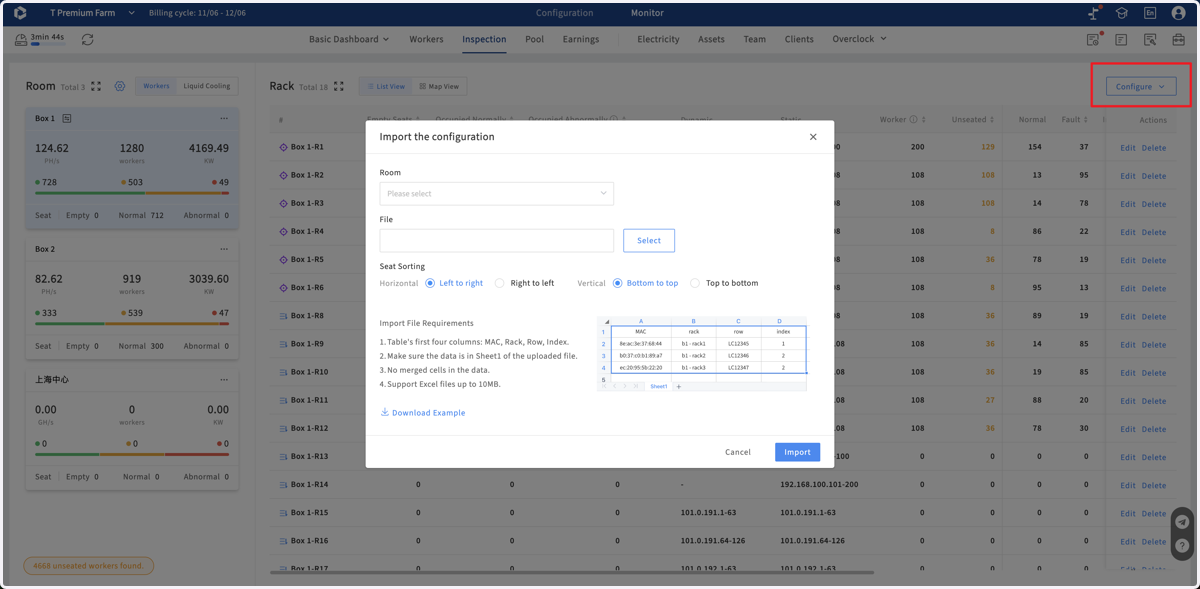
18. Configure Room And Rack. For container, since a rack can only be matched to one C-class IP network segment, if there is one C-class network segment in the container, container corresponds to rack. If more than one C-class network segment in the container, room is for container.
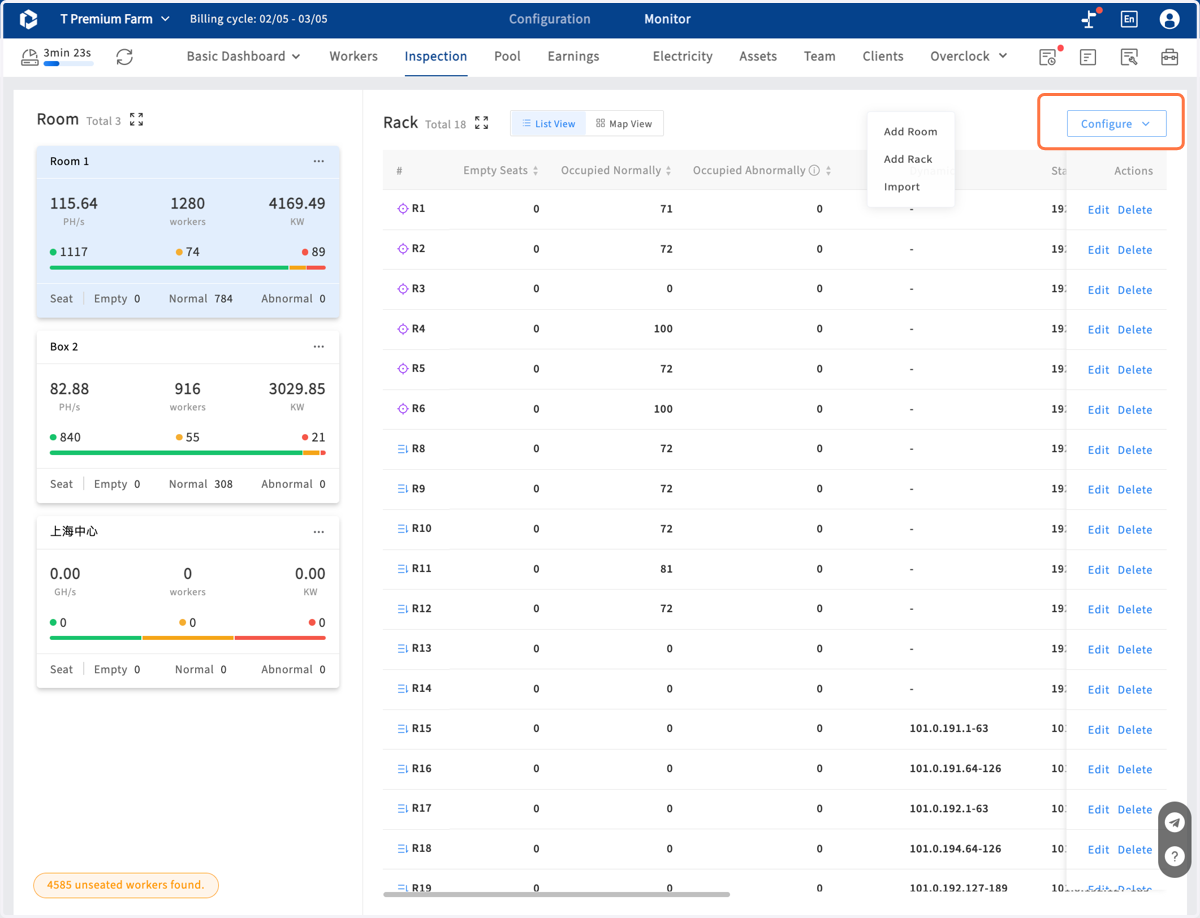
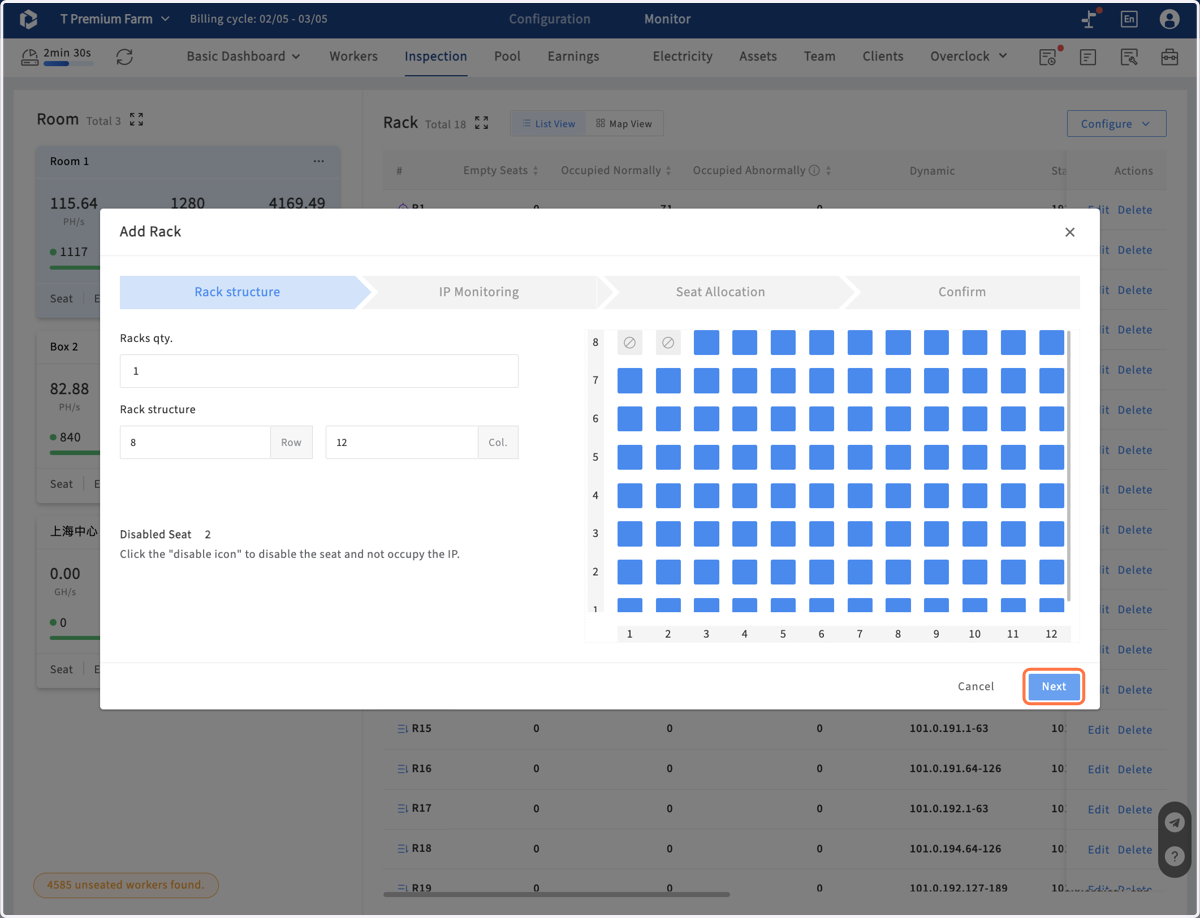
19. Click on Add Rack to configure the rack layout and click the tiny block for disabled seat. Fill the number of rac quatity that you want create.
20. Then fill the IP segement, dynamic or static, and also can be both.
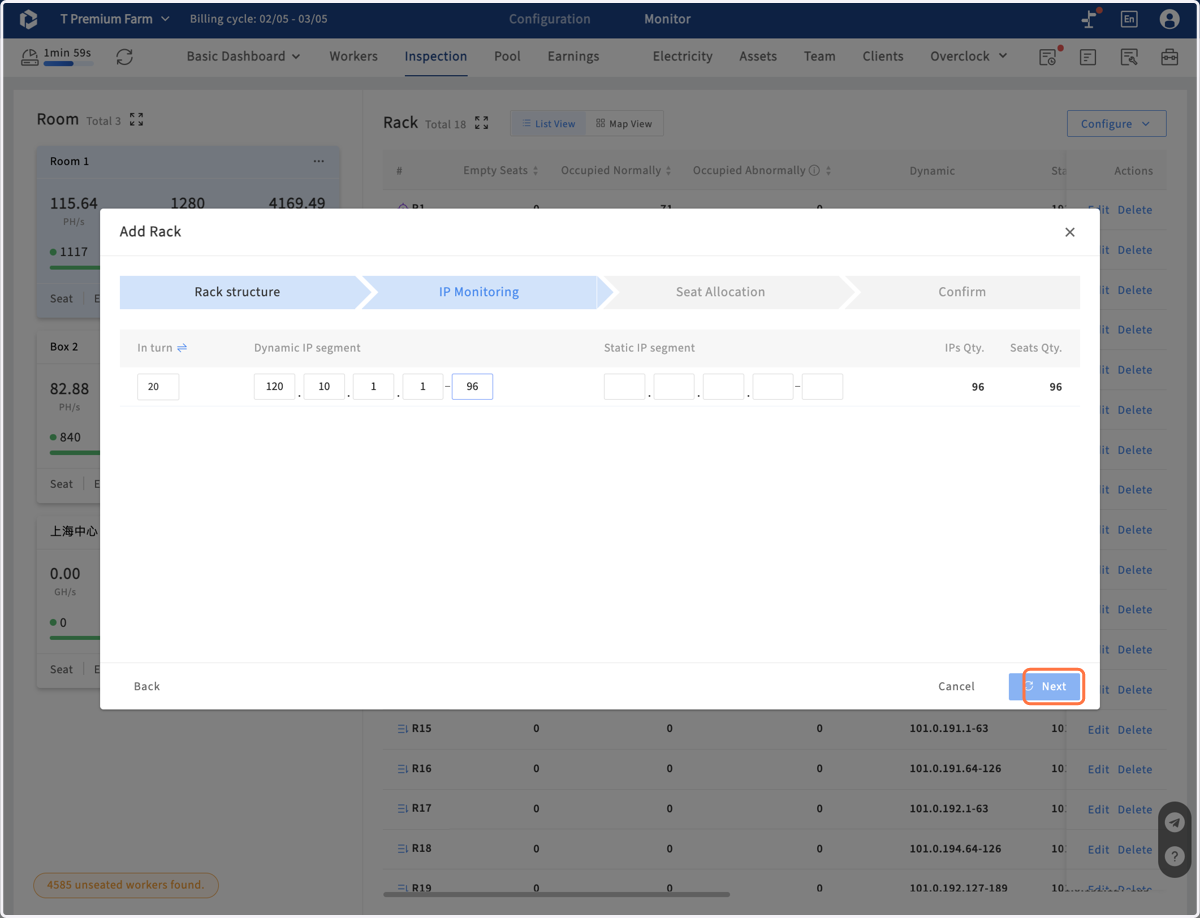
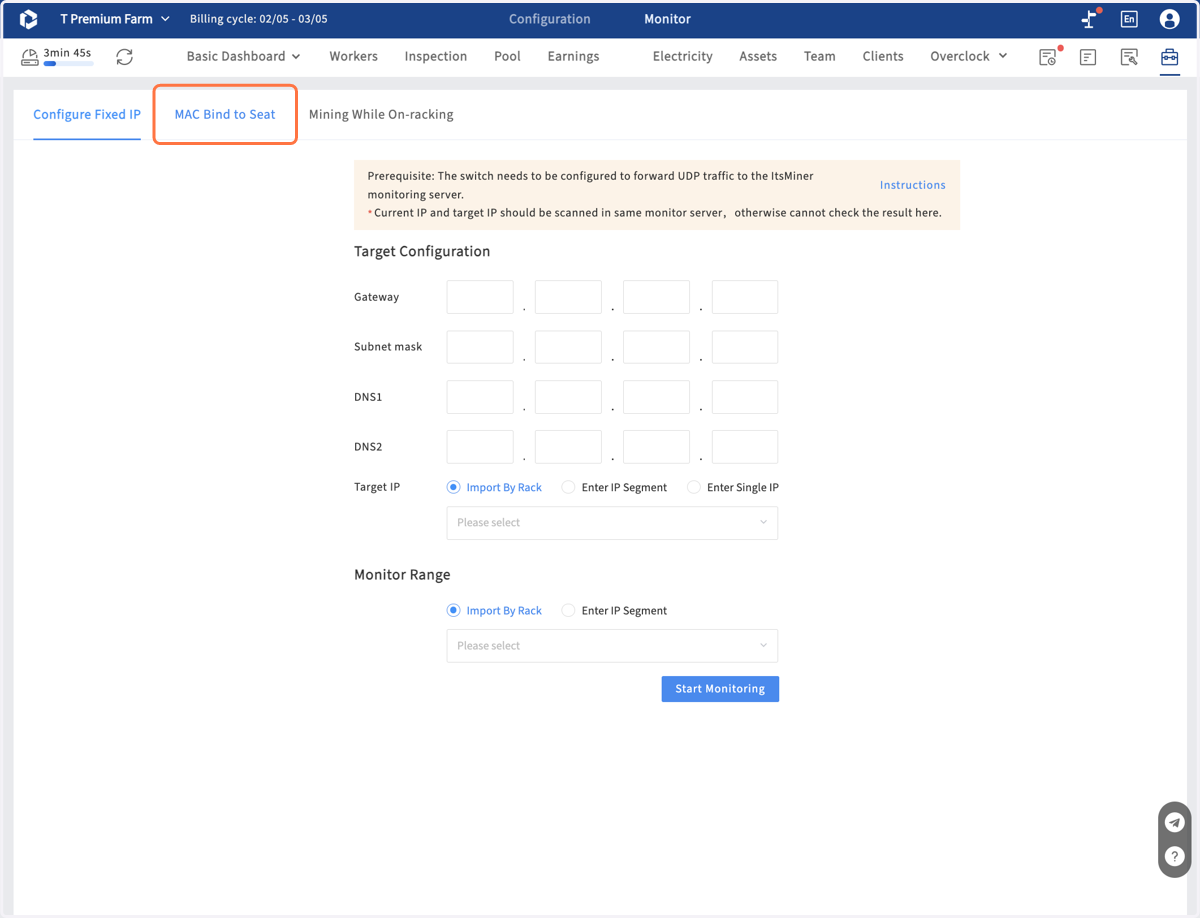
21. If use the fixed IP,system will automatically sort and recognize the location of the machine. Another solution is bind the MAC address to the machine location.You can select this type of rack here and configure it in bulk in tools
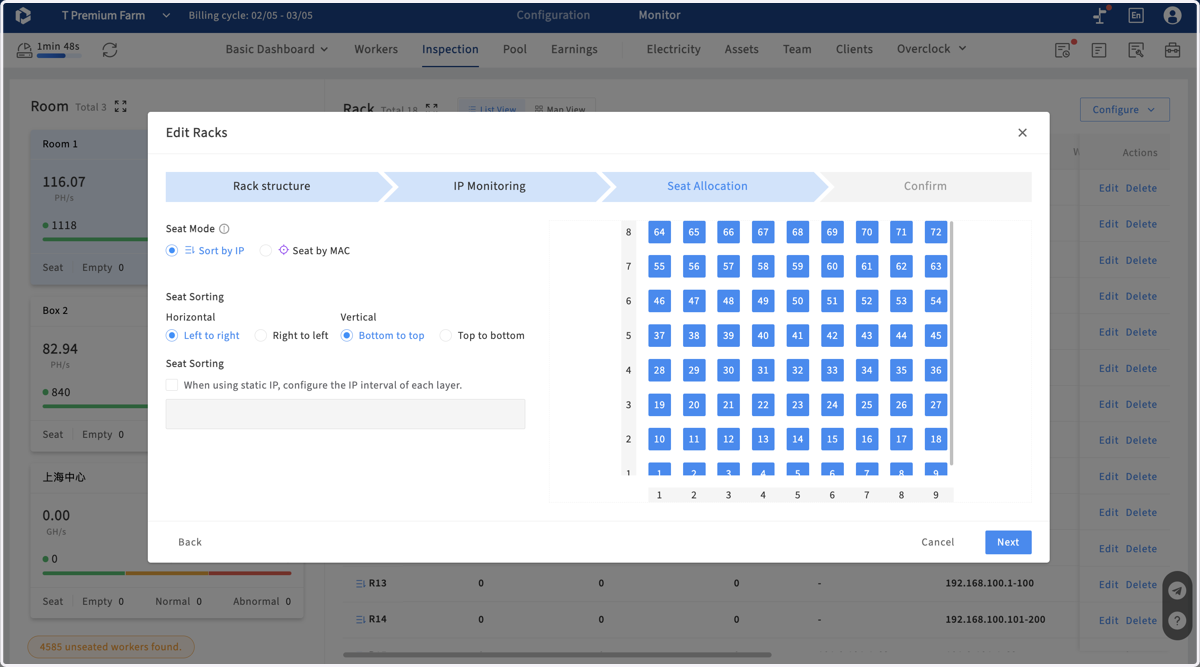
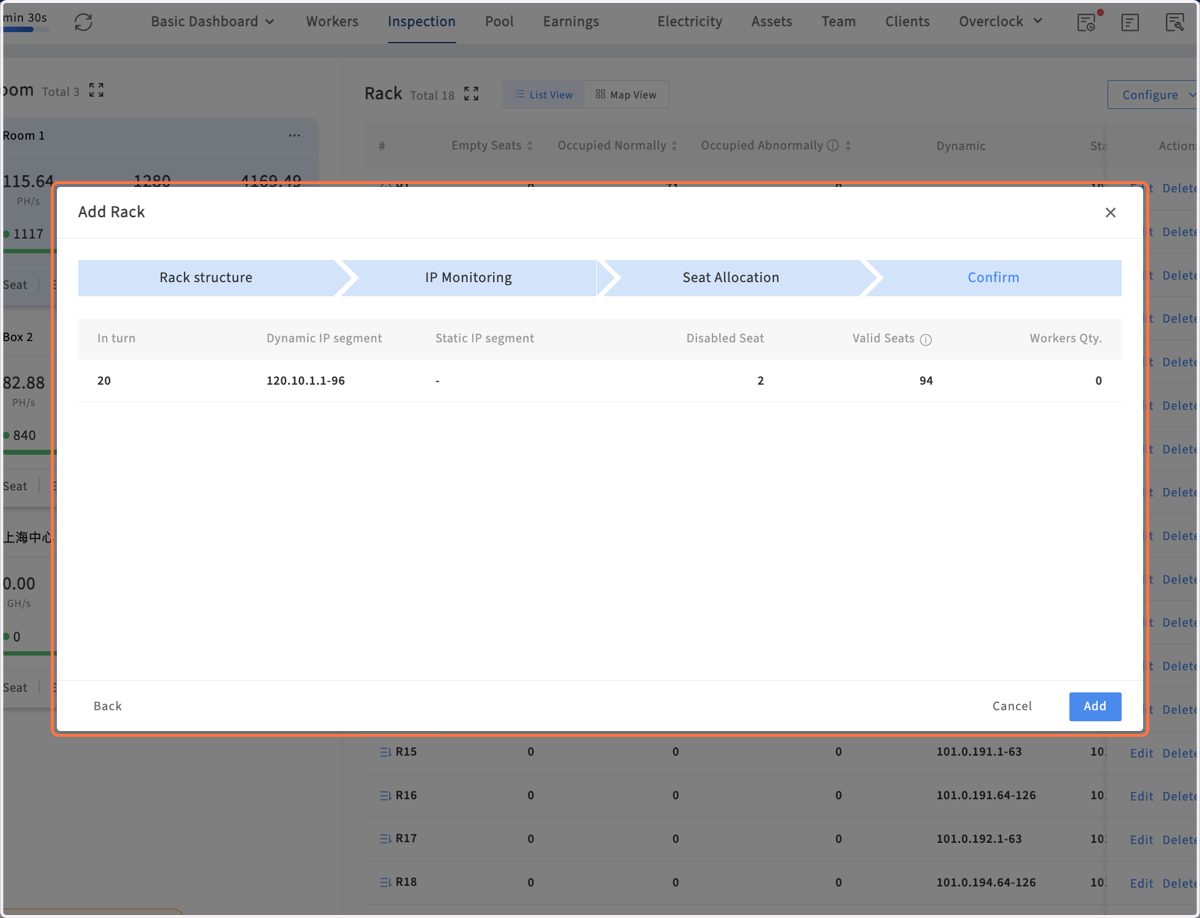
22. Confirm the configration and then click the Add button, you will get the rack list and sitemap in few minutes, wating for the lasted data freshing.
23. To quikly configure the fixed IP to miners, or batch bind mac to rack seat, please click the last tool icon in menu bar, and use the right tool.
24. For changing configuration of one rack, click the Manage Racks in rack view
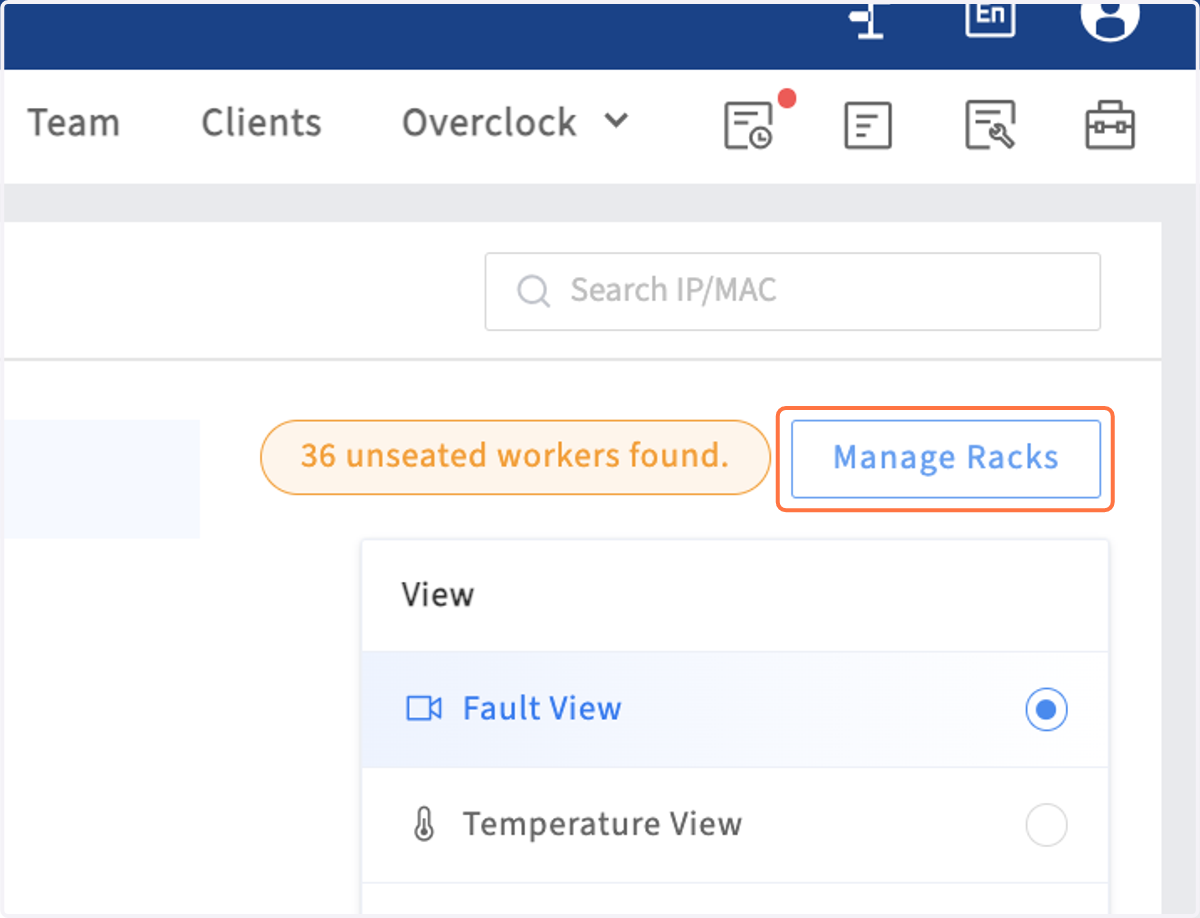
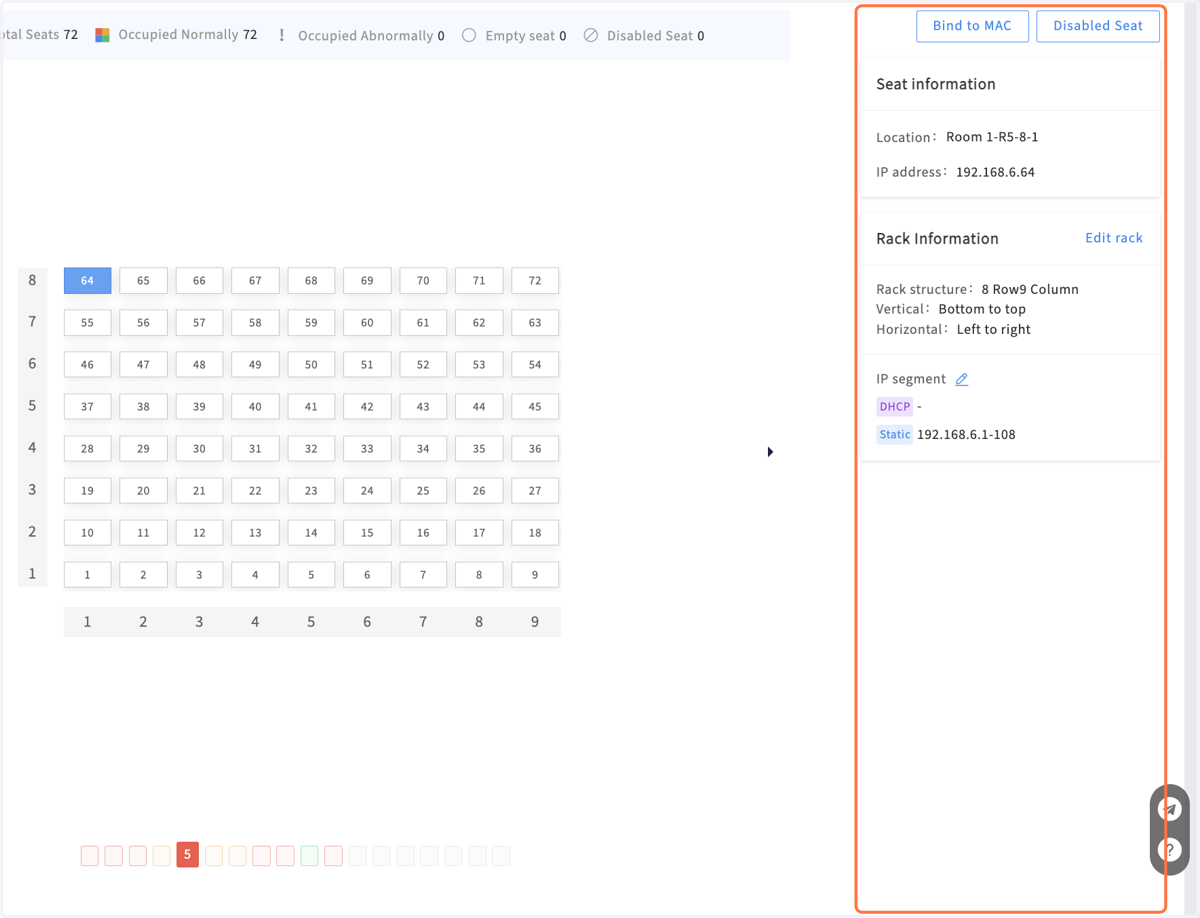
25. Here you can bind mac occured in this rack to seat of this rack, and set disabled seat, ip range, and even refactoring this rack
26. You can also configure the rack positions throughout the entire mining site to map them to the actual rack positions
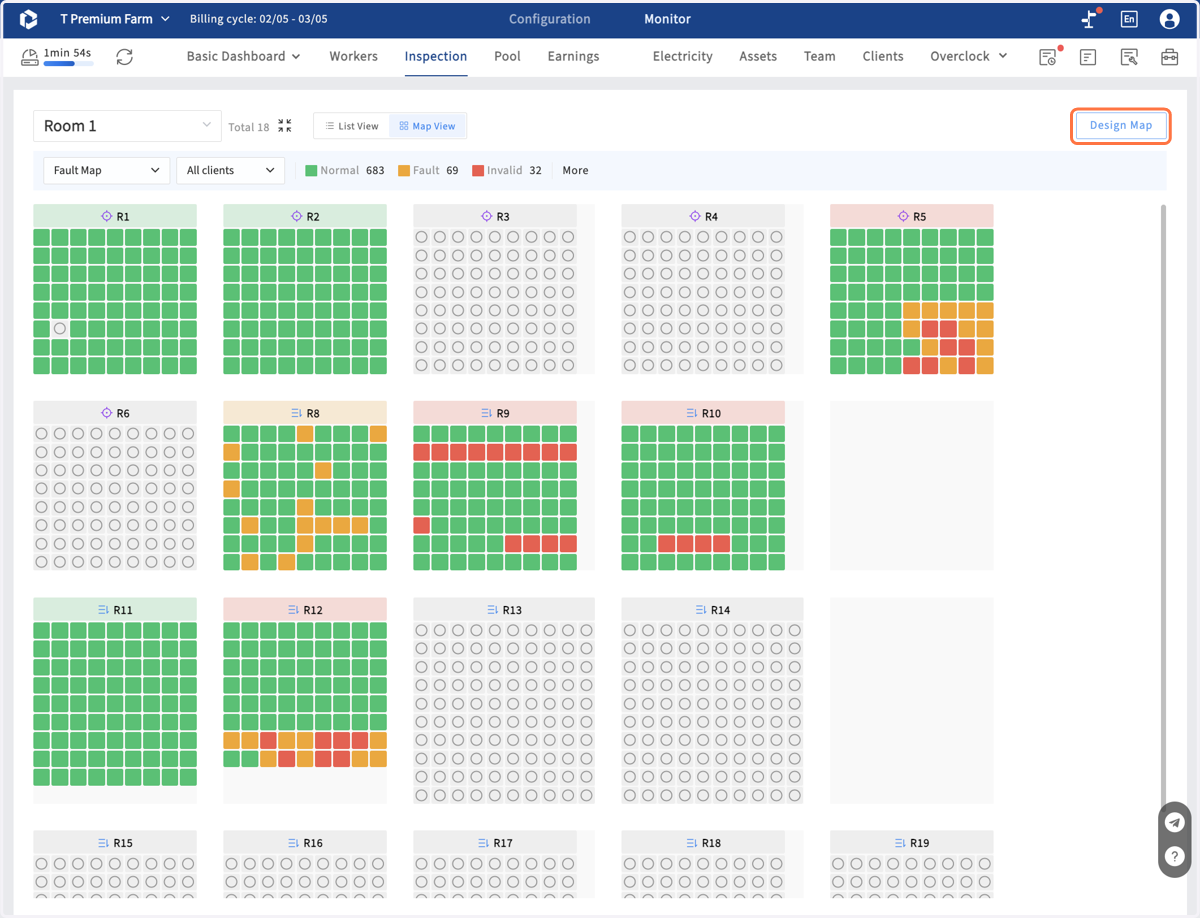
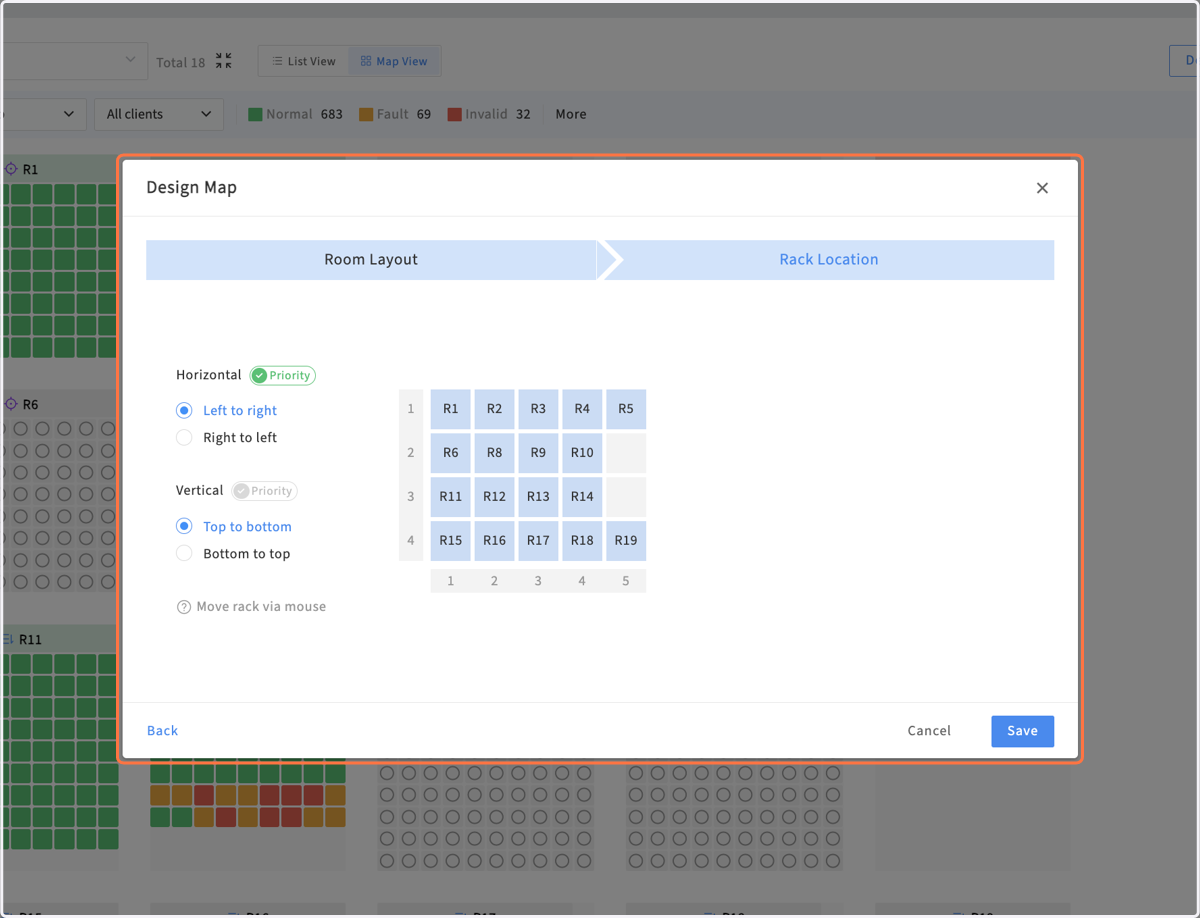
27. Click on Design Map and configure the layout of rack ,and set the display direction of the map, and drag the racks to the correct position.
28. In summary, configure the rack and map the mining machine positions through IP or Mac. Quickly inspect and manage mining machines through sitemap