6. Clone and Configure Report Structure in SFDC

Salesforce

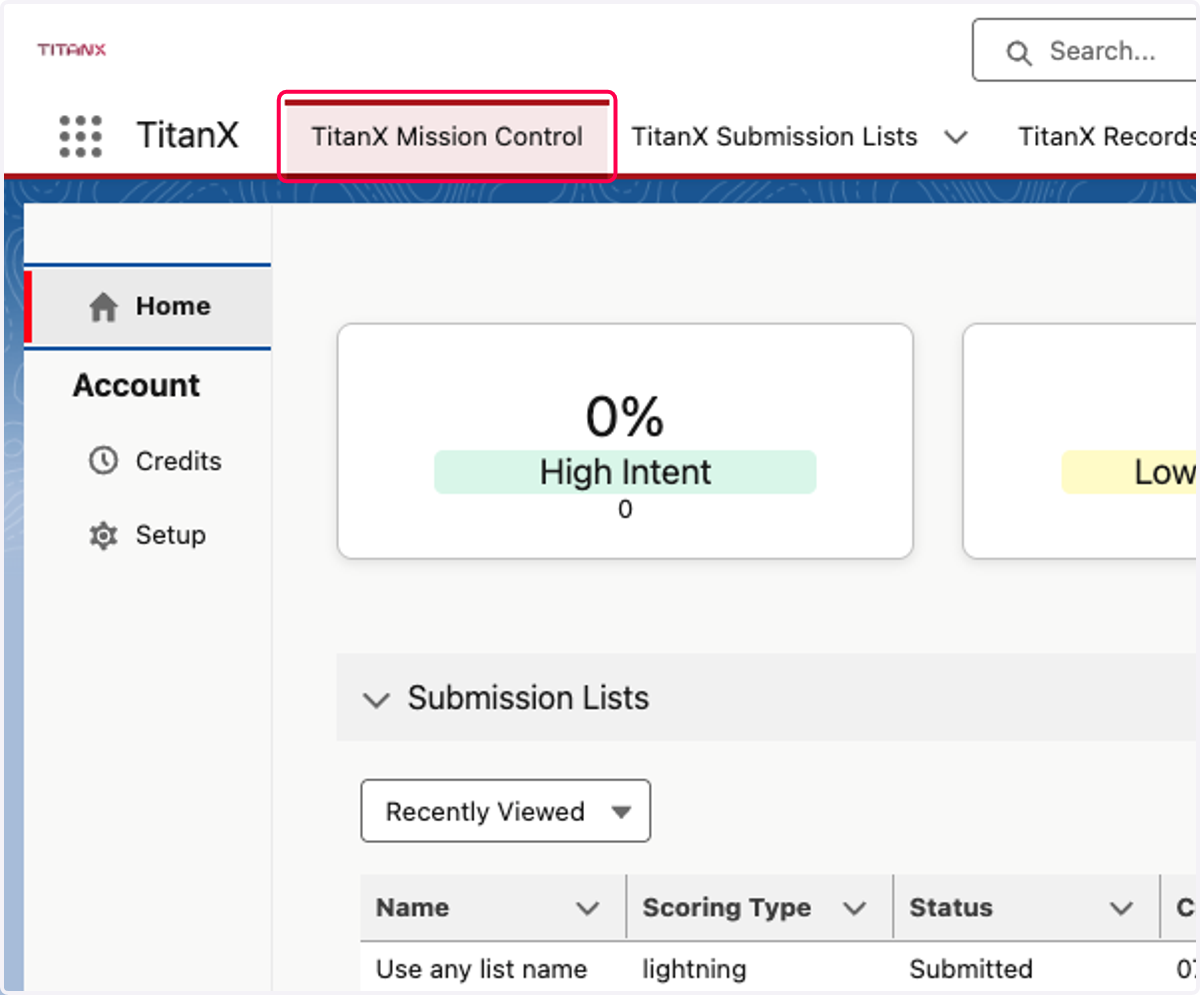
  1. 1. Click on TitanX Mission Control

    Click on TitanX Mission Control
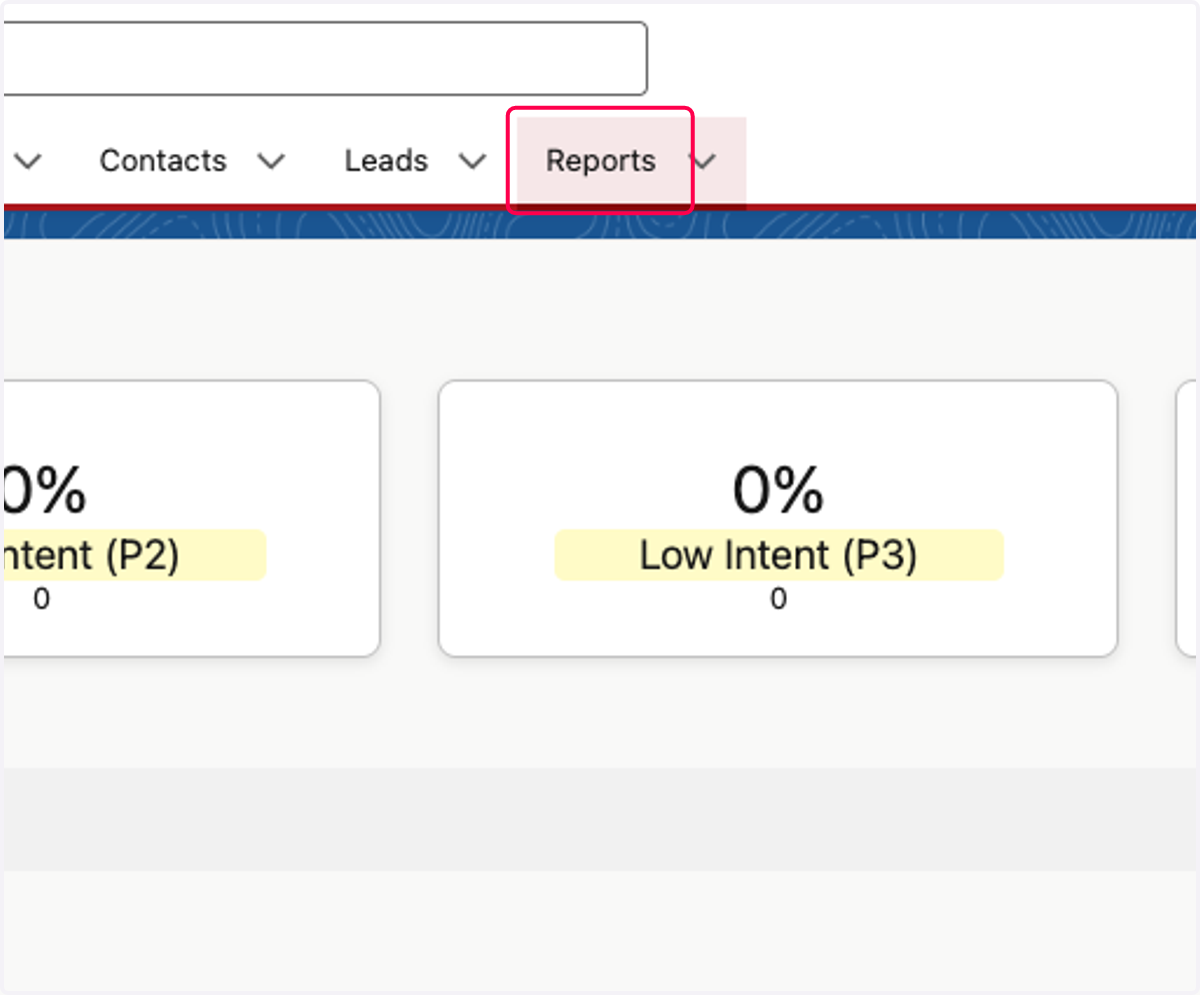
  2. 2. Click on Reports

    Click on Reports
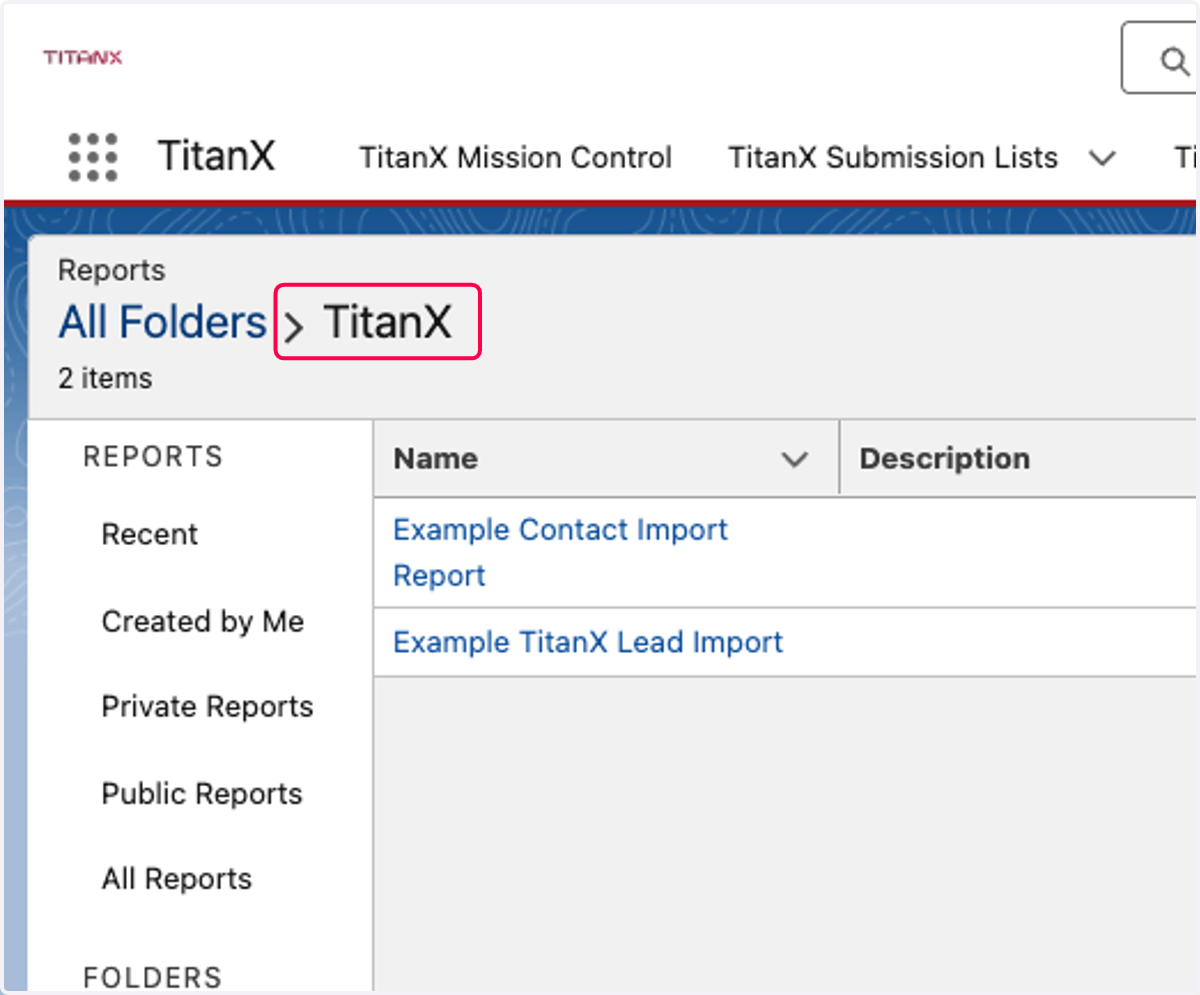
  3. 3. Go to TitanX Folder

    Go to TitanX Folder
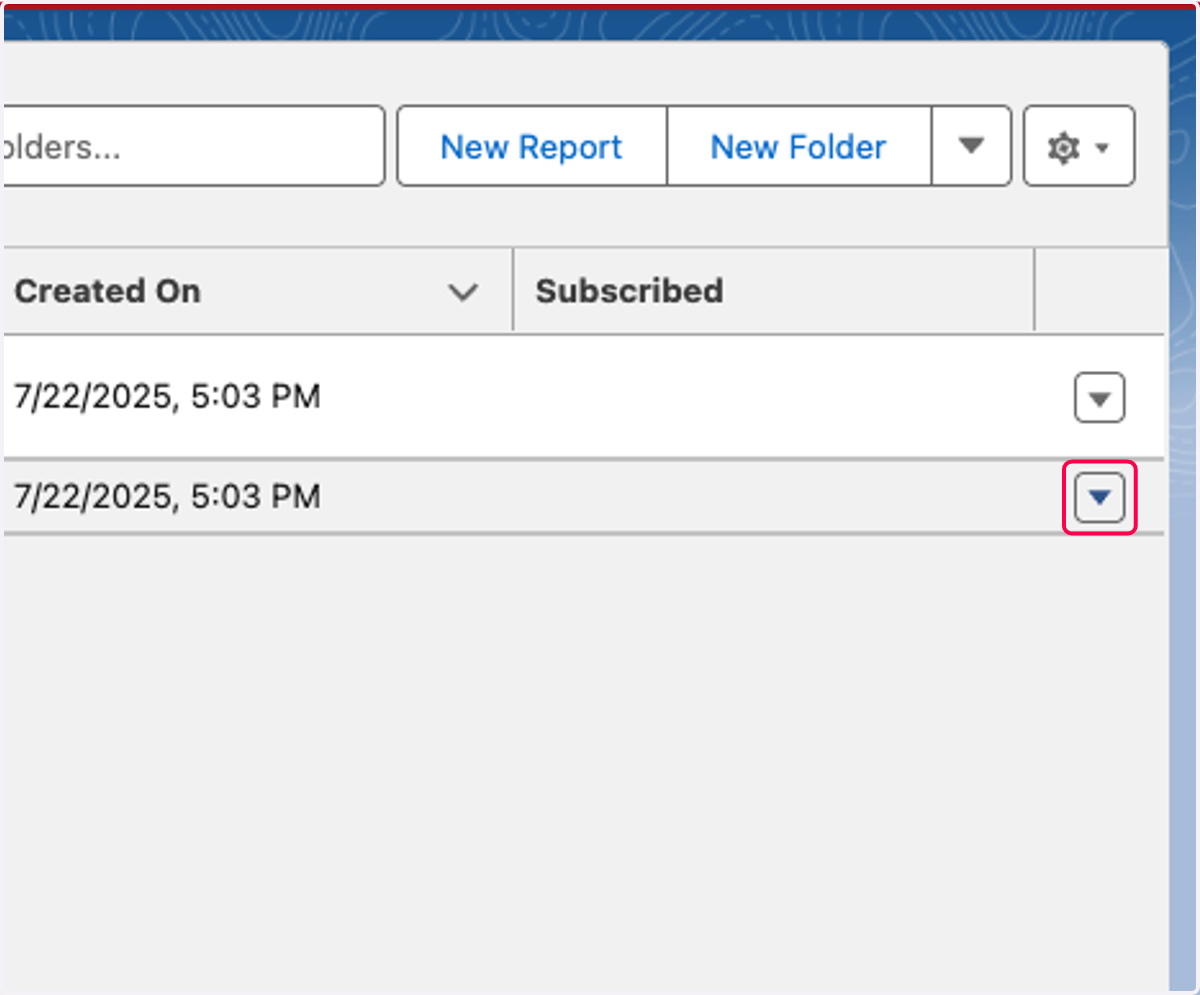
  4. 4. Edit the lead or contact report

    Edit the lead or contact report
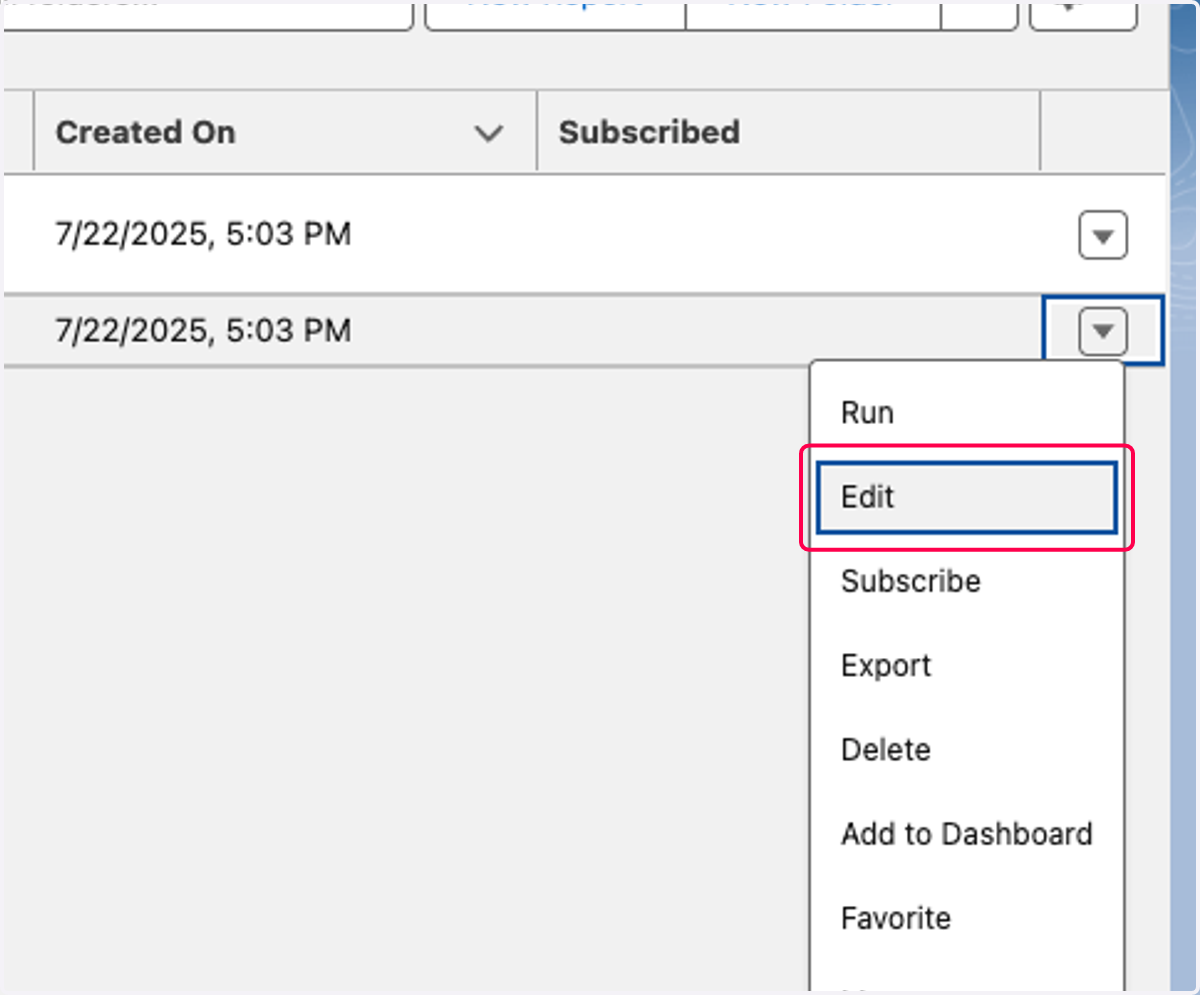
  5. 5. Click on Edit

    Click on Edit
  6. 6. NOTE!! TitanX ID MUST BE THE FIRST COLUMN on ANY and ALL reports that you are going to send to us.
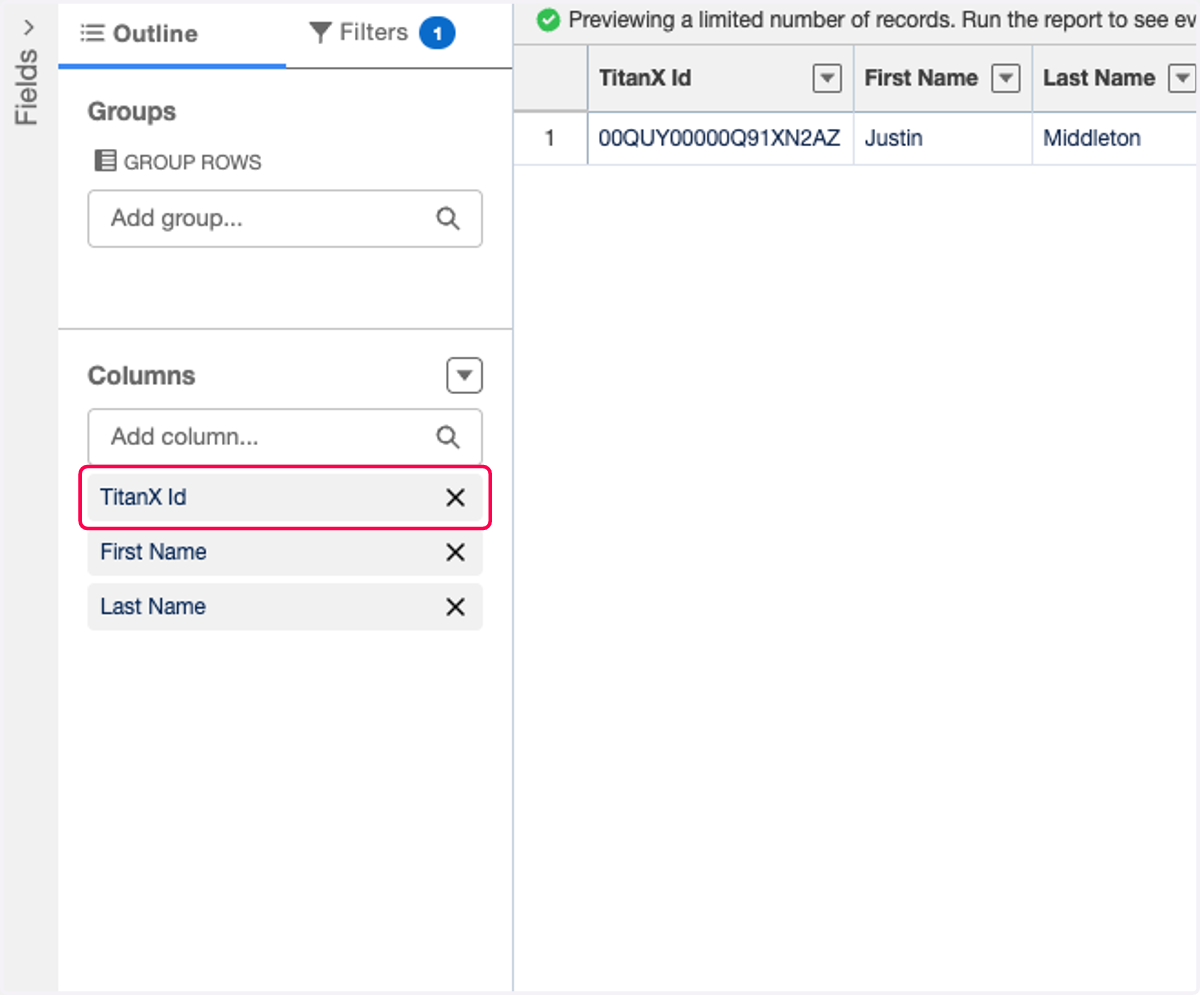
    NOTE!! TitanX ID MUST BE THE FIRST COLUMN on ANY and ALL reports that you are going to send to us.
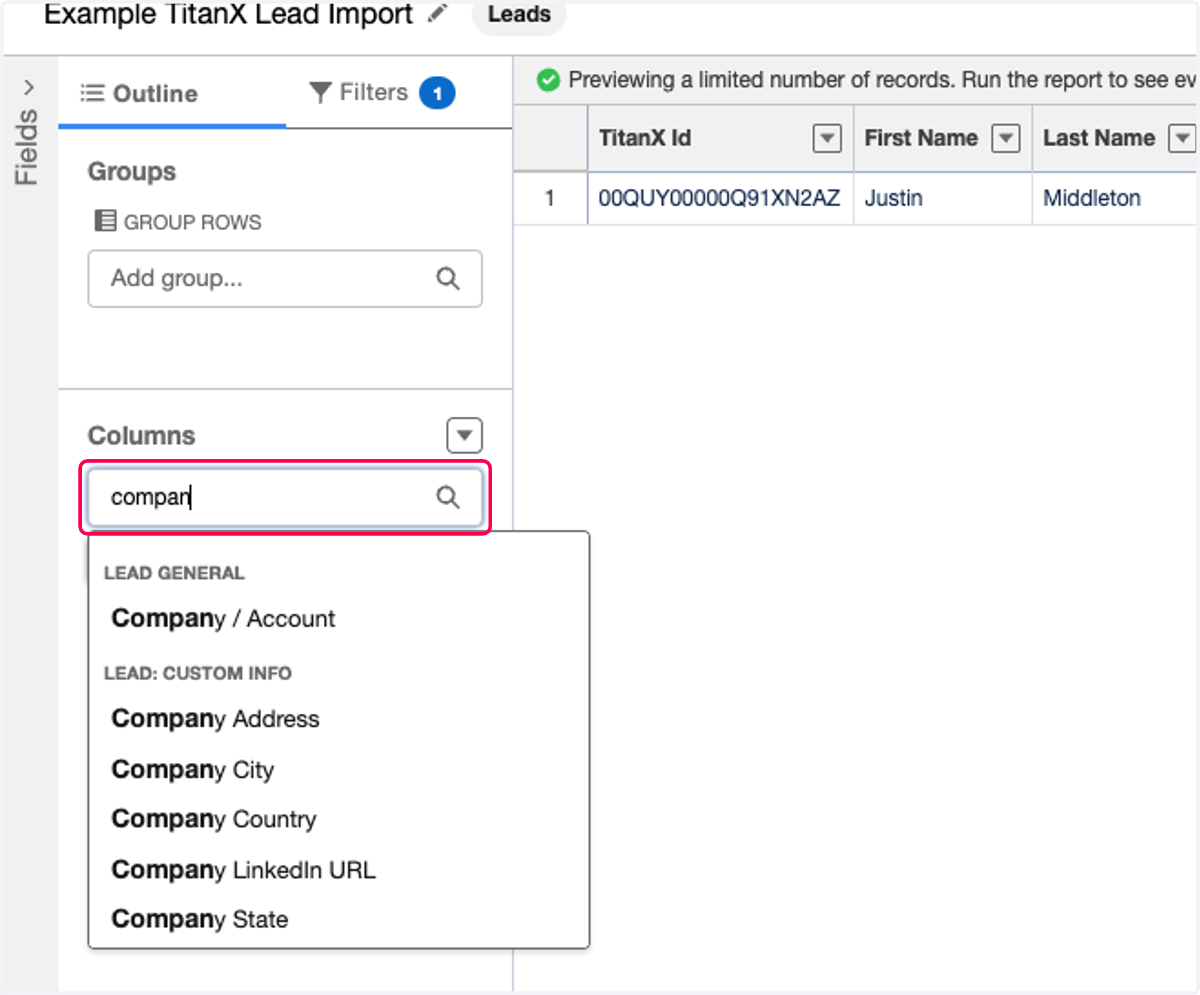
  7. 7. Add any fields you want

    Add any fields you want
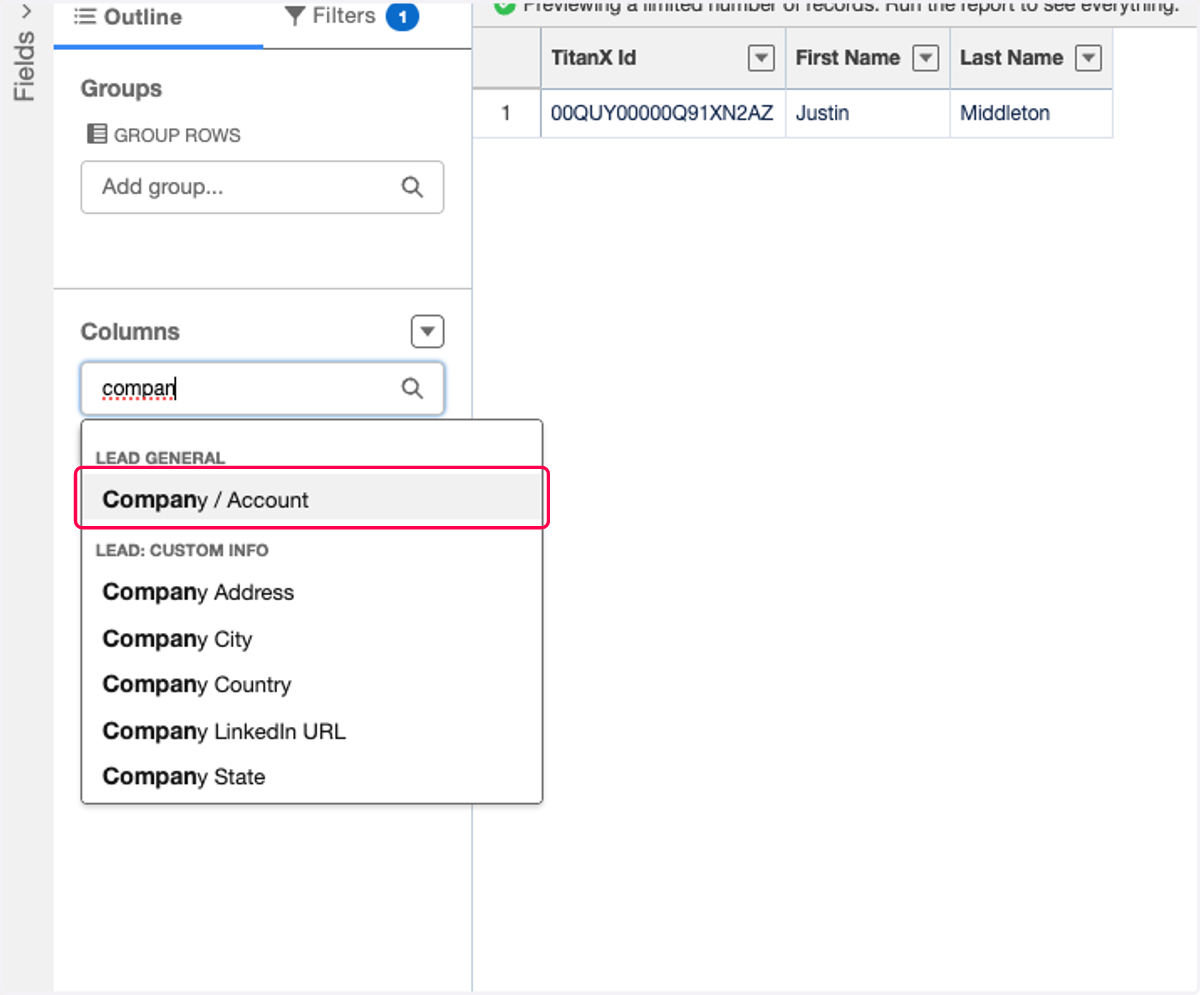
  8. 8. Click on Company / Account

    Click on Company / Account
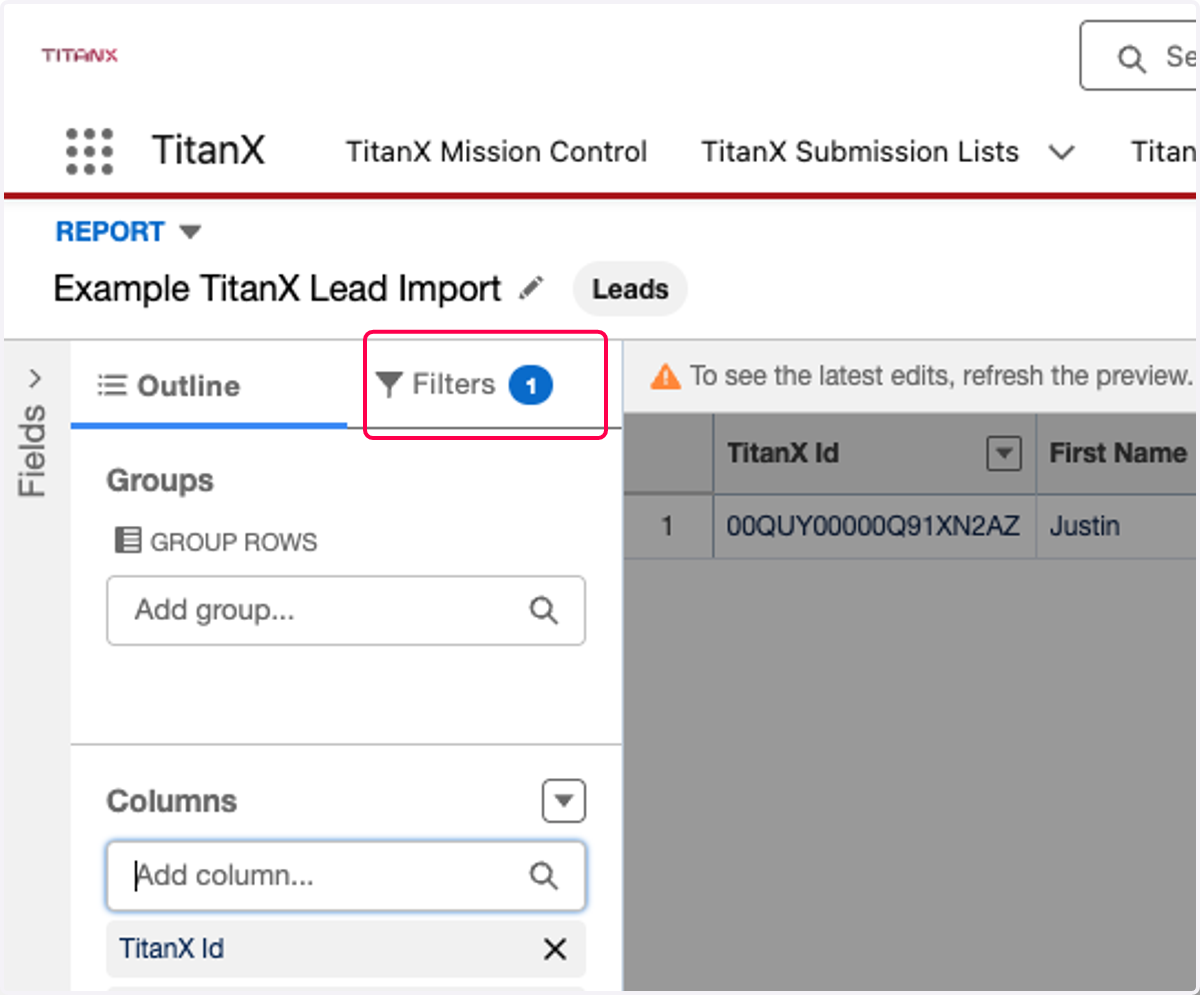
  9. 9. Click on Filters

    Click on Filters
  10. 10. Add any filters you want. Pro tip example: Show me all leads that best phone signal equals BLANK
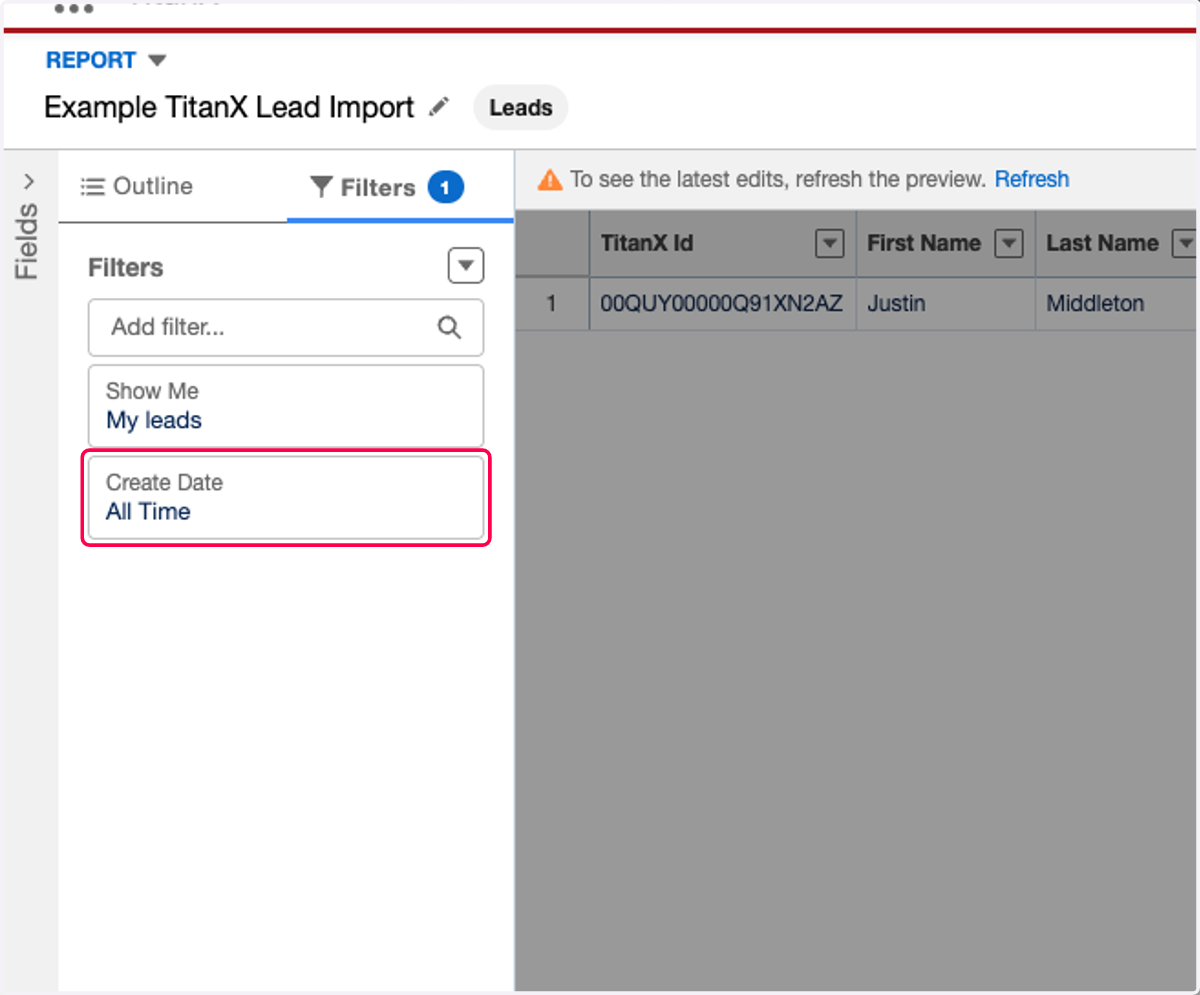
    Add any filters you want. Pro tip example: Show me all leads that best phone signal equals BLANK
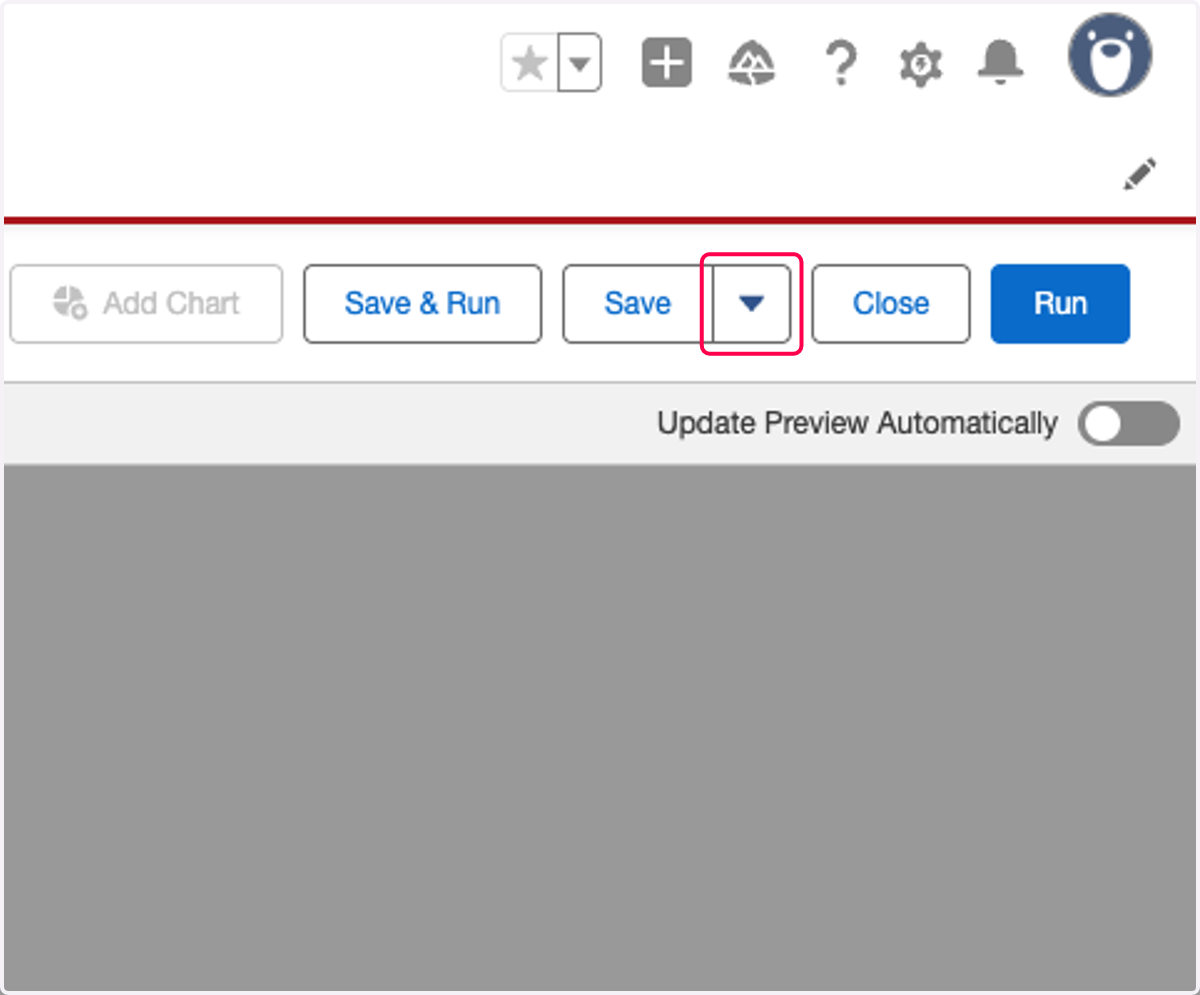
  11. 11. Click on More Actions - Save

    Click on More Actions - Save
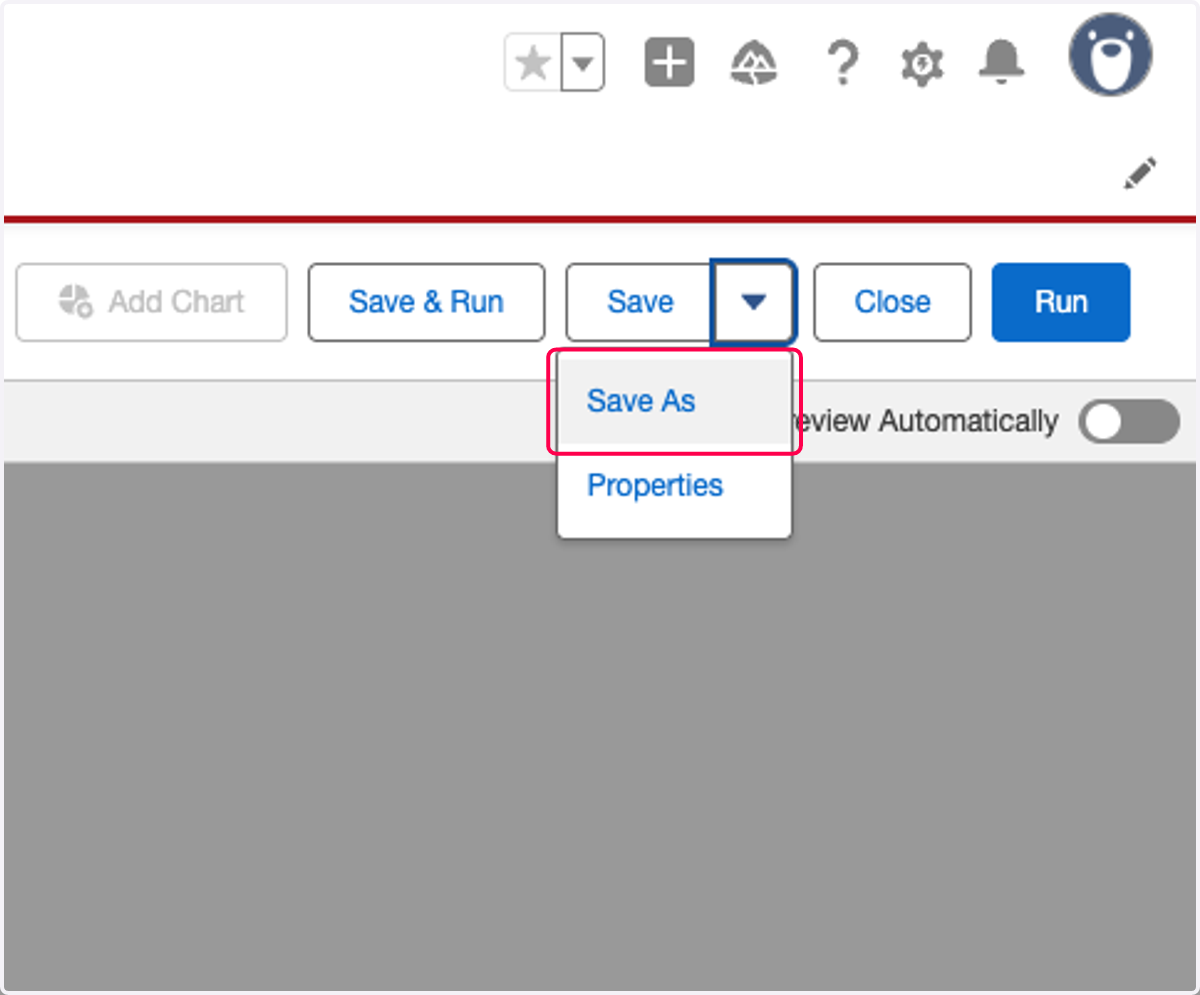
  12. 12. Click on Save As

    Click on Save As
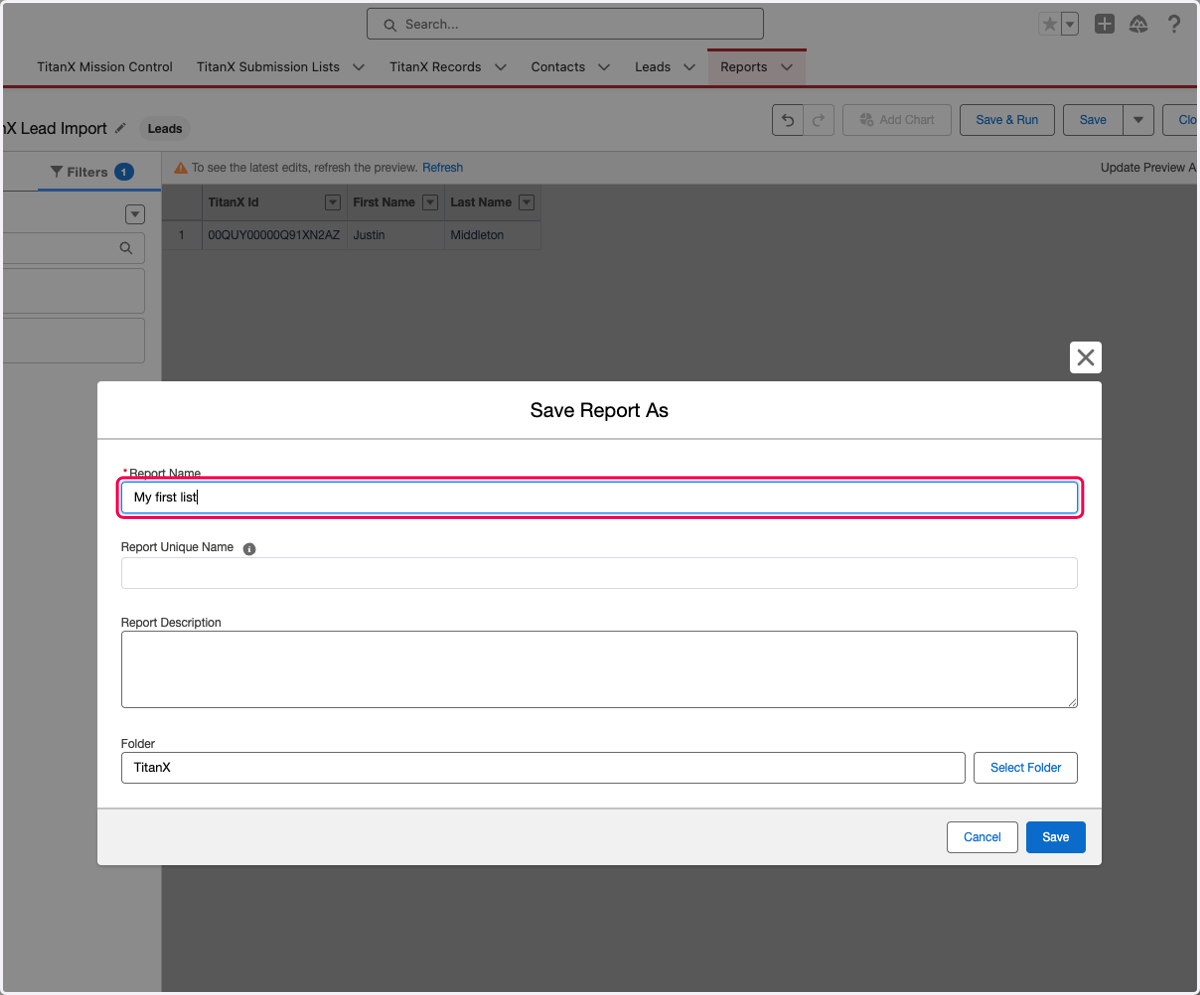
  13. 13. Type "My first list"

    Type "My first list"
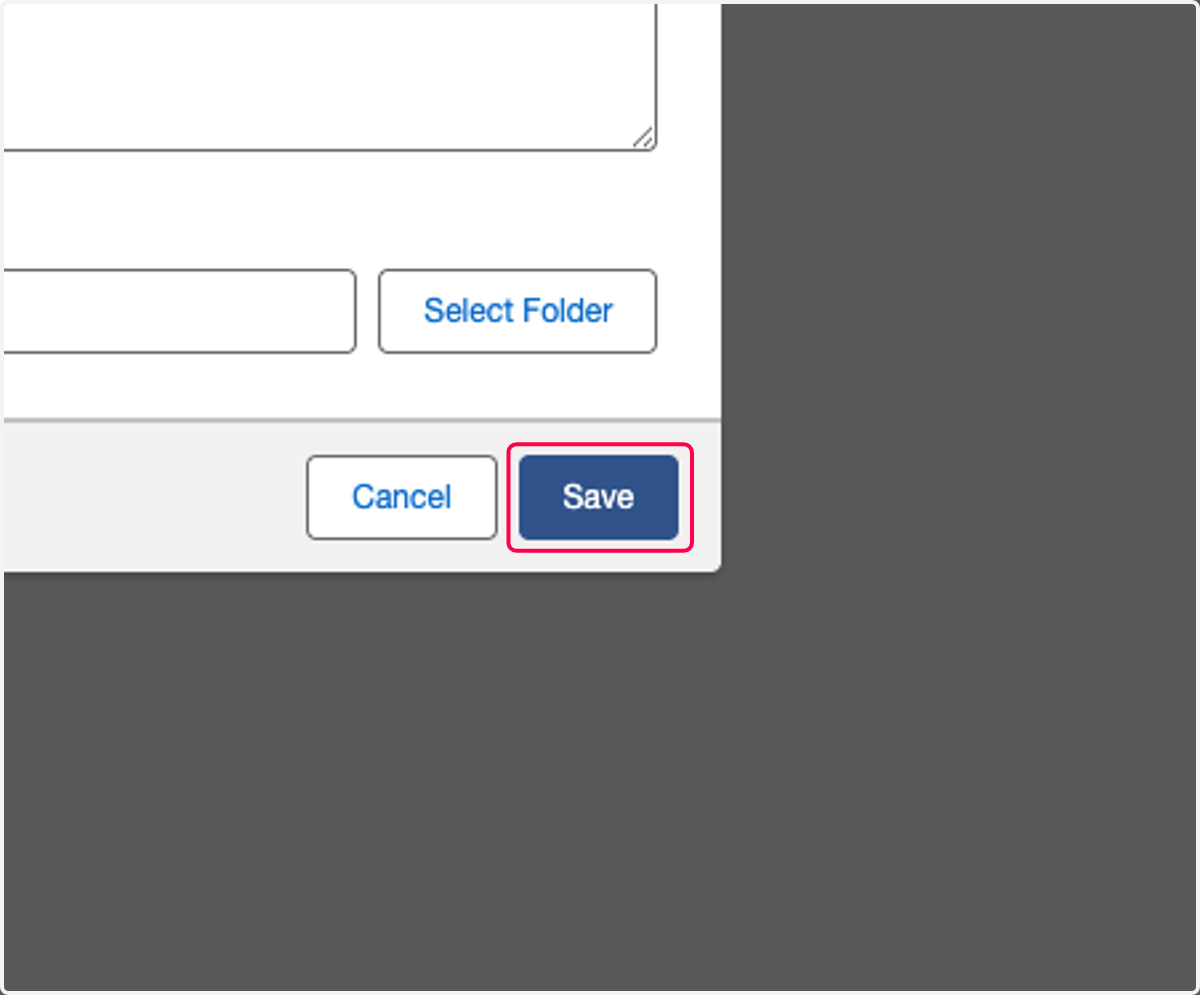
  14. 14. Click on Save

    Click on Save