Distribution of Connect: Flow Outputs
Here, we will learn of the options available to distribute output files generated by the Connect: Flow plugin when orders are placed. Several methods are available, including:
FTP
API
Email
Hotfolder
Webhooks
Which one(s) you choose (you are able to enable more than one at once) will depend on your own configuration, and what your third-party application is capable of linking to.
1. Post to FTP
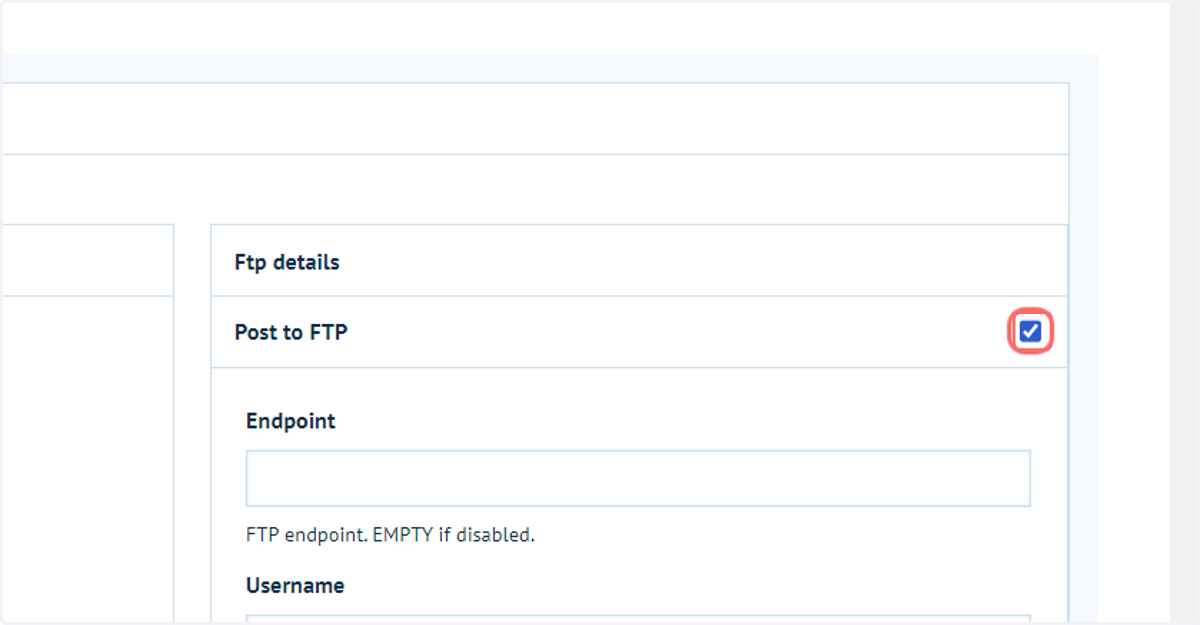
Activate distribution to FTP by enabling the Post to FTP checkbox
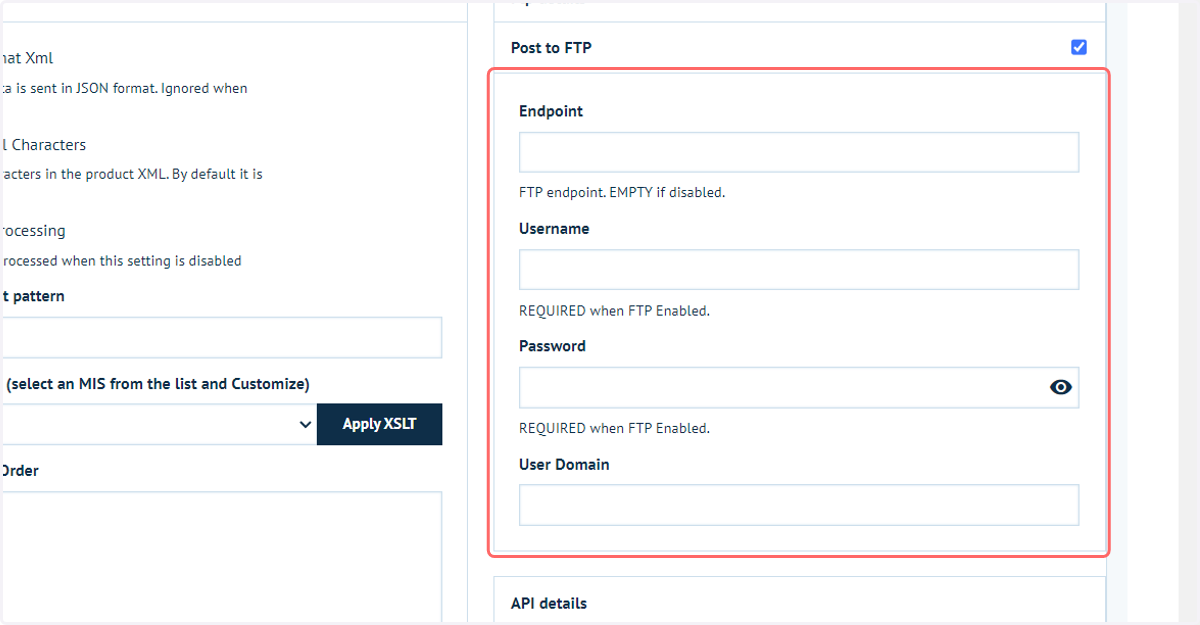
2. Enter FTP details
Allows output documents to be send directly to an FTP endpoint.
Expected format for the endpoint would be an FTP link, for example using the FTP name or an IP address. The format may look similar to below:
ftp://example.com/job-tickets
ftp://123.43565.com/job-tickets
If the FTP needs authentication, the Username, password and User domain are required.
3. Post to API
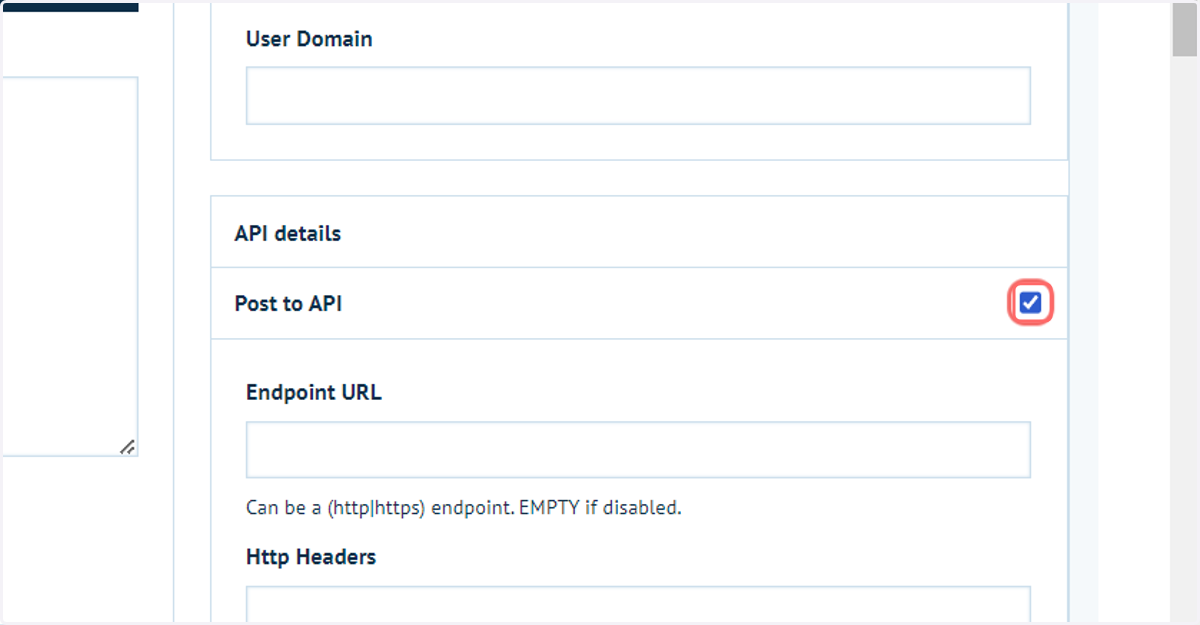
Activate distribution to API by enabling the Post to API checkbox
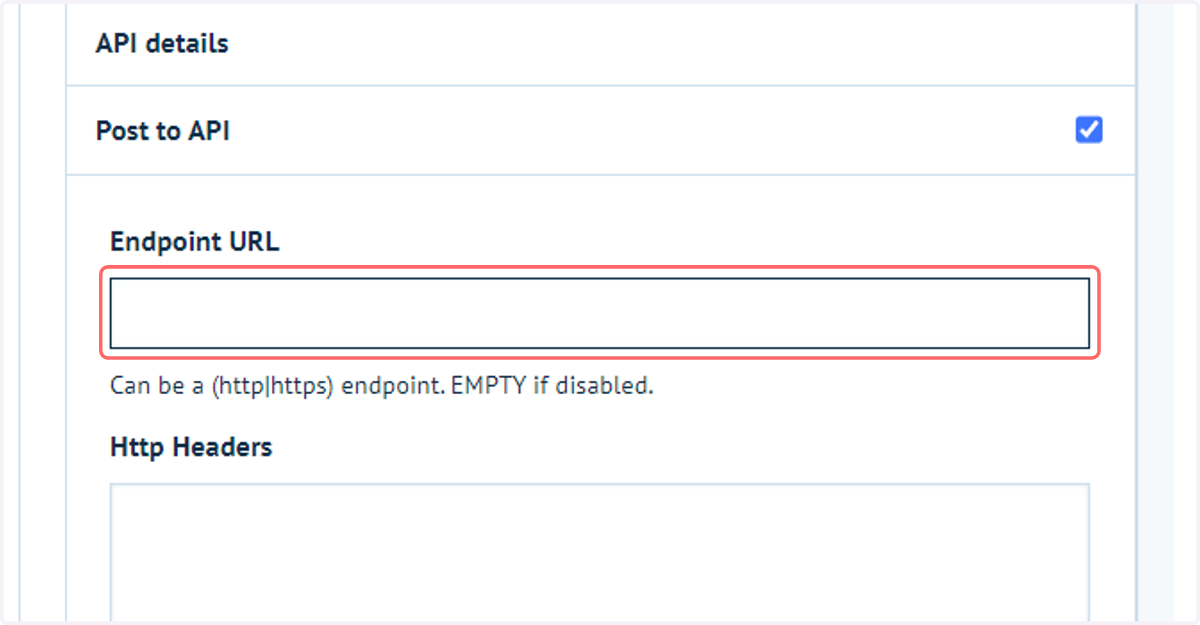
4. API Endpoint URL
Enter the API endpoint, required to specify the destination of the output file.
This can be either a http or https endpoint.
5. Http Headers
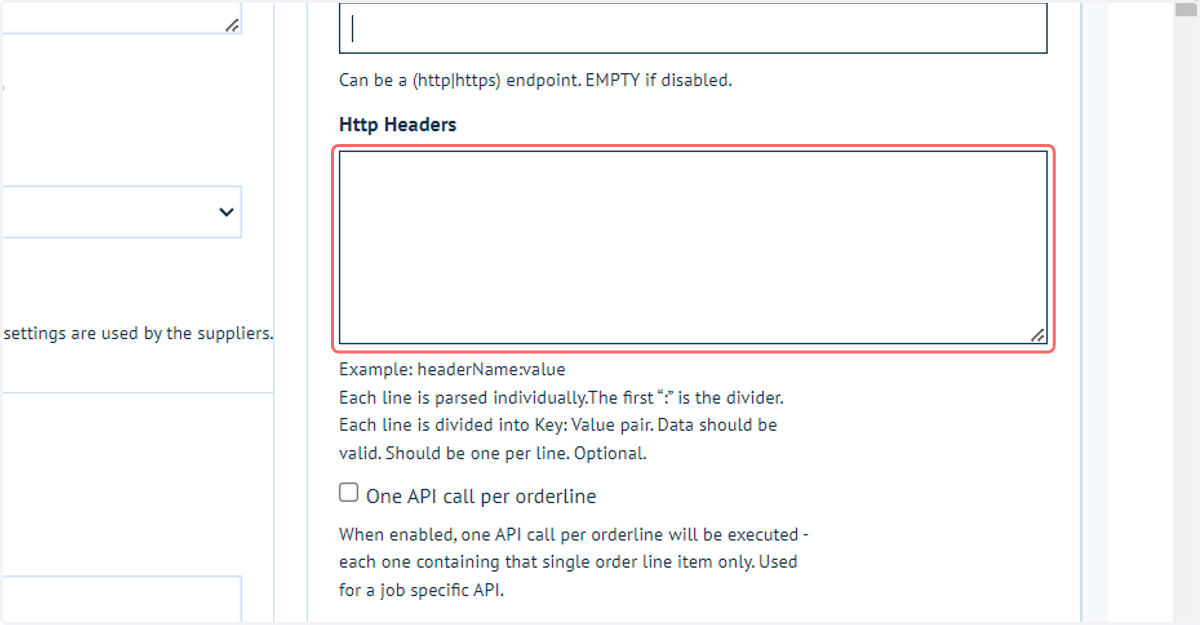
Use this field if you require to configure Http headers against your API endpoint.
Example: headerName:value
Each line is parsed individually.The first “:” is the divider.Each line is divided into Key: Value pair.
Data should be valid. Should be one per line. This is an optional setting
6. One API call per orderline
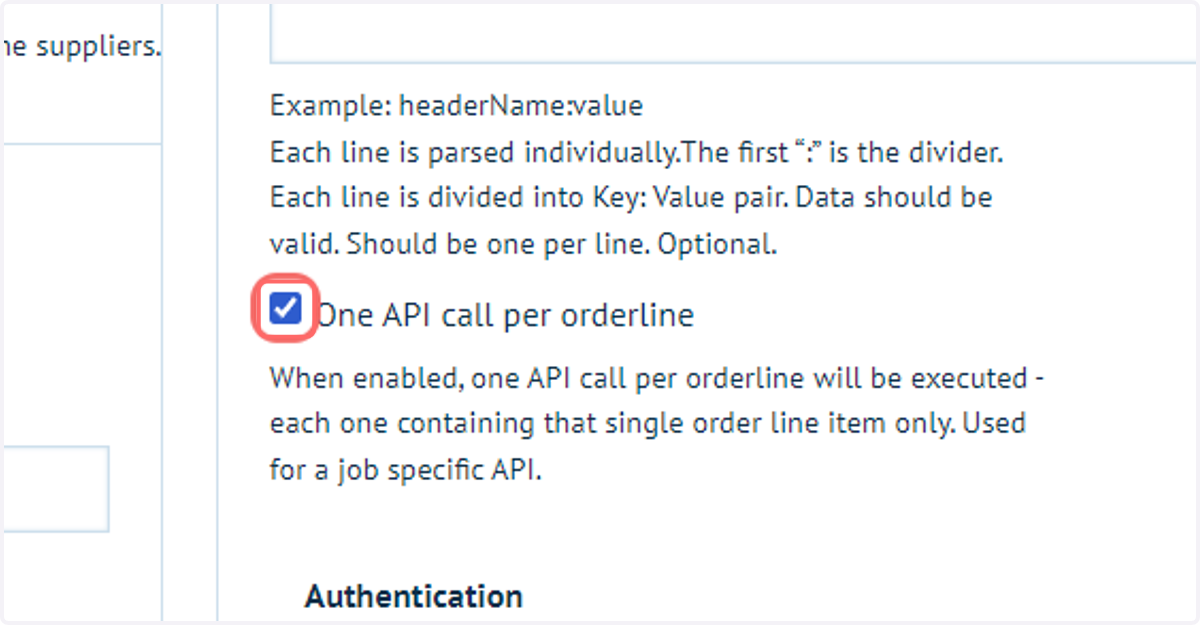
Select whether to send one API call for the entire order, or a separate API call per orderline.
Deselecting this checkbox will send one API call for the order.
Selecting thi checkbox will send a separate API call for each job within the order.
7. Use Basic Authentication
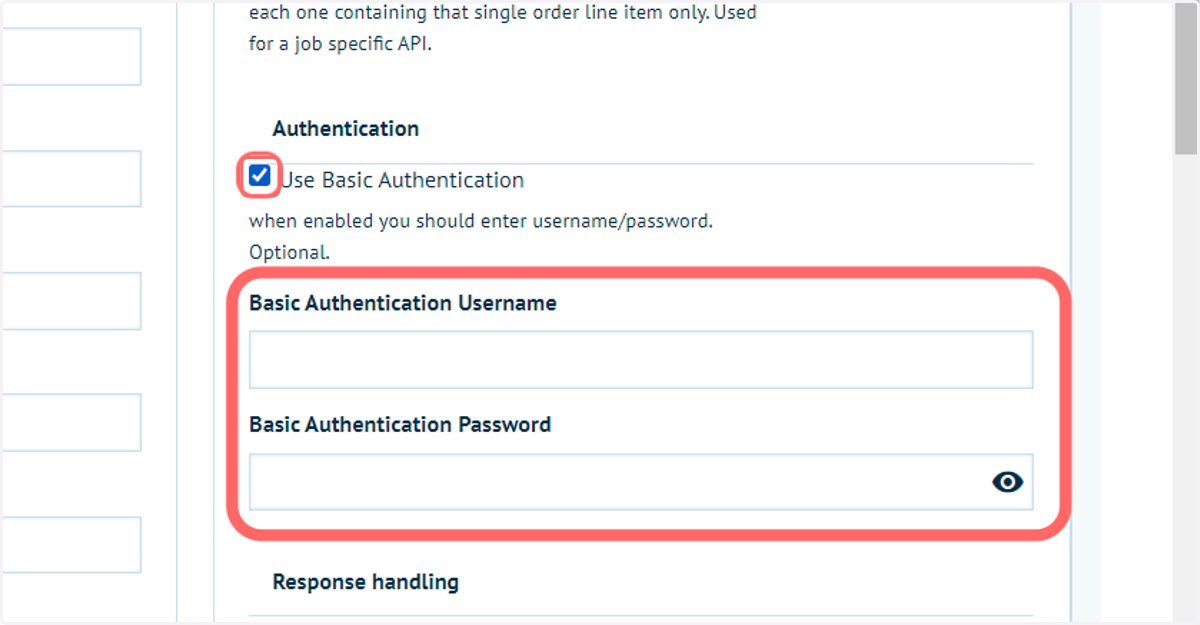
Unchecked by default, however if your API endpoint expects authentication select this checkbox and enter the username and password below it.
8. API response handling
These settings provide the ability to define some API response handling, beginning with success flags.
Your API endpoint must allow for this in order to utilise this functionality.
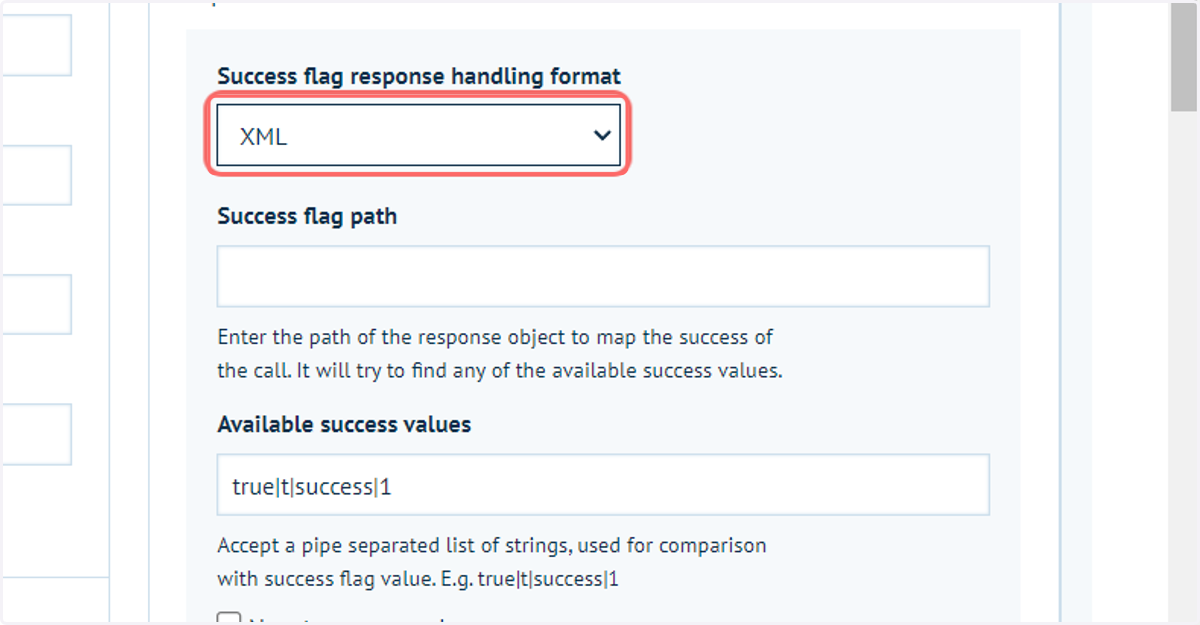
To begin, select the format of the error handling. This is defining the format in which a response will be received from your third-party system.
Your available options are:
JSON
XML
Plain Text
No handling
9. Success Path Flag
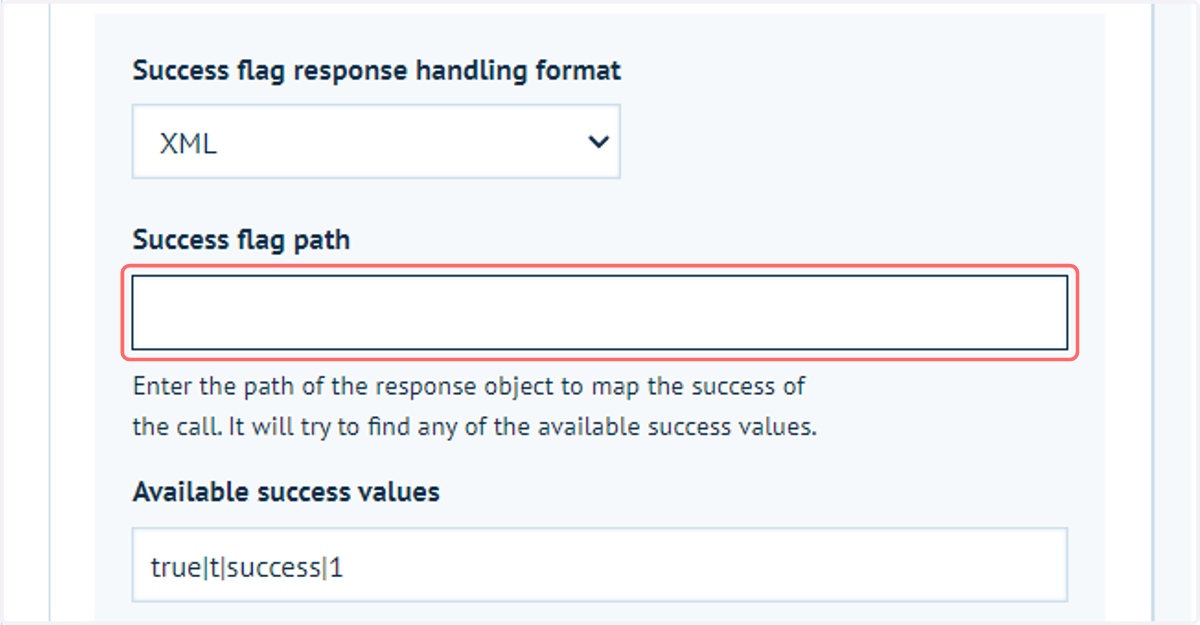
The expected response from your API call would be an object. Within that object you may have entities such as the success flag.
The Success flag path allows you to specify the specific path to the required information, such as "Order.Success.Response".
10. Available success values
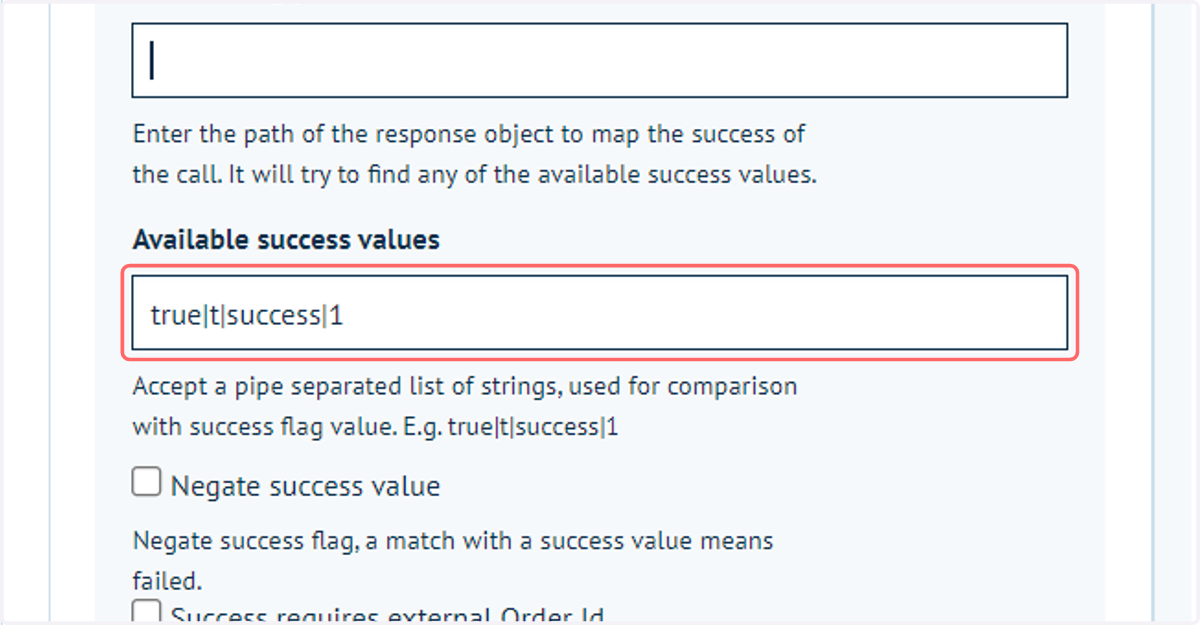
Allows you define what success values are.
For example, here we have "true","t","success" and "1" marked as success values.
If the response from the third-party system is any of these defined values then the action is considered successful.
Use the pipe "|" delimiter to separate different success values.
11. Negate success value
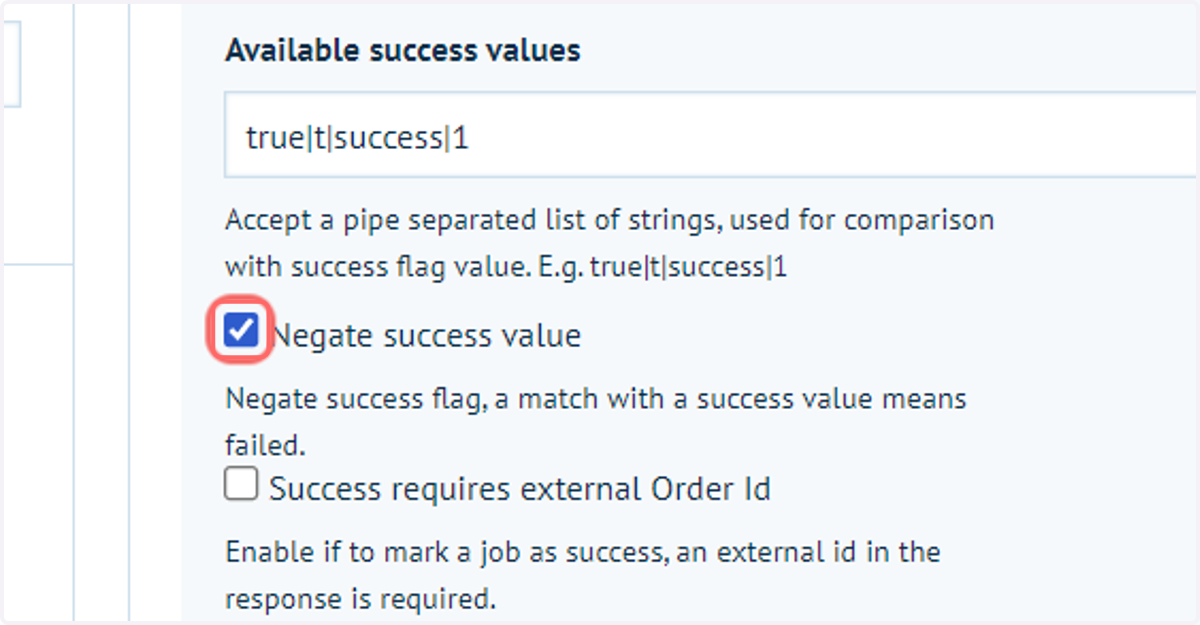
Switch the behaviour of the above settings.
Any match with the success values specified above this means the process has failed.
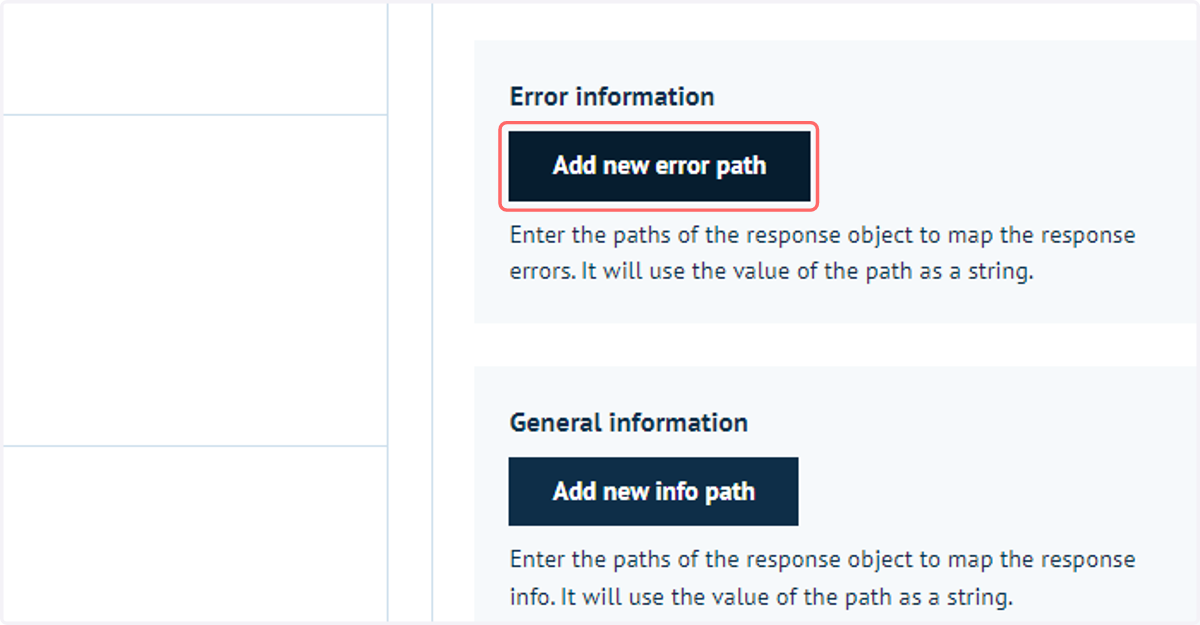
12. Add new error path and Add new info path
Specify error paths or information pieces. By clicking these buttons, you are presented with some additional options.
13. Additional path fields
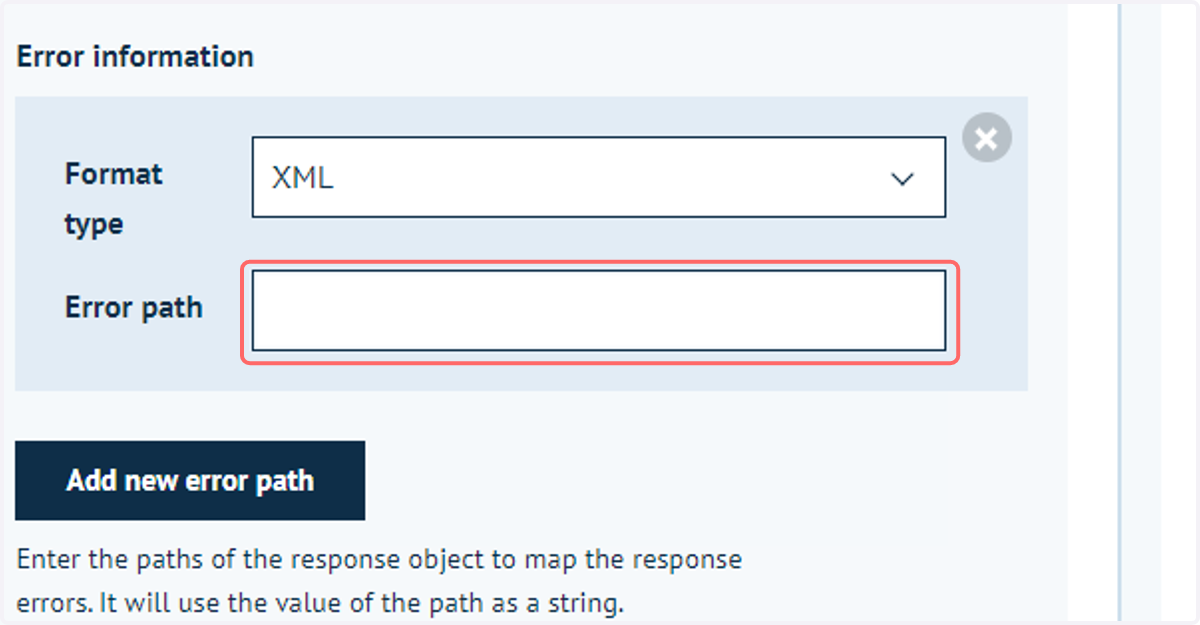
As with the success section, specify a format type and enter the path of the response to look out for.
If the path exists at all in the response from the third-party system, the status of the job is set to MIS failed and the content of that error path is included for additional information.
A similar process is followed to obtain additional information from the response, without specifying the job as failed.
14. Drop to Hotfolder
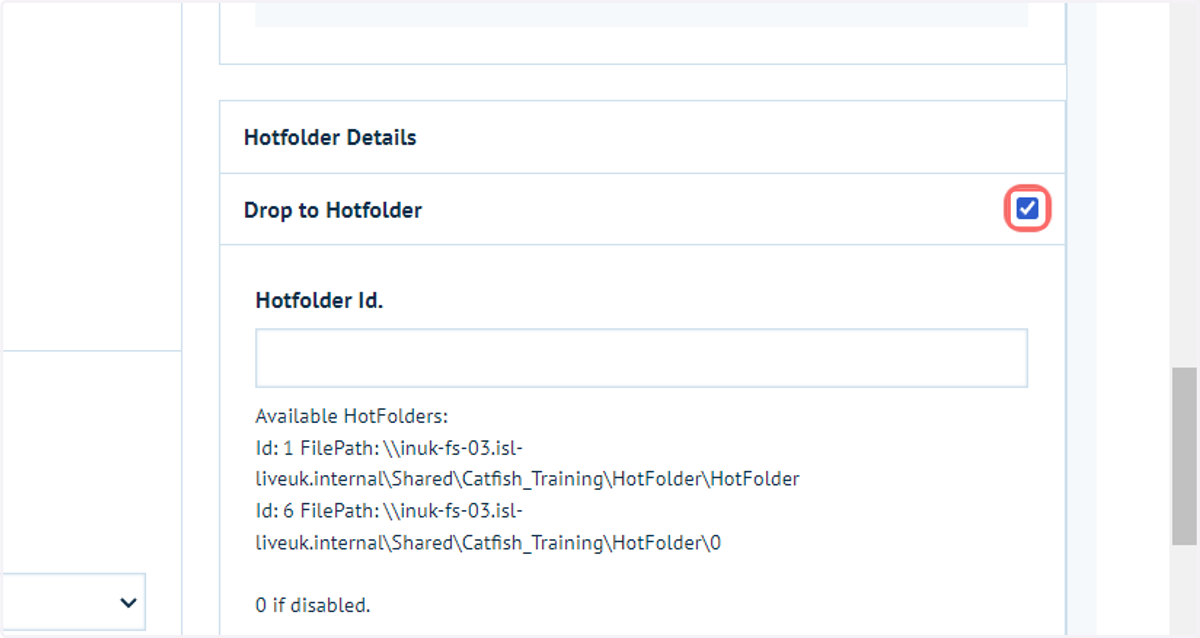
It is possible to add your generated output document to one of your specified Hotfolders within your Infigo system.
If linked using Infigo Sync to an external folder outside of the Infigo system, it is also able to push the file out to the specified folder.
Select Drop to Hotfolder to activate this.
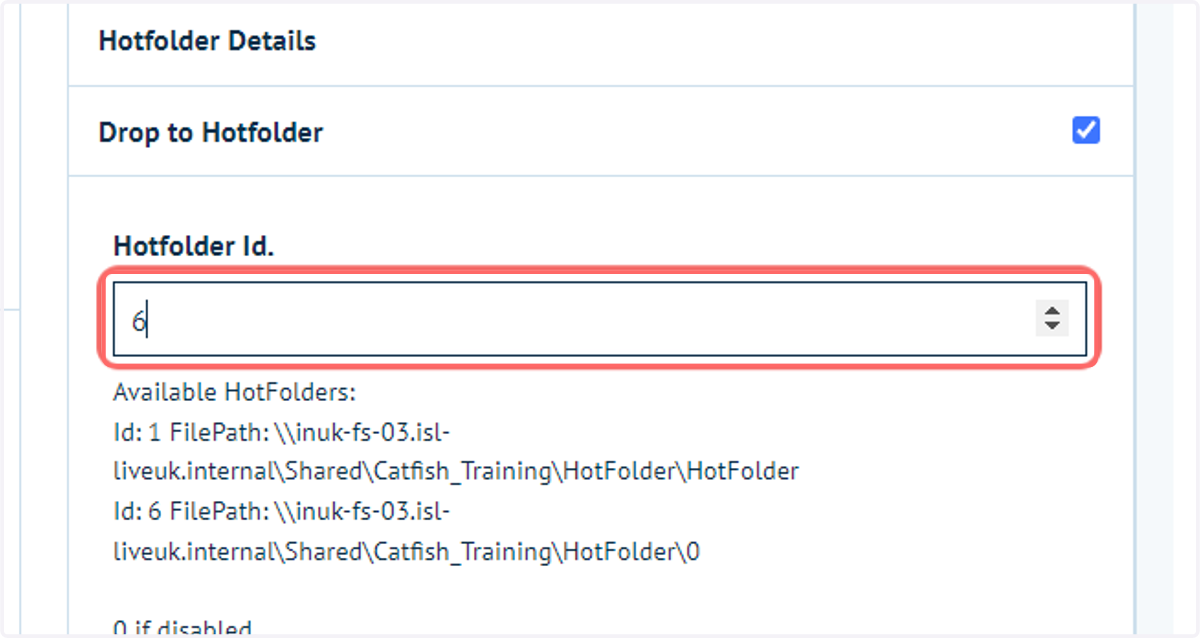
15. Enter the ID number for the Hotfolder.
Available Hotfolders are listed below this field. These Hotfolders are configured independently within Infigo.
Search for Hot Folders within the Infigo Academy for tutorial resources on this topic.
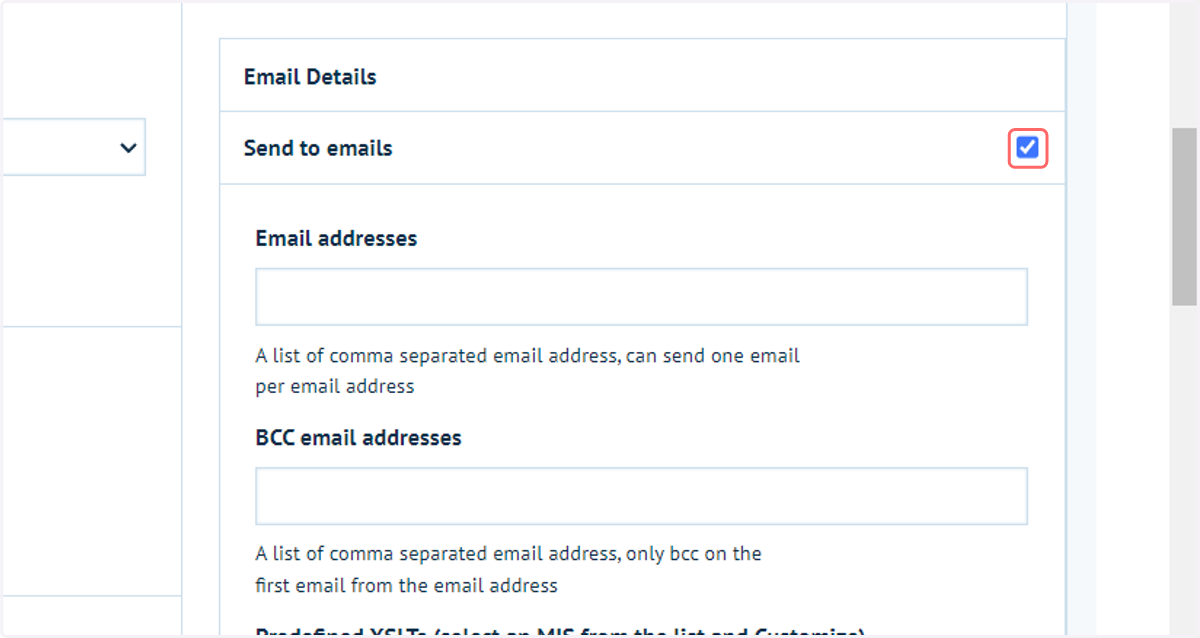
16. Send to emails
Enter an email address to submit an email containing the output document content.
Note: This places the output document content within the email body, not as an attachment.
Multiple email addresses can be defined with the comma separator.
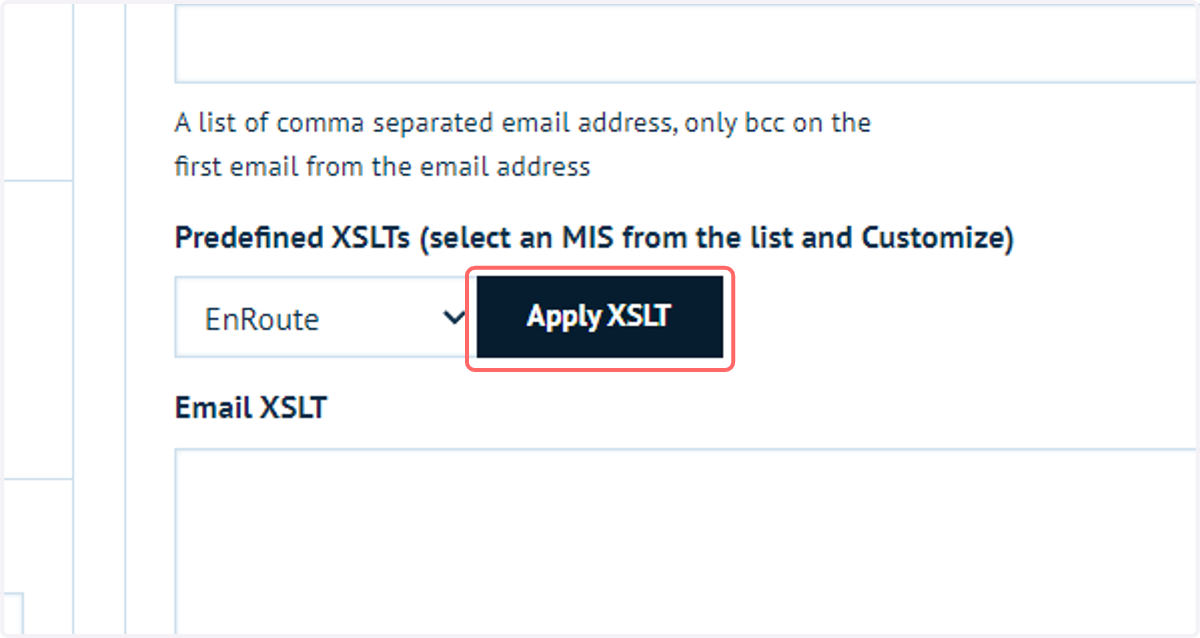
17. Apply XSLT
An XSLT transformation script can be selected or input here aimed at reformatting the text placed into the body of the email.
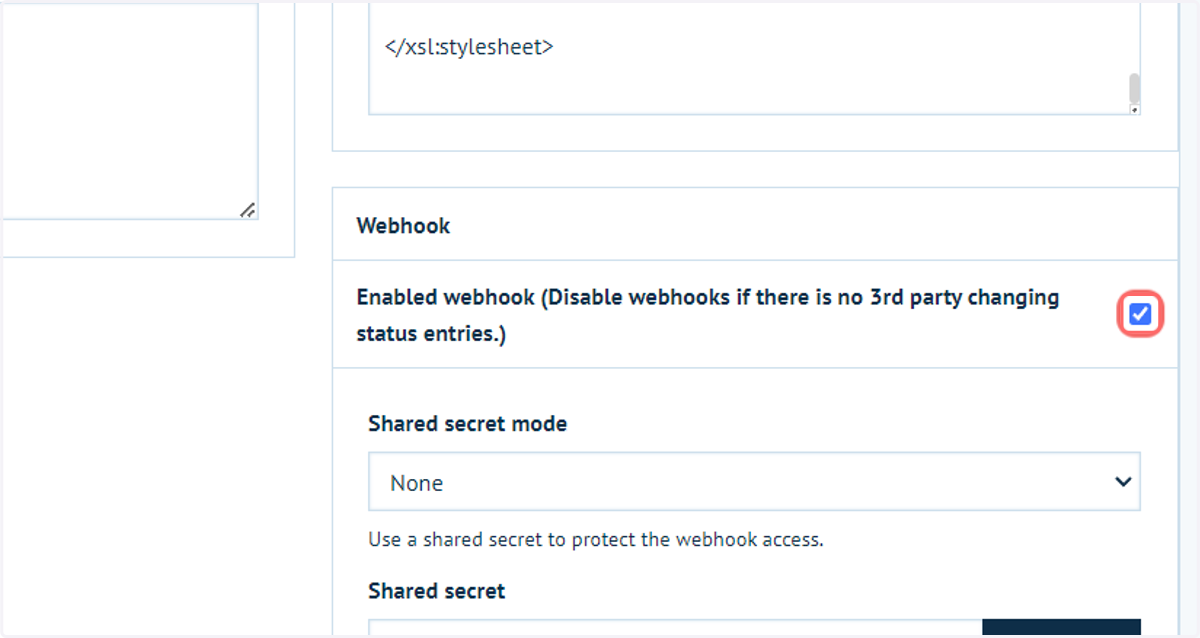
18. Enabled Webhook
If, for example, you wish to send status updates back to Infigo you can do this via webhooks. Your third-party system must specifically allow for this in order to utilise the functionality.
19. Webhook links and additional information related to the webhooks can be found at the very bottom of the Connect: Flow configuration page.
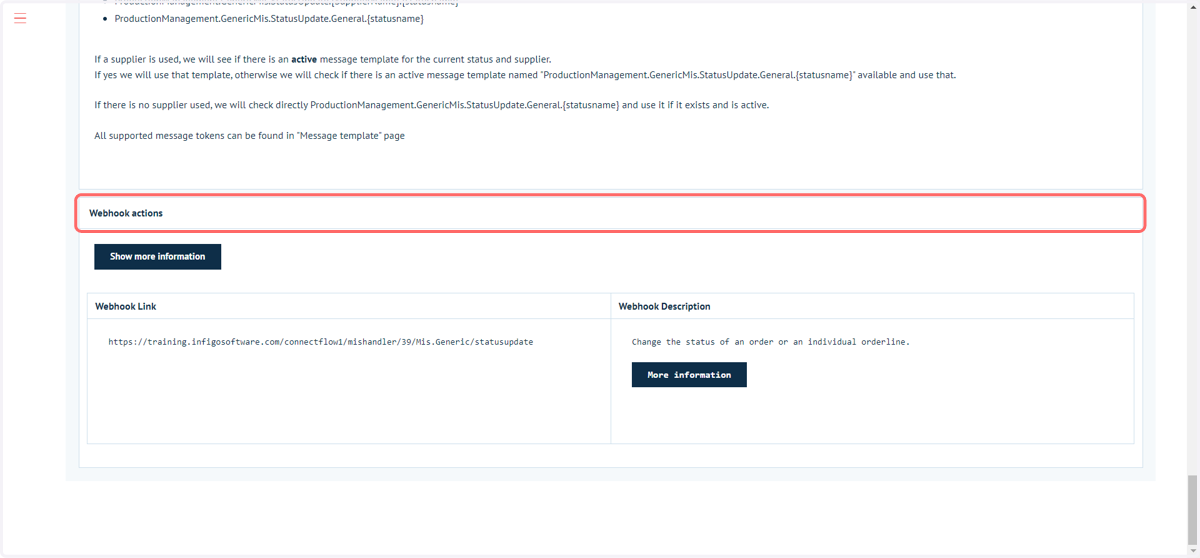
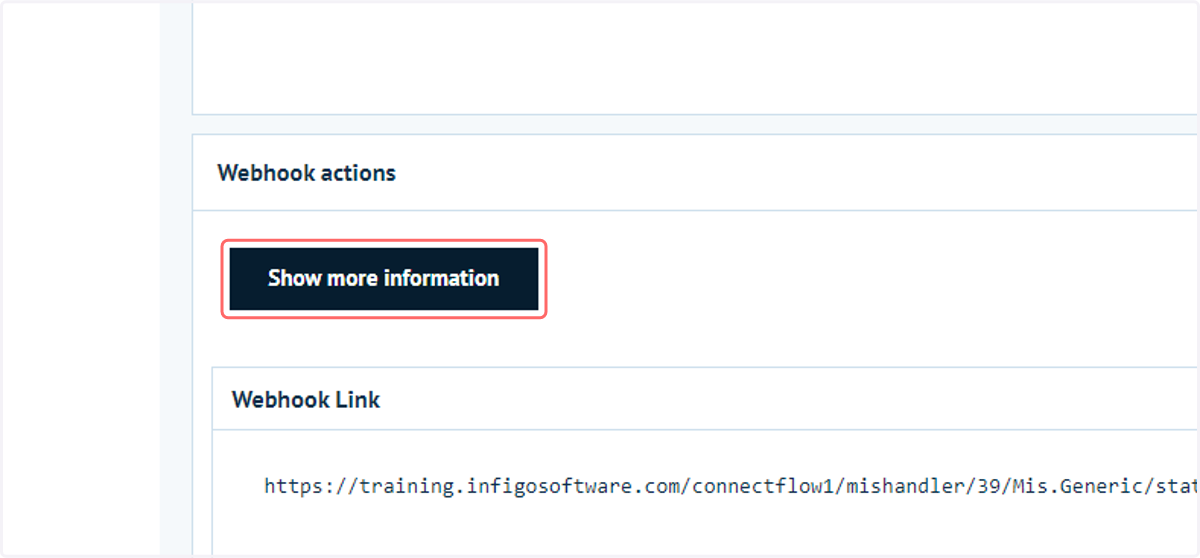
20. Click on Show more information
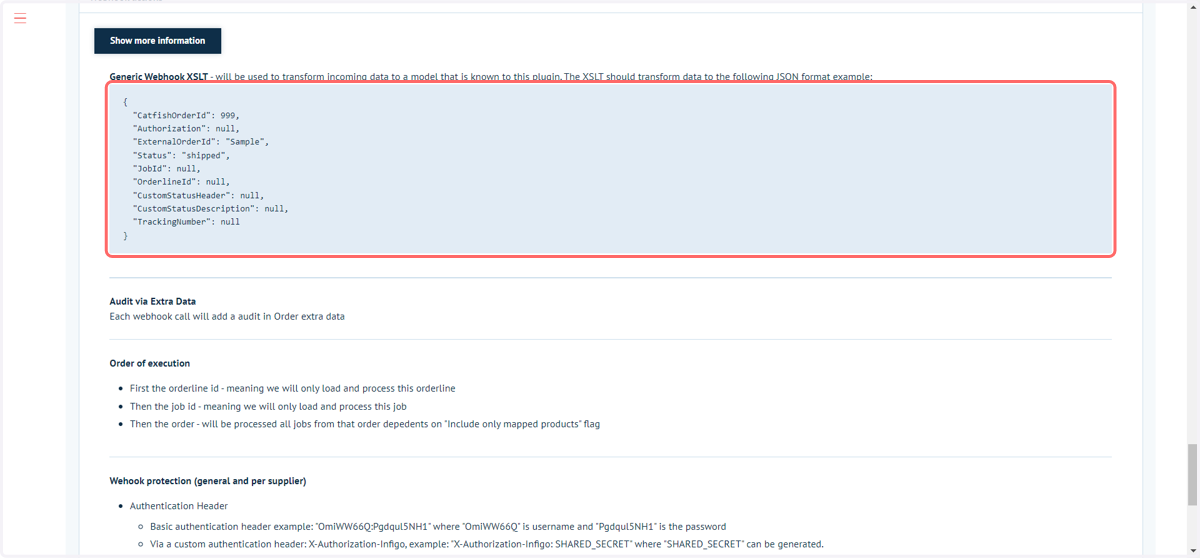
21. Additional webhook information
This section contains detailed information such as file format configurations the Infigo system is expecting, along with order of actions and a list of available status' to change to.
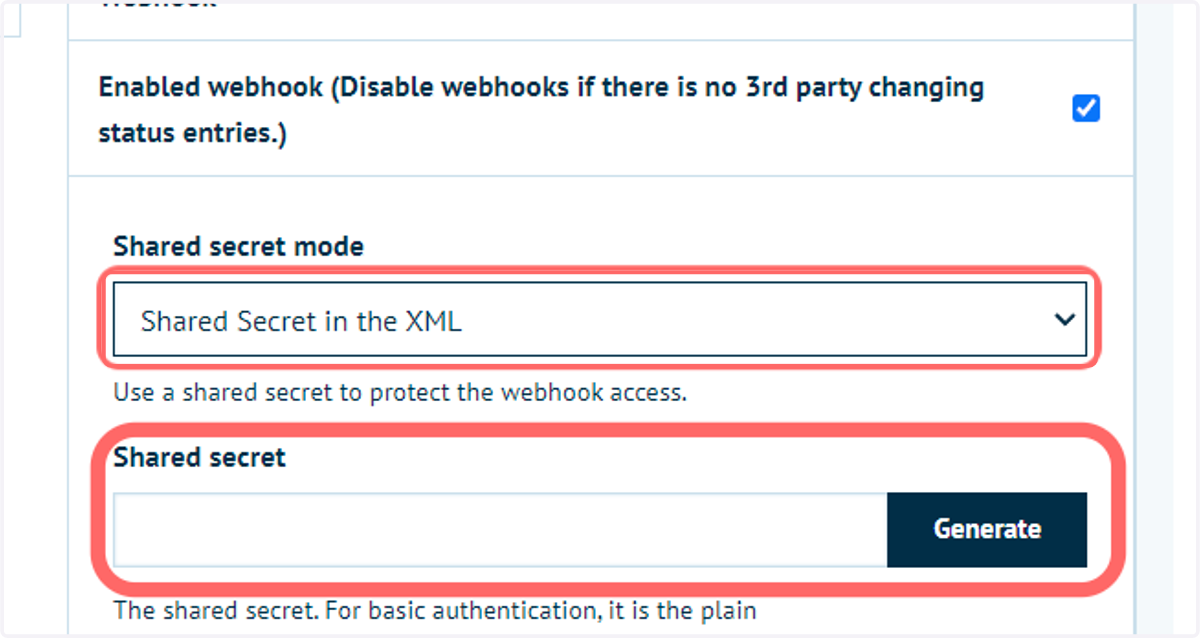
22. Shared Secret mode
This relates to authentication around the use of webhooks and is used to protect access.
Specify whether the shared secret is shared in the XML or header, and generate the Shared Secret code from within this interface.
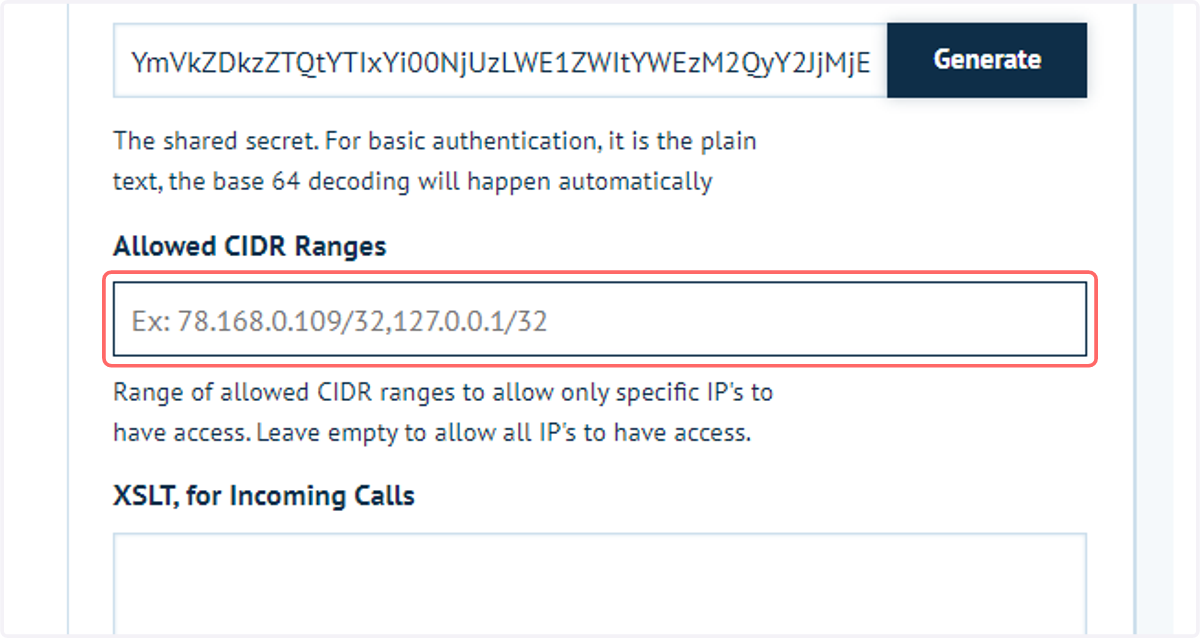
23. Allowed CIDR Ranges
Specify the IPs which are allowed access. Leave this field empty to allow all IPs to have access.
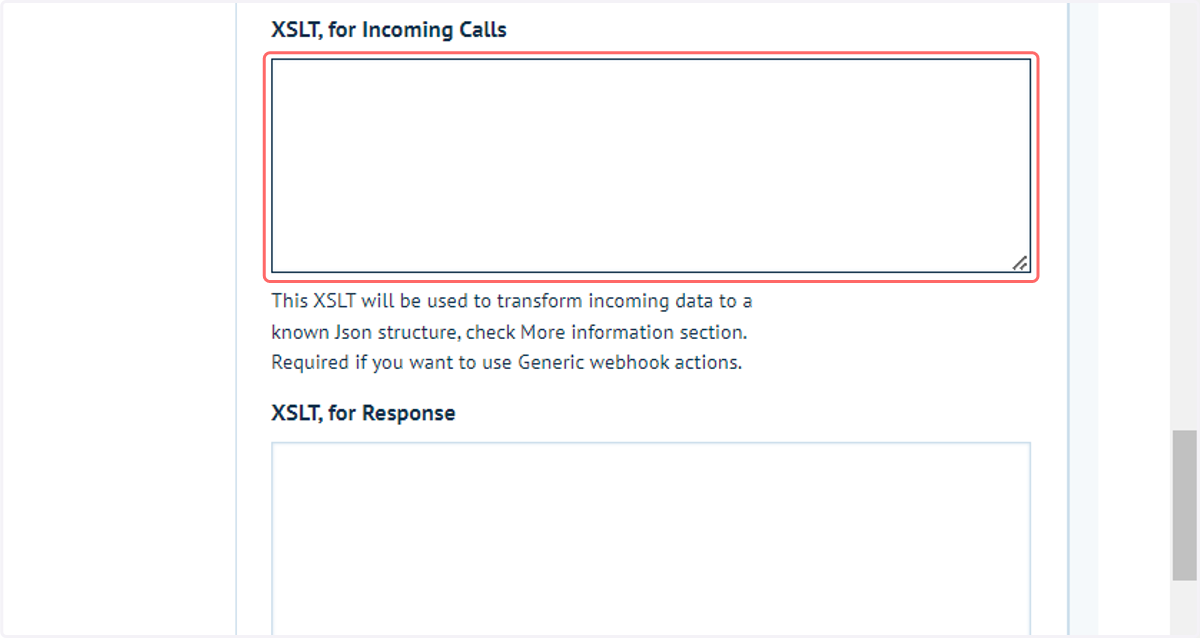
24. XSLT for incoming calls
This is the message which is received from the third-party system to update the status.
Used to transform incoming data to a known JSON structure. This is a requirement for webhook actions.
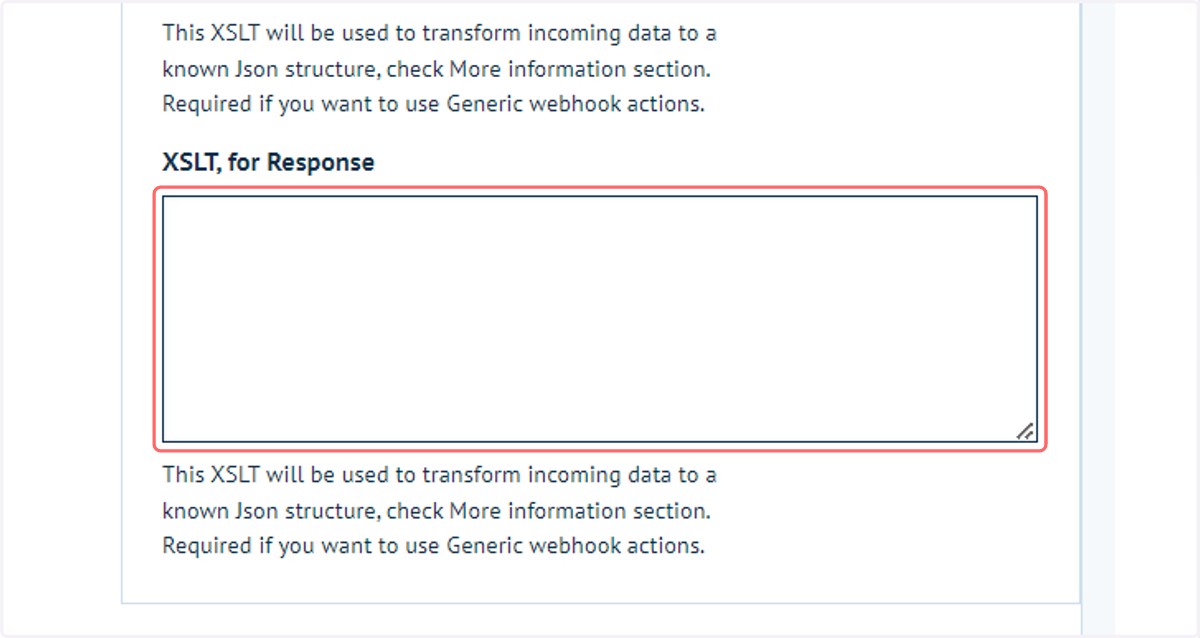
25. XSLT for Response
This is the message which is sent to the third-party system in response. Used, for example, if the third-party system requires acknowledgement of success/failure of the status update.
Used to transform incoming data to a known JSON structure. This is a requirement for webhook actions.