Handling and processing fees | BG_046
In this short tutorial, we'll take a look at how to incorporate handling and processing fees in to your order pricing.
These fees come in three different forms, which we will explain here, and are easy to configure on a Storefront-by-Storefront basis.
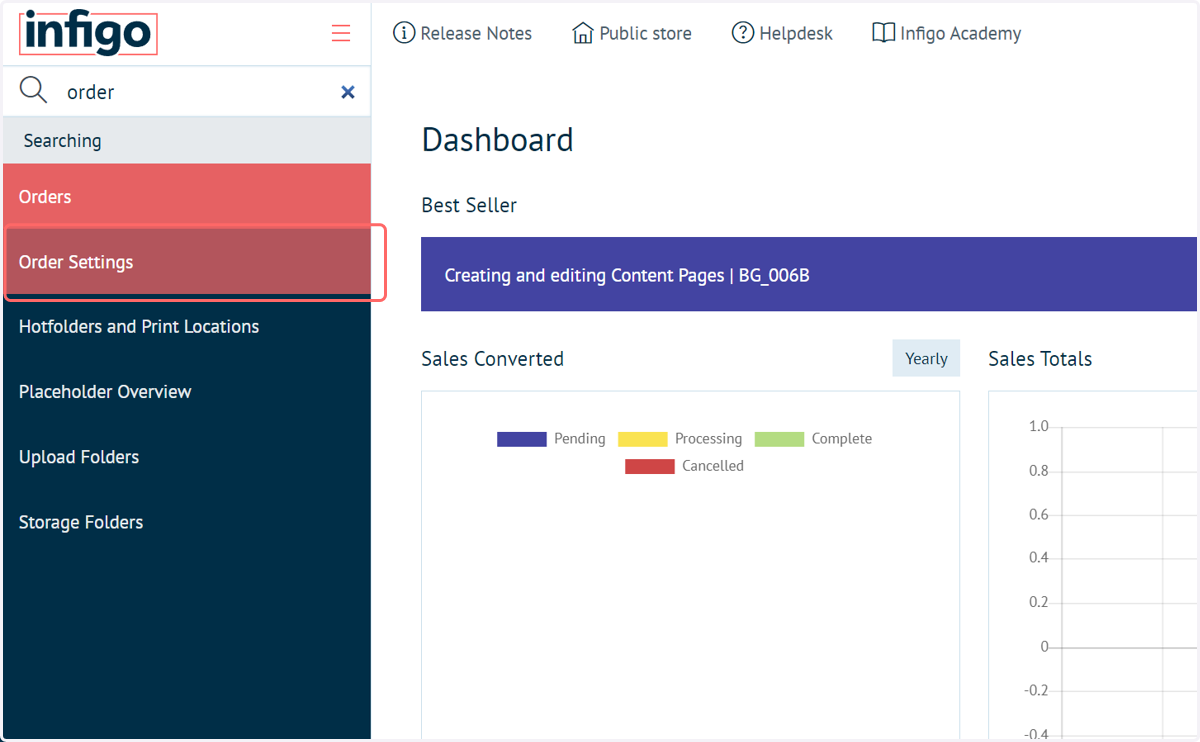
1. Navigate to Order Settings
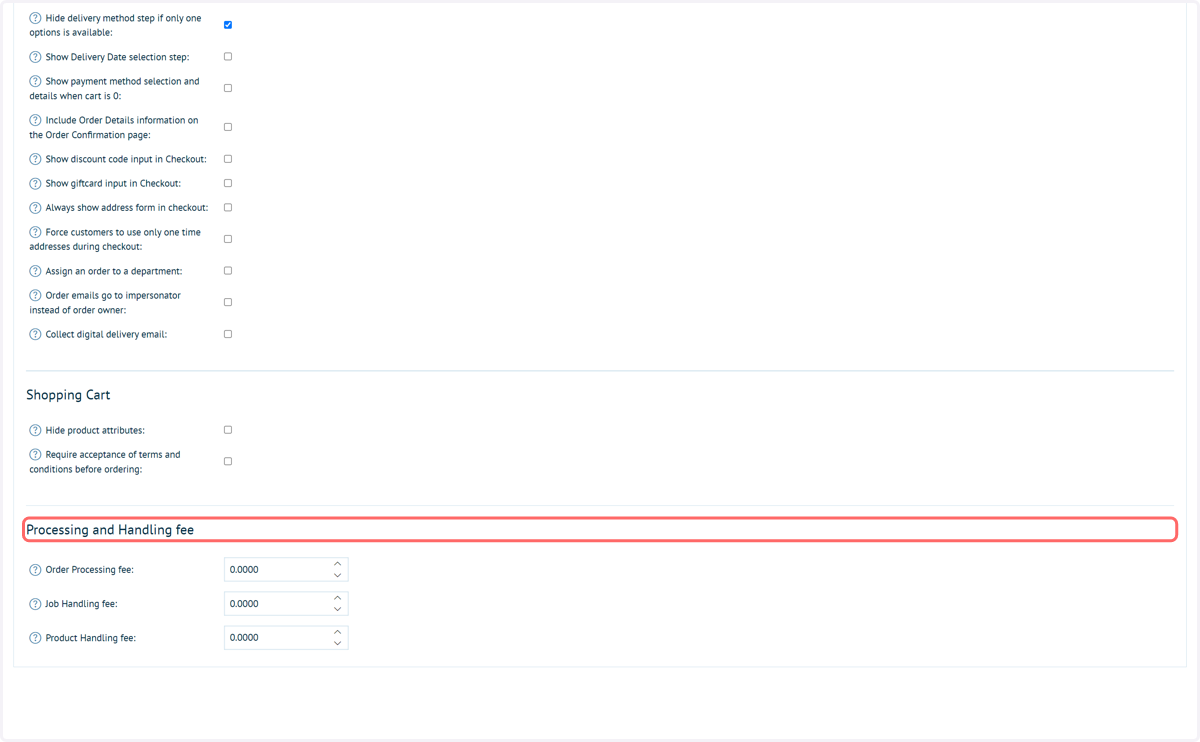
2. Click on Processing and Handling fee
The Processing and Handling fee section handles this capability.
If these values are set to 0, references to the processing and handling fee will not be seen in the front end or within the admin based sales screens.
This section contains three separate fees:
Order processing fee | Applies one fee to an entire order. Every order will have this additional fee.
Job handling fee | An additional fee applied to every line in the basket.
Product handling fee | An additional fee applied to each different product in the basket. For example, if the same product is in the basket twice with different attribute selections, only one additional fee will be applied.
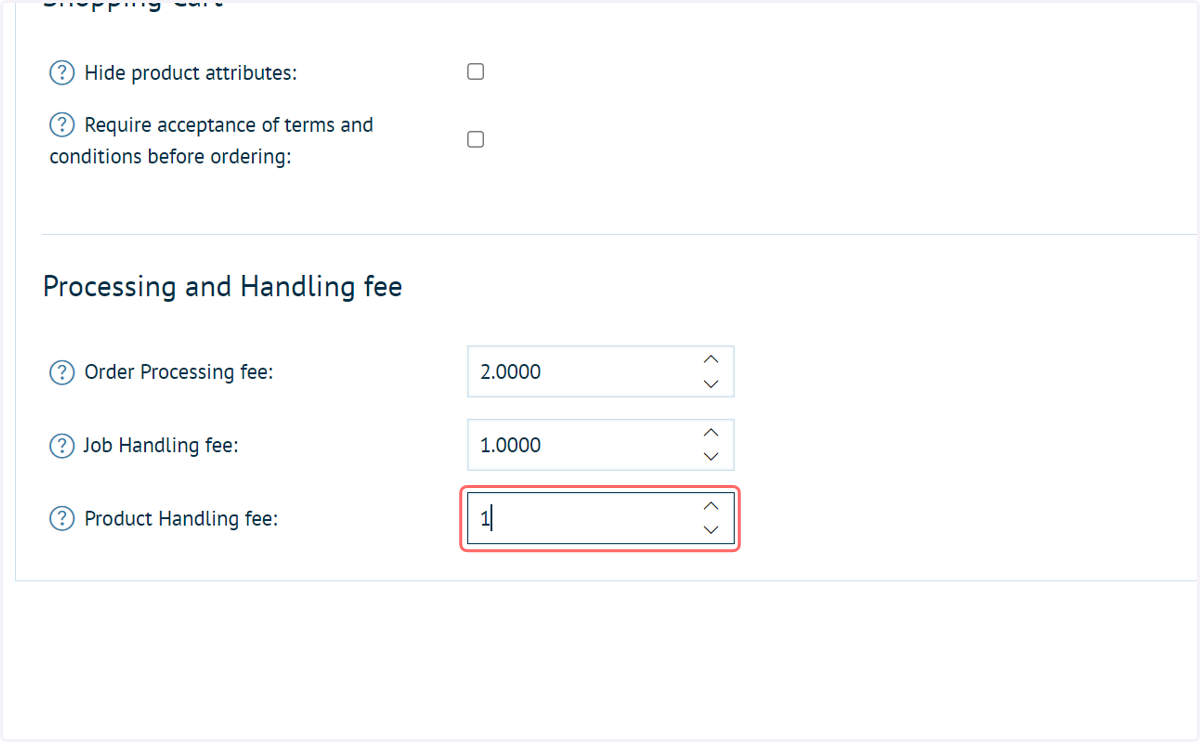
3. Enter values and click Save
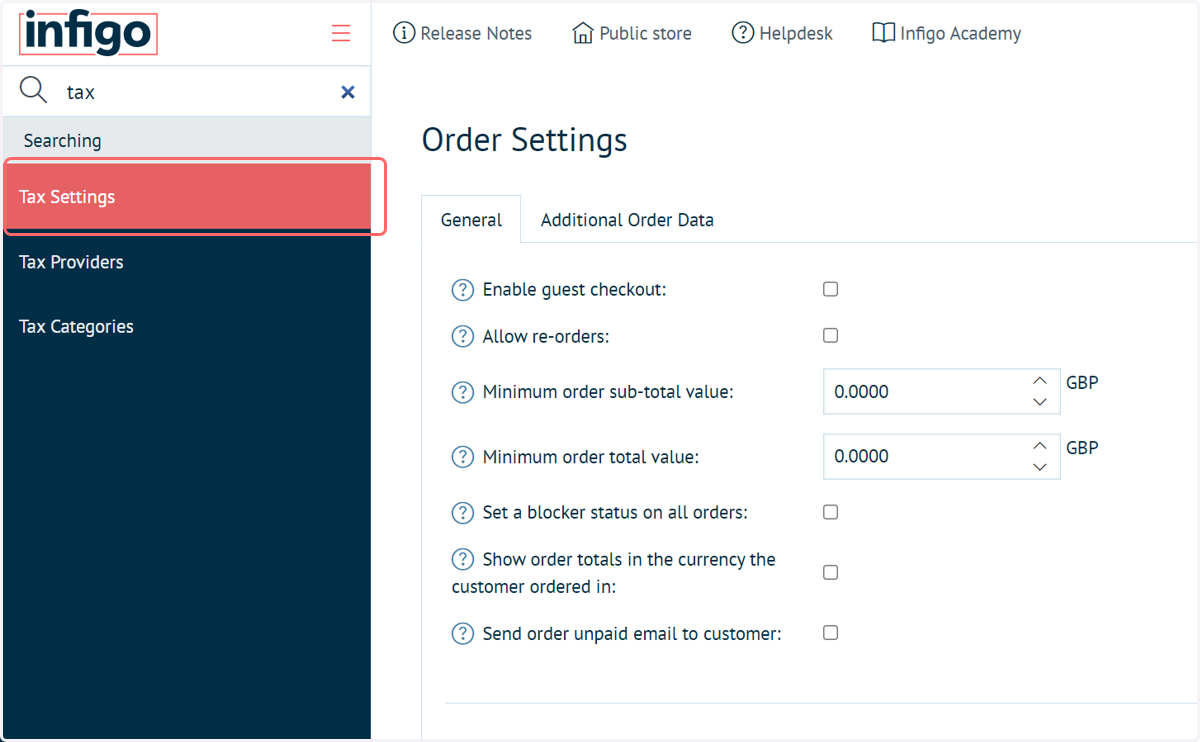
4. Navigate to Tax Settings
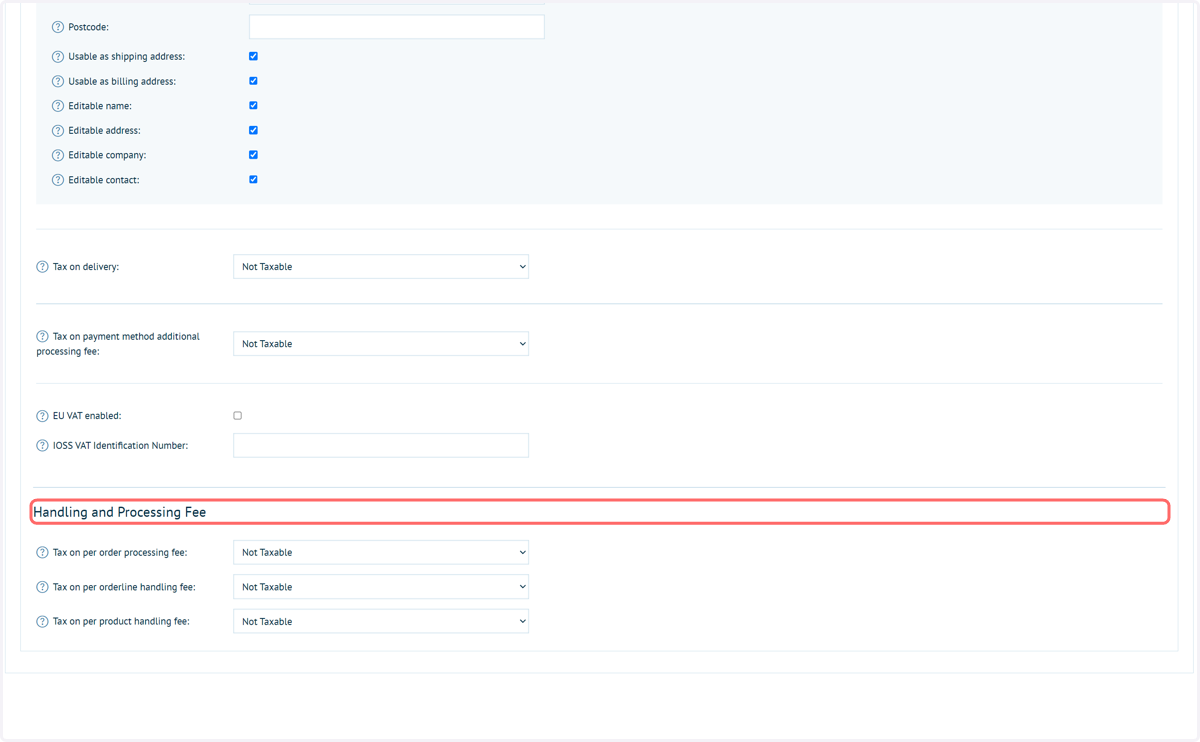
5. Click on Handling and Processing Fee
Additional settings are available within the Tax Settings screen, allowing you to define whether these additional fees are taxable or not.
Simply configure the required dropdowns and click Save.
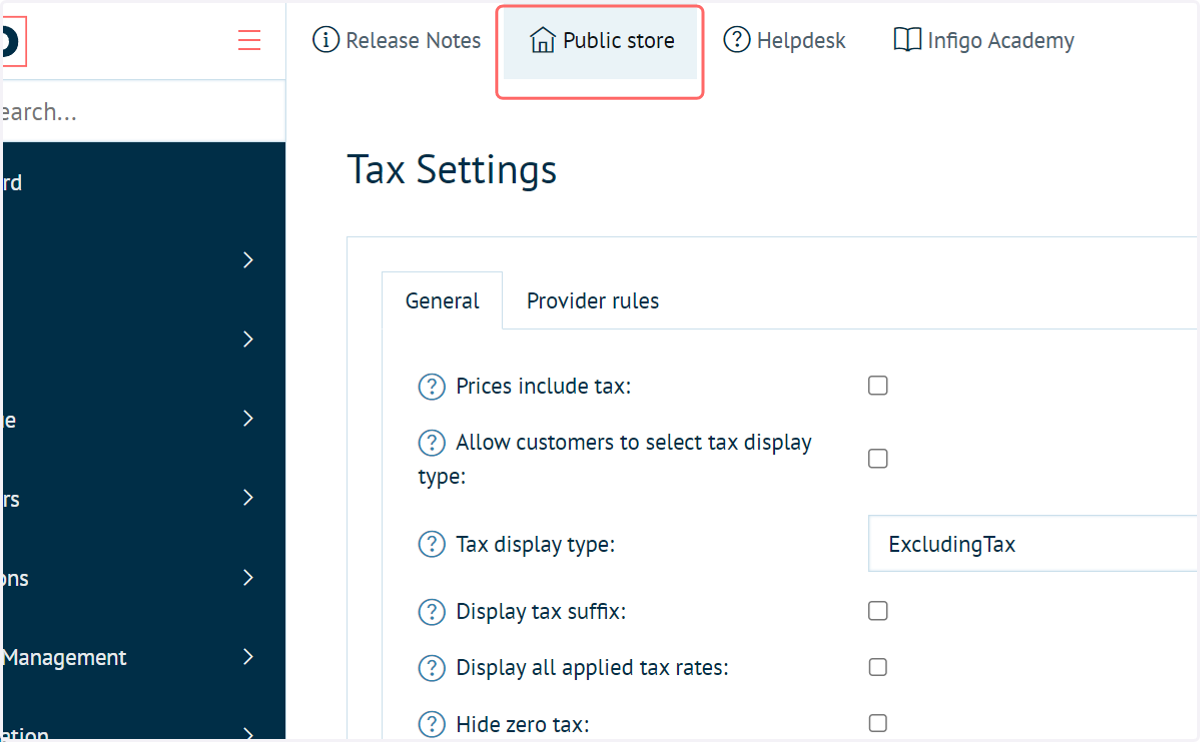
6. Click on Public store
Next, we will navigate to our front end and populate our basket with some poducts
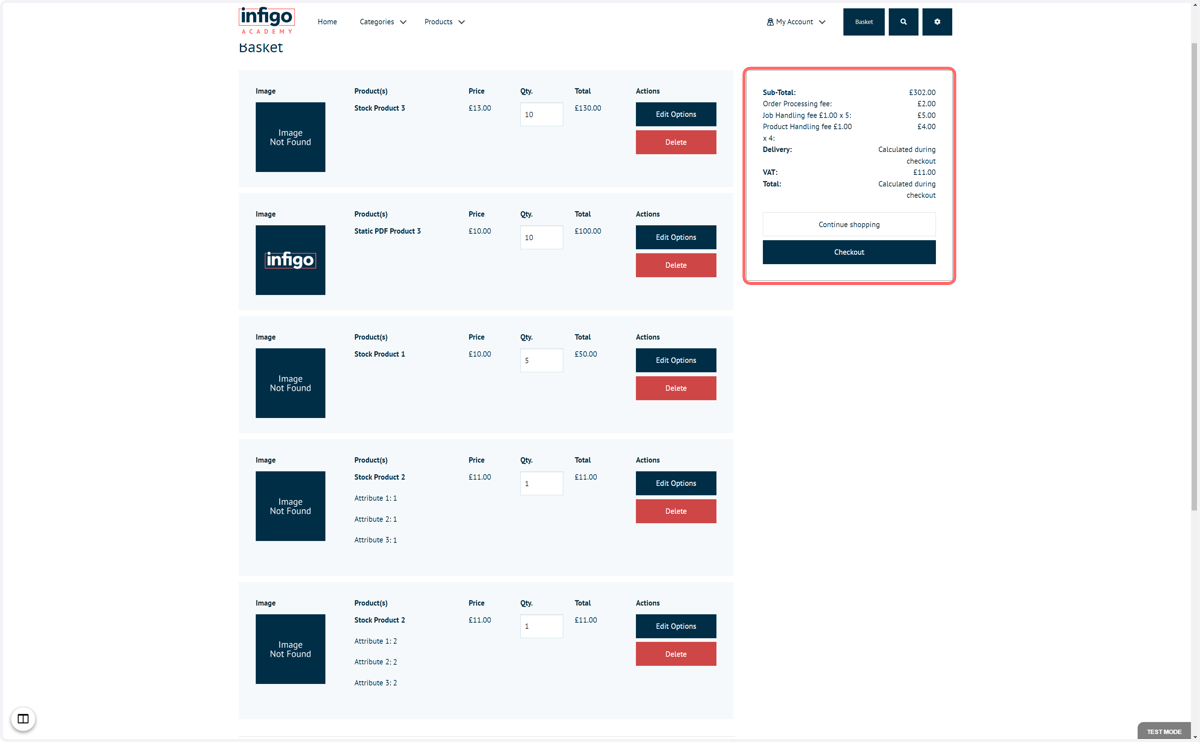
7. The breakdown of the order, including our new fees, can be seen in the basket summary.
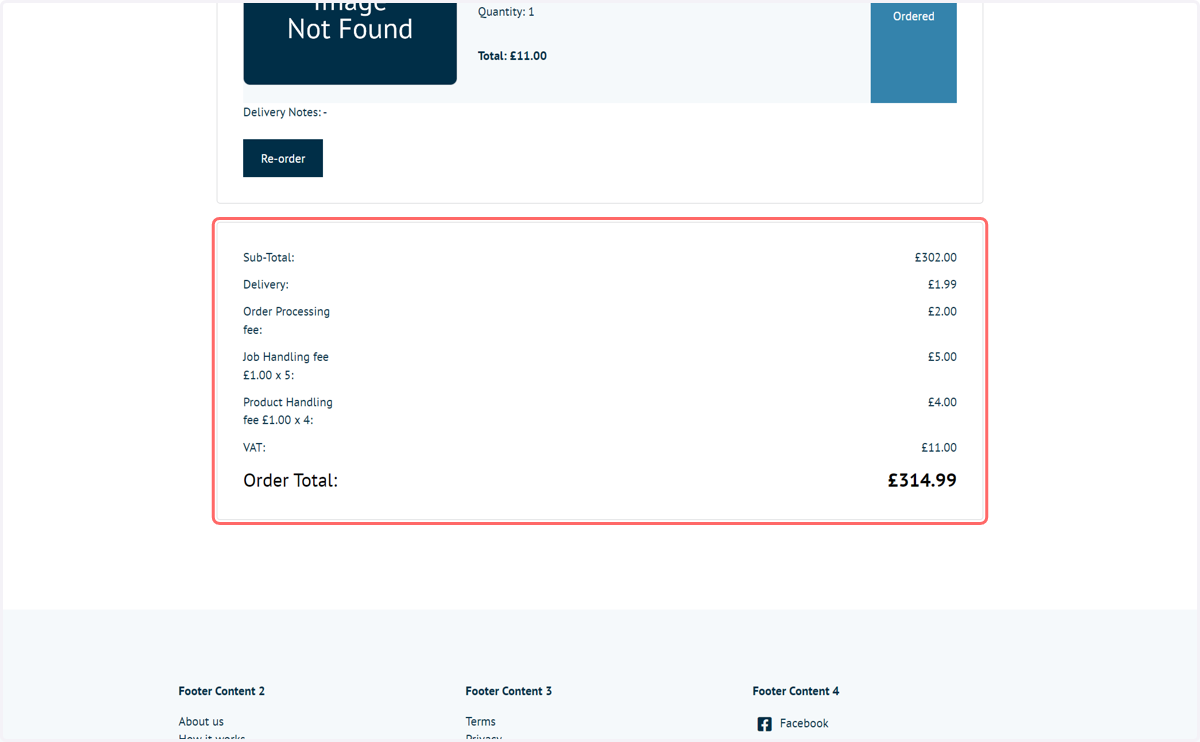
Here, we can confirm how these are being applied. Our basket has 5 order lines, however two of those are the same product with different attribute value selections.
As a result, we have:
1 x order processing fee (applied once for the whole order)
5 x job handling fee (applied per orderline)
4 x product handling fee (applied per product)
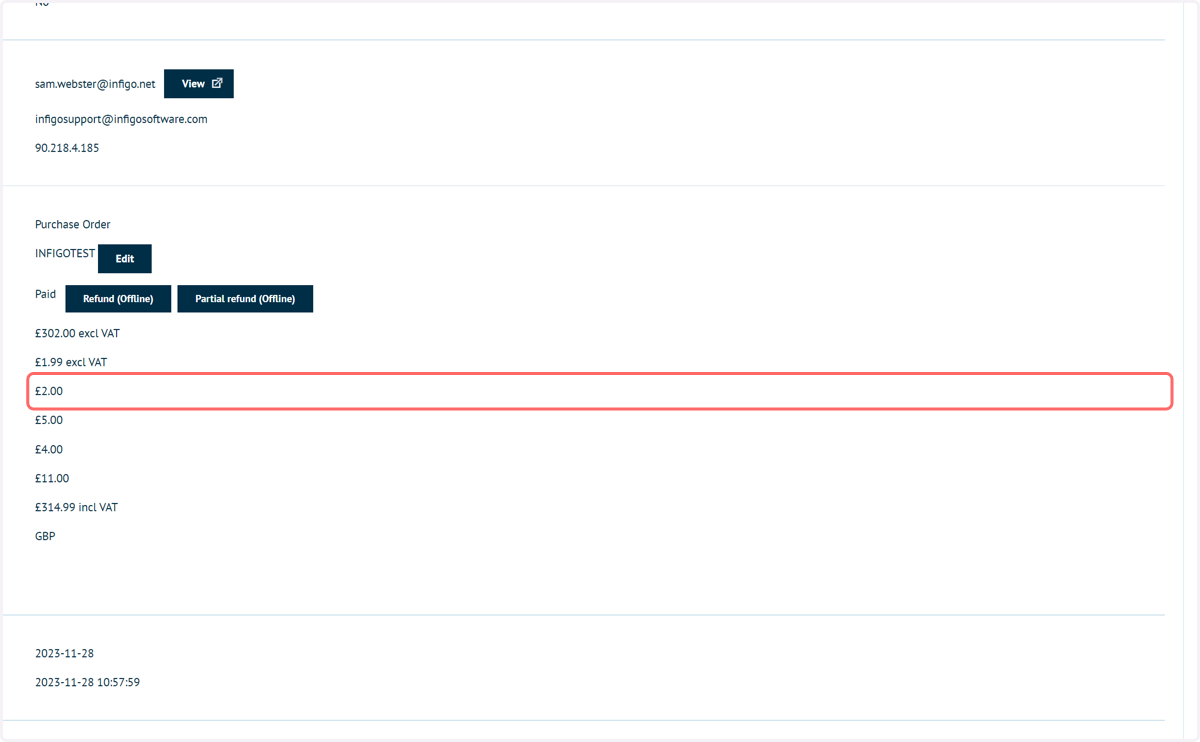
8. This information can be seen in numerous locations, including the customer's order details screen
9. Click on Admin
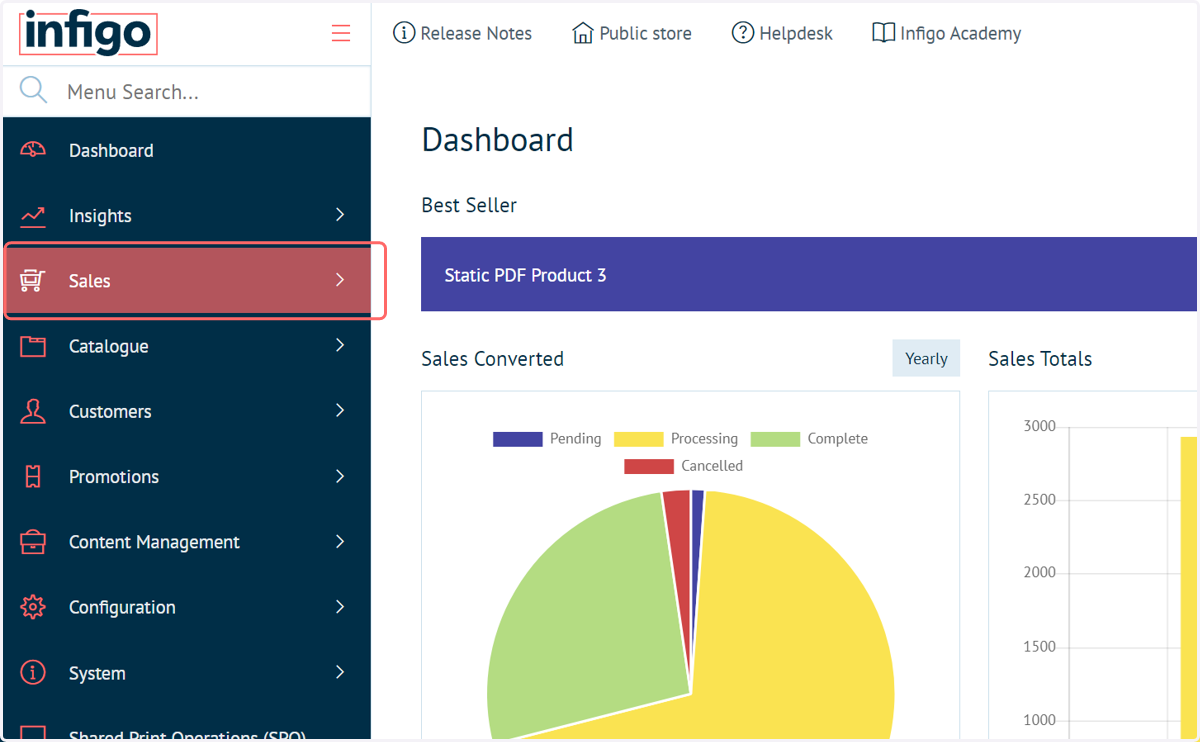
10. Navigate to Sales
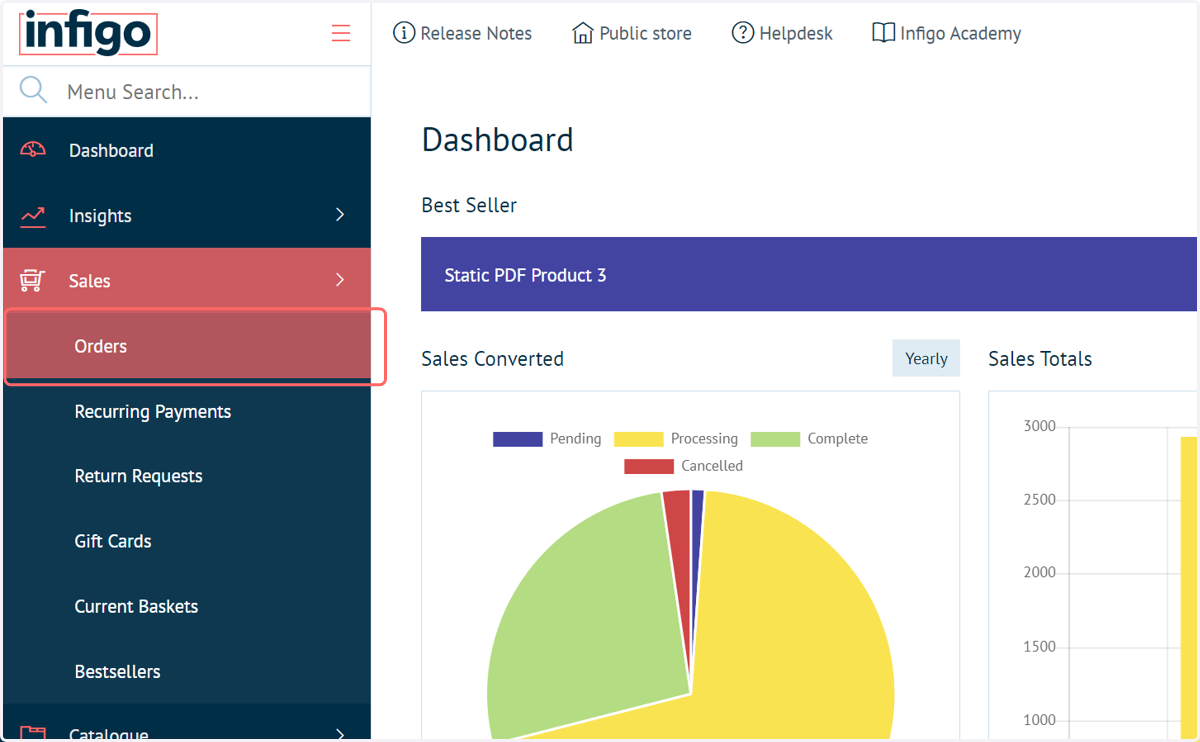
11. Click on Orders
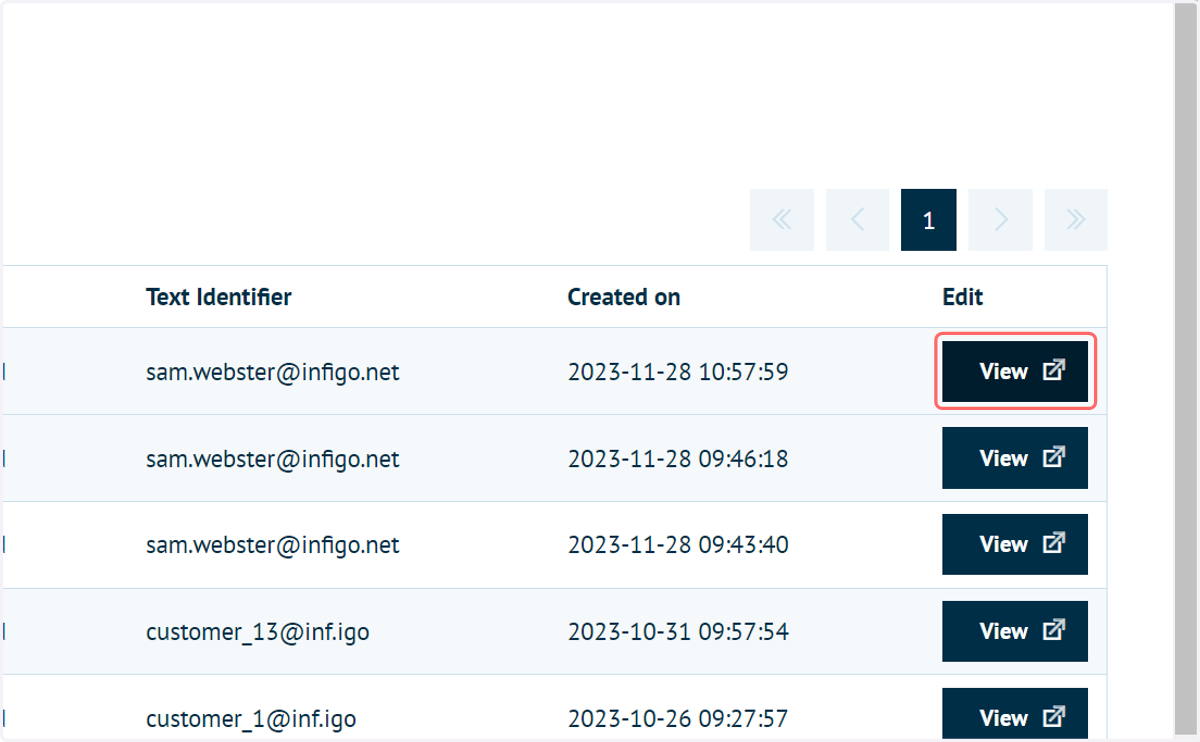
12. Click on View
13. Additionally, these additional fees are listed on the admin side of the sales documentation