Text Library Resource Set
In this tutorial, we will learn how to create and utilise Text Library Resource Sets.
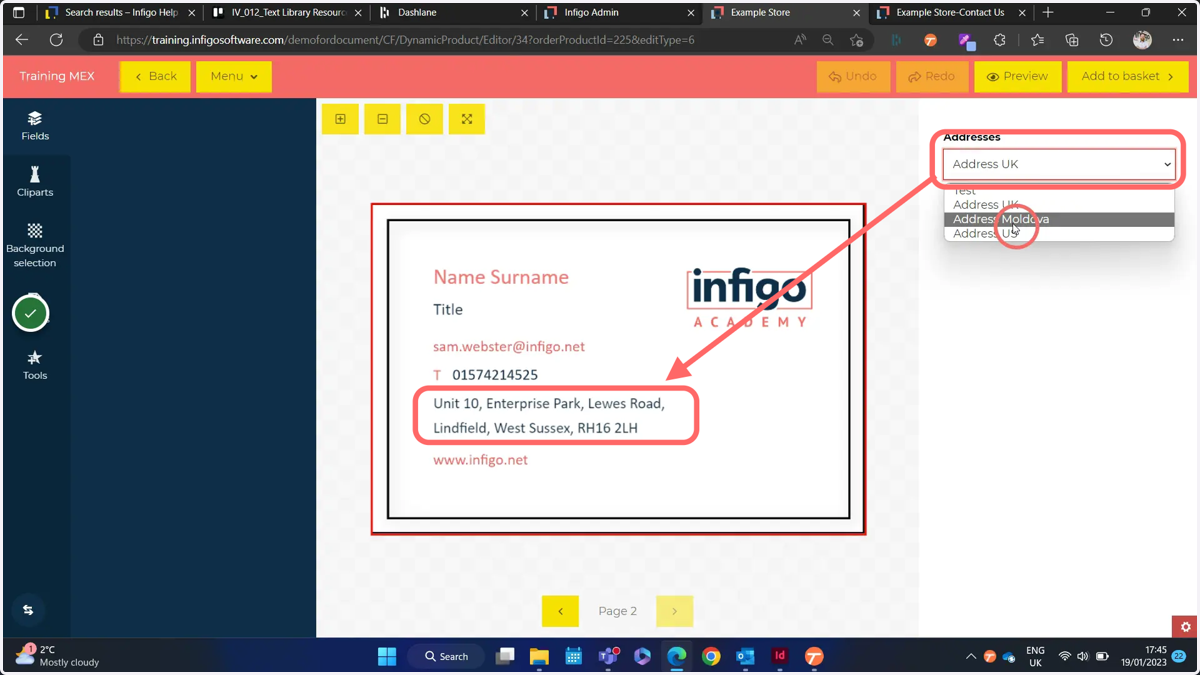
This resource type allows you to pre-define text string options. These could be used, for example, to allow the selection of specific addresses or telephone numbers.
adobe
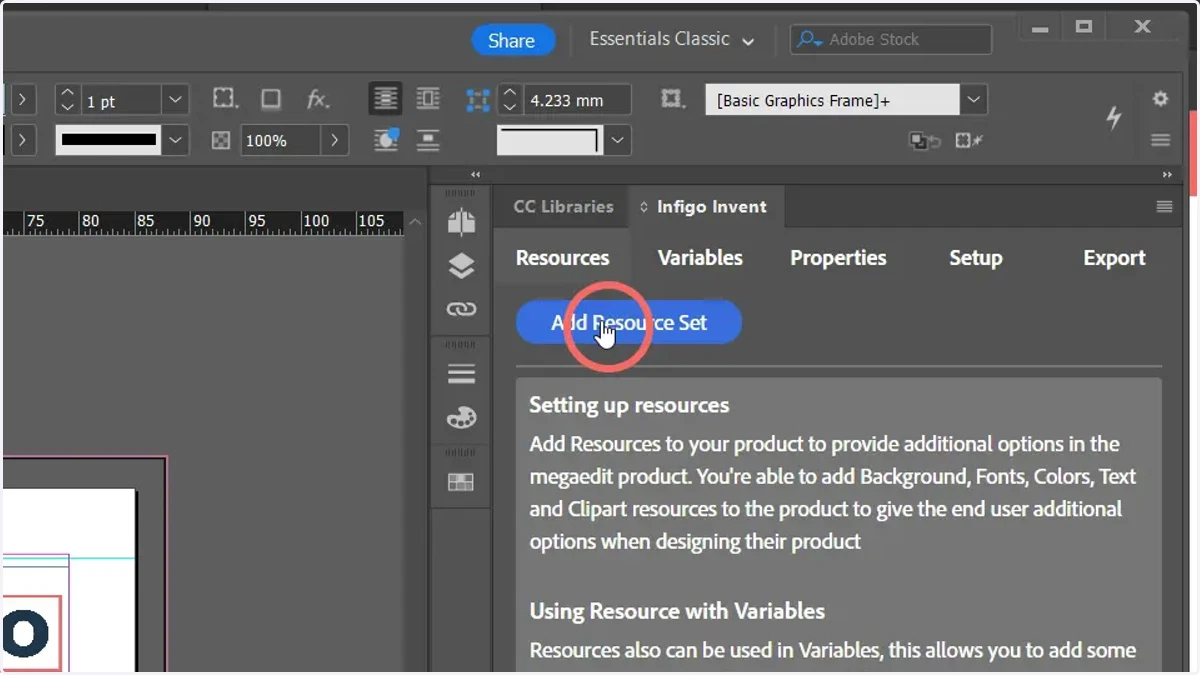
1. To begin, create a new resource set with Add Resource Set
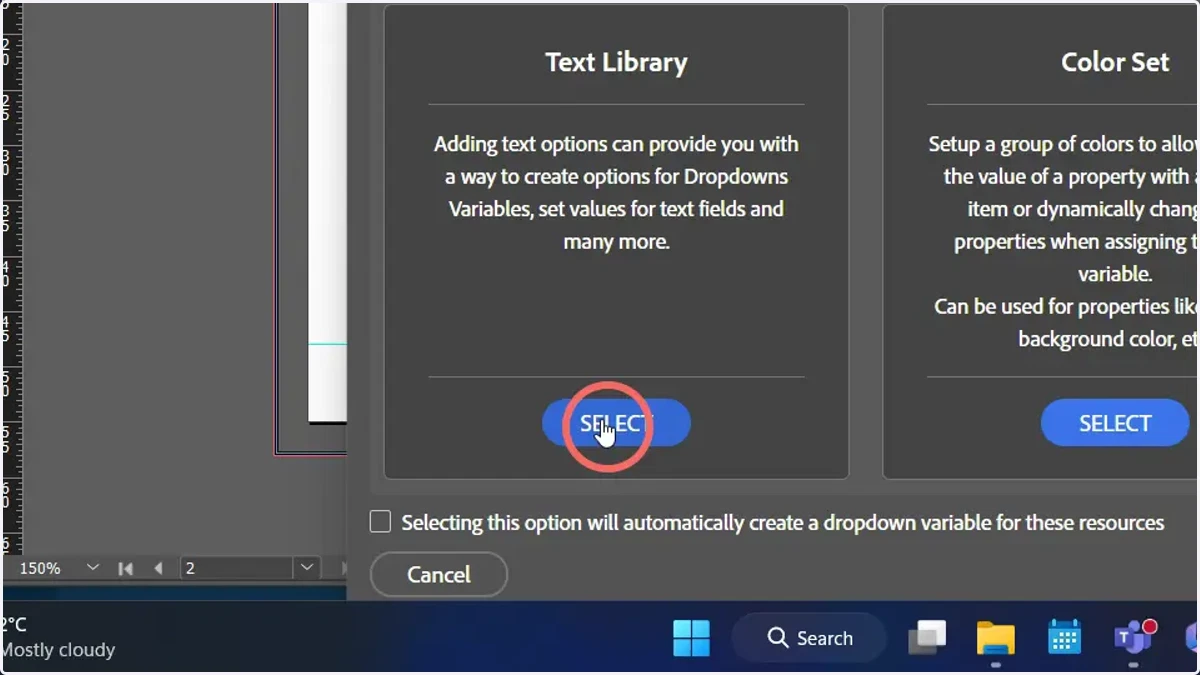
2. Click Select on the Text Library resource
3. Type a name for the resource set
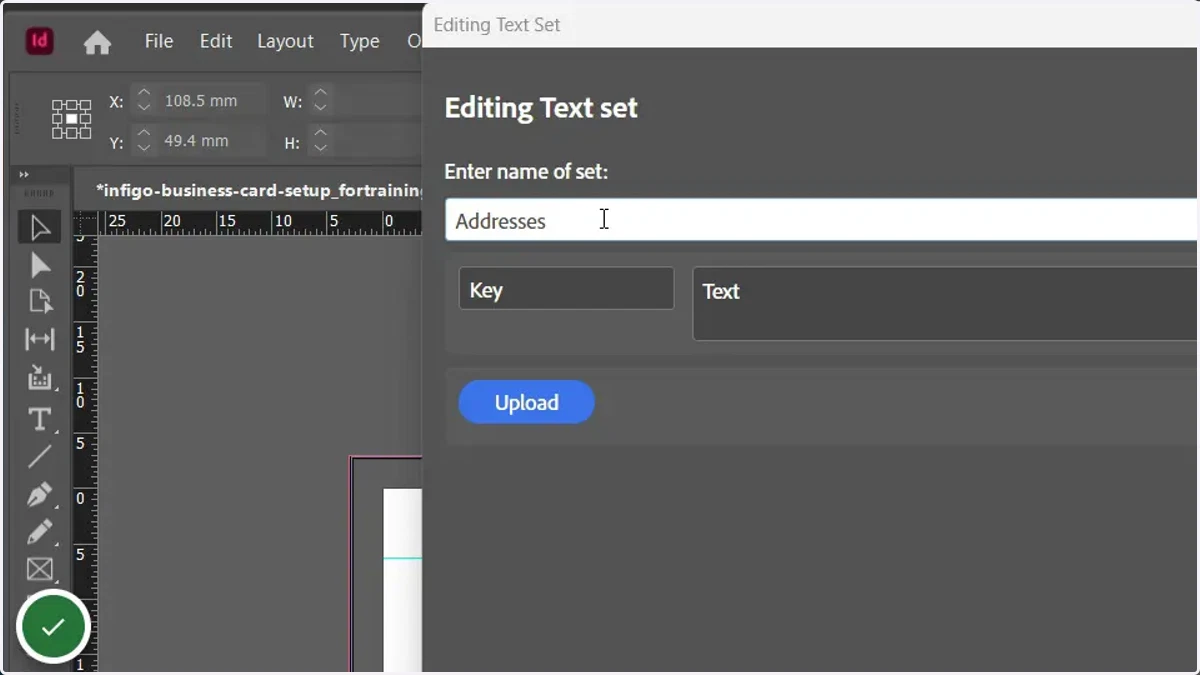
4. Manually enter resource entries
Both Key and Text are required for each entry into the Resource Set.
The Key is what will be displayed in the form within MegaEdit, whereas the Text field contains the content to actually be utilised on your product.
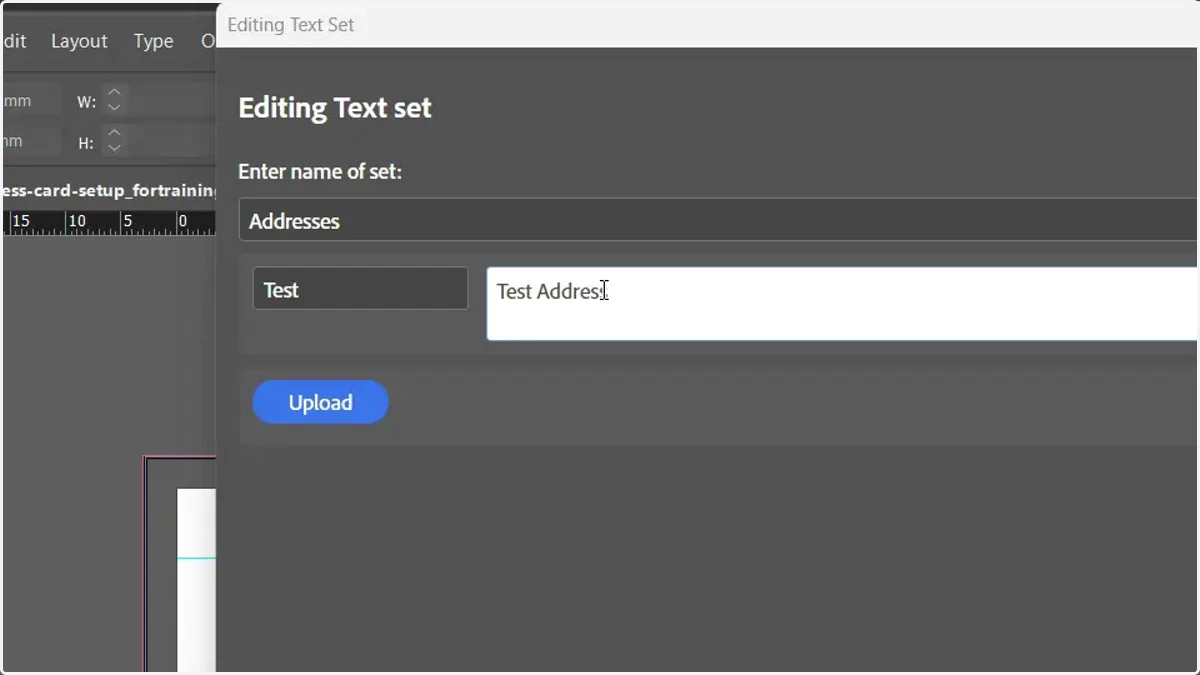
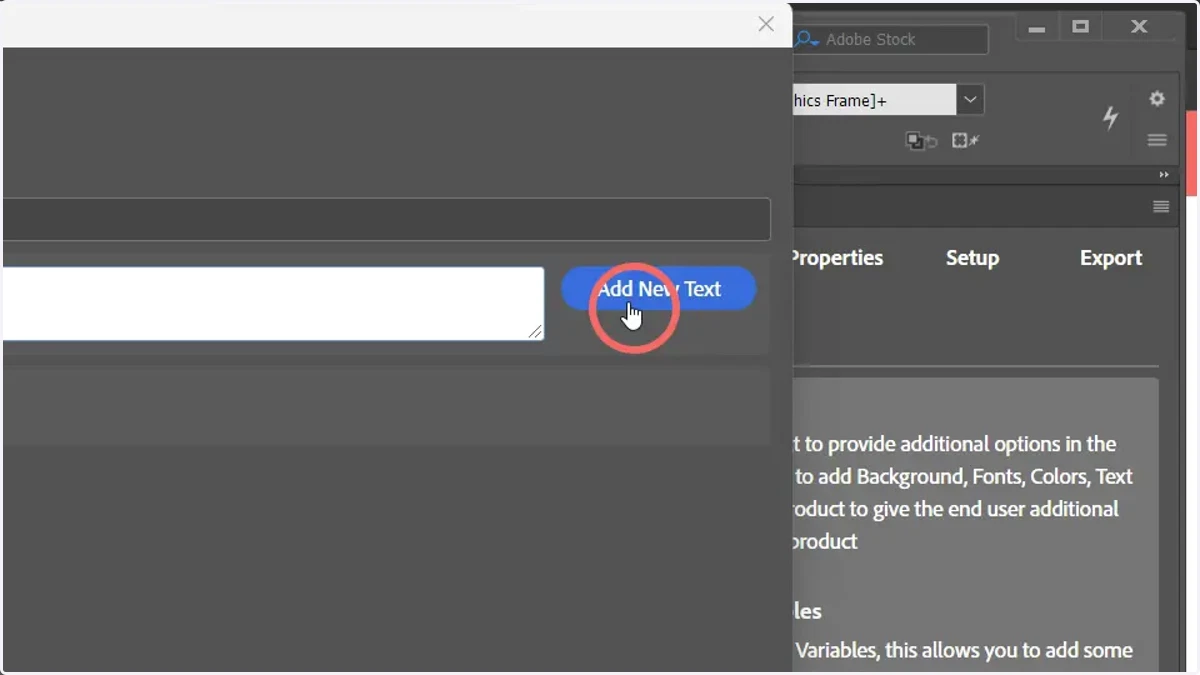
5. Click Add New Text
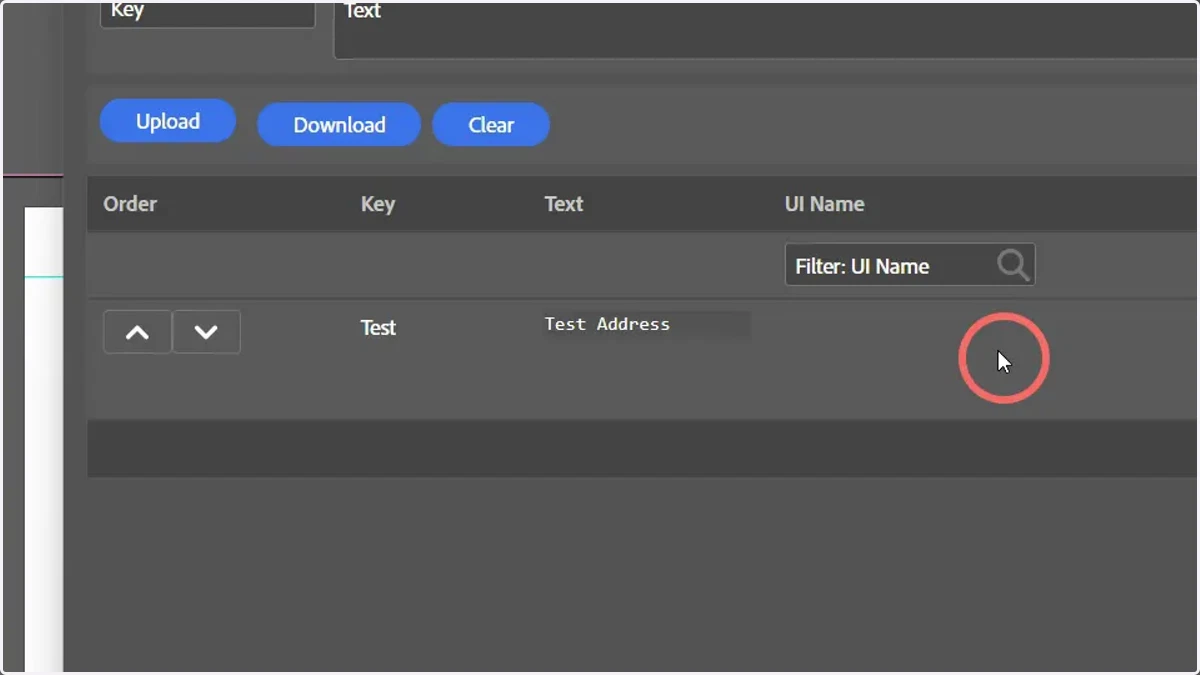
6. The text resource has been added to the resource set
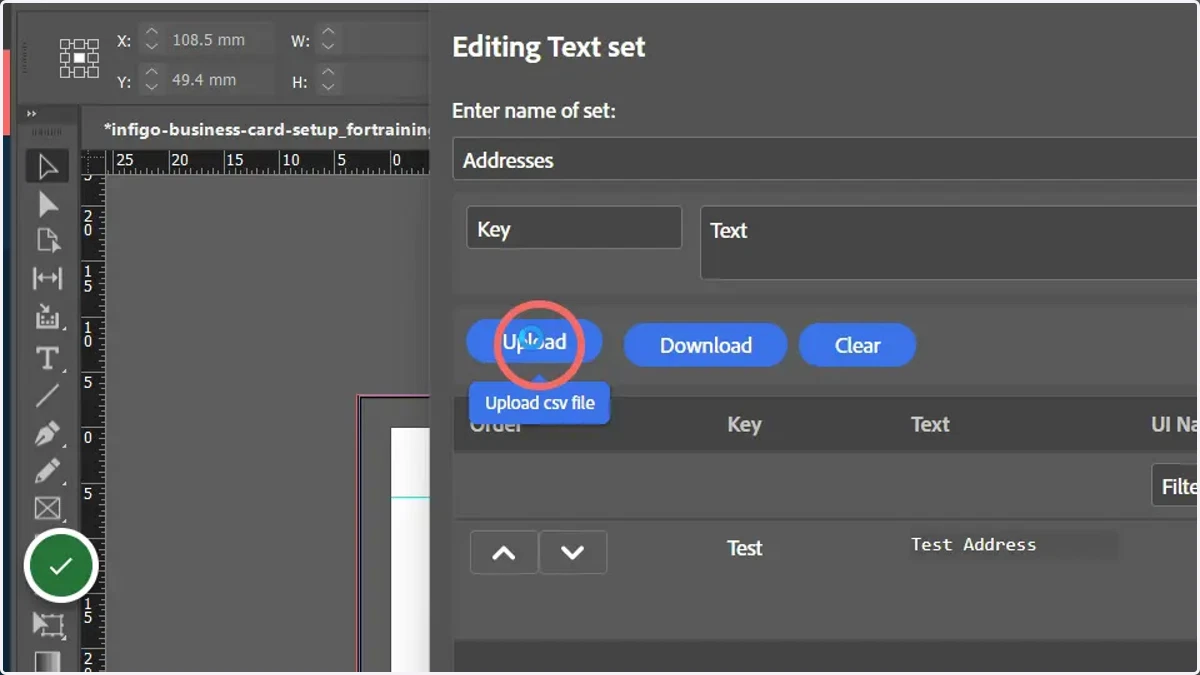
7. Uploading text resources
Text resources can be uploaded from a CSV file. Th CSV requires a very simple format, with two column headers named Key and Text.
Click Upload and select an appropriate CSV file.
8. Data is loaded in from the CSV file
The order can be changed, if desired. Also, each entry can individually be deleted or edited after import.
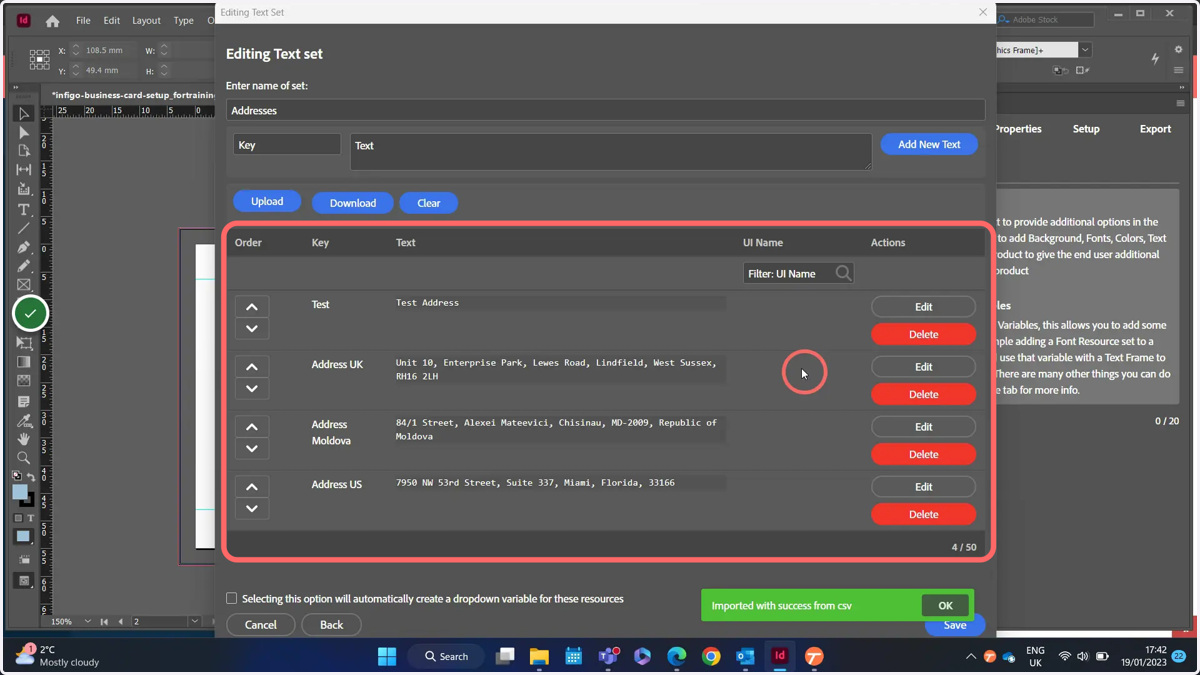
9. All text resources can be downloaded in CSV format
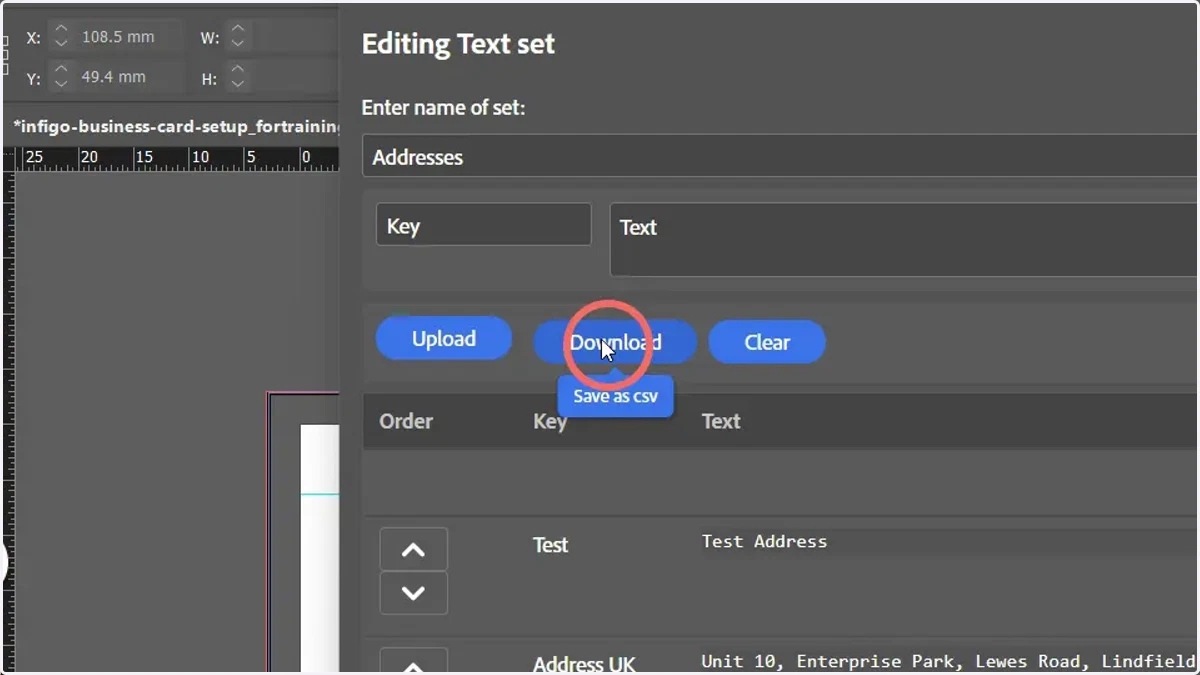
10. Select the check box shown below to automatically create a dropdown variable linked to this resource set.
This is optional. Variables can be created and linked separately, if required.
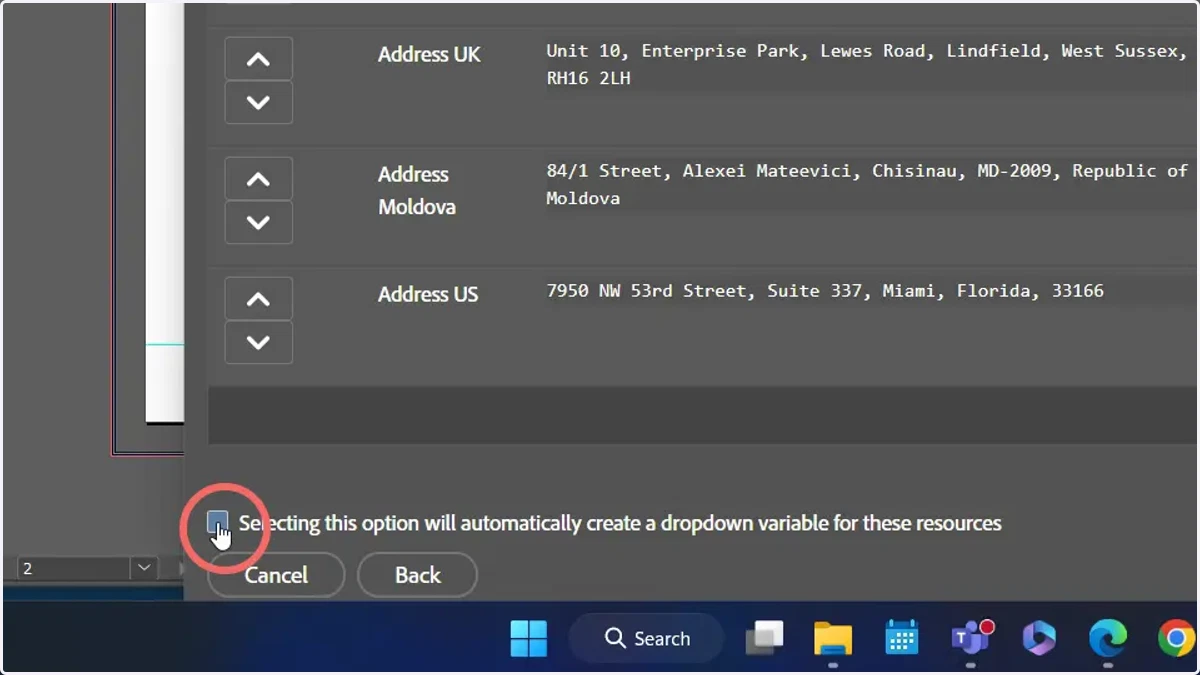
11. Click Save to confirm the text library resources
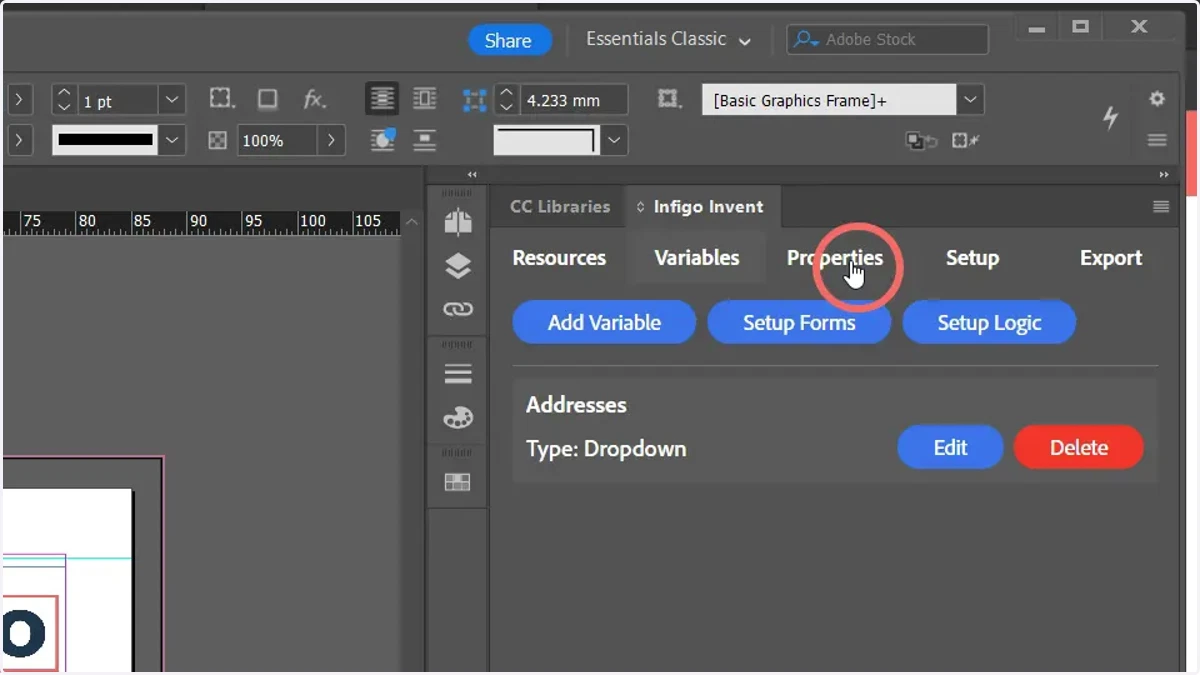
12. Click properties
Next, we will link our newly created variable to one of our text frames.
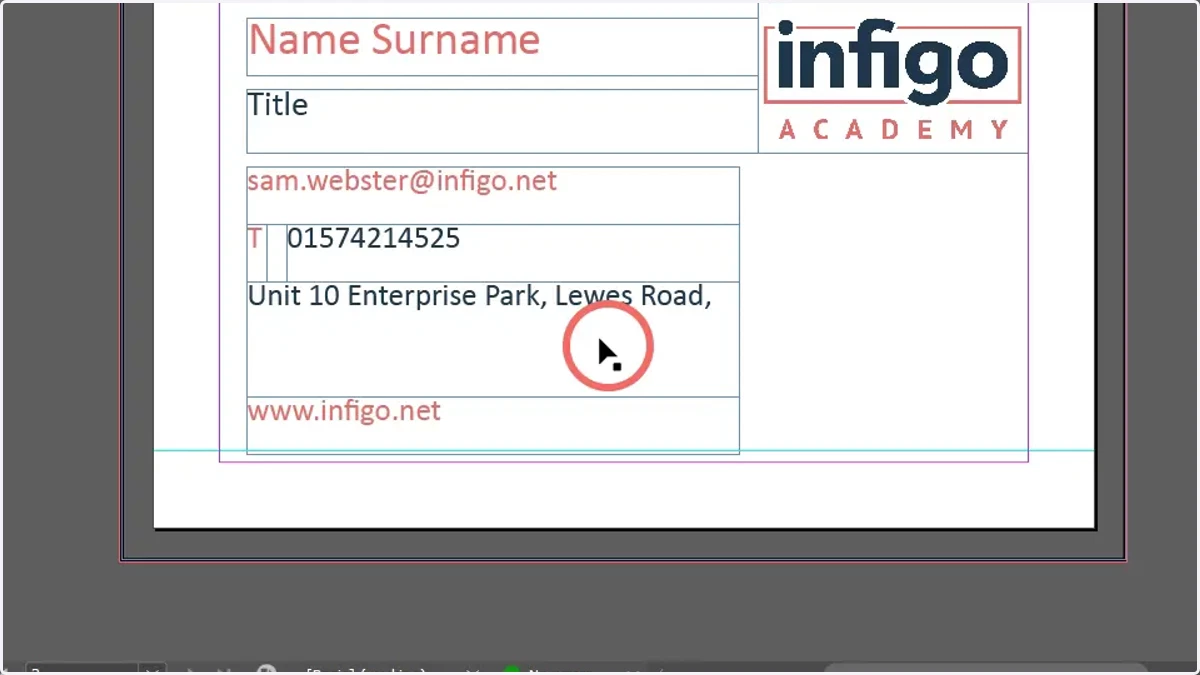
13. Select the text frame of interest
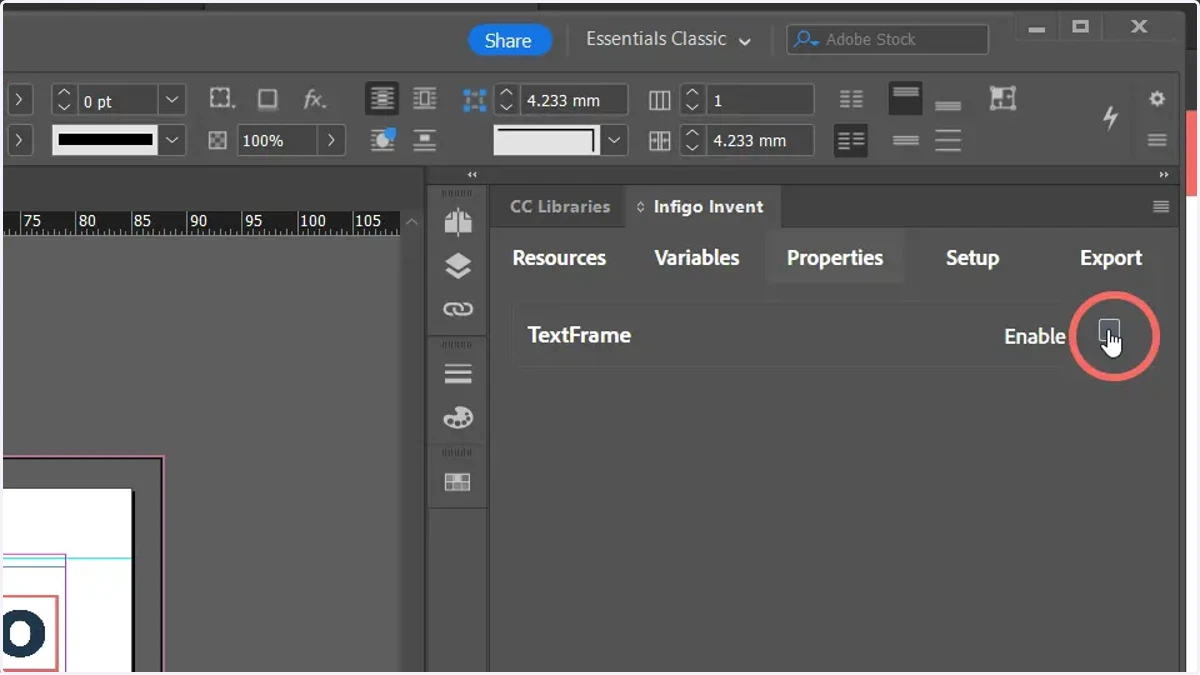
14. Enable the text frame to make it dynamic and configurable from Invent
15. Navigate to the text mapping options and select the Variable type
This allows us to create a direct link to any of our created variables (only variables suitable for this field will be shown)
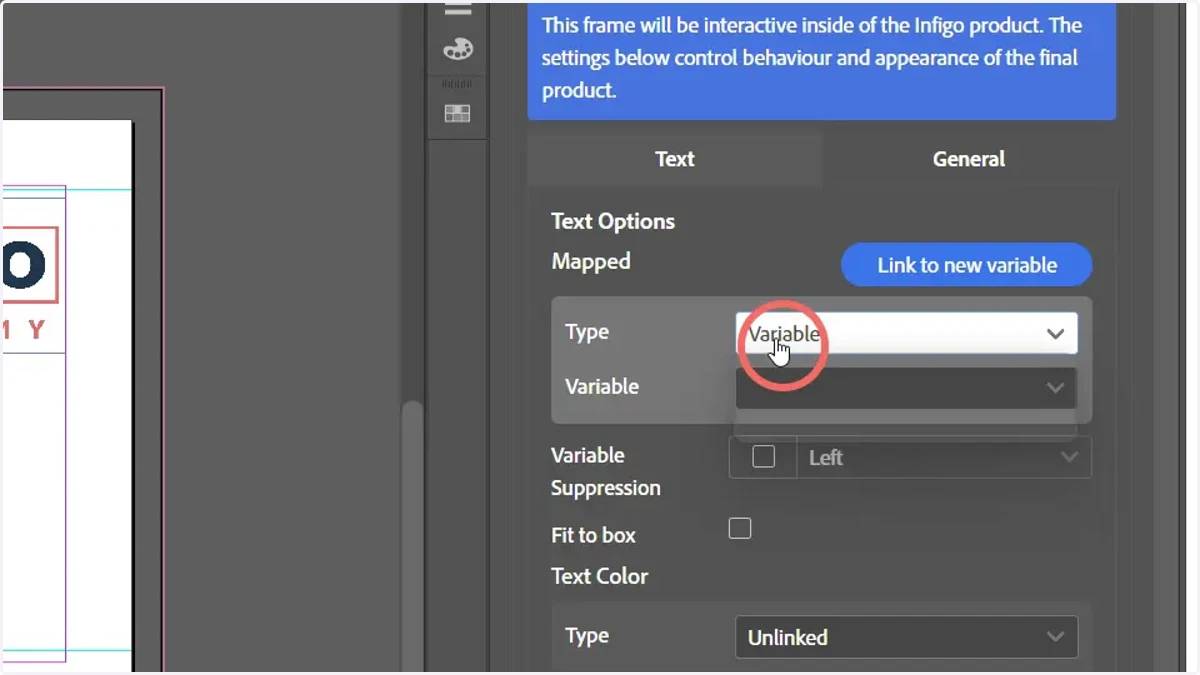
16. Select the variable linked to our text library resources
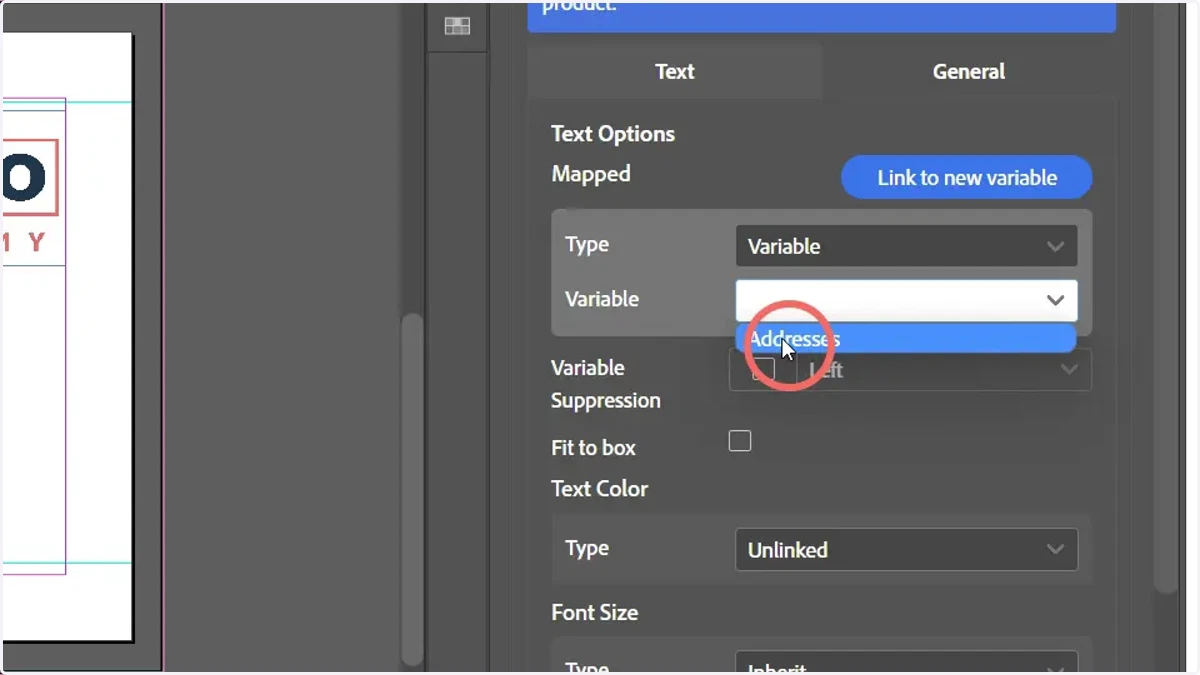
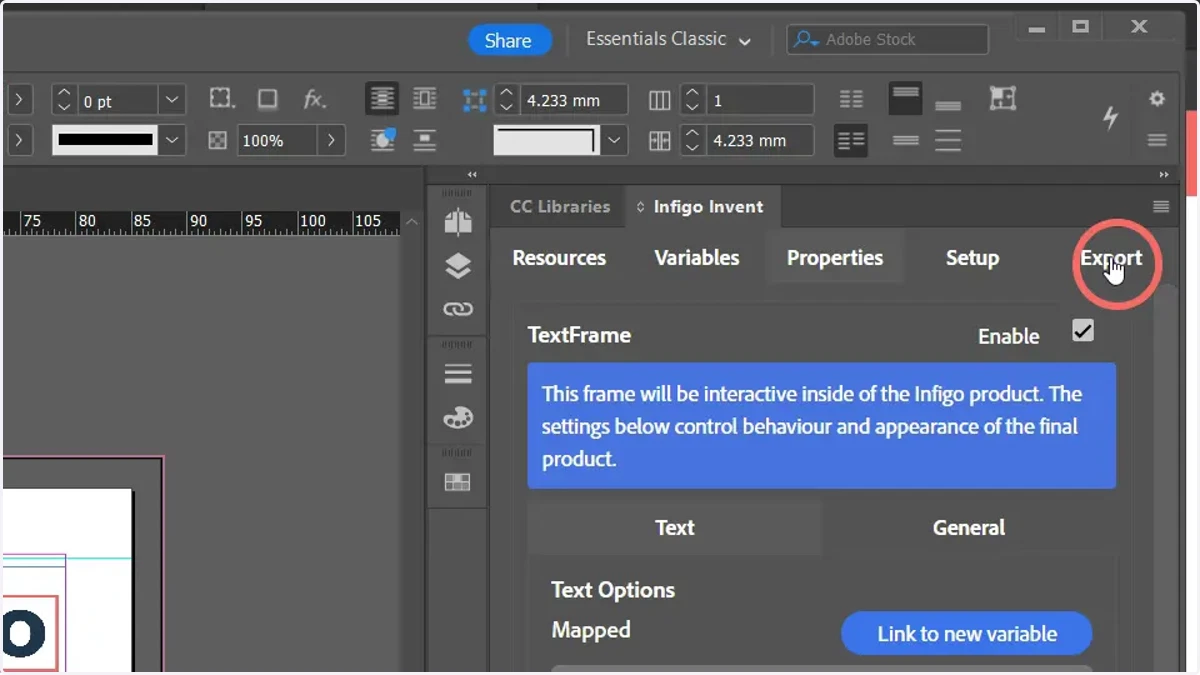
17. Navigate to the Export tab and generate an MEX file from our Invent template
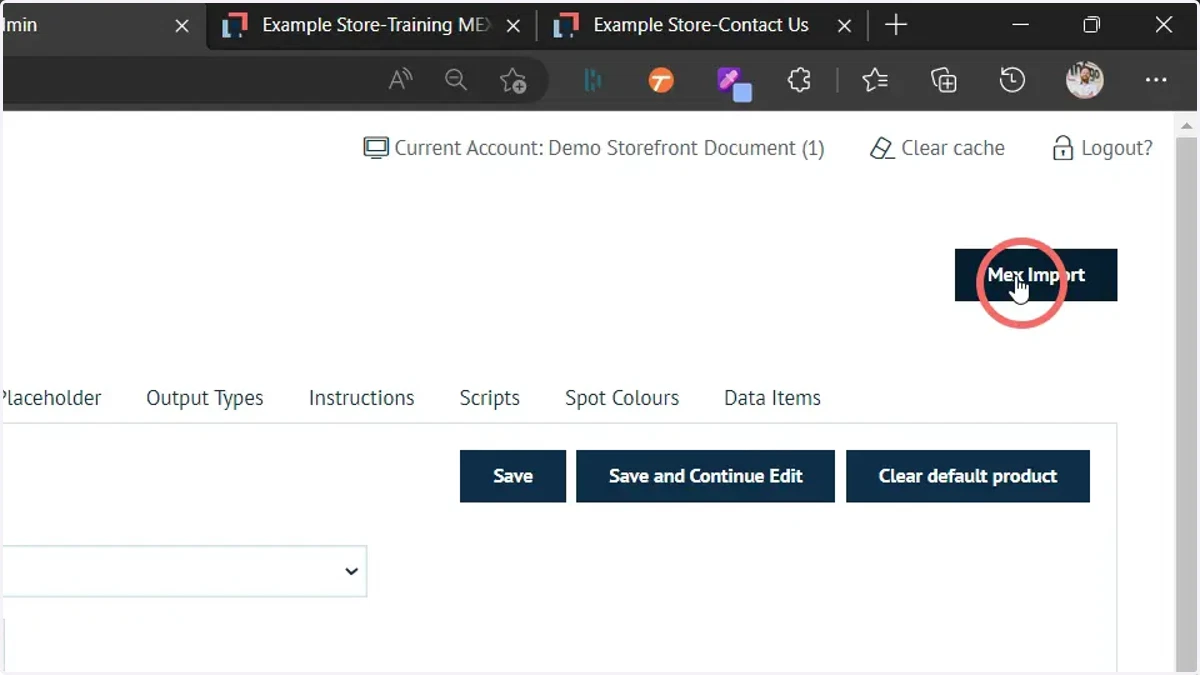
18. Import the MEX file into your MegaEdit product
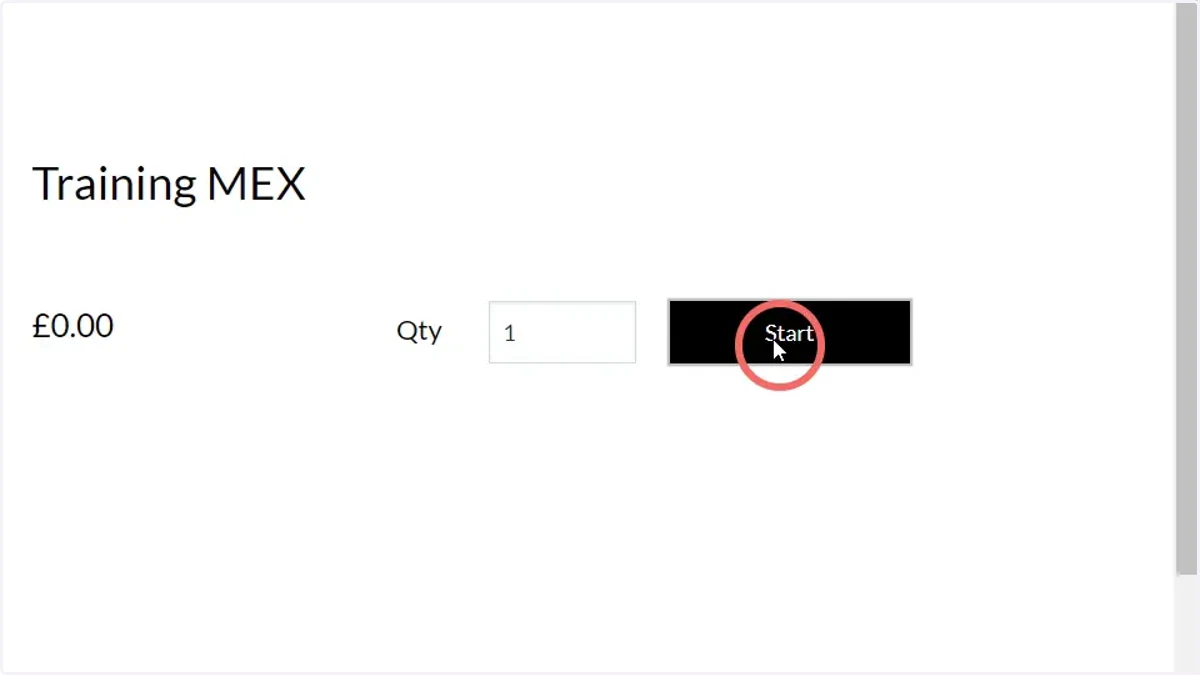
19. Launch your MegaEdit editor for this product
20. A dropdown is available, displaying your input Key fields. When selected, the Text field content will be shown in the text frame on the canvas