Setting product Attributes
In this tutorial, we will look at Product Attributes. We will learn what they are and how to define and use them within the Infigo software.
Product Attributes allow you to specify options, add-ons, and features to products.
Examples of Attributes within the web to print market include things like: Lamination, Product Colour, Bubble Wrap packing, Paper Stock, Allowing your users to Upload their artwork or media files etc.
These can be specified to add cost to the product, or to flag up a feature to the printer once the order is placed.
Infigosoftware
1. Click on Catalogue
Attributes need to be created under the Product Attributes screen.
This is a requirement on a per storefront basis.
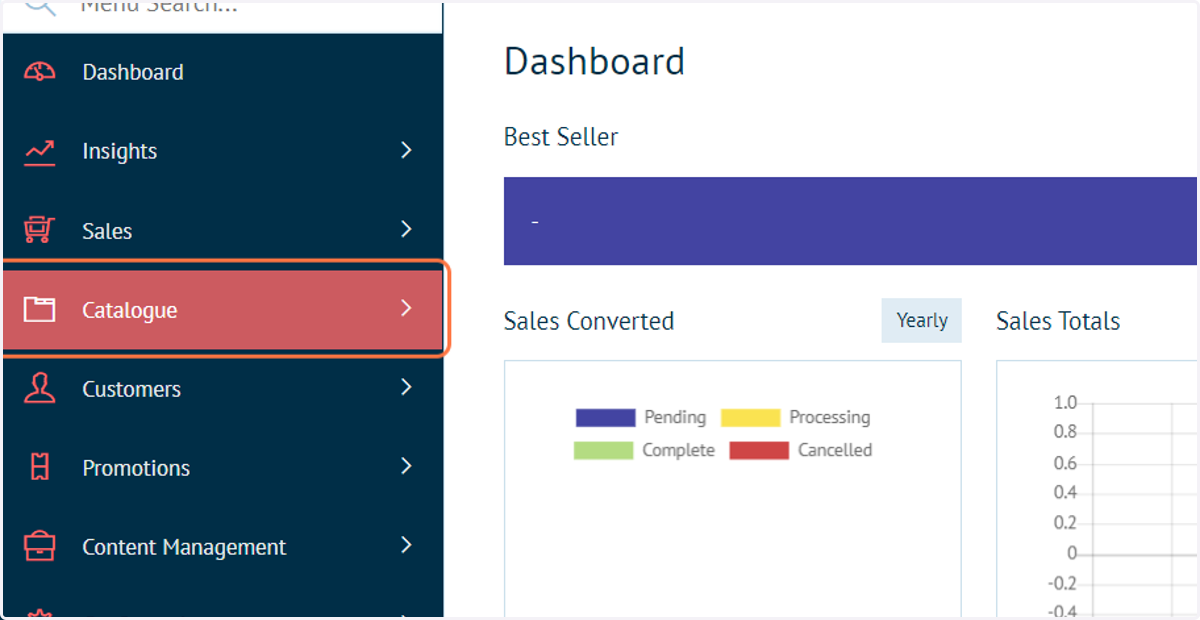
2. Click on Attributes
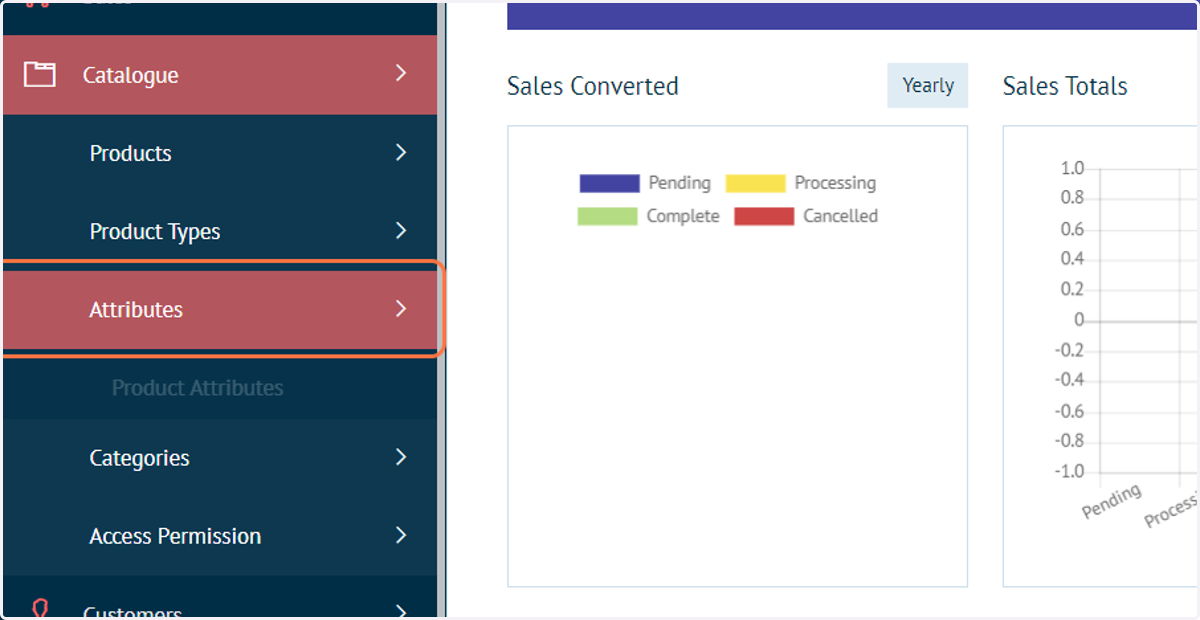
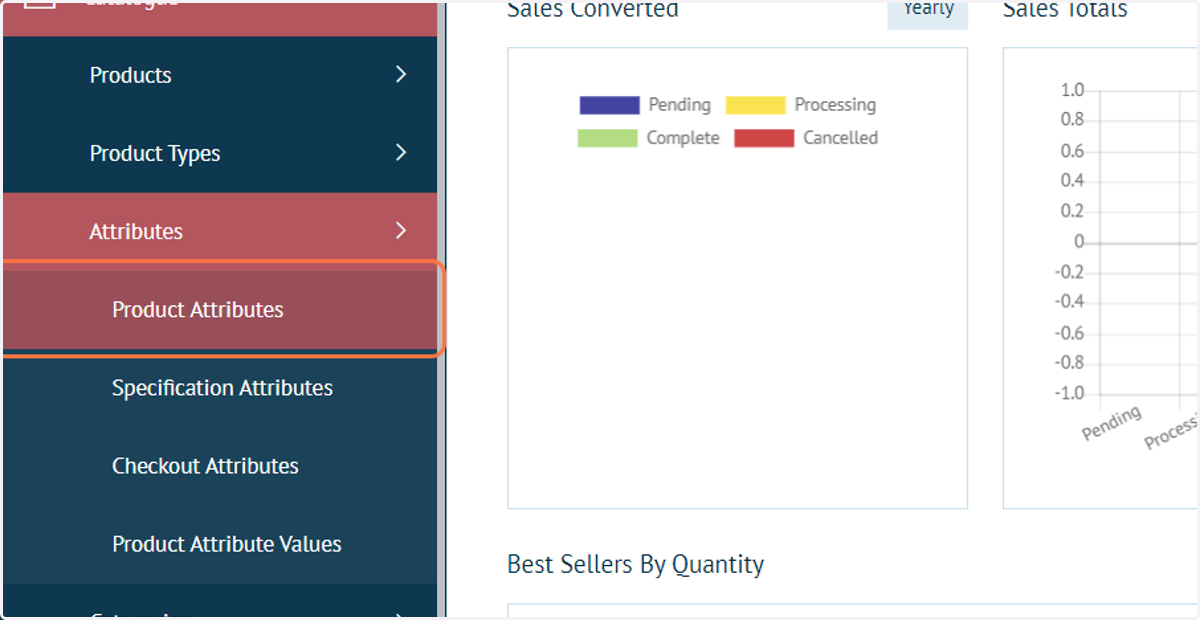
3. Click on Product Attributes
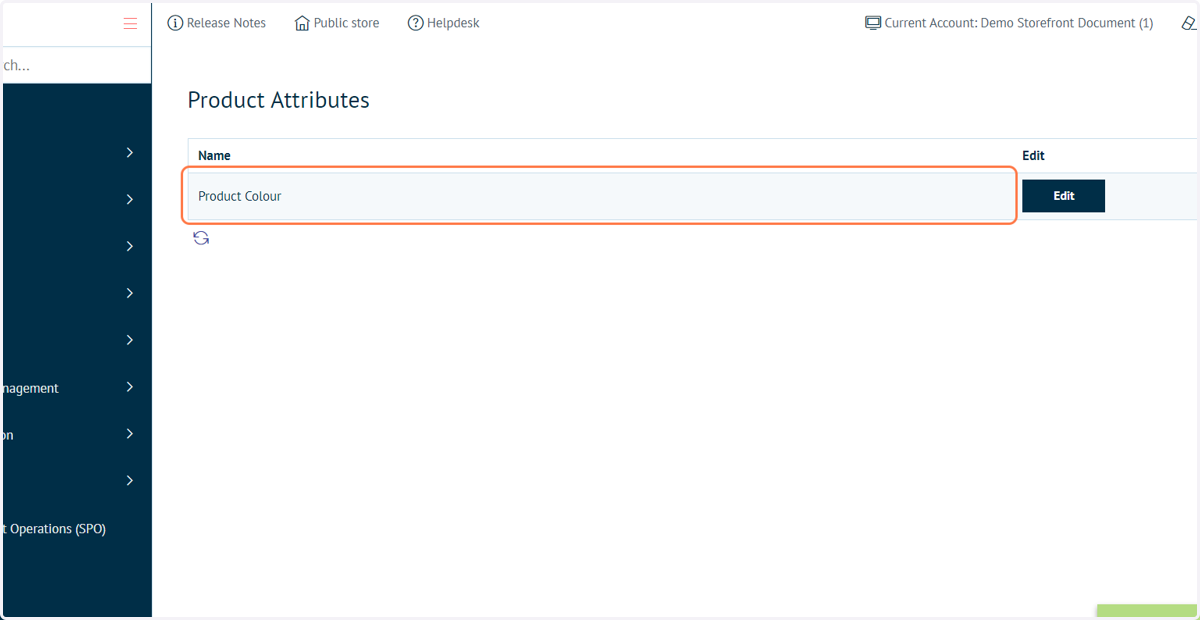
This list will detail all of the product attributes created in your current storefront.
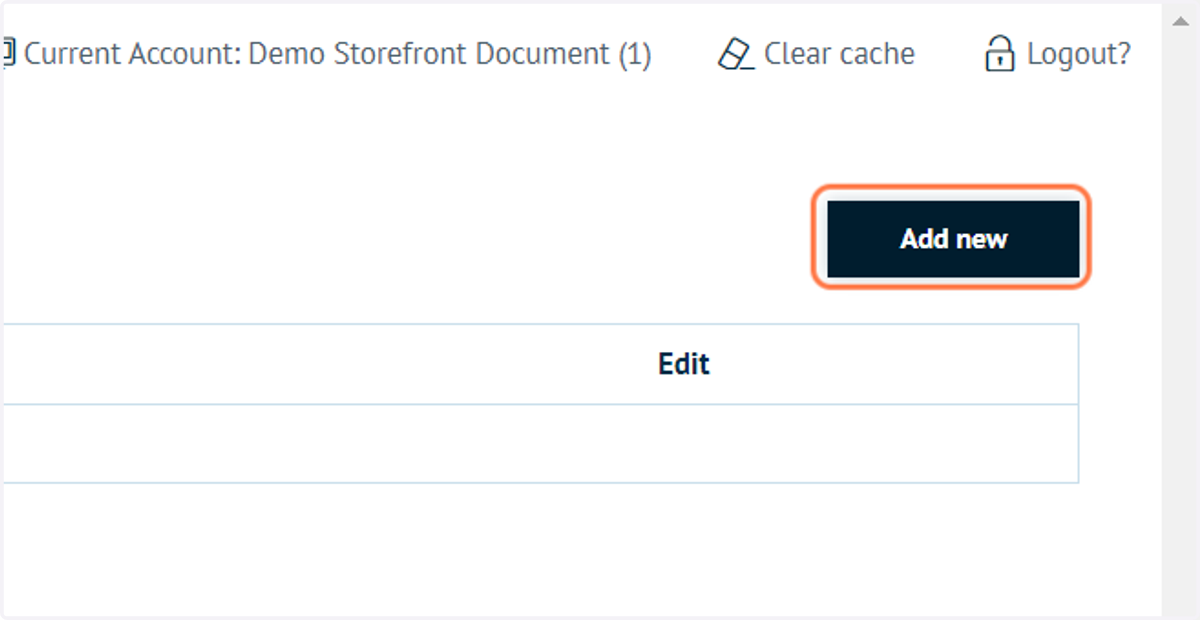
4. To create a new attribute, click on Add new
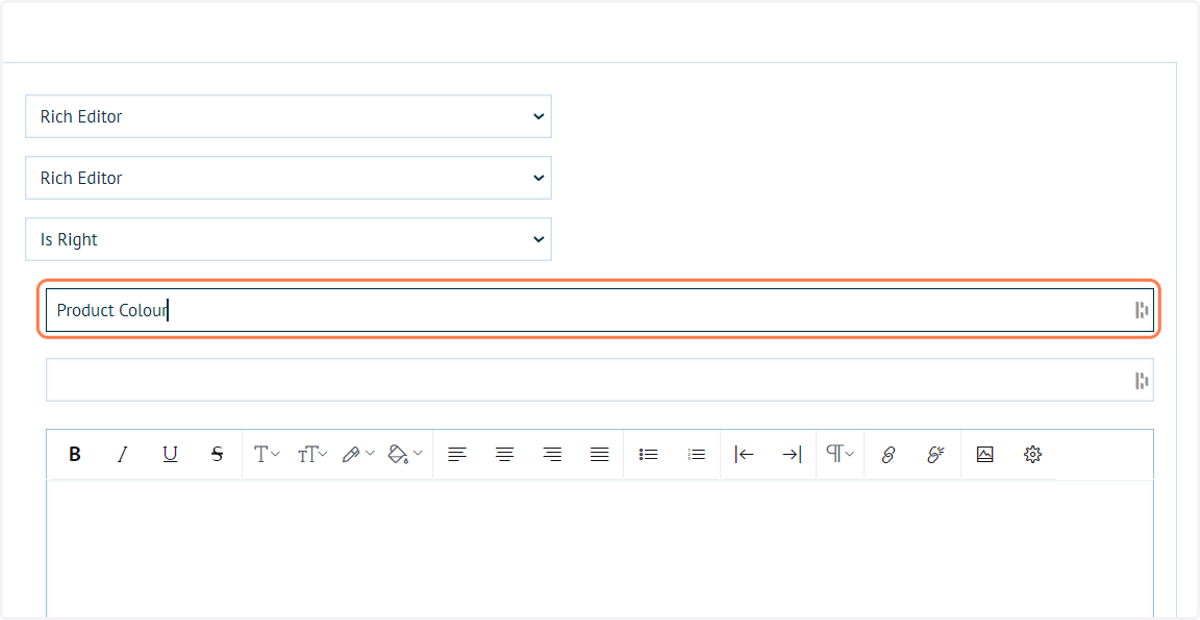
5. Type an attribute name, such as "Product Colour"
Additional descriptive information related to the attribute can also be defined here.
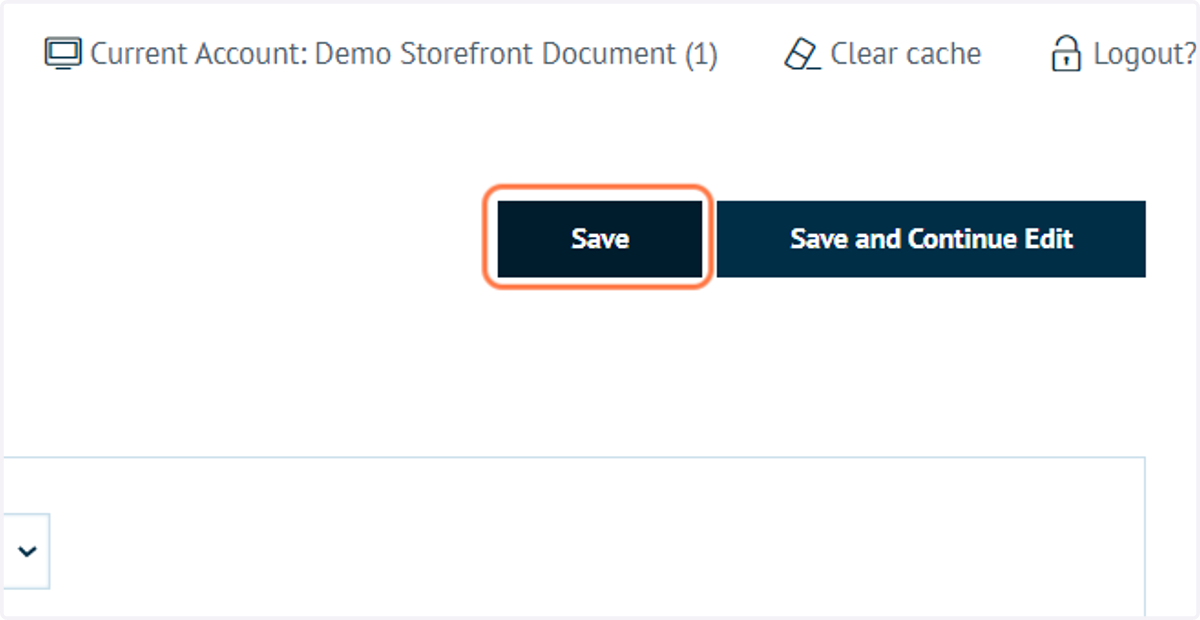
6. Click on Save
Infigosoftware
7. The attribute is now listed in the Product Attributes screen
8. Click on Catalogue
Next, we must assign this attribute to our product
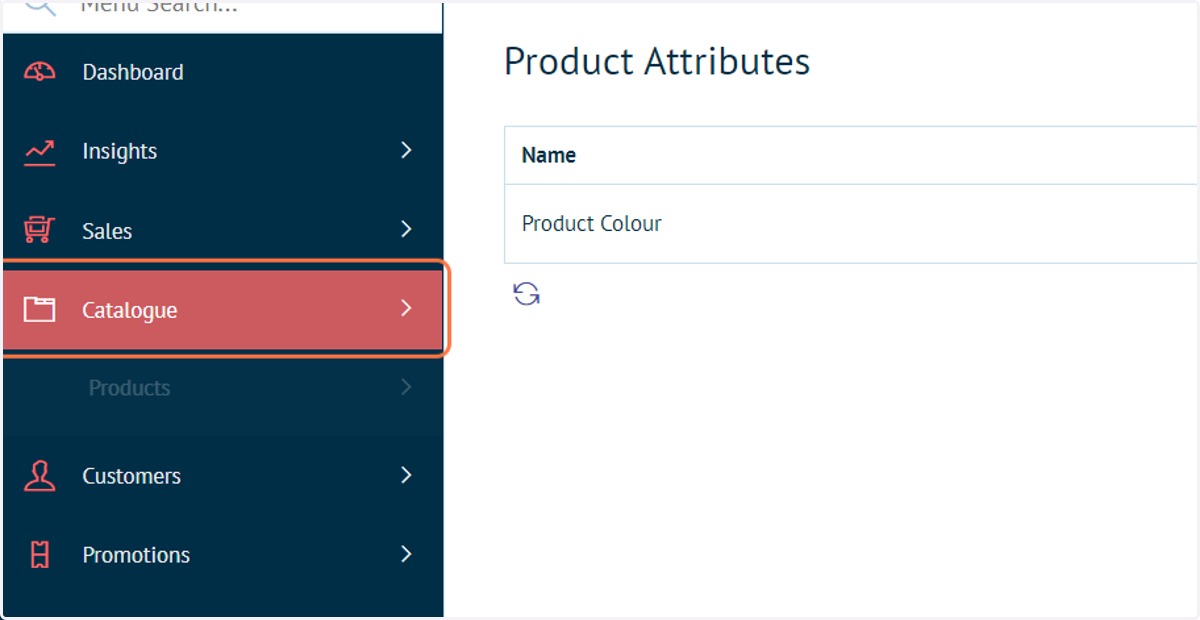
9. Click on Products
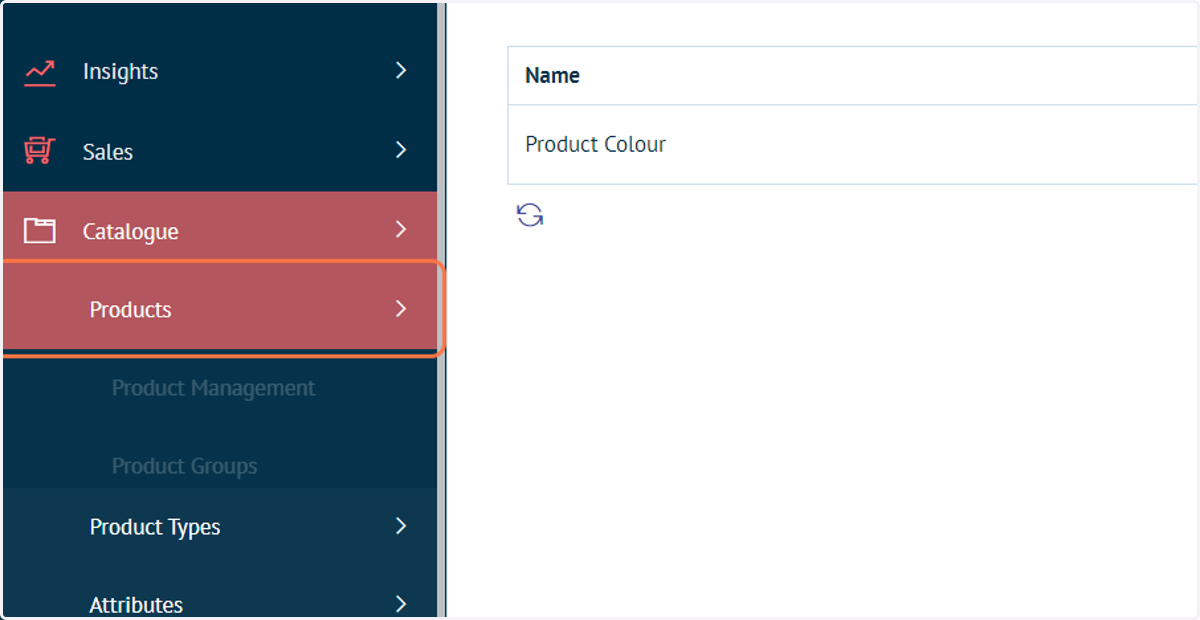
10. Click on Product Management
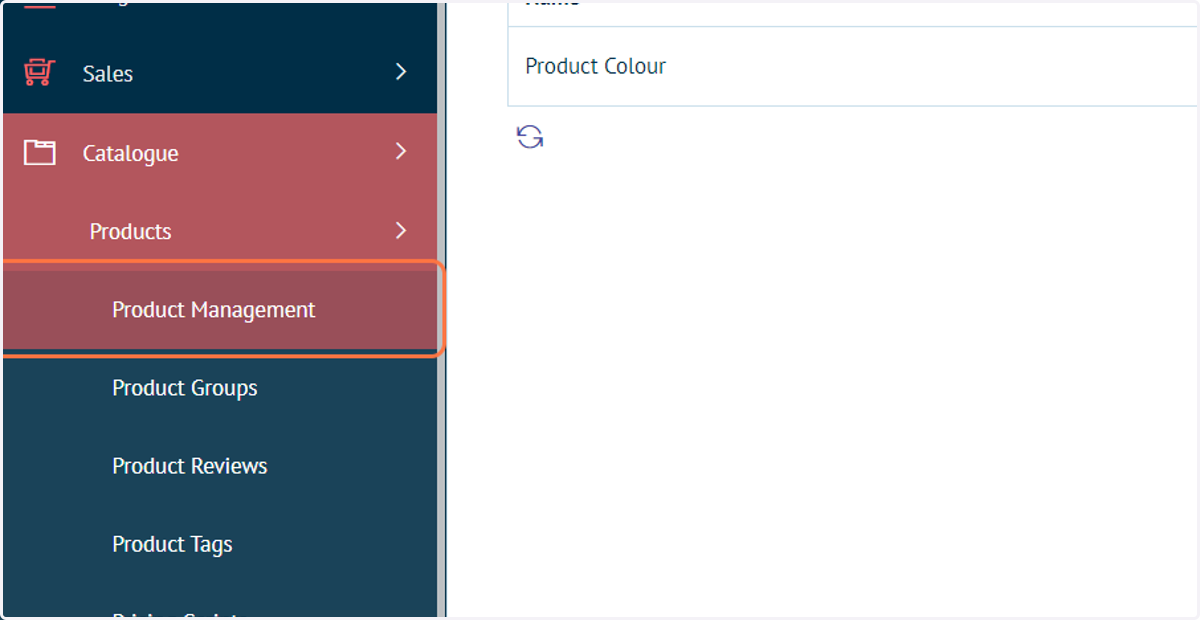
11. Click '+' next to the product requiring the attribute
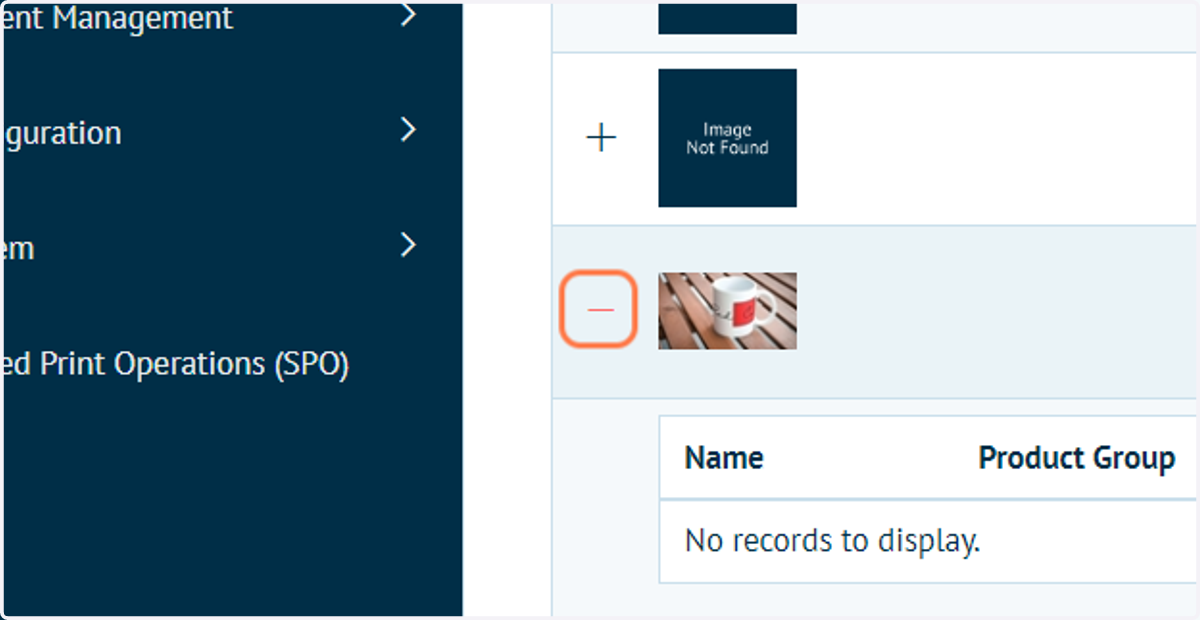
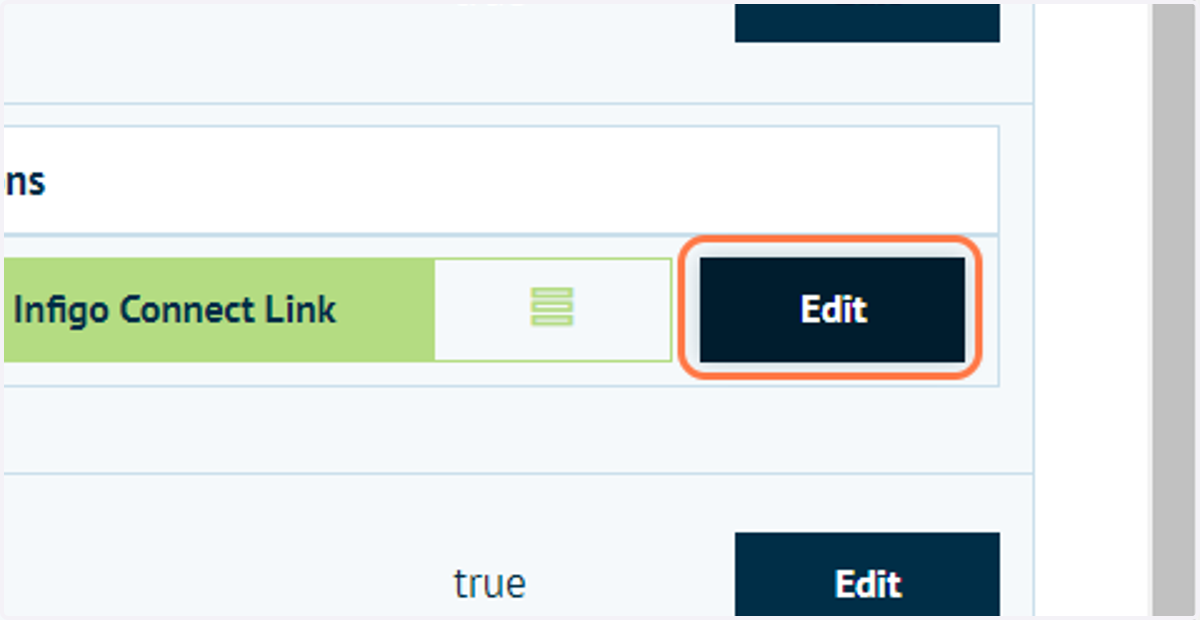
12. Click on Edit to adjust the Product Variant settings
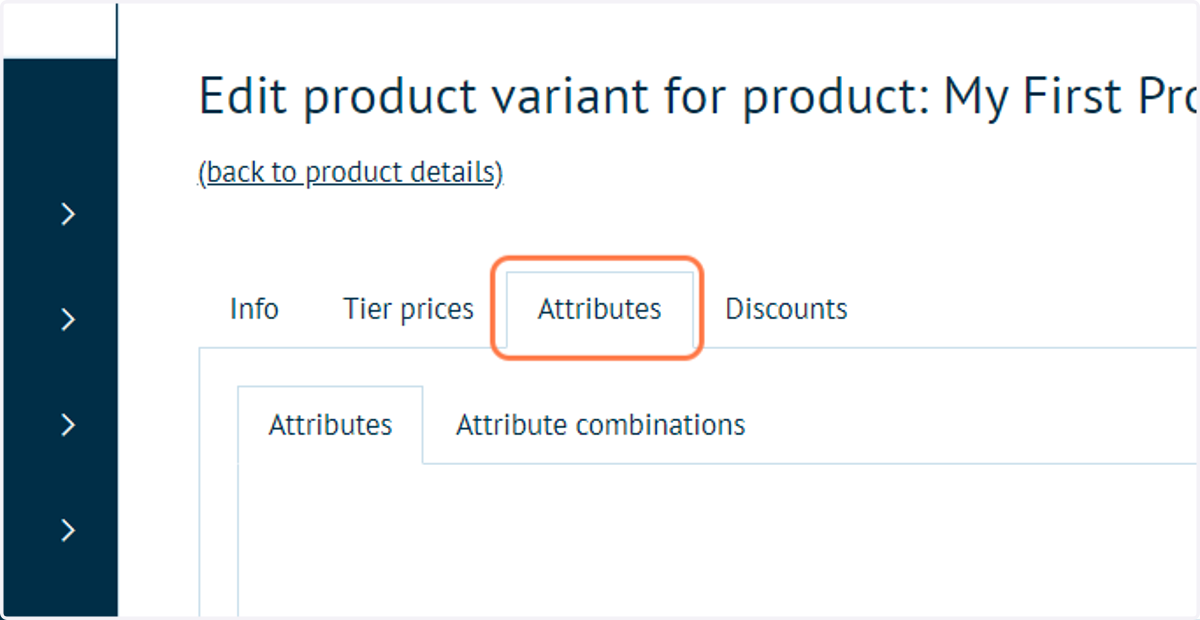
13. Click on Attributes
This tab details all of the attributes currently assigned to the selected Product Variant.
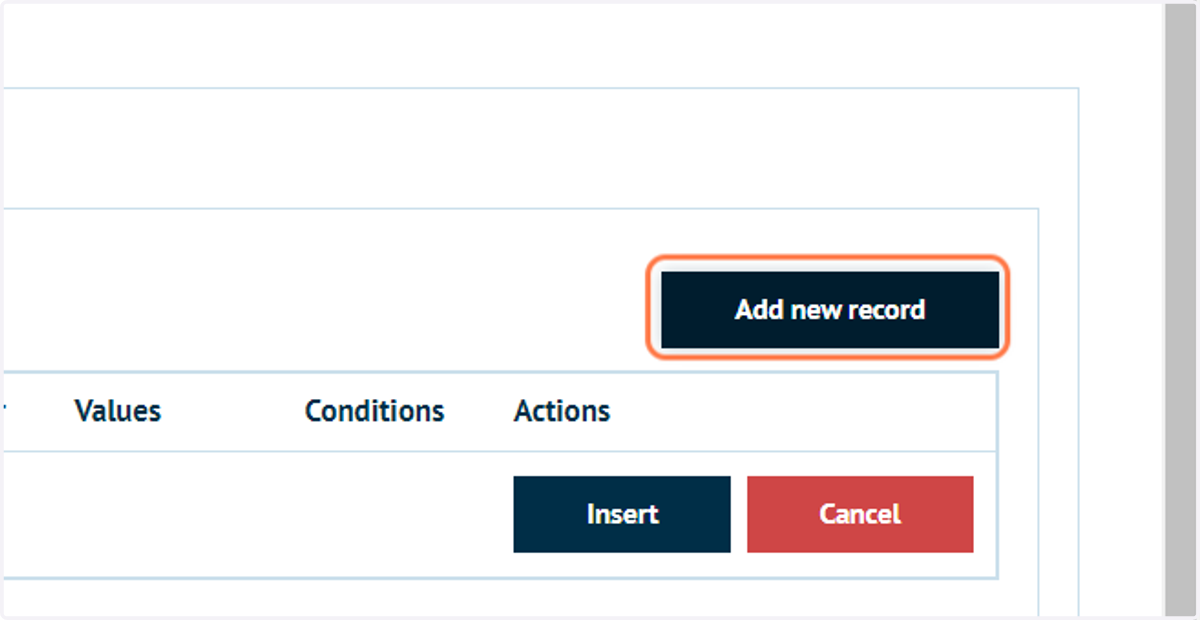
14. Click on Add new record
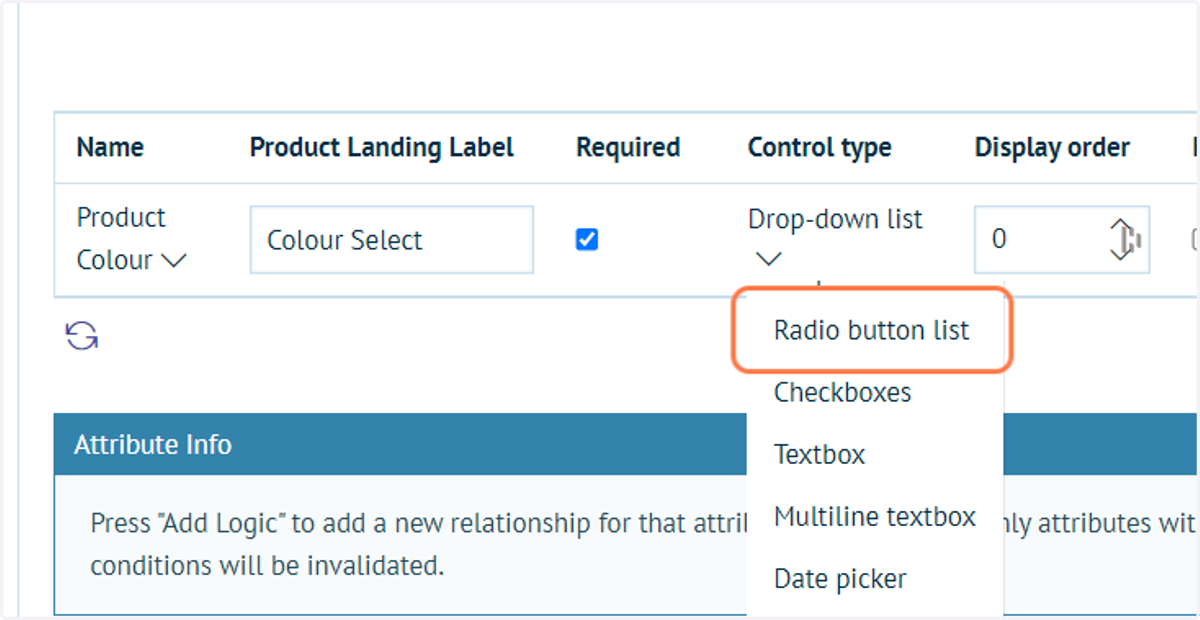
15. Define product attribute settings
Add an attribute, and specify the label the customer sees (prompt)
Specify whether its required (mandatory)
Specify one of the following control types:
Dropdown List
Radio Buttion
Checkboxes
TextBox
Multiline Textbox
Date Picker (Customers can select an specific day)
File Upload (Customers can upload their own artwork etc)
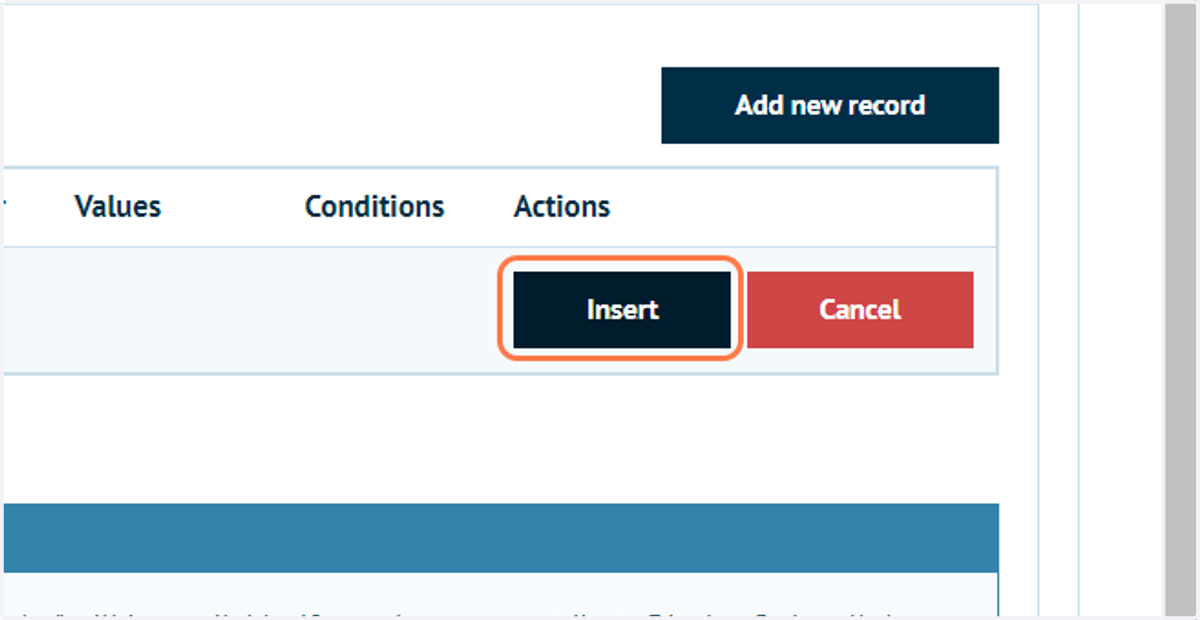
16. Click on Insert
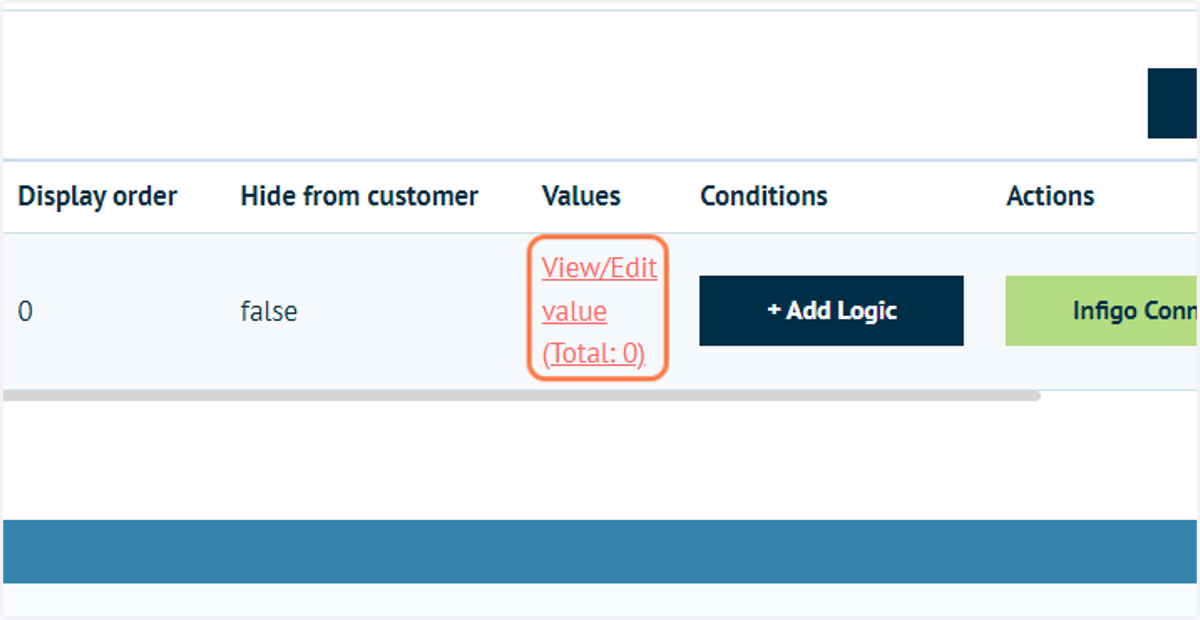
17. Click on View/Edit value (Total: 0)
This option allows you to specify the selectable options within the attribute.
So for colour, values such as red, blue and gold.
You can also adjust the weight, dimensions and price of the item from its original cost for each individual attribute value.
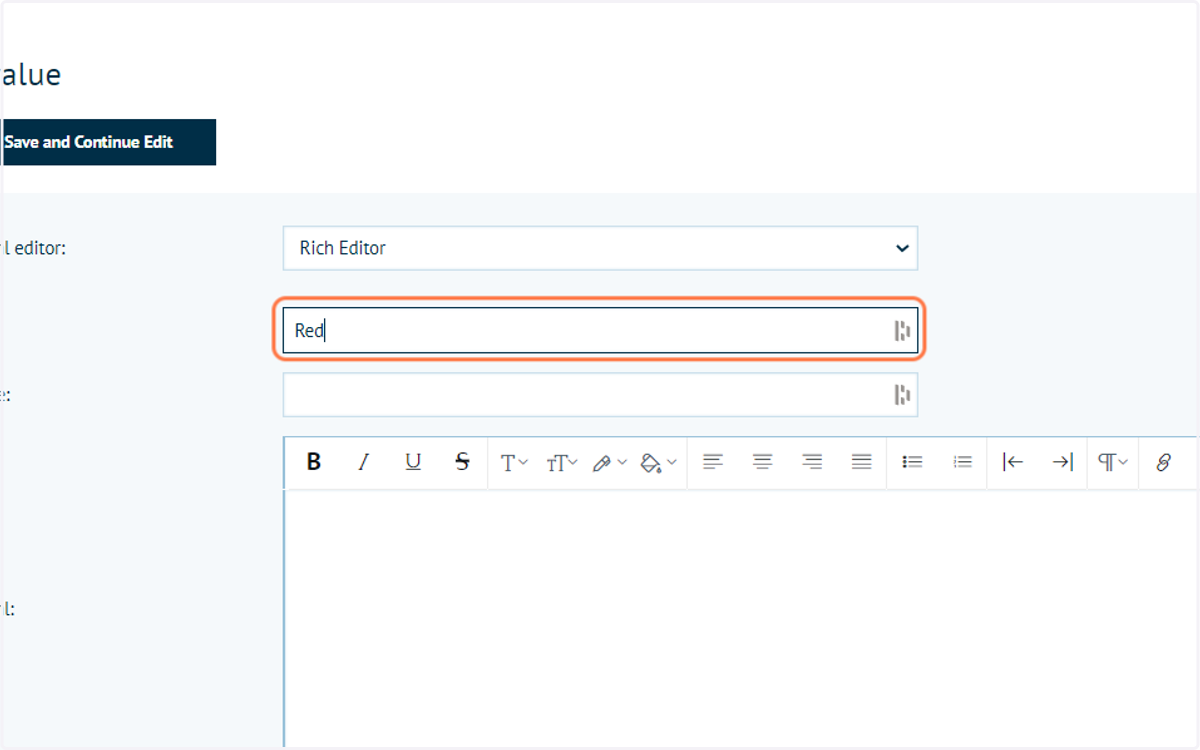
18. Click Add a new value
19. Complete the details of your attribute selection
For the purposes of this example, we have defined a "Red" option with no additional data.
Infigosoftware
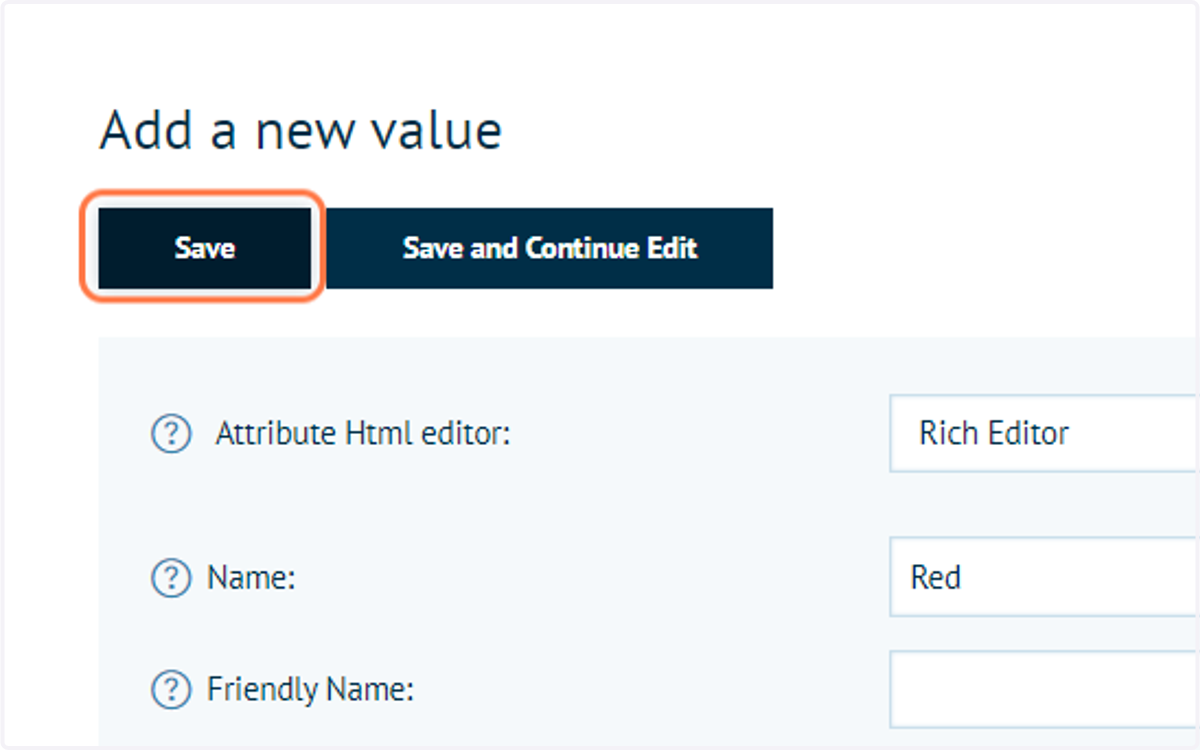
20. Click on Save
21. Click on Add a new value
22. Complete the details of your attribute selection
Add an additional option.
For this option, we are going to implement a price change of 5%.
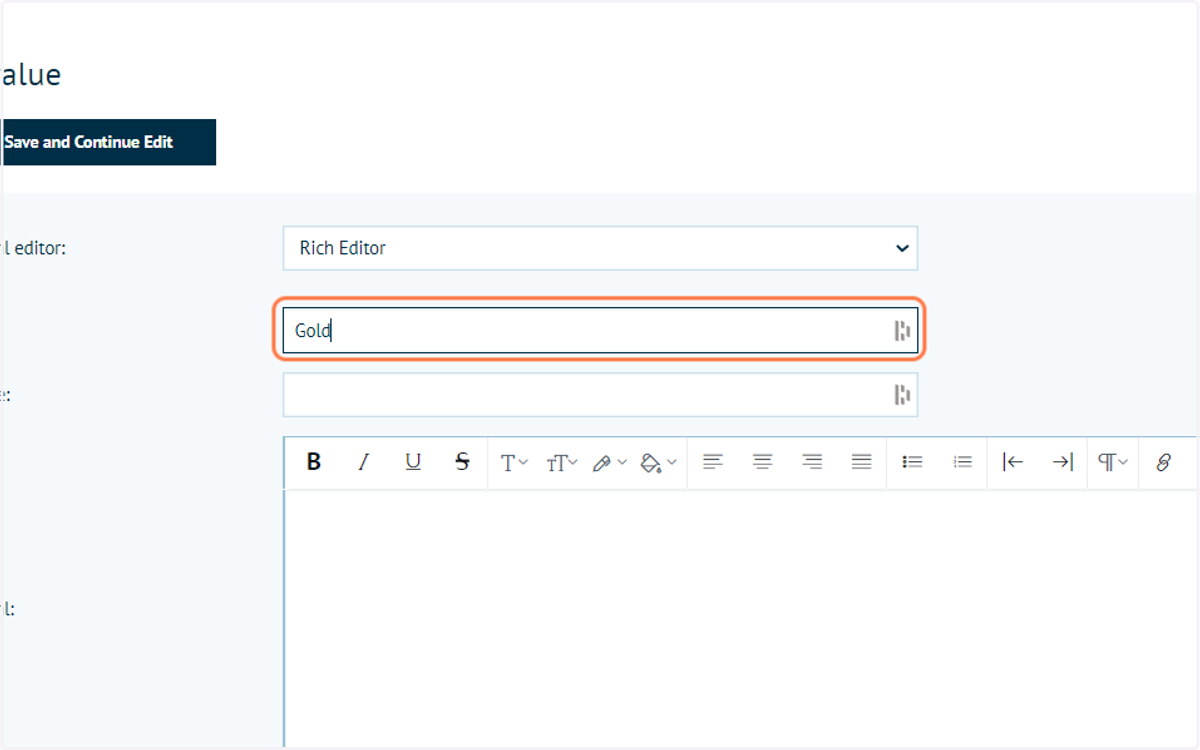
23. Type "5" and set the adjustment type to "Percent"
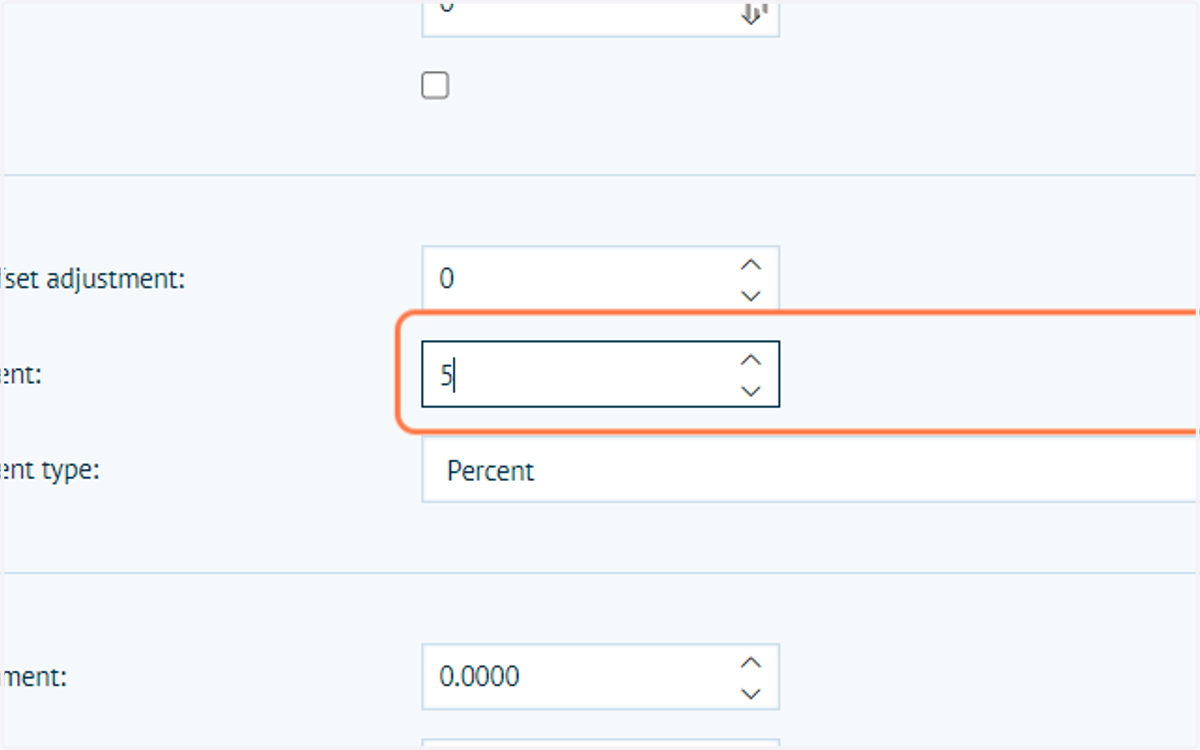
24. Click on Save
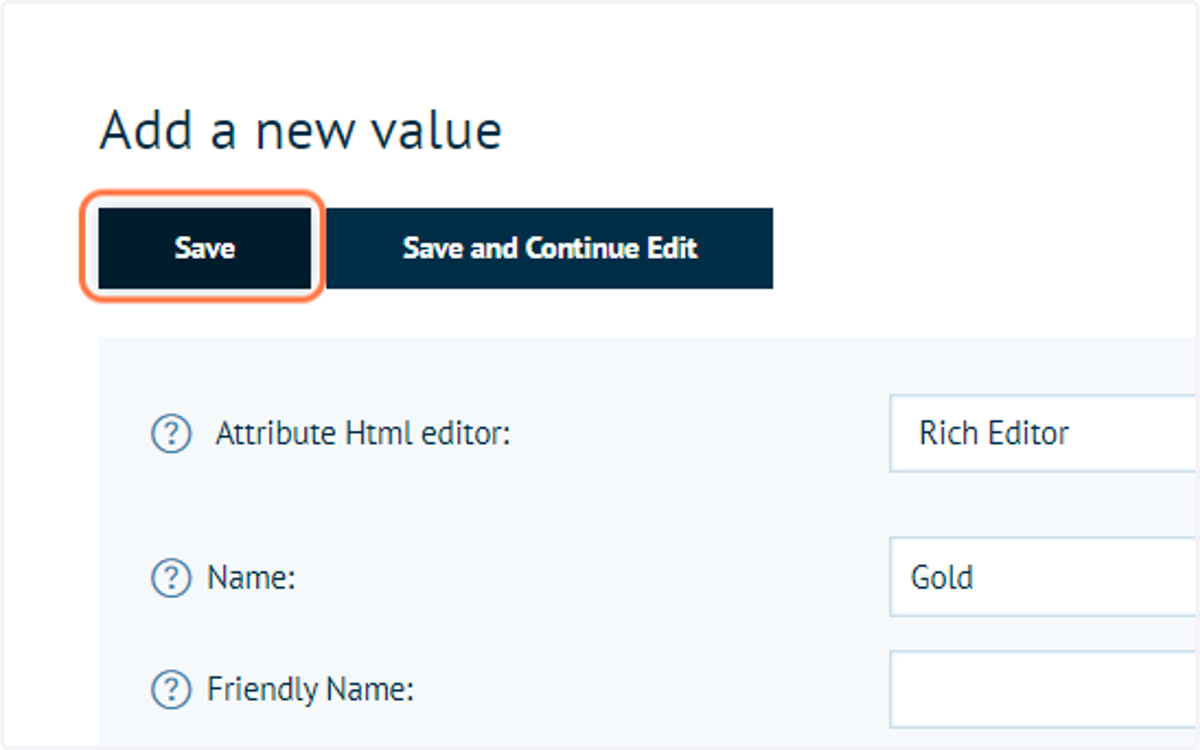
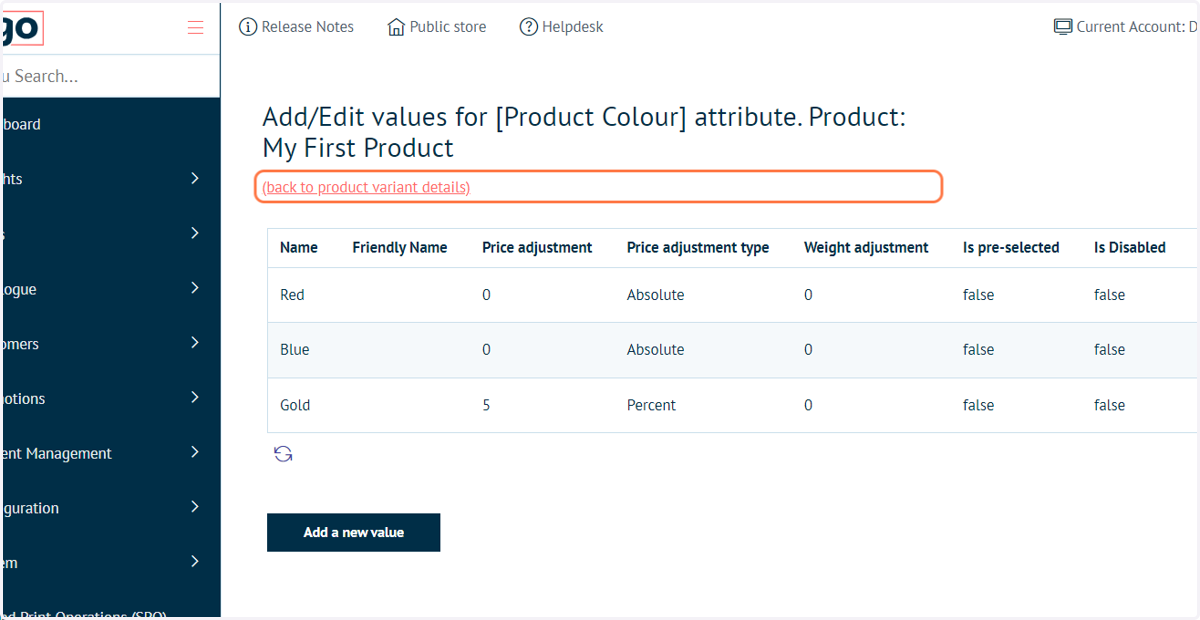
25. Your attribute options are now available
Next, we will test these changes in our storefront.
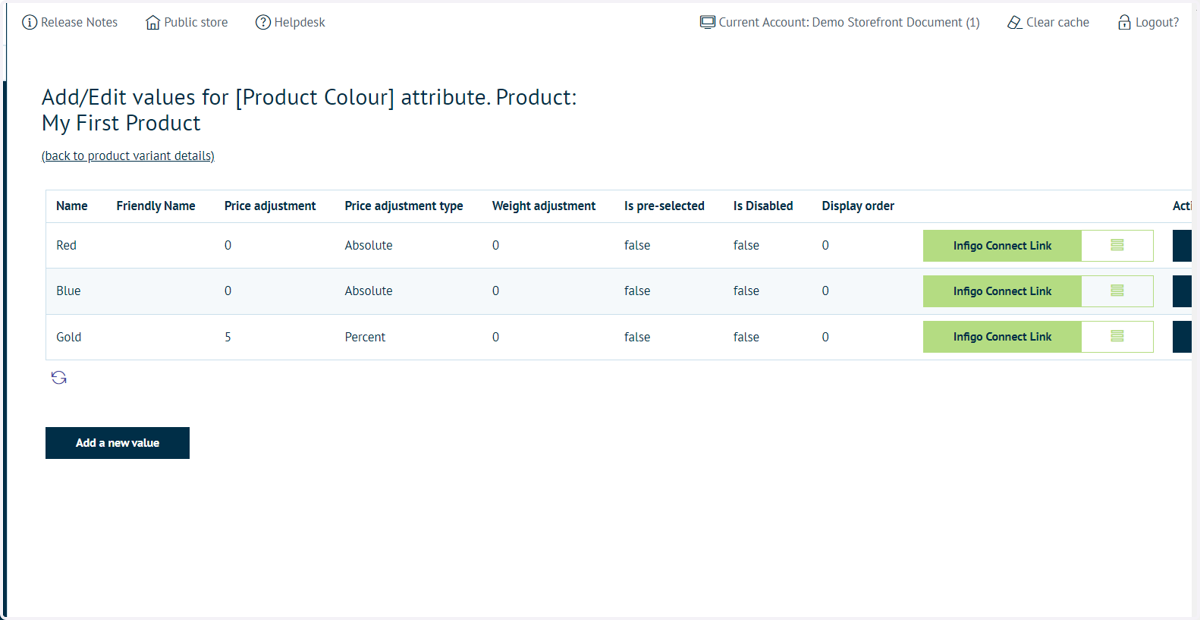
26. Click on (back to product variant details)
27. Click on View product page
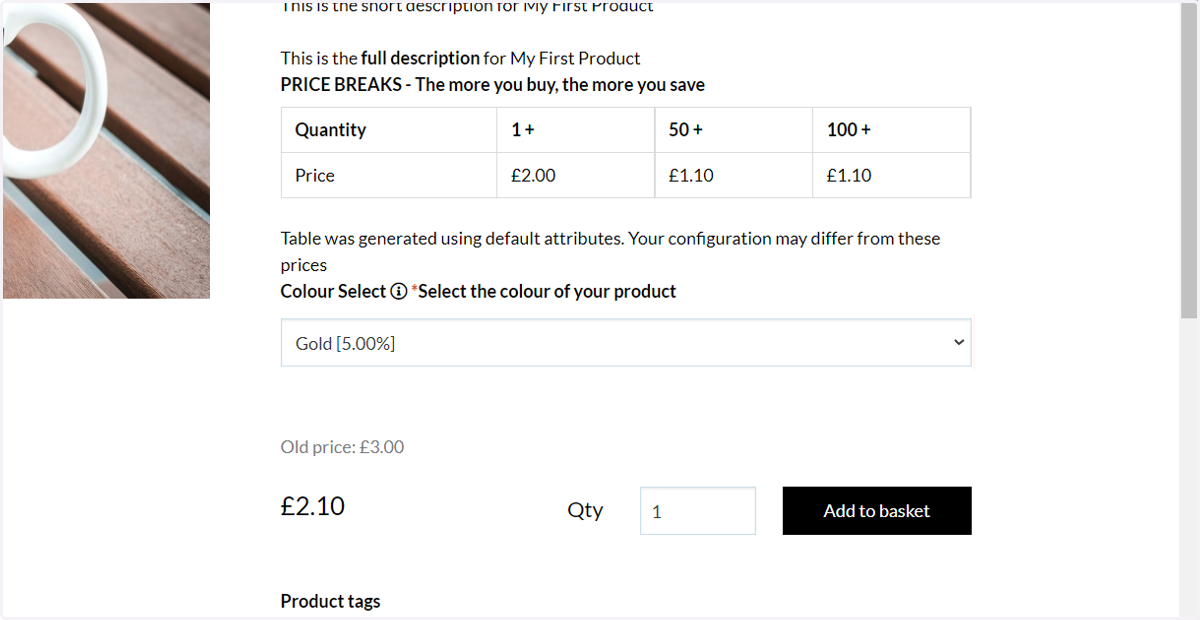
28. Your attribute and defined options will be selectable on the product page