BG_ADV_CCT_001_Creating Custom Content Templates
In this tutorial, we will learn how to begin creating customised Content Templates.
Content Templates aim to eliminate the need for HTML knowledge to create beautiful storefronts, by replacing the standard Code Mirror Editor with a series of simple inputs and controls to create the content that works for you.
Whilst Infigo provide a range of default Content Templates which can be utilised straight out of the box, we also provide users the ability to generate their own custom Content Templates.
NOTE: Configuring a Content Template does require HTML and coding knowledge. However, once the template has been set up and configured, it can be used over and over again without the need to interact with any code.
This makes them perfect for use cases where a particular configuration of content will need to be repeated numerous times (such as for making identically laid out product pages). A person with HTML knowledge can set up the templates, with other administrative users able to then utilise them and populate them as required.
Over this short series of videos, we will be generating a very simple content template, aimed at showcasing some of the key features. This includes the creation of input fields, utilisation of custom scripts and more.
Infigosoftware
1. Navigate to the Content Templates section
You will likely need to request access to this section from our Customer Support team, as it is not enabled by default.
Once enabled, you will be able to create Content Templates on any of your storefronts.
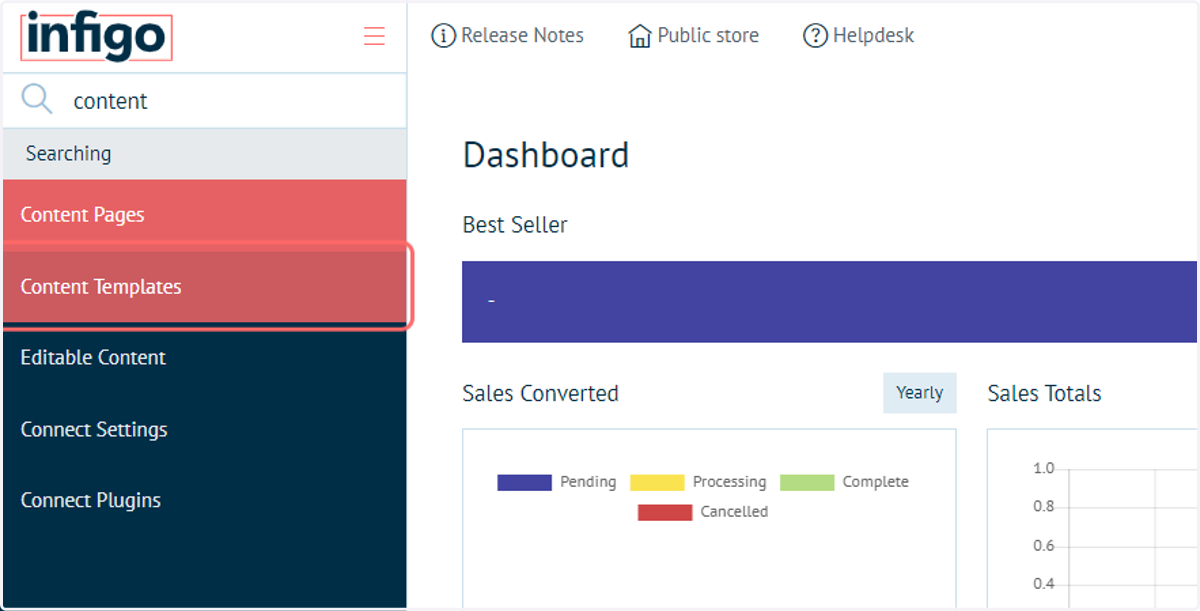
2. You will see a list of existing, default Content Templates
These cannot be amended.
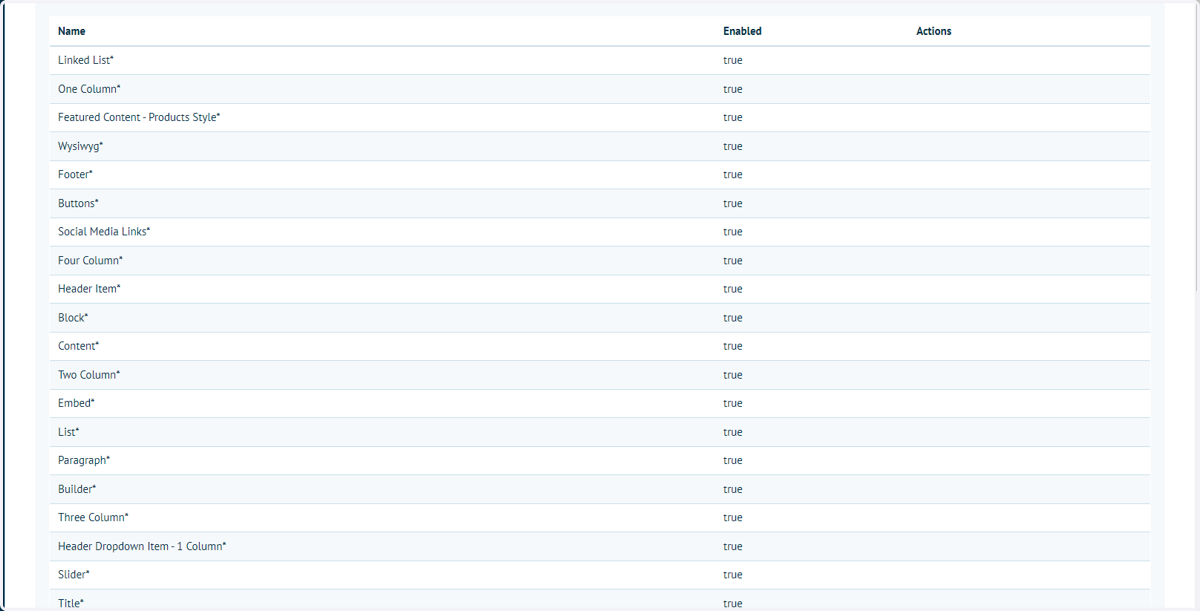
3. To create new Content Templates, click Add new
4. Enter a name for the Content Template
This will only be used to identify the Content Template. This name will not be shown to your end users.
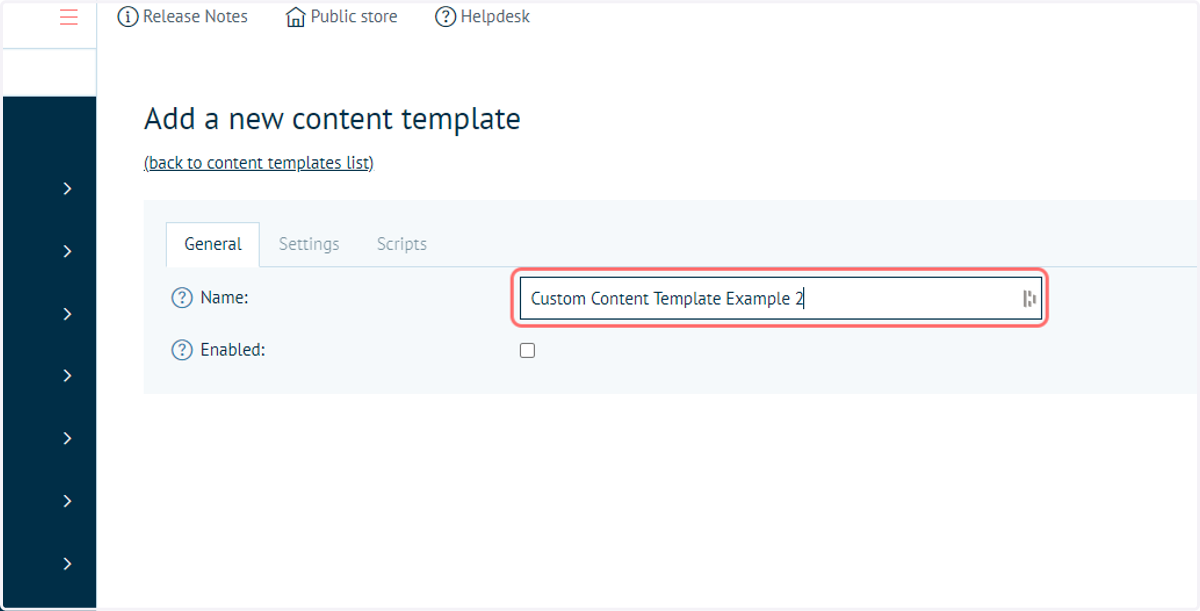
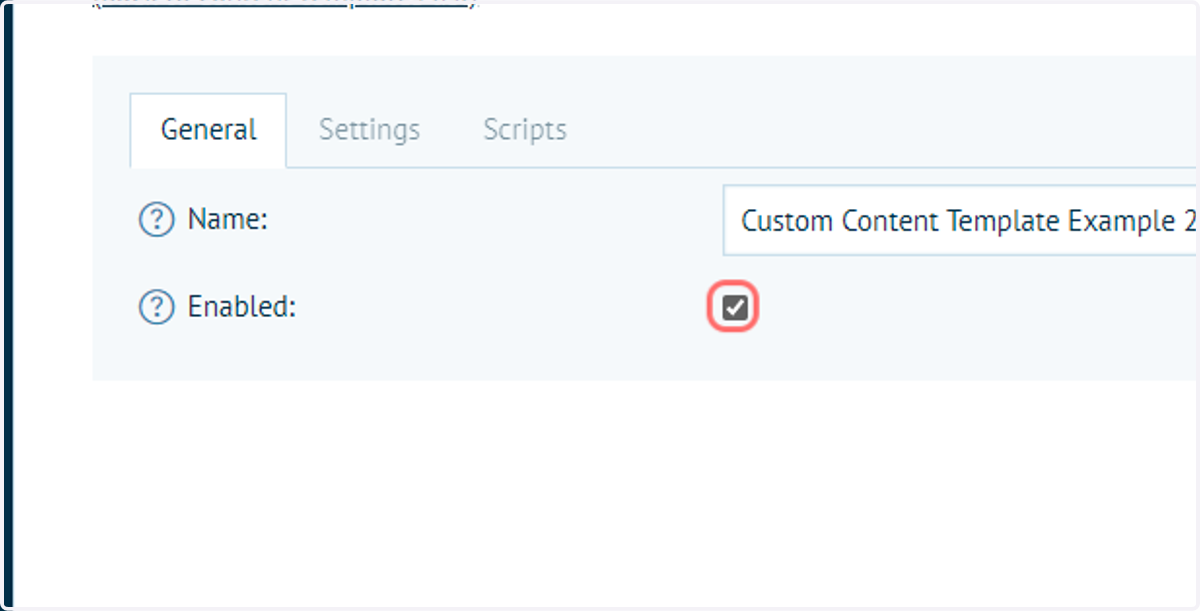
5. Check Enabled
Ensures the Content Template is available for selection.
Equally, you can deselect this box to Disable a template if you do not wish it to be used.
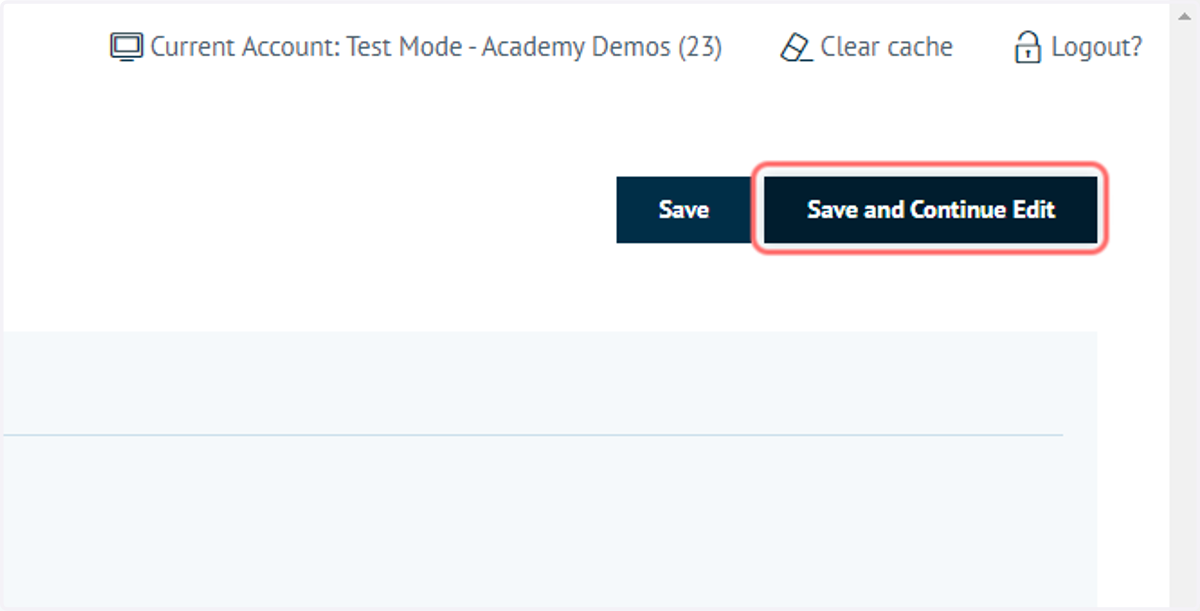
6. Click on Save and Continue Edit
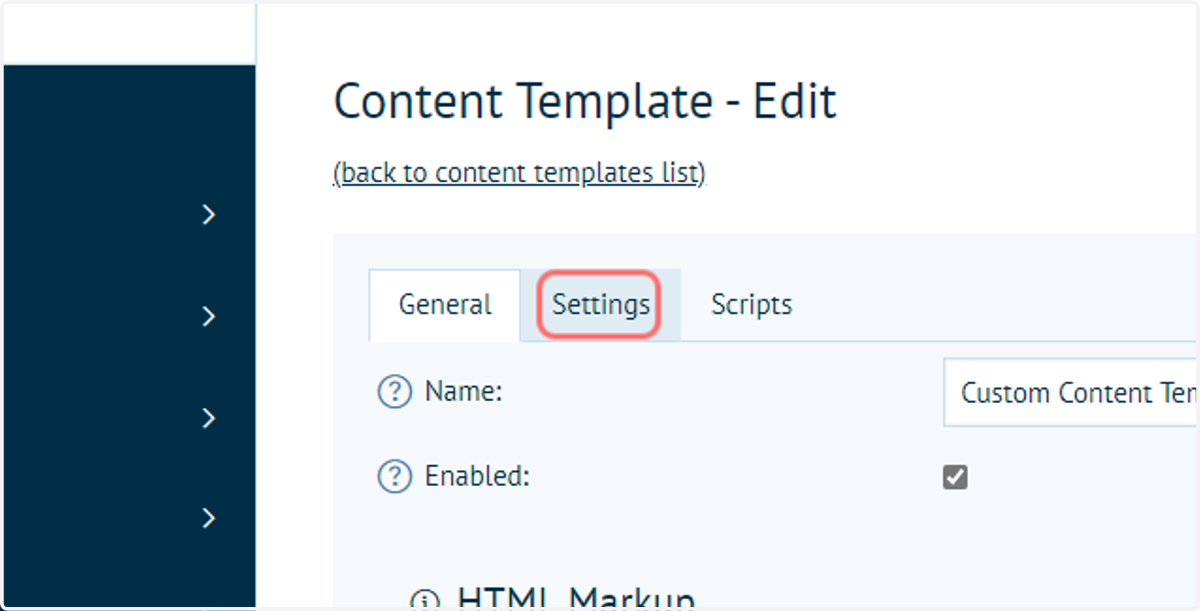
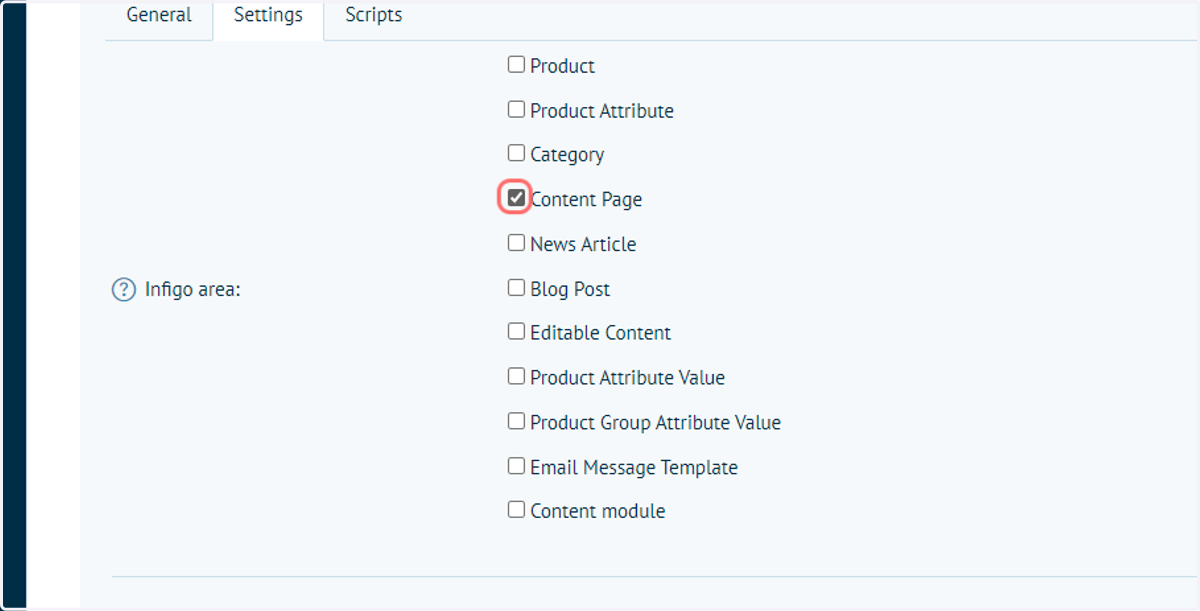
7. Click on Settings
Next, we will select where this new Content Template can be used.
8. Check Content Page
Content Templates are available for use in all areas listed on this tab.
You are able to select one or more scenarios where it is able to be selected.
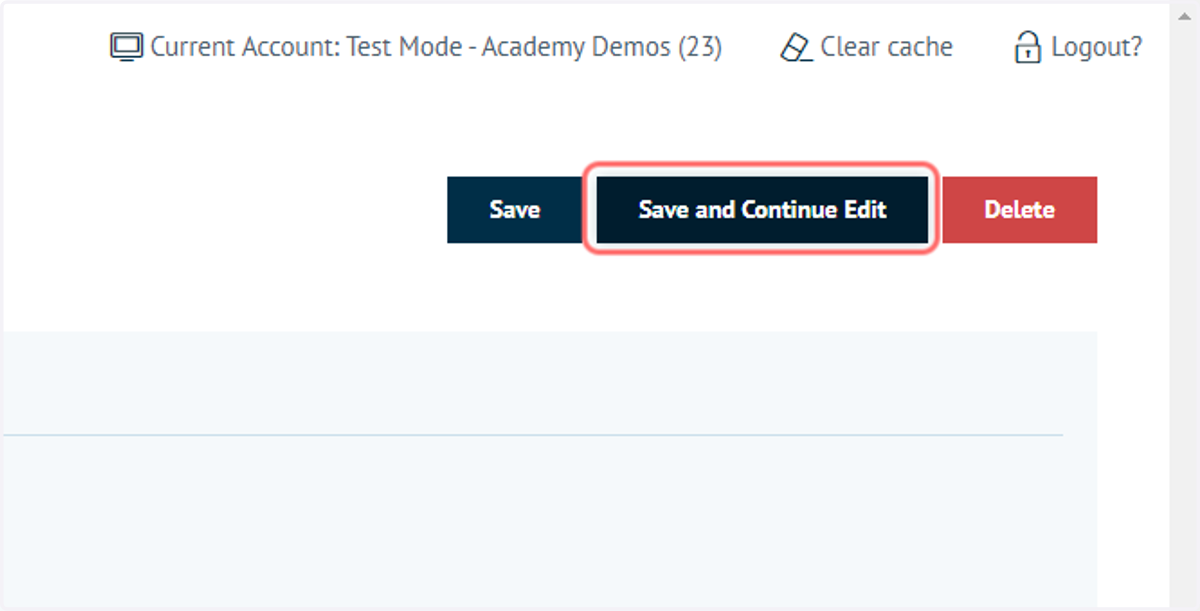
9. Click on Save and Continue Edit
10. Click on General
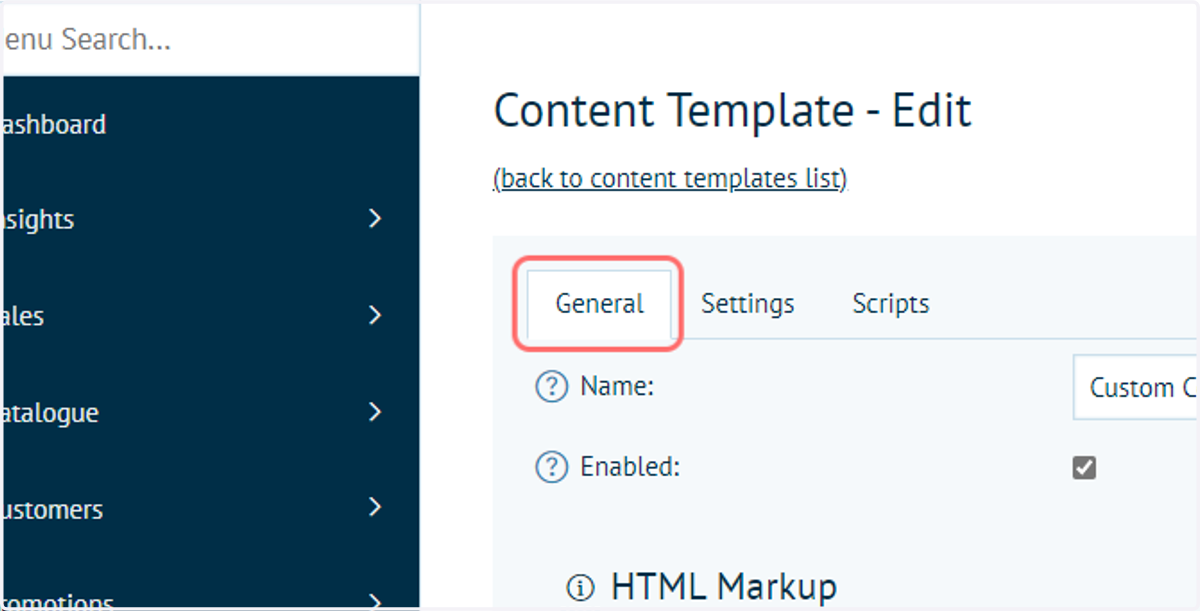
11. Next, we will begin populating the HTML Markup
This is the main HTML content to be used when selecting this template.
Later on, we will make sections of this code dynamic, however for now we will simply place a section of static "boilerplate" code.
In our example, we will create a very simple HTML section, containing a h2 title and a paragraph of text.
The code used in this example is as follows:
<section class="section is-medium has-background-default has-text-default  ">
    <div class="container content is-flex">
        <div
            class="columns is-multiline is-mobile is-variable is-4 is-vcentered is-justify-content-center has-text-inherit">

            <div class="column is-12">
                <h2 class="ict-title title has-text-left is-1 has-text-primary  has-style-default">
                    Page Title
                </h2>
                <div class="ict-paragraph block has-text-inherit has-text-default  has-style-default">
                    <p>Description goes here</p>
                </div>
            </div>
        </div>
    </div>
</section>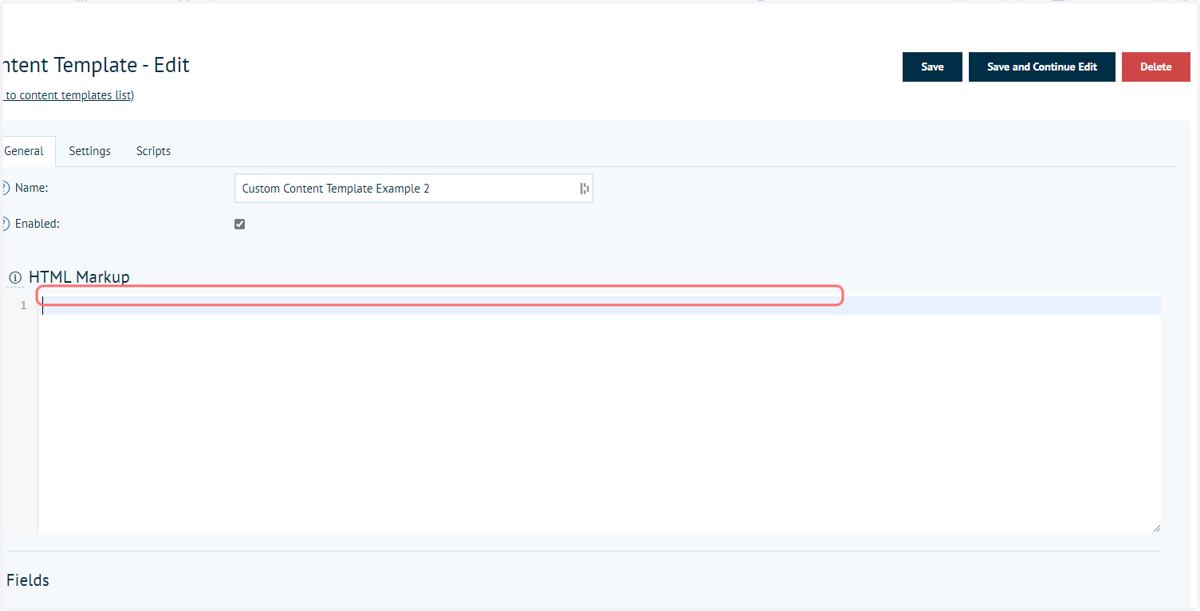
12. Paste code into the HTML Markup area
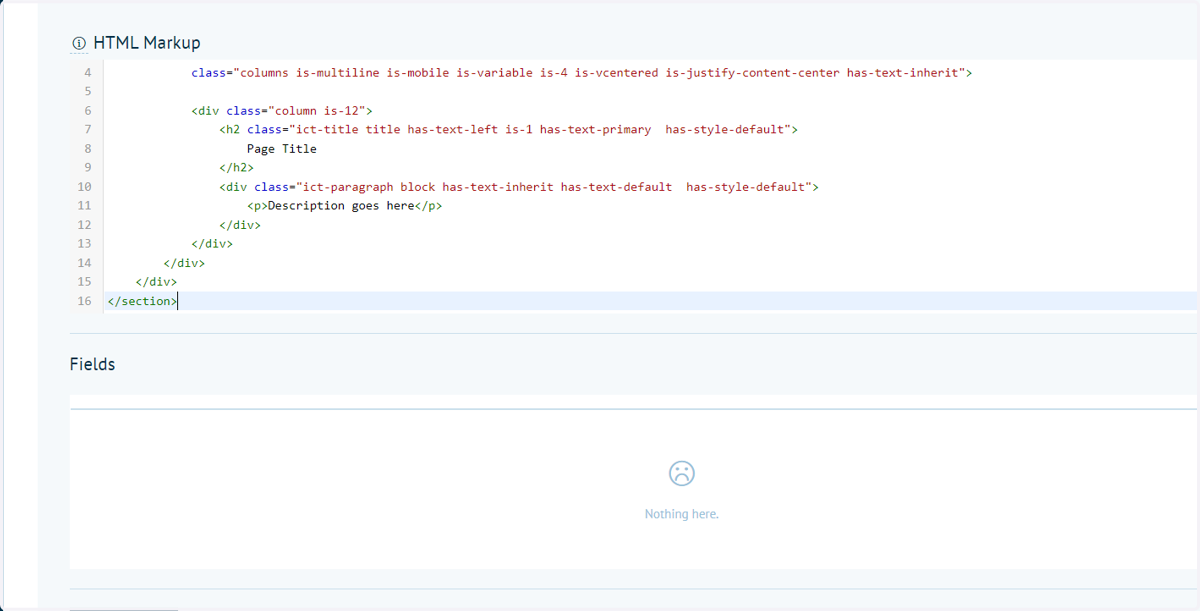
13. Click on Save and Continue Edit
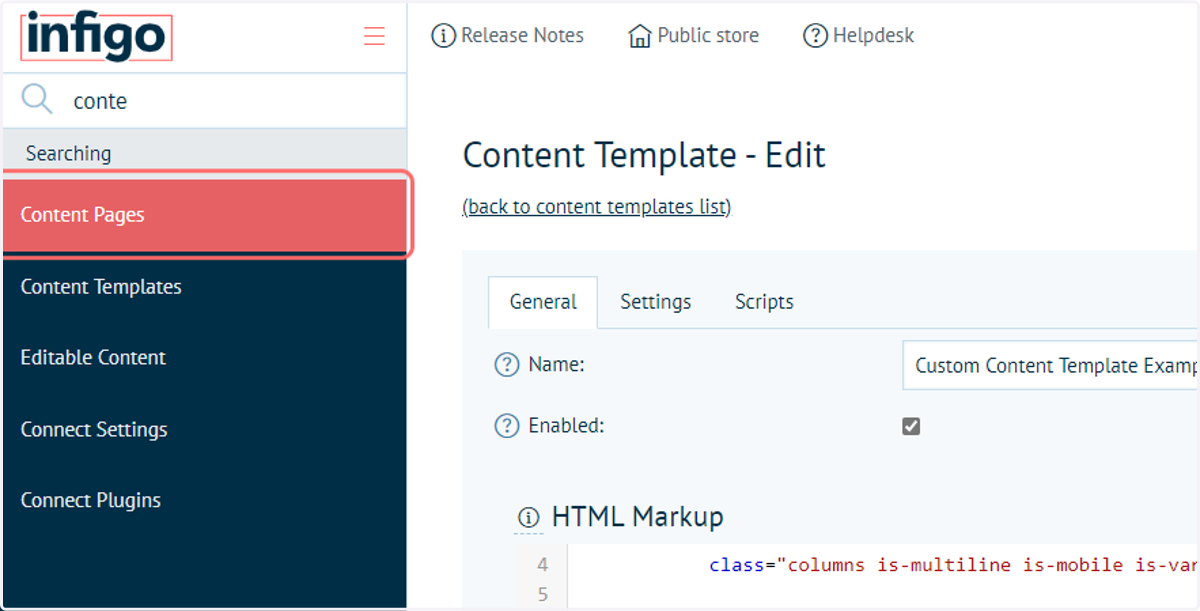
14. Next, we will create a new Content Page and set it to use our new Content Template
15. Navigate to Content Pages
16. Click on Add new
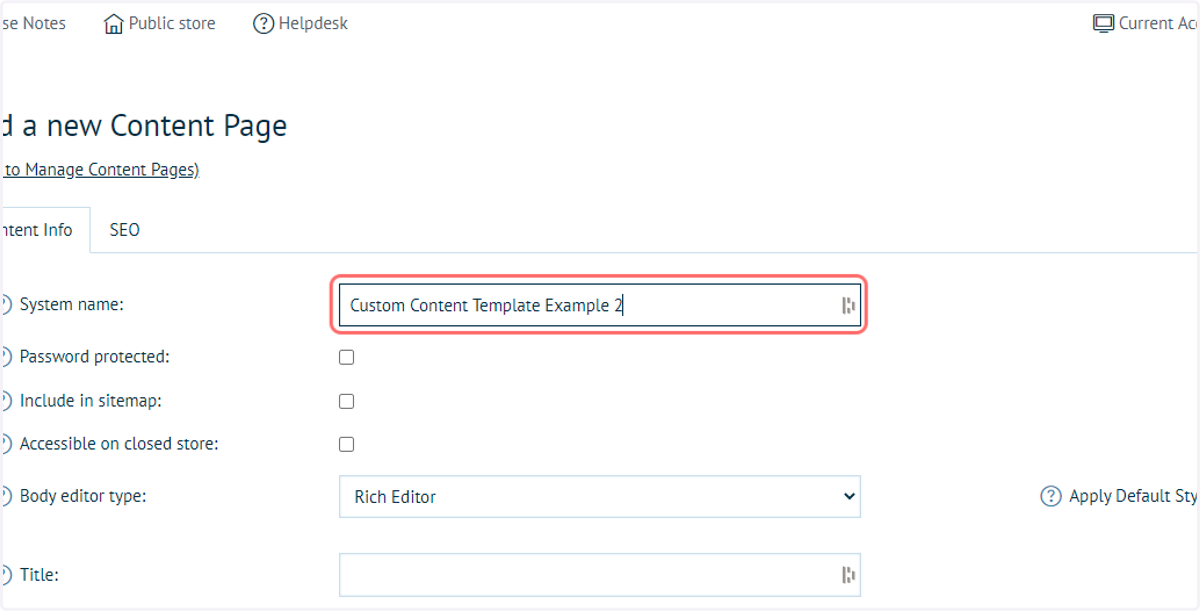
17. Type a name for the Content Page
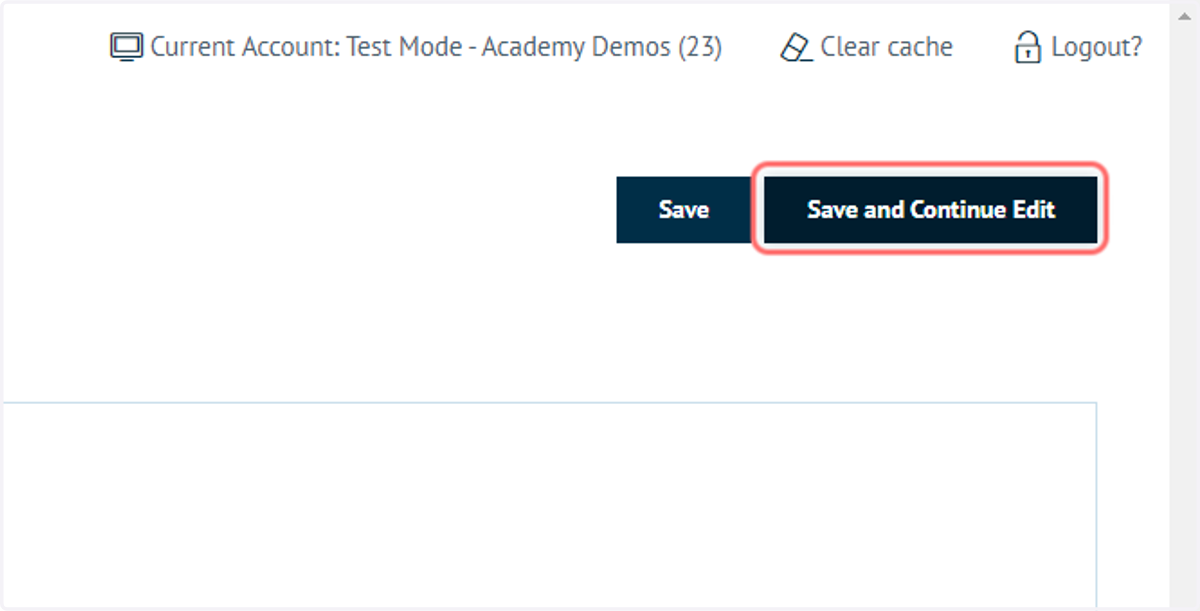
18. Click on Save and Continue Edit
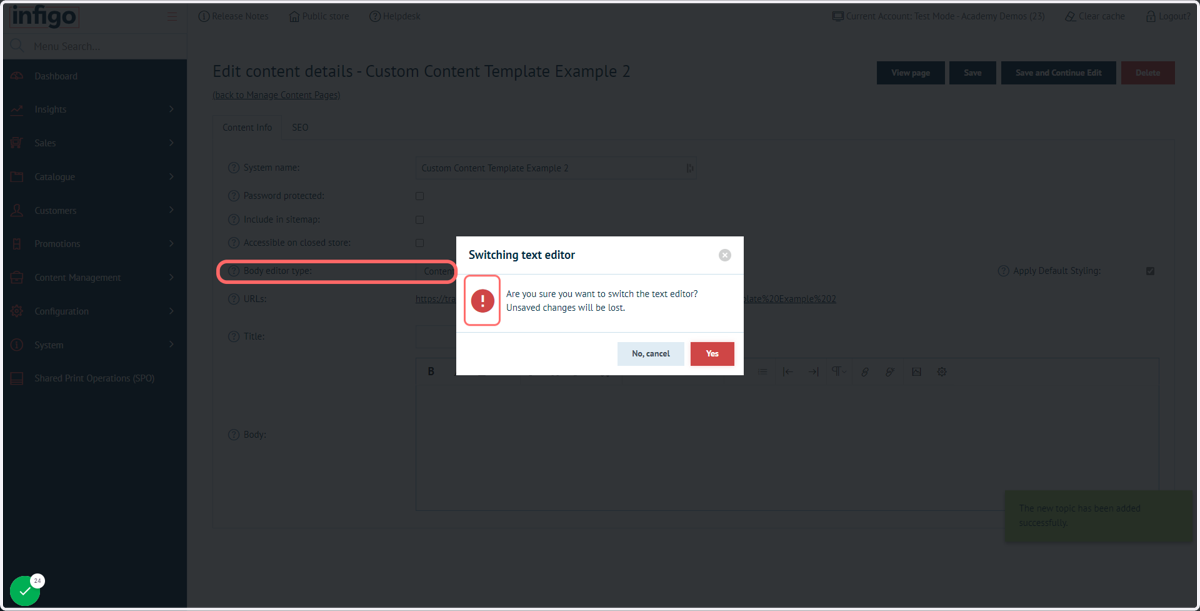
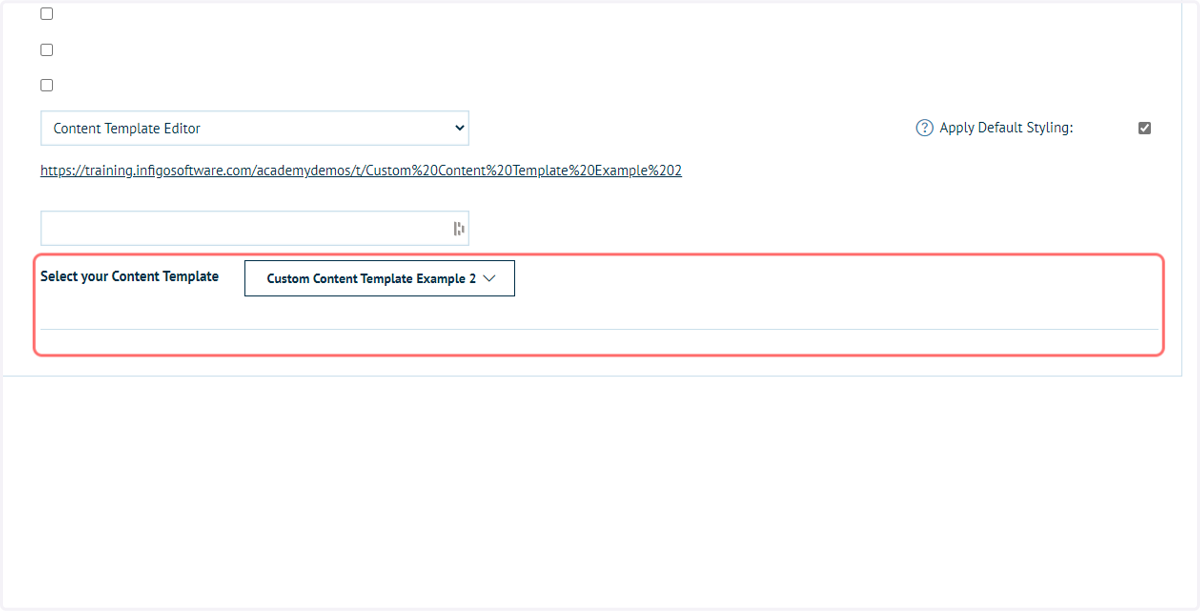
19. Change the Body Type Editor dropdown to Content Template Editor
This switches the setup of the page, meaning a Content Template can now be selected.
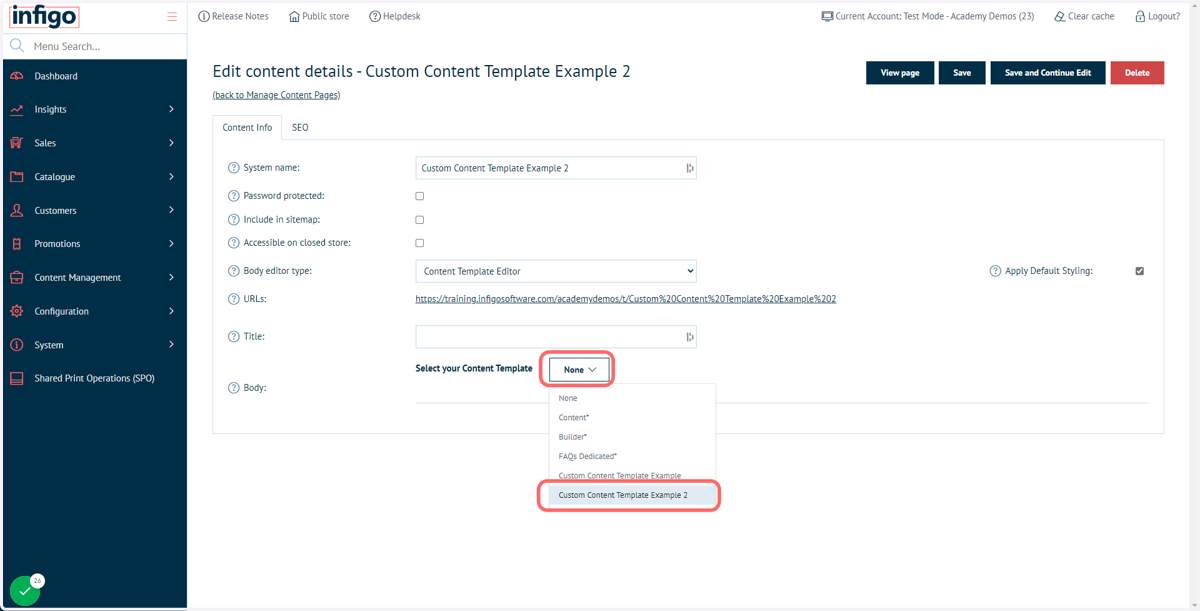
20. Select your new Content Template design from the dropdown list
21. Content Template applied
Your Content Template has now been applied to this page.
At the moment we will see no additional fields or options, as we are yet to set them up.
However, the HTML Markup we entered earlier will now be utilised.
22. Click on Save and Continue Edit
23. View the Content Page
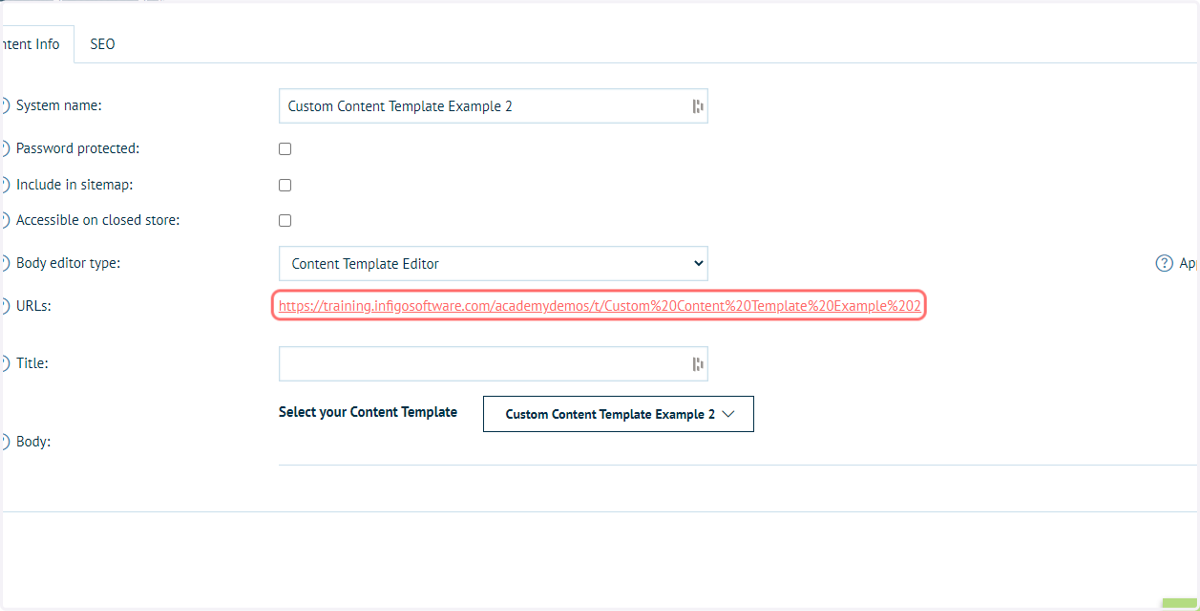
24. The Content Template is now being utilised
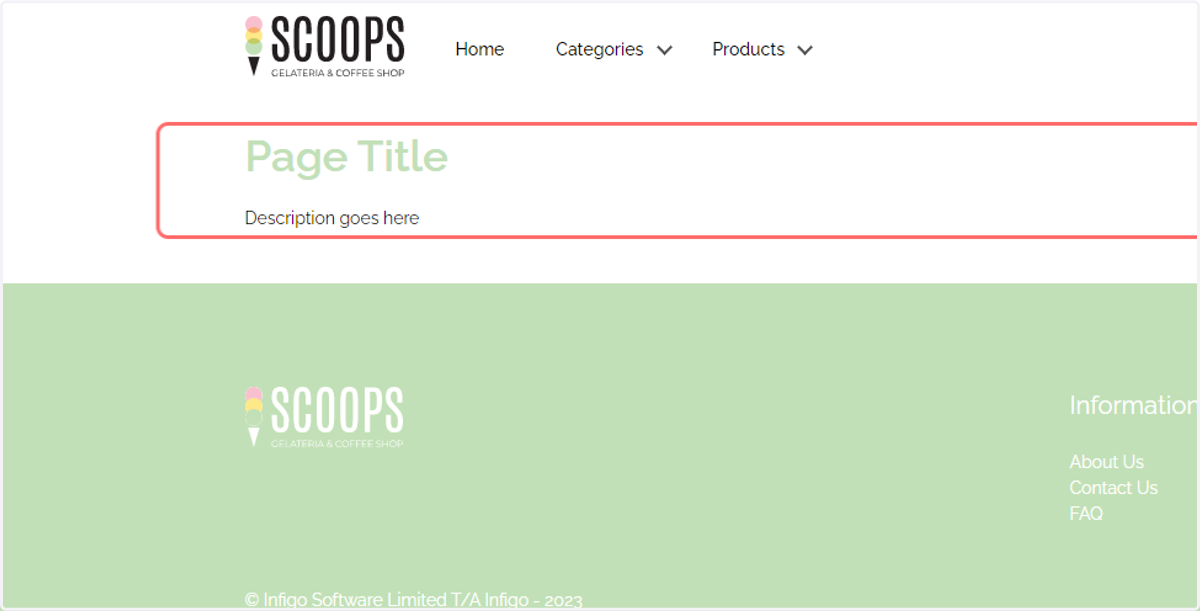
We can see a page title and paragraph, as was detailed in our boilerplate HTML Markup code.