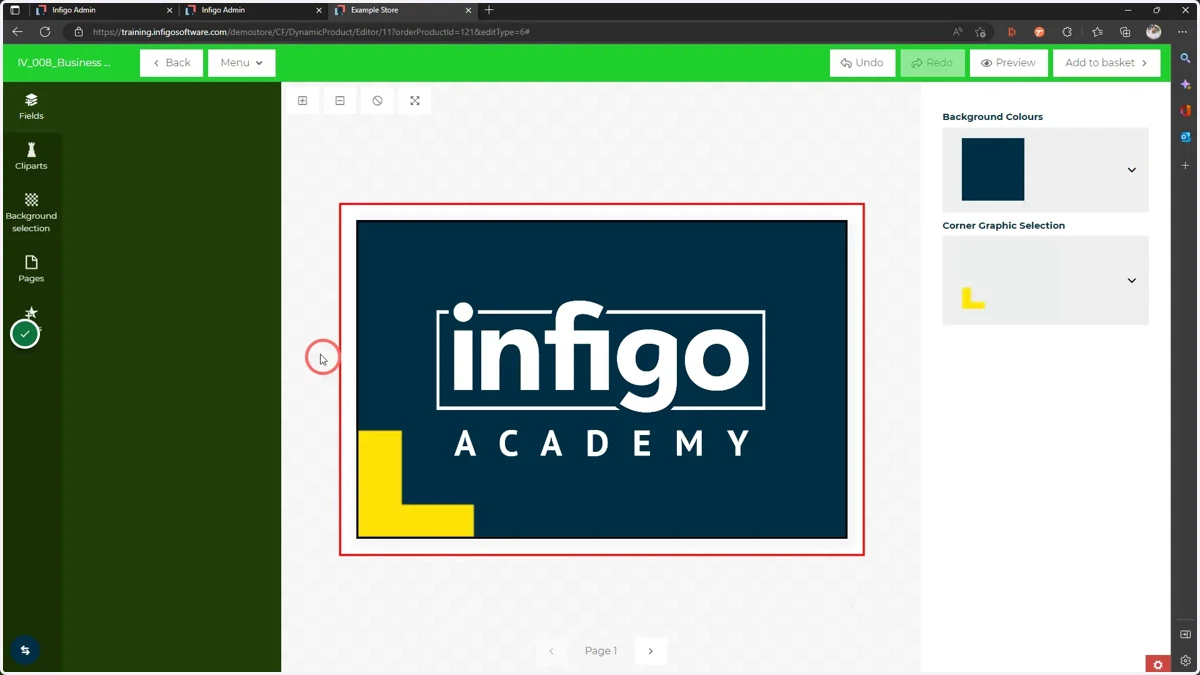
Create an adjustable business card design
This task will test your knowledge on the previous tutorials in the Invent (IV) series.
We will begin setting up a business card using Infigo Invent within Adobe InDesign.
Resources for this task can be downloaded from this link.
1. Begin by opening the provided InDesign file
This is a very basic business card template, with elements only present on the reverse side of the card.
Our goal in this task is to make the reverse side of the business card a variable template with the following functionality:
Background colour change options
Automatically updating logo based on background colour
Several image options for the graphic in the bottom left corner
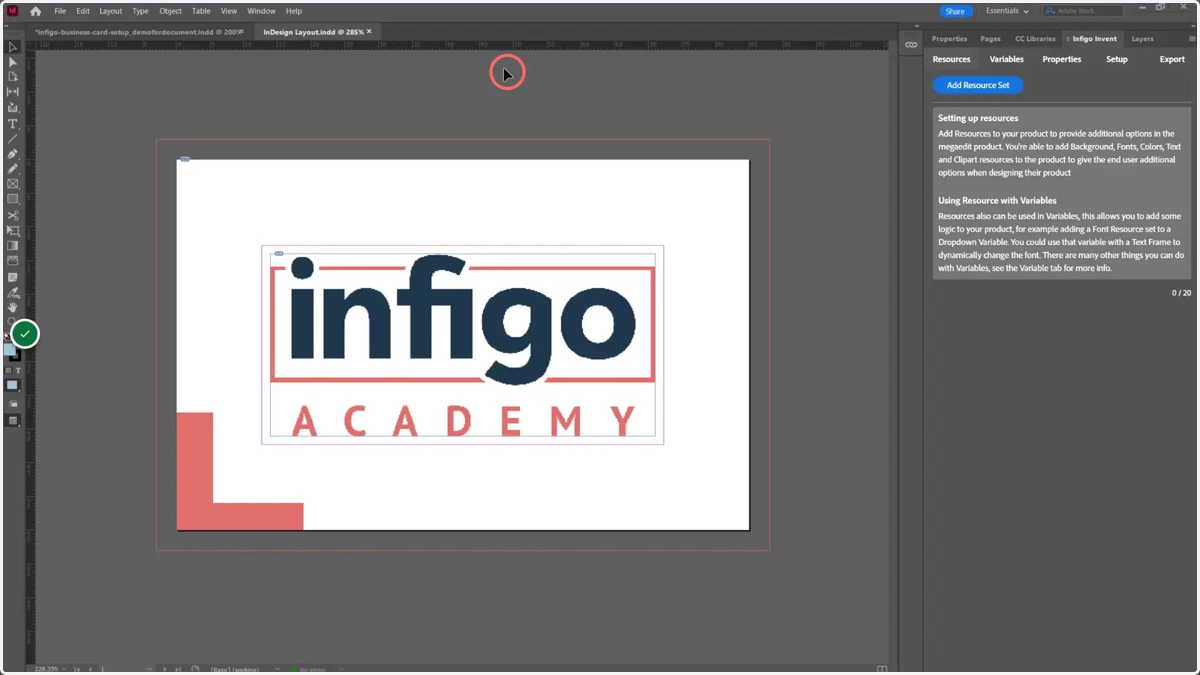
2. Create three Resource Sets
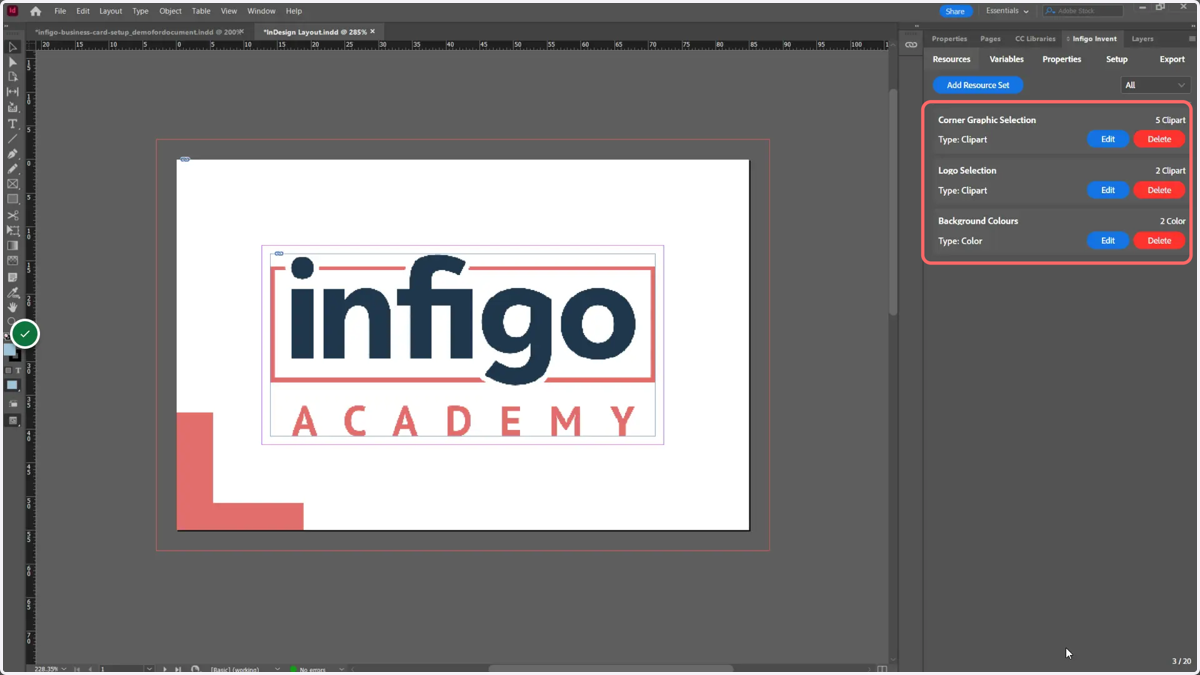
Create three Resource Sets containing the following data:
Color Set containing two colours
Navy - RGB 0 | 46 | 71
White - RGB 255 | 255 | 255
Clipart Set containing two logo options
From the Logo folder in the provided resources
Clipart Set containing several bottom-left graphic options
From the Graphics folder in the provided resources
Useful Resources
IV_004_Creating a dropdown controlled image field using clipart sets and variables
adobe
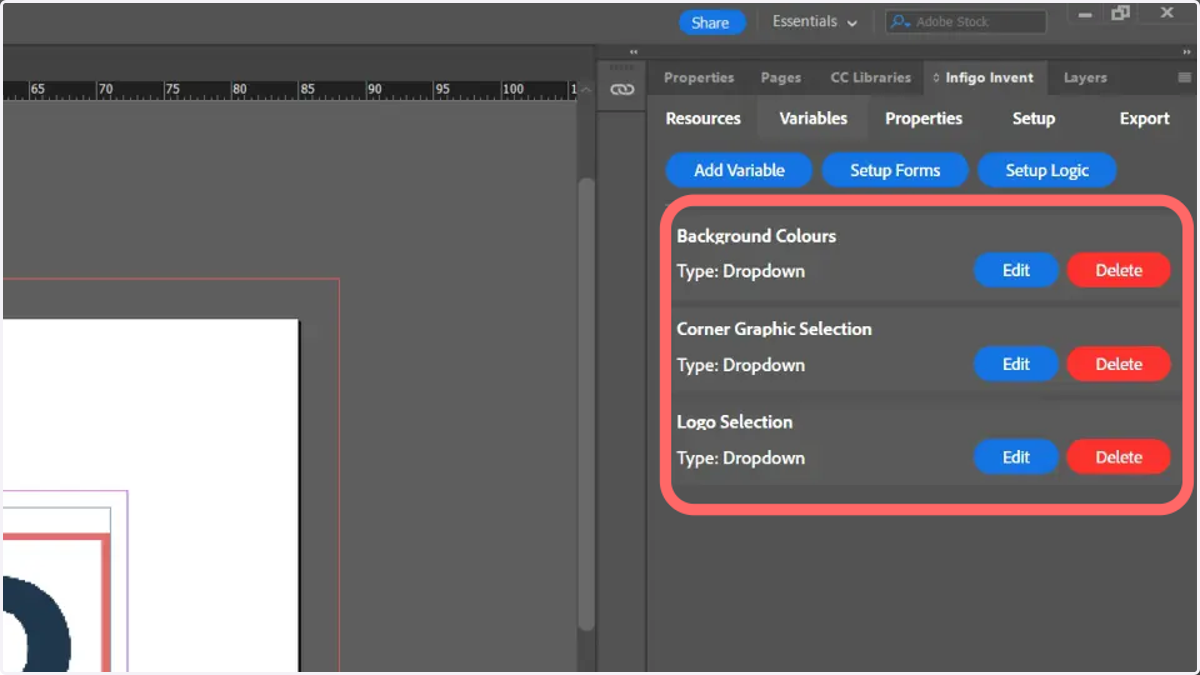
3. Create three dropdown Variables
Create three dropdown variables, each linking to one of the Resource Sets.
Useful Resources
IV_004_Creating a dropdown controlled image field using clipart sets and variables
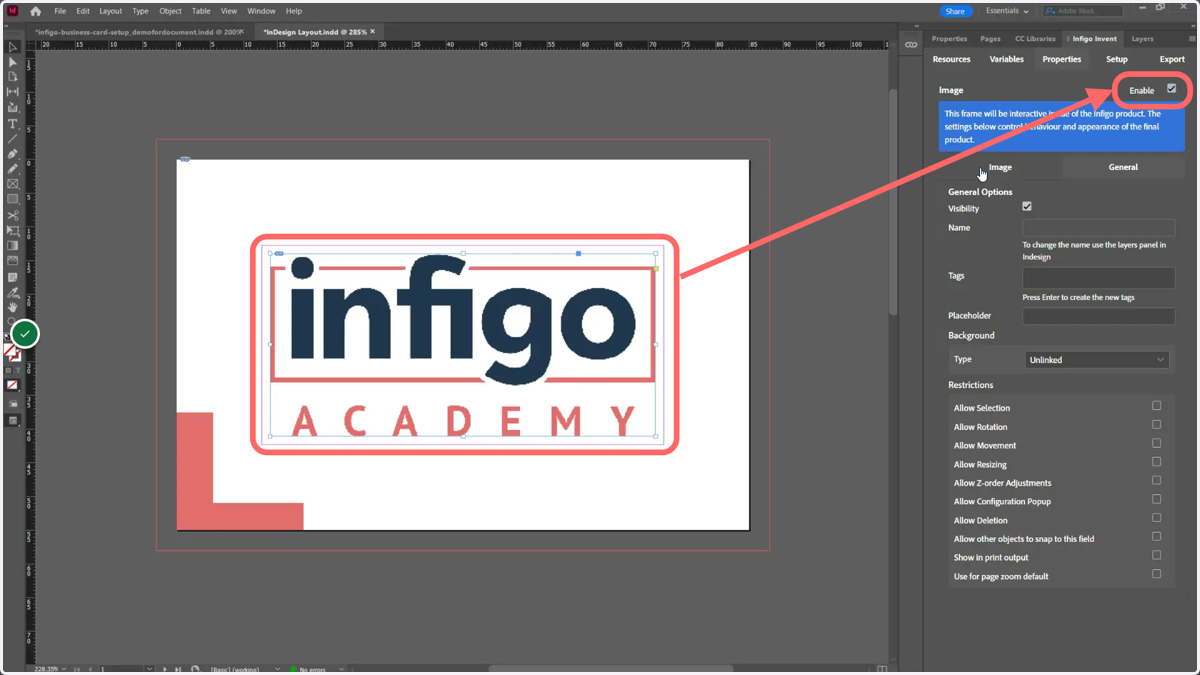
4. Enable the logo fields located on the canvas
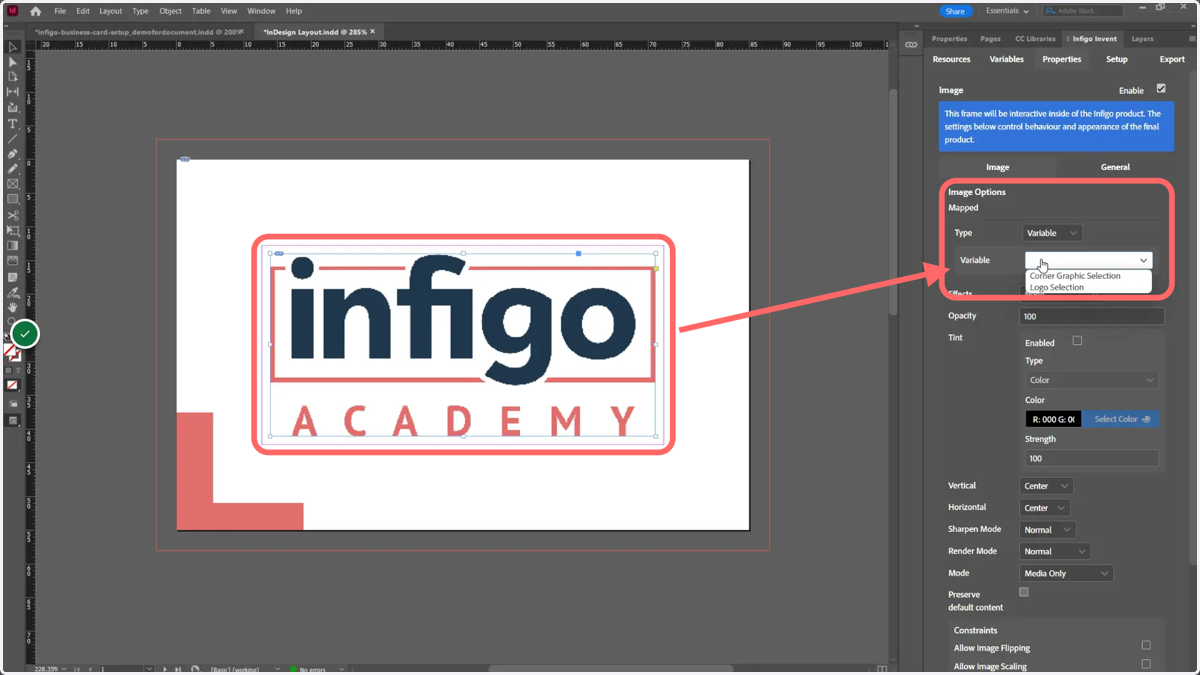
5. Link the logo field image to your logo variable
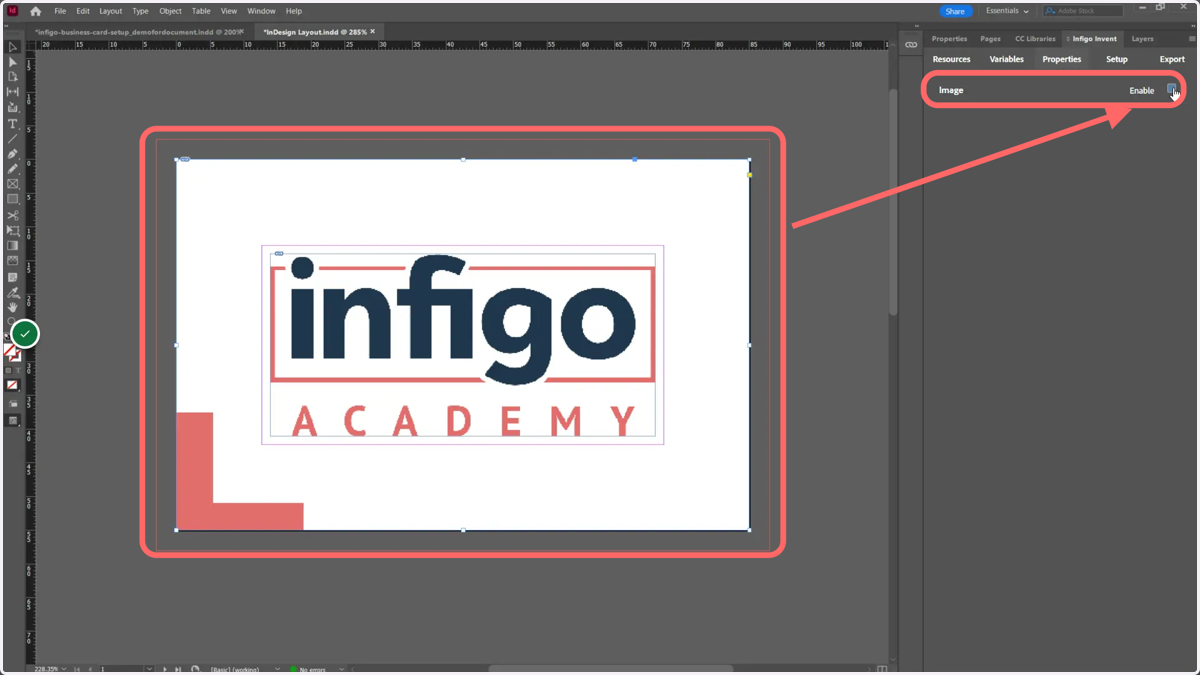
6. Enable the graphic field located on the canvas
adobe
7. Link the graphic field image to the relevant variable
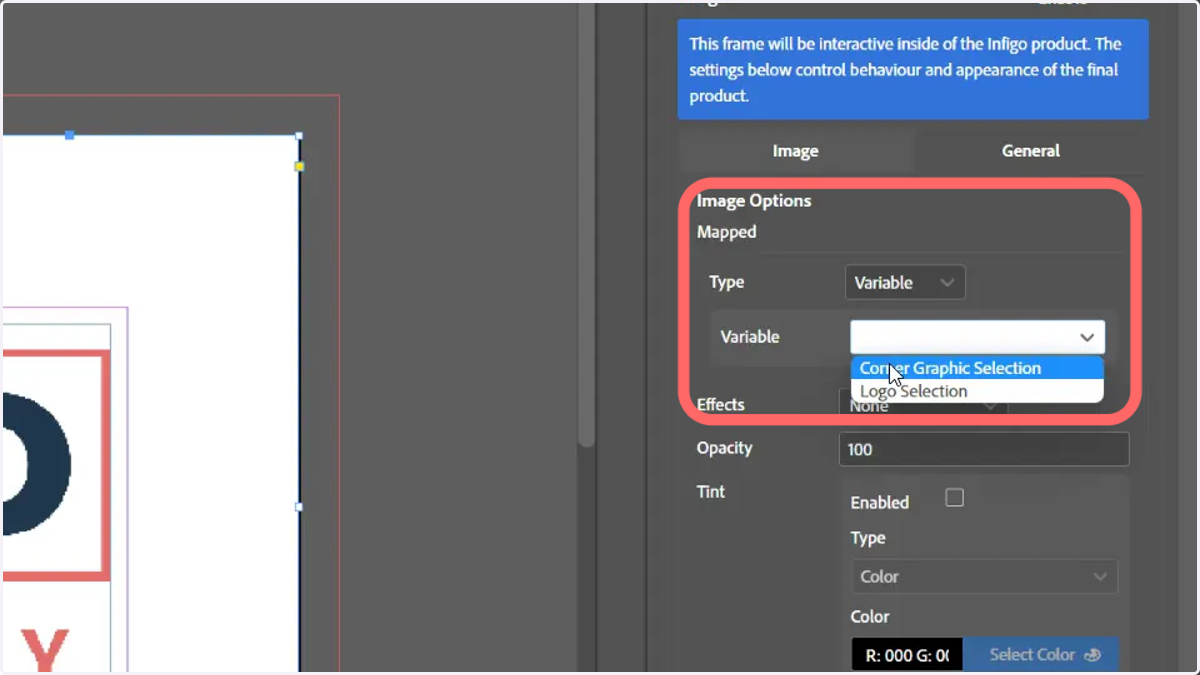
8. Link the graphic field to the relevant variable
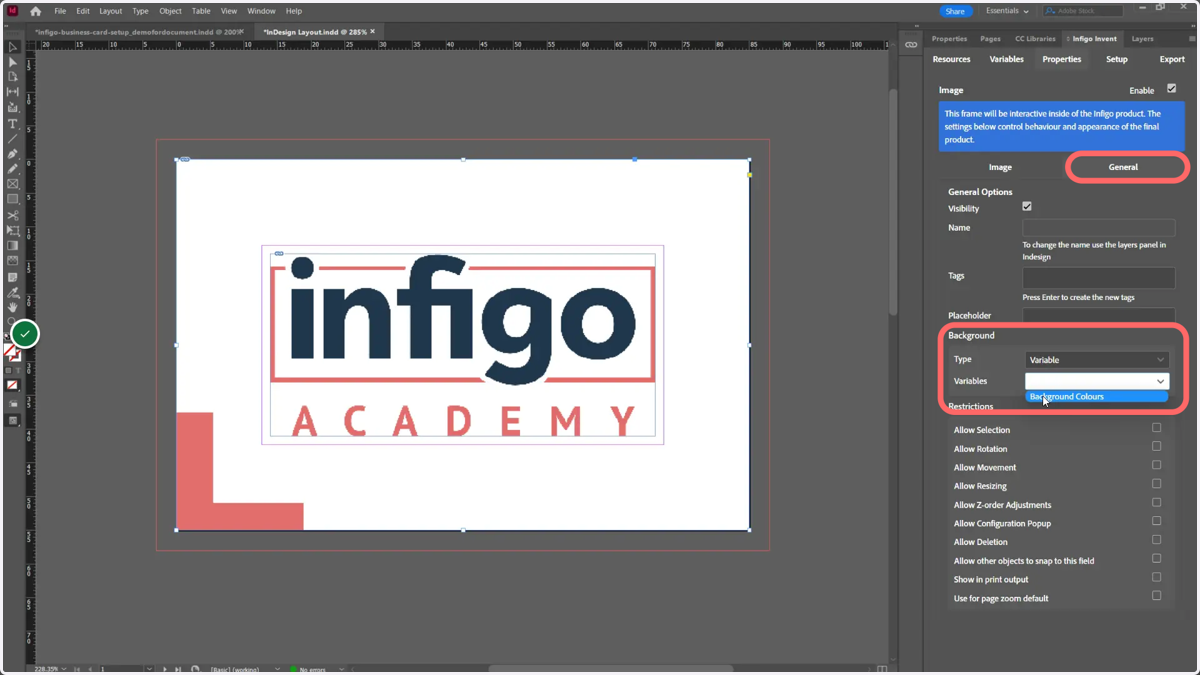
adobe
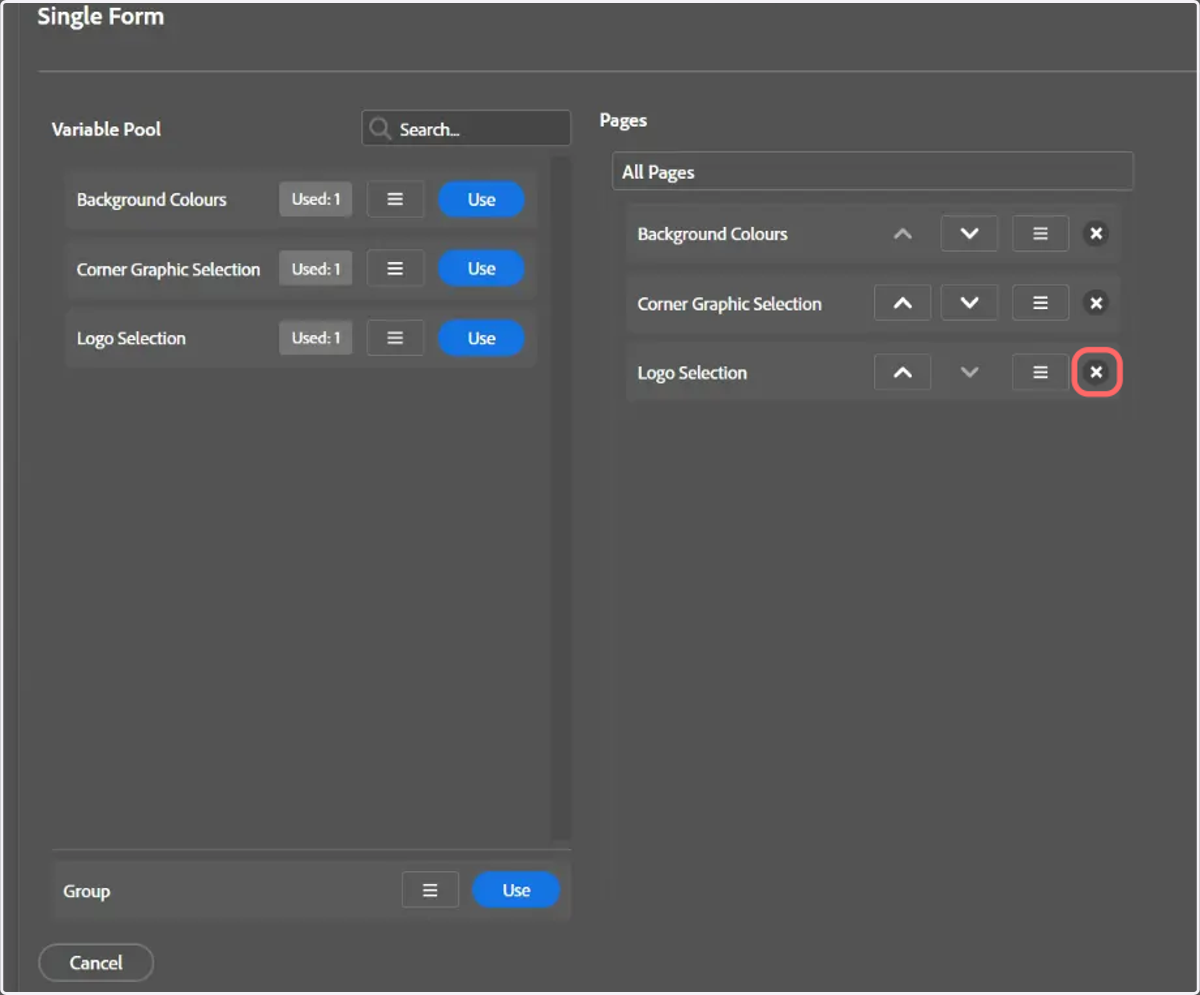
9. Modify your MegaEdit form so the logo variable is not shown or selectable
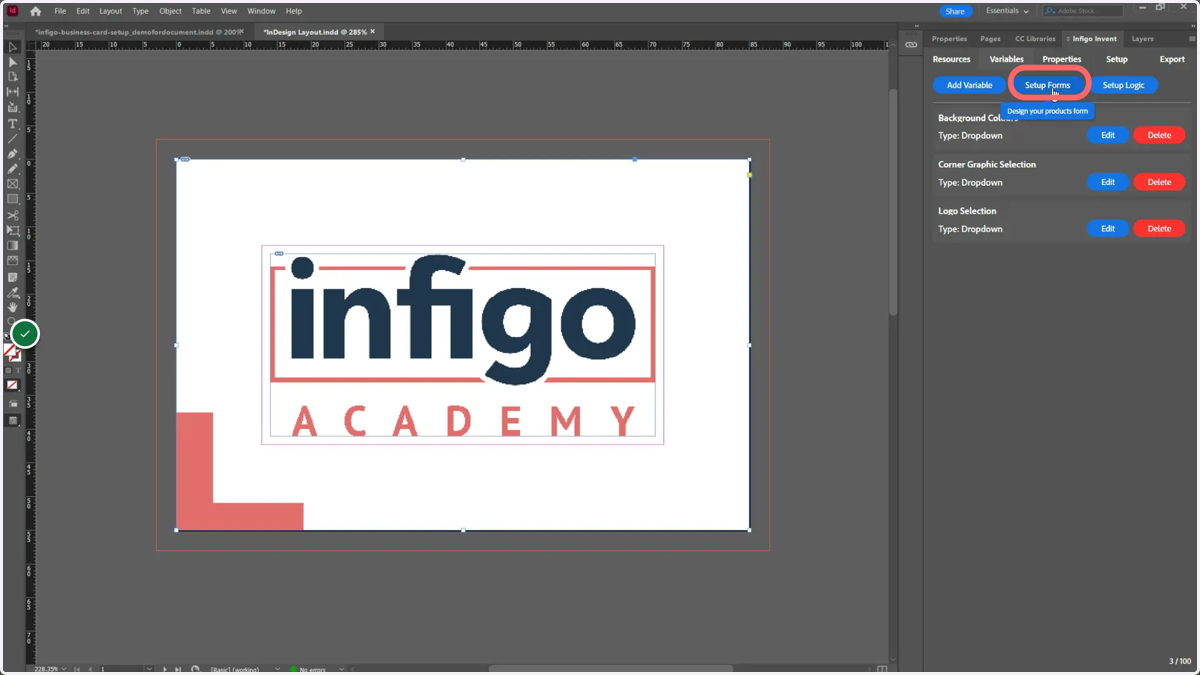
10. Remove the logo selection variable from the form entry list on the right of this screen
11. Begin setting up variable logic
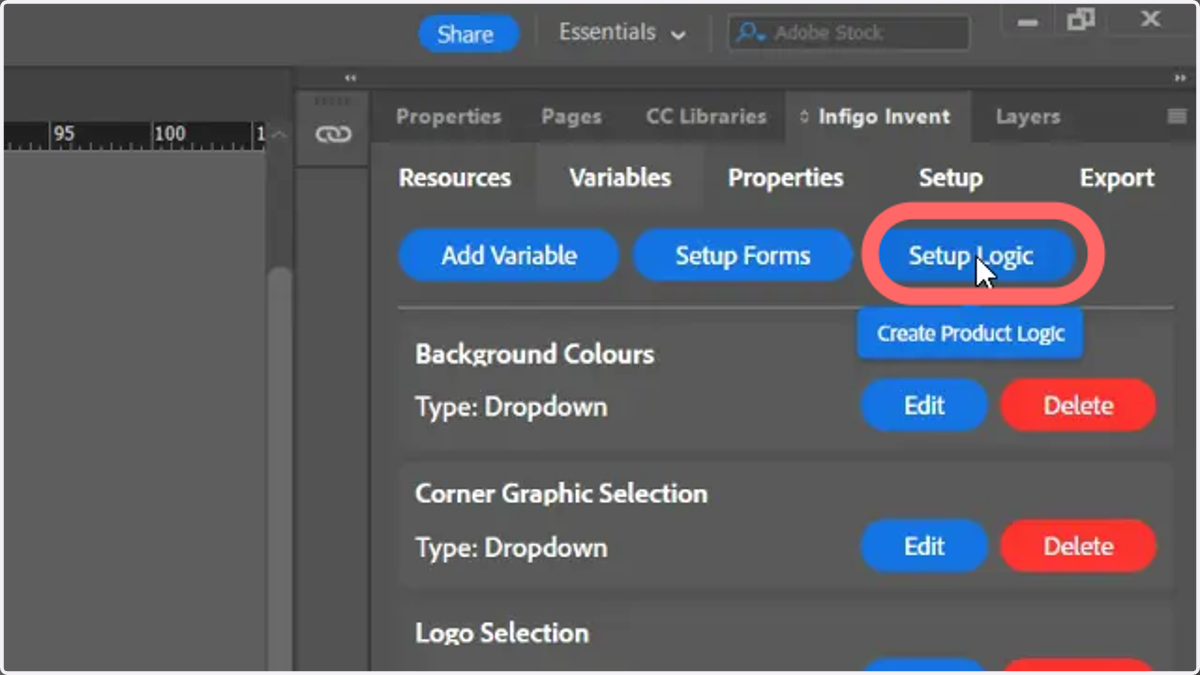
adobe
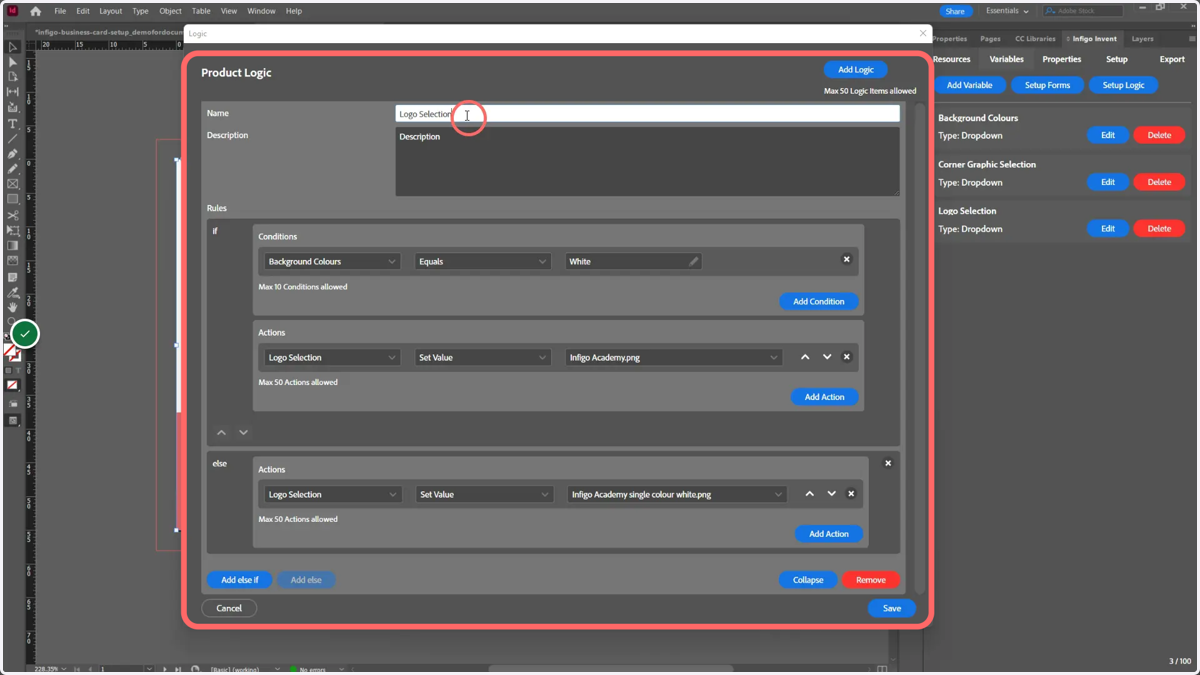
12. Create logic entry
Set up logic covering the following tasks:
If your background colour equals white then the logo selection should be the colour logo.
For any other background colour, the logo selection should be the white logo.
Additional Resources
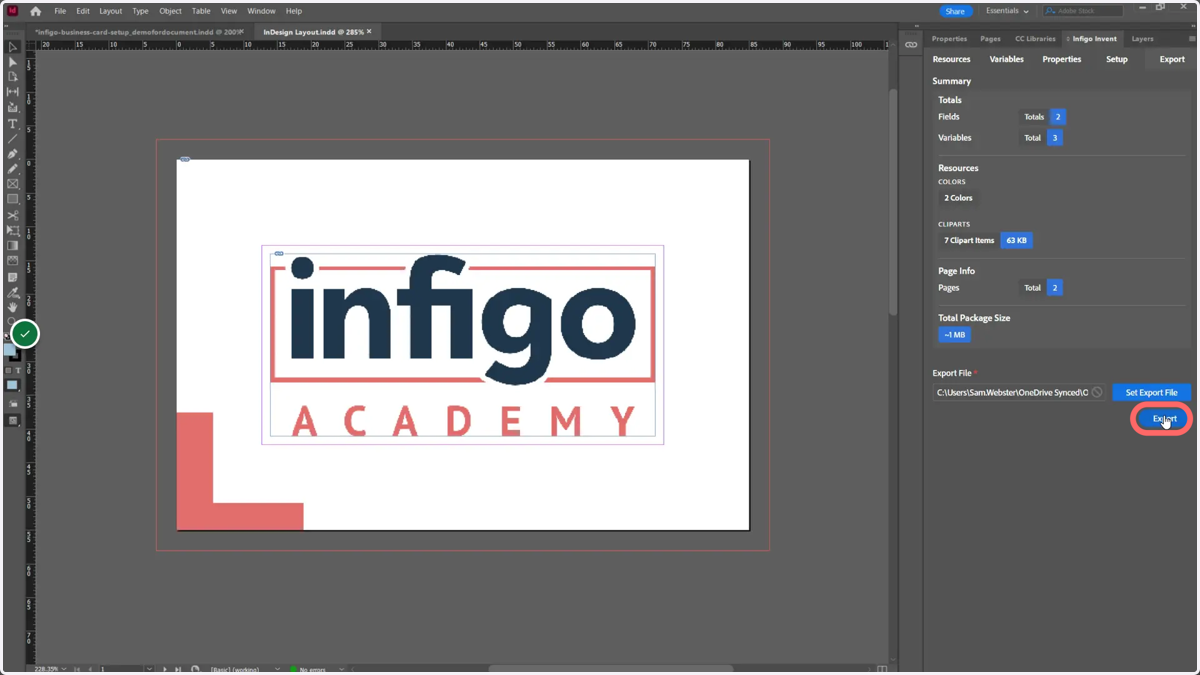
13. Export your MEX Invent template
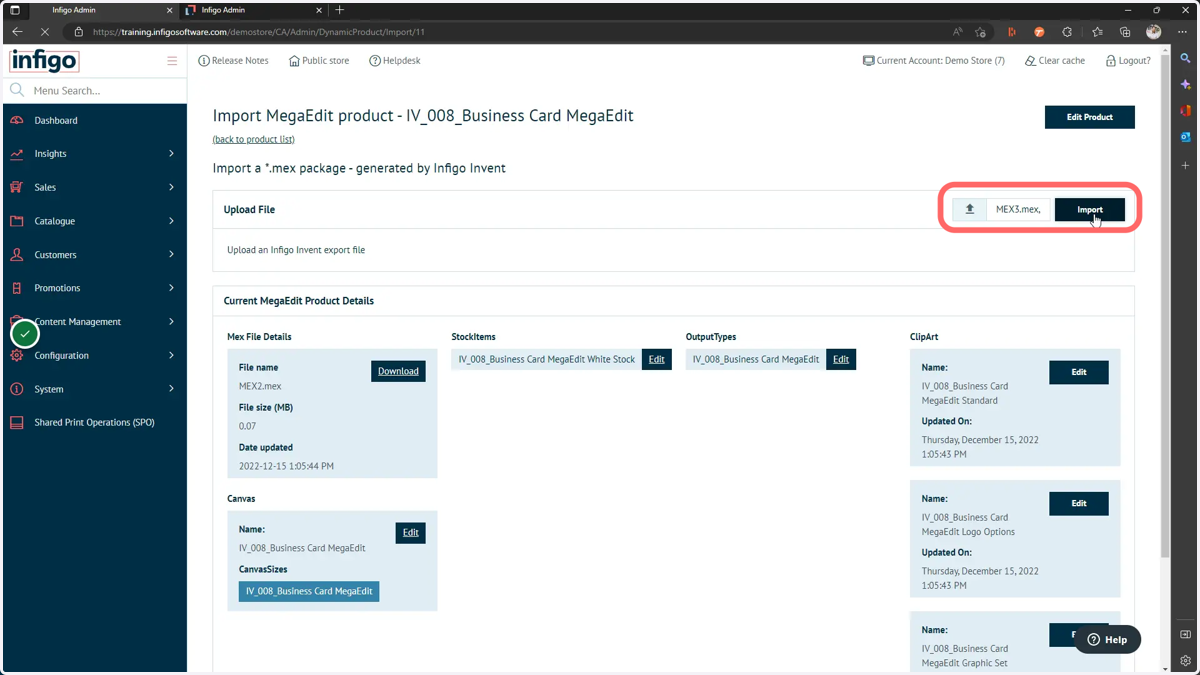
14. Import the MEX file into your MegaEdit product
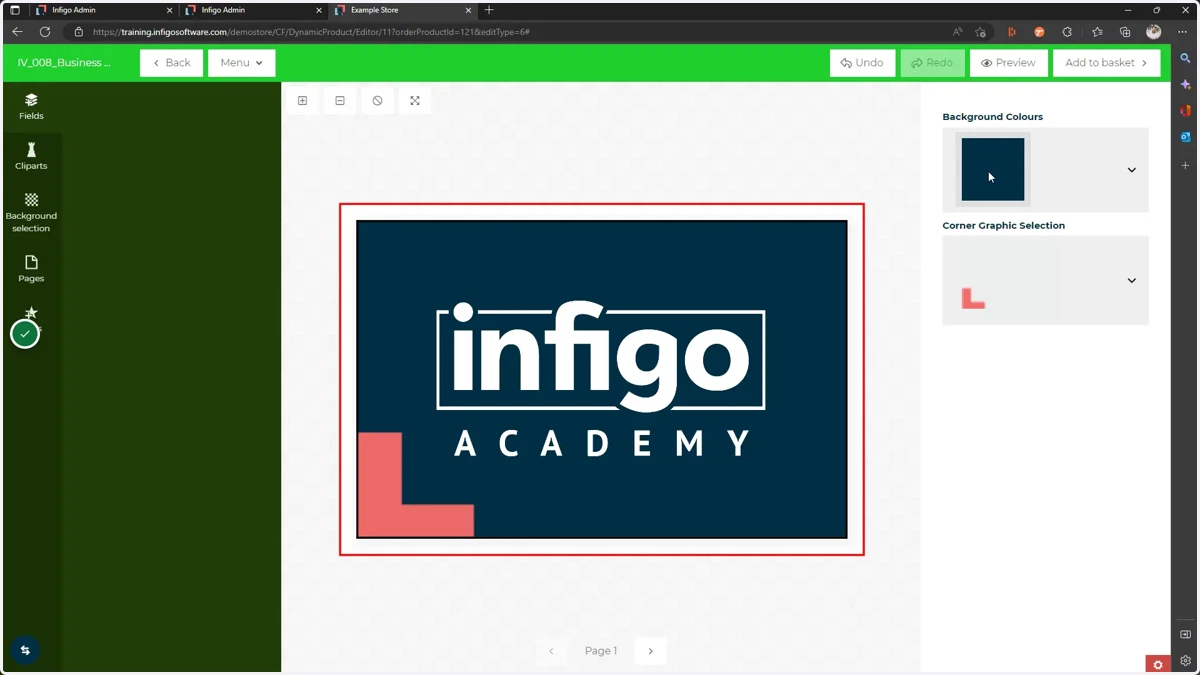
15. Launch your MegaEdit product
adobe
16. Test functionality
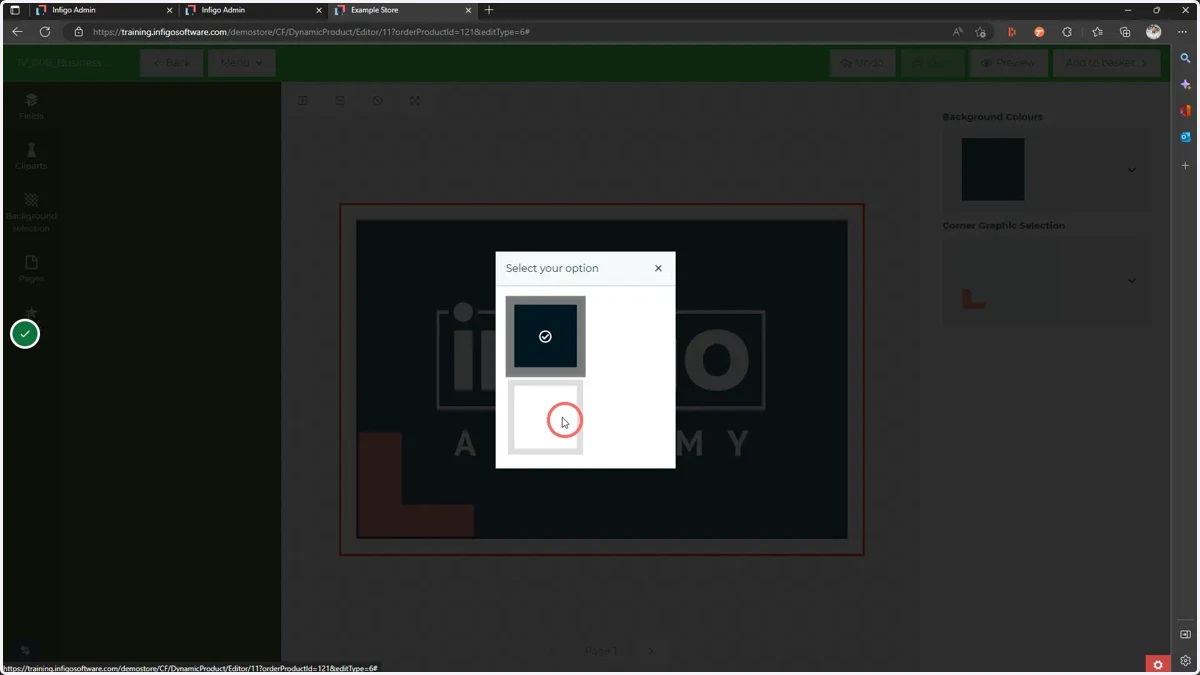
17. Selecting the white background should show the colour logo
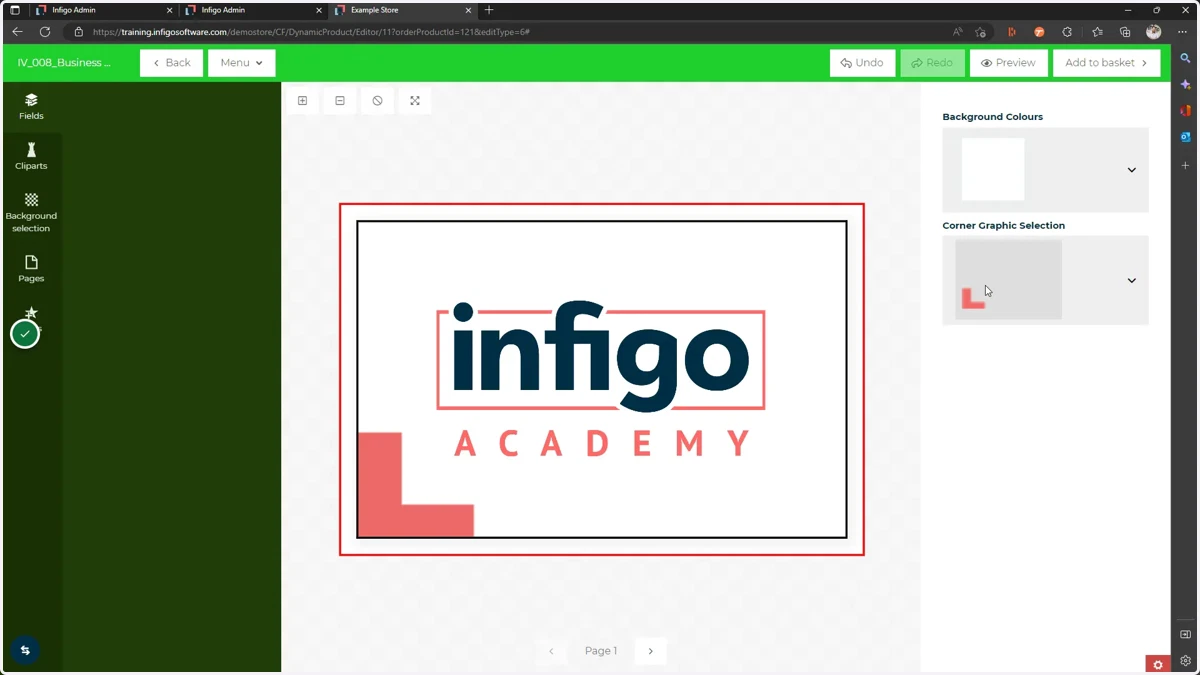
18. The corner graphic should have several design options to switch between
adobe
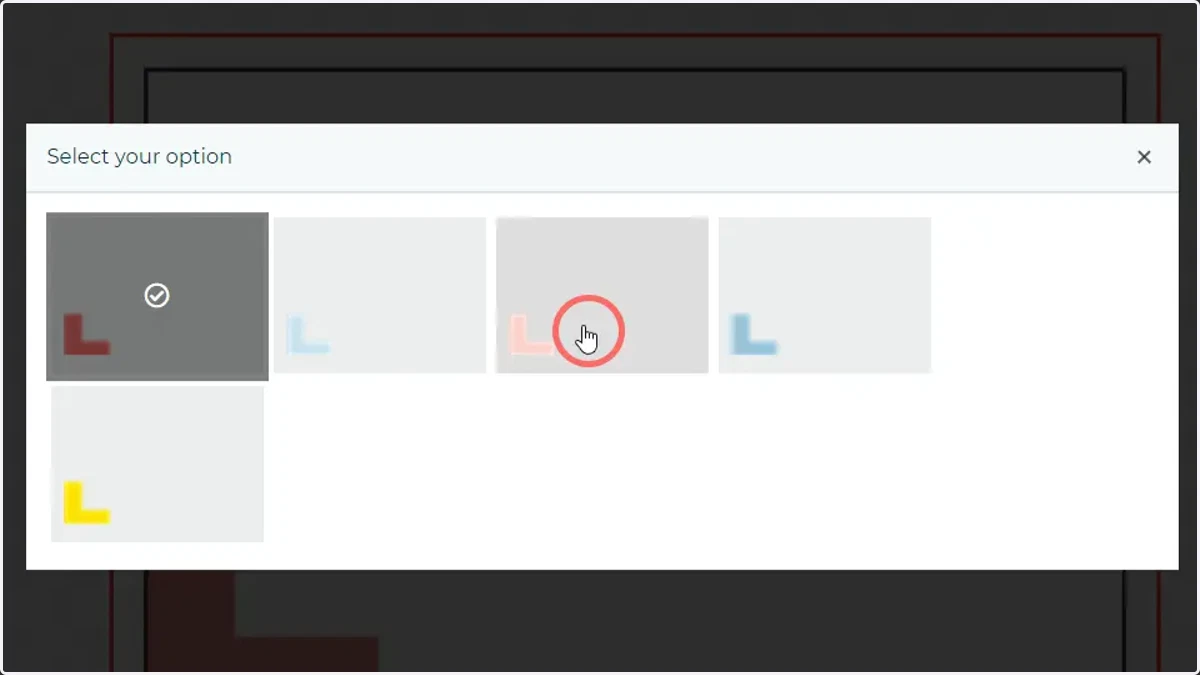
19. The corner graphic should have several design options to switch between
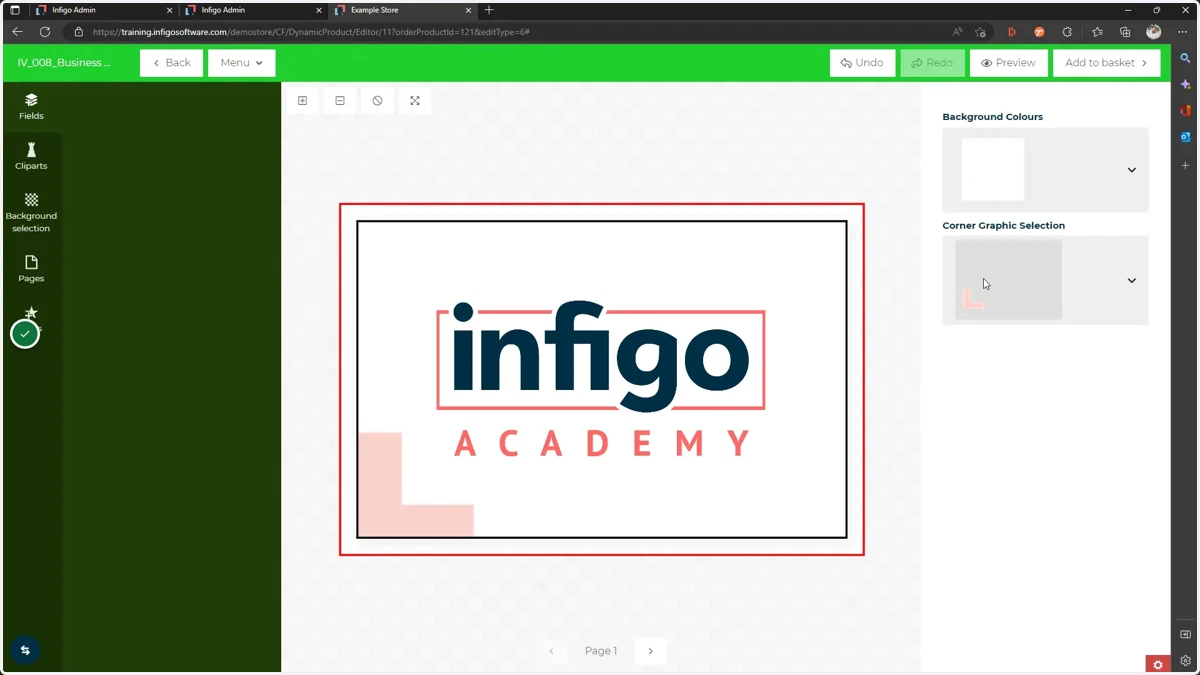
20. Changing the background colour will restore the white logo