Steps to Create and Confirm an Academy account
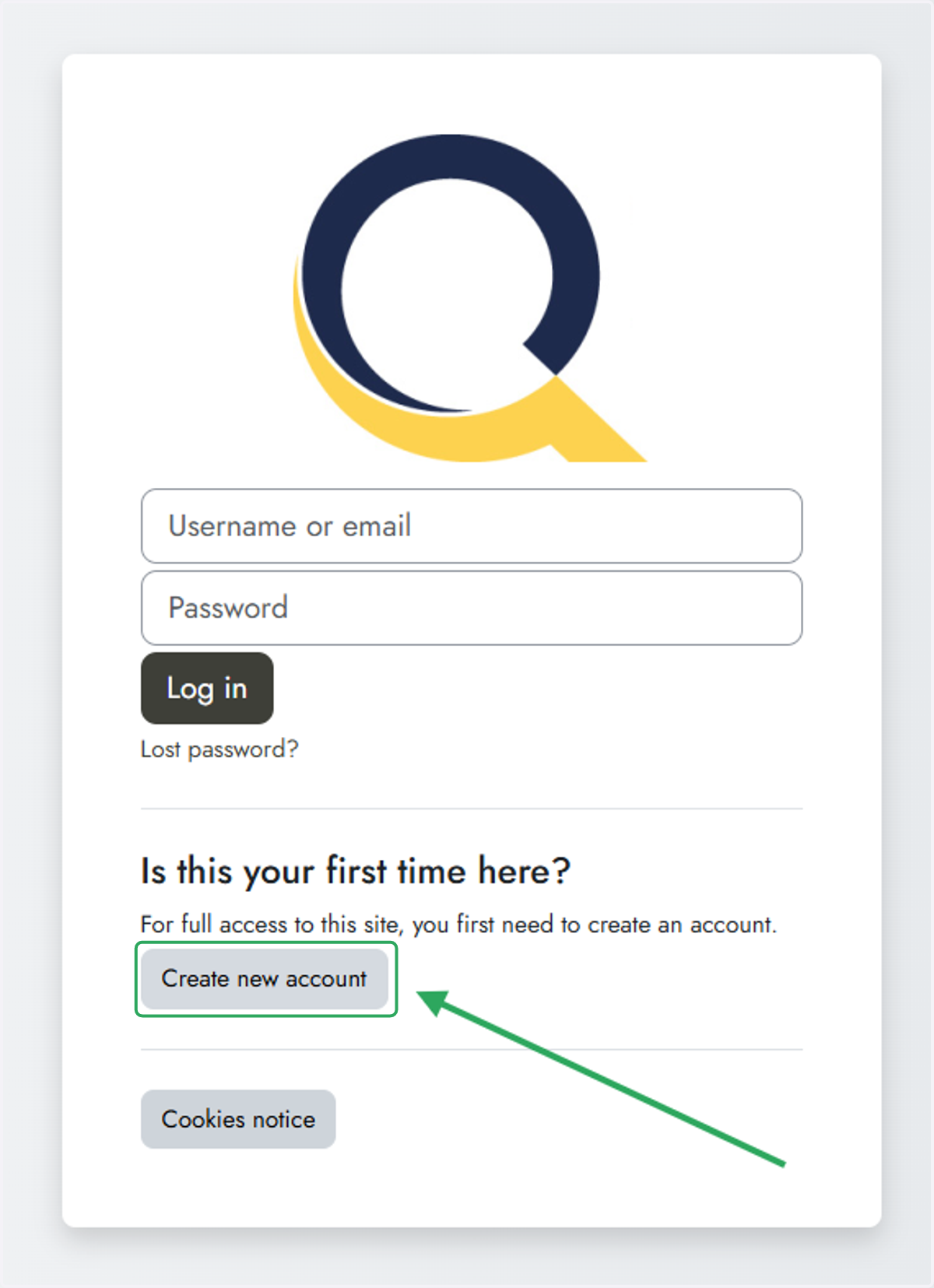
Log in to the site | Academy
1. Click on Create new account
Read the policies
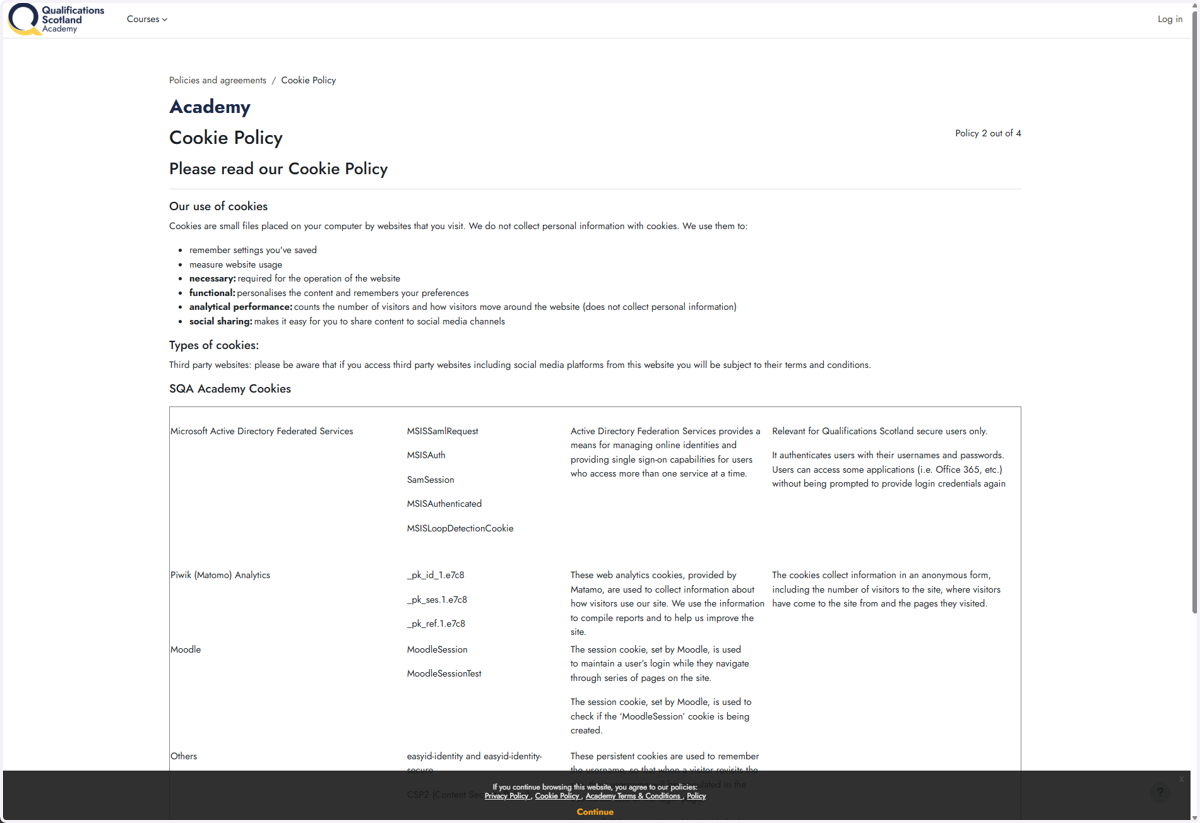
2. Read the Cookie Policy…
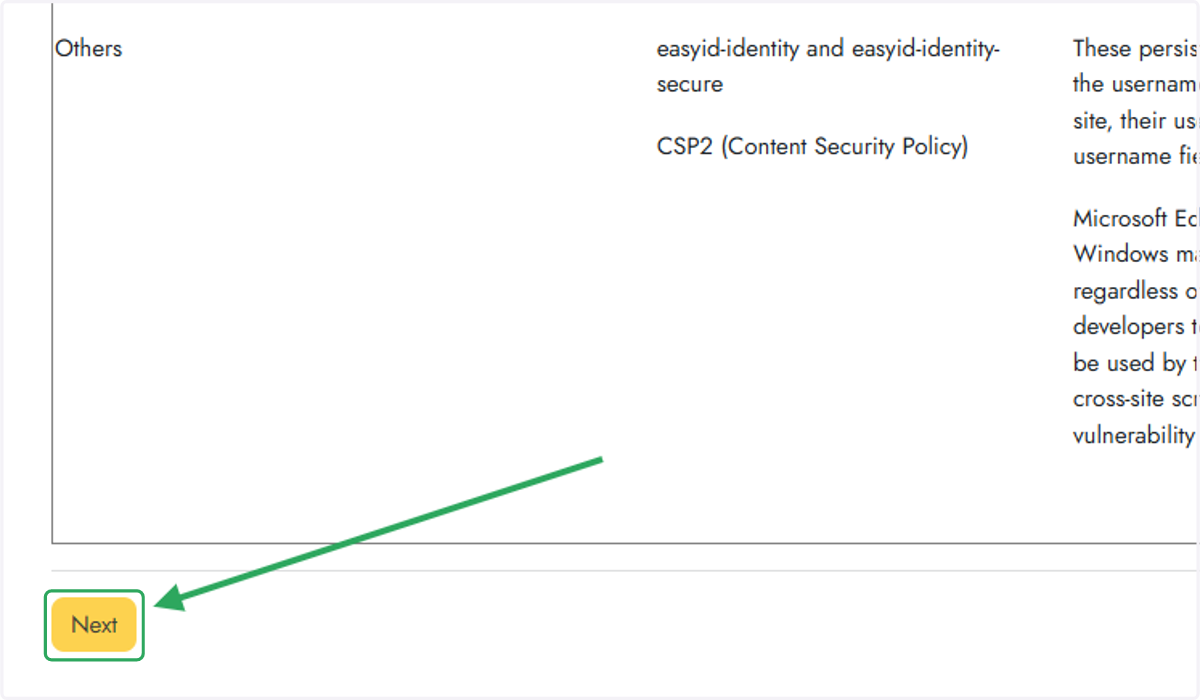
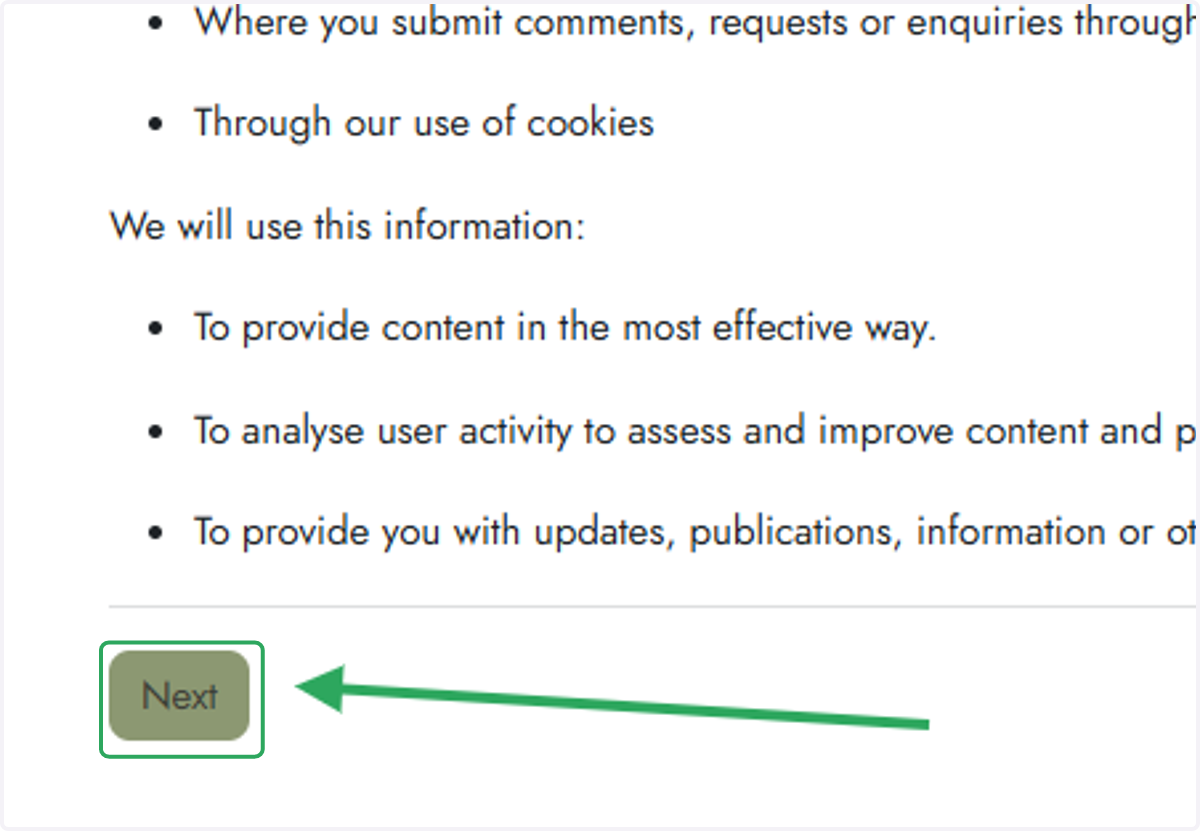
3. Click on Next
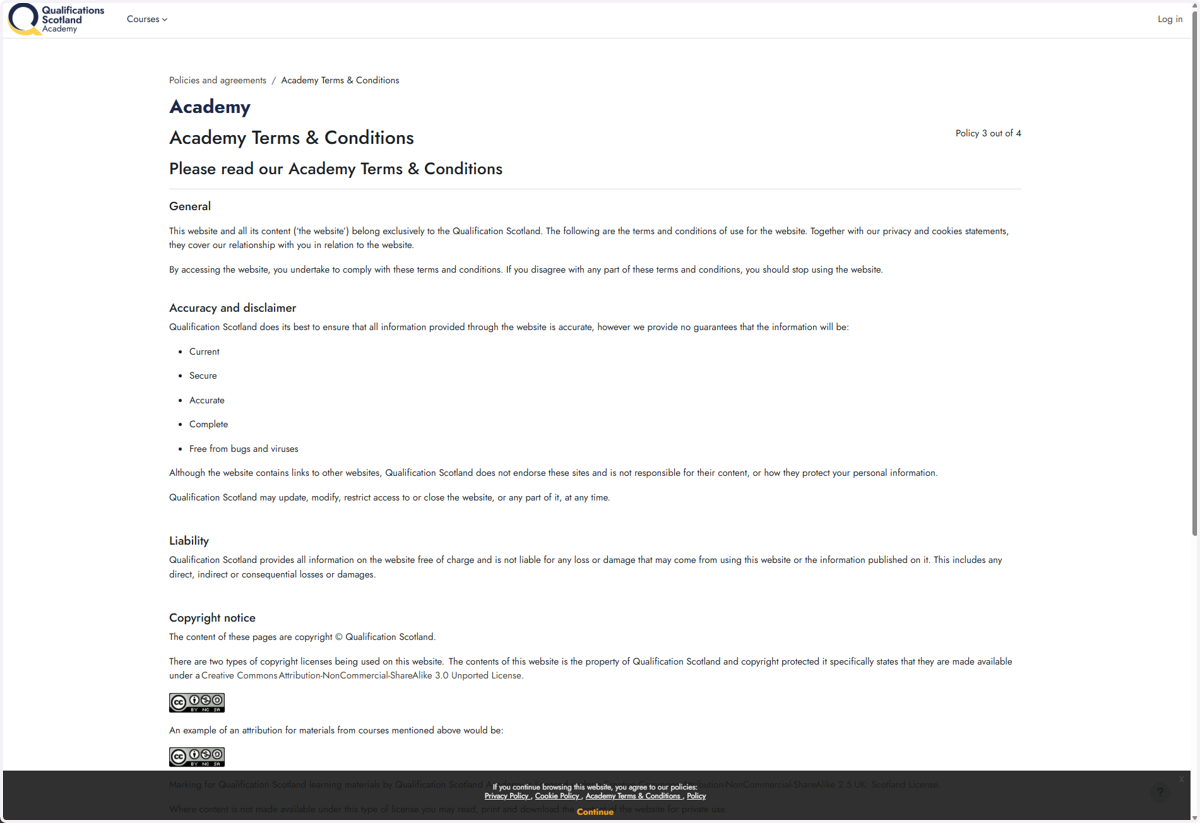
4. Read the Academy Terms & Conditions…
5. Click on Next
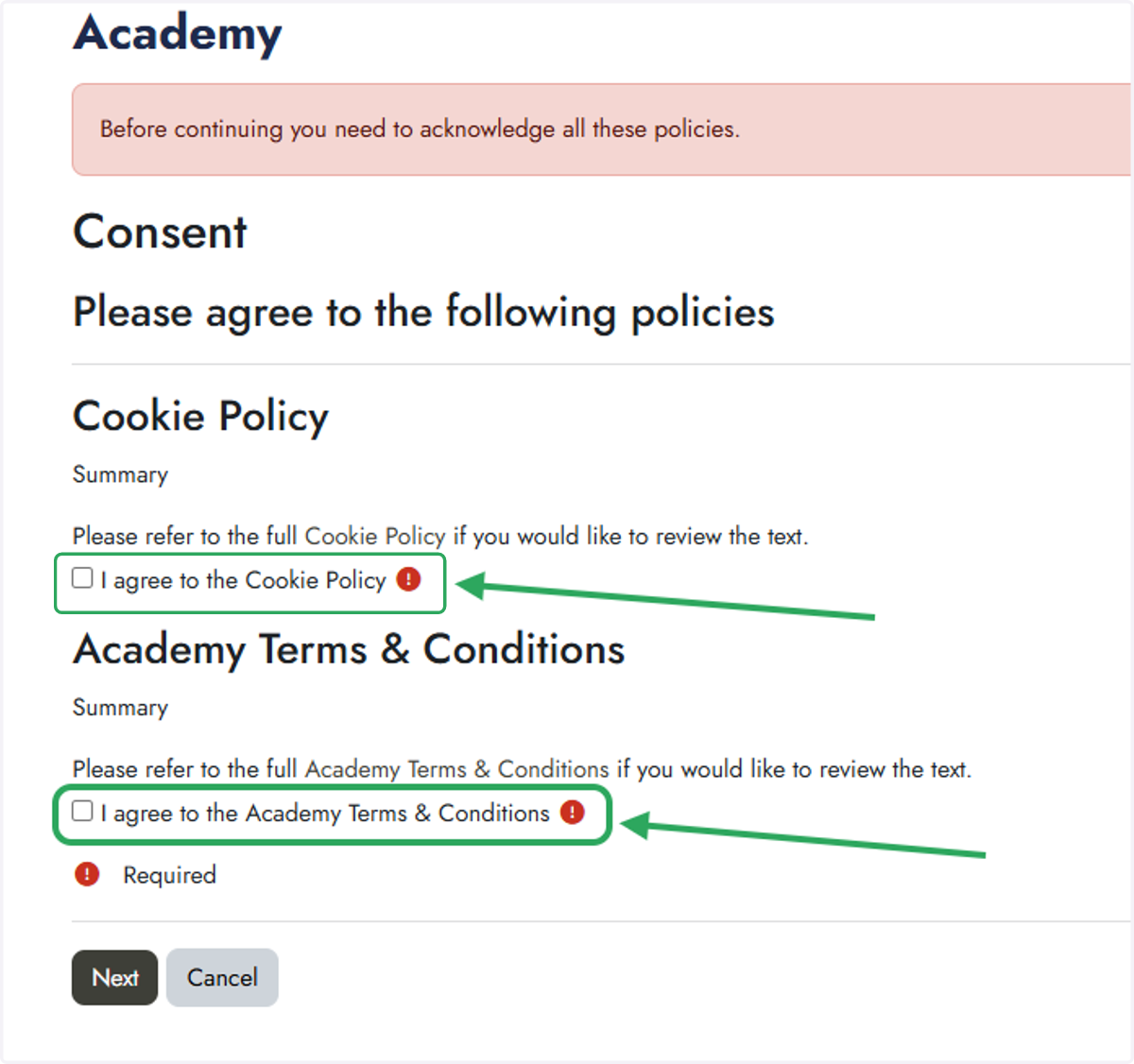
Agree to the policies
6. Check 'I agree' to each of the policies
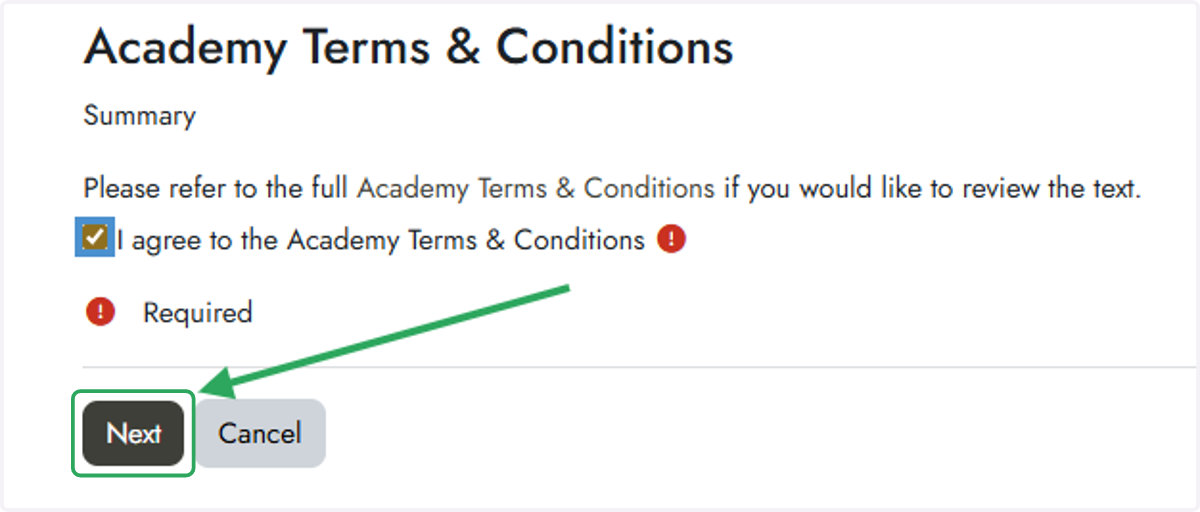
7. Click on Next
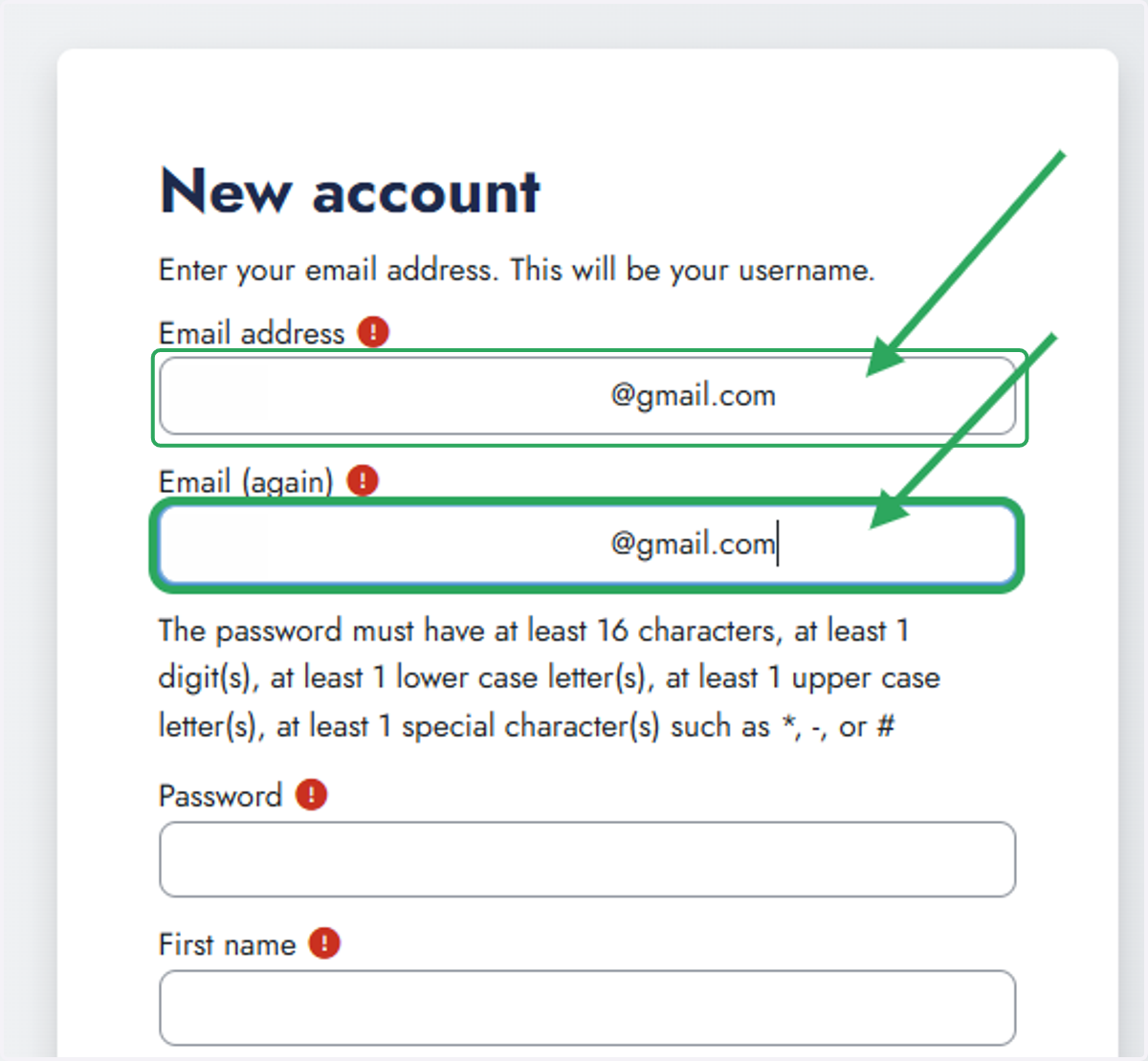
8. Enter your email twice
Entering your email twice is to help make sure there are no spelling mistakes
You may wish to use a password generator to generate a secure password
9. Click on Copy password
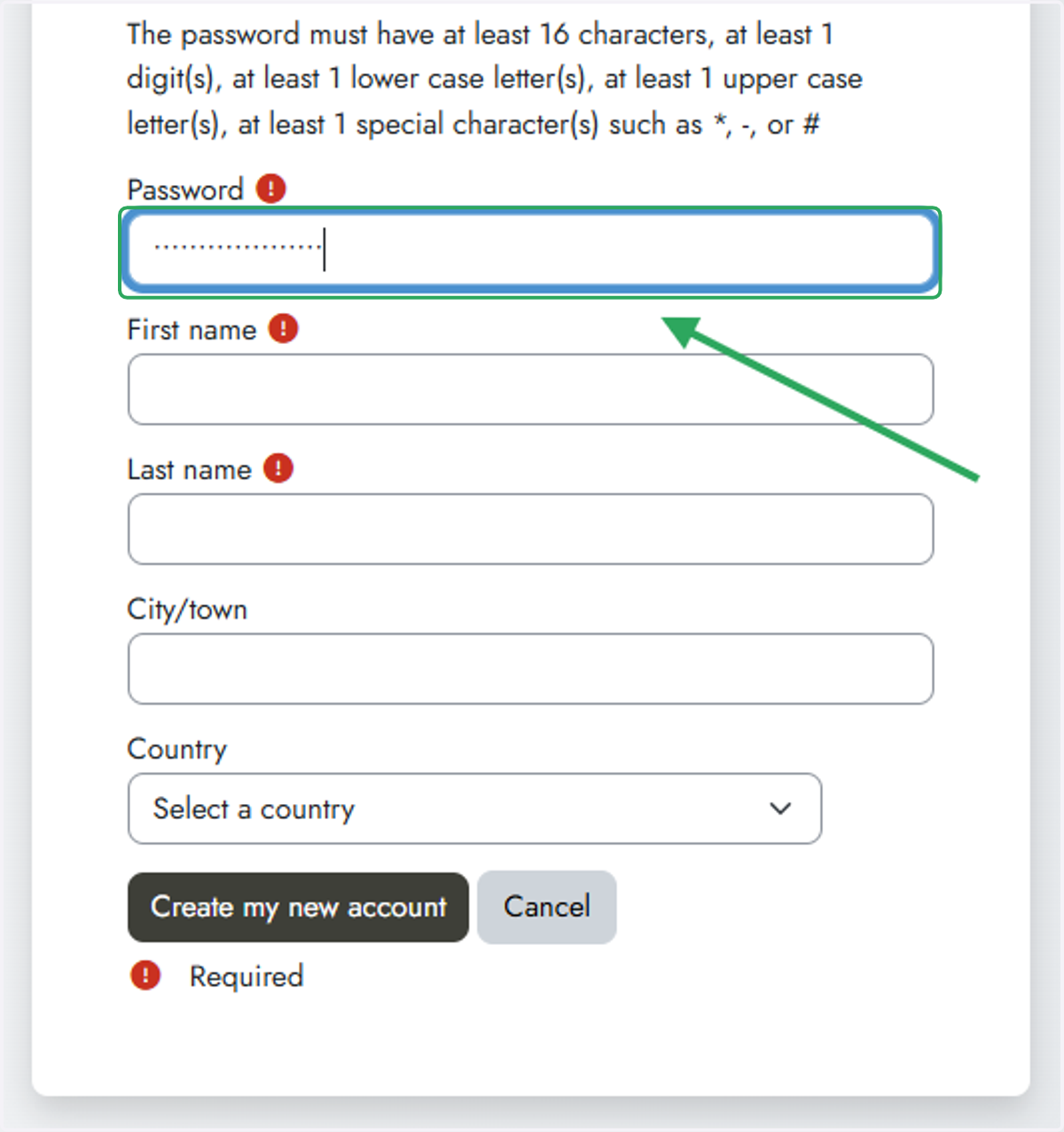
Make sure your password meets the requirements:
16 characters, at least: 1 digit, 1 lower case letter, 1 upper case letter, 1 special character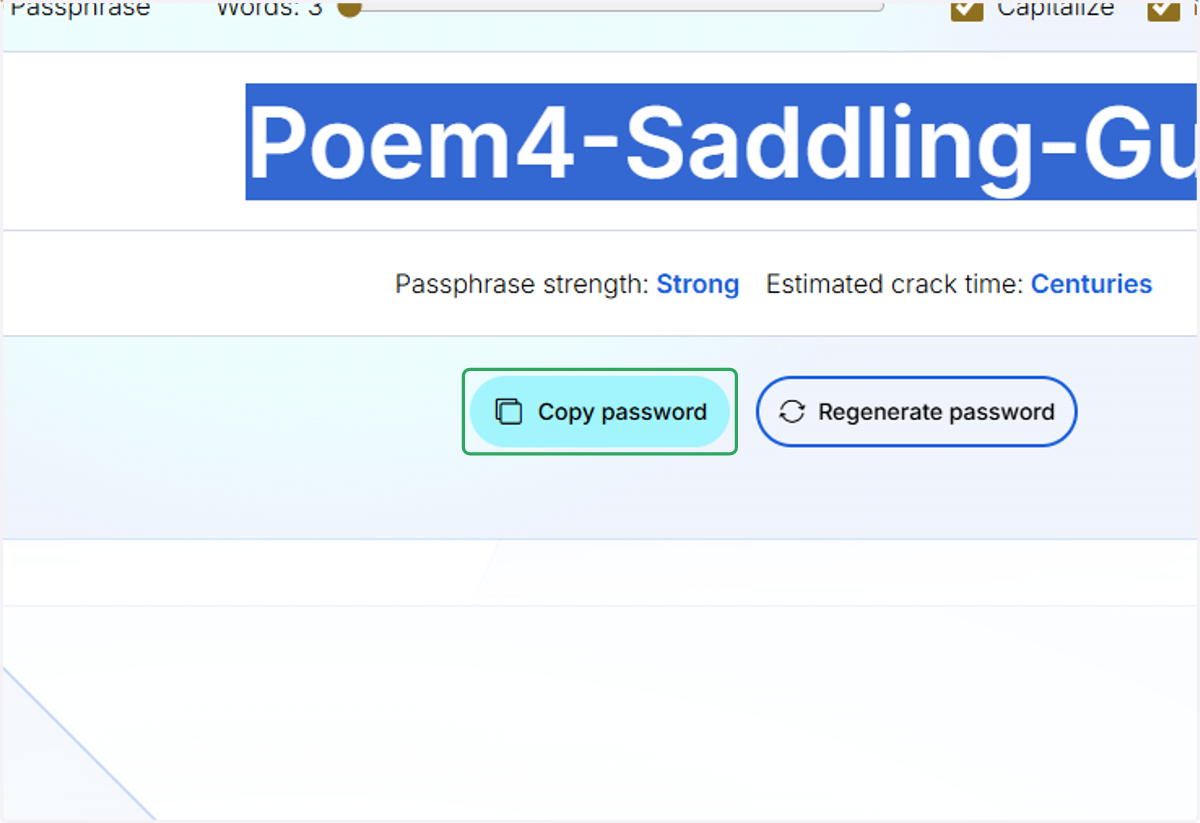
New account | Academy
10. Enter your password
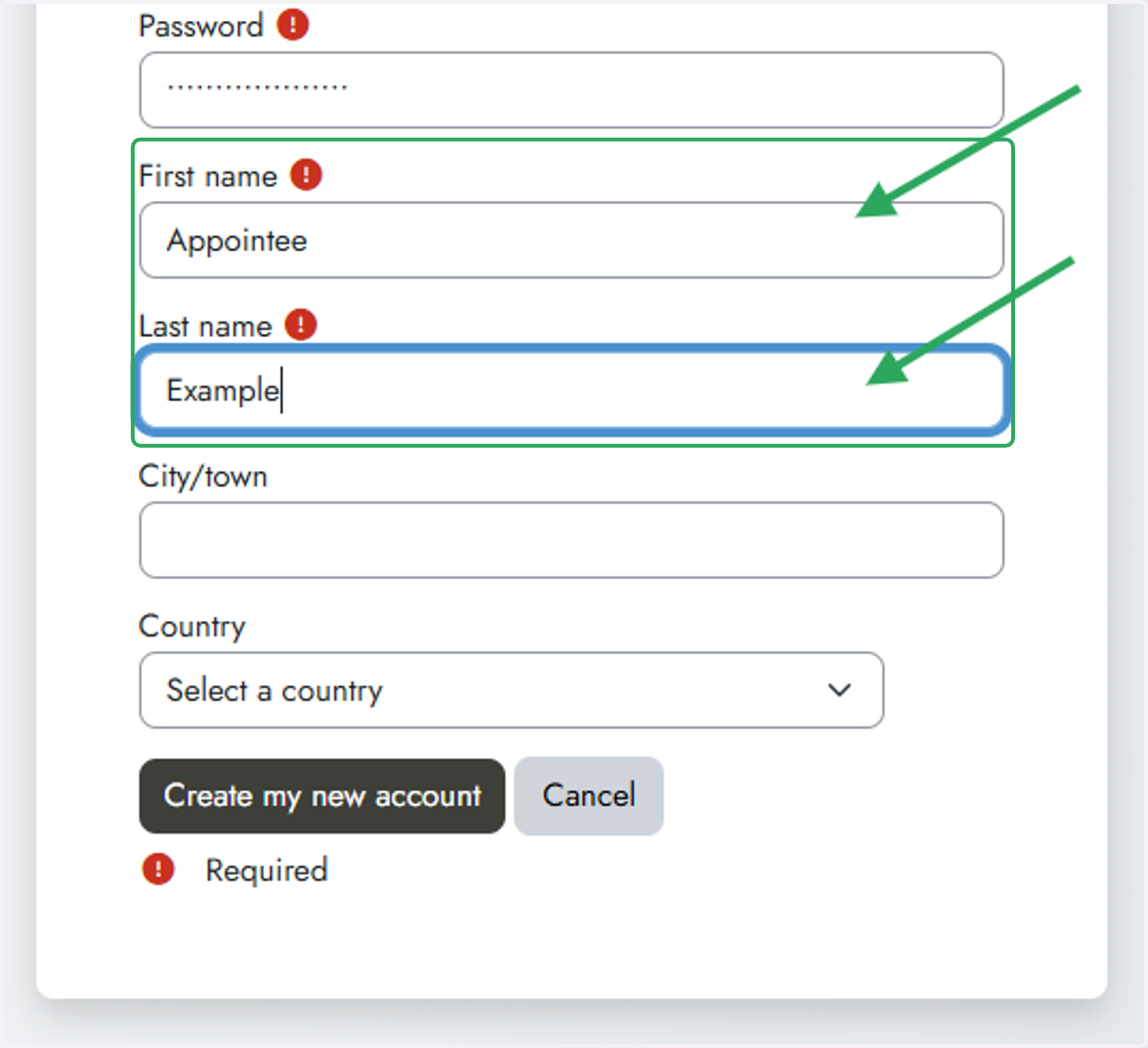
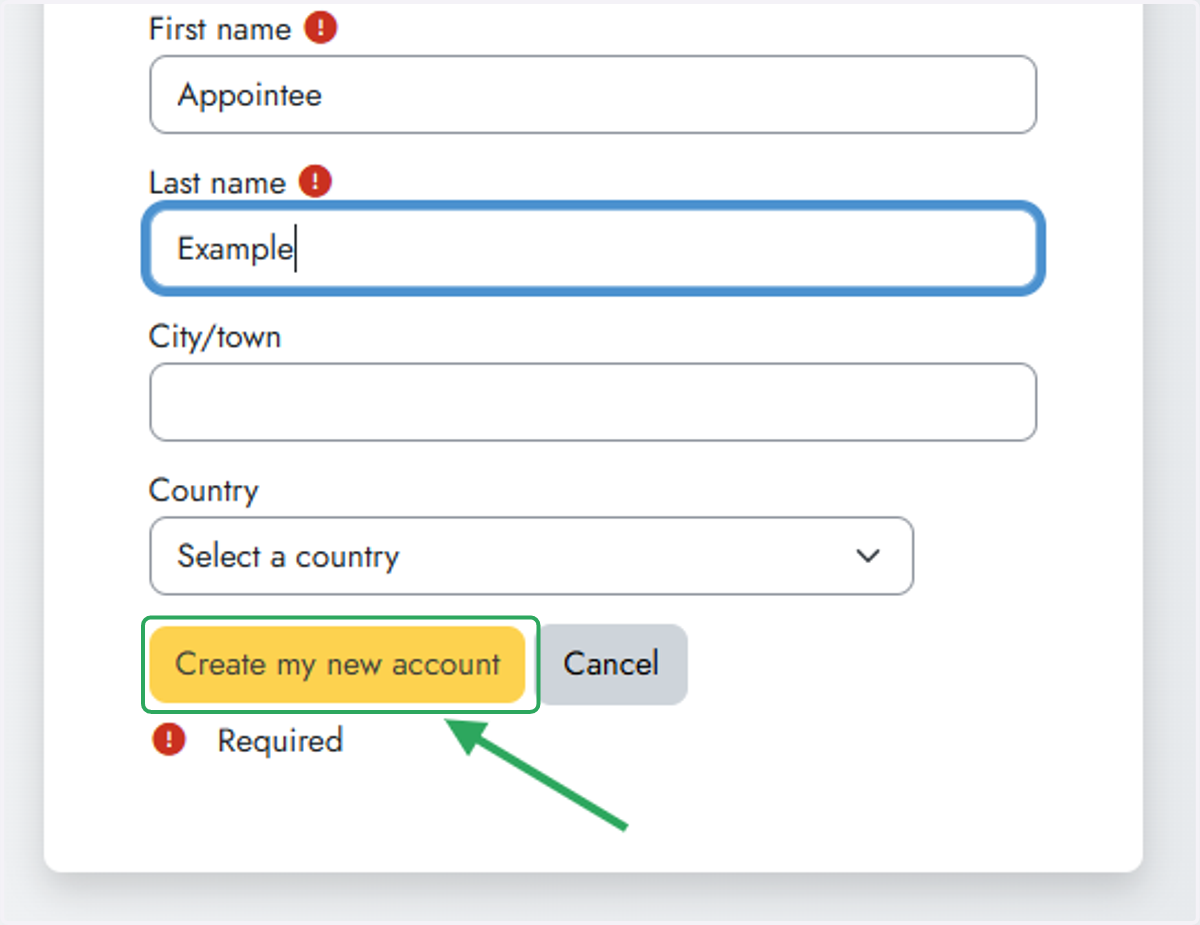
11. Enter your First and Last name
12. You do NOT need to enter your City/Town or Country
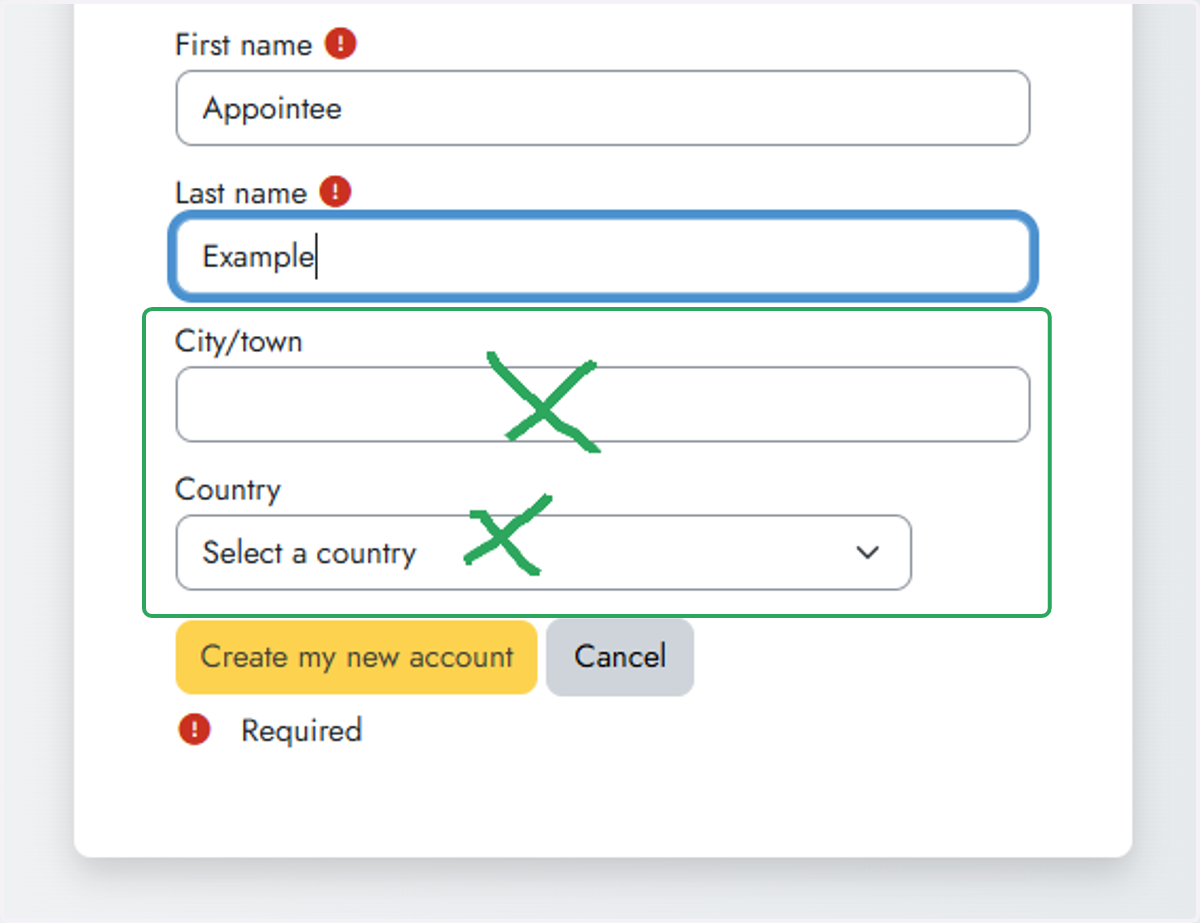
13. Click on Create my new account
14. A confirmation account will be sent to your email address
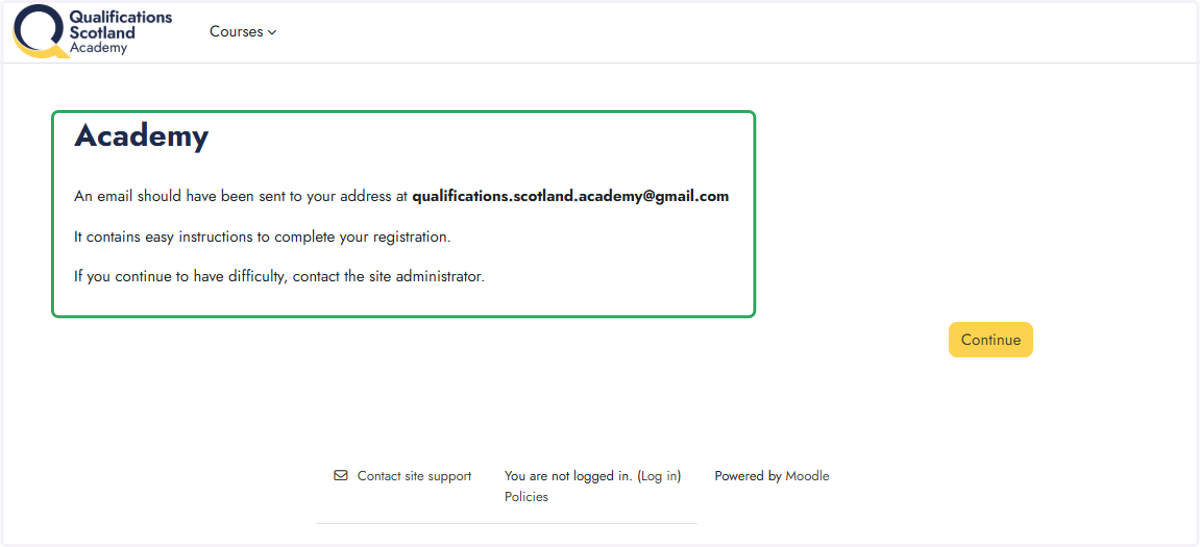
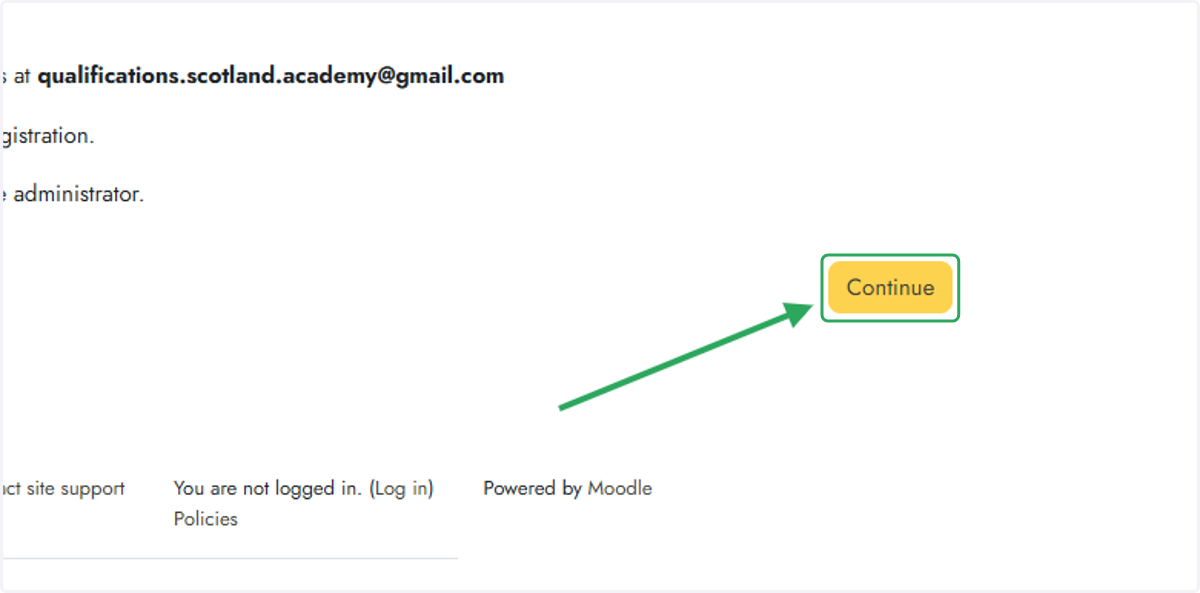
15. Click continue
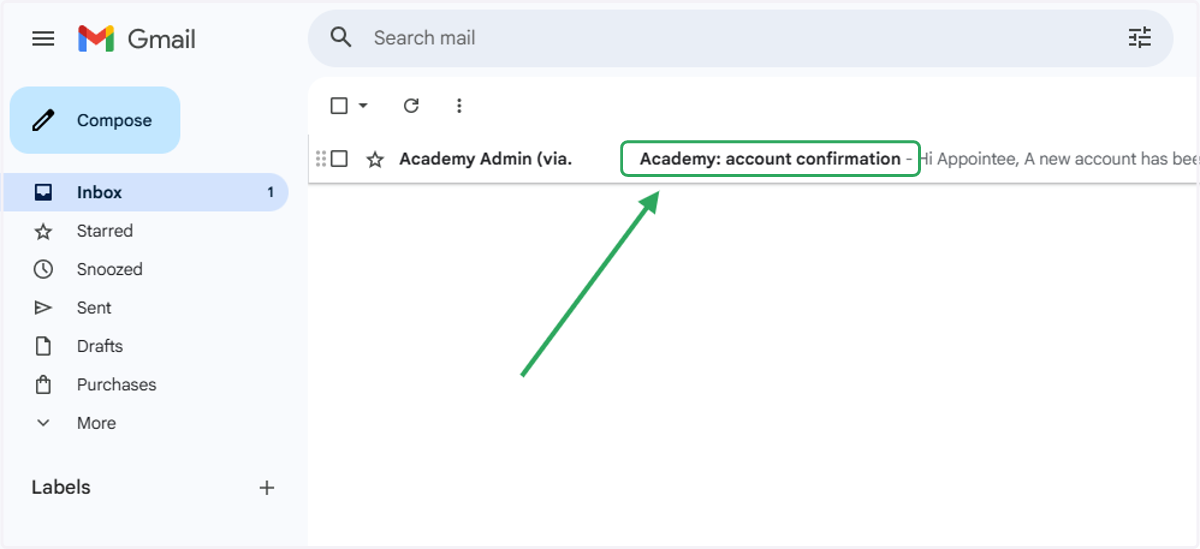
Go to your email
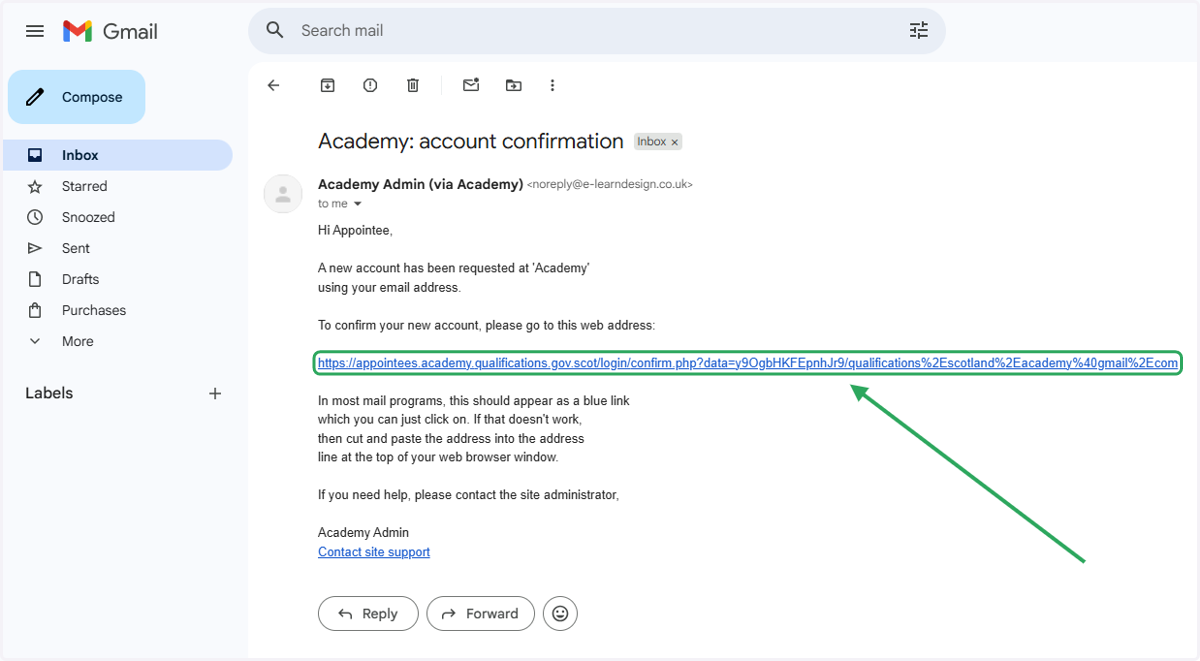
16. Open the email with the subject 'Academy: account confirmation'
17. Click on the confirmation link to confirm your email
(Or copy and paste into your browser if the link isn't clickable.)
Your registration has been confirmed | Academy
18. Click on Continue
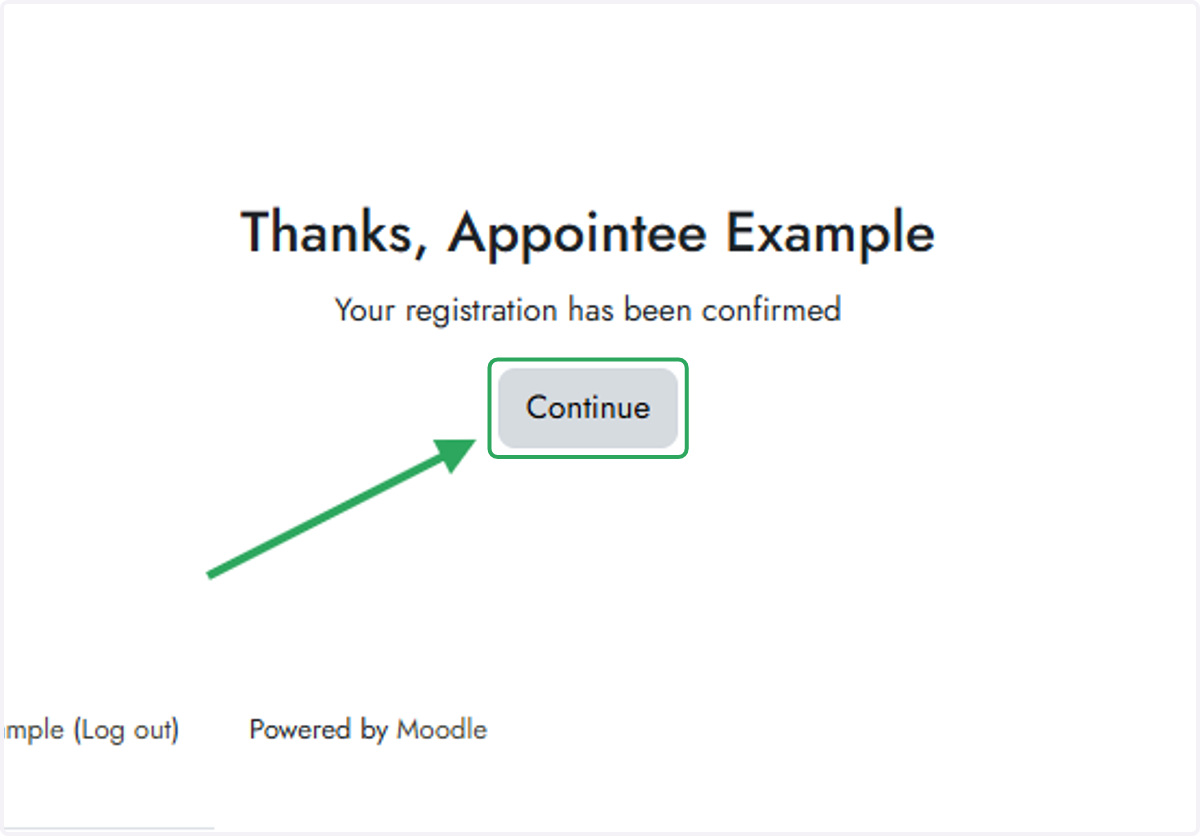
19. You are now logged in with your new account

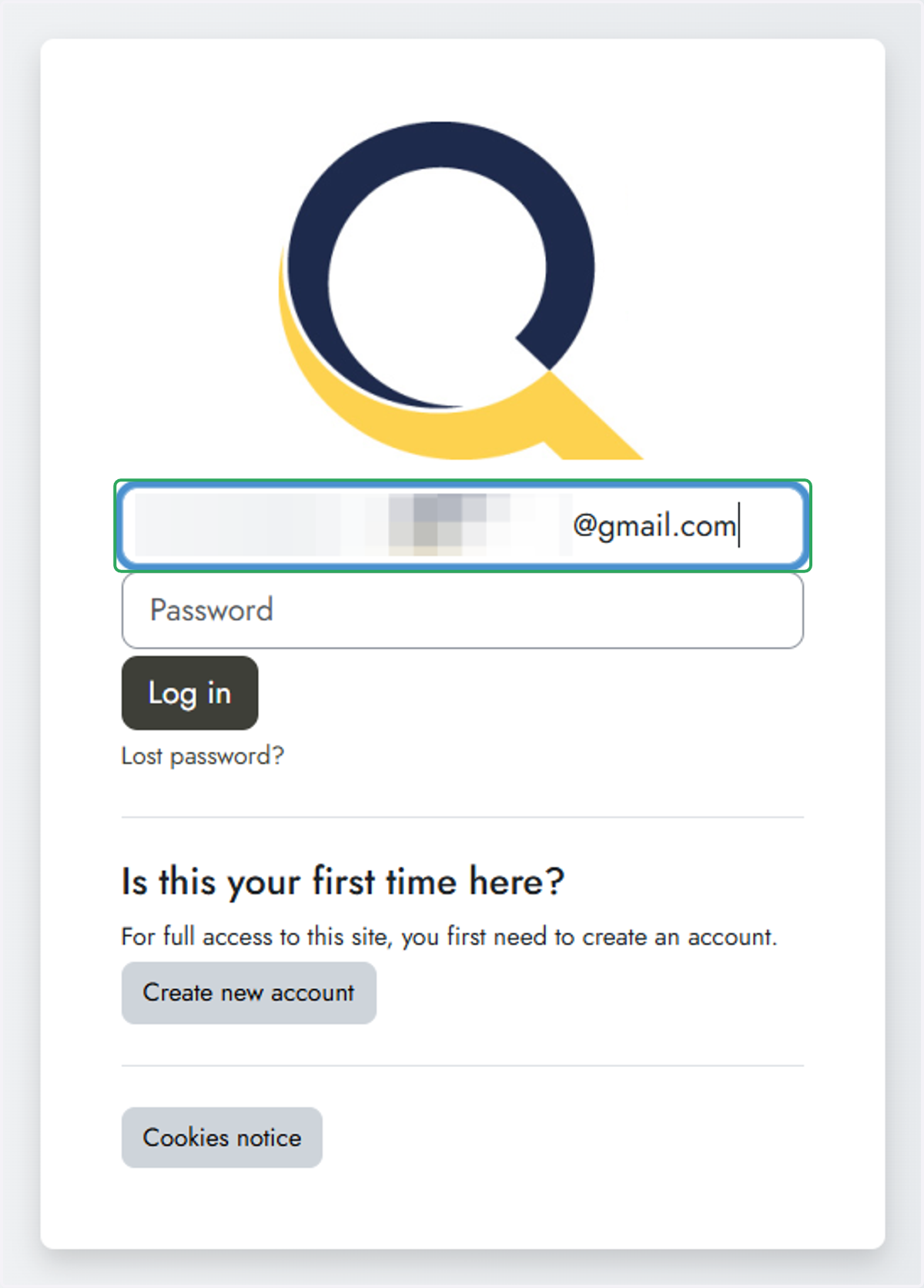
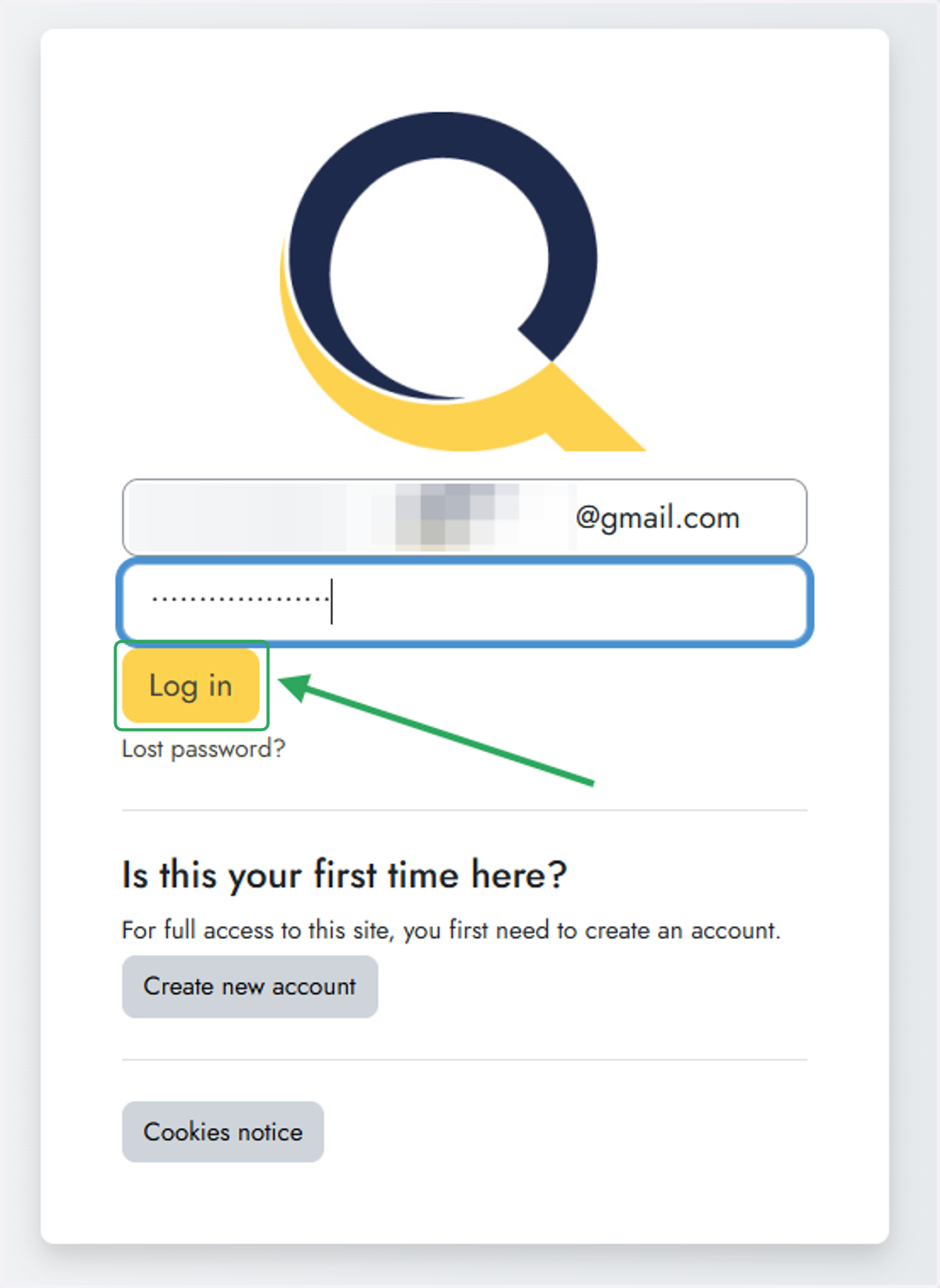
Log in to the site | Academy
20. Enter your email address
21. Enter your password
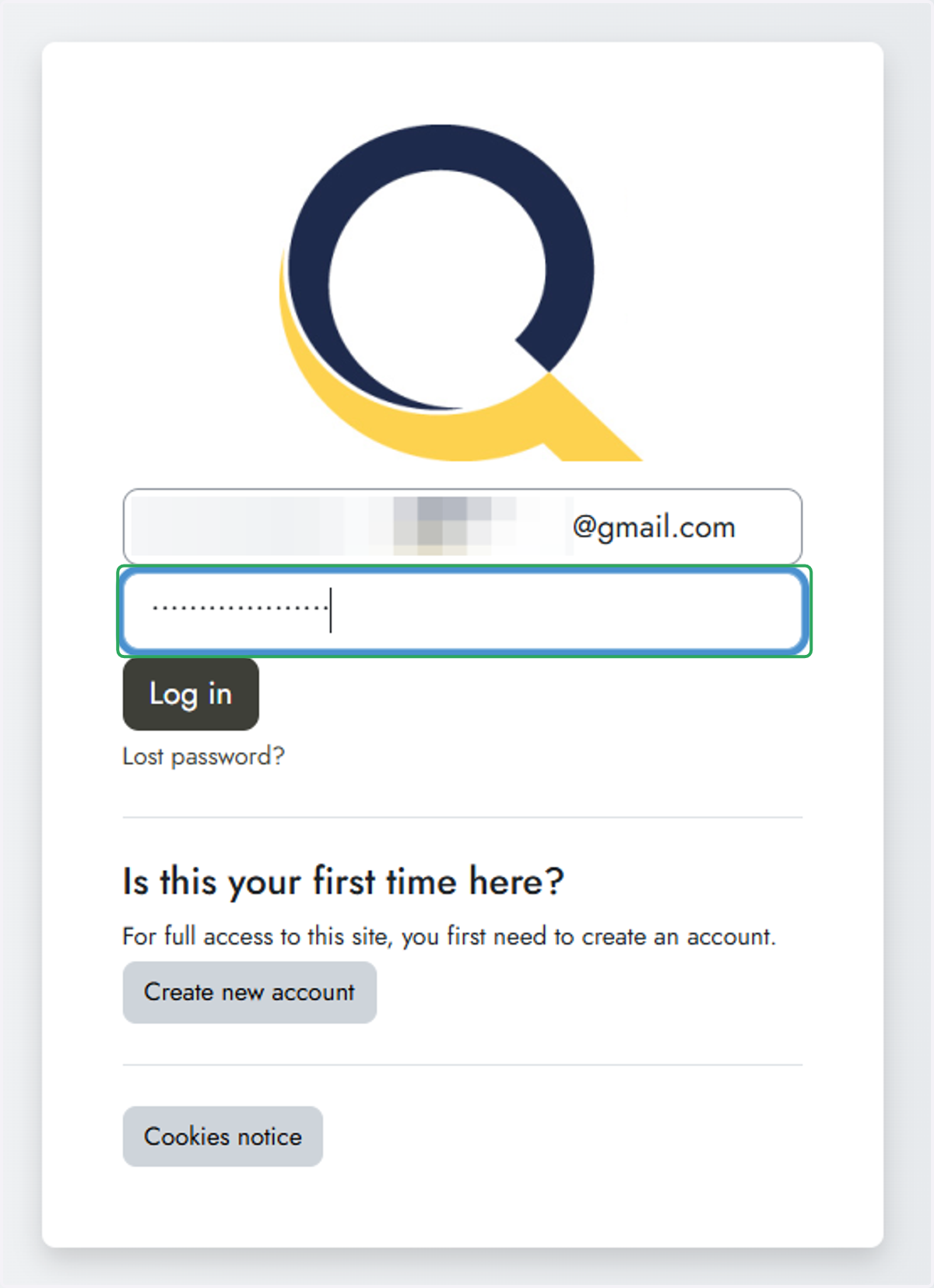
22. Click on Log in
23. You are now logged in