Automated Gap Analysis Remediation Plans
A Gap Analysis follows a Security Risk Assessment. It tells you about where you could be doing better in following HIPAA law. Once you know what is being done incorrectly, you can work to correct it. In other words, once we have a Gap Analysis in hand, we can construct a plan to fix the problem, AKA a Remediation Plan.
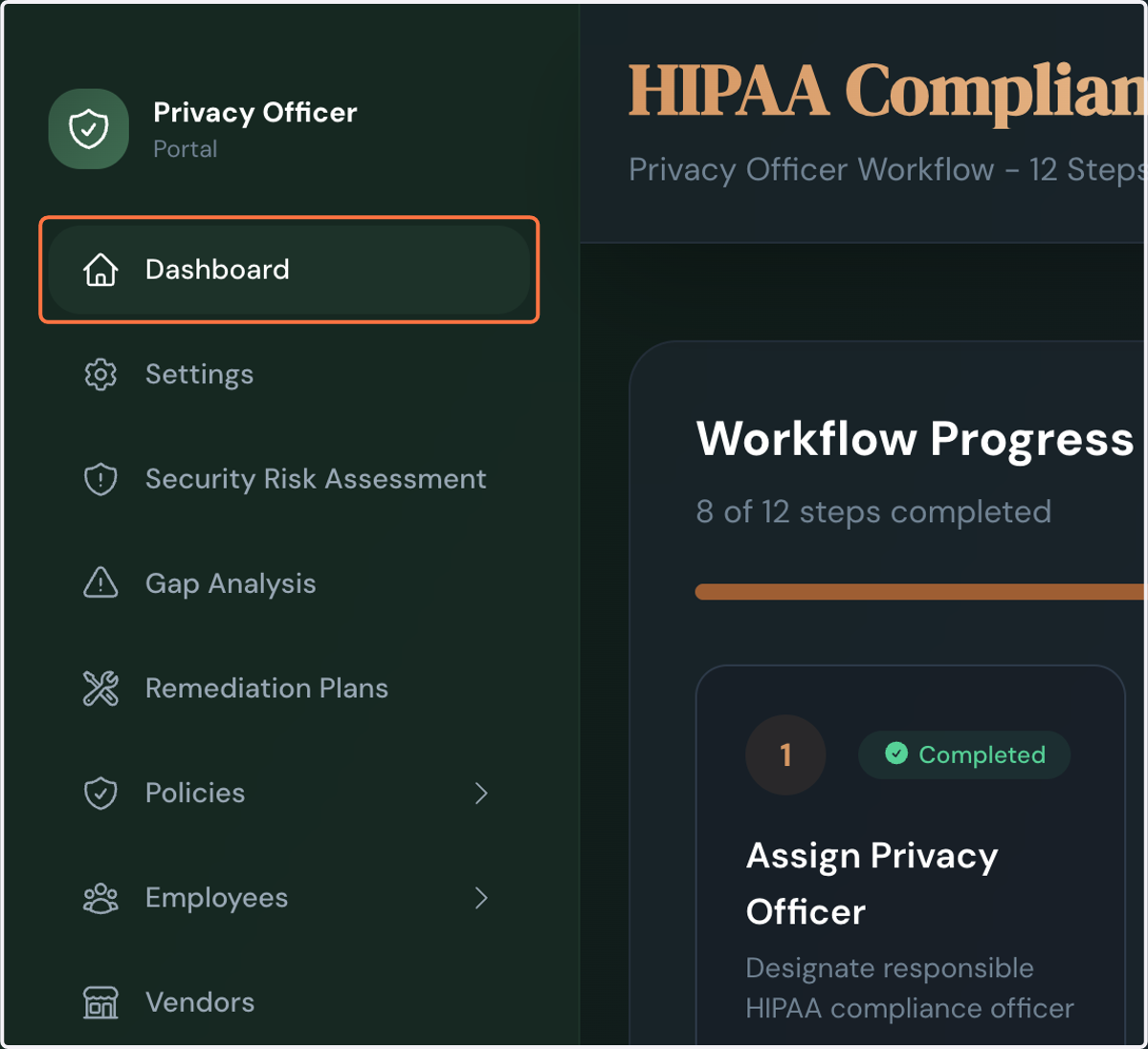
1. Click on Dashboard
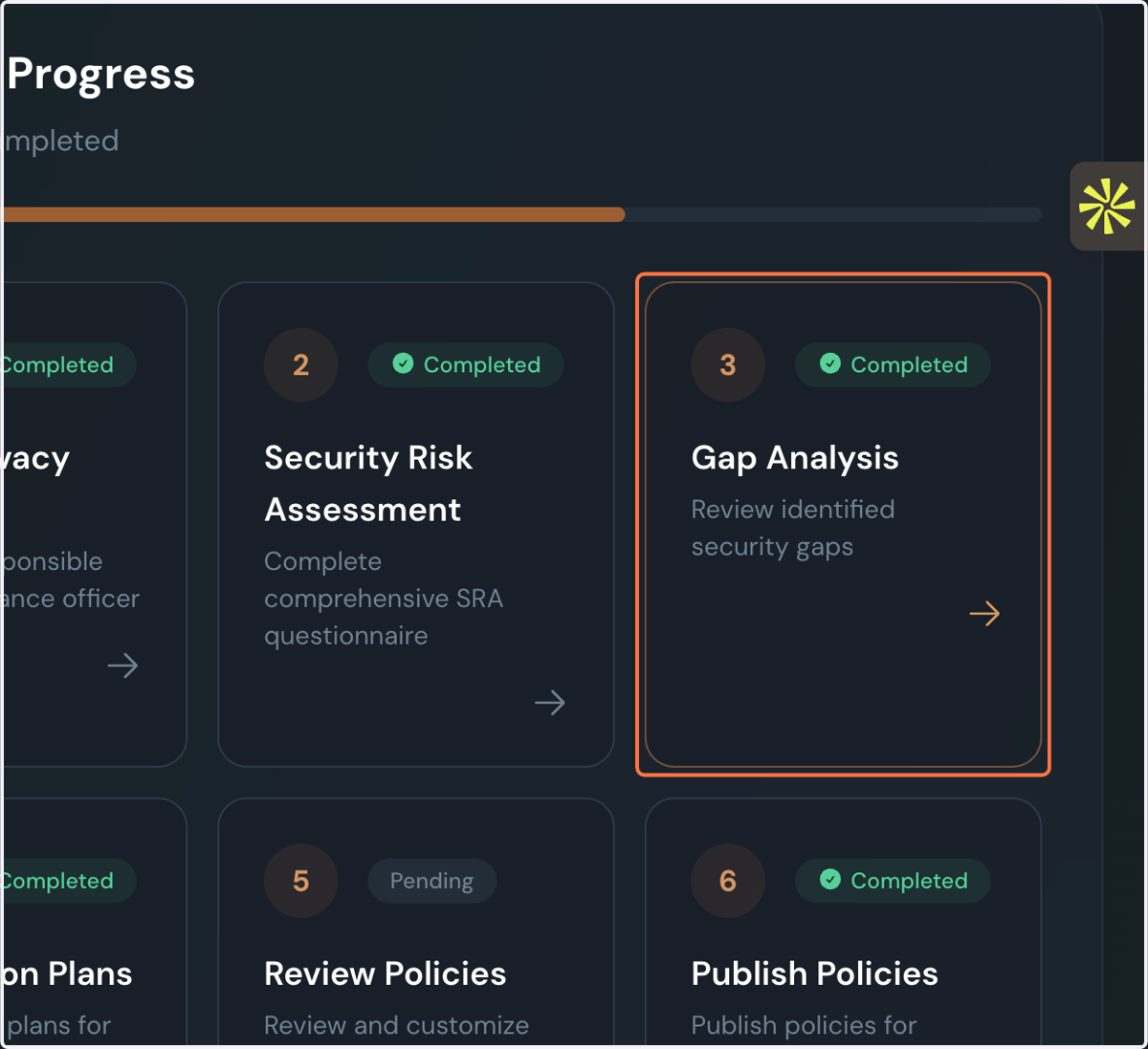
2. Click on Gap Analysis…
3. View Gap Analysis
This screen shows you your gaps towards the top of the page.
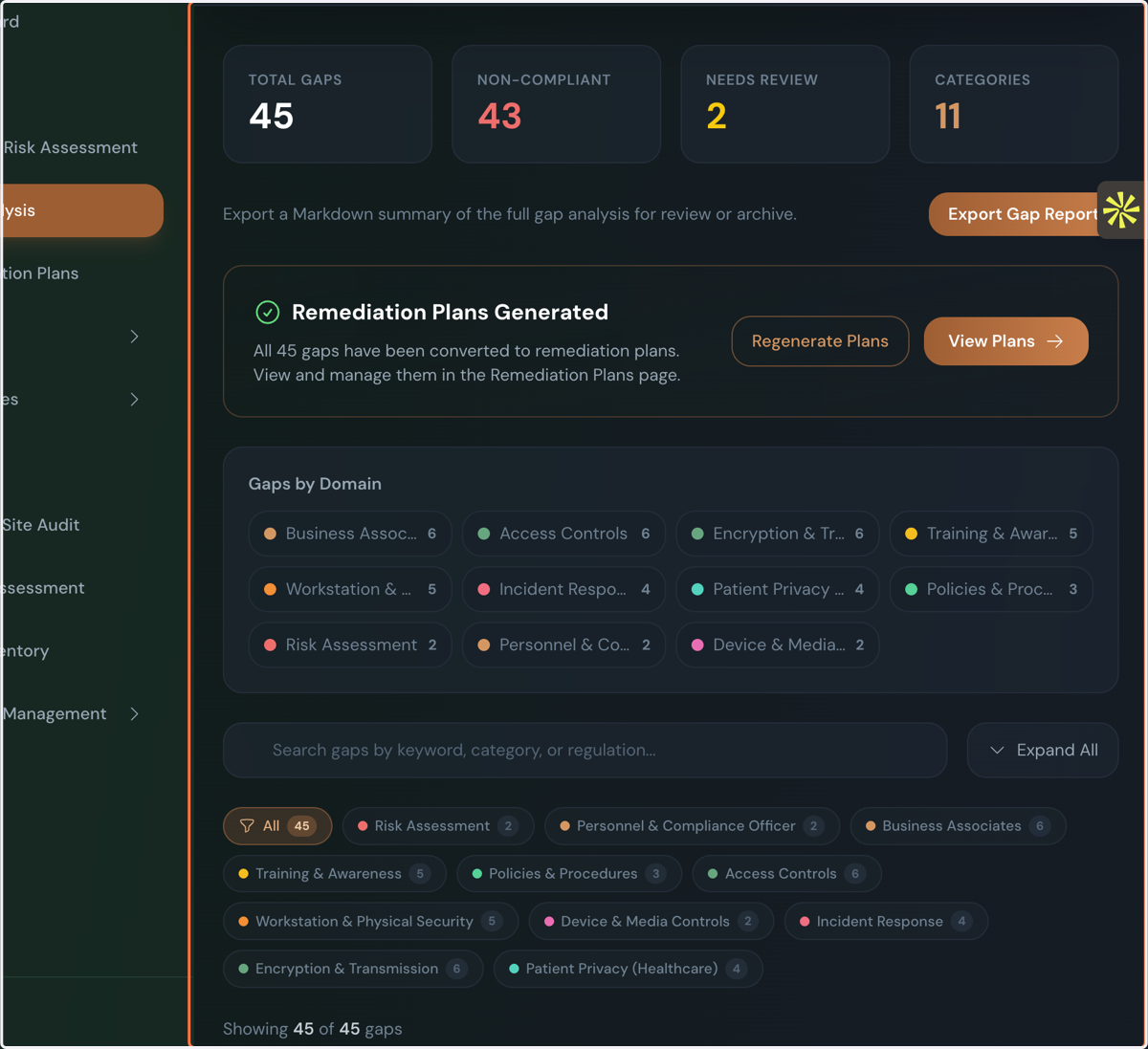
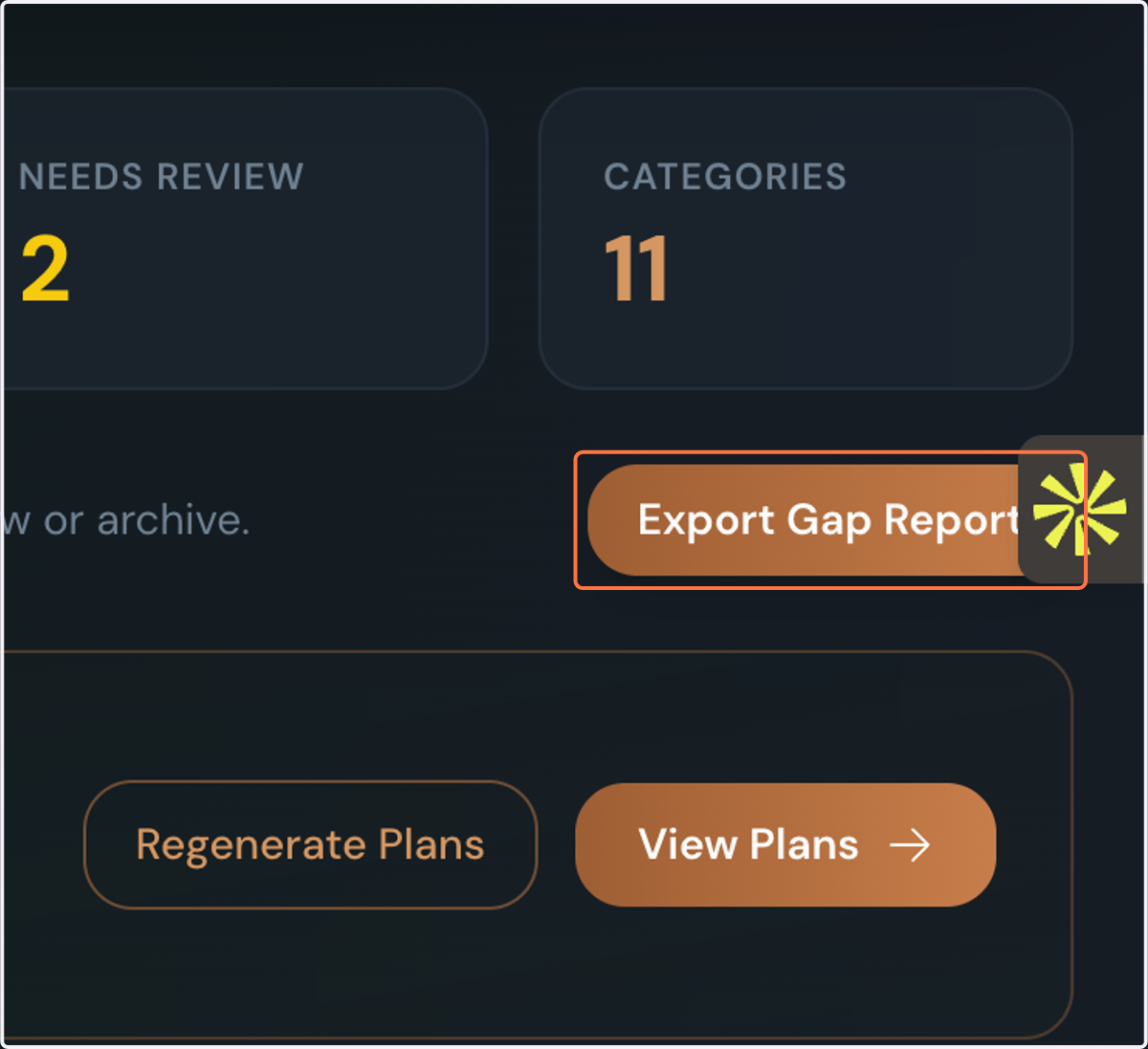
4. Click on Export Gap Report
To download a Markdown formatted copy of your Gap Analysis, click Export Gap Report.
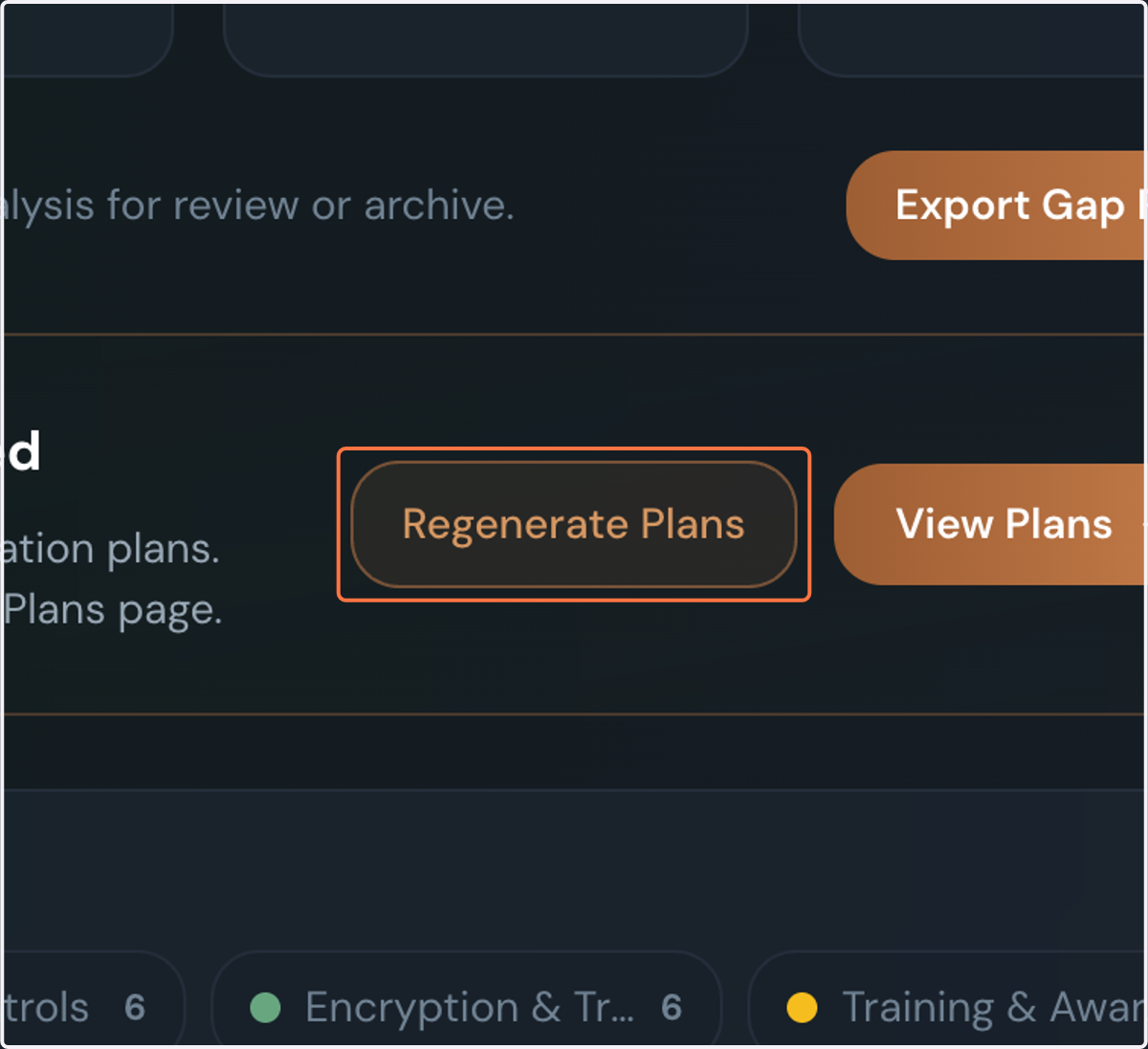
5. Click on Regenerate Plans
You will see 'Generate Plans' the first time you set these up.
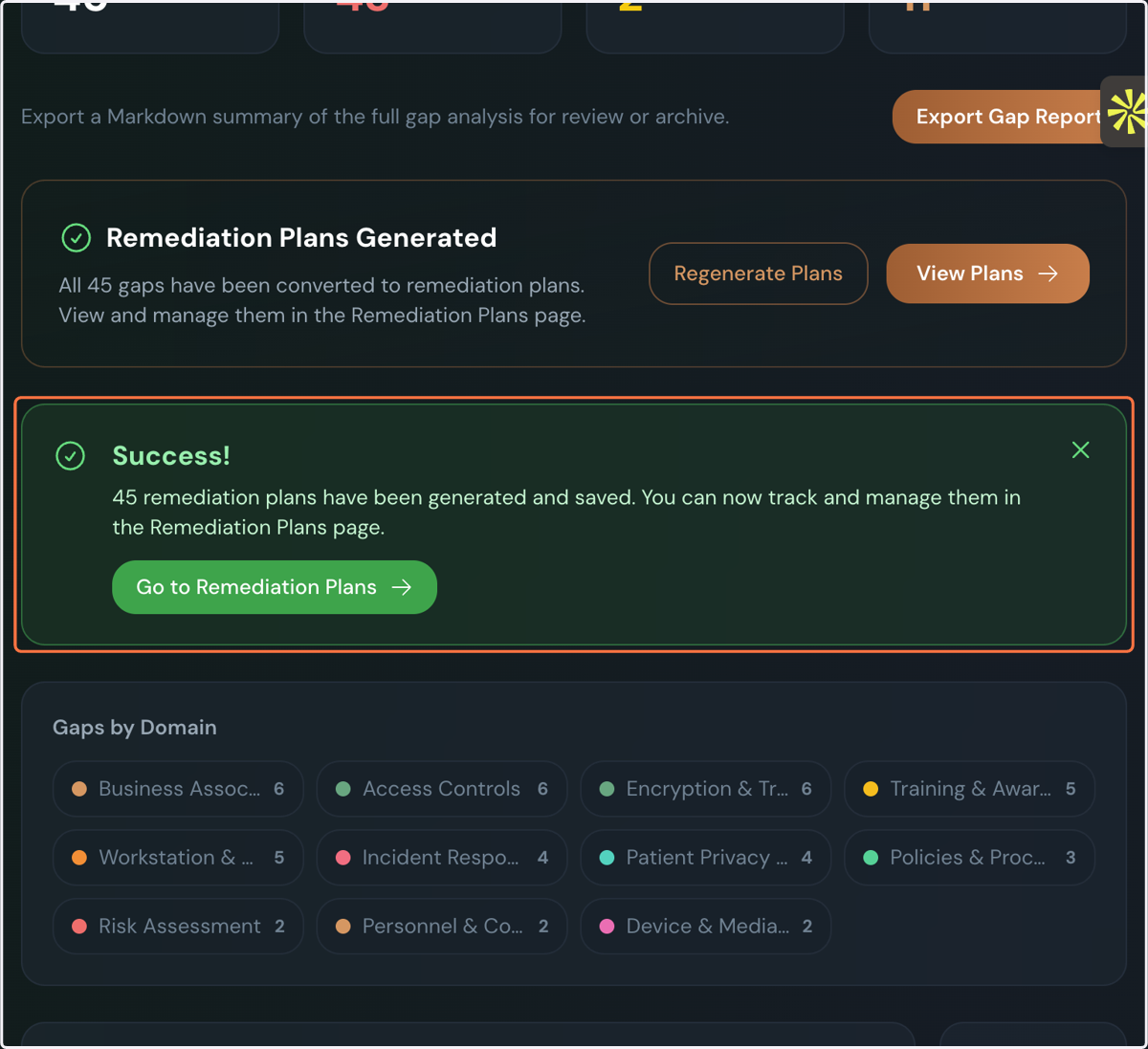
6. Success Message
Once the Remediation Plans have been built, you will see this Success message in Green.
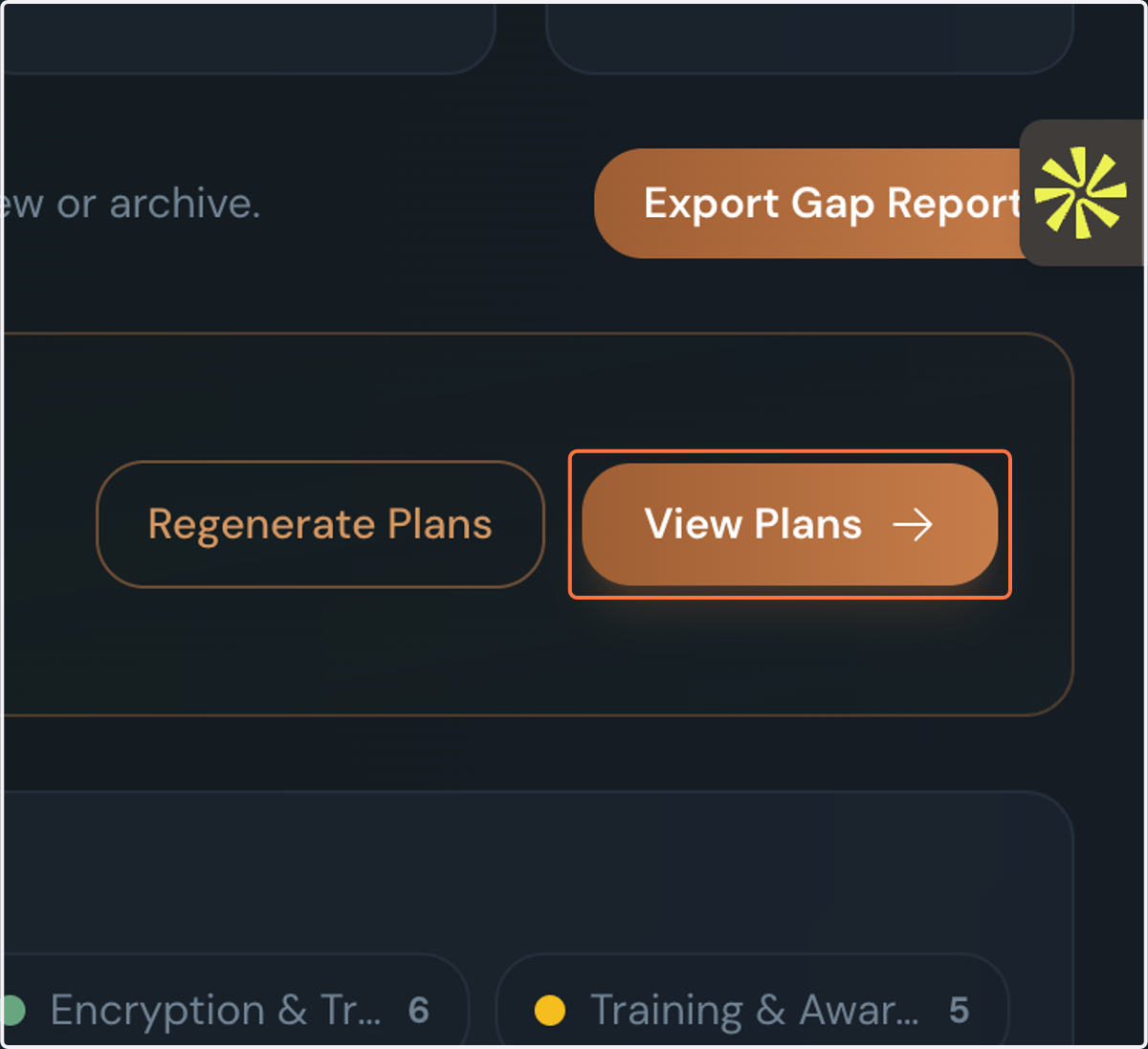
7. Click on View Plans
To review your Remediation Plans.
8. On the following page...
You will be able to manage your remediation plans, so as to not lose track.
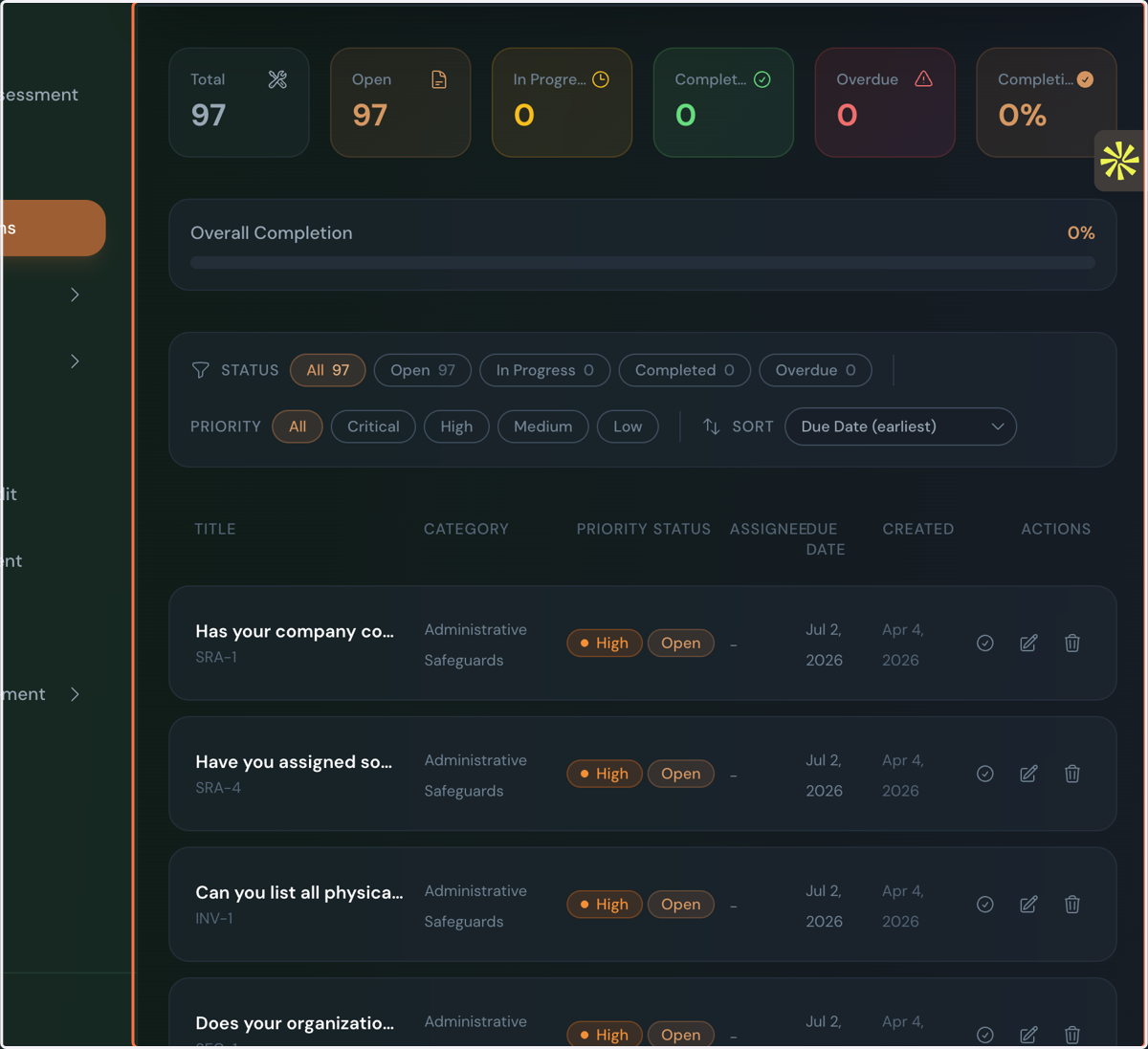
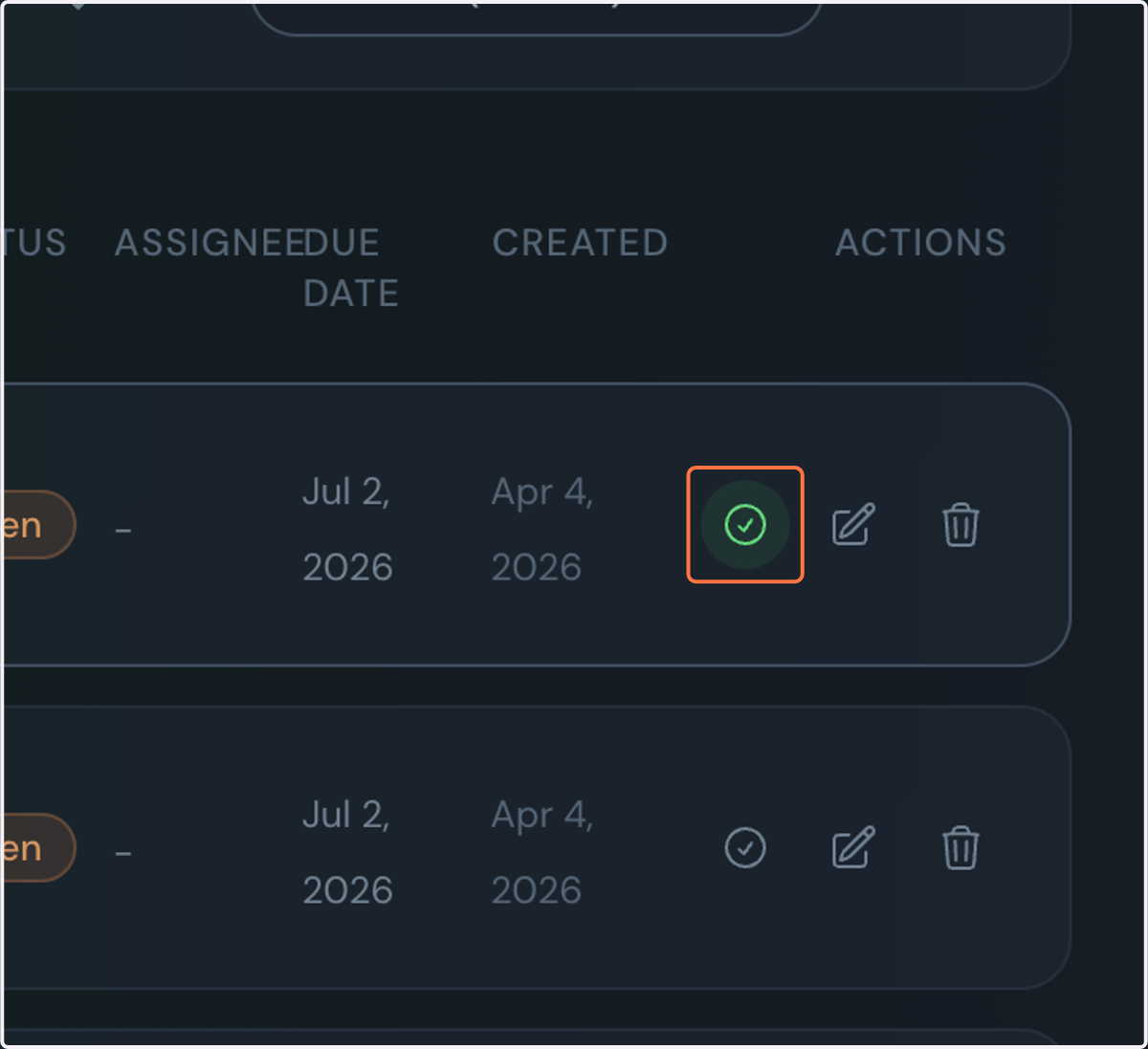
9. Click on Mark Complete
When done addressing the plan contents.
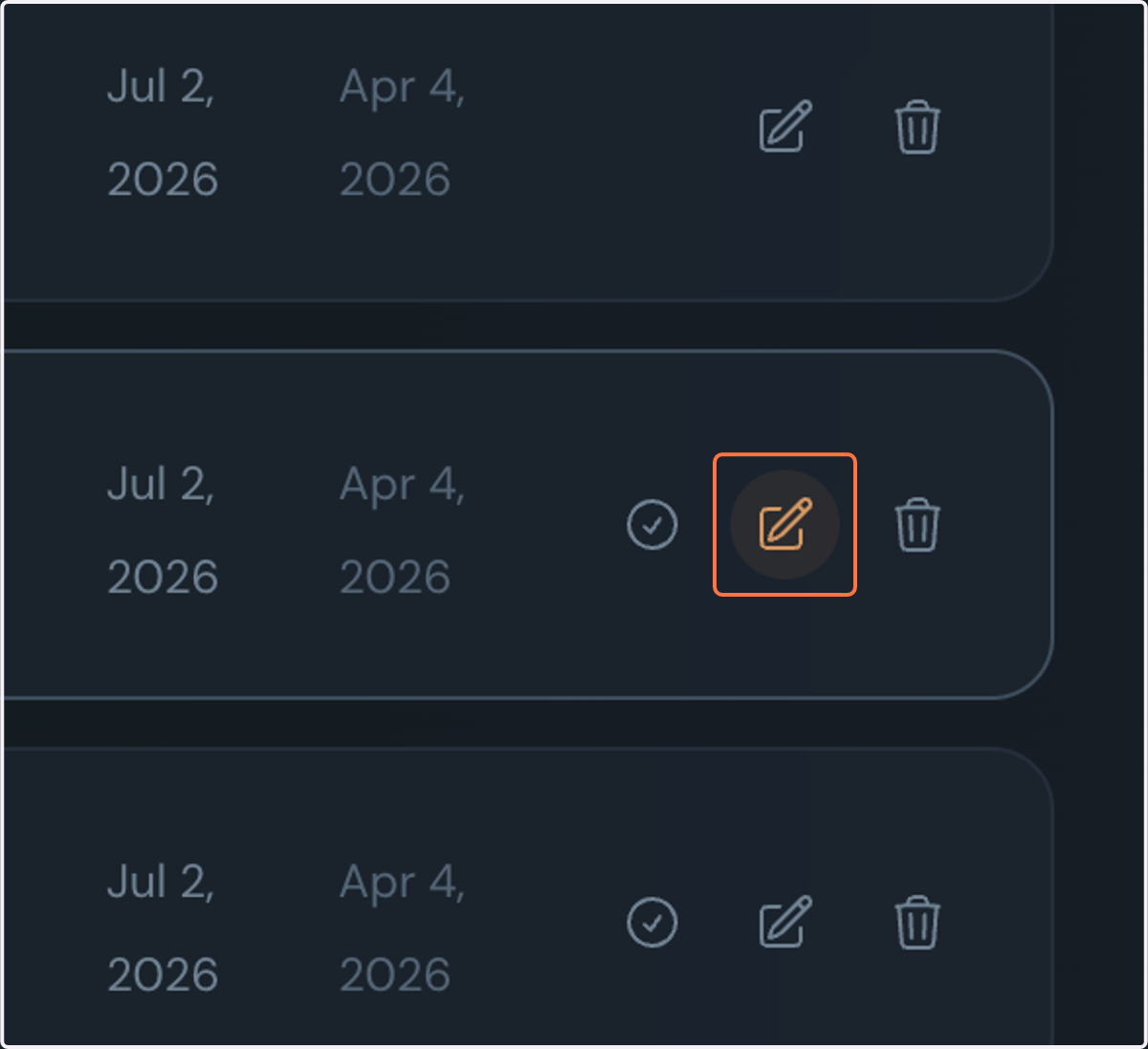
10. Click on Edit
If you want to view more detail regarding your Remediation Plan, click the 'Edit' icon next to the 'Done' key, as seen below.
11. Update Remediation Plan
From this window. I like to use the Notes window at the bottom.
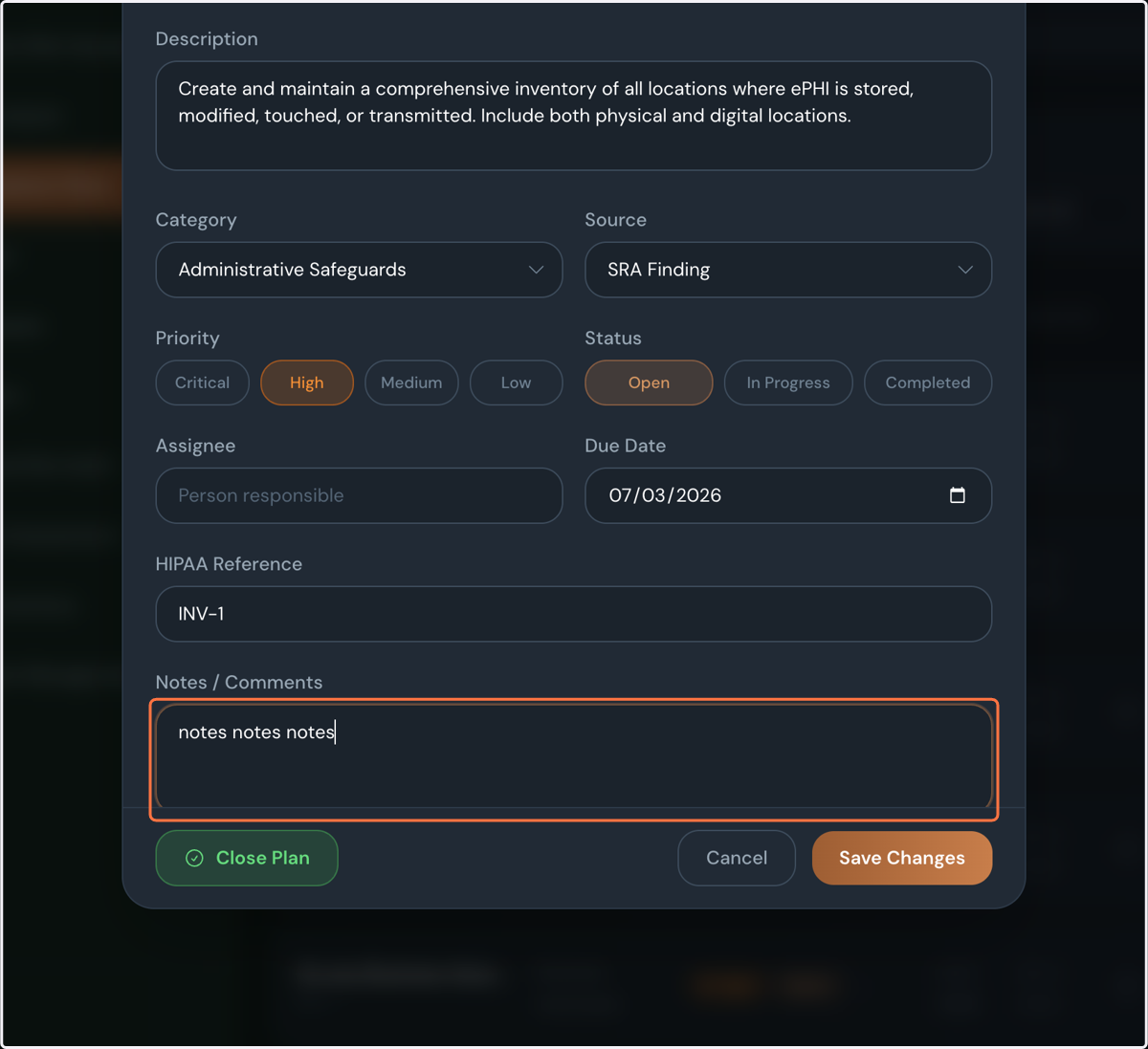
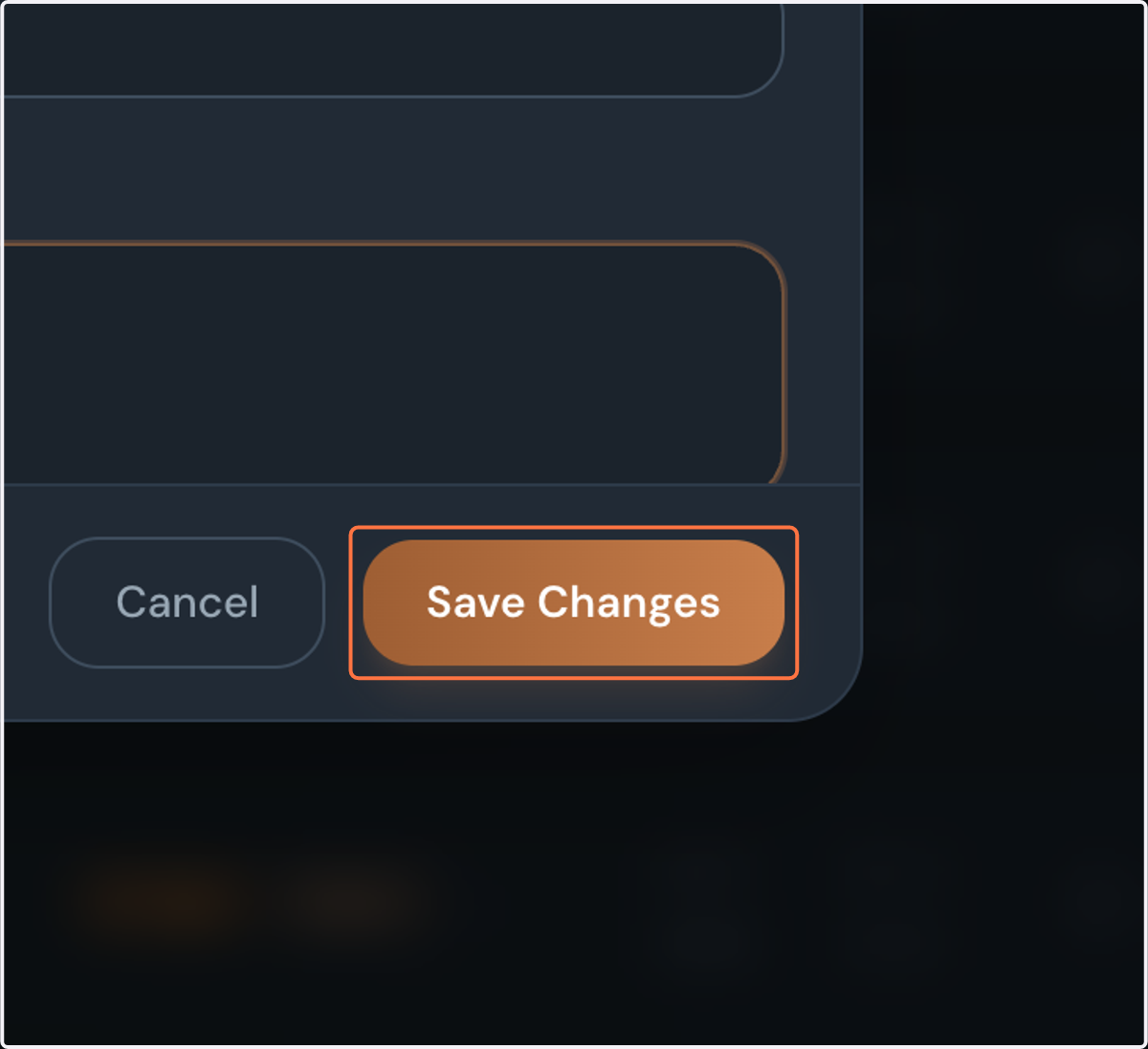
12. Click on Save Changes