1. A. In Live Chat, each card is a channel, and your website already has one. Open the menu (⋮) on its card.
1. B. Click Configure Channel.
2. A. On the Operators tab, check that at least one person is listed. They take over when the agent hands a conversation on.
2. B. Open Channel Rules. A rule decides where the chat appears and which agent answers.
2. C. Click Add a line.
3. A. Leave Live Chat Button on Show, which puts a chat bubble on the page. Under Chatbot, start typing your agent’s name…
3. B. …and pick it from the list.
4. Leave URL Regex empty to use this rule on every page, or enter a path such as /shop to limit it. Then click Save & Close. With several rules, the first match in the list wins.
5. Save the channel. The rule is stored only once the channel is saved.
6. Your rule is now listed under Channel Rules. Open the Widget tab.
7. The Widget tab shows how to put this channel on your website, and gives a direct link to try it. Copy the link.
8. Open the link in a private window, as a visitor would, and click the chat bubble.
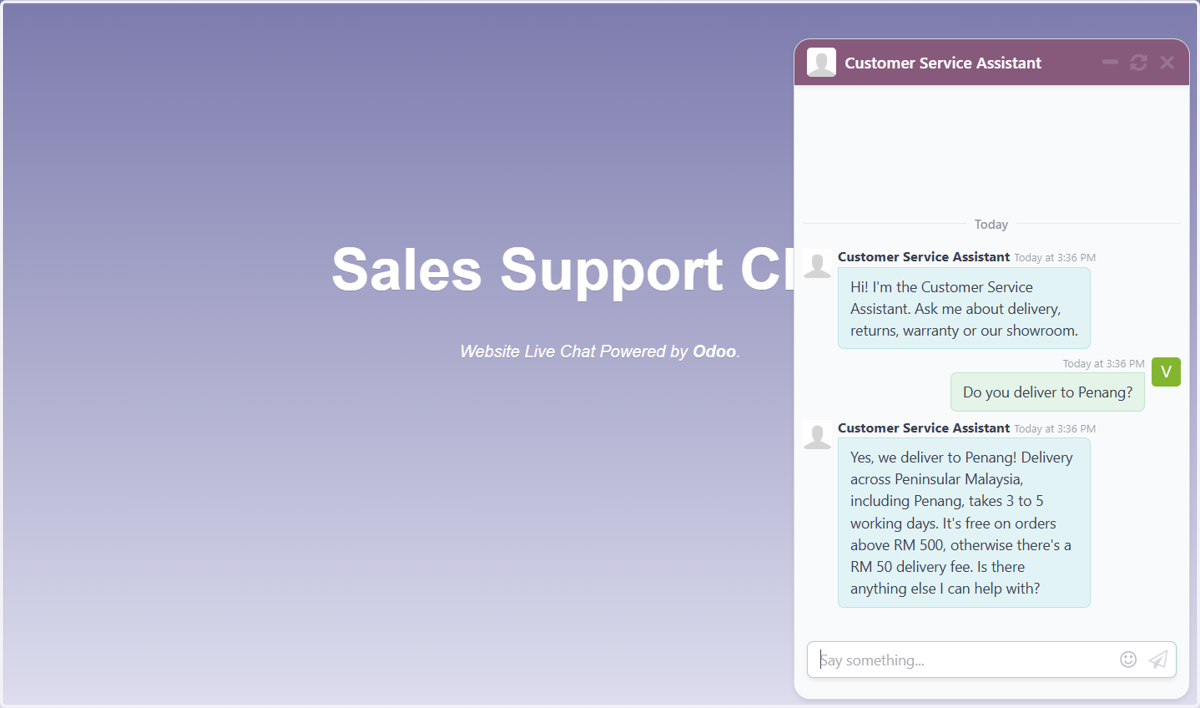
9. Your agent greets the visitor with its conversation starter. Type a question and press Enter.
10. Your agent answers, and does the same on every page the rule covers. If it hands over, an operator from the channel picks up the conversation.