How to send an invoice that was already created
Note: Each contact should be able to pull their invoices from their HBA accounts. However, if you need to manually send them an invoice for some reason you can follow these steps.
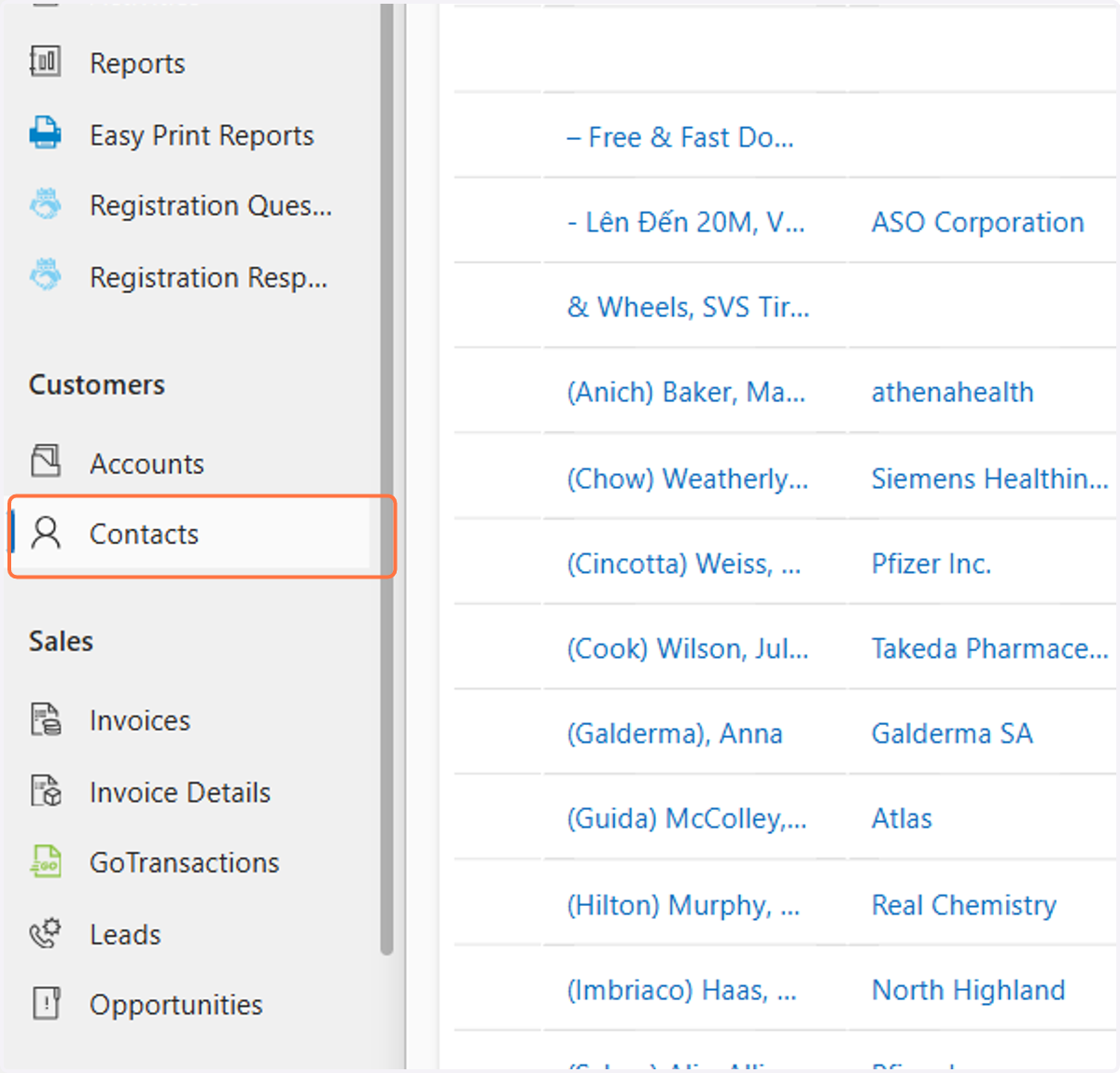
1. Click on Contacts
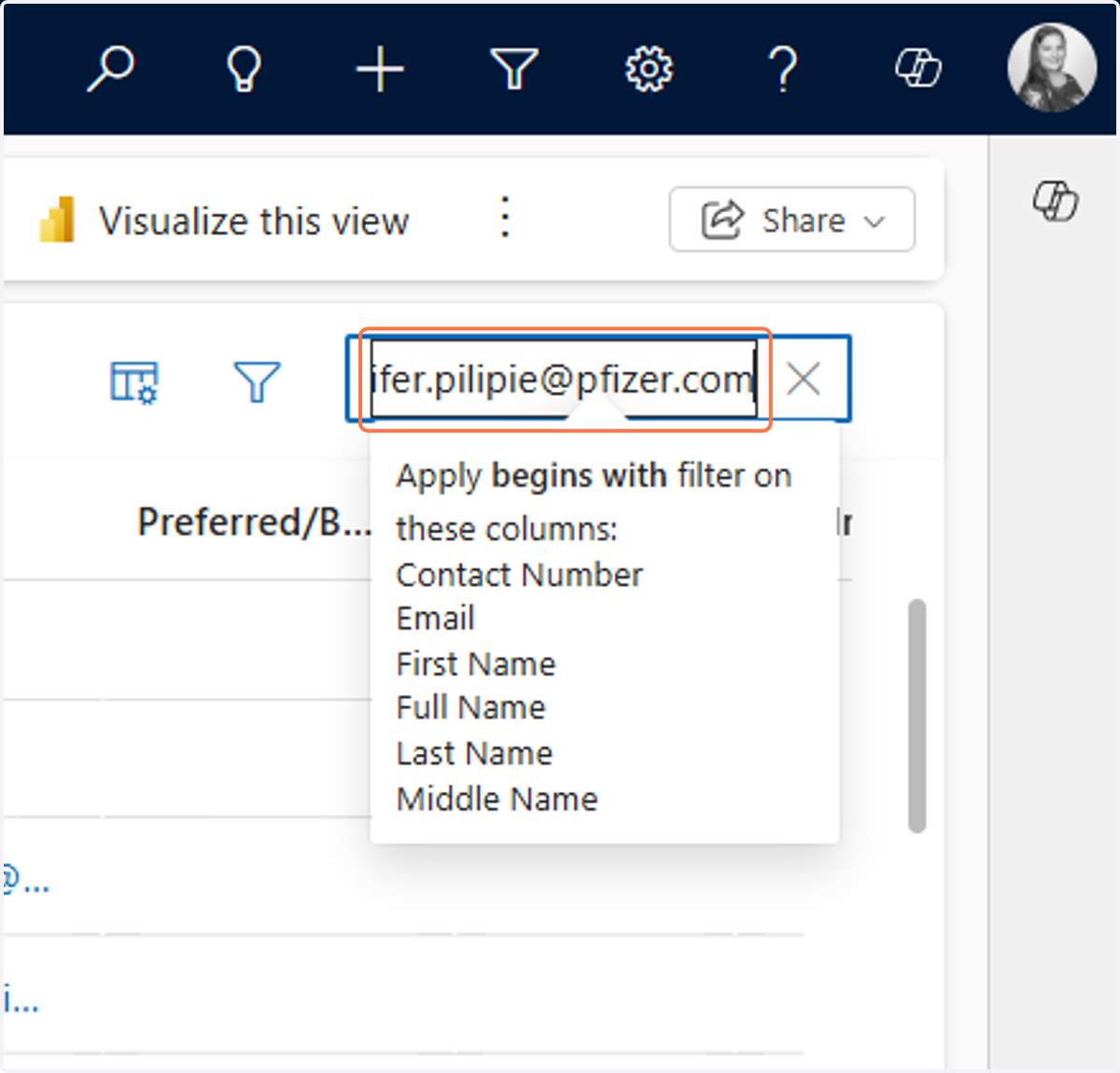
2. In the search field type the email address of the contact, or you can type last name, and then first name. Click enter
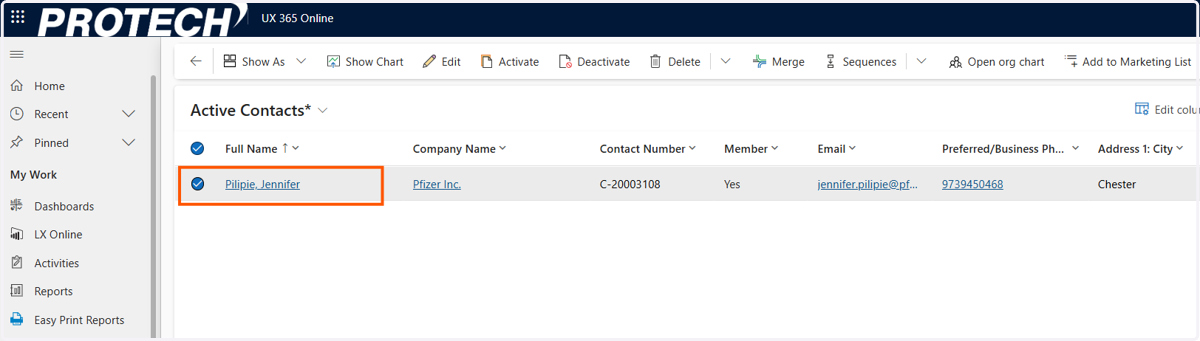
3. Double click on the contact
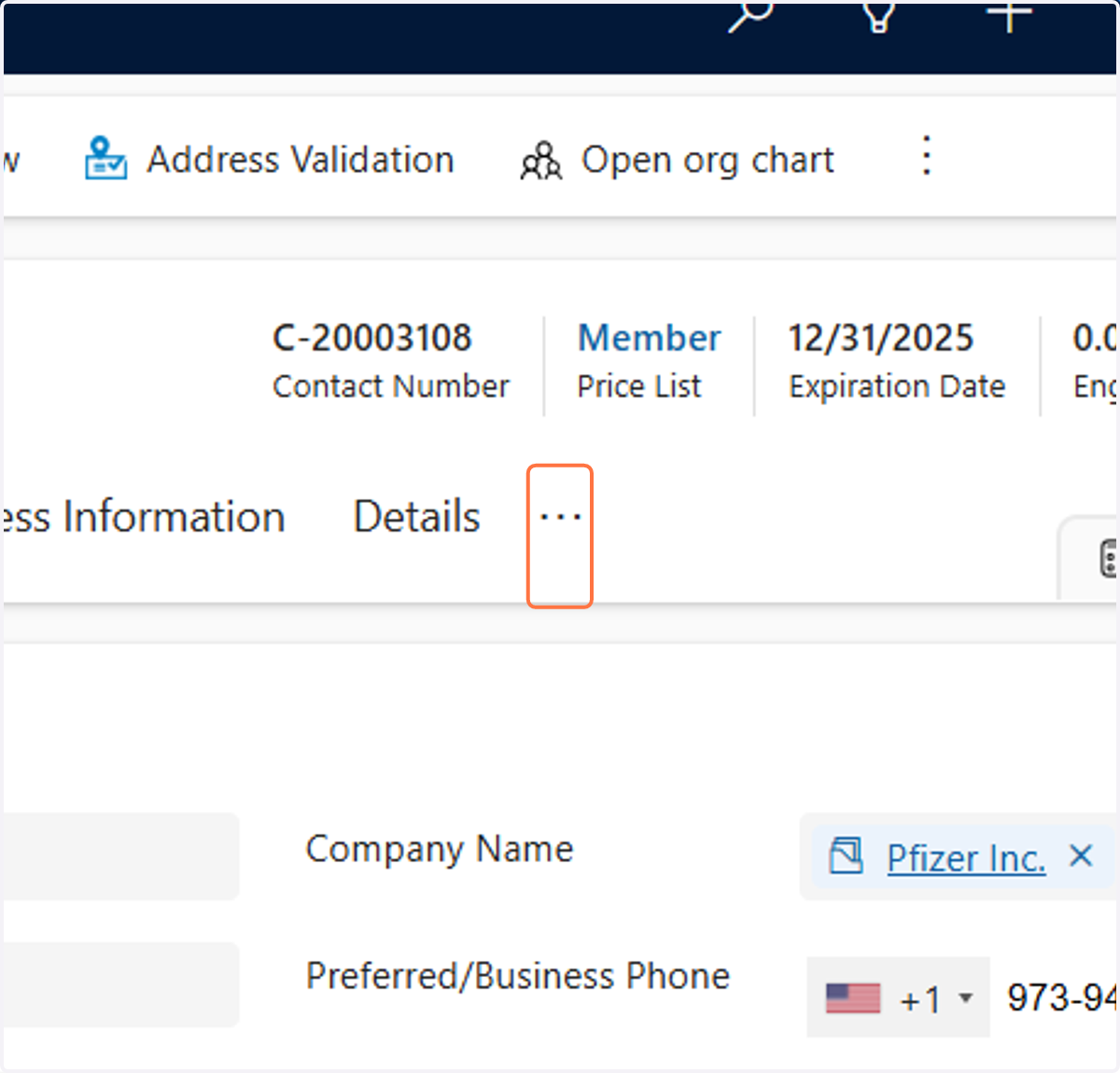
4. Click on More Tabs
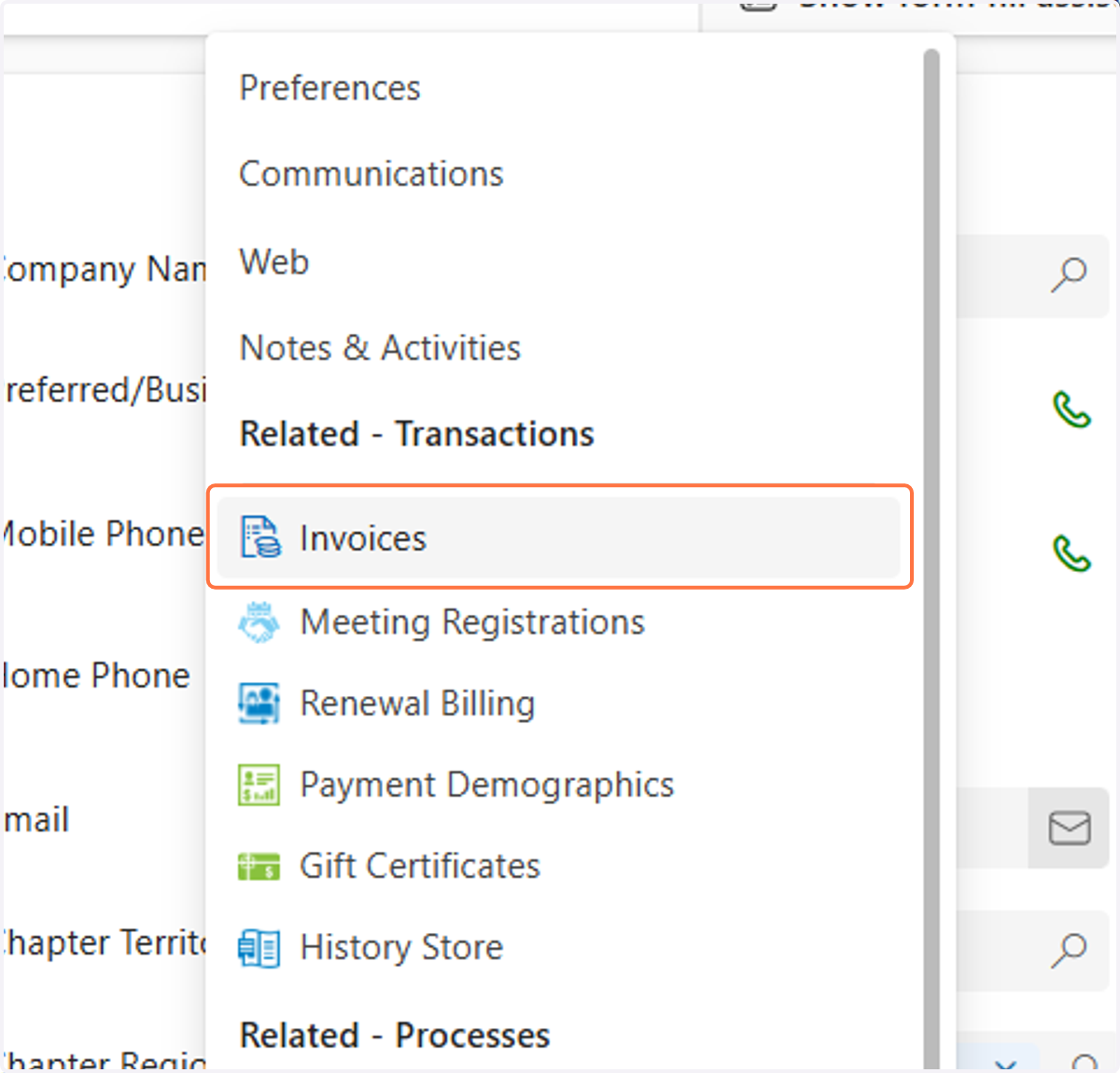
5. Click on Invoices
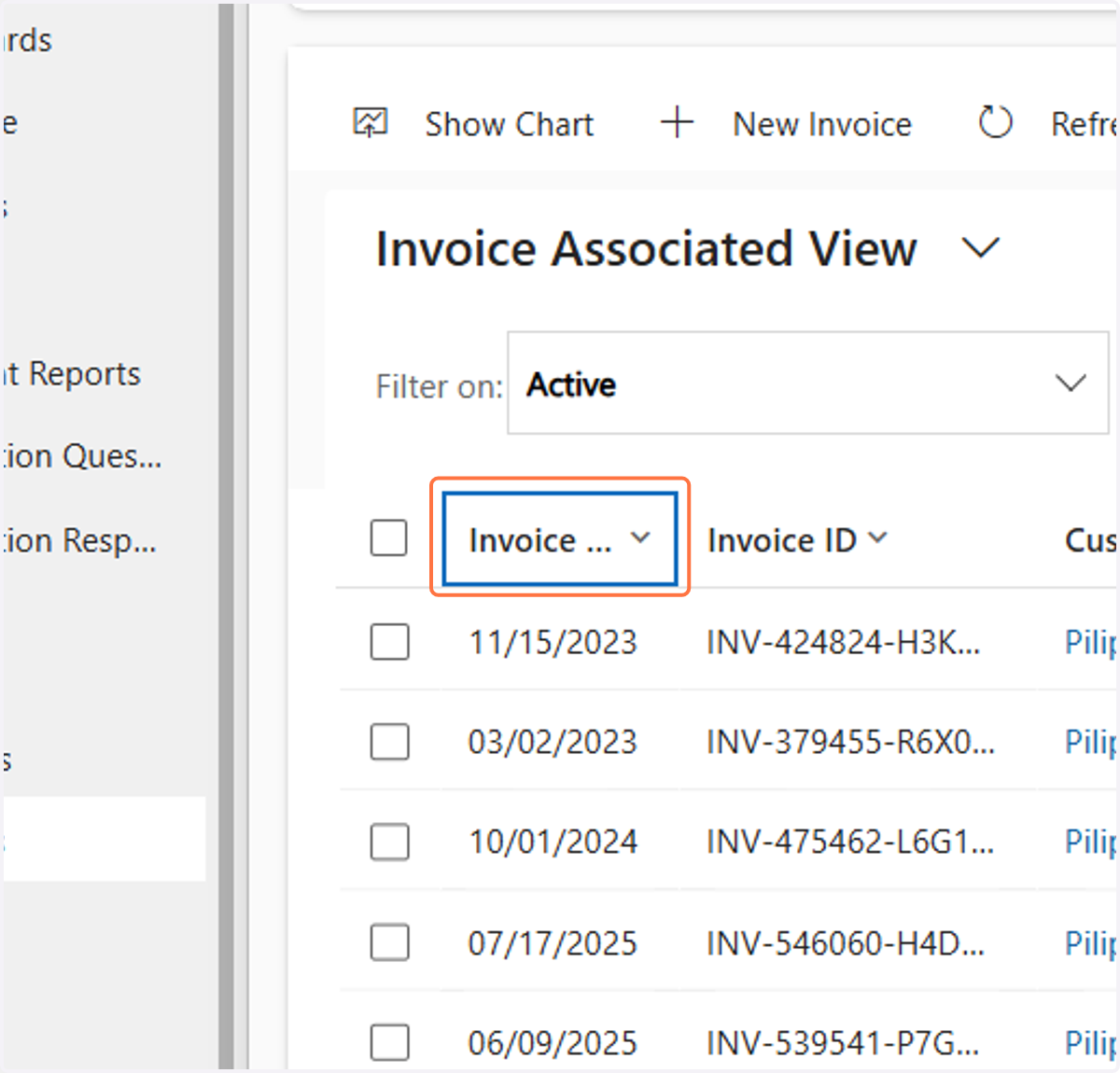
6. Click on Invoice Date
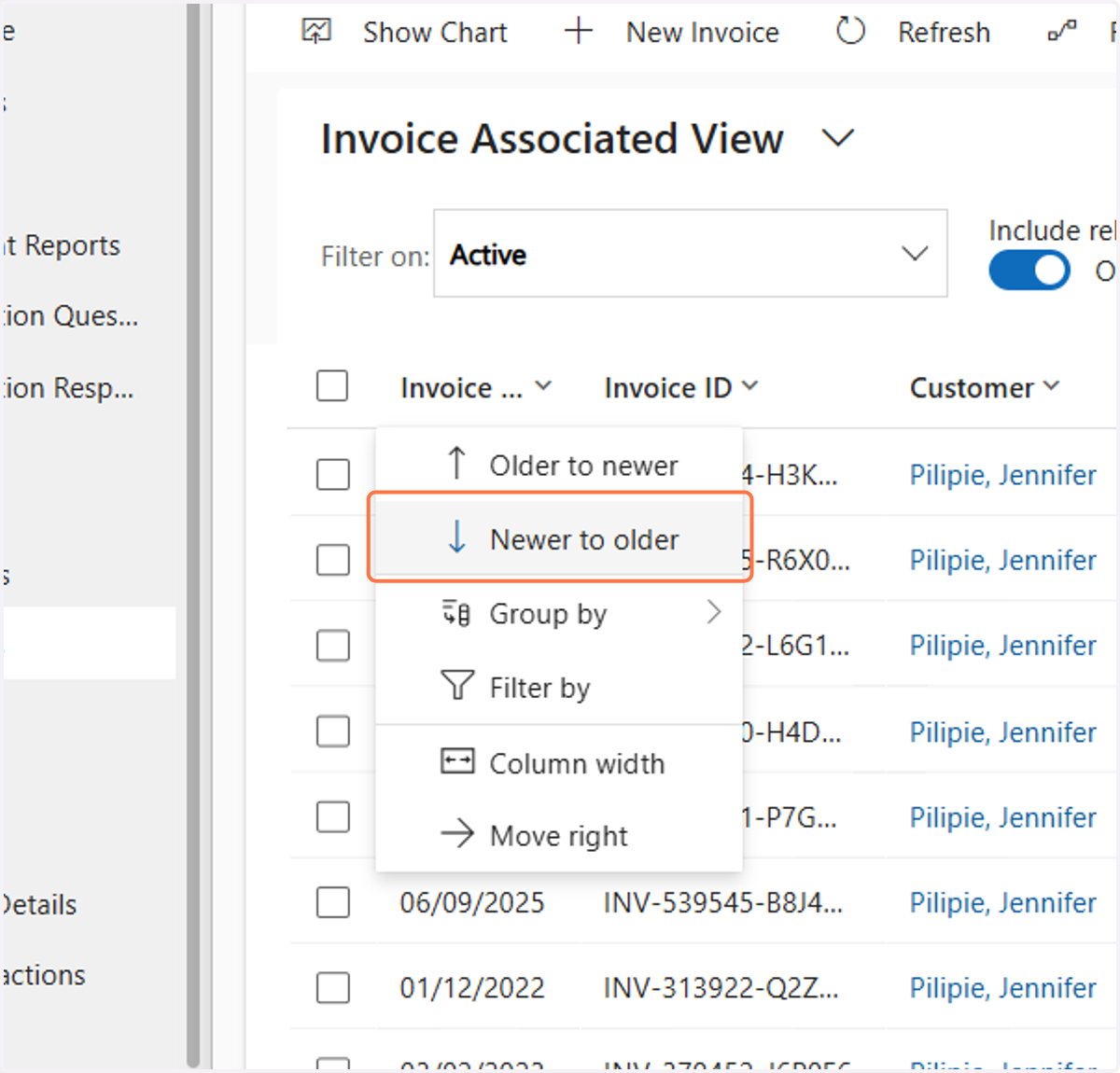
7. Click on Newer to older
8. Double click on the invoice you want to open
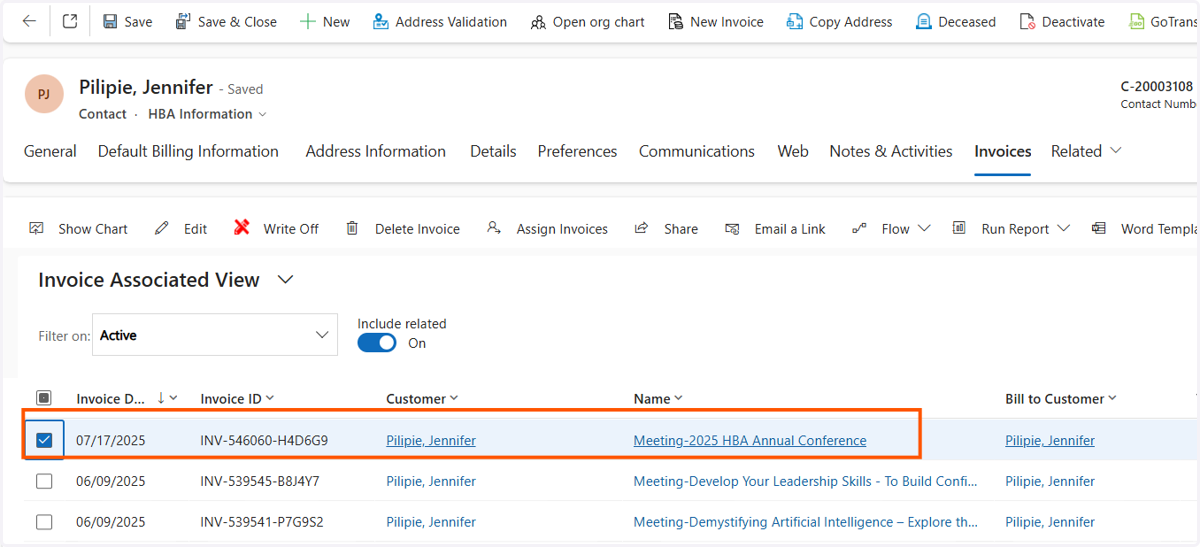
9. There are two ways to send an invoice. You can export it to a PDF by following steps 10-14 - OR - you can send them a URL link by following steps 15-18
10. Click on More commands
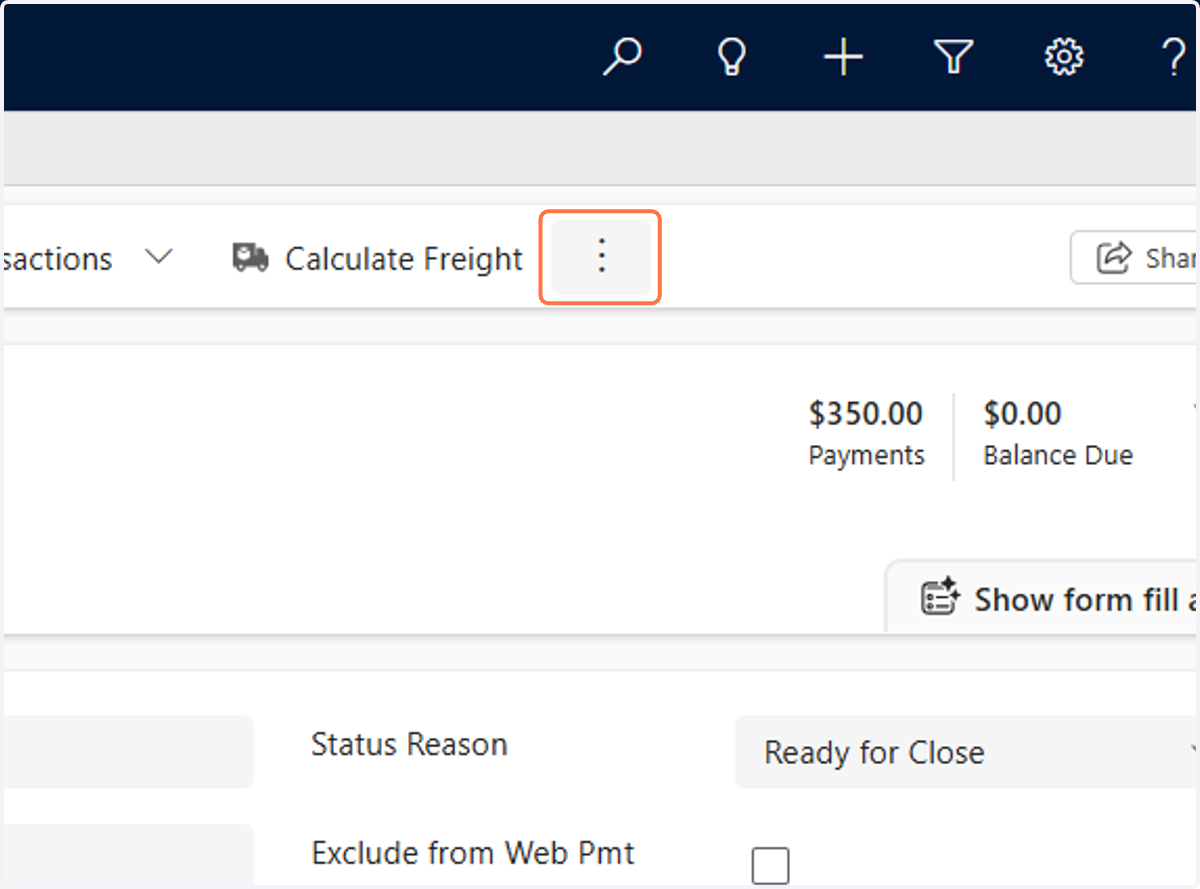
11. Click on Run Report
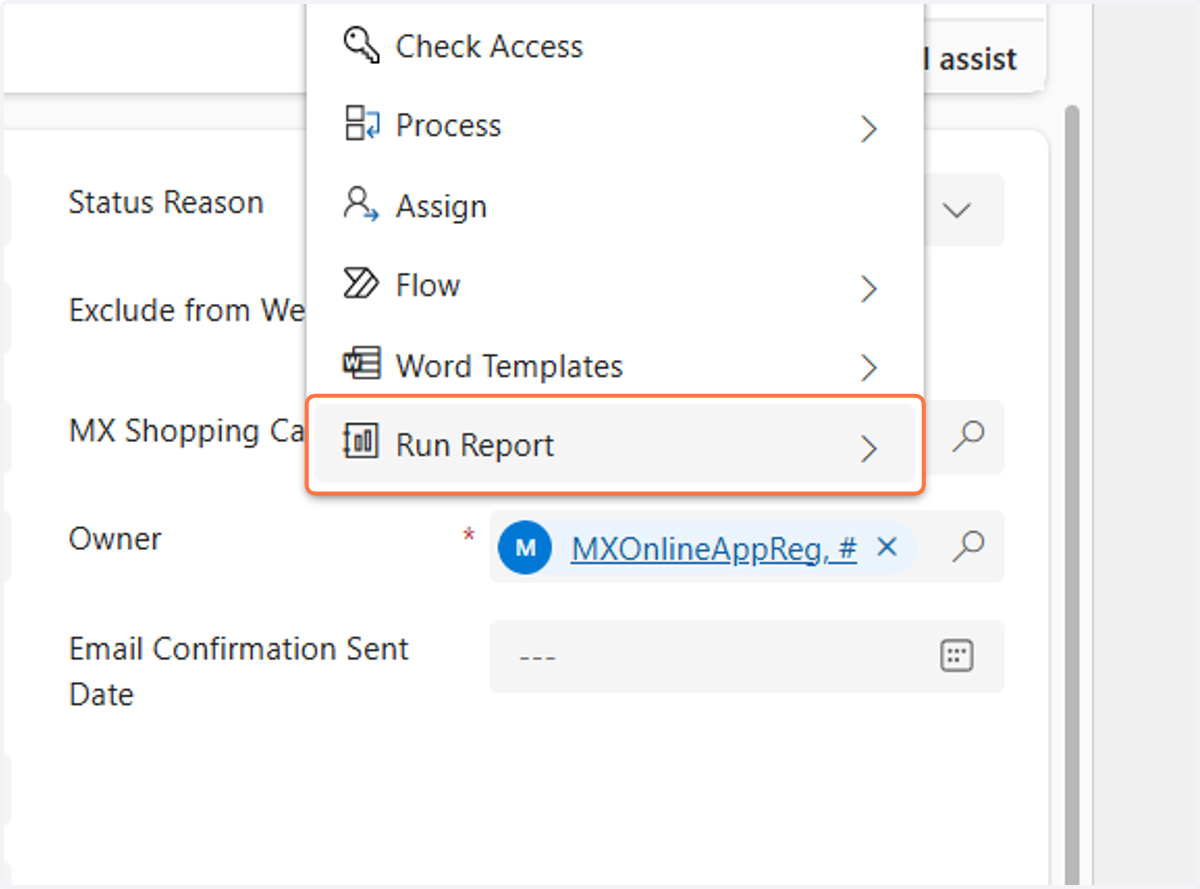
12. Click on HBA Print Invoice
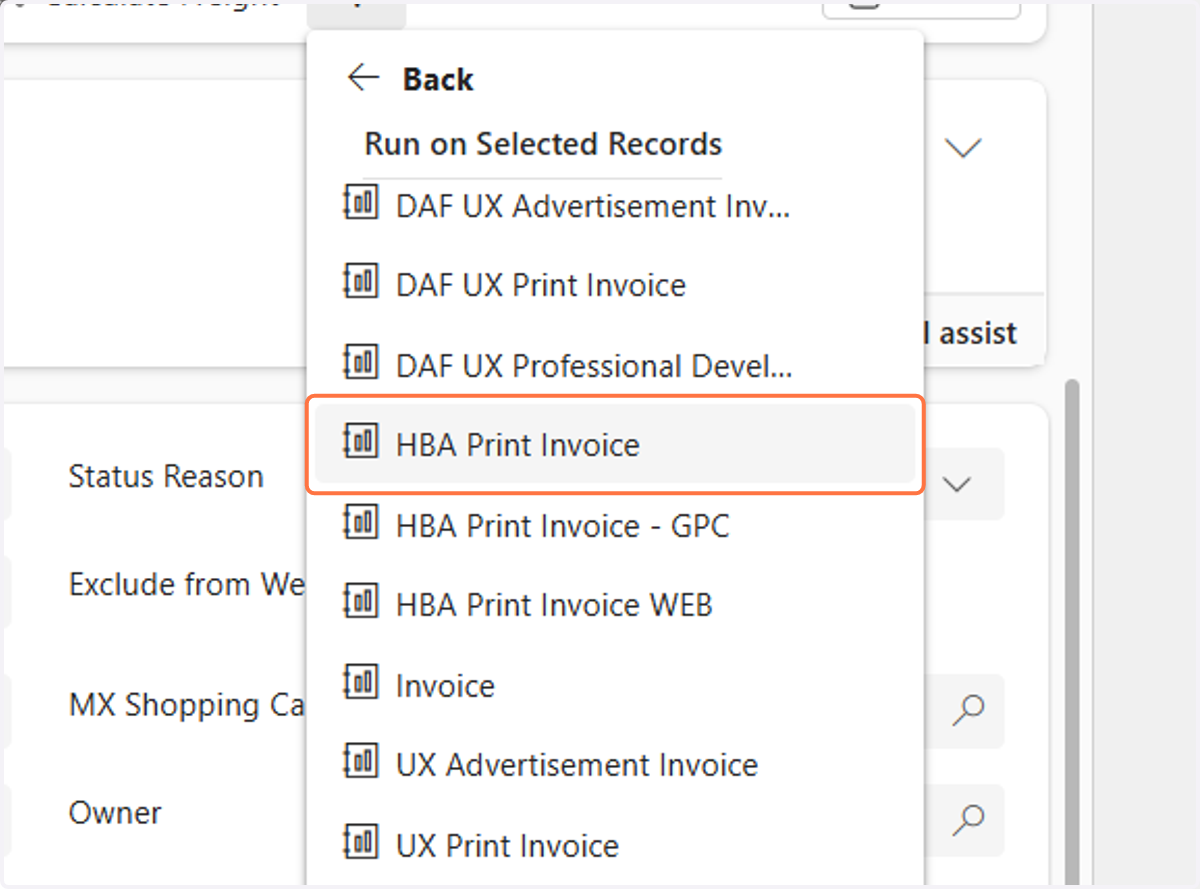
13. Click on Export
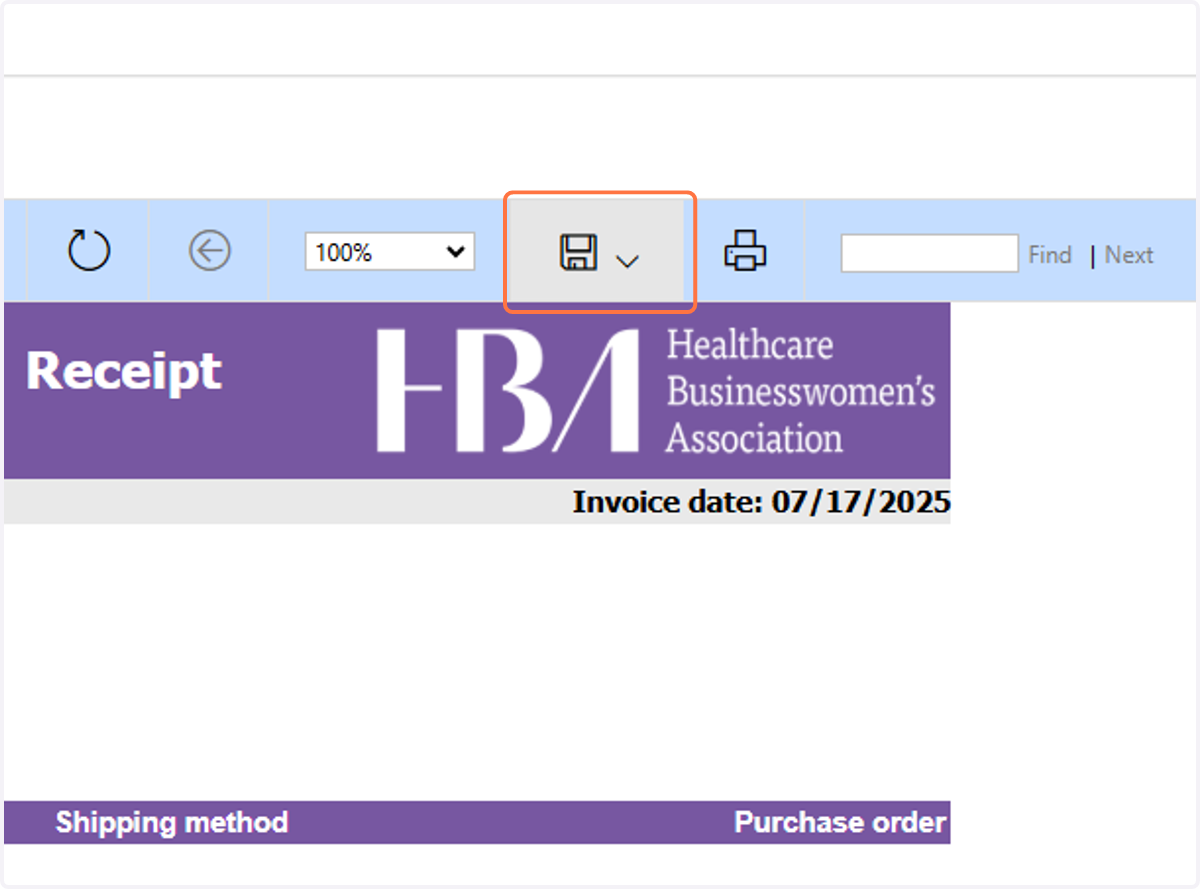
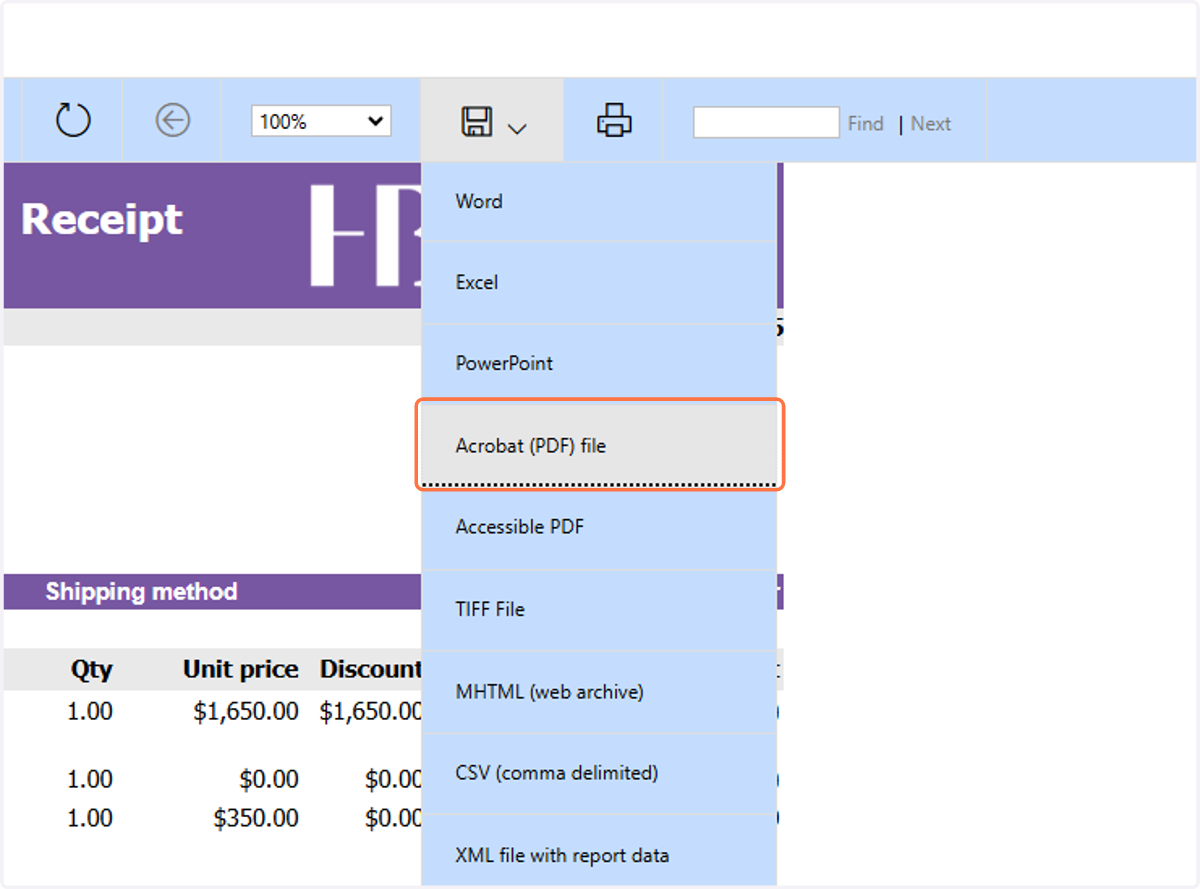
14. Click on Acrobat (PDF) file
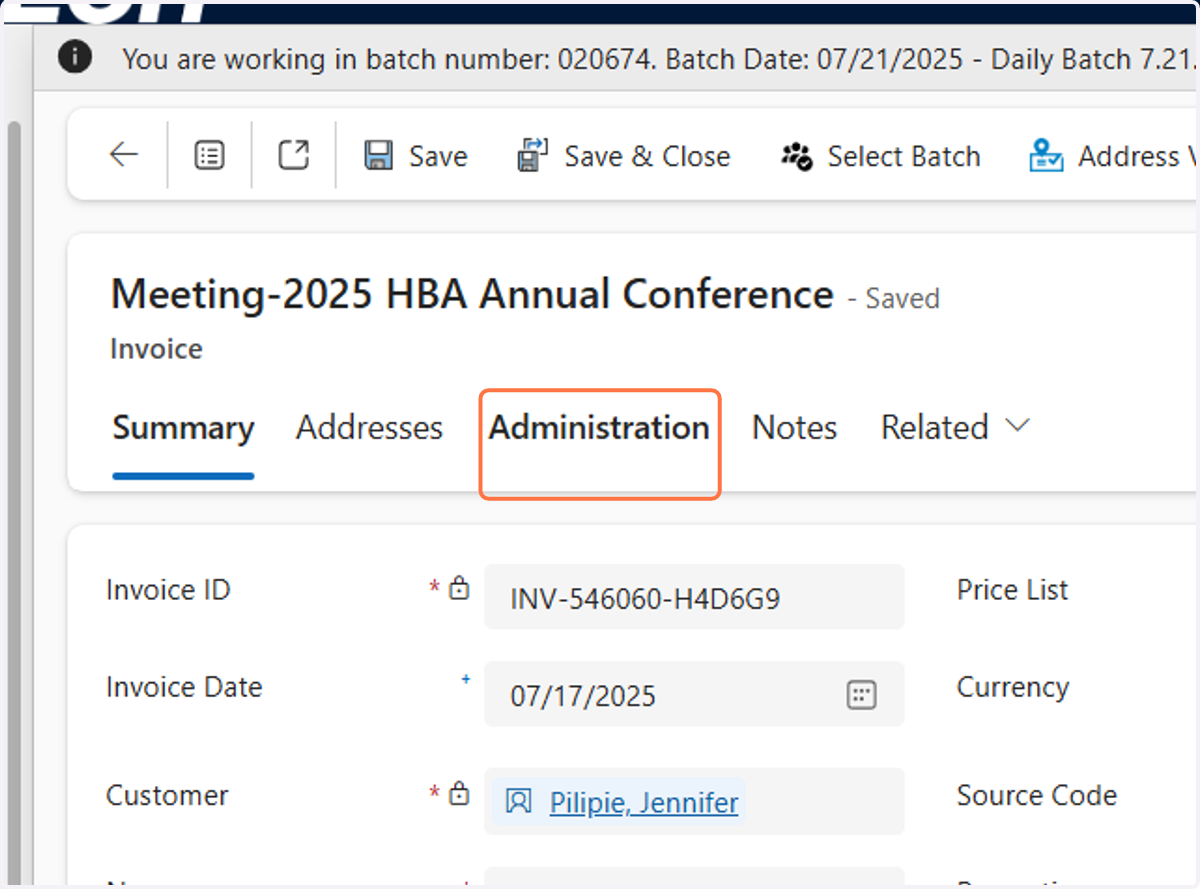
15. Click on Administration
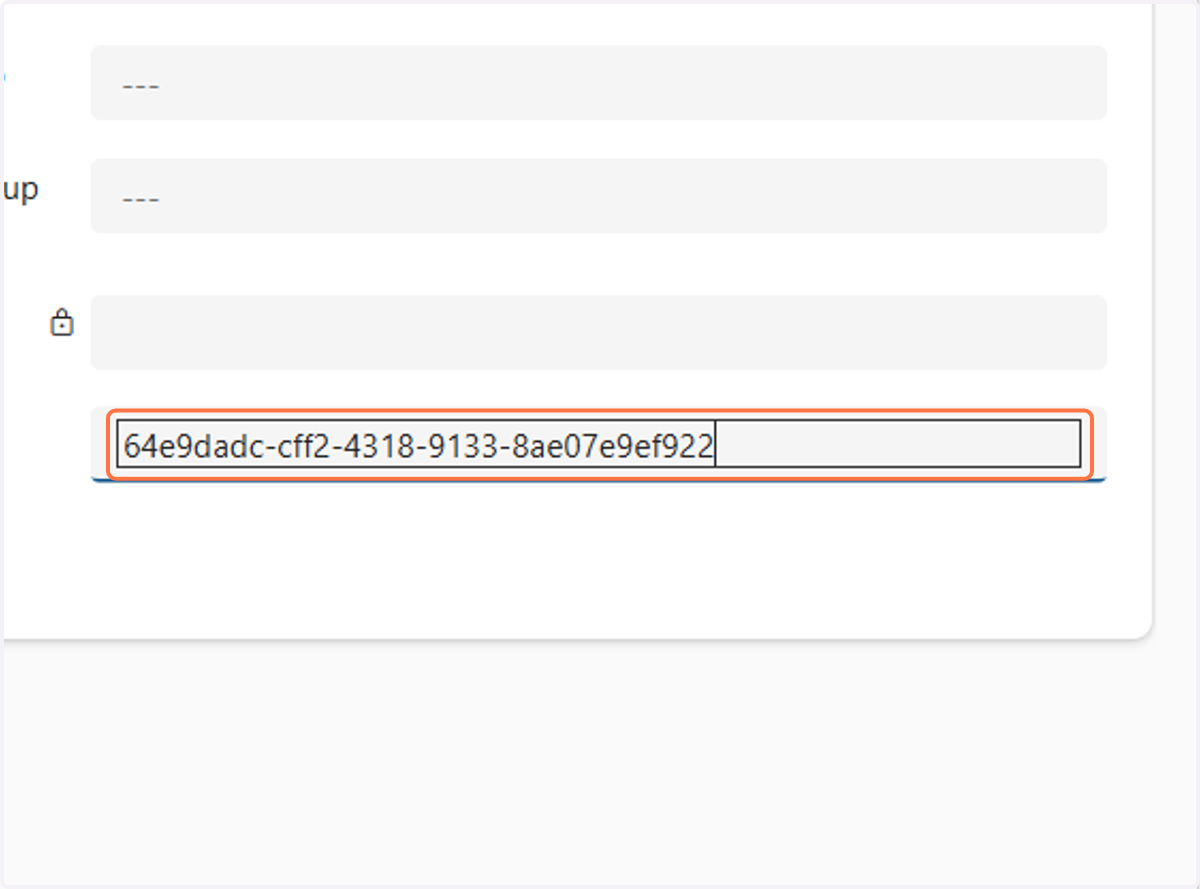
16. Click on Invoice GUID
17. Copy the text from the Invoice GUID field
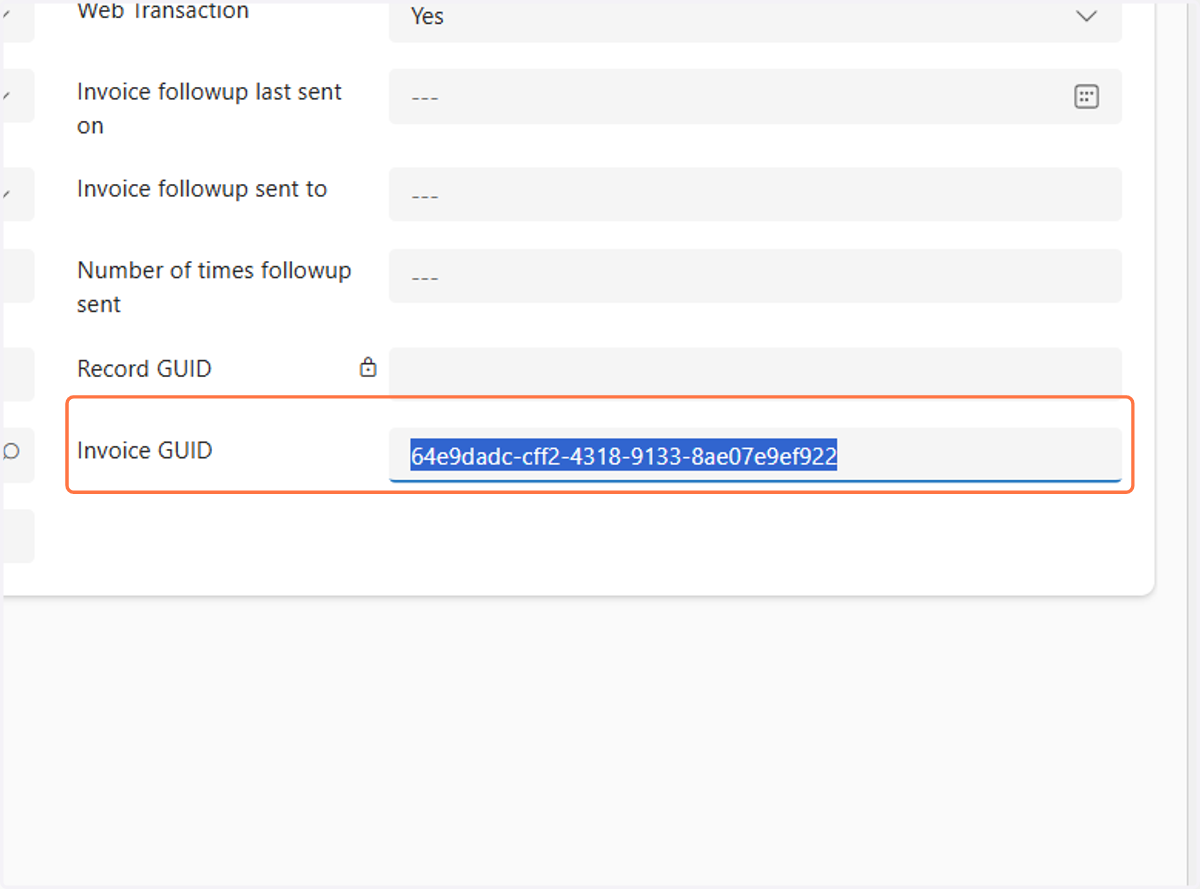
18. Open a new tab in your browser and take this URL link: https://my.hbanet.org/EVENTS-PROGRAMS/AddEdit/EventDetails/MeetingID/AFEFEC4B-481E-4788-A883-5BFC3F8654B4 Everything after the "MeetingID/" in the above listed URL will be replaced with the Invoice GUID that yo