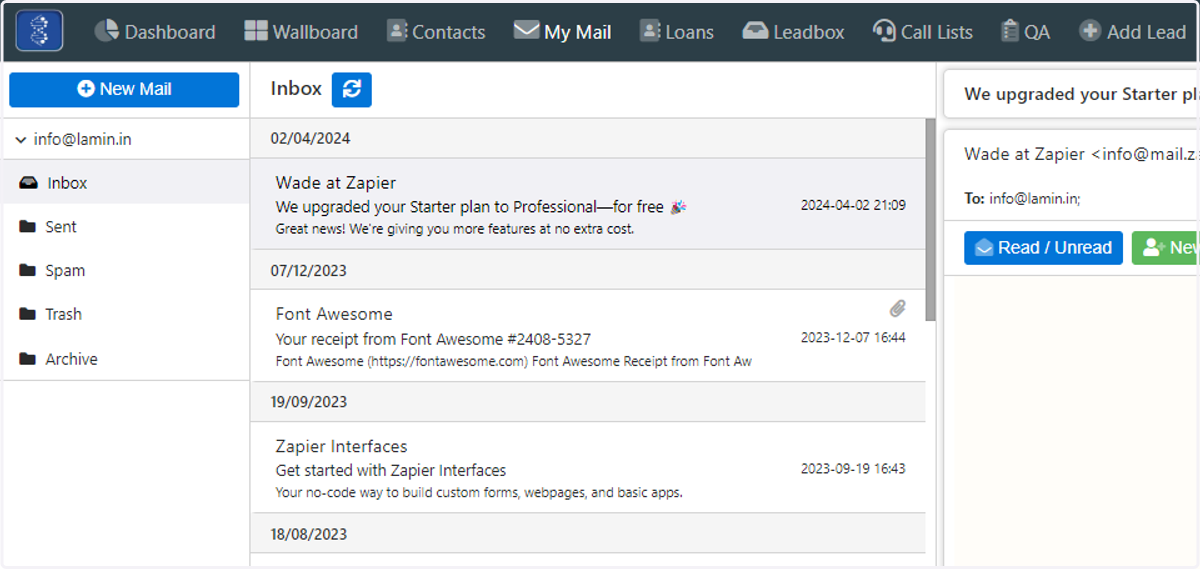
Admin - IMAP email integration with Laminin
How to integrate your IMAP email with Laminin
Laminin
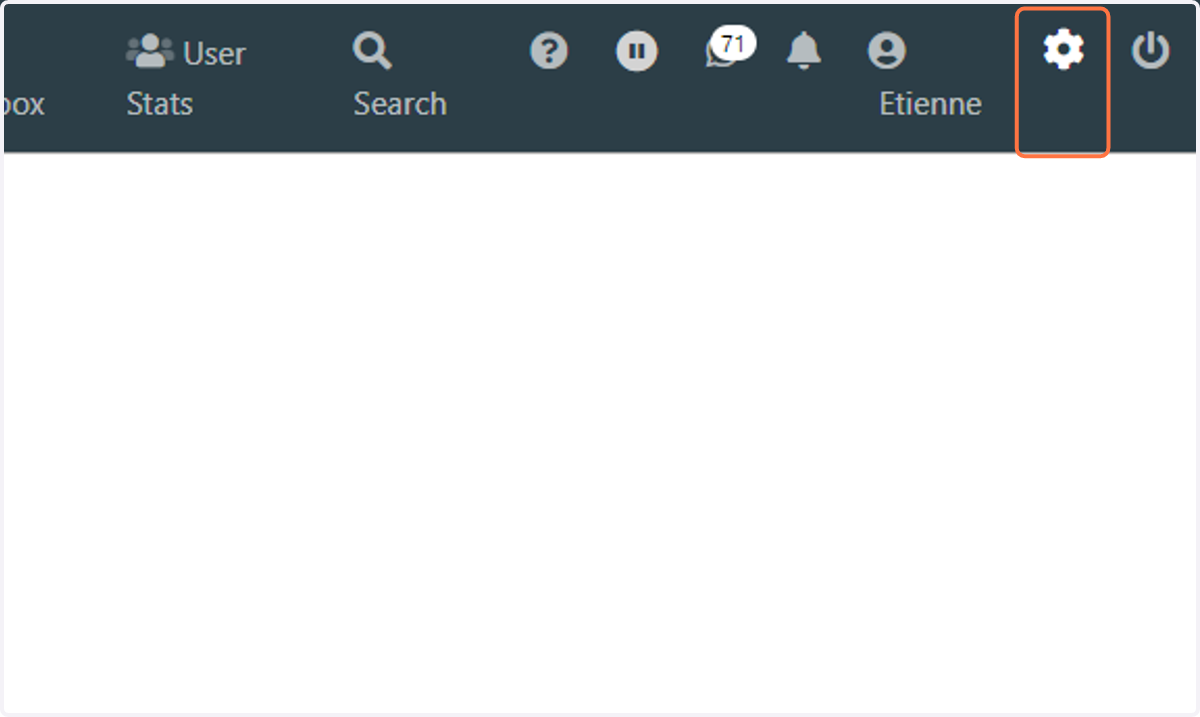
1. Open the Admin menu in Laminin
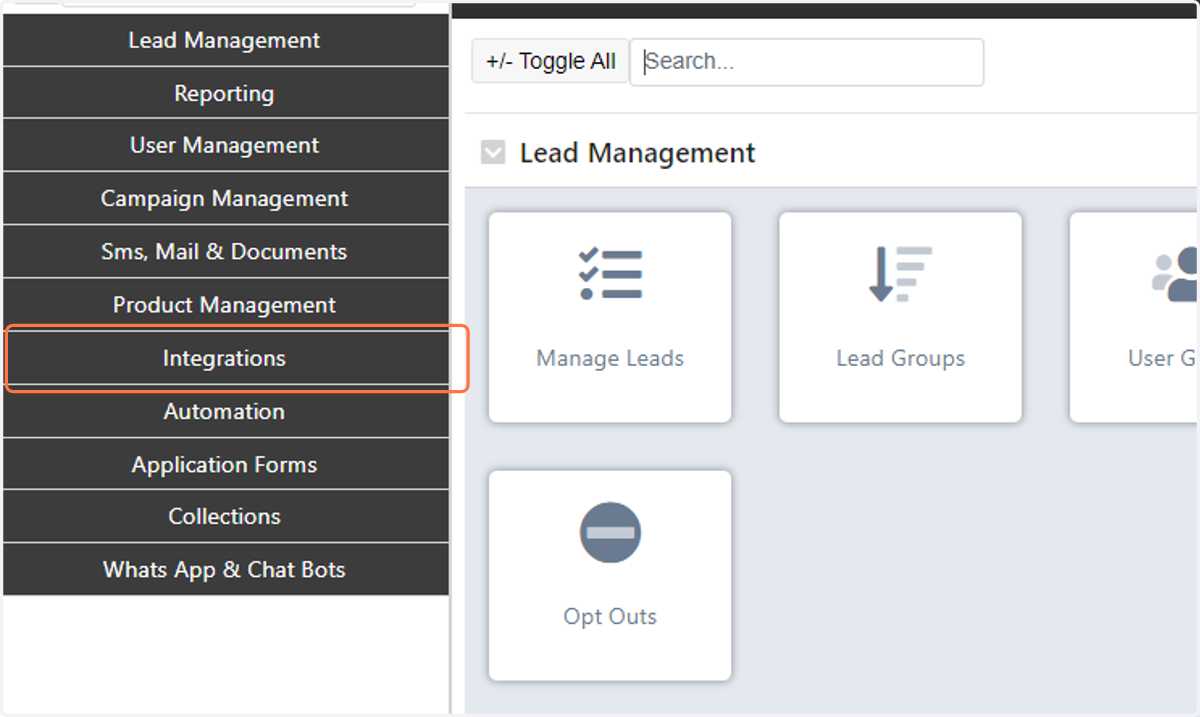
2. Click on "Integrations" in the left menu
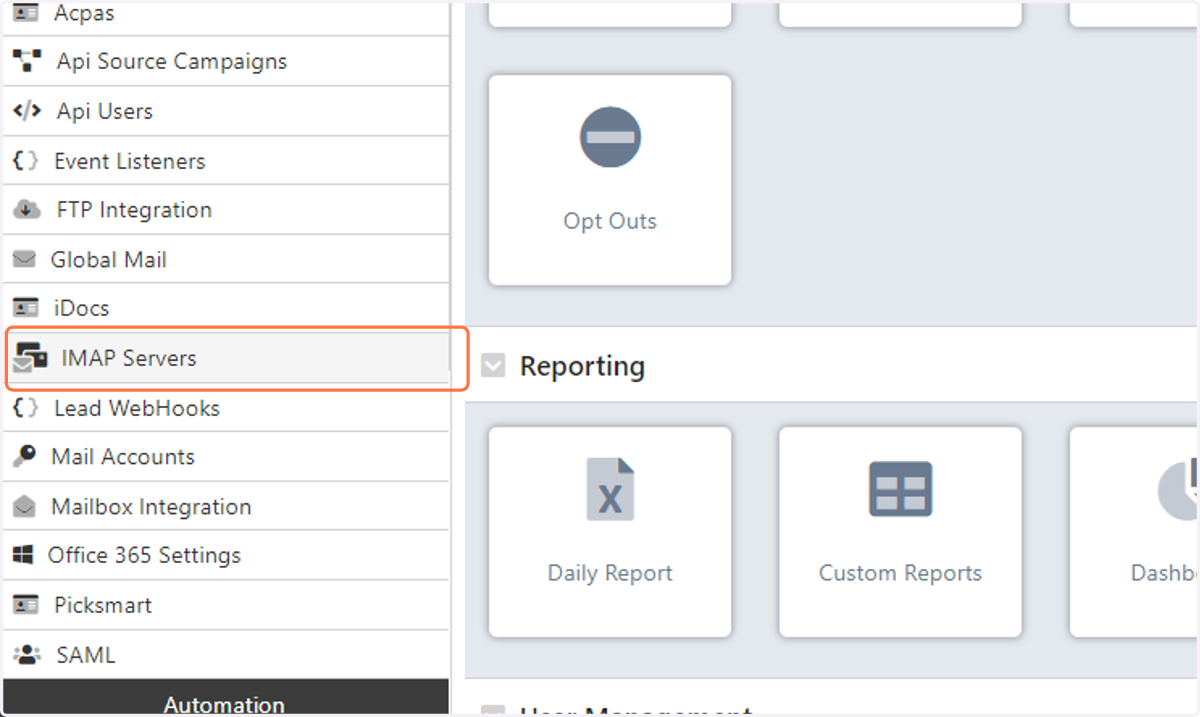
3. Under "Integrations" click on "IMAP Servers"
4. Click on "Add"
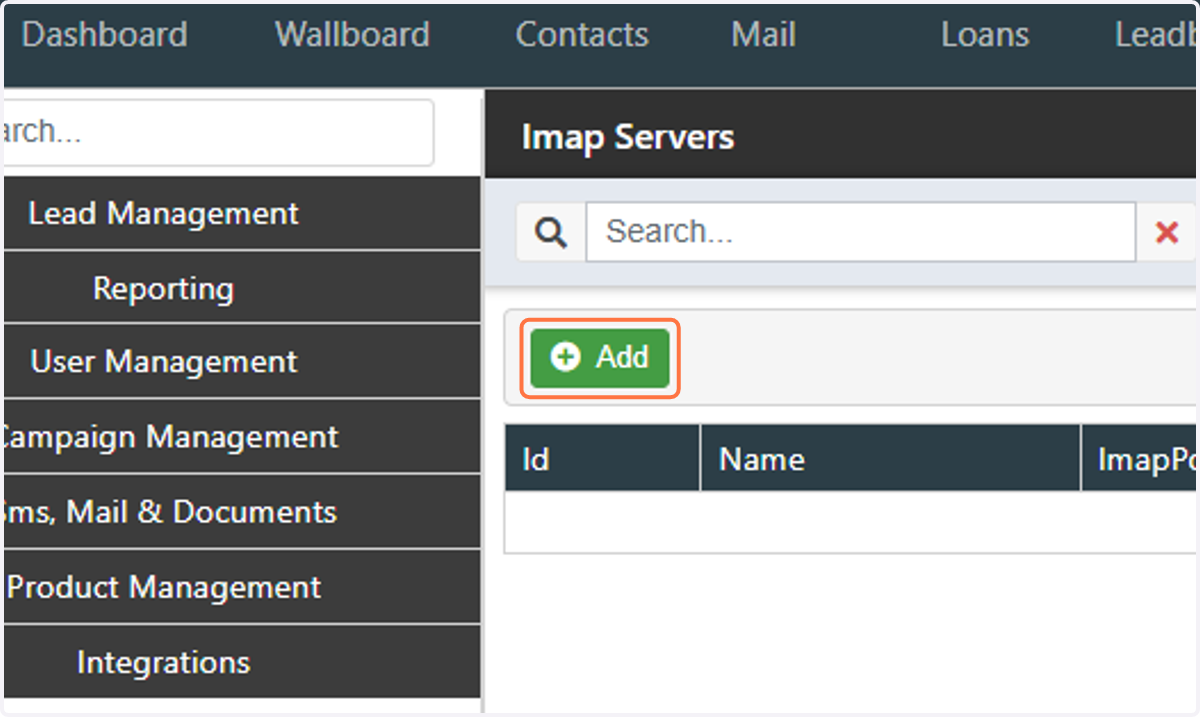
5. Enter the IMAP Server URL
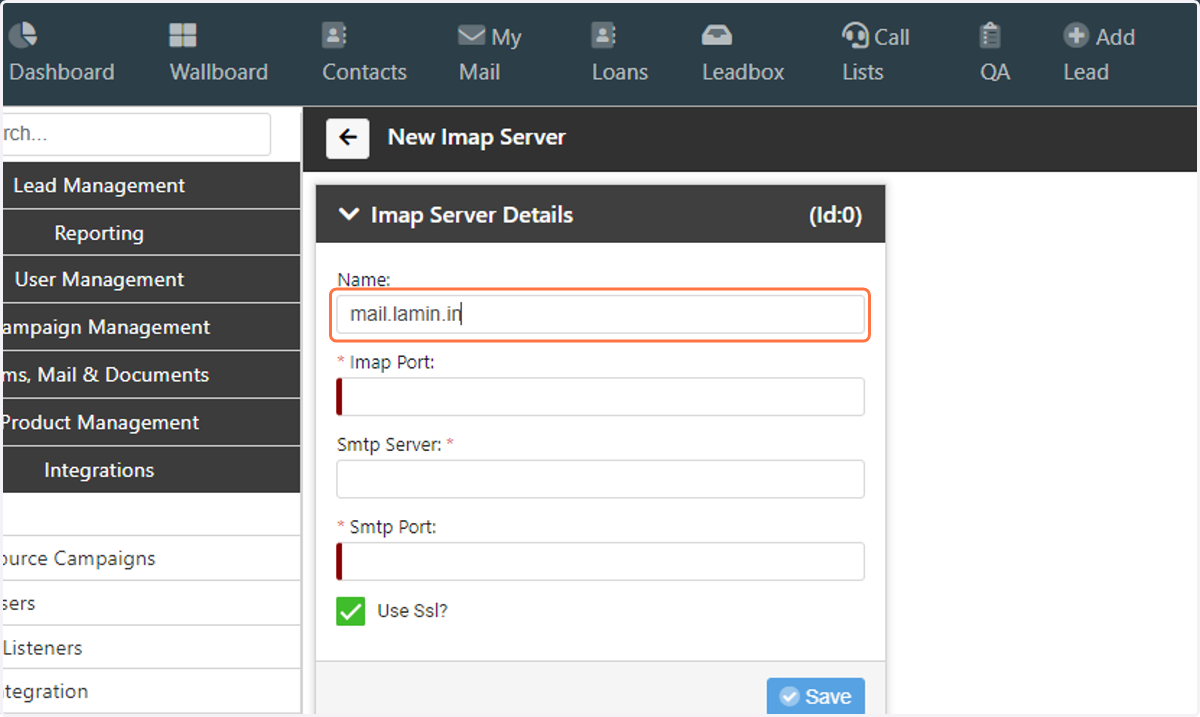
6. Enter the IMAP Port
Default is 993 for IMAP over SSL/TLS
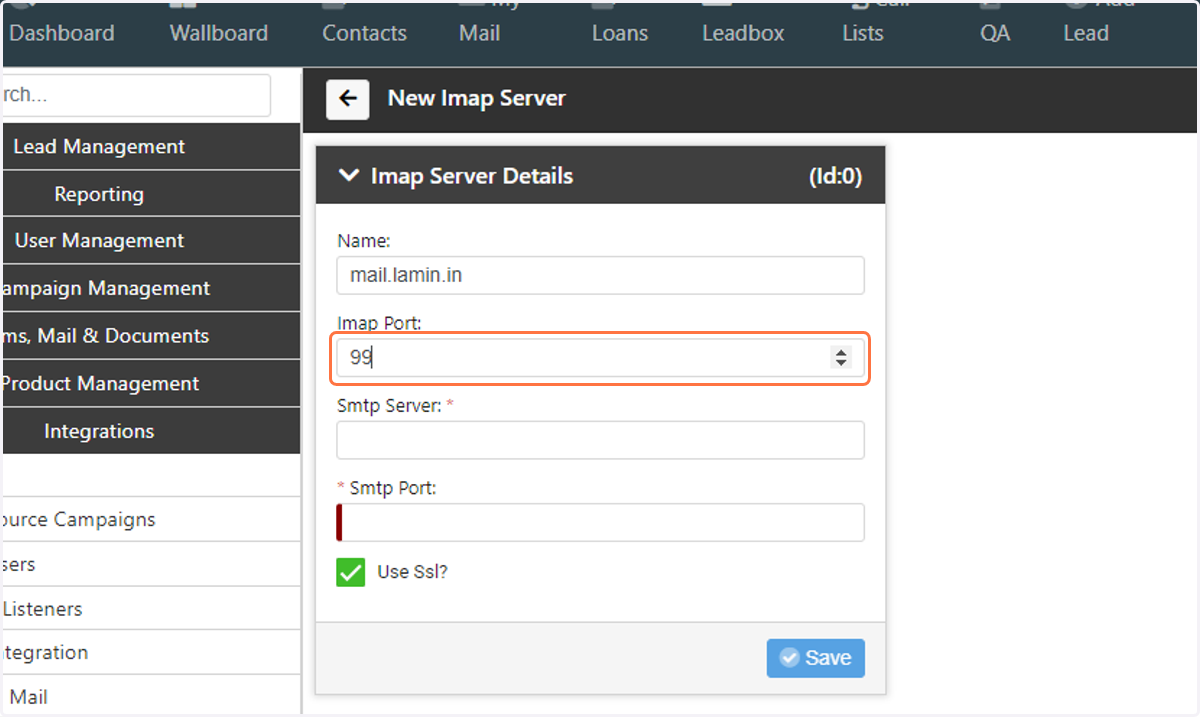
7. Enter the SMTP Server URL
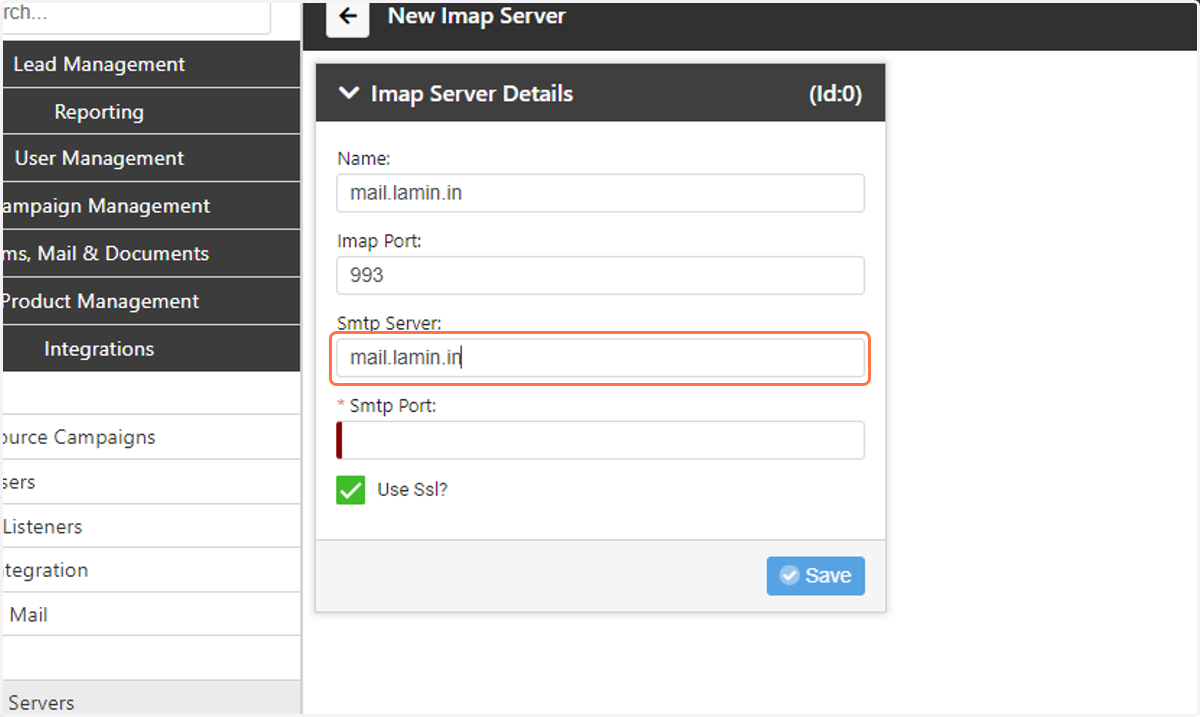
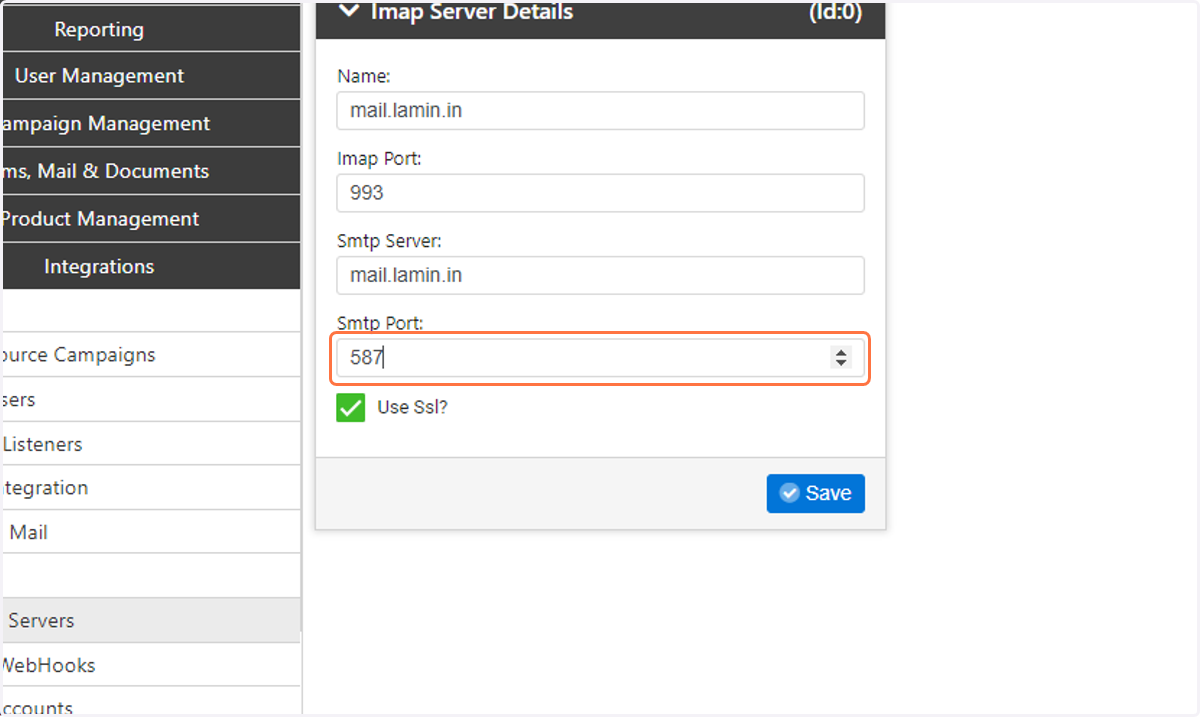
8. Enter the SMTP Port
Default is 465 or 587 for SMTP over SSL/TLS
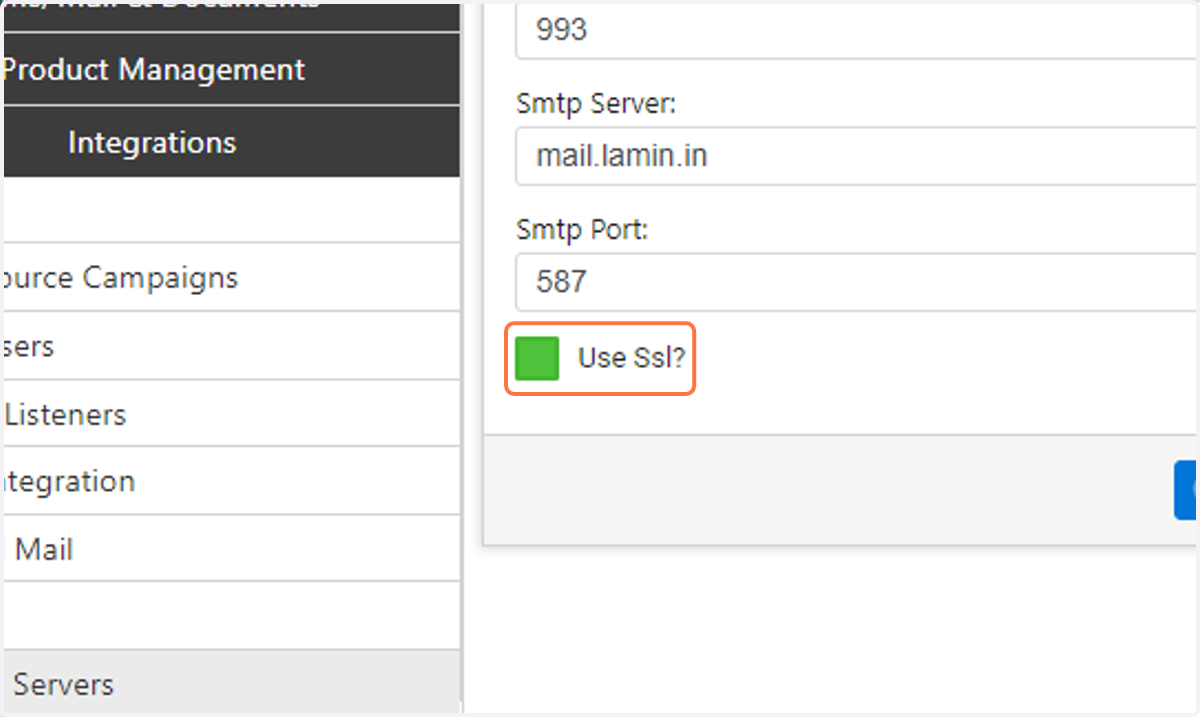
9. Check the "Use SSL" checkbox
Laminin only supports sending and receiving email over SSL/TLS. Please talk to your email provider if your email is not configured for SSL/TLS.
10. Click on Save
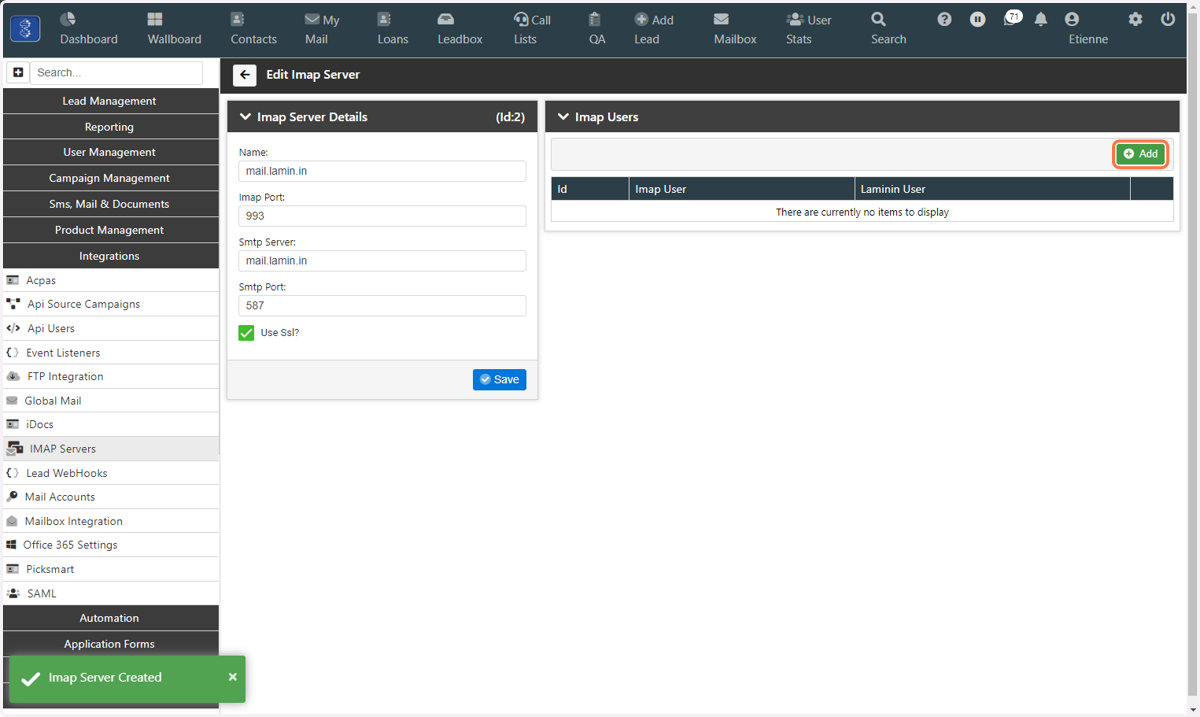
11. Next we can start to add IMAP email accounts and assign these email accounts to Laminin users
12. Under IMAP Users, click on "Add"
13. Enter the email address you want to manage through Laminin
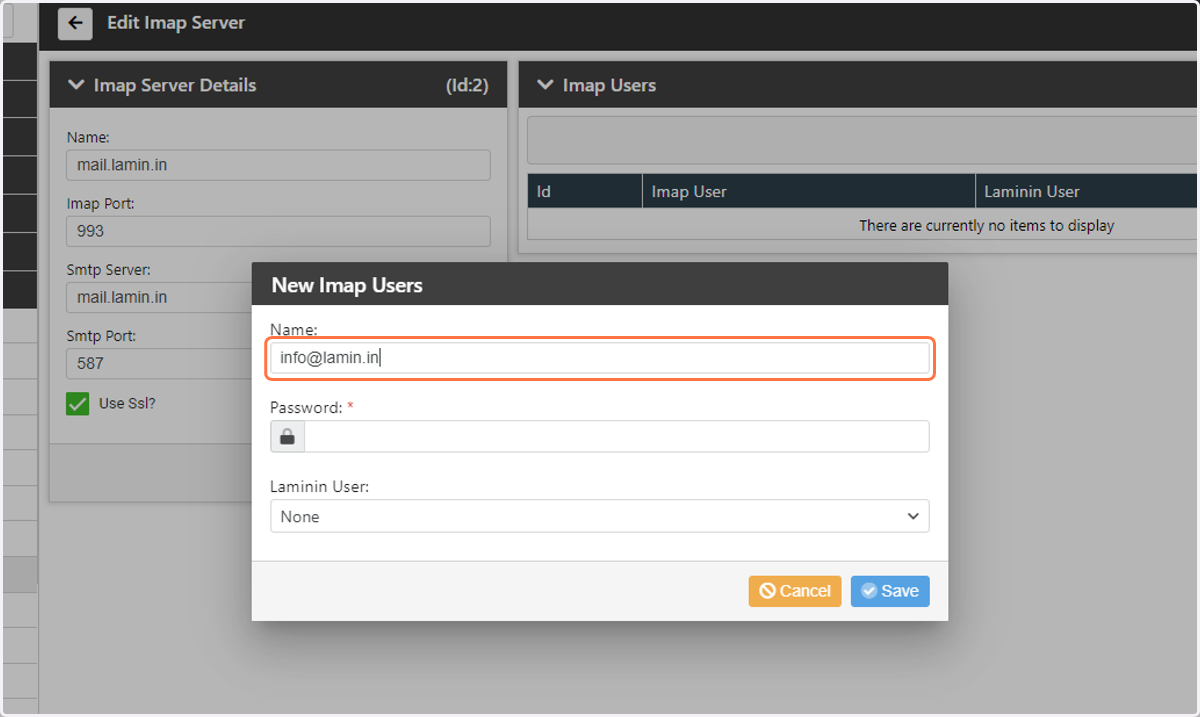
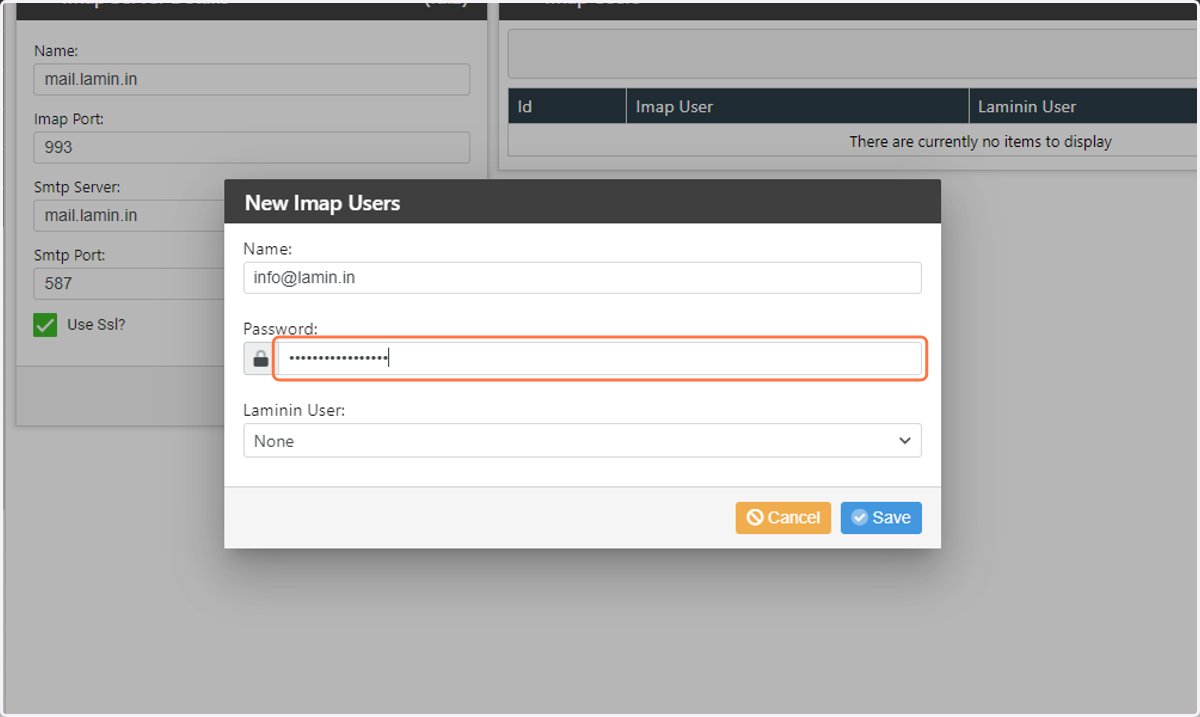
14. Enter the email address password
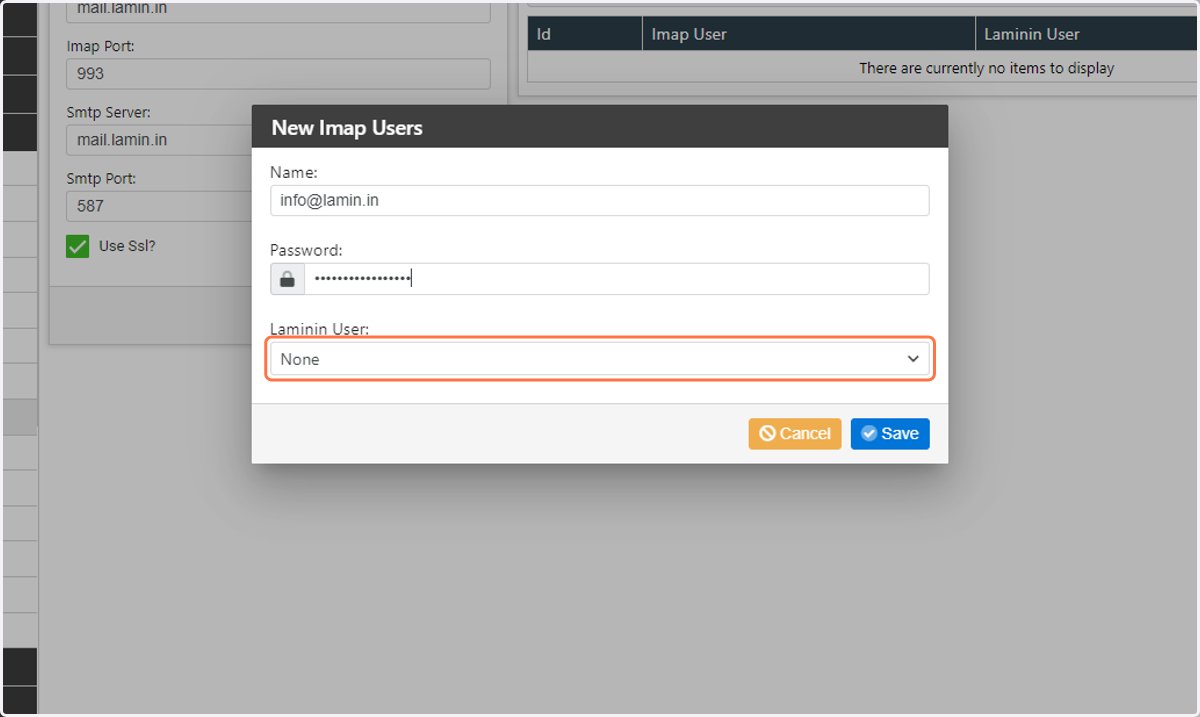
15. Click on the "Laminin User" dropdown
16. Select the user that this IMAP email address will be associated with
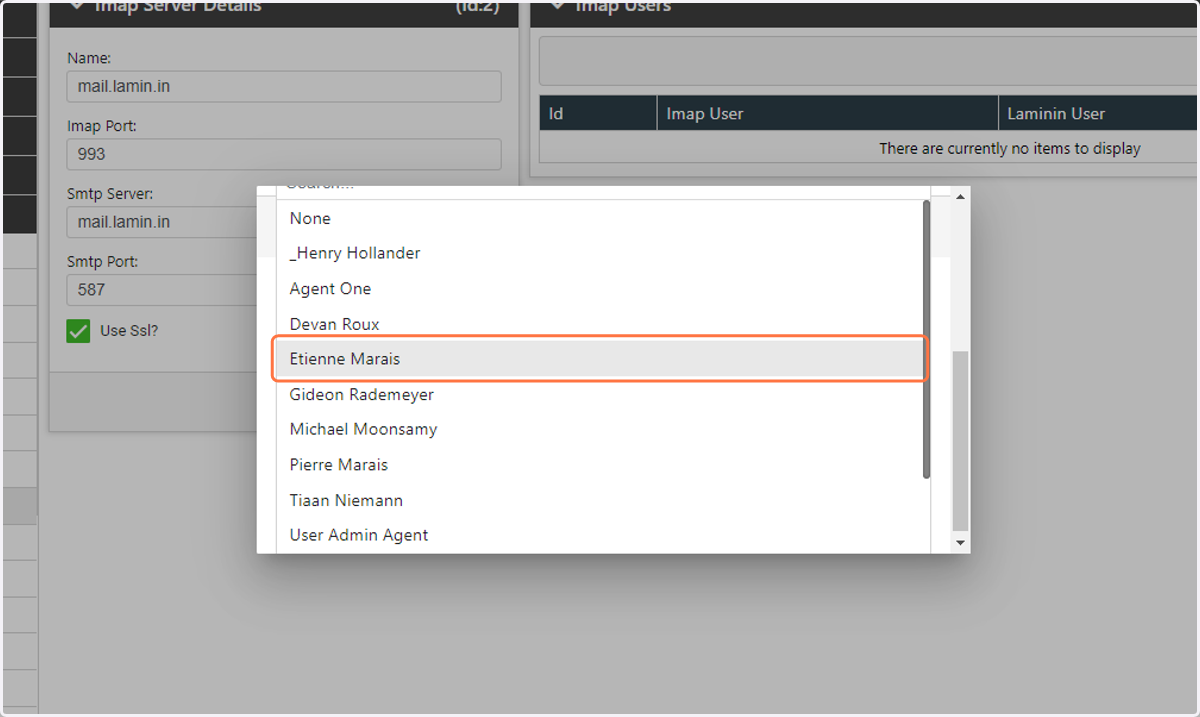
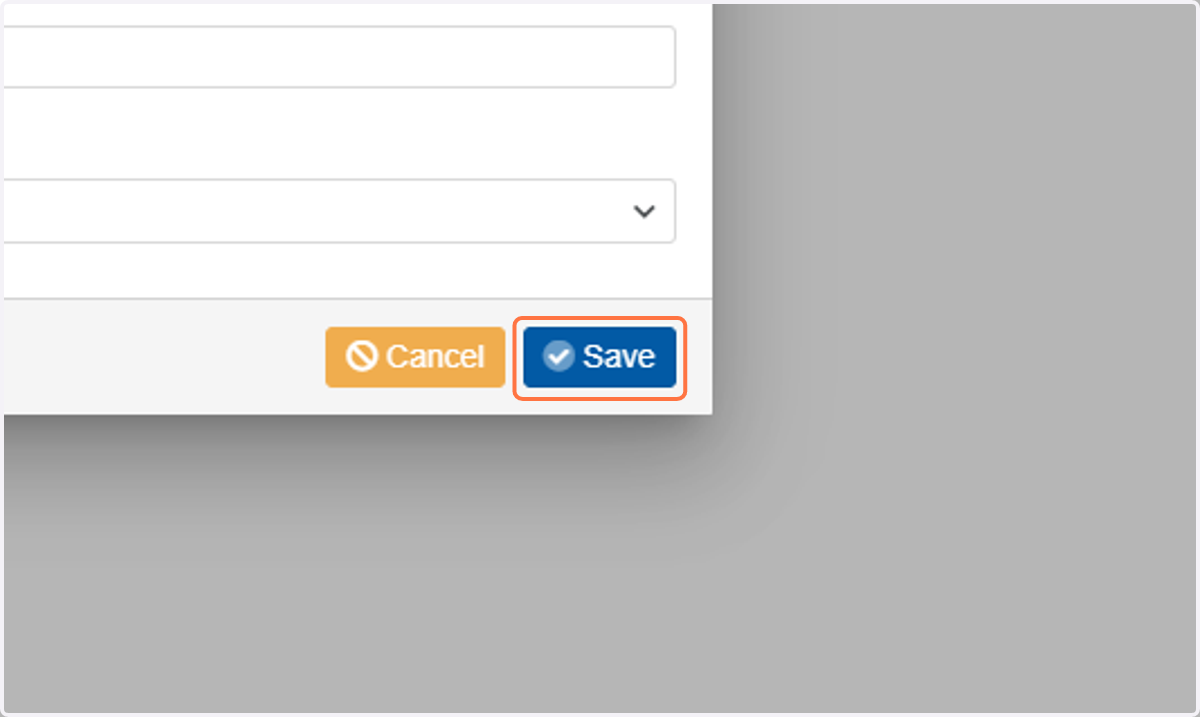
17. Click on "Save" to complete the setup
18. Lastly we will configure the Laminin user to access their email account through Laminin
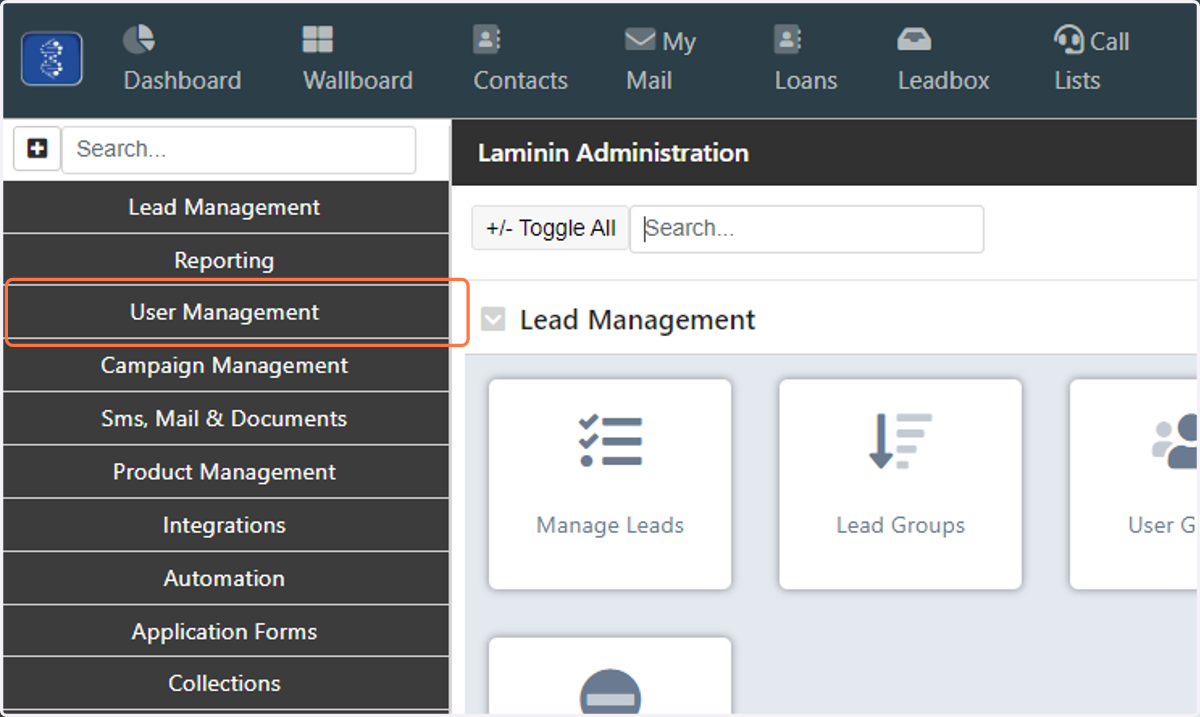
19. Click on "User Management" in the left menu
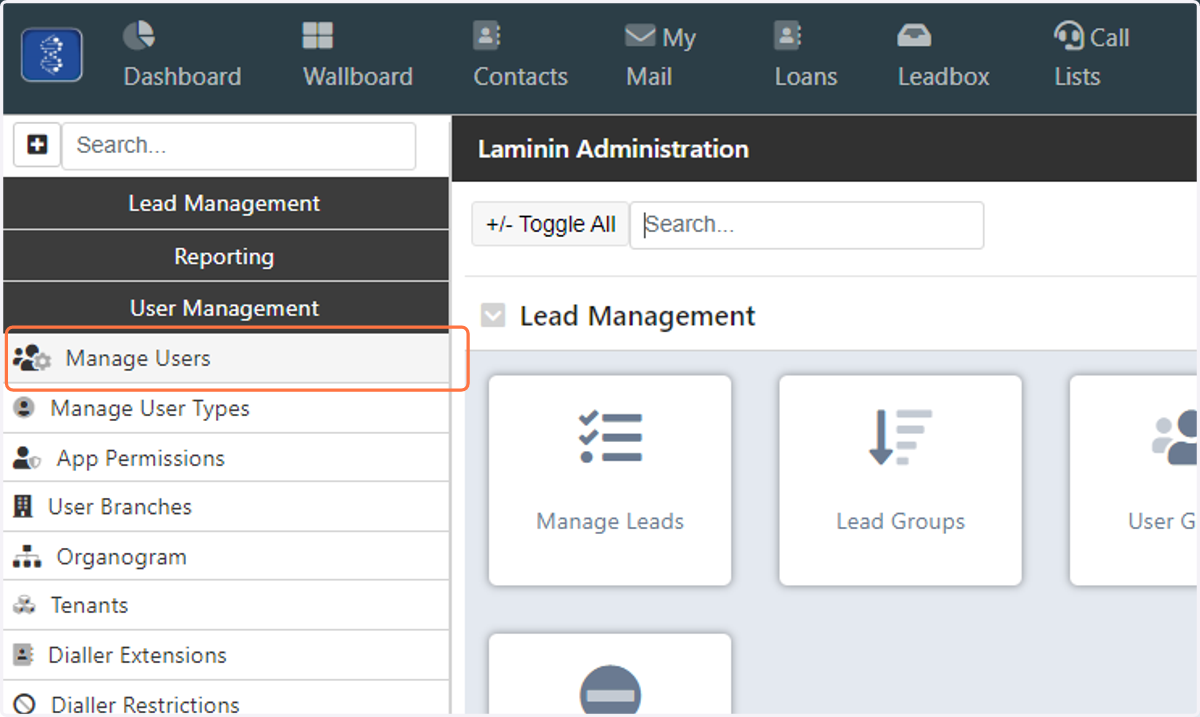
20. Under "User Management" click on "Manage Users"
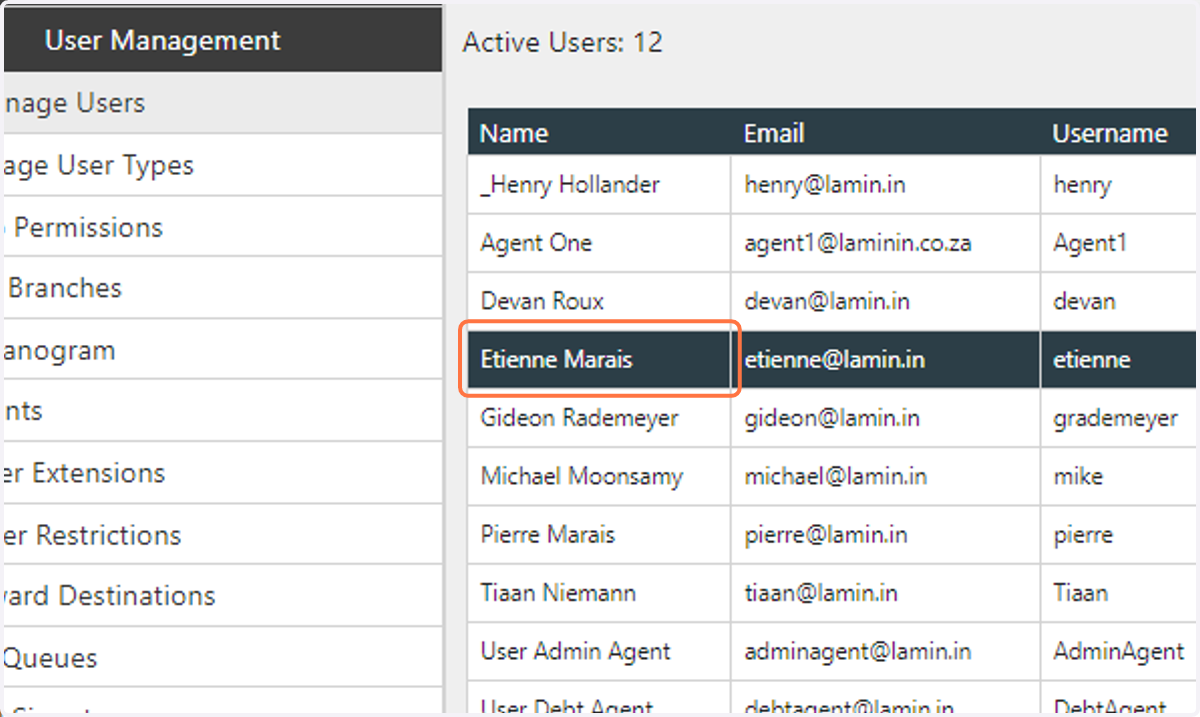
21. Select the user that you want to assign the IMAP email account to
22. Check "Mail Integration Enabled?"
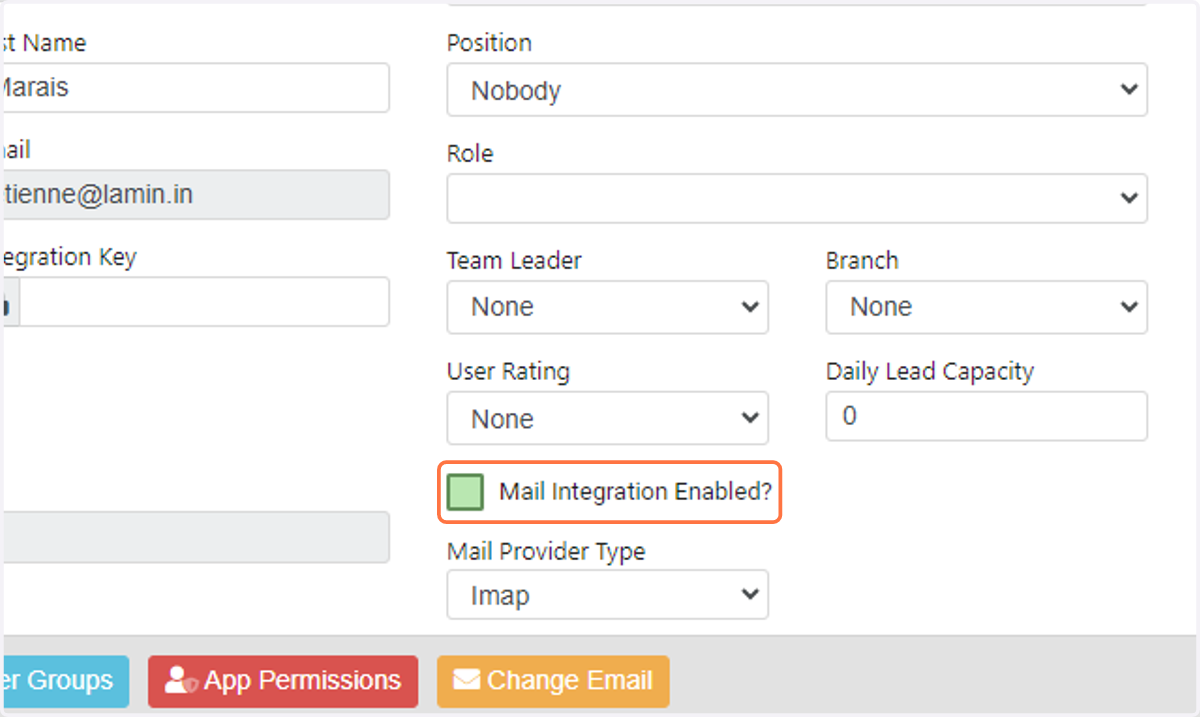
23. Click on the "Mail Provider Type" dropdown
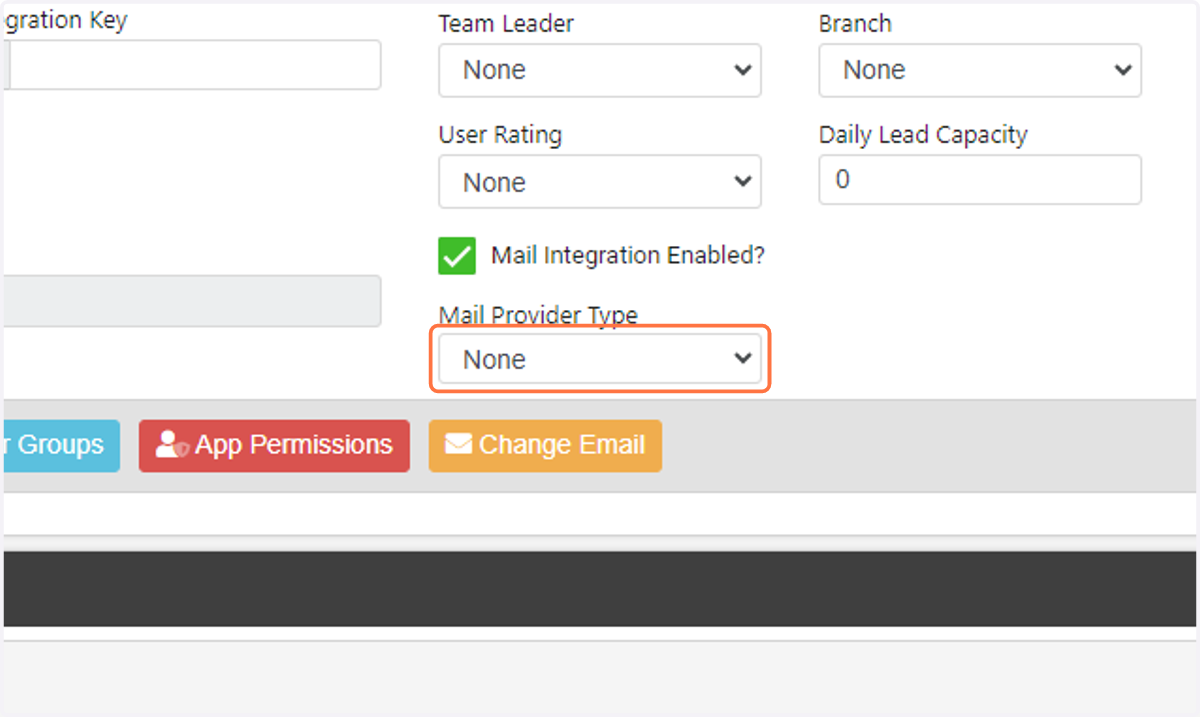
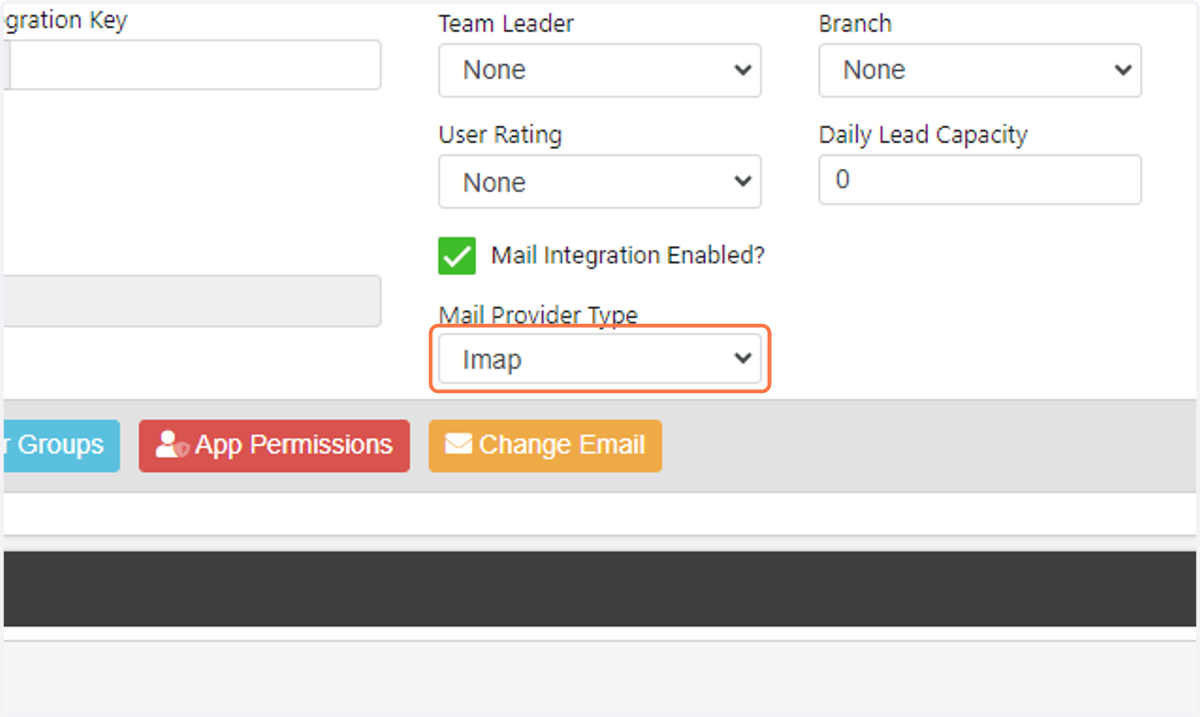
24. In the "Mail Provider Type" dropdown select "IMAP"
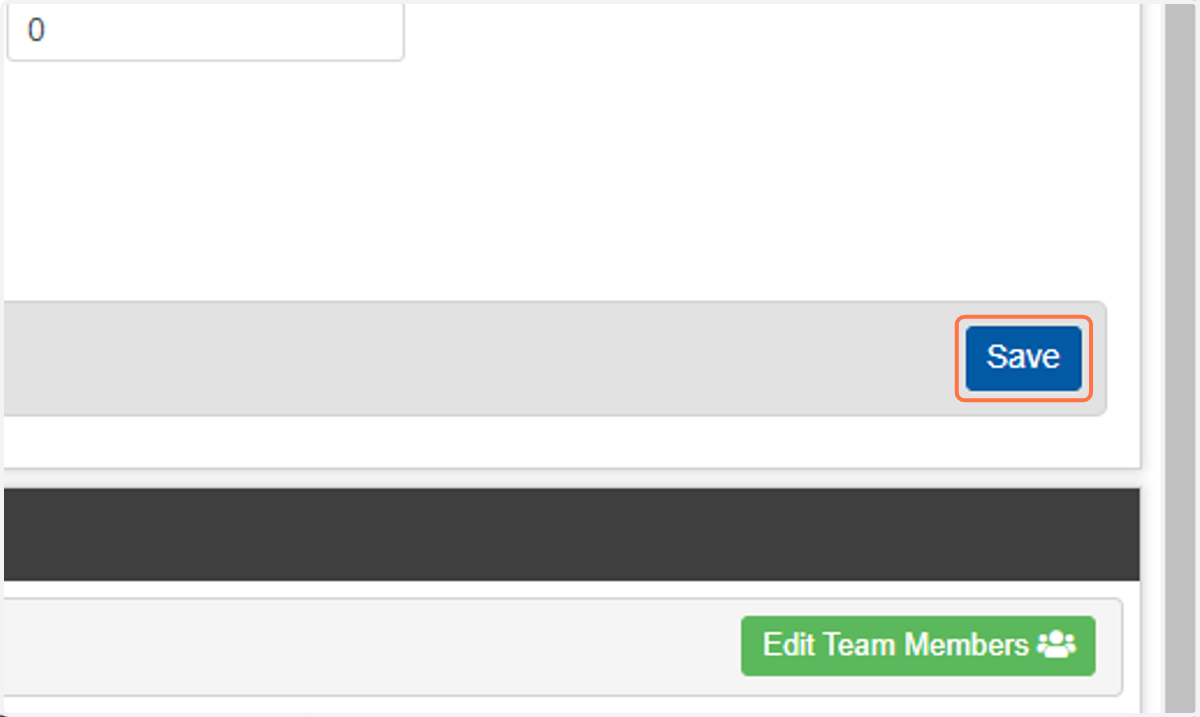
25. Click on Save
26. With the email account configured and assigned to a user, the user is now able to access their email through My Mail
27. In the top menu click on "My Mail"
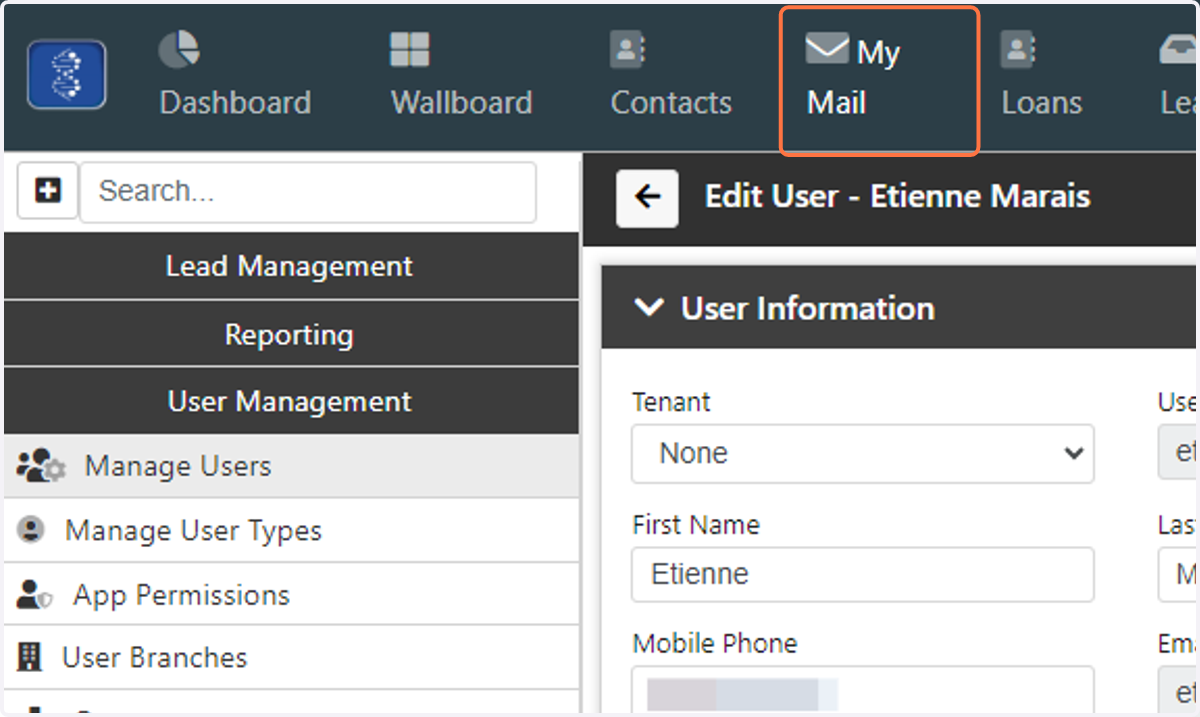
28. The user can now manage their IMAP email through Laminin