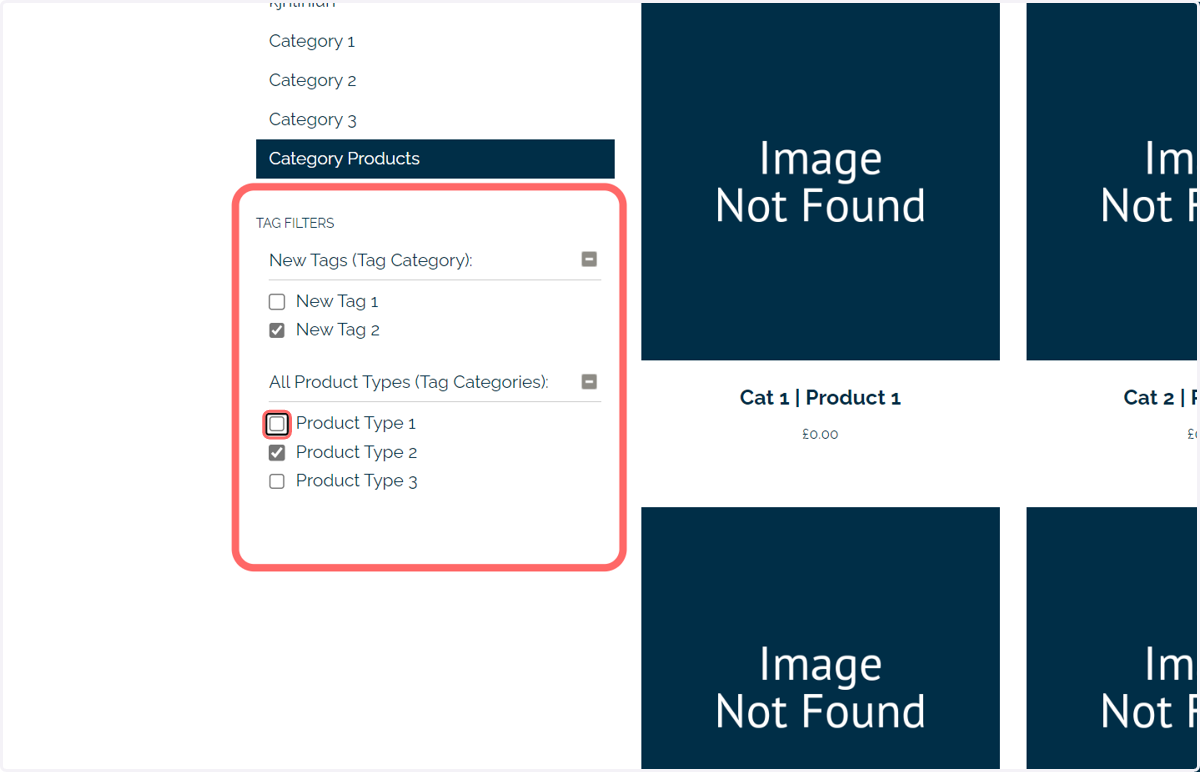
Tag Category Search
GT_PR_011
Infigo gives you the ability to apply a tag search to your categories, allowing your users to view all of the products within a particular category then filter the results to find exactly what they need.
This action is undertaken using a range of Tag features available within Infigo, namely:
Product Tags - Individual tags that are applied to products. Multiple tags can be applied to a single product, whilst multiple products can be given a single tag.
Tag Categories - A grouping of tags, such as "pens" and "notebooks" and "mugs" tags being grouped within the "Office supplies" tag category.
Tag Category Search Sets - The ability to group multiple tag categories within a single search. These search sets can be applied to a regular product category, meaning you can filter between its contained tag categories.
Infigosoftware
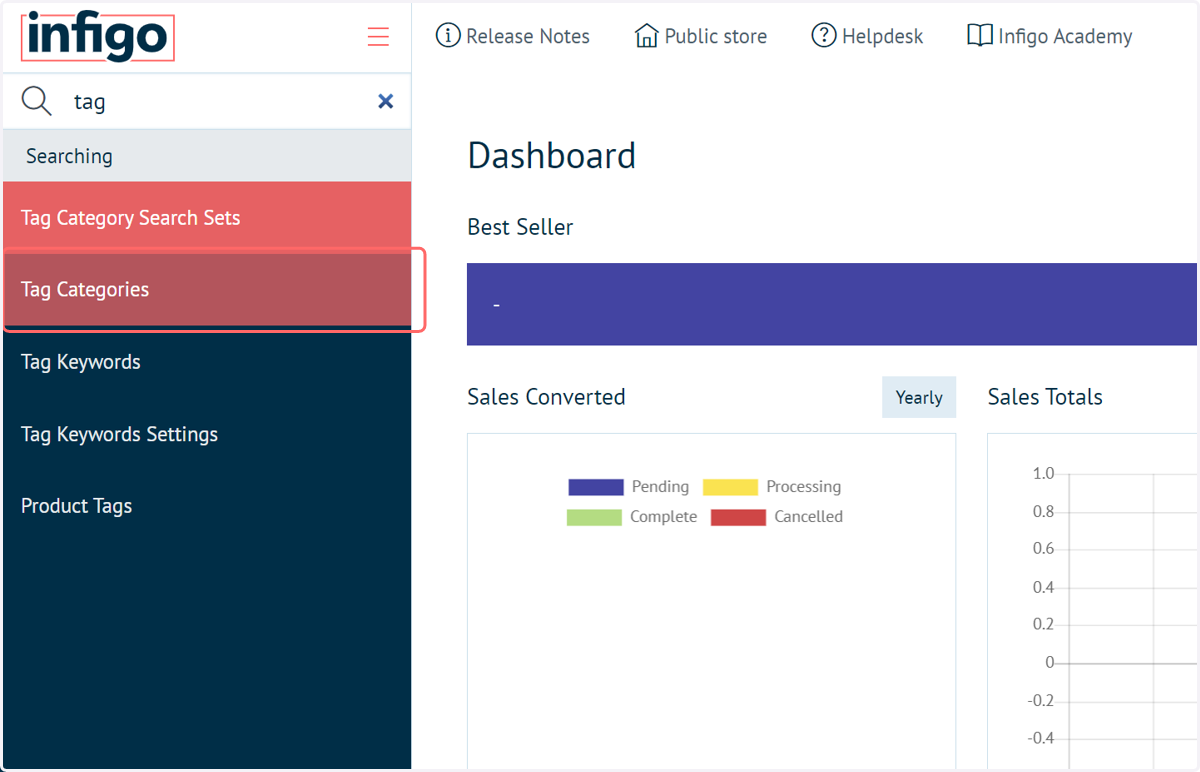
1. Navigate to Tag Categories
To begin, we will create some Tag Categories.
Tag Categories - A grouping of tags, such as "pens" and "notebooks" and "mugs" tags being grouped within the "Office supplies" tag category.
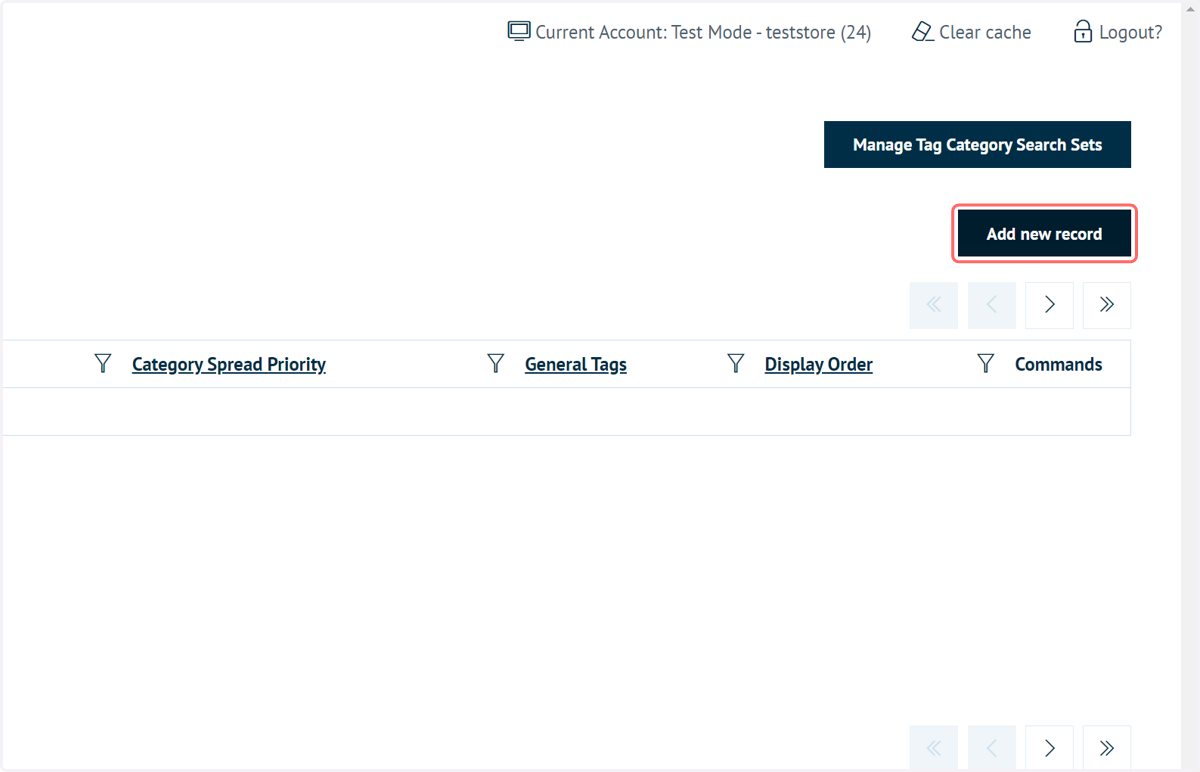
2. Click on Add new record
This creates a new tag category.
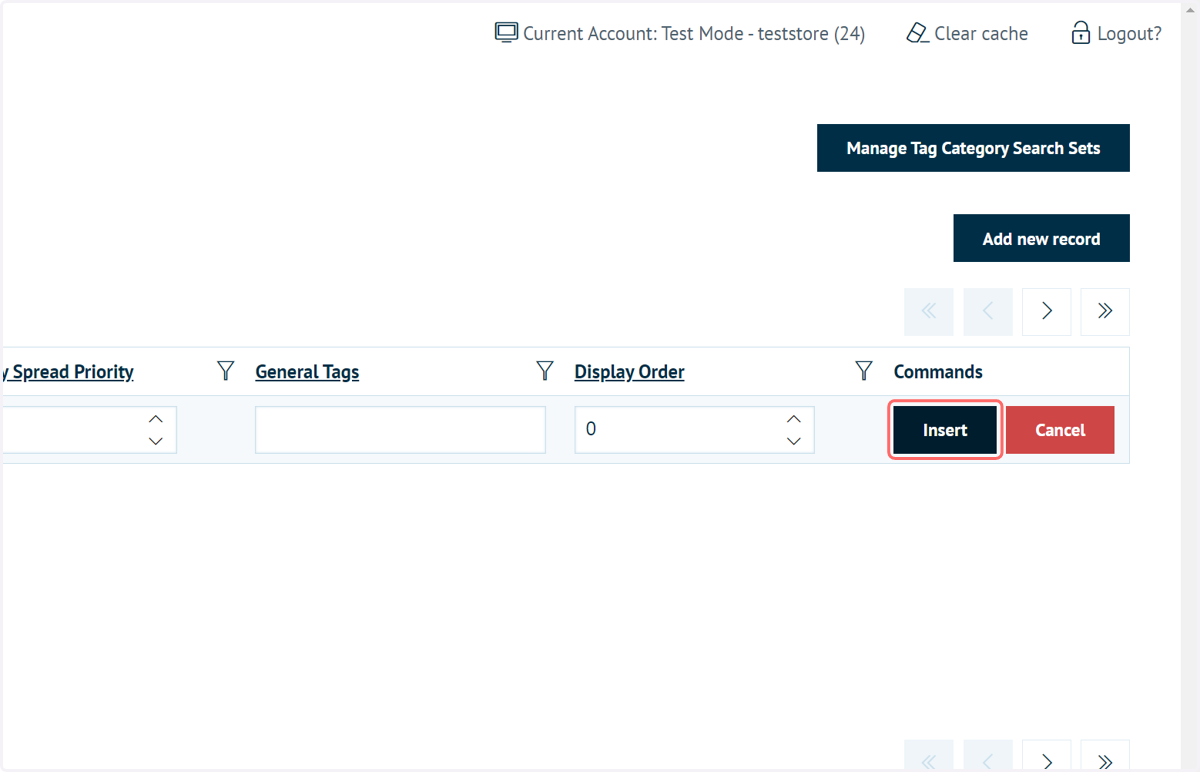
3. Enter category information and click on Insert
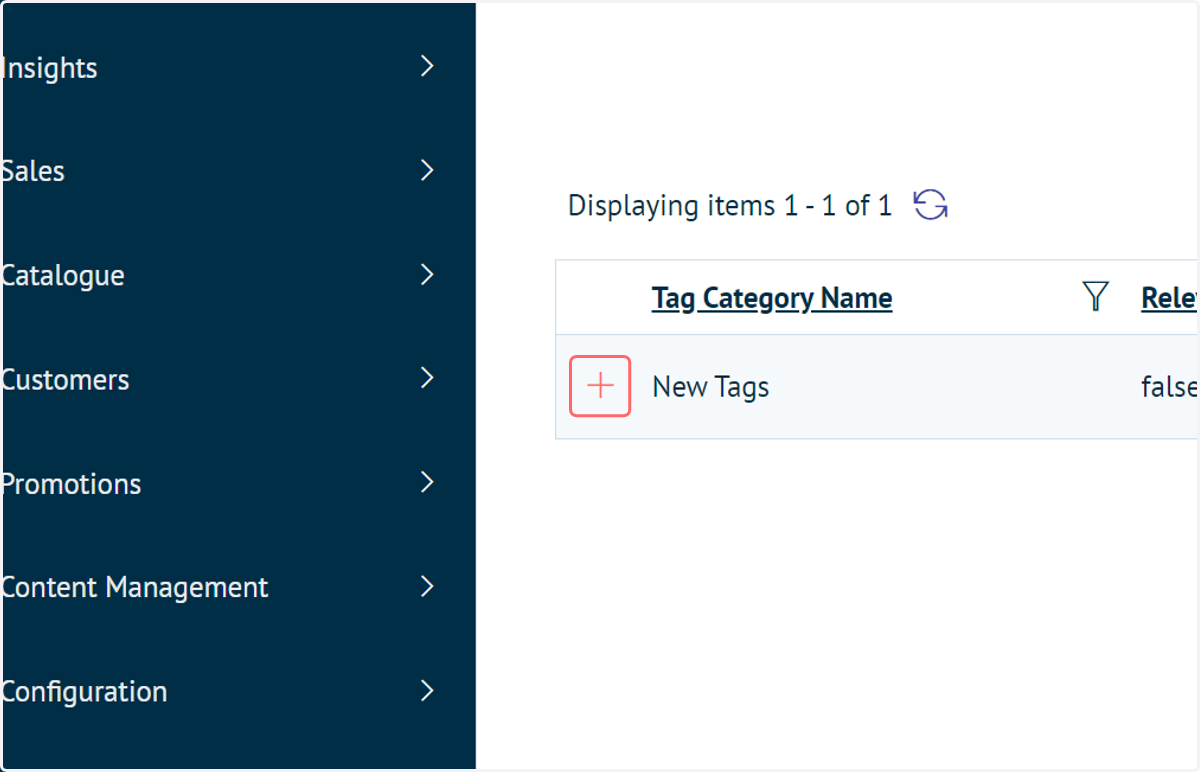
4. Click on highlight to expand the contents of the Tag Category
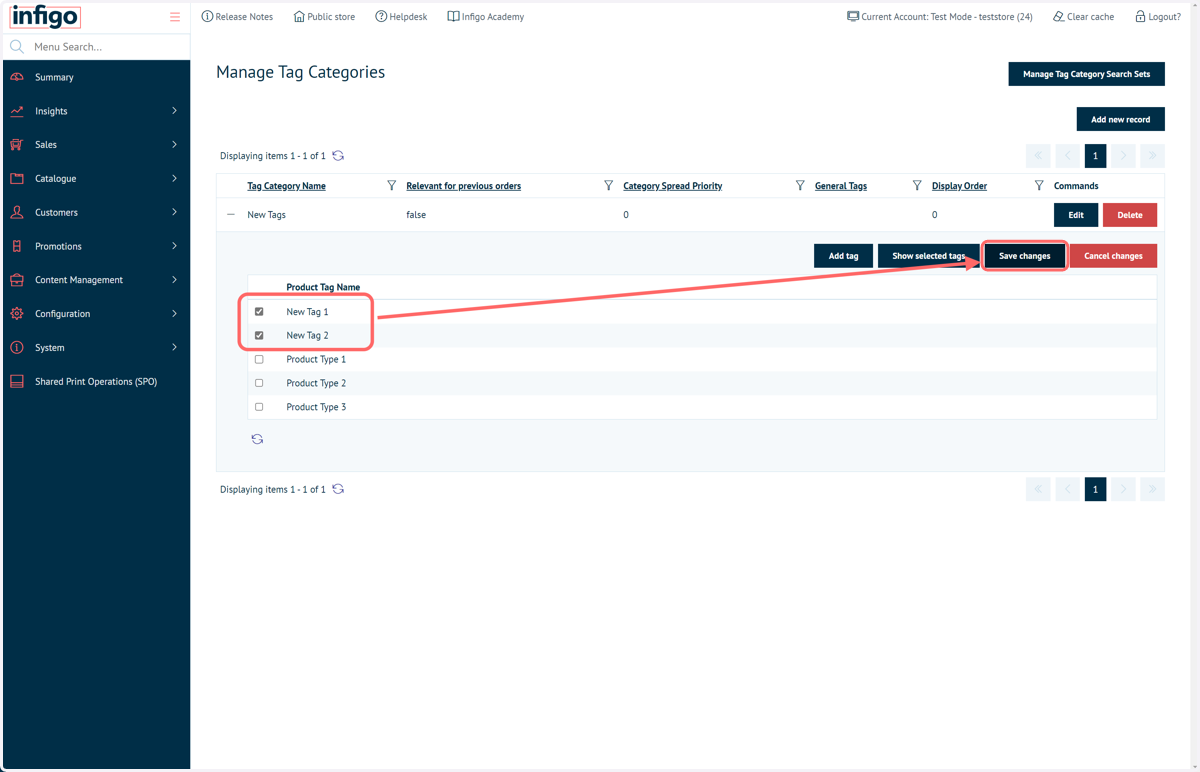
5. Select the tags to include in this category, then click Save Changes
6. Tag Categories
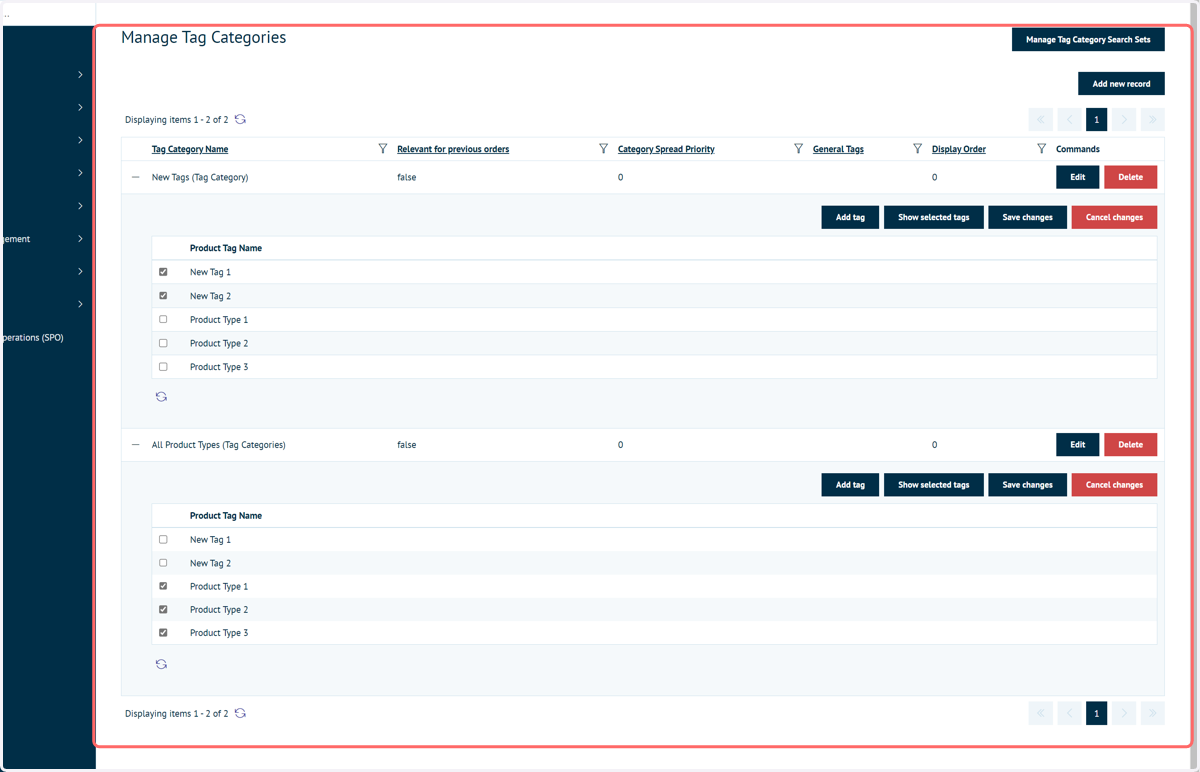
In this example, we have created two Tag Categories.
One category contains "New" tags, and the other contains "Product Type" tags.
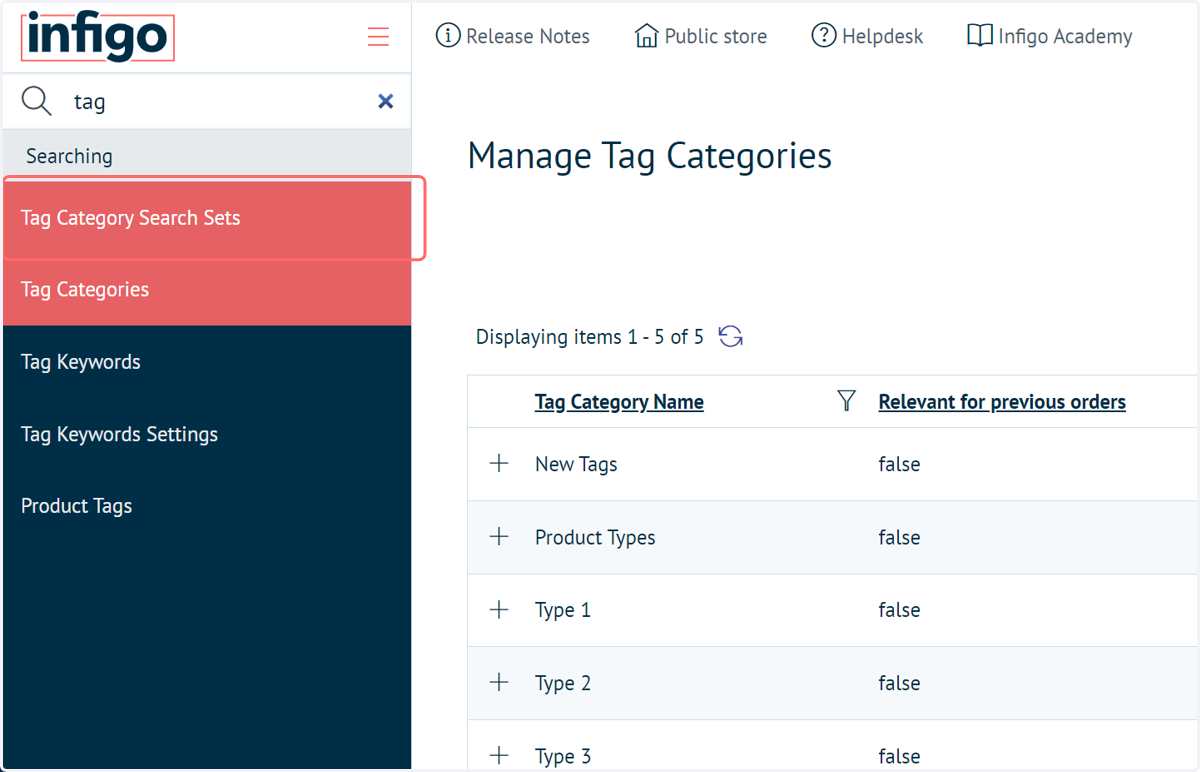
7. Navigate to Tag Category Search Sets
Next we will create Tag Category Search Sets
Tag Category Search Sets - The ability to group multiple tag categories within a single search. These search sets can be applied to a regular product category, meaning you can filter between its contained tag categories.
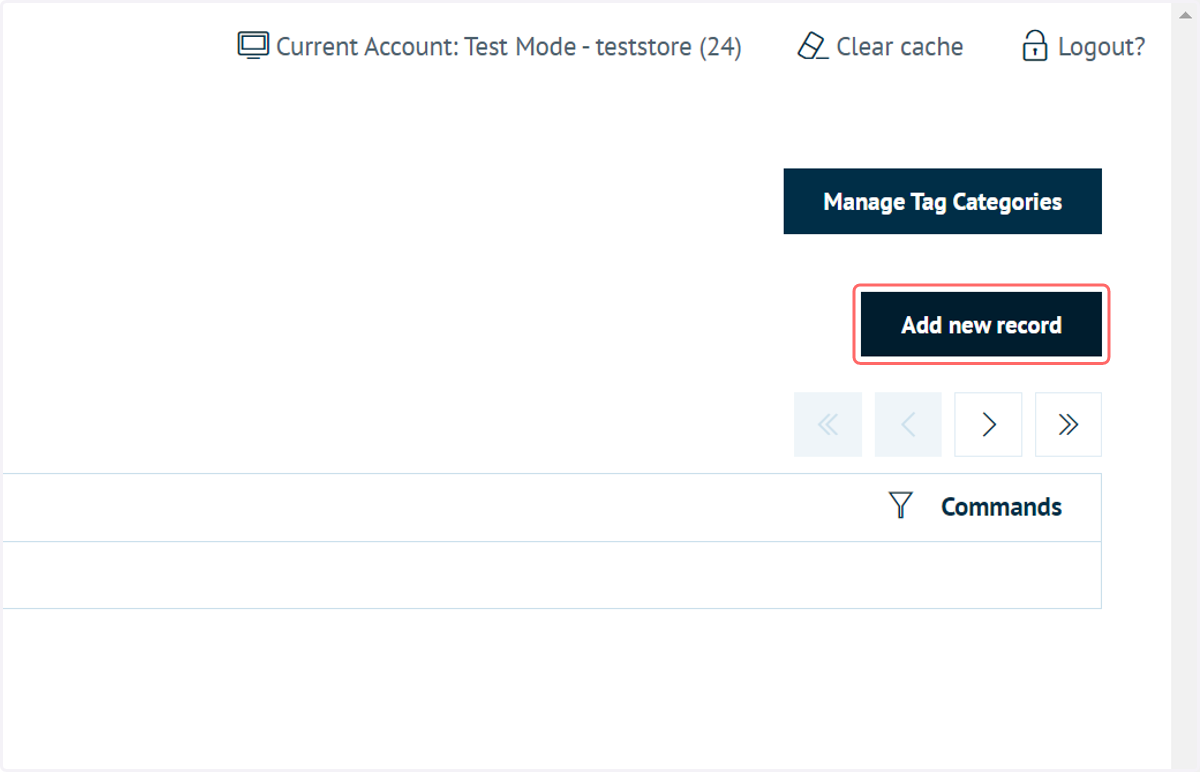
8. Click on Add new record
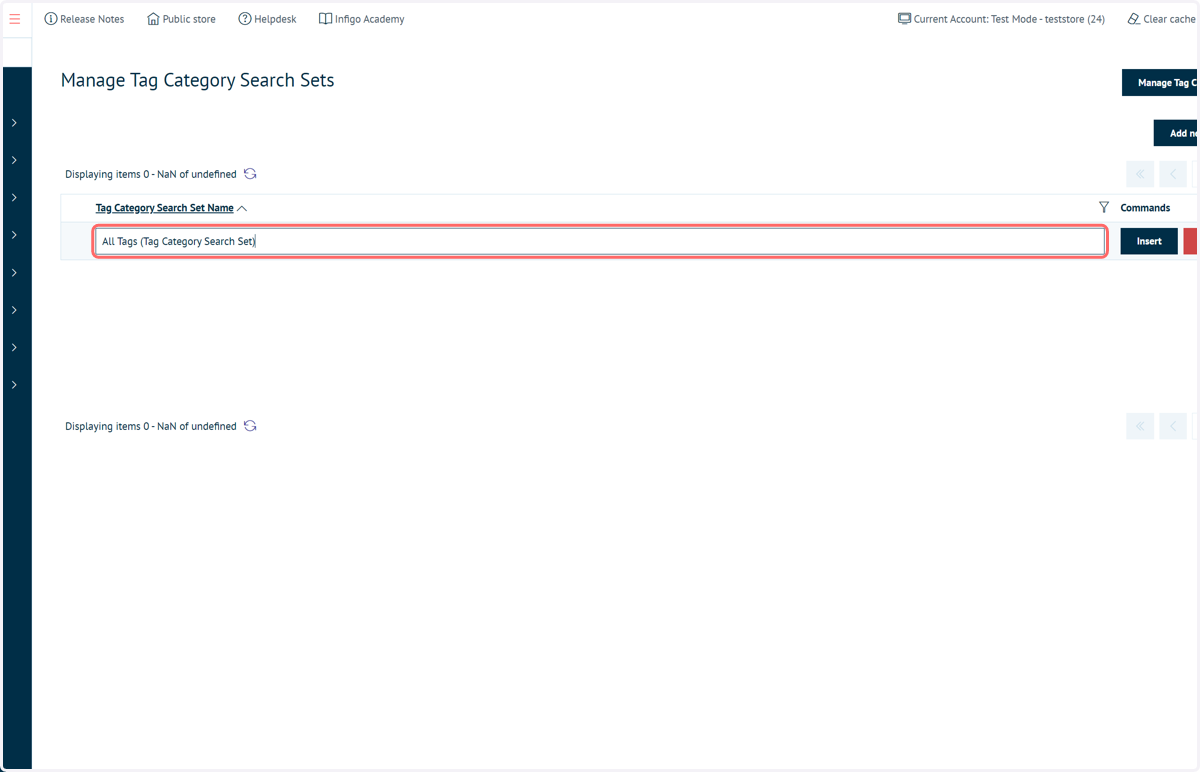
9. Type a Tag Category Search Set name
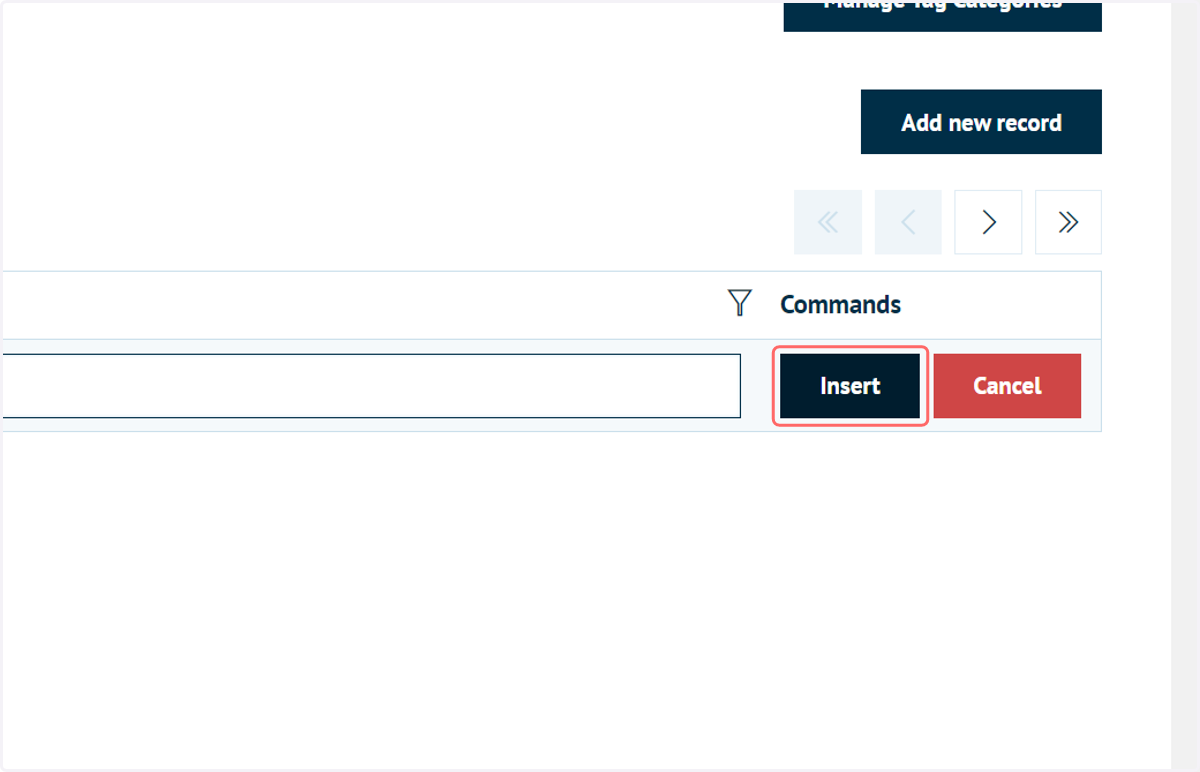
10. Click on Insert
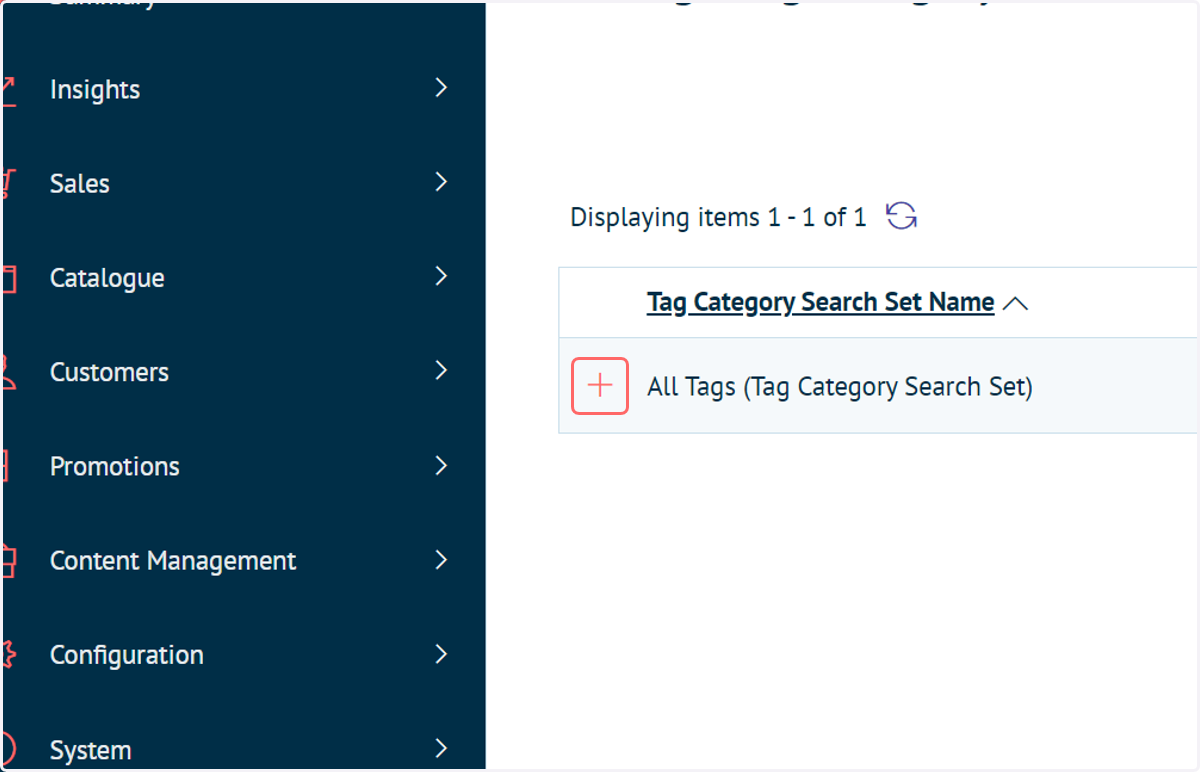
11. Click the '+' icon to add content to the Tag Category Search Set
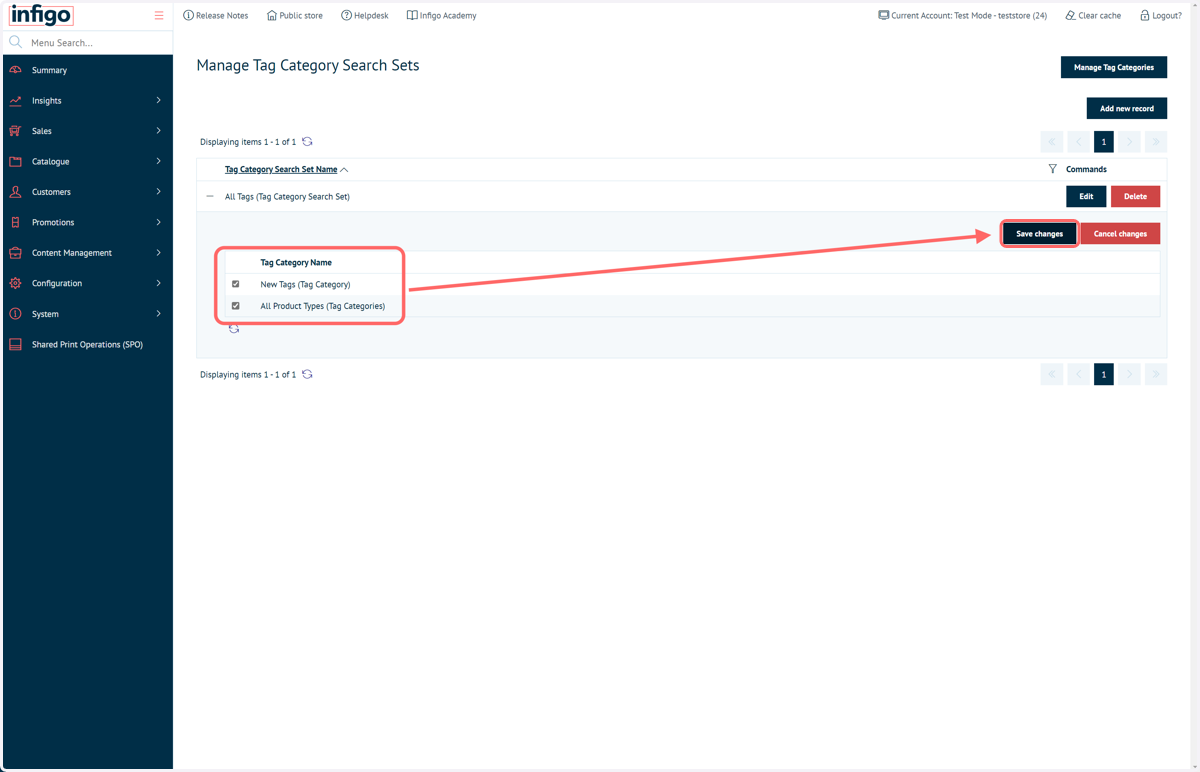
12. Check the Tag Categories to use and click Save Changes
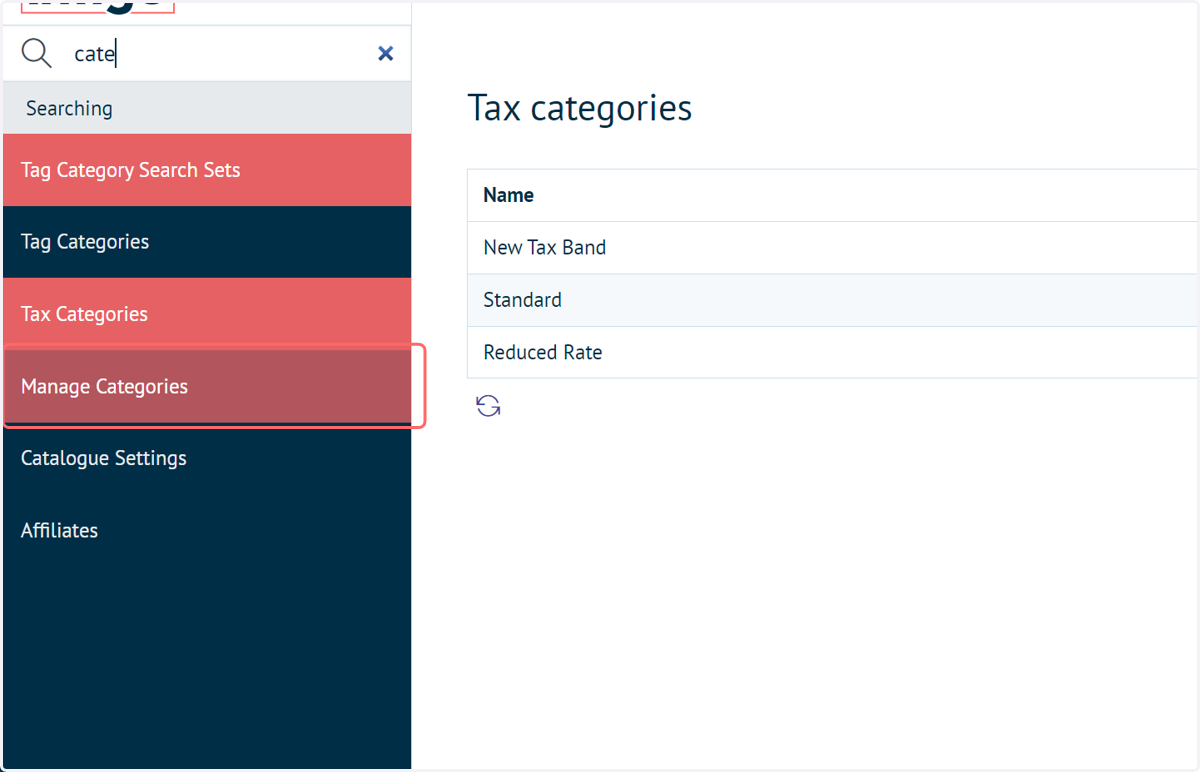
13. Navigate to Manage Categories and edit a category
Next, we must assign a Tag Category Search Set to the categories we wish to permit filtering by tag.
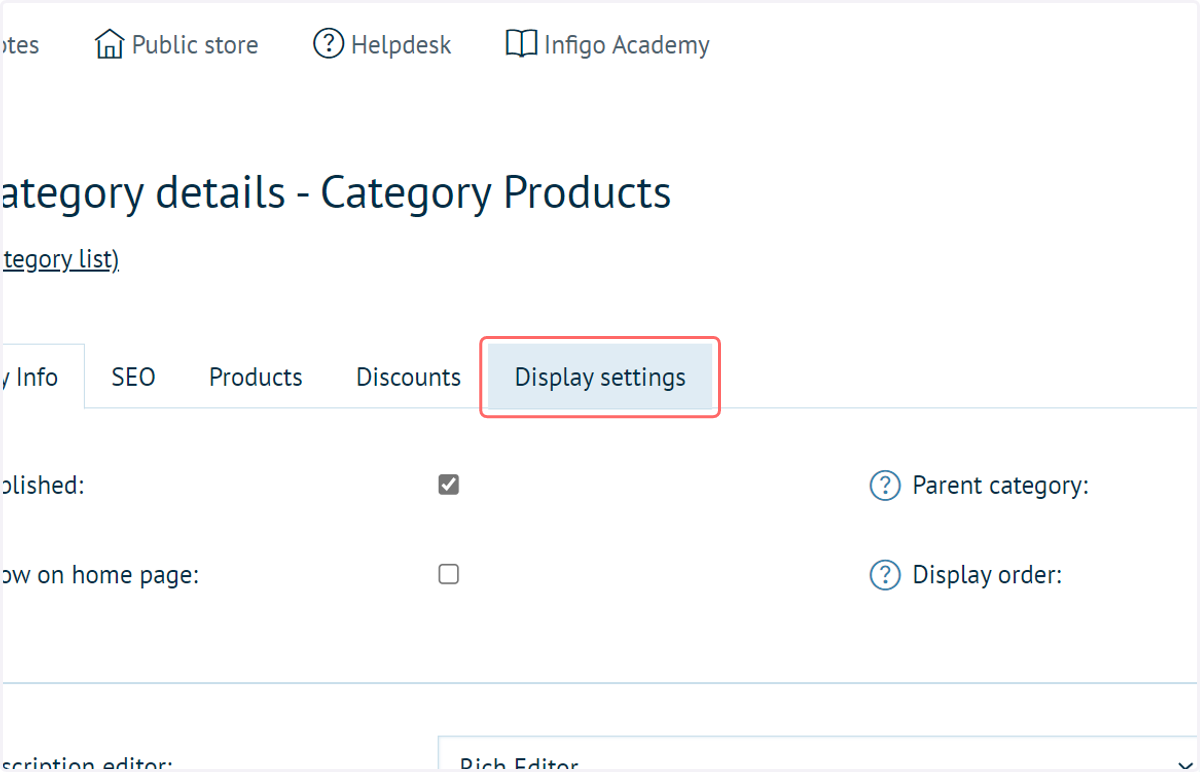
14. Click on Display settings within the Category settings
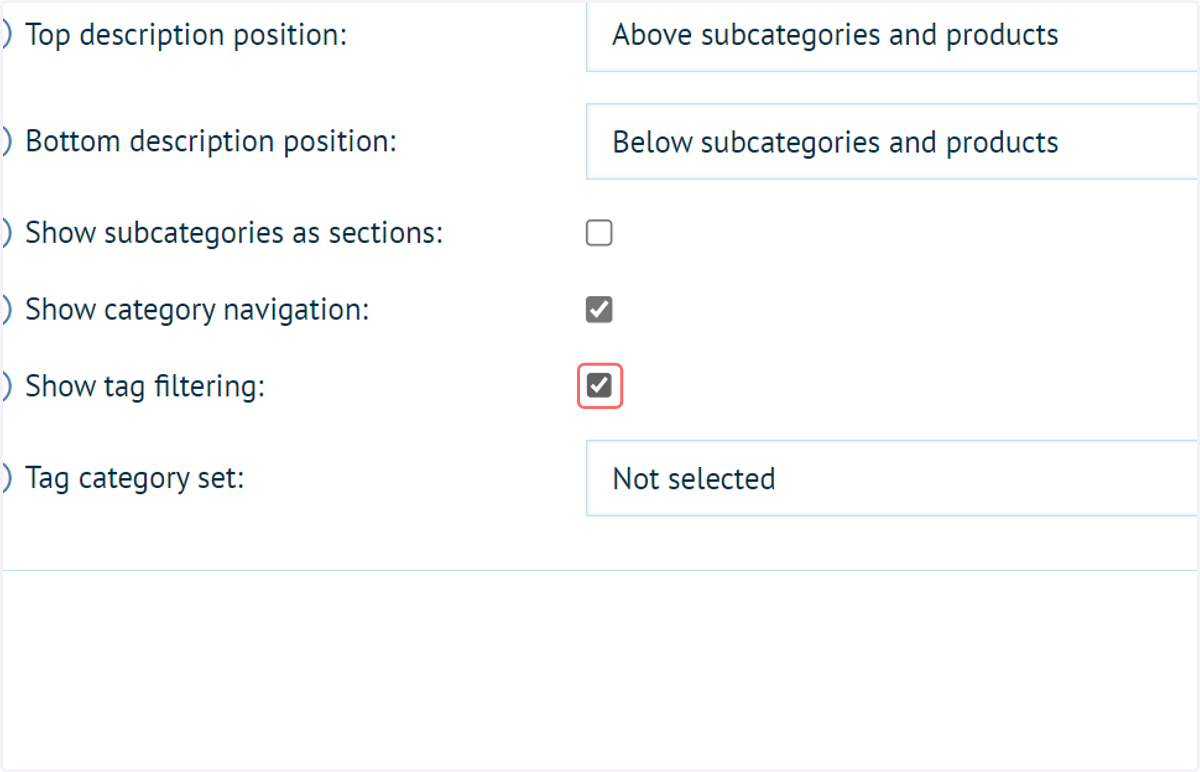
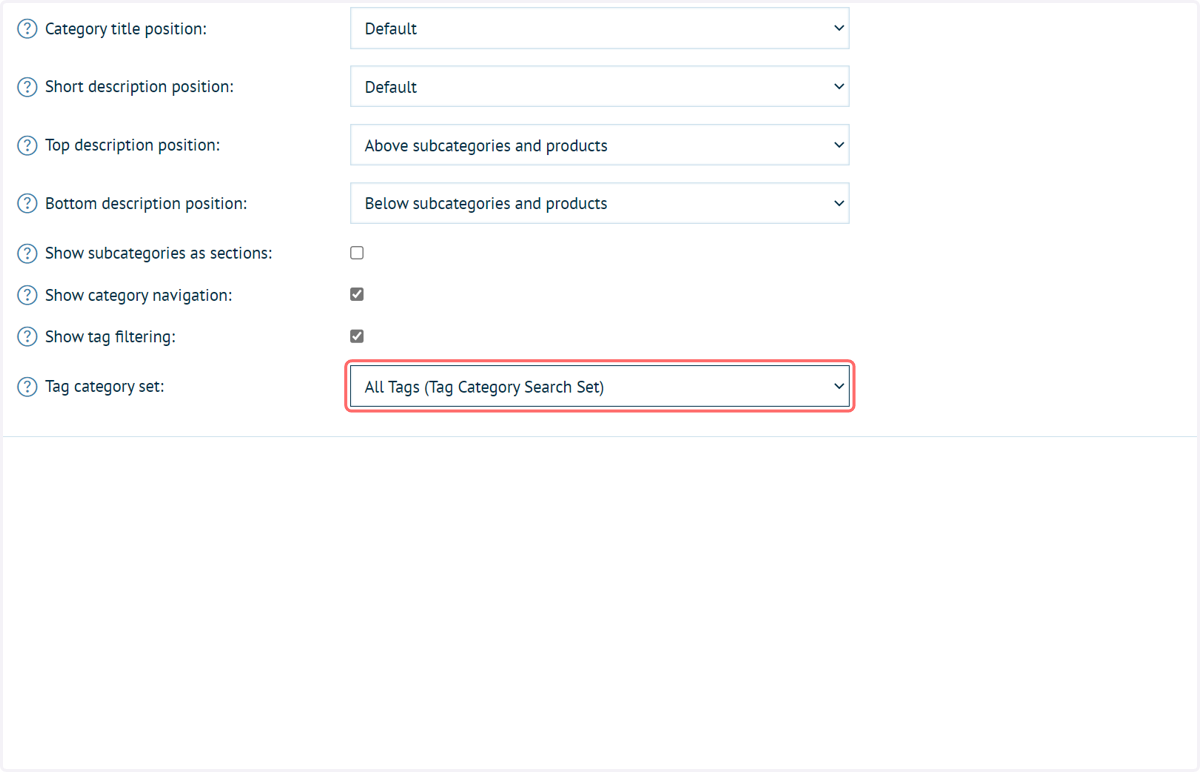
15. Check Show tag filtering
This enables the tag filtering capability.
This functionality is set on each category individually.
16. Select a Tag Category Search Set from Tag category set
This means all Tag Categories contained within that Tag Category Search Set will be available for filtering within this main Category.
17. Click on Save and Continue Edit
18. Click on View category page
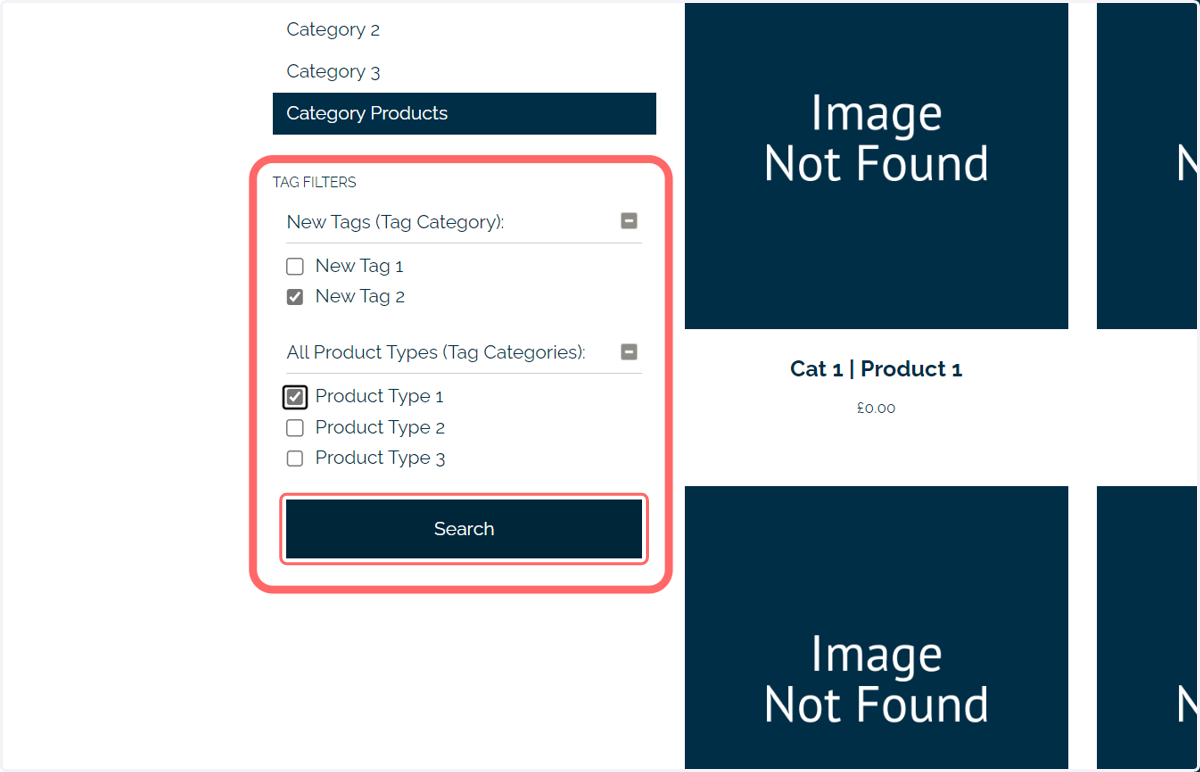
19. Tag filtering is now available, where users can select the tags to view and hit Search
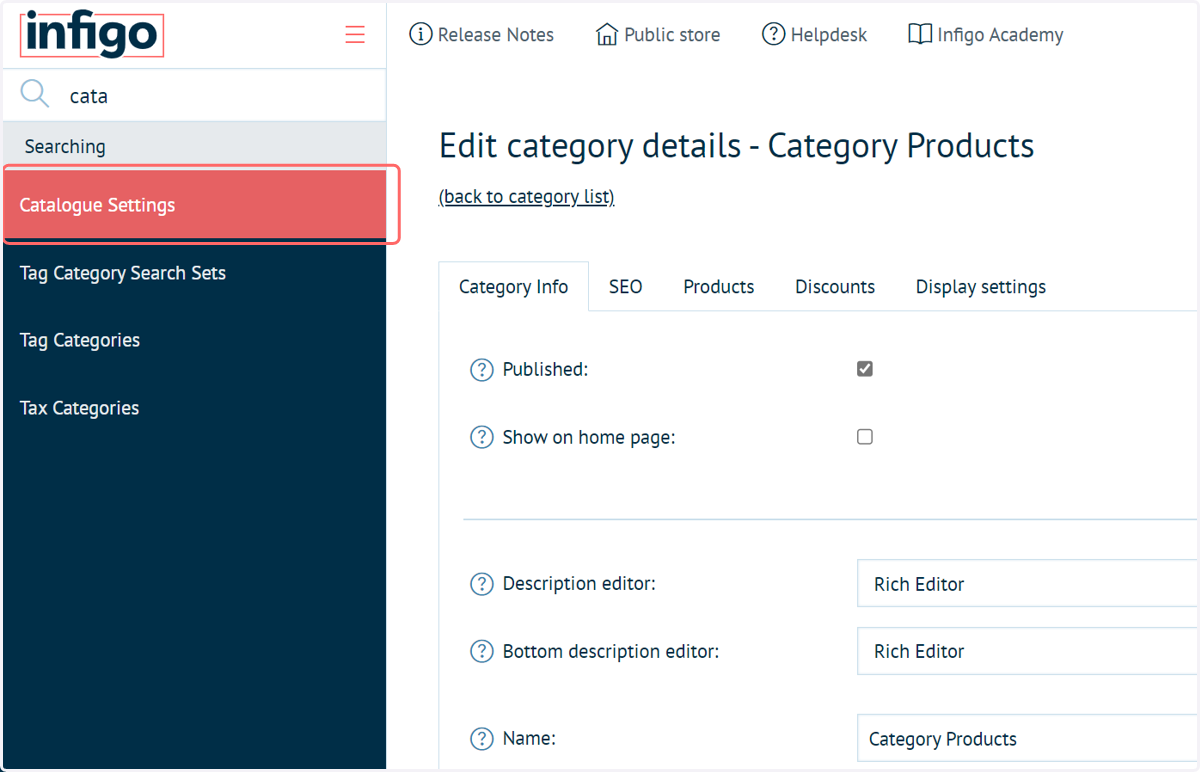
20. Navigate to the Catalogue Settings
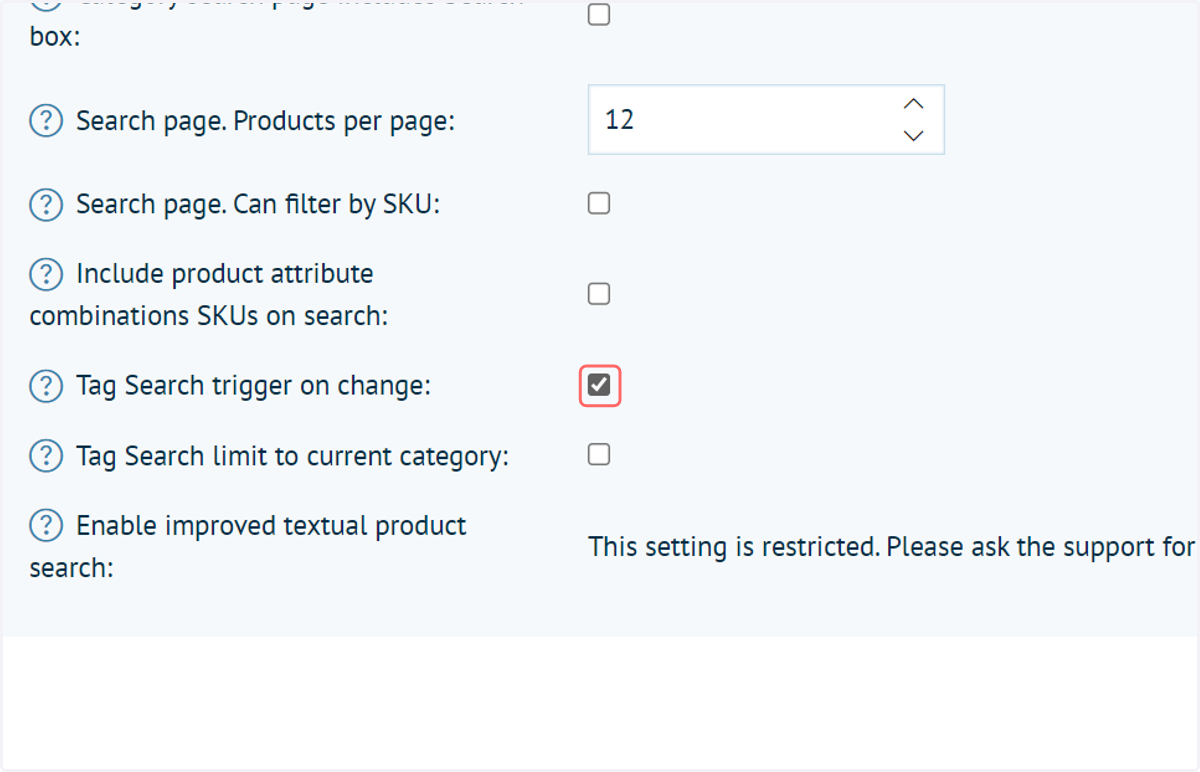
We can enable a setting allowing the update to be automatic when a new filter is clicked, rather than having to manually click the "Search" button.
Navigate to your Catalogue Settings
21. Check Tag Search trigger on change
22. Click on Save
23. Refresh your Category landing page to utilise the updated functionality