FLOW - Setting up a Business Rule for Roster Members (CP Companies)

Dynamics

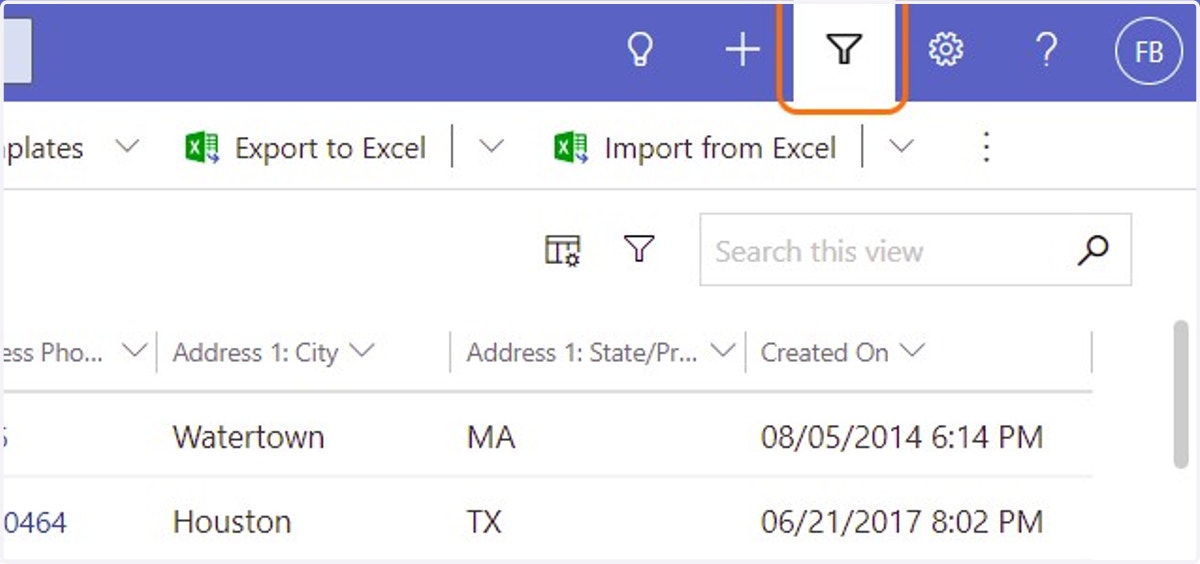
  1. 1. Click on Advanced Find

    Click on Advanced Find
  2. 2. Click on Roster Members from Look for:
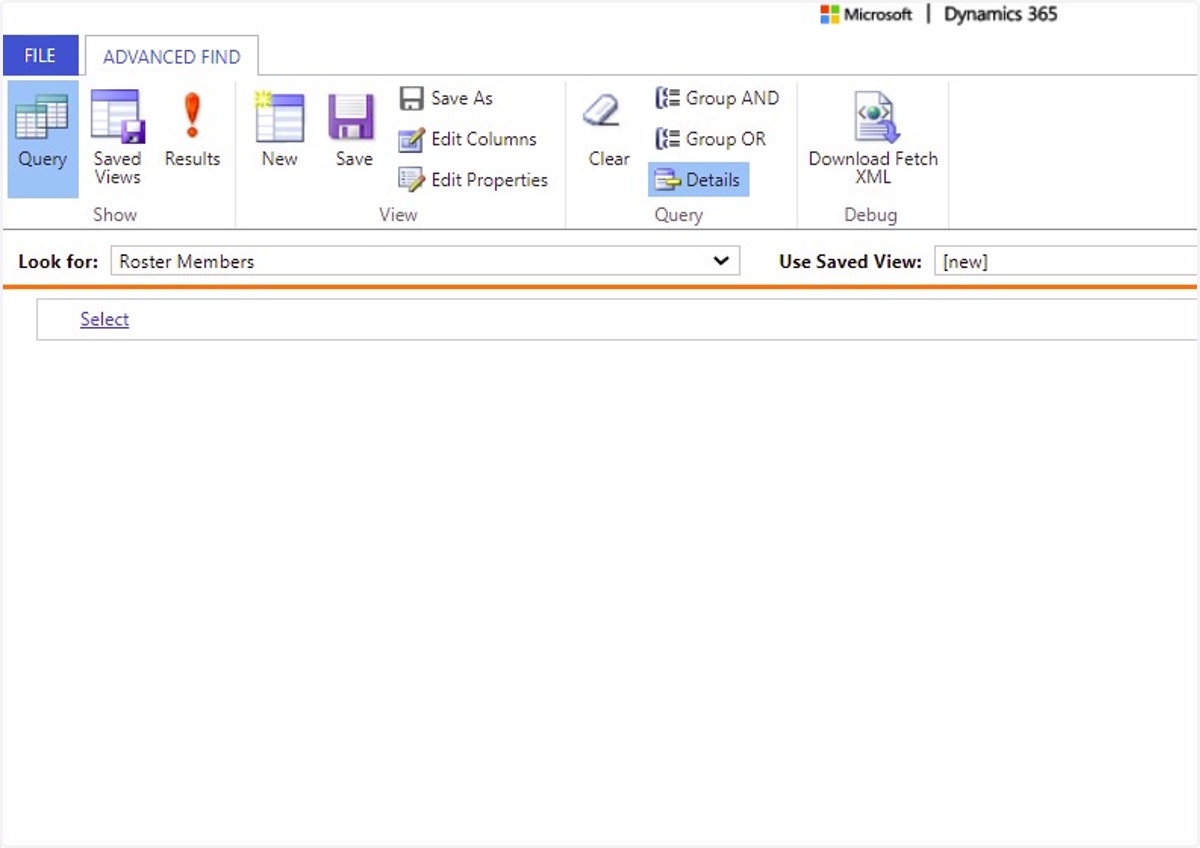
    Click on Roster Members from Look for:
  3. 3. Click on Roster Members - set default values using business rules from Use Saved View:
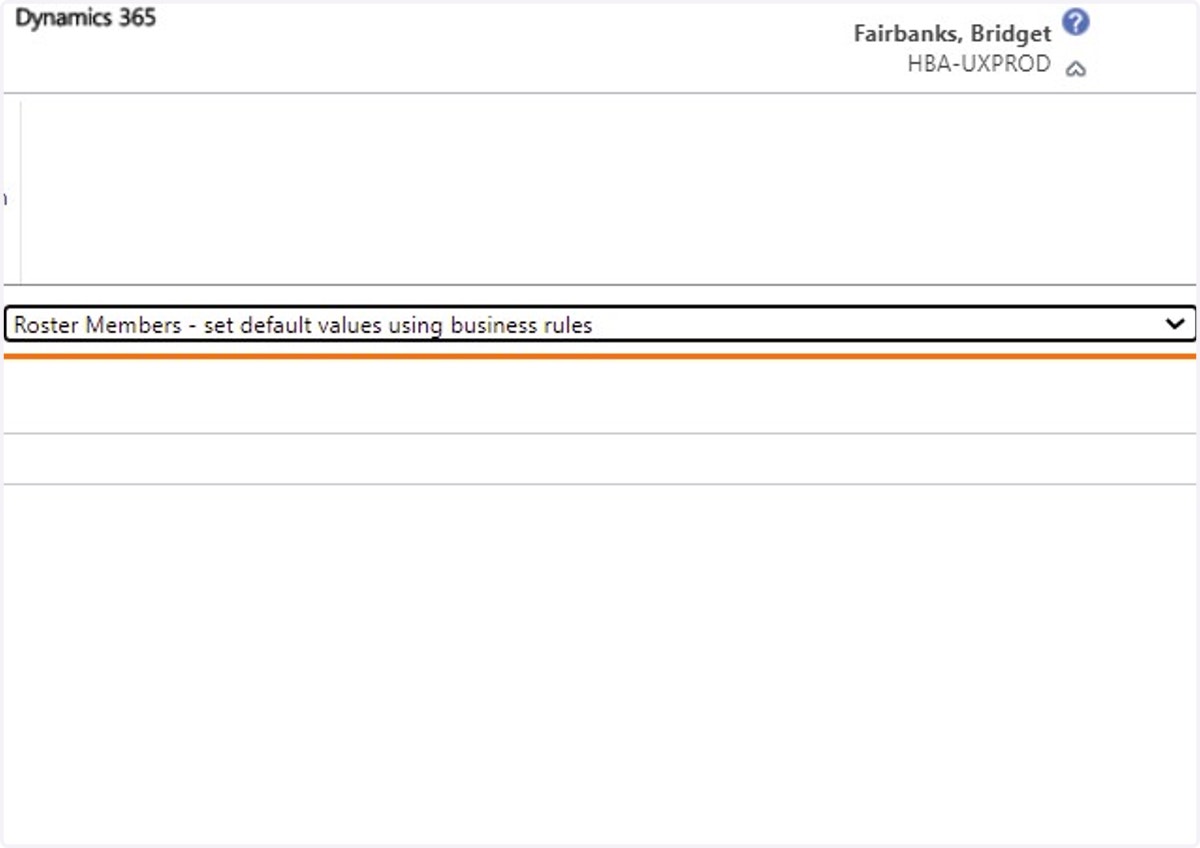
    Click on Roster Members - set default values using business rules from Use Saved View:
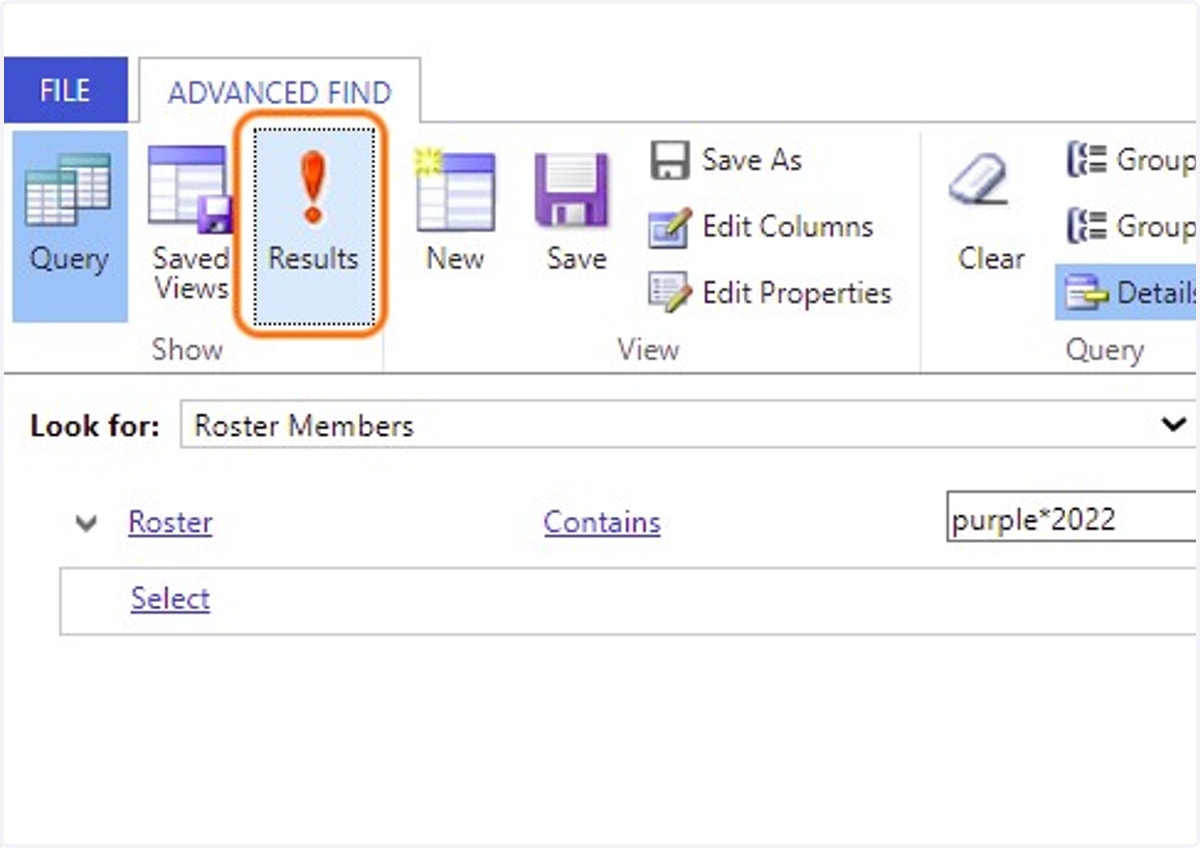
  4. 4. Change the "color" to the correct color of the CP company you want to pull values on. Example: Type "purple*2022"
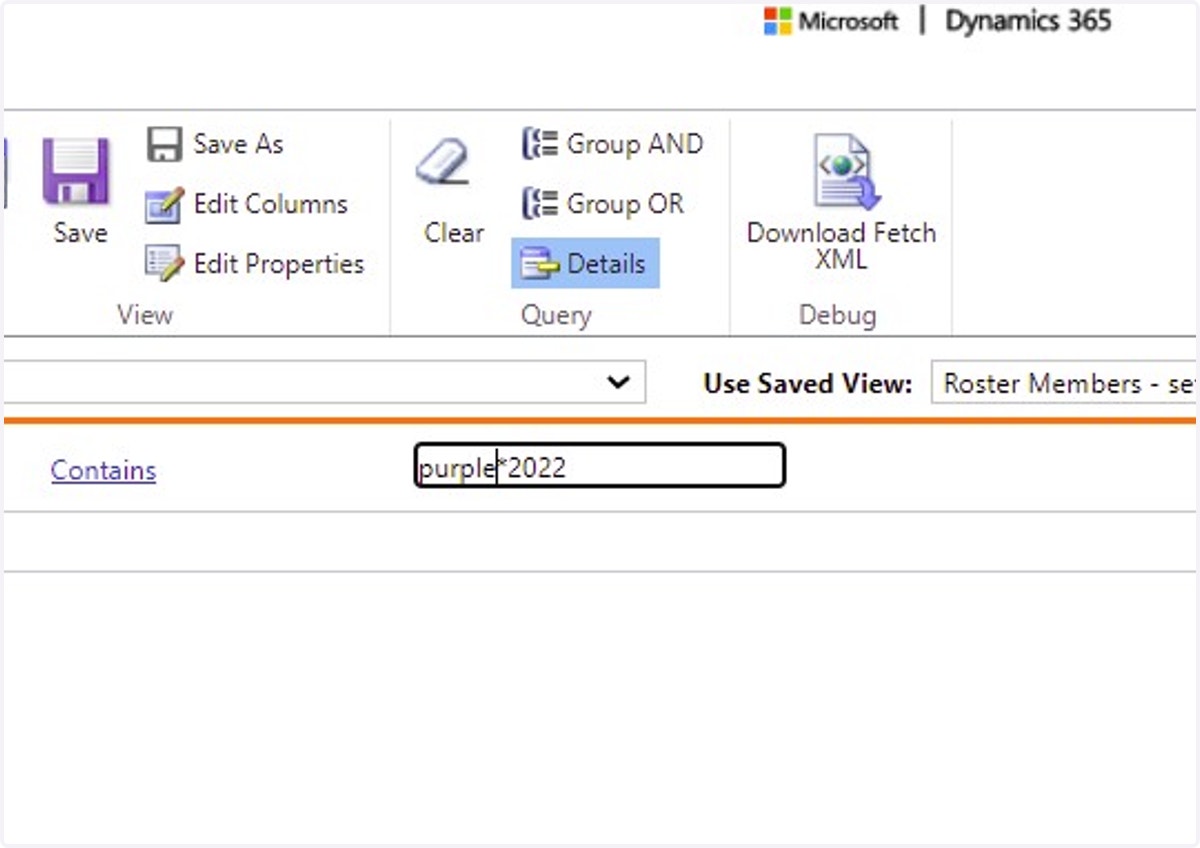
    Change the "color" to the correct color of the CP company you want to pull values on. Example: Type "purple*2022"
  5. 5. Click on Results…

    Click on Results…
  6. 6. Review the data under all the columns to find the correct number to set the FLOW/Business Rule
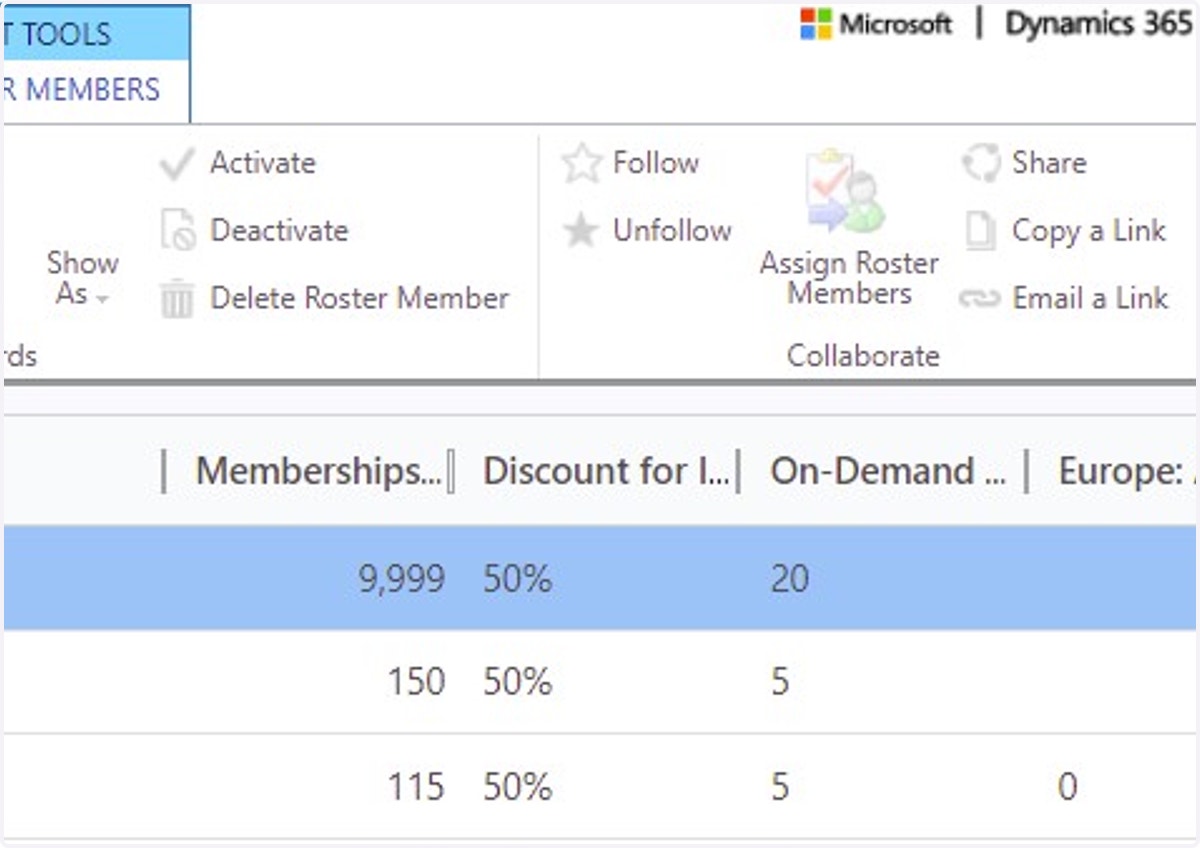
    Review the data under all the columns to find the correct number to set the FLOW/Business Rule
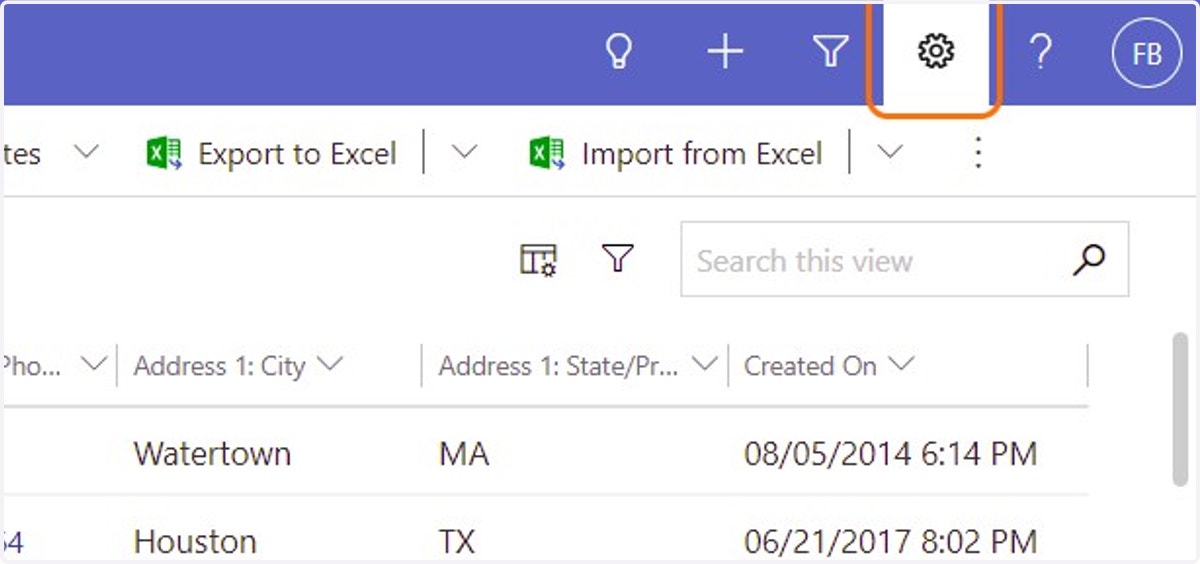
  7. 7. Click on Settings

    Click on Settings
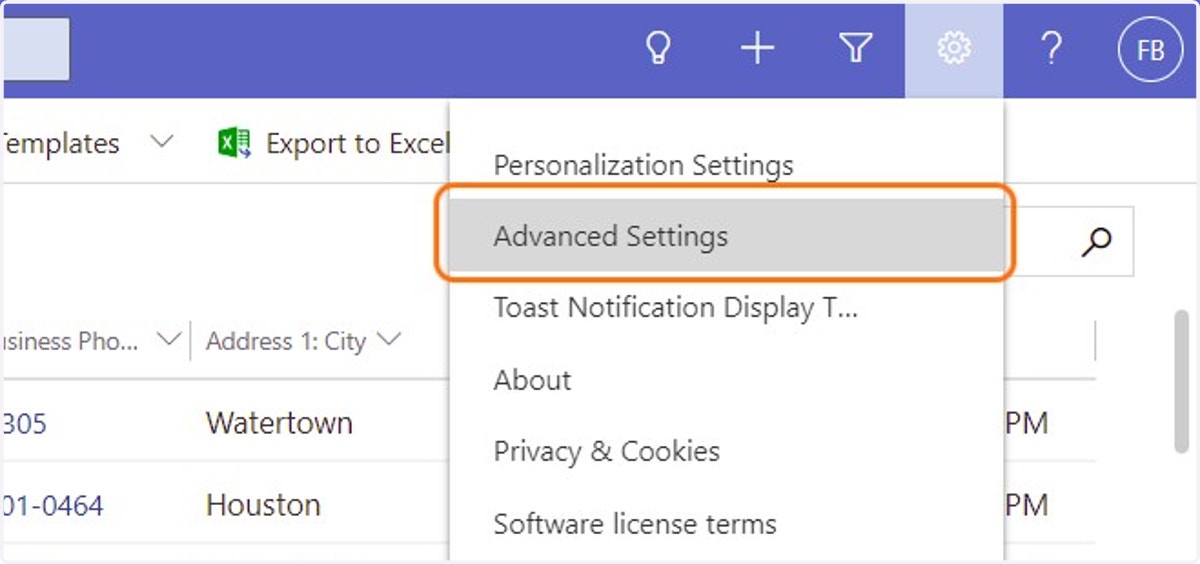
  8. 8. Click on Advanced Settings

    Click on Advanced Settings
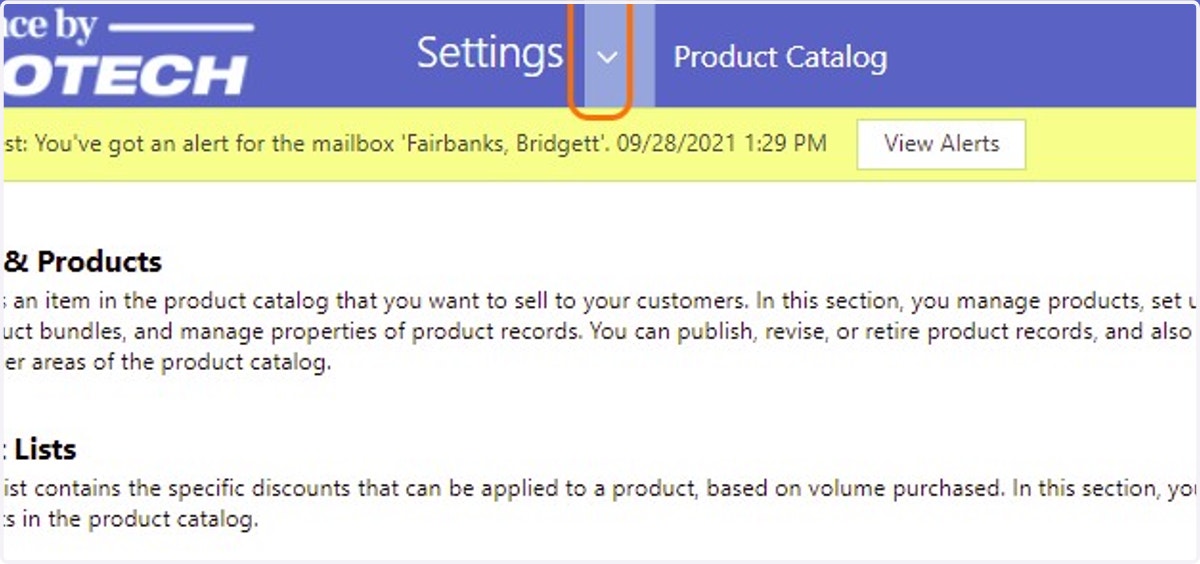
  9. 9. Click on dropdown trigger

    Click on dropdown trigger
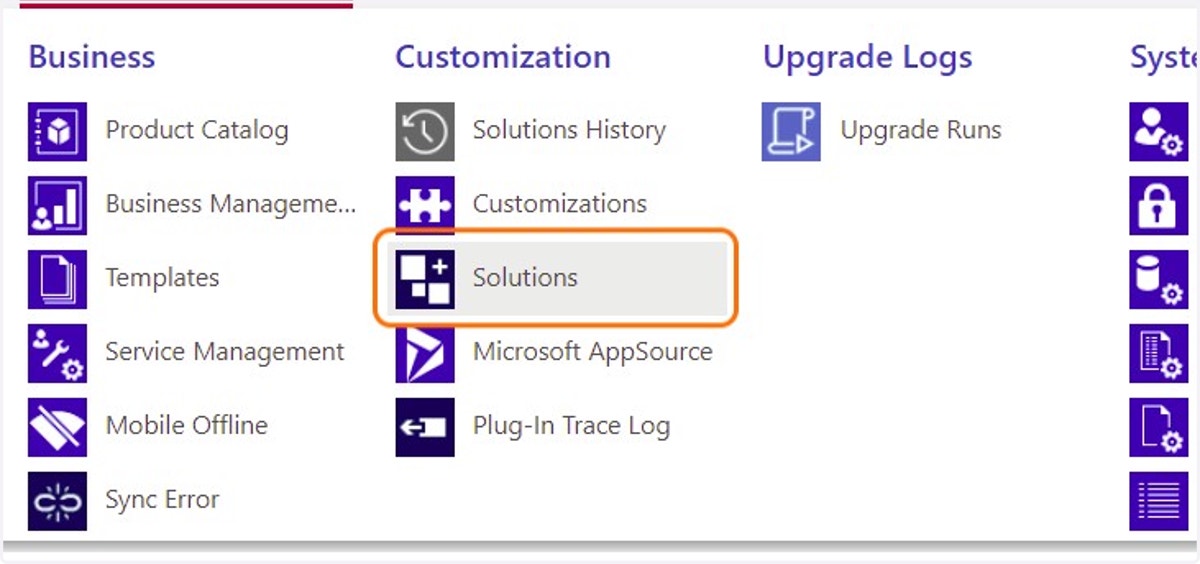
  10. 10. Click on Solutions

    Click on Solutions
  11. 11. Click on HBA_UX365Customizations

  12. 12. Click on Collapsed arrow next to Entities, click to expand
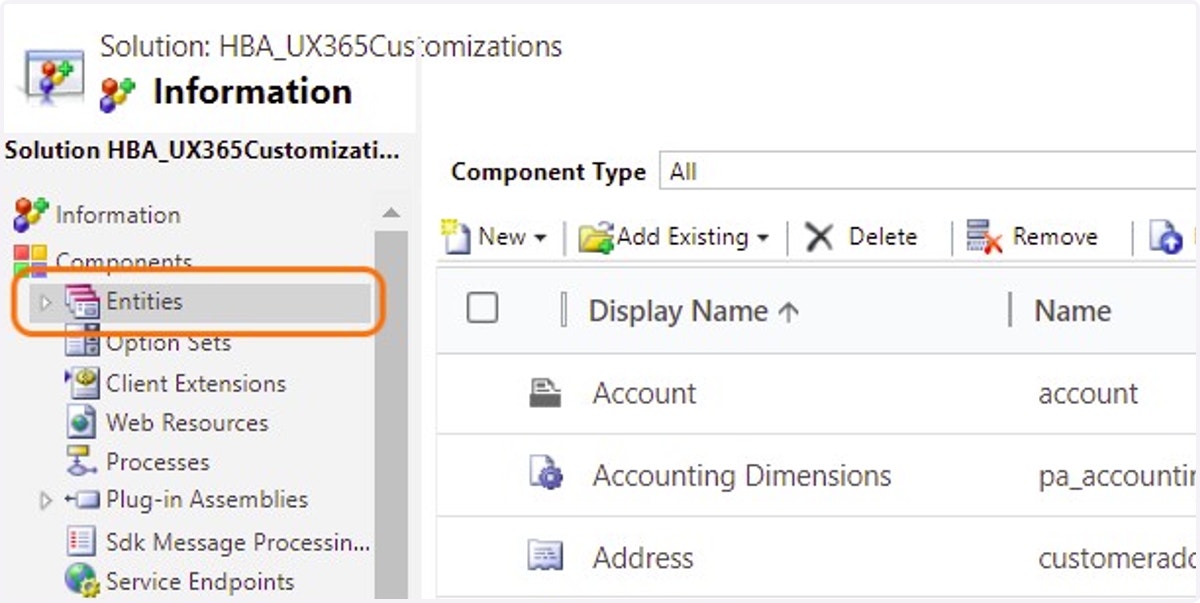
    Click on Collapsed arrow next to Entities, click to expand
  13. 13. Click on Collapsed, click to expand
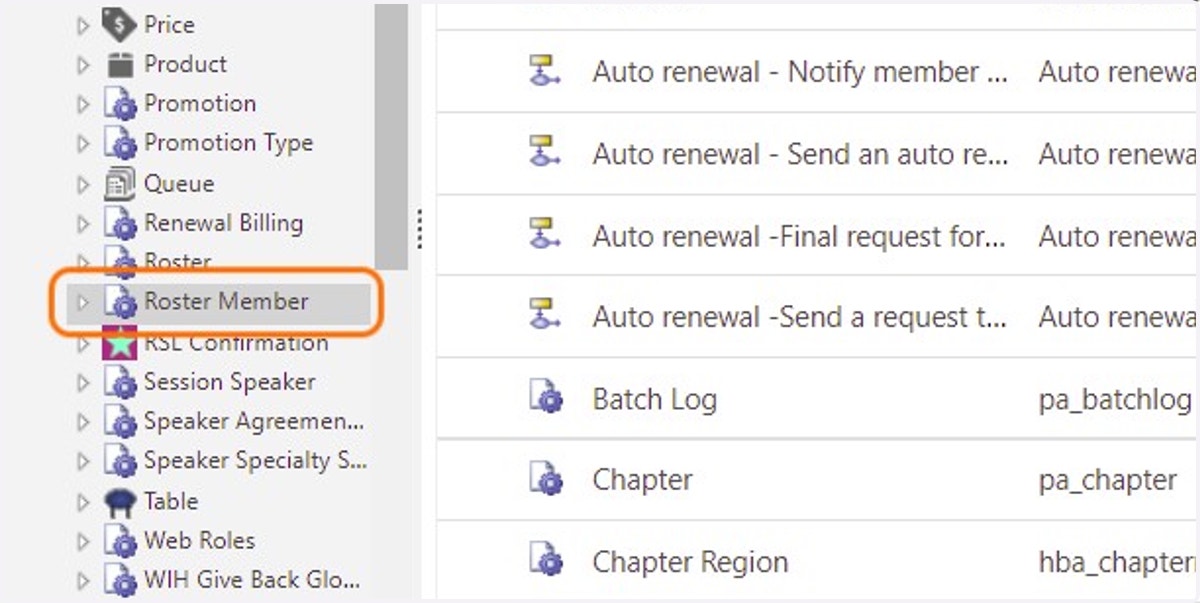
    Click on Collapsed, click to expand
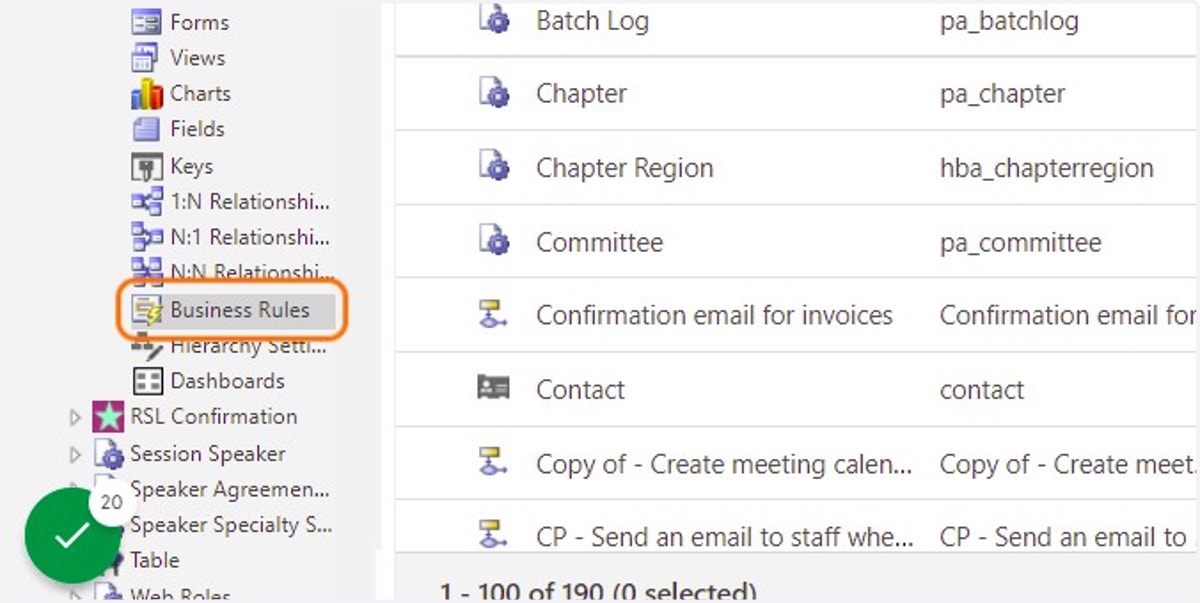
  14. 14. Click on  Business Rules

    Click on Business Rules
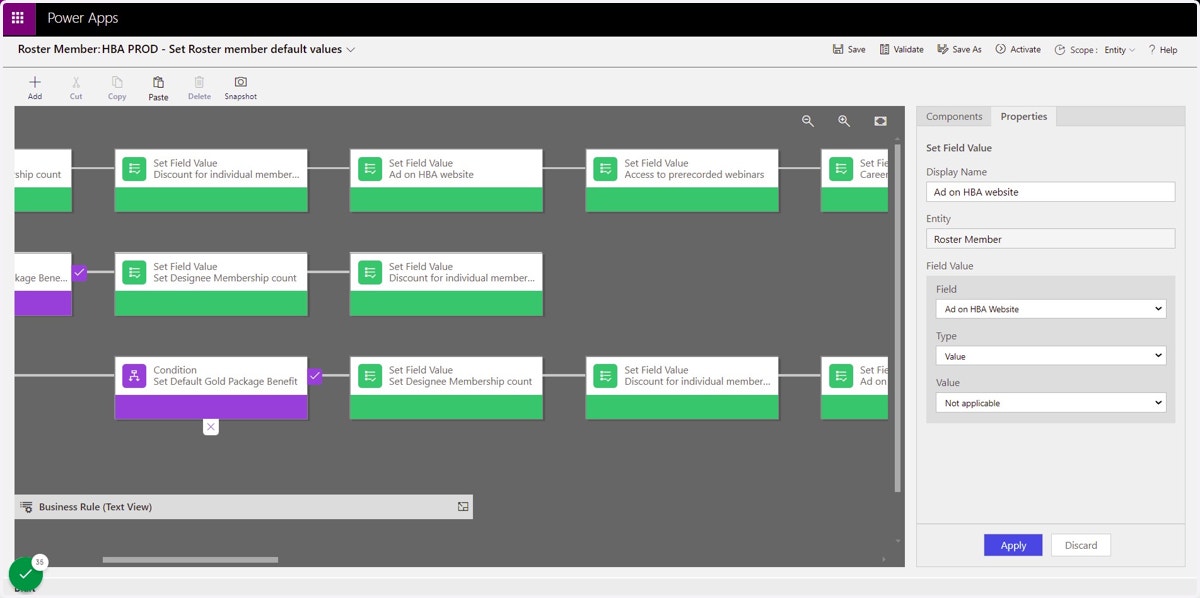
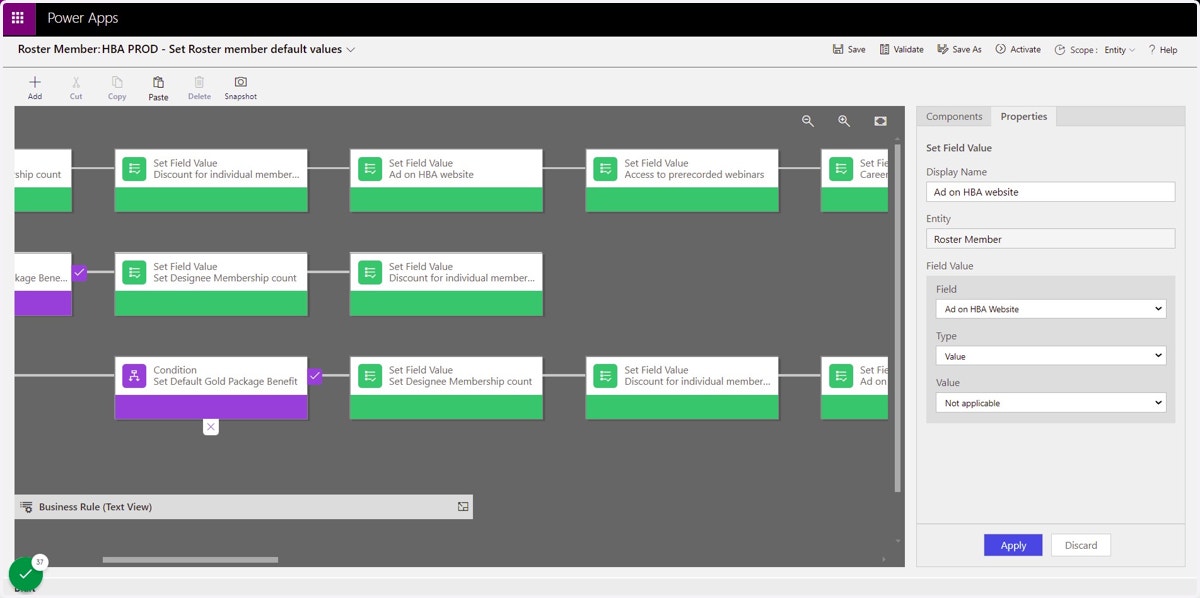
  15. 15. Click on HBA PROD - Set Roster member default values

  16. 16. Click on Close

    Click on Close
  17. 17. Click on Value

    Click on Value
  18. 18. Drag highlighted button

    Drag highlighted button
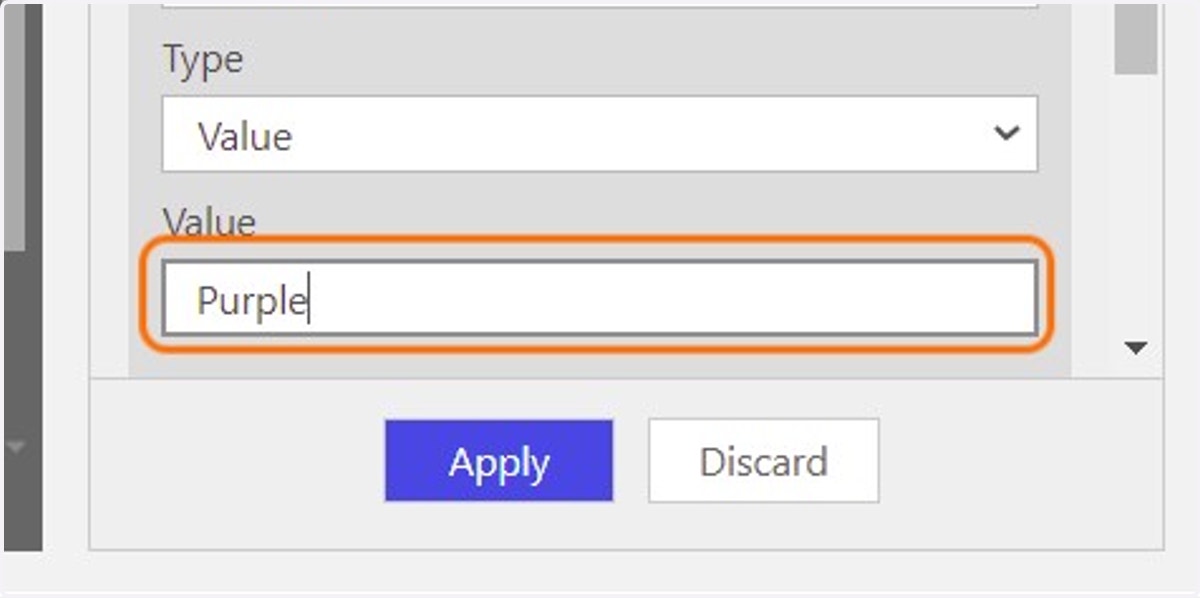
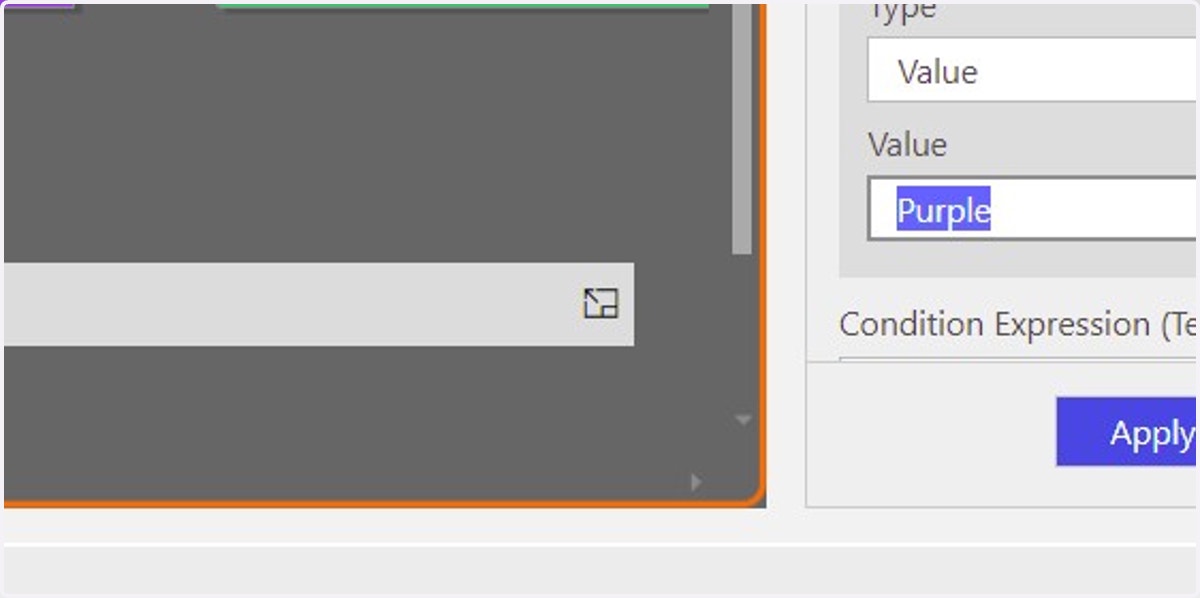
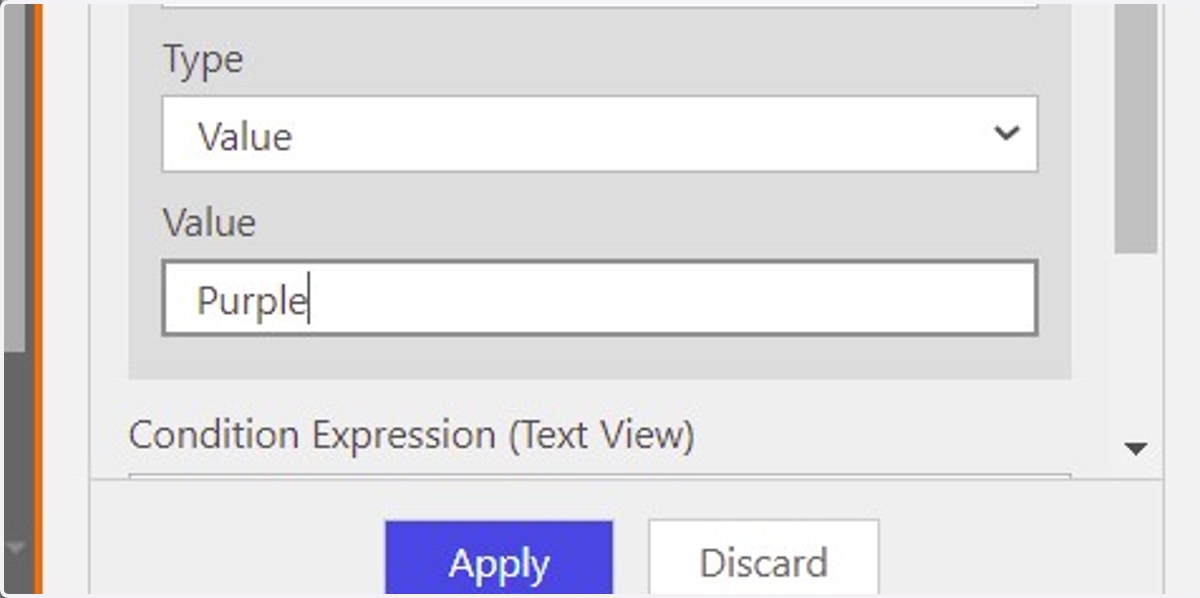
  19. 19. Type "Purple"

    Type "Purple"
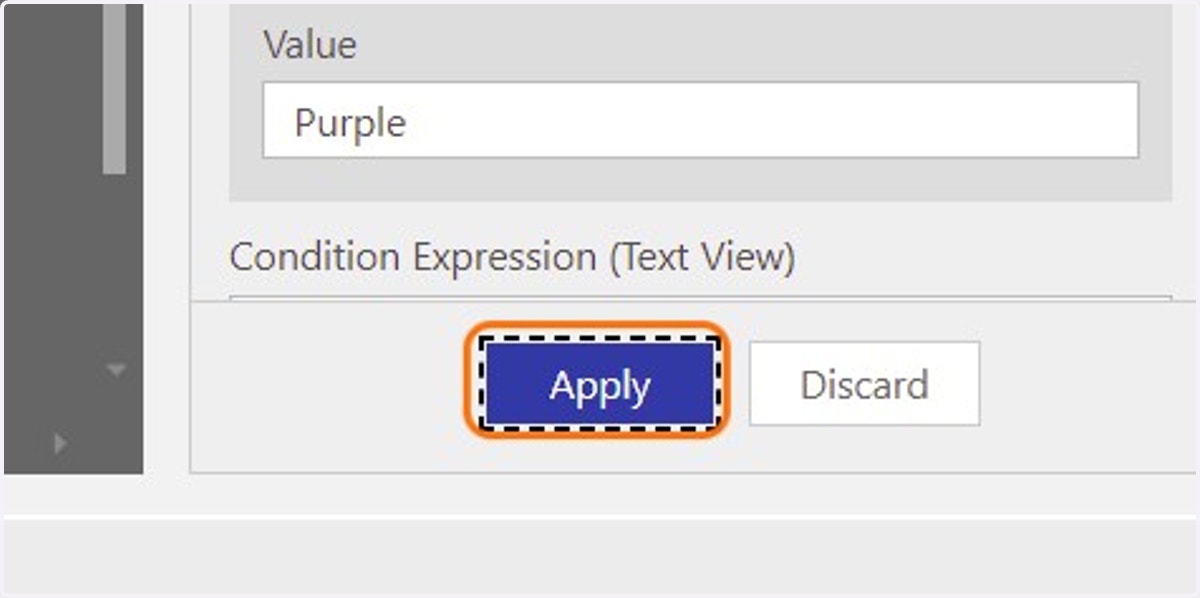
  20. 20. Click on Apply

    Click on Apply
  21. 21. Click on application

    Click on application
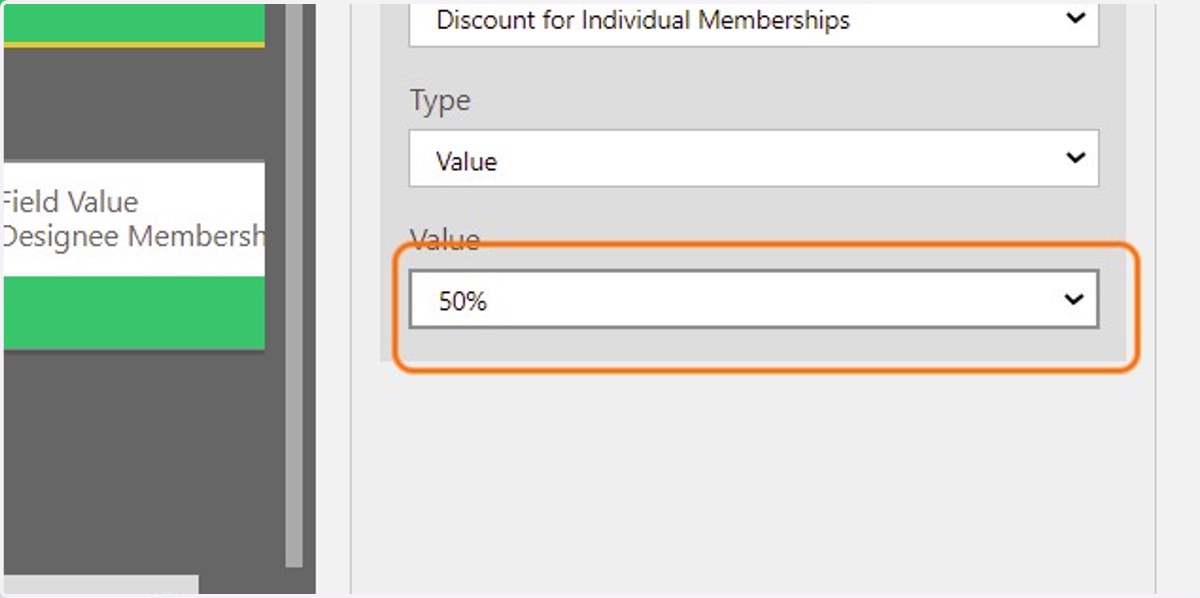
  22. 22. Select 50%

    Select 50%
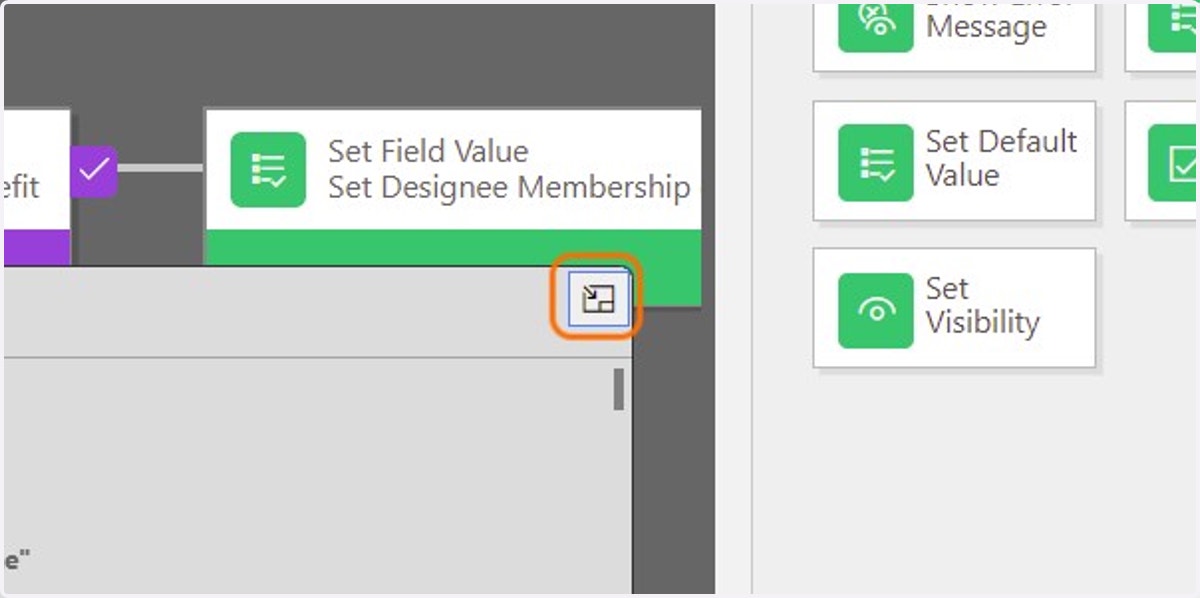
  23. 23. Click on button

    Click on button
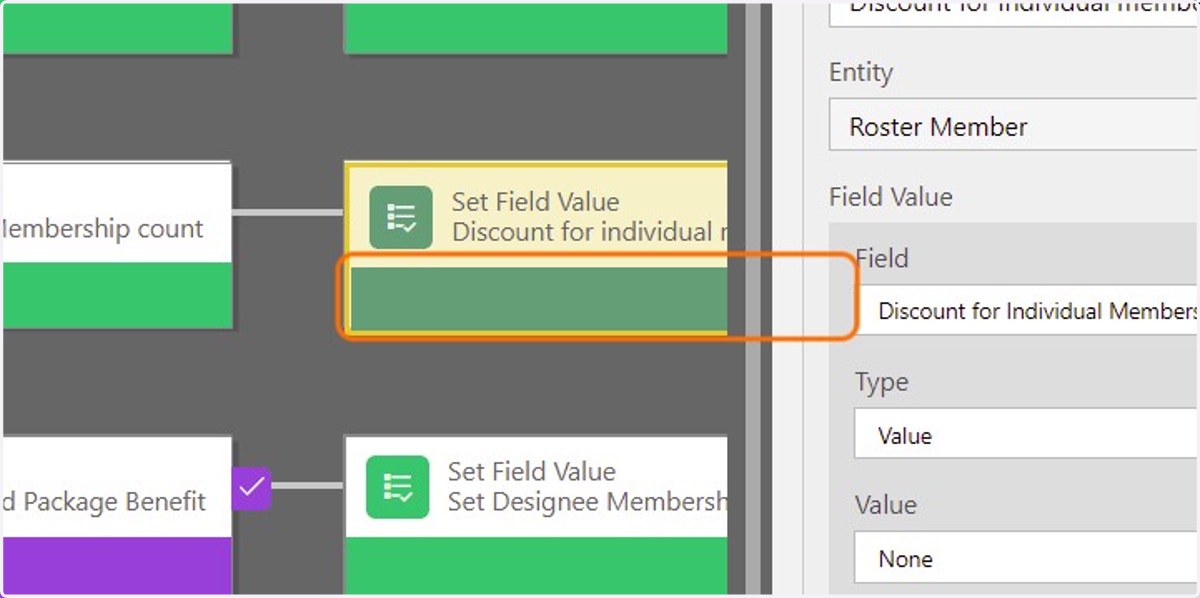
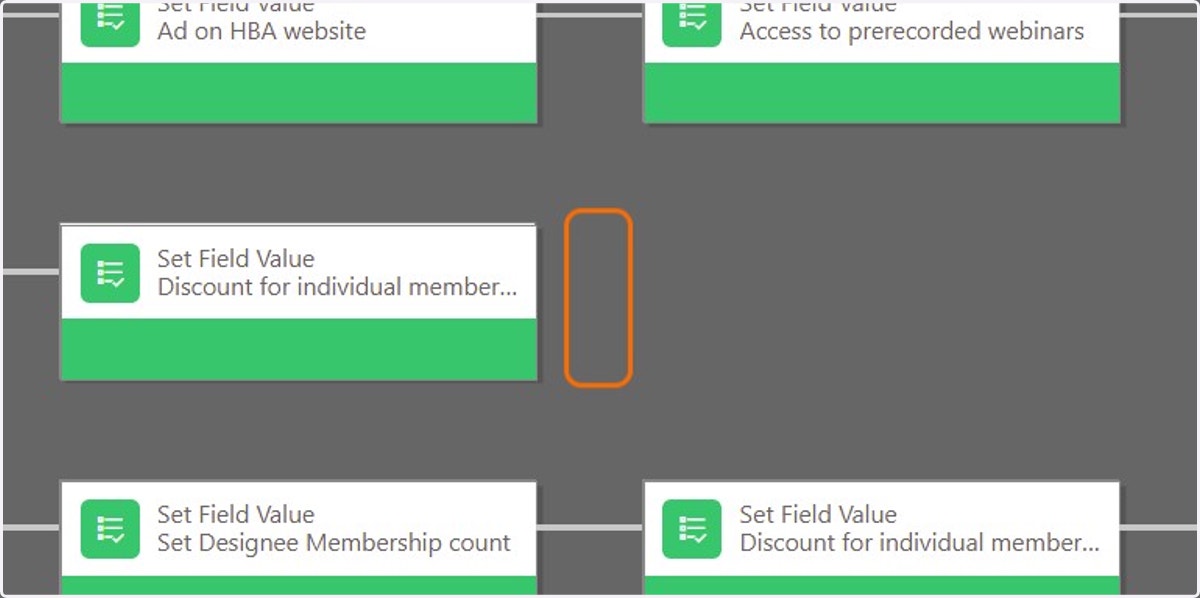
  24. 24. Drag highlighted element

    Drag highlighted element
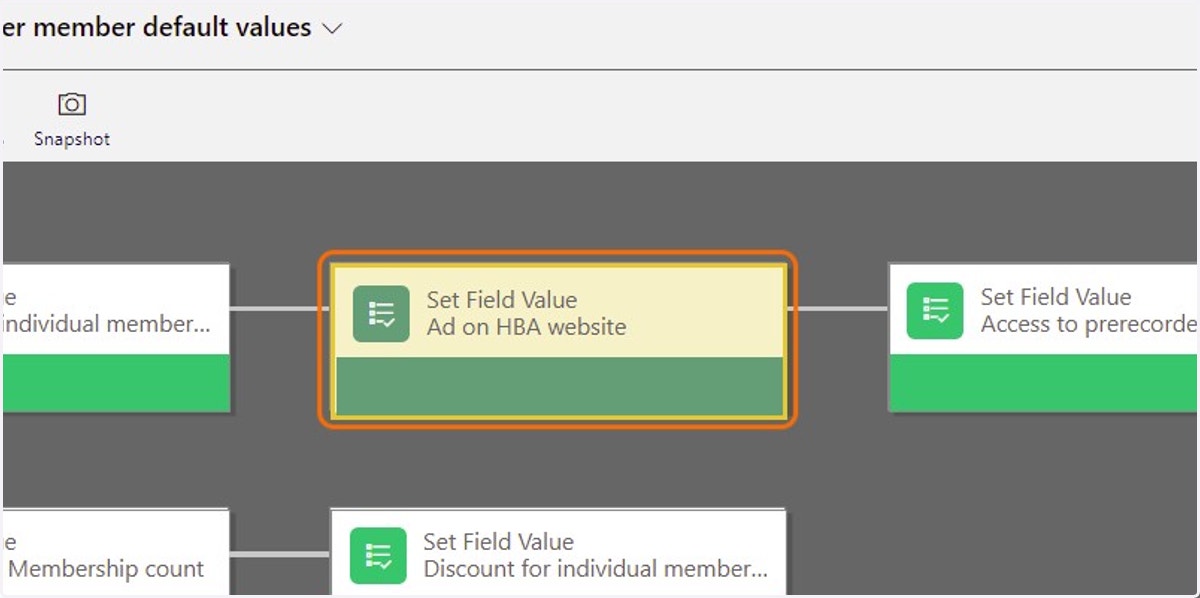
  25. 25. Right click on Set Field Value

    Right click on Set Field Value
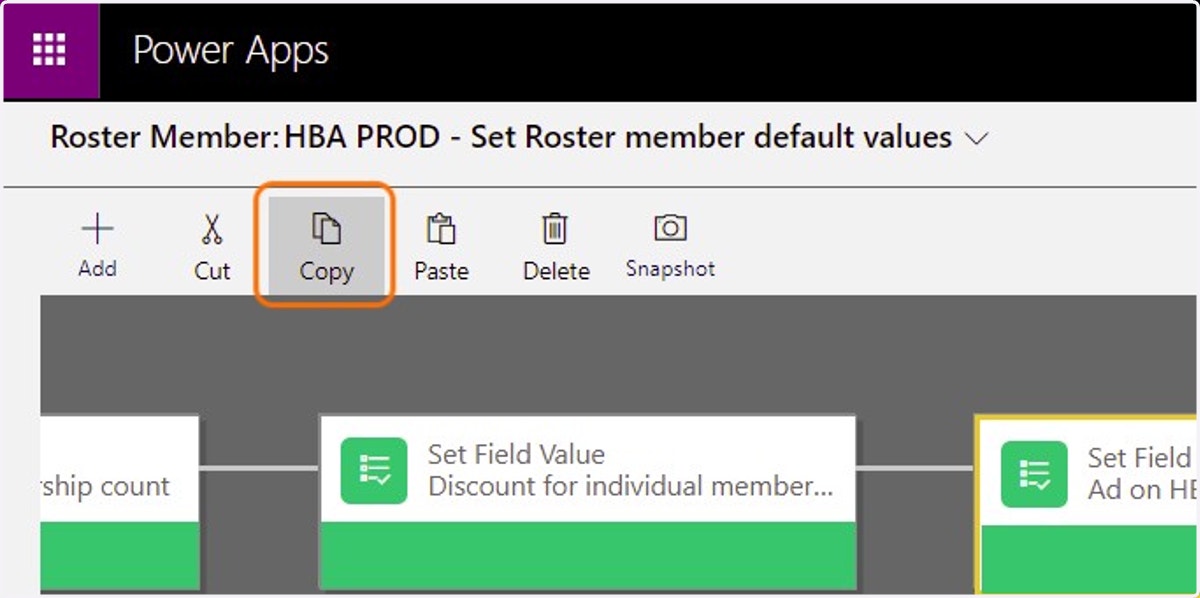
  26. 26. Click on Copy

    Click on Copy
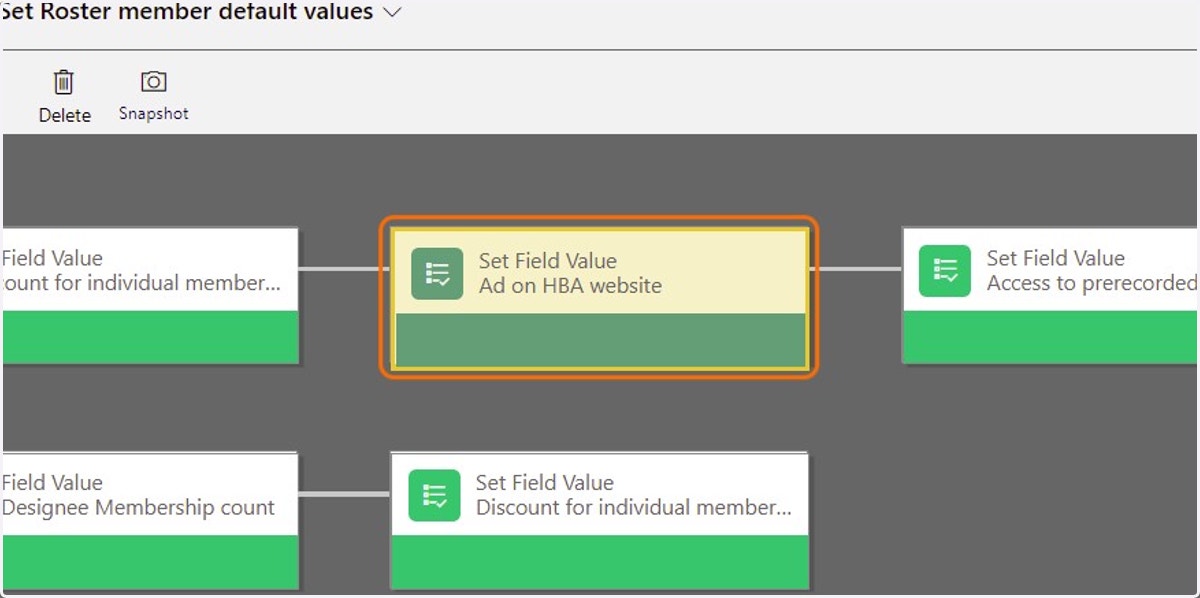
  27. 27. Click on application

    Click on application
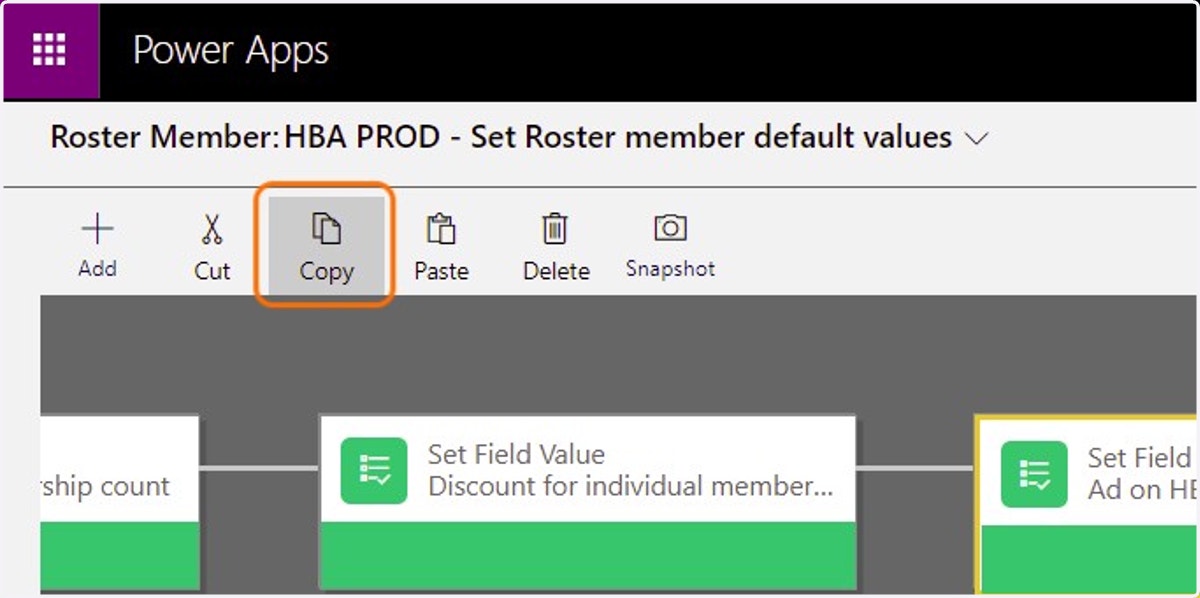
  28. 28. Click on Copy

    Click on Copy
  29. 29. Click on application

    Click on application
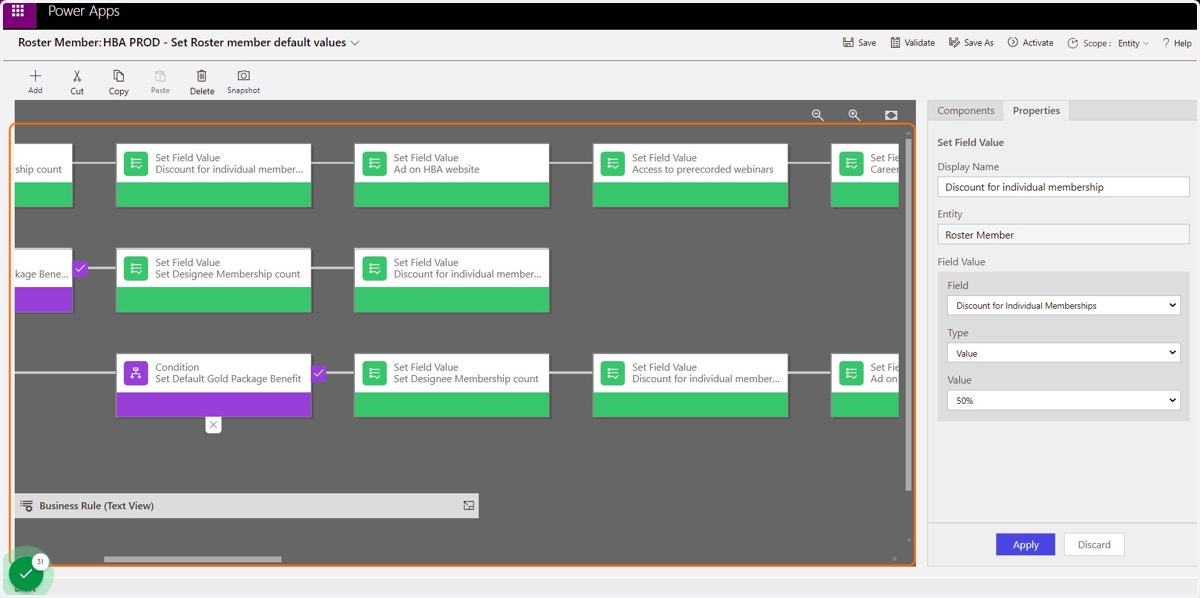
  30. 30. Click on application

    Click on application
  31. 31. Right click on application

    Right click on application