Production Restrictions
Here, we will look at the specification of Production Restrictions. These are a way of allocating the amount of time it takes to produce a product, as well as which days you can and cannot work on the production of the output. For example, if your office is shut on weekends and you will have nobody around to operate the machines.
Production restrictions are now configured against either the product variant directly OR the product group if it is being used.
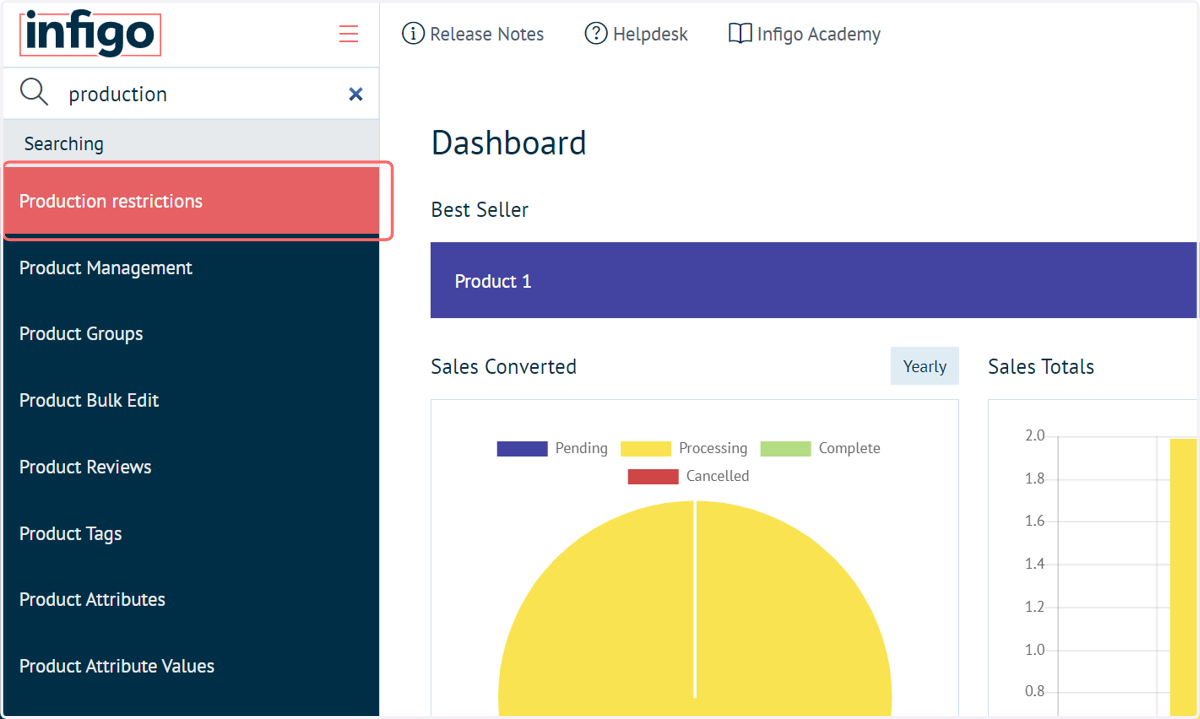
1. Navigate to Production restrictions
Rather than a series of tick boxes for you to define the production restriction on a per product basis, we have introduced a more global concept - you setup your restrictions by heading to Catalogue > Products > Production Restrictions. Now in here you can create as many combinations as you desire; you then apply this restriction at either the product or product group level.
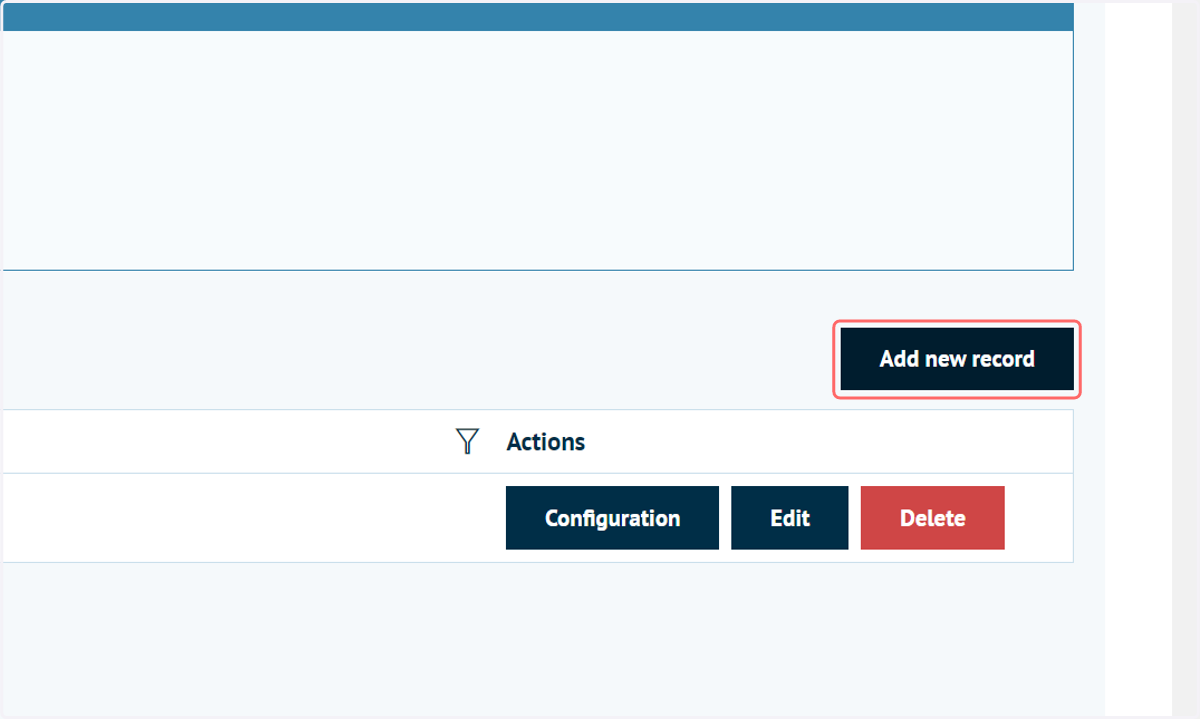
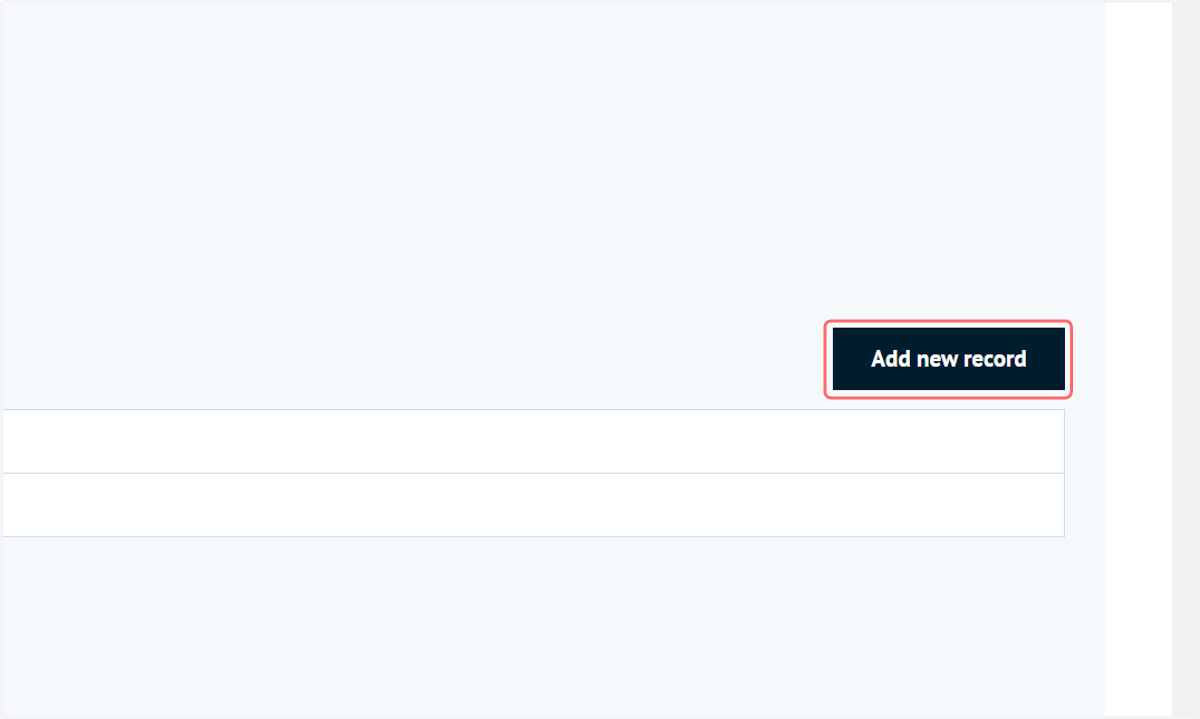
2. Click on Add new record
Click here to define a new production restriction configuration.
3. Type a name for the restriction
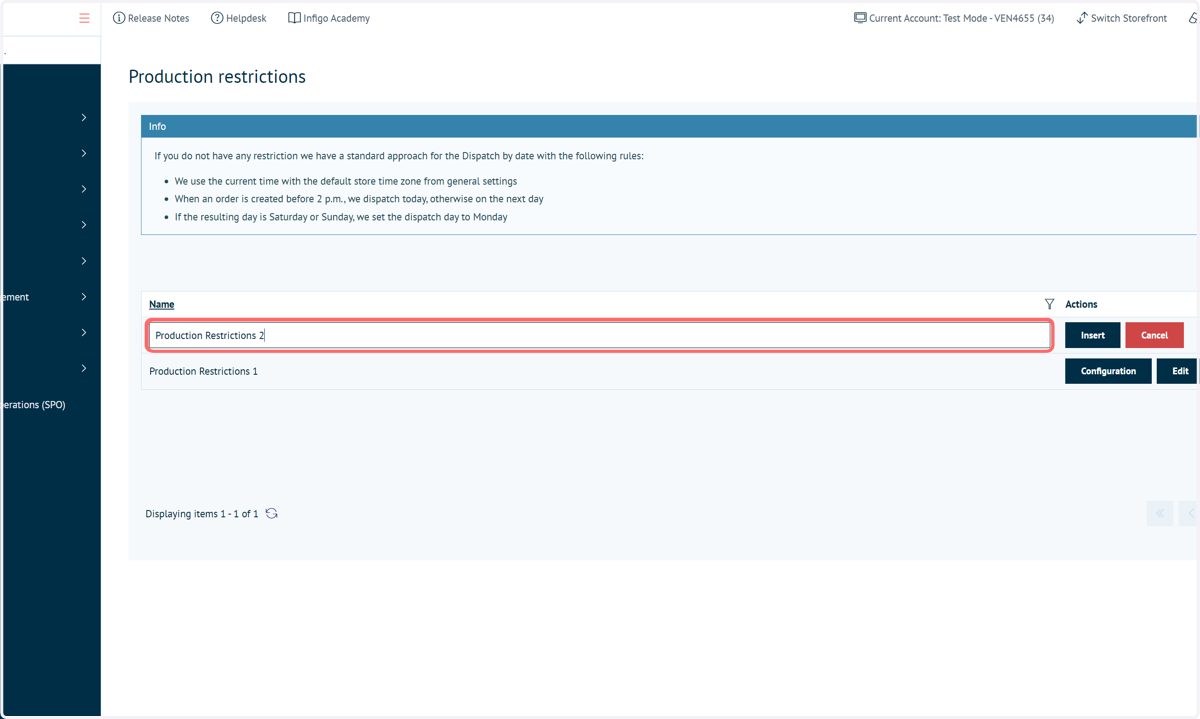
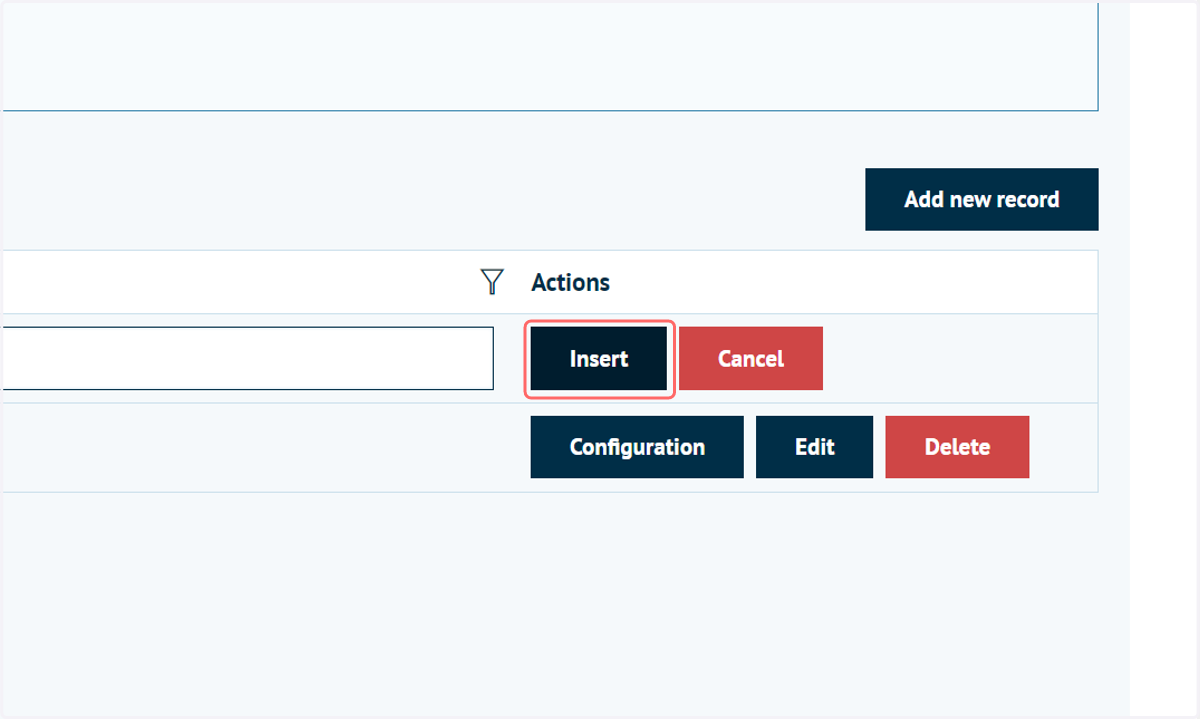
4. Click on Insert
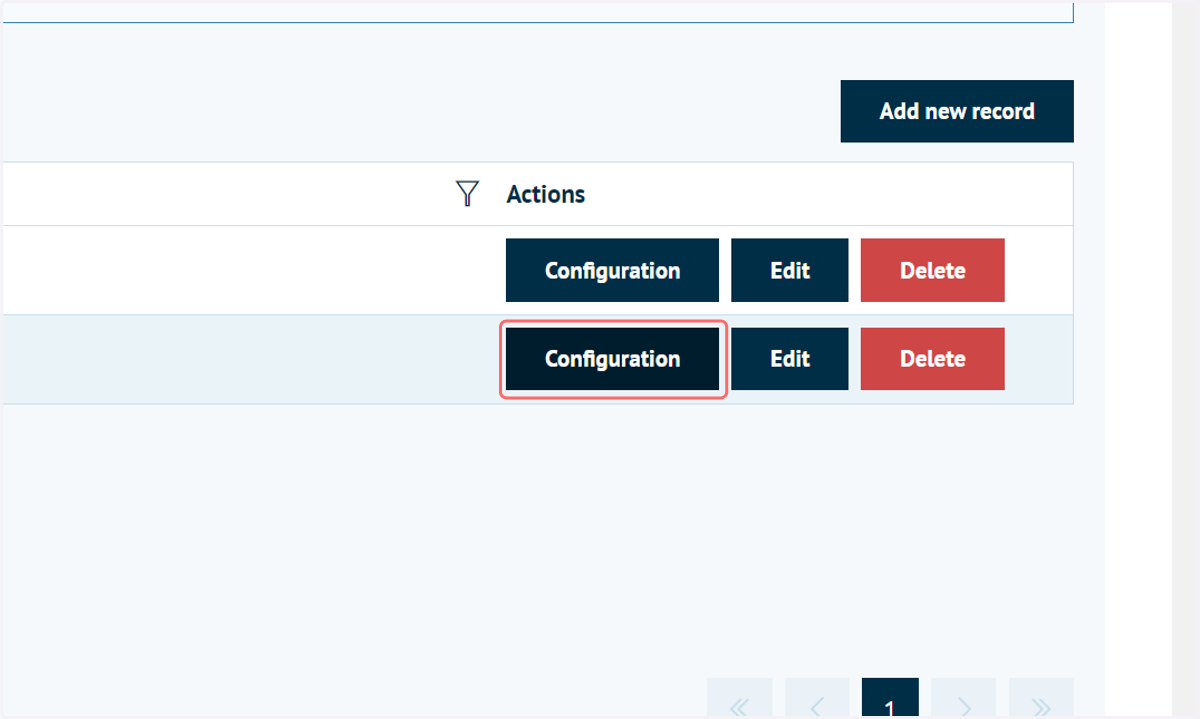
5. Click on Configuration to define additional detail
Product Restrictions effectively serve as sets of saved delivery countdown configurations which can be applied to multiple products at once.
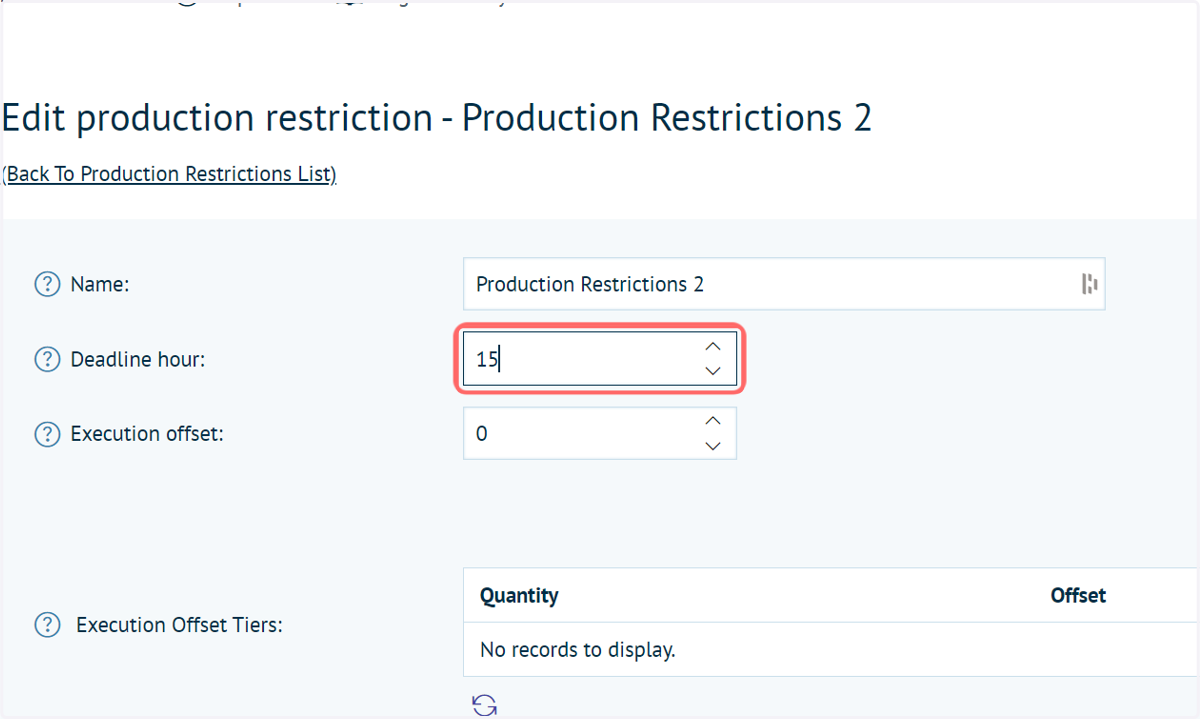
6. Input a Deadline Hour
This is the deadline for the order. Effectively, any orders placed after this hour (on a 24 hour clock) will have their execution start on the following day, adding another day to the delivery time.
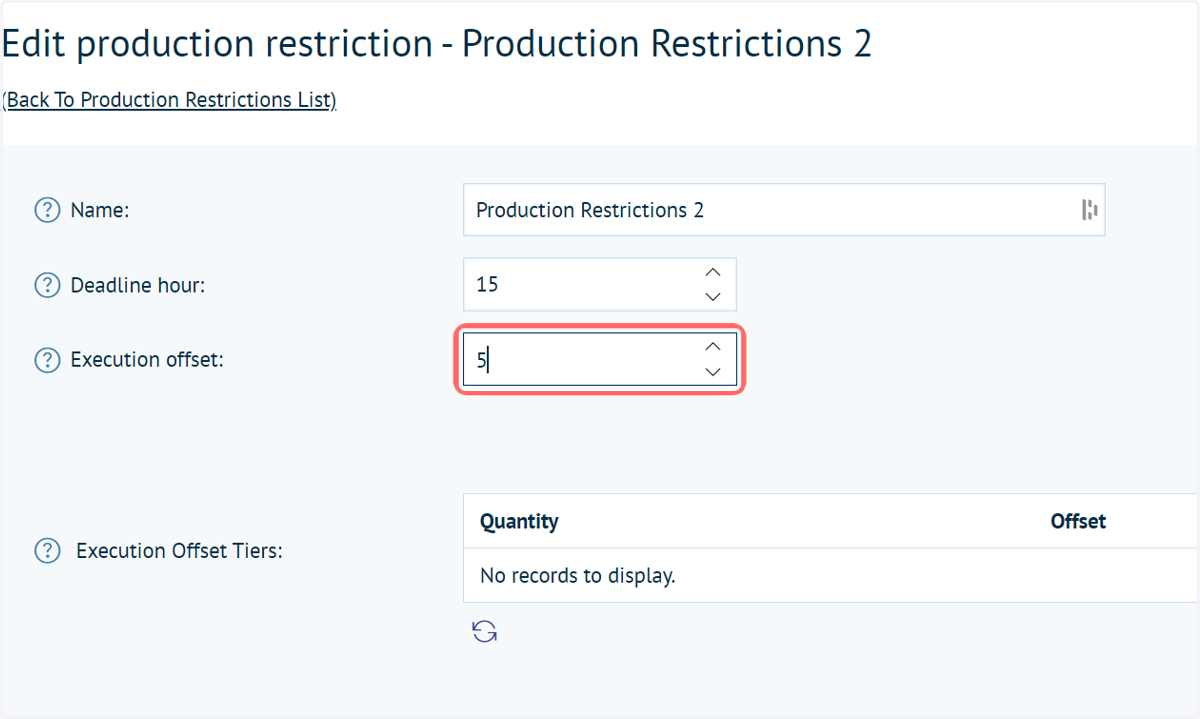
7. Input an Execution Offset
This is a value in number of days. A product may take 24 hours to manufacture due to several components, so if you typed 1 in to the field, it would then add an additional day for production.
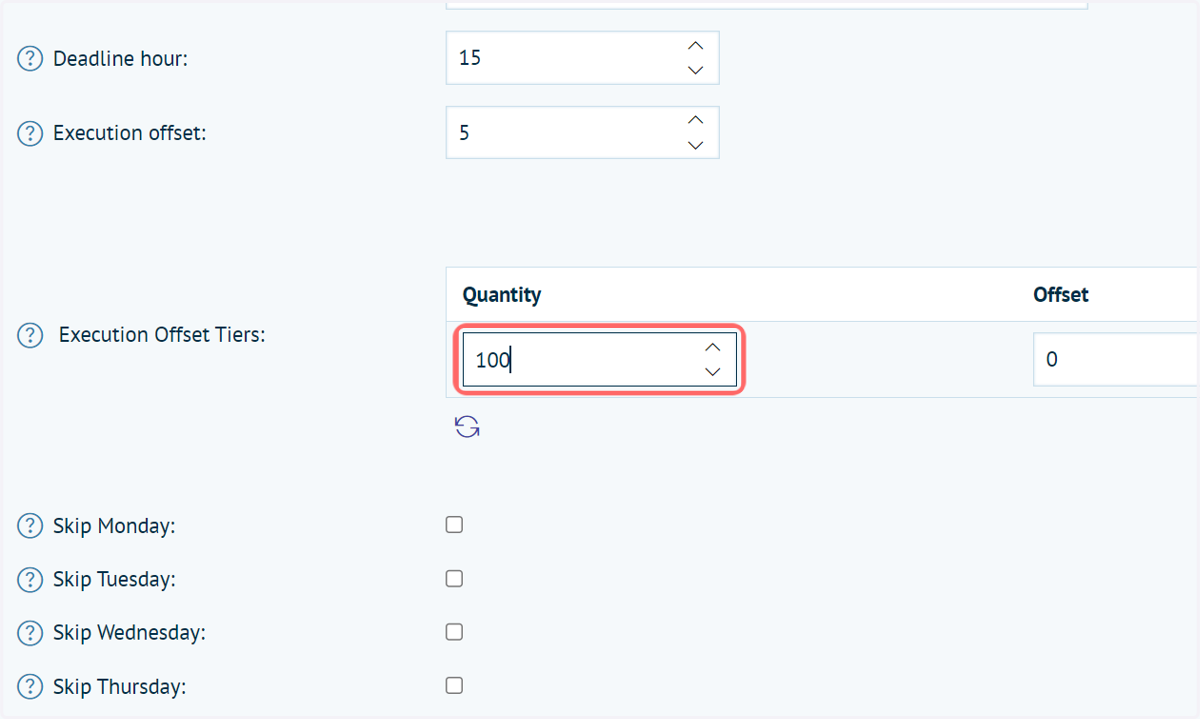
8. If desired, specify execution offset fields
To begin, click on Add new record.
allows you to increase and decrease the execution offset based on the quantity ordered.
Multiple tiers can be specified.
9. Type a production quantity
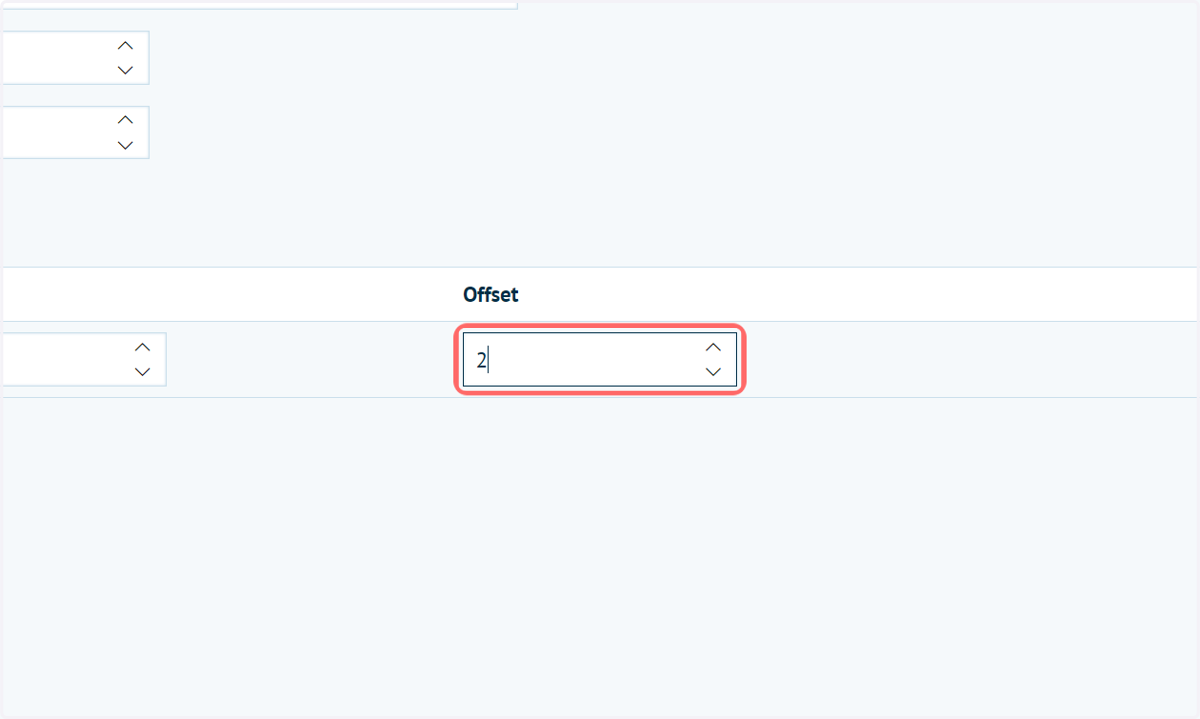
10. Type the offset (in days) for the specified quantity
11. Click on Insert
12. Multiple tiers can be applied
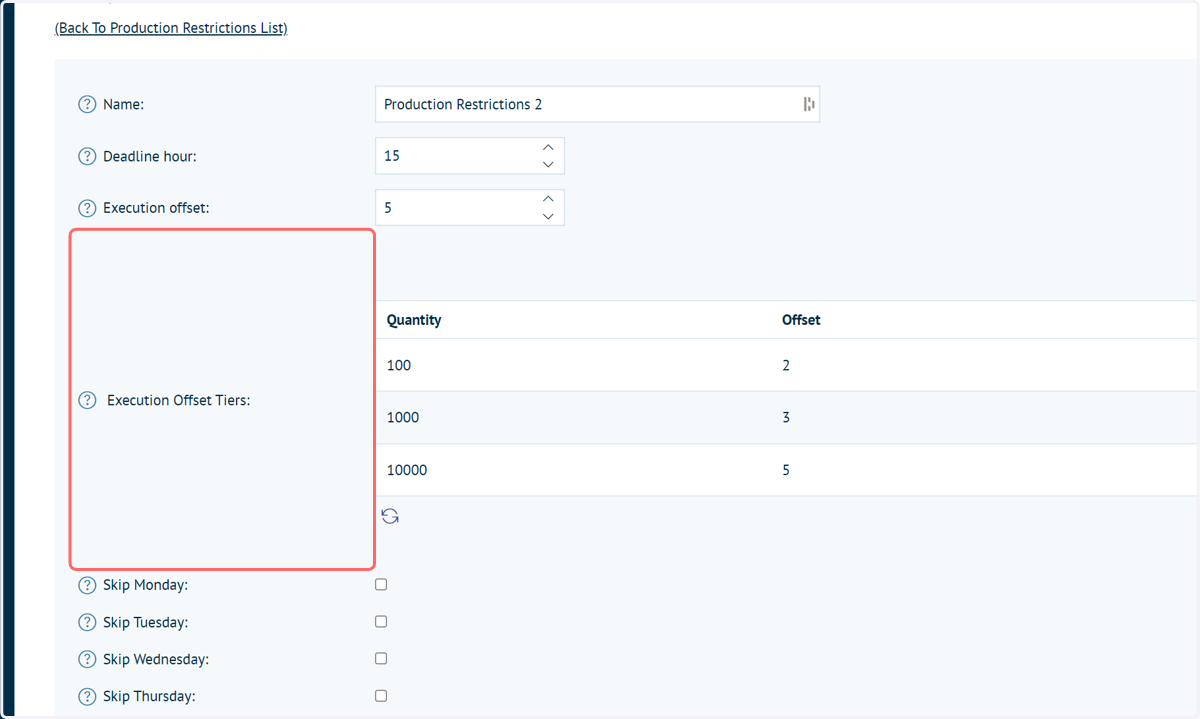
13. Specify days to skip
These days are used to mark which days you are not able to work on the production of the output, such as weekends if the office is shut, and will update the delivery countdown estimation accordingly.
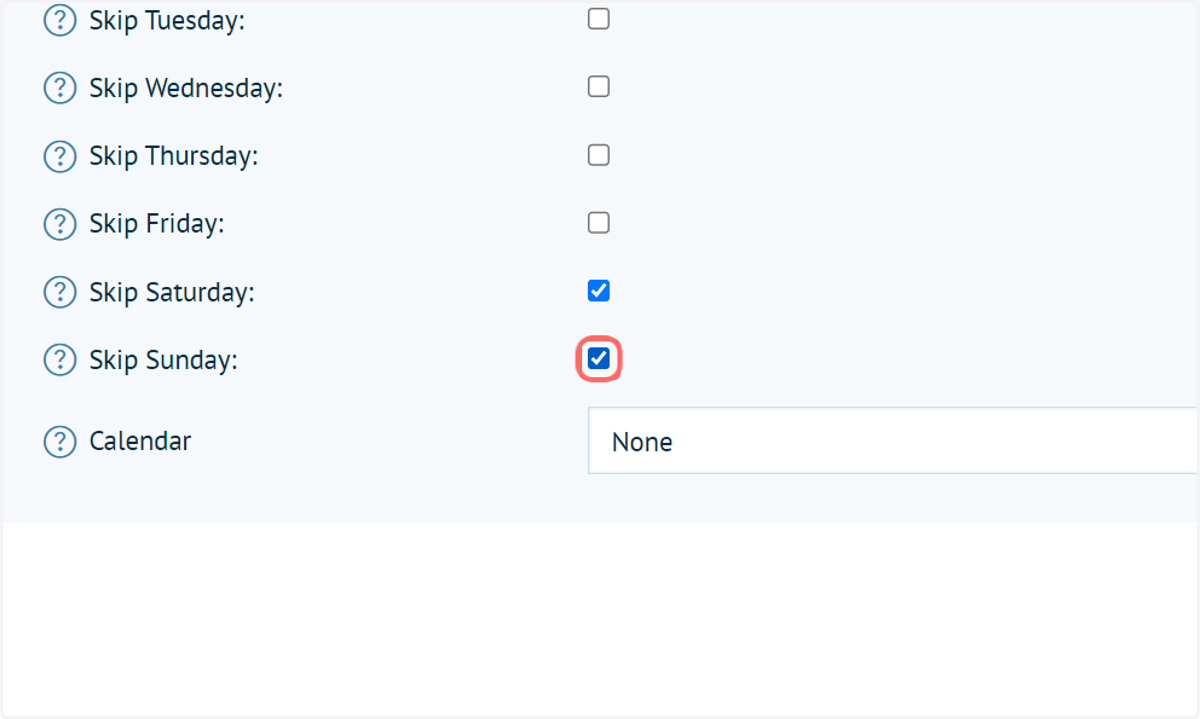
14. Specify from your configured calendars
Configuring these calendars is covered in another tutorial.
Effectively, you are now able to assign days on the calendar wherein you are not able to work on production, such as public holidays. By assigning a calendar to the restriction, the restriction calculation will now take all configured calendar days into account.
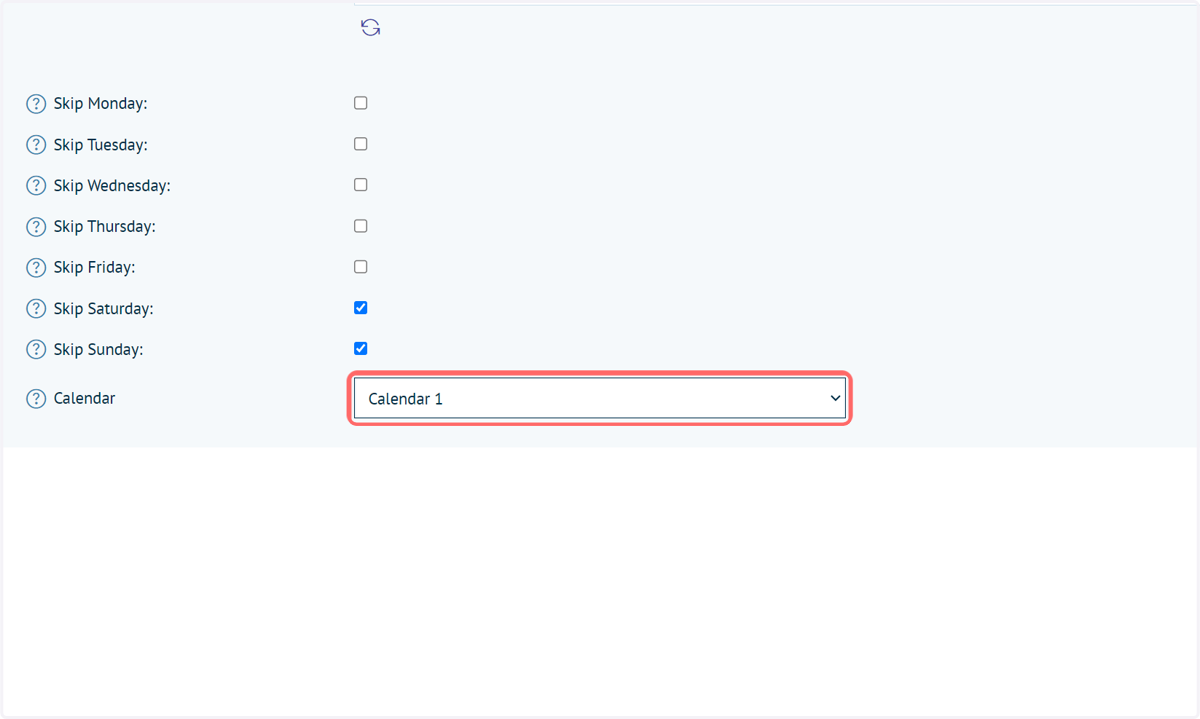
15. Click on Save