Placing shipment orders manually using Easypost
In this tutorial, we will learn how to configure Easypost and the Easypost plugin within Infigo, ready to manually place a shipment order.
Use case for placing manual shipment orders:
A small business that ships items of varying sizes and shapes can use a manual label purchase system. A dispatcher will be boxing the orders order by order in different size boxes that fit what was ordered. Therefore, they need to punch in the parcel dimensions and number of parcels used accurately before requesting the shipping label and creating the shipment. This system is more accurate but requires human intervention to ensure the correct information is entered. The manual system is particularly useful for complex packages that need a human eye to pass over it and configure the contents of each parcel accurately.
Infigosoftware
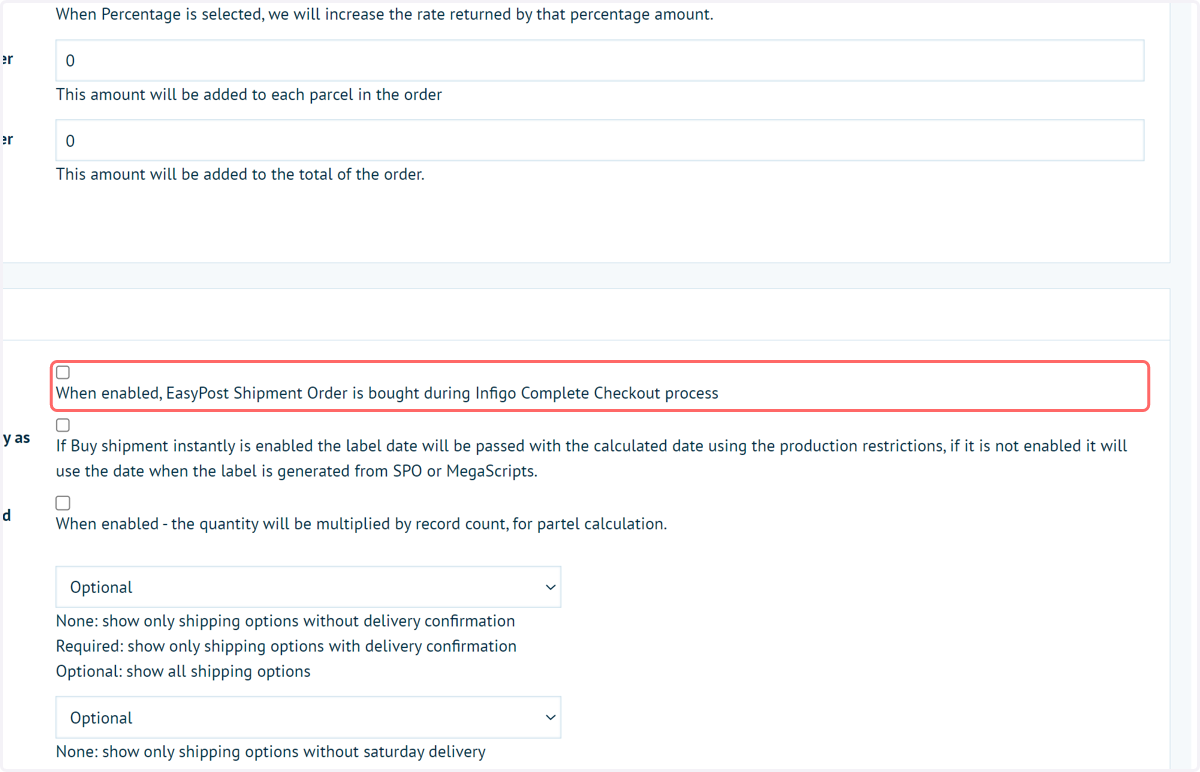
1. Begin by disabling the Buy Shipping Instantly setting and clicking Save on the plugin configuration settings
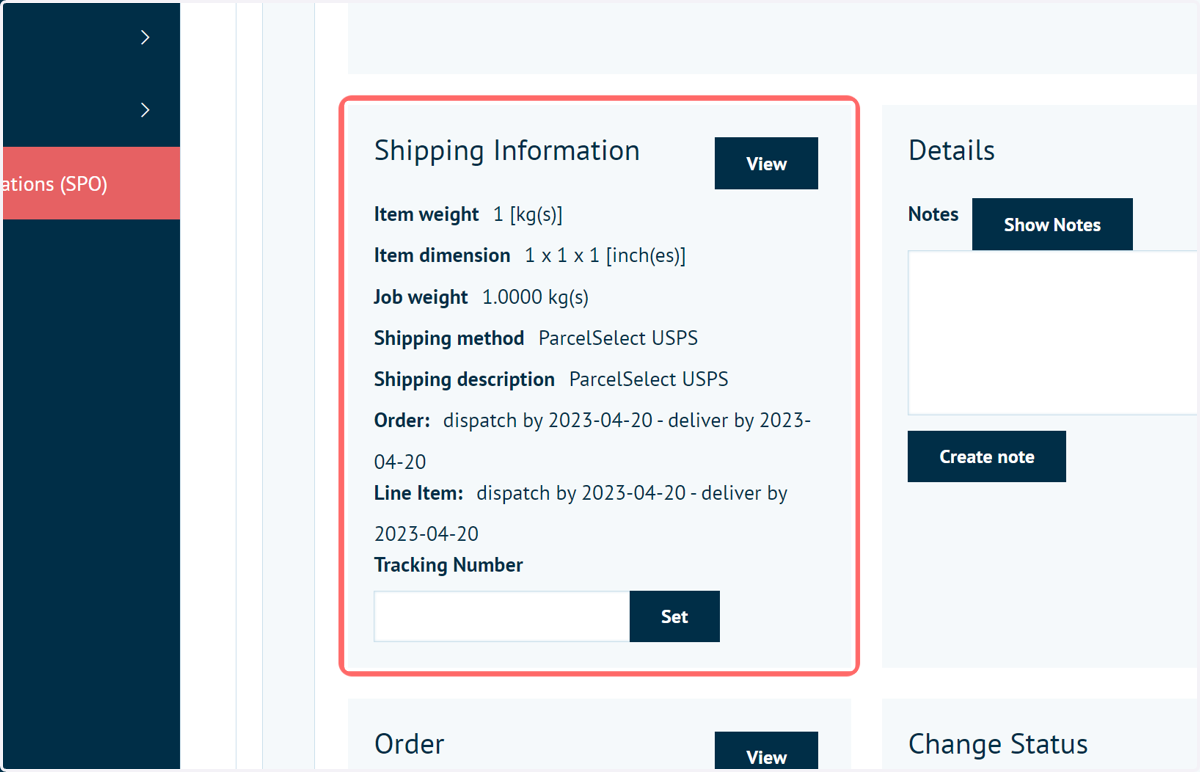
When disabled we will not send the request to Easypost to create shipping labels automatically. Instead if you navigate to Shared Print Operations in admin and locate the job and expand it you will see a link under Shipping Information
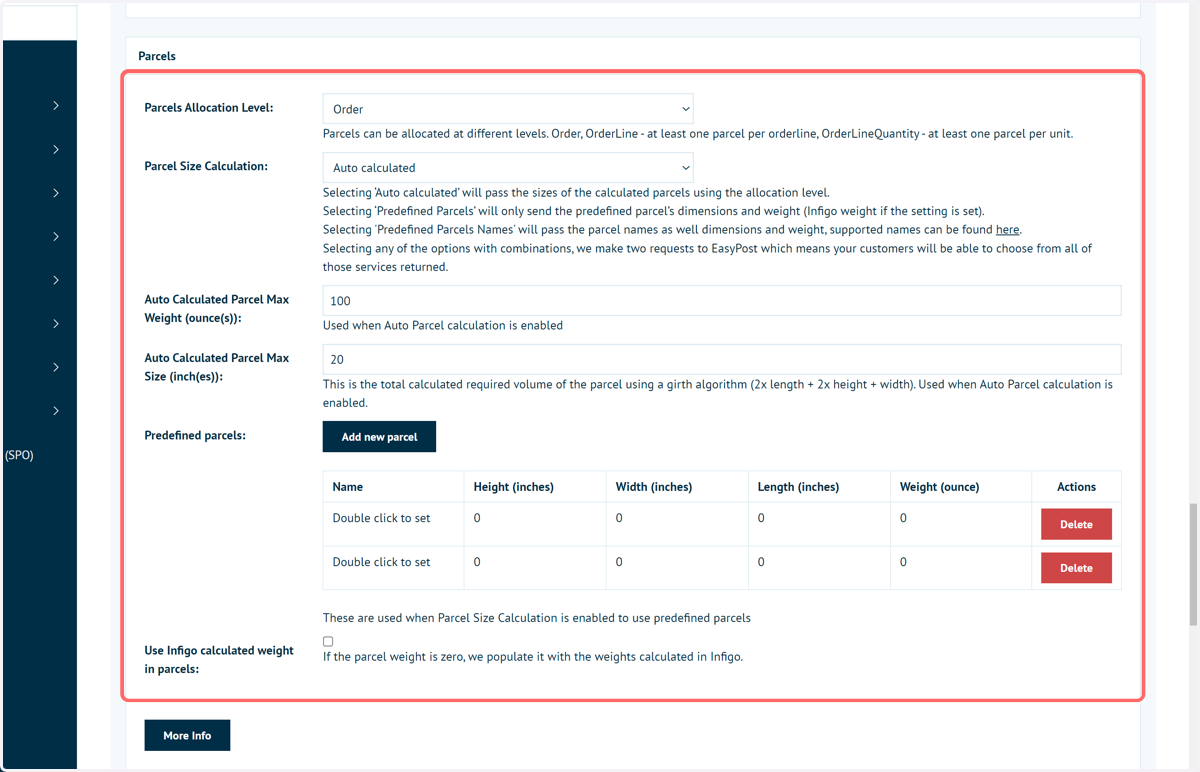
2. Click on Parcels Allocation Level:…
When you have Auto Parcel Size Calculation set to true we will send all the calculated parcels in the request. When you have Auto Parcel Size Calculation set to false we will send all your predefined parcel sizes in the request.
When Buy Shipping Instantly is disabled, and you are requesting your shipments manually, then these predefined parcels will becoming options for you to select from when requesting creating the shipment (saving you from writing out the dimensions manually each time).
Auto Parcel Size calculation settings are covered in another tutorial.
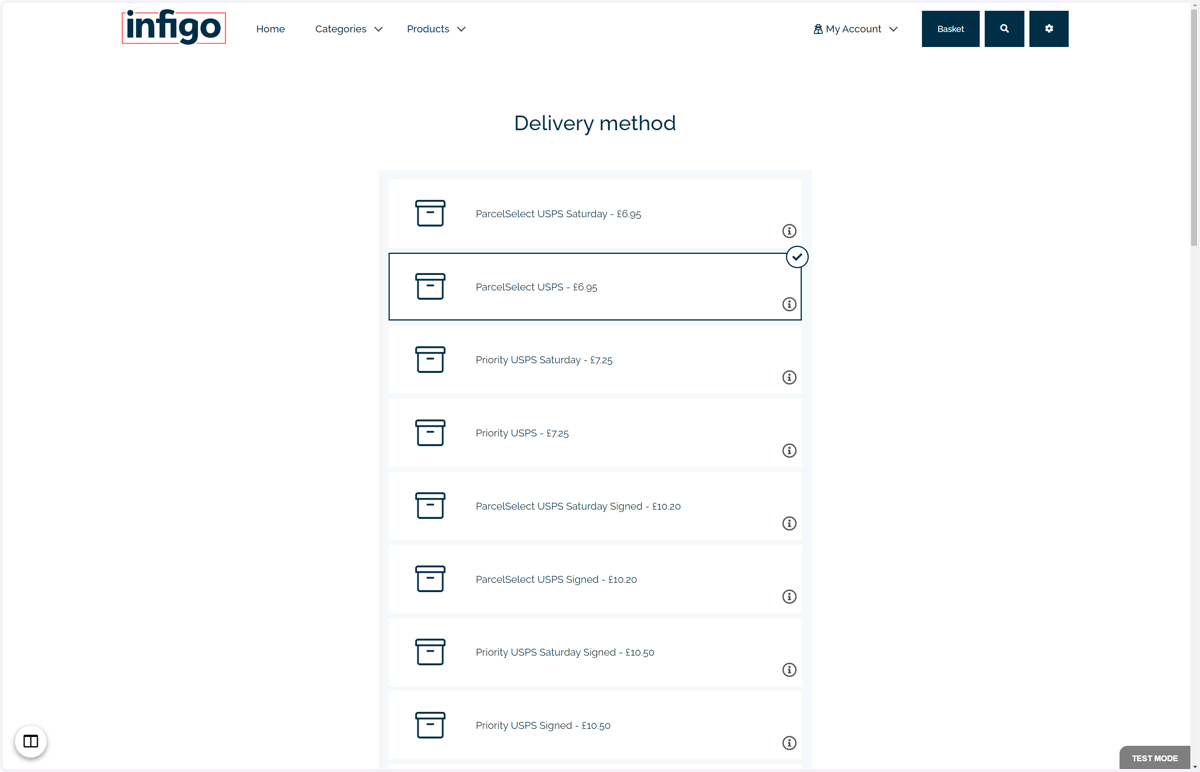
3. Next, we will place an order on our storefront, selecting a carrier with rates provided by Easypost
4. With this order placed, we will view it in Infigo's Shared Print Operations.
We can immediately see the status is set to "Ordered", rather than "Shipment Created" as is seen with the automatic method.
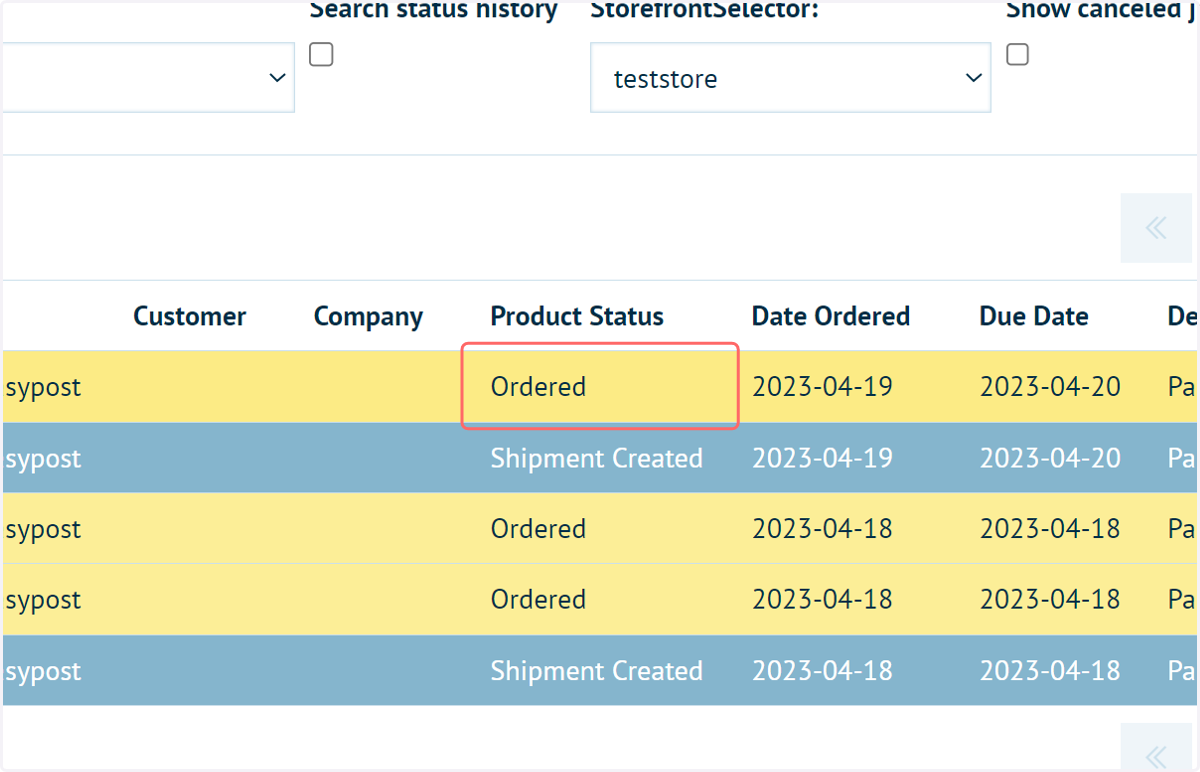
5. Expand the order details to reveal the Shipping Information
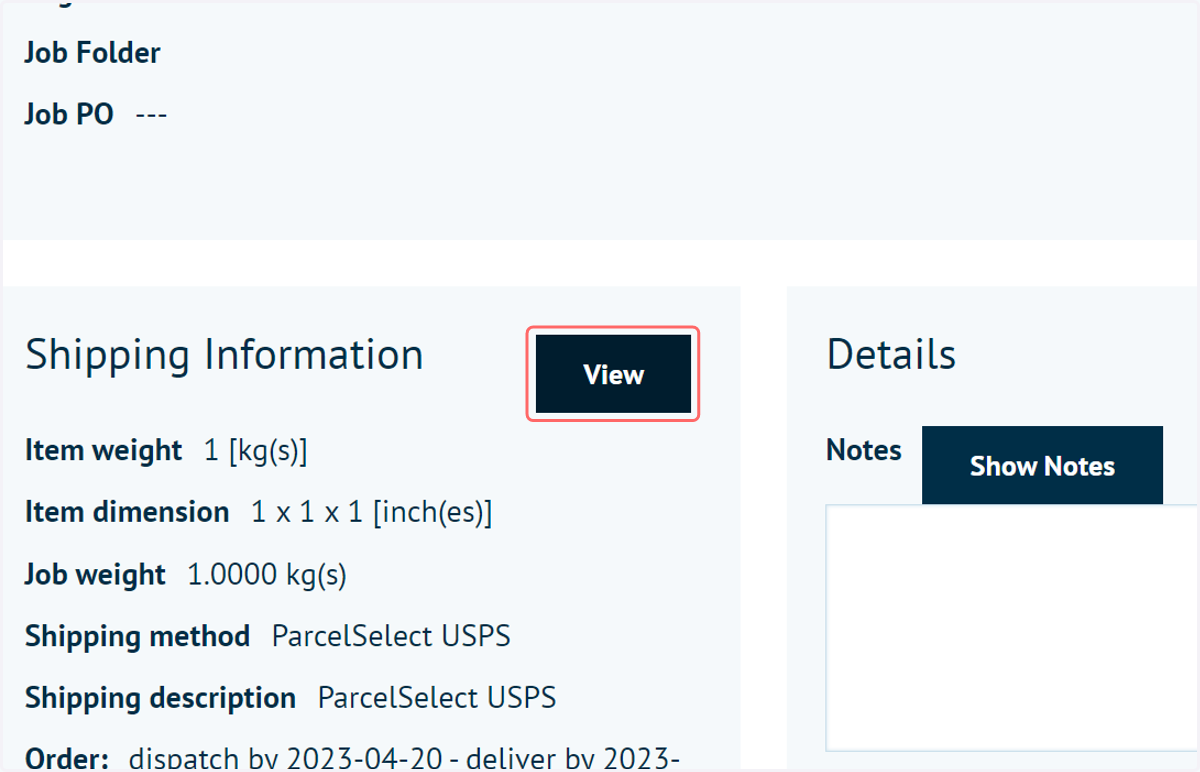
6. Click on View to access Manual Shipment Management
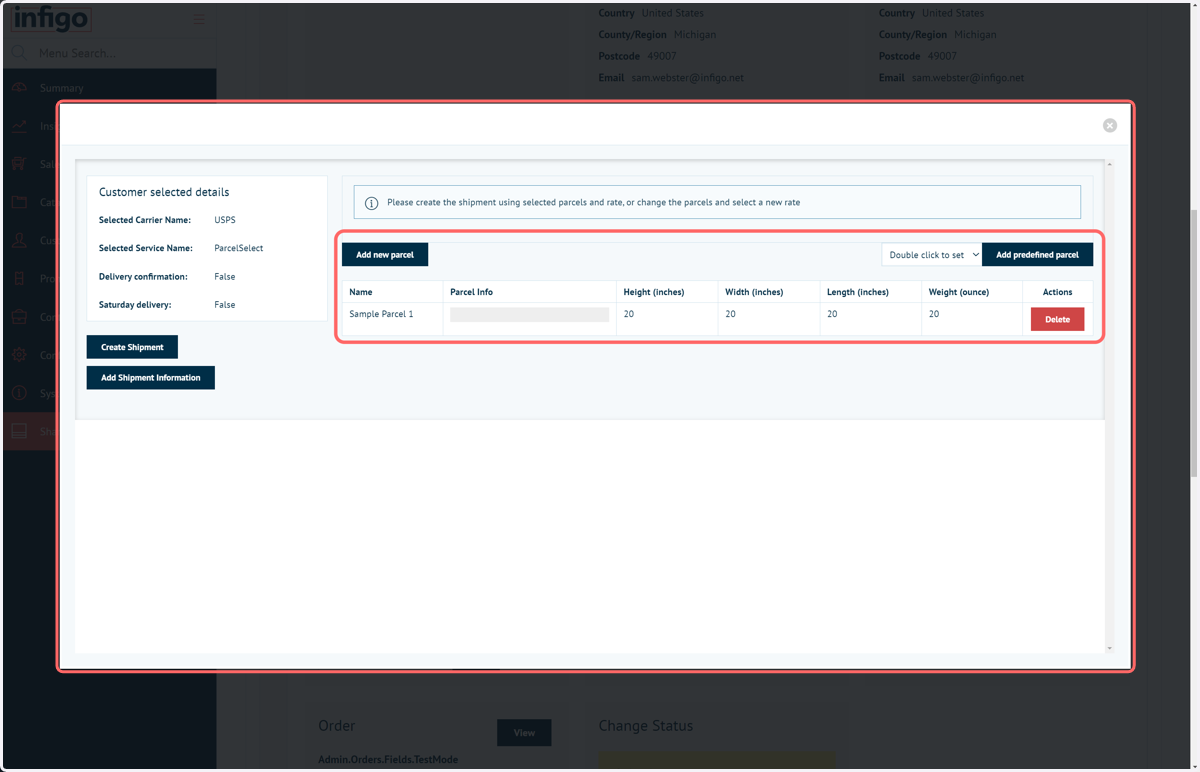
7. Parcel definition
Manually define parcels to add to this shipment, including dimensions and weights.
You can also access your list of pre-defined parcel specifications, saving you from entering the details each time.
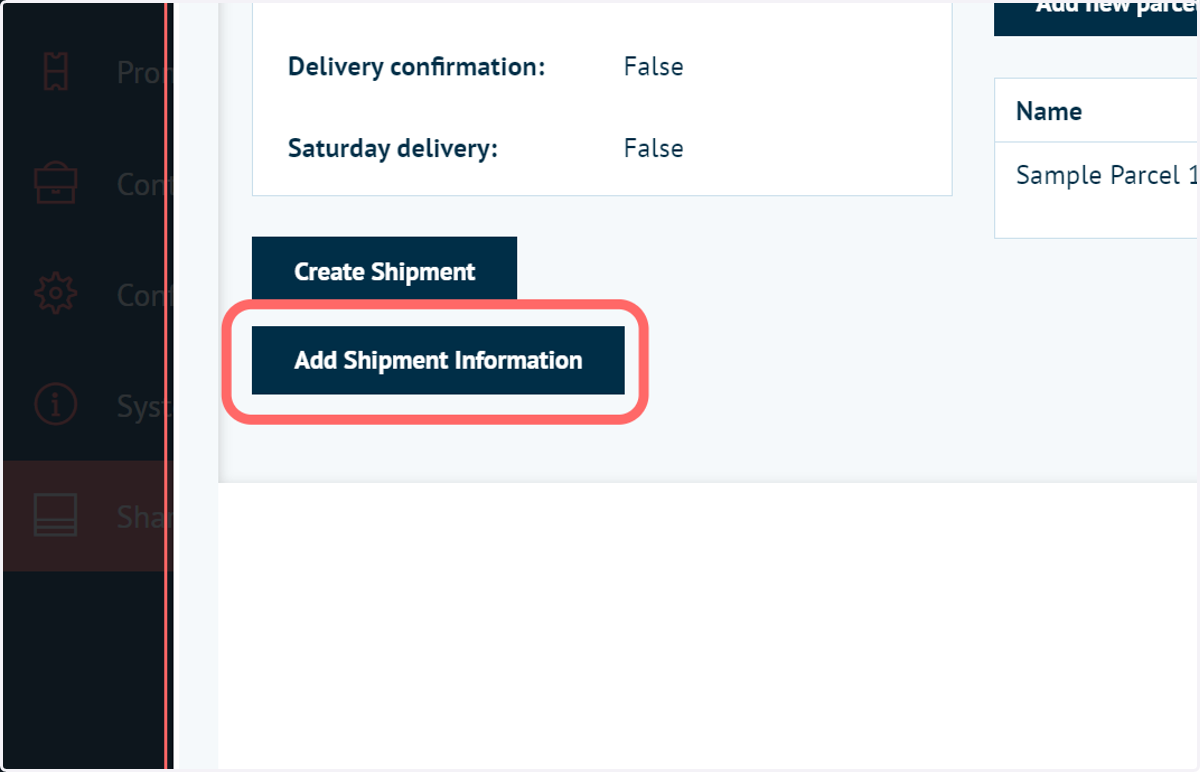
8. Add Shipping Information
For international shipments that require customs information to be sent with the shipment you must assign items from the order specifically into parcels. To do this click on the 'Add shipment information' button and then drag each order item into the respective parcel you have created. We also do not support 'Buy Shipping Instantly' for international shipments due to the customs related information - these must be triggered and handled manually.
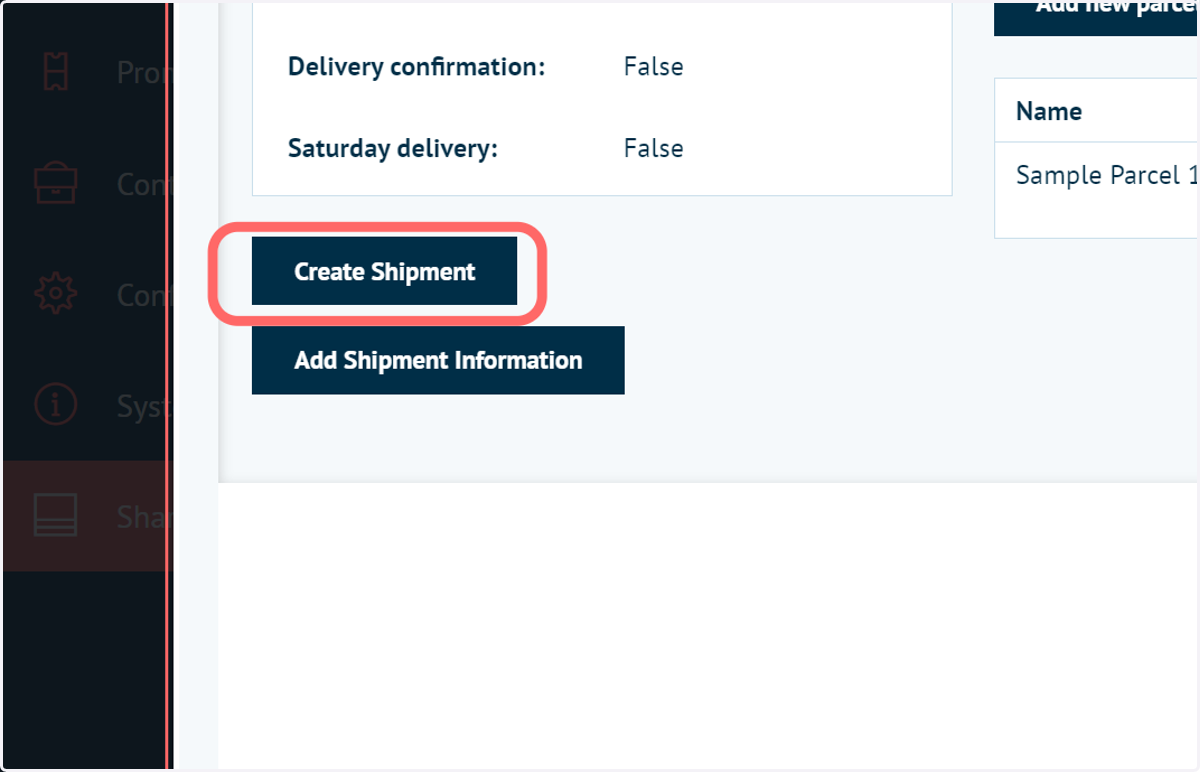
9. Create Shipment
Once you have created your parcel sizes or selected from your predefined parcel list, you can create the shipment which at this stage will then send the request to Easypost and return the shipping labels.
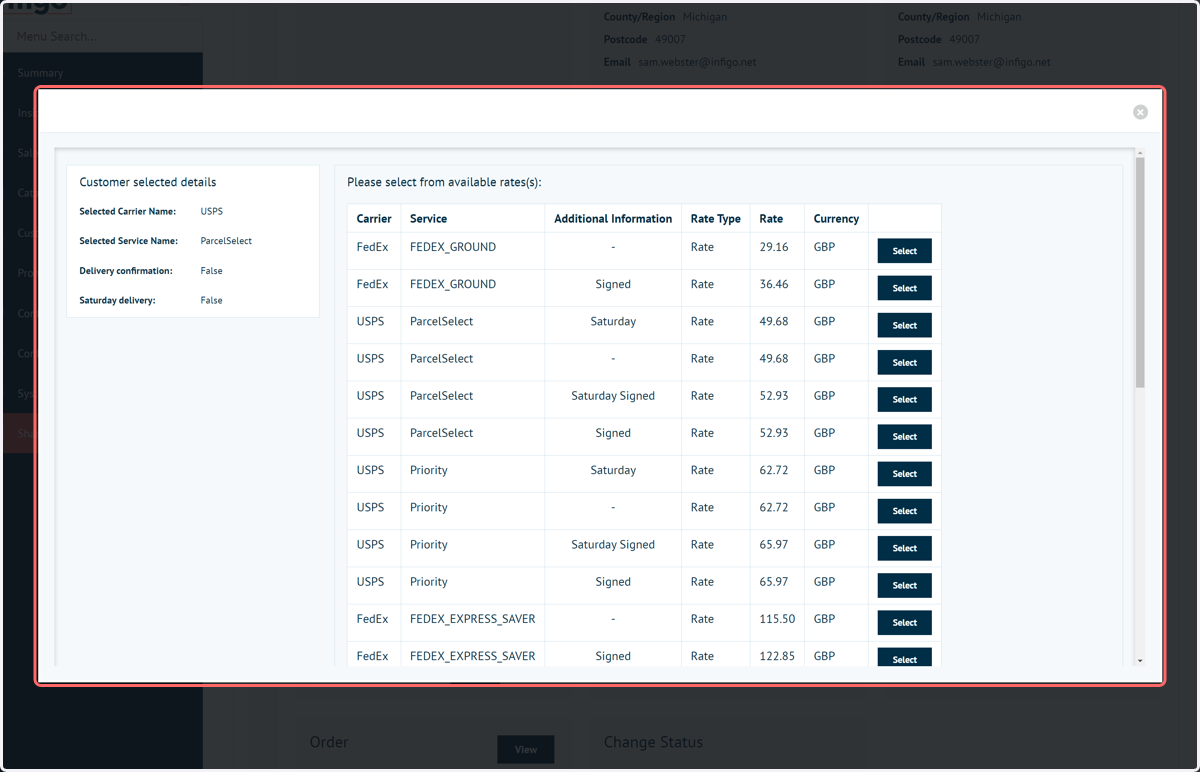
10. Select from the list of carriers and rates
This information is drawn from Easypost
Amazonaws
11. With the order placed in Easypost and returned to Infigo, you can download associated data from within Shared Print Operations
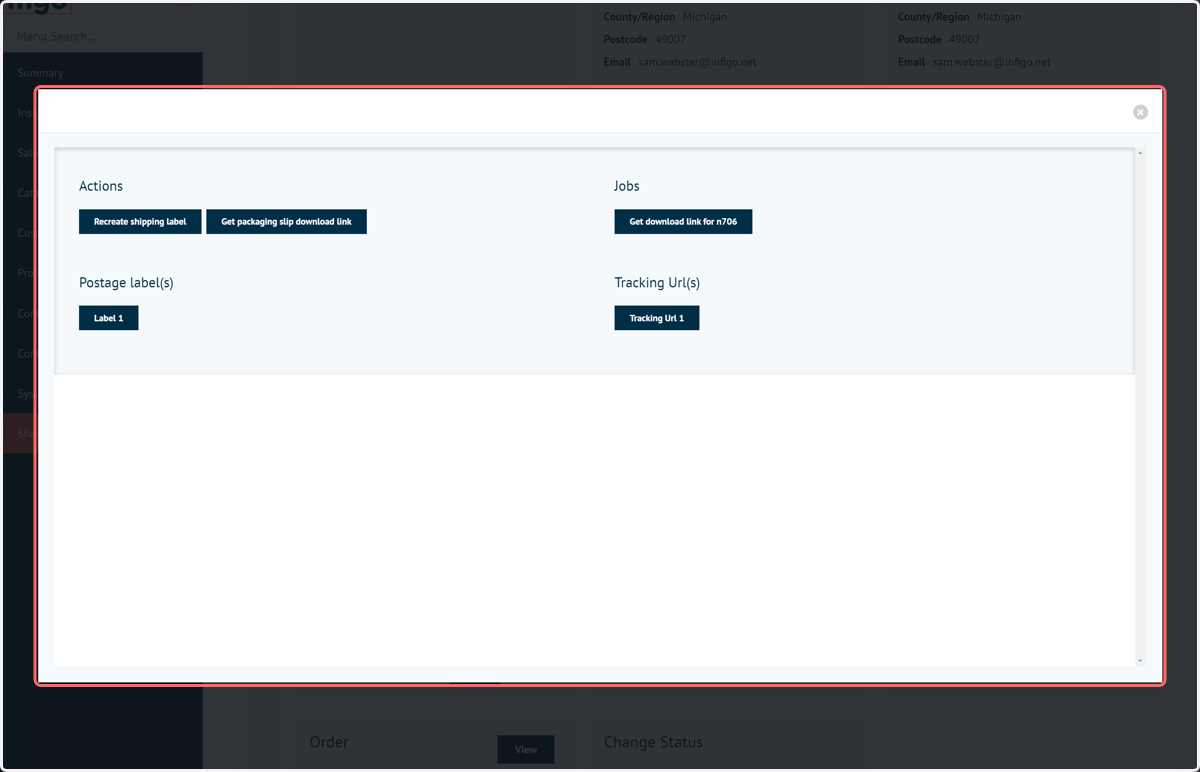
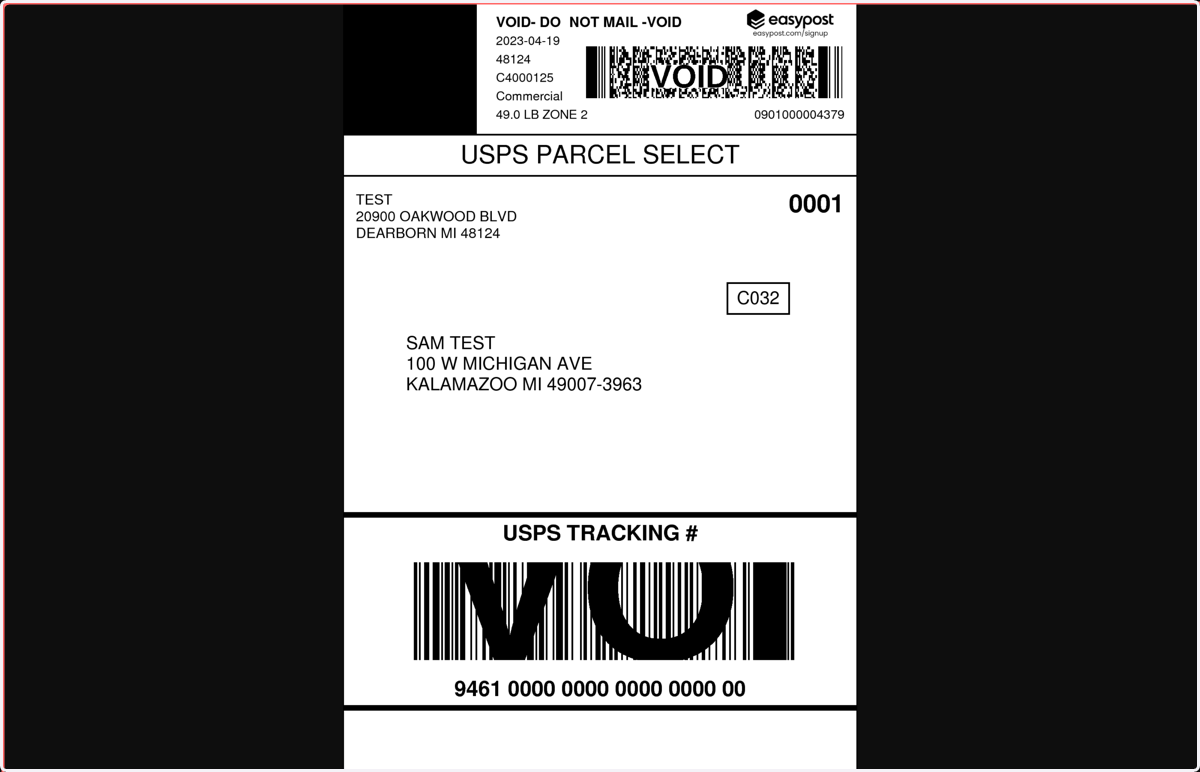
12. The shipping label can be downloaded from within Infigo

Easypost
13. Click on highlight
14. Go to www.easypost.com
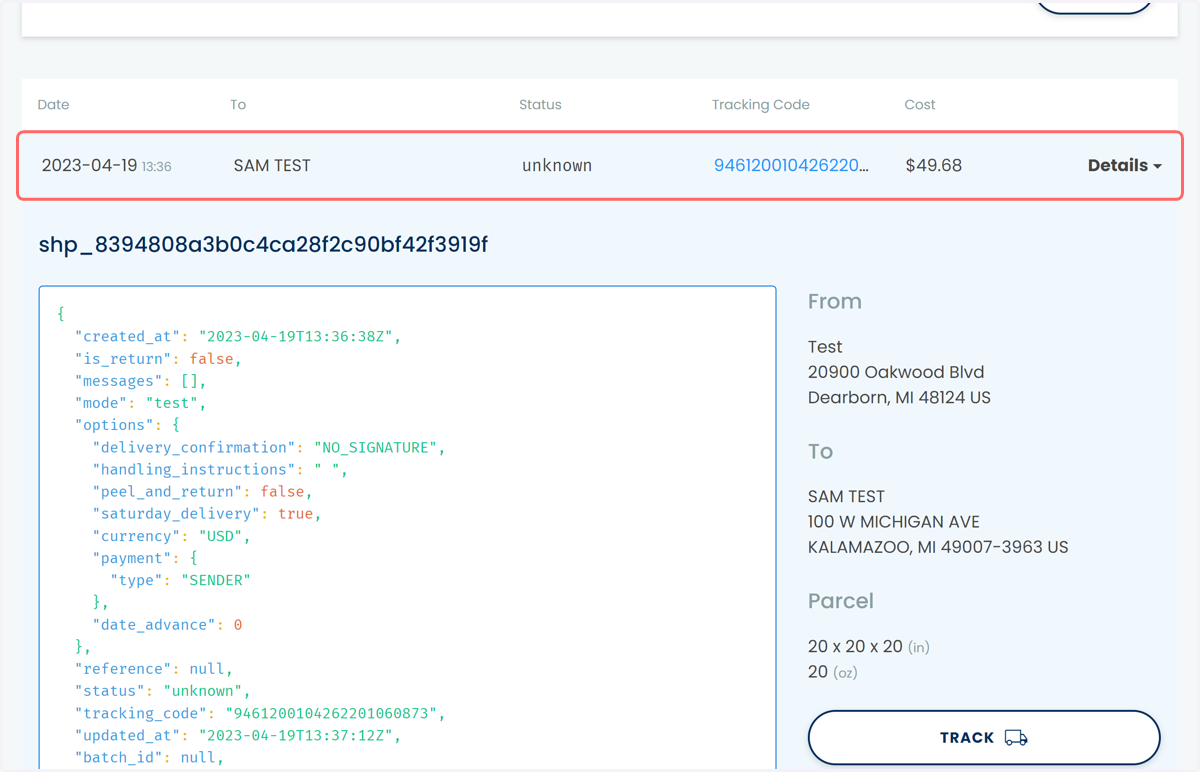
Next, we will confirm the order has been placed via Easypost and is present in their system
Infigosoftware
15. Click on 2023-04-19 13:36…