Backgrounds and Layouts
In this tutorial, we will learn how to apply a range of selectable backgrounds to our MegaEdit products, using a resource set named Background Categories.
We will also discover how to create pre-configured page layouts. MegaEdit editor allows you to Add/Edit Layouts to your product. There are unlimited variations of layouts to create since they can be made exactly for your needs. You can modify the layouts and make multiple images per page or single image per page.
Infigosoftware
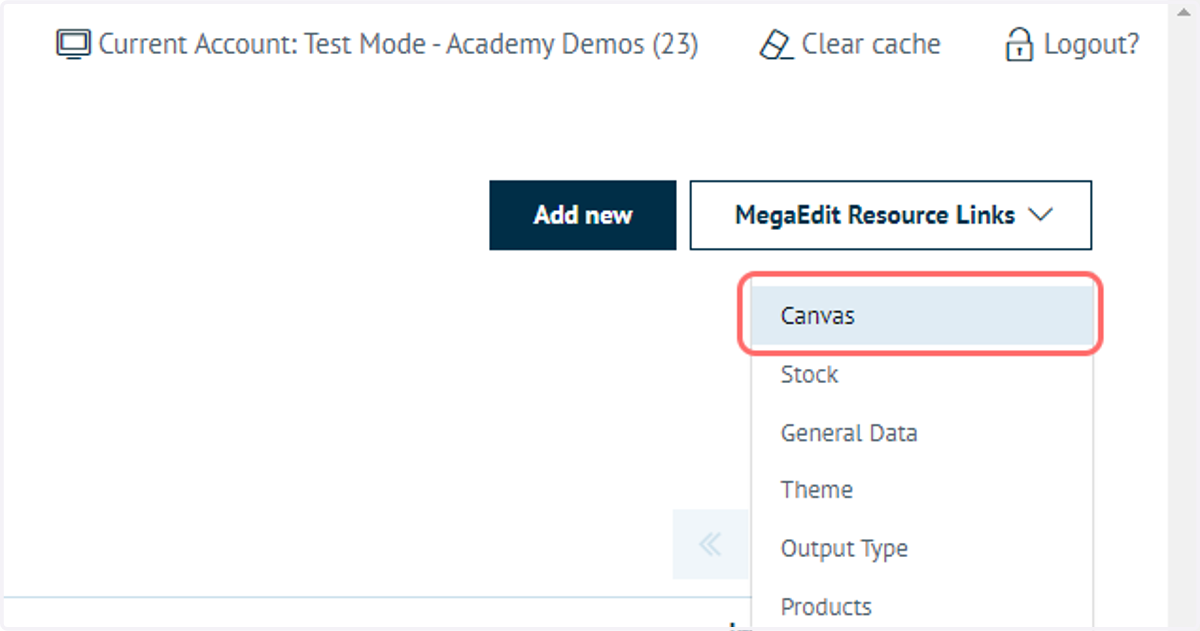
1. Navigate to your Canvas resources
Both backgrounds and layouts are specified on a specific canvas. Begin by navigating to your canvas specifications.
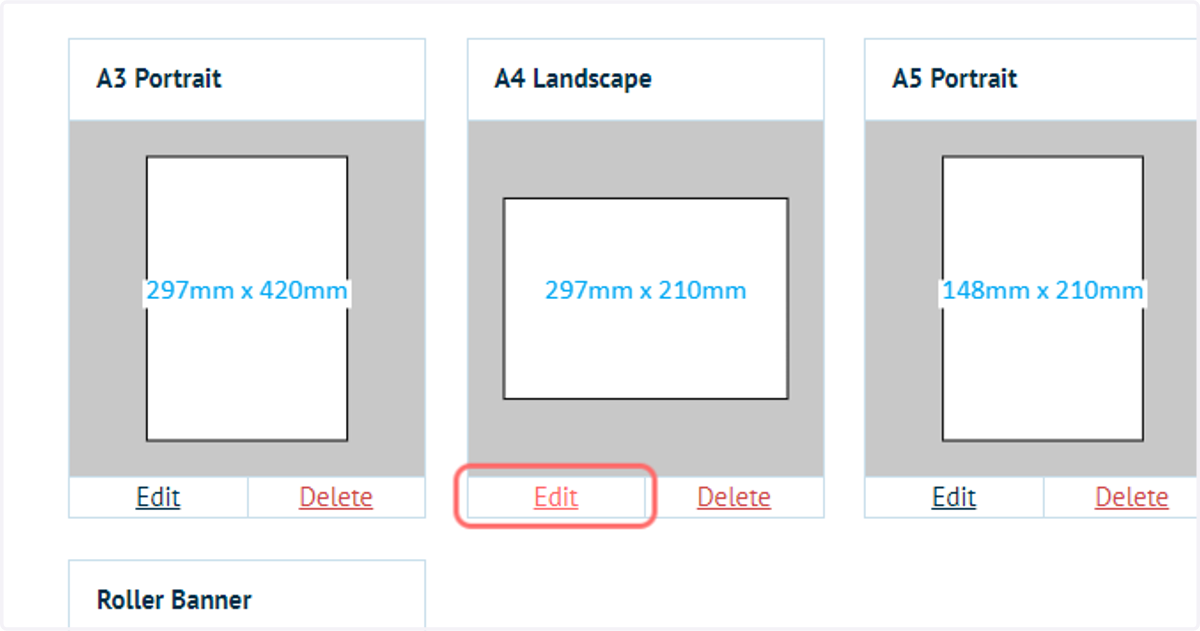
2. Click on Edit next to your canvas of choice
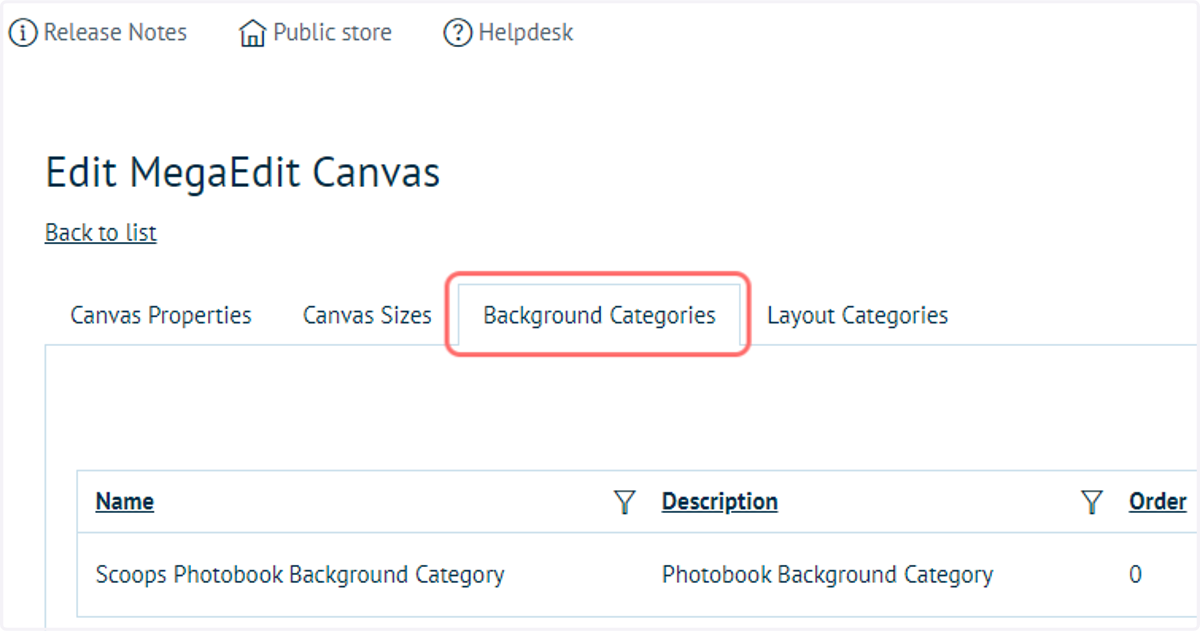
3. Click on Background Categories
4. Click on Add new record
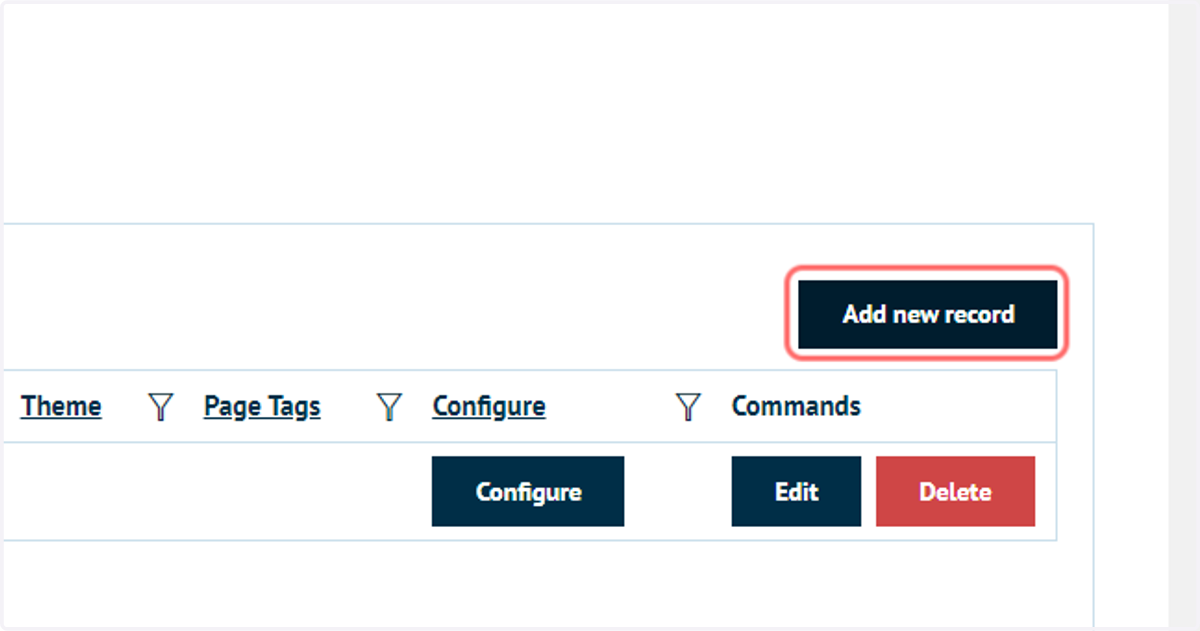
5. Specify category details and click on Insert
This will create the category on our canvas. Now, we must apply resources to that category.
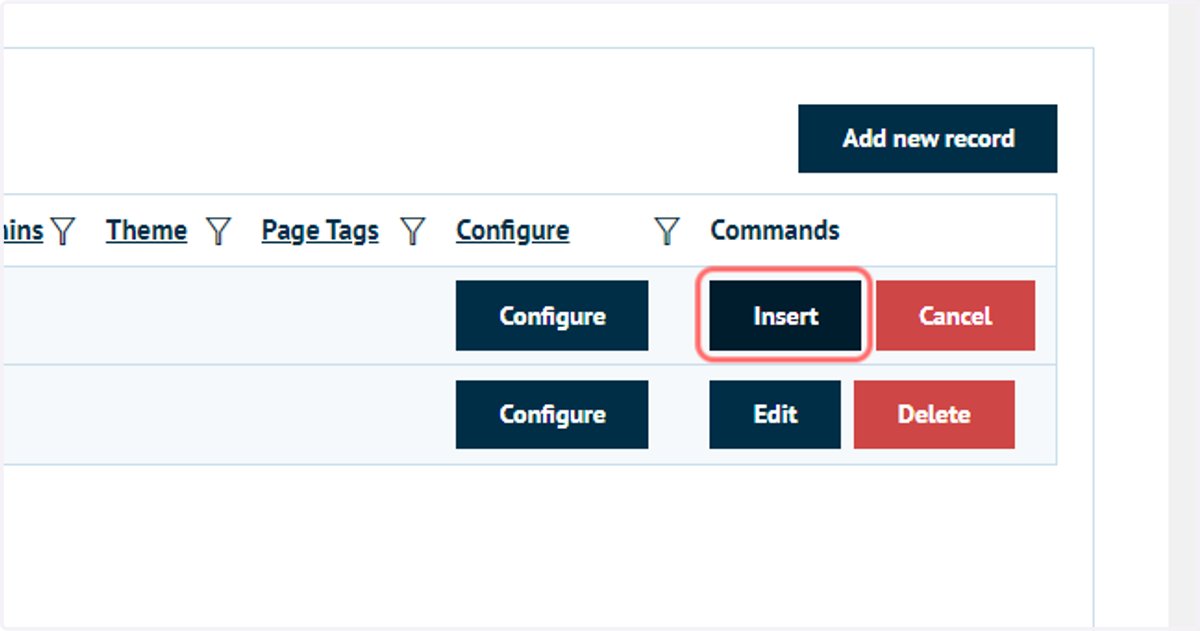
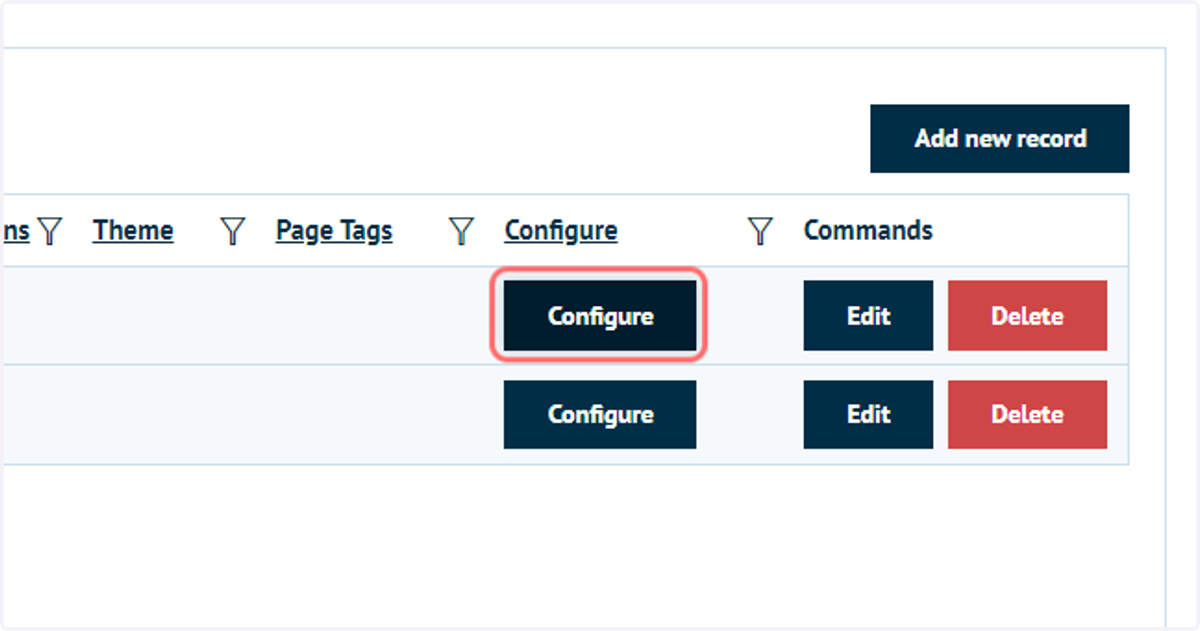
6. Click on Configure
7. Click the upload area and select files to use as your background options
These should match the size of the canvas being used. A background image will always stretch to fill the available canvas area, meaning a mismatch in sizing could cause the background image to be distorted.
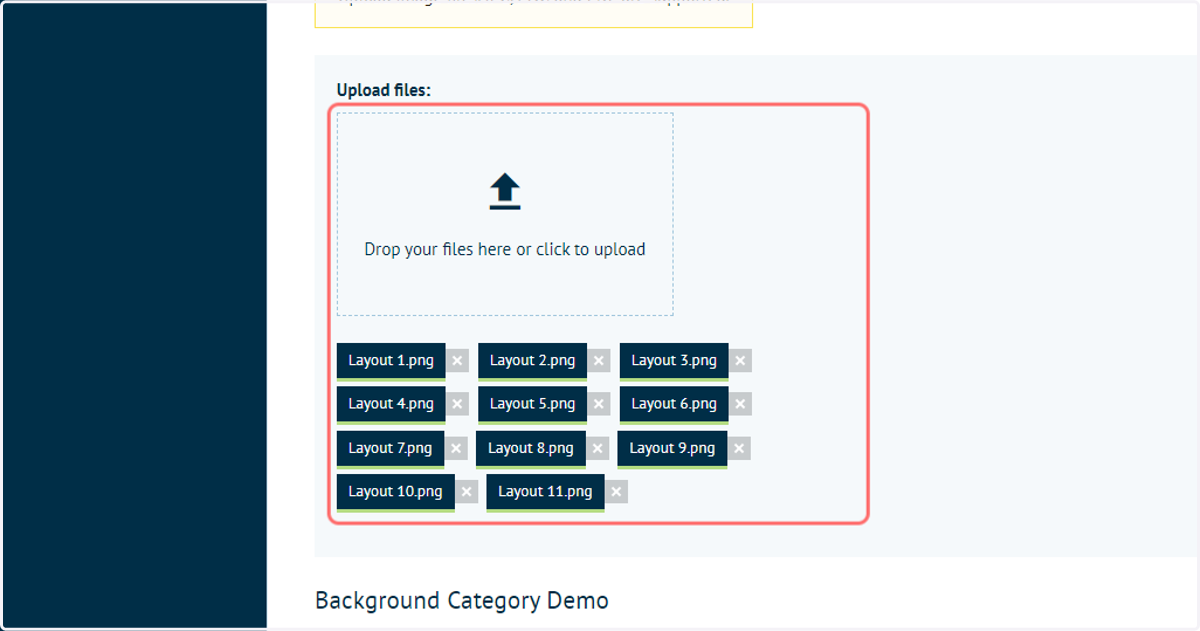
8. Successfully uploaded background images will be displayed as thumbnails
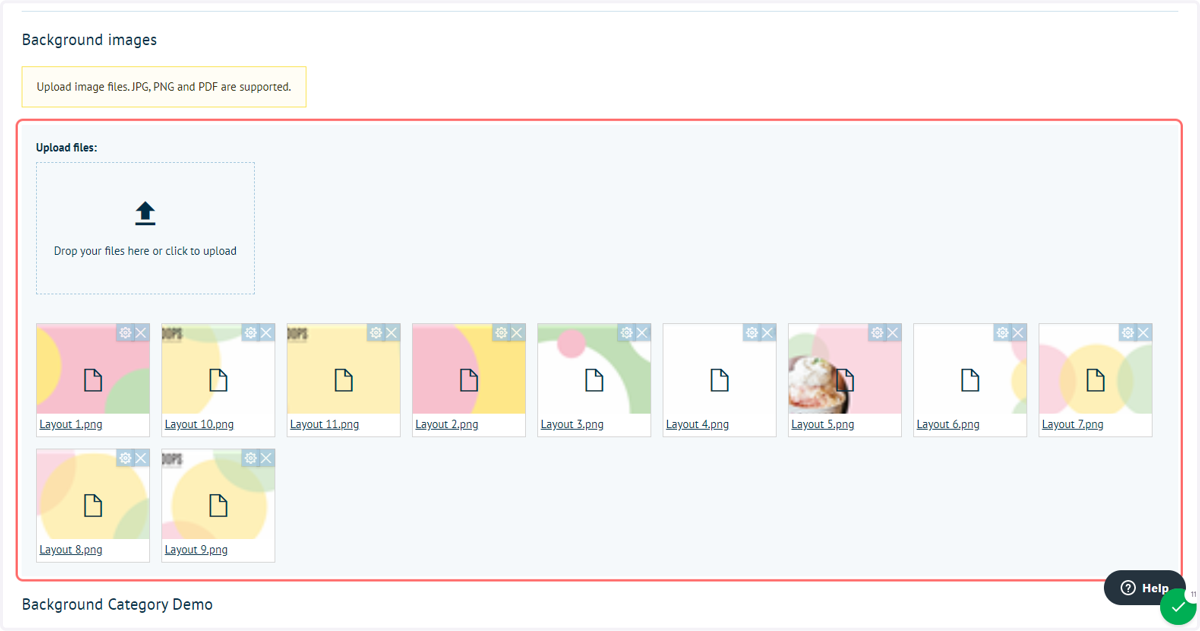
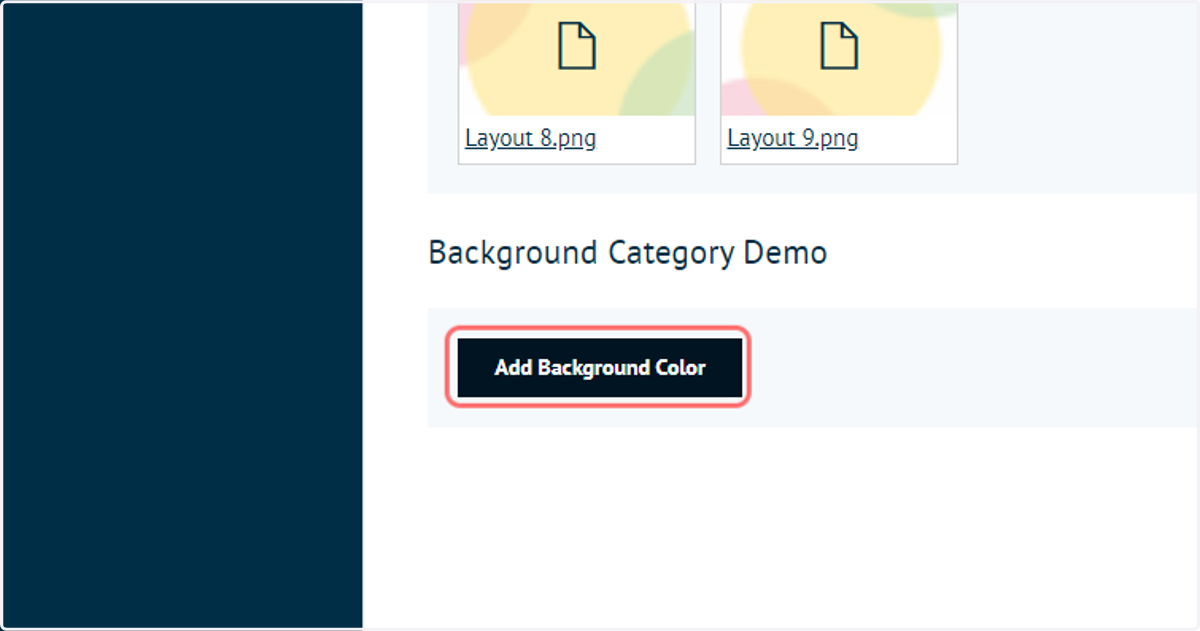
9. Click on Add Background Color
You also have the ability to define background colours to a background category. This works in the same way as the images above, however allows you to define a solid colour backdrop.
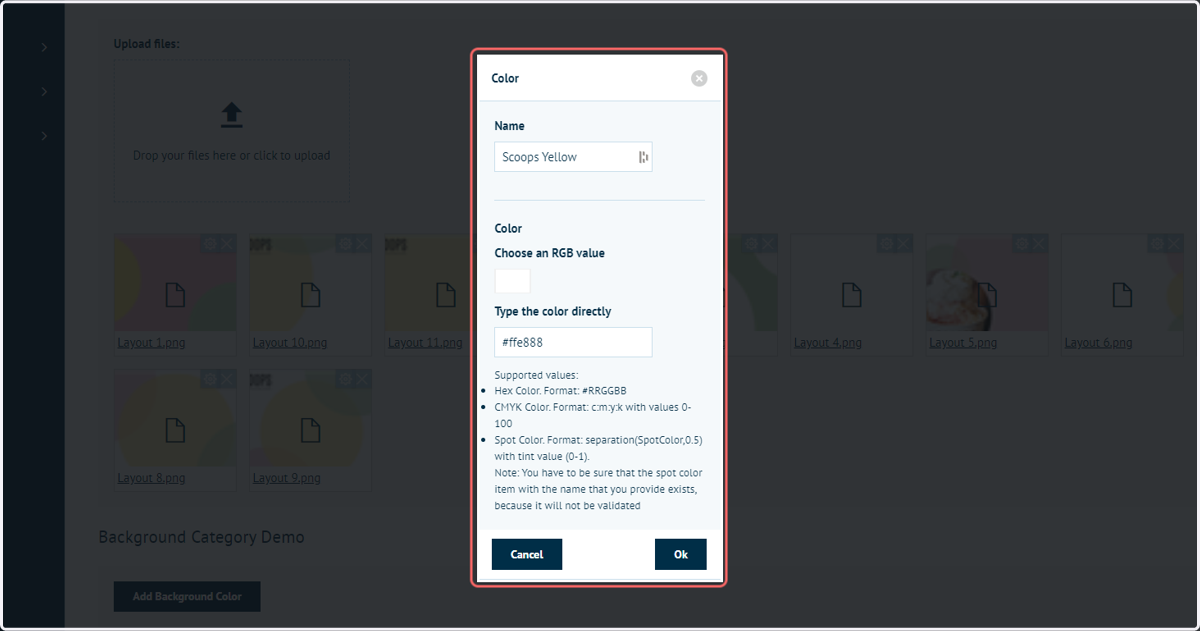
10. Complete the colour name and select/enter your colour of choice, then click OK
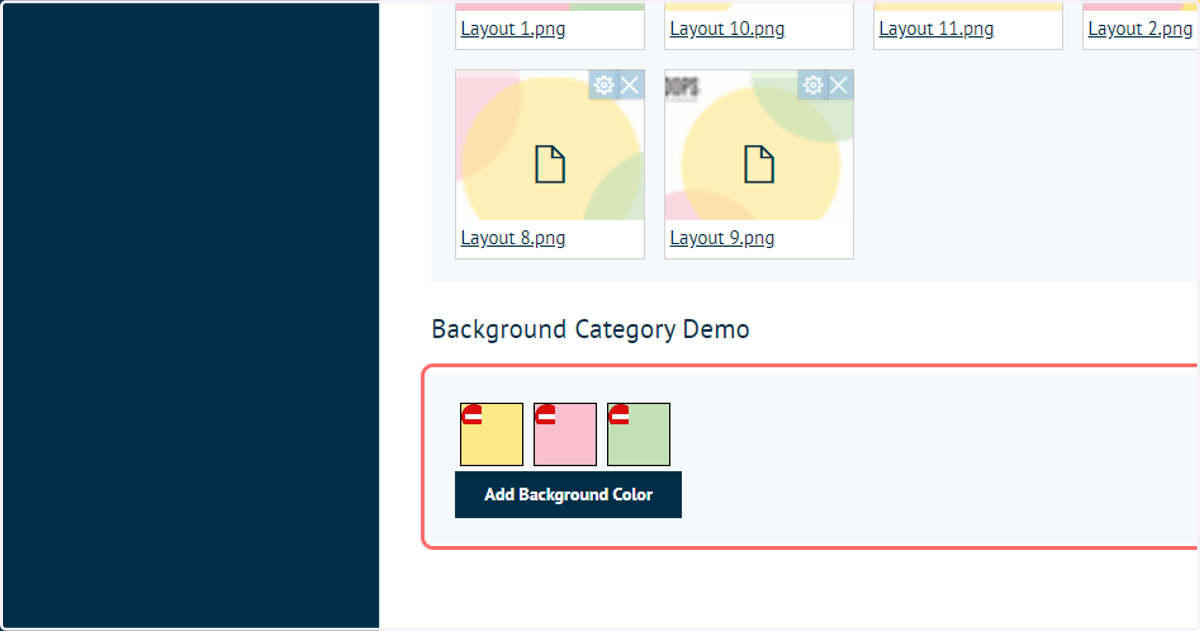
11. Multiple background colour options can be defined
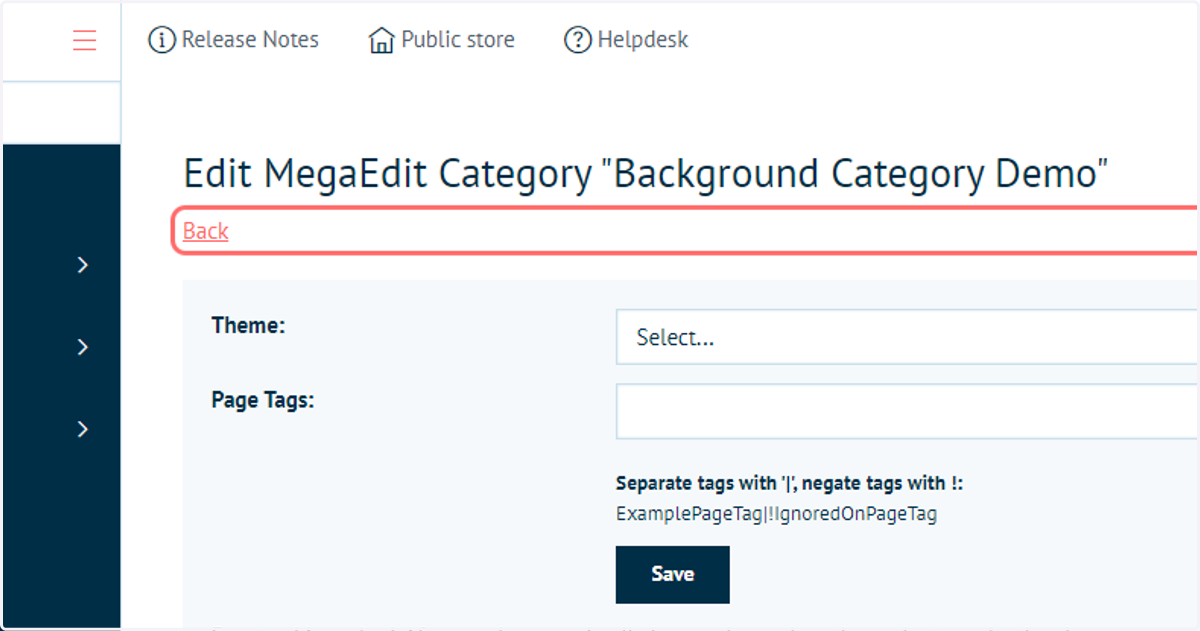
12. Click on Back
Our background category specification is complete.
As we have created this category on a specific canvas specification, they will be available wherever this canvas available for a product.
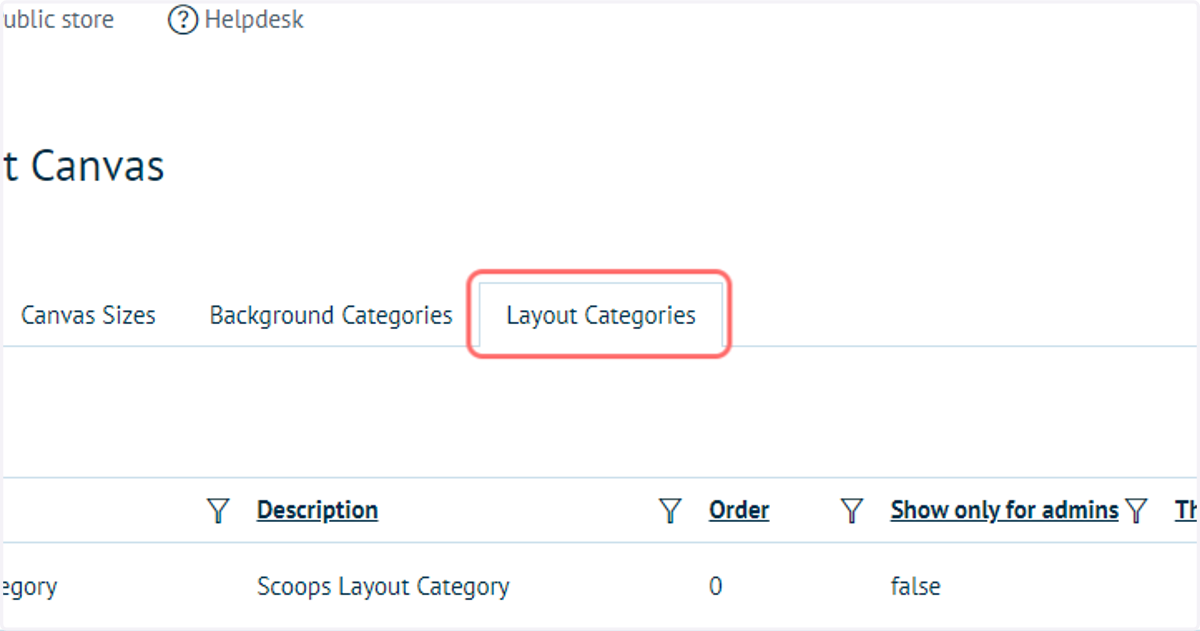
13. Click on Layout Categories
Layouts are specified within the MegaEdit editor itself.
The only action we need to take in the admin area is to create a Layout Category in which to save our layout designs.
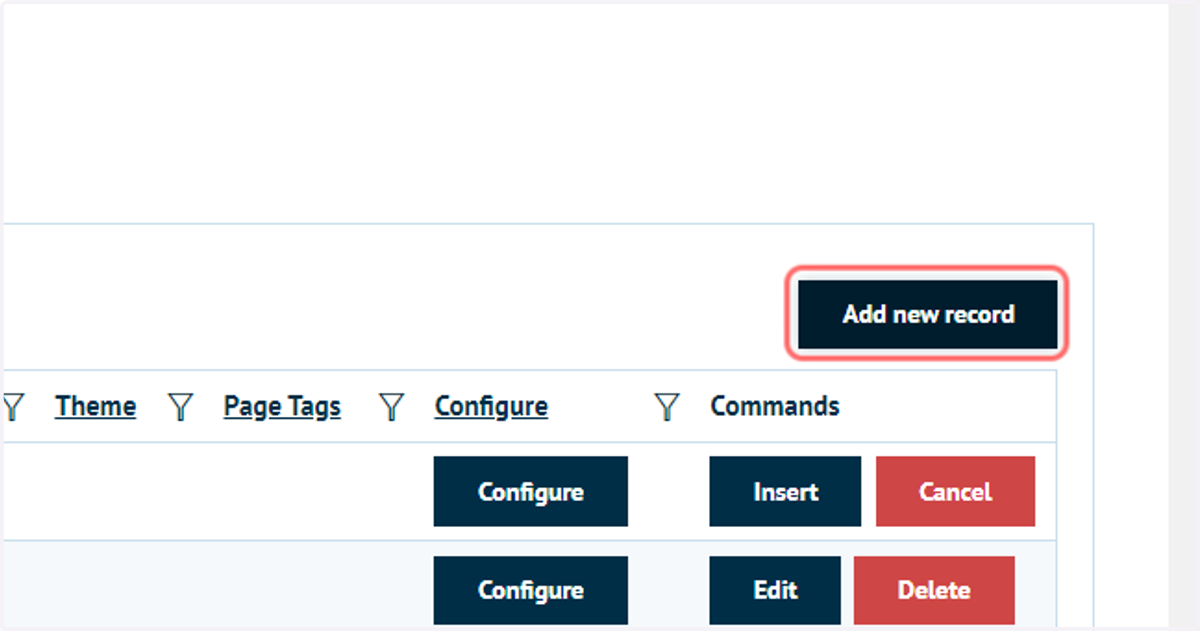
14. Click on Add new record
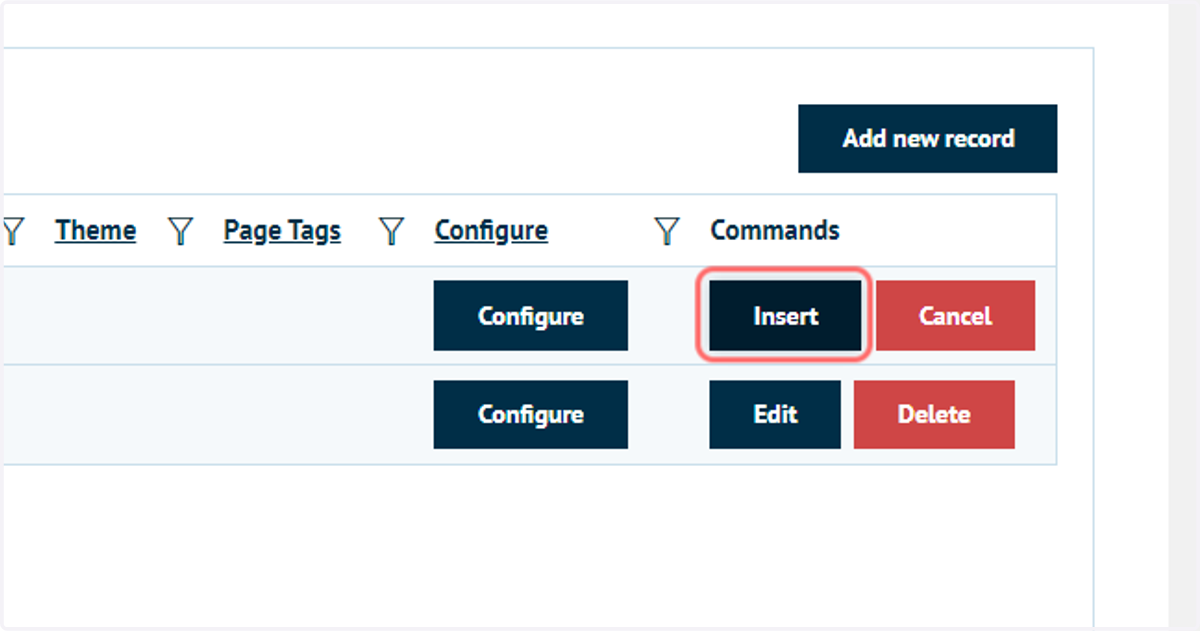
15. Complete category information and click on Insert
16. Navigate to and launch your MegaEdit product in the MegaEdit editor
17. Click on Background selection and select a category
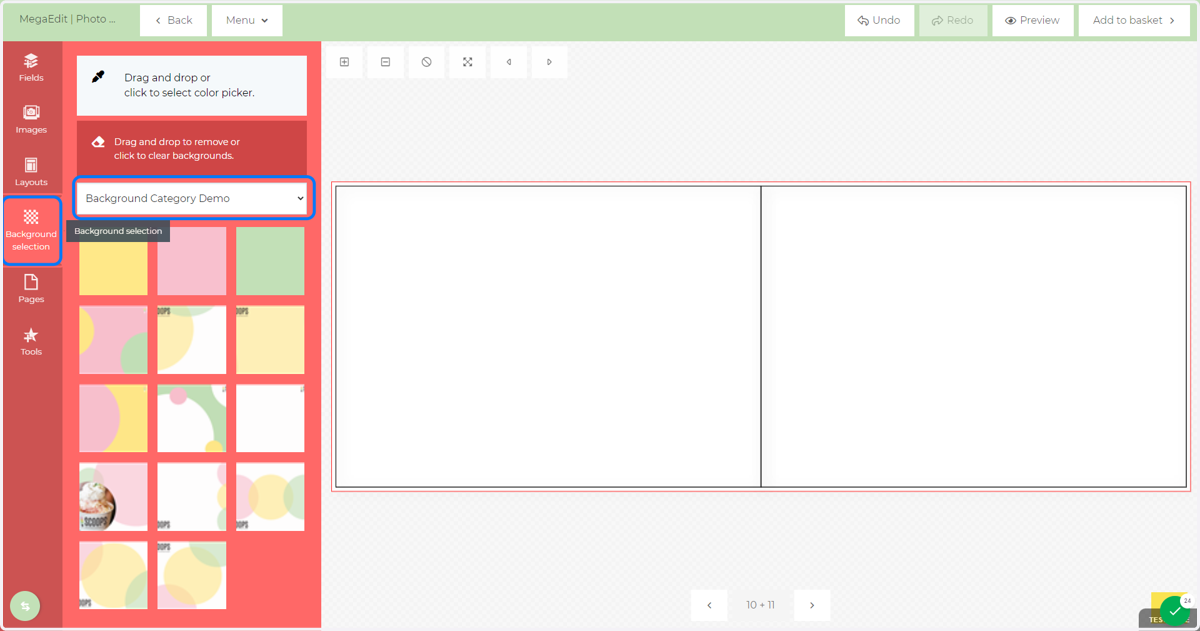
18. Drag and drop background designs onto pages within your MegaEdit product
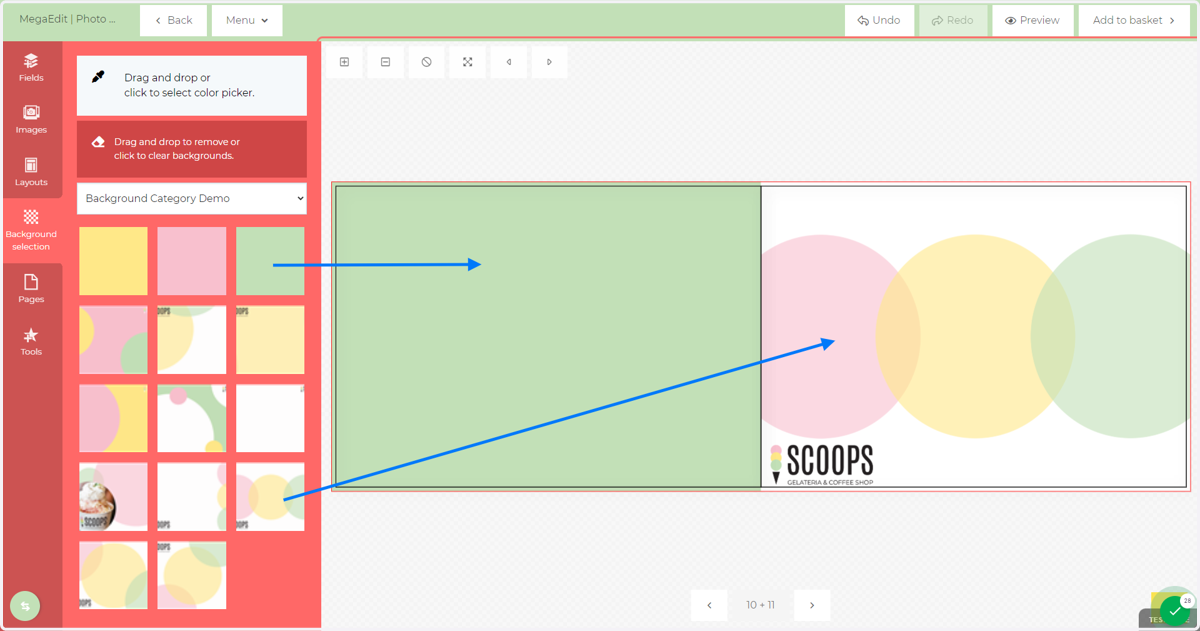
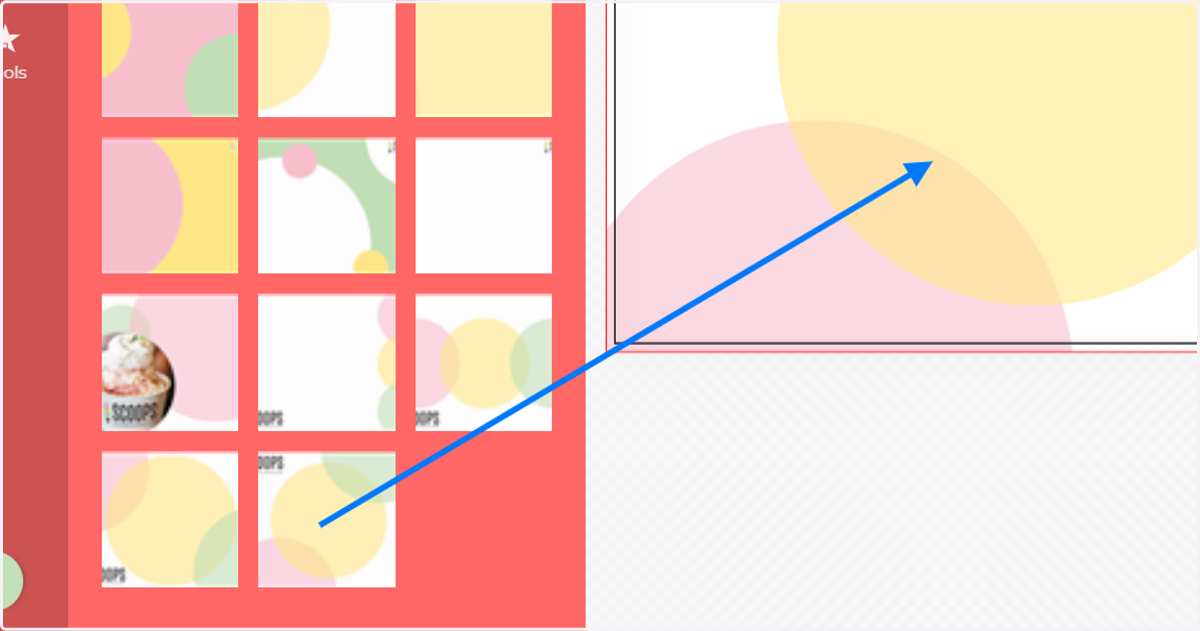
19. You can change the background design by dragging and dropping another design on top of the previous o
20. Saving new layouts
Layouts allow you to save the design and position of different MegaEdit elements into a single selectable option.
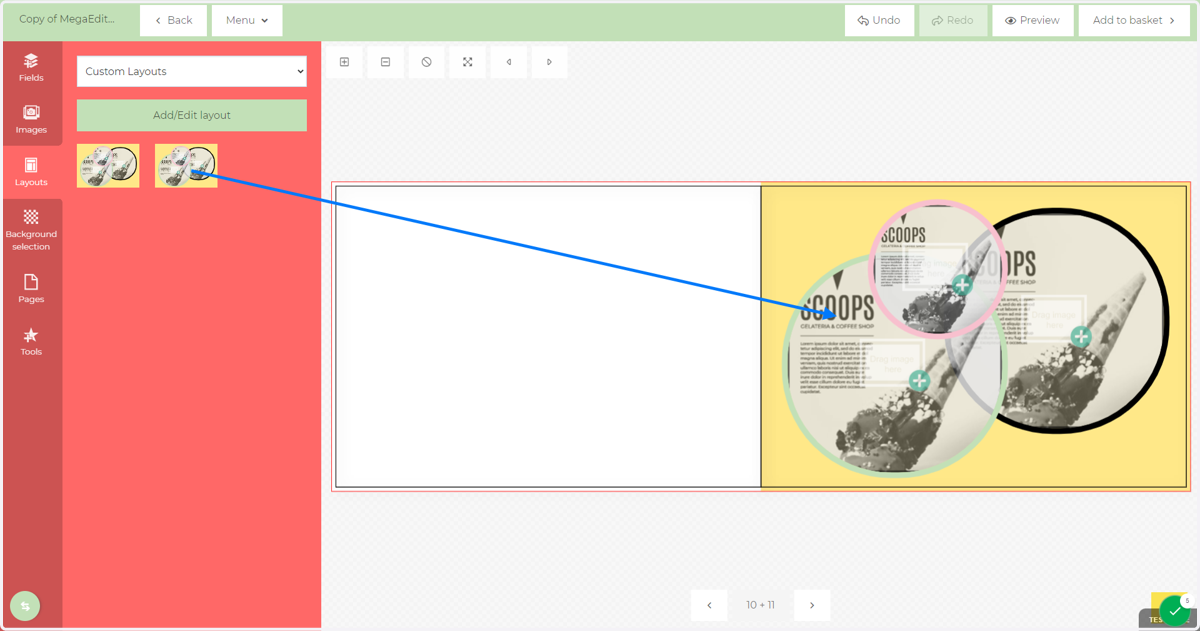
For example, the image below shows a page containing a background, clipart and two stylised image fields. These can all be saved as a single layout for simple replication in other pages or other products using this canvas specification.
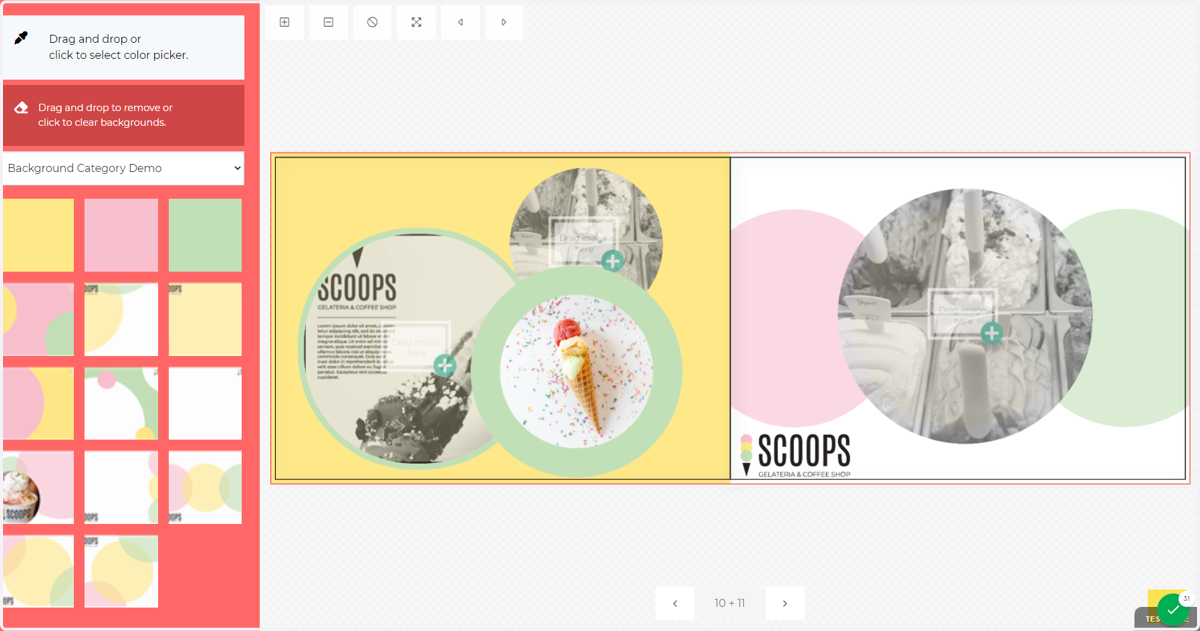
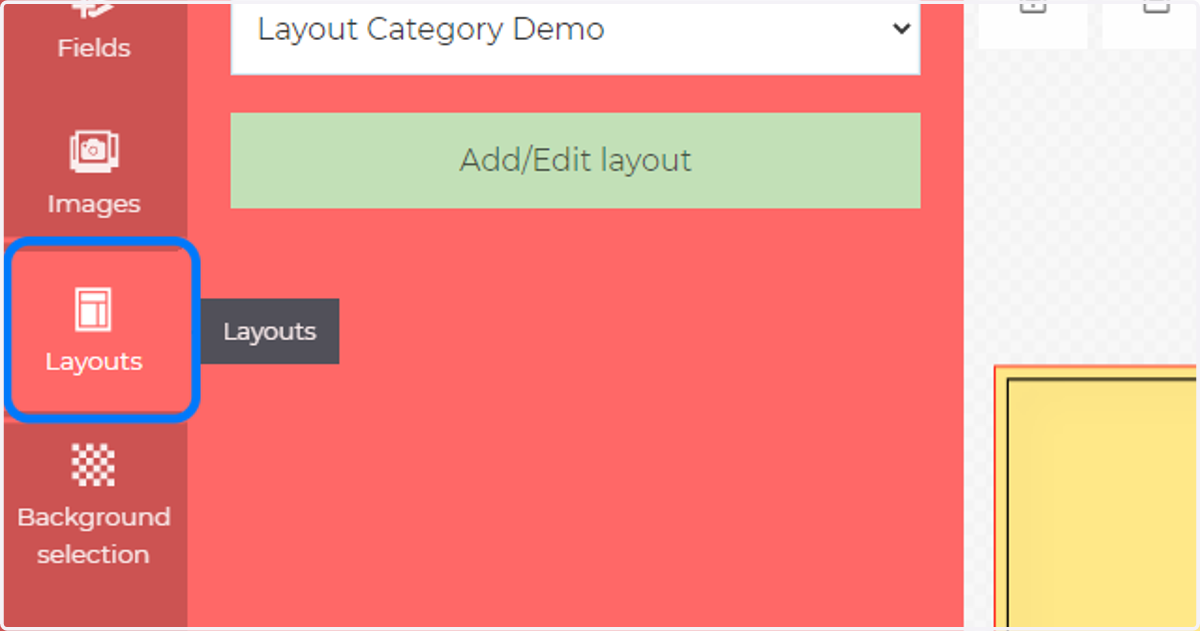
21. To save a new layout, click on Layouts then Add/Edit layout
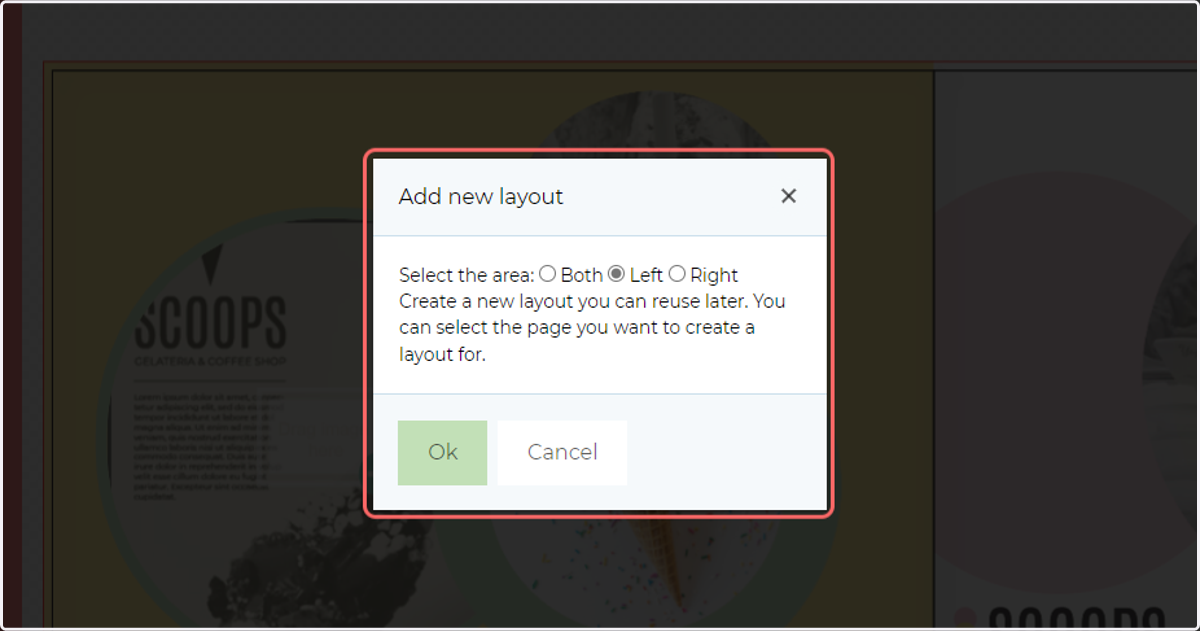
22. Follow the on-screen instructions to save the layout to a selected layout category.
23. Your saved layout is now created and ready for use
Drag and drop from the Layouts tab onto your canvas to apply the layout design.
You are able to define as many layout designs as you wish.