Application and Contract
Starrezhousing
1. Go to csueastbay.starrezhousing.com
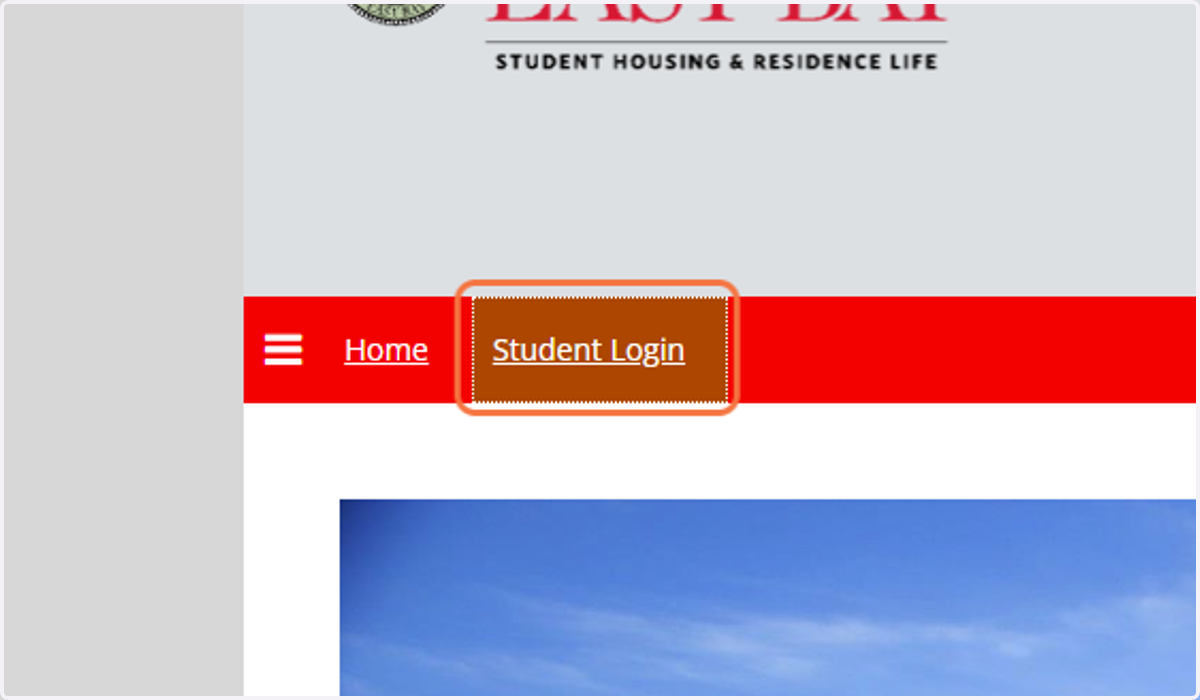
2. Click on Student Login
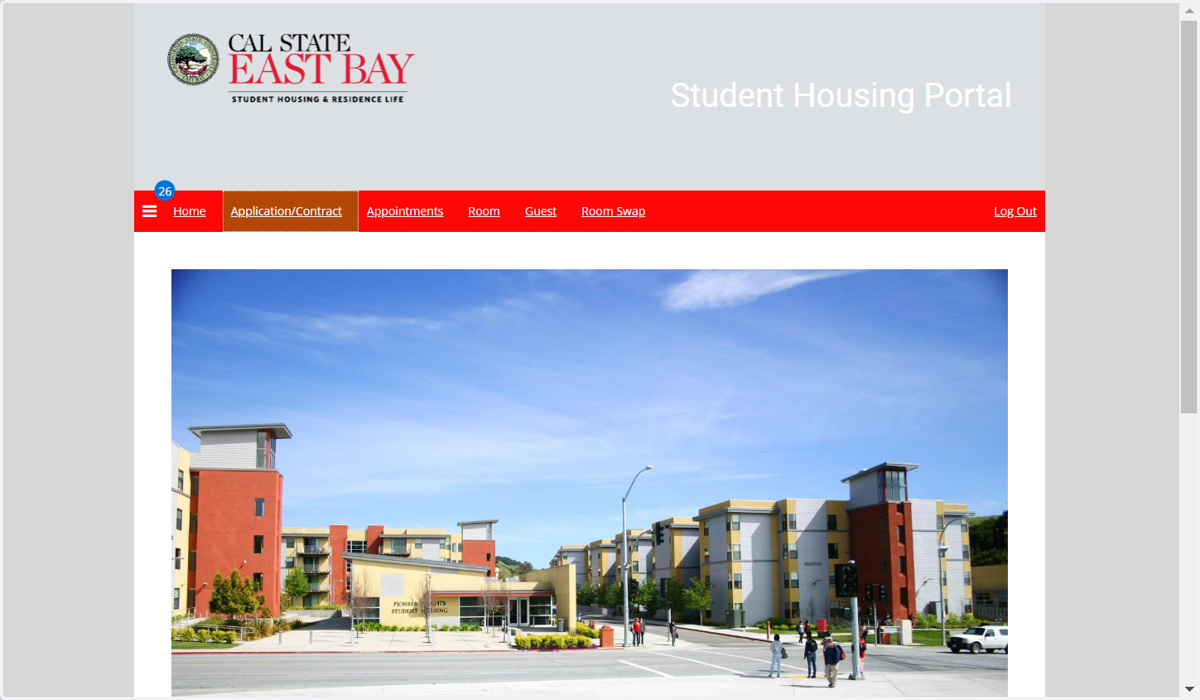
3. Click on Application/Contract
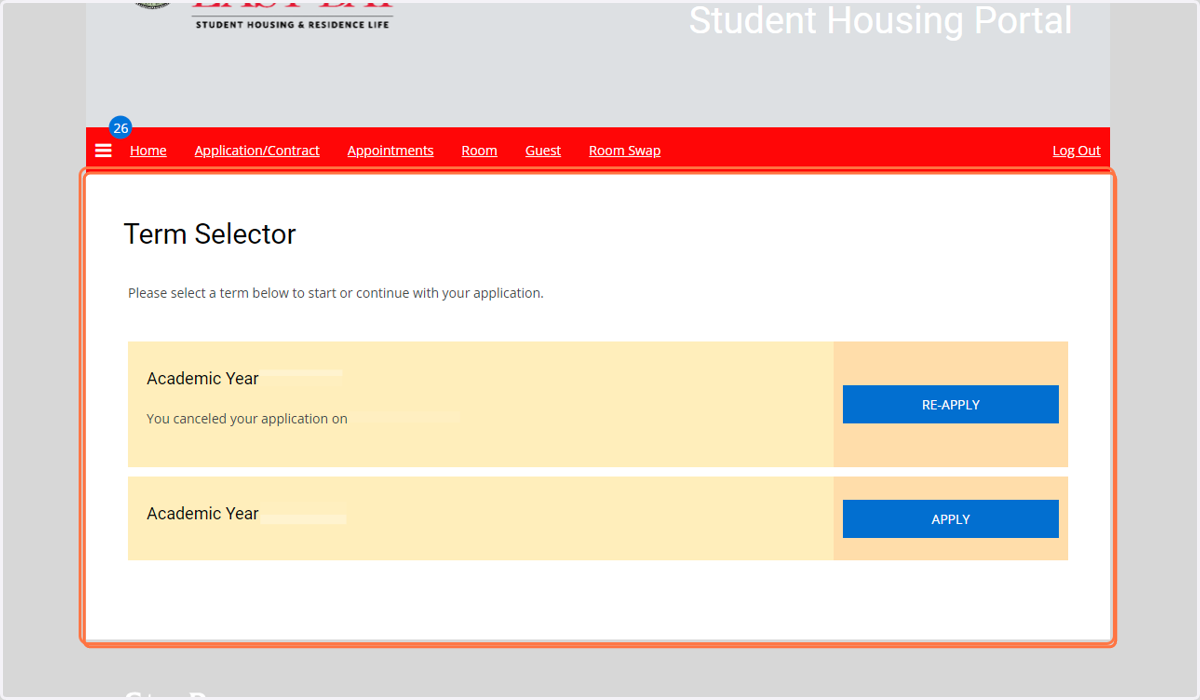
4. Select the term you are applying for.
Click on the blue Apply button next to the term you're applying for.
5. Welcome Page
Welcome Page: This page provides fee information and payment methods options for you to be ready for when payment is needed.
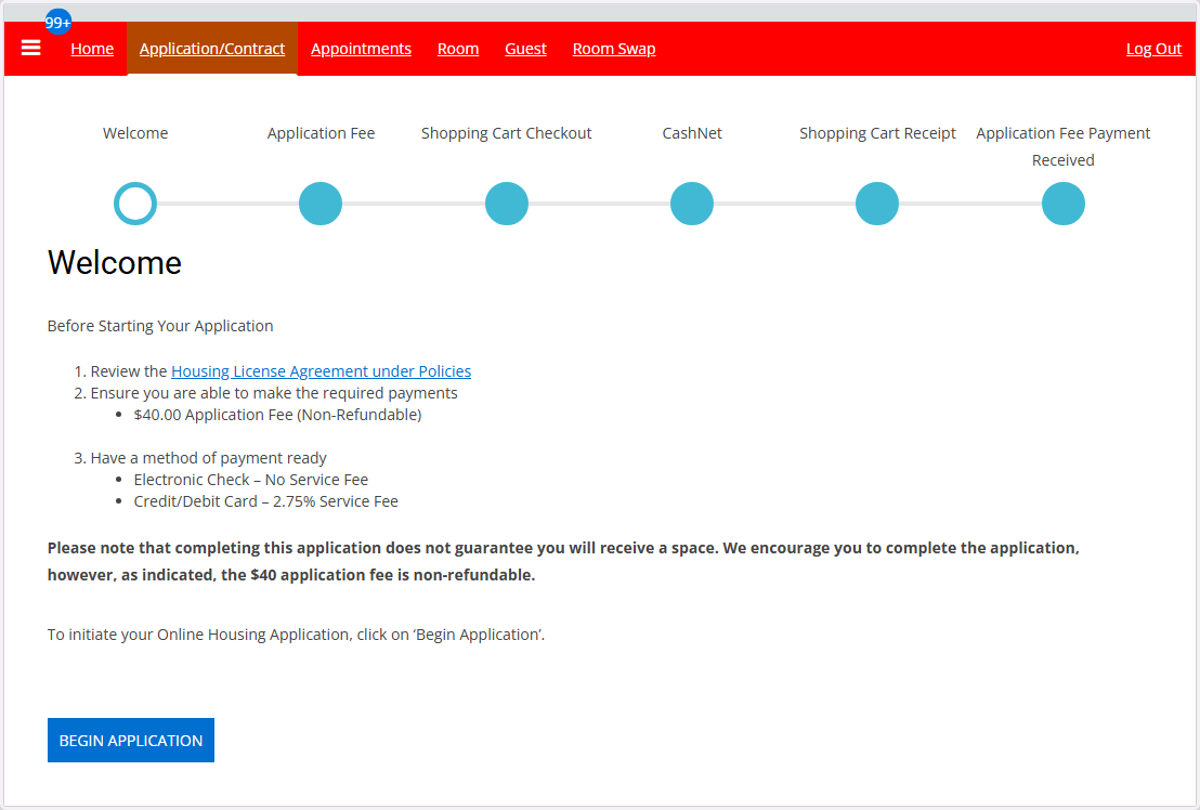
6. Click BEGIN APPLICATION
Click BEGIN APPLICATION to start the application
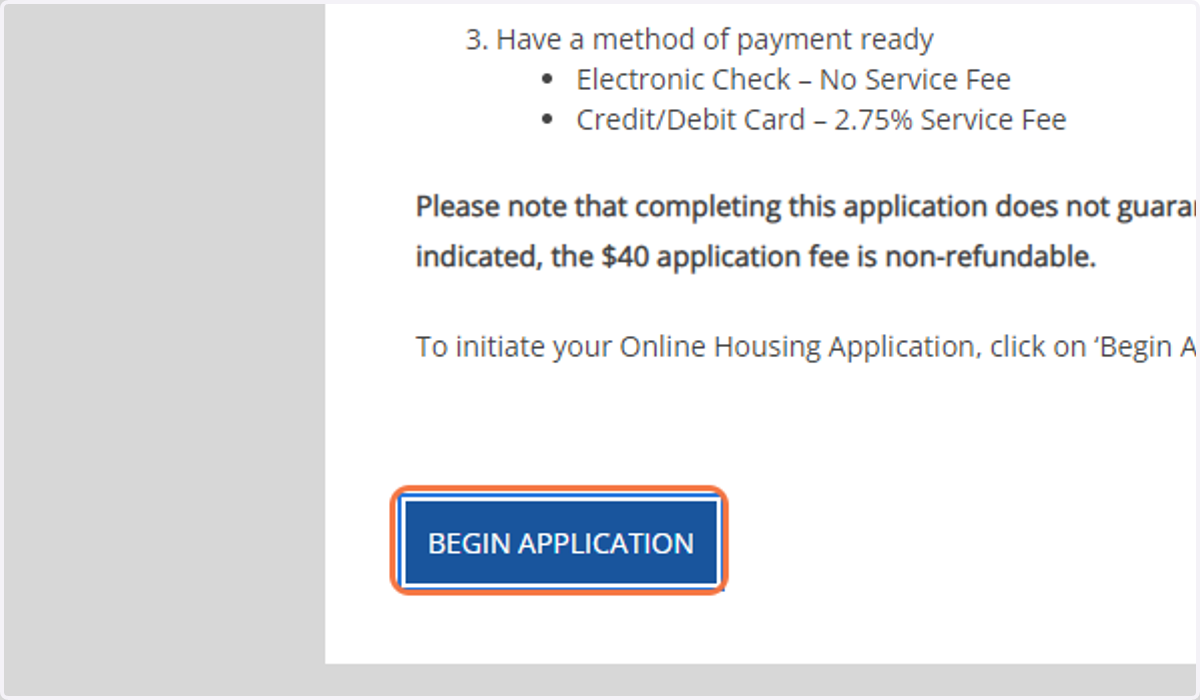
7. Application Fee
The non-refundable $40 application fee must be paid before starting the application.
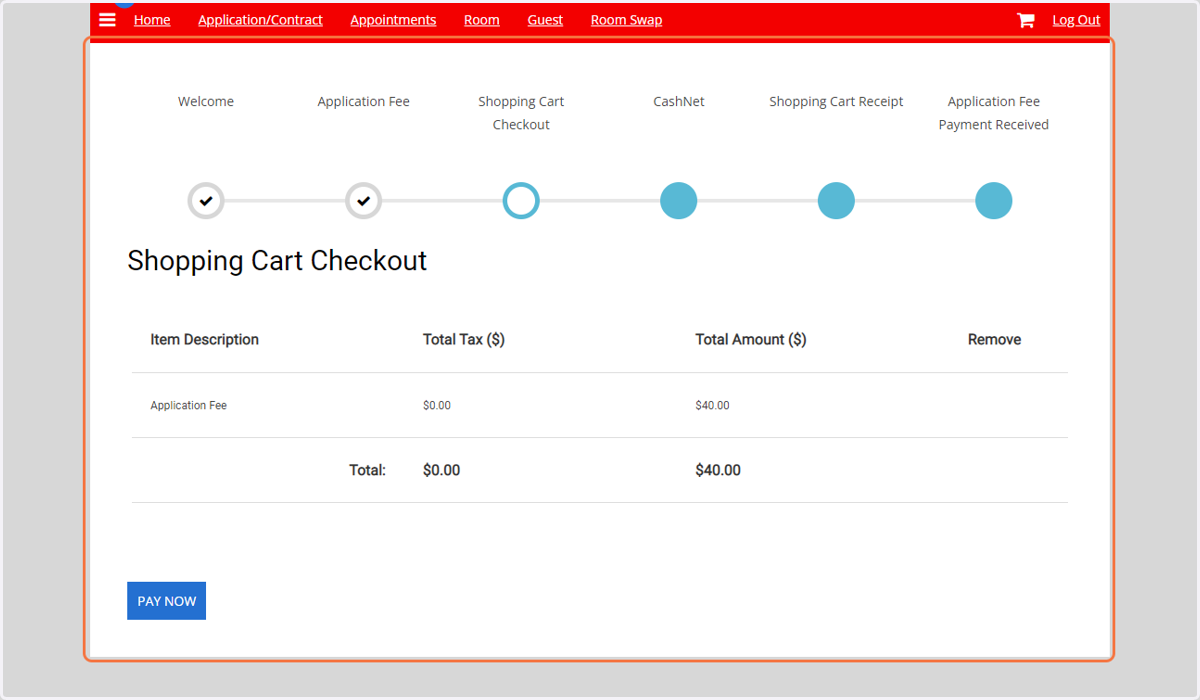
8. Click on PAY NOW
Click on PAY NOW

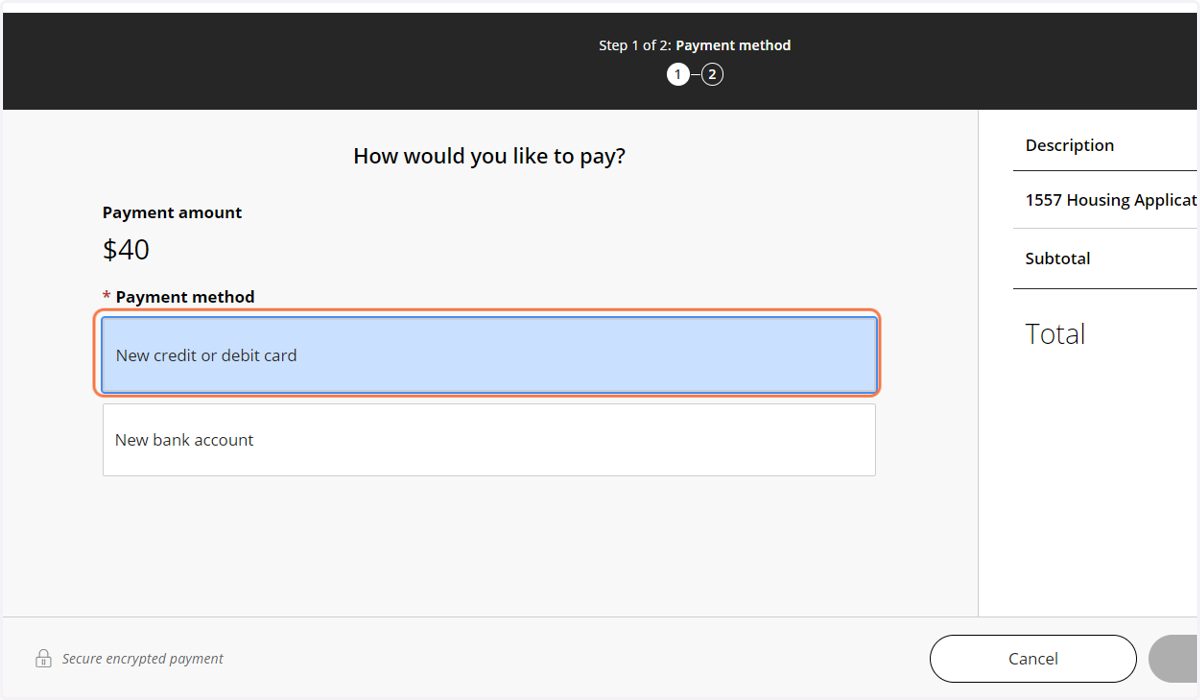
9. Payment on Cashnet
You will be prompted to pay on cash net.
There are two options to process the payment
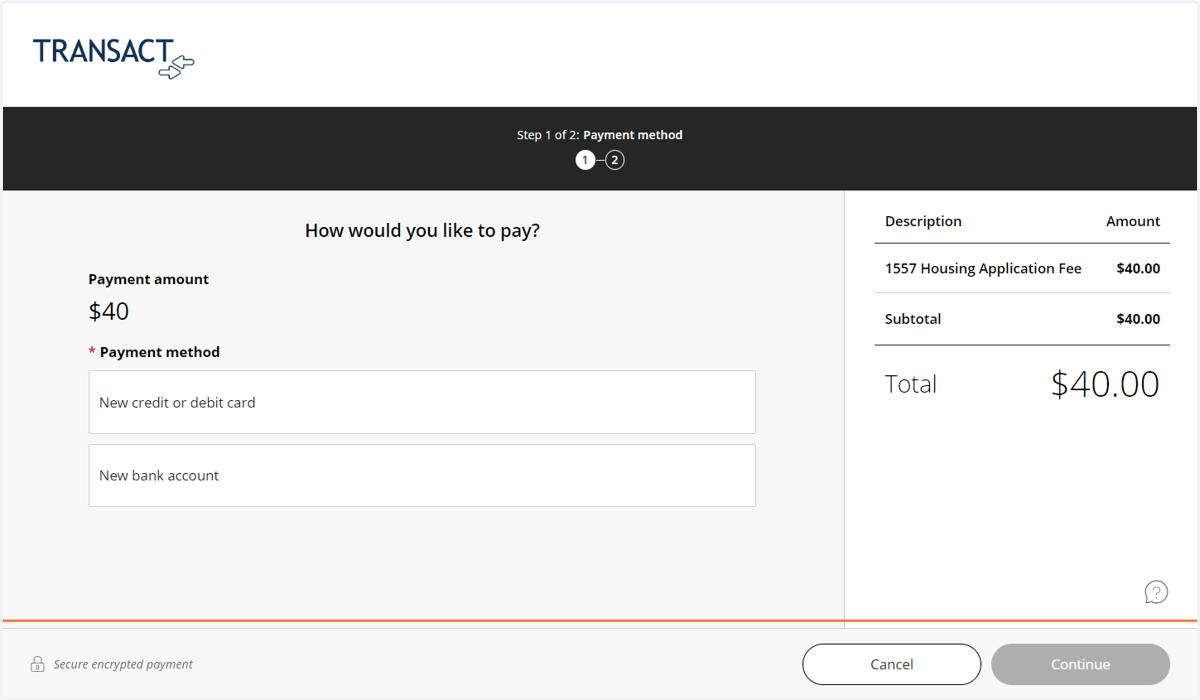
10. Payment Option 1
The credit card option has a 2.75% processing fee.
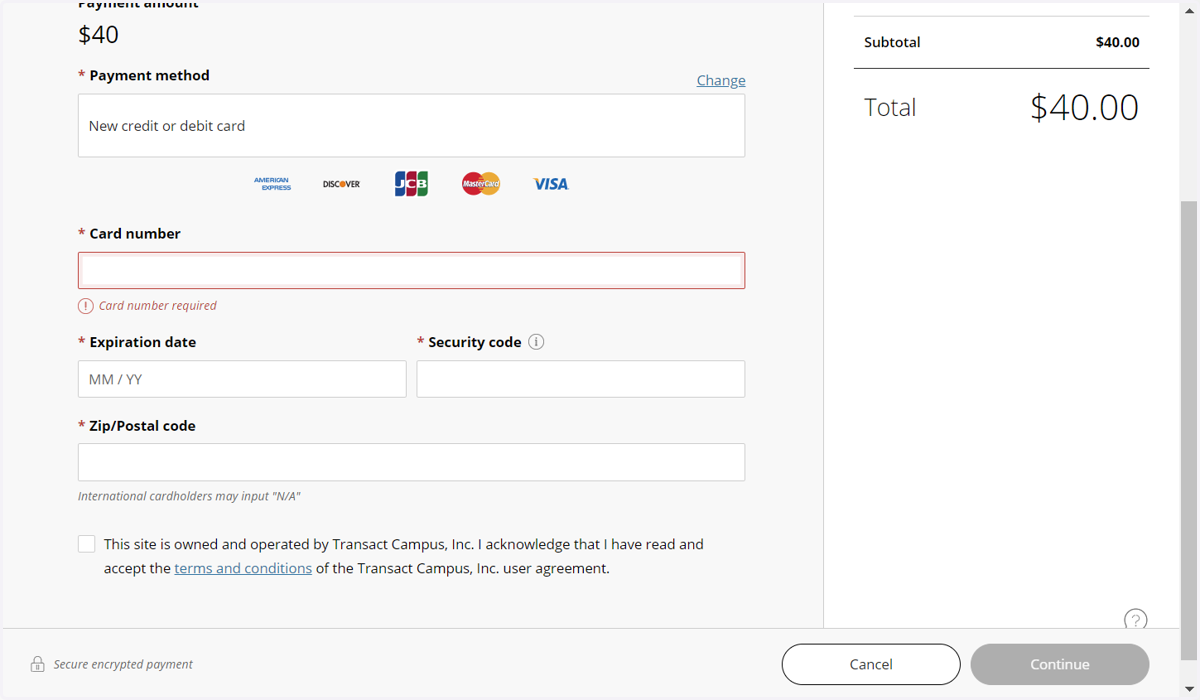
11. Credit Card information needed
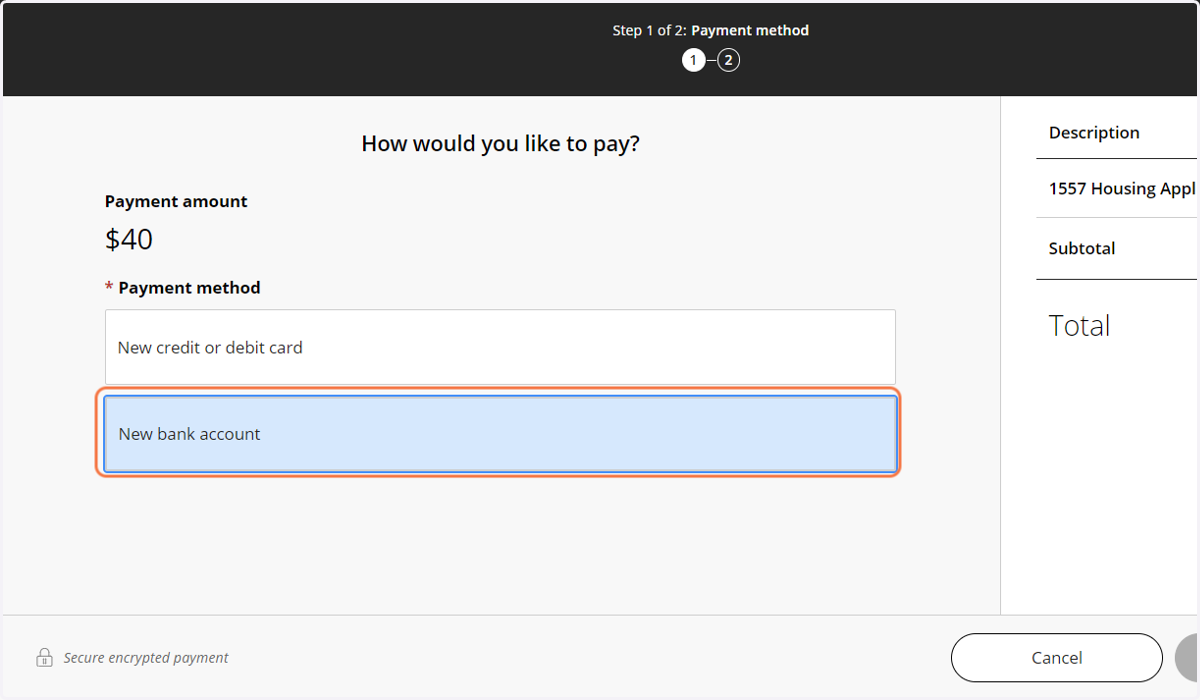
12. Payment Option 2
The e-check option has no processing fee
Cashnet
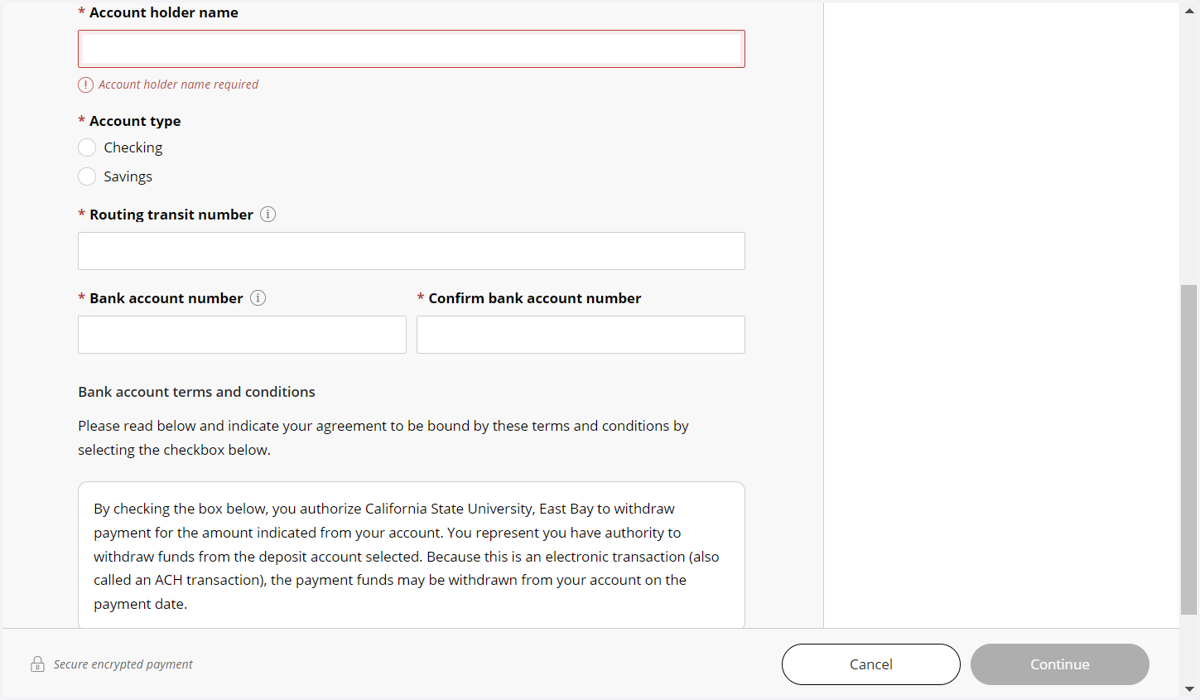
13. E-check information needed
The routing number and bank account number can be obtained from a check, bank, or, bank statement.
14. Application
Once the application fee payment is submitted; the application follows.
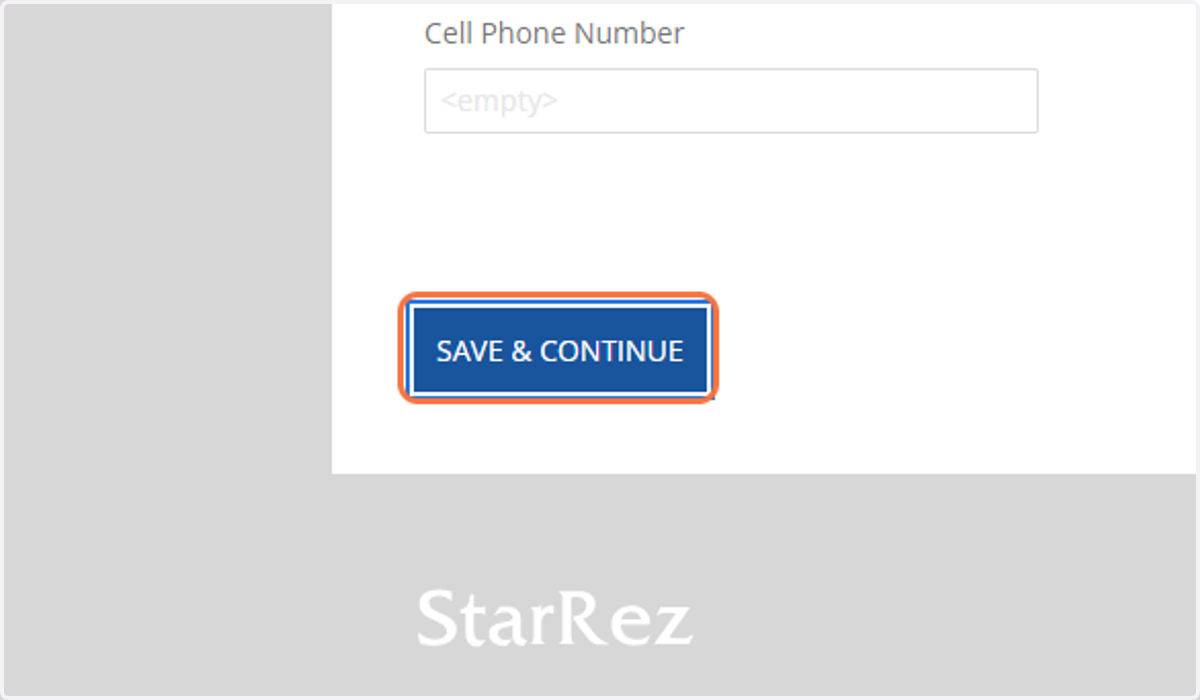
15. Click on SAVE & CONTINUE
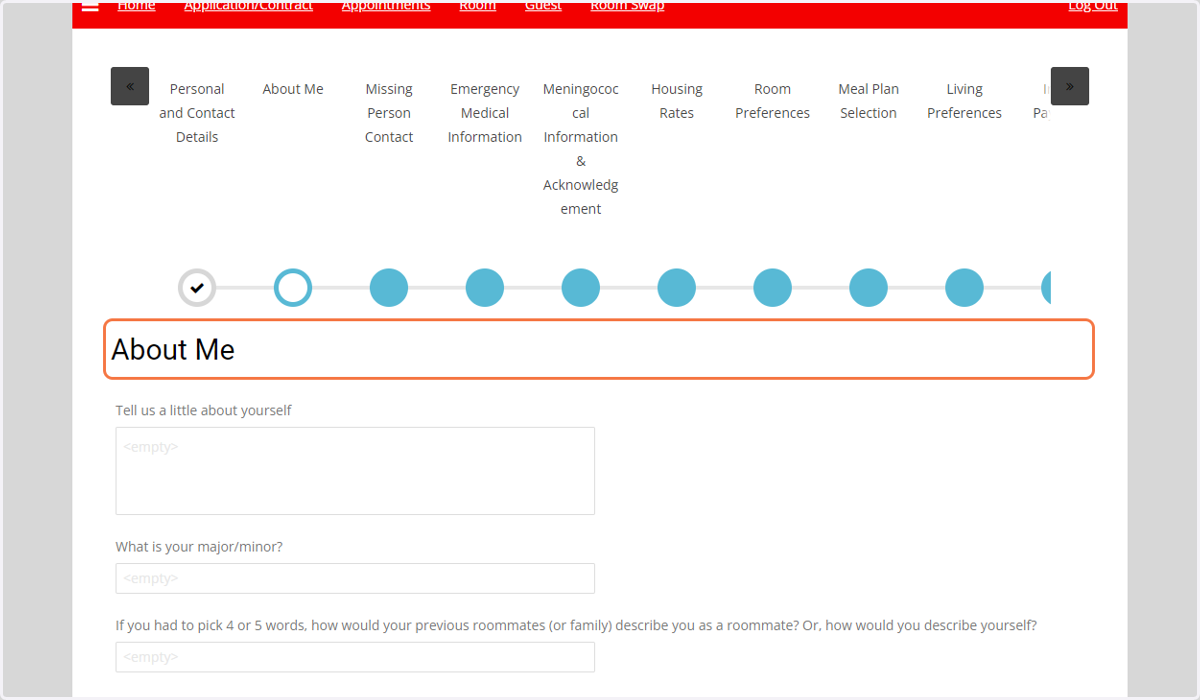
16. About Me
This section is optional but highly encouraged.
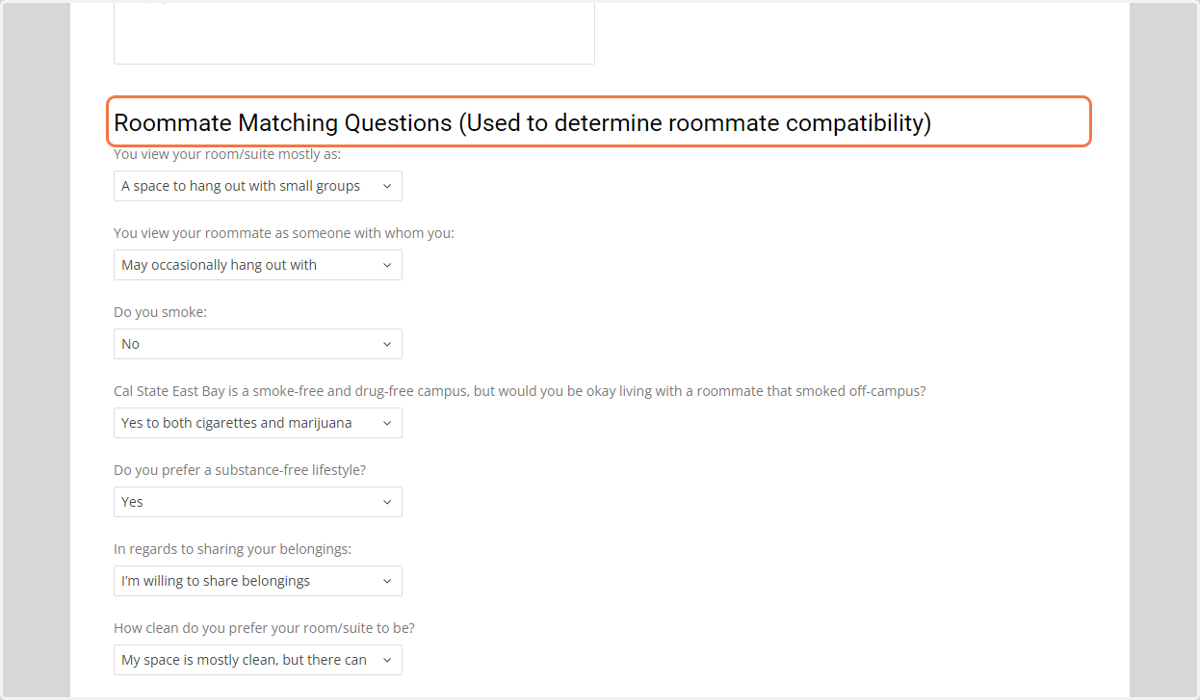
17. Roommate Matching Questions (Used to determine roommate compatibility)
This section is required
18. Click on SAVE & CONTINUE
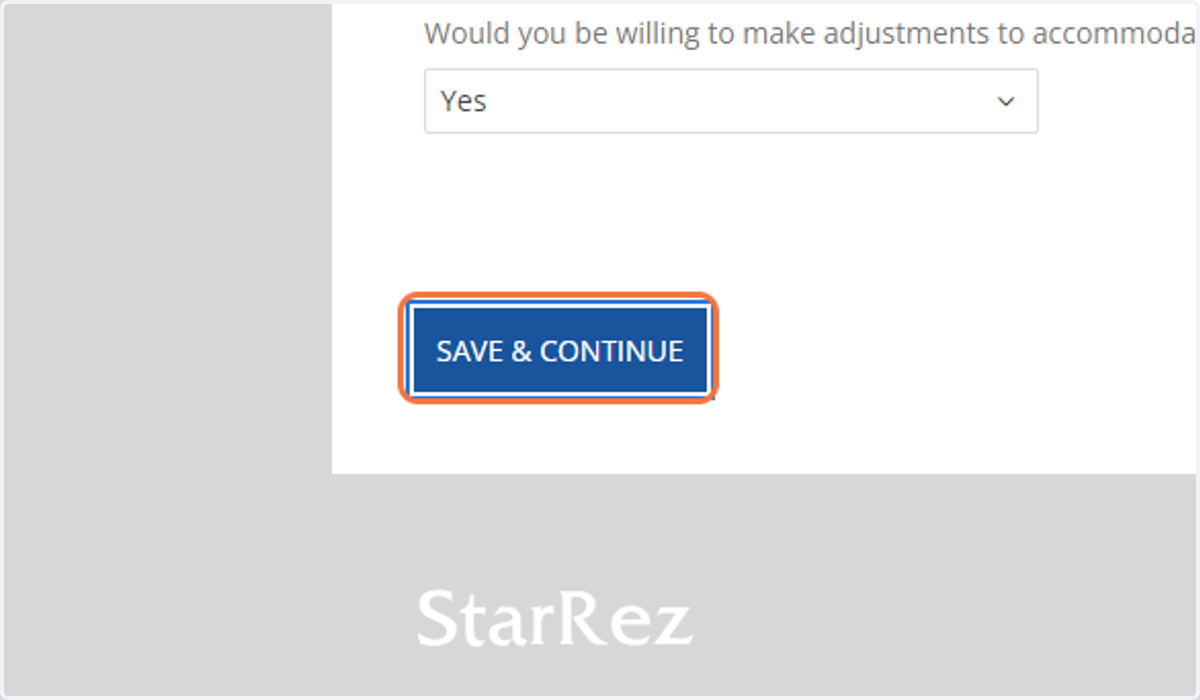
Starrezhousing
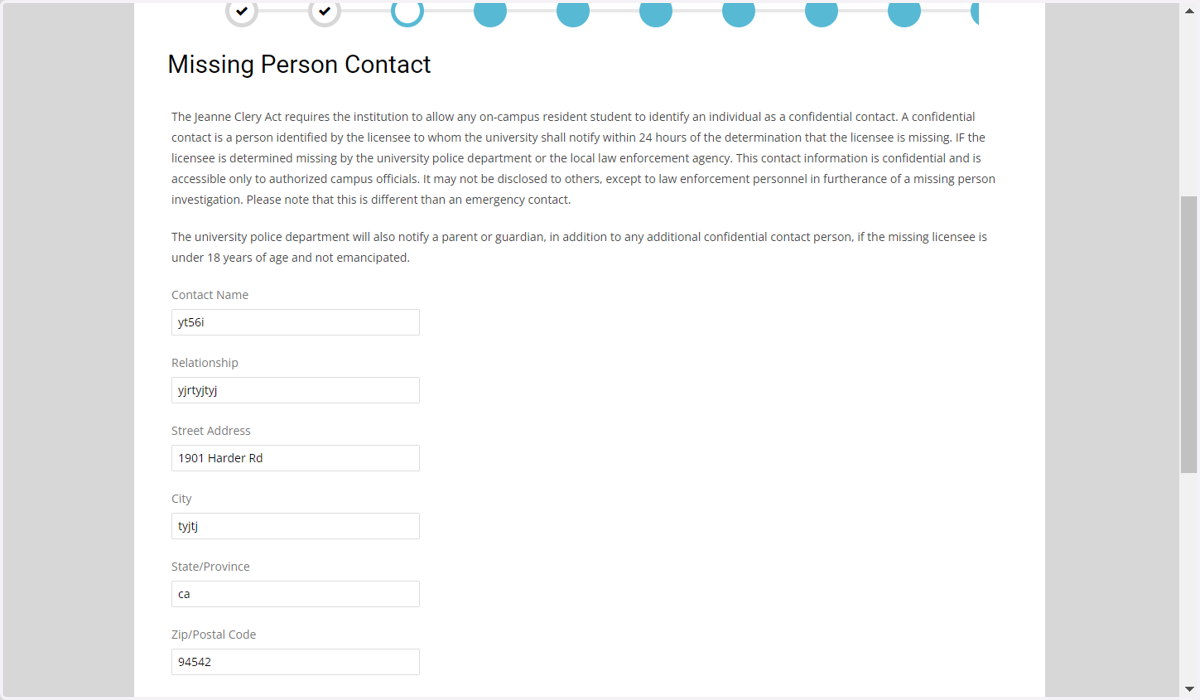
19. Missing Person Contact
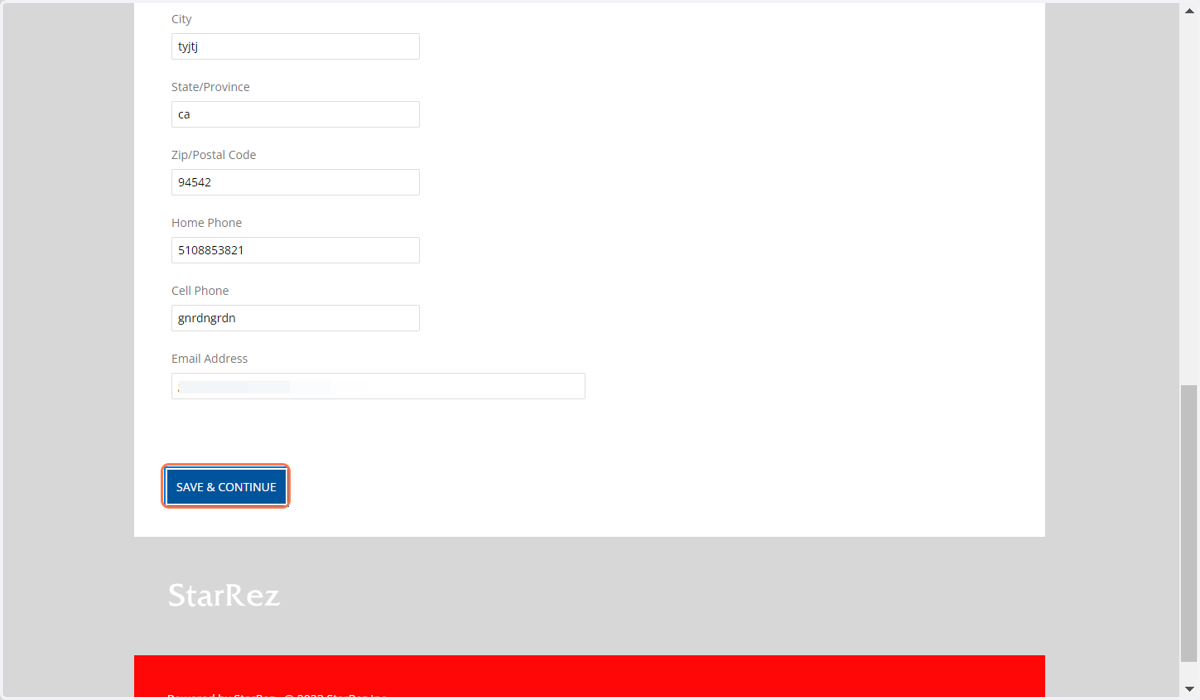
20. Click on SAVE & CONTINUE
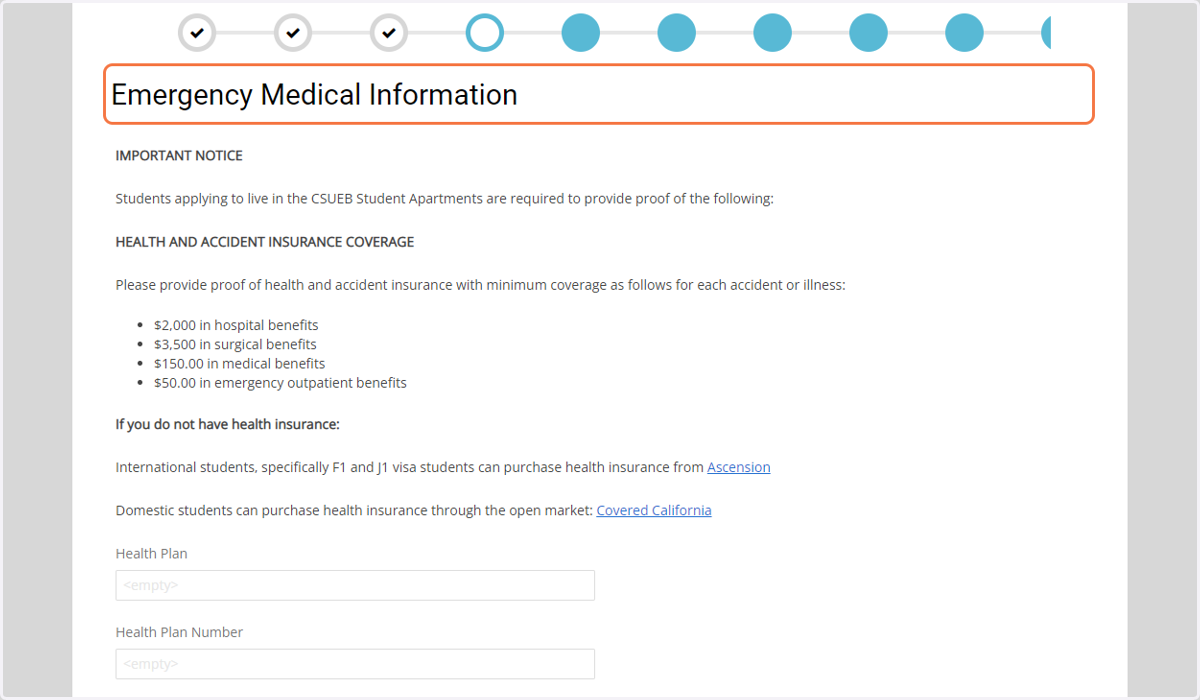
21. Emergency Medical Information
22. Click on SAVE & CONTINUE
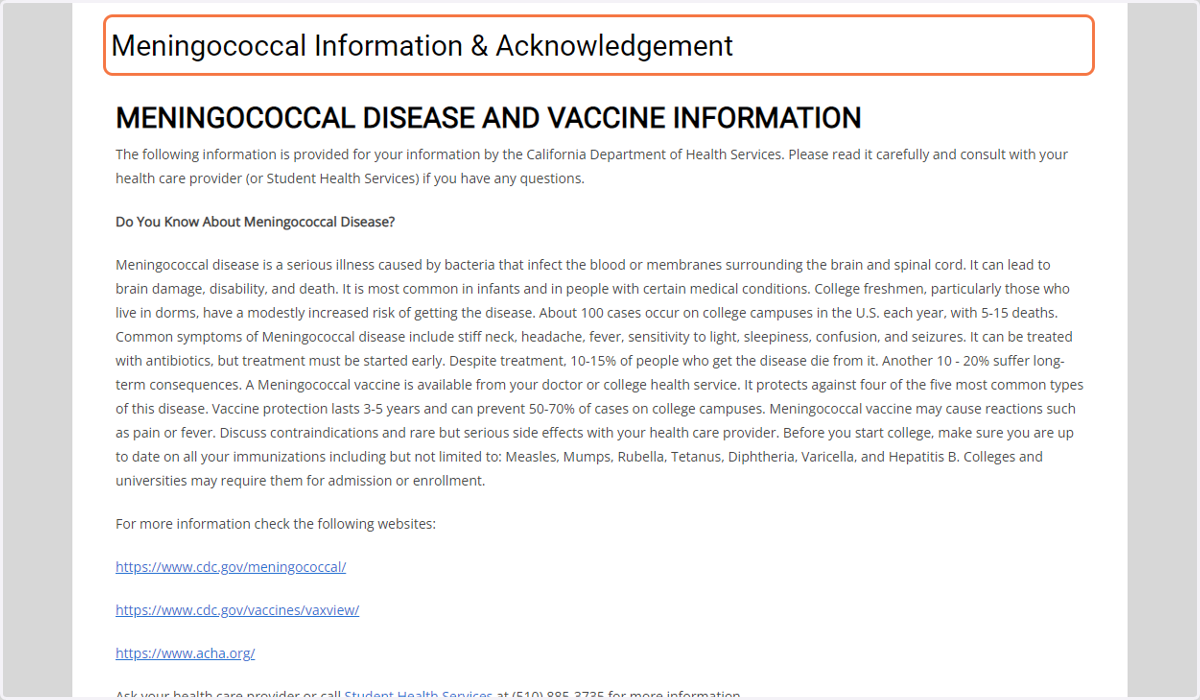
23. Meningococcal Information & Acknowledgement
24. Click on SAVE & CONTINUE
25. Room Rates
26. Click on SAVE & CONTINUE

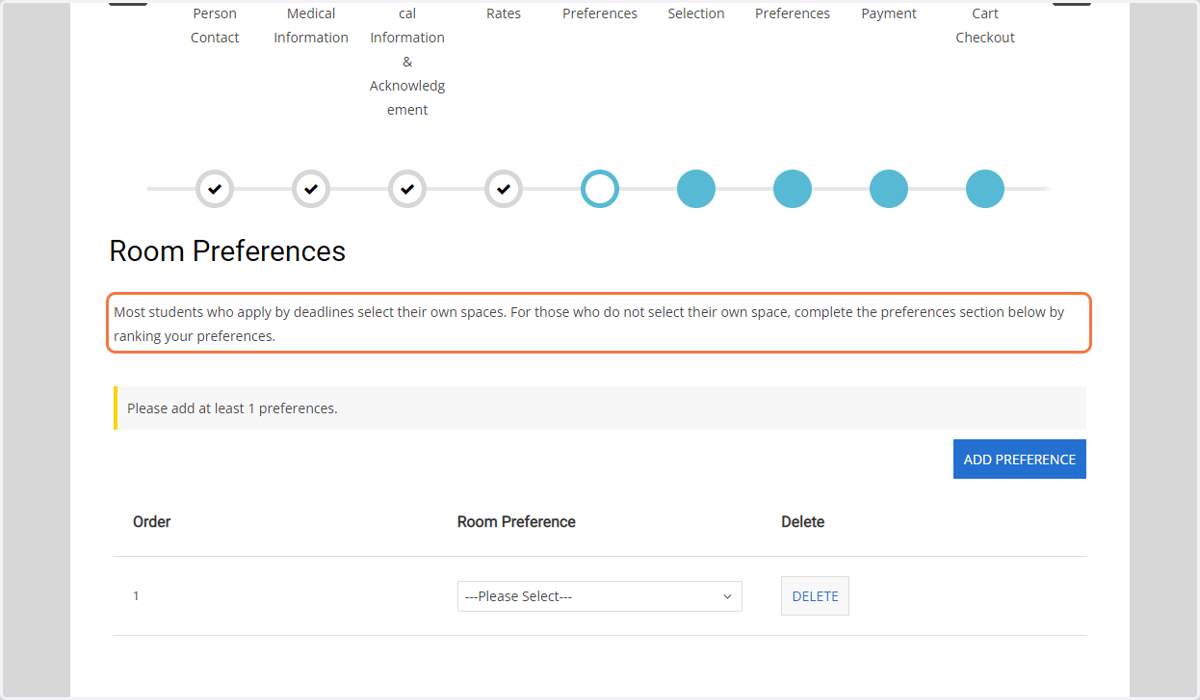
27. Room Preferences
This section is required but the room preference information submitted is not guaranteed.
28. Section Acknowledgement
Review the acknowledgment section
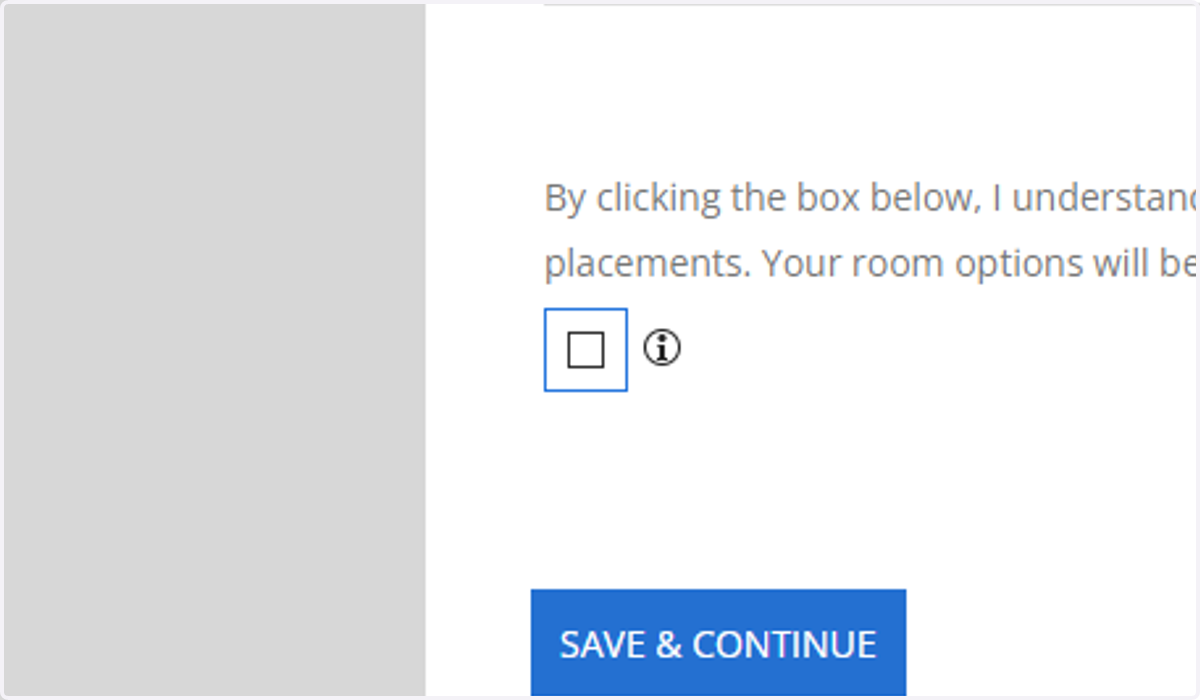
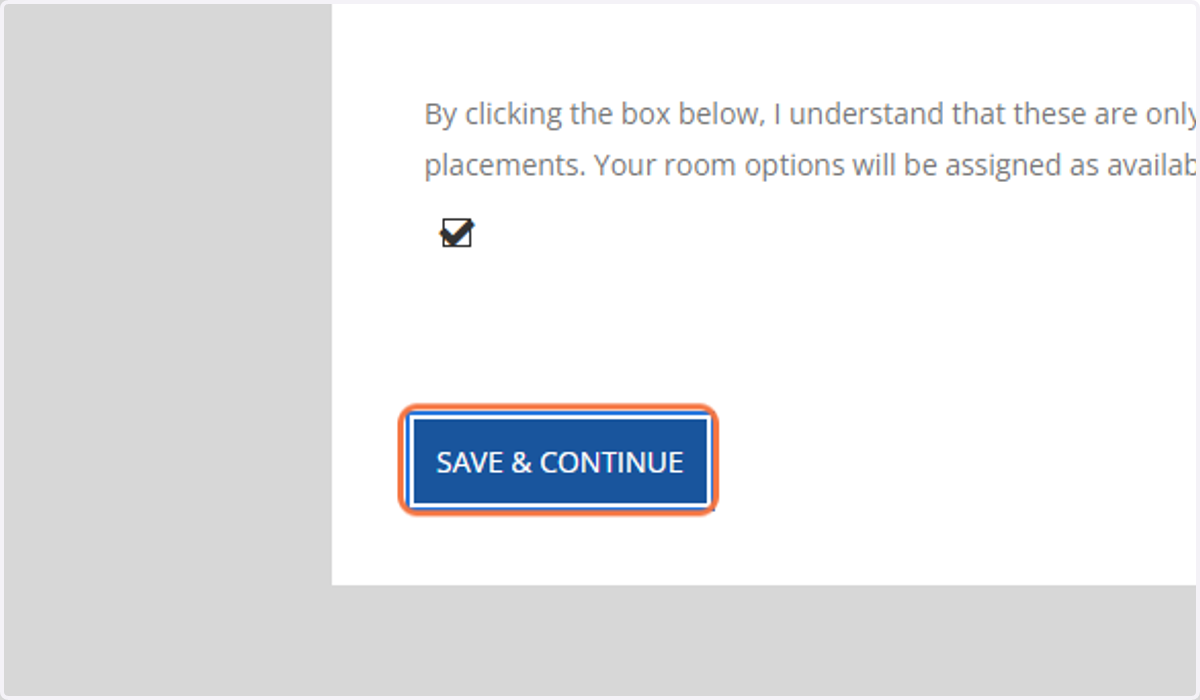
29. Click on SAVE & CONTINUE
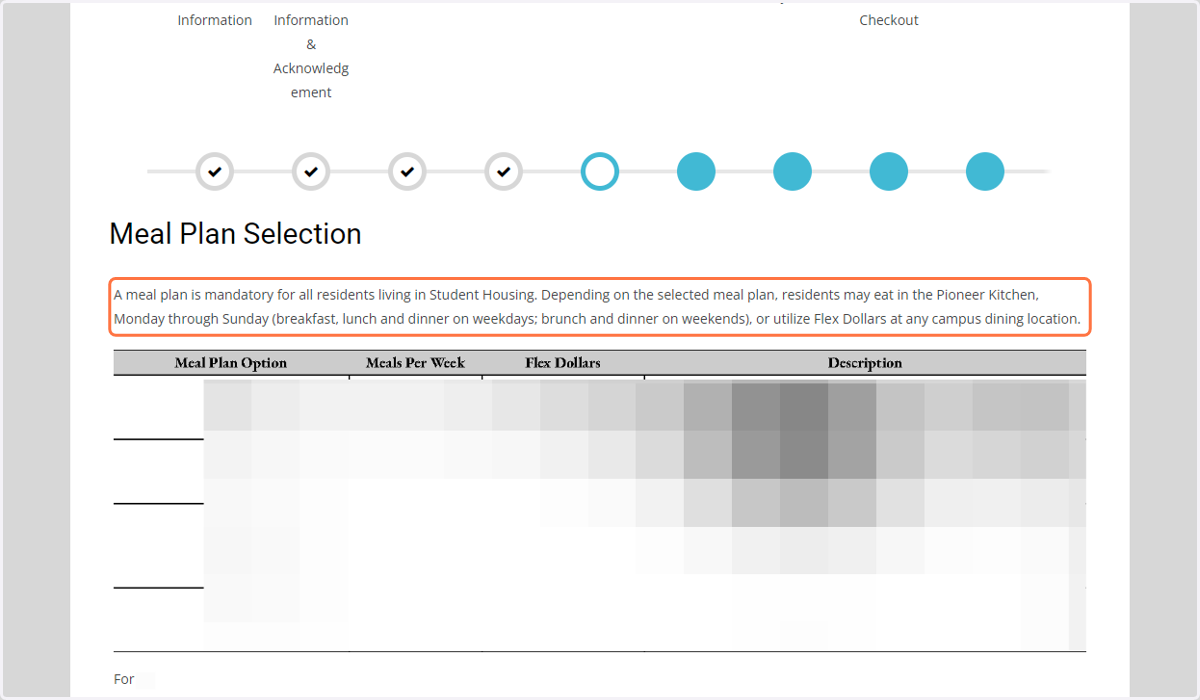
30. Meal Plan Selection
The minimum meal plan required is always included.
31. Section Acknowledgement
Review the acknowledgement section
32. Click on SAVE & CONTINUE
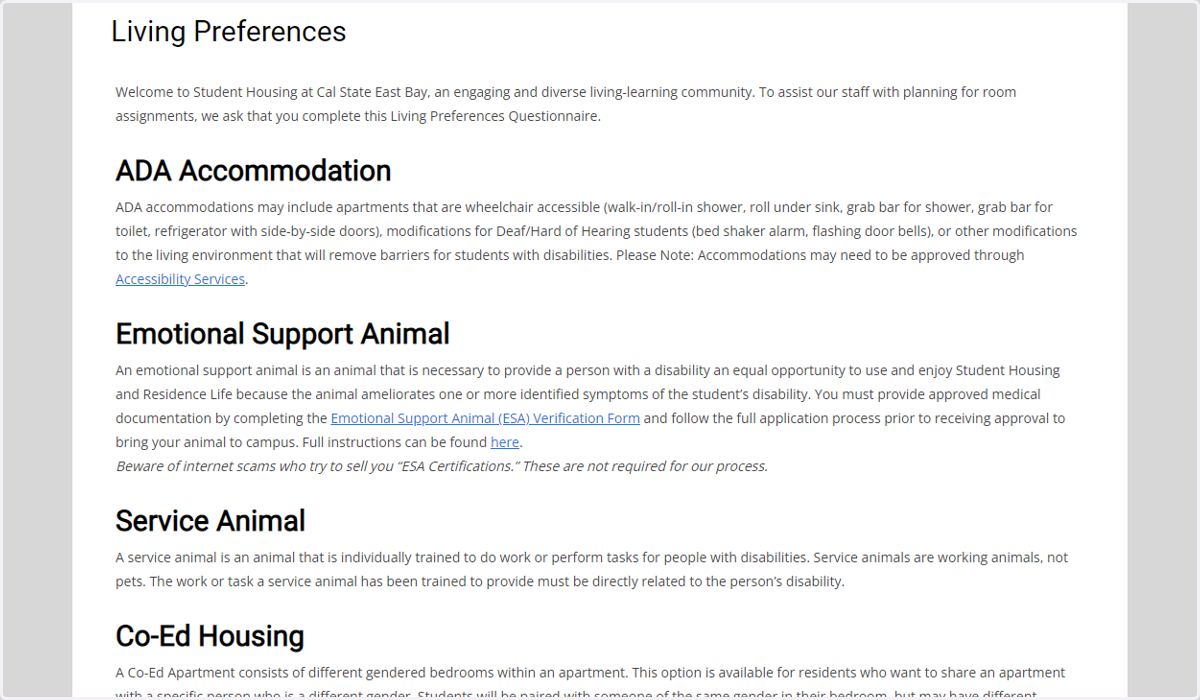
33. Living Preferences
If you have a living preference, please fill out this section.
If you have questions or concerns, contact us at (510)885-7444 or at housing@csueastbay.edu
34. Click on SAVE & CONTINUE
35. Contract e-Sign
Once the initial payment is submitted; the contract must be e-signed.
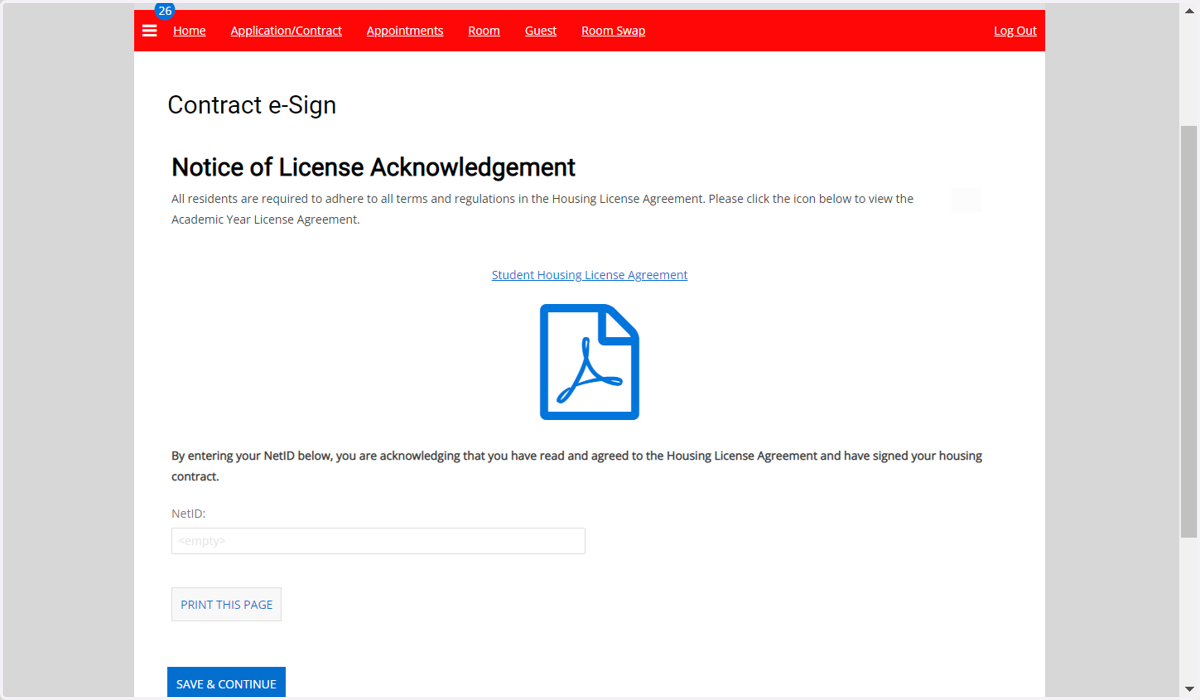
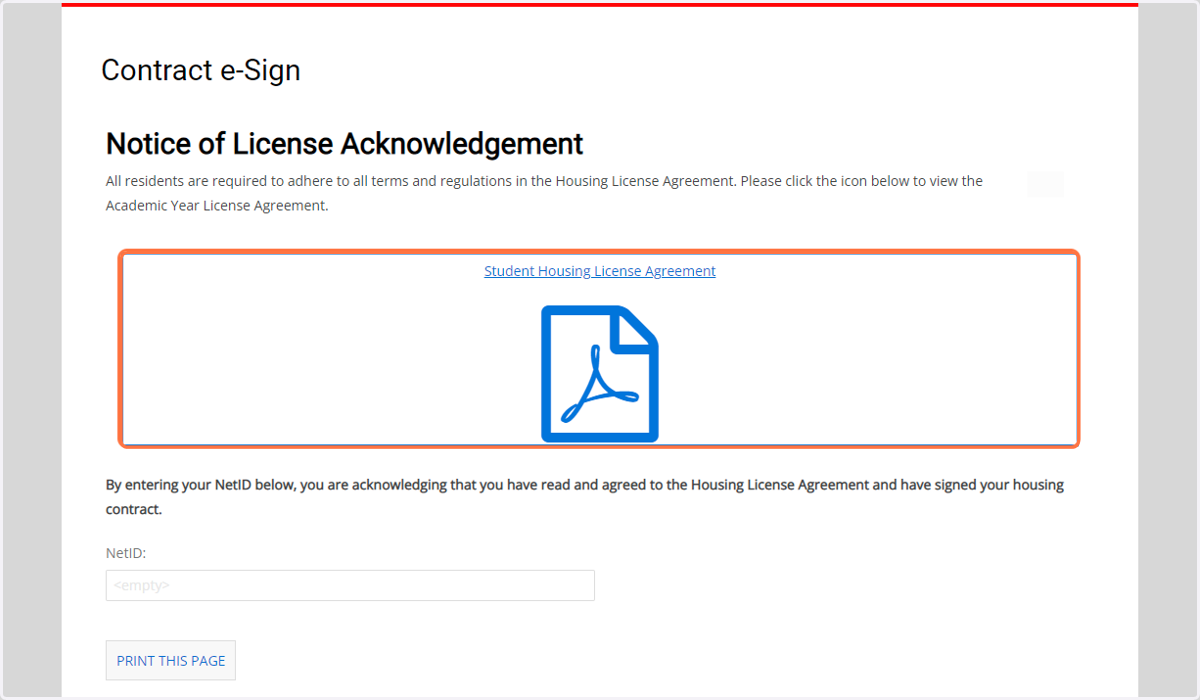
36. Student Housing License Agreement
Enter your net id and click on Student Housing License Agreement to download a copy
37. Click on SAVE & CONTINUE
38. GradGuard Header
After the contract is signed, the next step is to purchase renters insurance.

39. Click on CONTINUE TO NEXT STEP
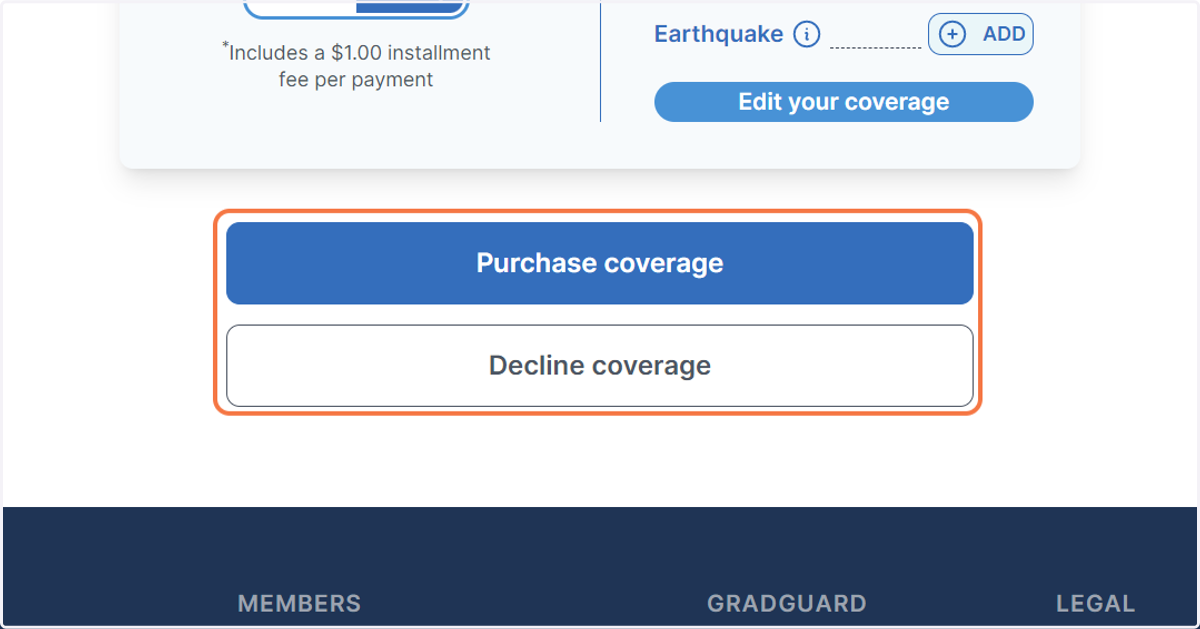
40. Click on Purchase coverage…
You have the option to purchase coverage or decline.
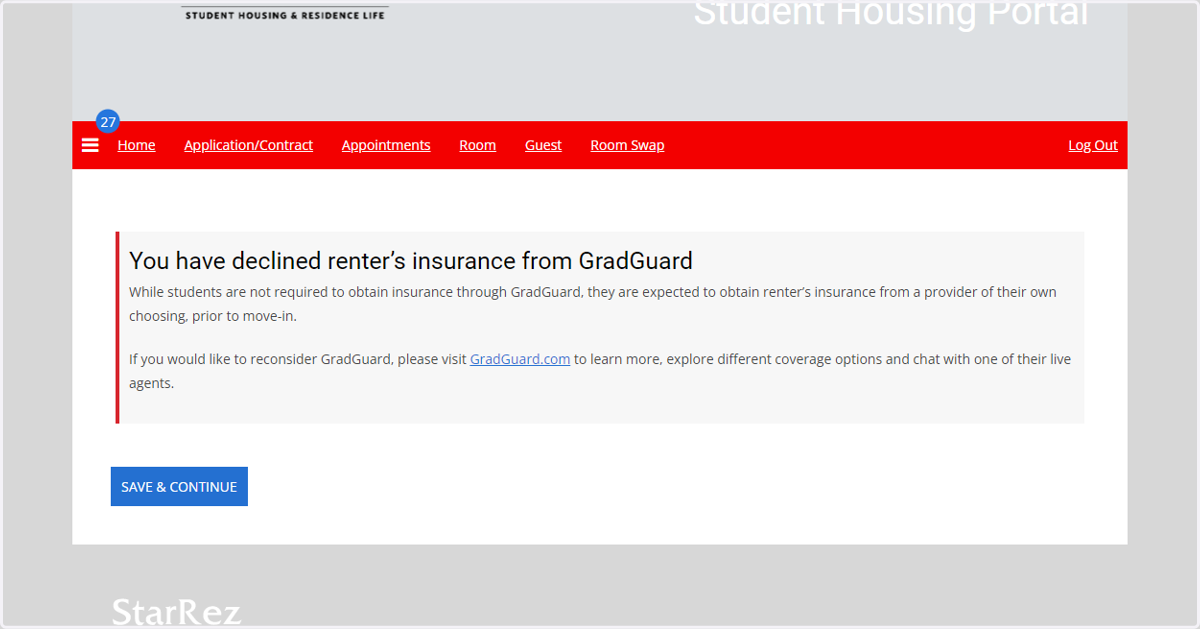
41. Decline notice
If you decline, ensure you know the expectation of the renter's insurance requirement.
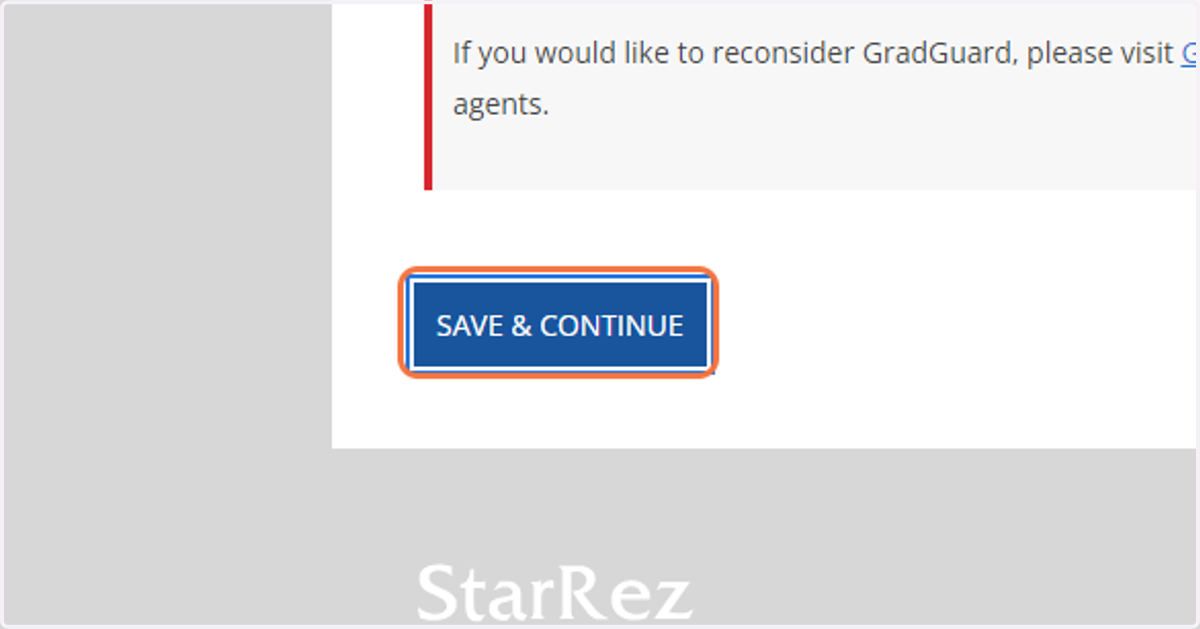
42. Click on SAVE & CONTINUE
Cashnet
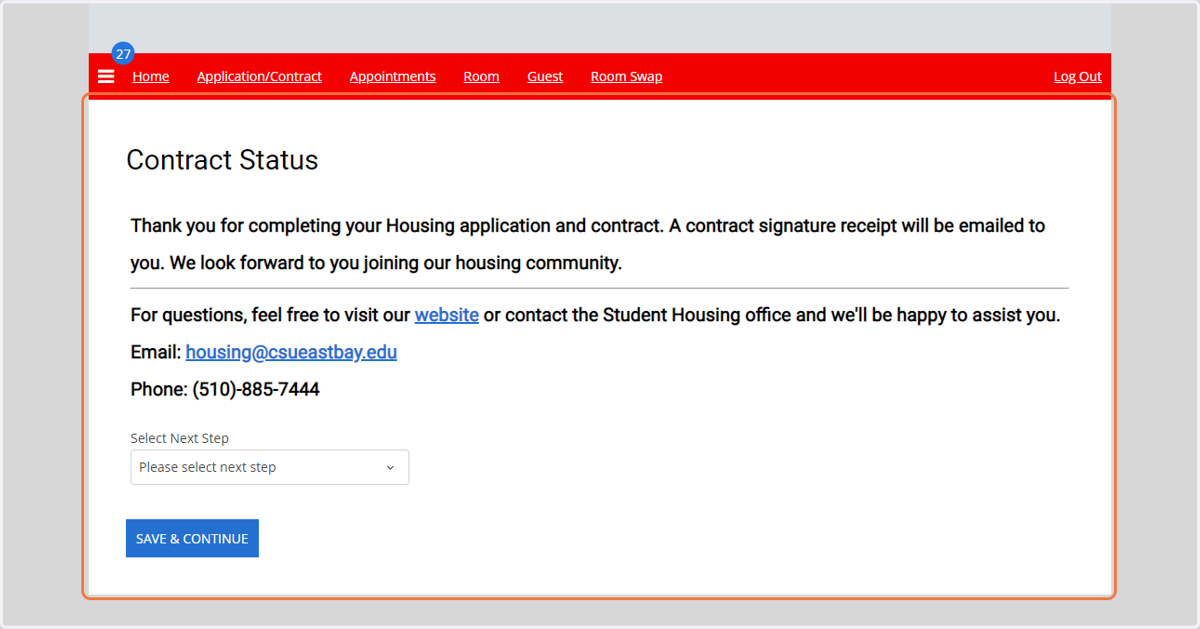
43. Application and Contract Submitted
Once the application and contract are fully submitted, you may request to view the waiting list or other contract-related information.