Kit Products | BG_052
Here, we'll take a look at Kit products.
Kit Products allow you to give the user the choice of adding multiple products to the basket through a single landing page.
This can be useful in allowing the user to select different orderline quantities and can theoretically serve as an alternative to using a category.
When you're using a Kit Custom Product, you will be creating one parent product - the Kit Custom Product itself, and one or more child products that are linked to it.
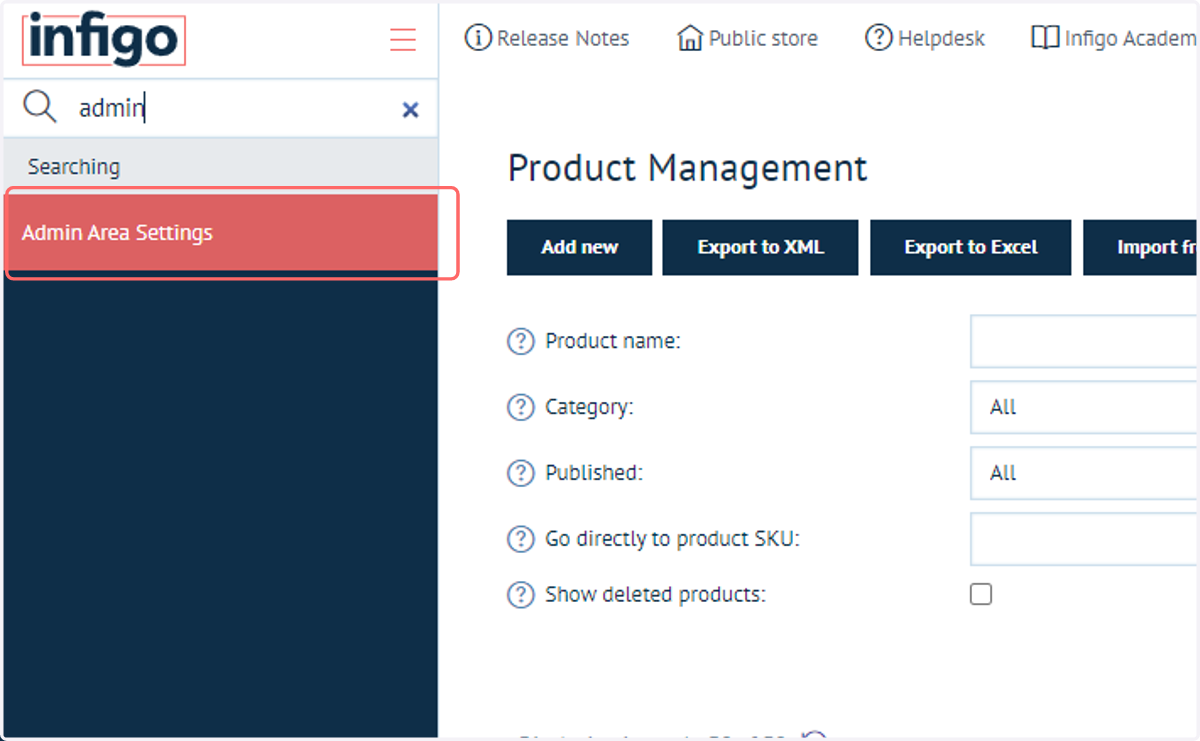
1. Navigate to Admin Area Settings
Firstly, we must ensure that Kit products are activated on our Storefront. We do this via the Admin Area Settings menu.
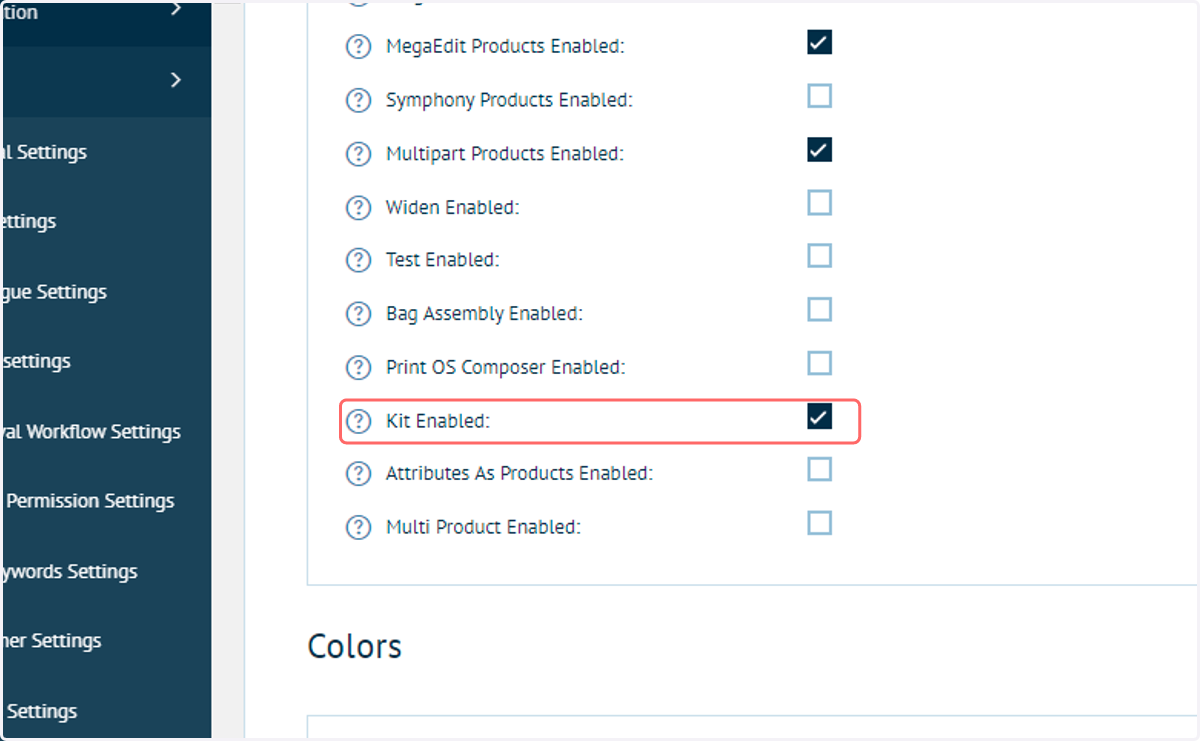
2. Click on Kit Enabled
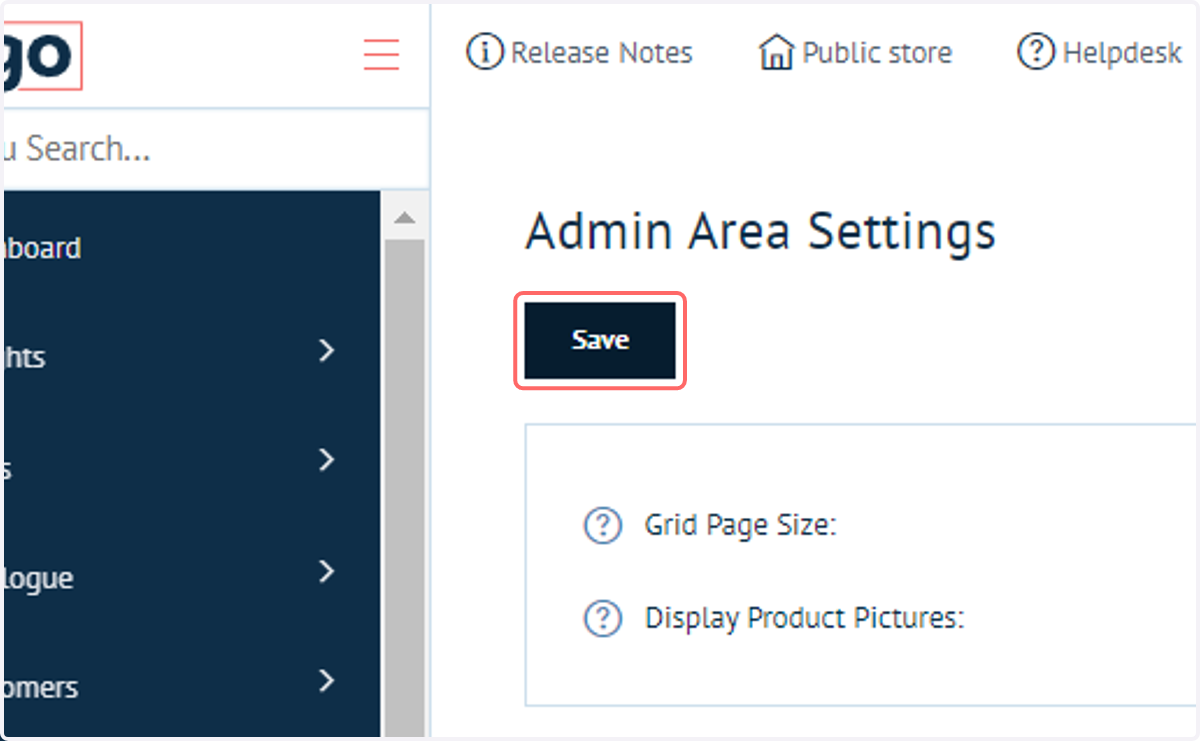
3. Click on Save
4. Navigate to Product Management
Next, we'll create a new product as normal, via our Product Management screen.
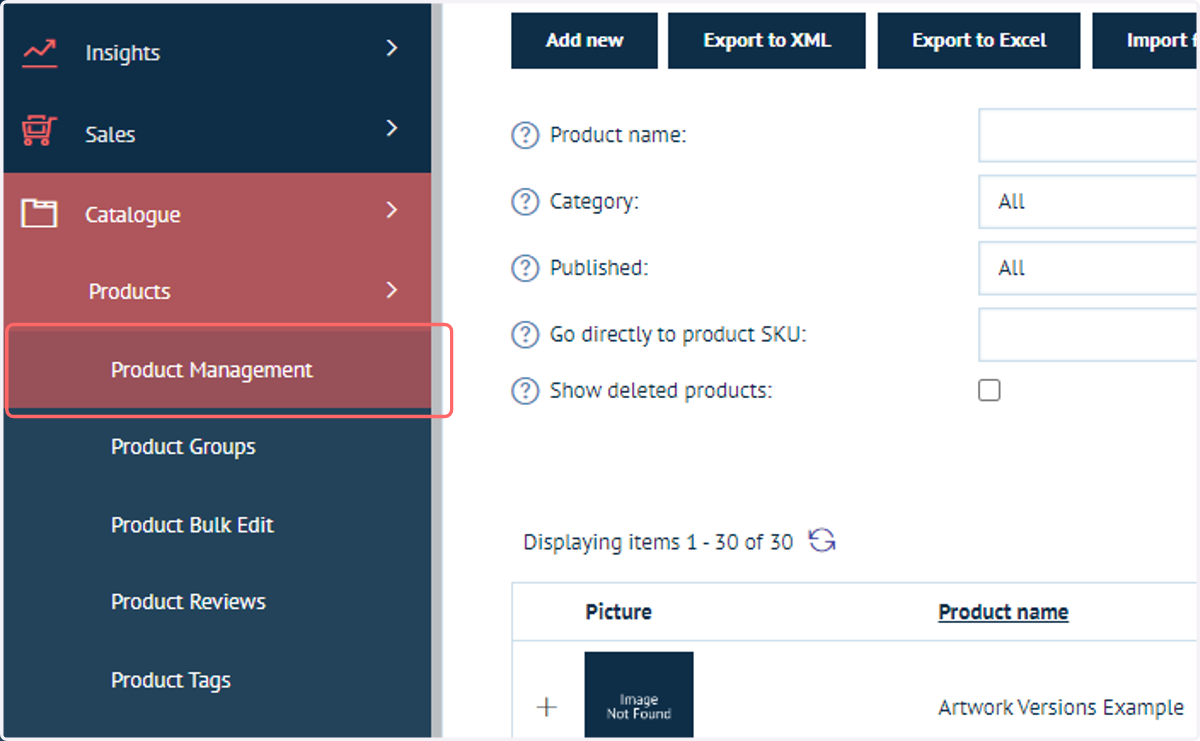
5. Click on Add new
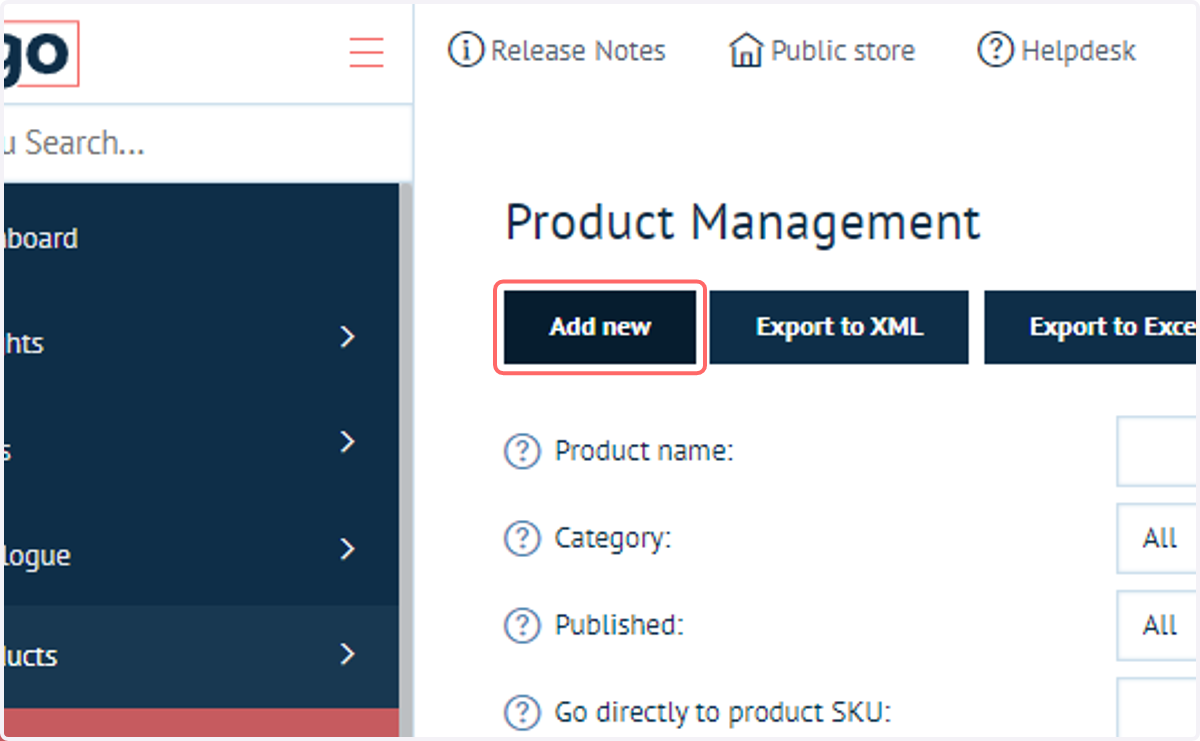
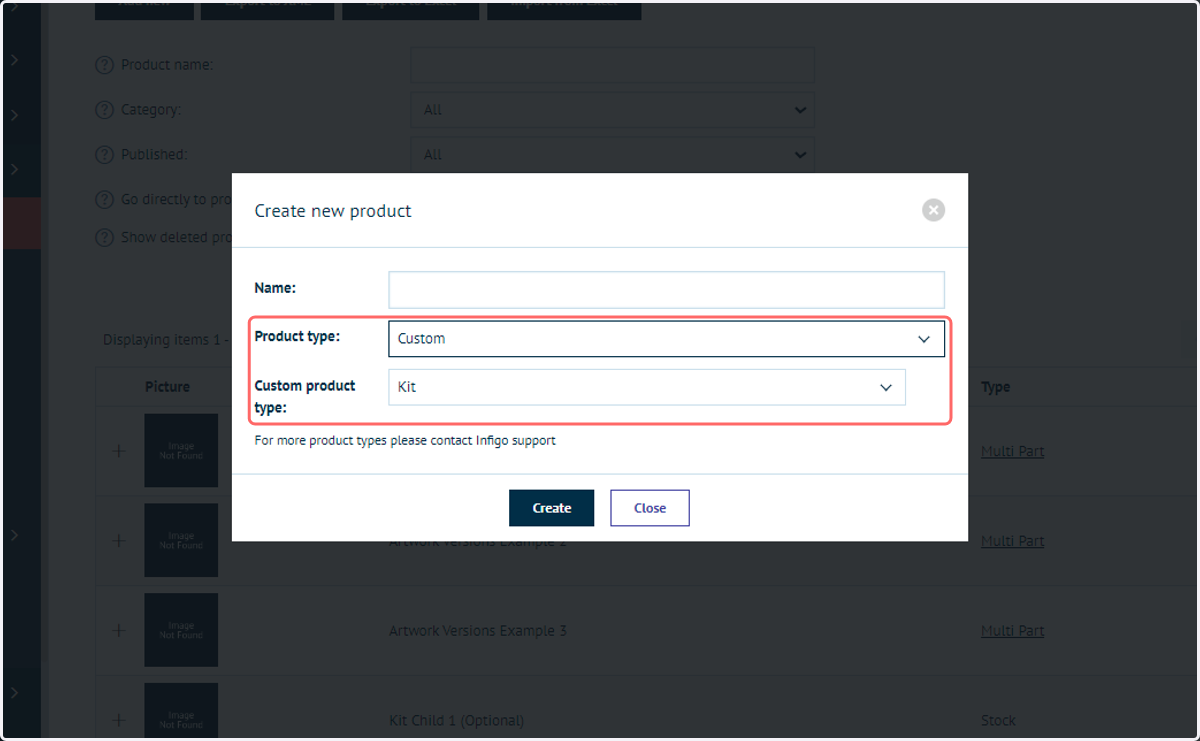
6. Select Custom as the Product Type, the Kit as the Custom Product Type
7. Enter a name for the product
Here, we are creating the PARENT product. Later on, we will assign other products to this parent product (child products).
These child products can be a range of product types. Only the parent product is required to be a kit product.
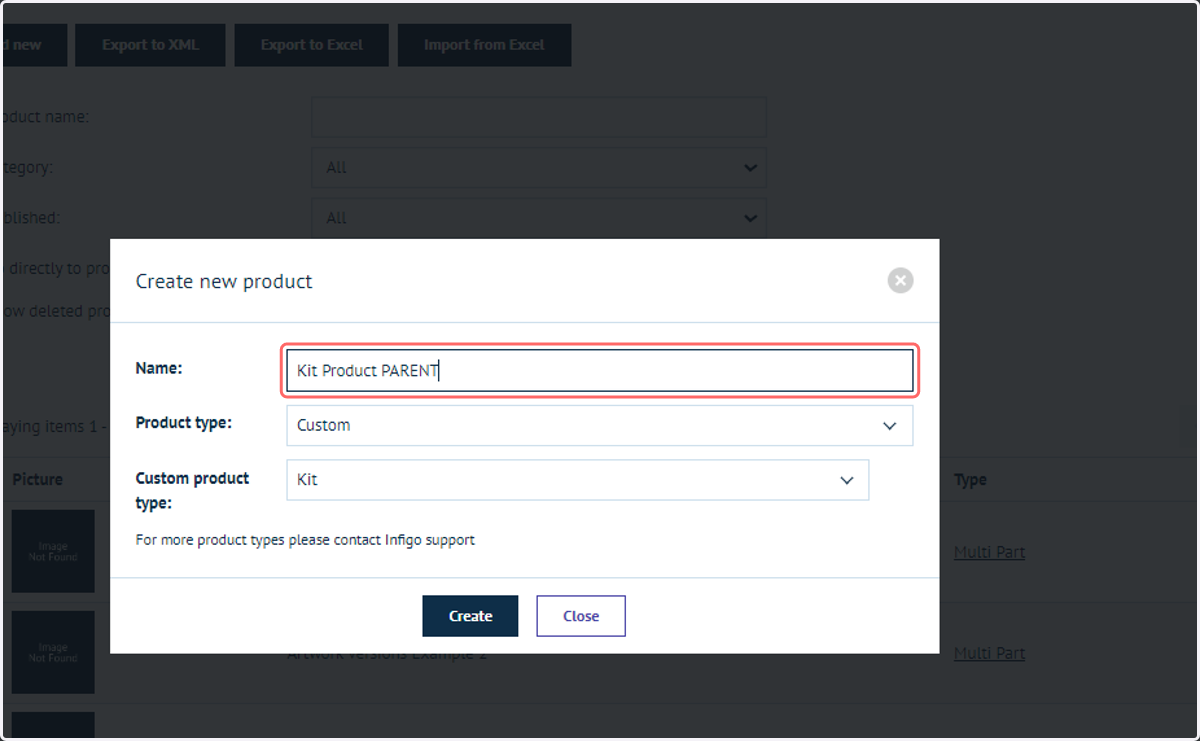
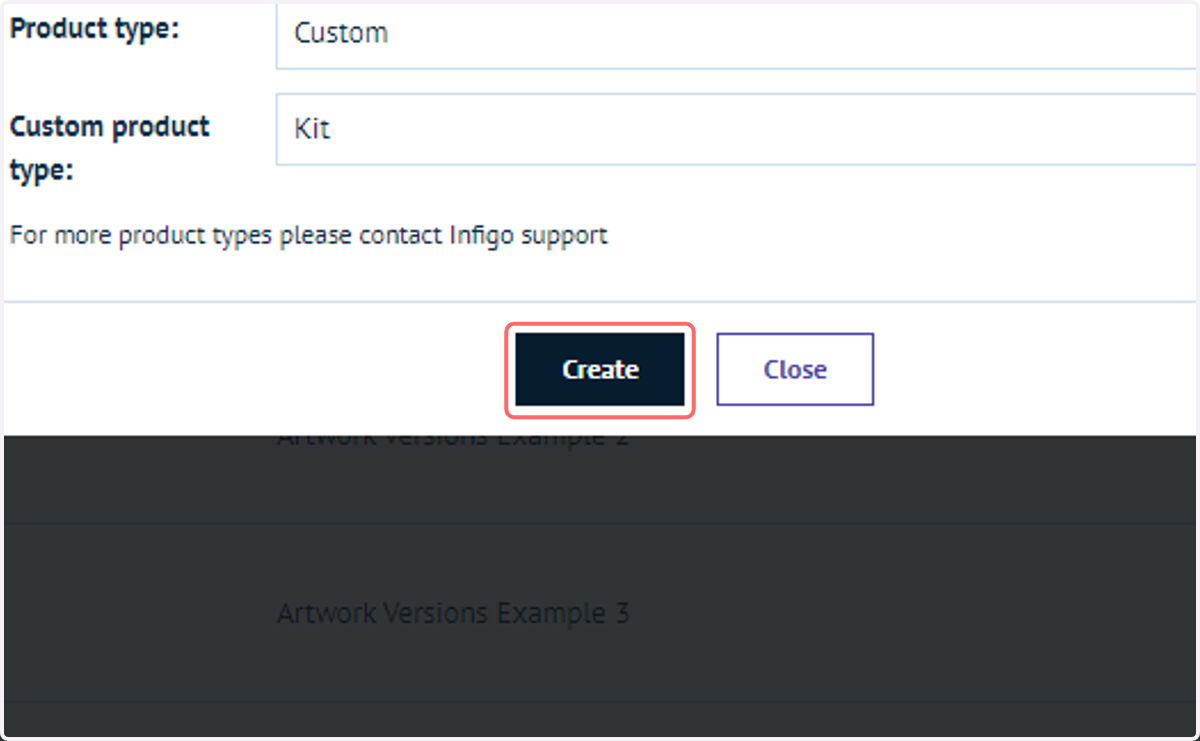
8. Click on Create
You will then be taken to the standard product details screen, which you will be familiar with from other product types.
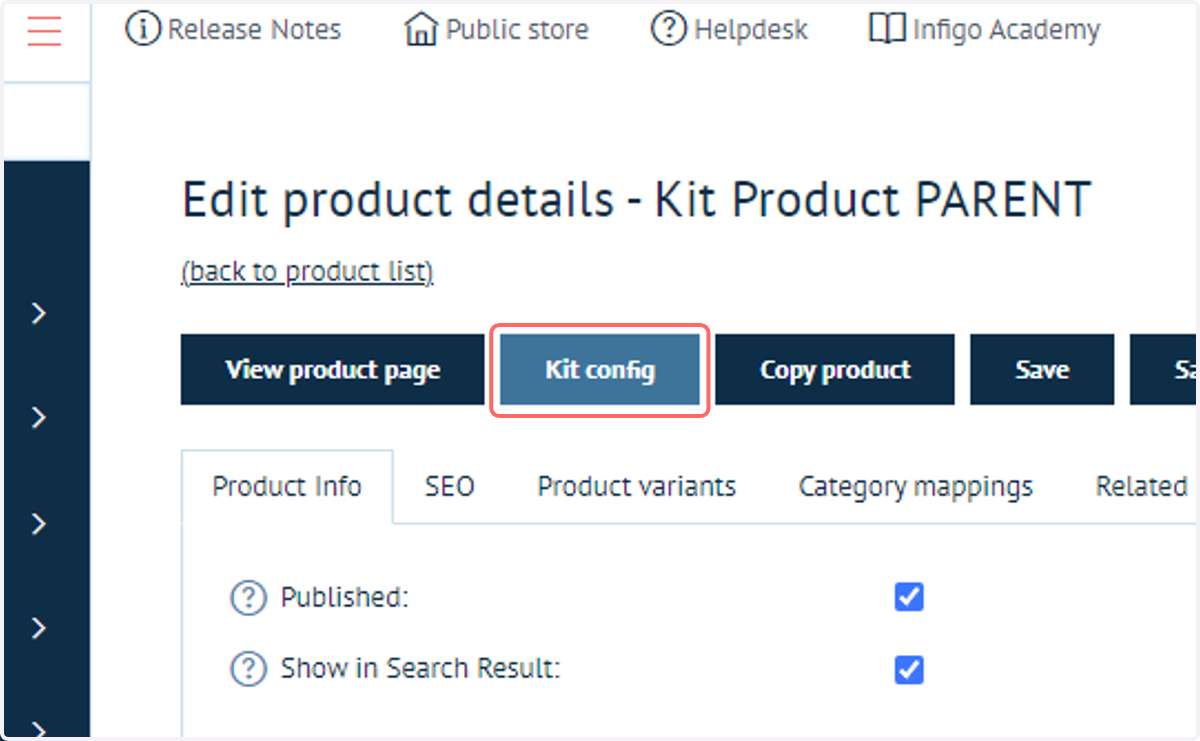
9. Click on Kit config
Use this button to access settings specific to the Kit product type.
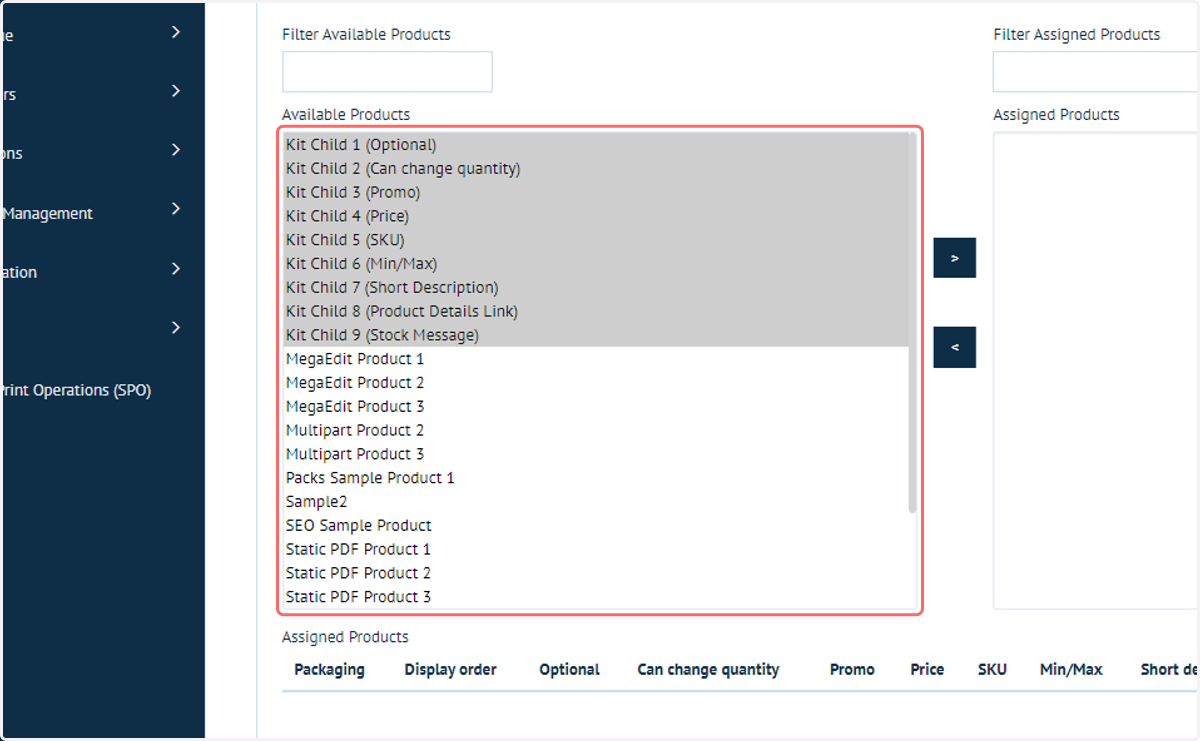
10. Select the products to add to the kit
Towards the bottom of the Kit Config screen, you will see a list of available products to add to it.
Select the product(s) you wish to add to the kit.
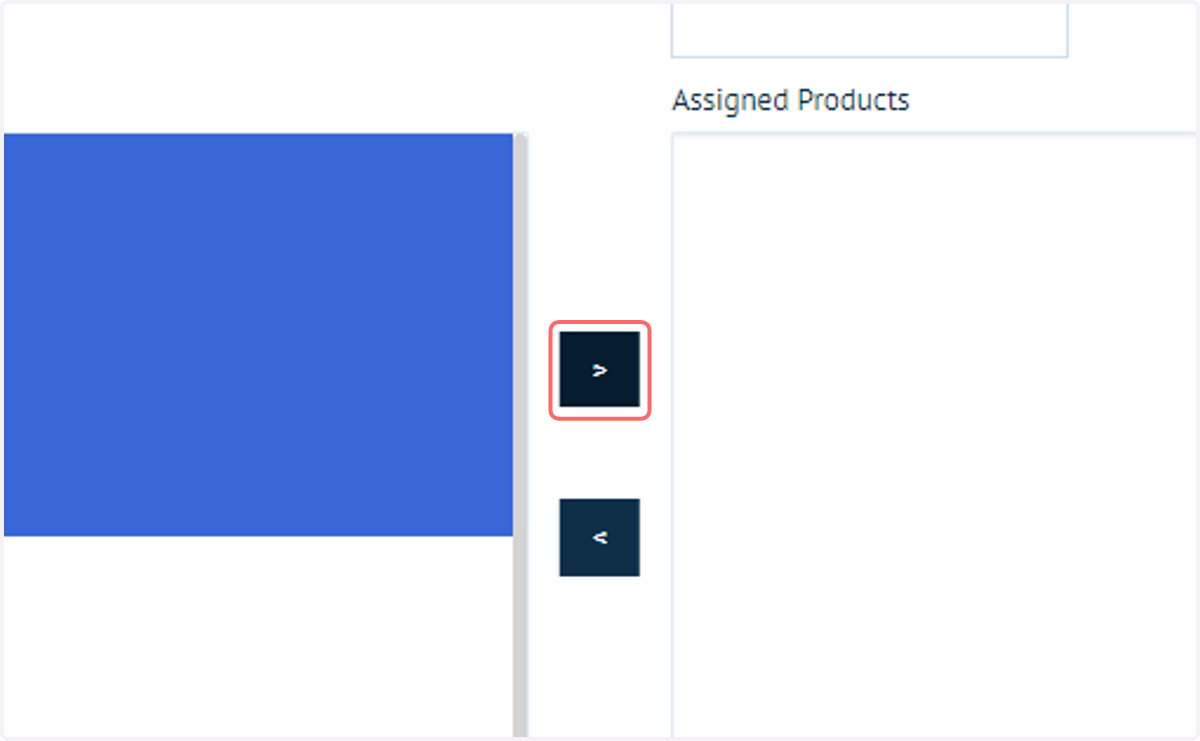
11. Click on >
This will add the products to the kit.
12. Underneath this menu, you will see a separate set of options appearing relating to each of the child products
In our example, we have added a range of products as child products. We will assign a different available option to each child product and review this on the front end to see how the settings affect the product appearance and interactivity.
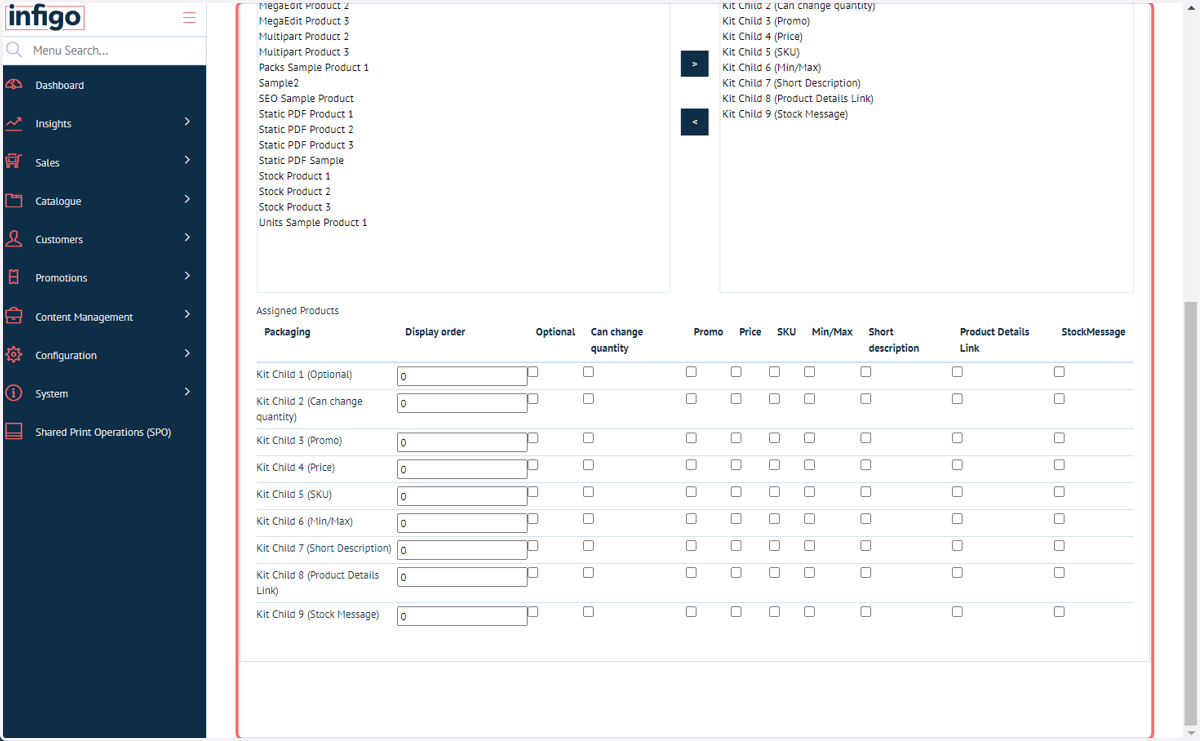
13. Optional
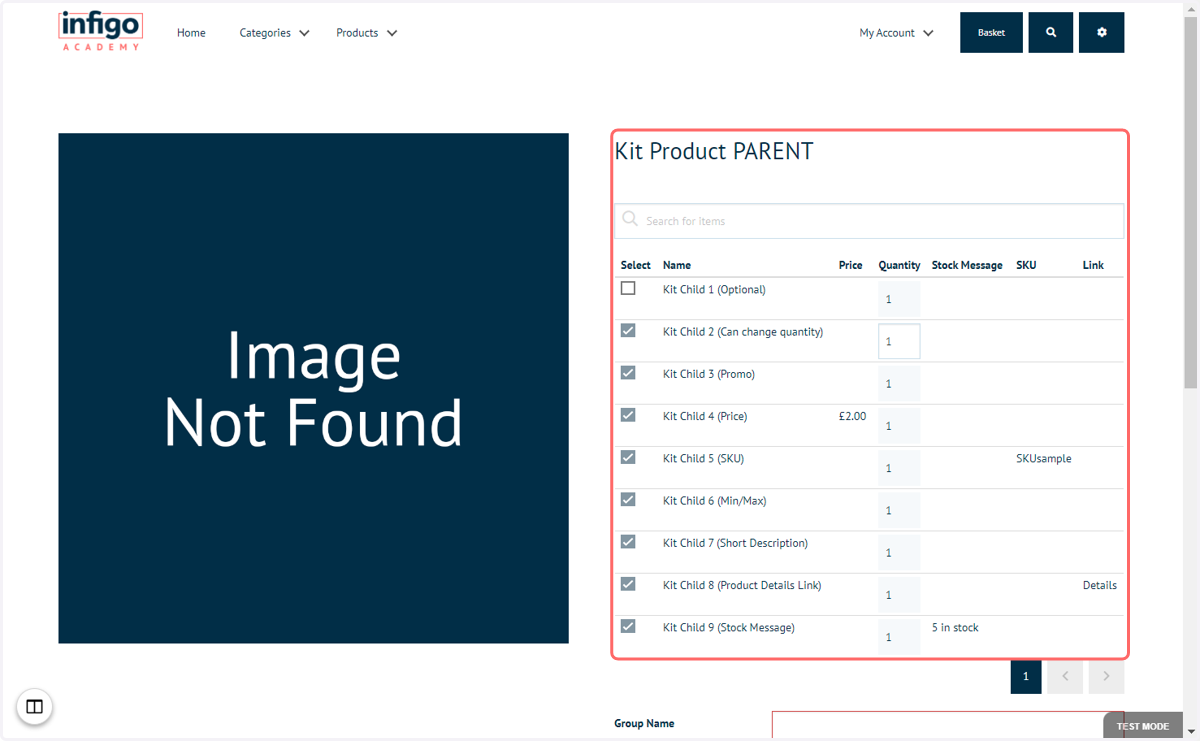
If enabled, the user will be able to choose whether or not they want to add this product to the basket.
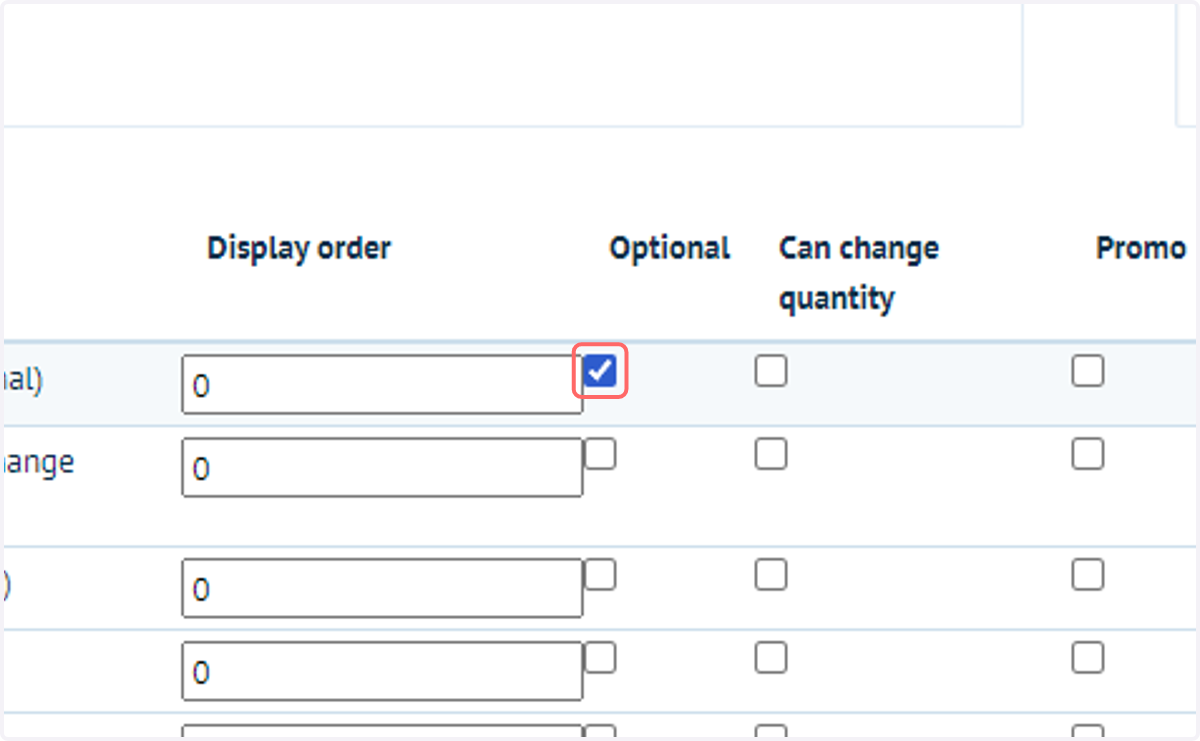
14. CanChangeQuantity
If enabled, the user will be able to decide how many of this item they would like to add to the basket.
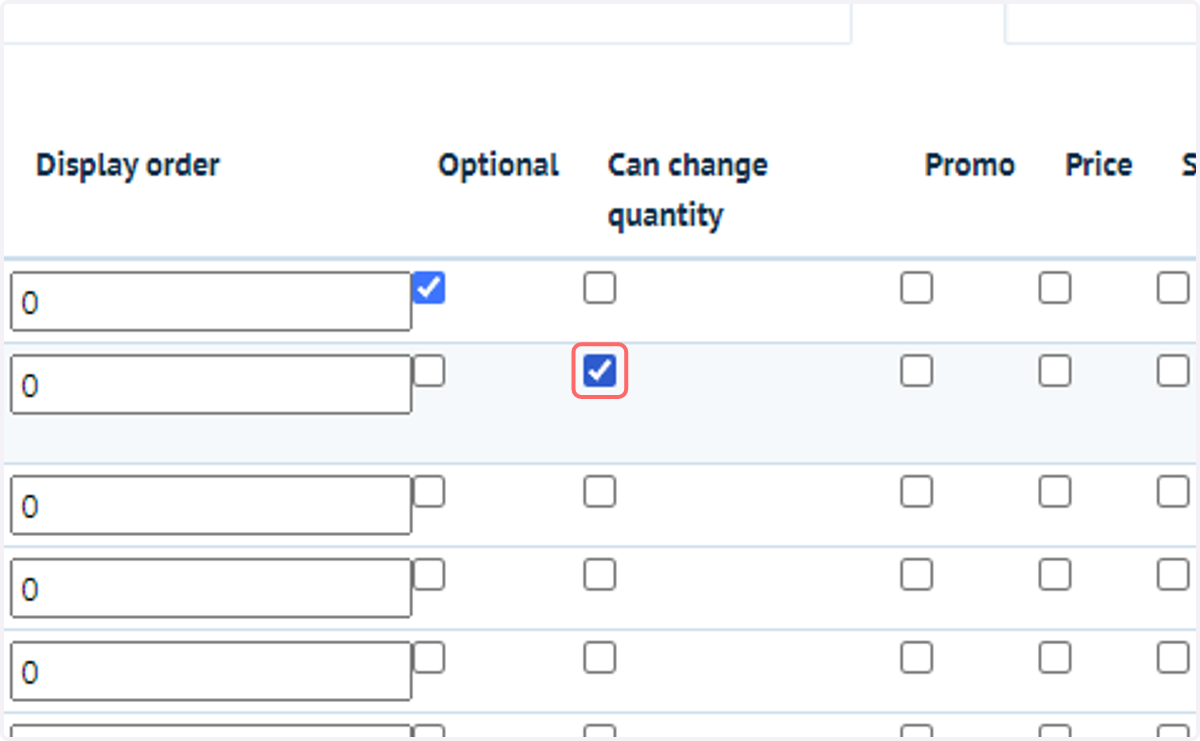
15. Promo
If enabled, this product will always appear before the products which do not have this enabled, regardless of the display order. If you have multiple "Promo" products, then these will all load first and will respect the display order of other "Promo" products.
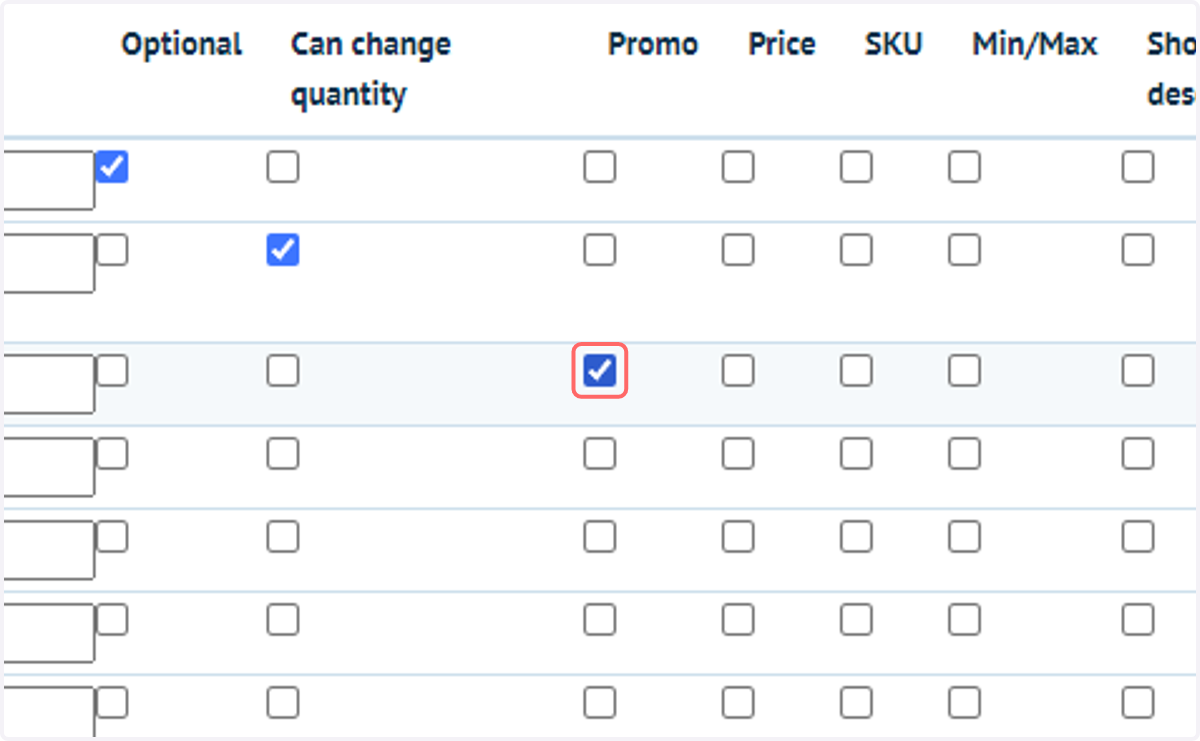
16. Price
If enabled, the price of this product will be shown in the "Price" column. Note: this column is hidden if there are no products with this setting enabled.
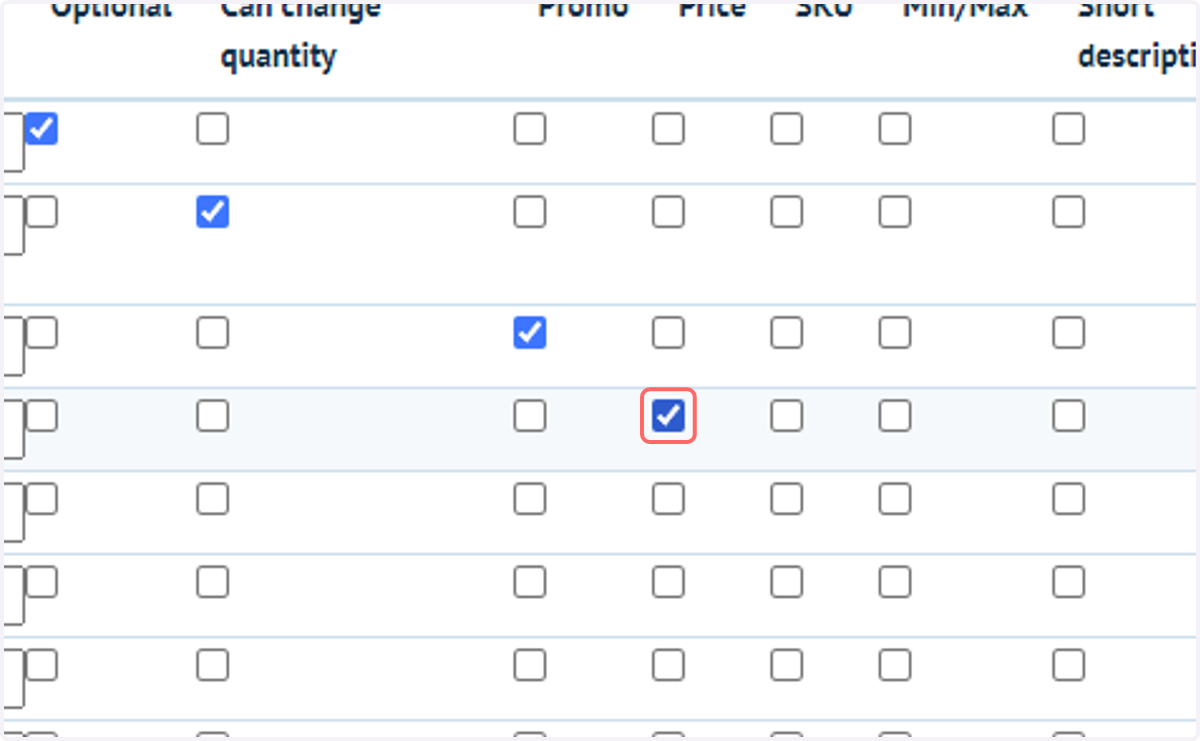
17. SKU
If enabled, the SKU of this product will be shown in the "SKU" column. Note: this column is hidden if there are no products with this setting enabled.
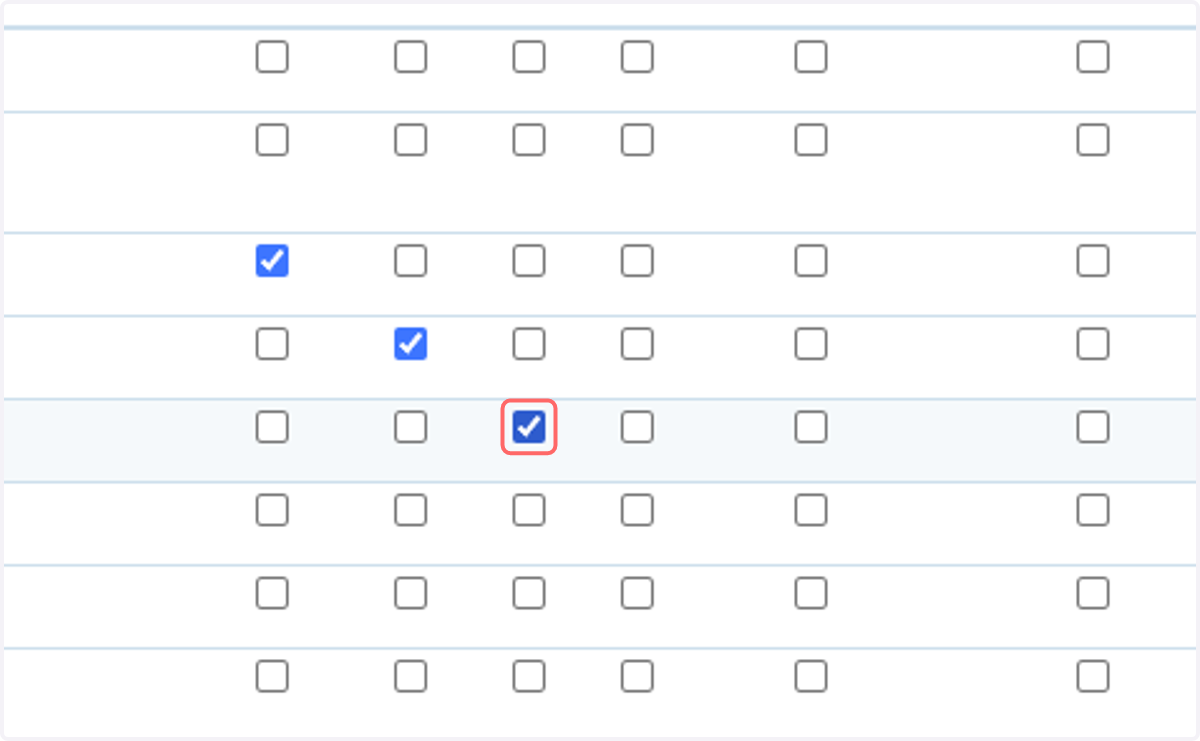
18. Min/Max
If enabled, the stock message for this product will be shown in the "Stock message" column. Note: this column is hidden if there are no products with this setting enabled.
Please also note that if neither "Display stock availability" nor "Display stock quantity" are enabled on at least one child product, this column will remain hidden.
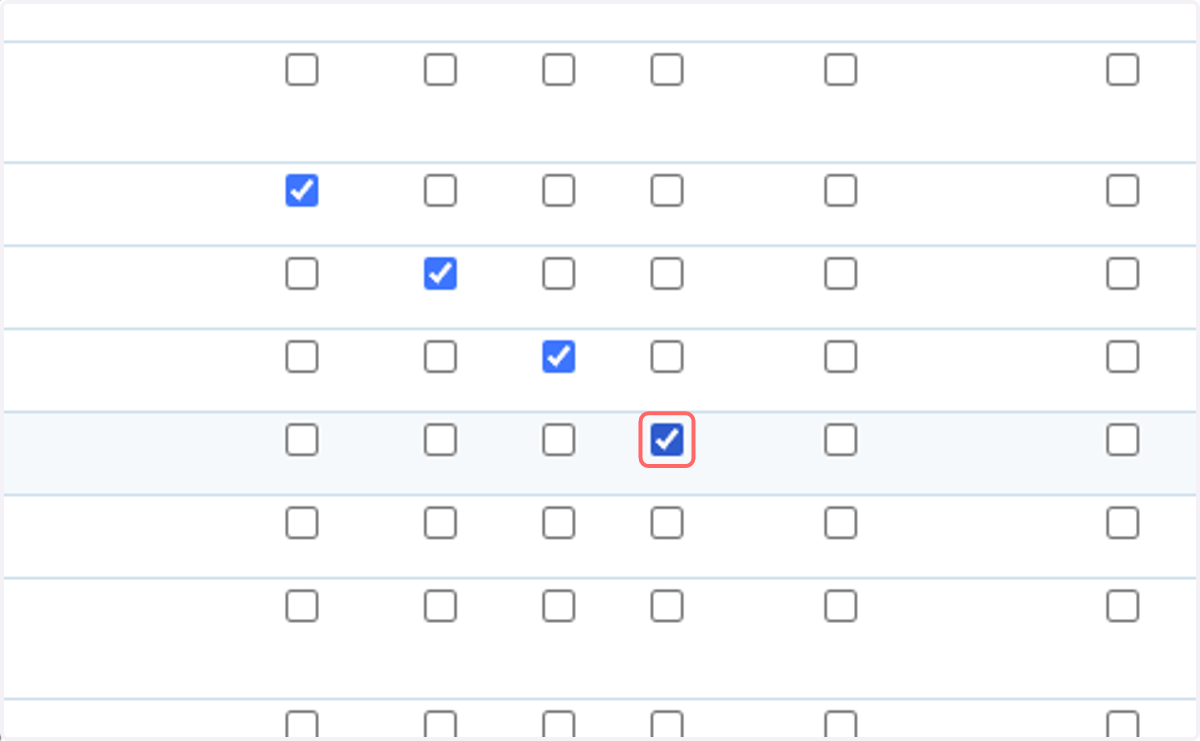
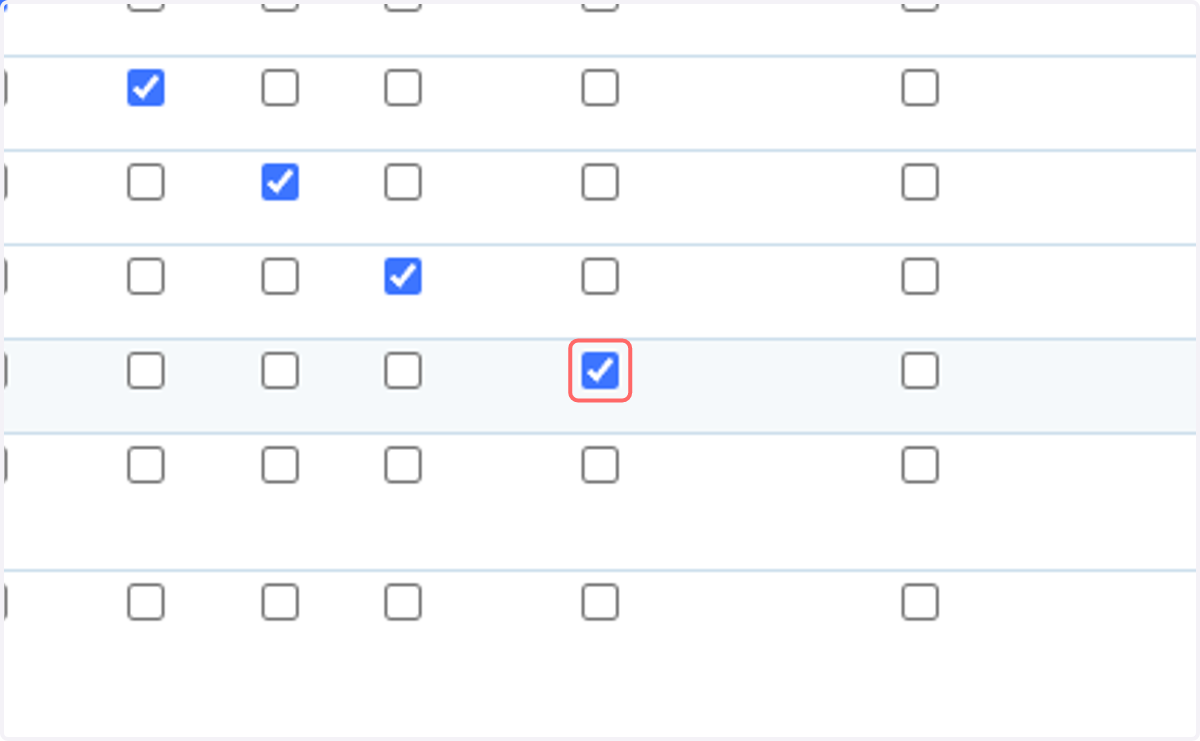
19. Short Description
If enabled, the short description of this product will be shown in the "Short Description" column. Note: this column is hidden if there are no products with this setting enabled.
20. Product Details Link
If enabled, a link to the landing page for this product will be shown in the "Link" column. Note: this column is hidden if there are no products with this setting enabled.
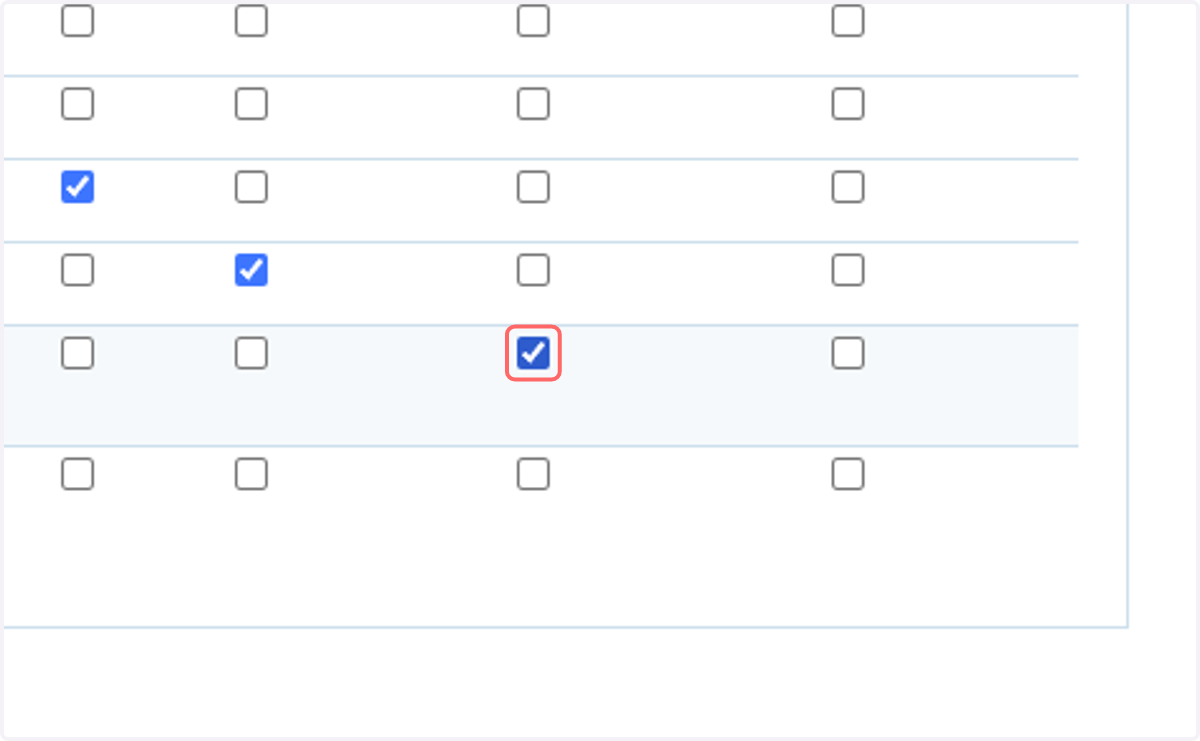
21. Stock Message
If enabled, the stock message for this product will be shown in the "Stock message" column. Note: this column is hidden if there are no products with this setting enabled.
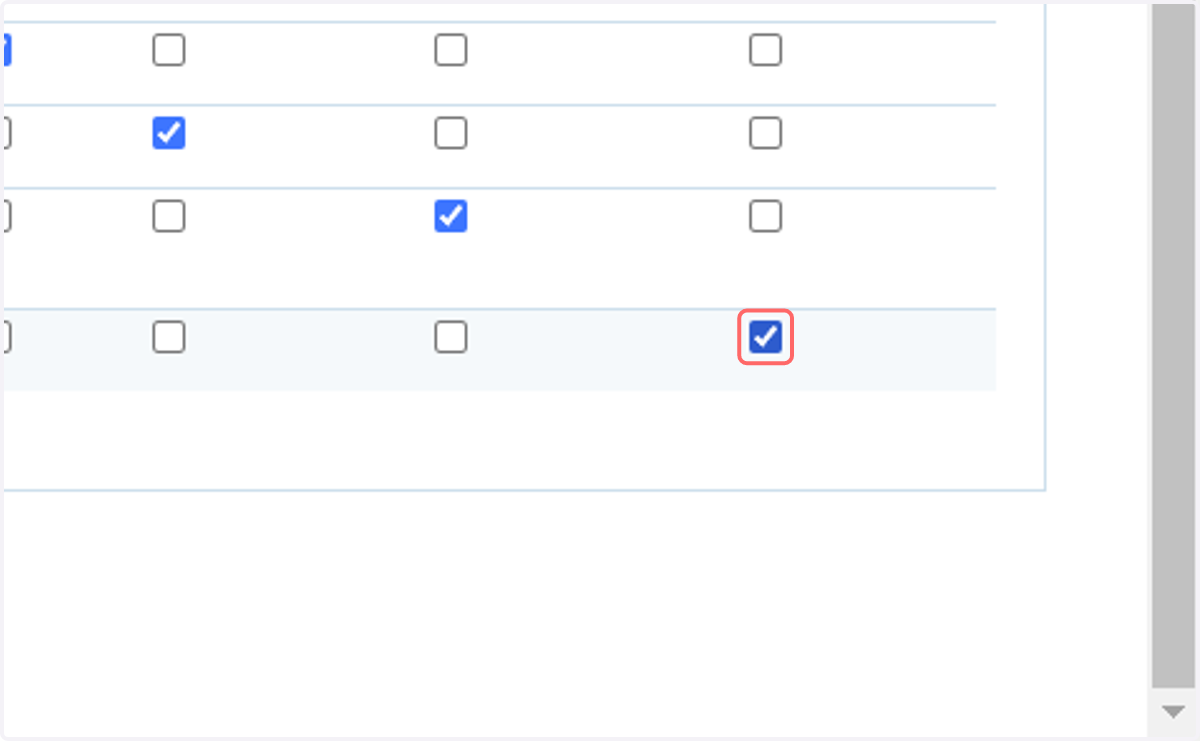
22. Display Order
This column allows you to control the order in which the child products are displayed on the parent Kit product's landing page.
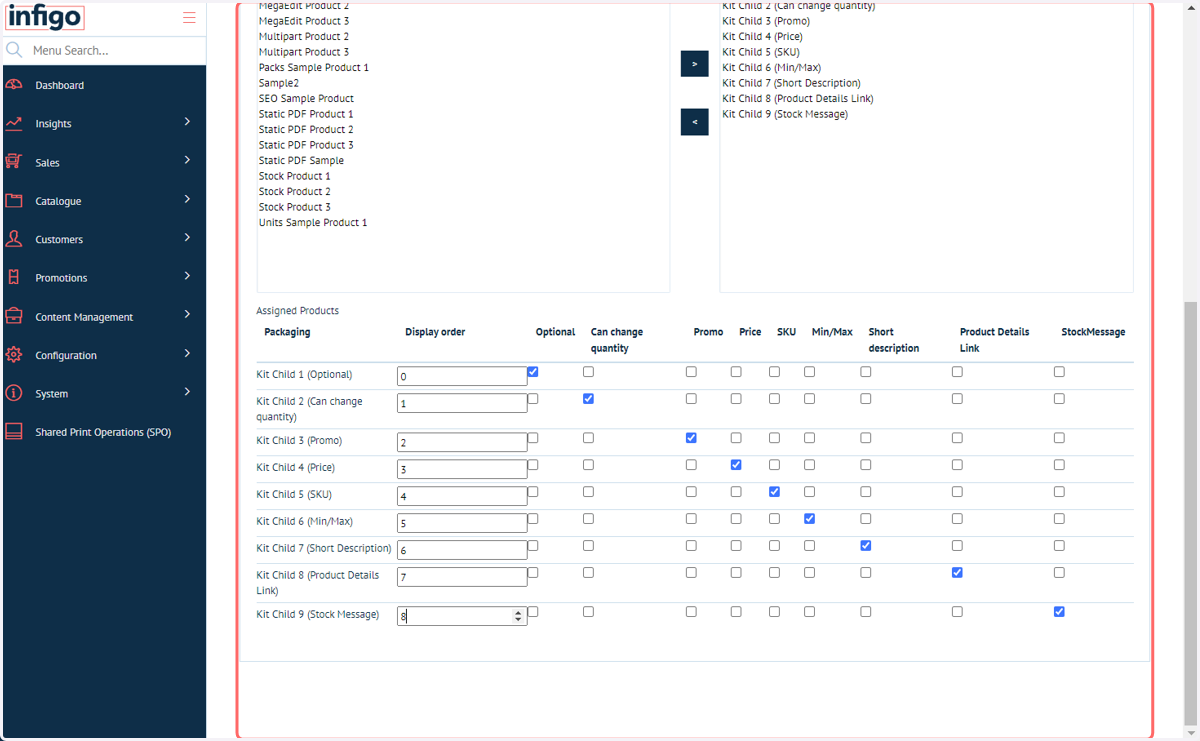
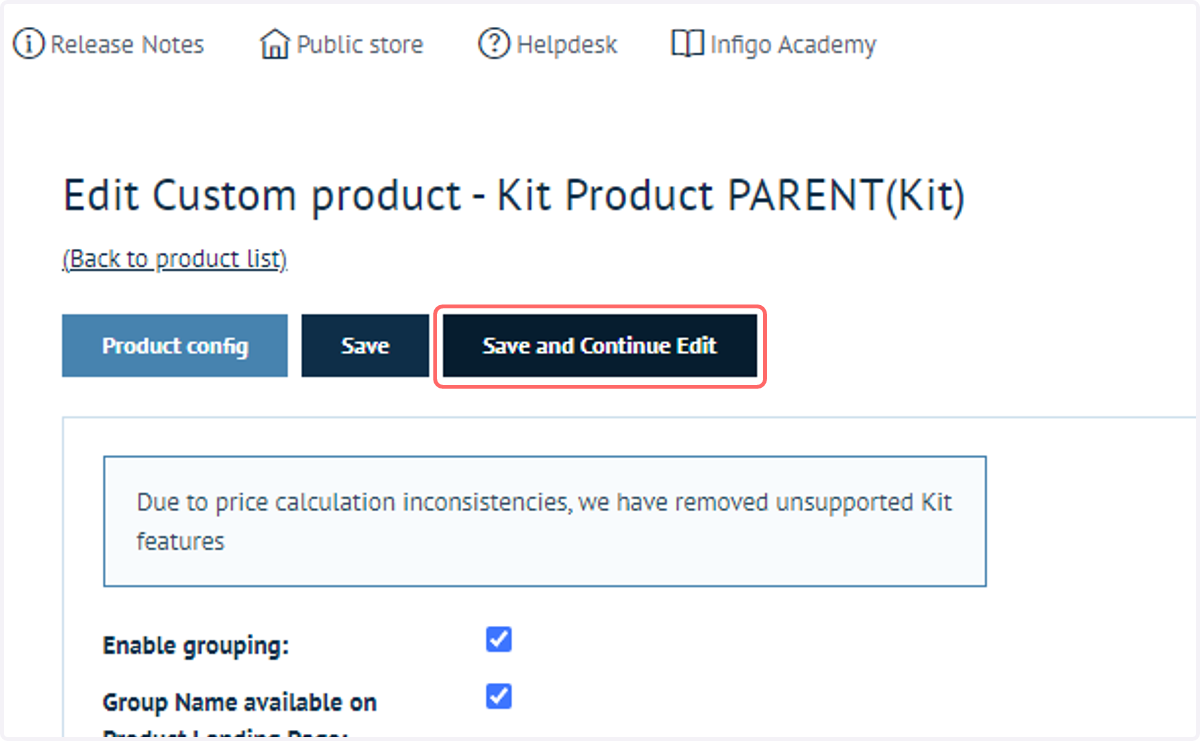
23. Click on Save and Continue Edit
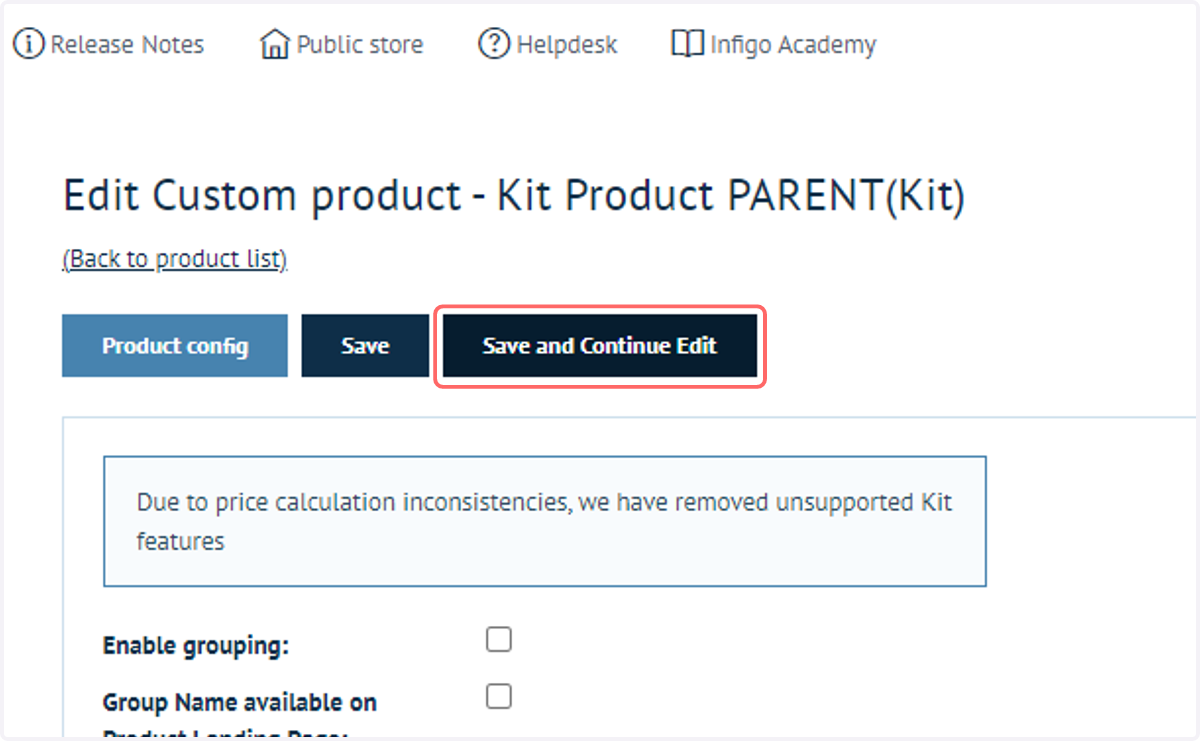
24. Grouping
It's useful to group orderlines so that you can easily keep track of which products were added by the kit, and what they were added alongside. You can accomplish this with the Enable Grouping button.
Enable "Group Name available on Product Landing Page" to allow your users to give the group a name.
Enable "Group Description available on Product Landing Page" to allow your users to give the group a description.

25. Click on Save and Continue Edit
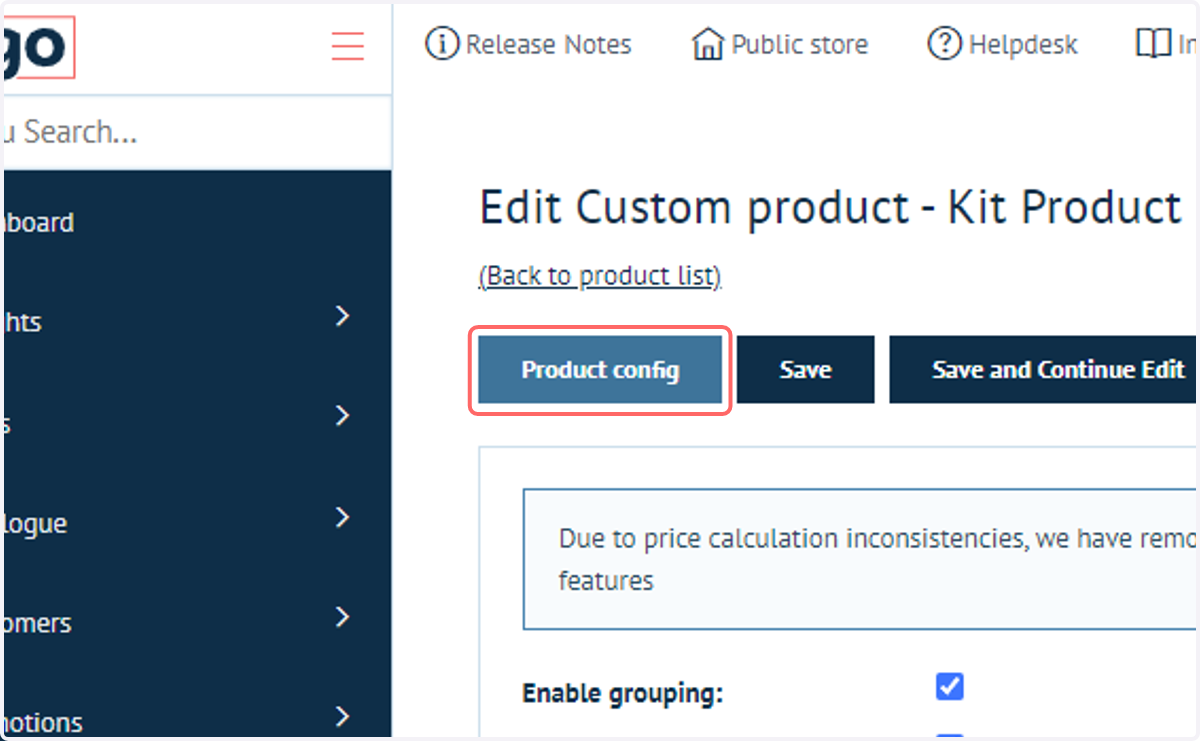
26. Click on Product config
Next, let's take a look at the product on the front end.
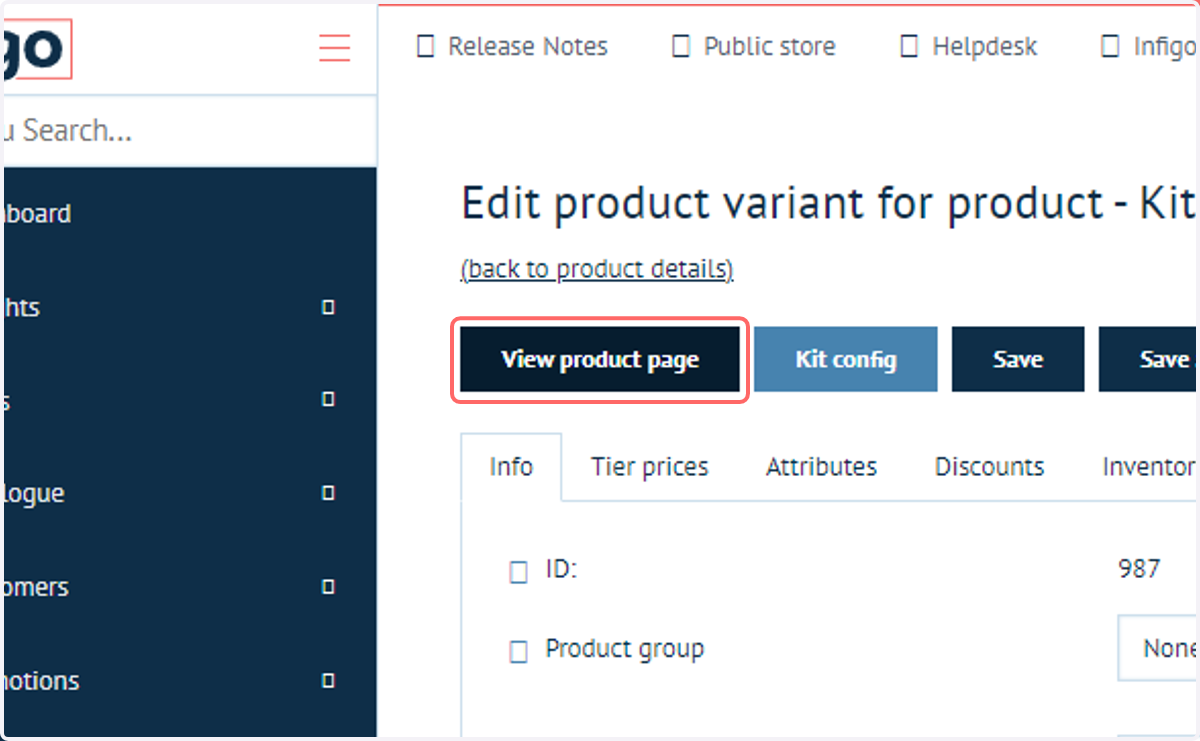
27. Click on View product page
28. Kit Product
All of the child products along with their associated options will be visible on the landing page of the parent product.
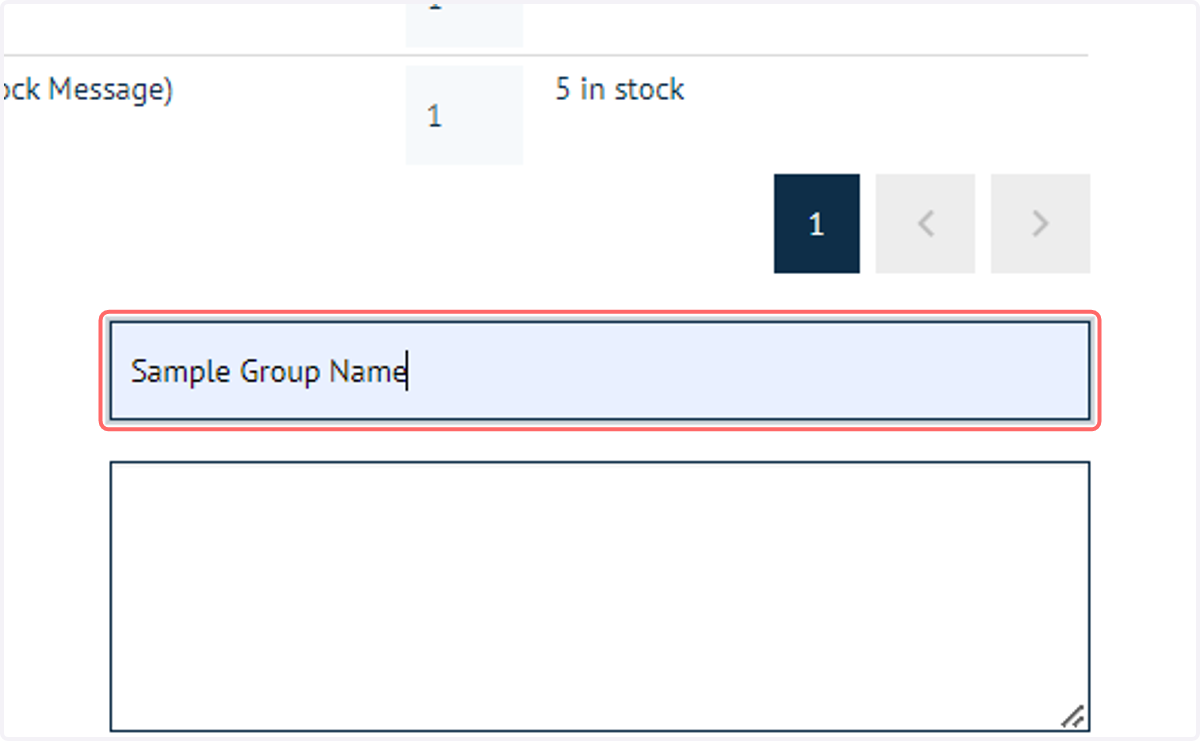
29. If grouping has been specified, you can input a group name and description in the fields shown.
Once products within the kit have been added to the basket, they will be grouped and will display these details (we will see this shortly).
30. Click add to basket
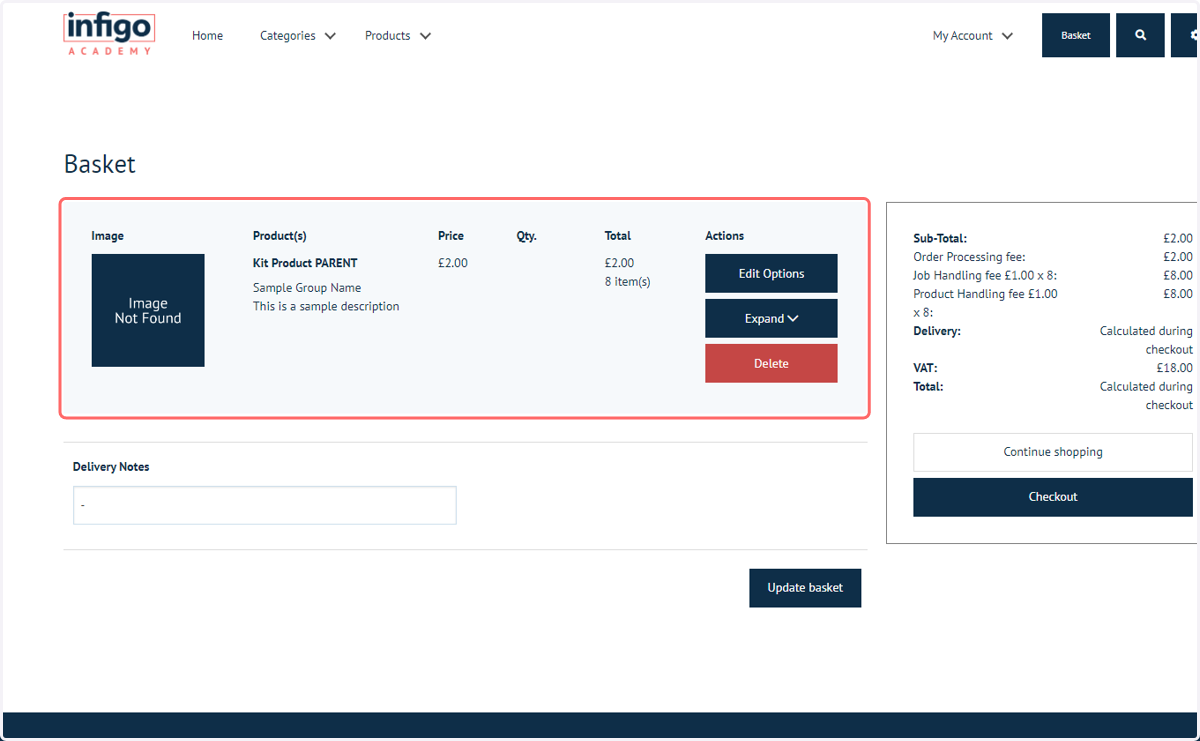
31. With grouping applied, all the child products will be grouped under the parent product within the basket
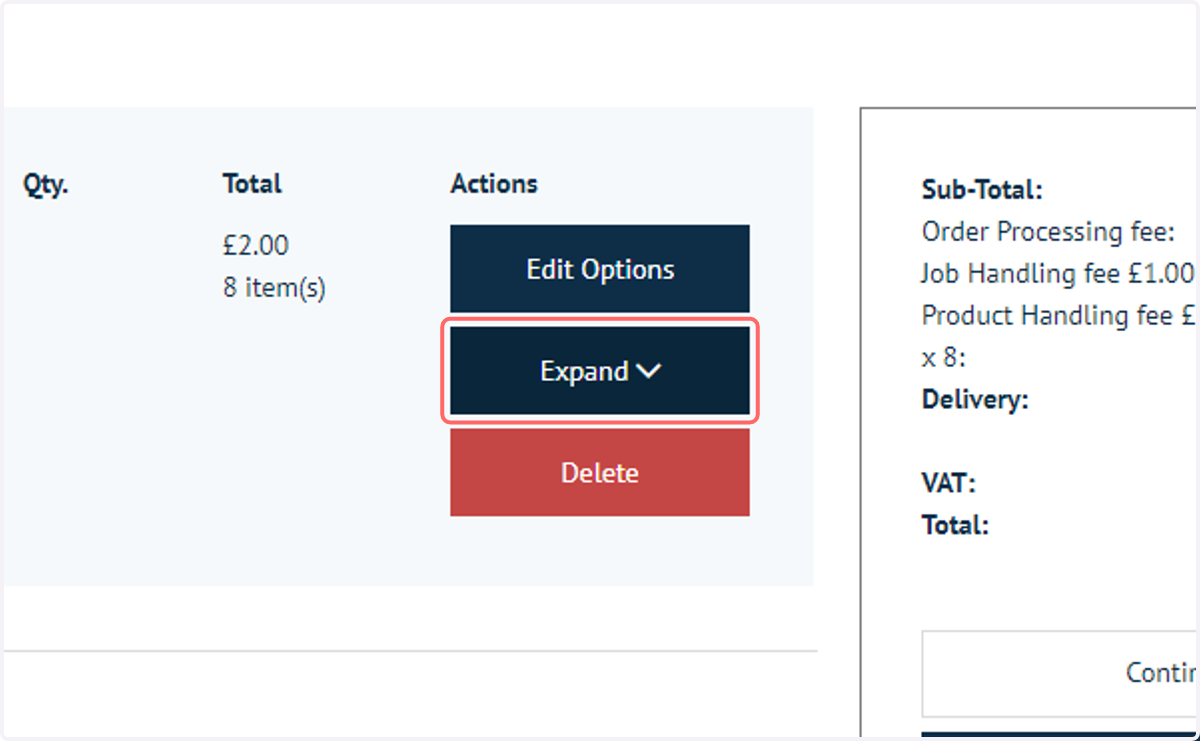
32. Click on Expand
This will show you details on all of the products added as part of that group, under the parent kit product's umbrella.
33. Let's proceed through the checkout and place an order
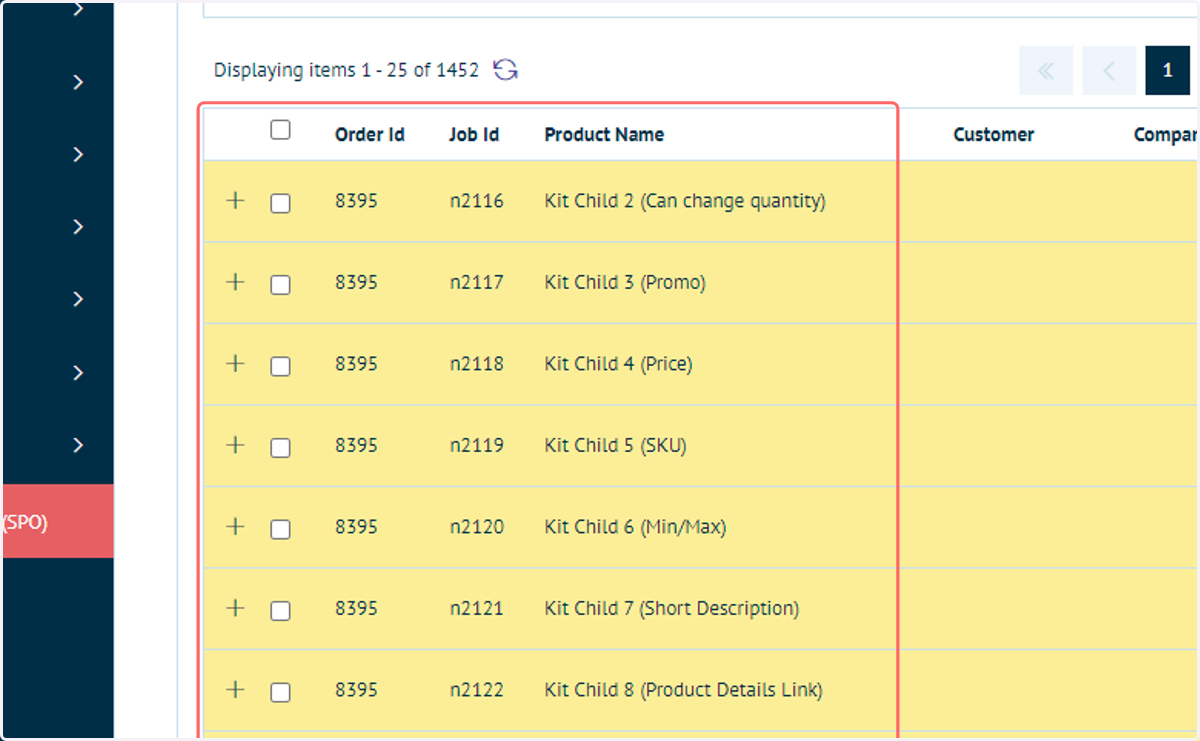
We'll take a look at how this placed order appears to both the customer in their My Orders page, and to administrators viewing Shared Print Operations (SPO).
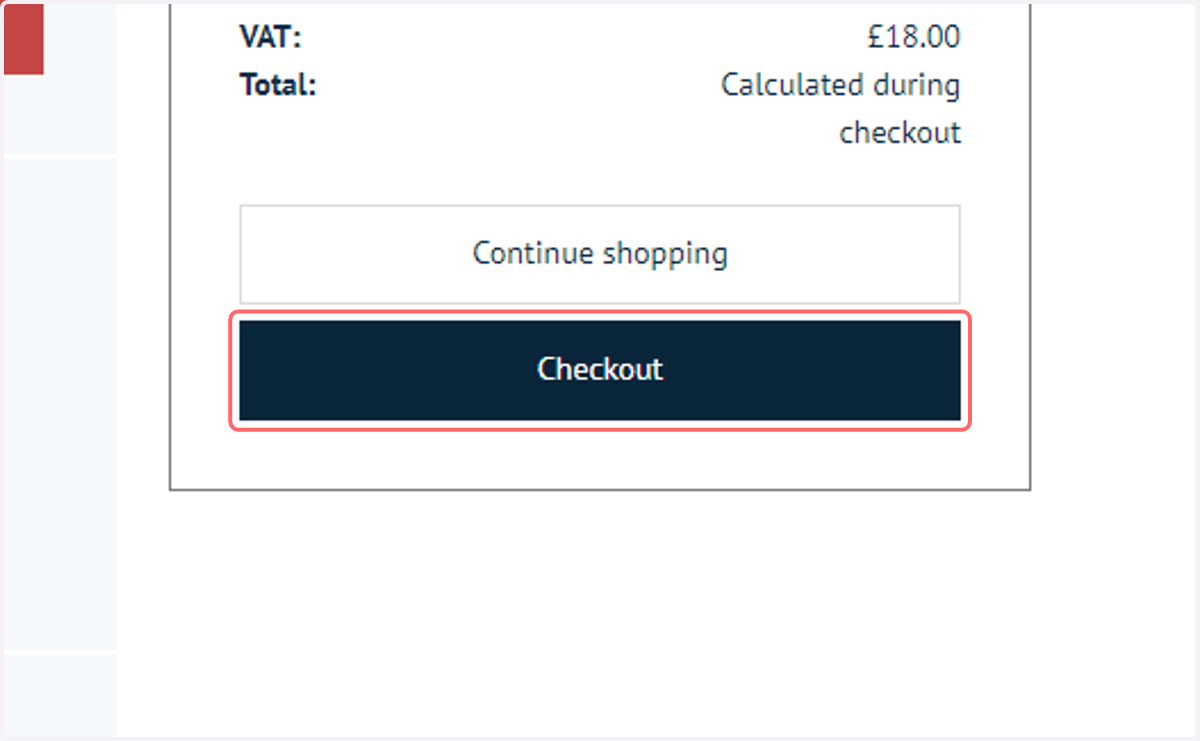
34. My Orders view
This is the view seen in the My Orders screen. Each child product is listed independently.
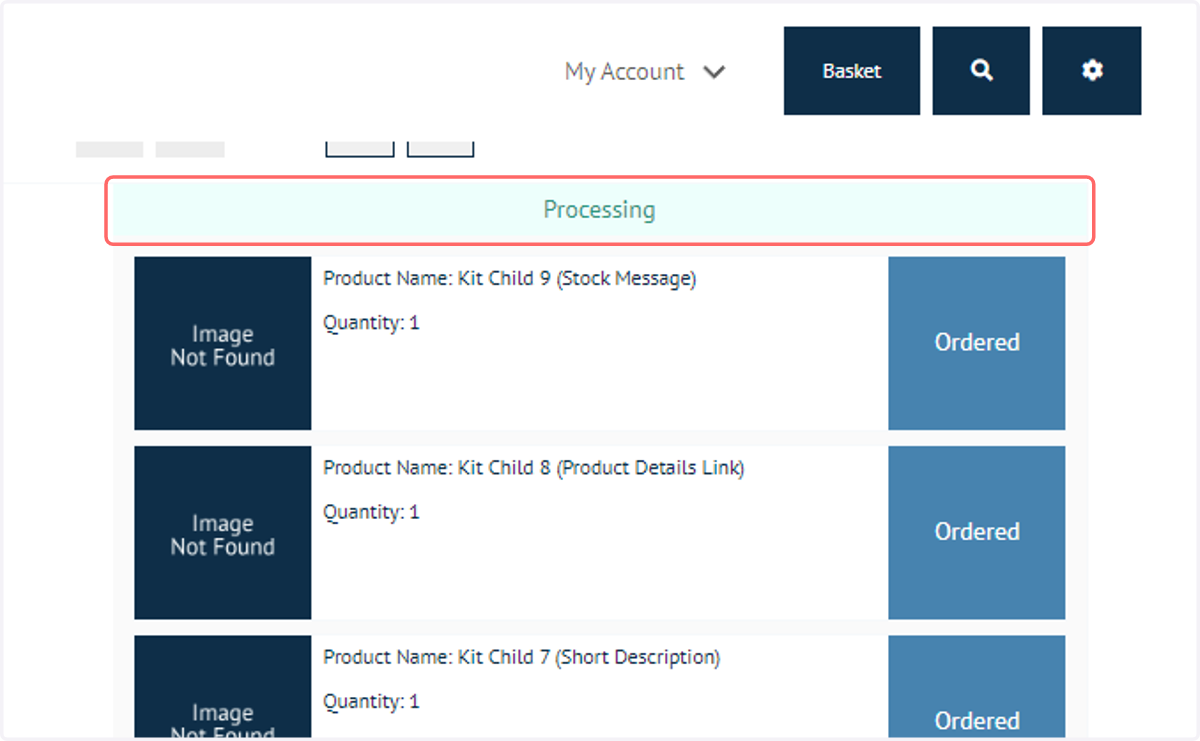
35. SPO view
On the administrator side, each of the child products is listed as a separate job in SPO.