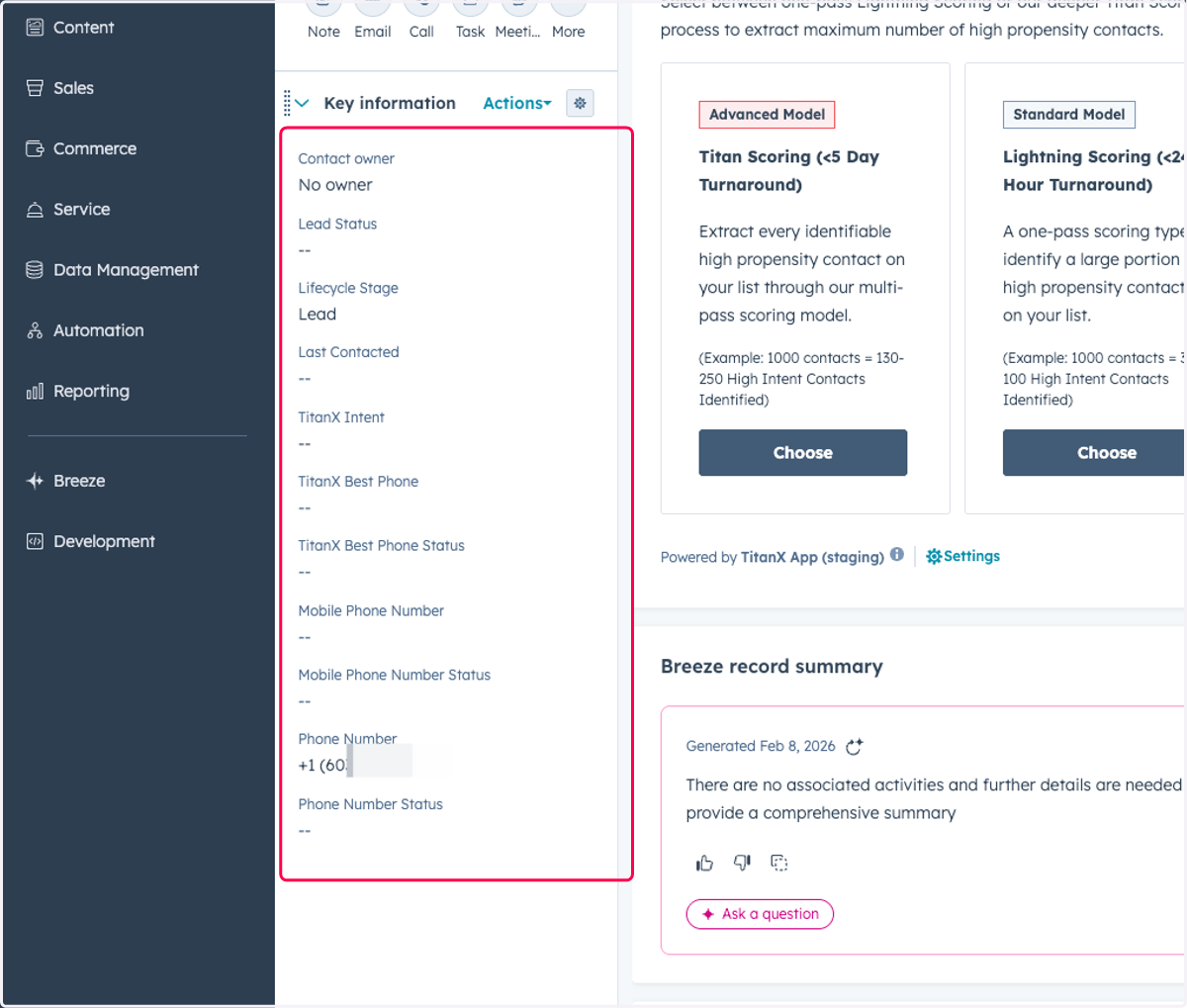
2. Customize Contact Layouts in HubSpot
User Guide | HubSpot
1. Click on Admin User Profile
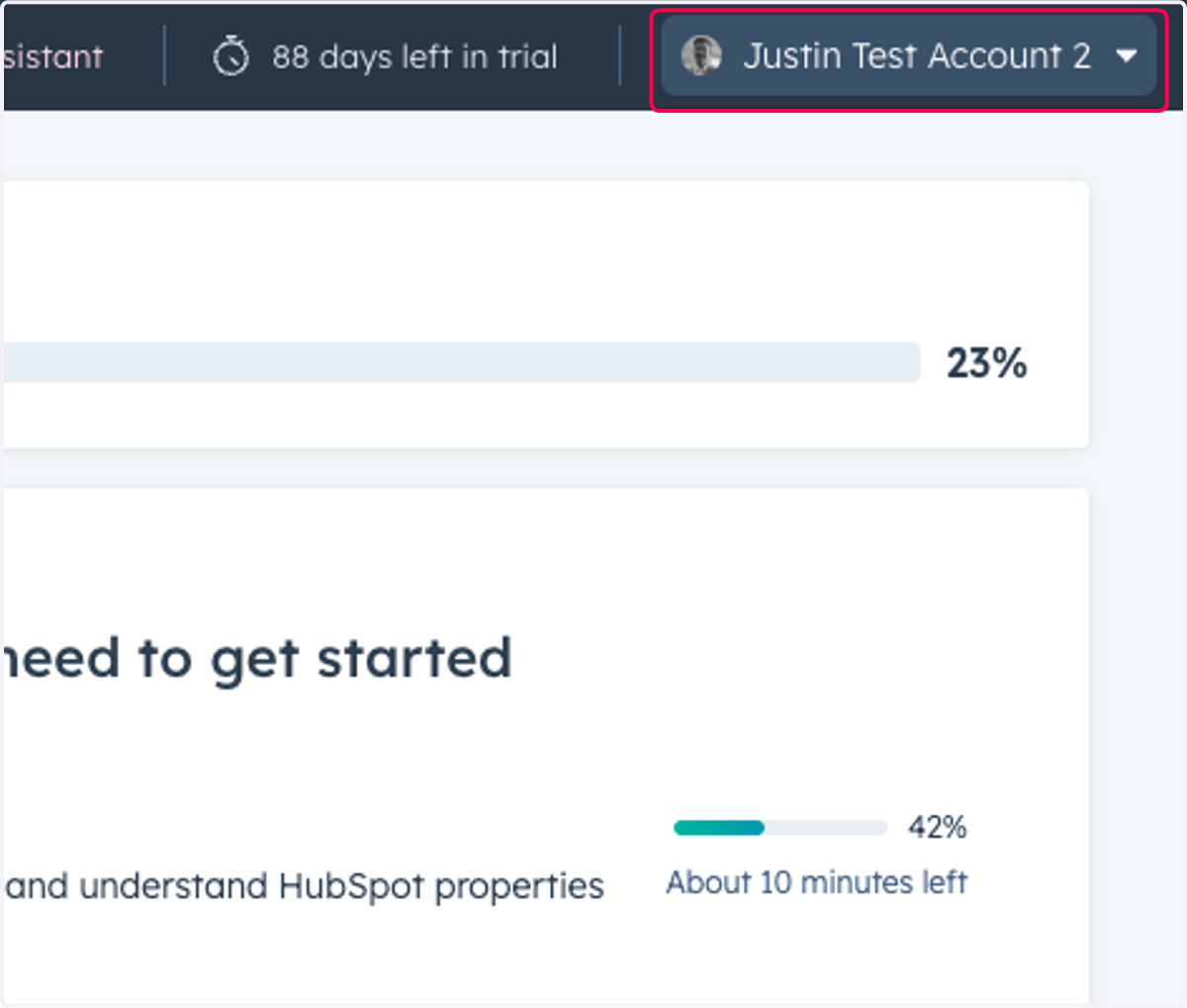
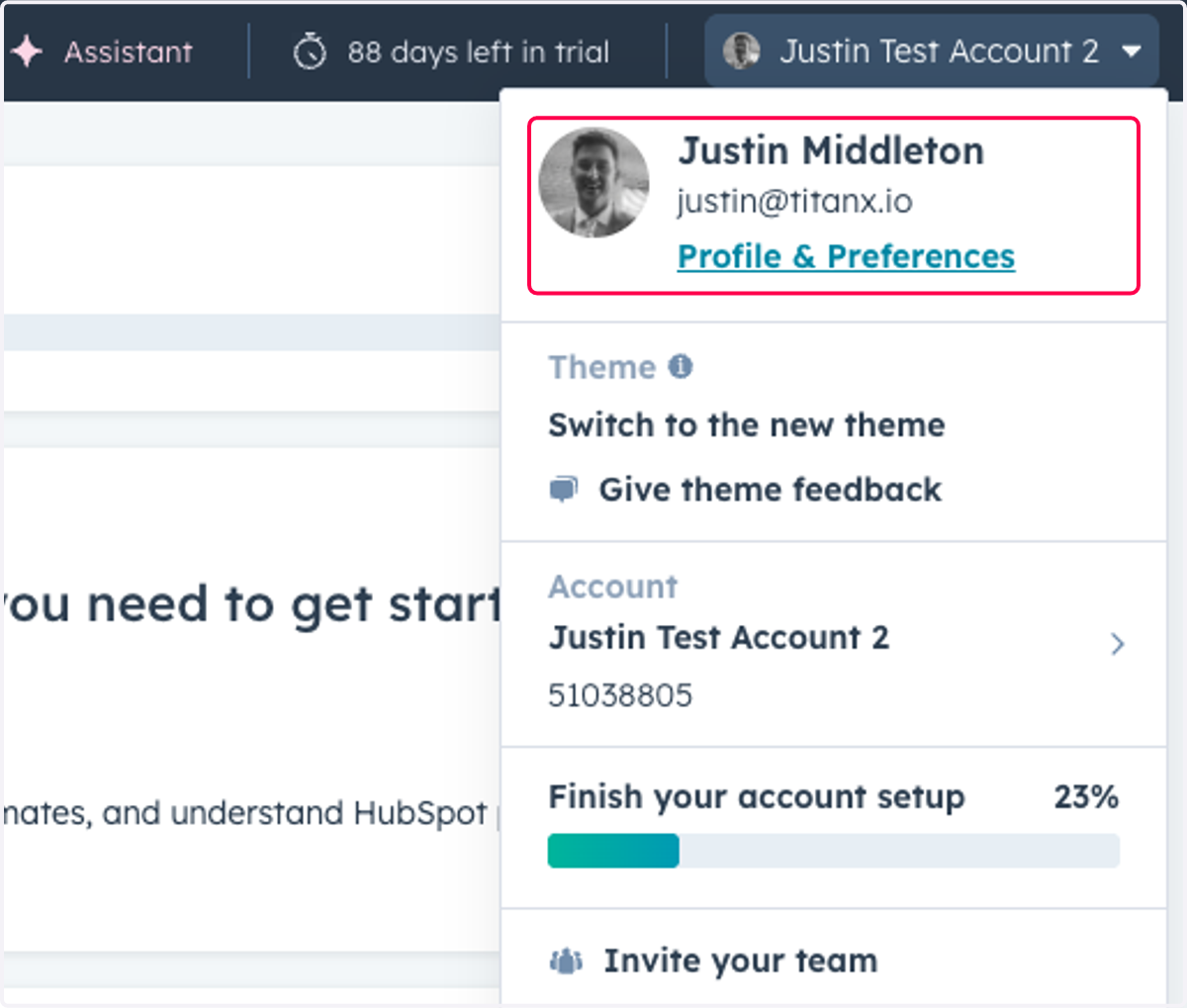
2. Click on Profile & Preferences
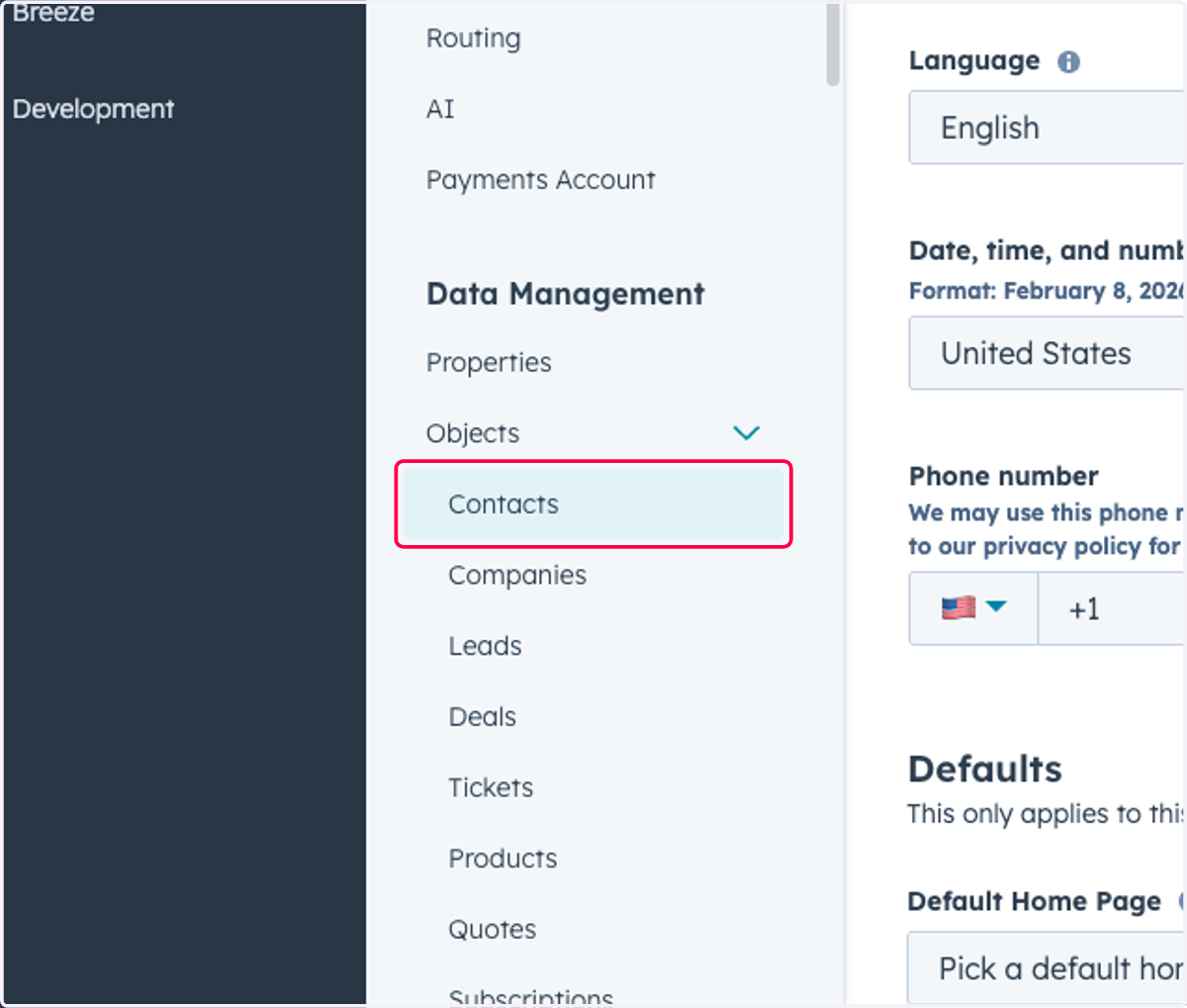
3. Click on Contacts
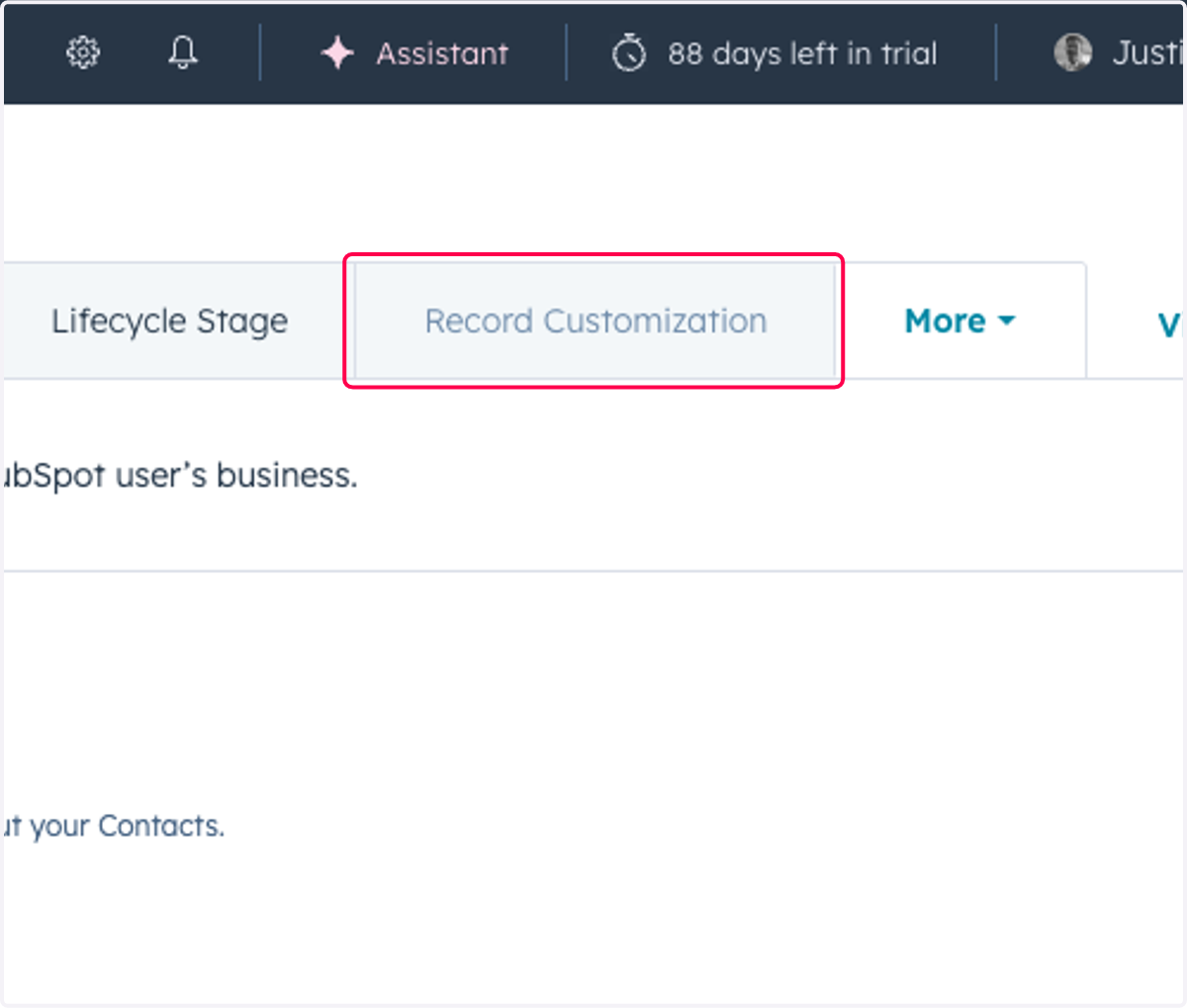
4. Click on Record Customization
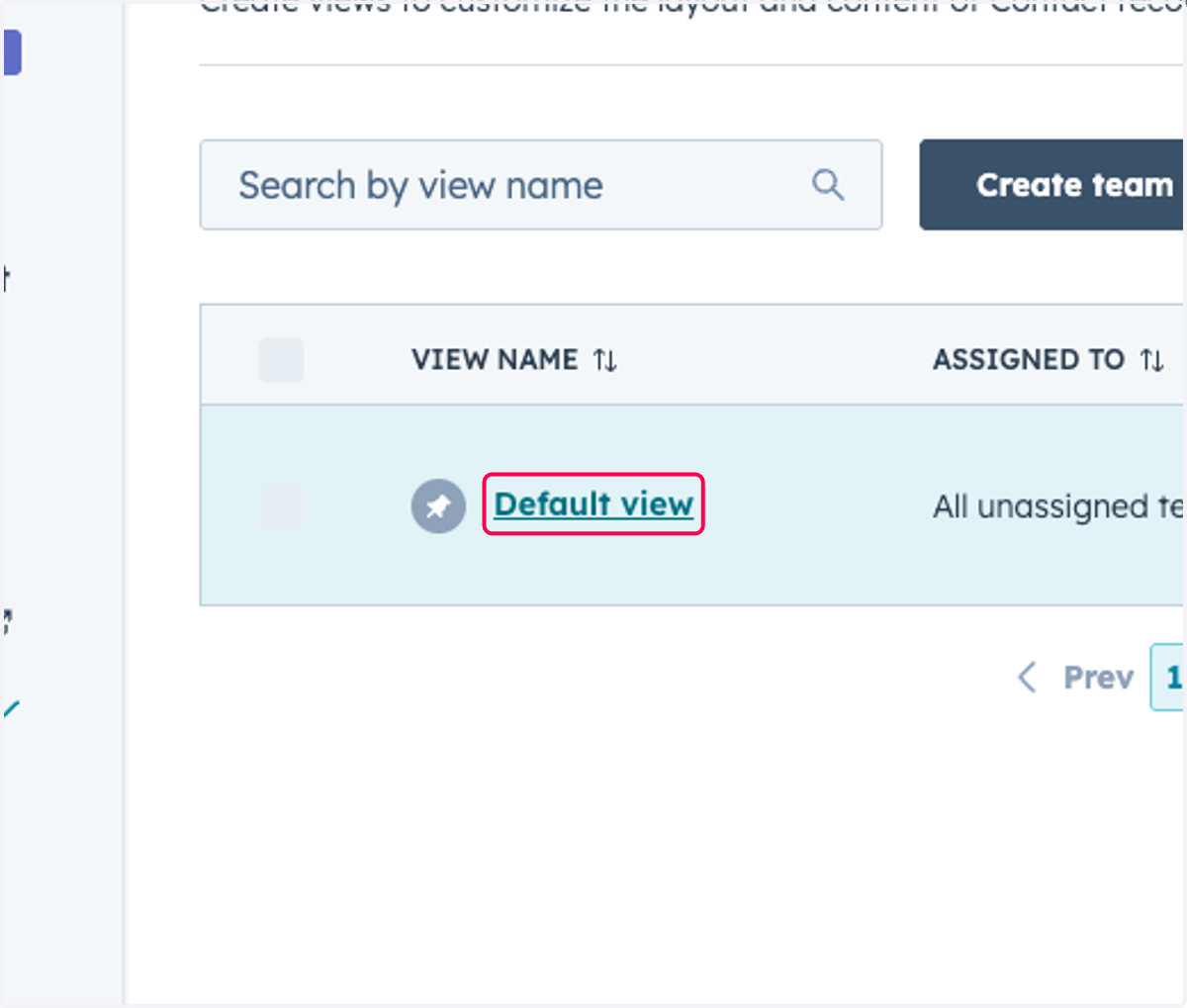
5. Click on Default view
You would click on the view that your team uses. It may not be "default view"
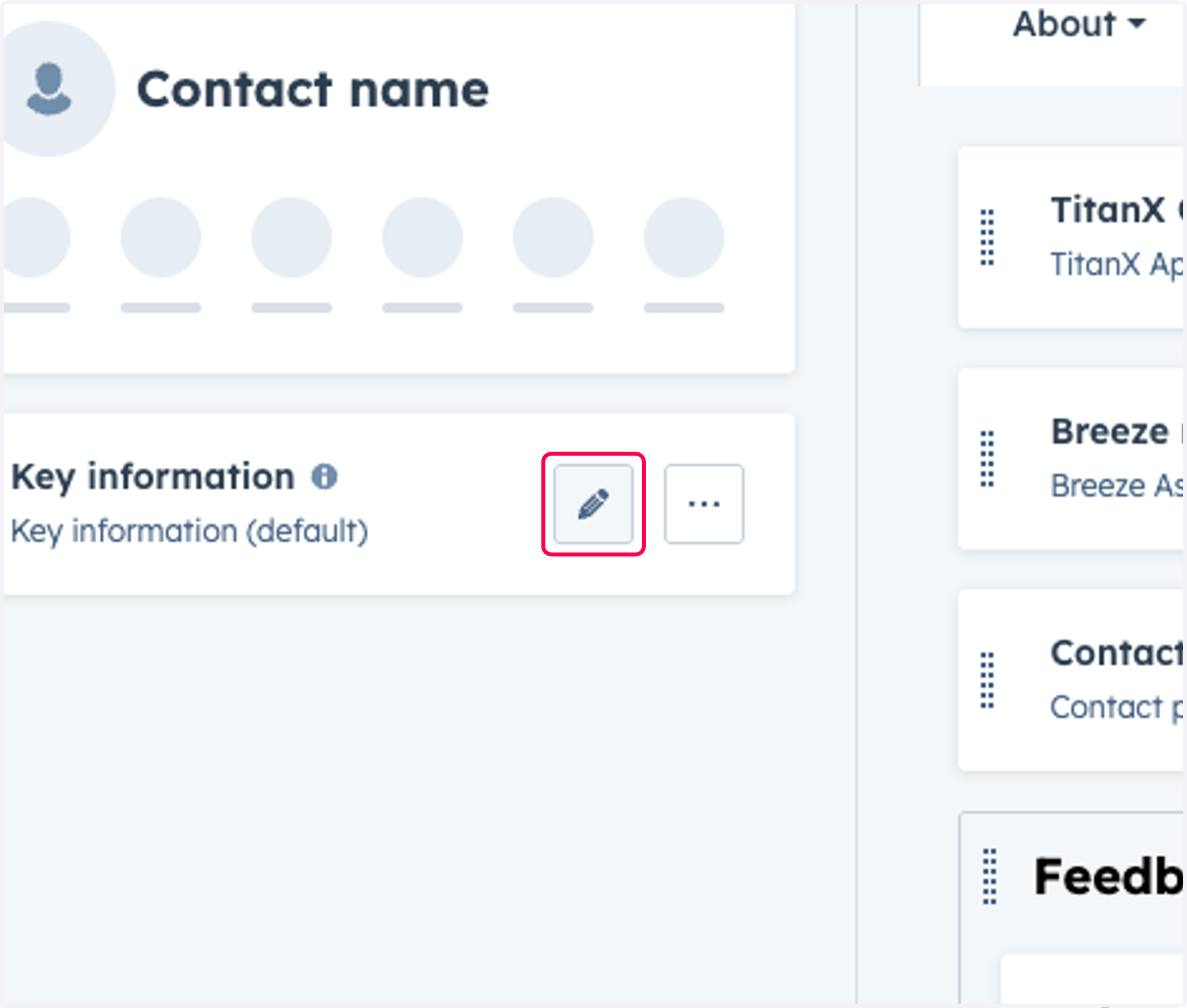
6. Click on Edit card
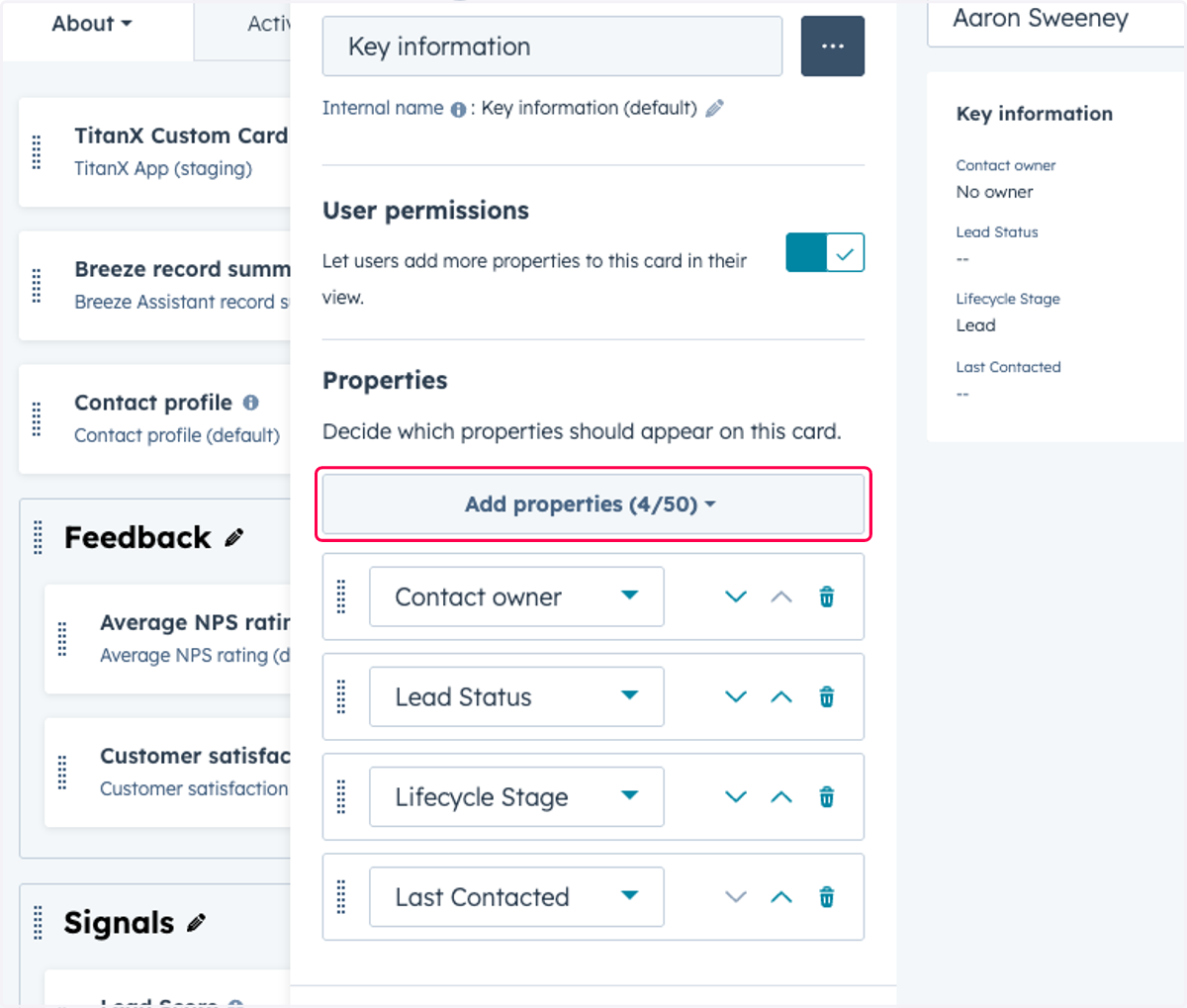
7. Click on Add properties…
8. Type "inte"
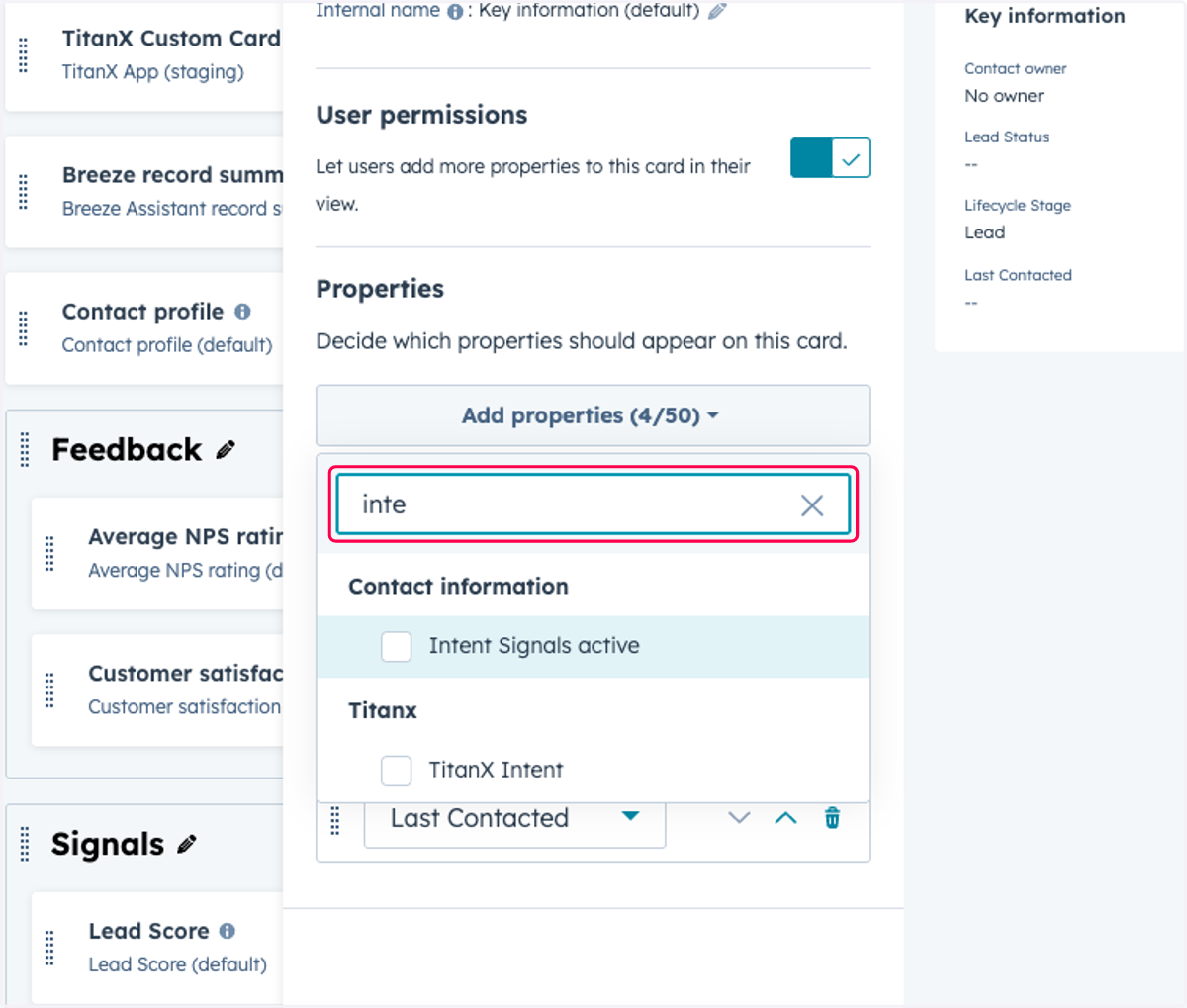
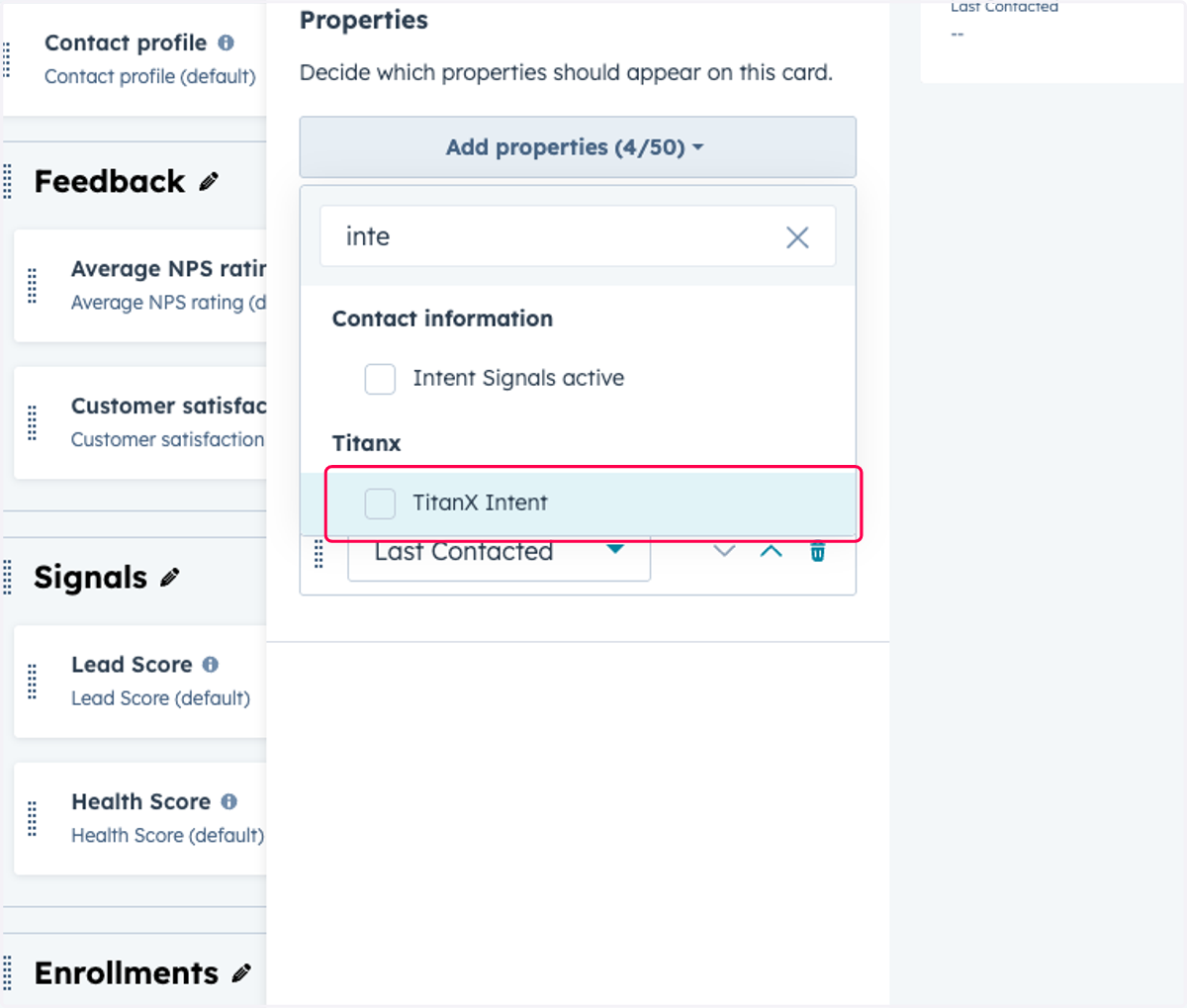
9. Check TitanX Intent
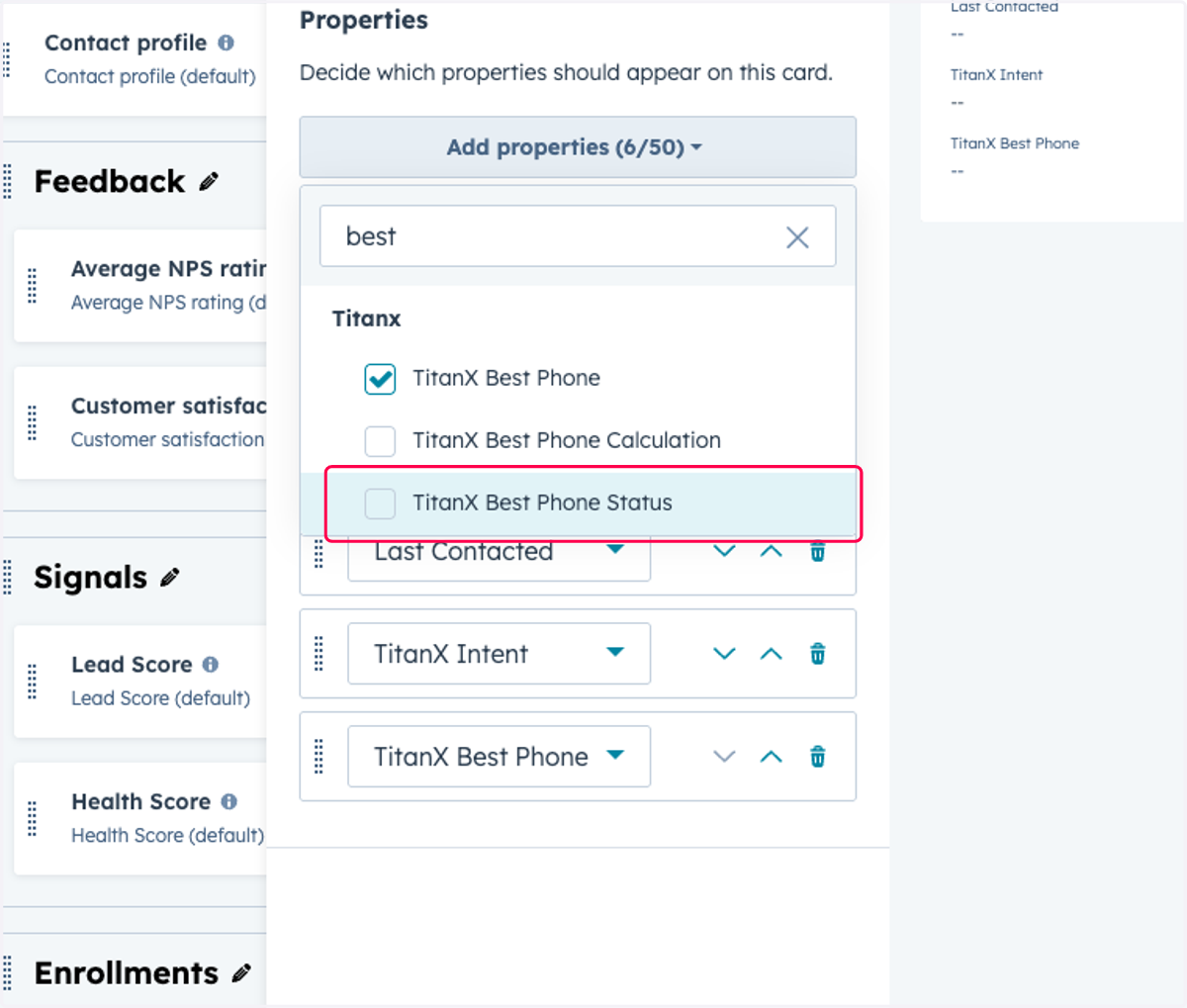
10. Type "best"
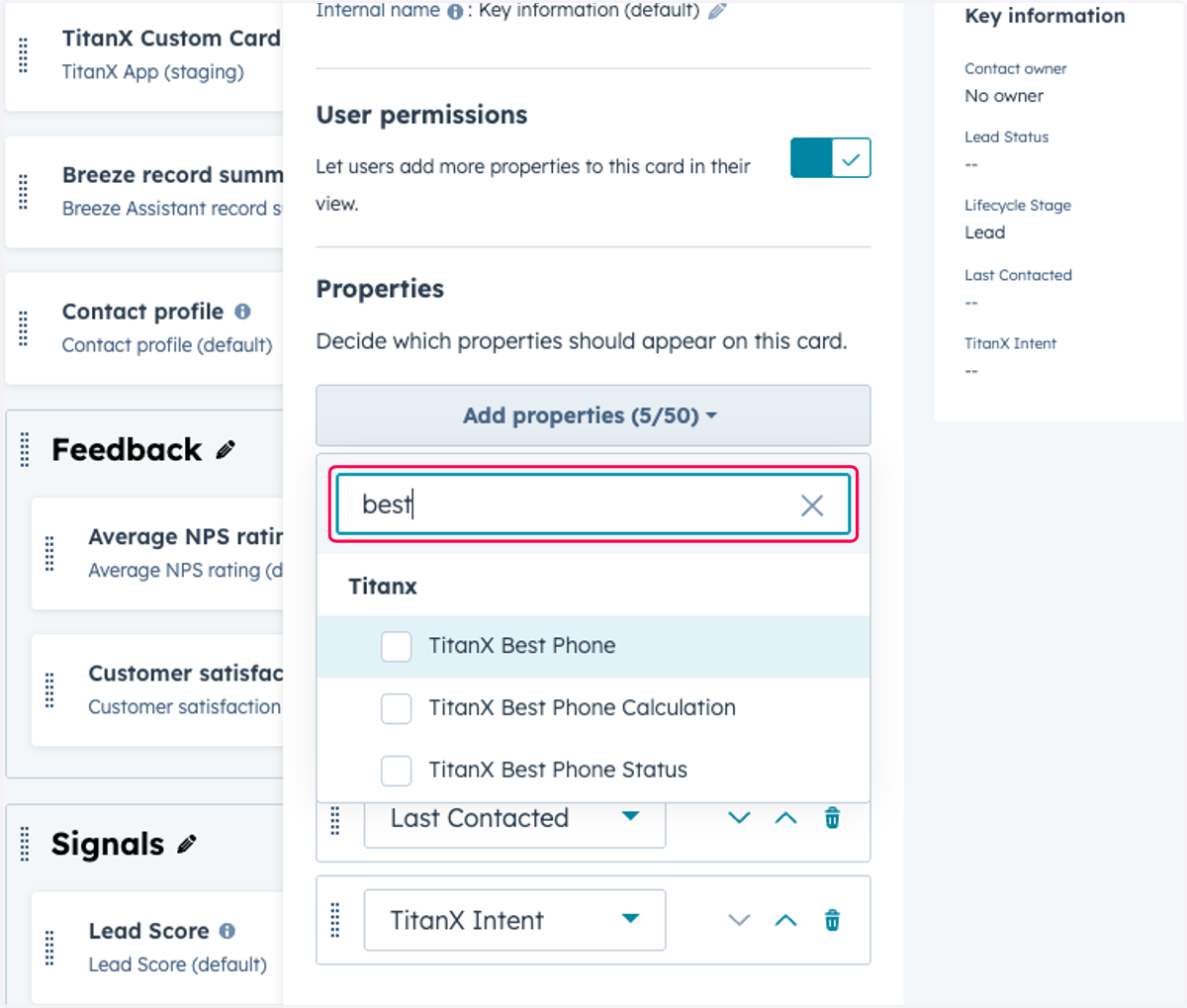
11. Check TitanX Best Phone
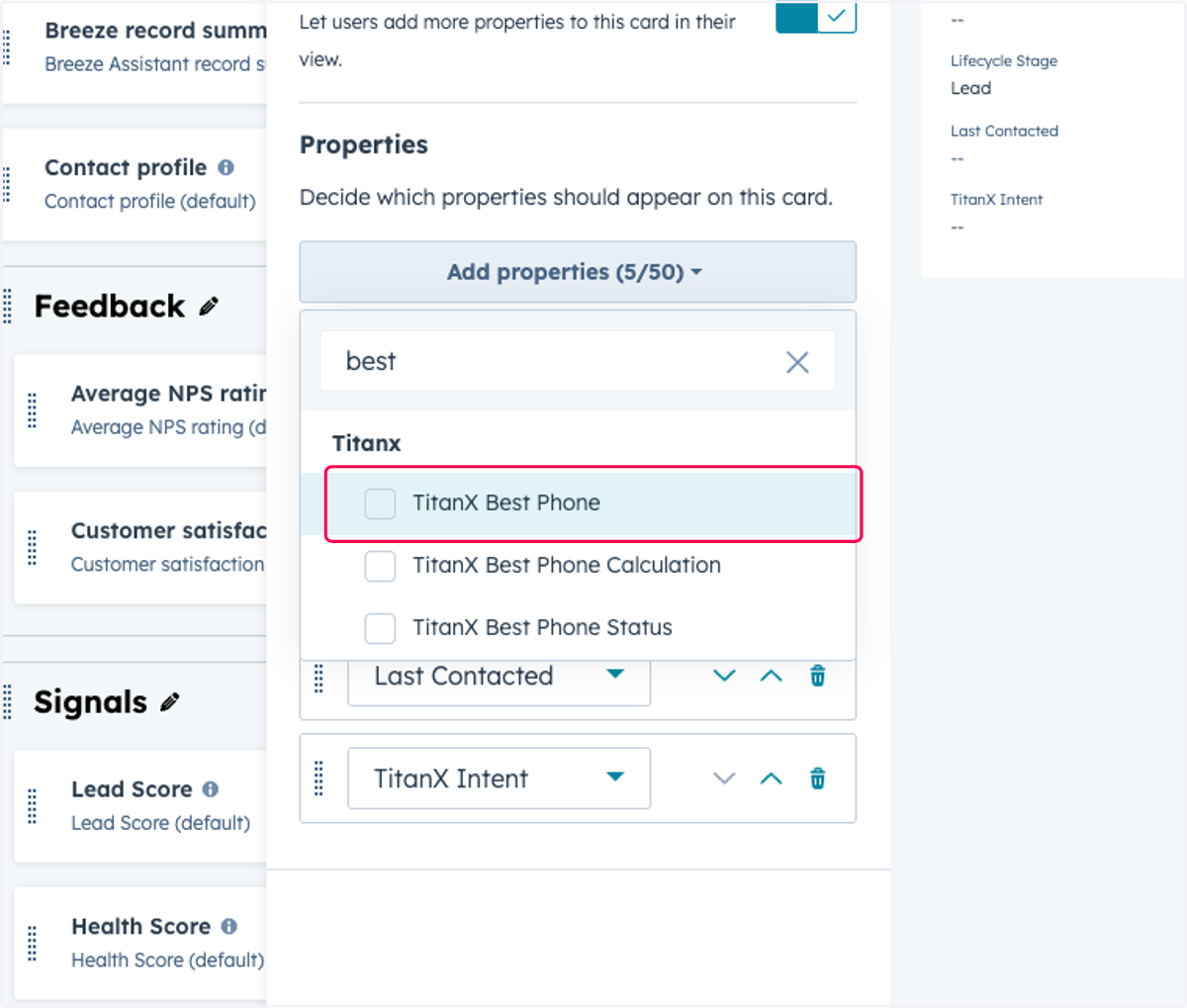
12. Check TitanX Best Phone Status
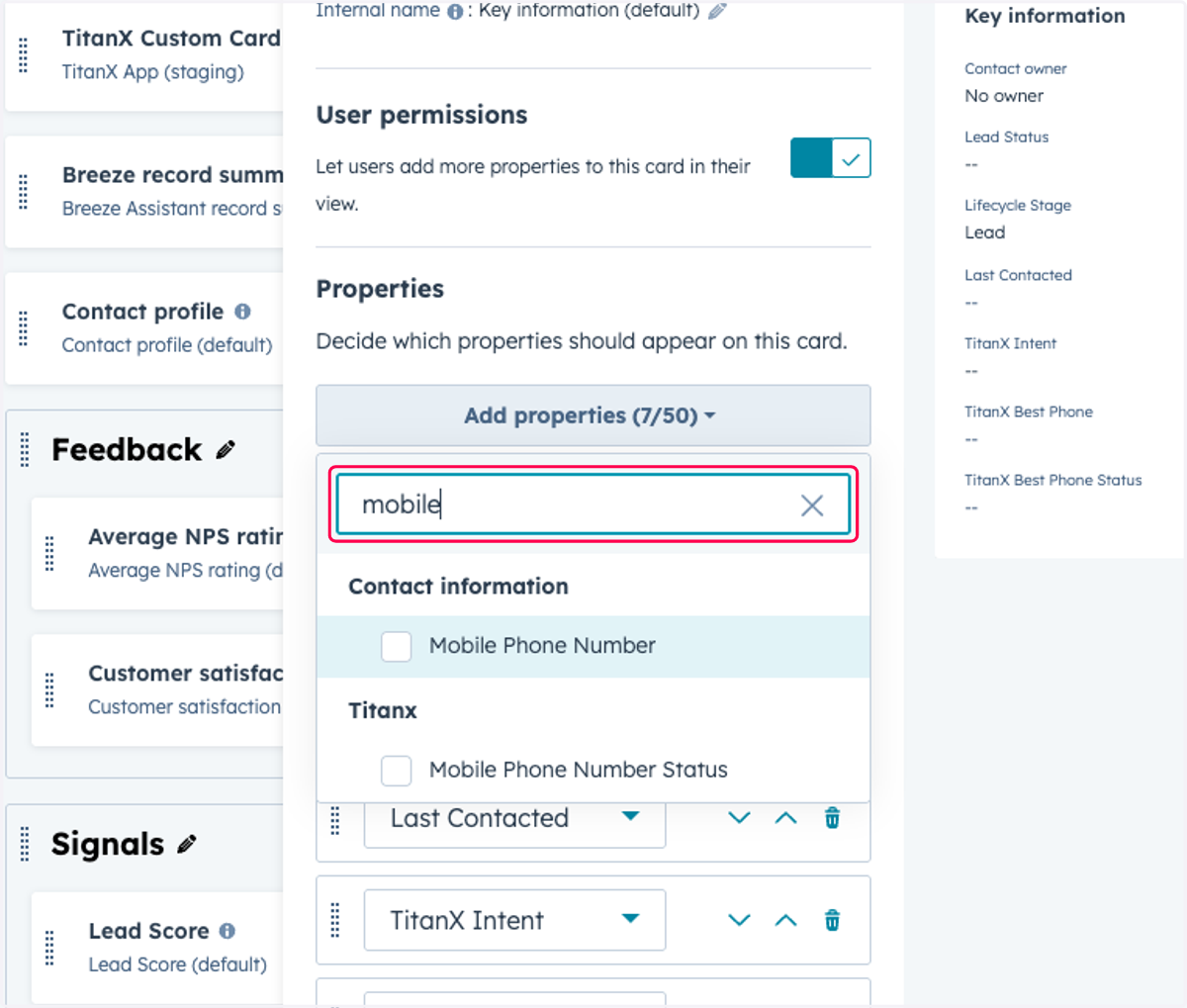
13. Type "mobile"
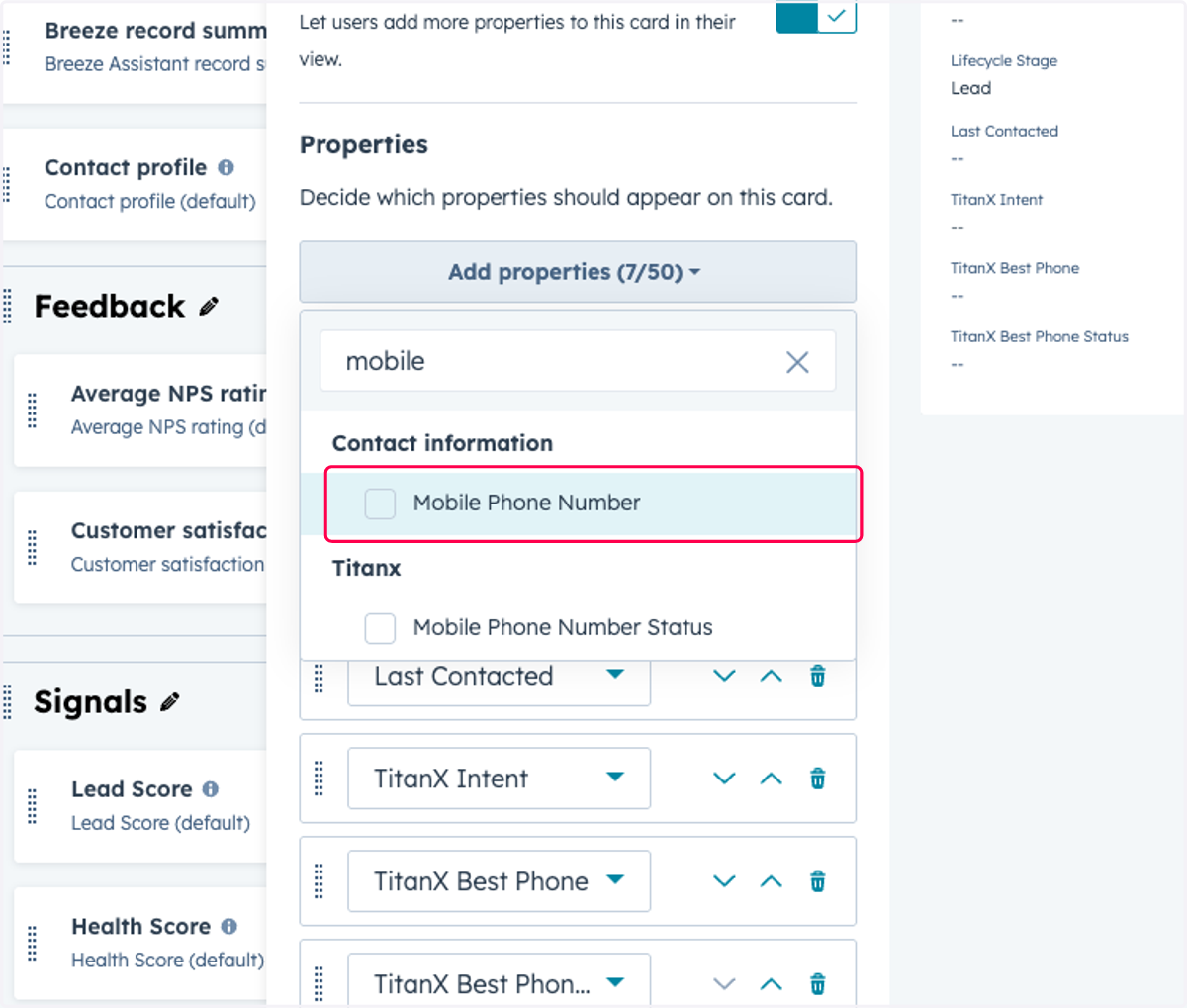
14. Check Mobile Phone Number
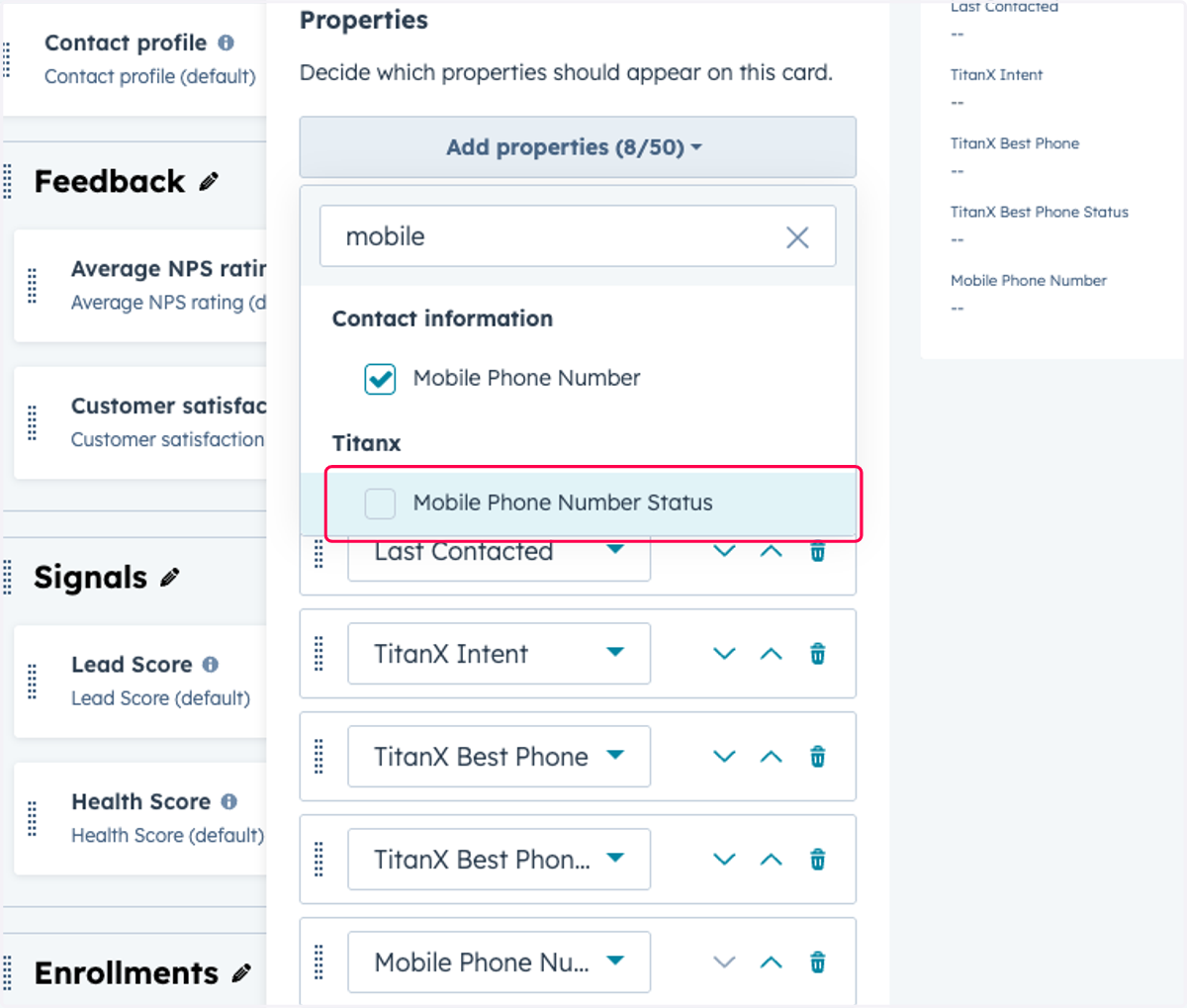
15. Check Mobile Phone Number Status
16. Type "phone"
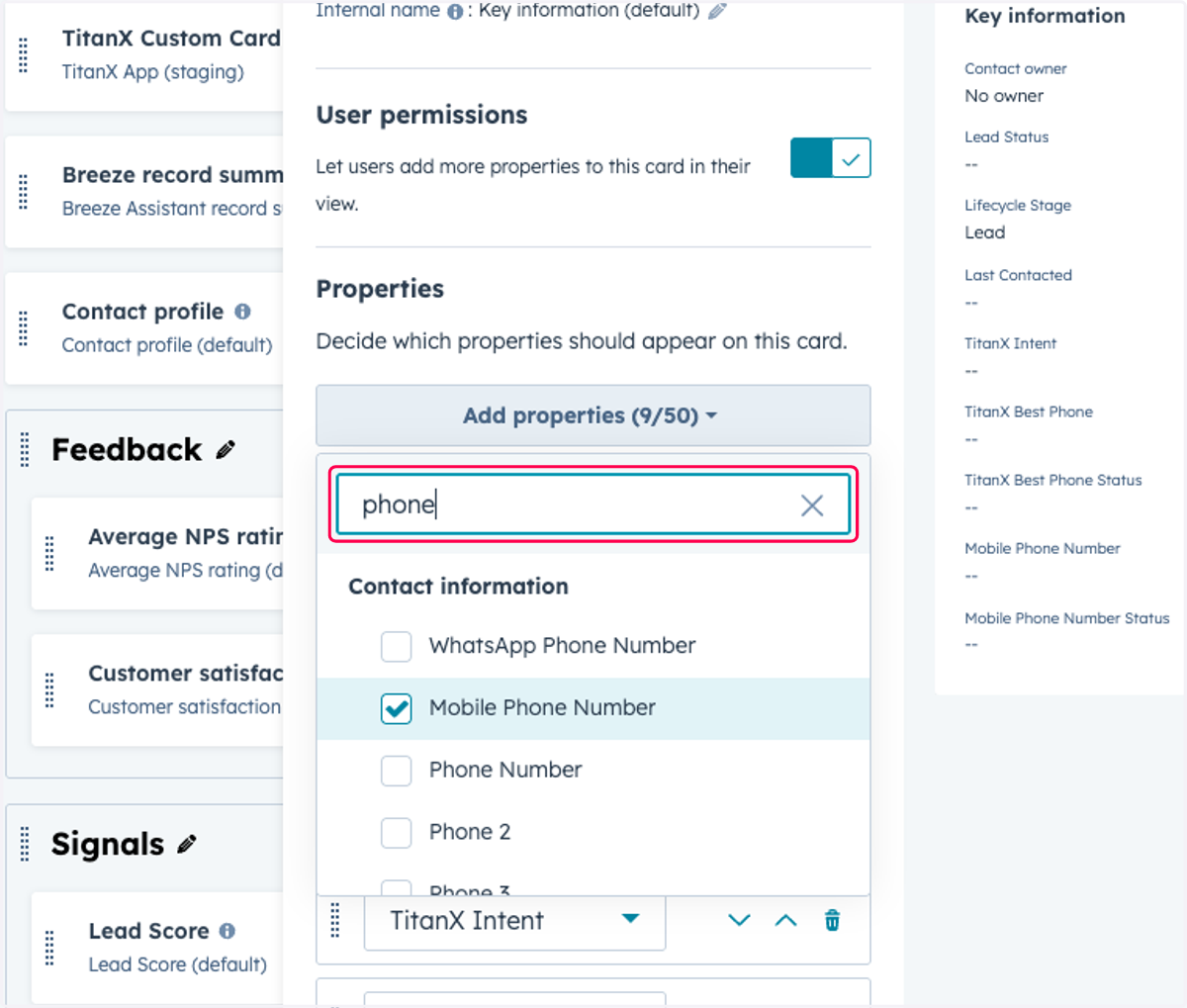
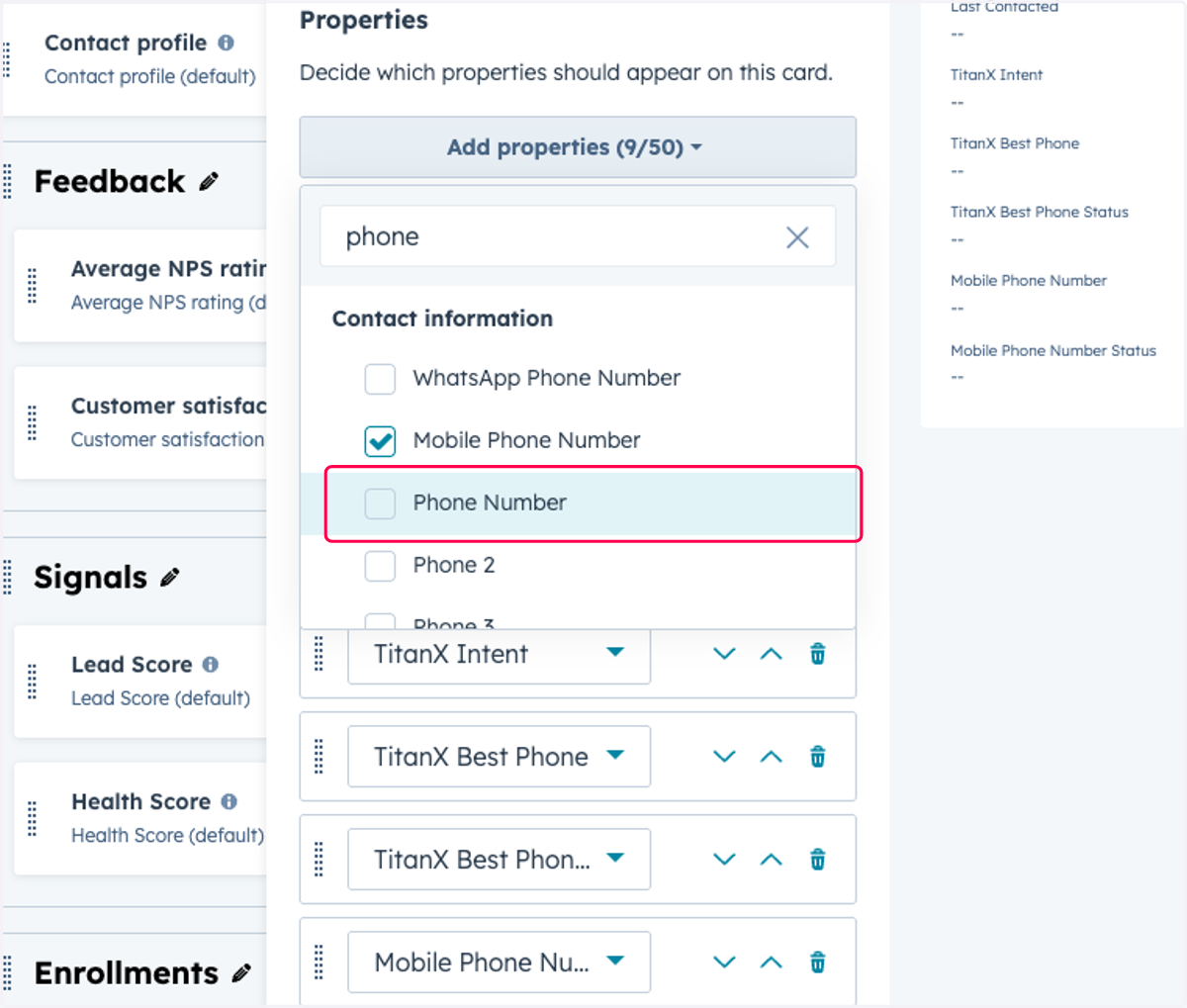
17. Check Phone Number
18. Check Phone Number Status
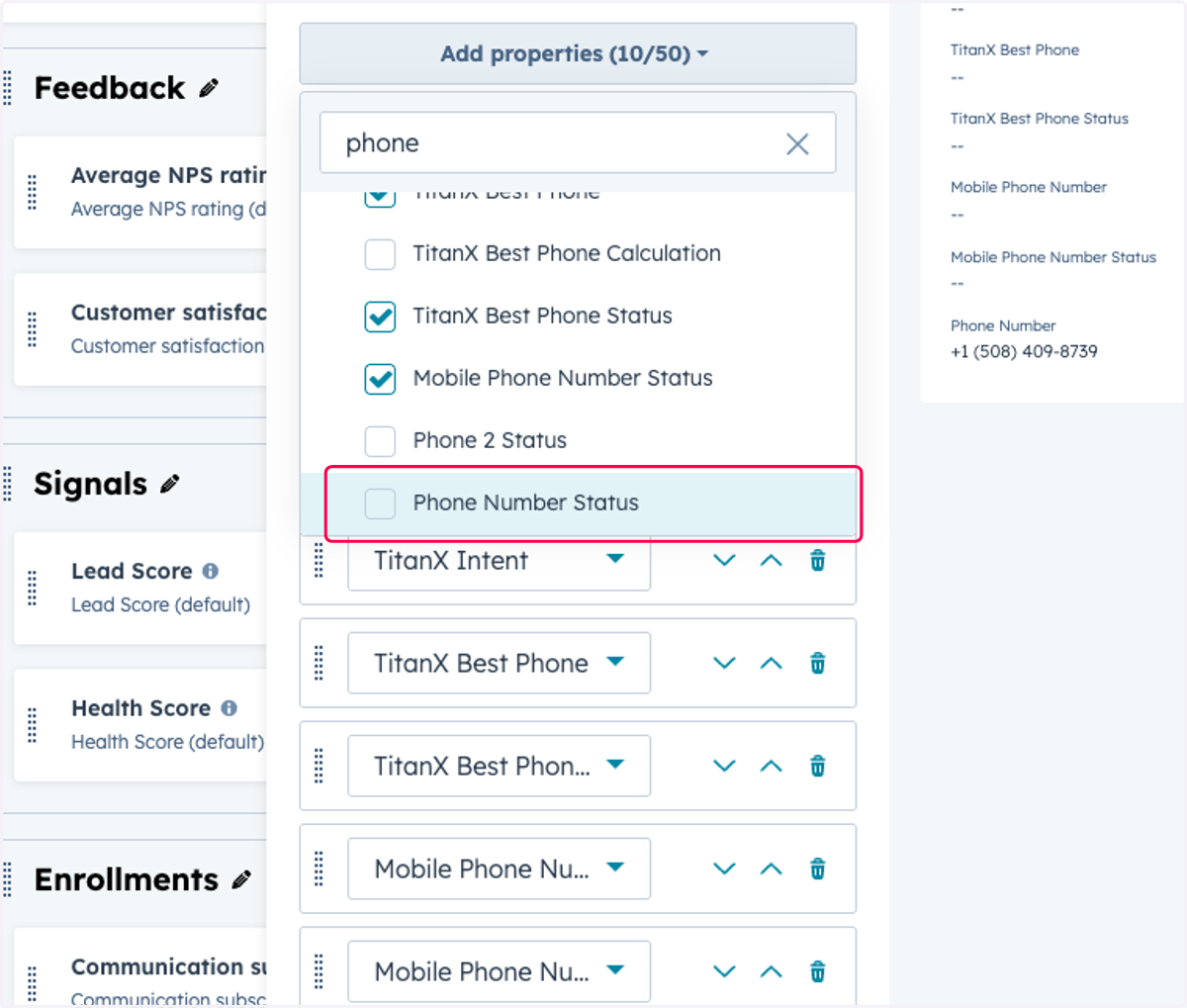
19. Proceed to select remaining TitanX fields
20. Click on Save
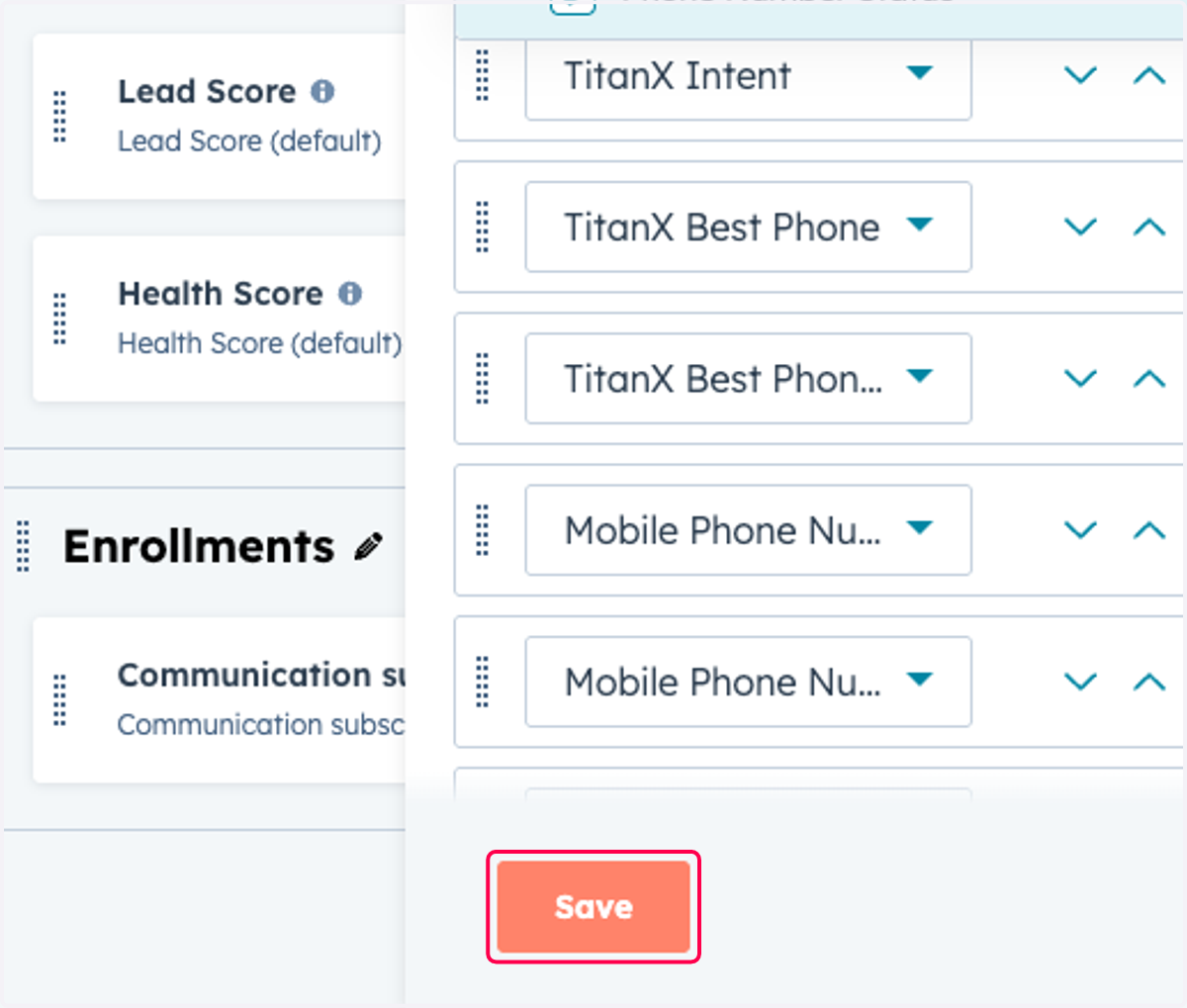
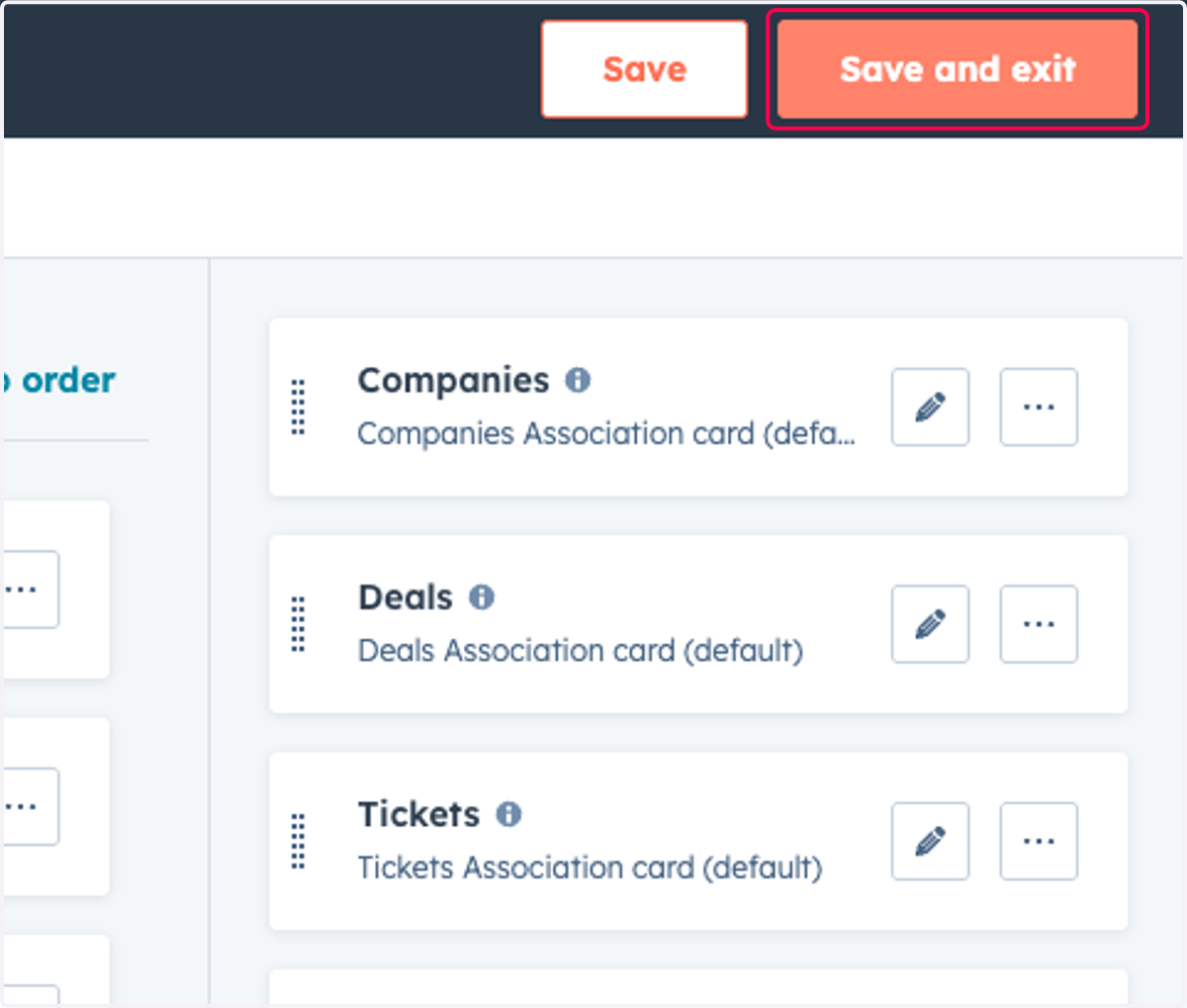
21. Click on Save and exit
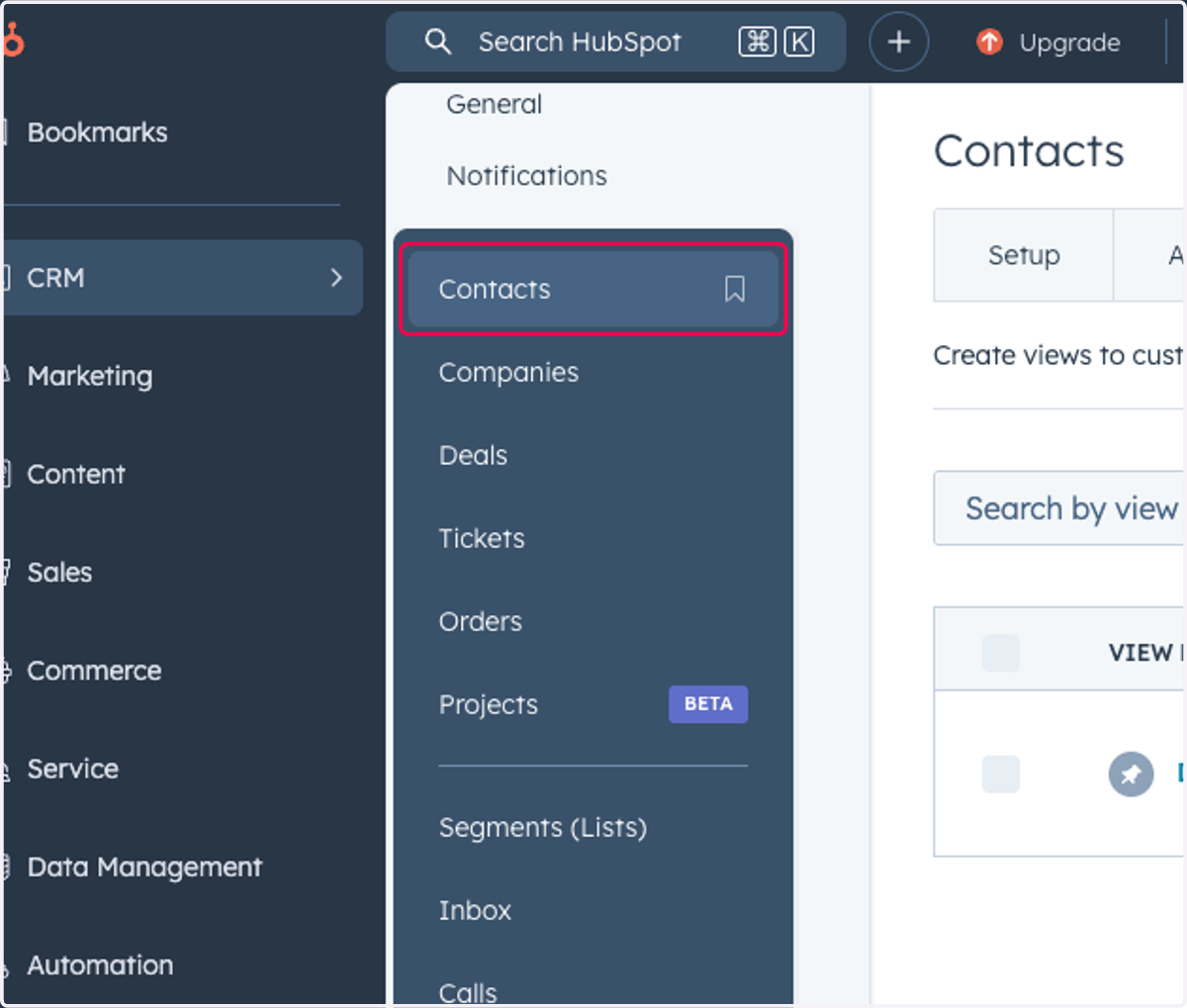
22. Click on Contacts
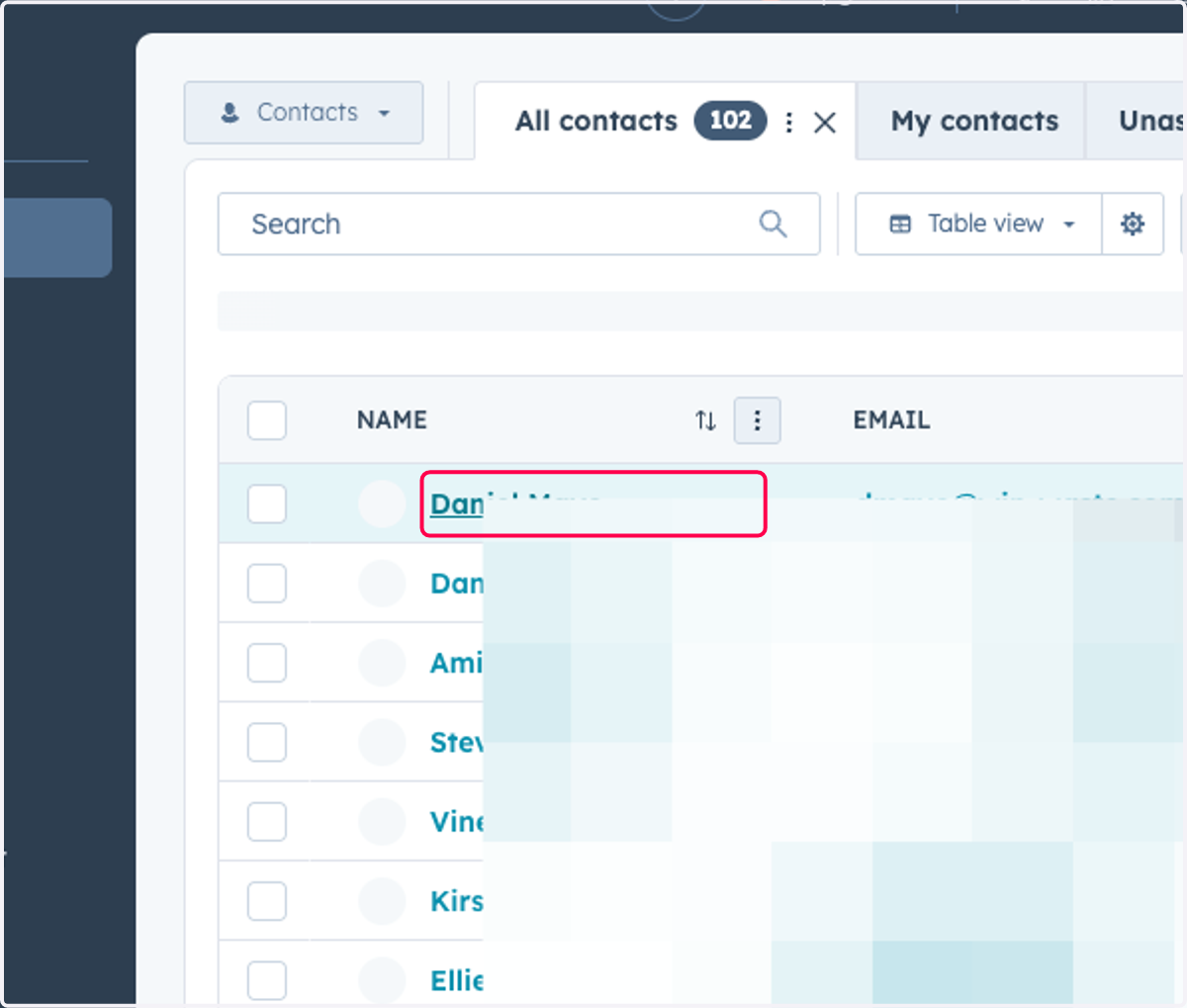
23. Click on a Contact
24. Click on Contact owner…