Managing additional job files using Hot Folders
Various additional documents and files may be available as part of your jobs. These include:
Packaging Slips
Invoice
Job Ticket
Files uploaded via product attribute (such as additionally provided artwork)
Batch data (such as employee details for batch population of business cards)
By default, these files are available for manual download from Shared Print Operations (SPO), however can be configured to be automatically copied to relevant hotfolders.
In addition, this tutorial will discuss:
Controlling the naming convention of additional job files
Downloading additional job files from SPO
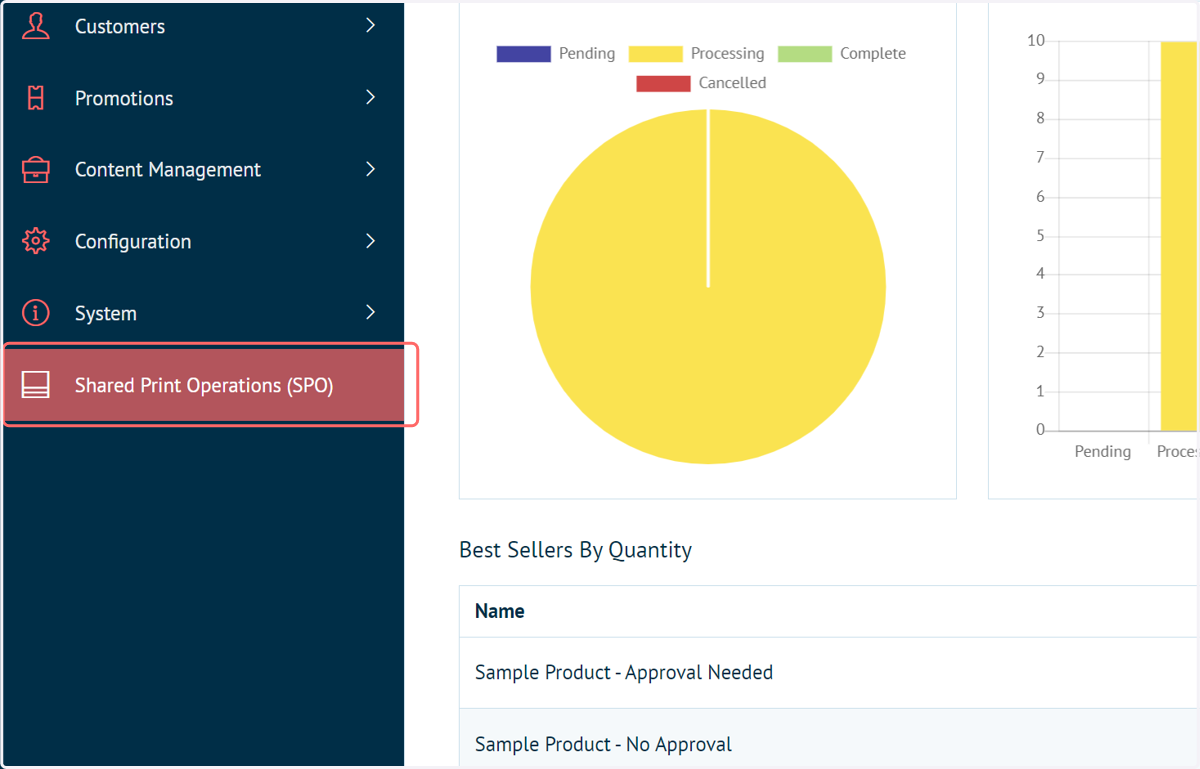
1. Navigate to Shared Print Operations (SPO)
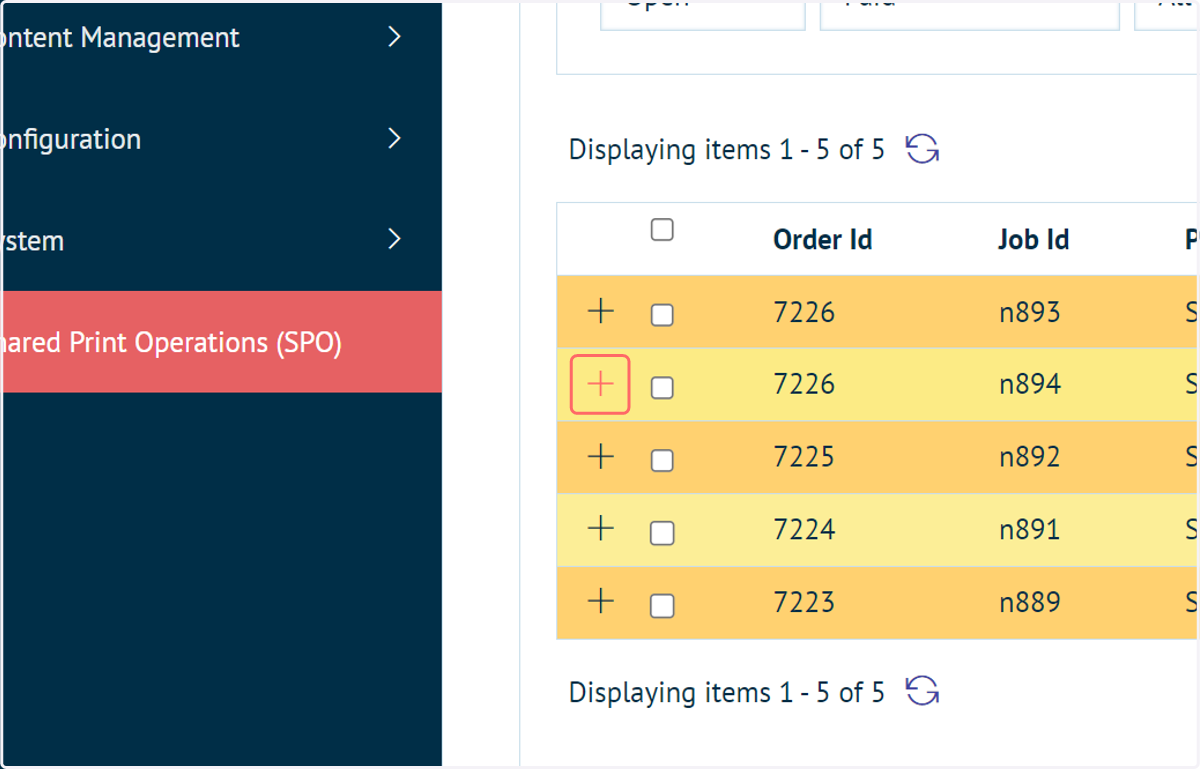
2. Expand one of your available jobs
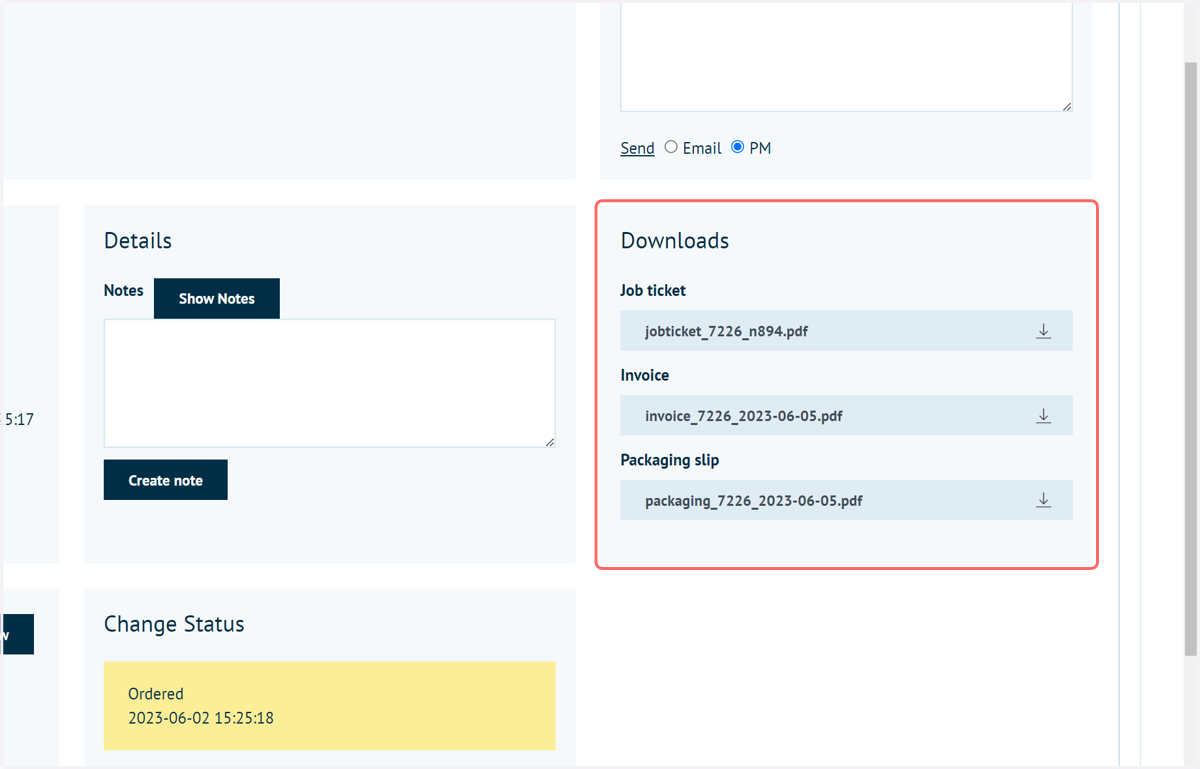
3. Downloads Section
Available documents will be available from the Downloads section of the job in SPO.
These can be downloaded to the local machine by clicking the relevant blue box.
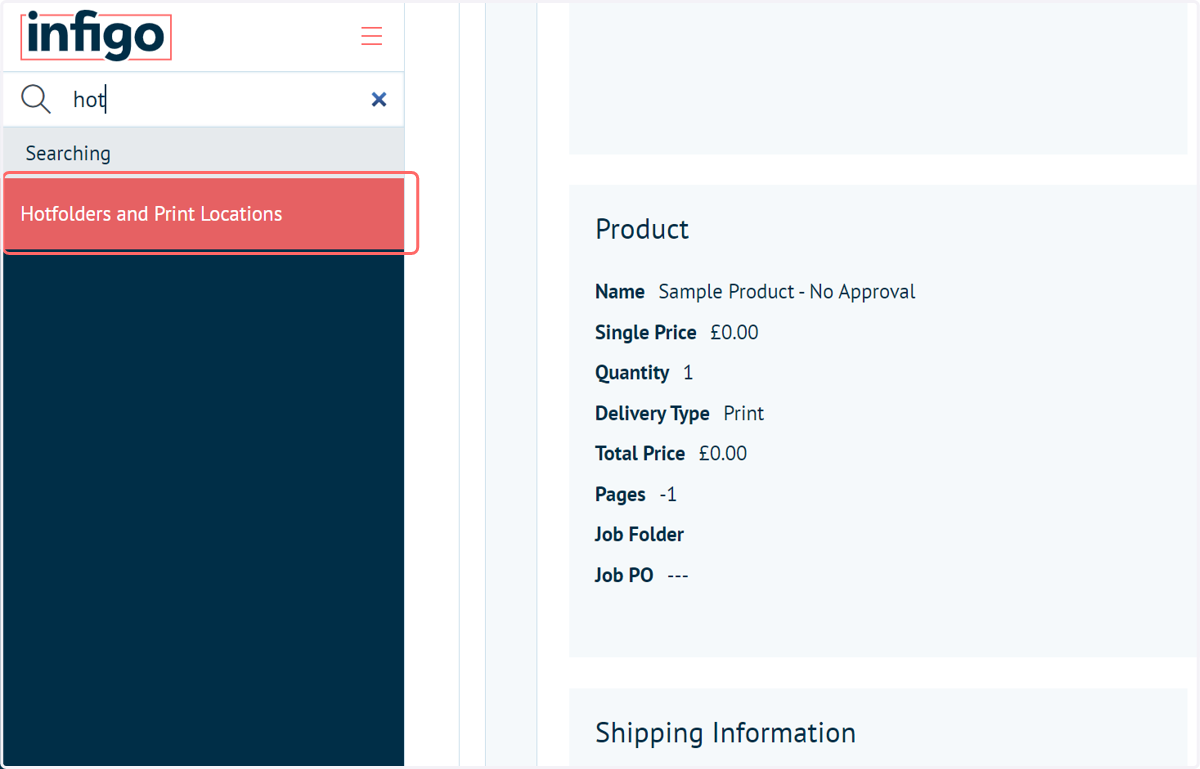
4. Navigate to Hotfolders and Print Locations
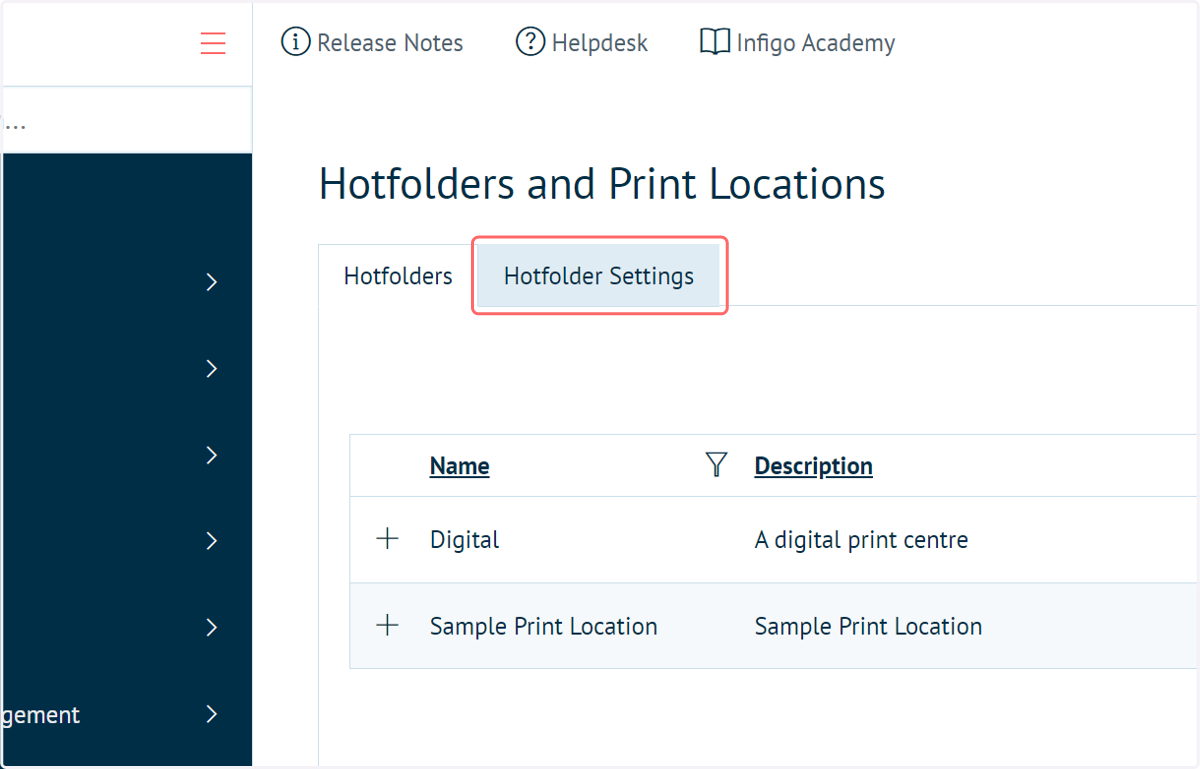
5. Click on Hotfolder Settings
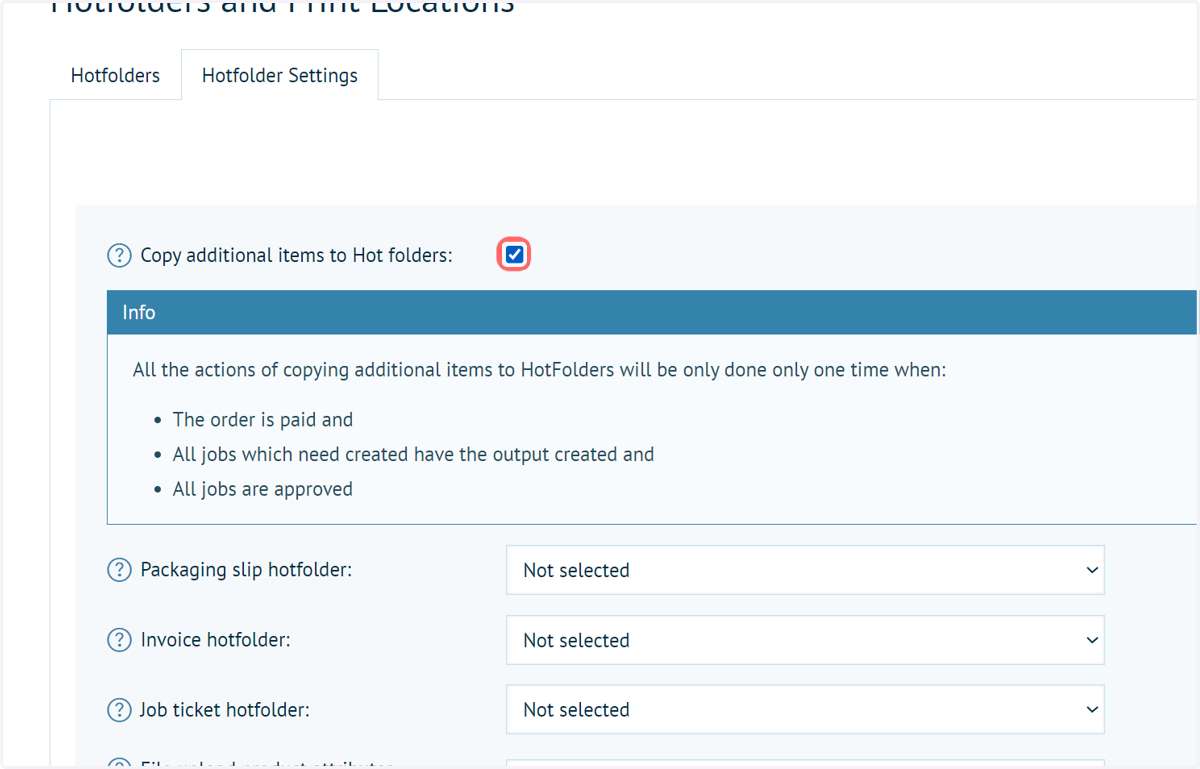
6. Check Copy additional items to Hot folders
This setting enables the ability for job related files to automatically be copied to specified (or best matching) hotfolders.
The action of copying additional items to hot folders will only be done one time, when the following conditions are met:
The order is paid
All jobs which require outputs have them created
All jobs are approved
Best Match chooses the same BestMatch hot folder as the jobs output file.
7. Select appropriate locations
You can specify either a specific Hot folder for the job documents to be dropped into. Also available is a Default option and a Best Match, which chooses the same hot folder as the hobs output file based on hot folder mappings.
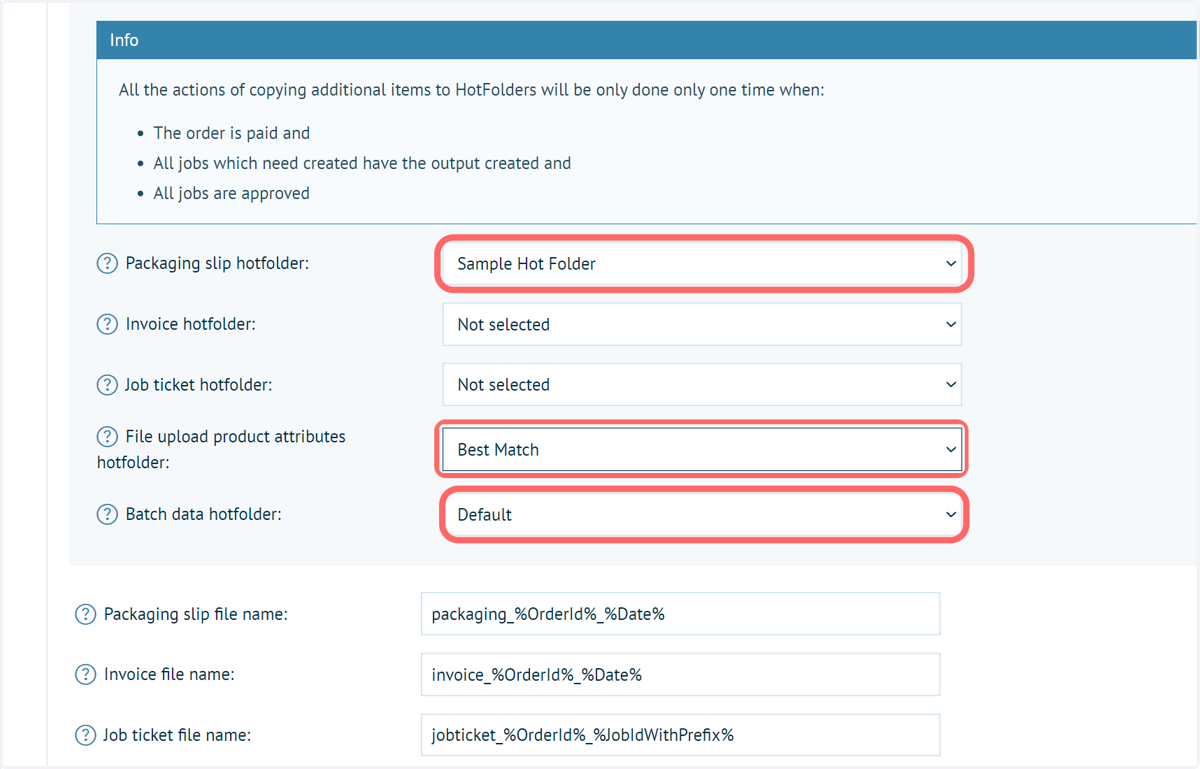
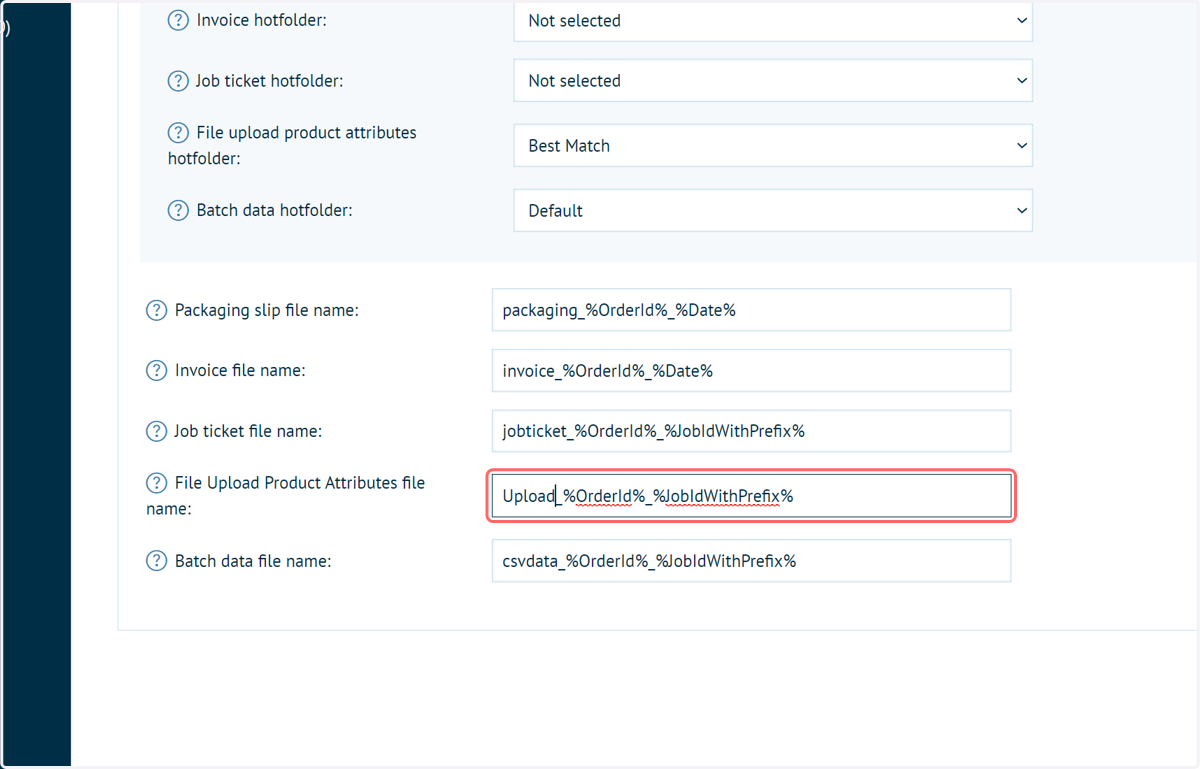
8. Modify job document naming conventions
You can customise the naming of job documents with these settings, using a combination of static text and additional tokens such as %OrderId%, which bring in dynamic, contextual information based on the job.
9. Click on Save