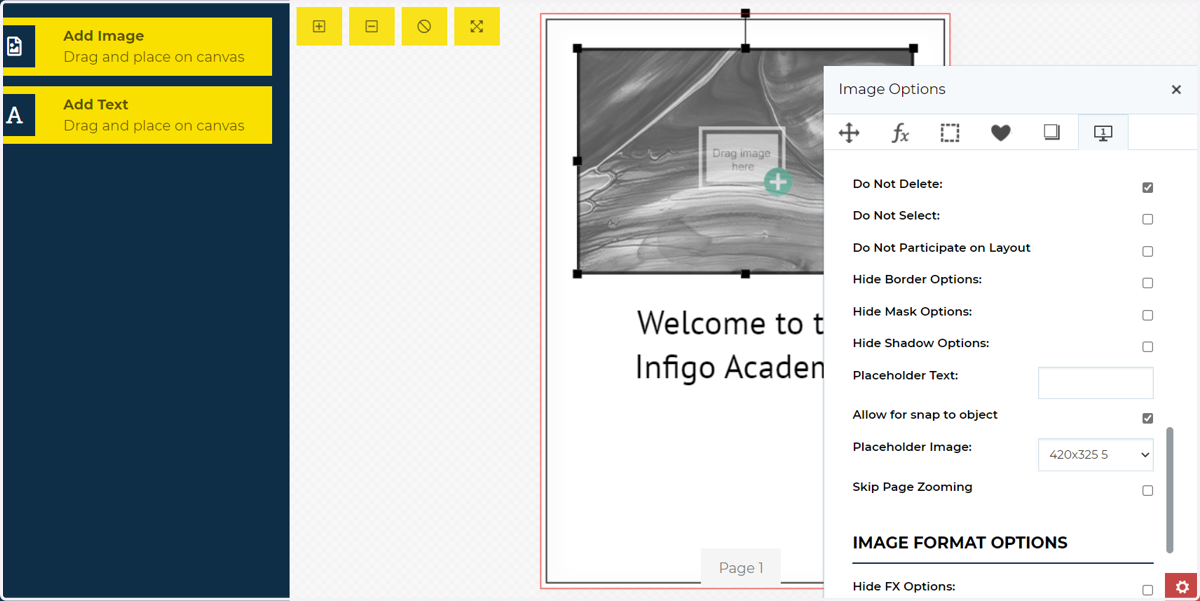
Placeholders in MegaEdit
In this tutorial, we will learn how to apply placeholder images to our image fields.
Placeholders are simply greyed out images sitting in empty image fields, prior to a user placing an actual image within that field. Their primary use is for aesthetic purposes, ensuring a dynamic document isn't simply full of plain grey boxes.
Infigosoftware
1. Click on MegaEdit General Data
To begin, navigate to the MegaEdit General Data screen. We will create a Placeholder category and apply some images to it.
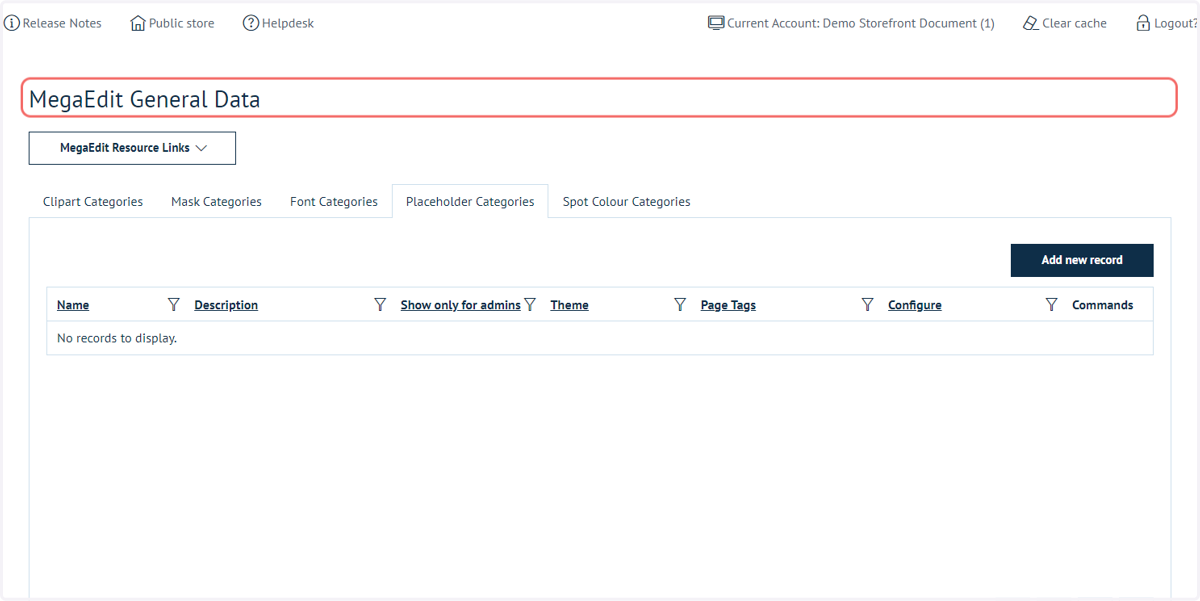
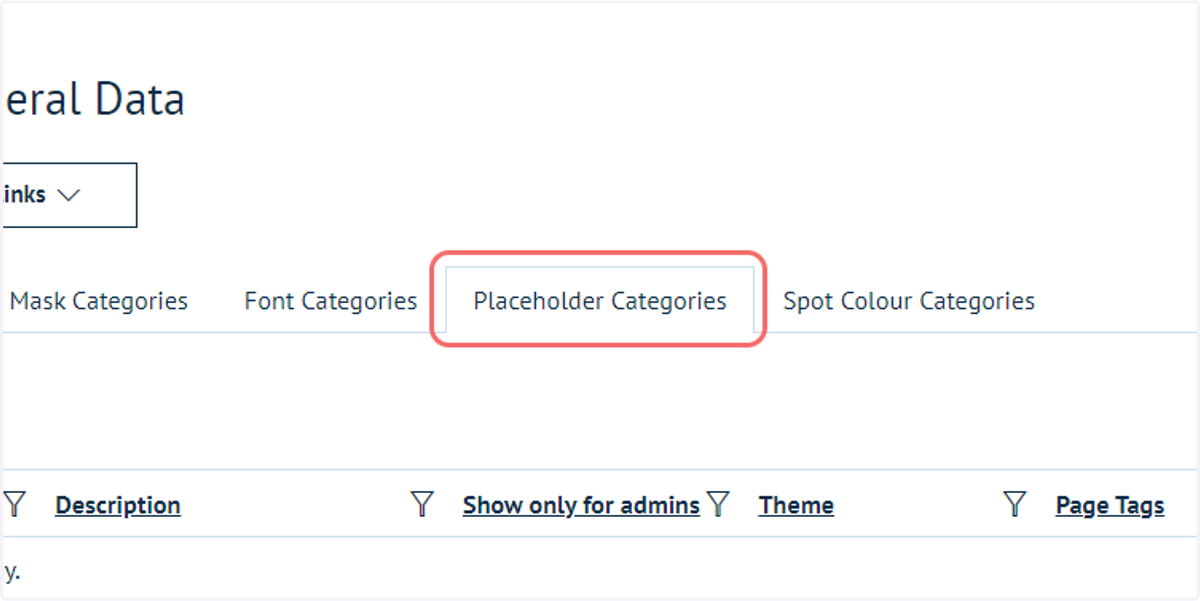
2. Click on Placeholder Categories
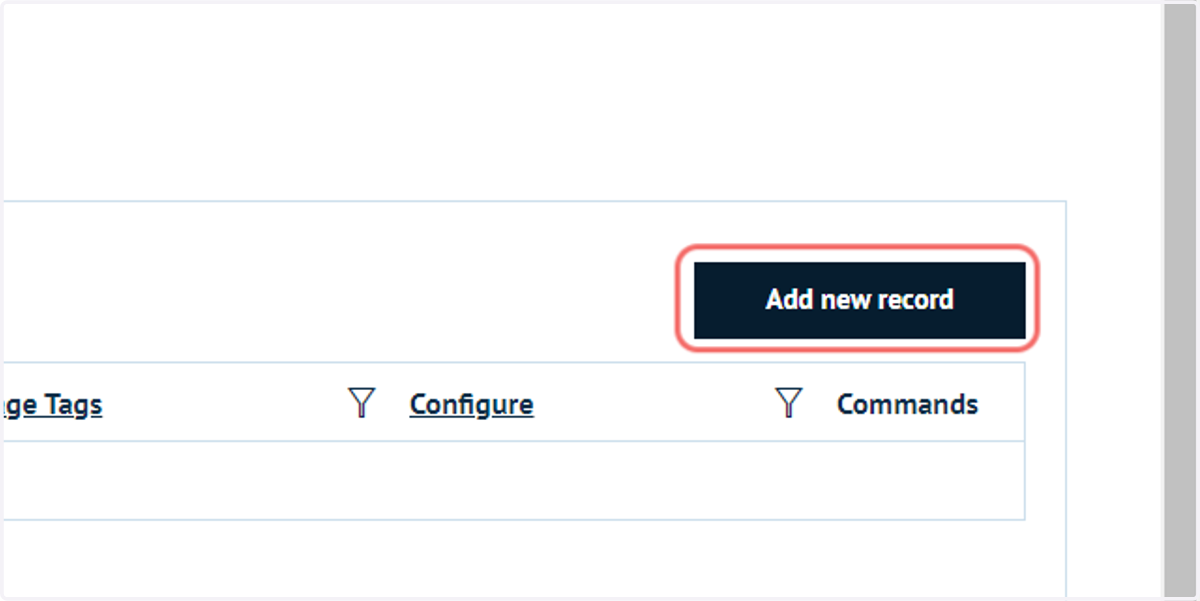
3. Click on Add new record
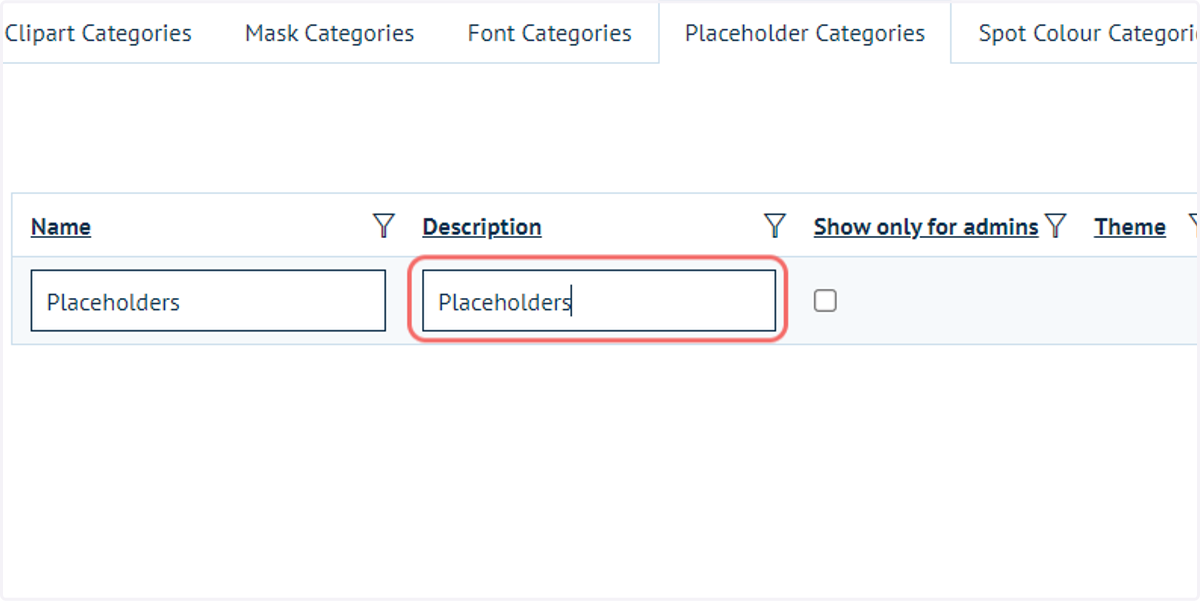
4. Complete category information
Here, the administrator can also choose whether to make this placeholder category only available to administrators, or to both administrators and customers.
"Show only for admins" would be used when pre-defined templates are being configured, for which customers will not need to alter any imagery.
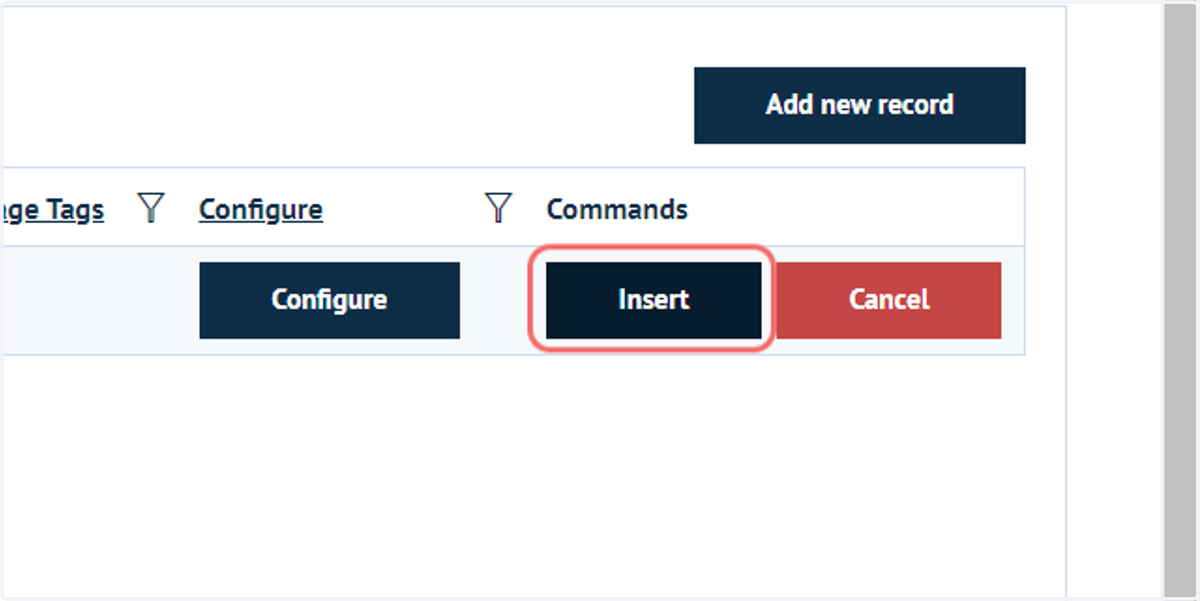
5. Click on Insert
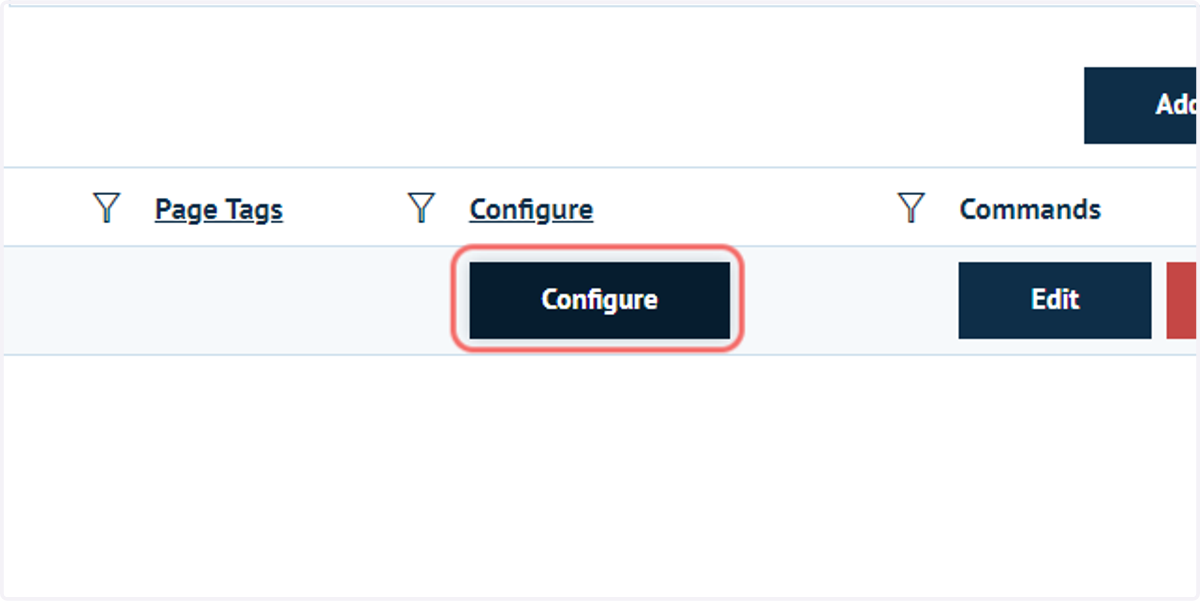
6. Click on Configure
The configure screen allows you to add images to this category.
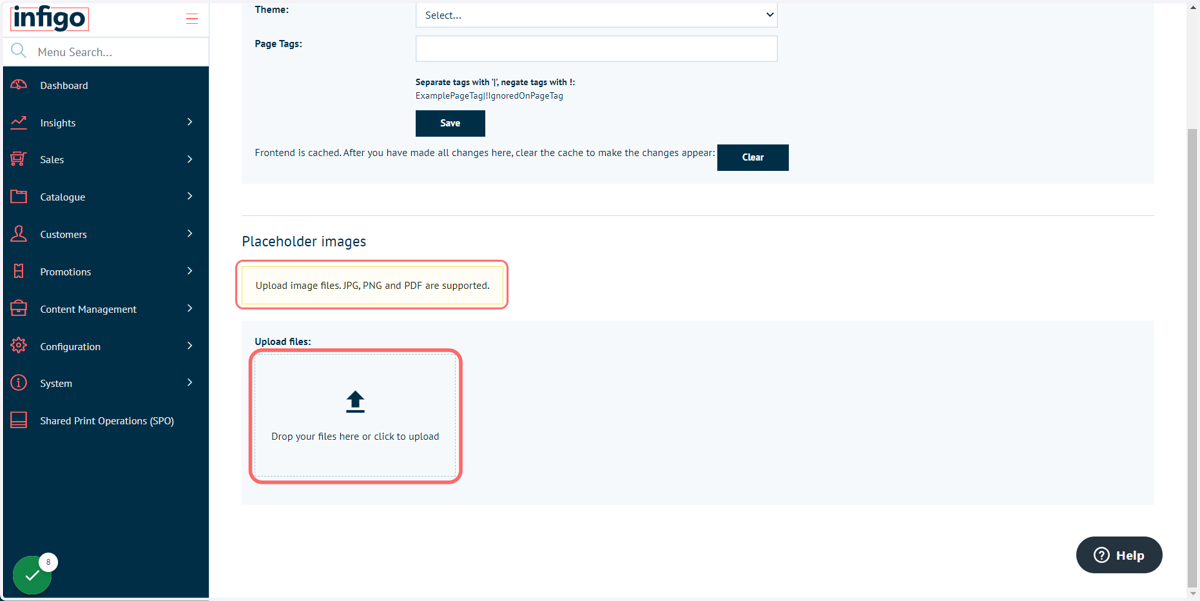
7. Upload image files. JPG, PNG and PDF are supported.
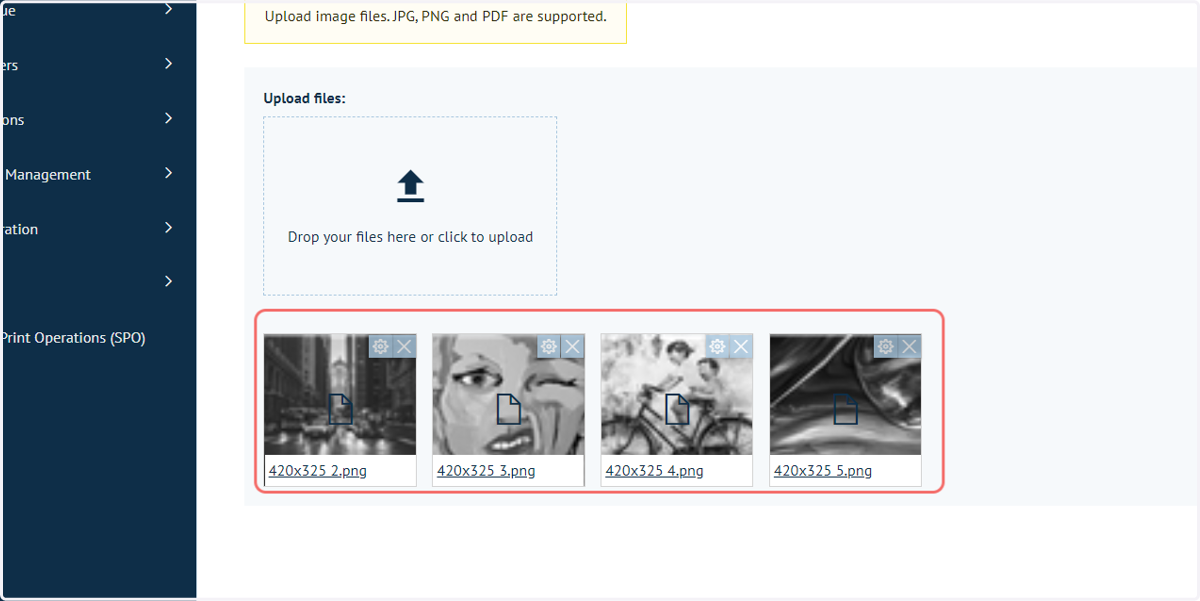
You can multi-select images in the file explorer. Images do not have to be uploaded one by one.
Upload progress will be displayed next to the individual file names being uploaded.
8. Successfully uploaded images will be displayed
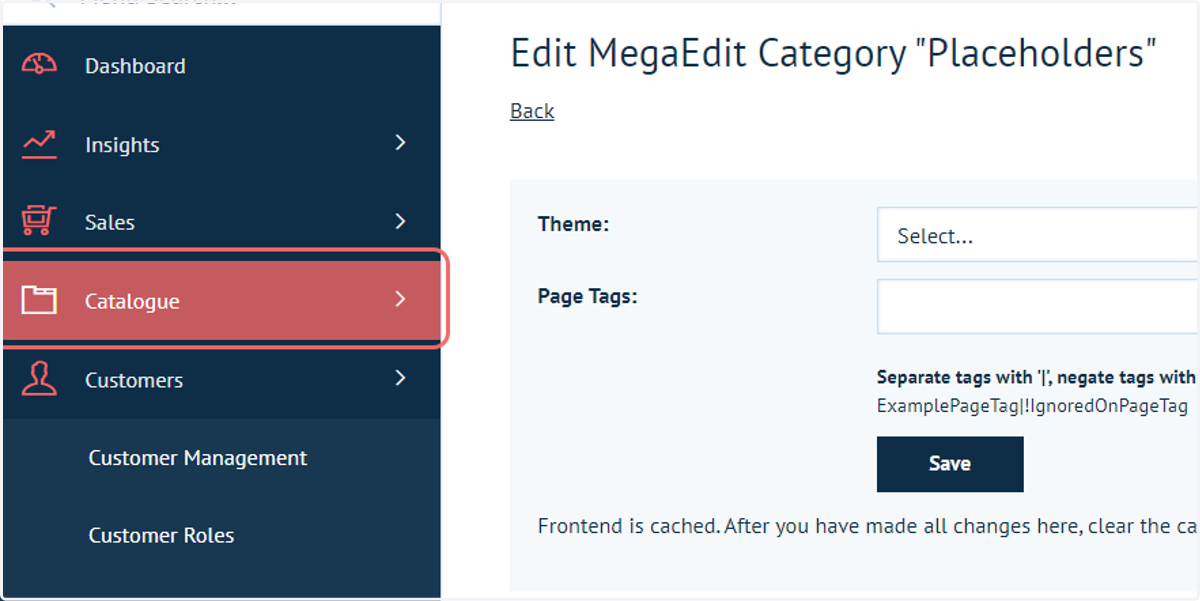
9. Click on Catalogue
Next, we will apply this placeholder category to one of our MegaEdit products.
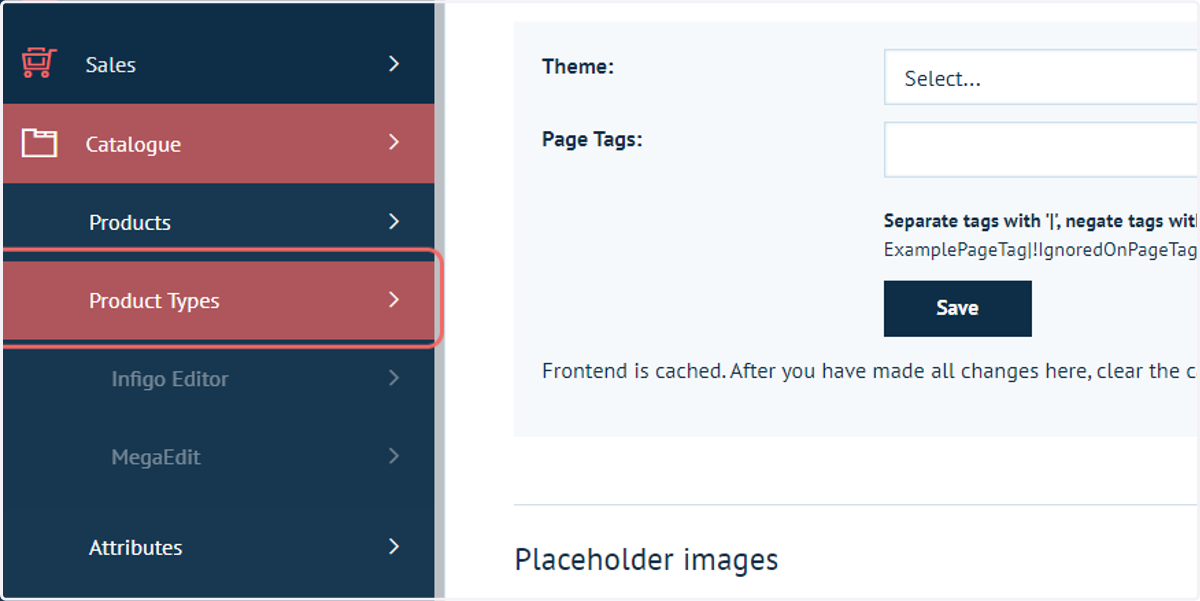
10. Click on Product Types
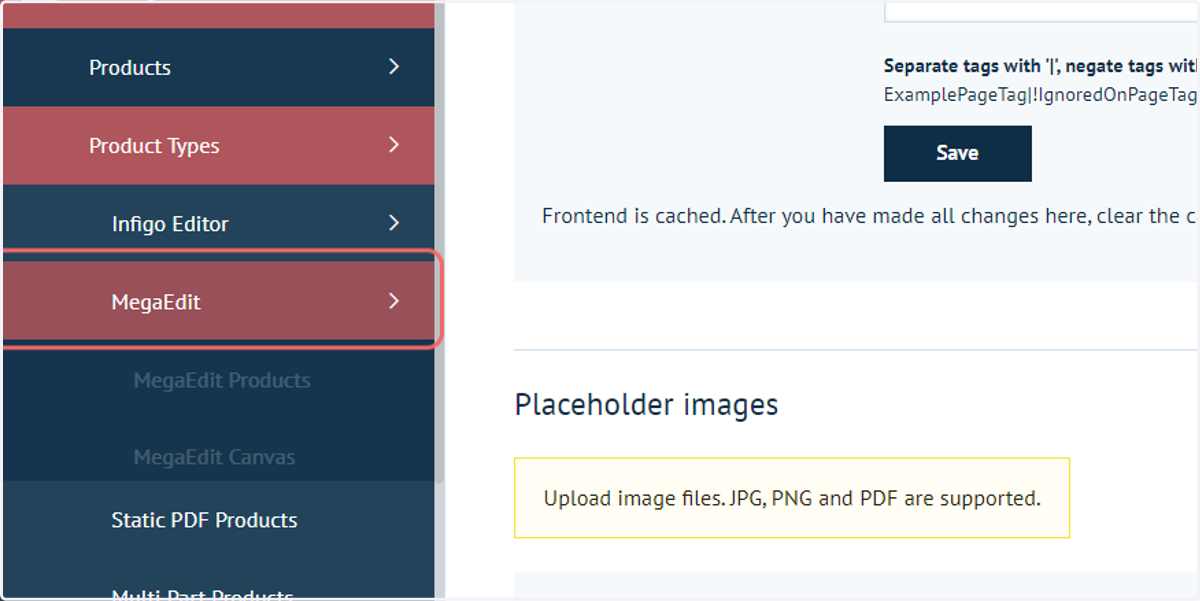
11. Click on MegaEdit
12. Click on MegaEdit Products
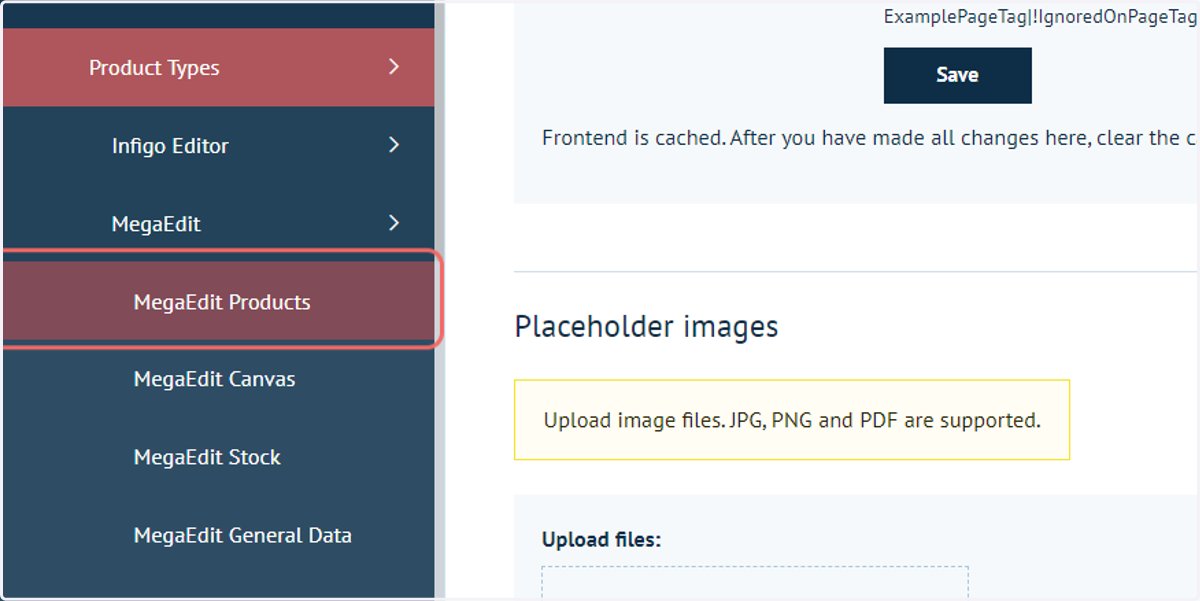
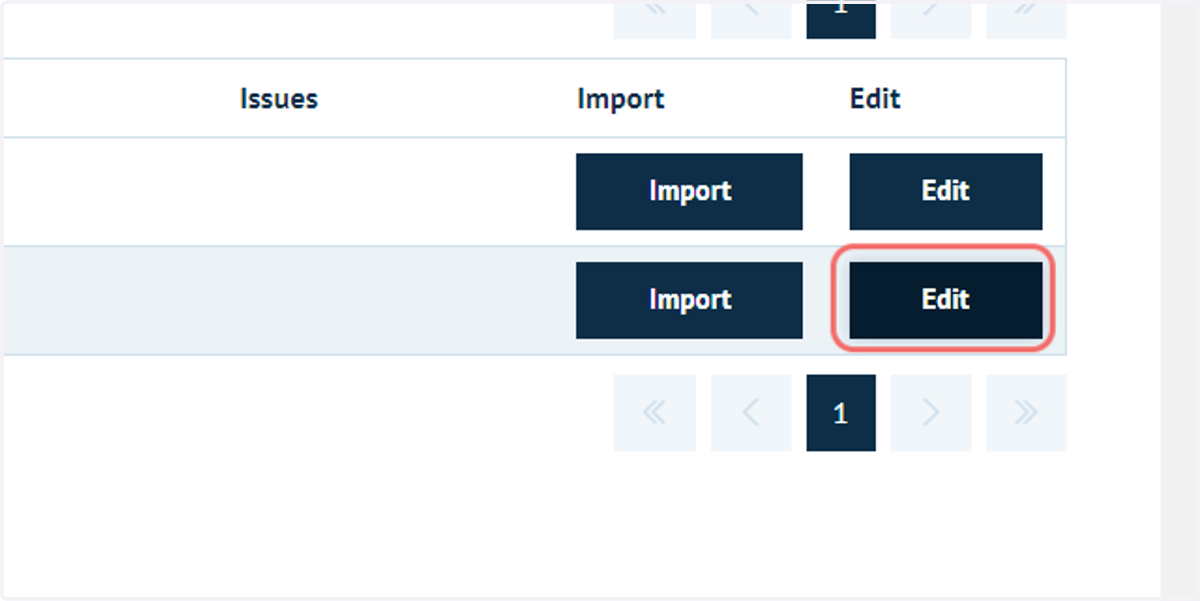
13. Click on Edit next to your chosen MegaEdit product
Infigosoftware
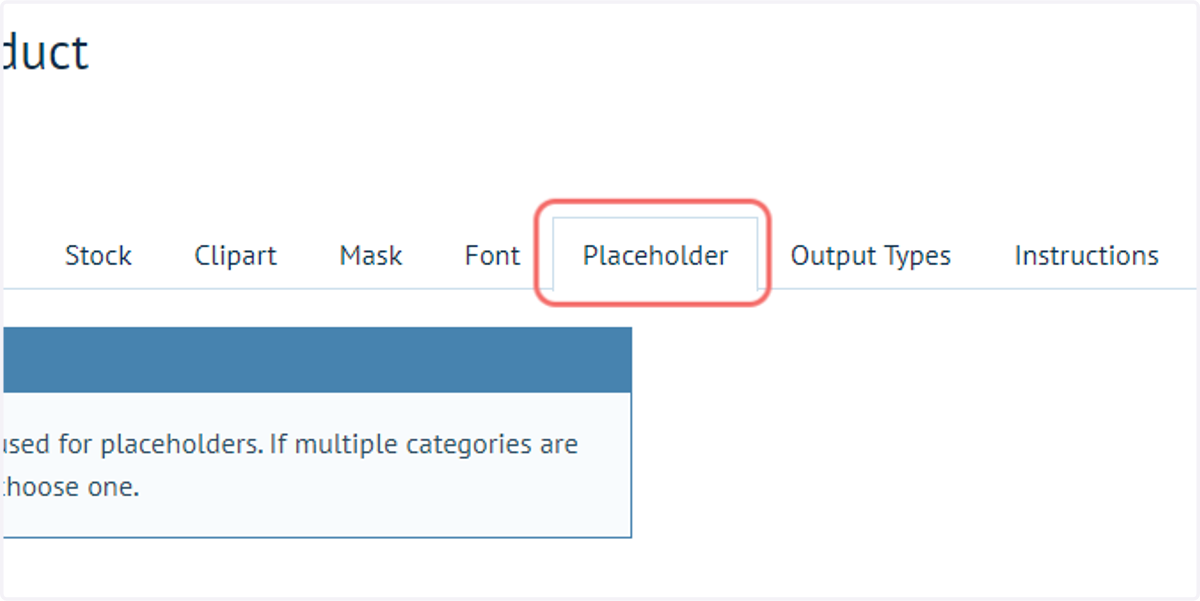
14. Click on Placeholder
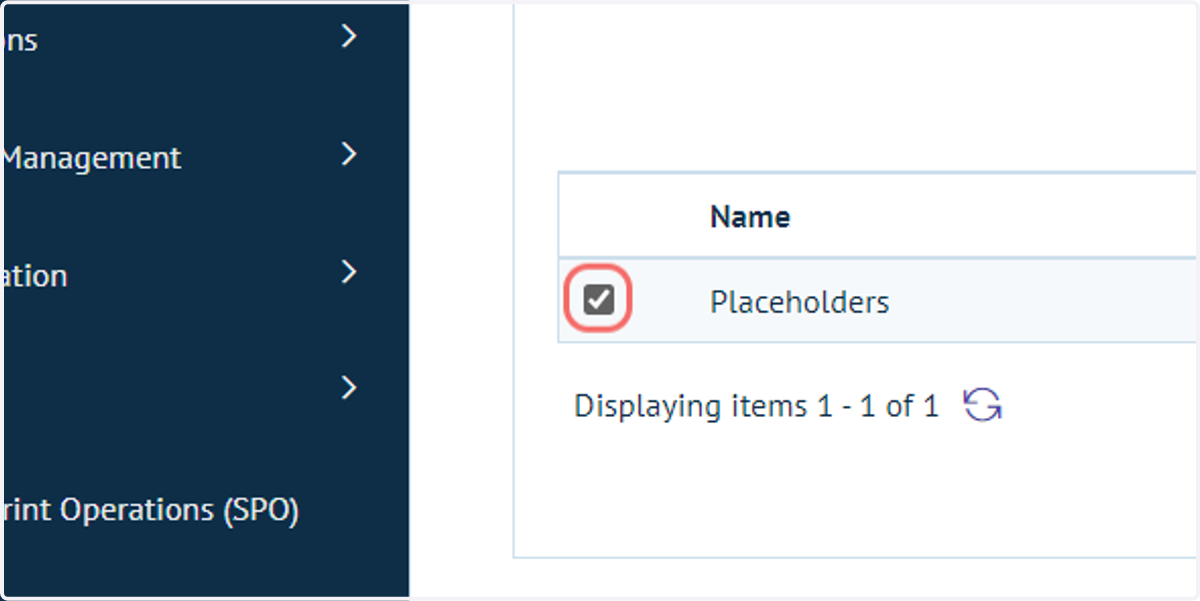
15. Check the placeholder category of choice
Note, only one category will be used for placeholders.
Infigosoftware
16. Click on Save changes
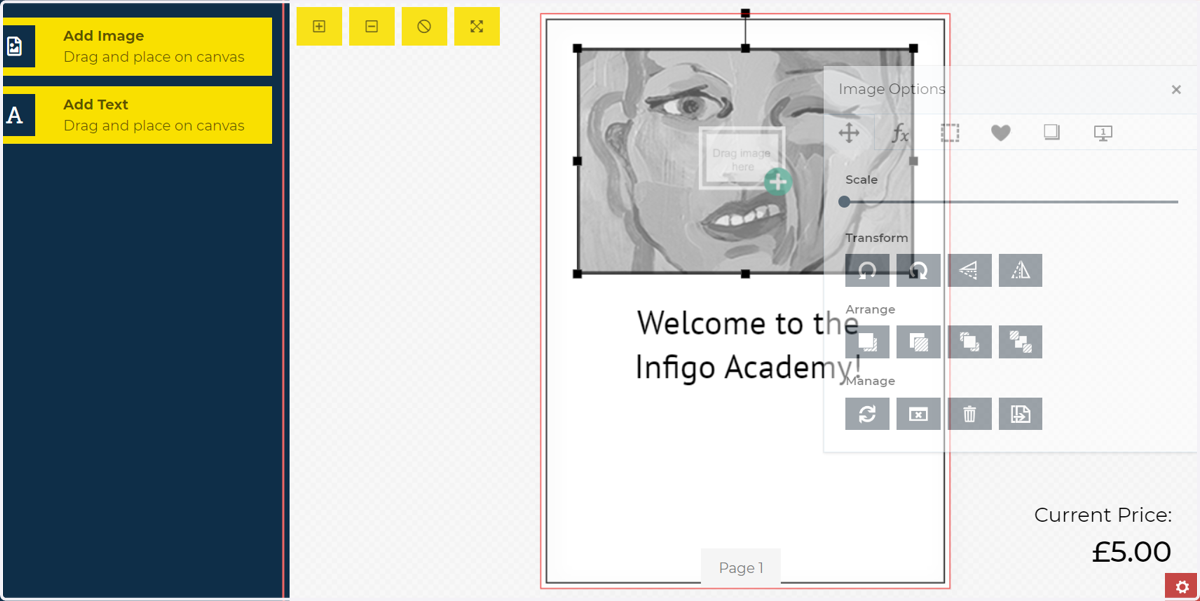
17. Launch a MegaEdit product and double click an image field
Any image field will be using one of your chosen placeholder images by default. The same is true of any image fields added after the editor is launched.
Next, we will see how to force the selection of a particular placeholder image. Double click an image field to bring up the Image Options pop up.
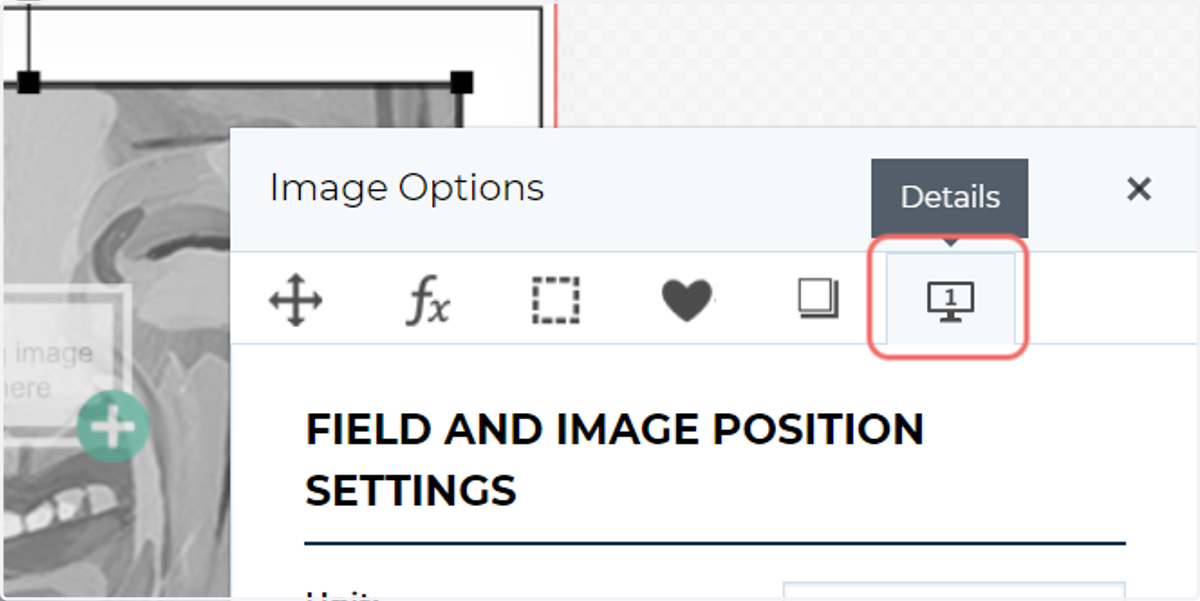
18. Click on the Details tab
19. Navigate to the Placeholder Image field
Here, you can select any image within the chosen Placeholder Category. The chosen image will always be displayed in that image field when it is empty.
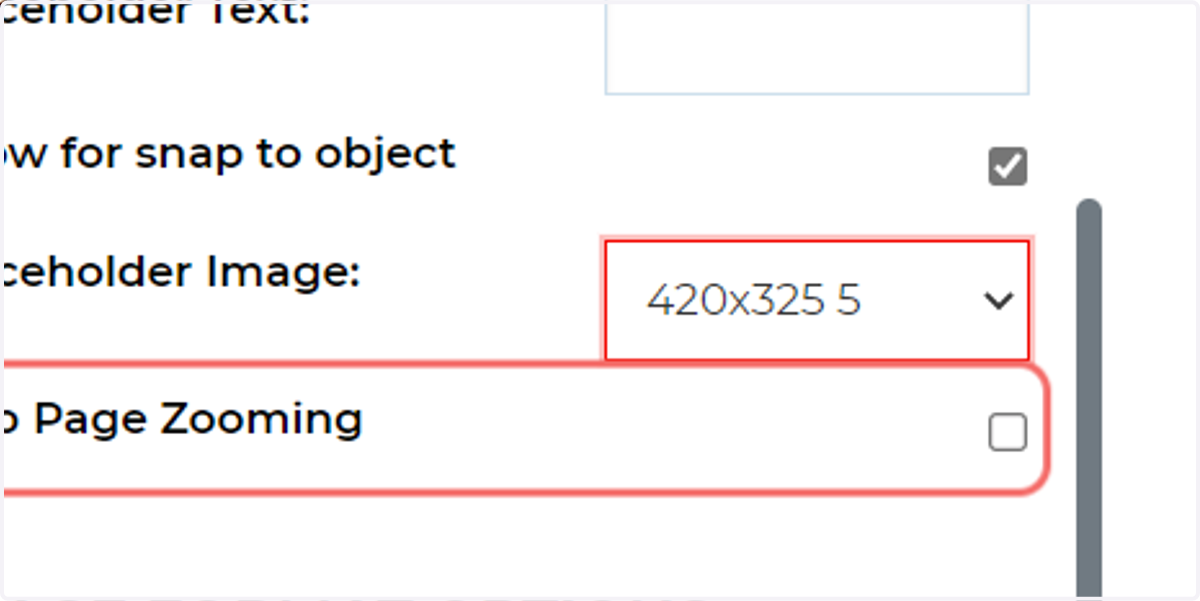
20. Updated placeholder image