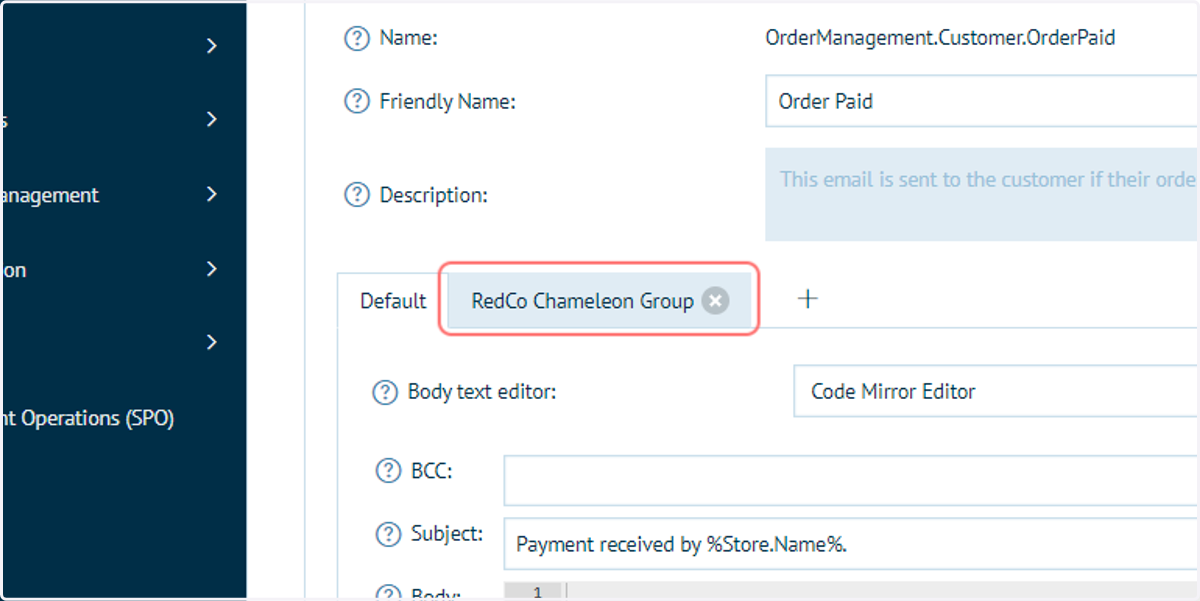
Further customisation of your storefront with Chameleon
This tutorial will build on the knowledge learned in BG_023_Change your storefront appearance based on customer.
In BG_023, we learned of Infigo's Chameleon functionality, allowing you to change the look and feel of your storefront based on the customer viewing it.
This tutorial takes this one step further, with worked examples showing how to customise various areas of your storefront homepage using Chameleon. We will cover:
Updating the header logo
Updating the homepage banner imagery
Updating links
Updating custom CSS
Updating email templates
Infigosoftware
1. Click on Content Management
We will begin by uploading our required resources to the CSS Override area of your storefront back-end.
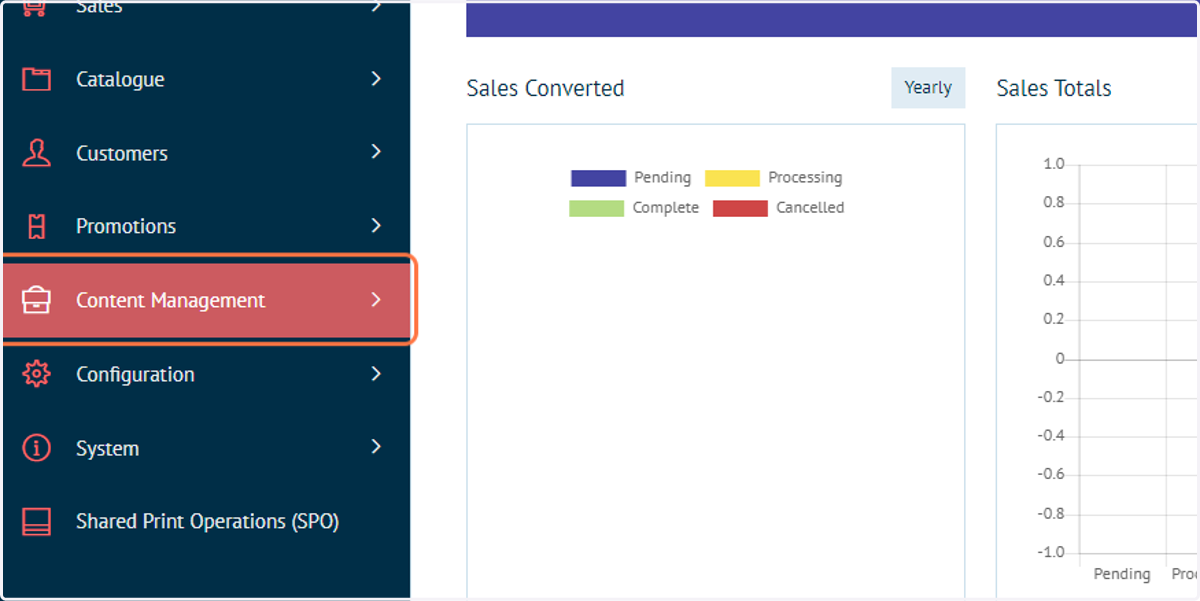
2. Click on CSS Override
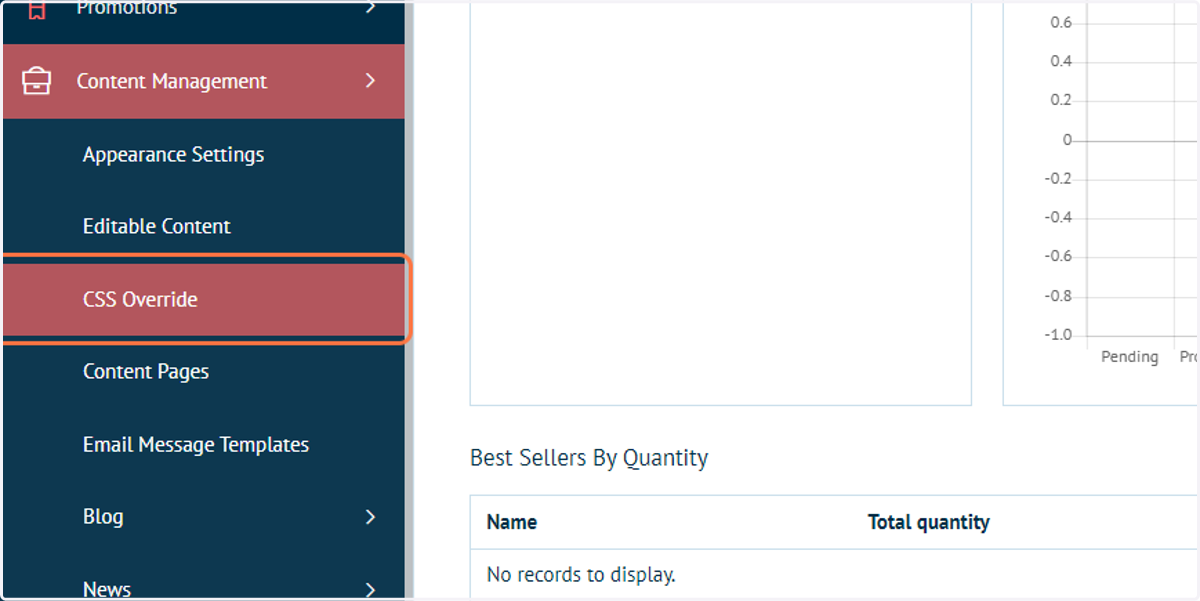
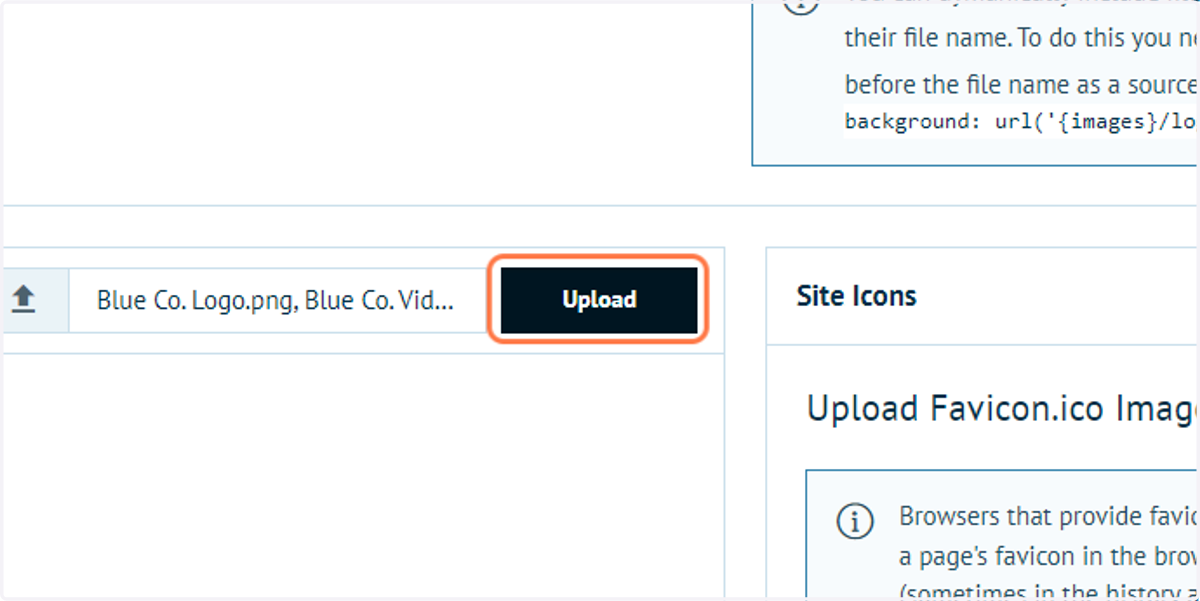
3. Select resources to upload
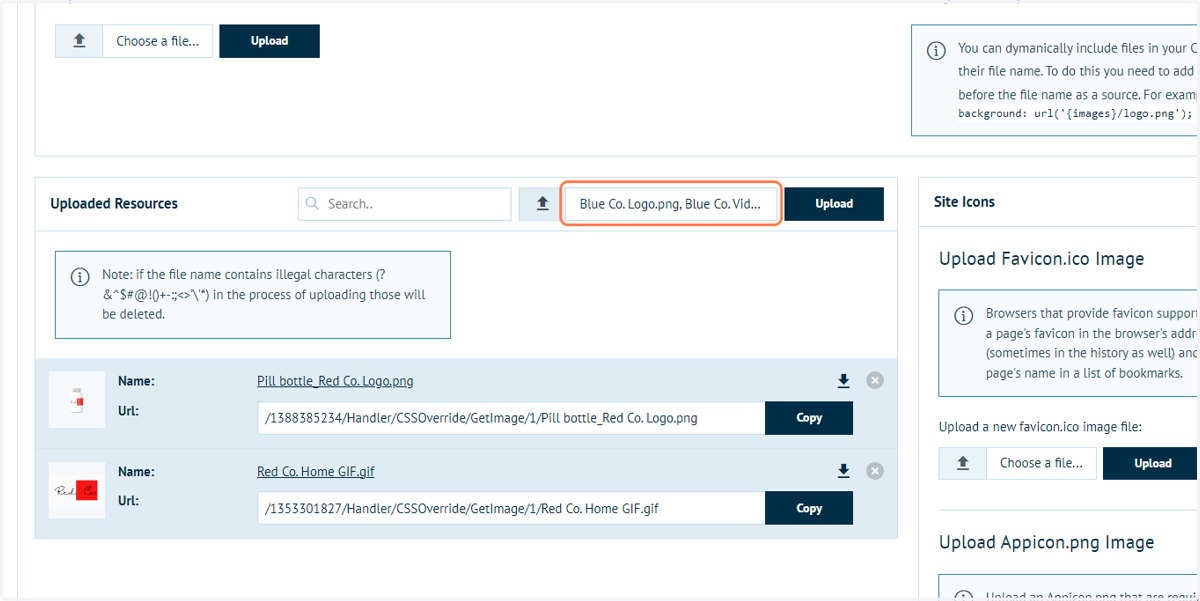
4. Click on Upload
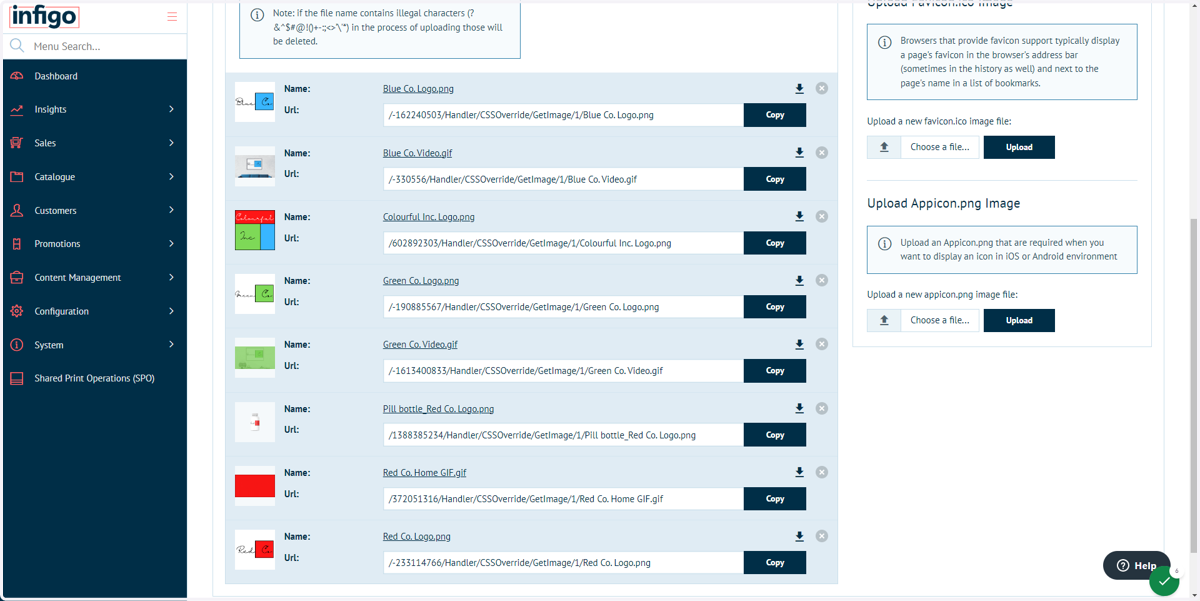
5. Your resources are now available
Your resources have now been uploaded to your storefront.
Each has been assigned a link which can be directly copied to your Code Mirror Editors and directly access the resource.
6. CSS Override resources can also be Chameleon group based
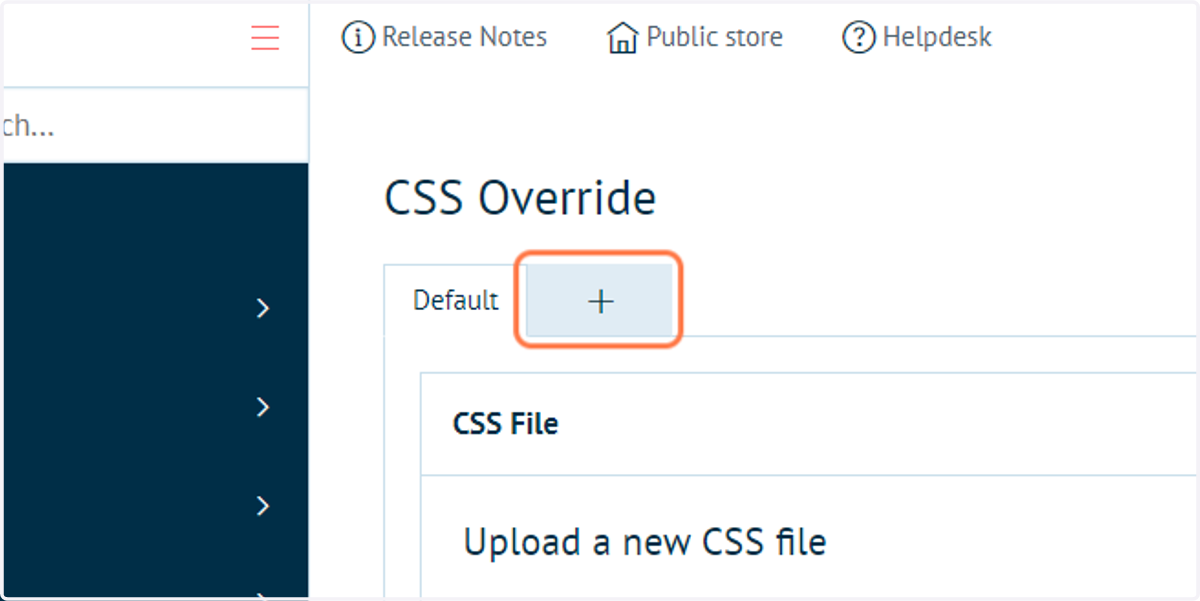
Whilst not mandatory, it is possible to group CSS Override resources by Chameleon group.
Specify which Chameleon groups to use by clicking the '+' icon.
Infigosoftware
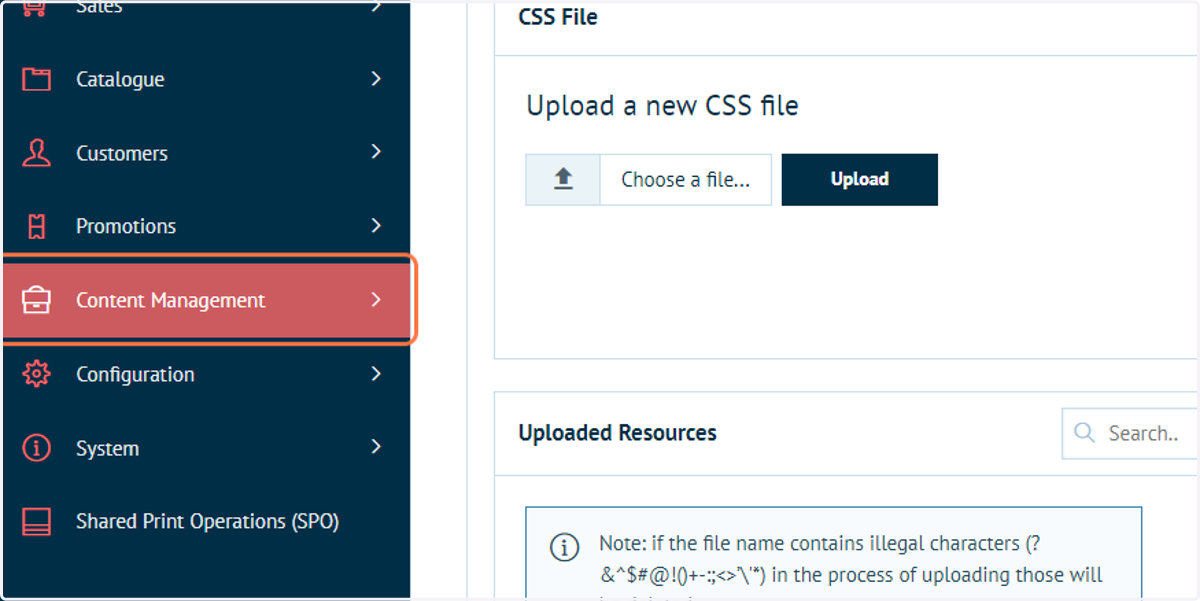
7. Click on Content Management
Our first Chameleon group based change will be to update the Header logo based on the customer accessing our storefront.
We will start by navigating to the Header Editable Content block.
8. Click on Editable Content
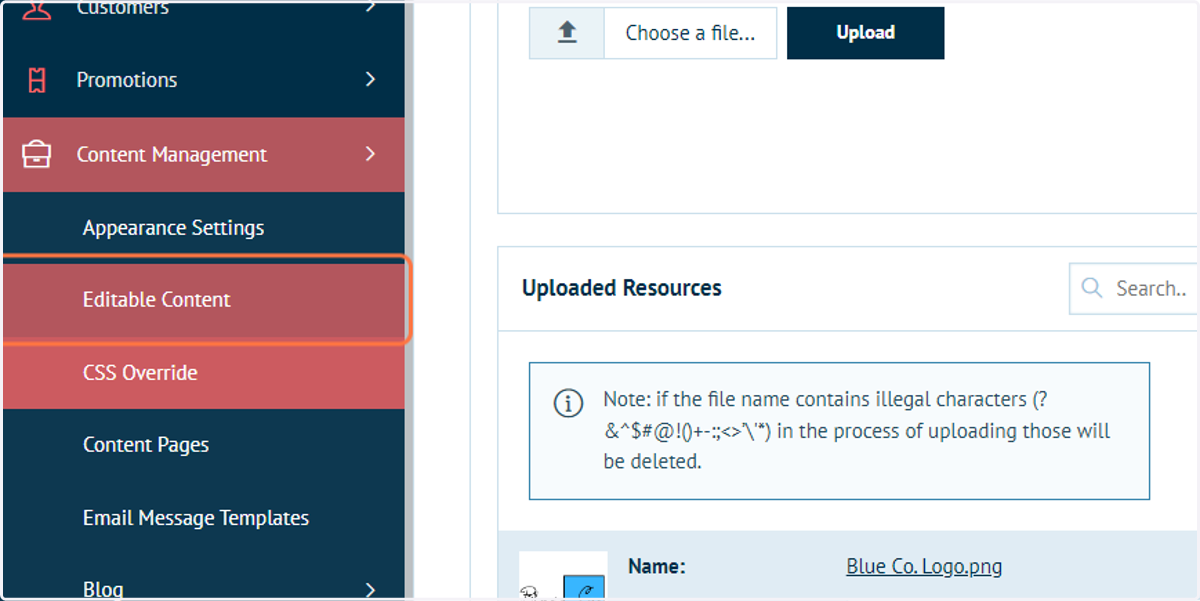
9. Click on Edit
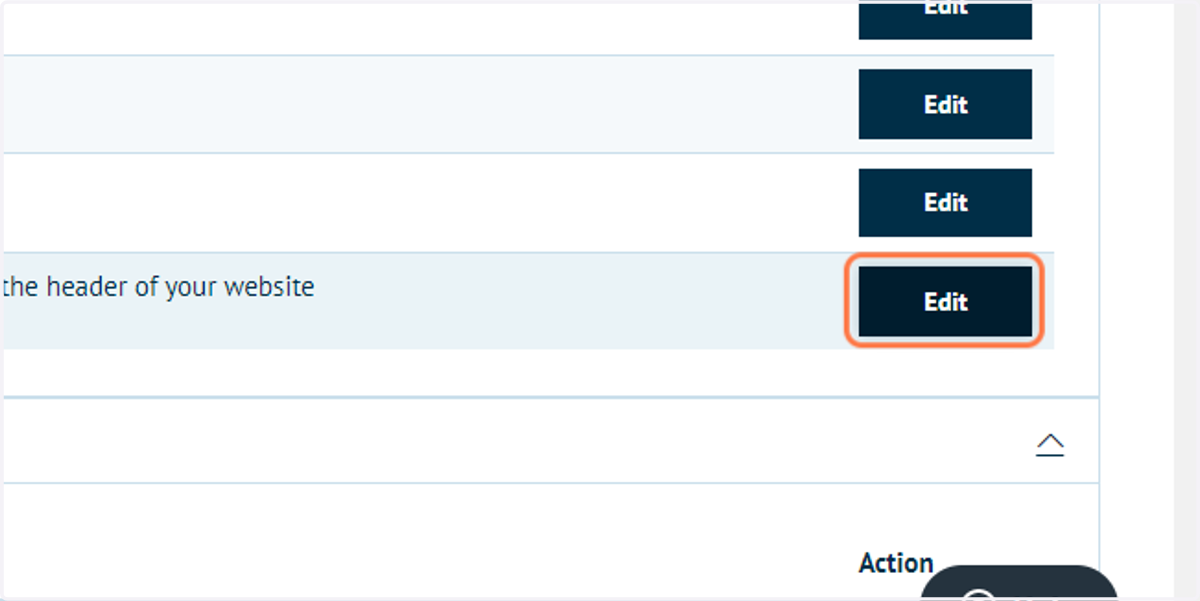
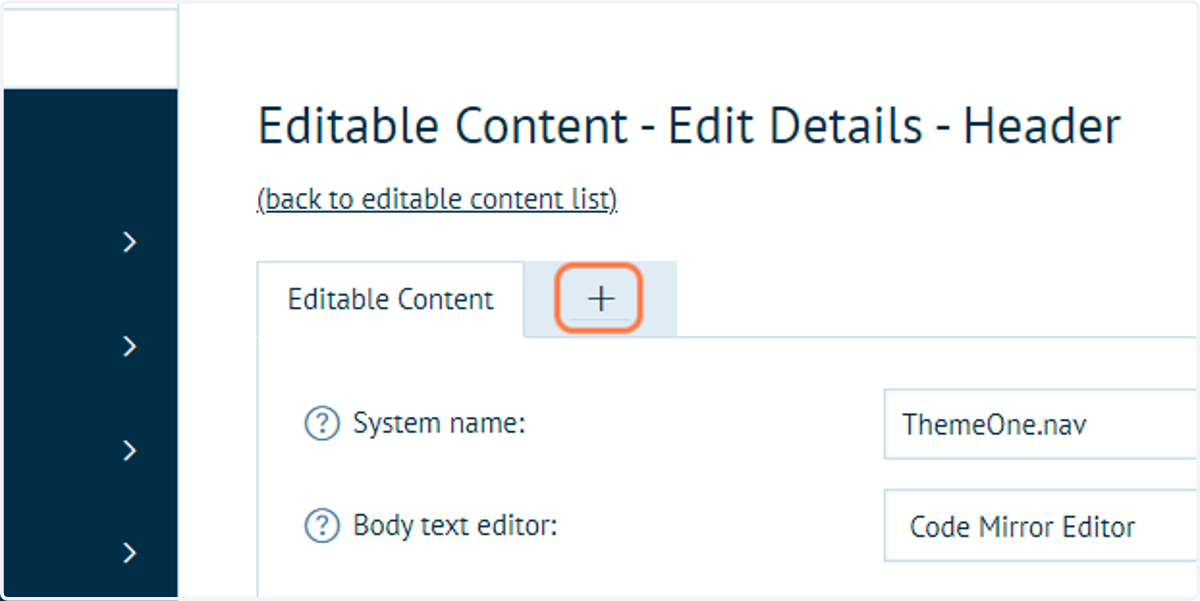
10. Click on '+' icon to add a Chameleon group
The Editable Content tab shows the default content, seen by those sitting outside of any Chameleon group.
We can define content for specific Chameleon groups by adding a tab for that group and modifying the contents.
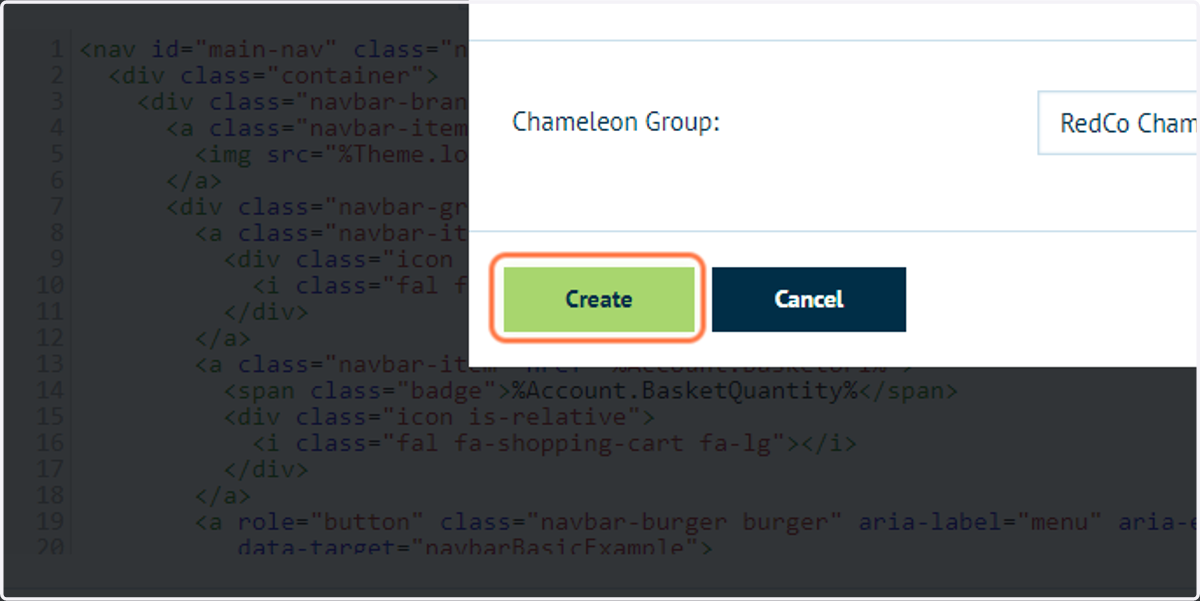
11. Choose a Chameleon group
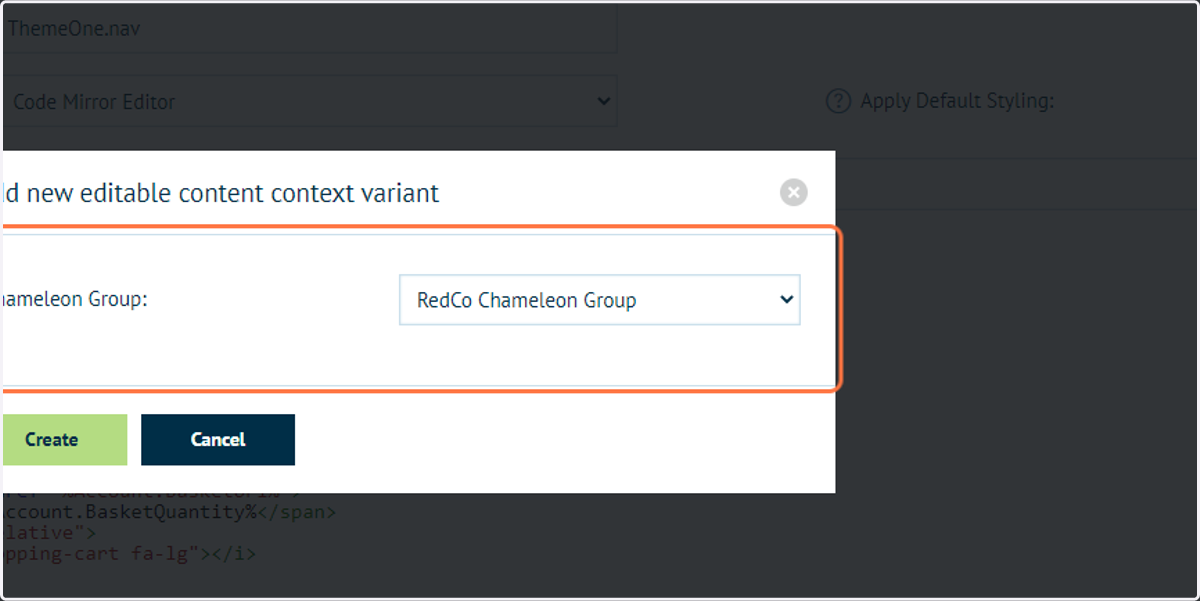
12. Click on Create
13. Click on Editable Content
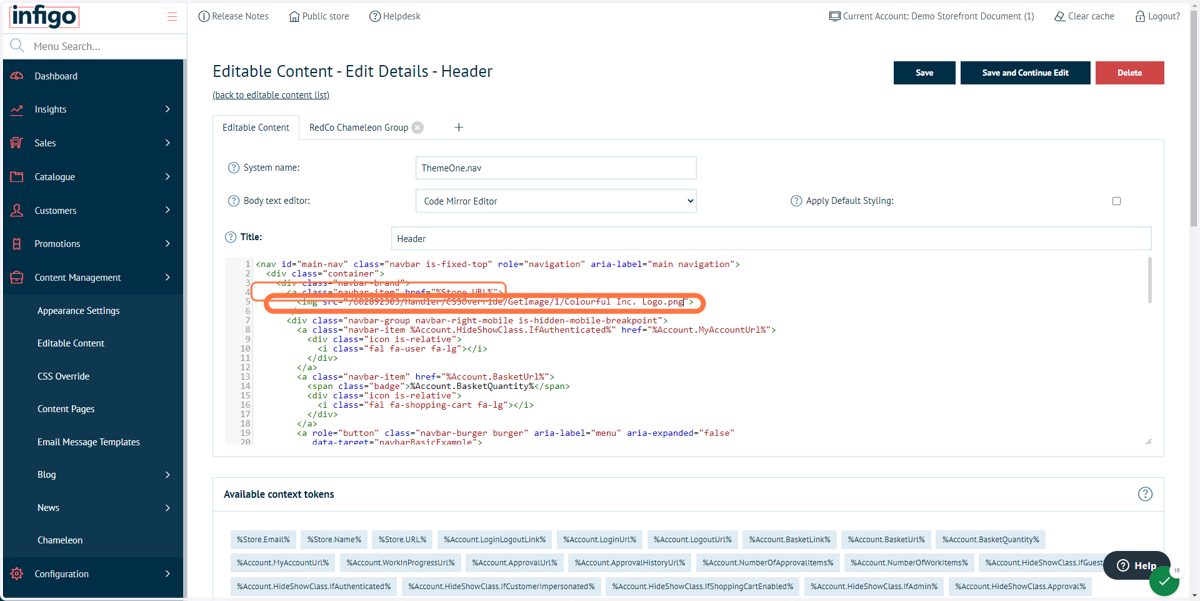
On our example storefront, the RedCo. logo is used on the Editable Content tab.
We will first change this to show the parent company logo, Colourful Inc.
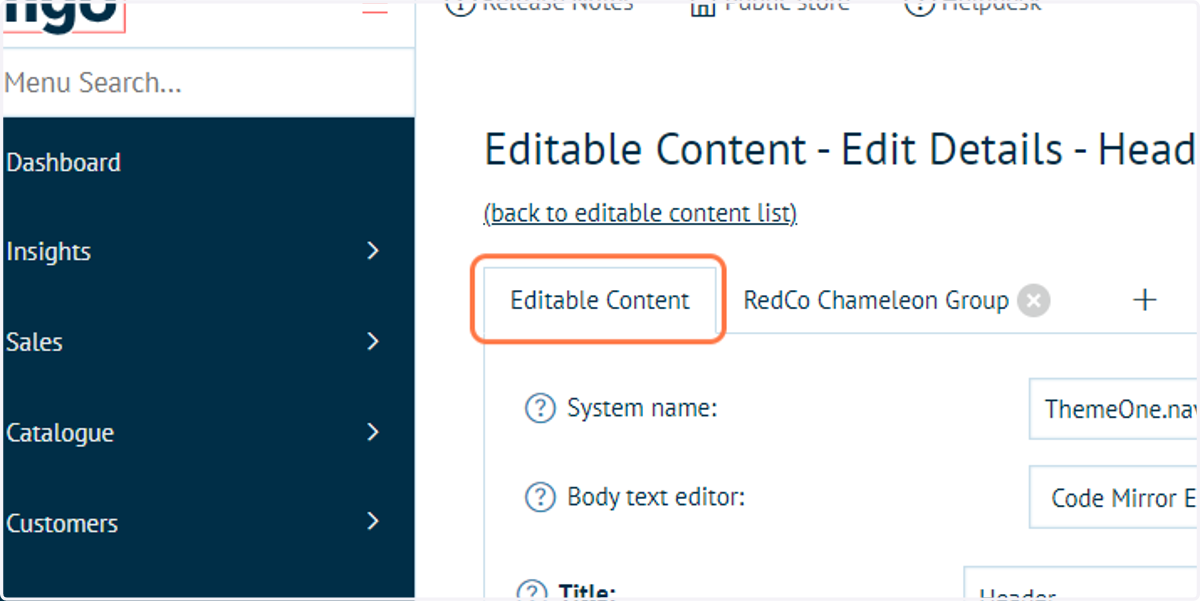
14. For ease of access, keep the CSS Override screen open on a separate browser tab. Click on Content Management
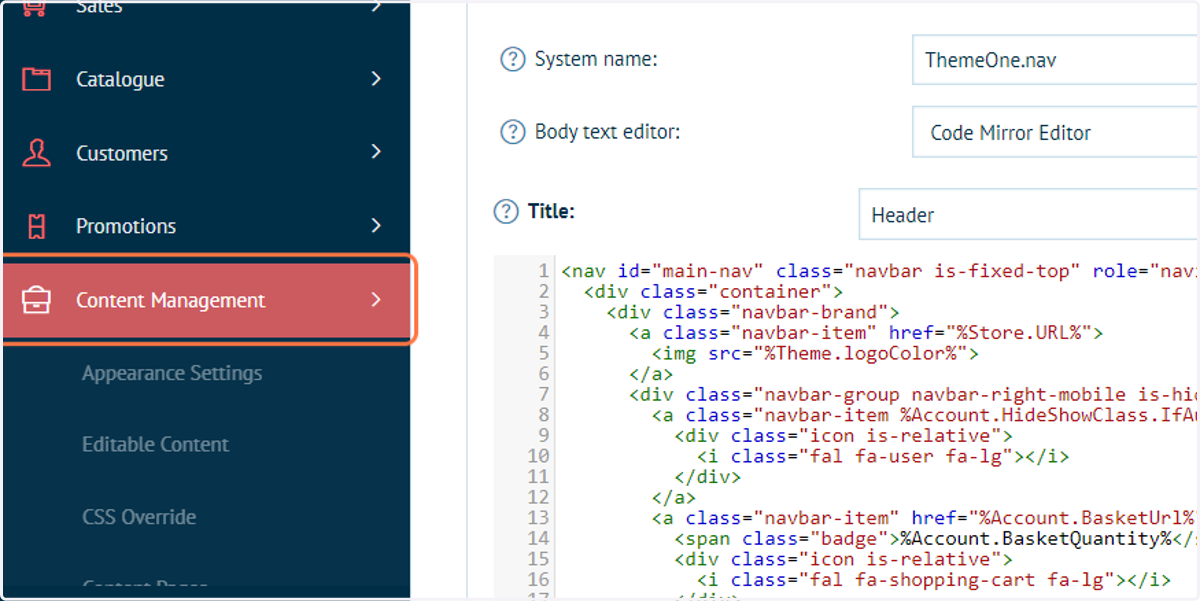
15. Right click on CSS Override and open in a new tab
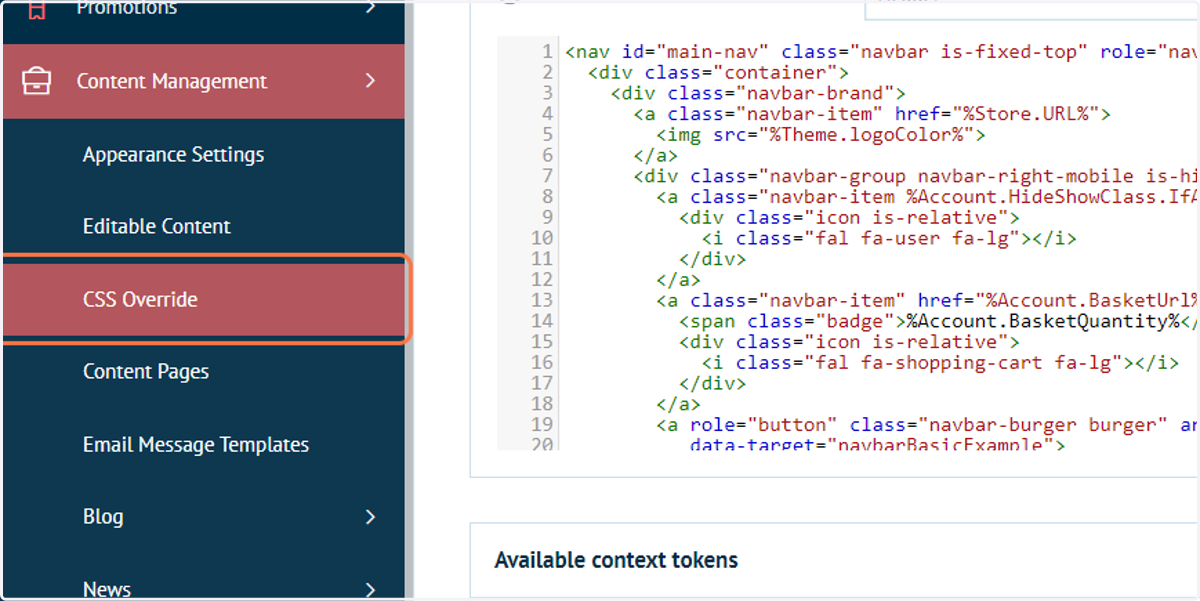
16. Copy the link of the required CSS Override content
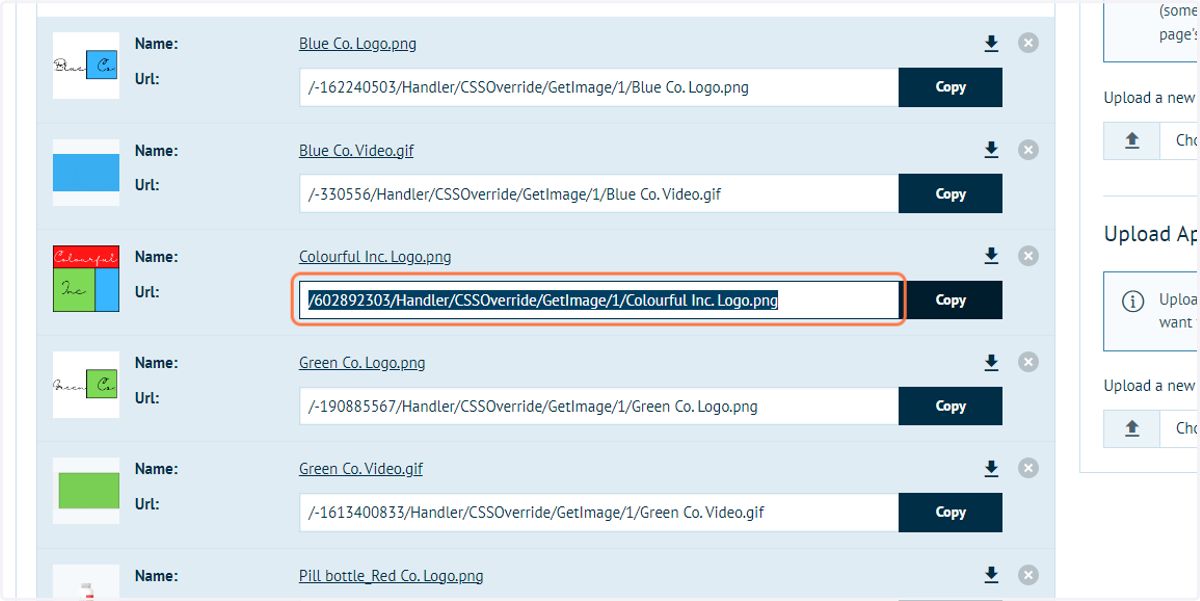
17. Paste the link into the line of code controlling the Header image
18. Click on Save and Continue Edit
Infigosoftware
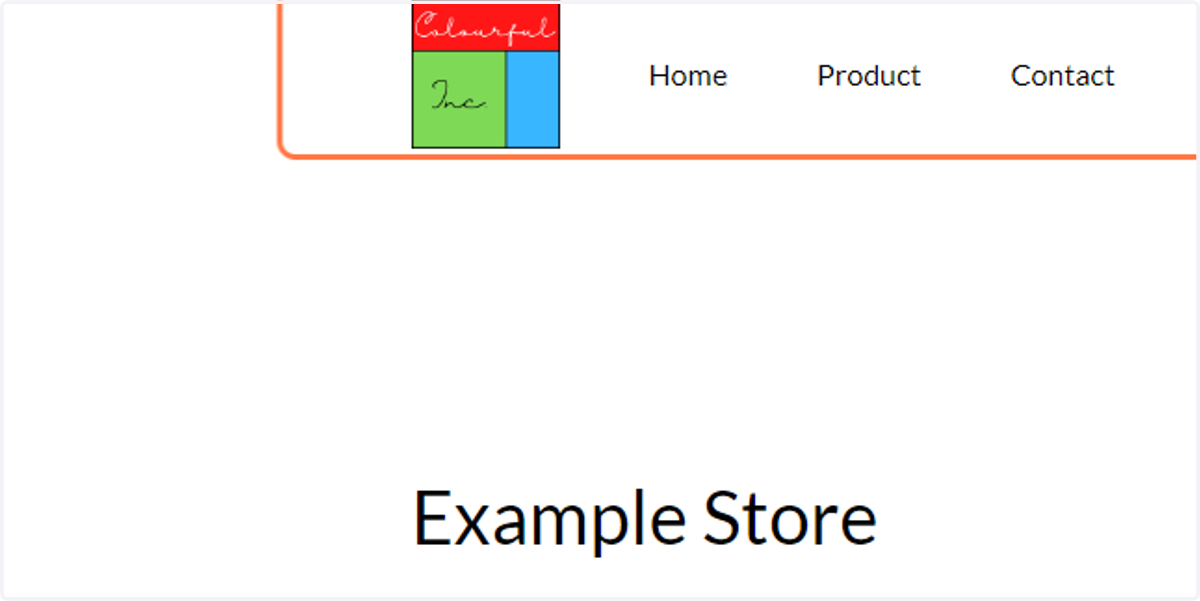
19. To view these changes, click on Public store
20. As you are logged in as a Storefront Administrator, the Colourful Inc. logo should be applied
This logo is displaying as your Storefront Administrator account is not present in any of the Chameleon groups
21. Copy all content from the Editable Content, Code Mirror Editor area
We will use this code as a basis for all Chameleon groups.
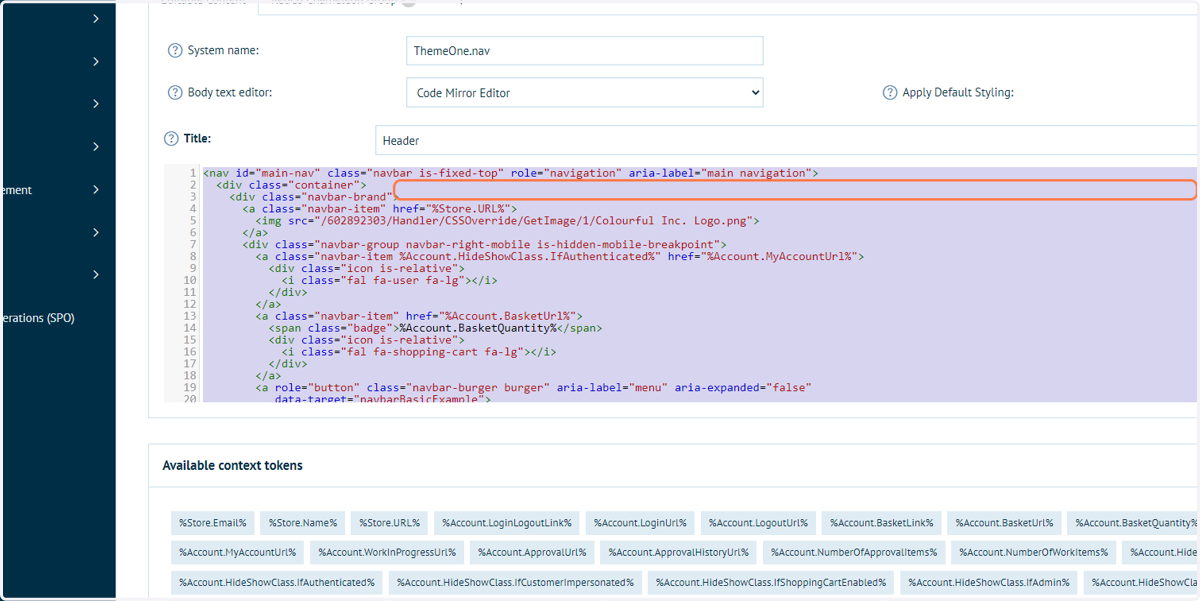
22. Click on RedCo Chameleon Group
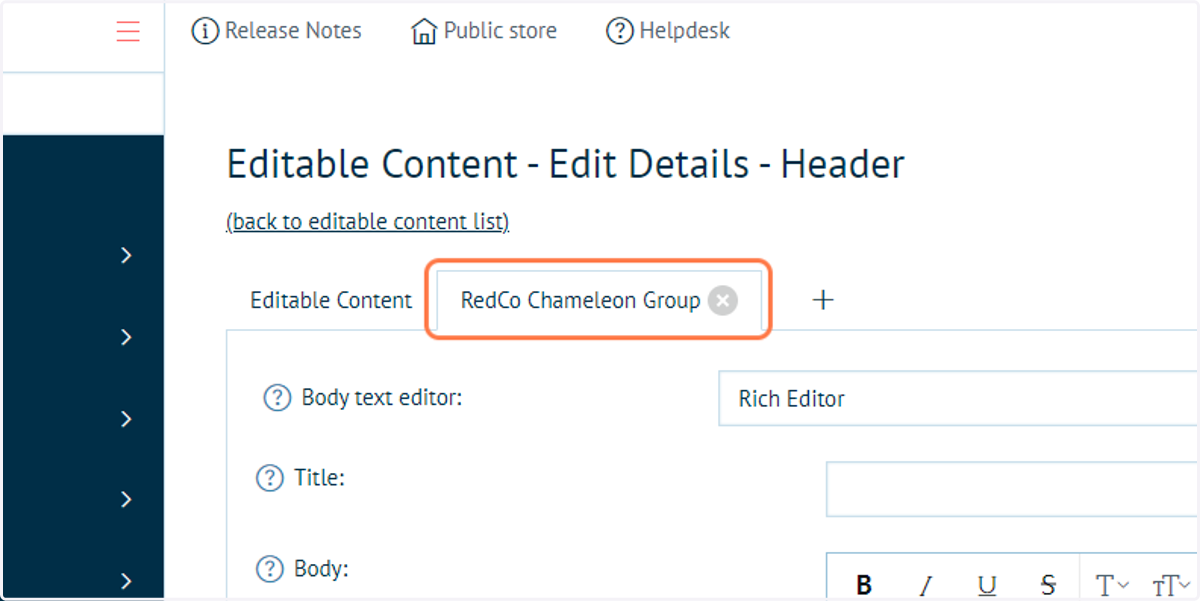
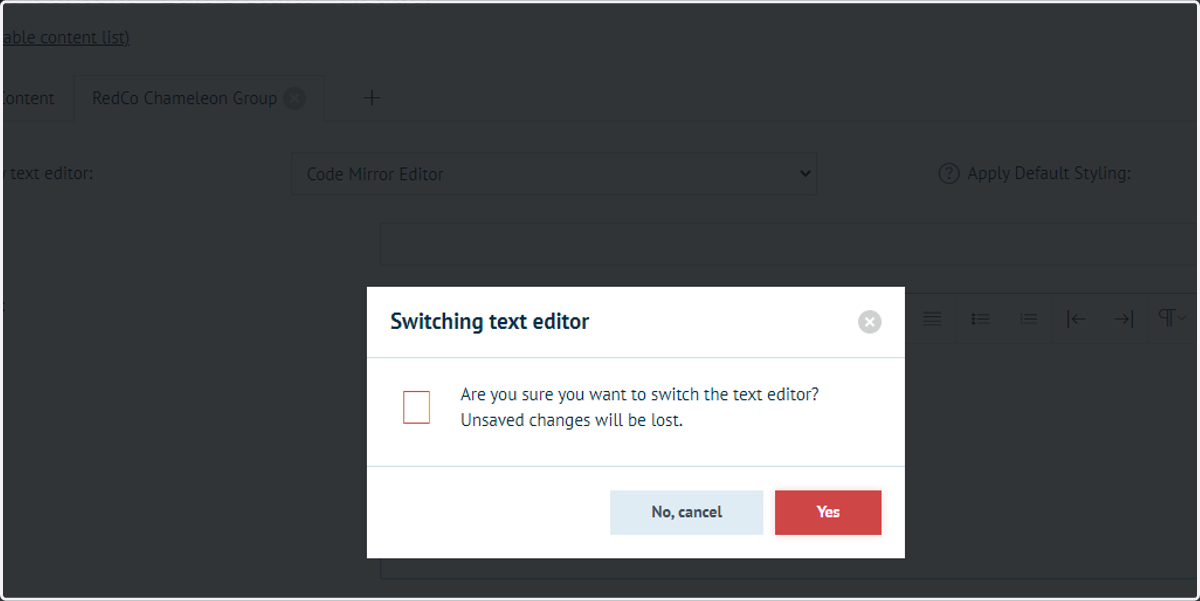
23. Click on Code Mirror Editor from Body text editor
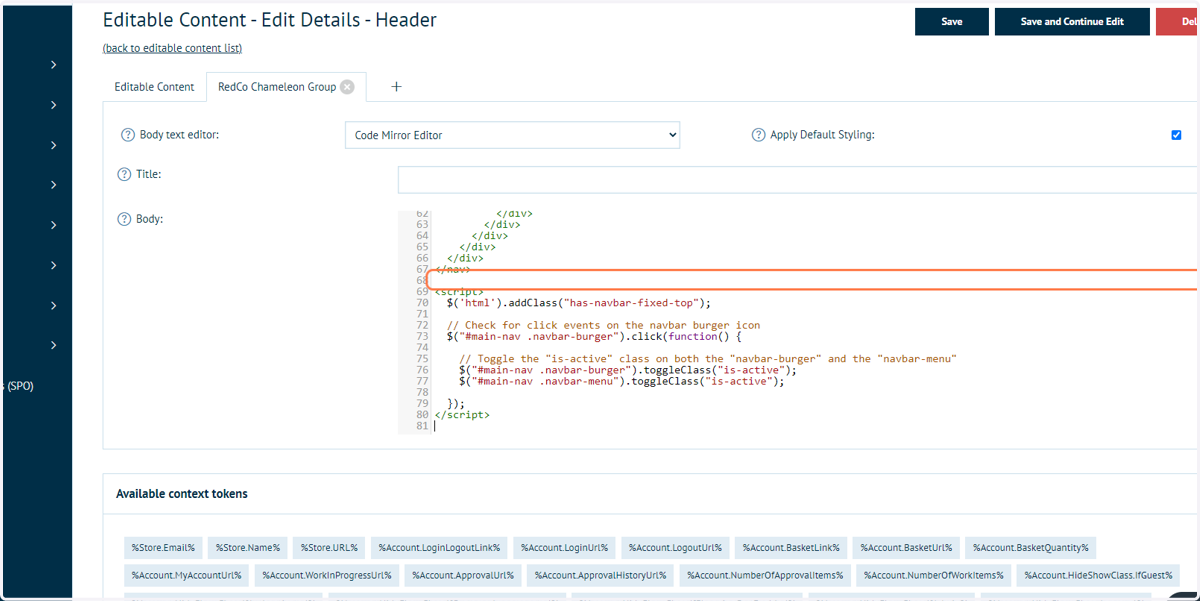
24. Paste code into text area
Infigosoftware
25. Copy the link to the relevant content from the CSS Override section
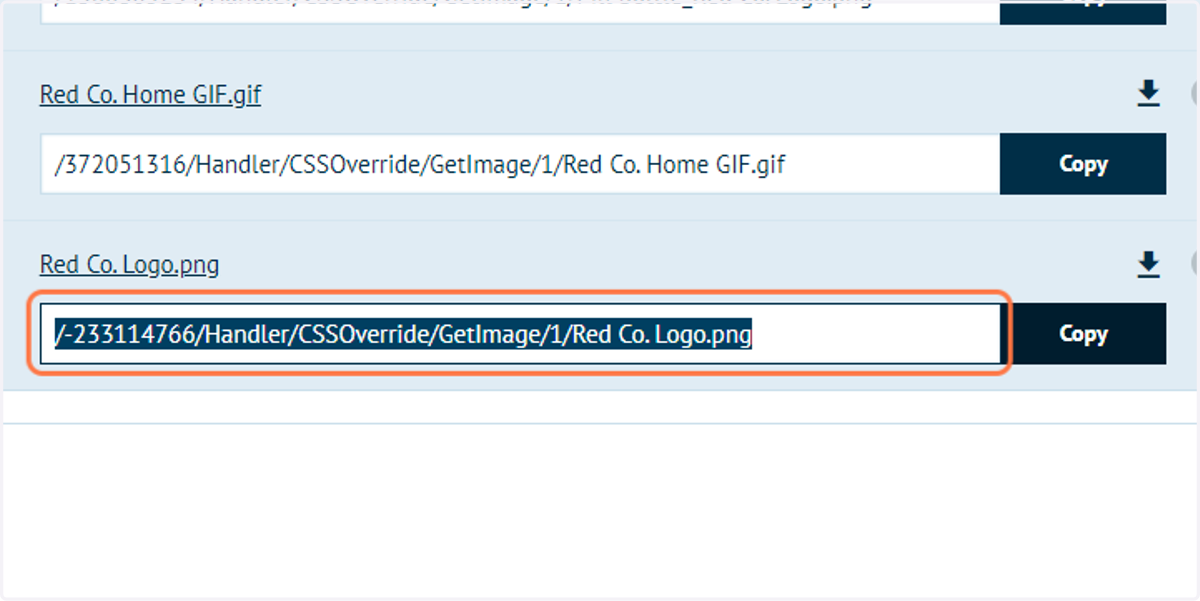
26. Paste the link into the relevant line of code
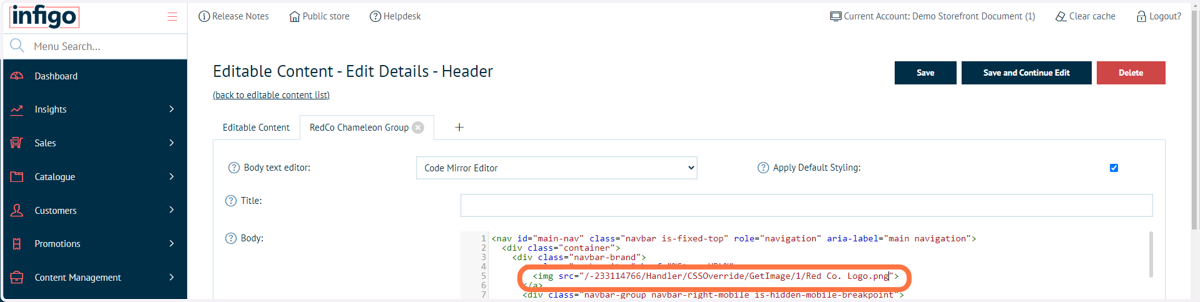
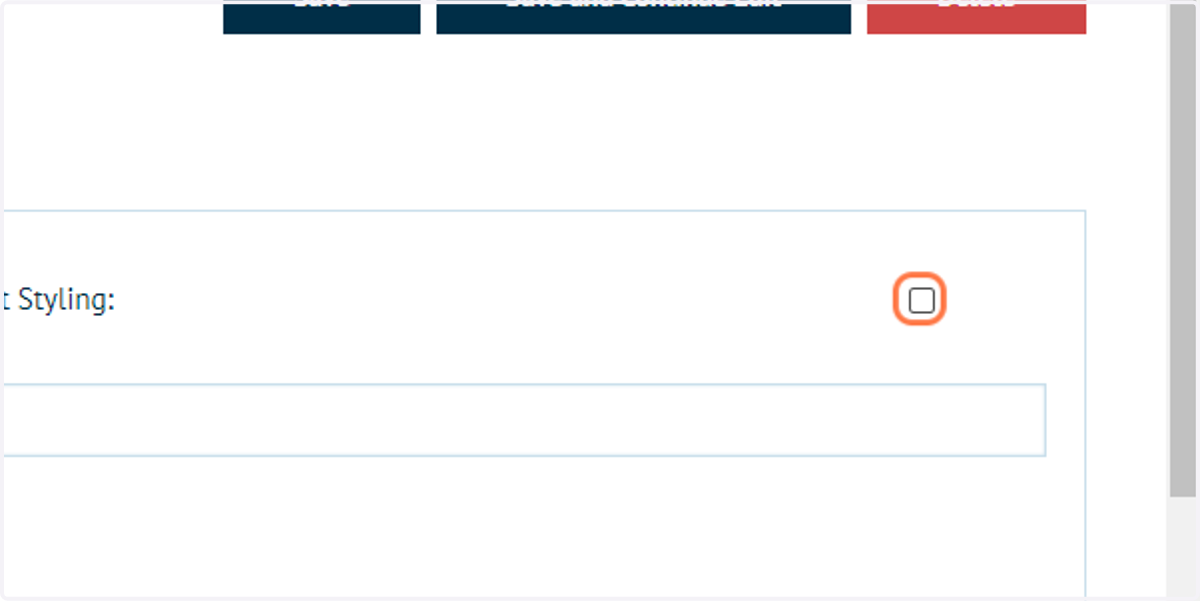
27. Uncheck Apply Default Styling
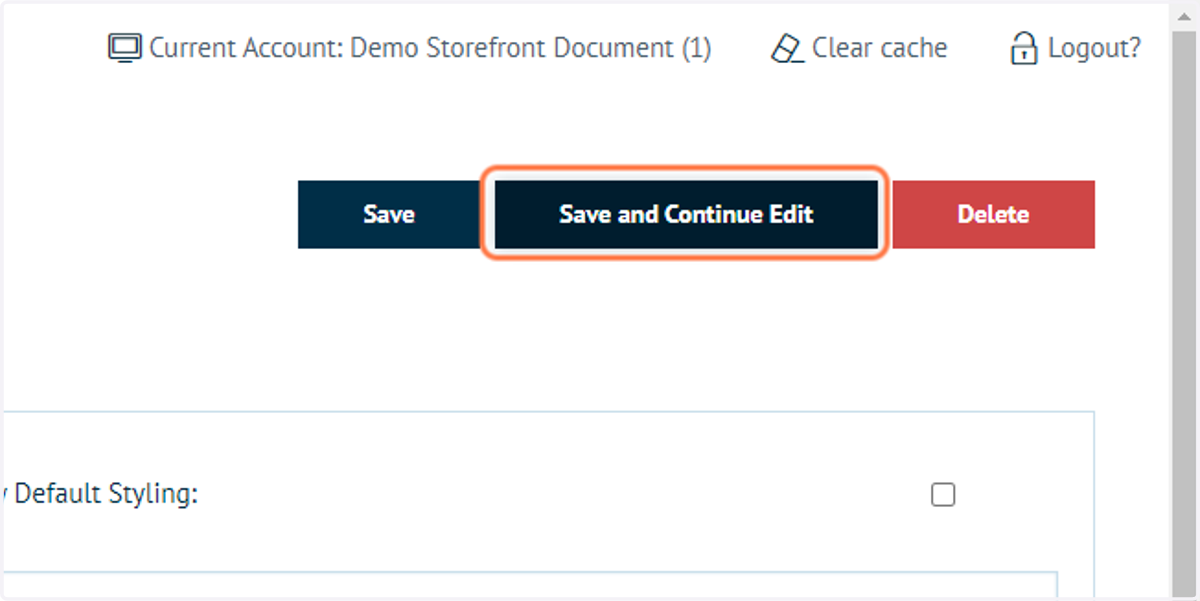
28. Click on Save and Continue Edit
Repeat this process for other Chameleon groups.
In our demonstration, these are Blue Co. and Green Co.
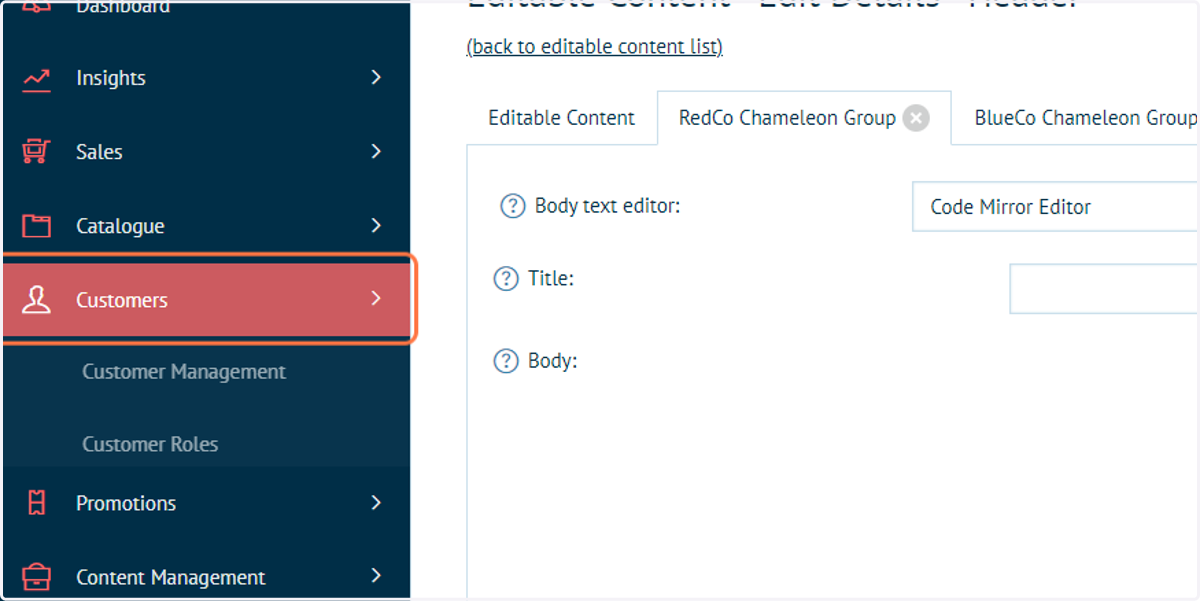
29. To view these changes, click on Customers
Infigosoftware
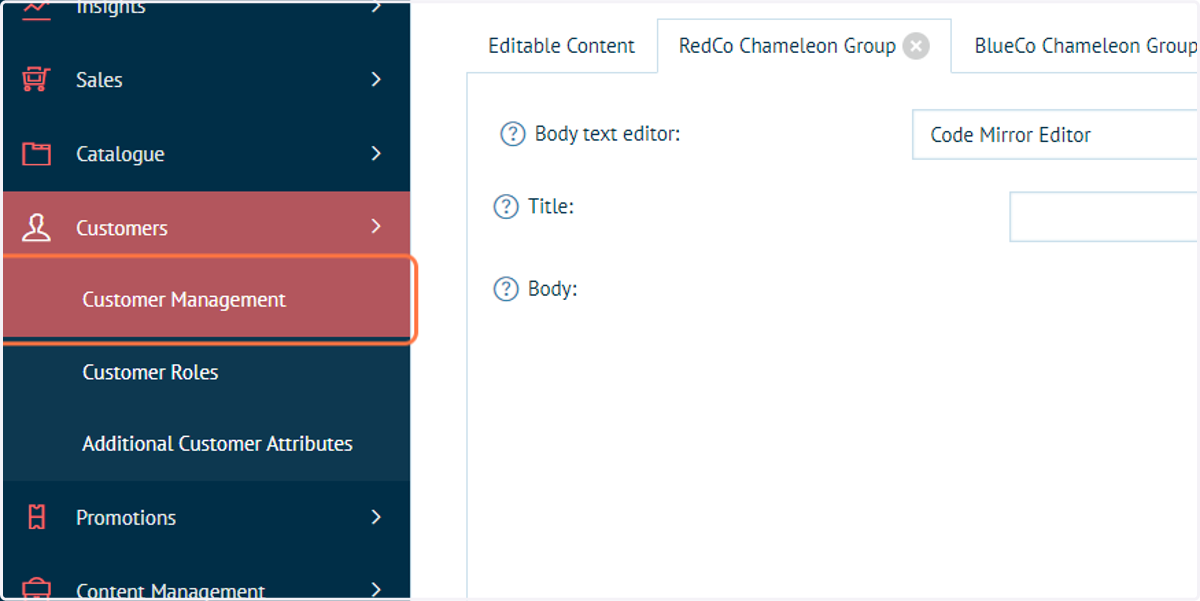
30. Click on Customer Management
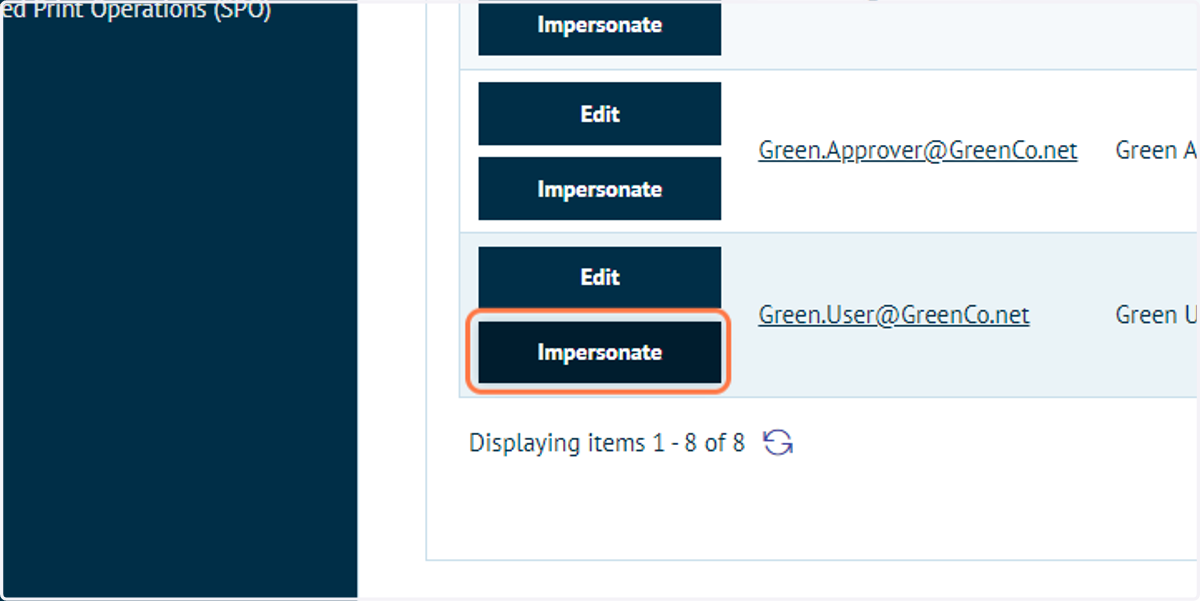
31. Impersonate a customer sitting within one of your Chameleon groups
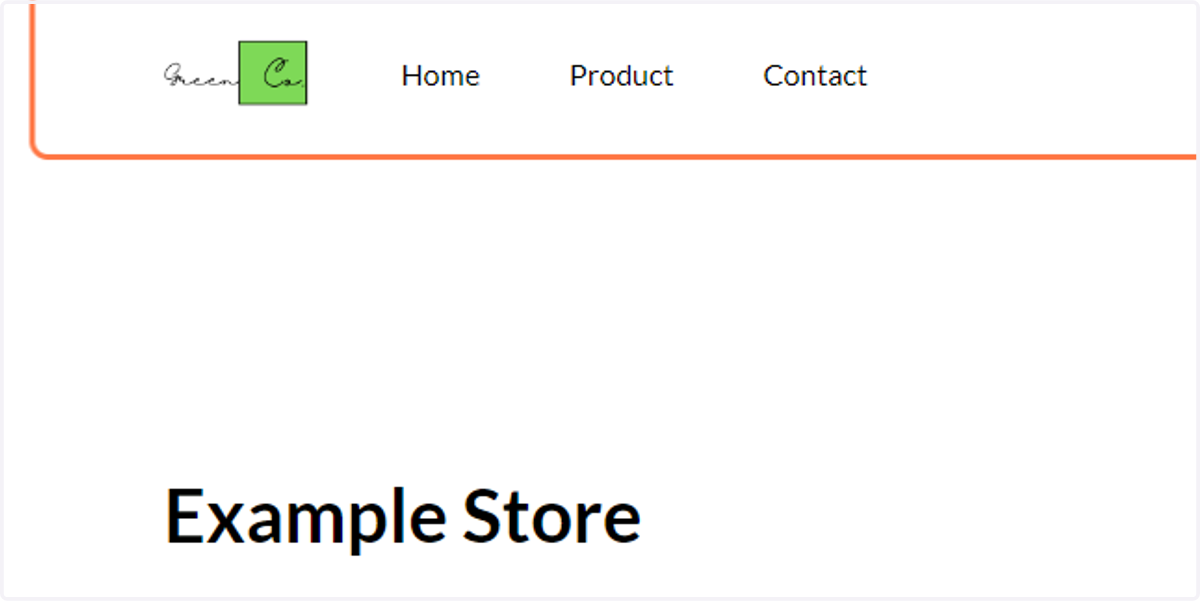
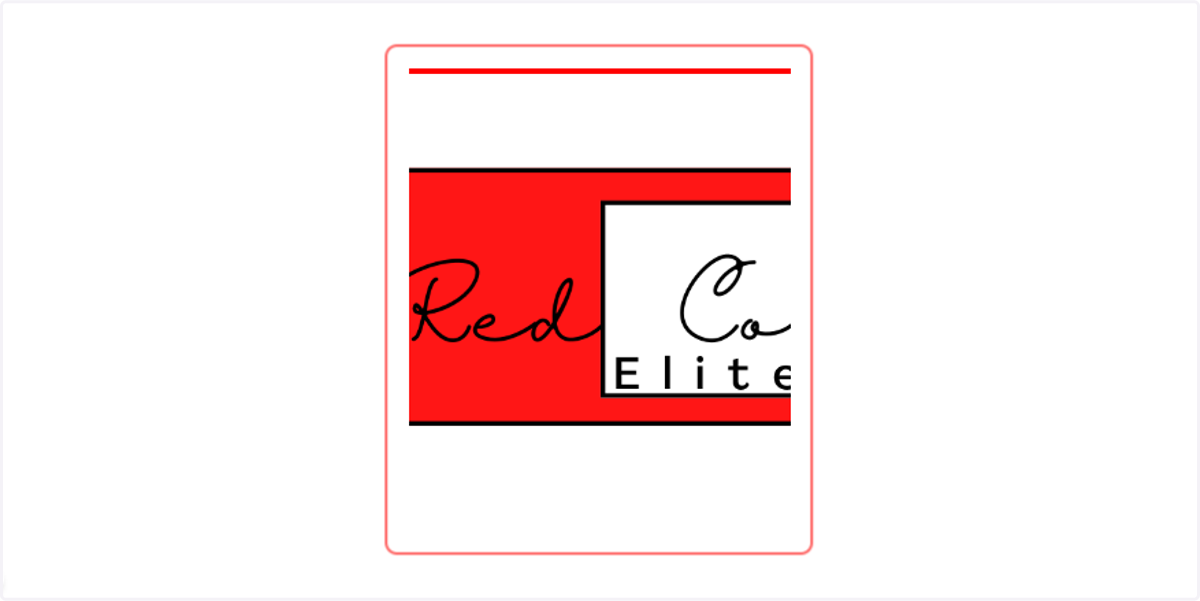
32. The logo will update to match that Chameleon group
33. Click on Content Management
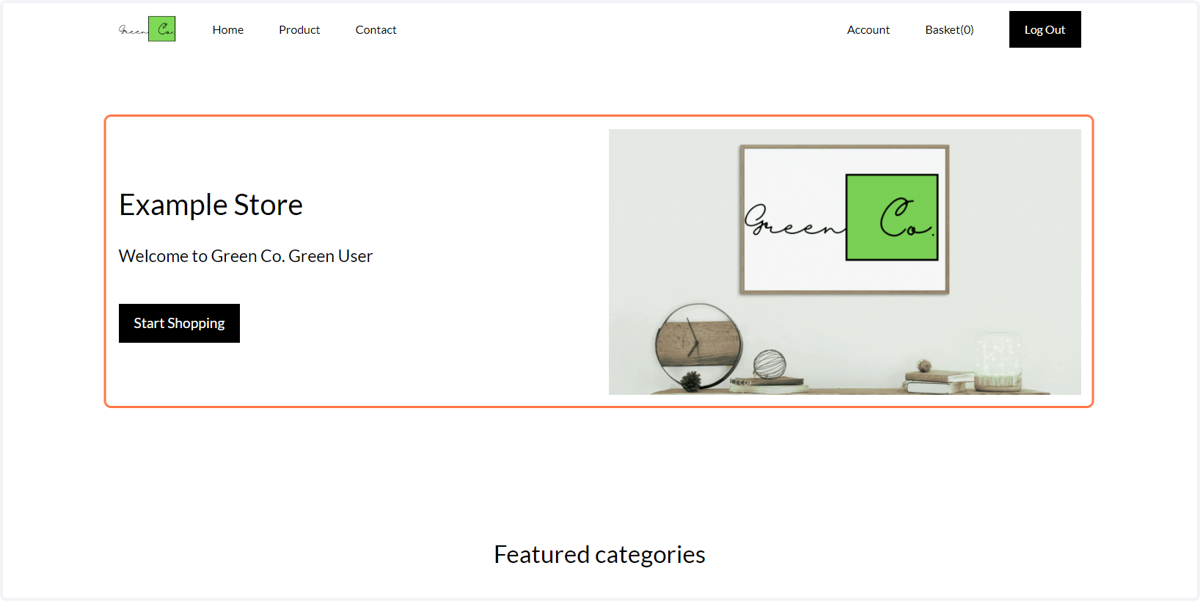
Next, we will update the content within the Homepage Banner.
Our initial aim will be to update the graphics within the banner using resources uploaded to the CSS Override section.
This process is virtually identical to the change in logo, consisting of:
Locate the Editable Content block
Create a content tab for each Chameleon group
Copy and paste the code data from the original Editable Content tab into the new Chameleon group tabs
Copy relevant links from CSS Override section
Paste the links into the Chameleon groups to overwrite the relevant content
Verify changes by impersonating Chameleon group customers
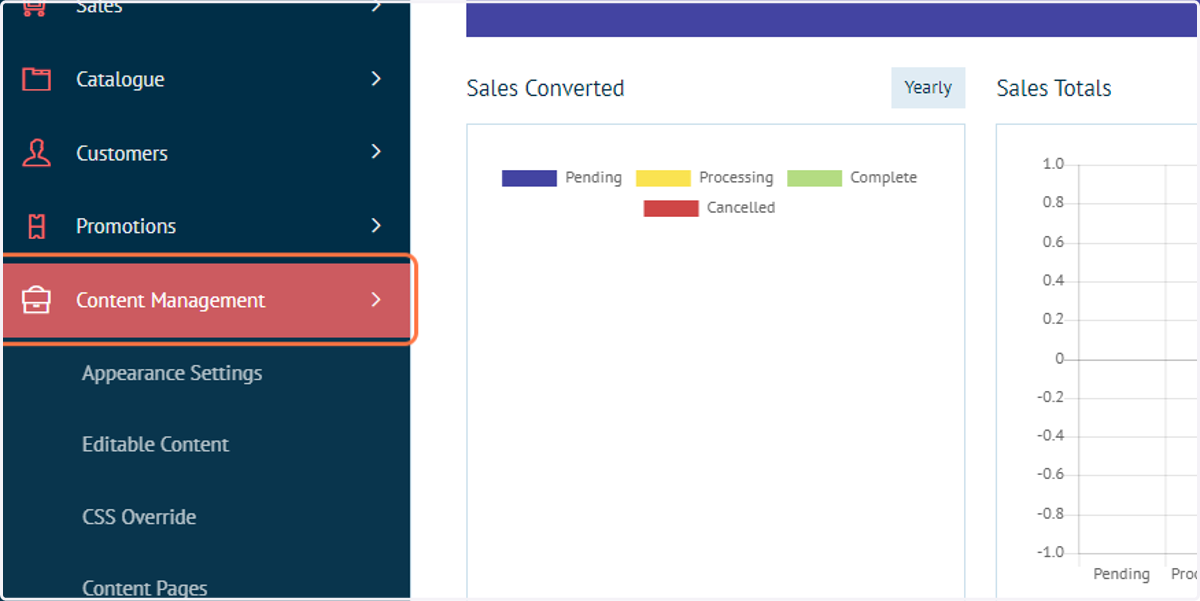
34. Click on Editable Content
Infigosoftware
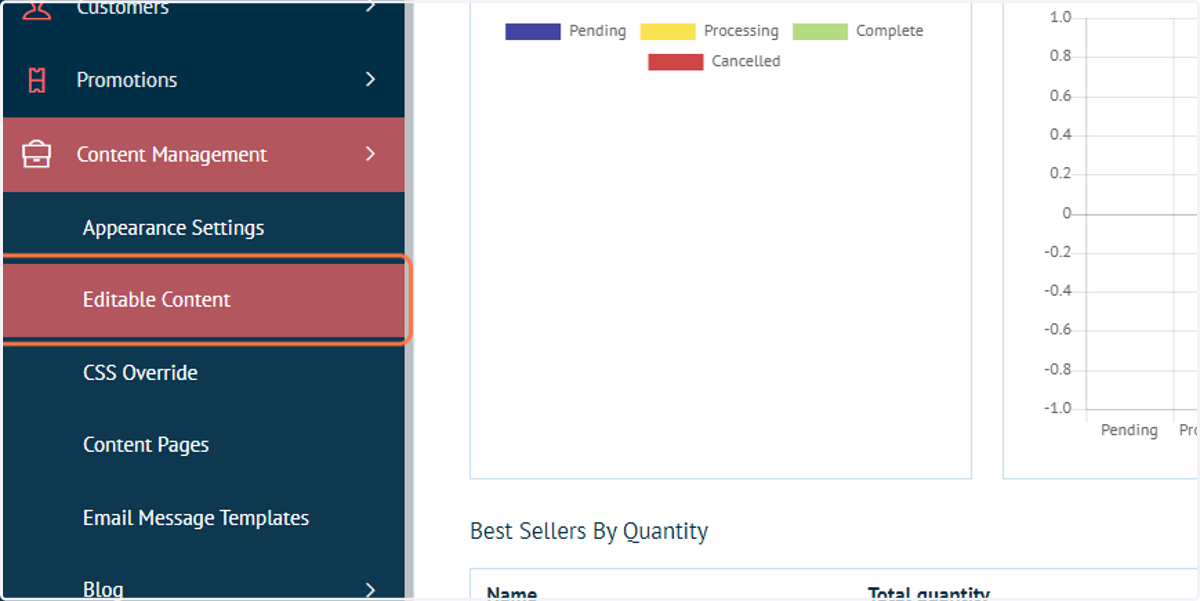
35. Locate the Homepage Banner block and click on Edit
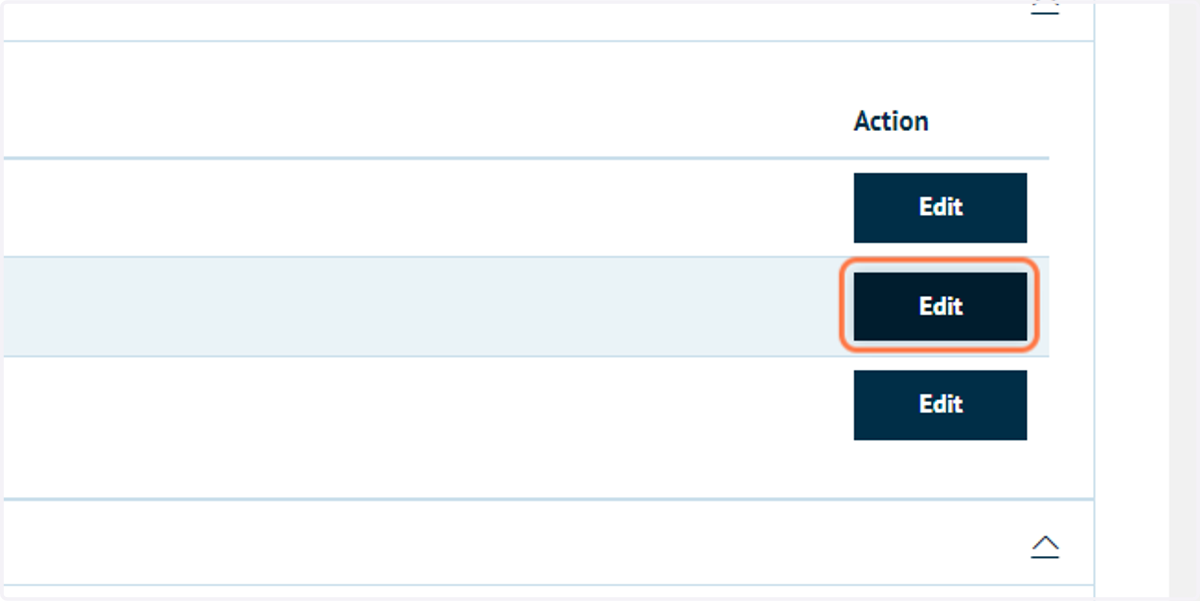
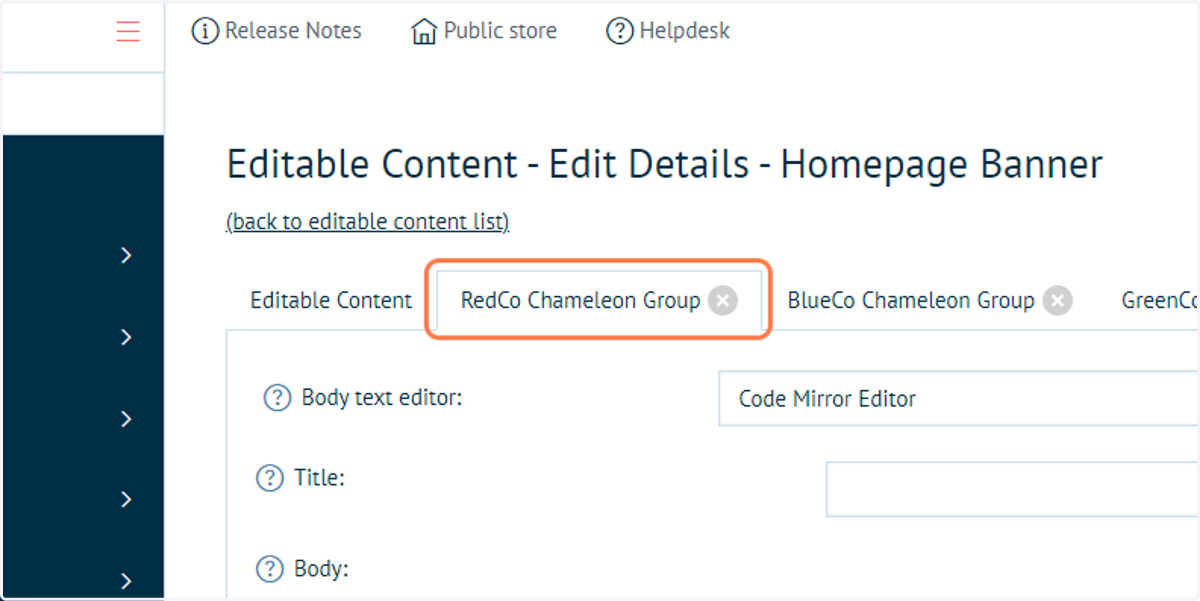
36. Select or add a Chameleon group tab
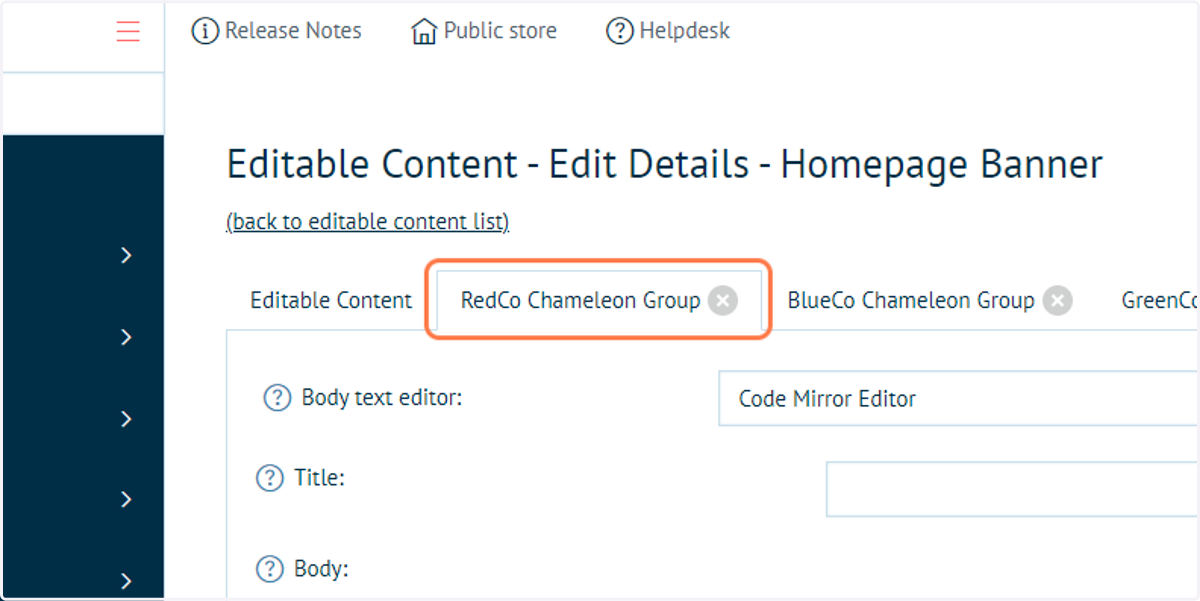
37. Copy and paste code content from the Editable Content tab to the Chameleon group tab
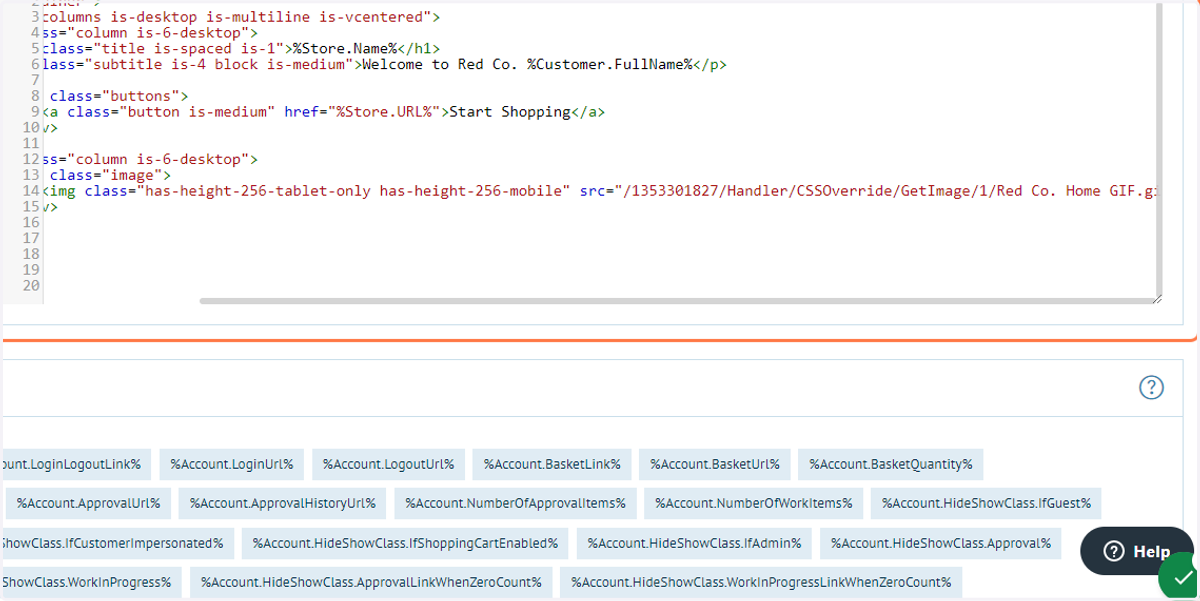
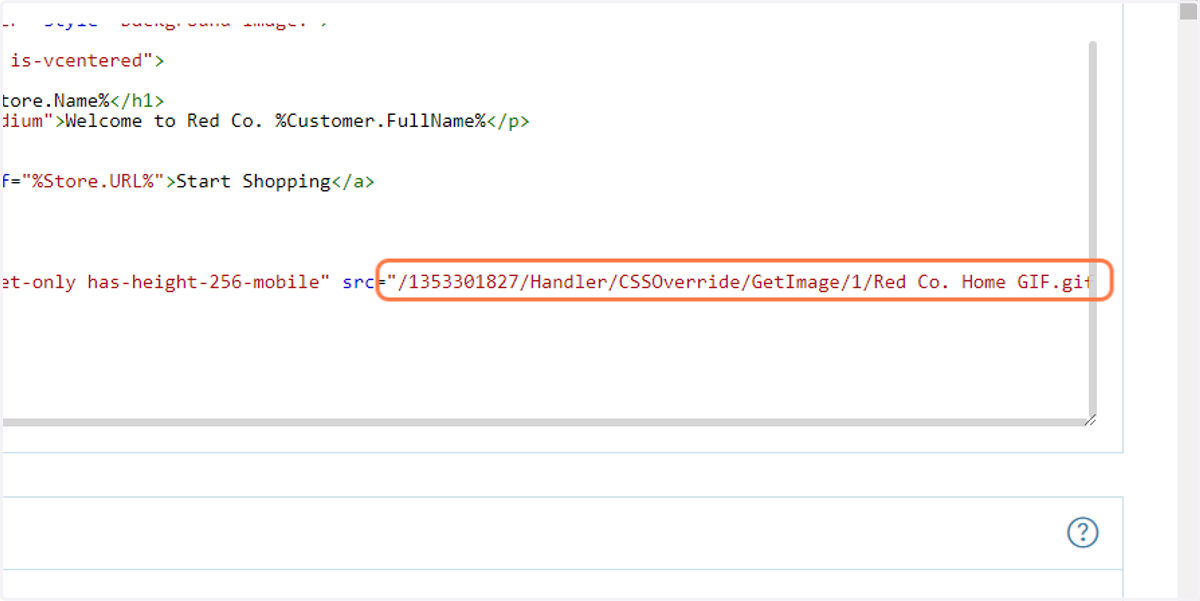
38. Insert the relevant CSS Override content link into the code editor
Repeat this process for the other Chameleon groups
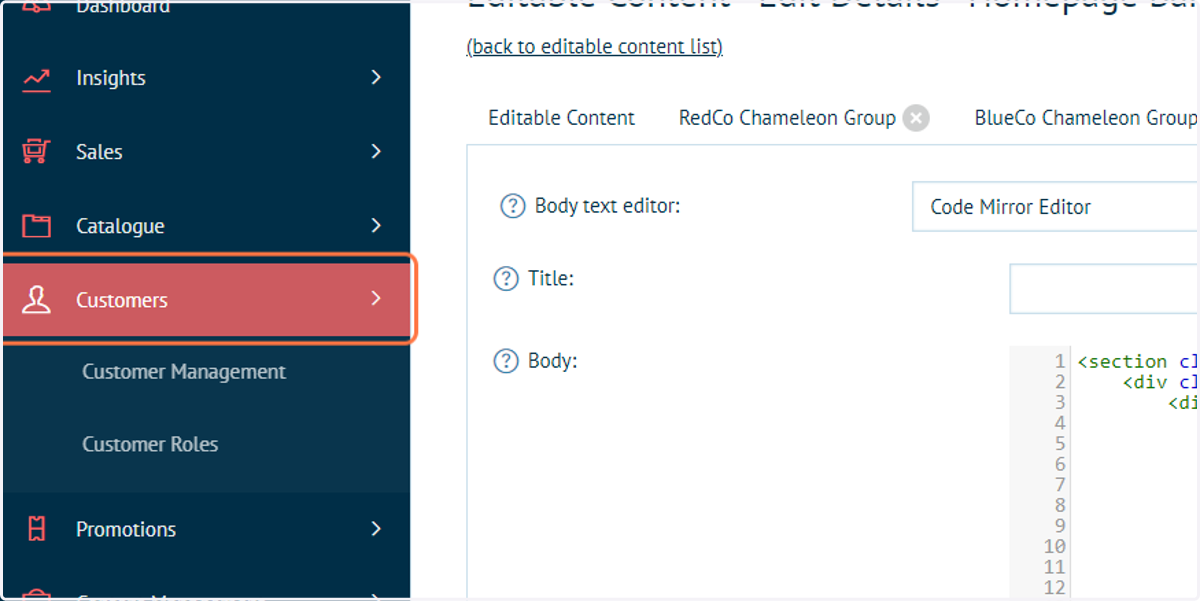
39. To verify changes, click on Customers
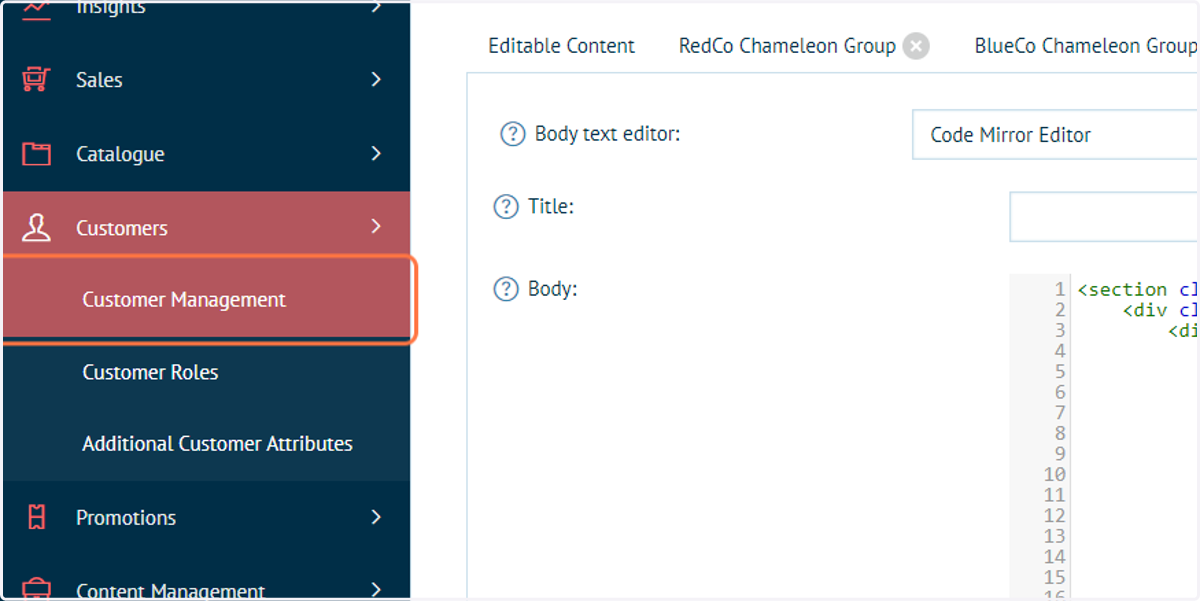
40. Click on Customer Management
41. Impersonate a user sat within a Chameleon group
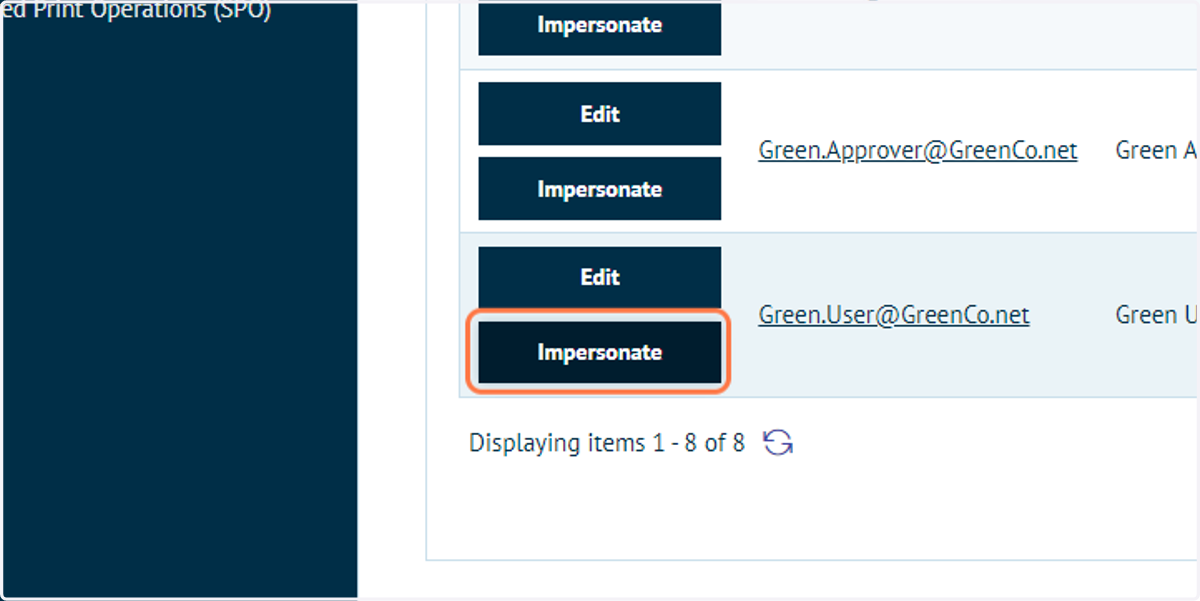
42. Your updated Banner imagery will now display
Infigosoftware
43. Click on a Chameleon group
Finally, we will update a hyperlink on our Homepage Banner Editable Content block, to ensure the correct product category is reached based on the customer.
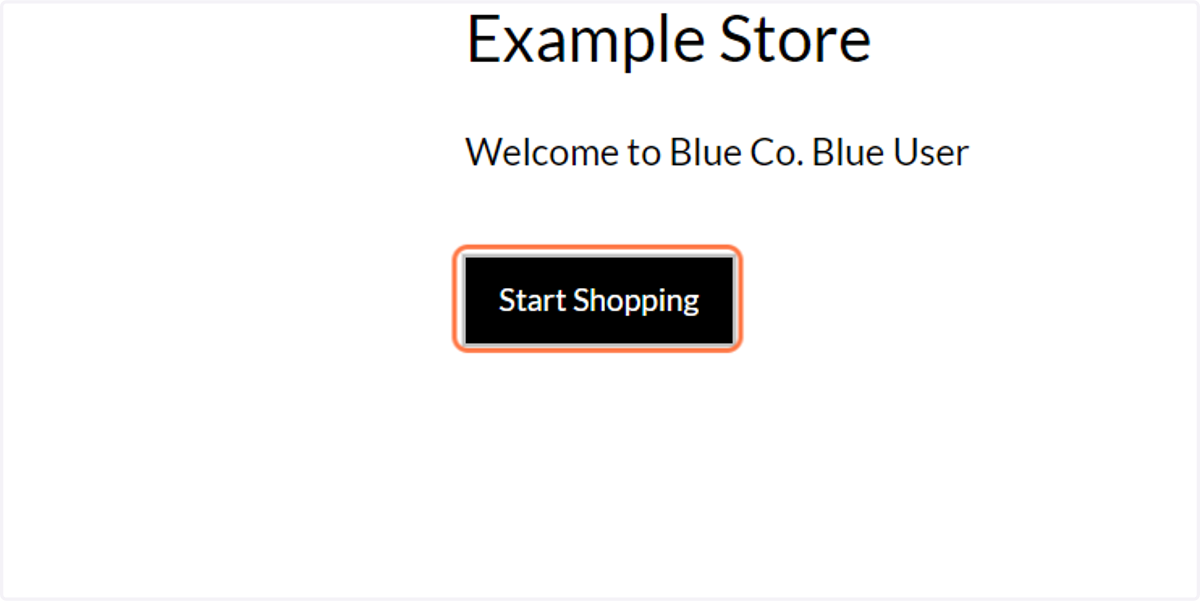
We will be modifying the button labelled by default as "Start Shopping".
44. On a new tab, click on Catalogue
For ease of access, navigate to the Categories section on a new browser tab.
We can use the category section to identify the URL of the category pages on the front-end of our storefront.
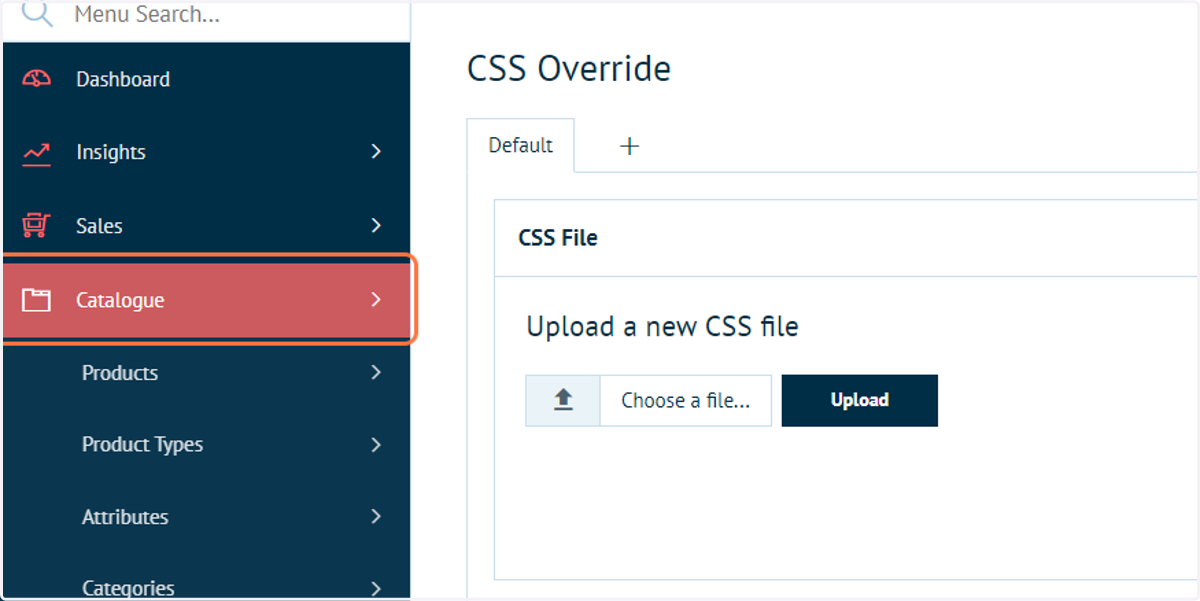
45. Click on Categories
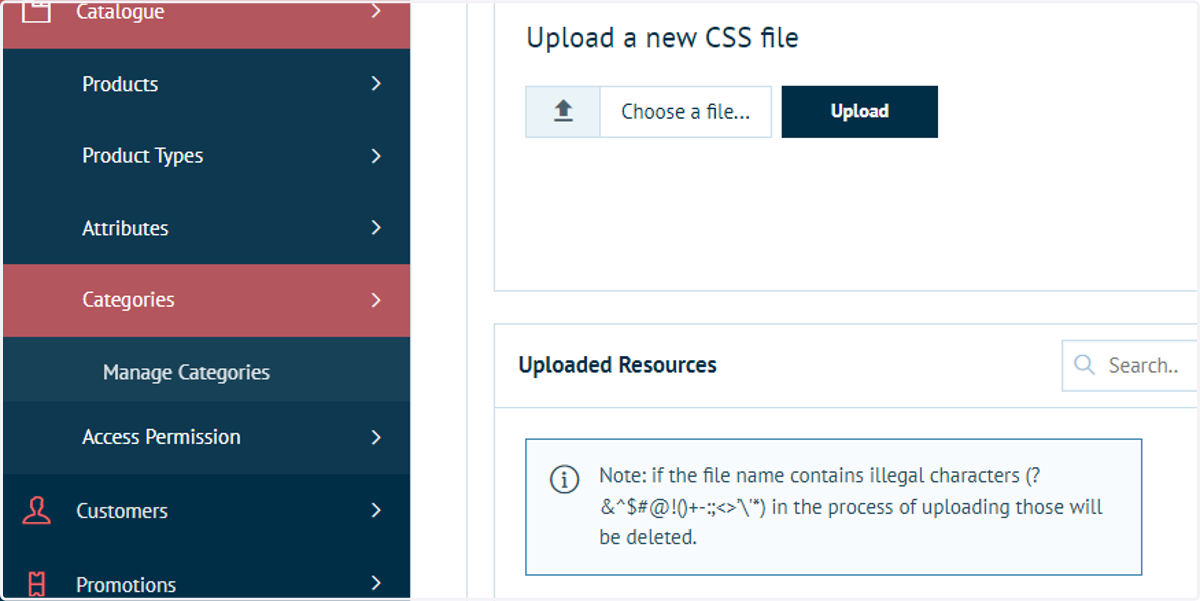
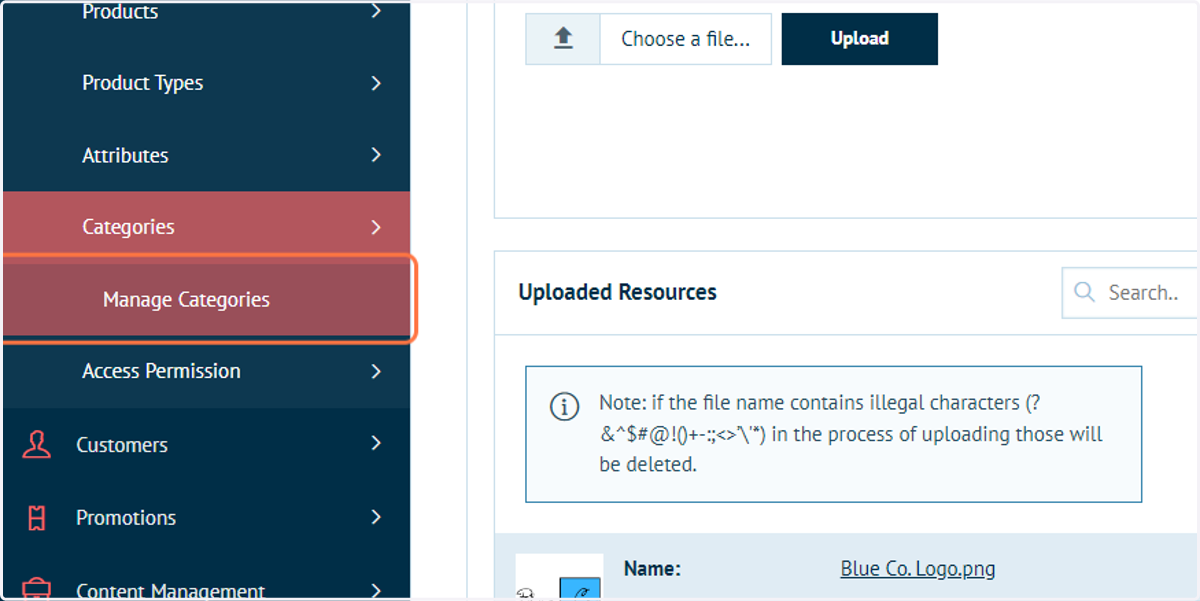
46. Click on Manage Categories
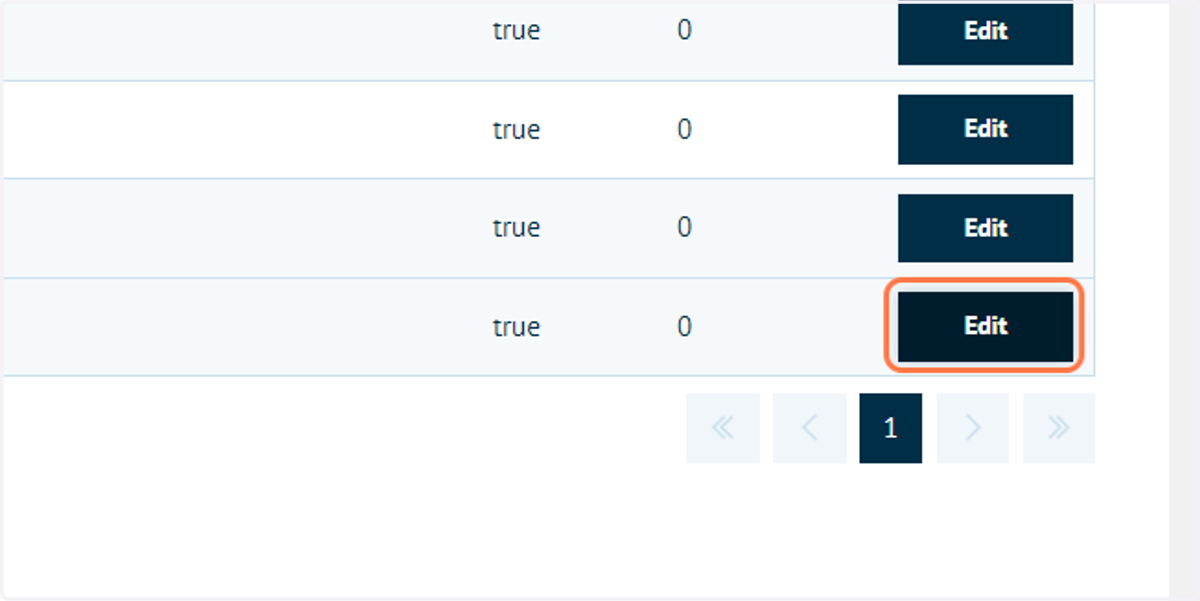
47. Select a category relevant to your Chameleon group users and click on Edit
Note the number that appears in the page URL when editing, this will be the category ID.
Such as: "https://training.infigosoftware.com/demofordocument/Admin/Category/Edit/7"
The category ID for this product category is 7, which we can use to build our front-end URL.
The correct URL will also appear if you view the category on the storefront front-end.
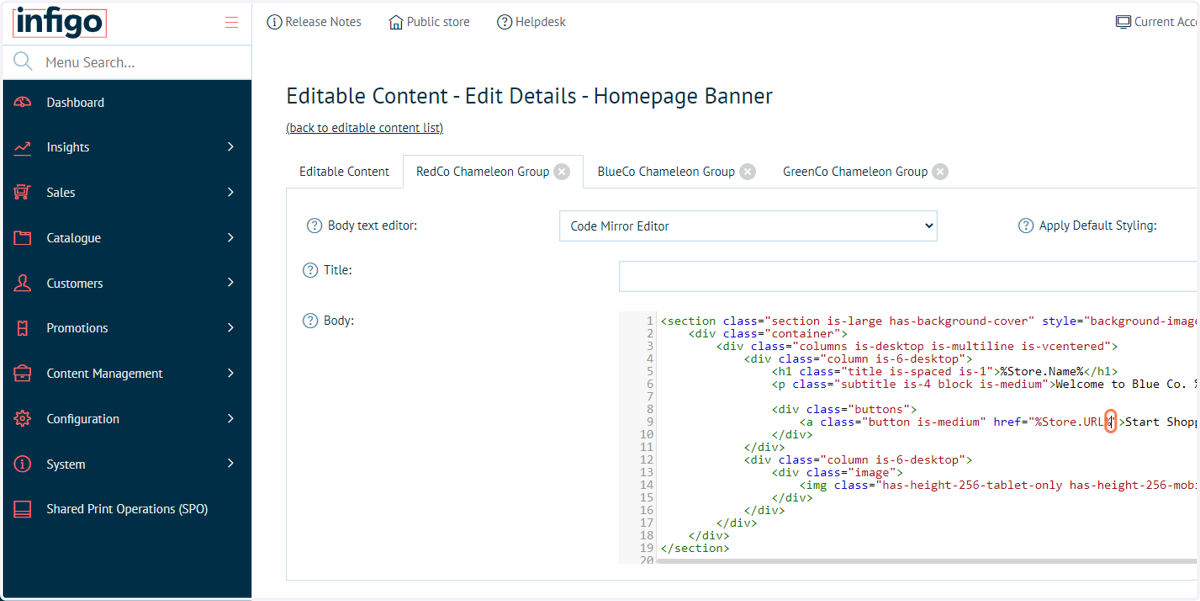
48. Navigate to the Homepage Banner Editable Content block and select the Chameleon group relevant to that product category
Infigosoftware
49. Edit the URL then click Save and Continue Edit
By default, the button URL will consist of the storefront token %Store.URL%.
This can remain, however we will amend our category ID onto the end of this URL.
So, to link to product category 7 we will add "/c/7", where:
c represents a category
7 represents the category ID.
Repeat this process for your other Chameleon groups.
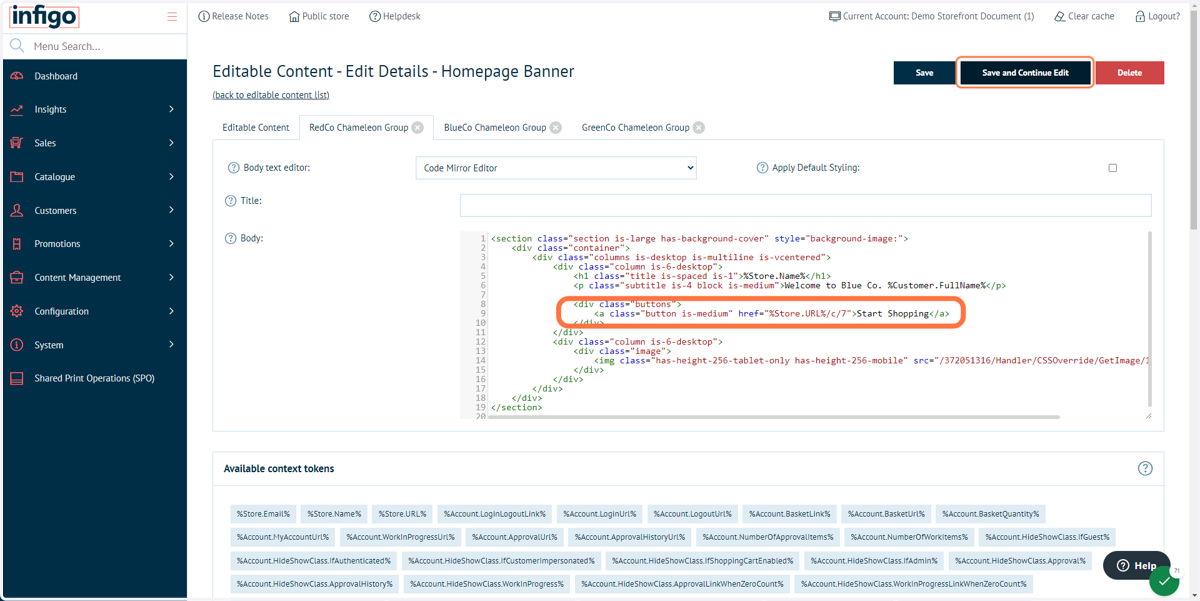
50. Impersonate a user within a Chameleon group to verify these changes
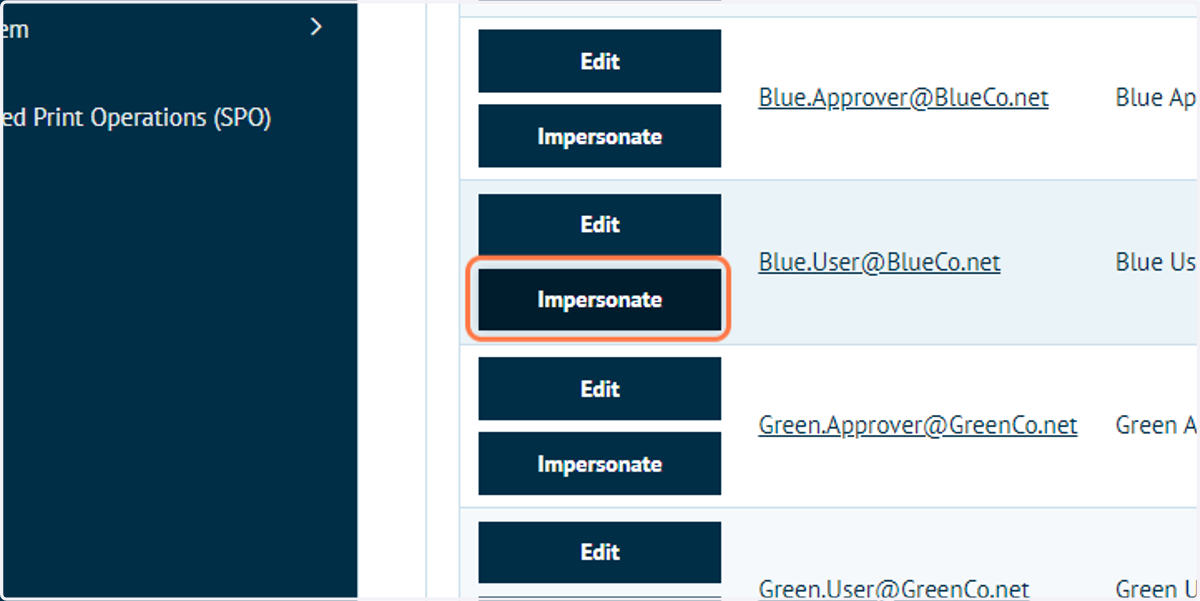
51. Click the button on your storefront with the updated URL
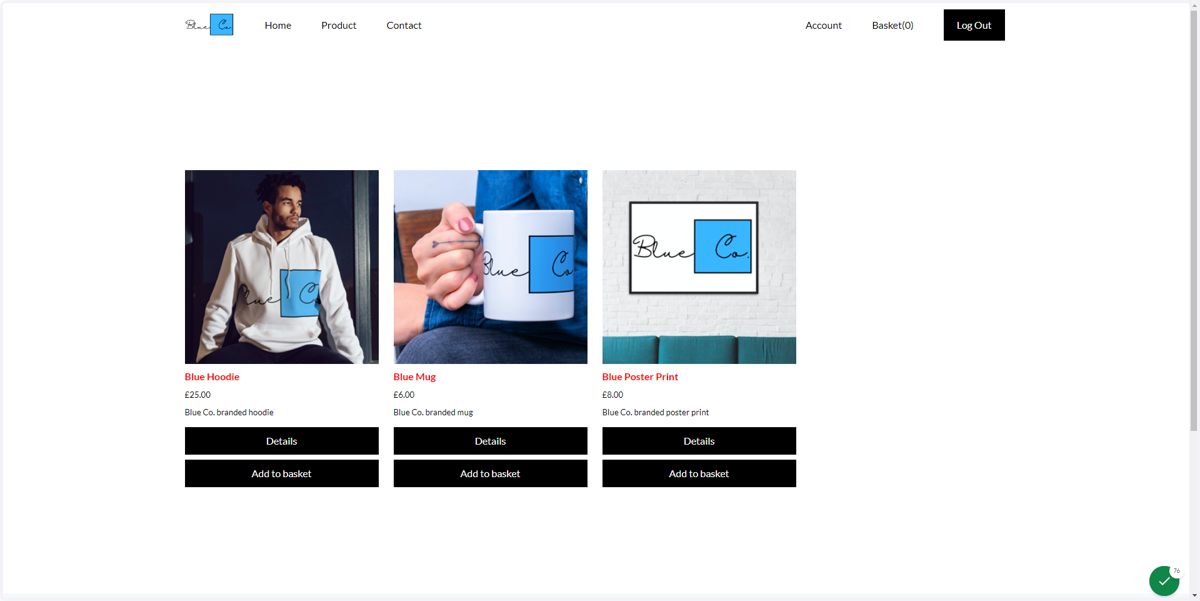
52. The relevant product category page will load
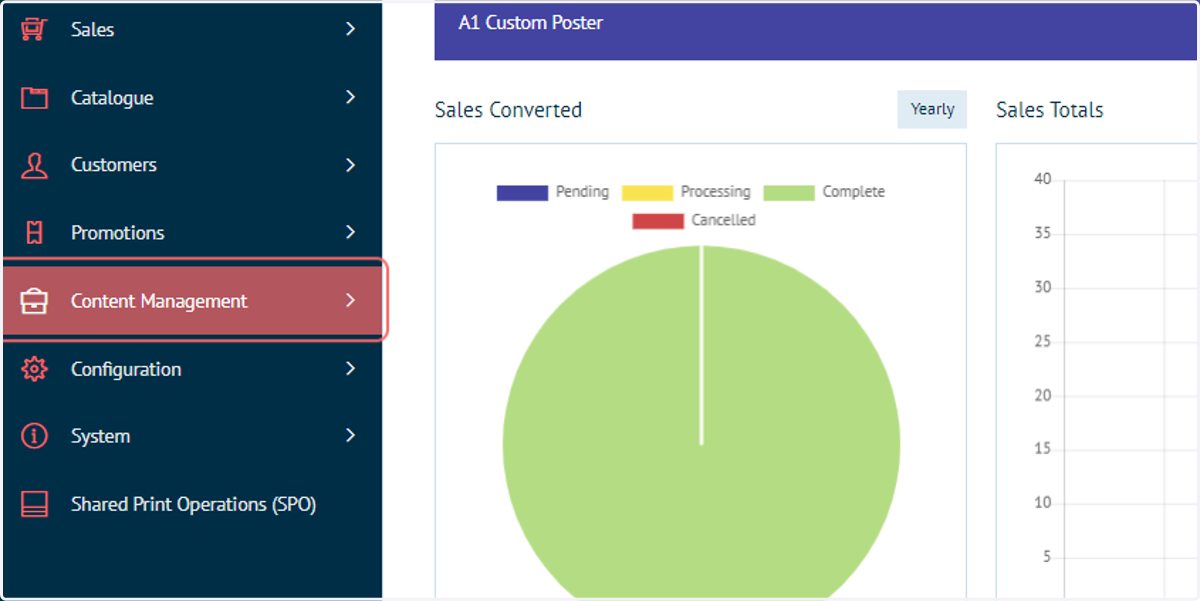
53. Click on Content Management
Next, we will look at how to upload custom CSS files on a Chameleon group basis. This allows designers to add custom skinning to a site based on the logged in user.
To begin, navigate to the CSS Override area.
Infigosoftware
54. Click on CSS Override
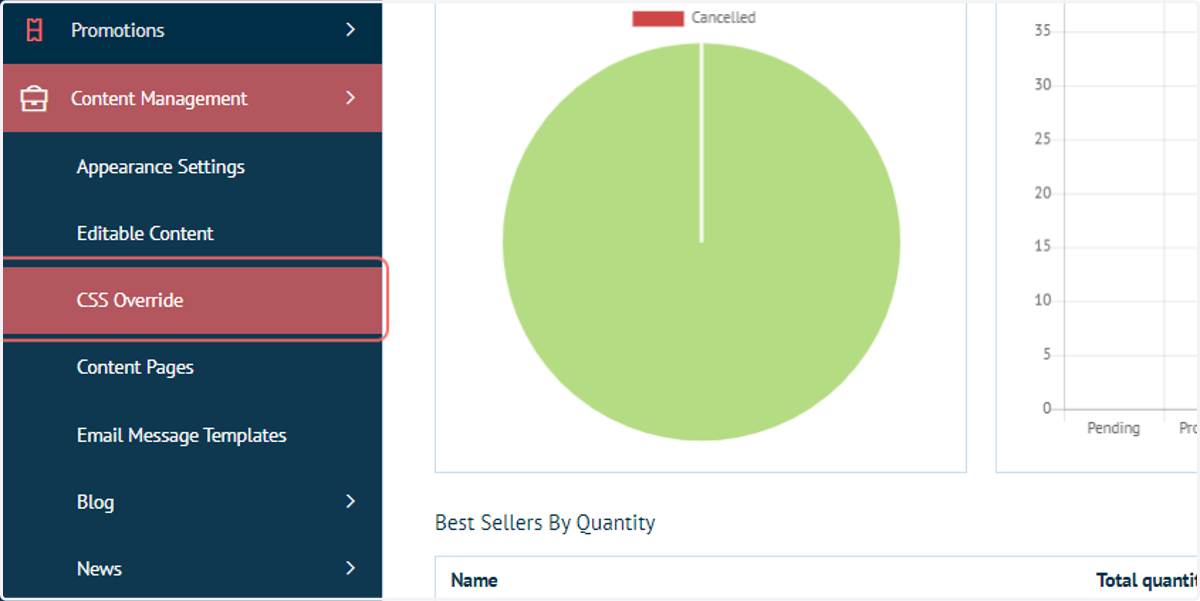
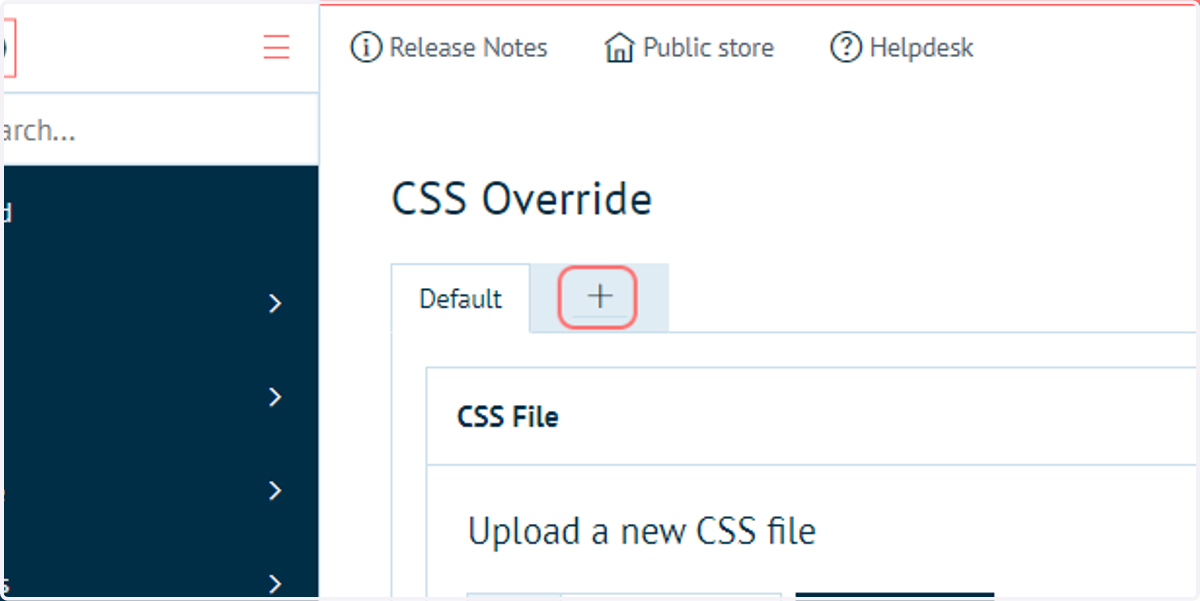
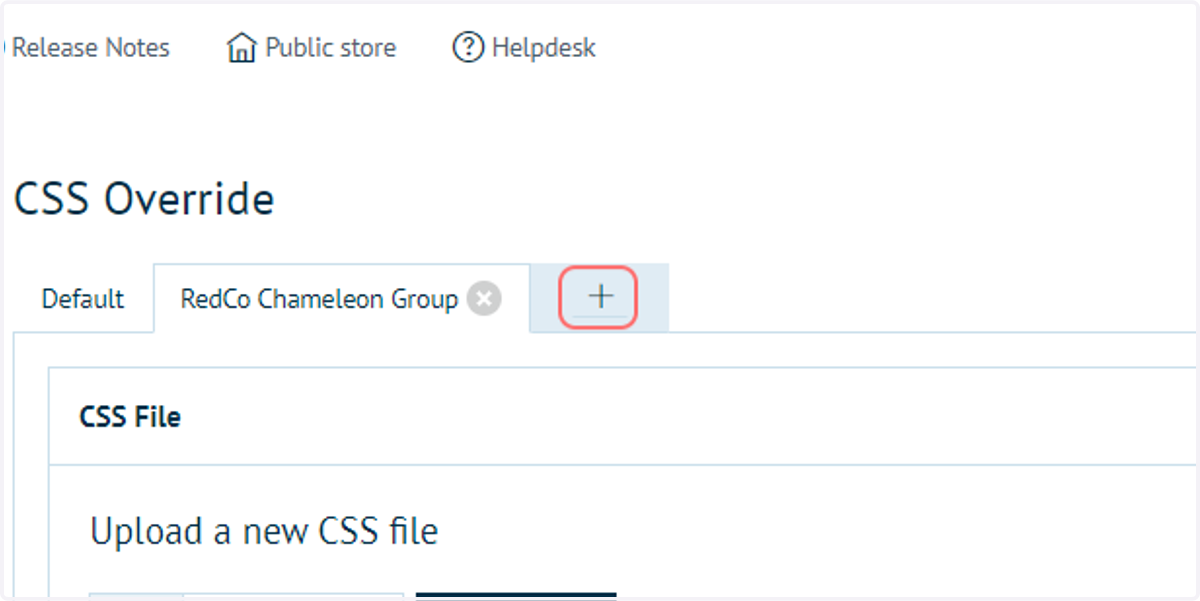
55. Click on '+' to utilise a Chameleon group
This icon allows us to define a new CSS Override area for each of our specified Chameleon groups.
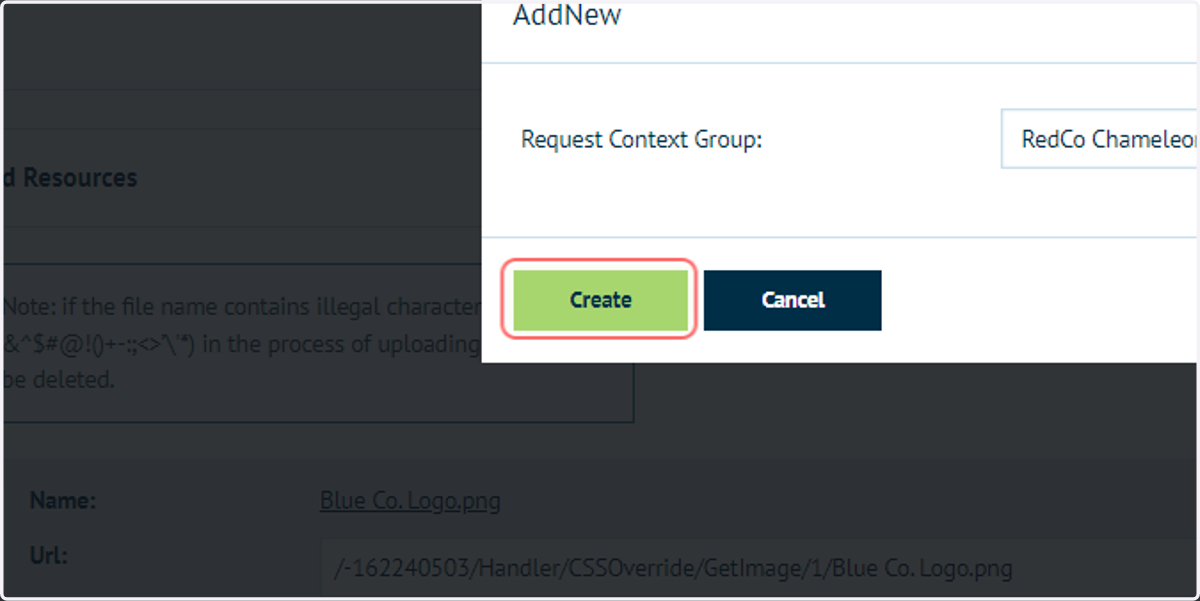
56. Click on RedCo Chameleon Group
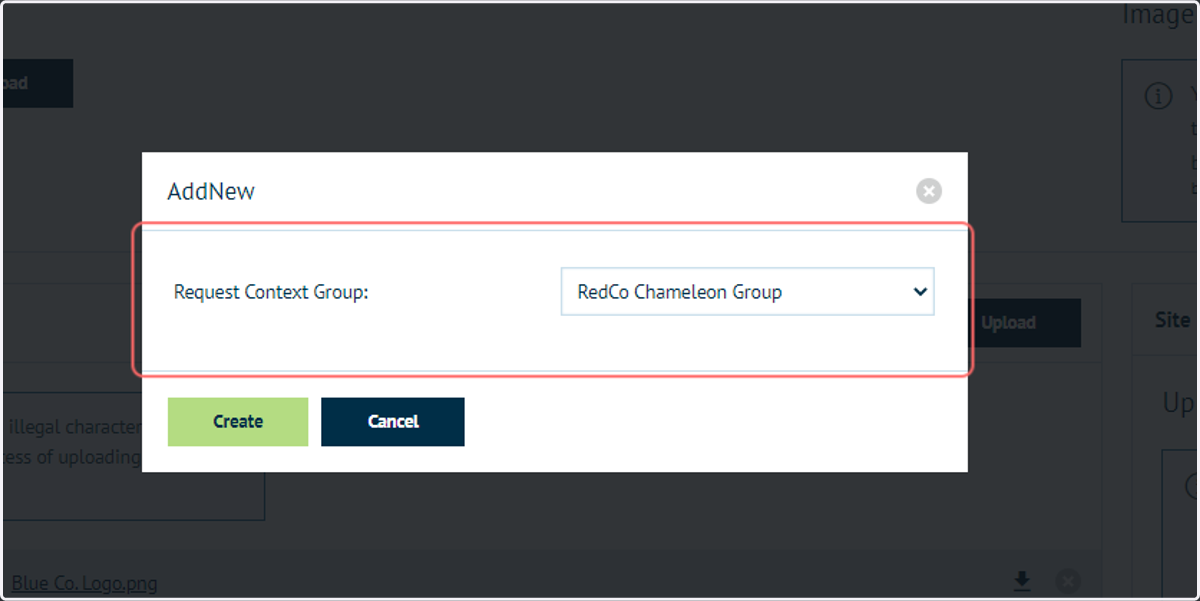
57. Click on Create
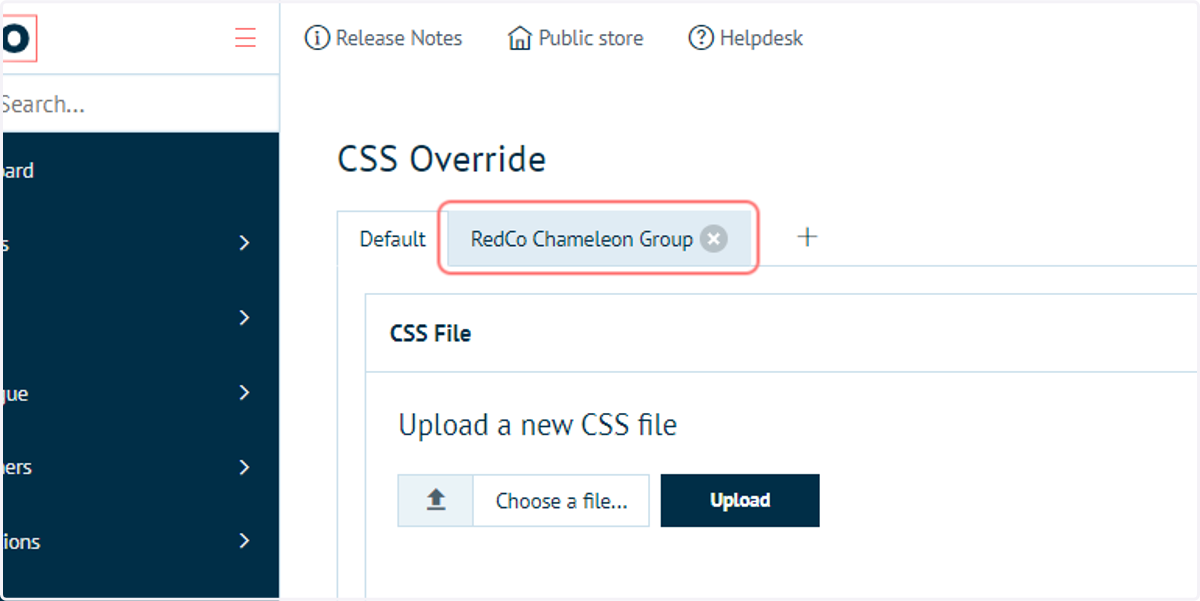
58. Click on RedCo Chameleon Group
The new Chameleon group tab will now appear and is ready to receive custom CSS files.
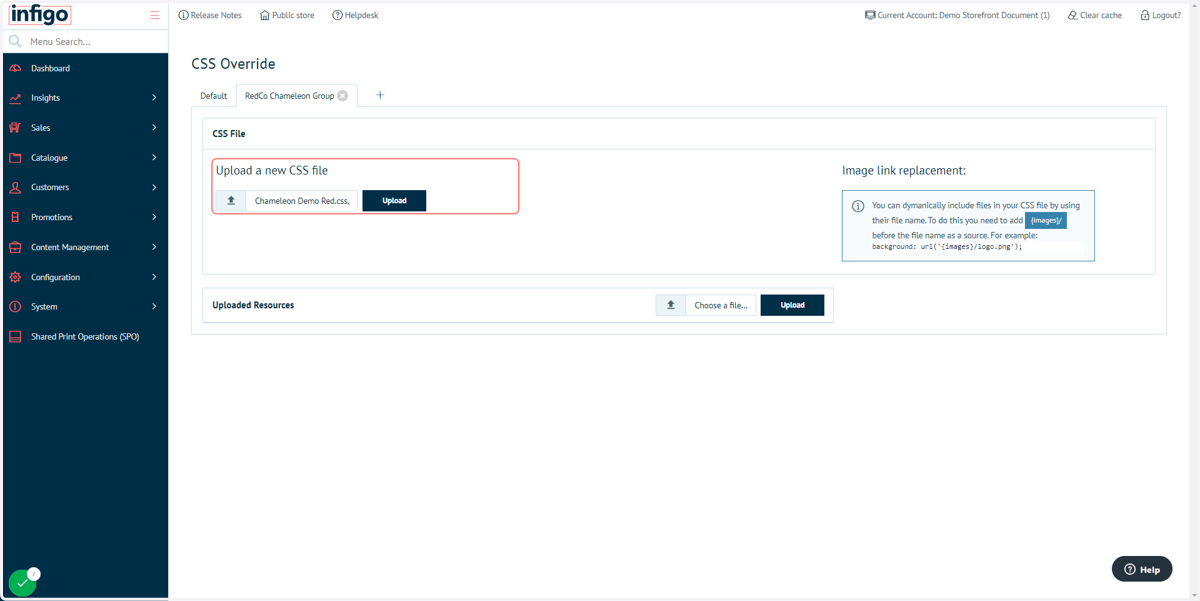
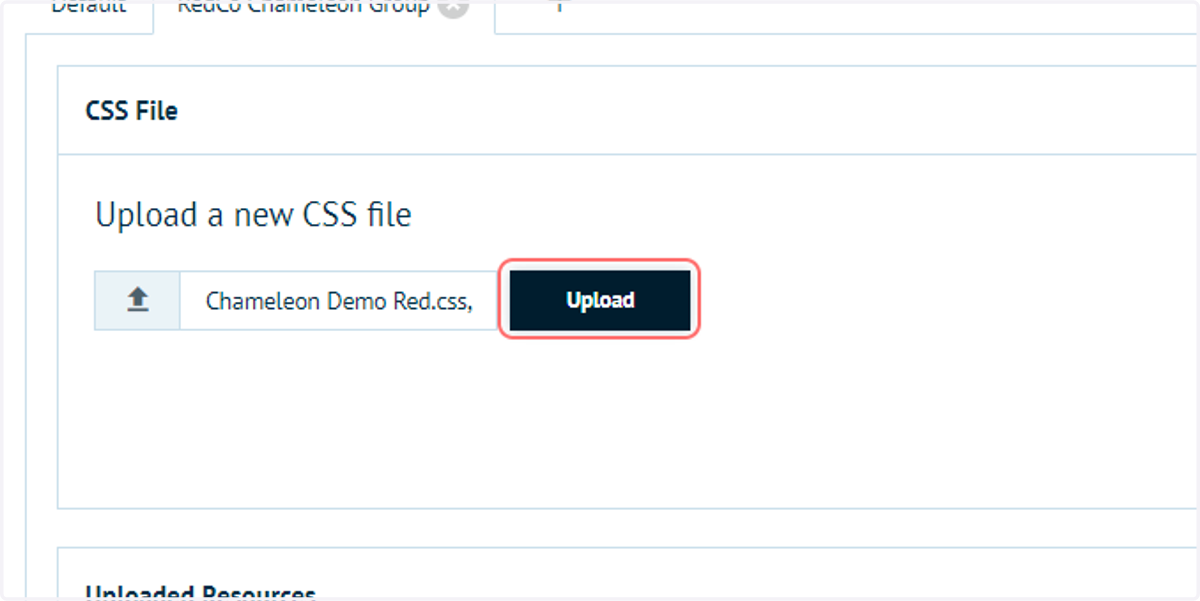
59. Select your custom CSS file from file upload menu
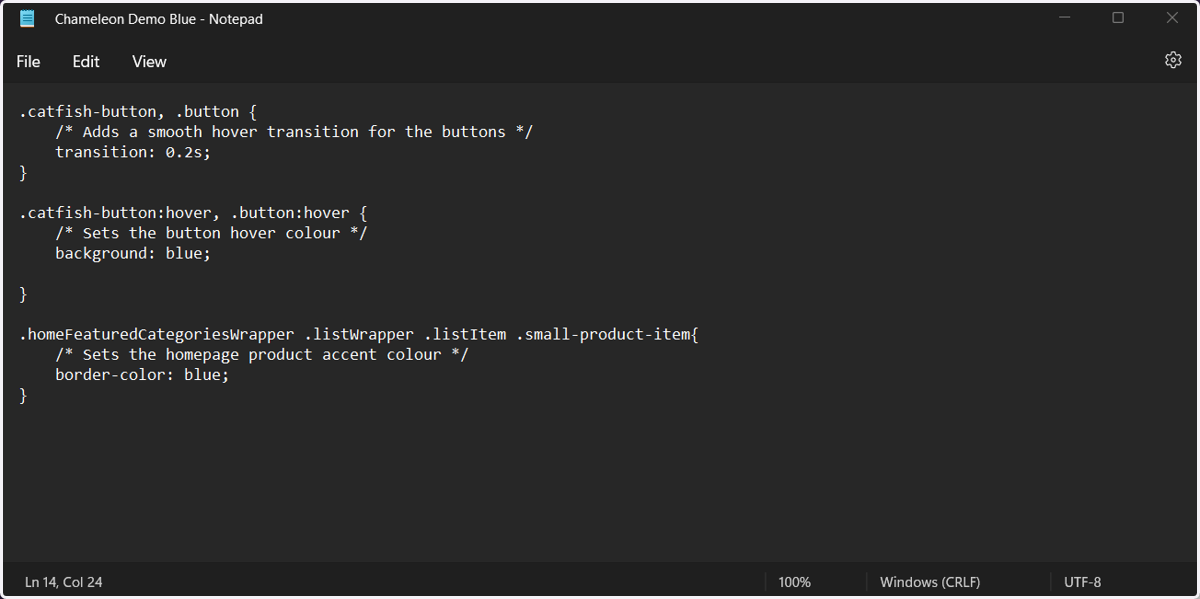
60. Custom CSS file
The custom CSS file being used for this example is incredibly basic, designed simply to demonstrate this functionality.
Once applied, we will see two primary changes per Chameleon group. These are:
The hover colour of any buttons on our storefront
The accent colour of any featured products on our home page
Please note, custom CSS grants scope for much more sweeping changes than those shown in this example.
Infigosoftware
61. Click on Upload
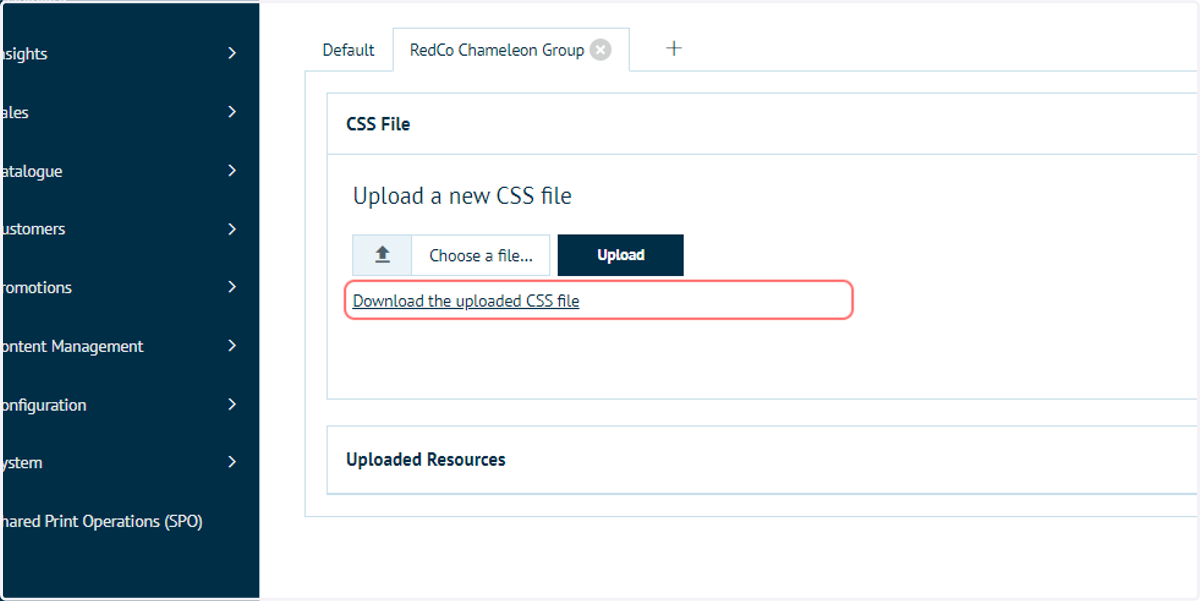
62. Click on Download the uploaded CSS file
Admins can download the uploaded CSS file if required. Useful if the exact file being used requires tweaking or reviewing.
63. Click on '+'
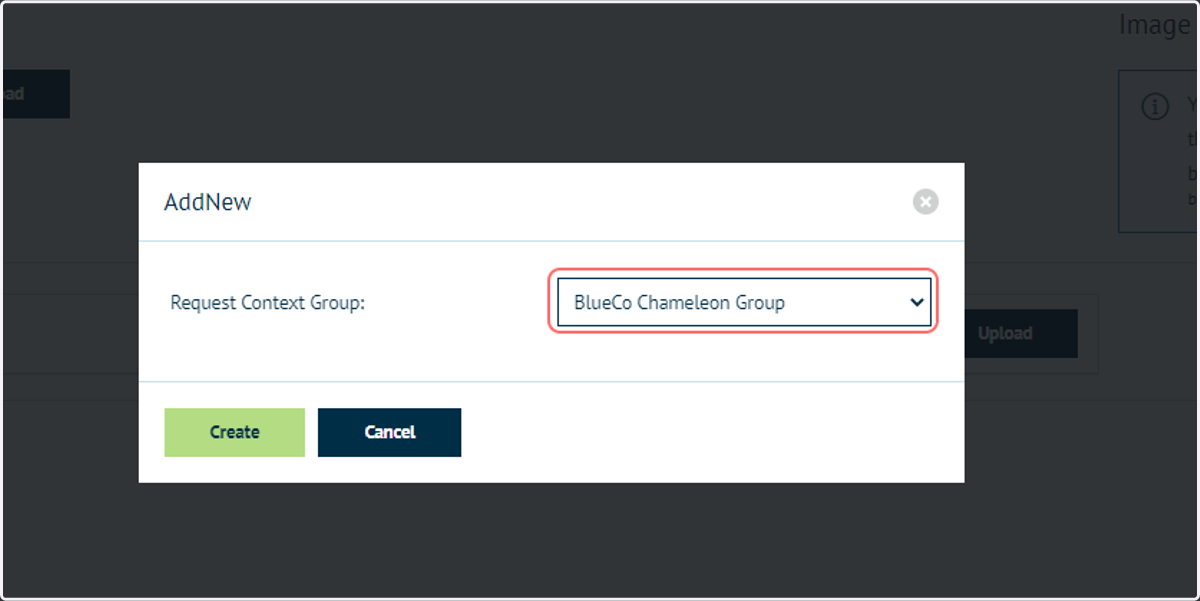
We will repeat these steps for a second Chameleon group
64. Click on BlueCo Chameleon Group
Infigosoftware
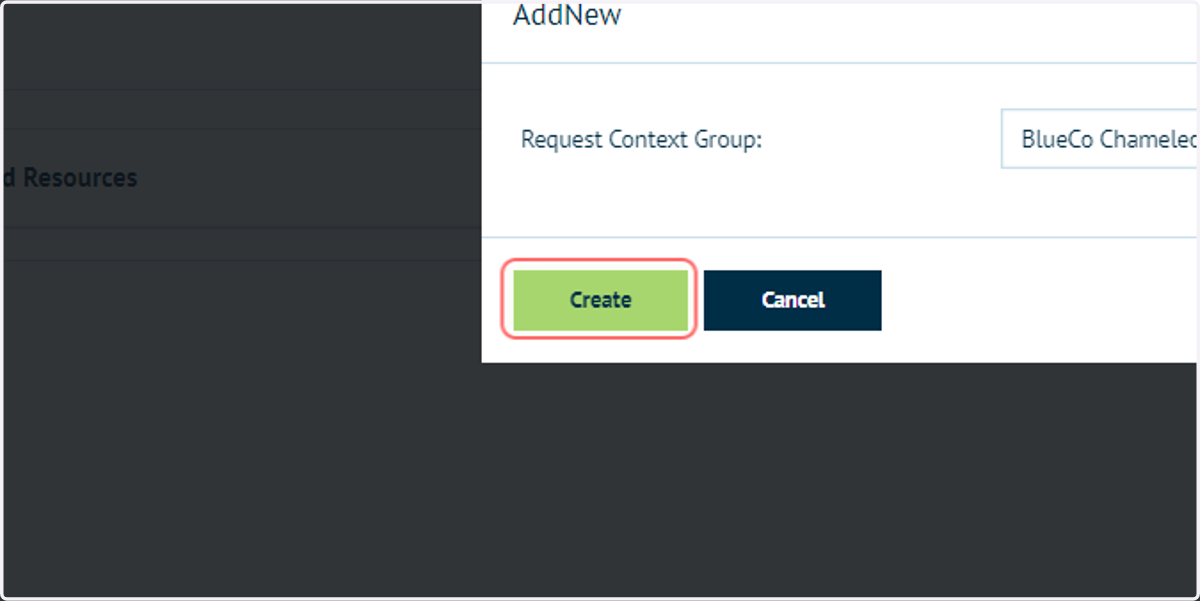
65. Click on Create
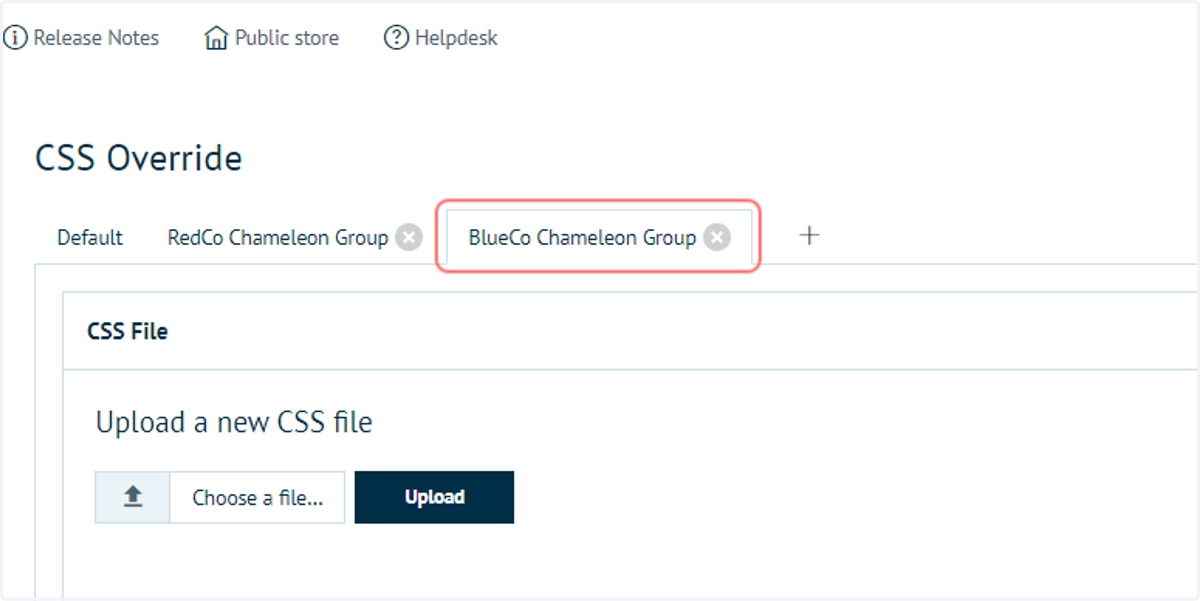
66. Click on BlueCo Chameleon Group
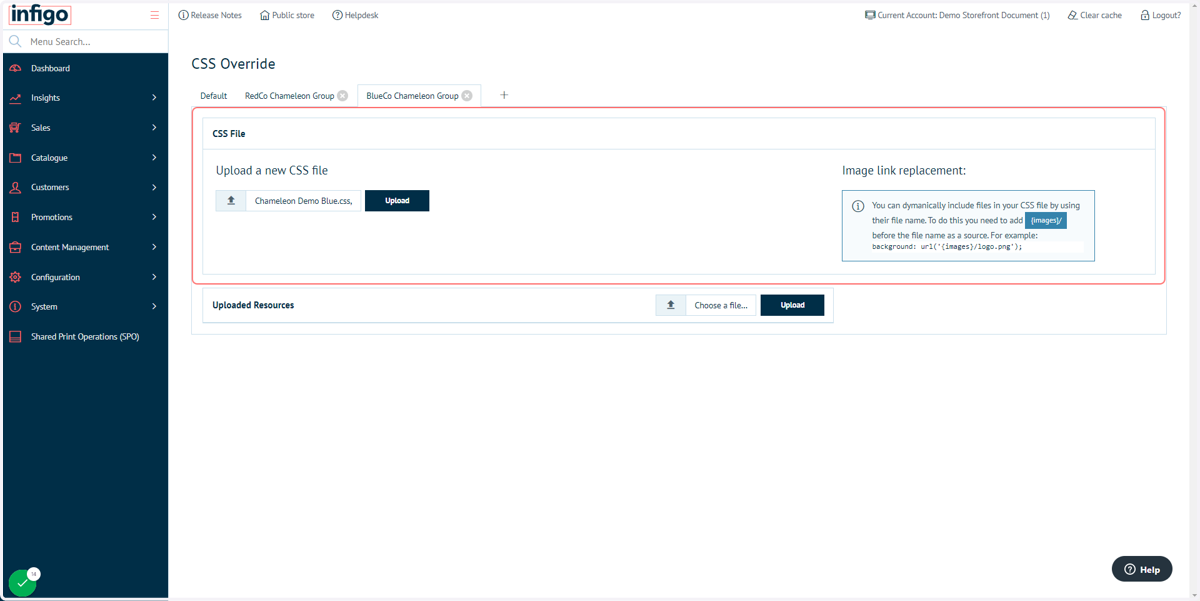
67. Select "Chameleon Demo Blue.css" from file upload menu
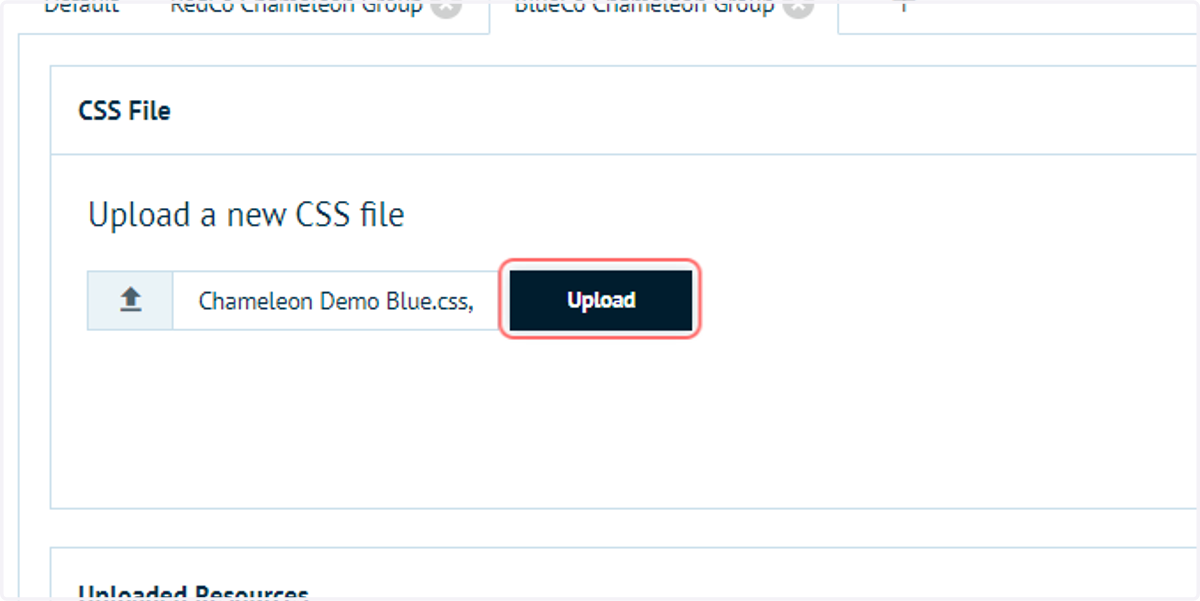
68. Click on Upload
69. Click on Customers
We will now impersonate customers from these two Chameleon groups, and see how these changes appear on our storefront.
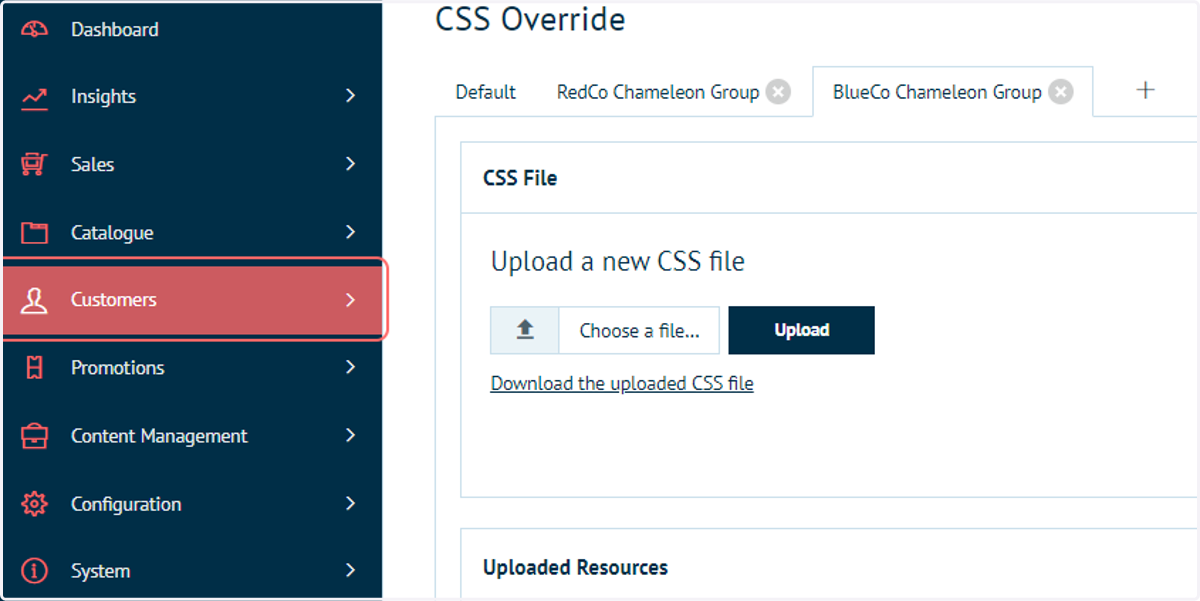
70. Click on Customer Management
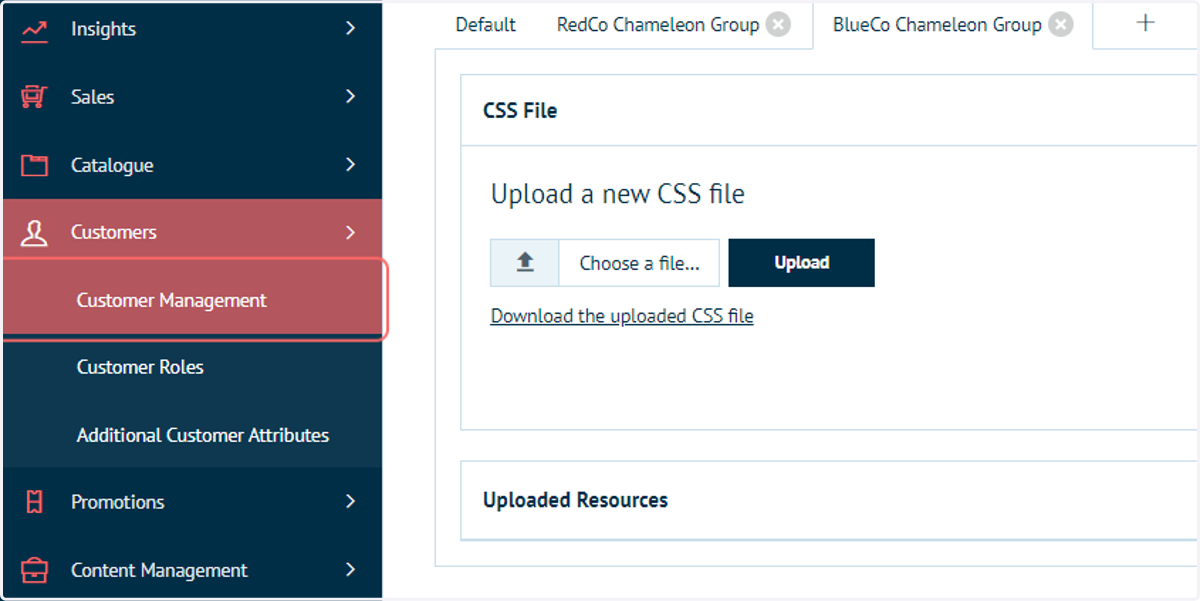
Infigosoftware
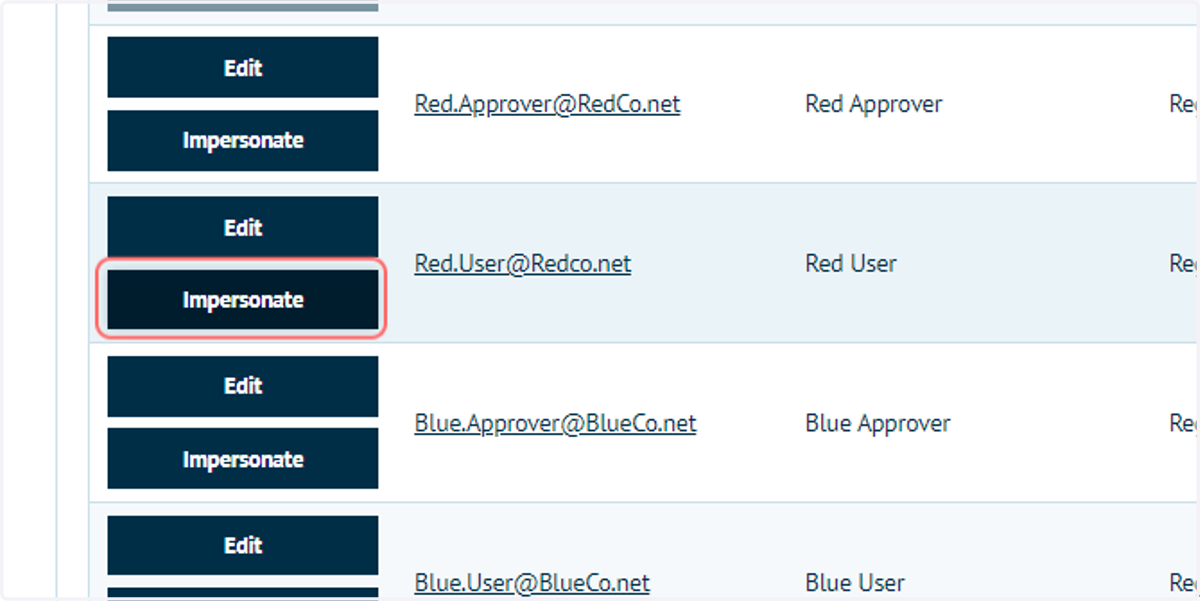
71. Click on Impersonate
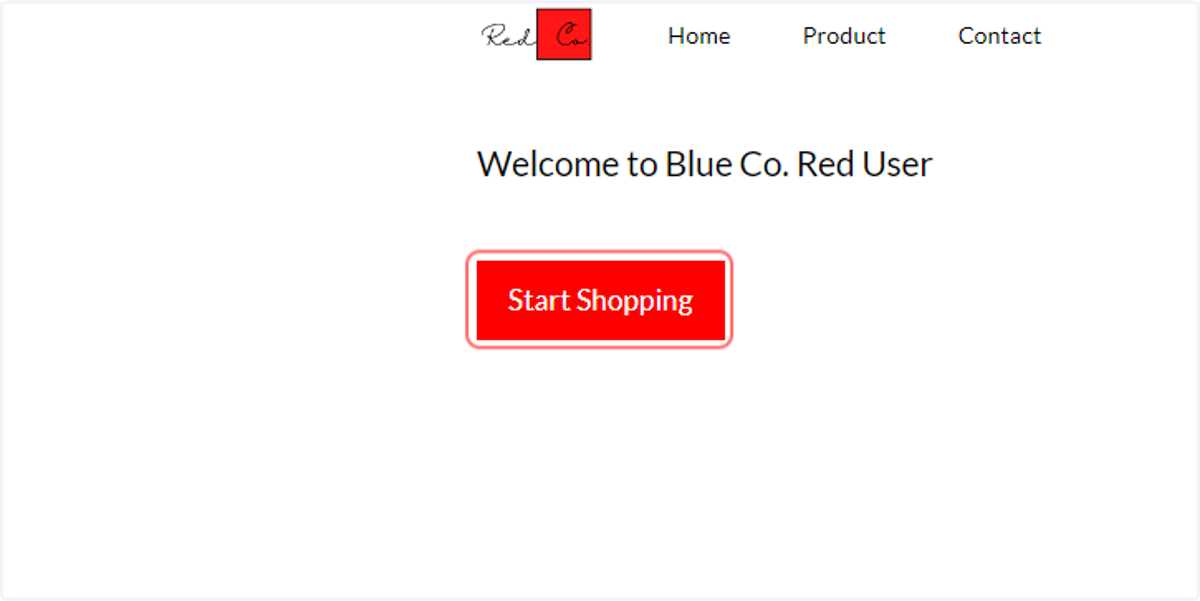
72. Category highlight colours
For the Red Chameleon group, highlights are now appearing as red in colour
73. Hover over a button
For the Red Chameleon group, button hover colours are now appearing as red.
Infigosoftware
74. Click on Log Out
This will end the impersonation of a particular user.
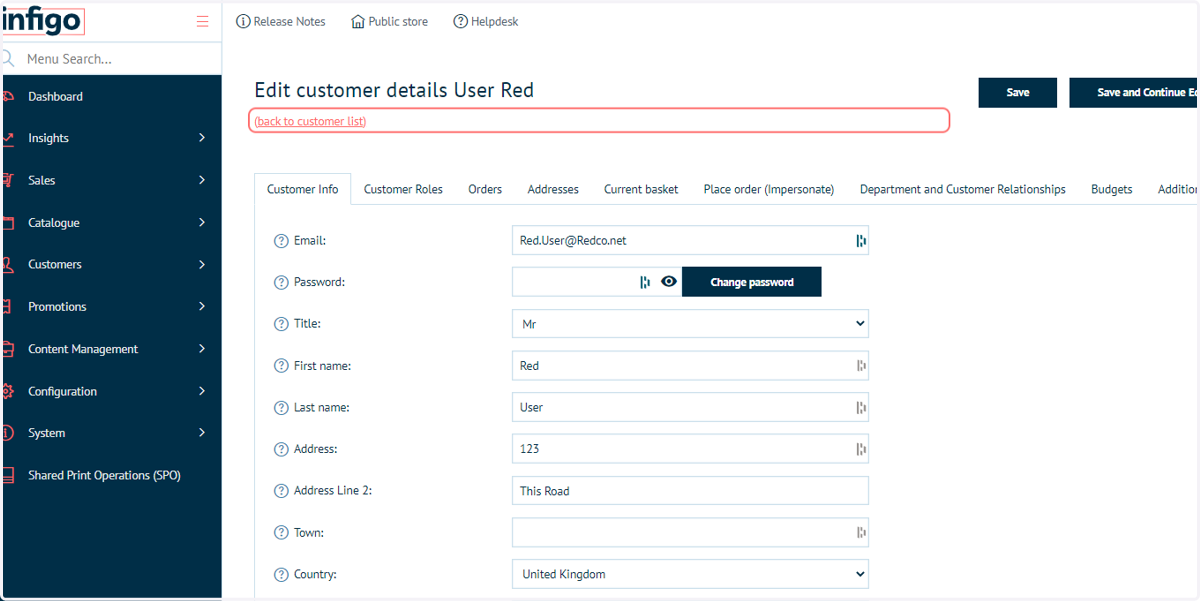
75. Click on (back to customer list)
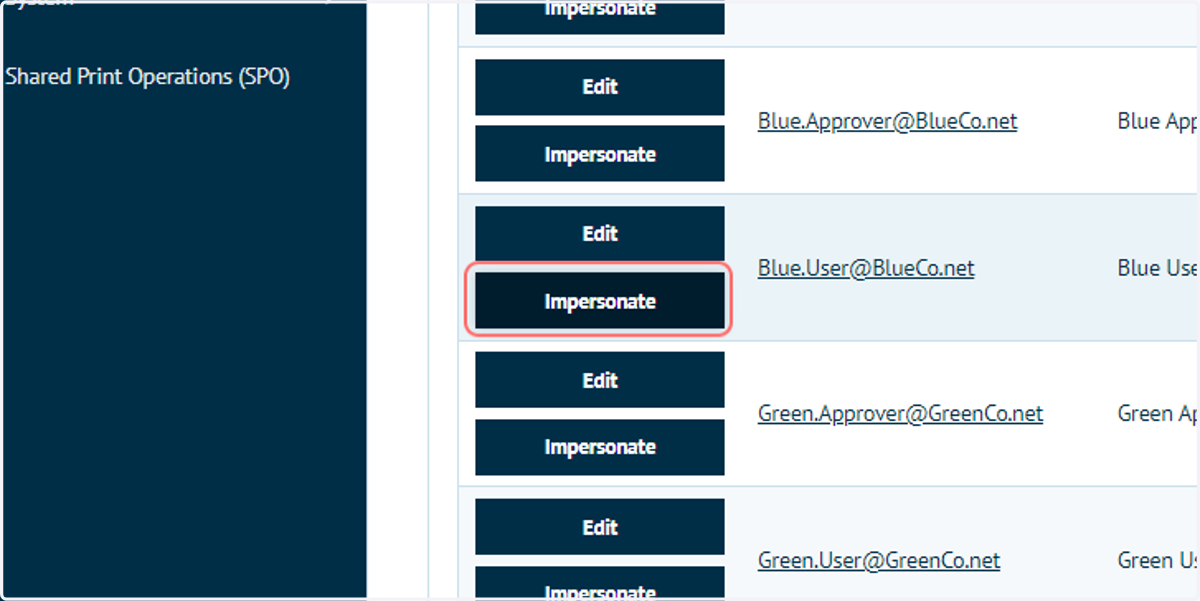
76. Click on Impersonate
Impersonate a user from the other Chameleon group with custom CSS
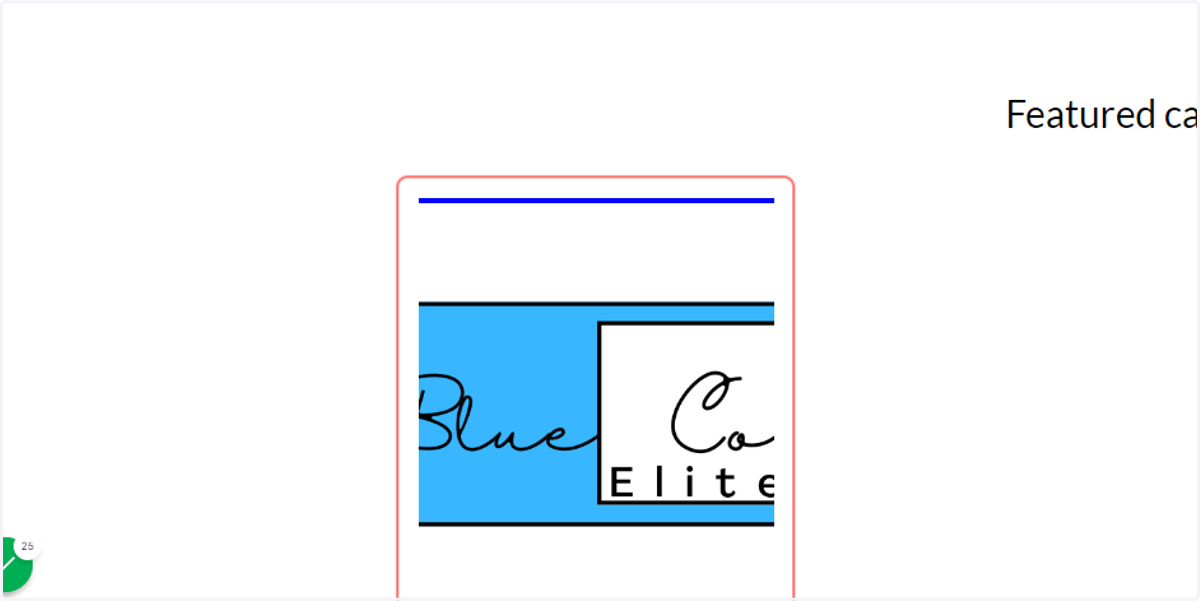
77. Category highlight colours
For the Blue Chameleon group, highlights are now appearing as blue in colour
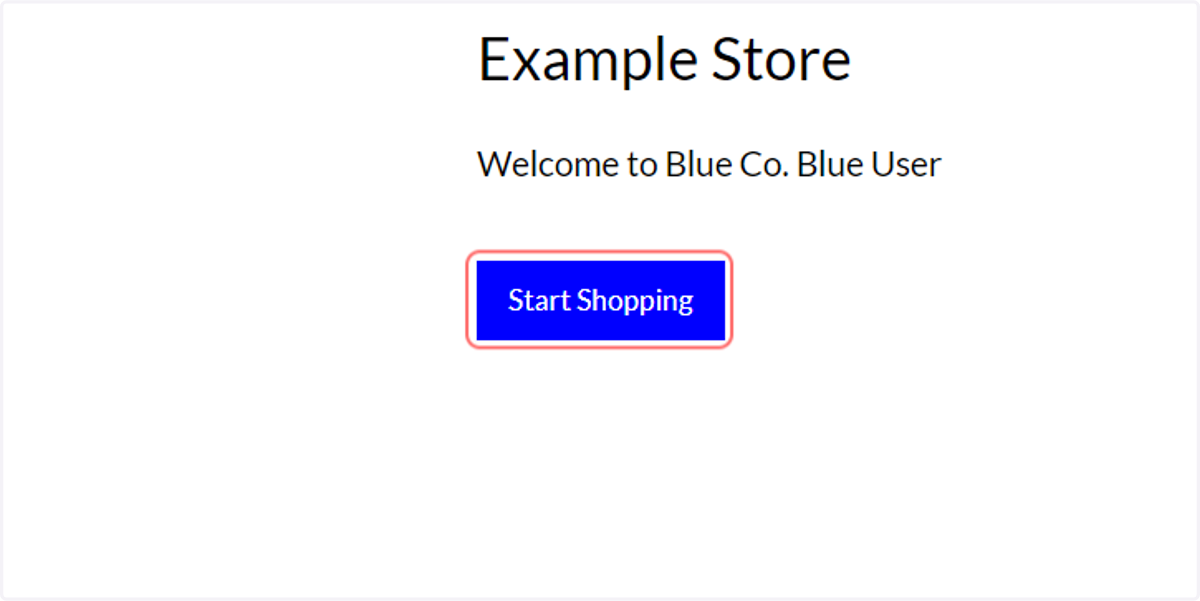
78. Hover over a button
For the Blue Chameleon group, button hover colours are now appearing as blue.
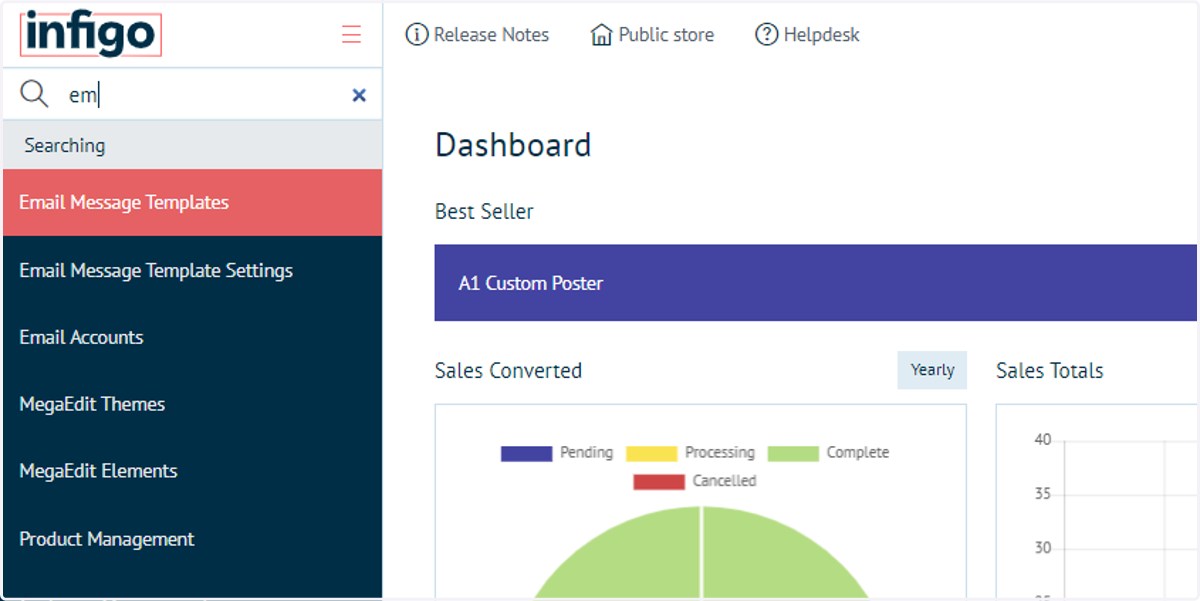
79. Navigate to Email Message Templates
We can also control the content of email templates based on Chameleon group.
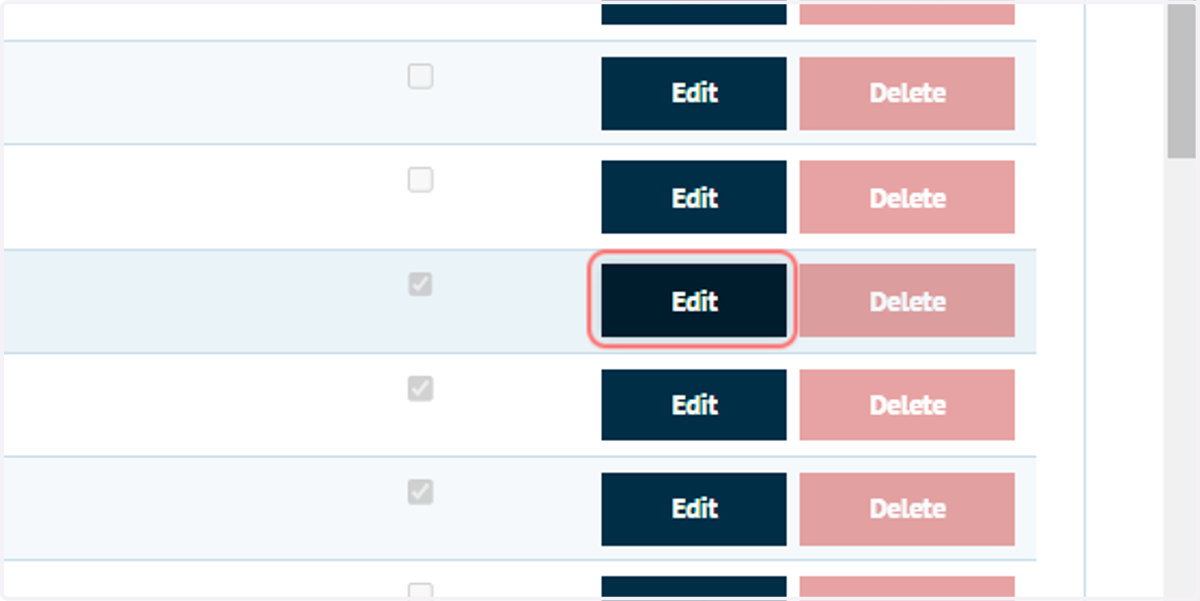
80. Select an email template and click on Edit
81. Email template
Email message templates will have a Default tab, showing the email content sent to those sitting outside of selected Chameleon groups.
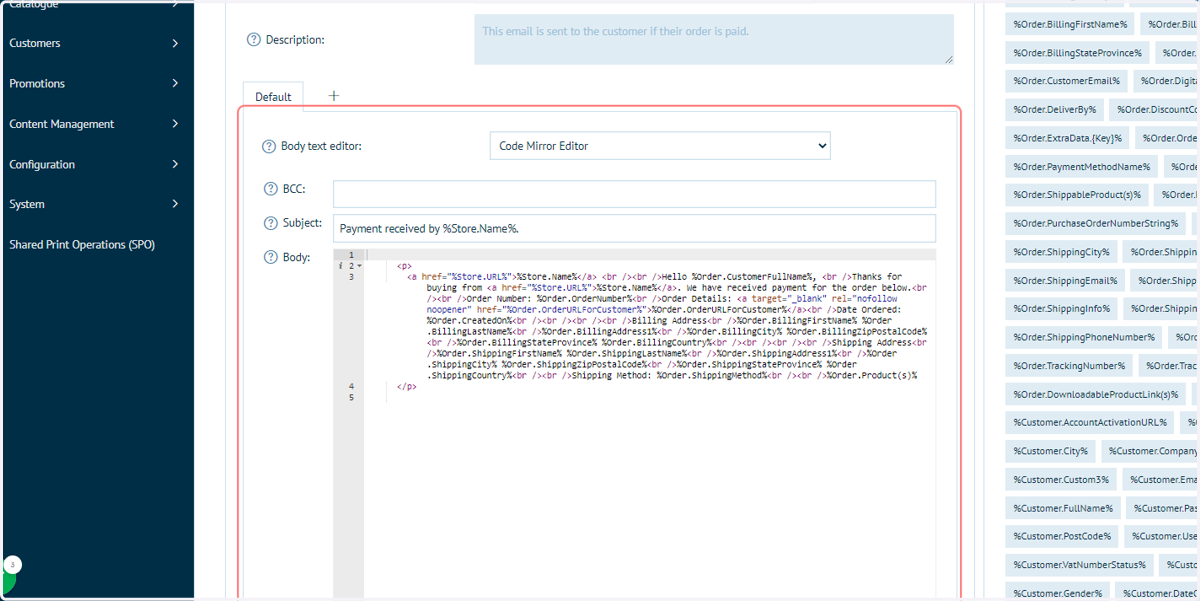
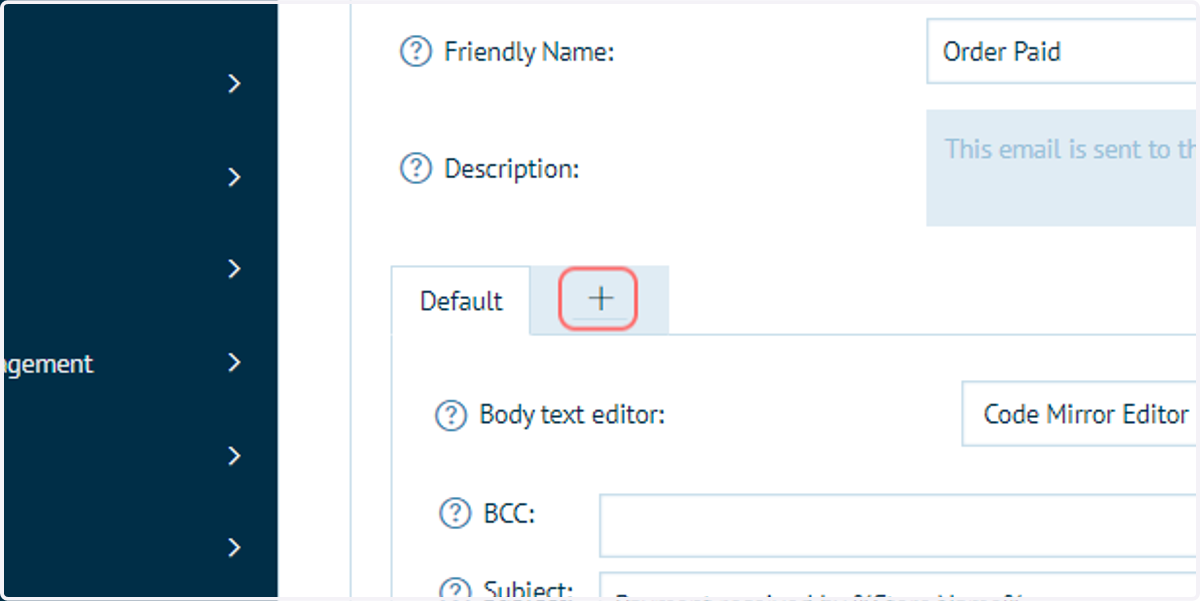
82. Click on '+' to activate a Chameleon group on the selected email template
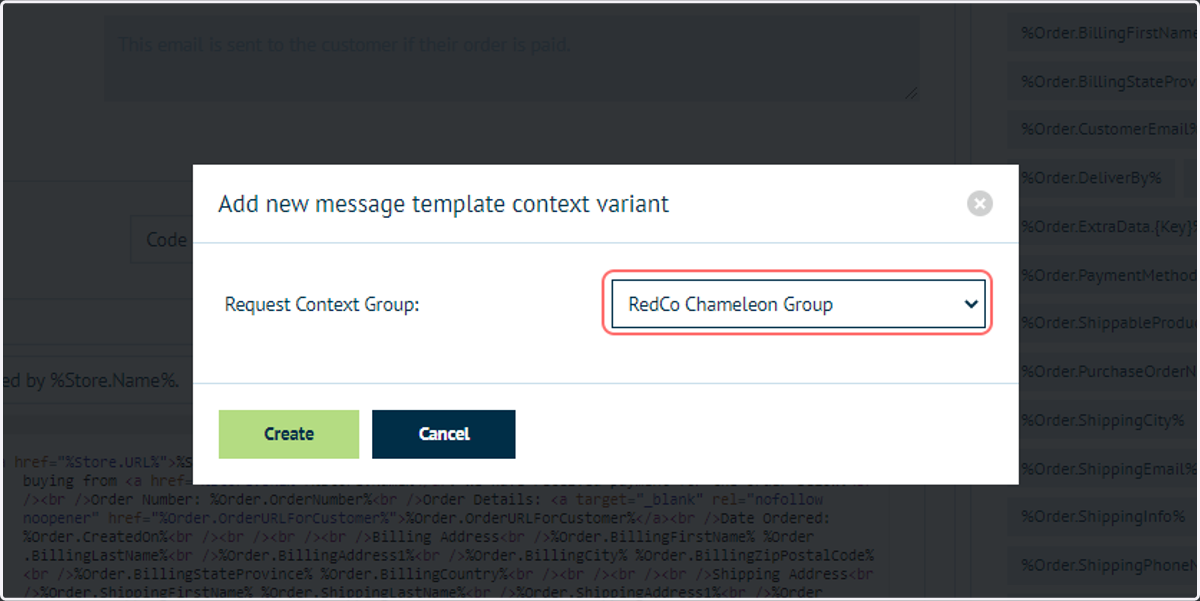
83. Click on a Chameleon Group
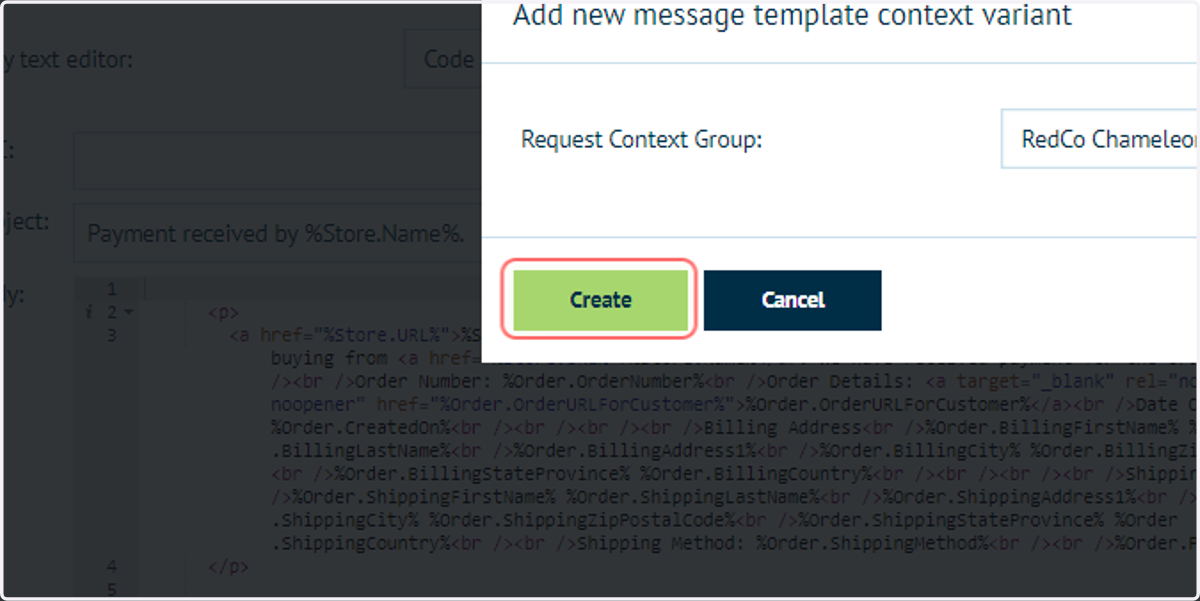
84. Click on Create
85. Click on RedCo Chameleon Group
The Chameleon group is now available for selection, giving you a space to customise the email content for members of that group.