coreFORCE Advanced- Products: Setting up Holiday Promotions
As the holidays draw near, it’s an ideal time to revisit your holiday markup strategies! In this article, we’ll cover how to offer promotional codes or coupons to your customers and how to adjust your pricing markup for the season.
Promotional Code
1. Setting up a Promotion code
We'll start here with establishing a promotion code in which customers can input at checkout
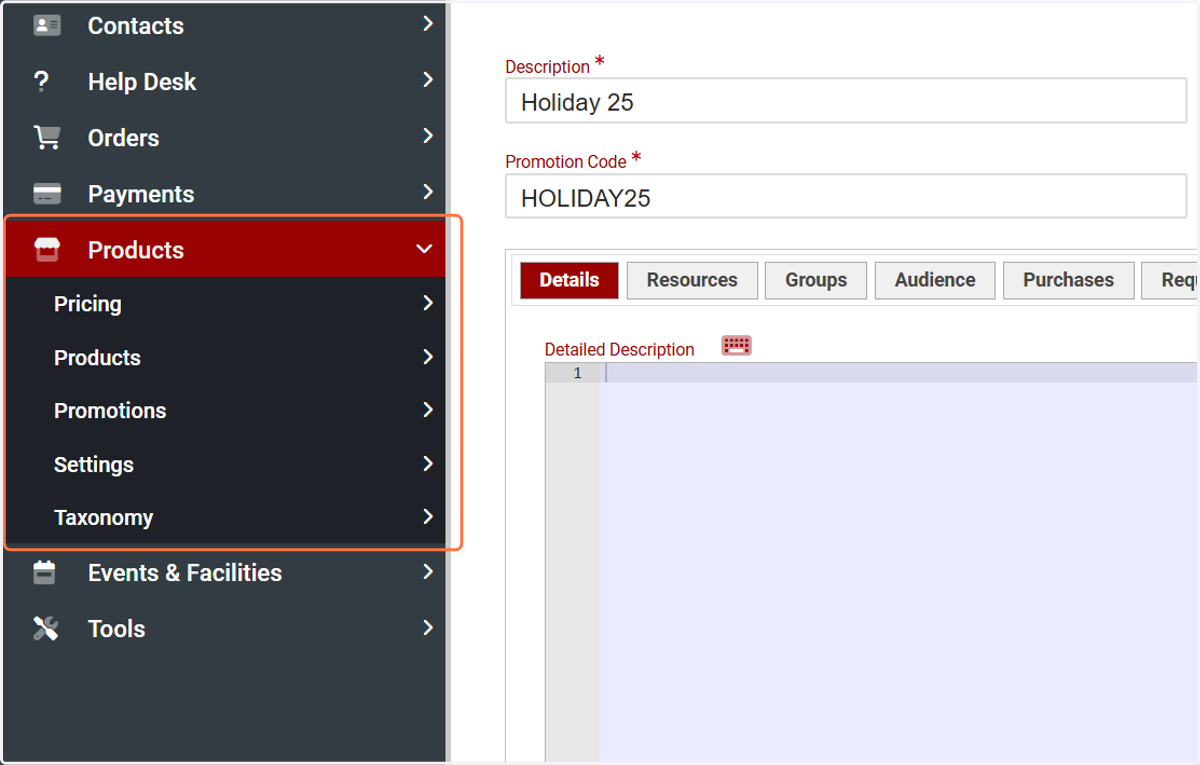
2. Click on Promotions
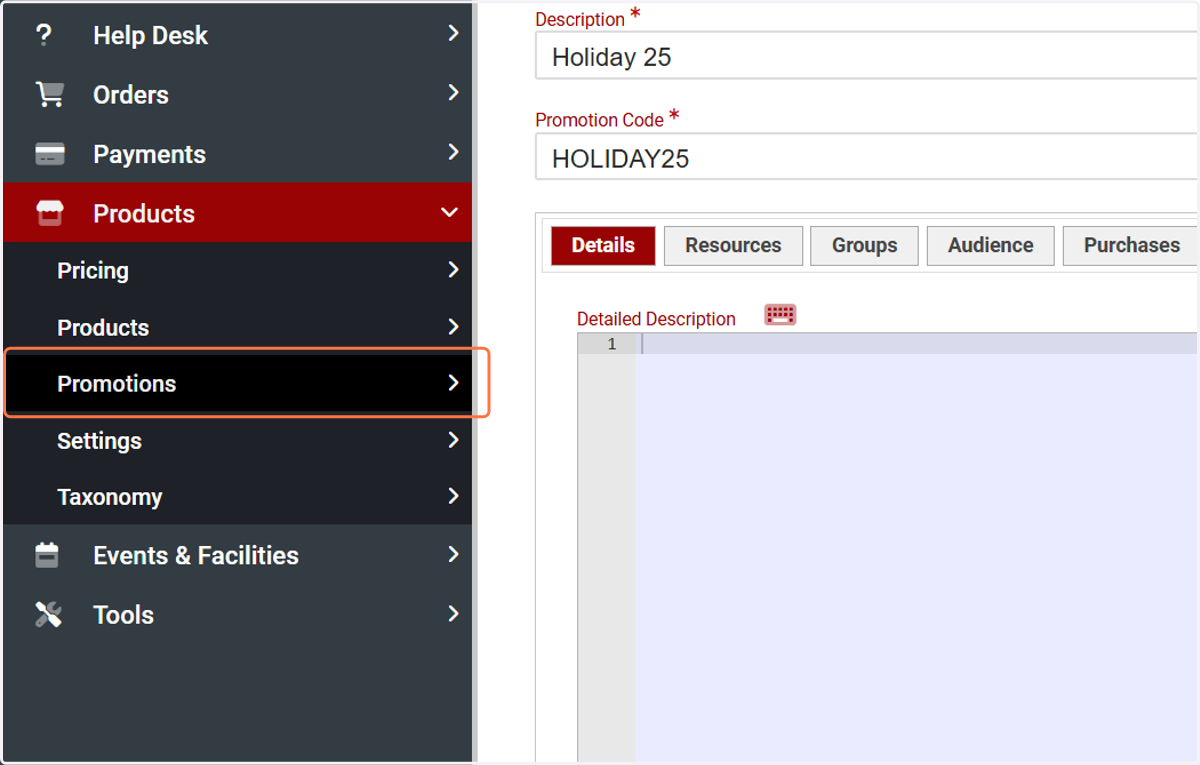
3. Click on Promotions
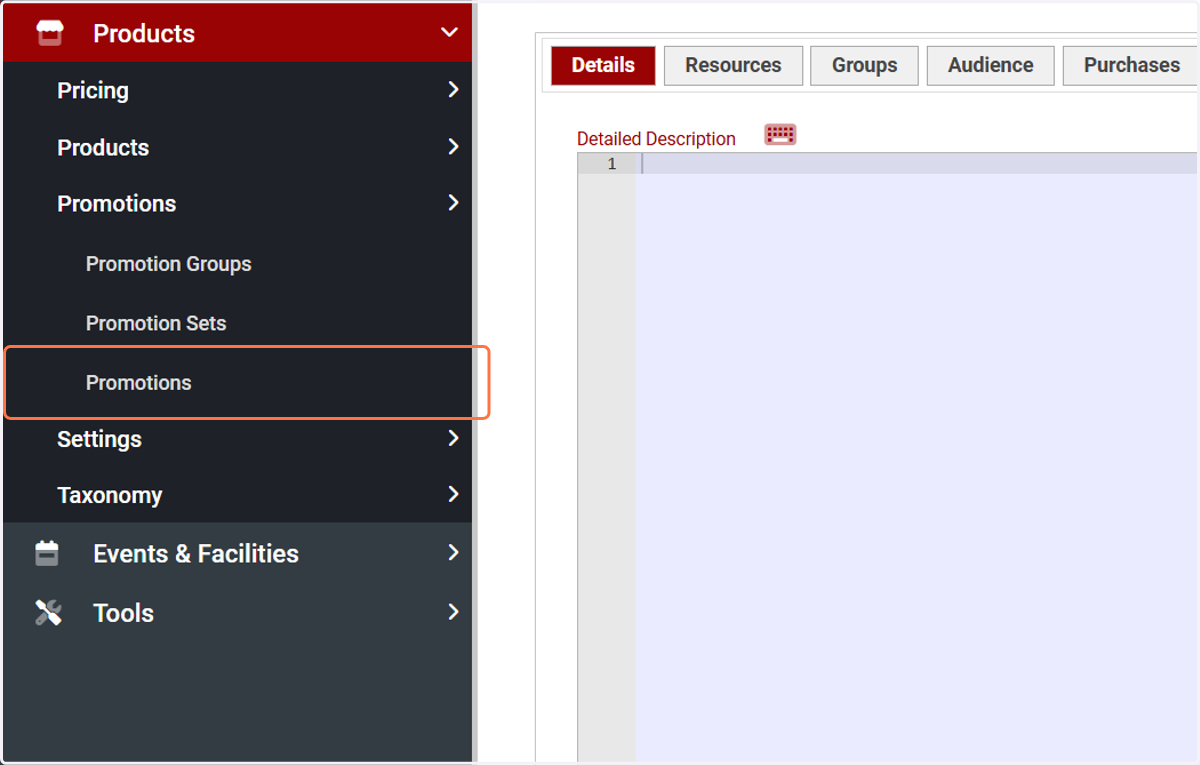
4. Click on ADD
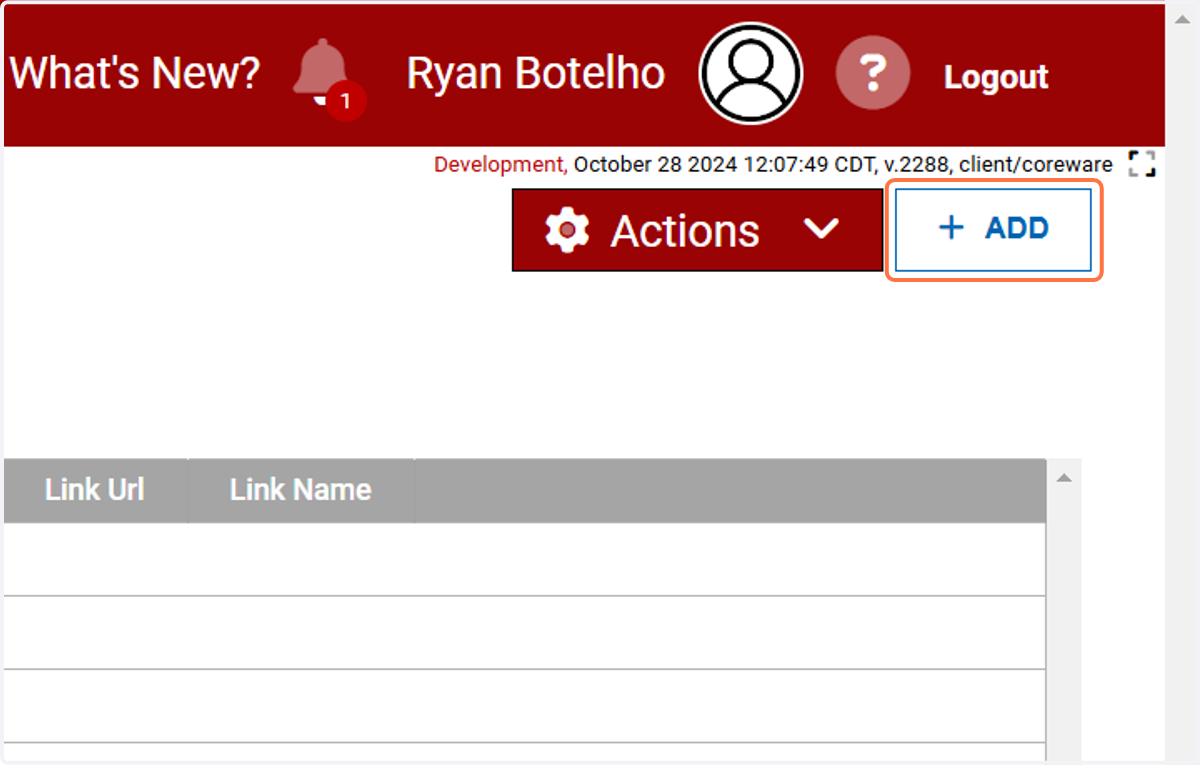
5. Give your promotion a name
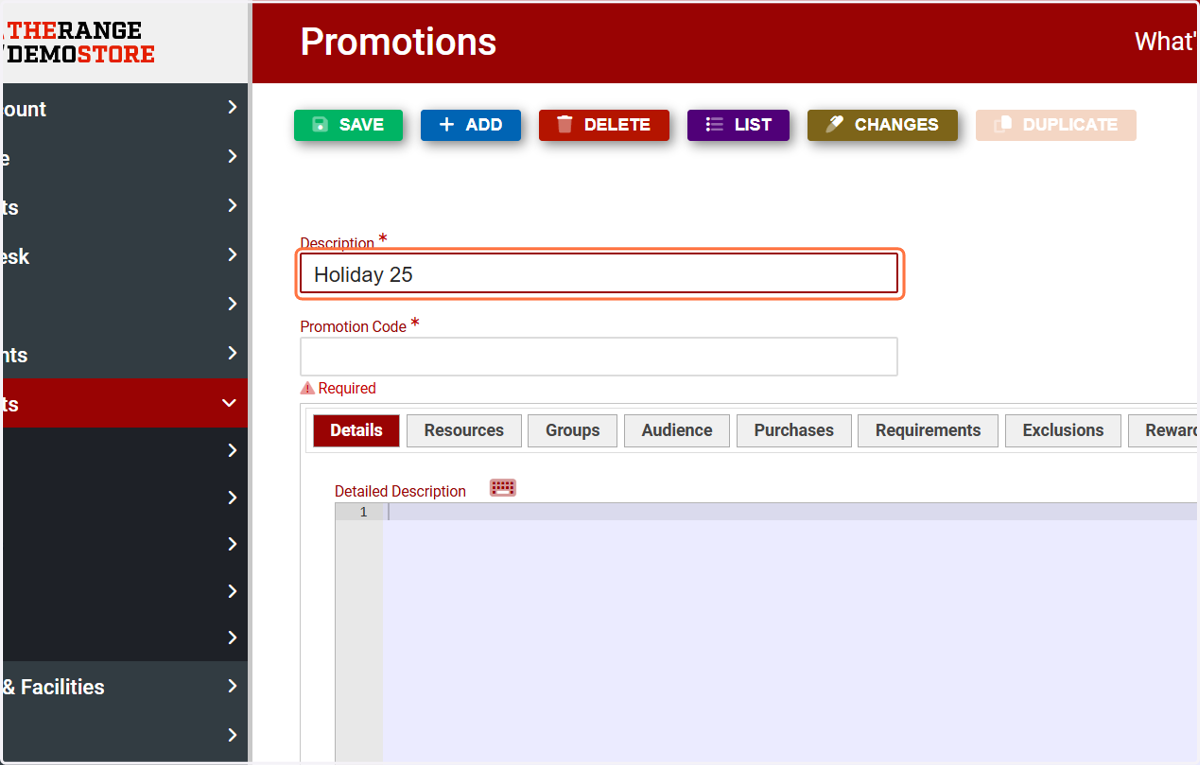
6. Type in your promotional code
This code is what your customers will enter at checkout.
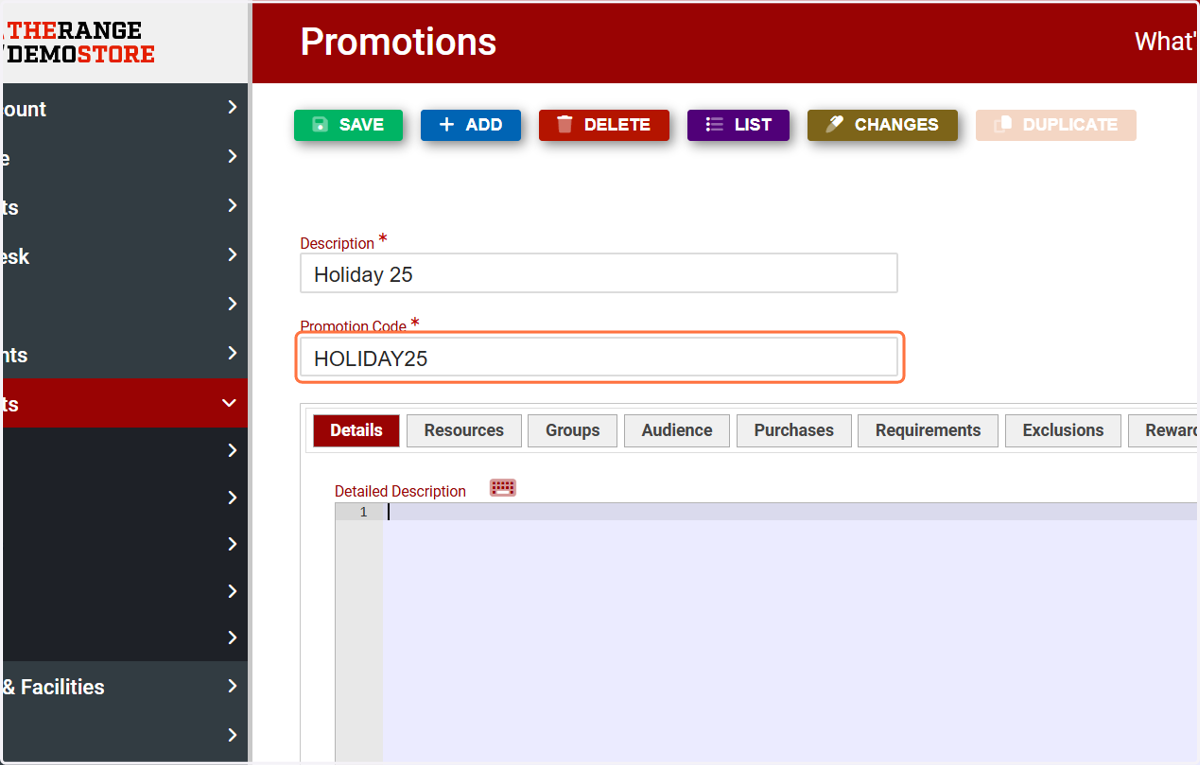
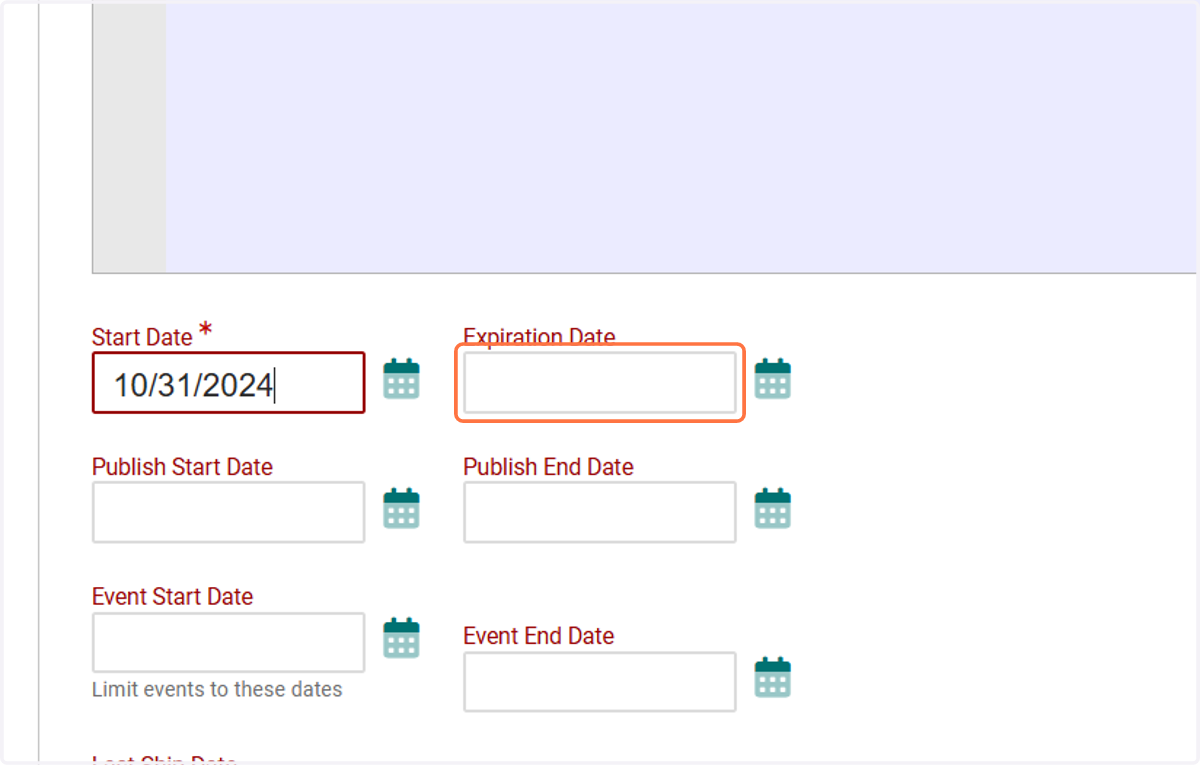
7. Start Date
Start date will be the very first day this code will be usable at checkout. This is useful for limited run seasonal coupons!
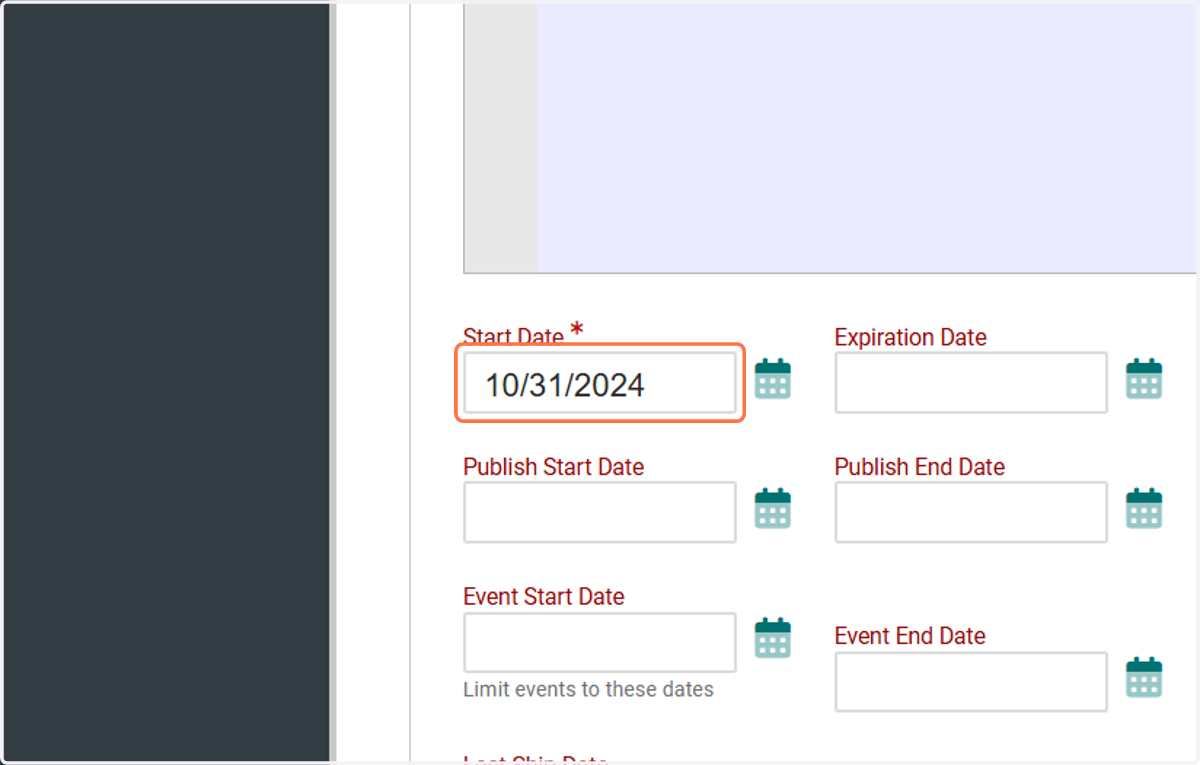
8. Expiration Date
This will be the final day the promotional code will be able to be used at checkout
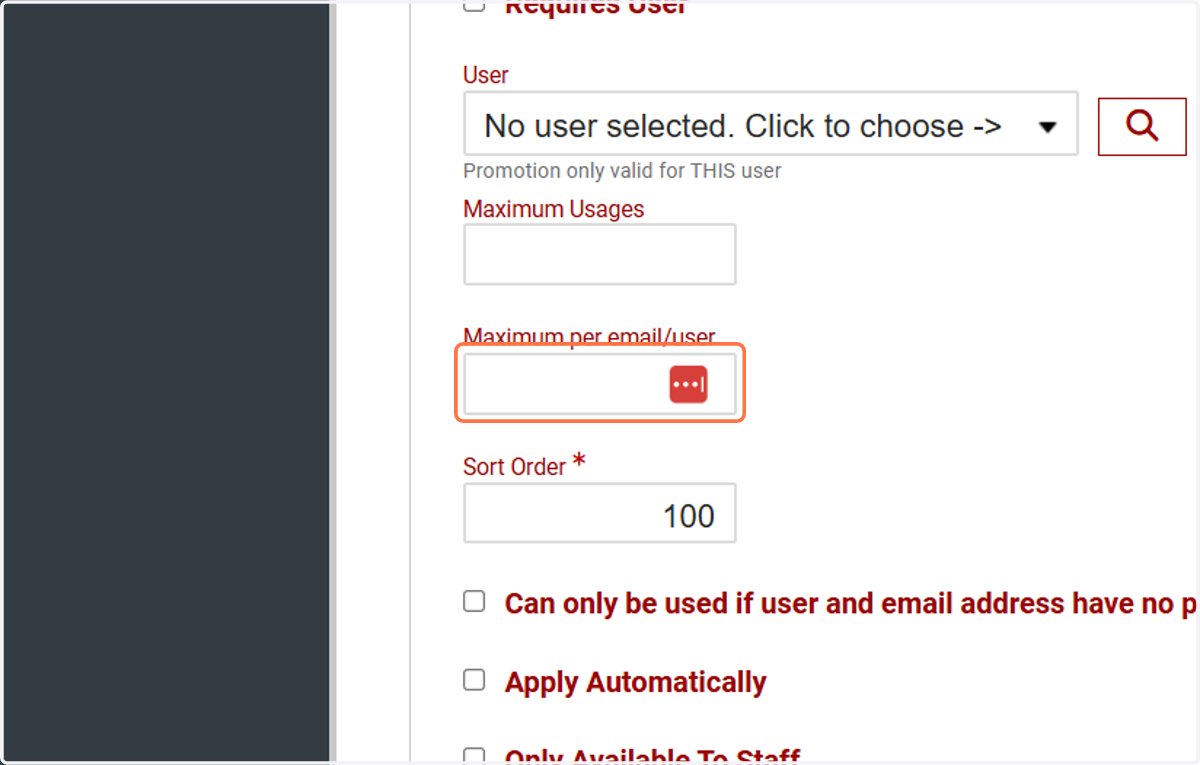
9. Maximum per email/user
If you would like a promotion to be once per customer all you will need to do is input a 1 into this field!
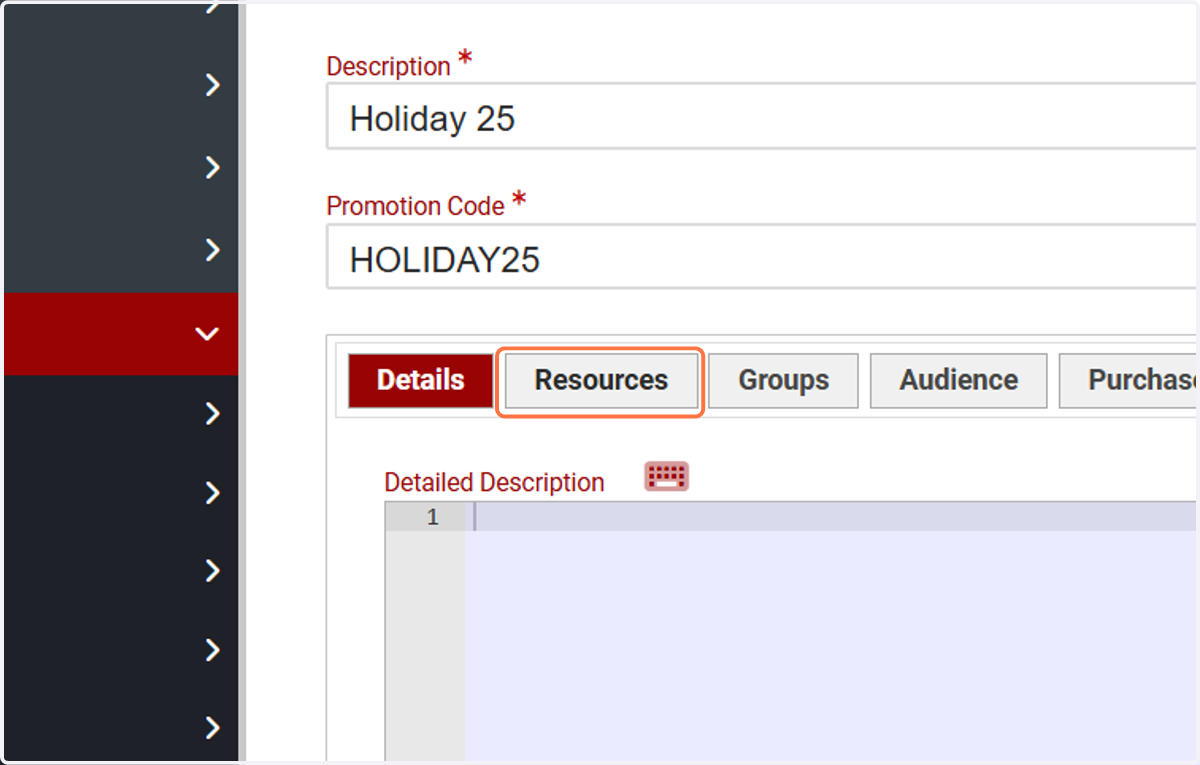
10. Click on Resources
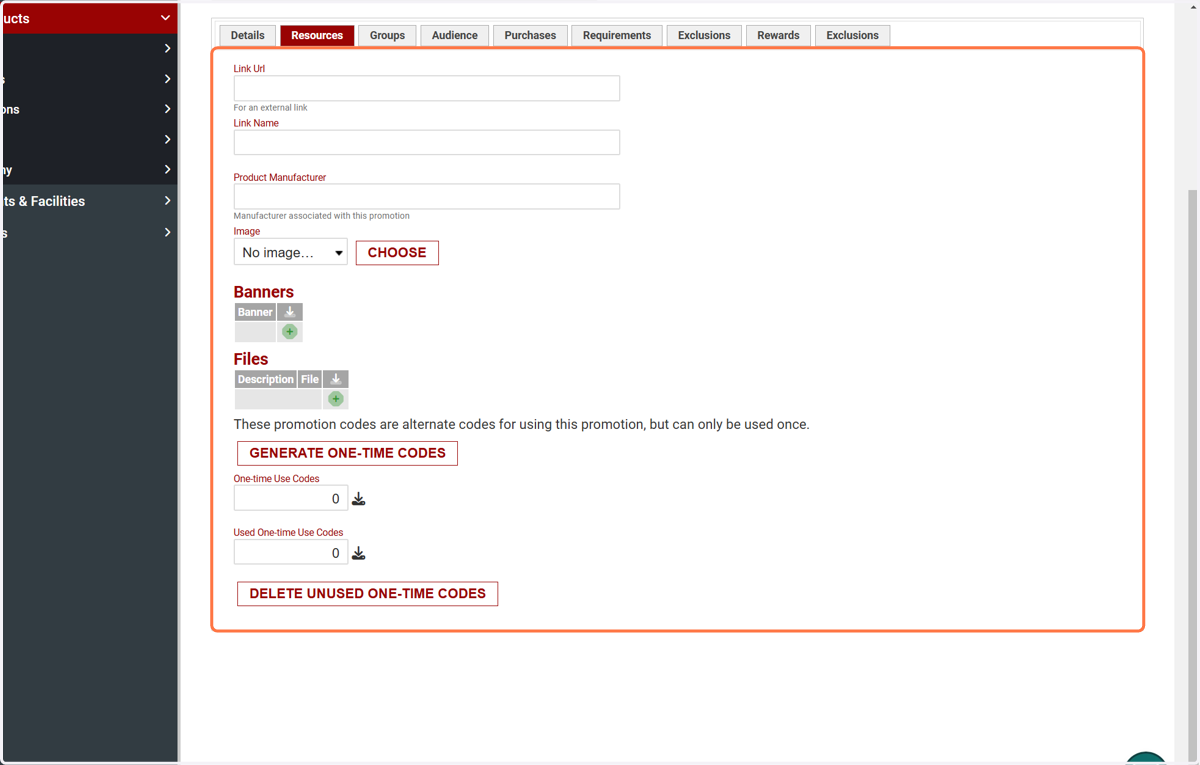
11. Resources
If you would prefer you are able to establish one time use codes via "Generate One-Time Codes" versus giving out a promotional code, you will be prompted with how many codes you'd like to generate!
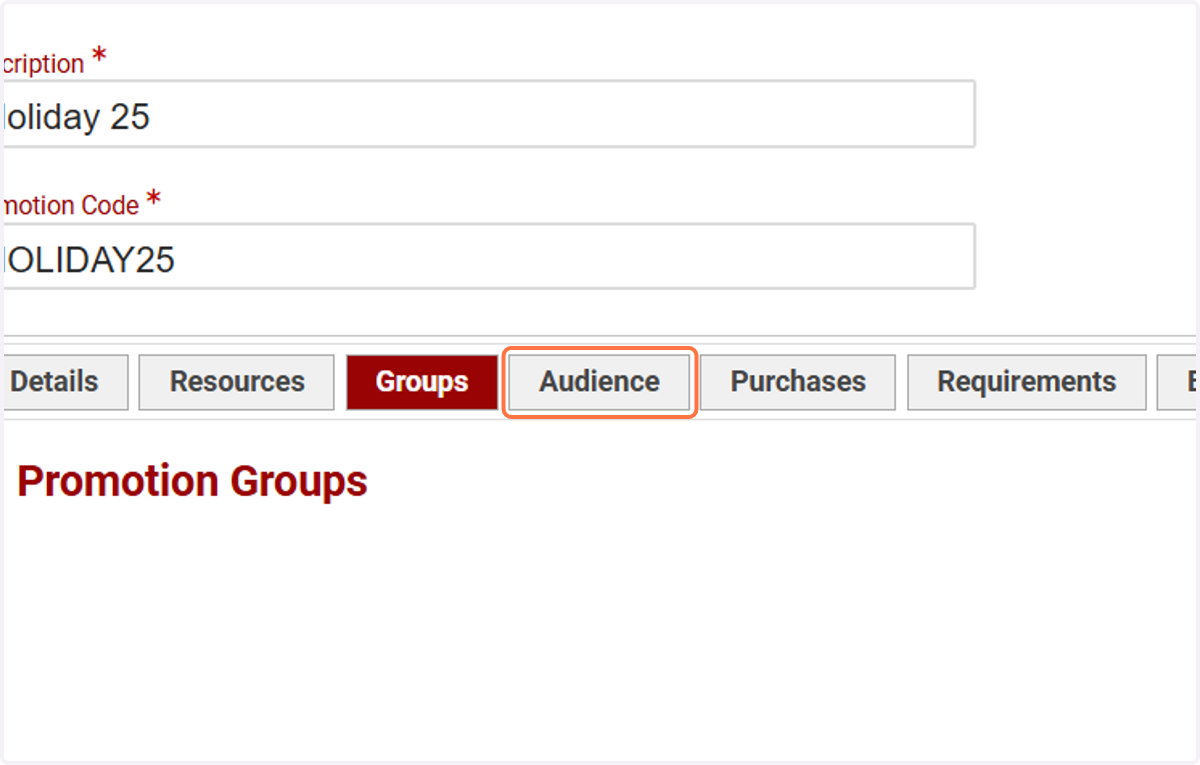
12. Click on Audience
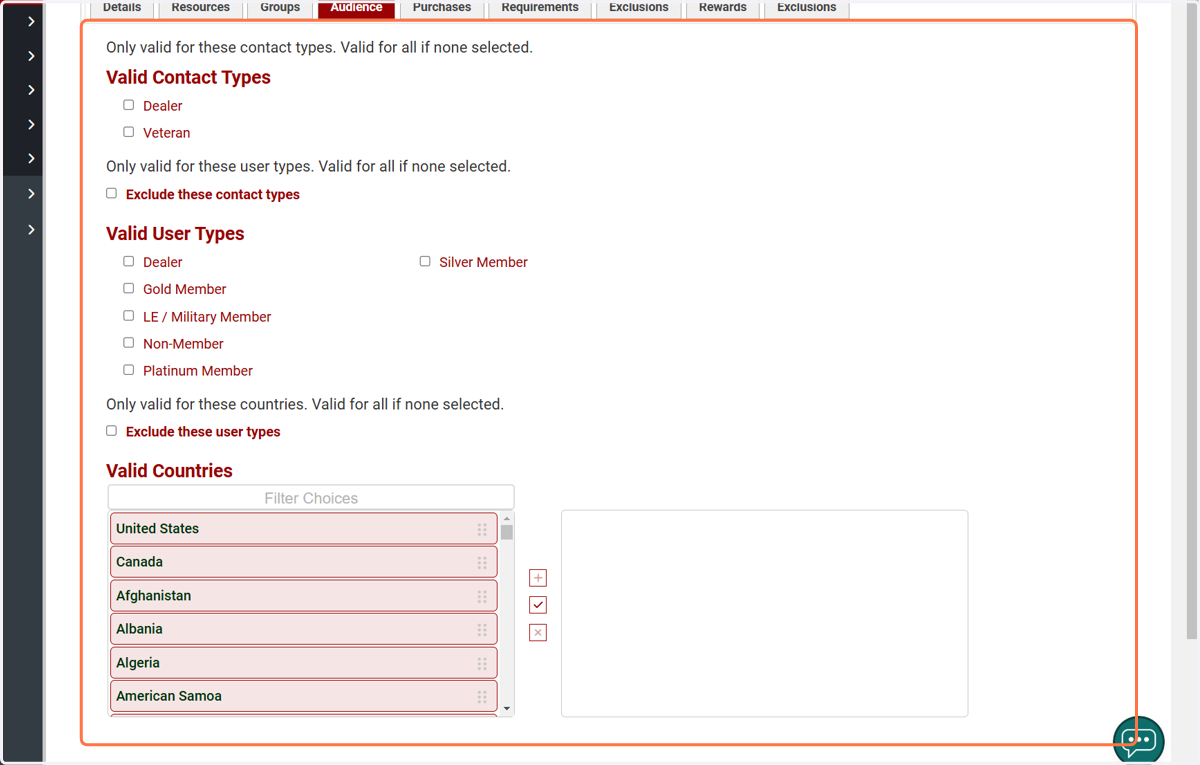
13. Audience
Audience will allow you to curate which contact types/user types are able to utilize your promotion
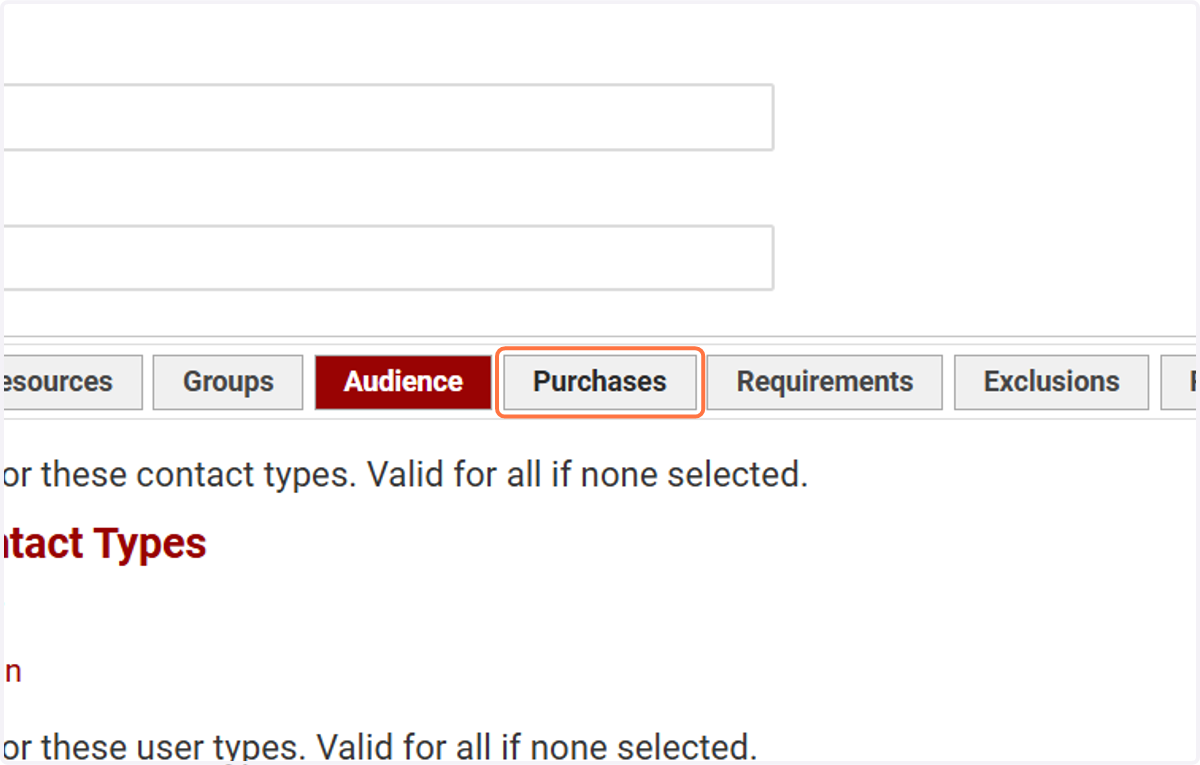
14. Click on Purchases
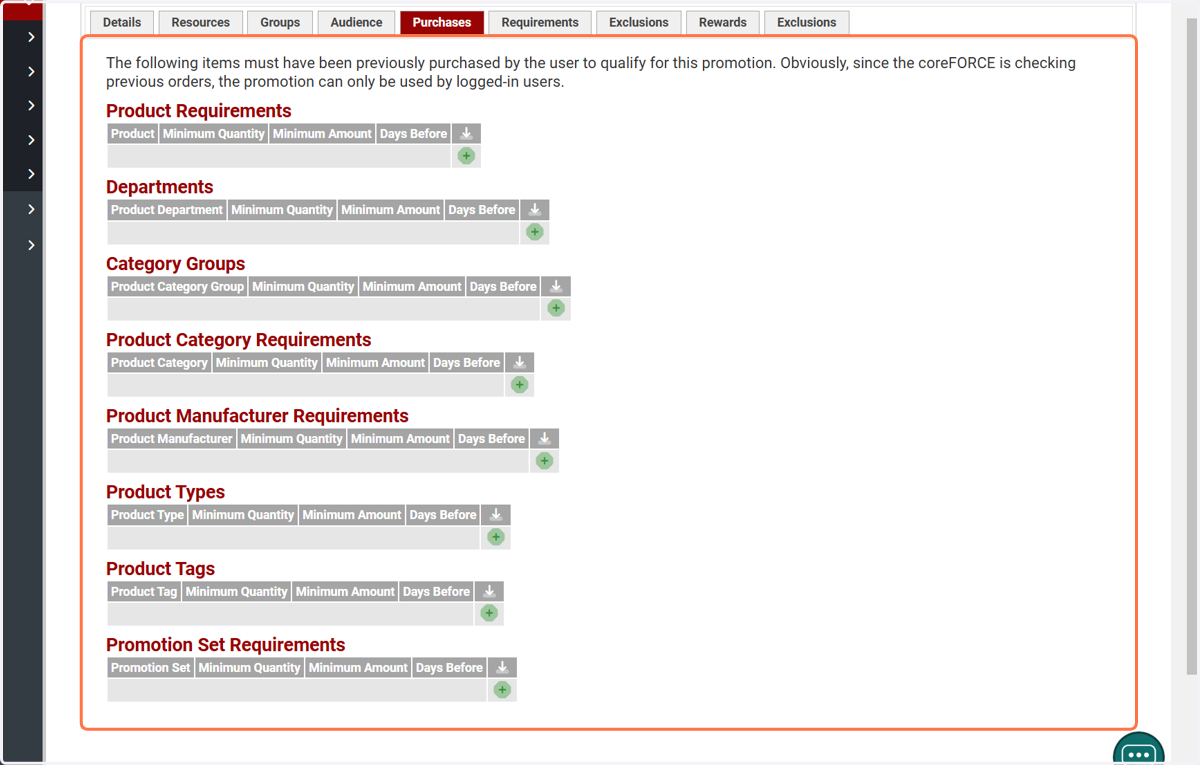
15. Purchases
Purchases will add in an extra layer where specific products will need to have been ordered in the past to be eligible for this promotion
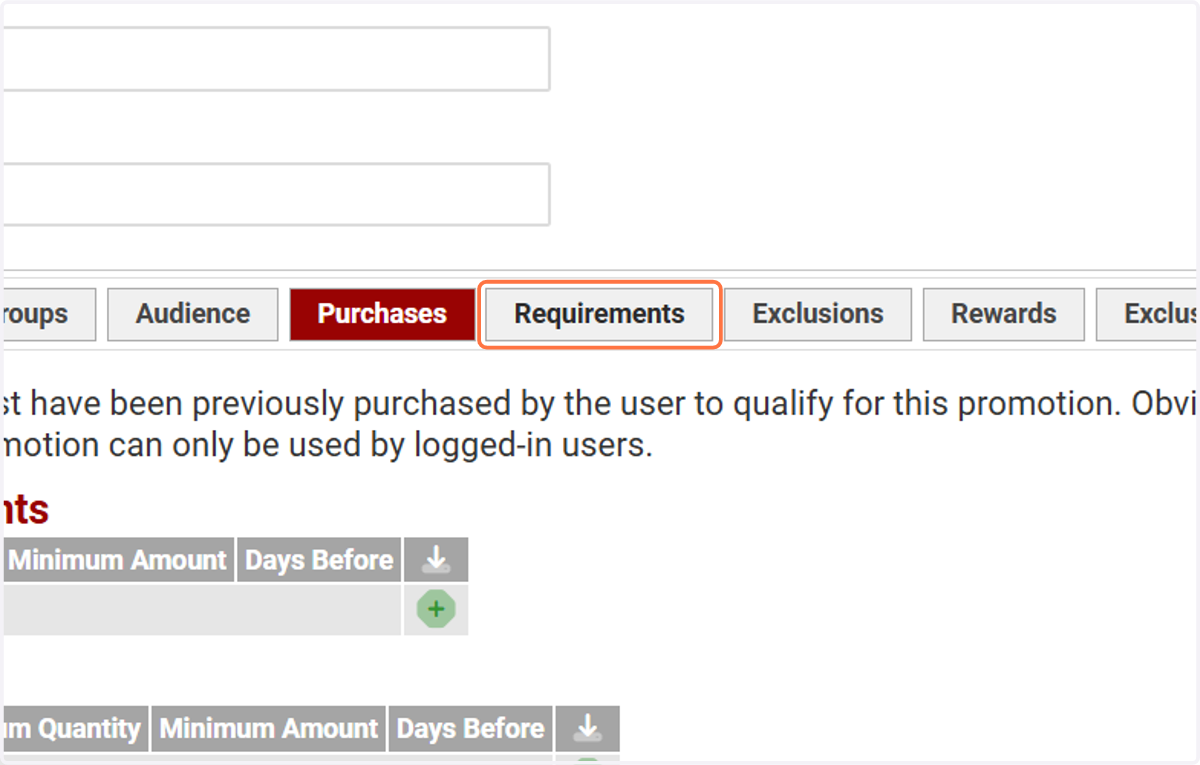
16. Click on Requirements
17. Requirements
Requirements is where we can establish items that need to be in the cart for this code to work. If you would like this to work with any cart leave this blank.
Please note any parameters input here will need to all be satisfied for the promotion to be utilized.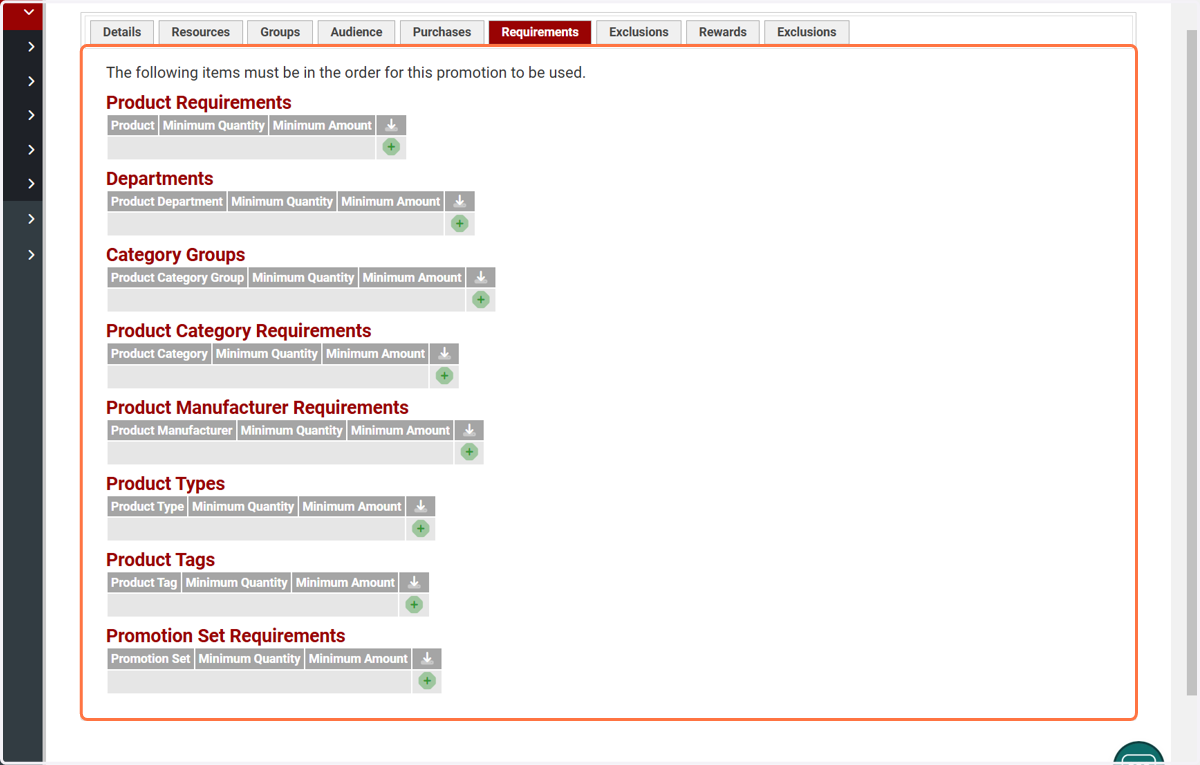
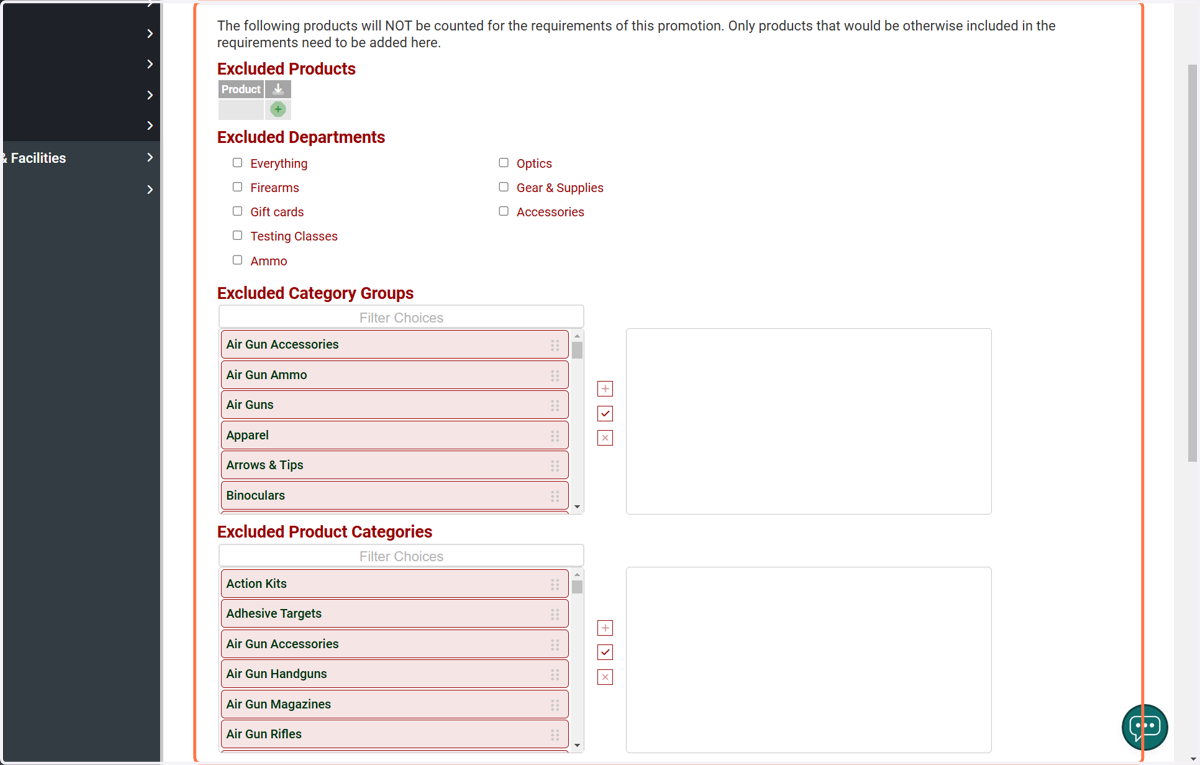
18. Exclusions - Requirements
Exclusions will allow us to fine tune our requirements field to exclude certain products, for example we can establish a requirement of a Firearms department but exclude certain products in the firearms department from that requirement
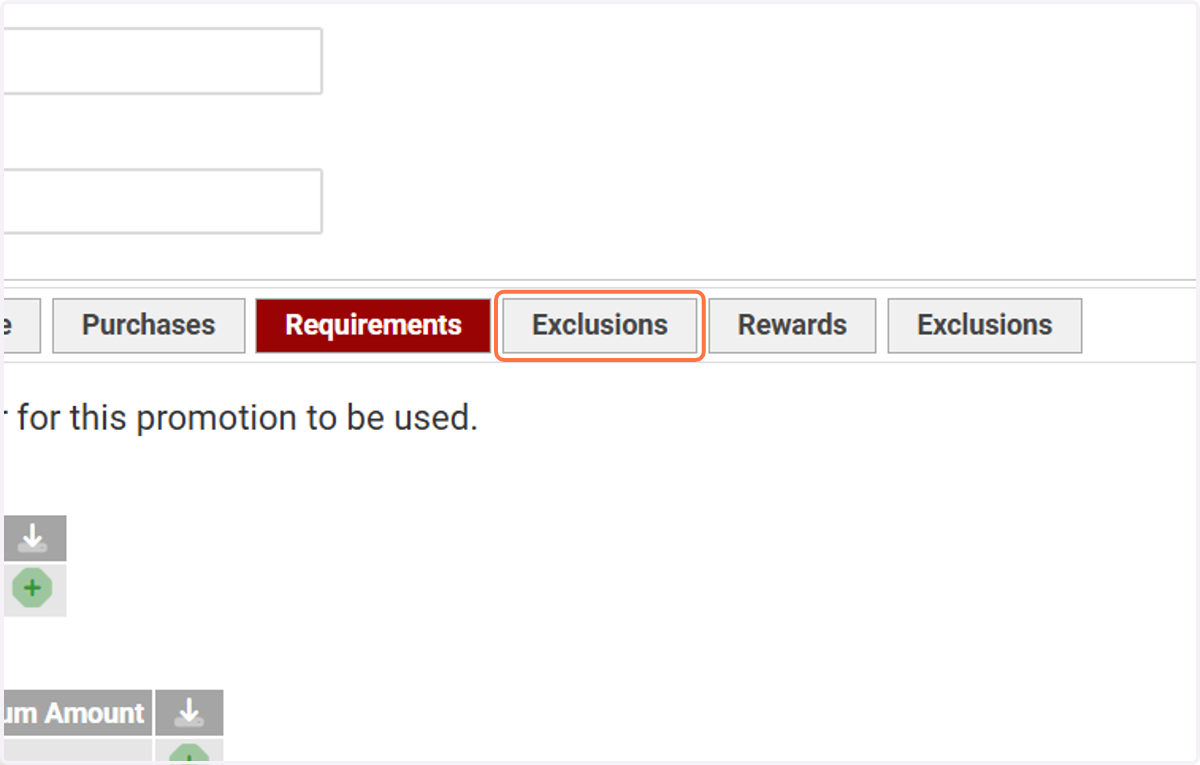
19. Click on Exclusions
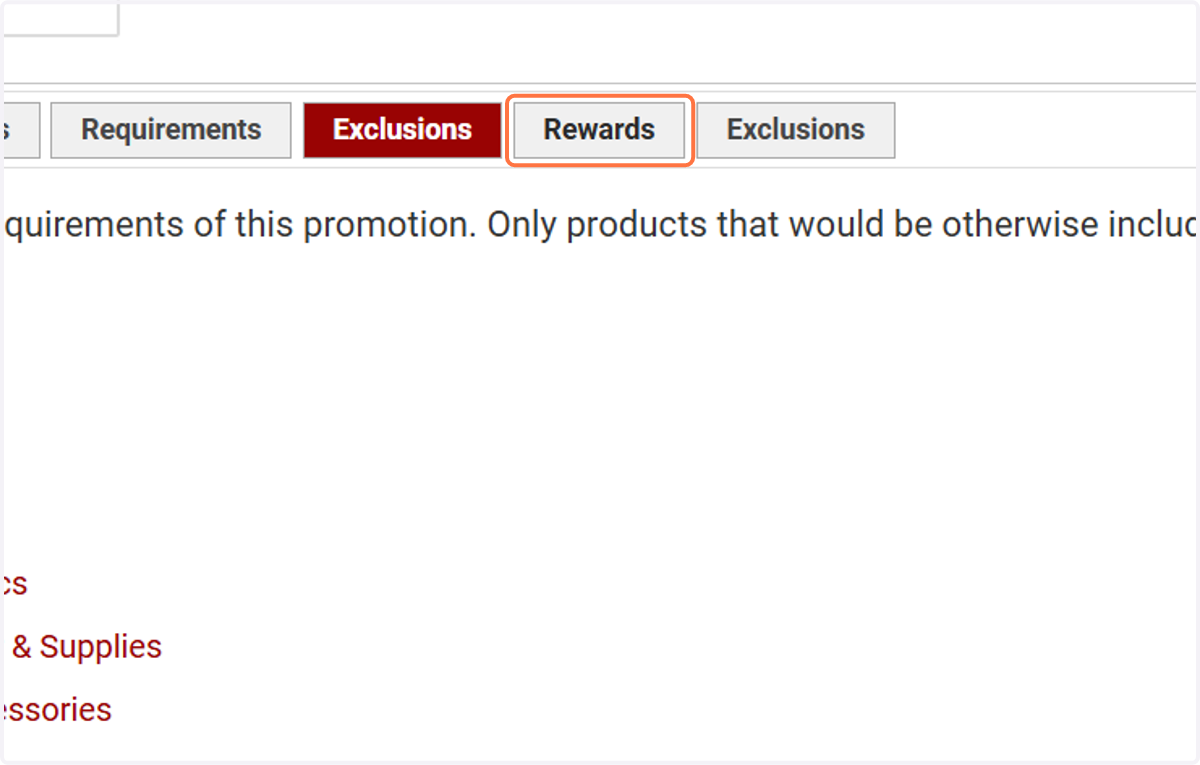
20. Rewards
Rewards is where we can establish discounts given for this promotion code
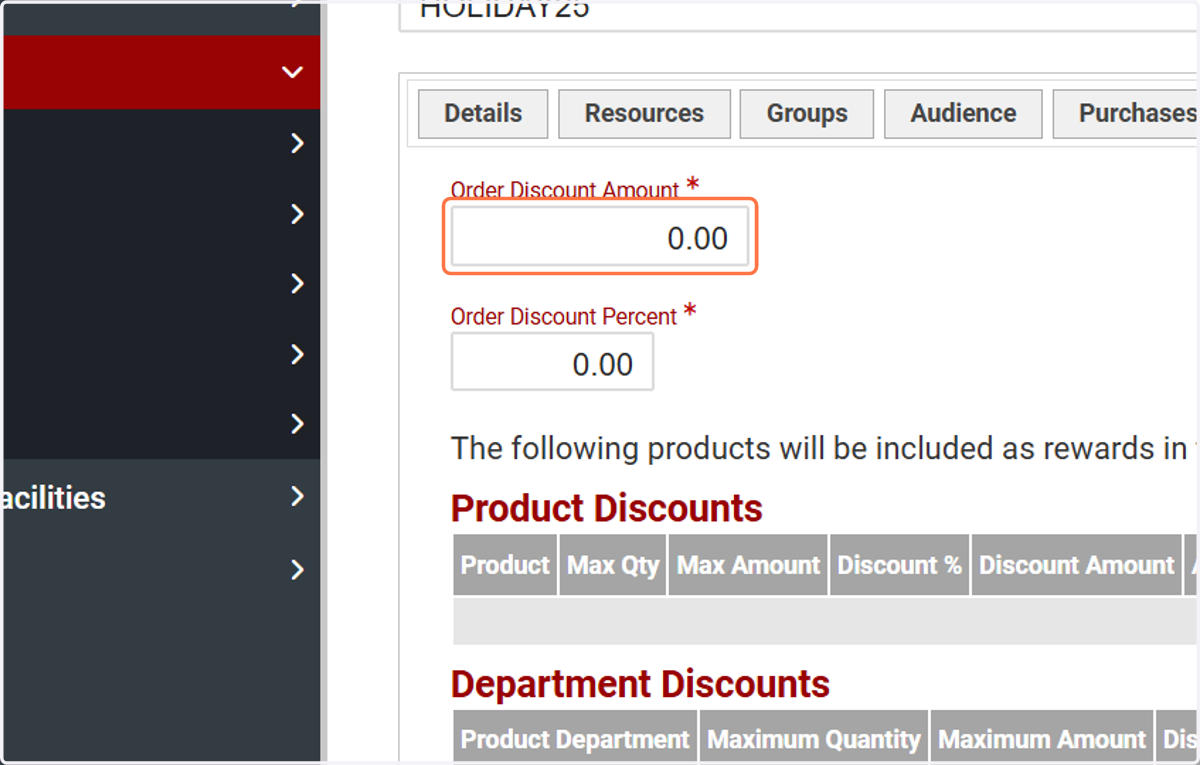
21. Order Discount Amount
Order Discount Amount will be a flat $ amount off, example "5" in this field will yield $5 off of the cart total
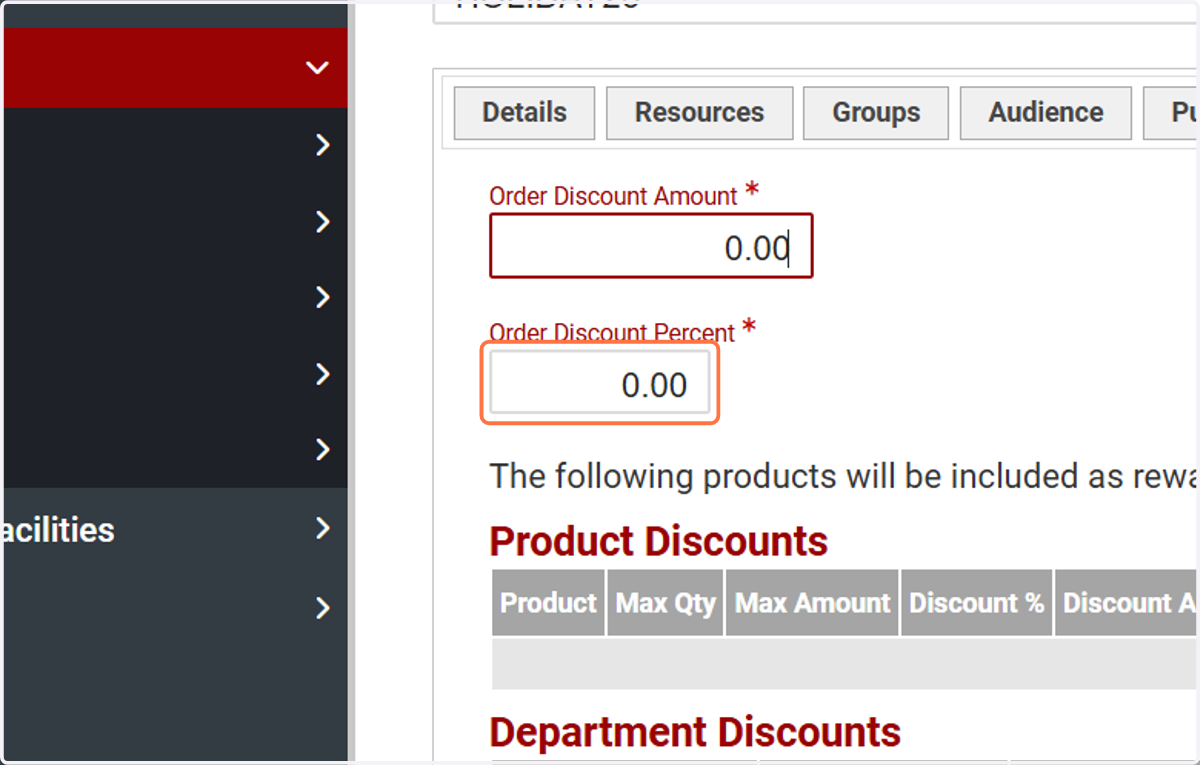
22. Order Discount Percent
Order Discount Percent is a percentage of the cart total, example "5" is 5% of the cart total
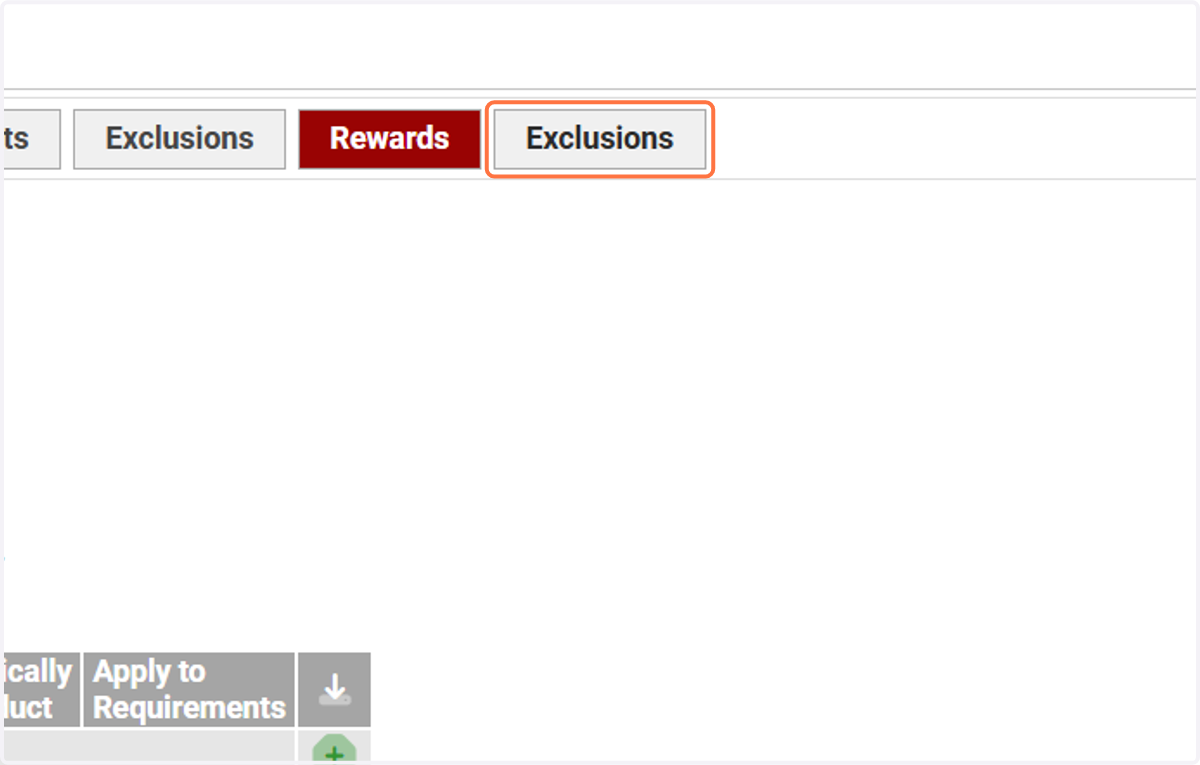
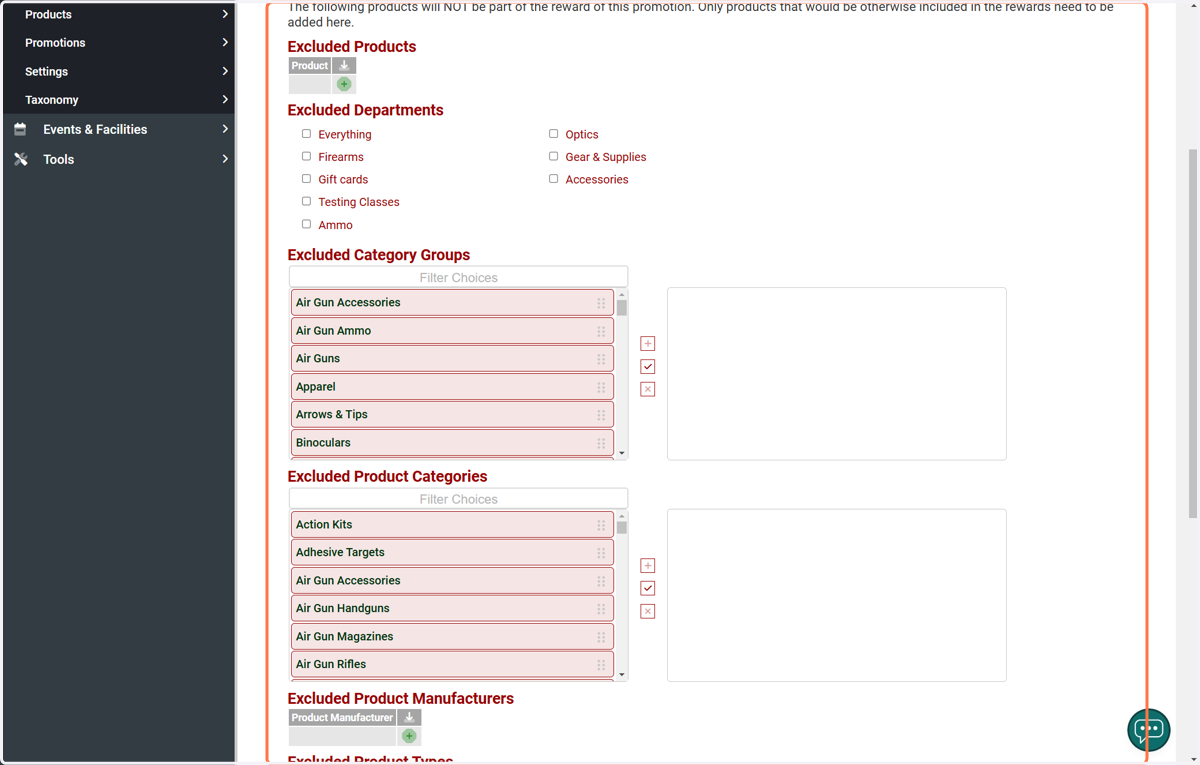
23. Exclusions - Rewards
Exclusions will allow us to fine tune our rewards field to exclude certain products, for example we can establish a reward of the Firearms department for 10% off but exclude certain products in the firearms department from that reward and they will remain their normal price.
24. Click on Exclusions
Pricing Structures
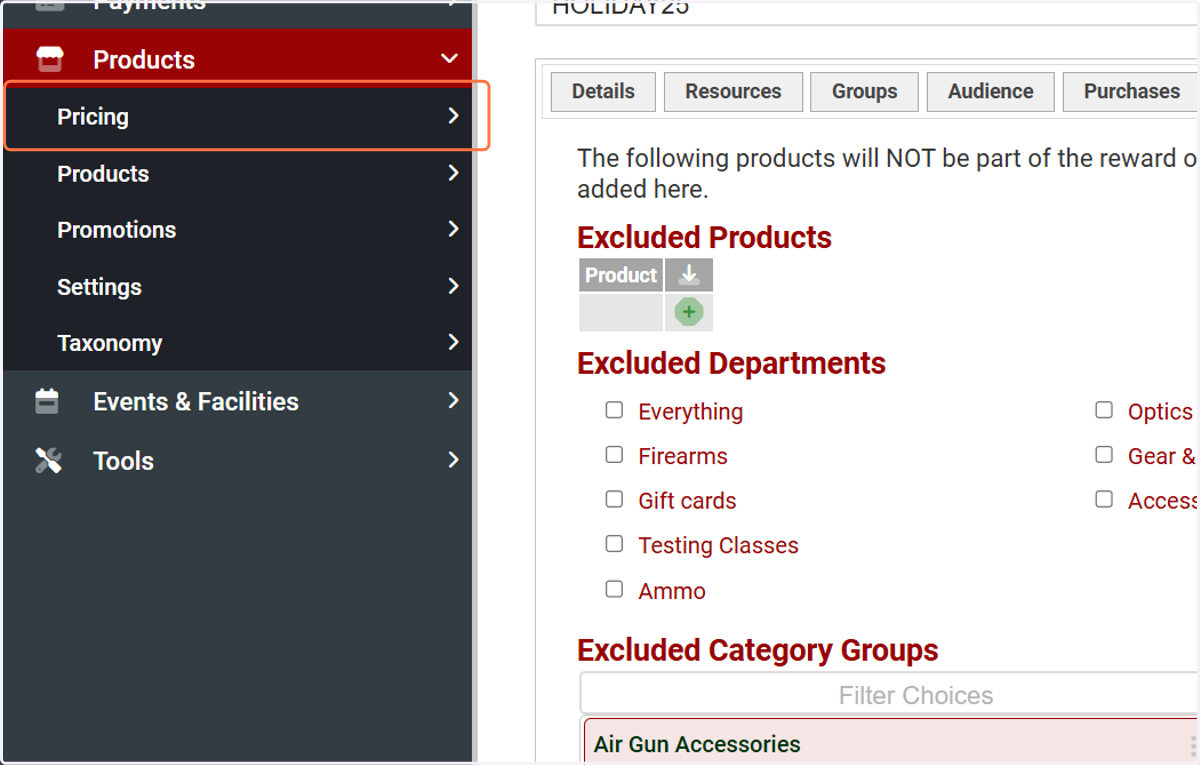
25. Click on Pricing
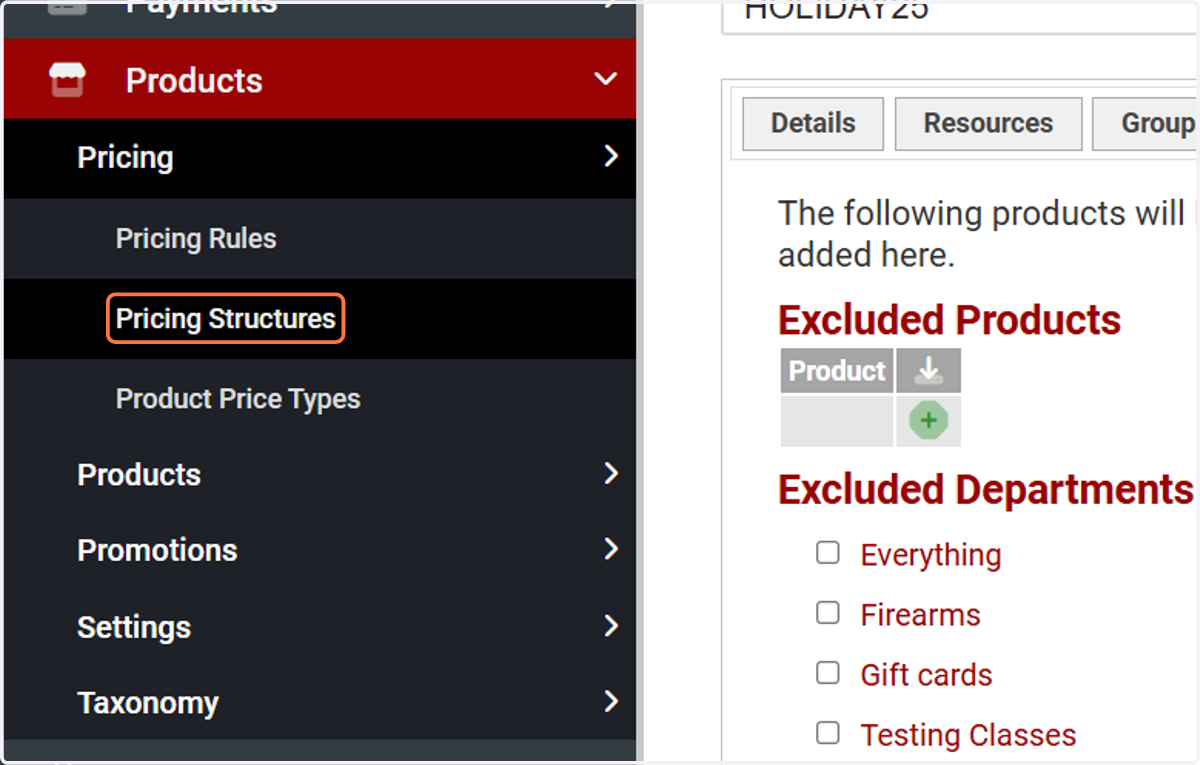
26. Click on Pricing Structures
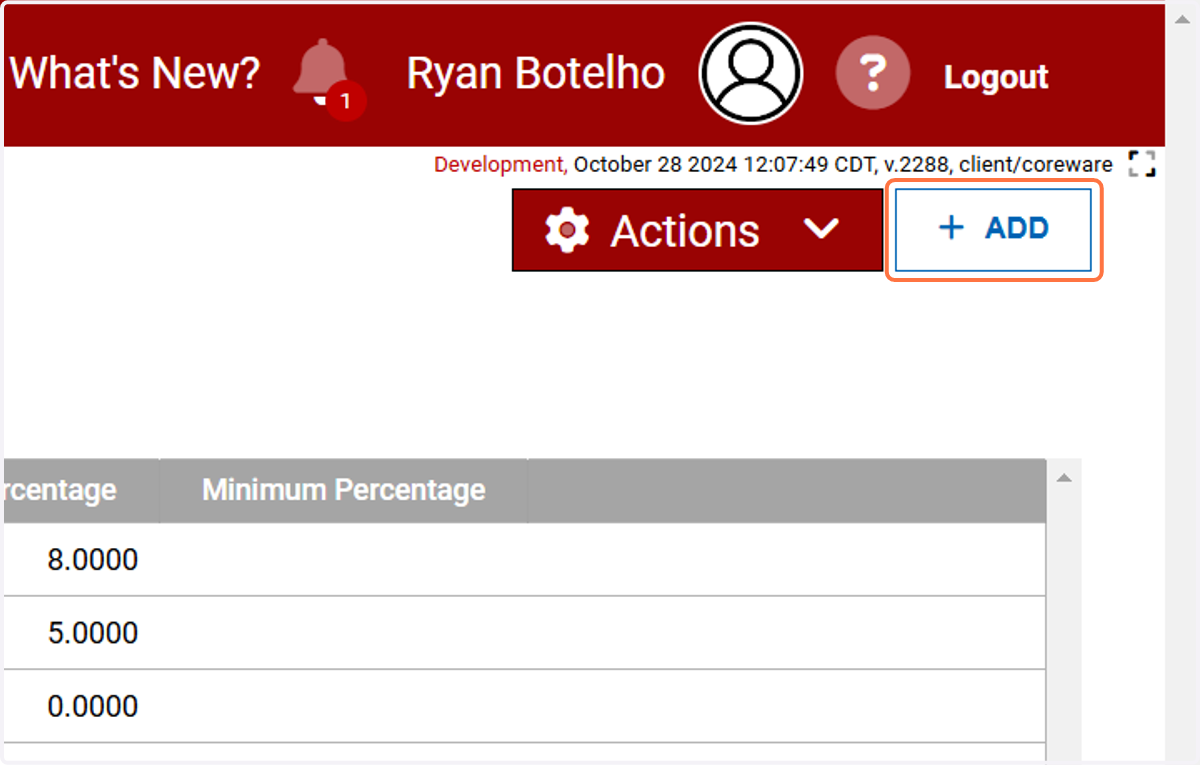
27. Click on ADD
28. Give your pricing structure a name!
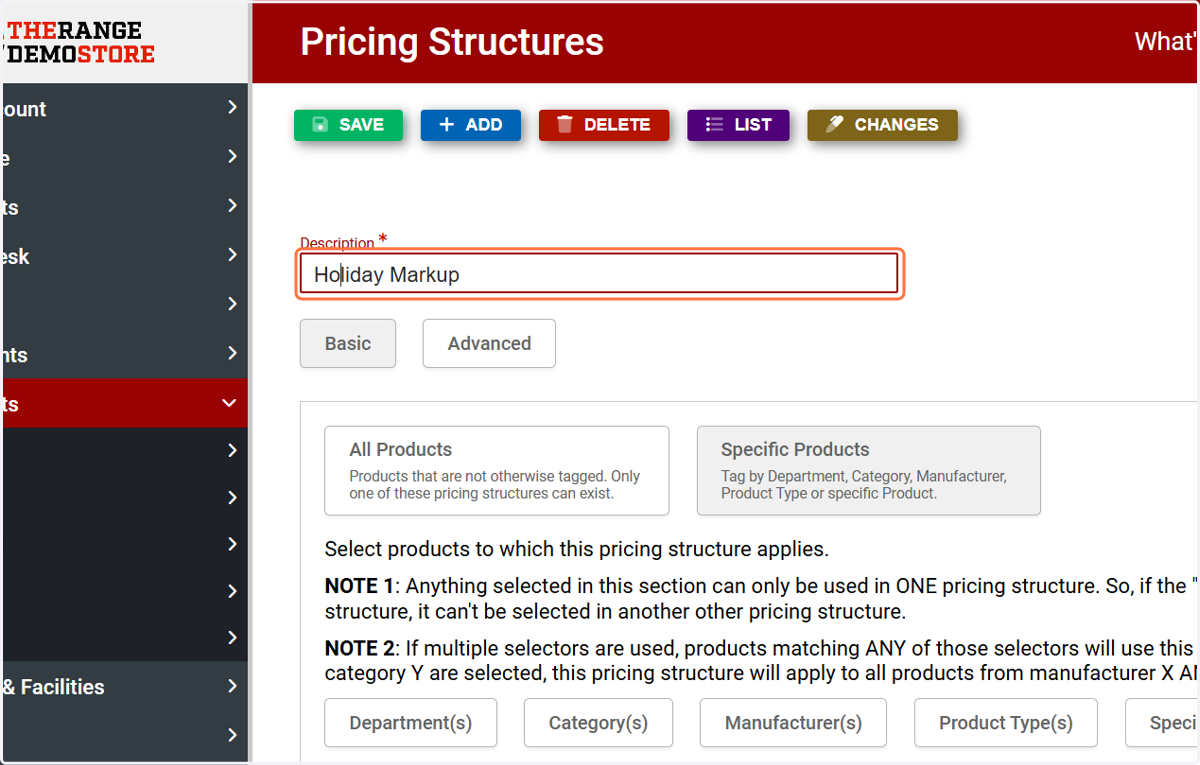
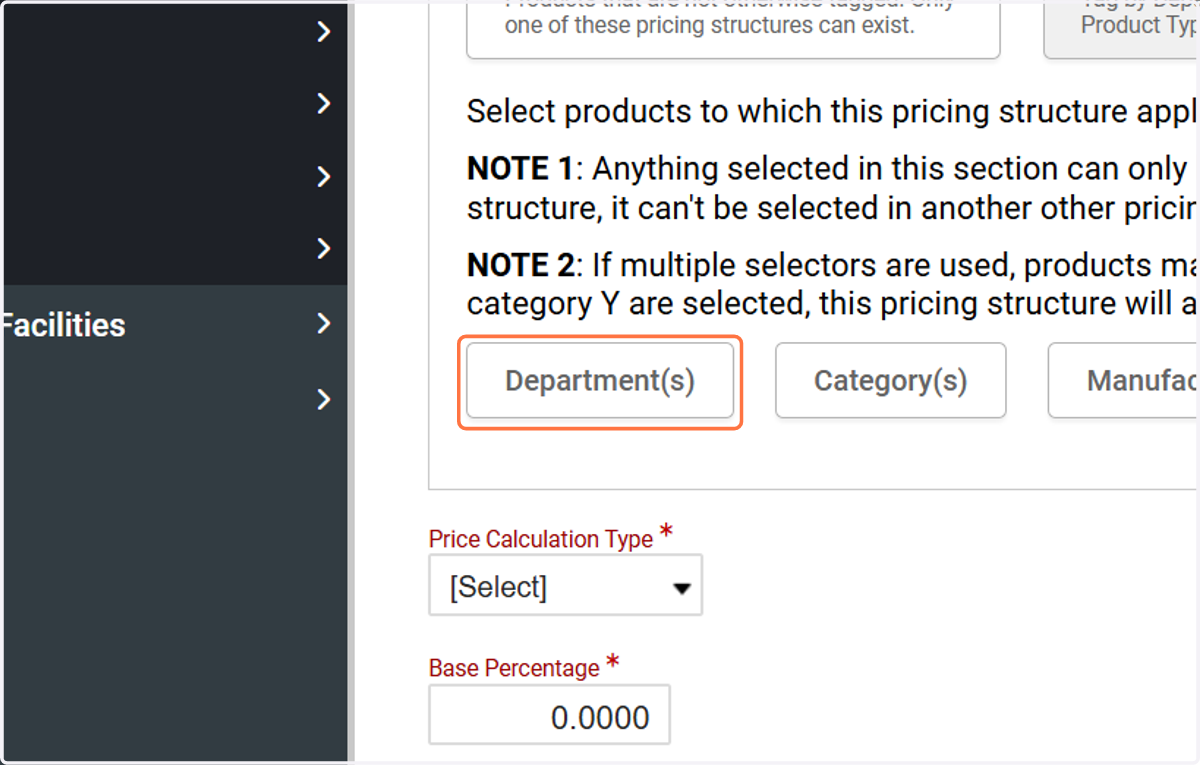
29. Click on your desired field
We'll use Department(s) for this example but you can establish this structure for Categories, Manufacturers and Specific Products as well!
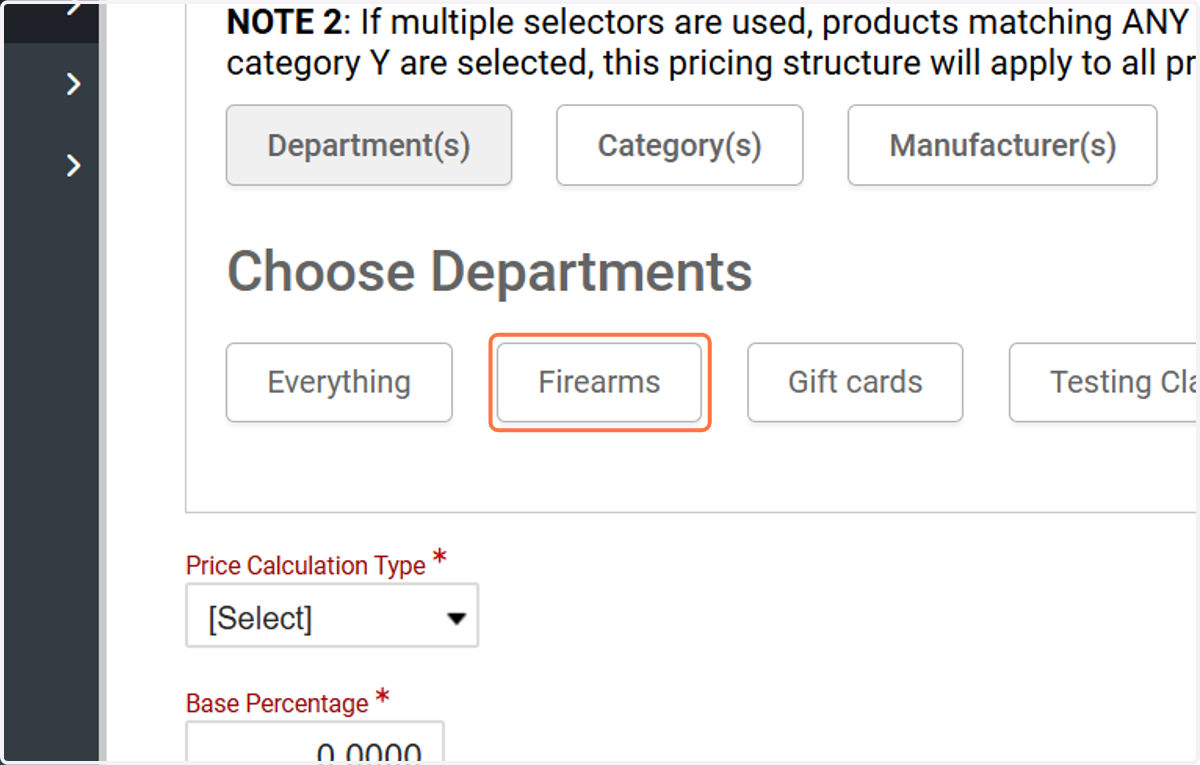
30. Click on your desired department
We'll use Firearms for this example
31. Select your calculation type
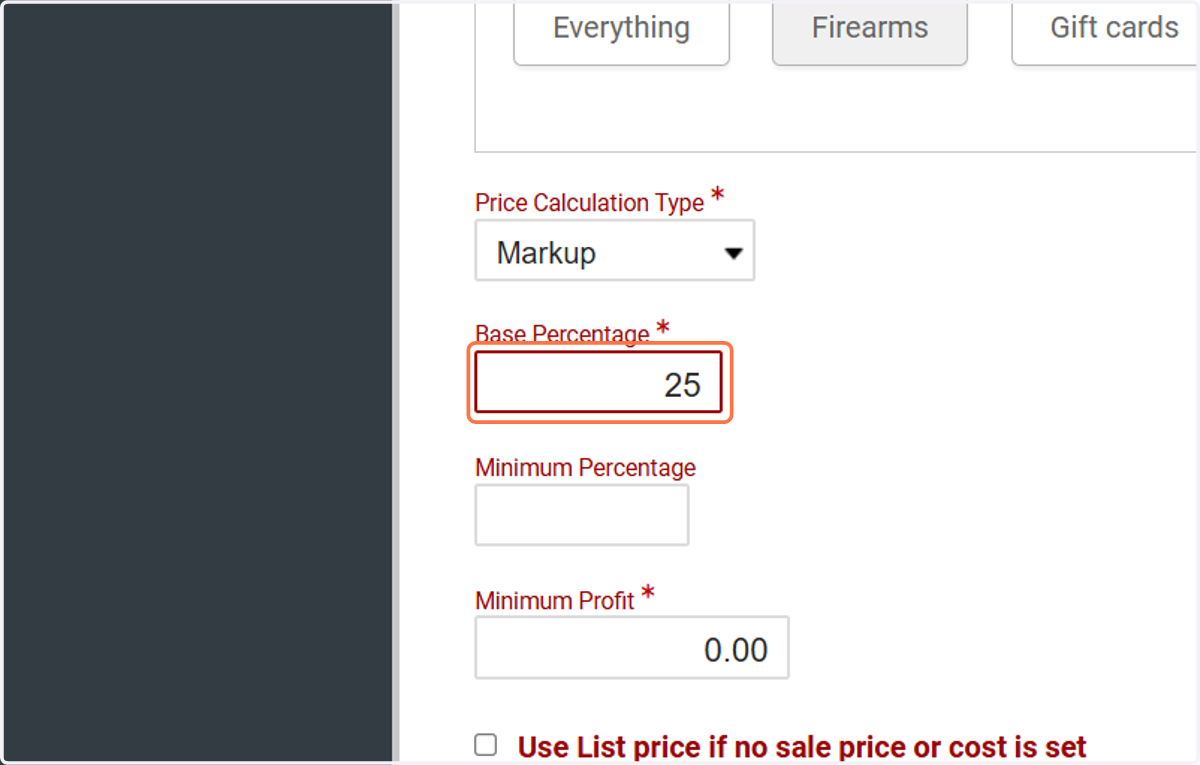
coreFORCE supports Markup, Discount, and Margin pricing. We'll use Markup here
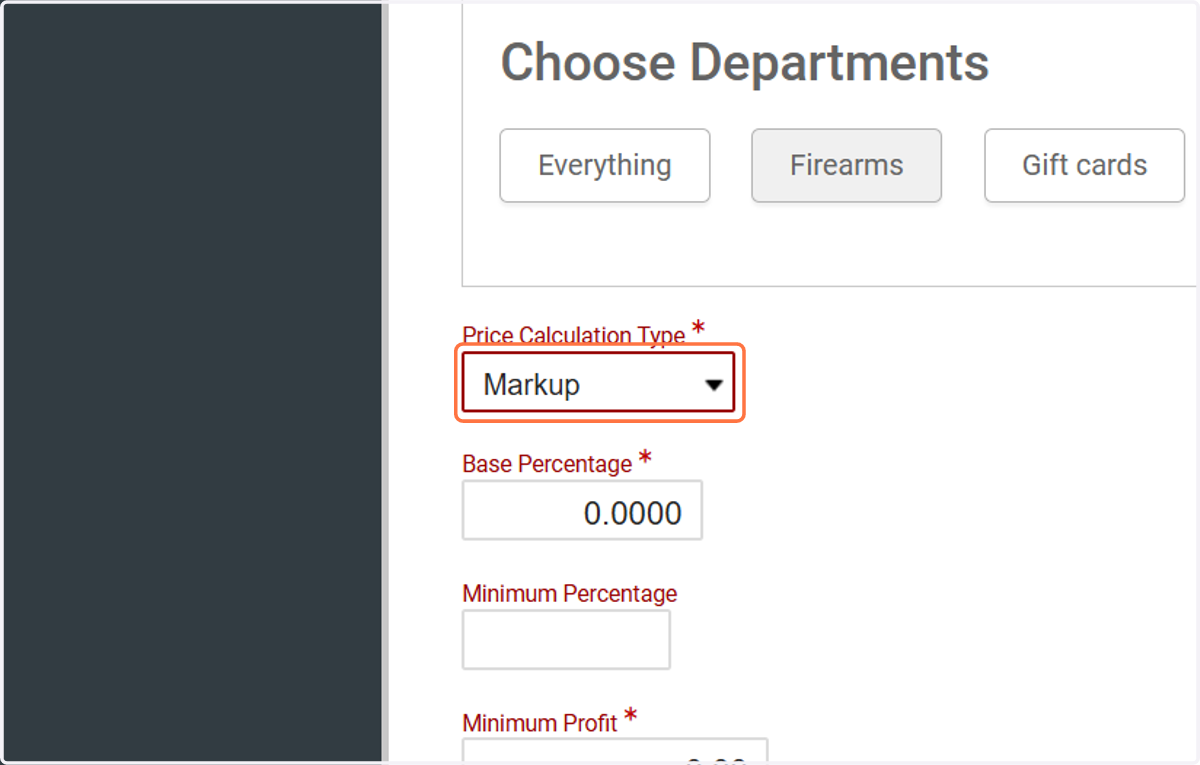
32. Type in your markup percentage