New Quizzes in Canvas for Students
1. Open the Quiz
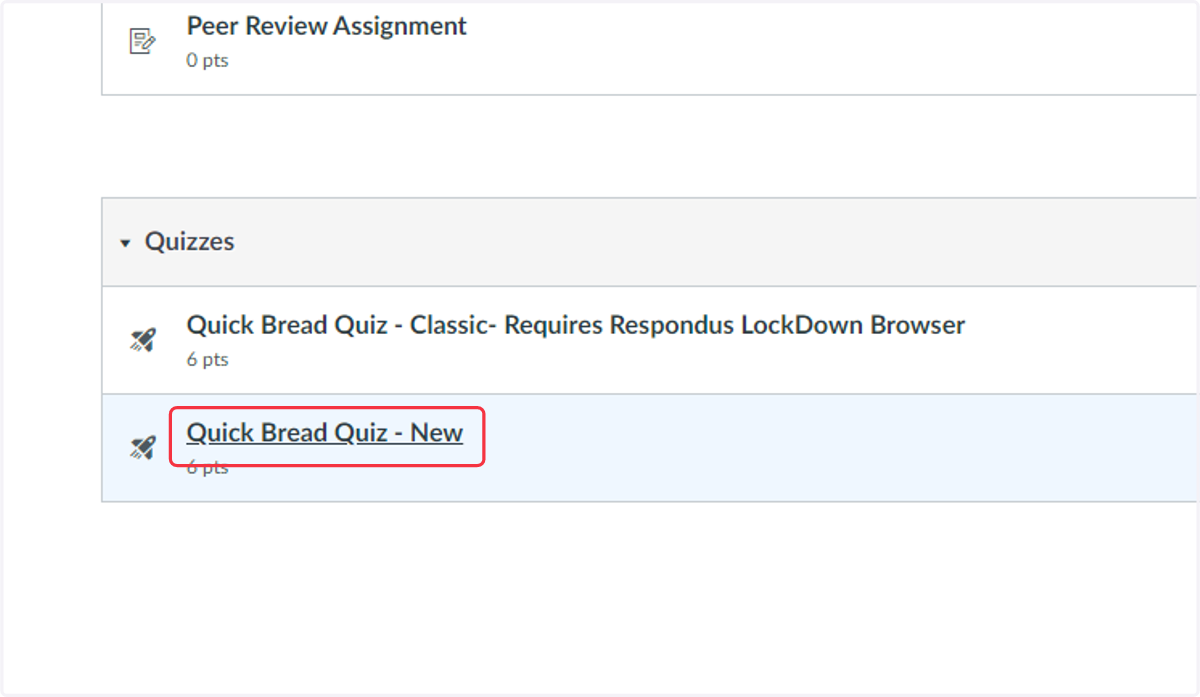
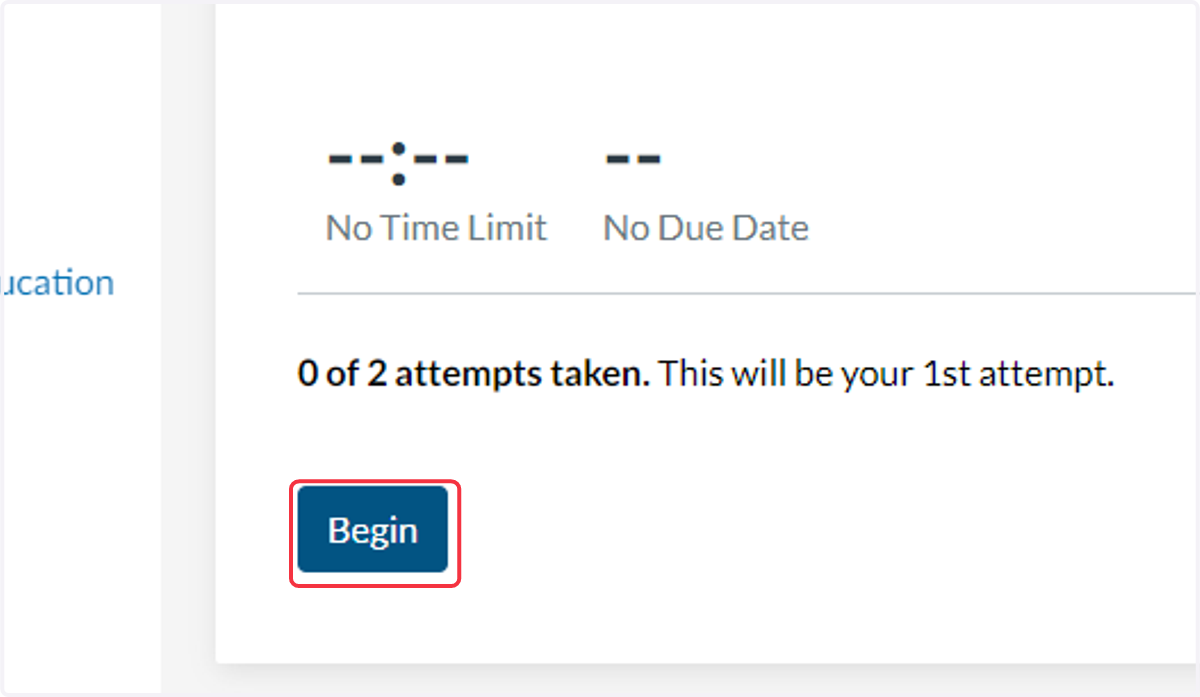
2. Select Begin on the Quiz Landing Page to start the quiz
When you first open the quiz you will find the directions and other details about this quiz (e.g. due date, time limit, number of attempts). If you have already taken the quiz and submitted it you will see a list of your attempts.
Selecting Begin will load a new page that will include quiz questions. Each question will list the number of points it is worth next to the item number.
Note: If your teacher requires an access code to open the quiz, you will need to enter the code and select submit before you can start the quiz.
3. NAVIGATING NEW QUIZZES
The next several steps will walk through how to navigate New Quizzes.
4. Select the arrow to view or hide Question Navigation Menu
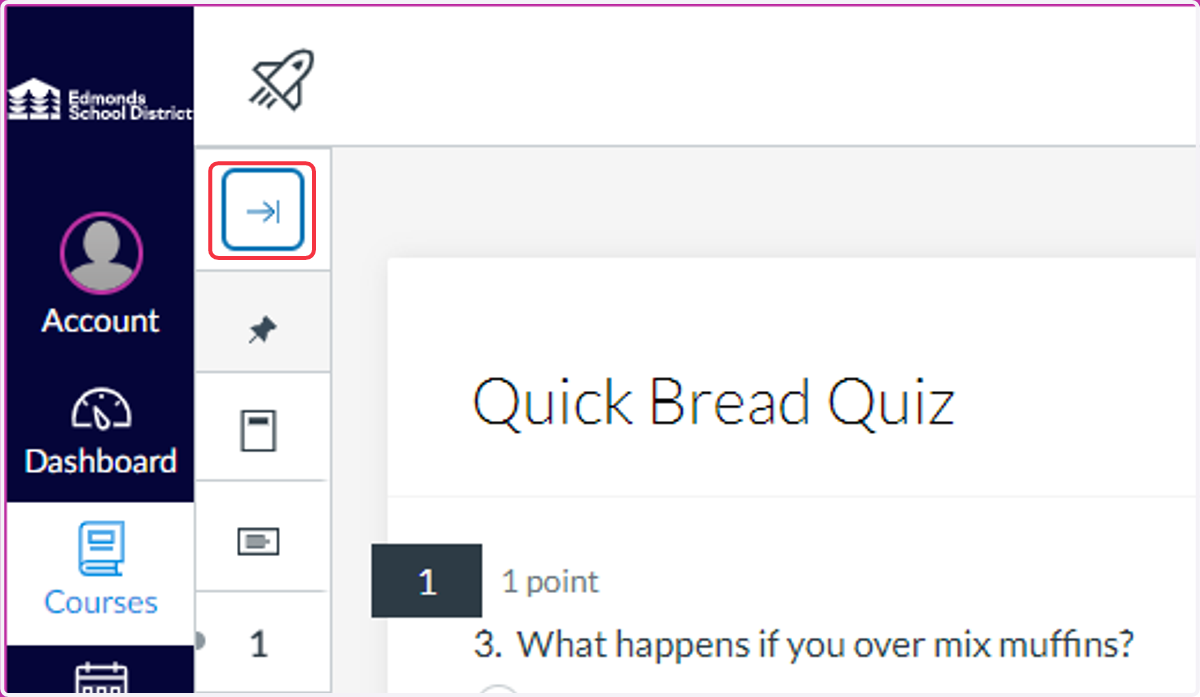
5. Select the Navigate to Title icon to view the quiz title
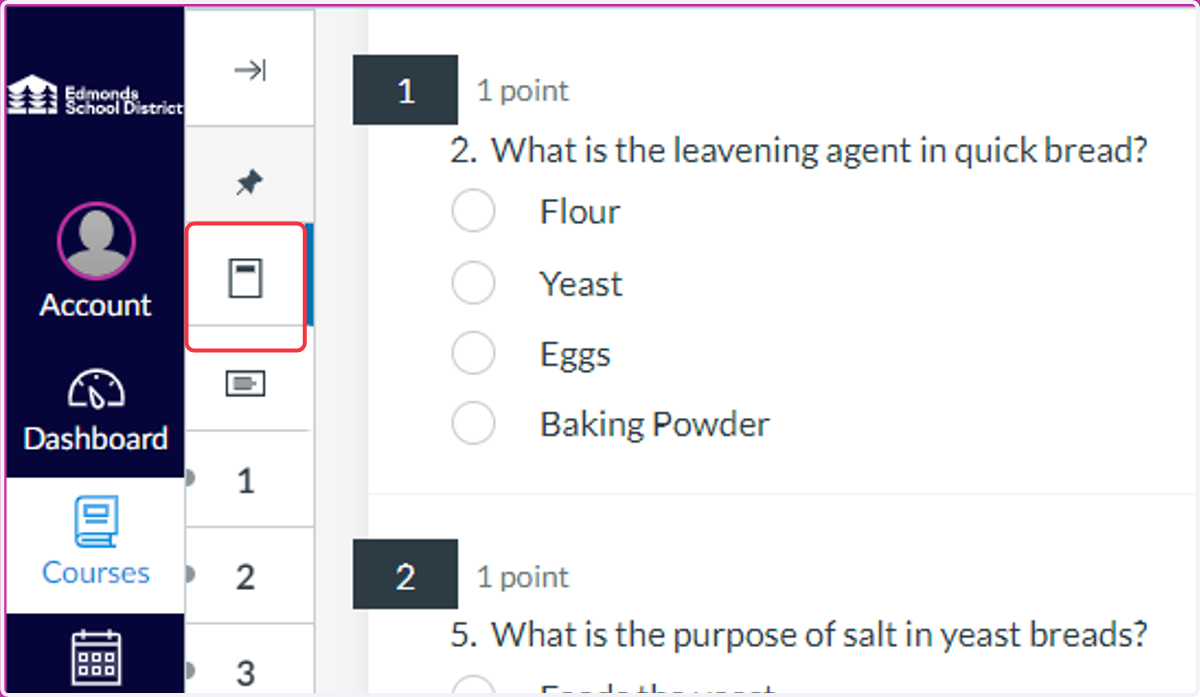
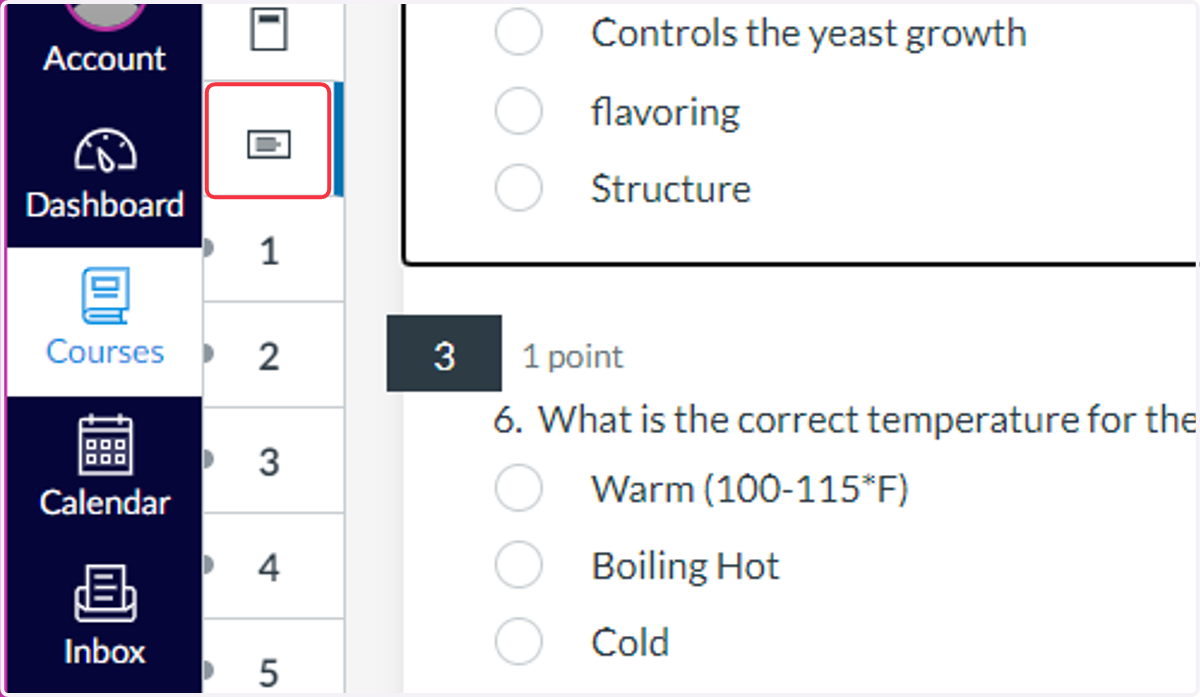
6. Select the Navigate to Instructions icon in the menu to view the quiz instructions
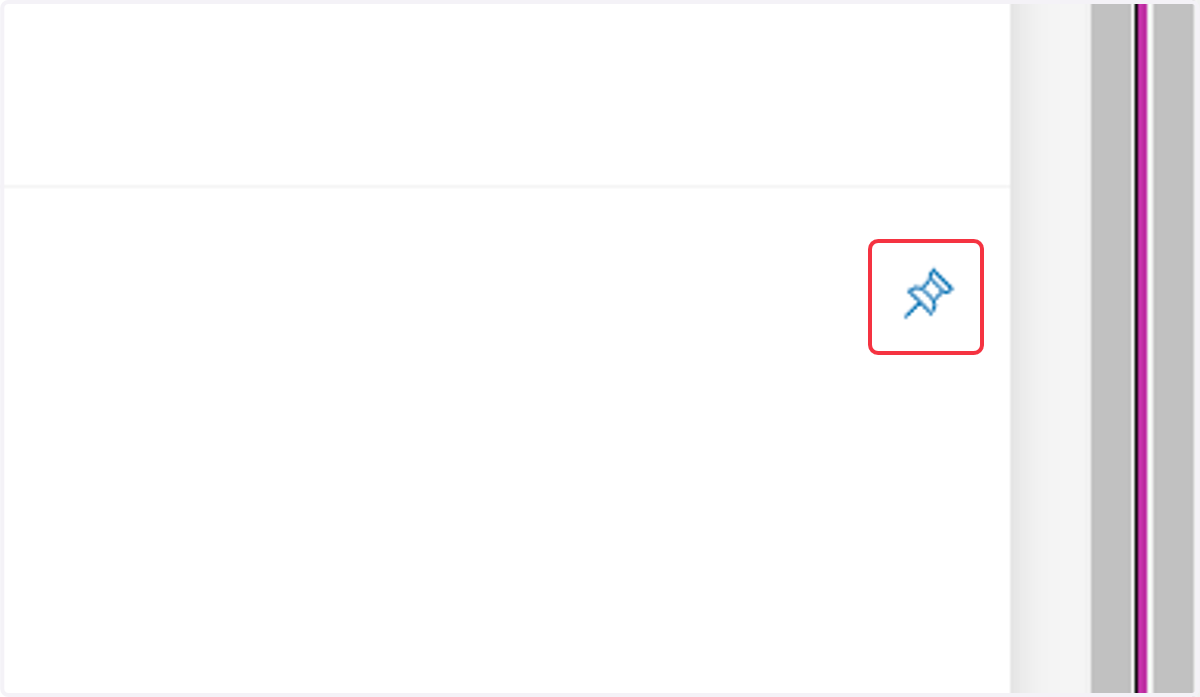
7. Click on the Pin next to the question if you want to come back to it later.
8. Click on Pinned Questions in the Question Navigator to view the ones that were pinned.
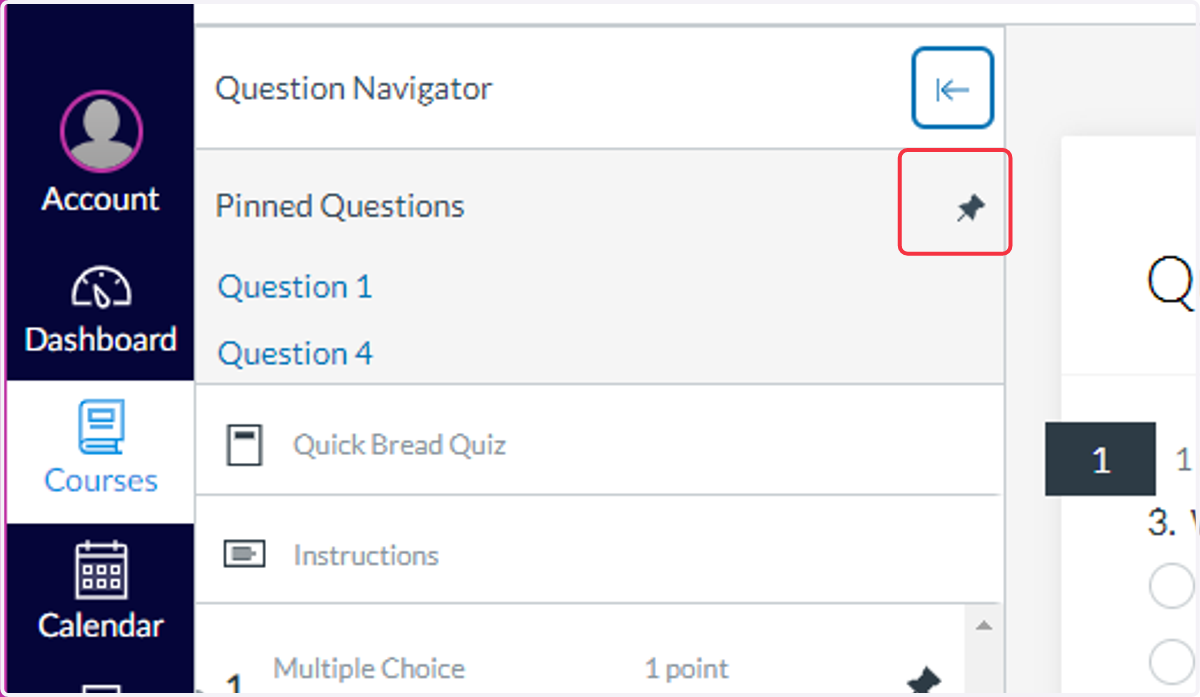
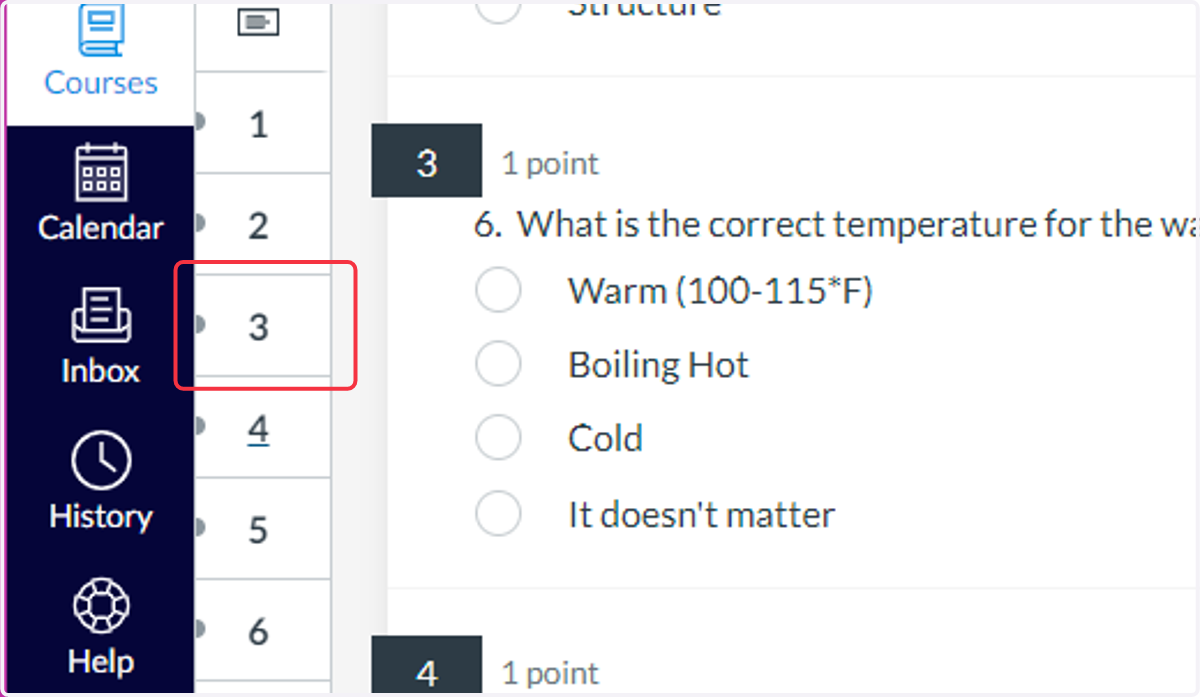
9. Click on the numbers in the Quiz Navigation Menu to skip to specific questions
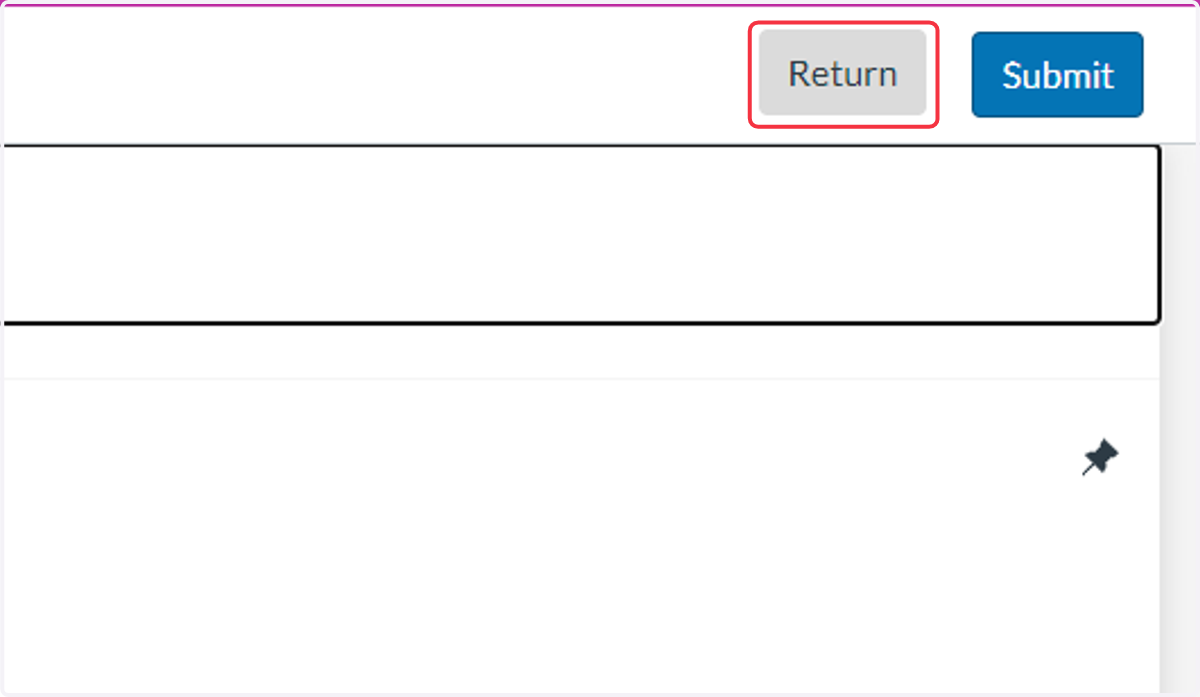
10. Select Return button to exit the quiz without submitting
This option is used if you were not finished and the teacher is providing extra time.
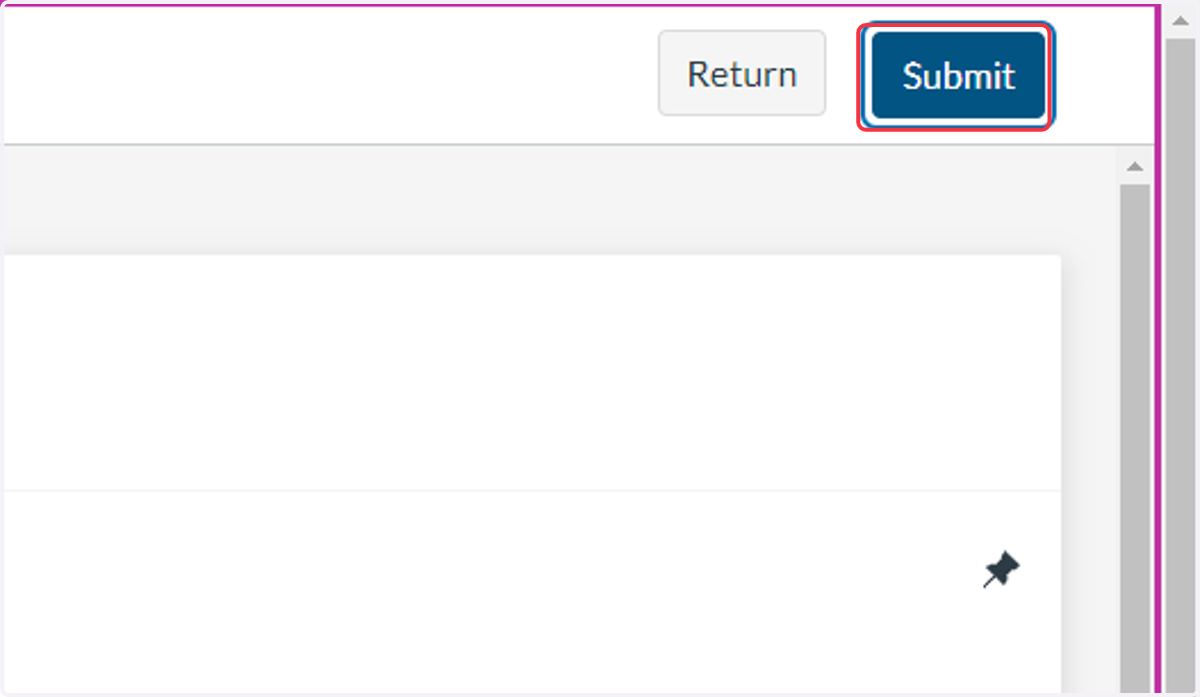
11. Select Submit to complete the quiz and turn it in.
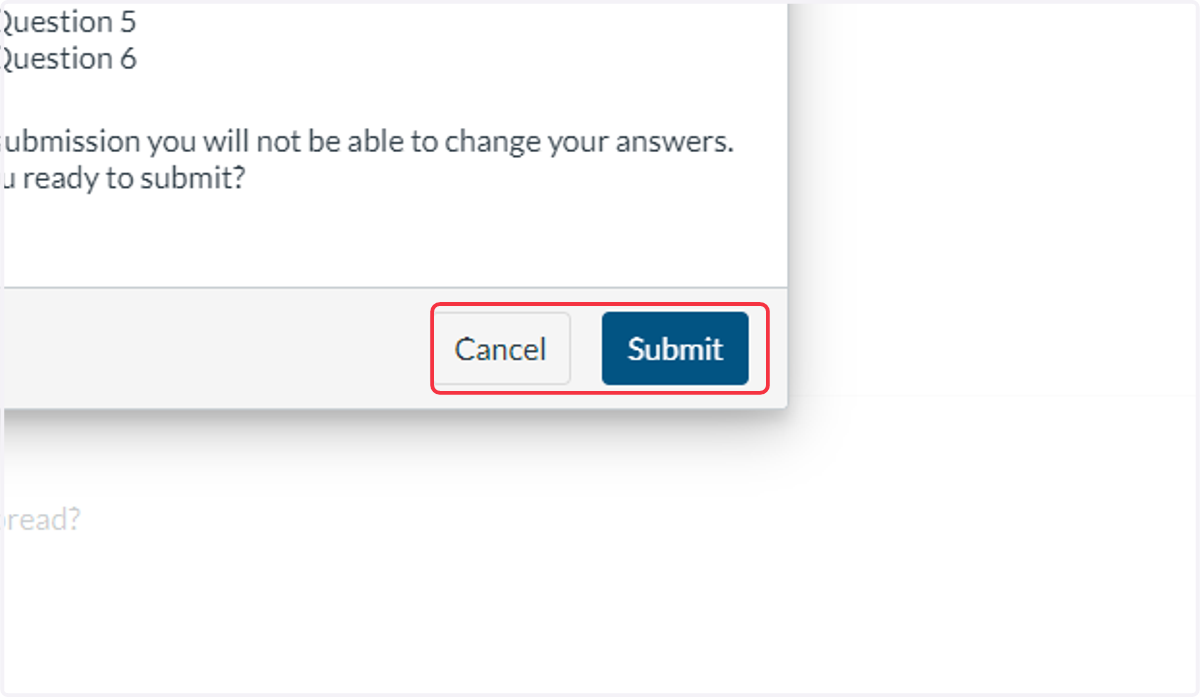
12. Confirm submission window
A warning window will open if you have any questions that were unanswered. You will also be asked to confirm you are ready to submit.
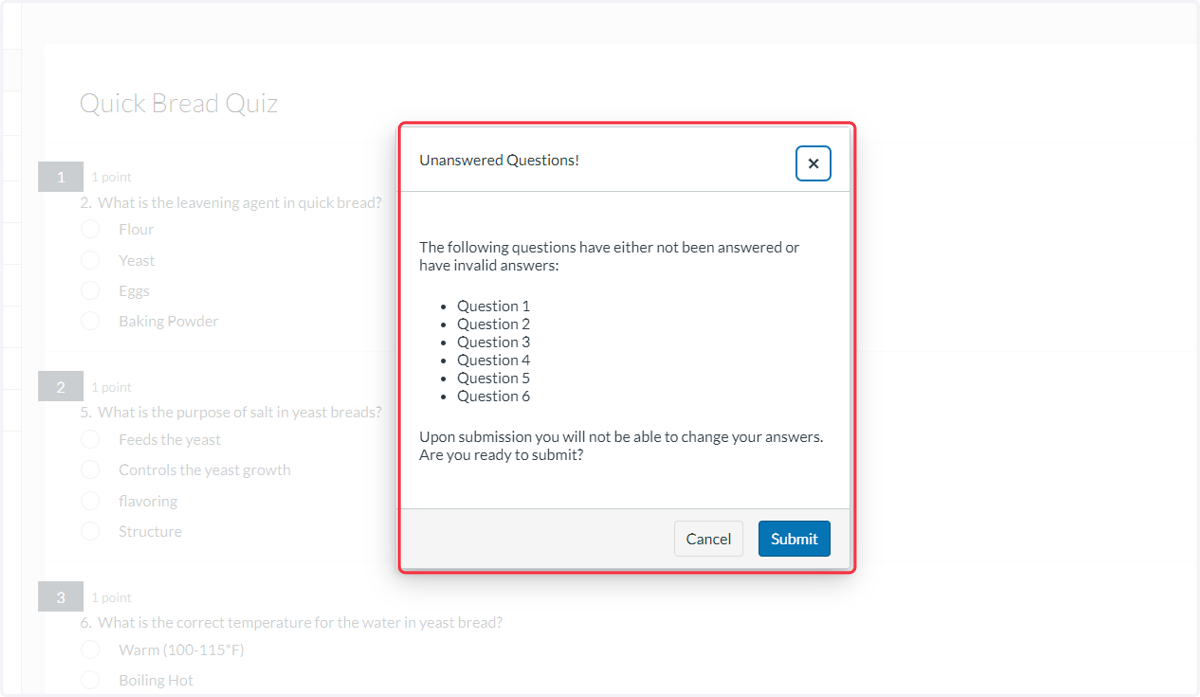
13. Select on Submit to turn in, Select Cancel to go back to the quiz.