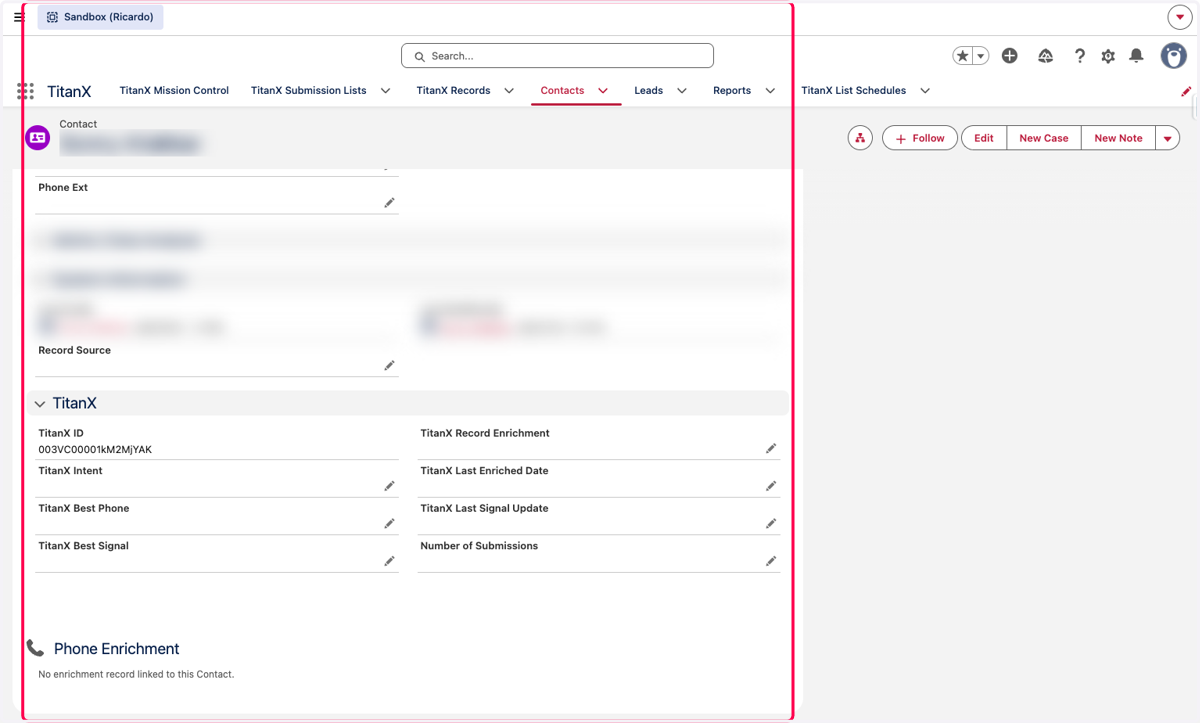
10. Setup Enrichment
Salesforce
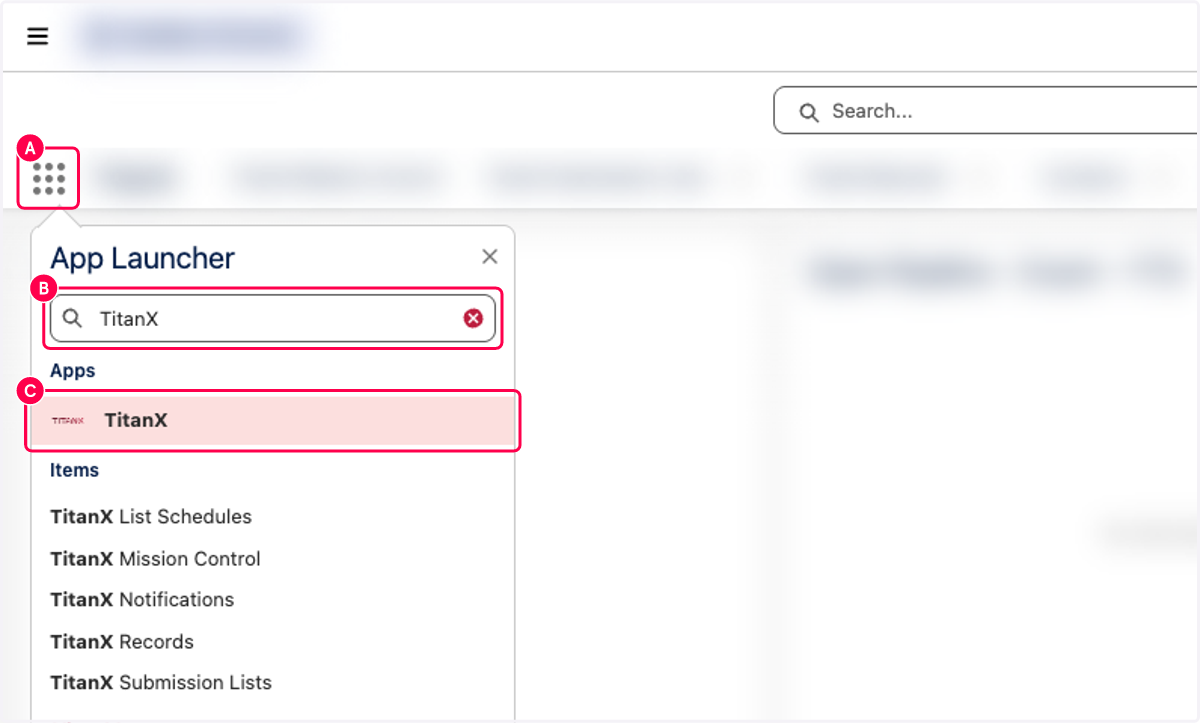
1. A. Click on App Launcher
1. B. Search For TitanX
1. C. Click TitanX
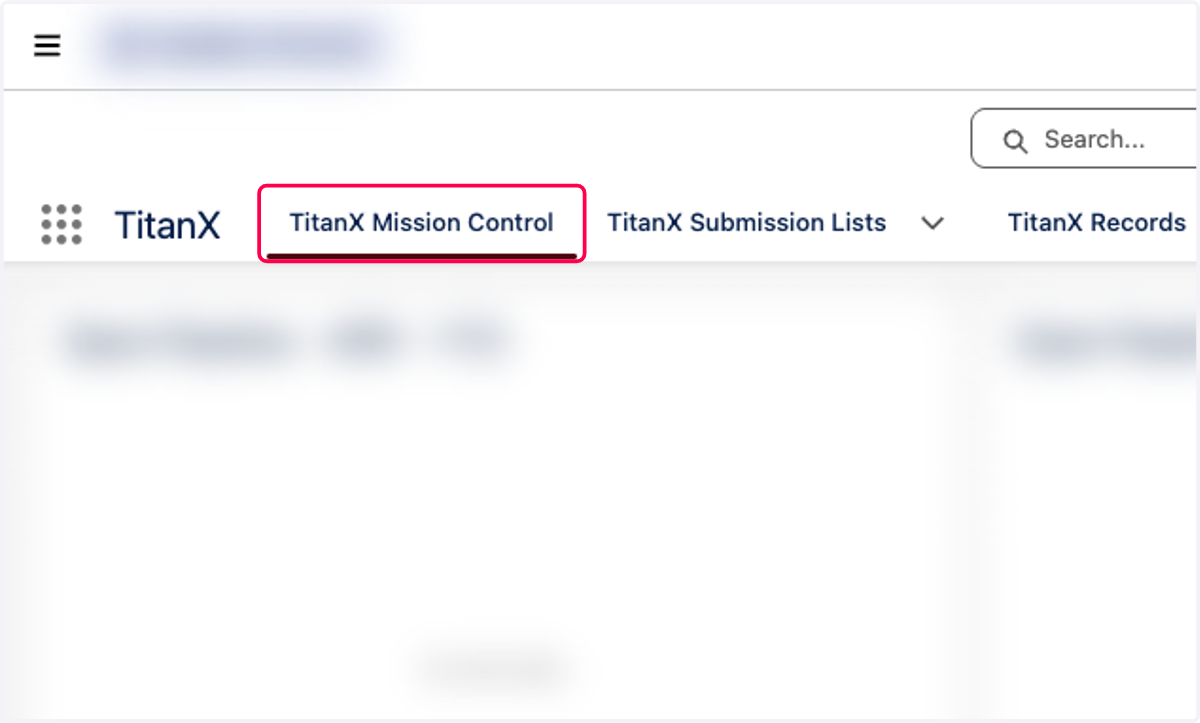
2. Click on TitanX Mission Control
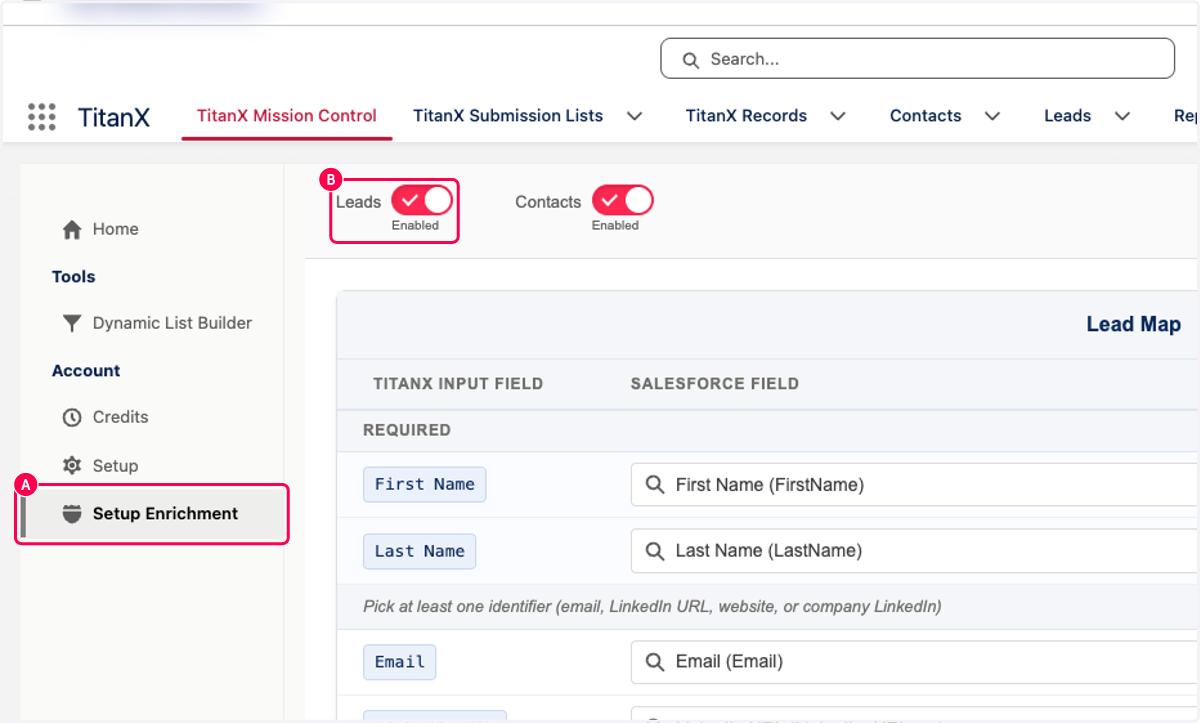
3. A. Click on Setup Enrichment
3. B. Depending on which object you use, you can enable here. Skip Leads and go to the Contact Object Configuration section if you are not using Leads in your org.
Lead Object Mapping and Page Configuration
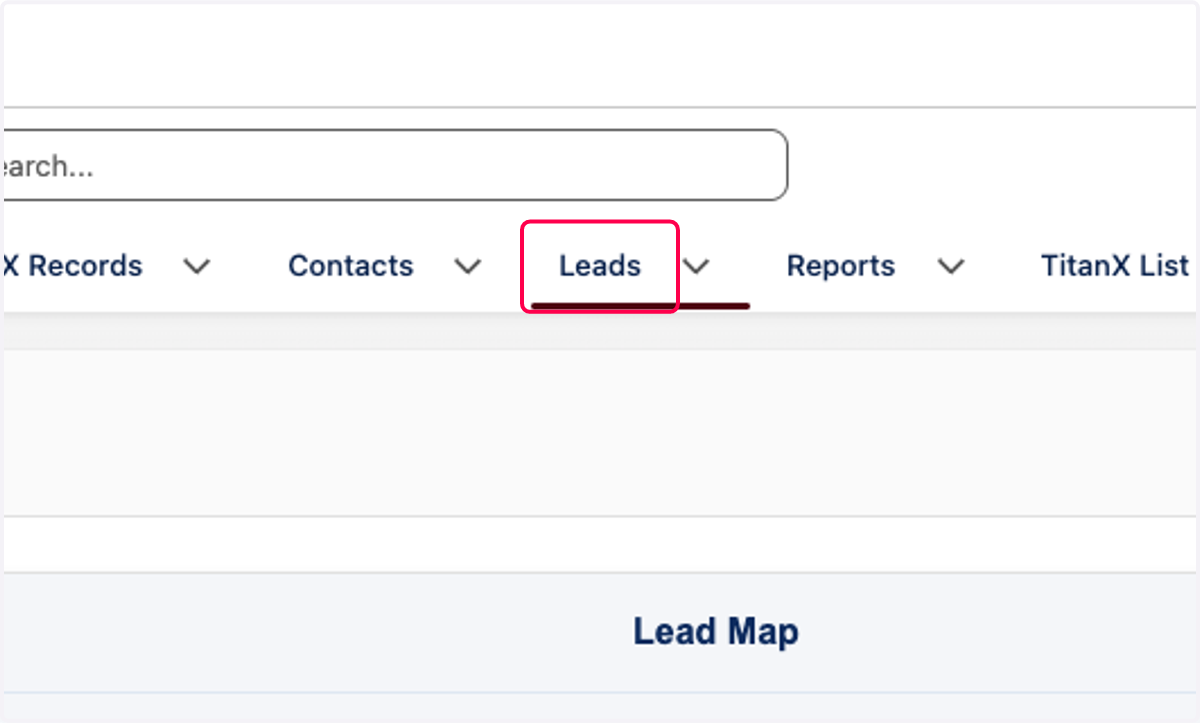
4. A. Complete the required fields on the lead mapping
4. B. First and Last name are both required
4. C. Map at least one identifier (email, LinkedIn URL, website, or company LinkedIn)
4. D. Additional Optional fields can be mapped.
Mapping additional fields increase the likelihood of a successful enrichment job.
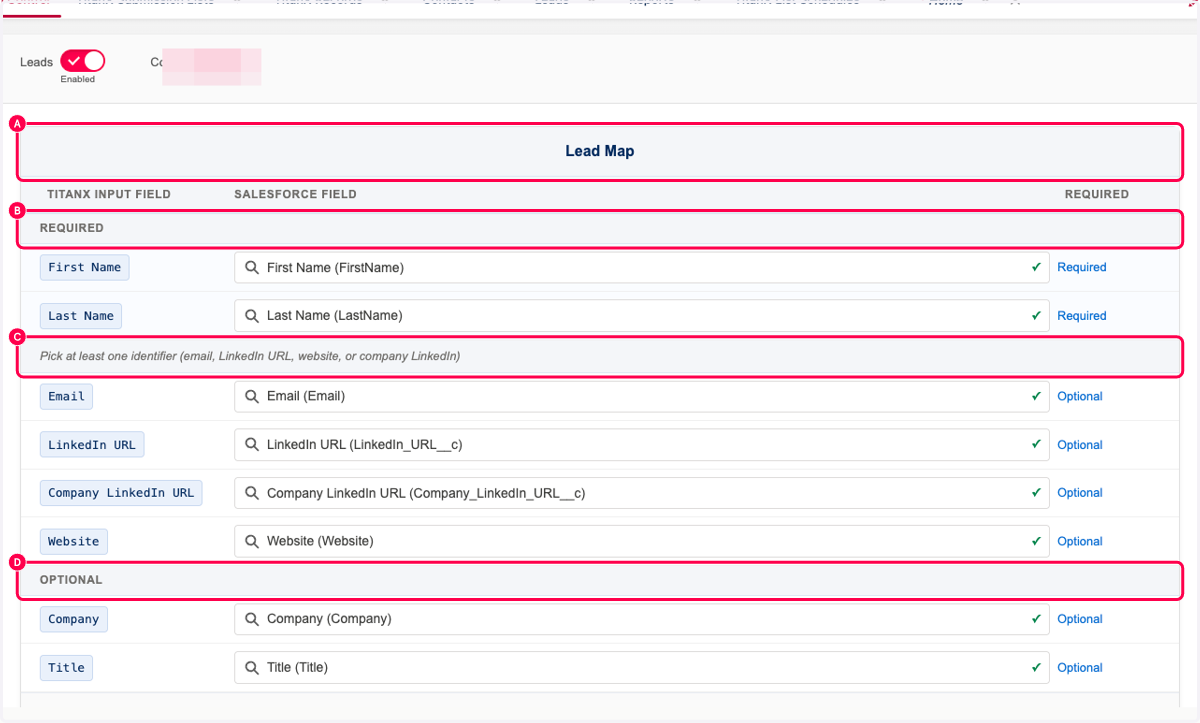
5. Click on Update Lead Map
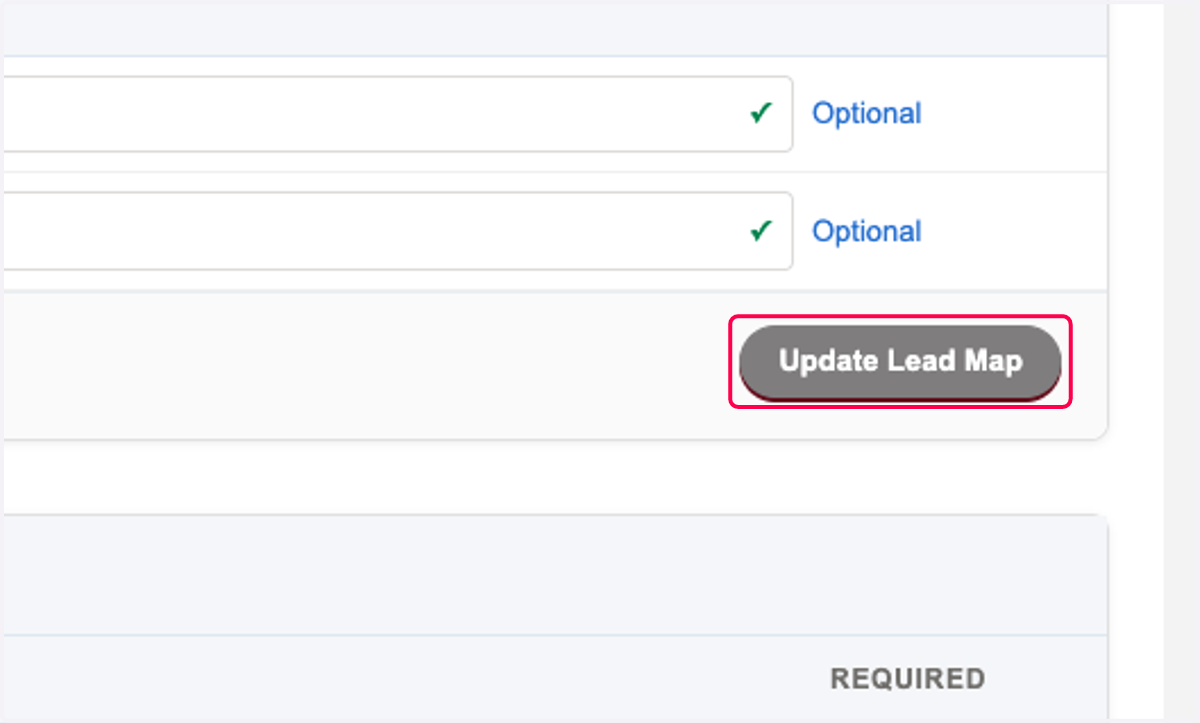
6. Click on Success…
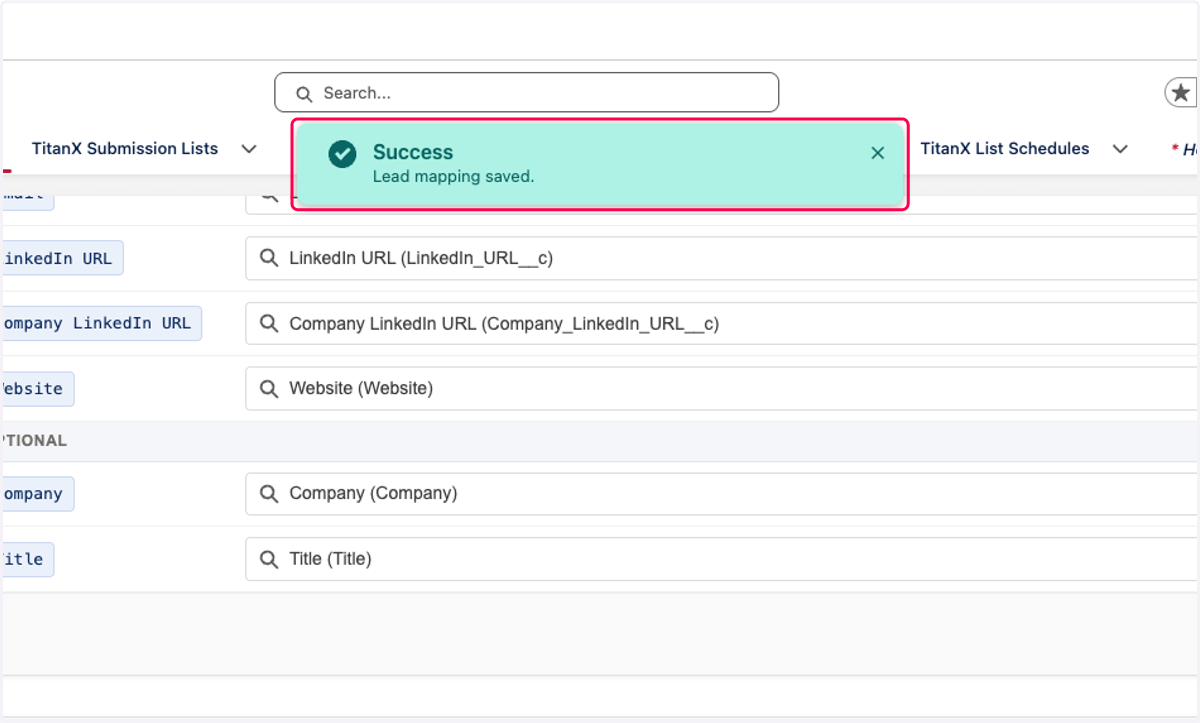
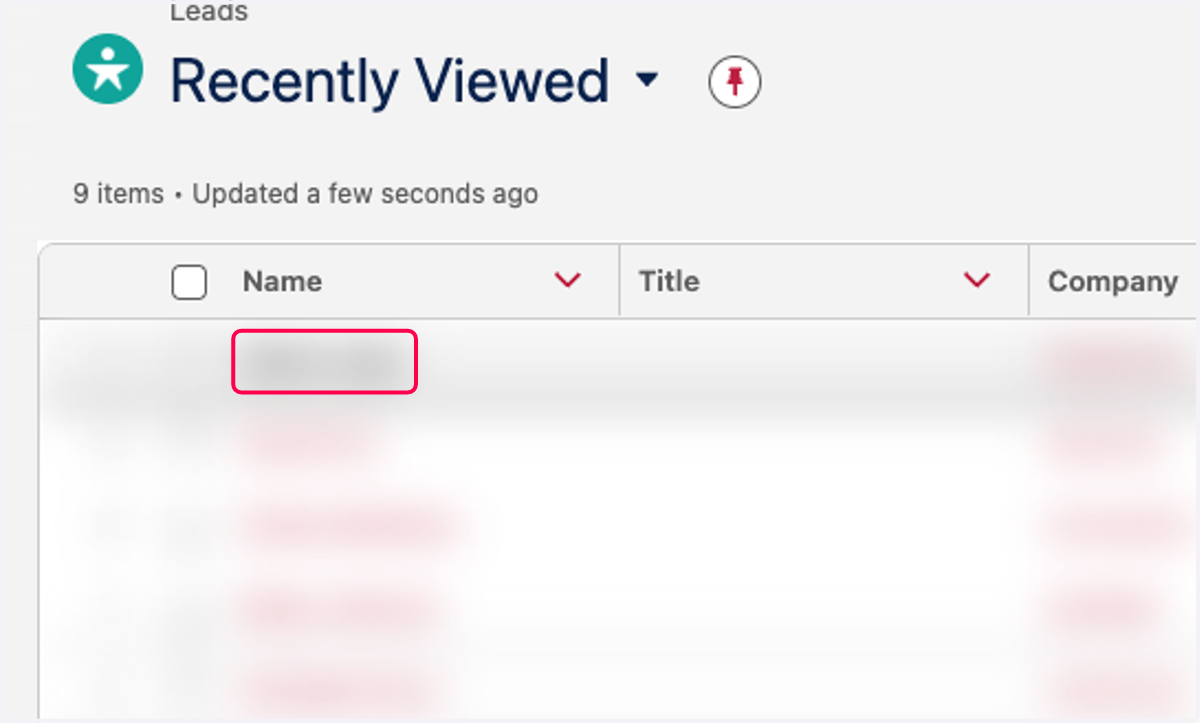
7. Click on Leads
8. Click on any lead
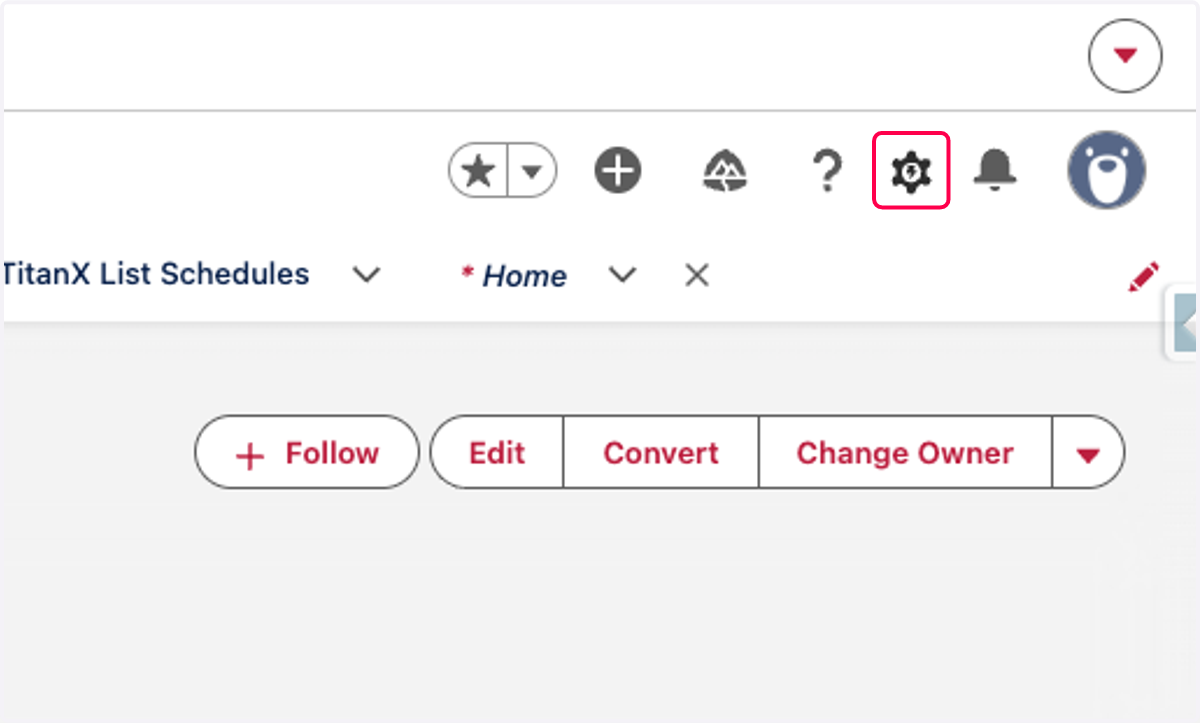
9. Click on Setup
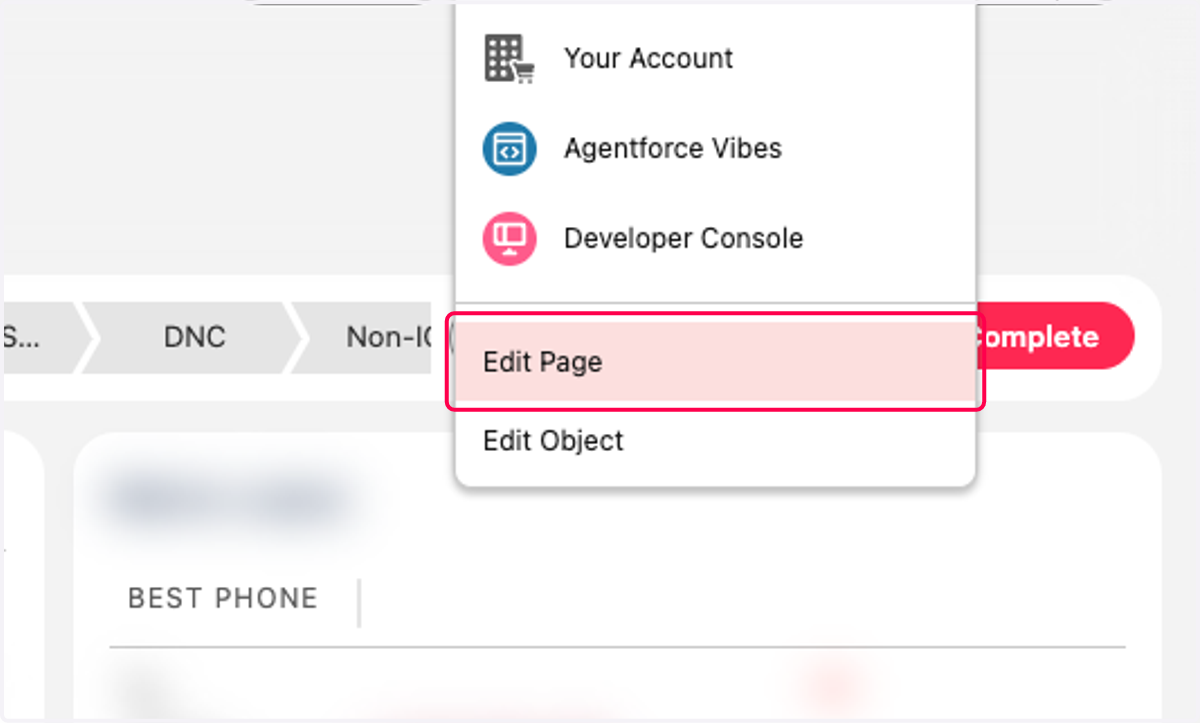
10. Click on Edit Page
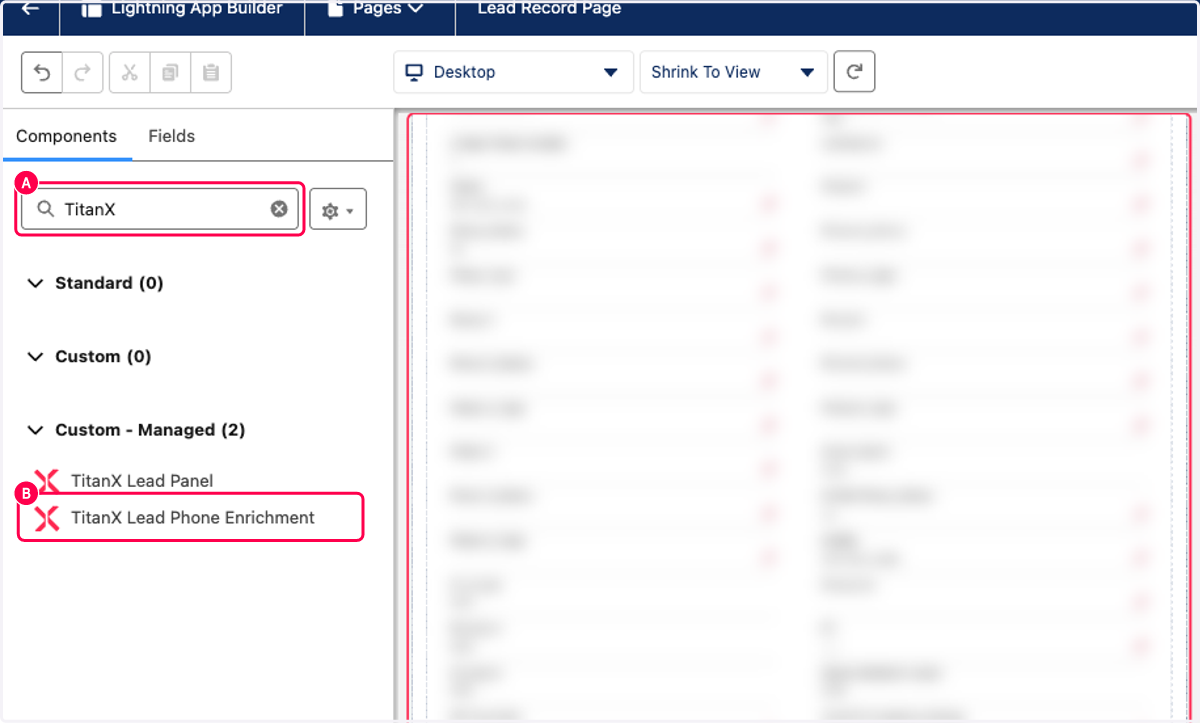
11. A. Search TitanX
11. B. Drag TitanX Lead Phone Enrichment (We recommend to drag all the way at the bottom)
This will show the enriched phones for the Lead
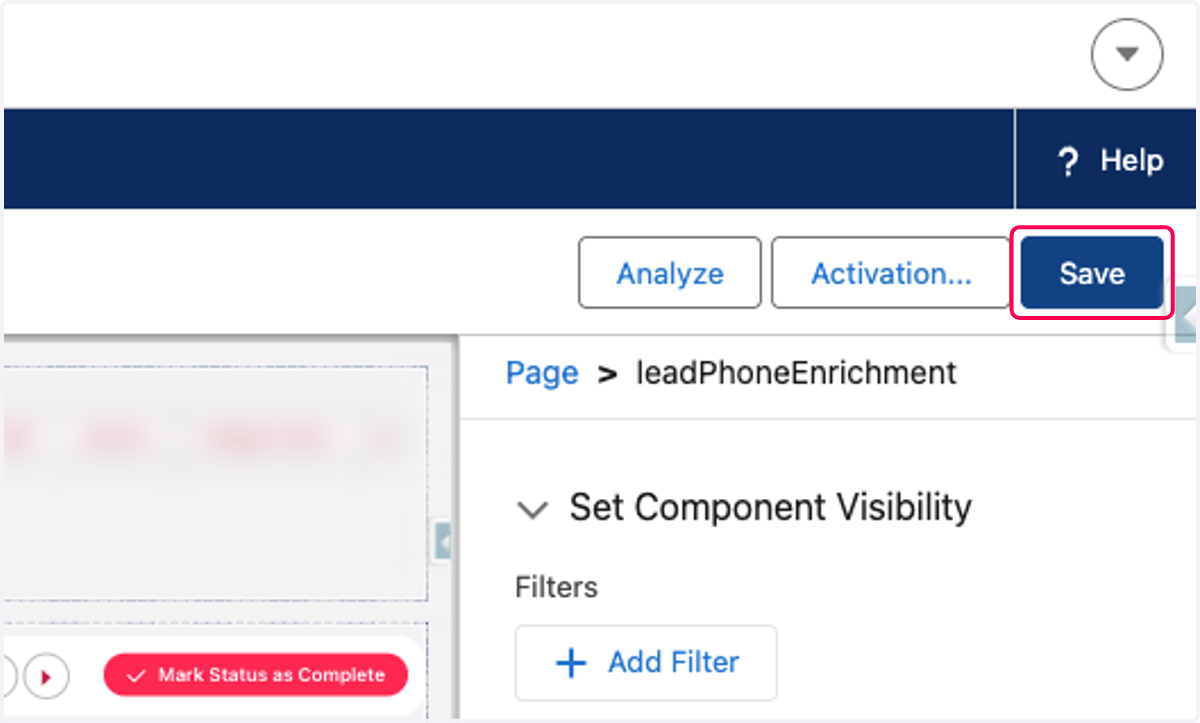
12. Click on Save
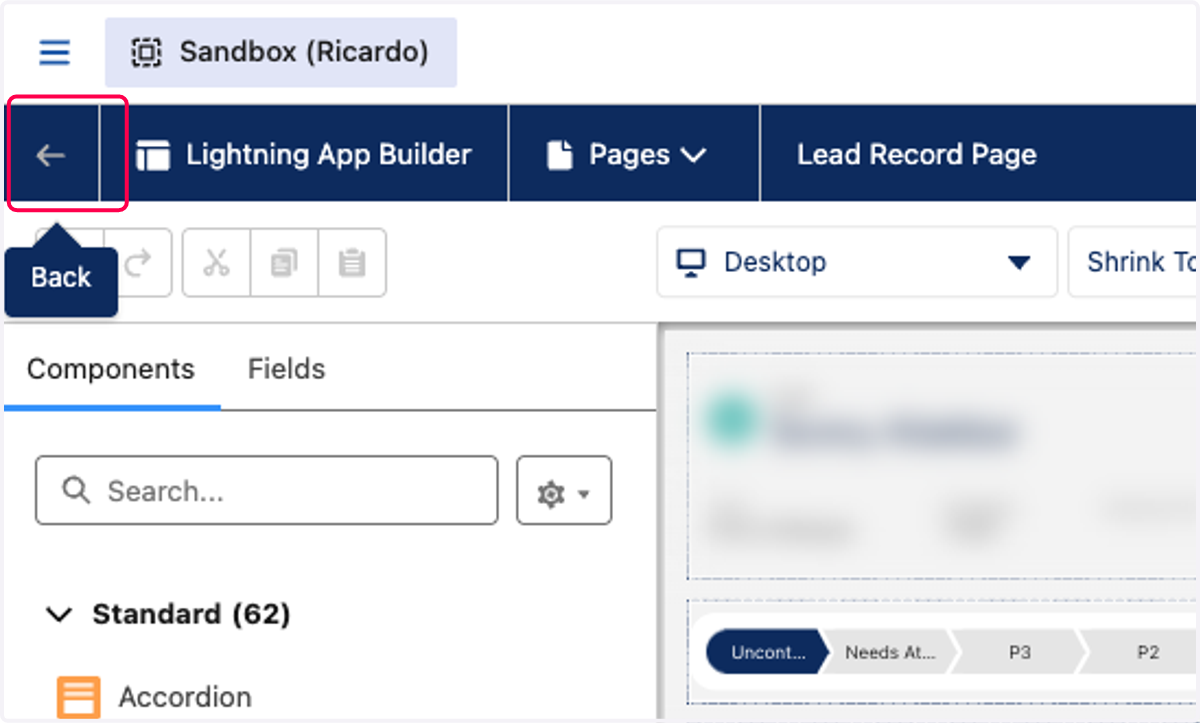
13. Click on Back
Recommended Lead Object Layout
If you already have this configured from and earlier setup, only add the TitanX Last Enriched Date and TitanX Record Enrichment
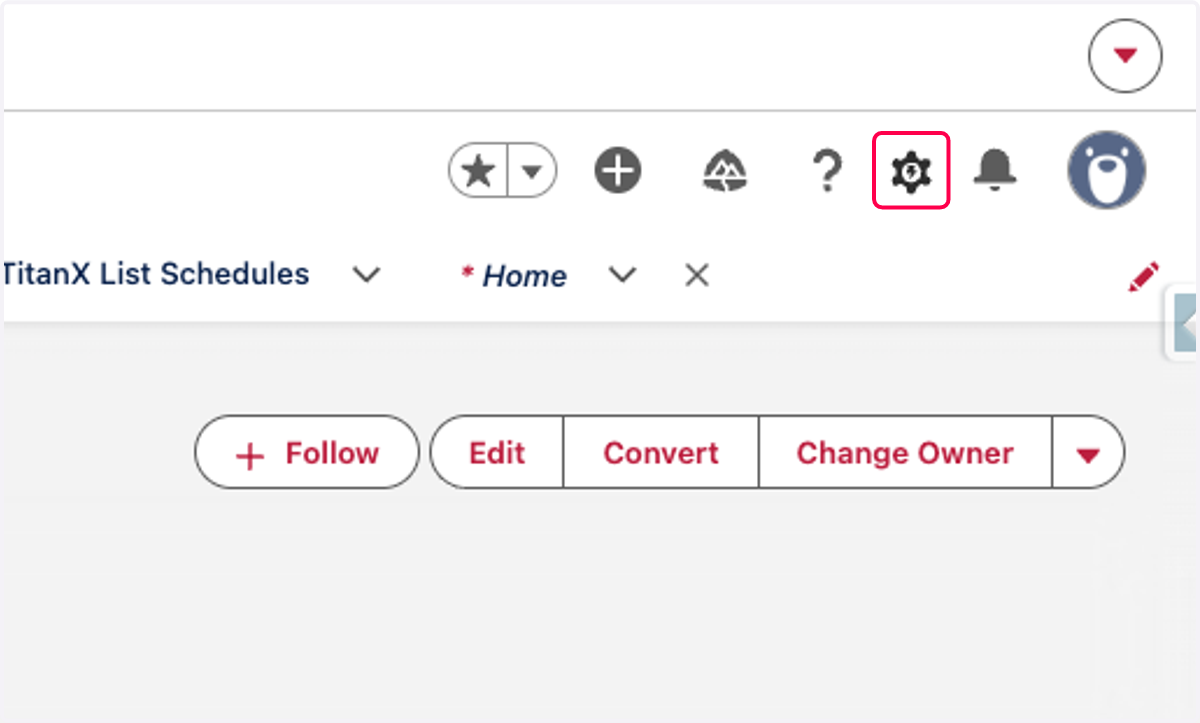
14. Click on Setup
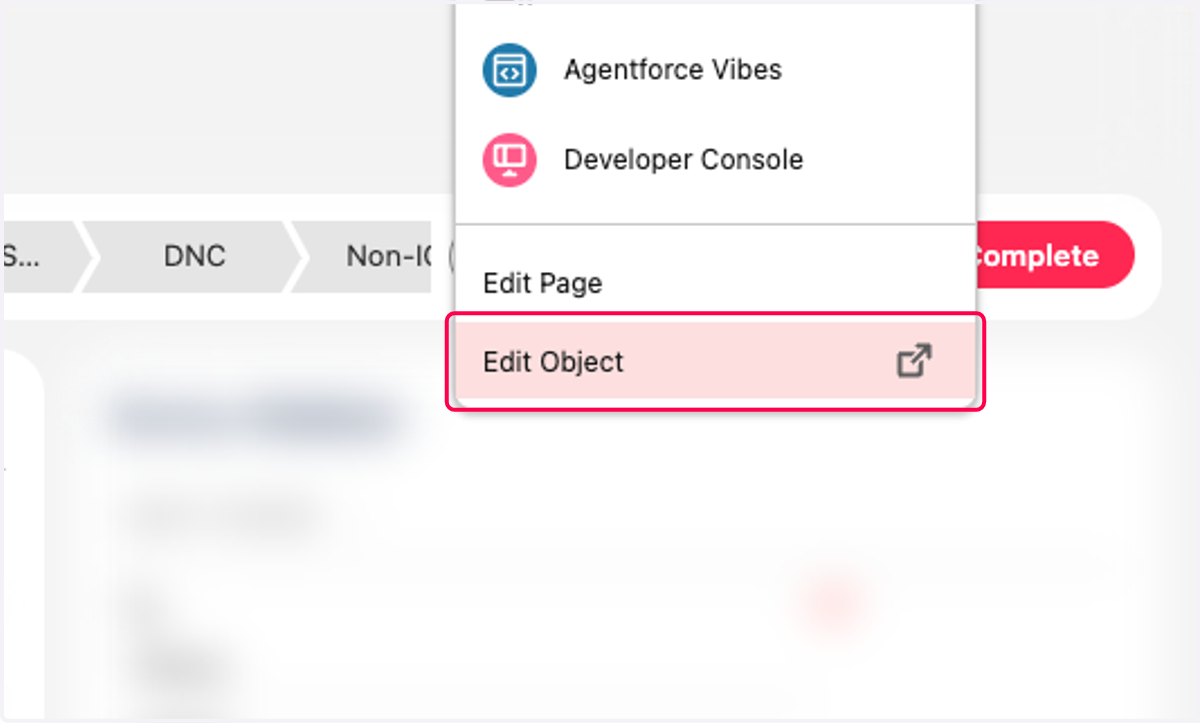
15. Click on Edit Object
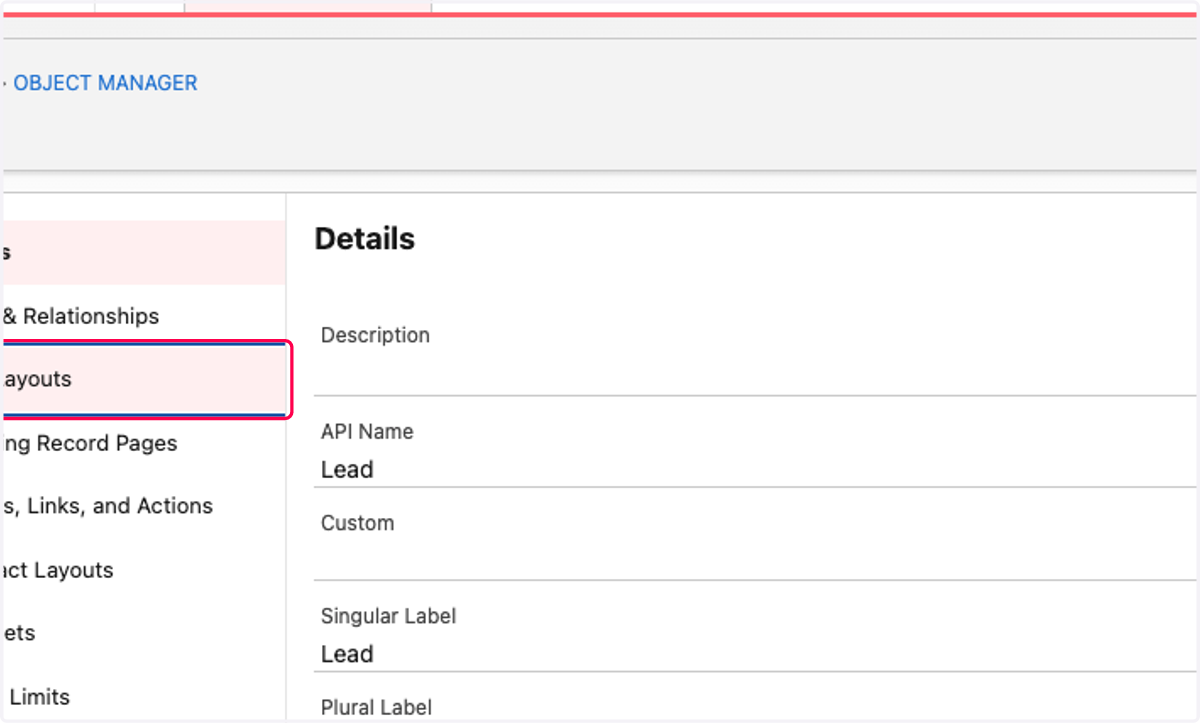
16. Click on Page Layouts
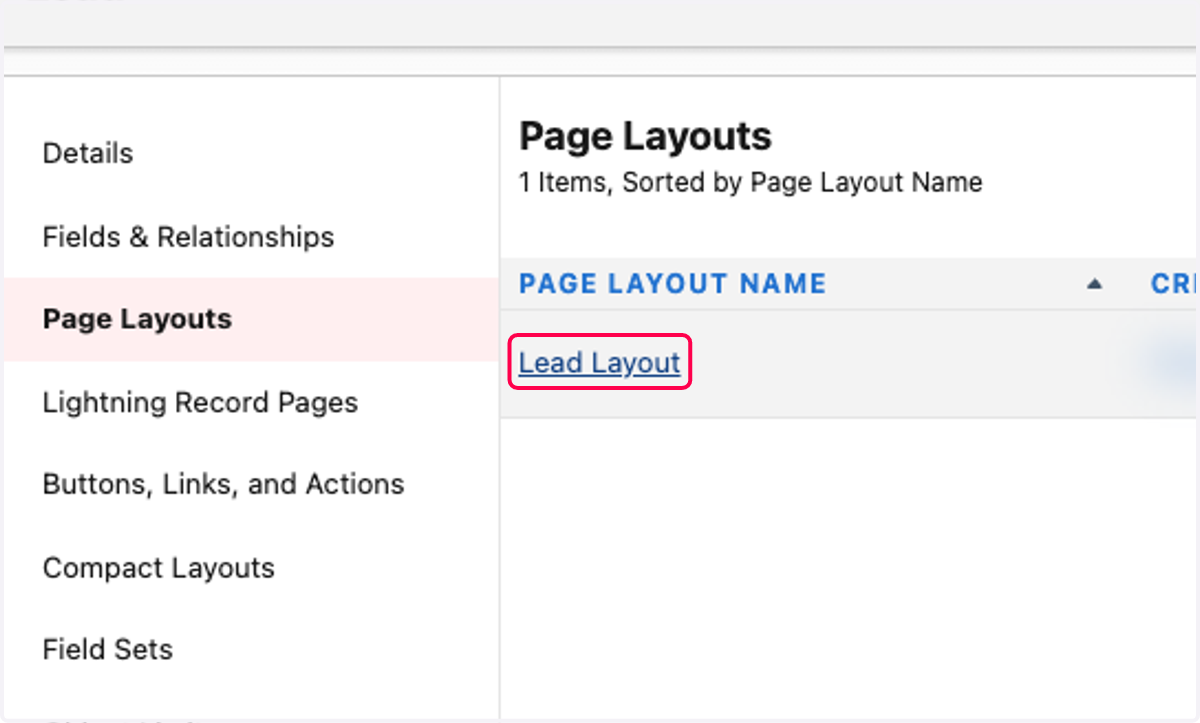
17. Click on the layout you use with TitanX
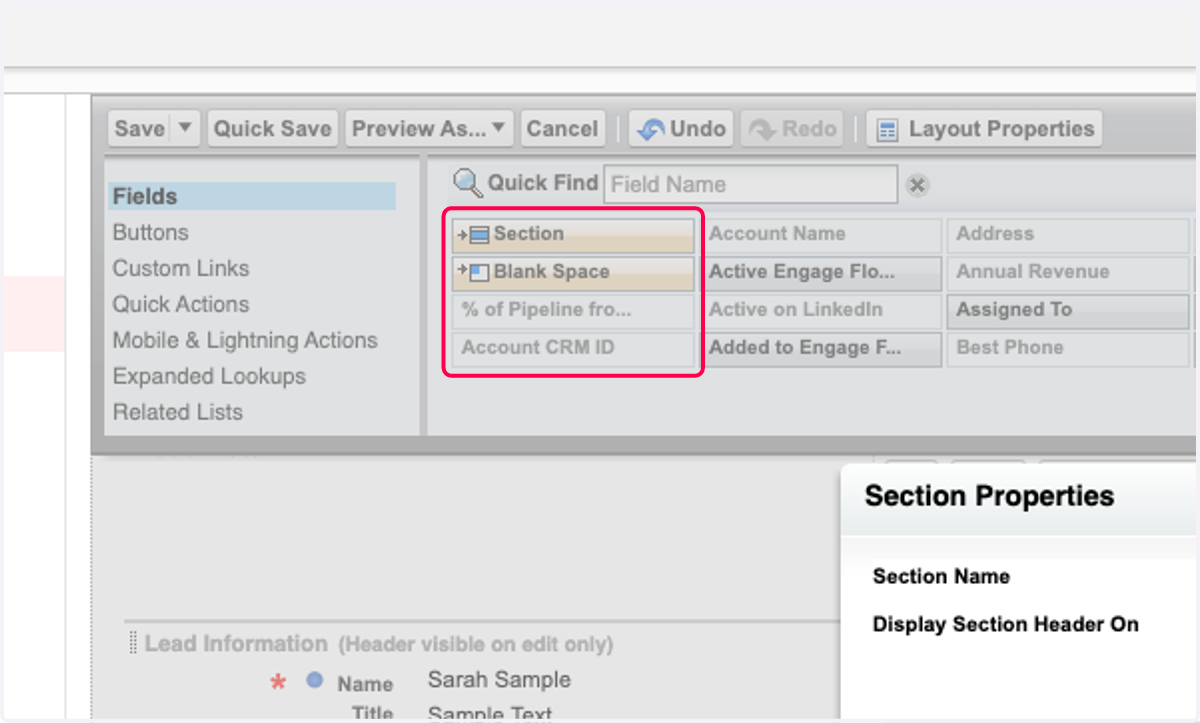
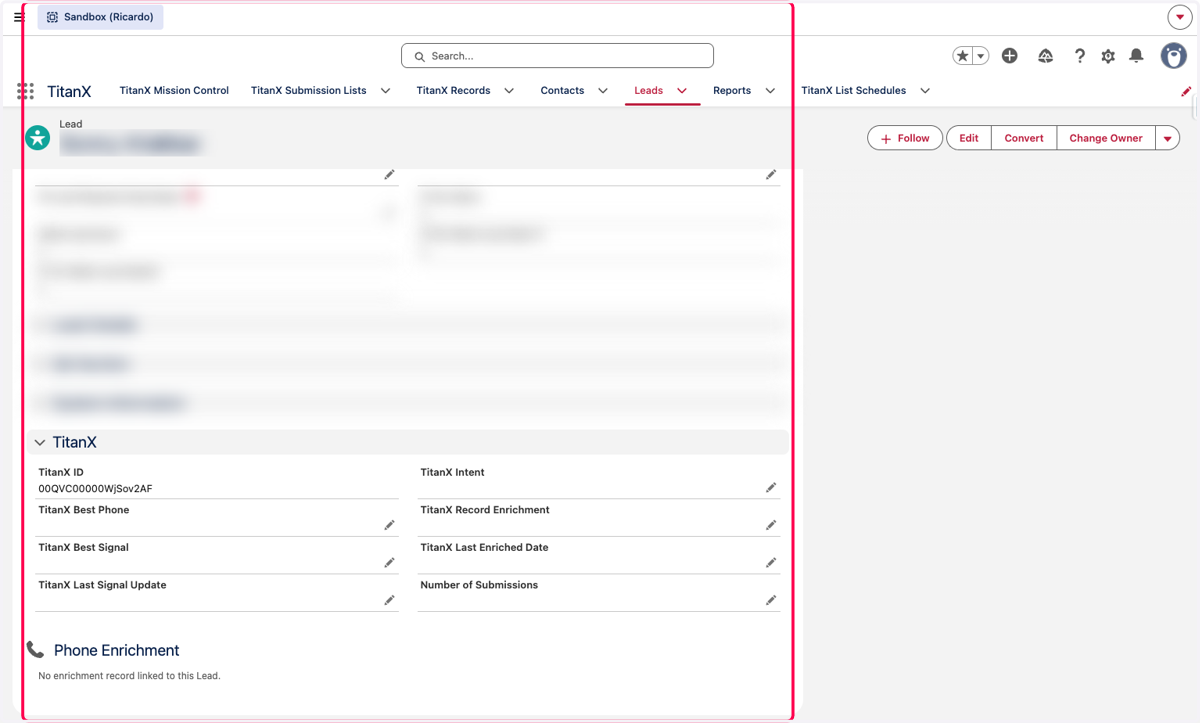
18. Drag Section to create a new section on the layout. It's recommended to add this section below all other created sections
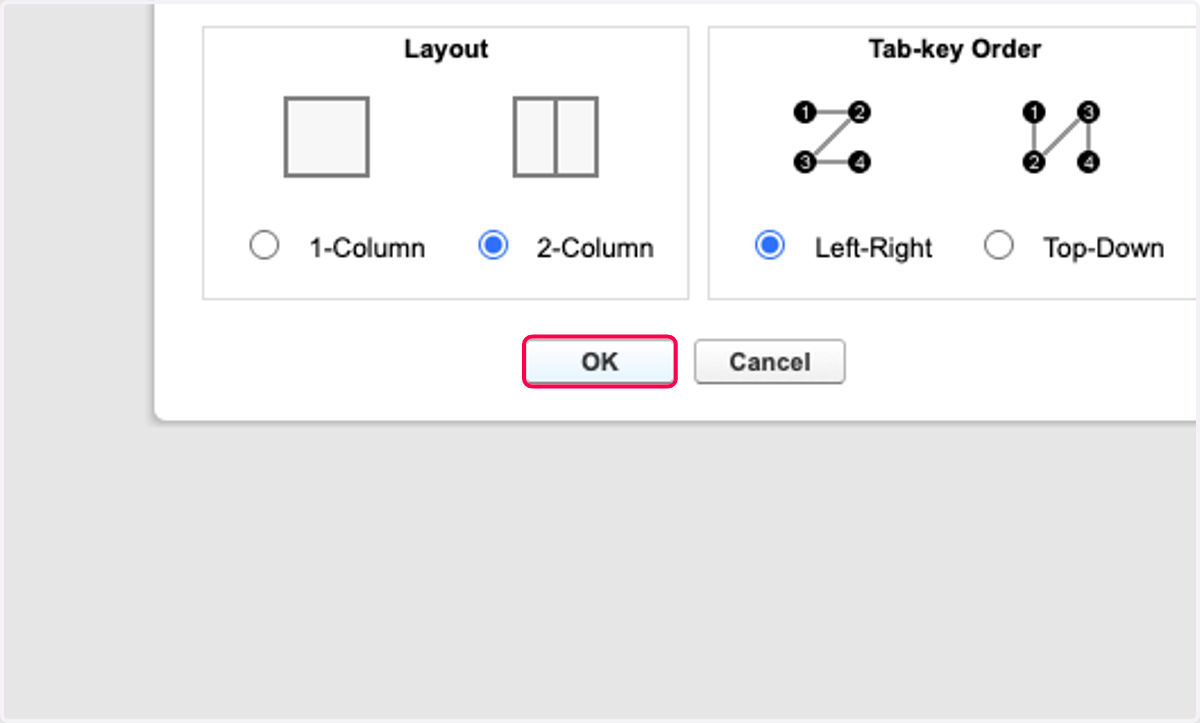
19. Name it TitanX and leave layout 2-Column and Left-right
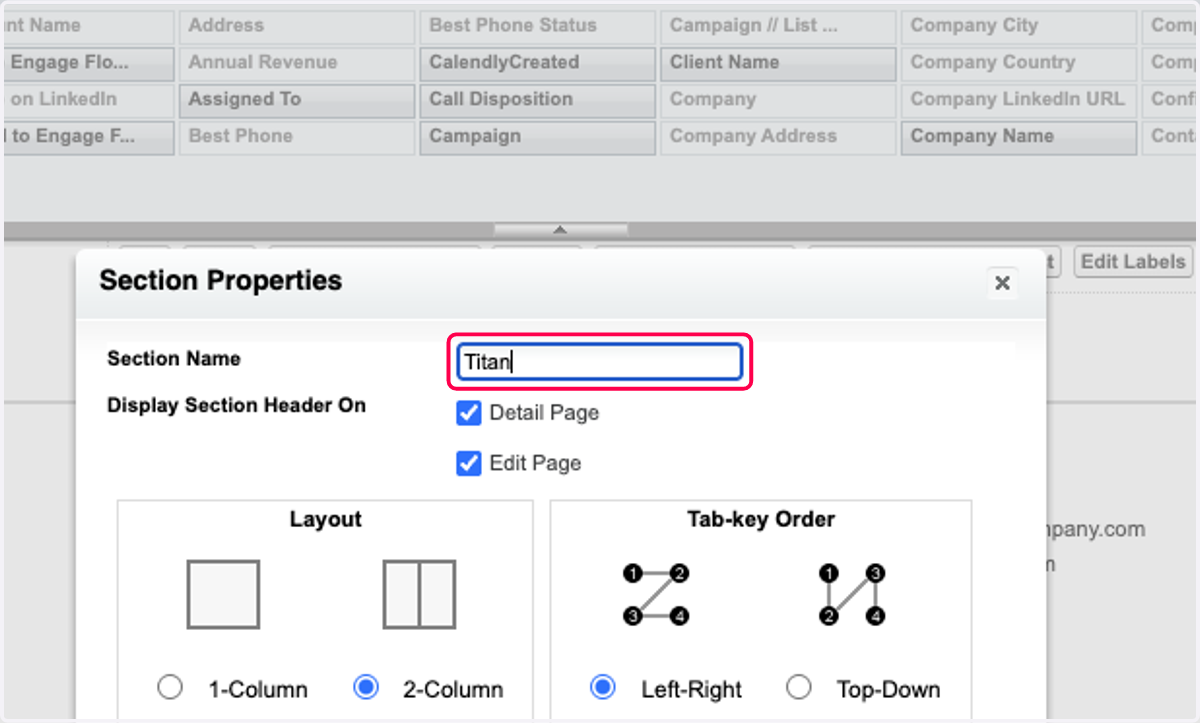
20. Click on OK
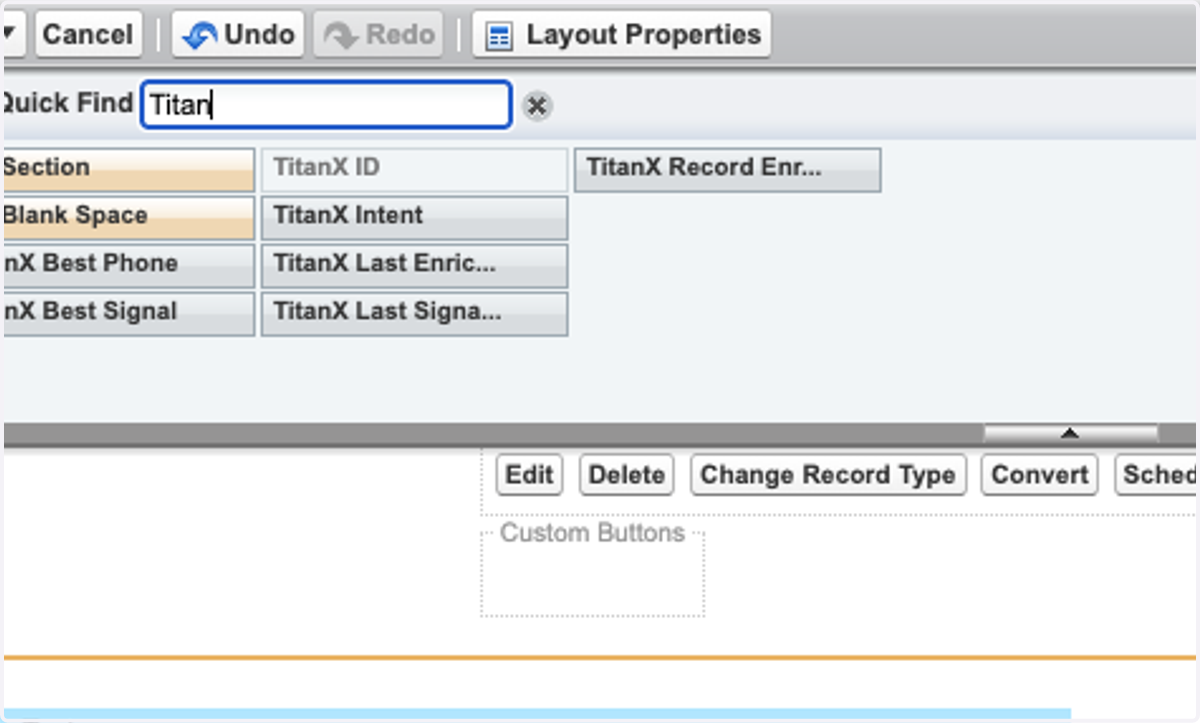
21. Search for TitanX and Drag all Fields to the TitanX Section one at a time.
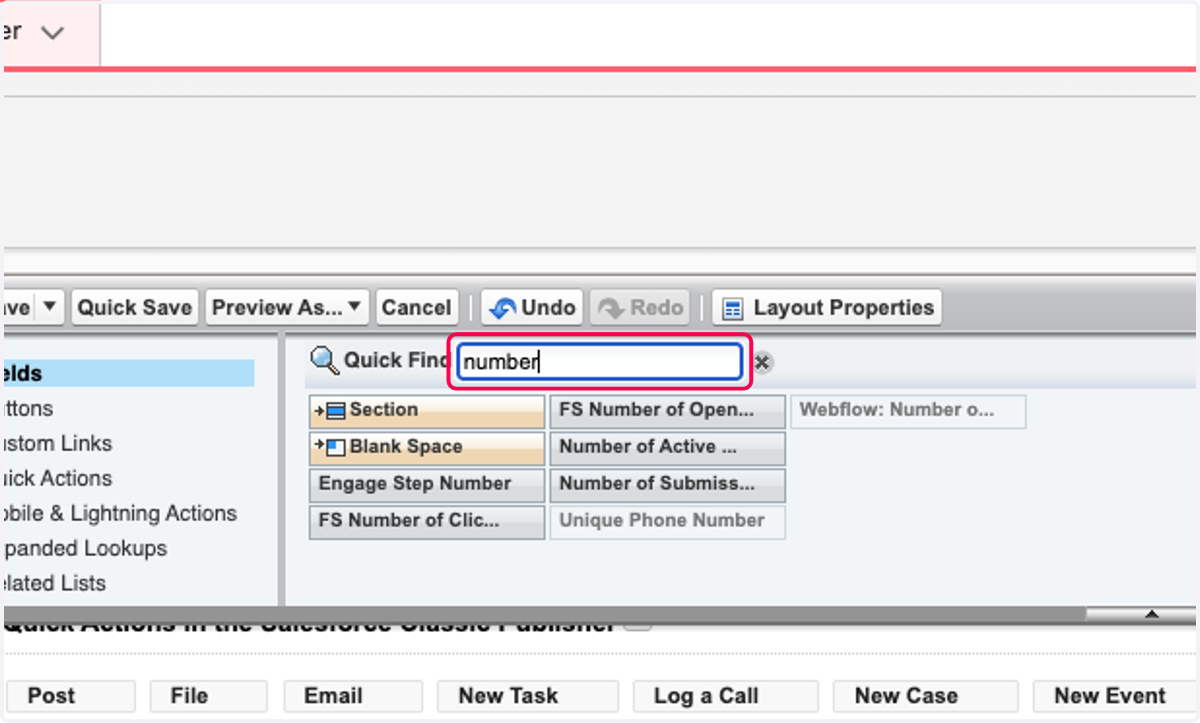
22. You can also search and add "Number of Submissions"
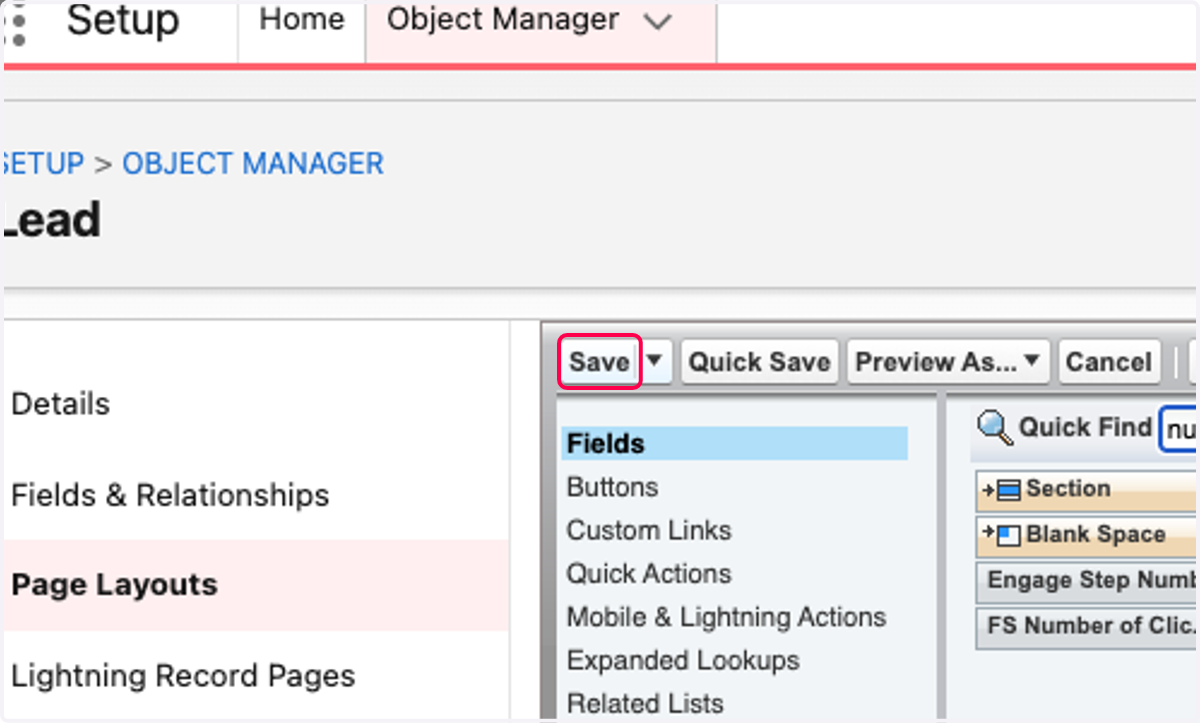
23. Click on Save
24. Navigate back to the Lead and confirm your setup looks similar to this. Note, the ordering of the fields or the sections are not important
Contact Object Mapping and Page Configuration
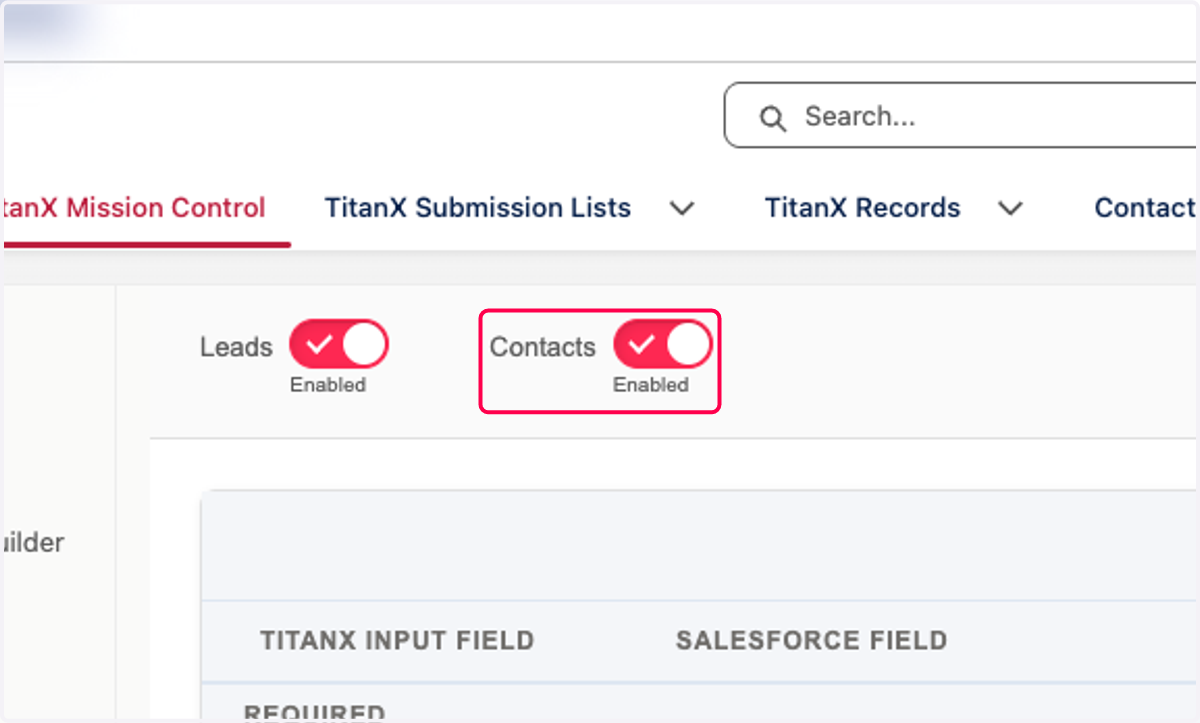
25. Enable Contacts if you are using this object in your org
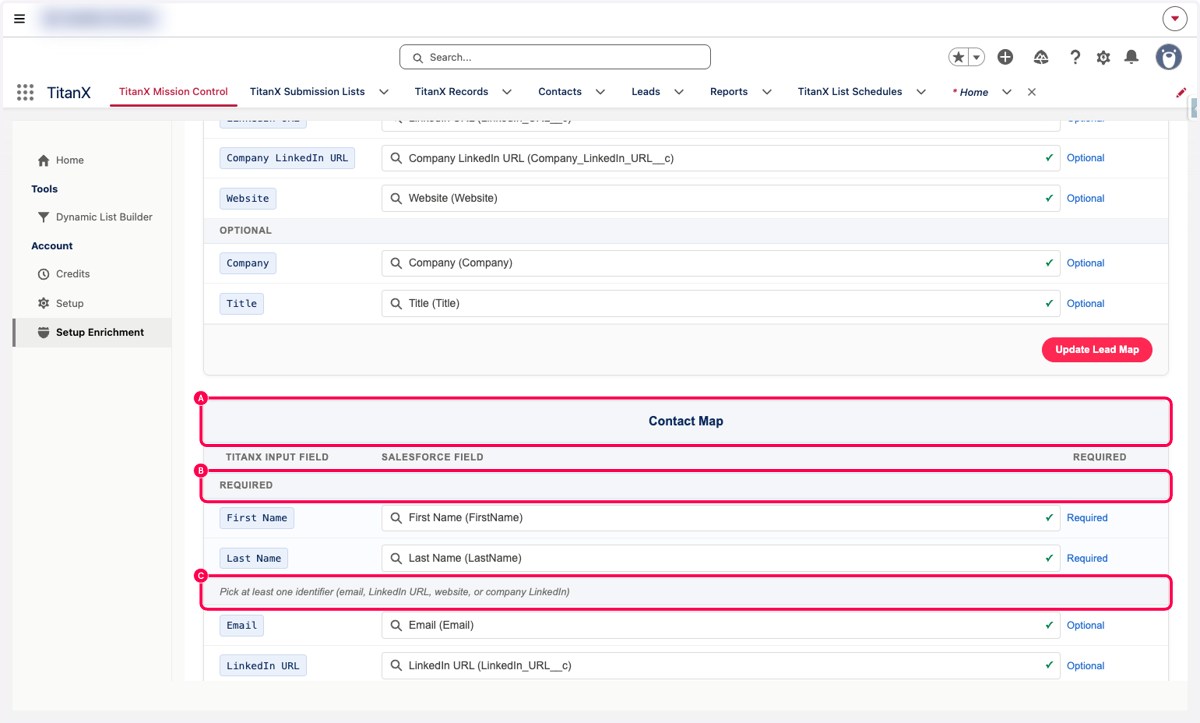
26. A. Complete the required fields on the contact mapping
26. B. First and Last name are both required
26. C. Map at least one identifier (email, LinkedIn URL, website, or company LinkedIn)
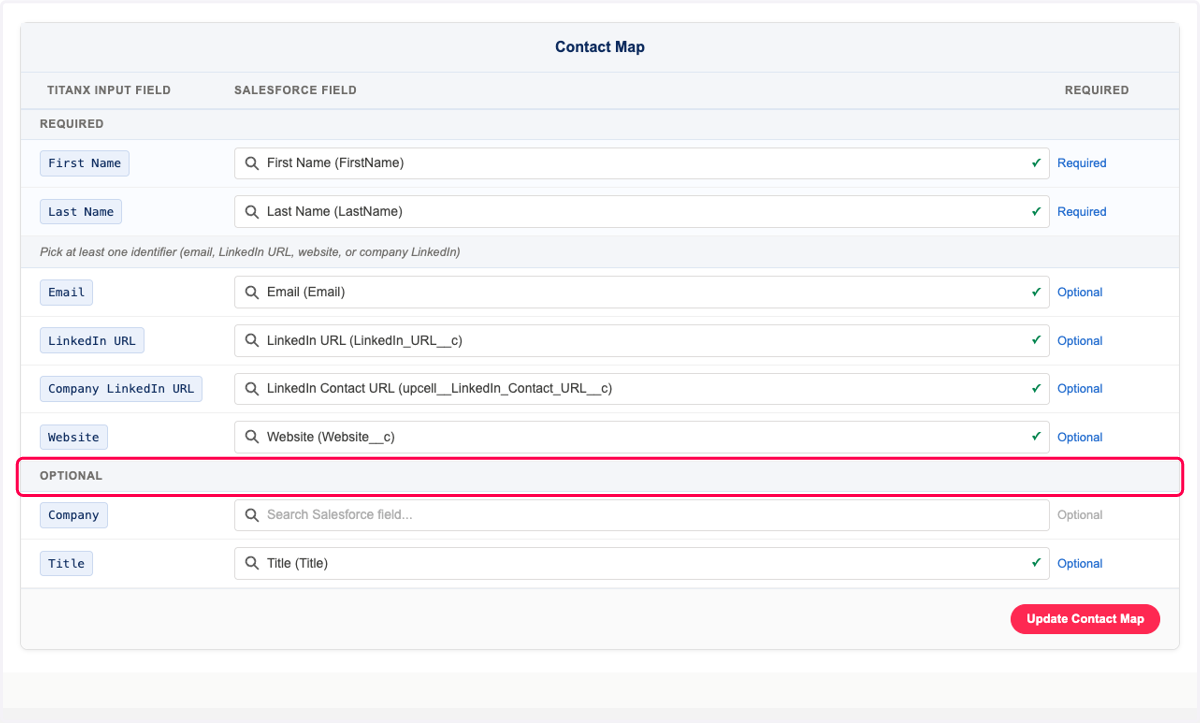
27. Additional Optional fields can be mapped.
Mapping additional fields increase the likelihood of a successful enrichment job.
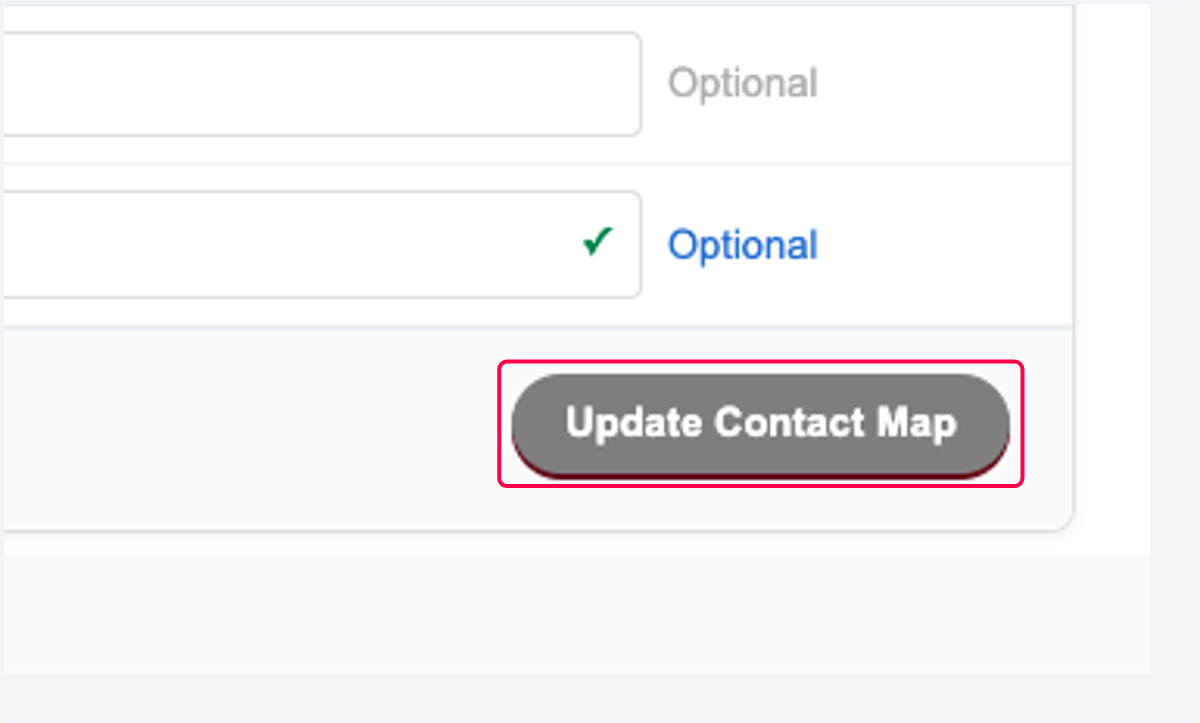
28. Click on Update Contact Map
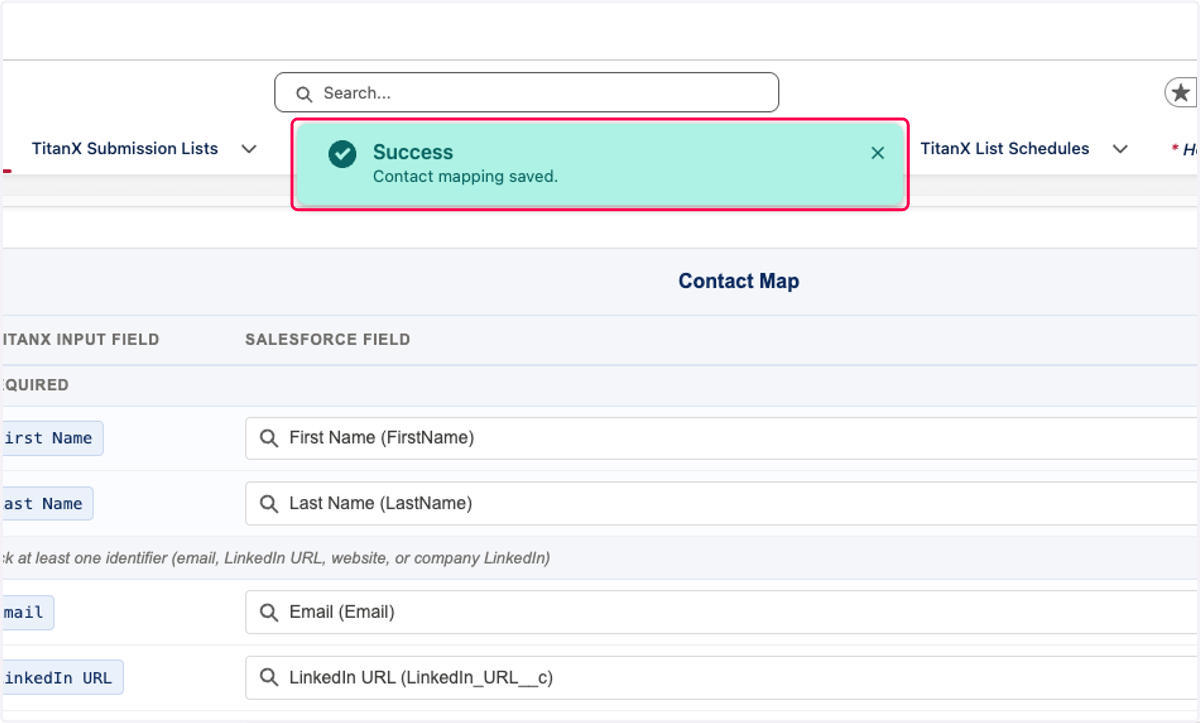
29. Click on Success…
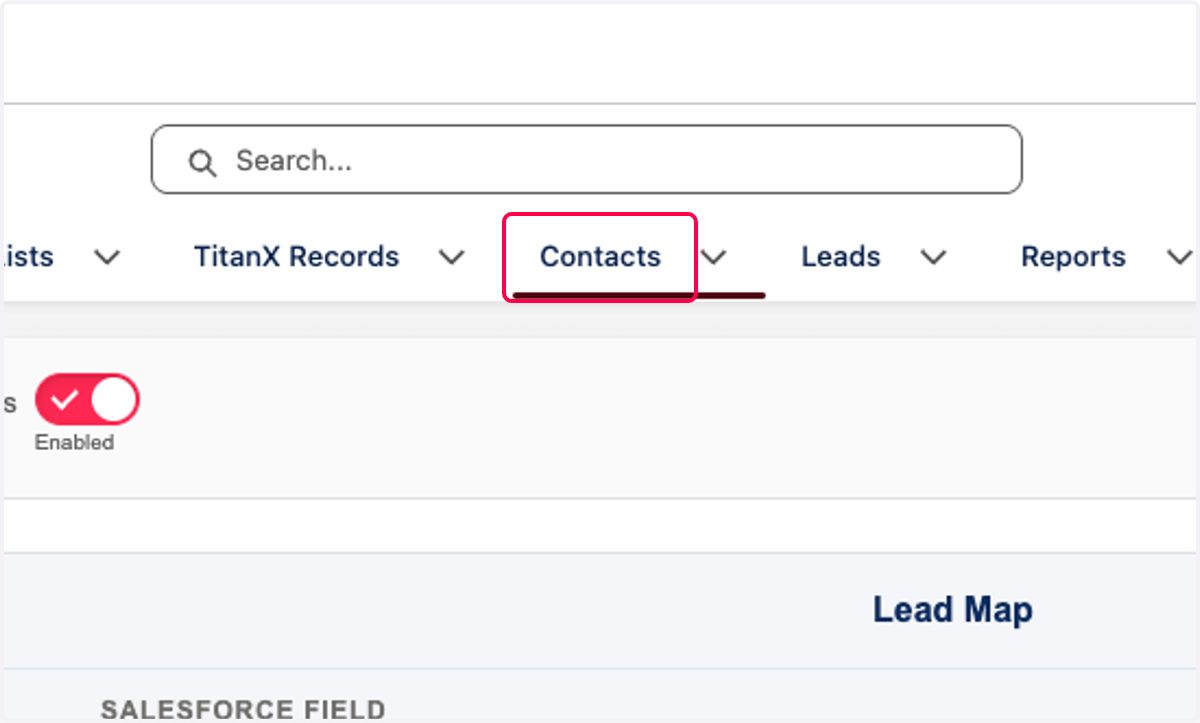
30. Click on Contacts
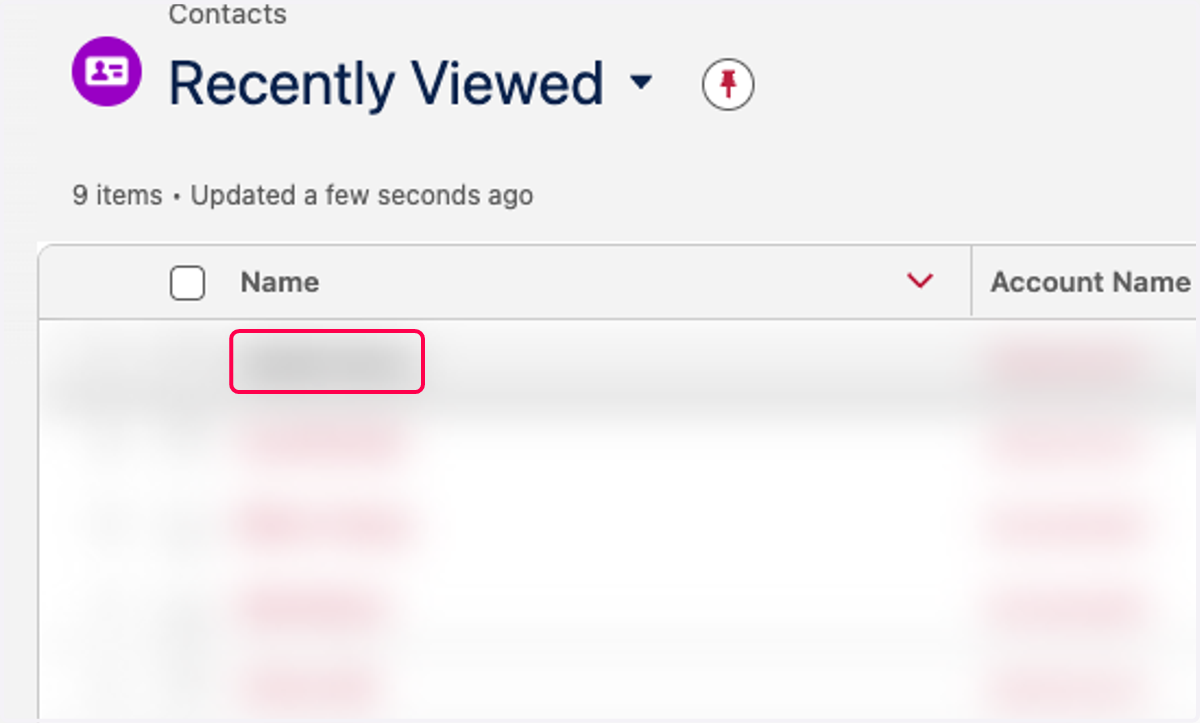
31. Click on any contact
32. Click on Setup
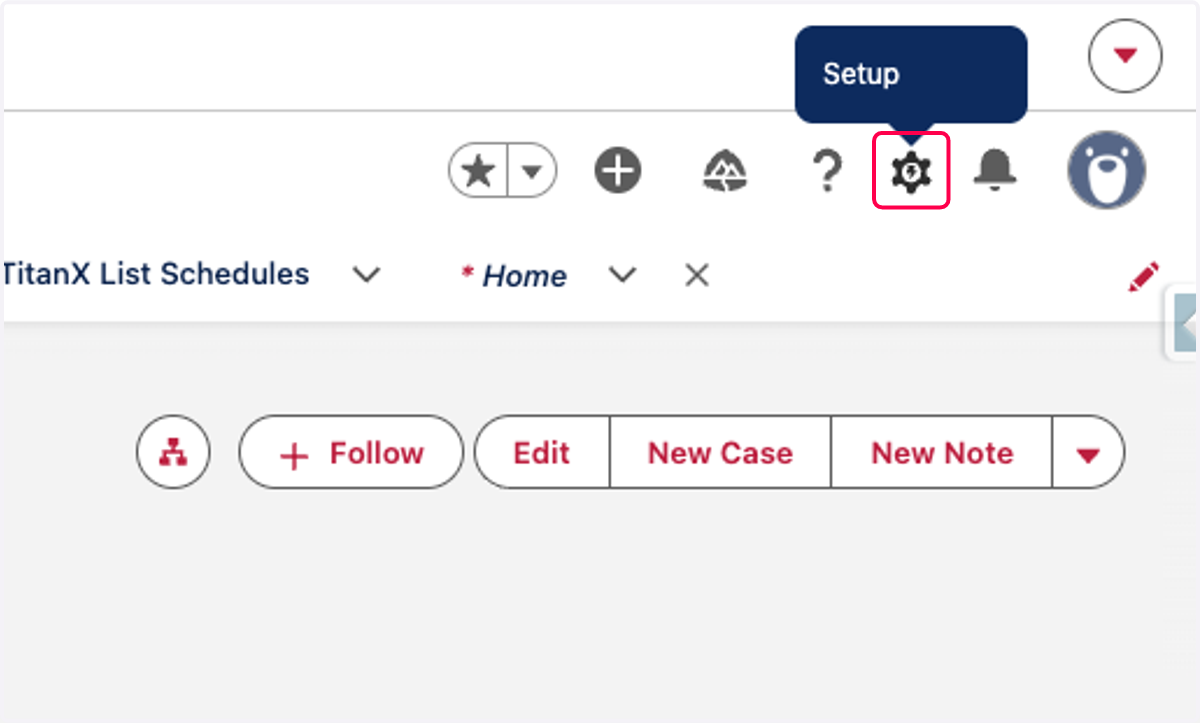
33. Click on Edit Page
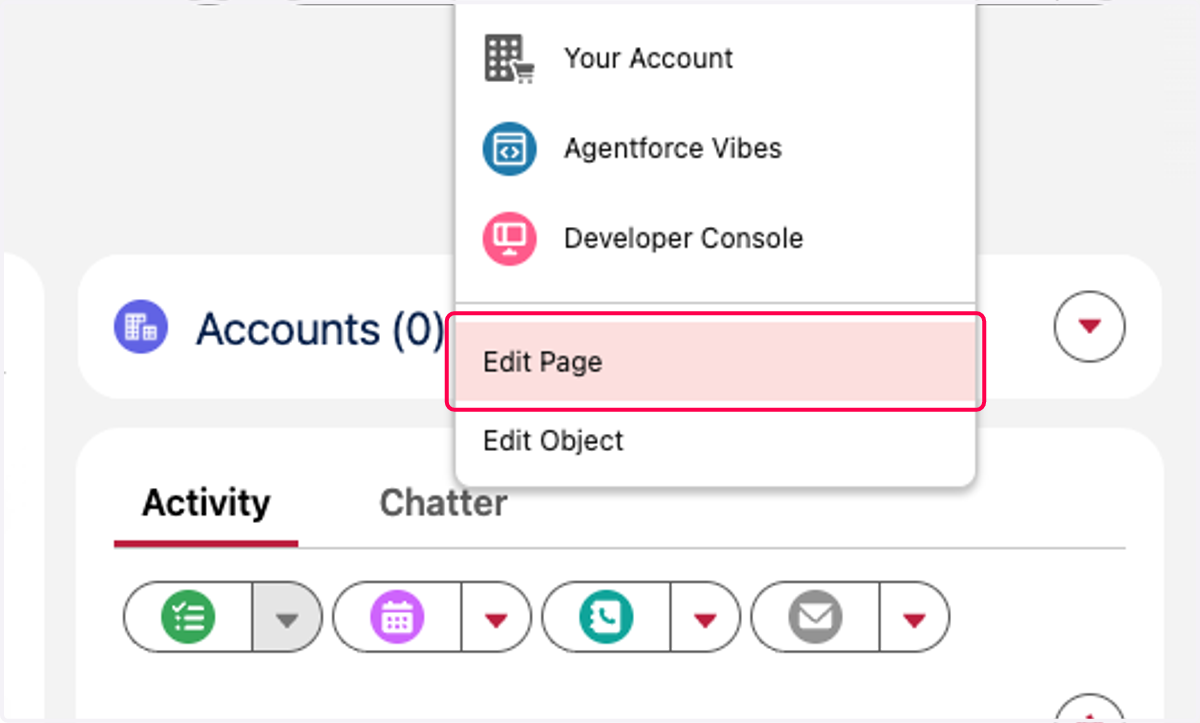
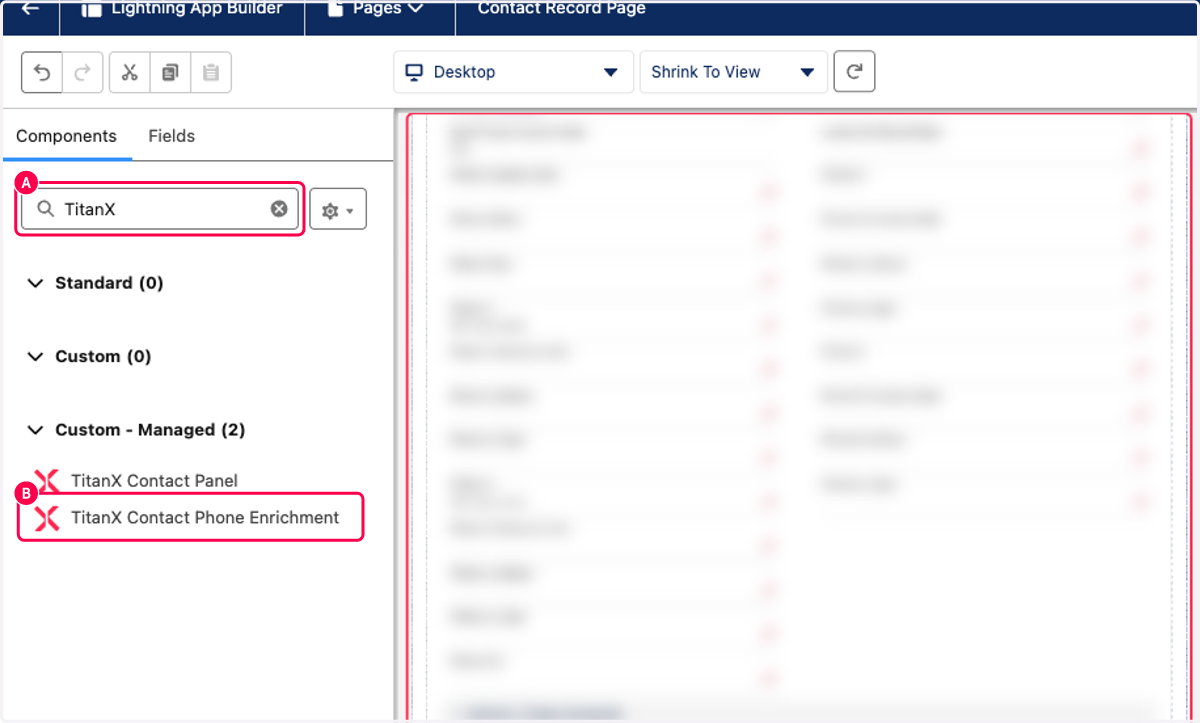
34. A. Search TitanX
34. B. Drag TitanX Contact Phone Enrichment (We recommend to drag all the way at the bottom)
This will show the enriched phones for the Lead
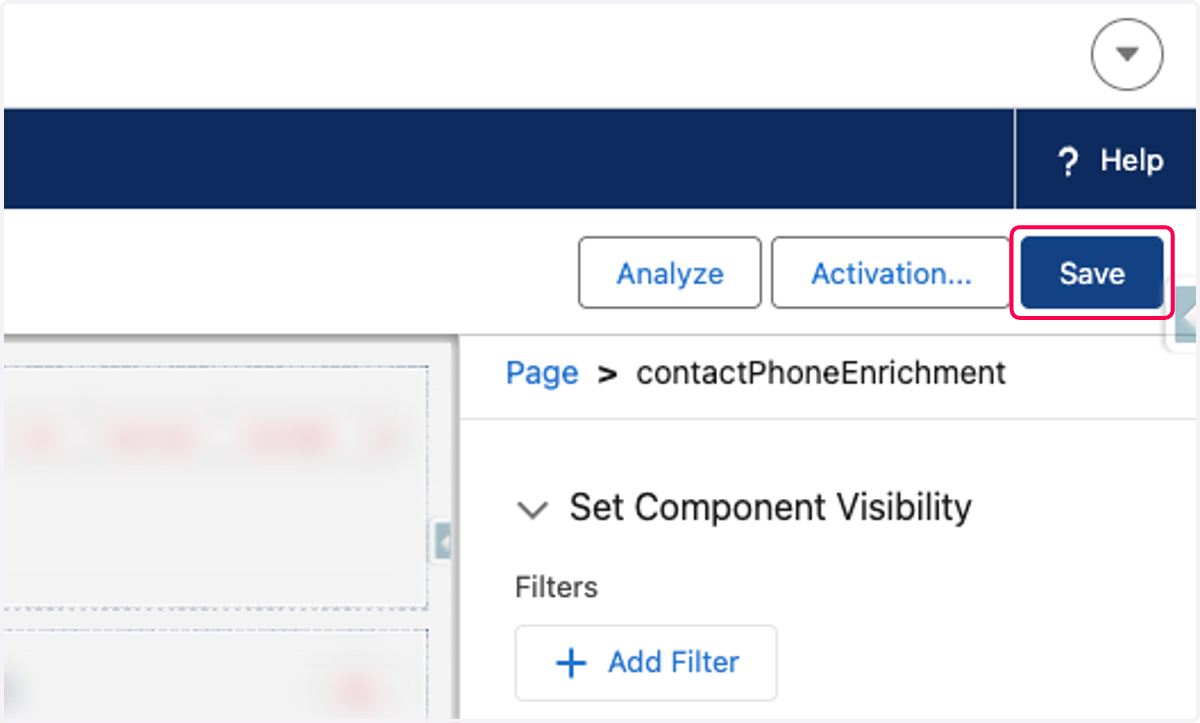
35. Click on Save
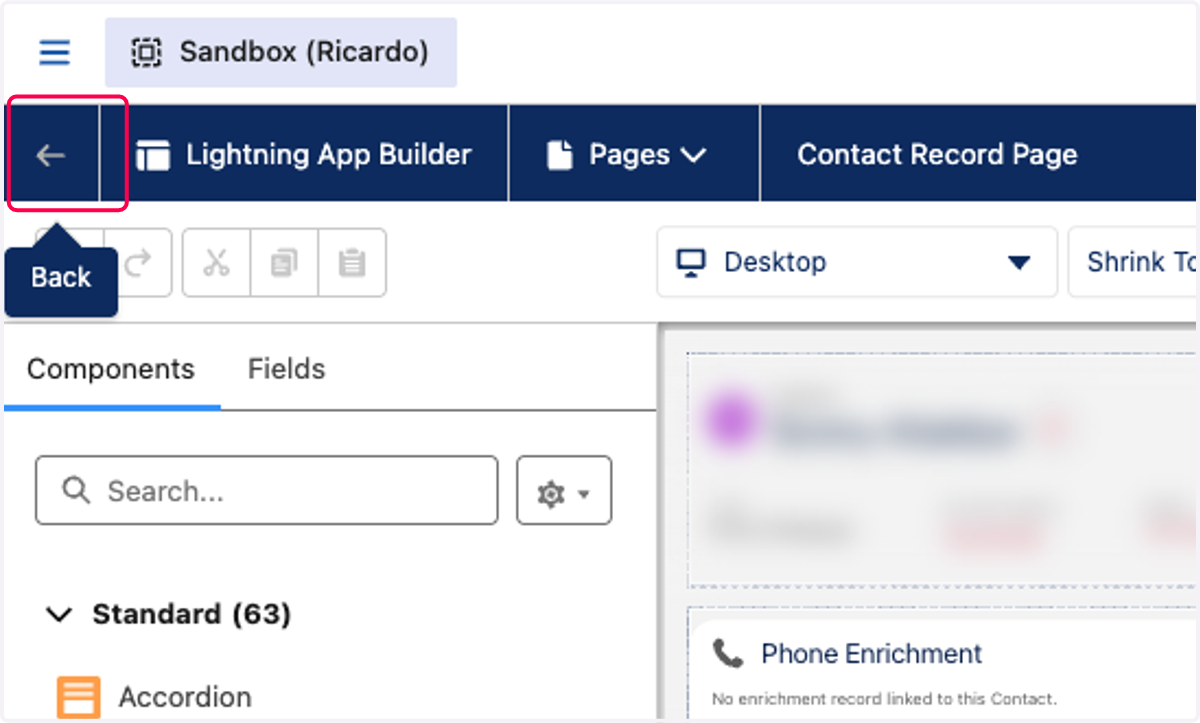
36. Click on Back
Recommended Contact Object Layout
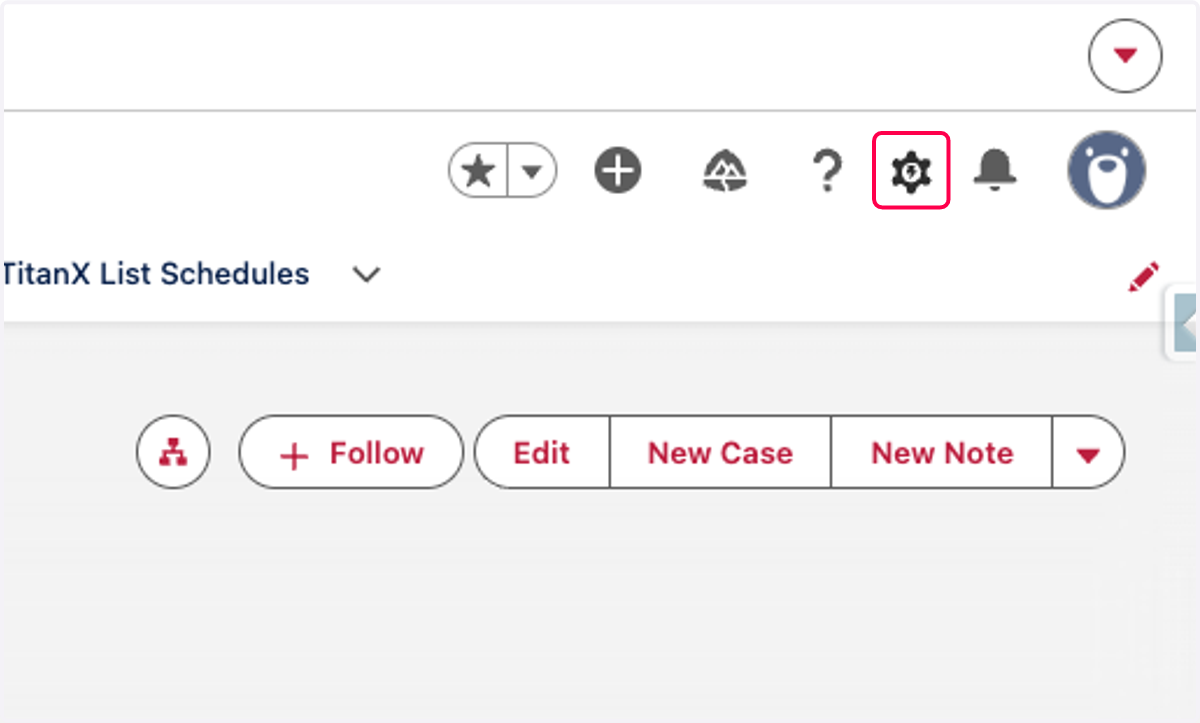
37. Click on Setup
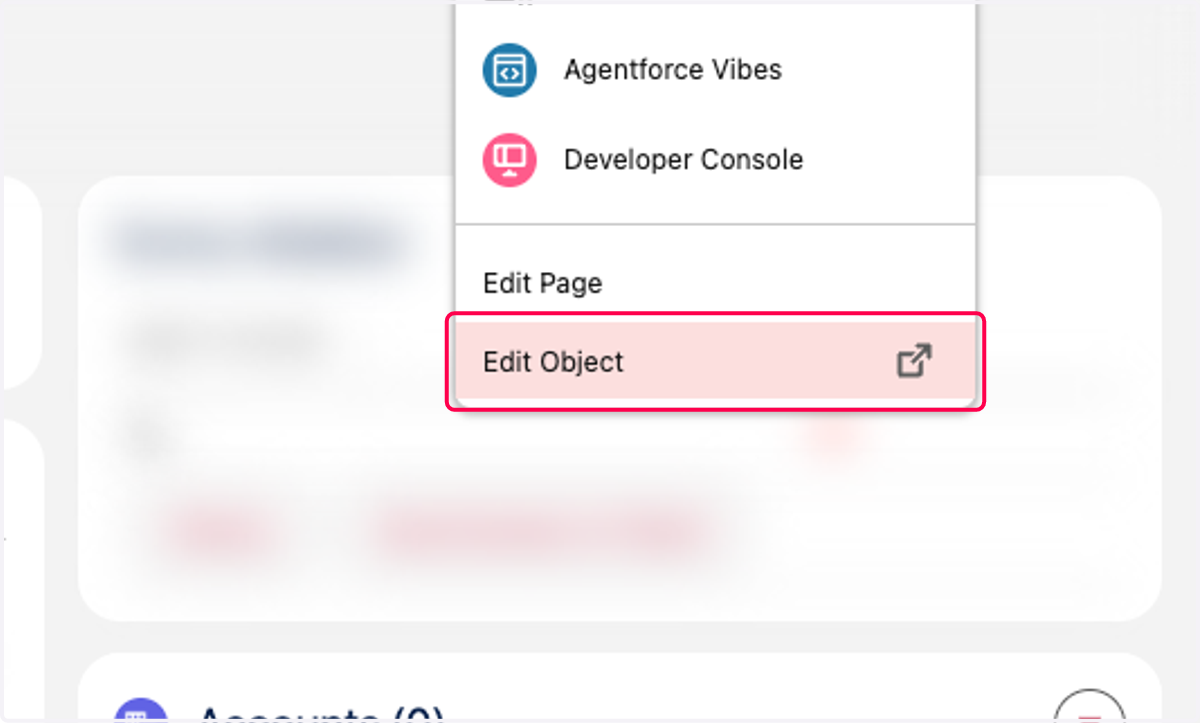
38. Click on Edit Object
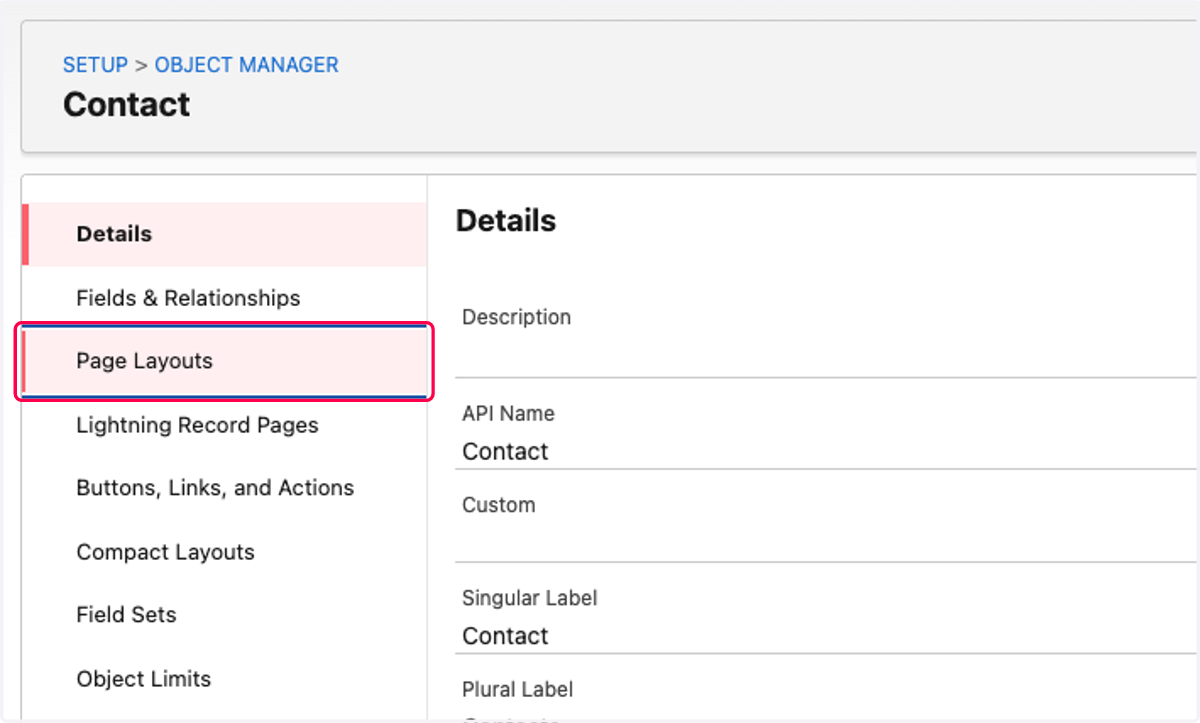
39. Click on Page Layouts
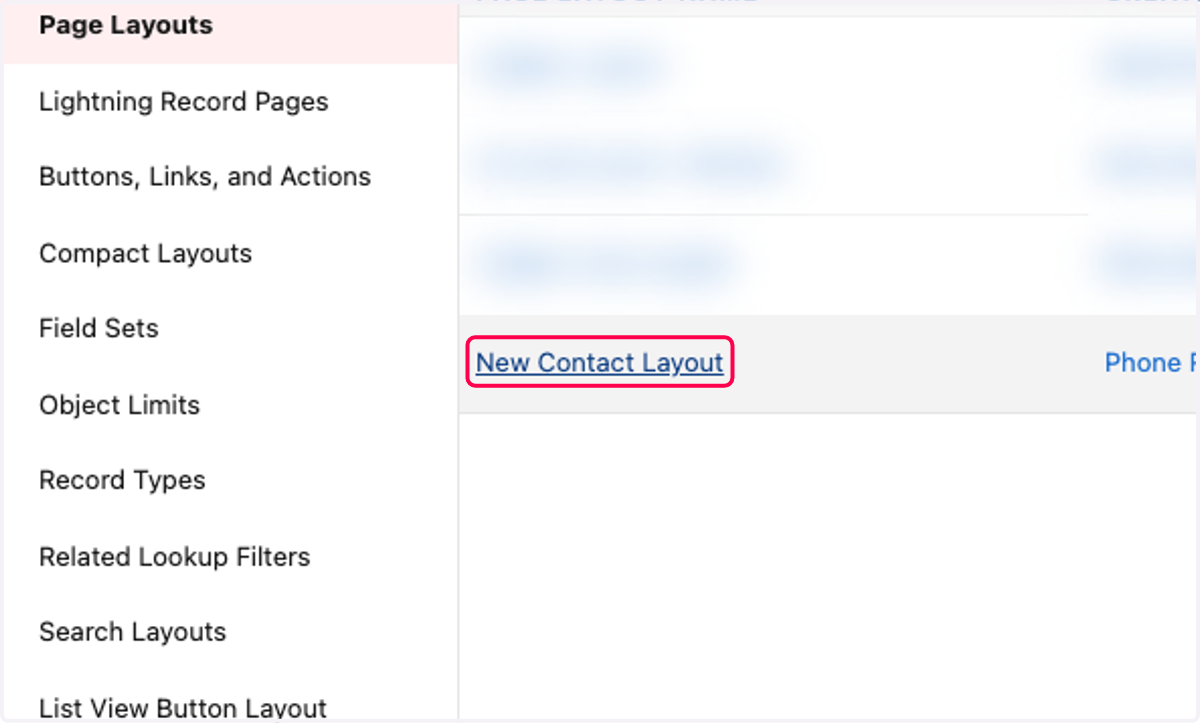
40. Click on New Contact Layout
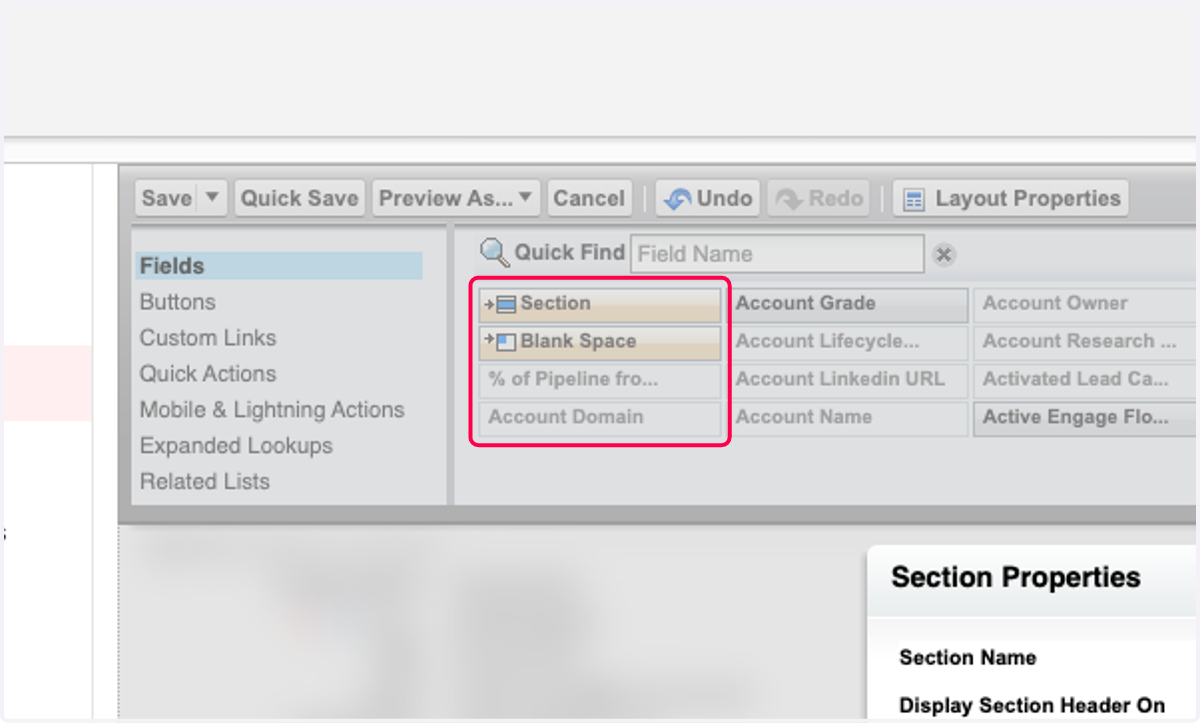
41. Drag Section to create a new section on the layout. It's recommended to add this section below all other created sections
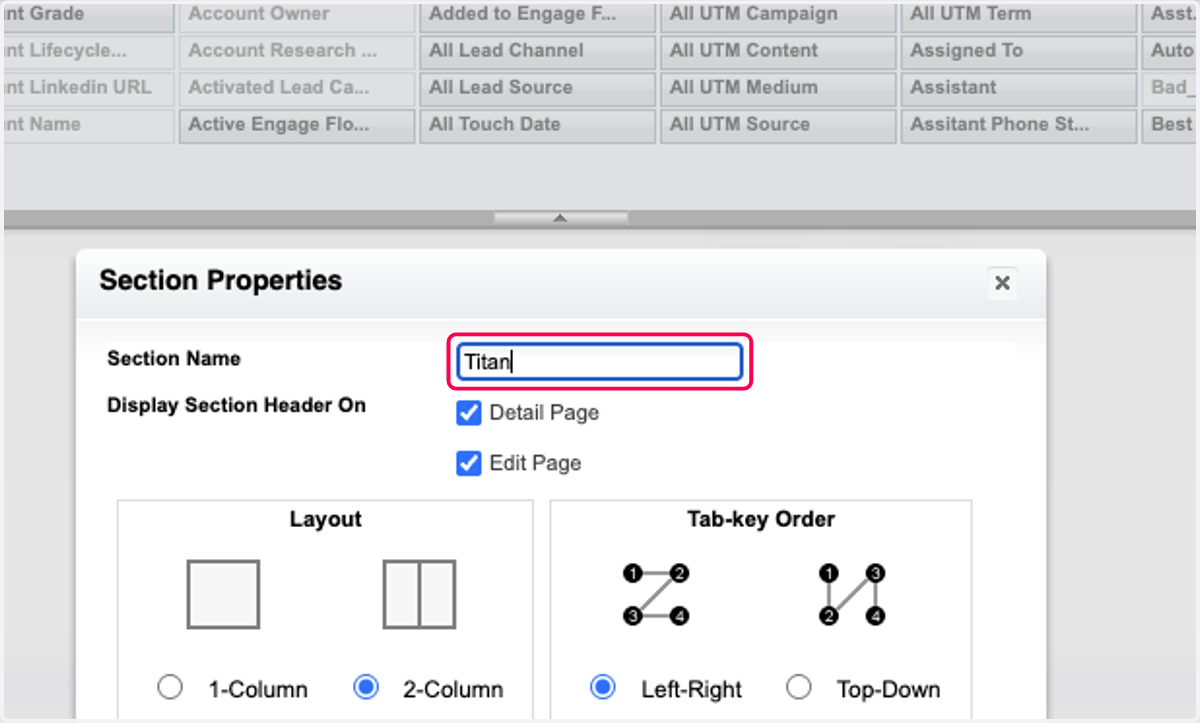
42. Type TitanX
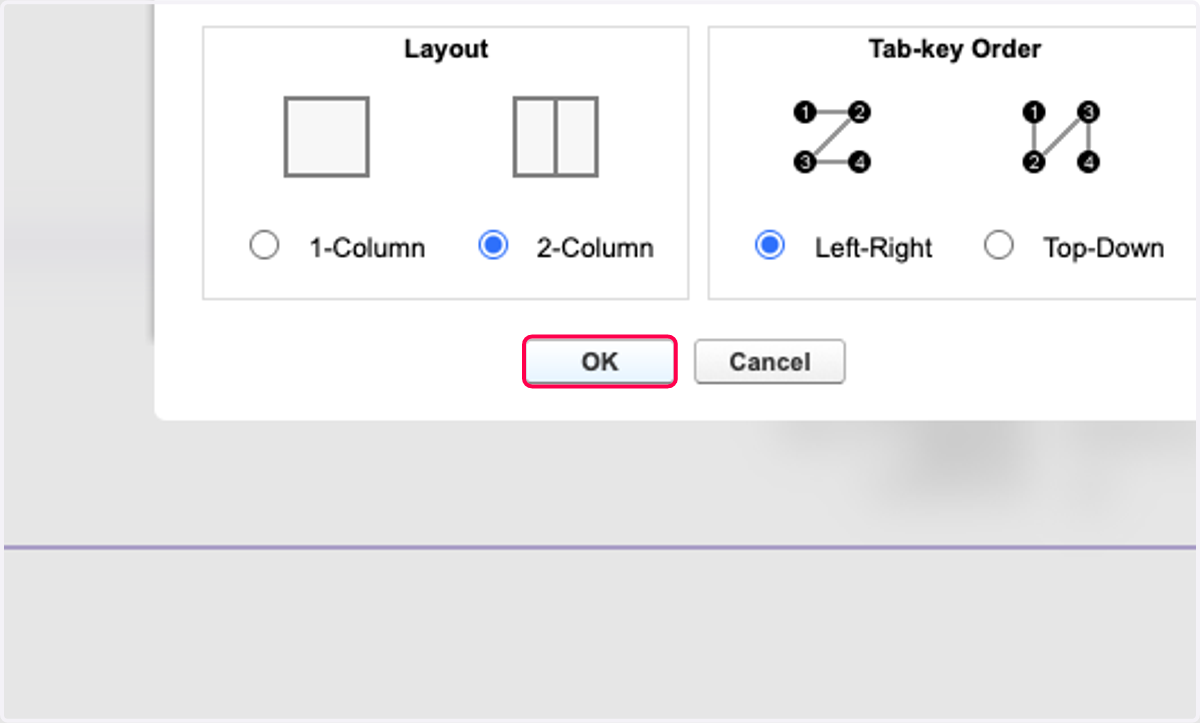
43. Click on OK
44. Type TitanX
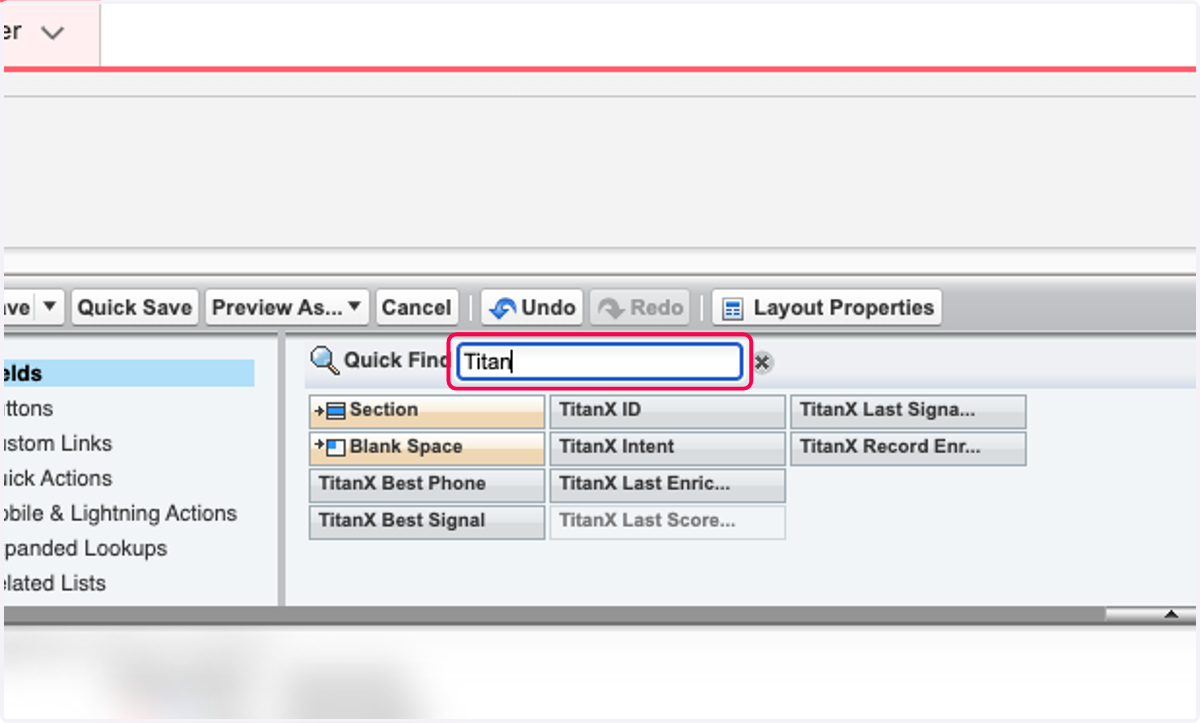
45. Drag all TitanX Fields
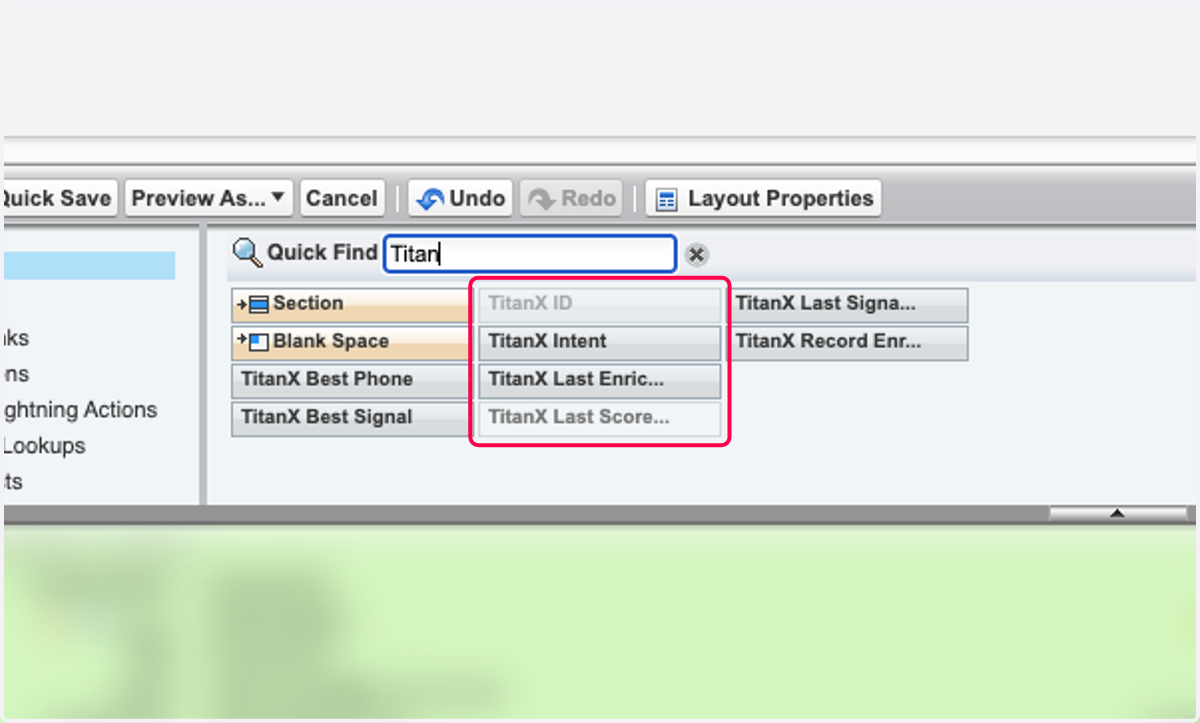
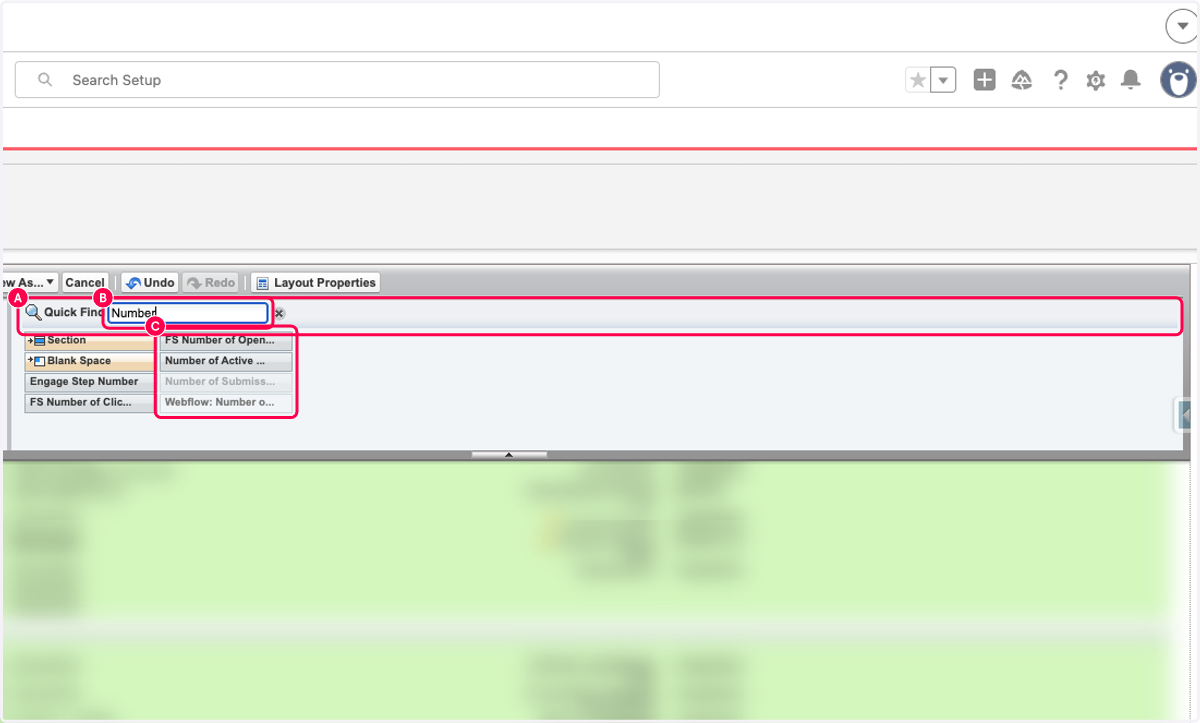
46. A. You can also search for Number Of Submissions
46. B.
46. C. Drag highlighted element
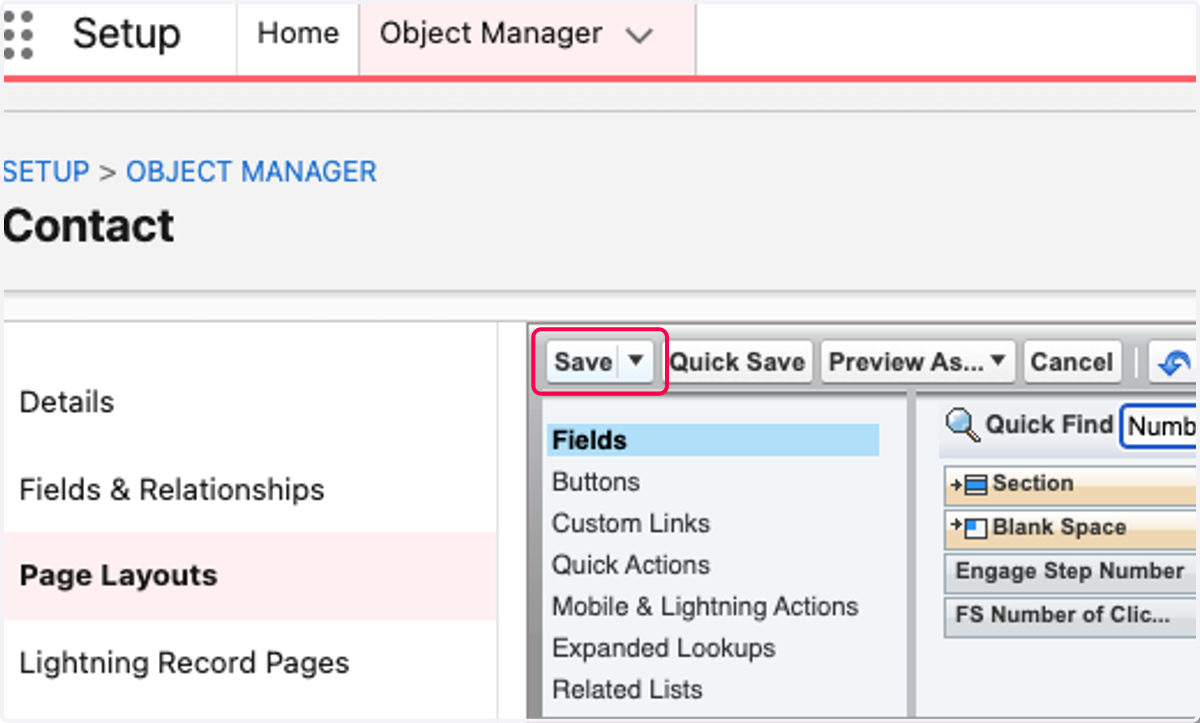
47. Click on Save
48. Navigate back to the Contact and confirm your setup looks similar to this. Note, the ordering of the fields or the sections are not important