How to Register Someone for an Event In Protech

Login to Protech (UX365)

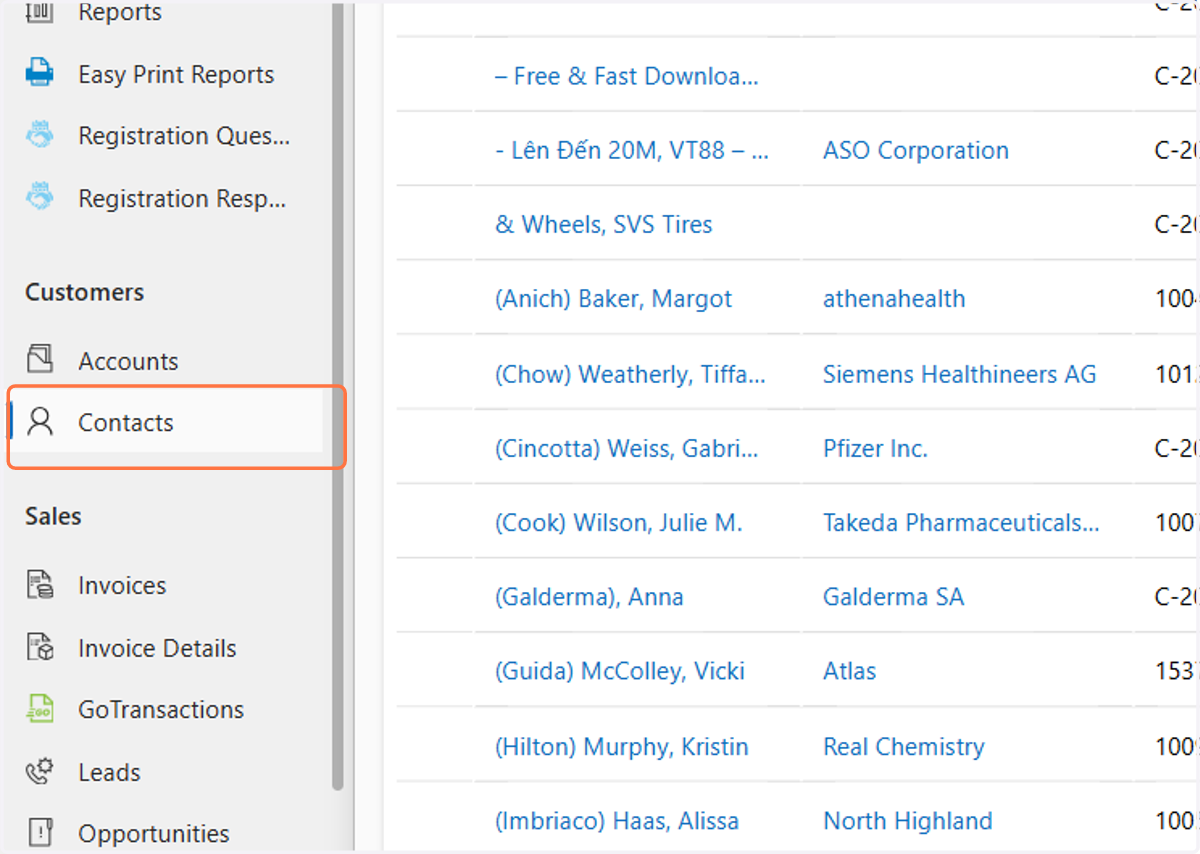
  1. 1. Click on Contacts

    Click on Contacts
  2. 2. In the search field, type the last name, first name of the contact and click enter
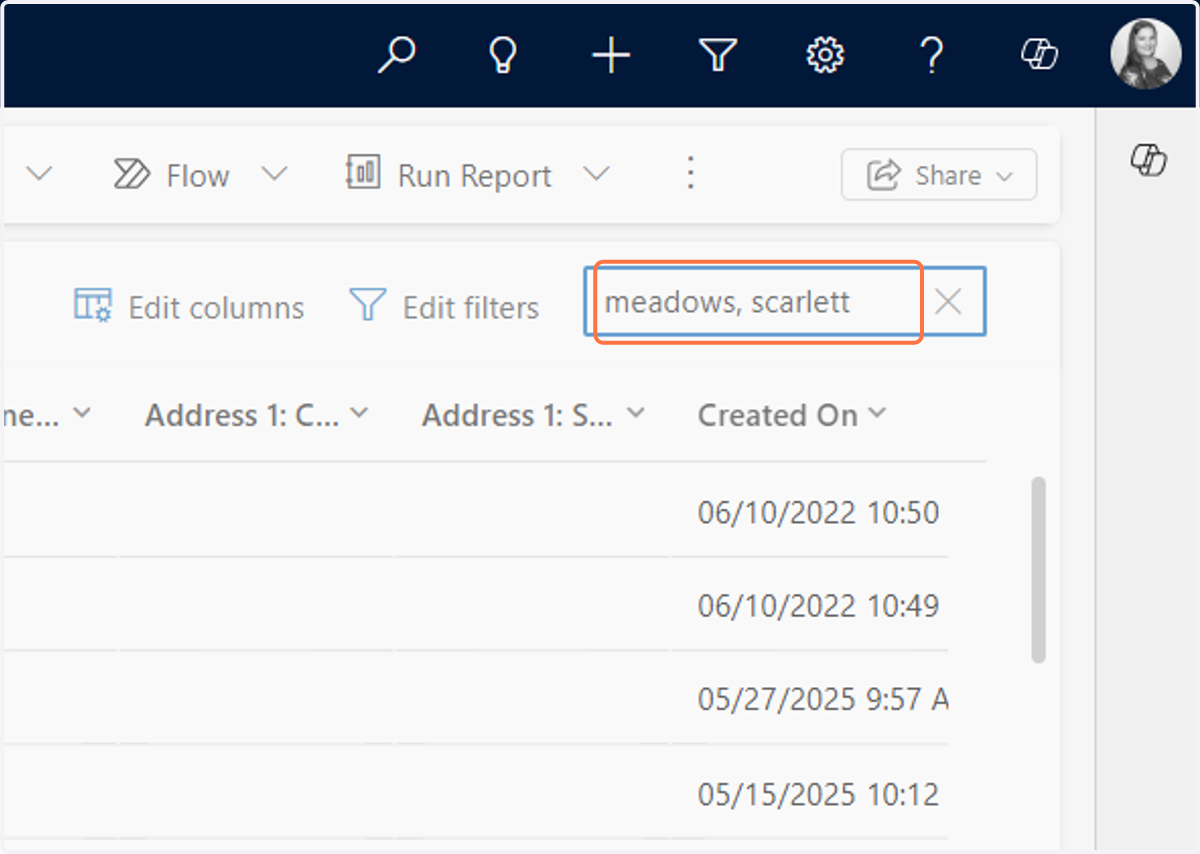
    In the search field, type the last name, first name of the contact and click enter
  3. 3. Double click on the contact record
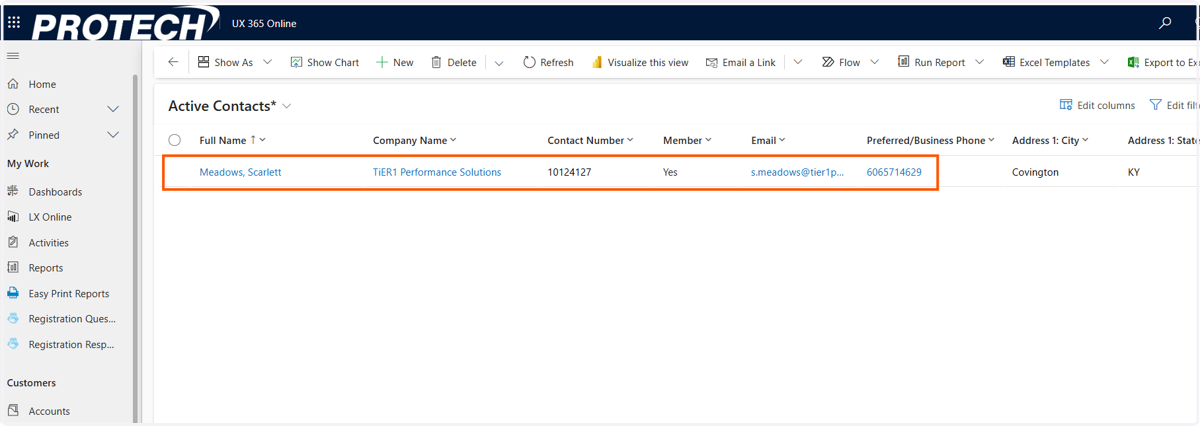
    Double click on the contact record
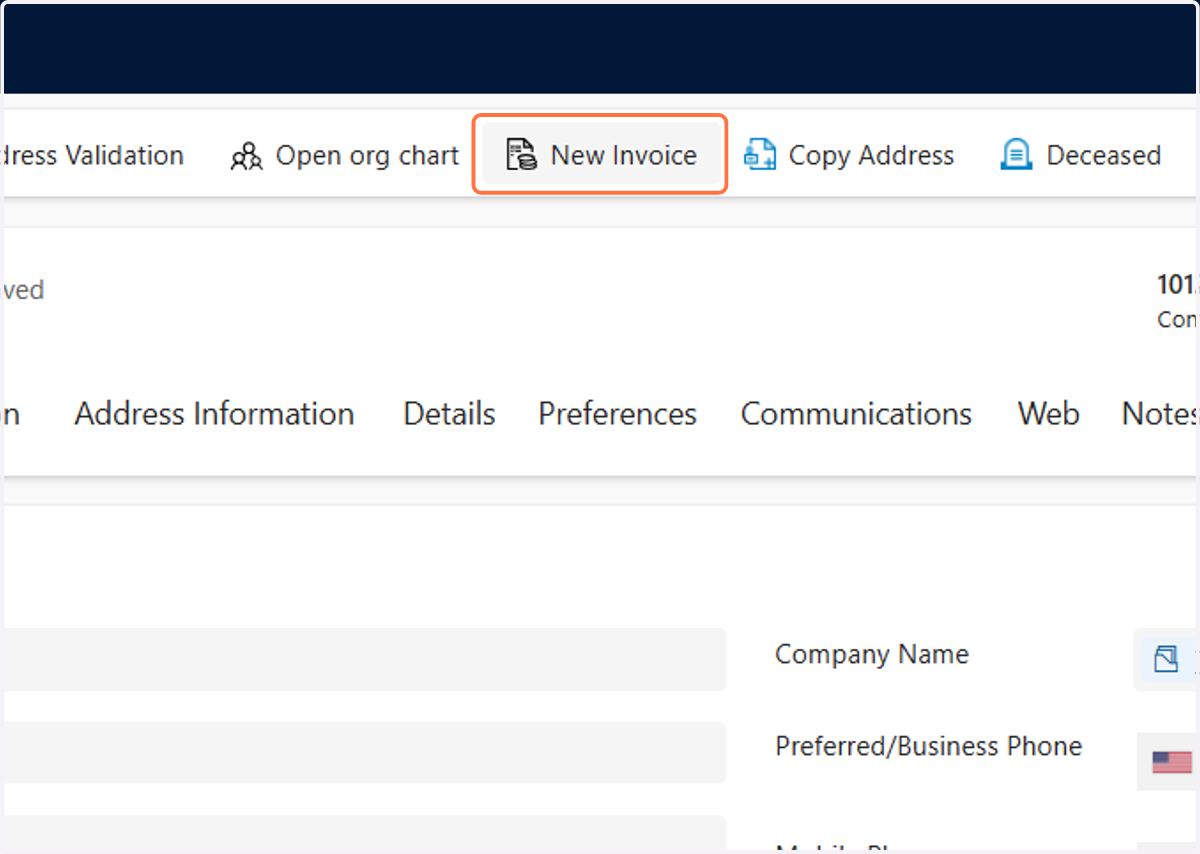
  4. 4. Click on New Invoice

    Click on New Invoice
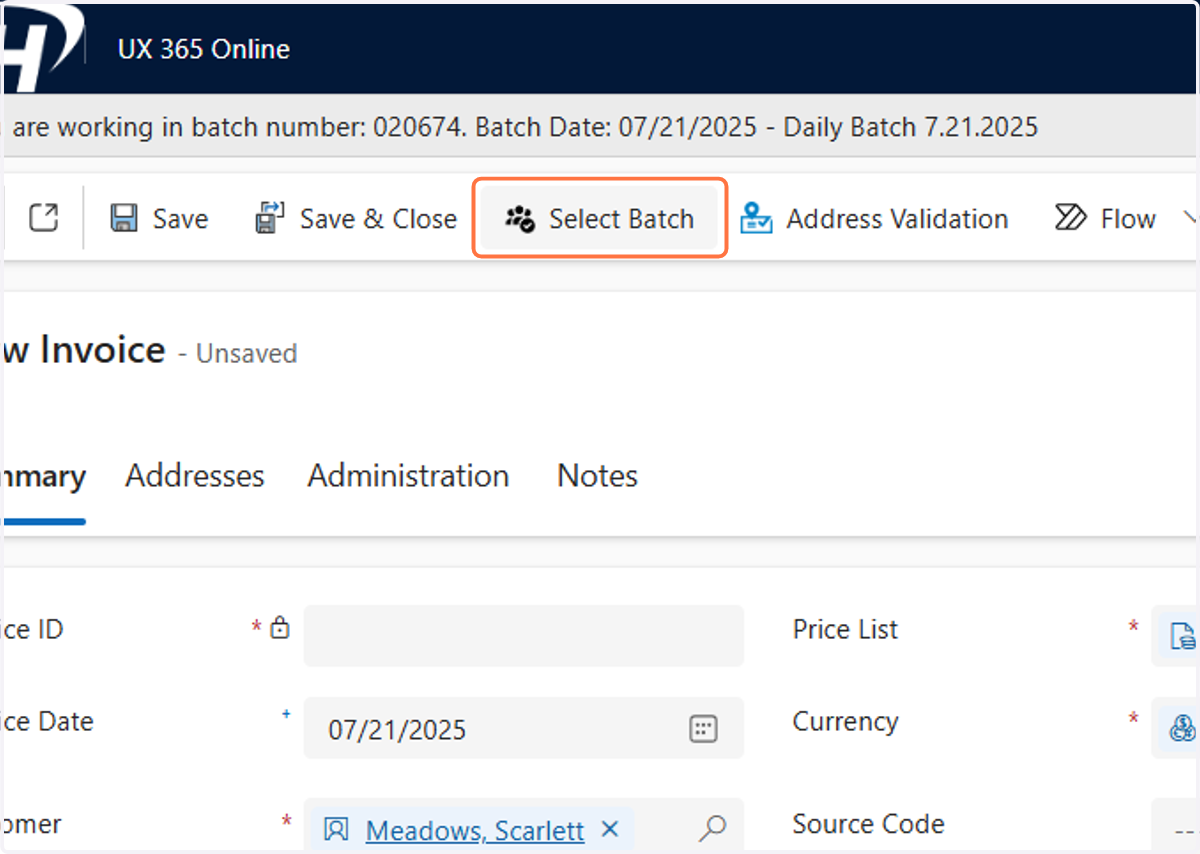
  5. 5. Click on Select Batch

    Click on Select Batch
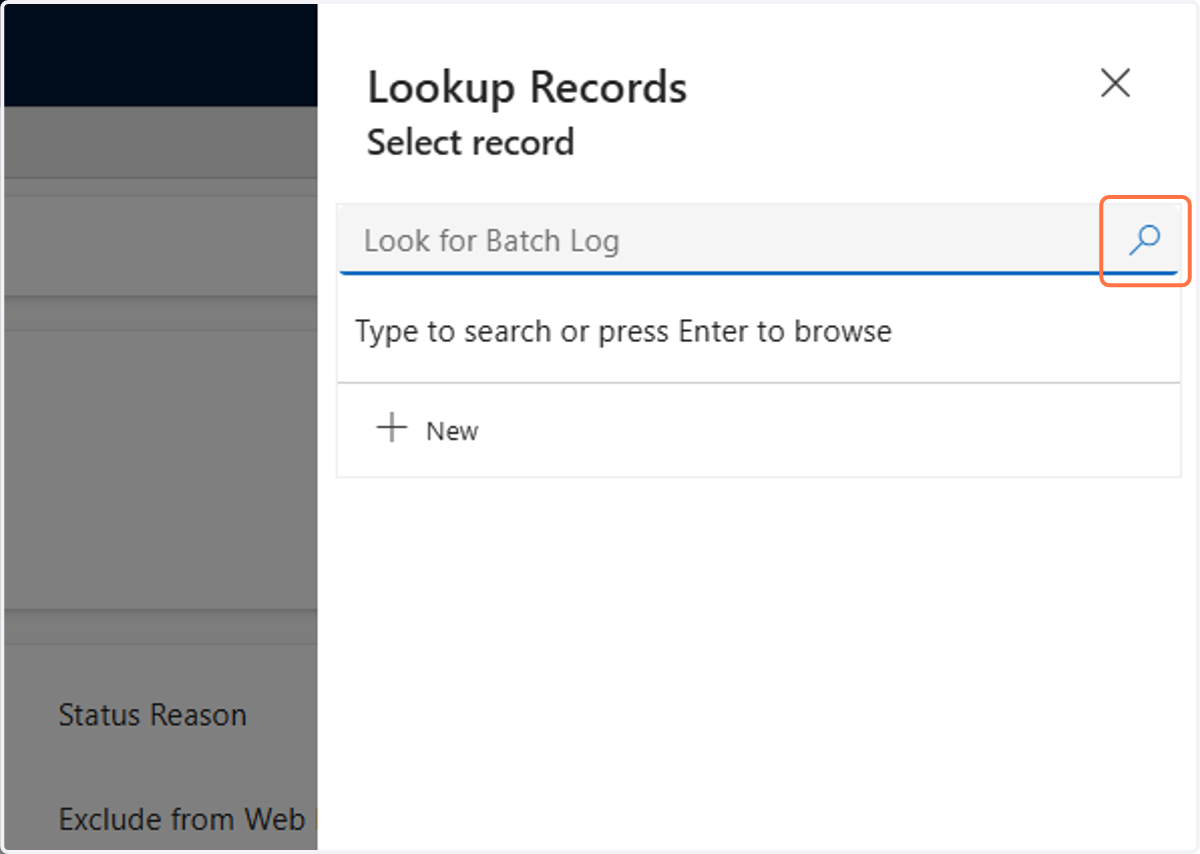
  6. 6. Click on Search

    Click on Search
  7. 7. Select the current day's batch. It will usually say "Daily Batch" and then the date
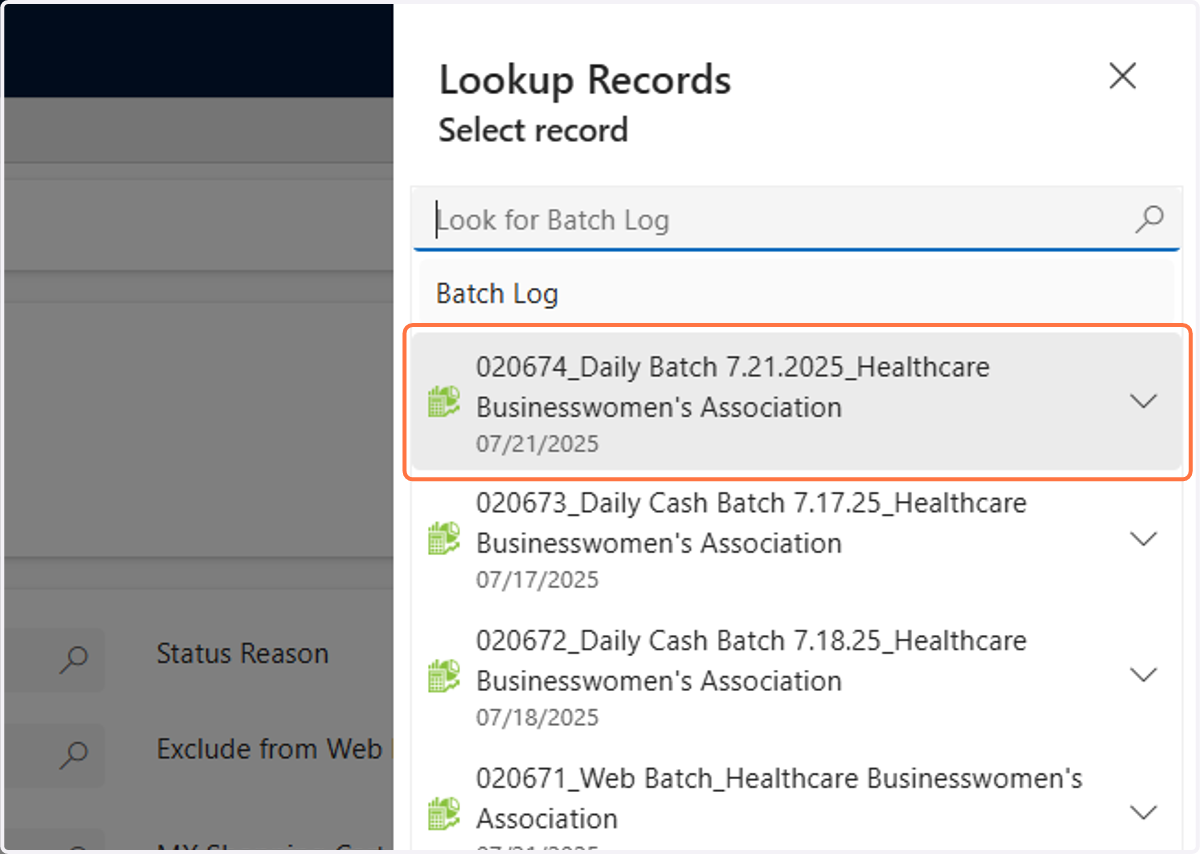
    Select the current day's batch. It will usually say "Daily Batch" and then the date
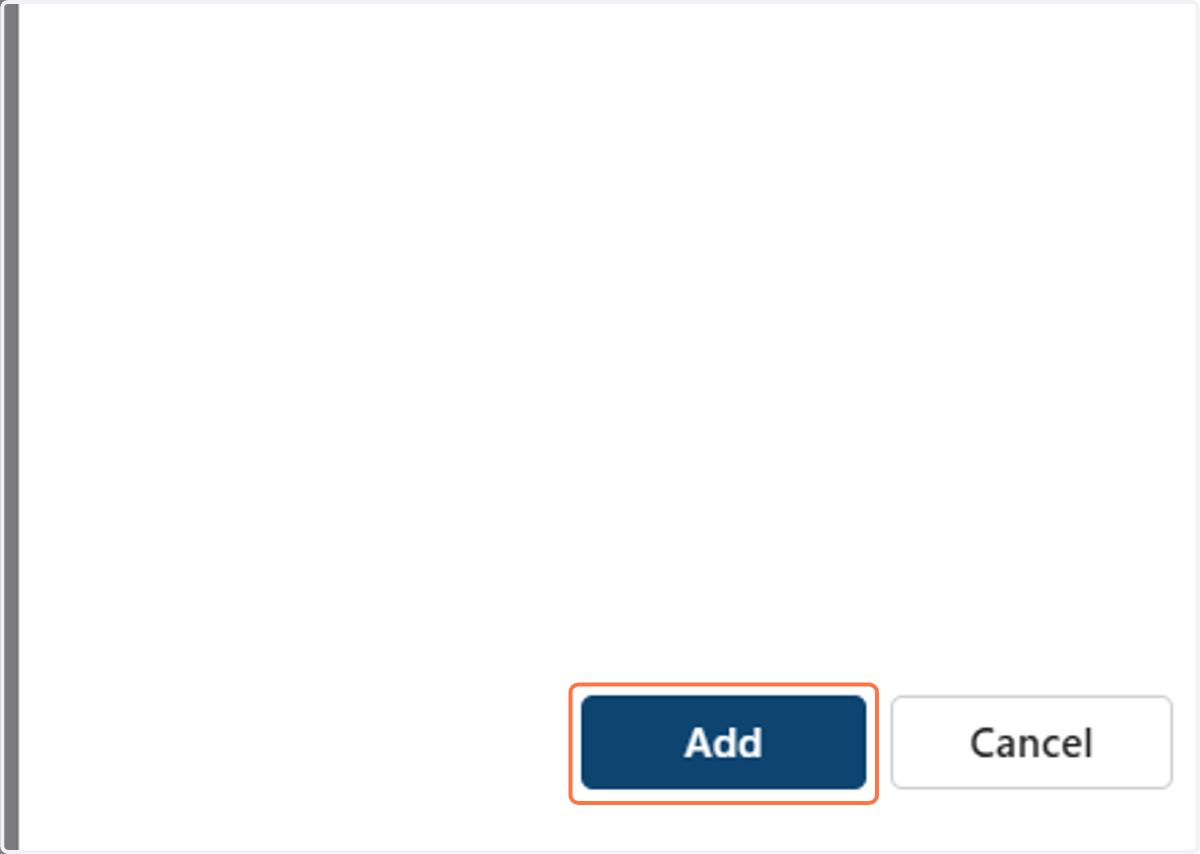
  8. 8. Click on Add

    Click on Add
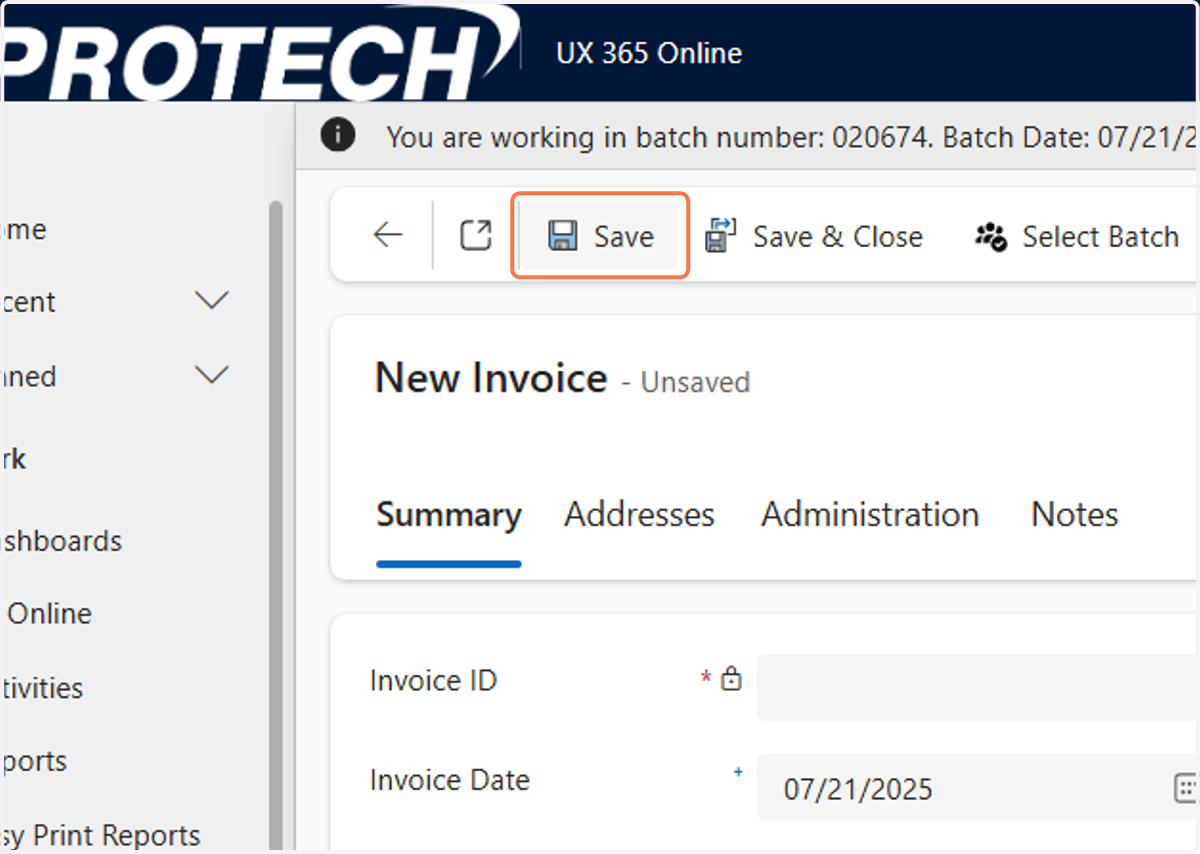
  9. 9. Click on Save

    Click on Save
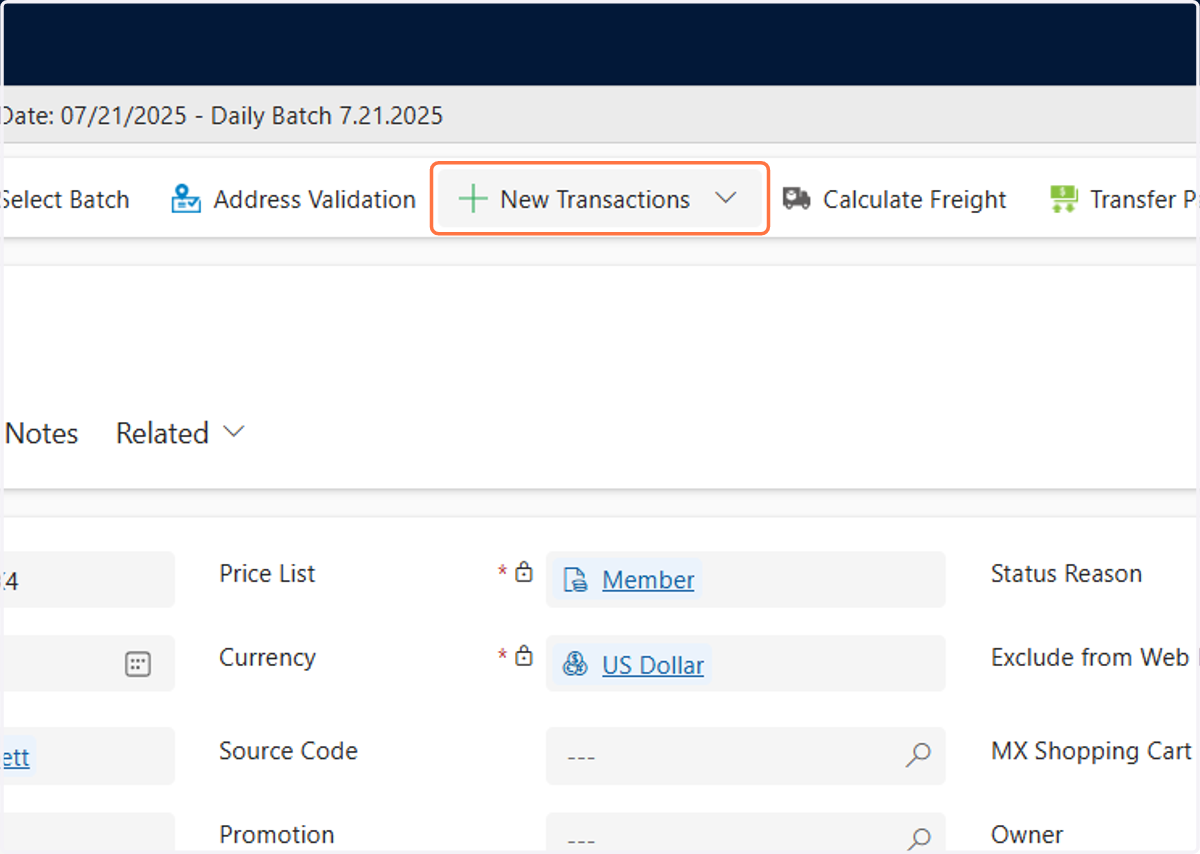
  10. 10. Click on New Transactions

    Click on New Transactions
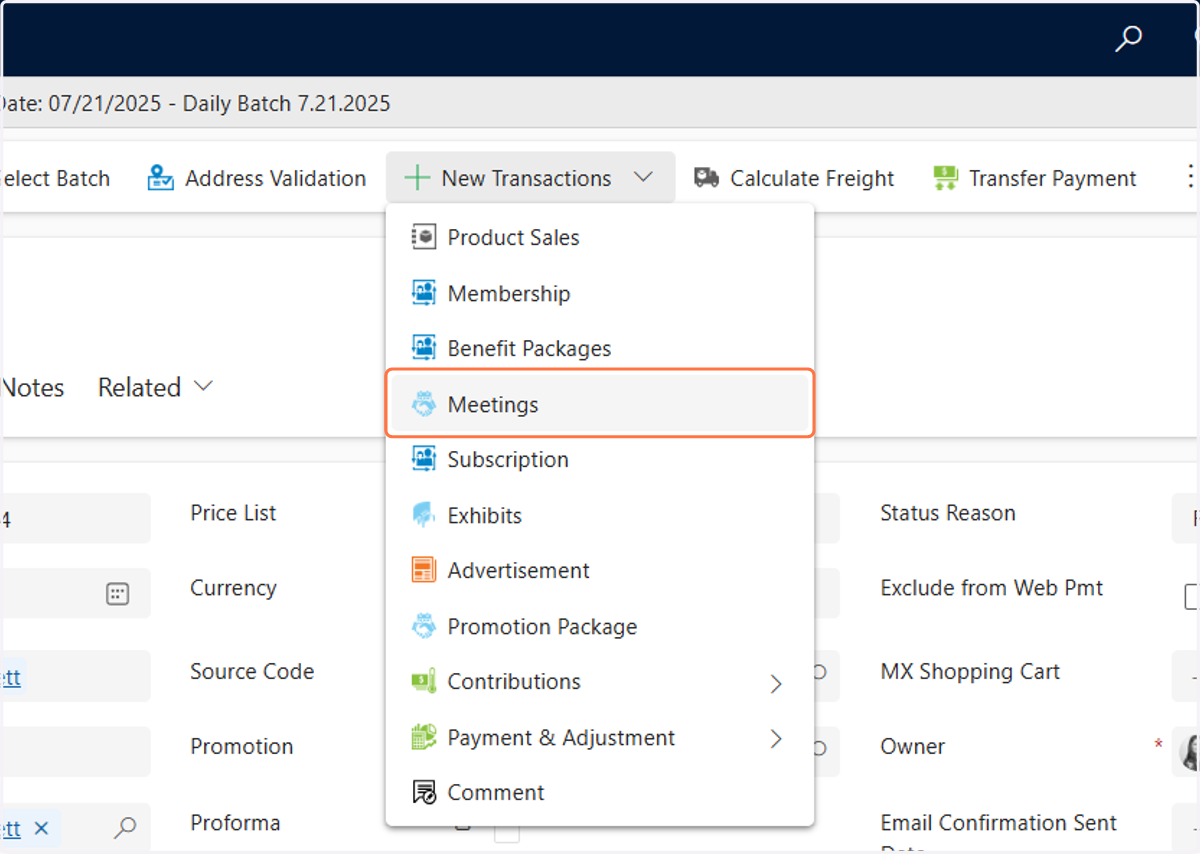
  11. 11. Click on Meetings

    Click on Meetings
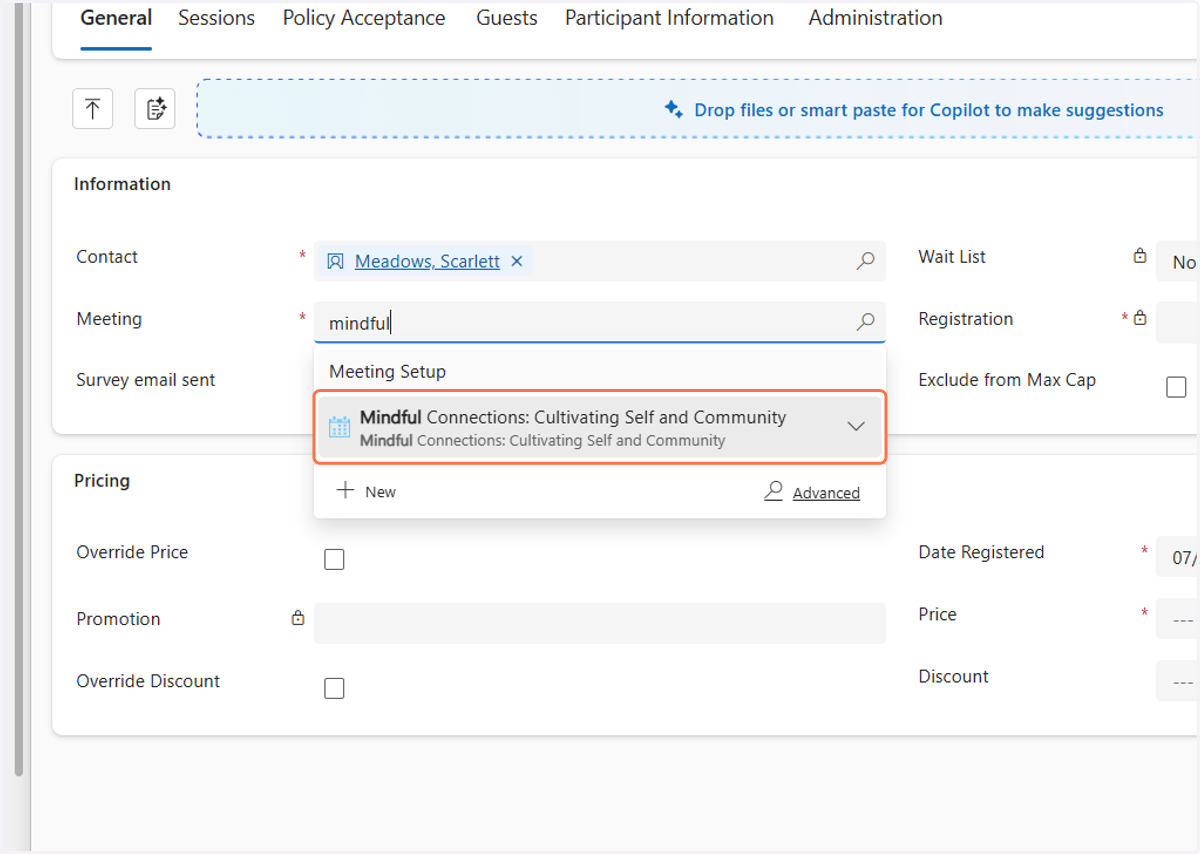
  12. 12. In the Meeting field start typing the name of the event
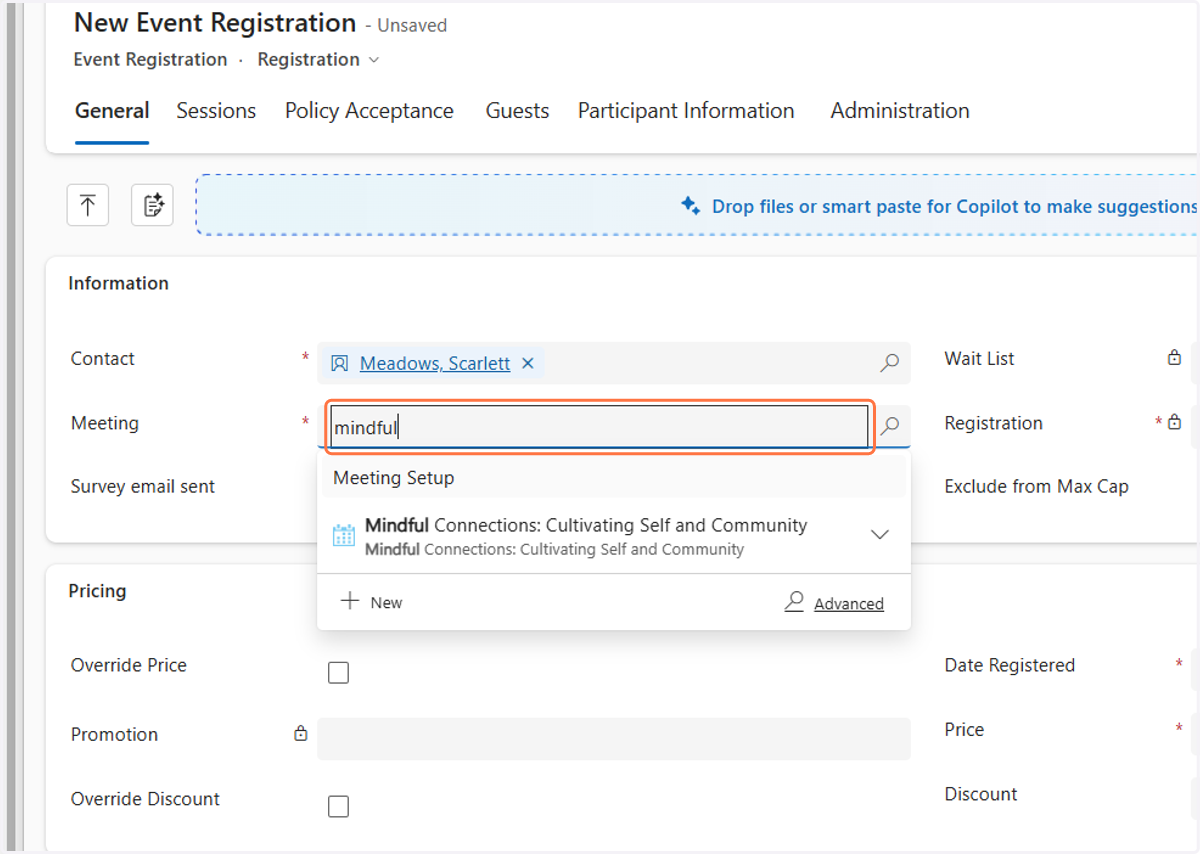
    In the Meeting field start typing the name of the event
  13. 13. Select the event

    Select the event
  14. 14. In the Registration field, click on the search icon
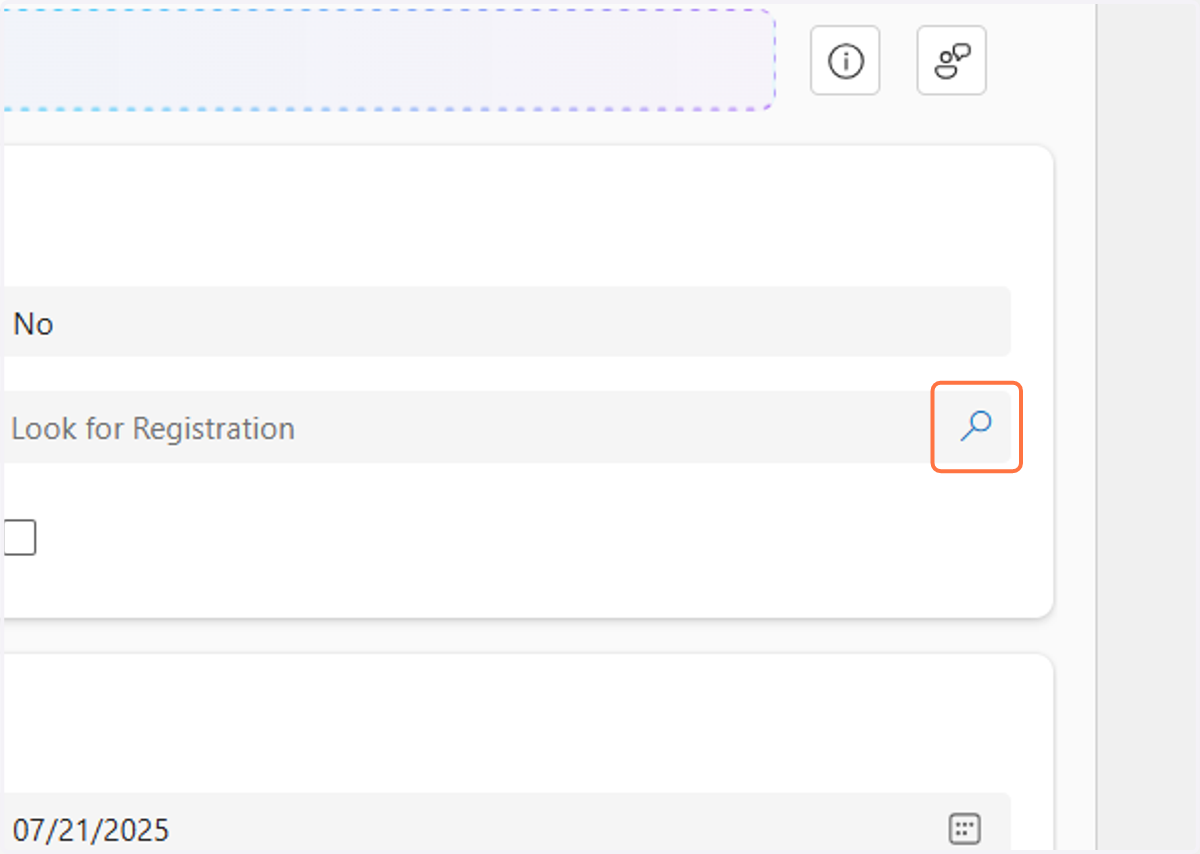
    In the Registration field, click on the search icon
  15. 15. Select the appropriate registration
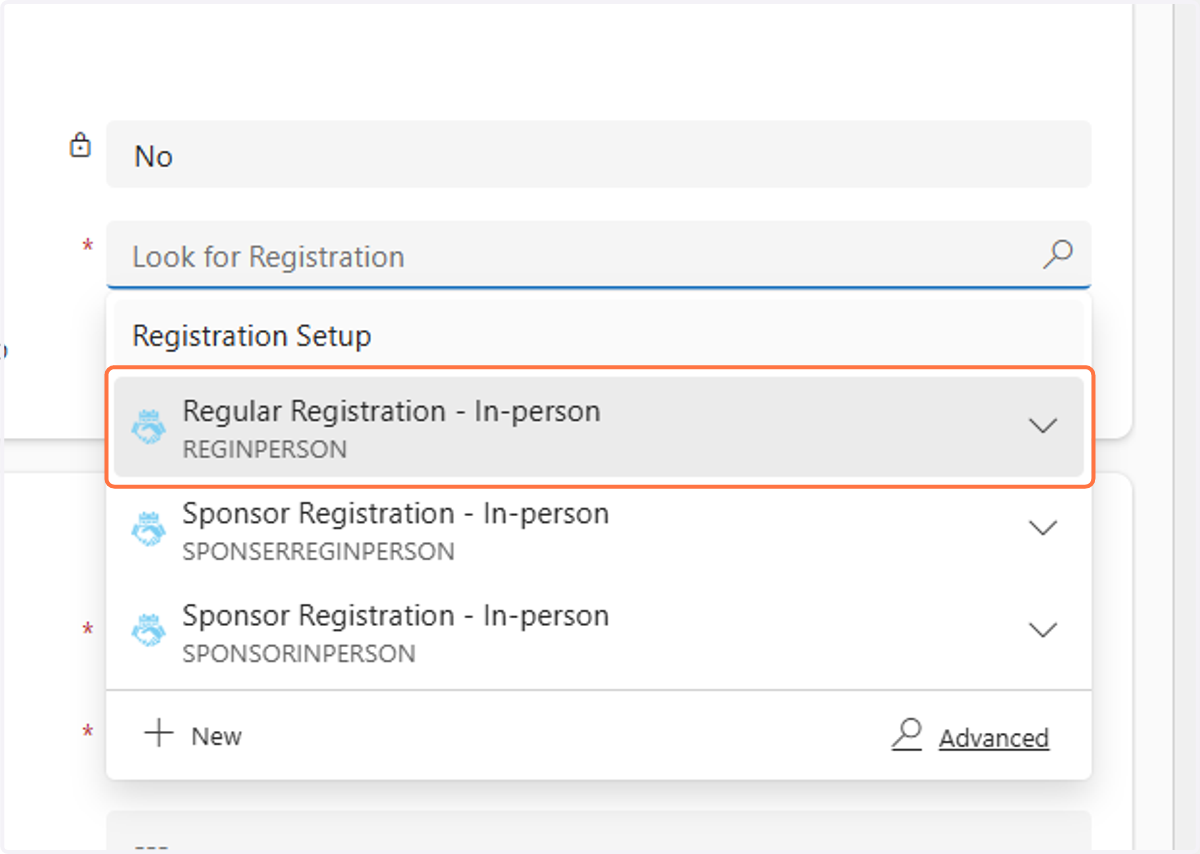
    Select the appropriate registration
  16. 16. If a promo code is being used click in the Promotion field and start typing the promo code. Once it appears, select it.
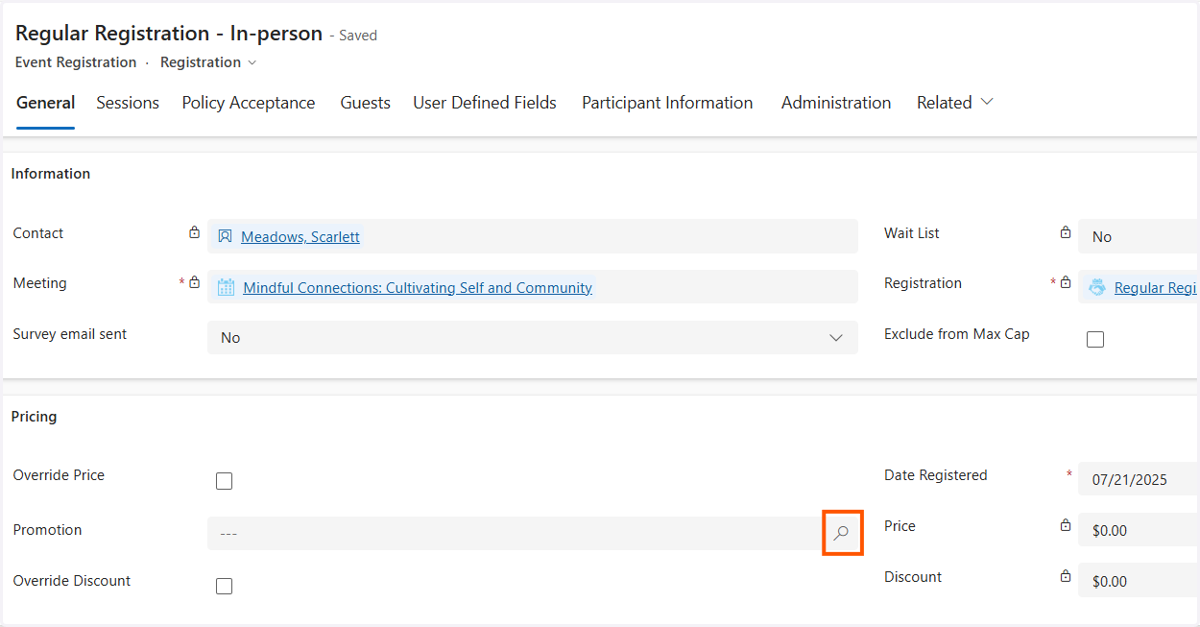
    If a promo code is being used click in the Promotion field and start typing the promo code. Once it appears, select it.
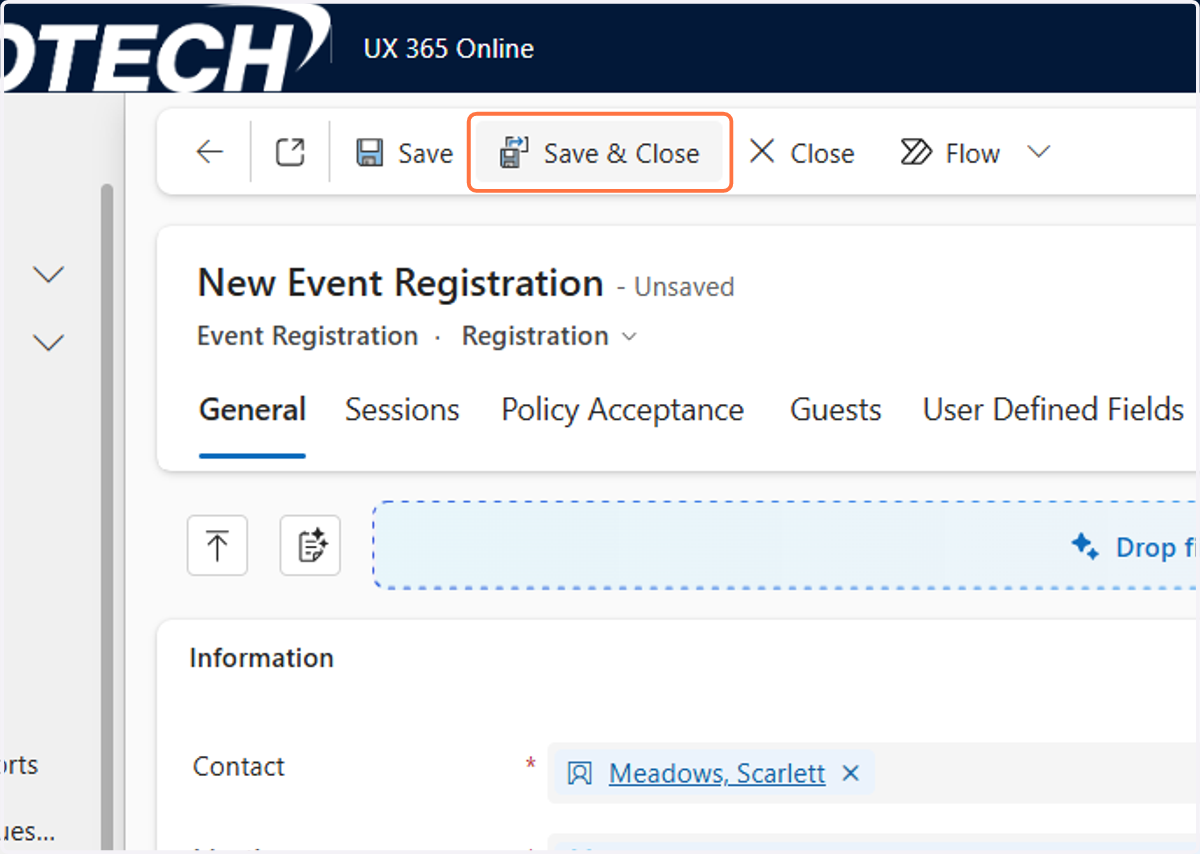
  17. 17. Click on Save & Close

    Click on Save & Close
  18. 18. You will be taken back to the invoice. You can click Save & Close. A confirmation email will automatically be sent to the contact.
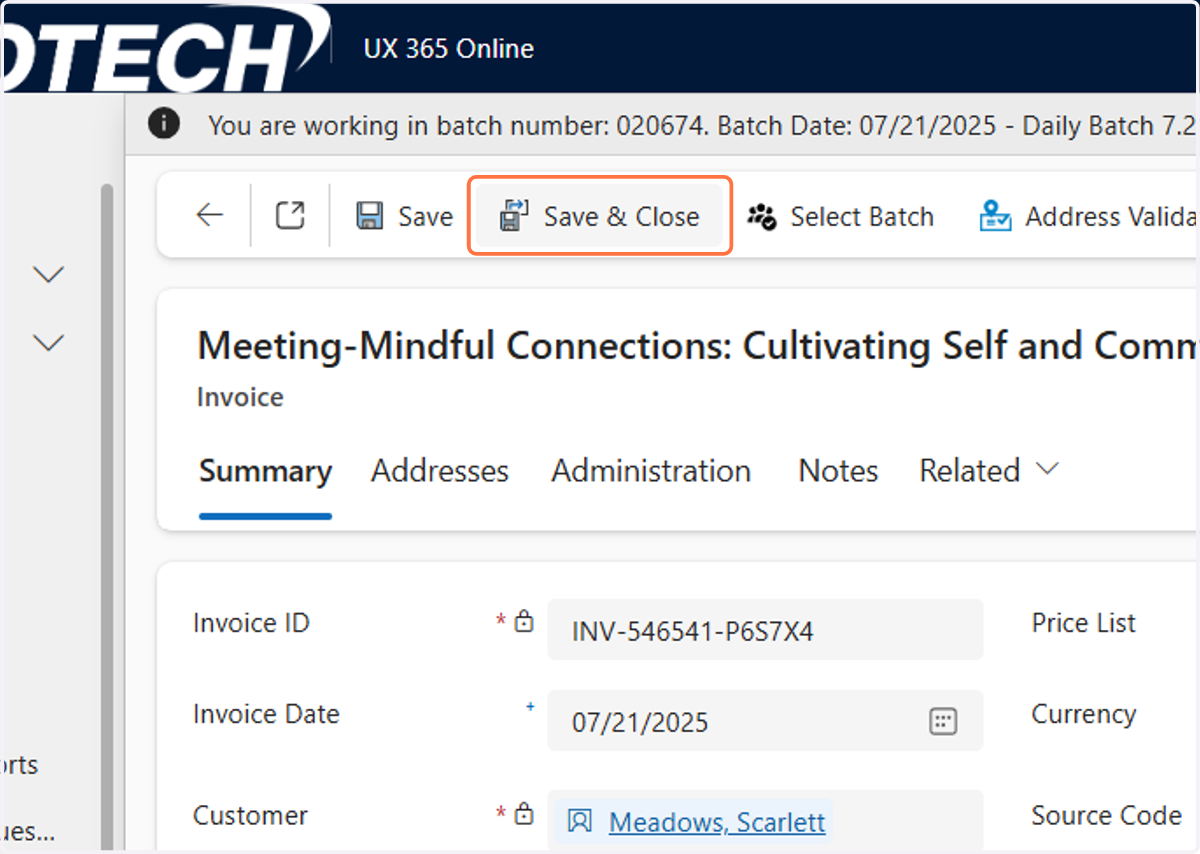
    You will be taken back to the invoice. You can click Save & Close. A confirmation email will automatically be sent to the contact.