Infigo Message Queue | Managing emails | BG_048
Here, we'll take a quick look at one of the lesser known about areas of Infigo. The Message Queue allows you to review all of the emails that have left your Infigo platform, including their content, when they were submitted and when they were sent.
Additionally, emails can be reviewed, amended and requeued for sending, should this be necessary.
1. Navigate to the Message Queue screen
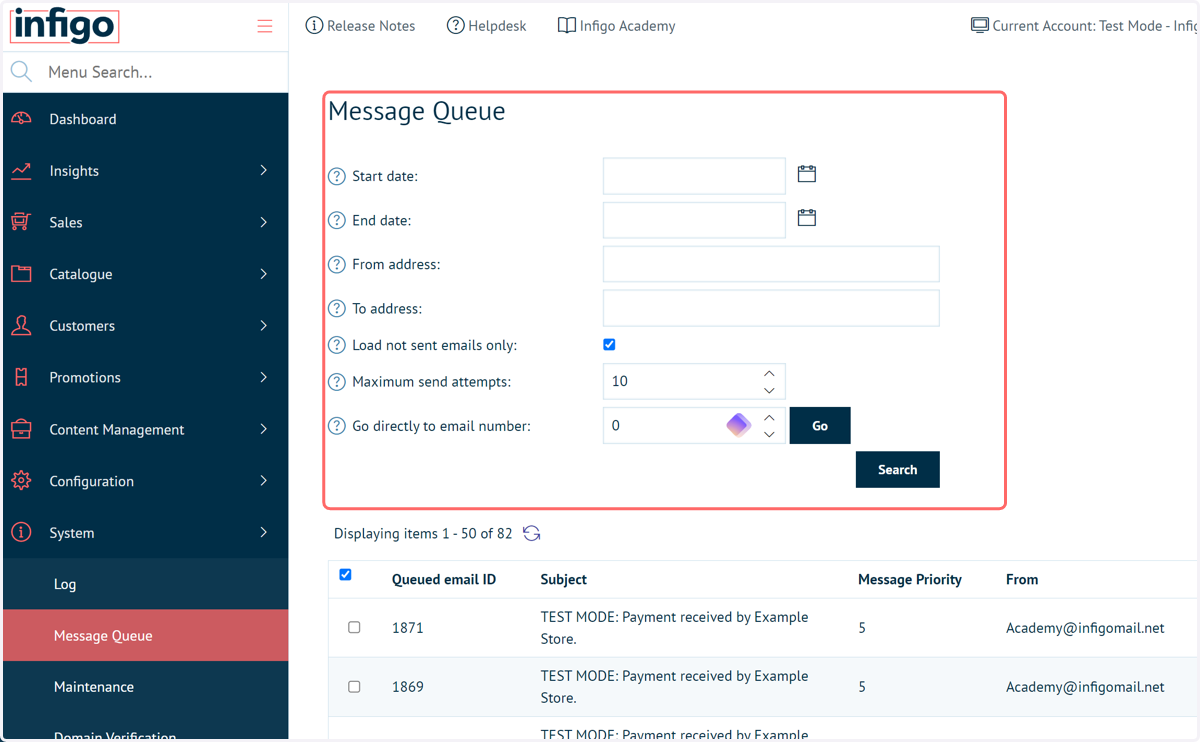
You will be presented with a list of all emails sent from the Platform, not just the individual Storefront.
At the top of the page you have a range of filtering options, allowing you to locate the email(s) of interest.
2. Uncheck Load not sent emails only
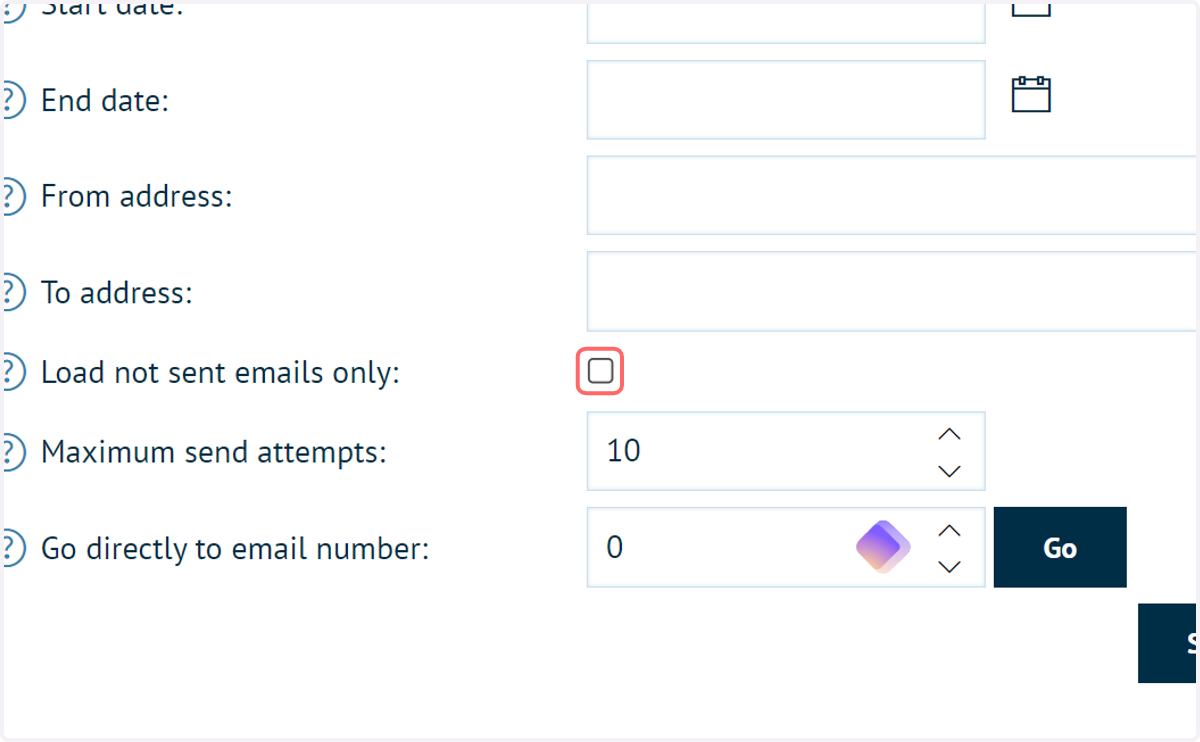
By default, this screen will only show emails that failed to send.
You can view successfully sent emails by unchecking this box and clicking Search.
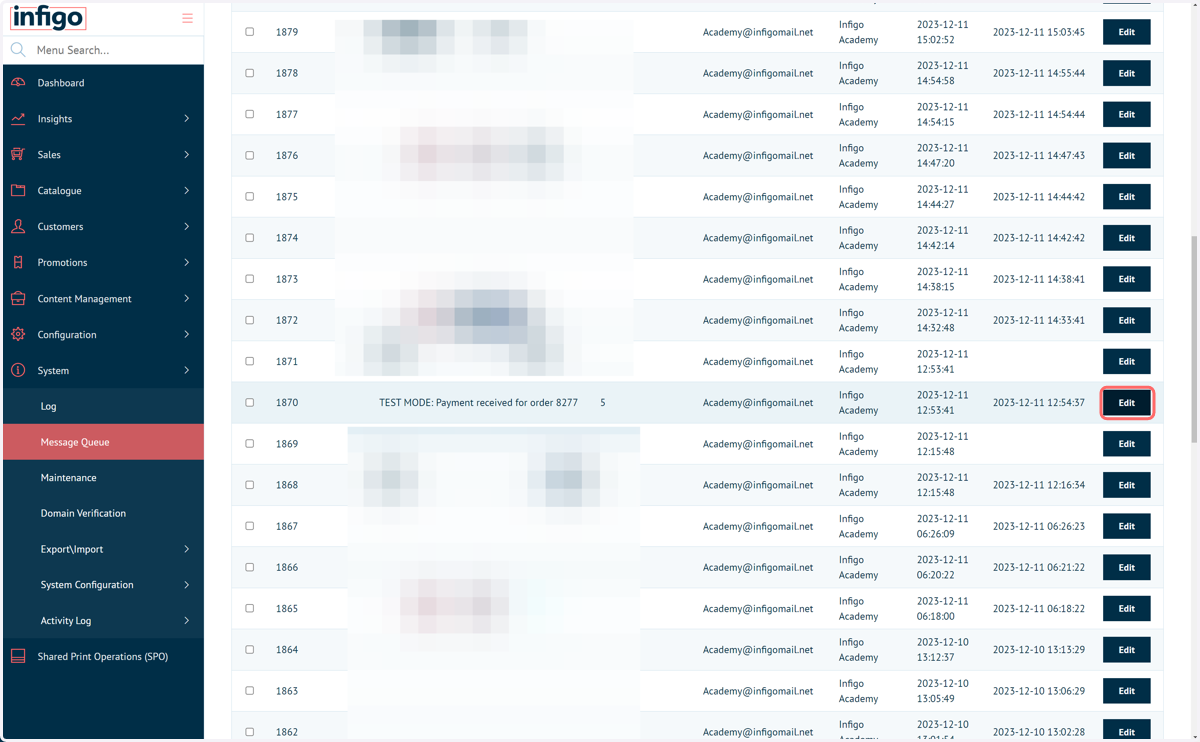
3. To view additional details, click on Edit next to a particular email
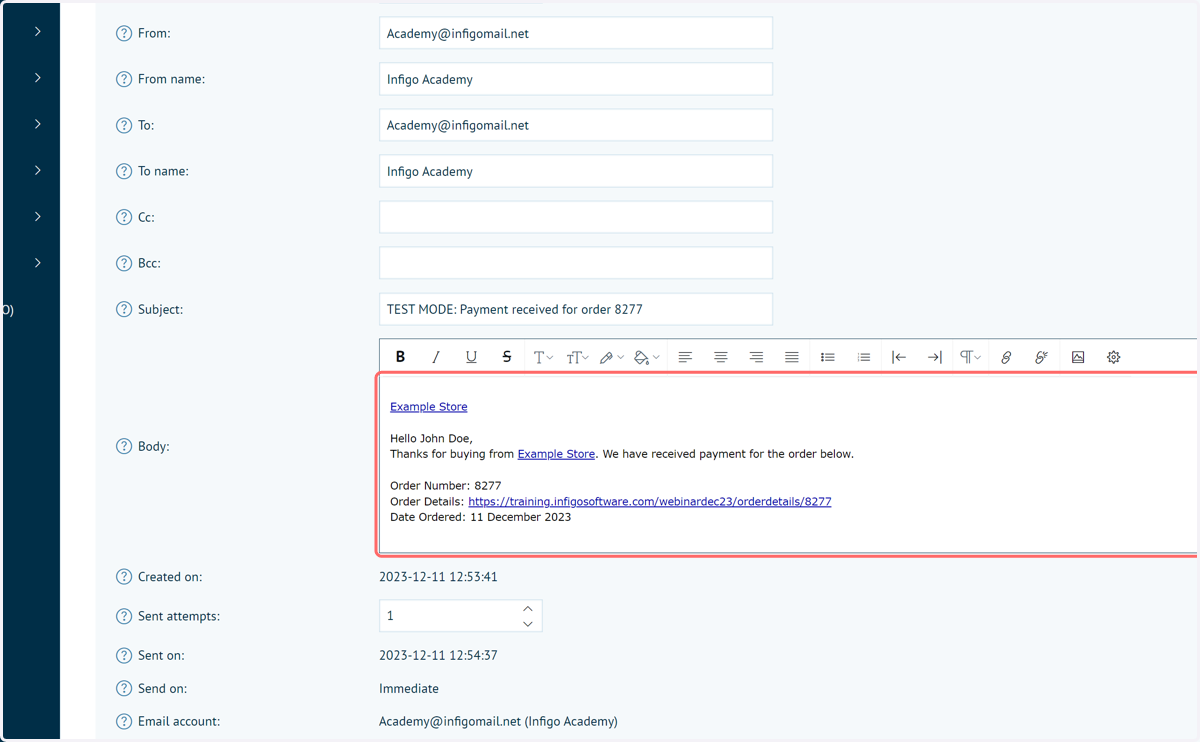
4. Email content
Numerous details on this email are displayed, including the main body of text.
Where placeholders have been used, this area shows the final populated values, rather than simply showing you the name of the placeholder.
Amendments can be made to any of these fields, if required.
Make sure to save any changes before leaving this page.
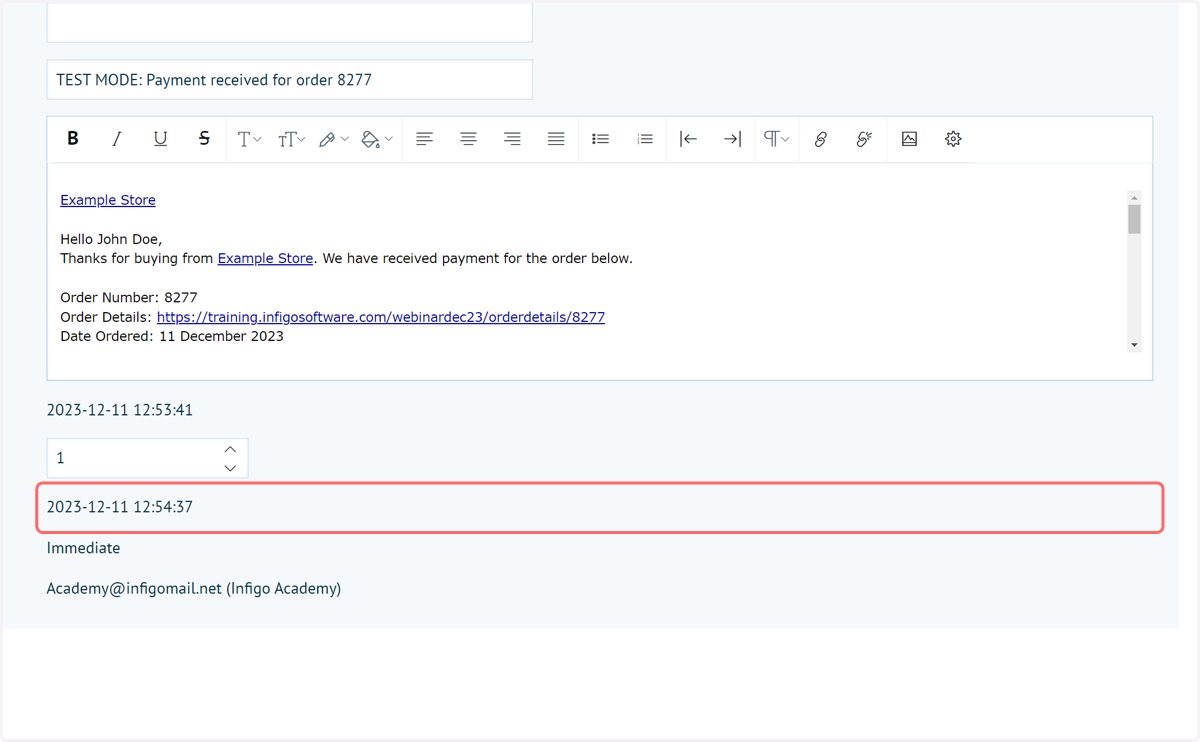
5. Sent date
A field is present detailing when the email was successfully sent from the Infigo platform
6. Click on Requeue
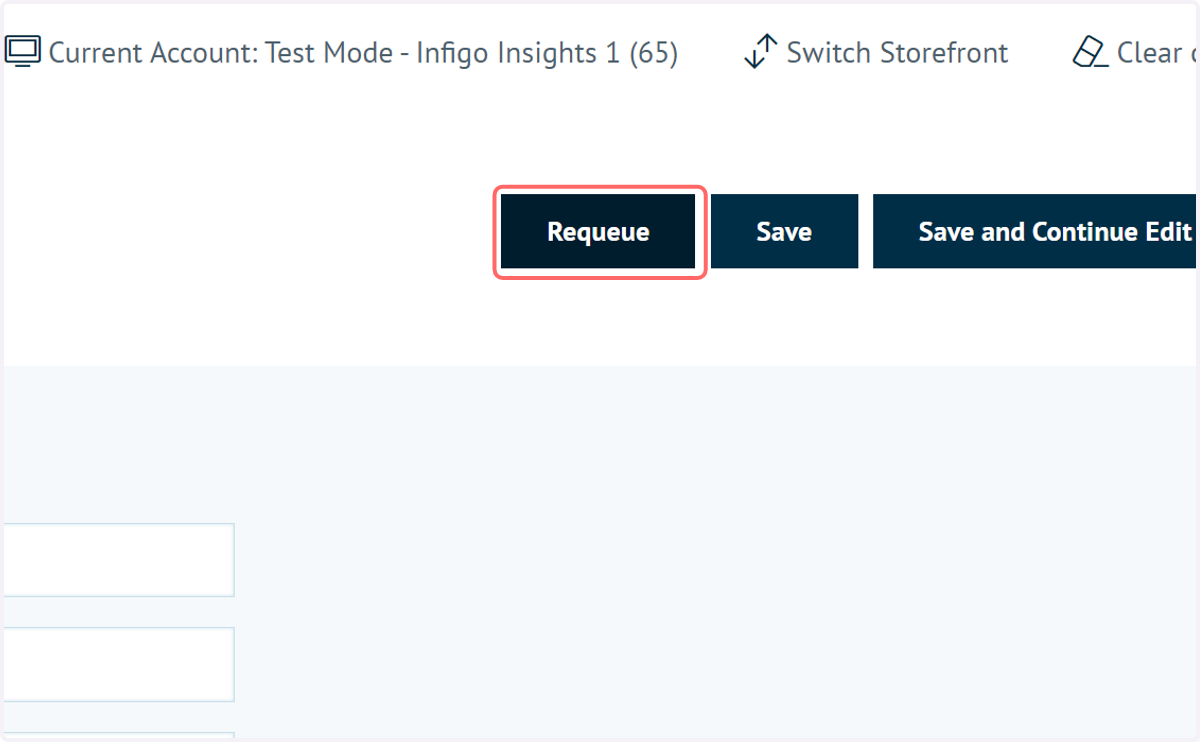
To requeue the email for sending, click the Requeue button.