How to Submit a Merge Request in BH
Bullhornstaffing
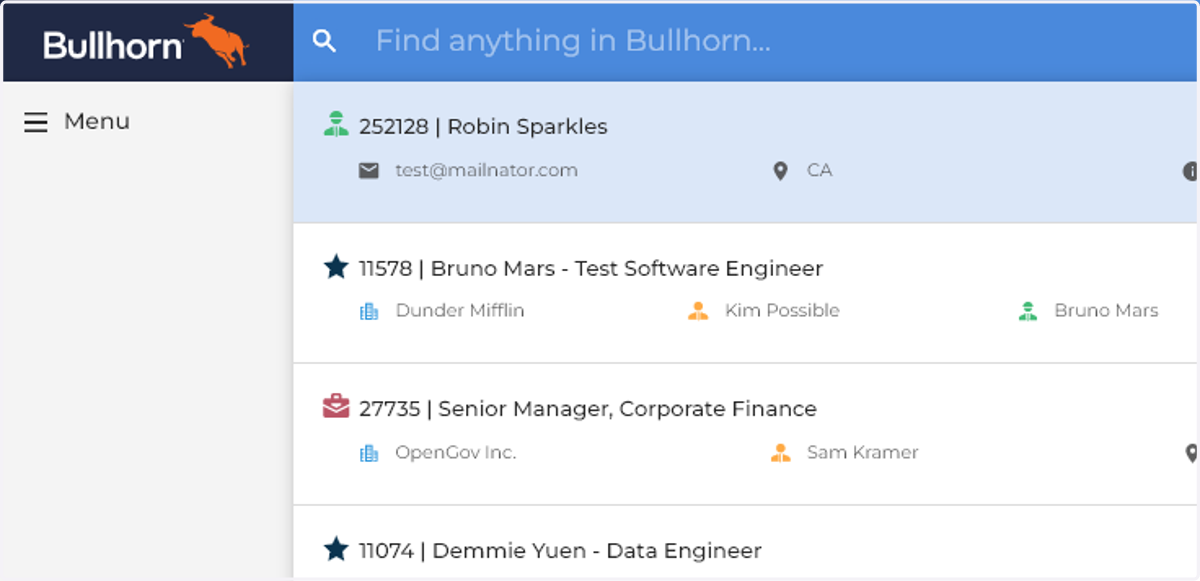
1. Go to Bullhorn
2. Go to the Candidate/Contact Record
If this is for a Company Merge - Click Here
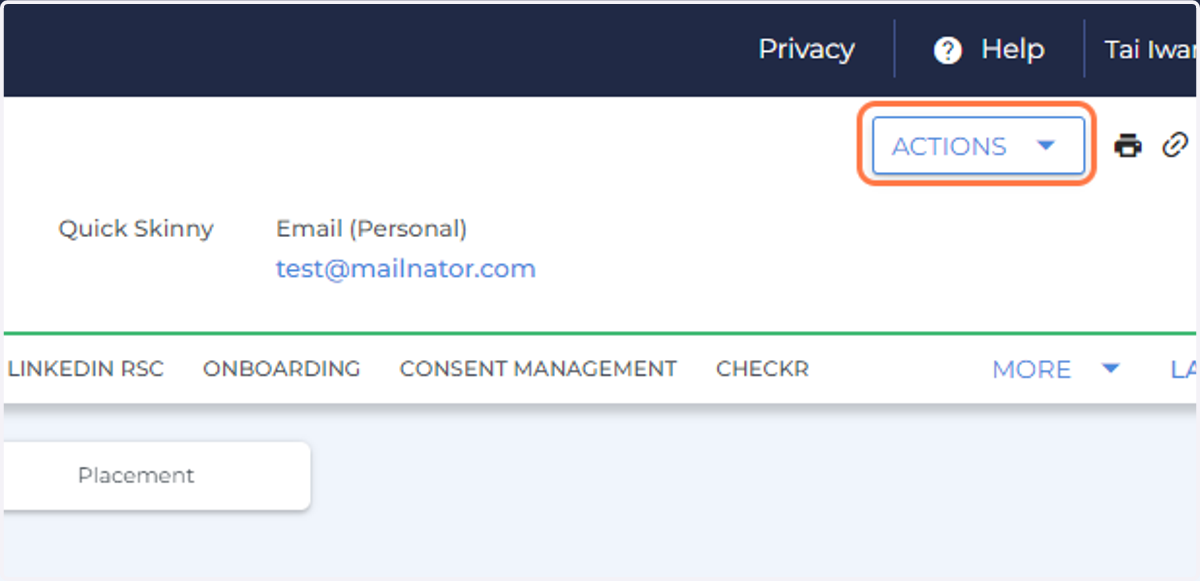
3. Click on ACTIONS
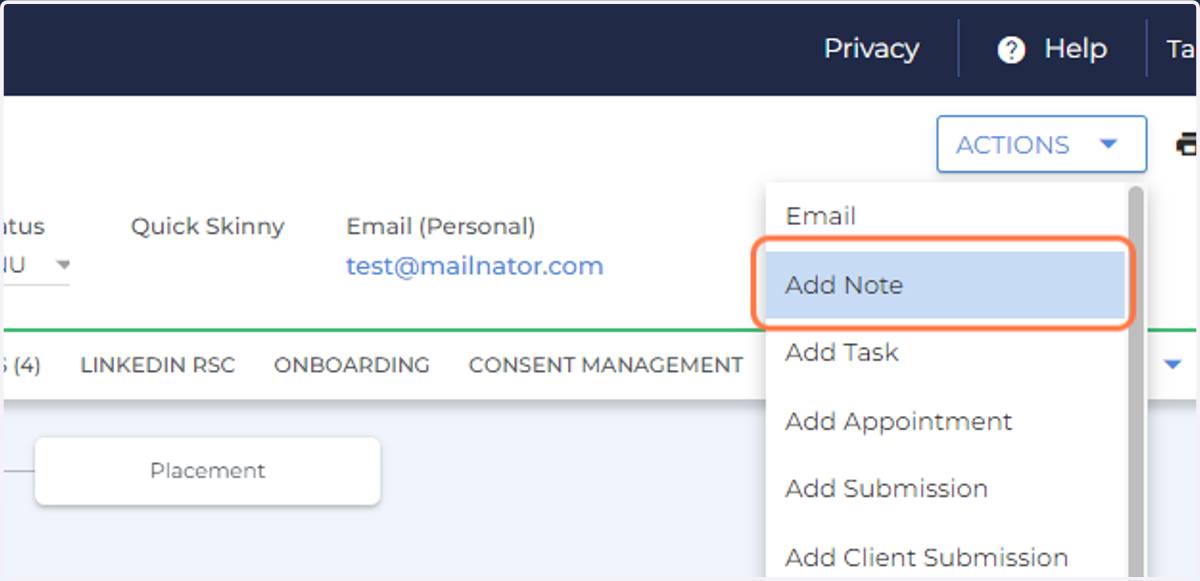
4. Click on Add Note
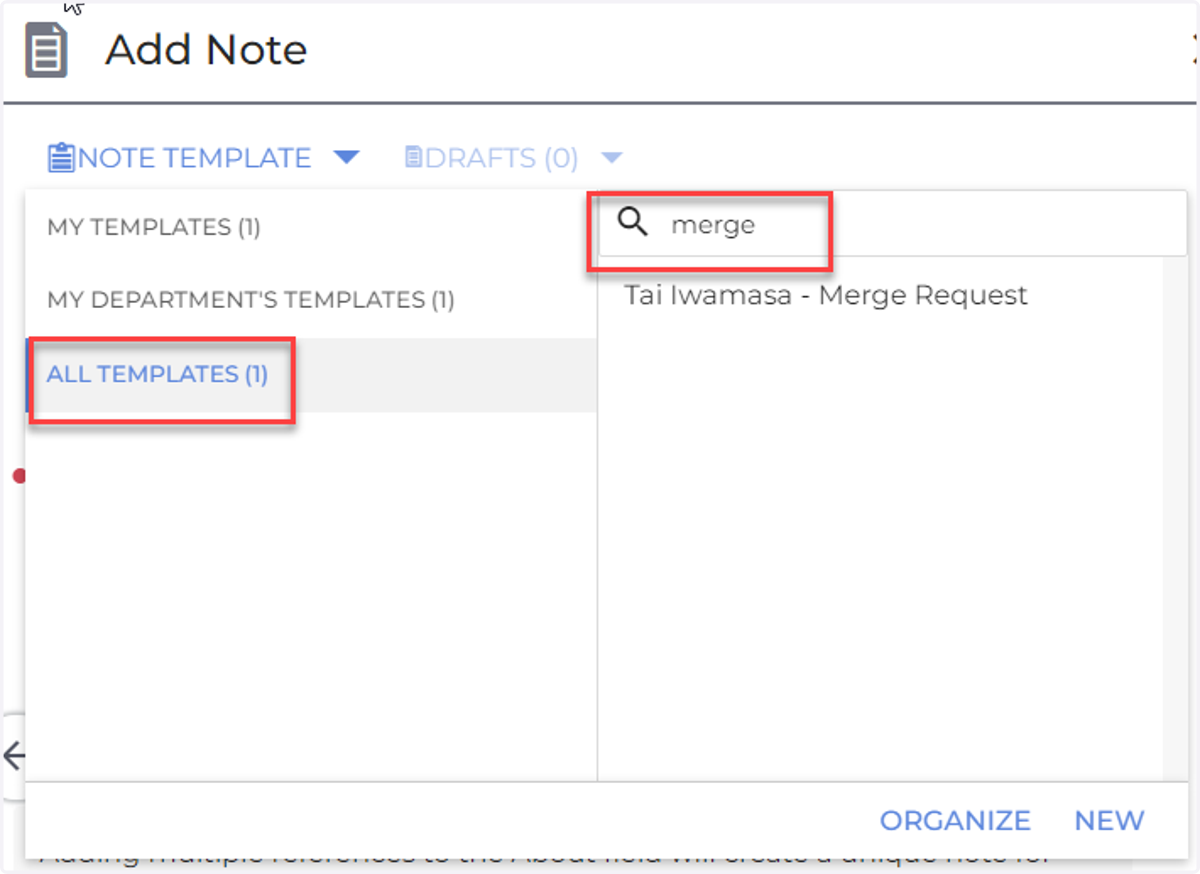
5. Click on Note Template - All Templates Type in Merge Use Tai Iwamasa - Merge Request
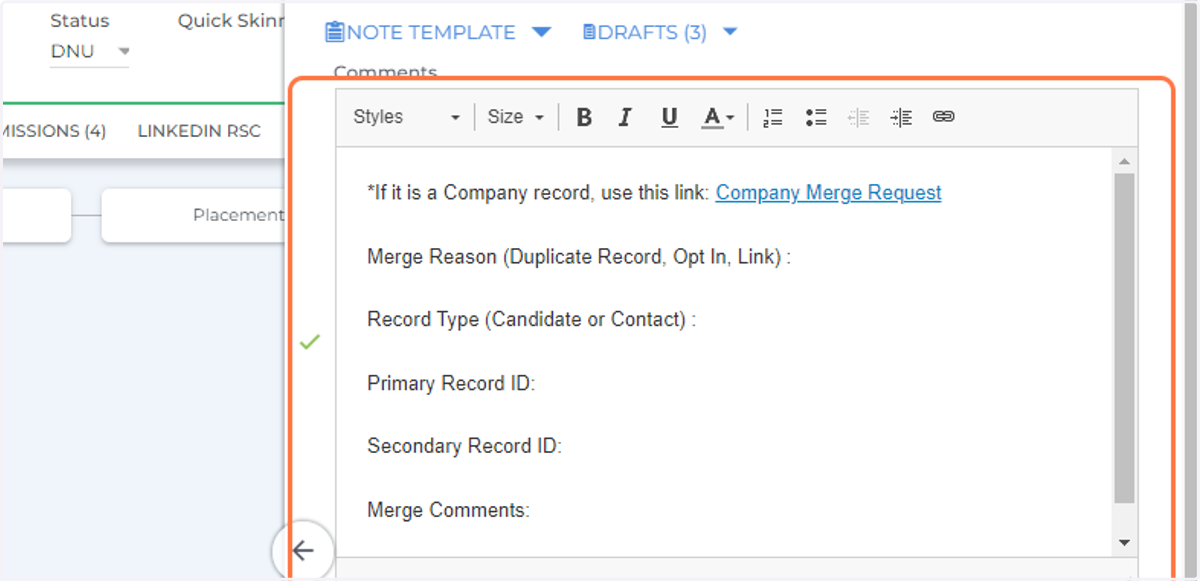
6. Fill out the following information If this is for a Company Merge, use the link and cancel out the note
Merge Reason:
Duplicate Record: Multiple records for one person
Opt In: Candidate has previously Opted Out of Mass Mails and would like to be added back in
Link: There is a Contact Record and a Candidate Record for the same person
Record Type: Is it a Candidate or Contact Record
Primary ID: the Record ID that you want to keep
Secondary ID: the Record ID that will be merged into the Primary
Comments: Any additional information you would like the team to know prior to merging
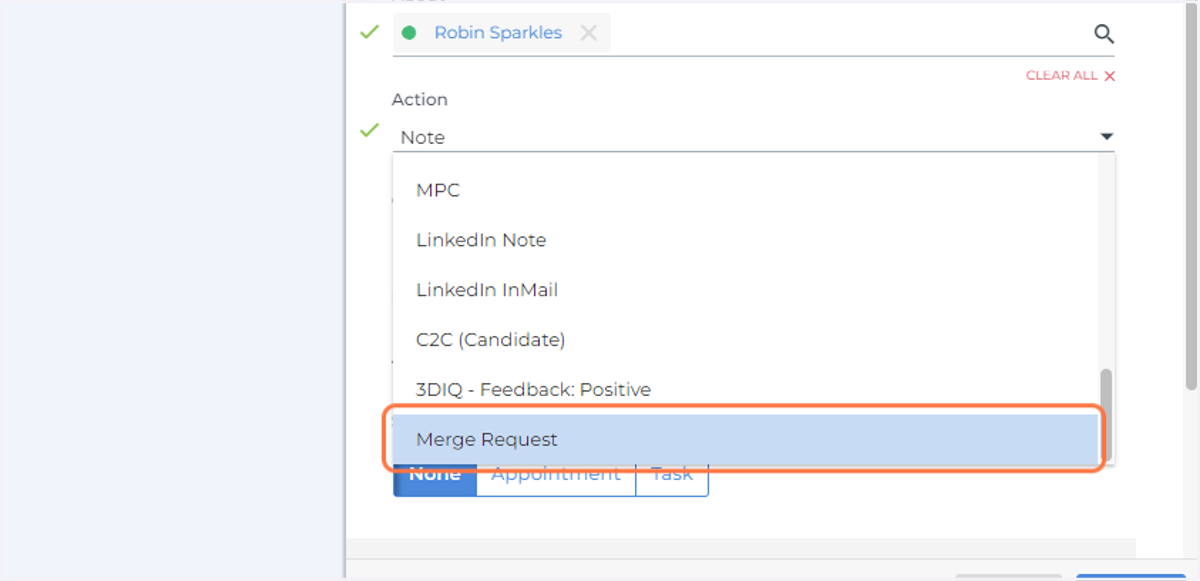
7. Scroll down to Action and choose Merge Request
8. Click on SAVE