Output Type
In this tutorial, we will investigate the Output Type option within the MegaEdit configuration settings.
When creating a MegaEdit product one of your 3 key/core components is an output type. This dictates the bleed a product will have whether it is a single, multipage, or booklet with cover growth, spine size, pricing etc.
Infigosoftware
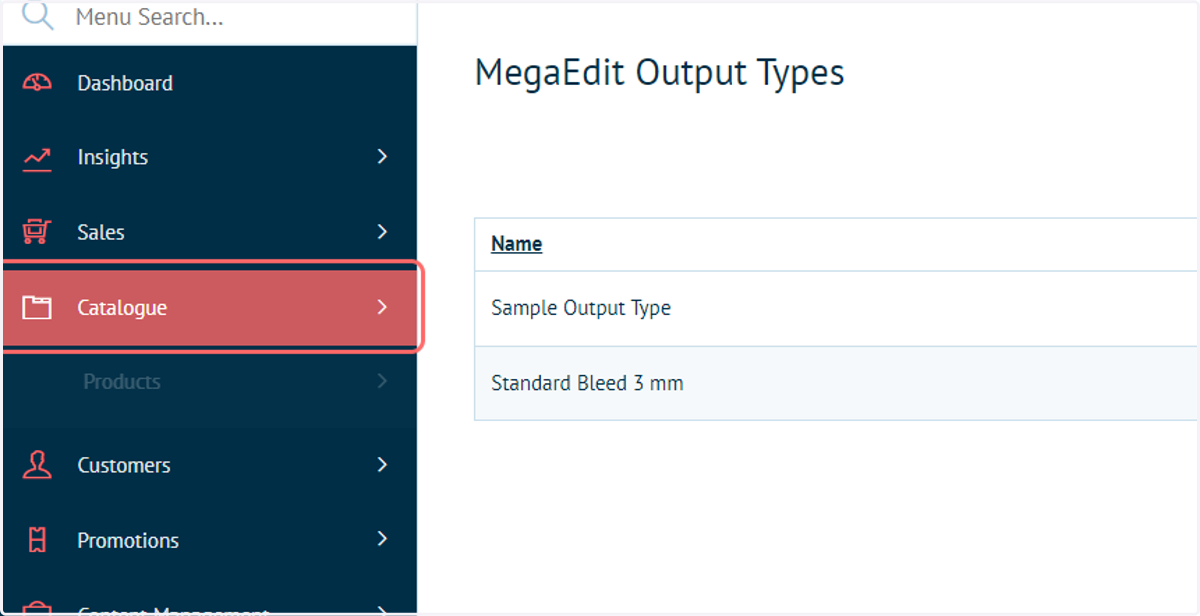
1. Click on Catalogue
First, we must navigate to the Output Type area of the MegaEdit configuration settings
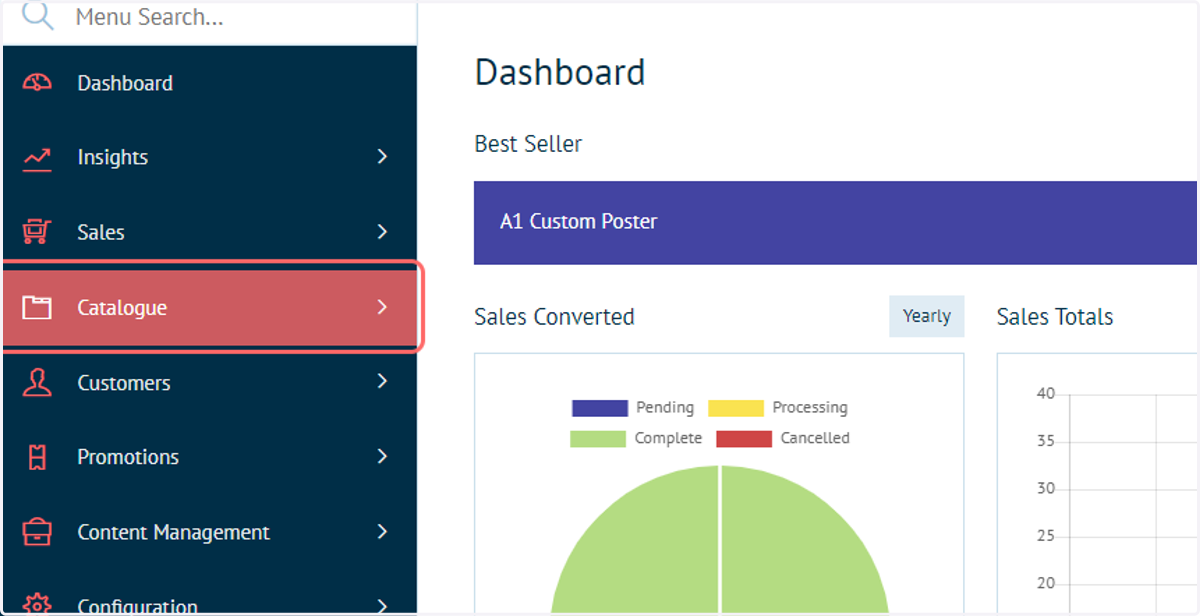
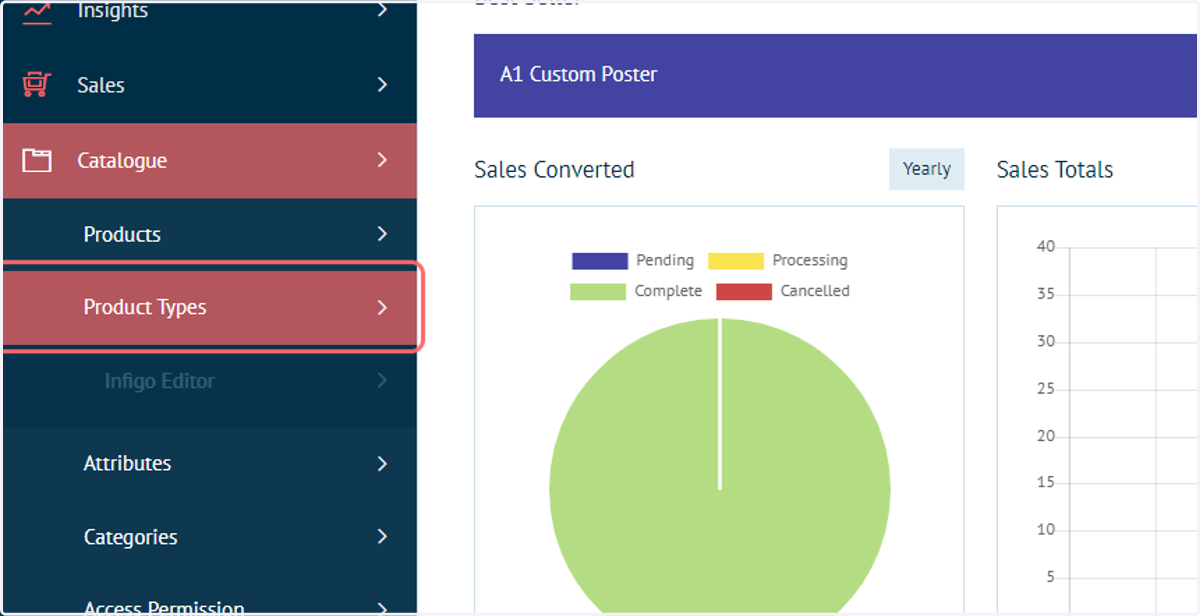
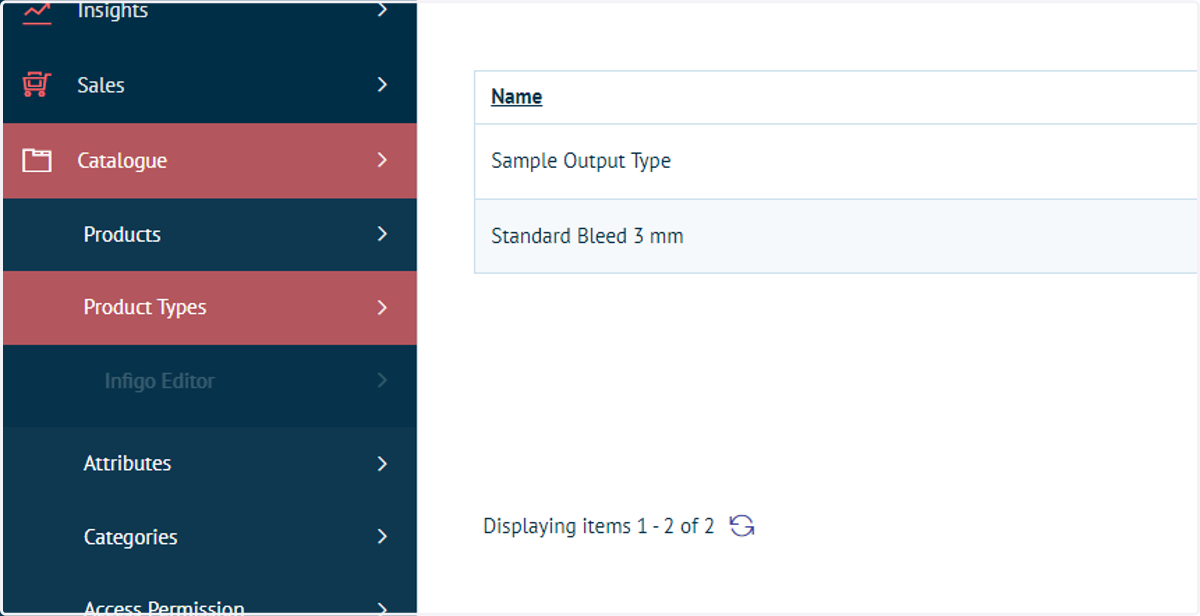
2. Click on Product Types
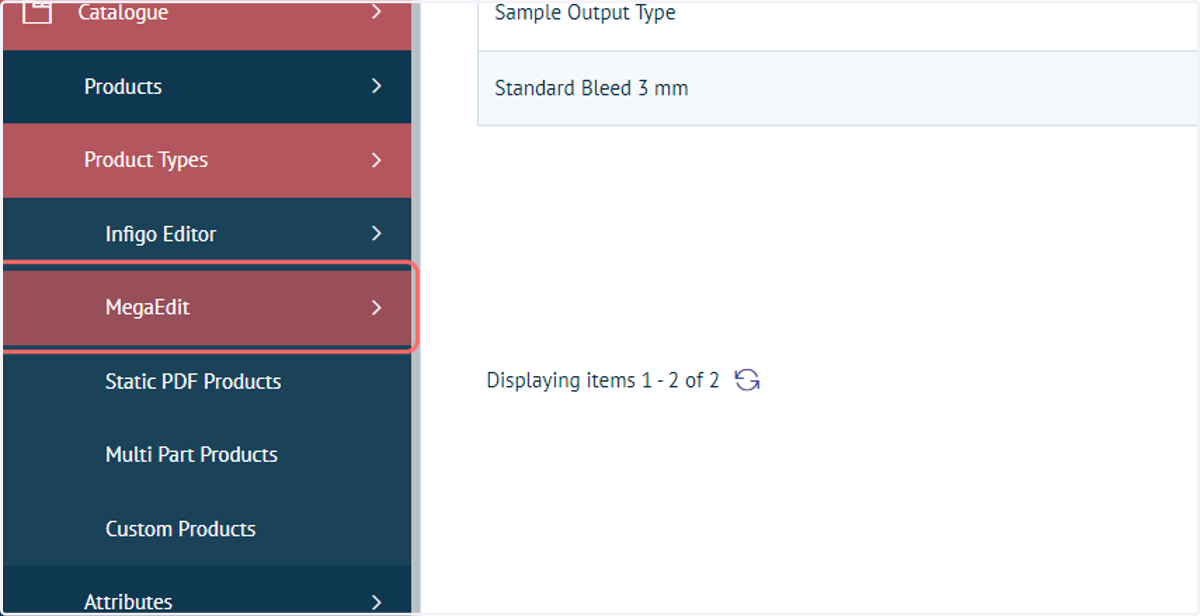
3. Click on MegaEdit
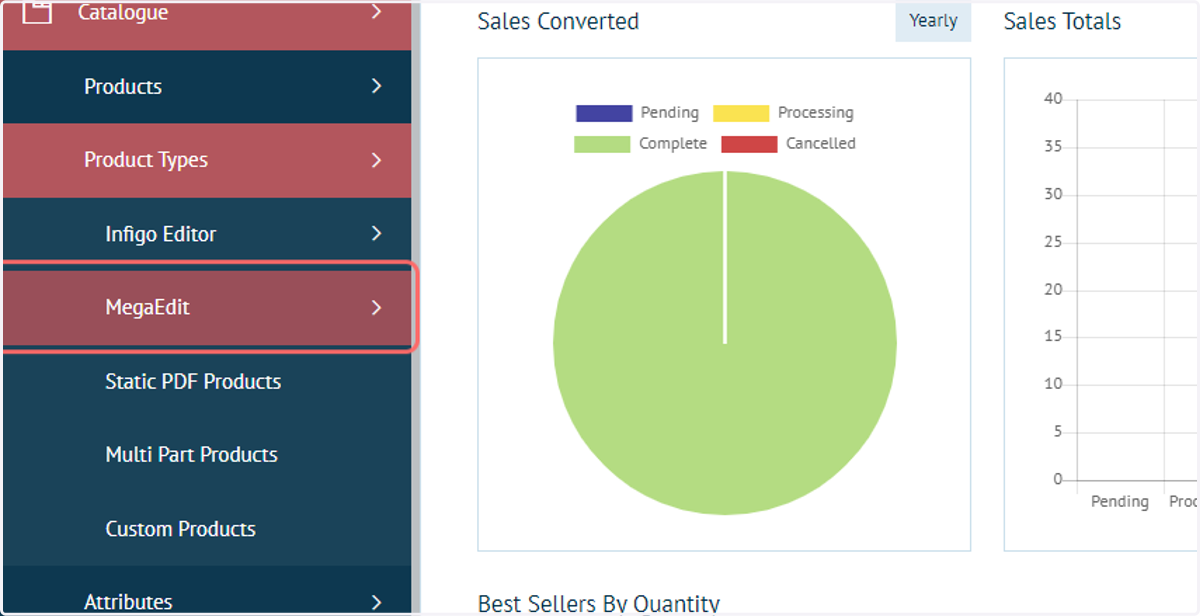
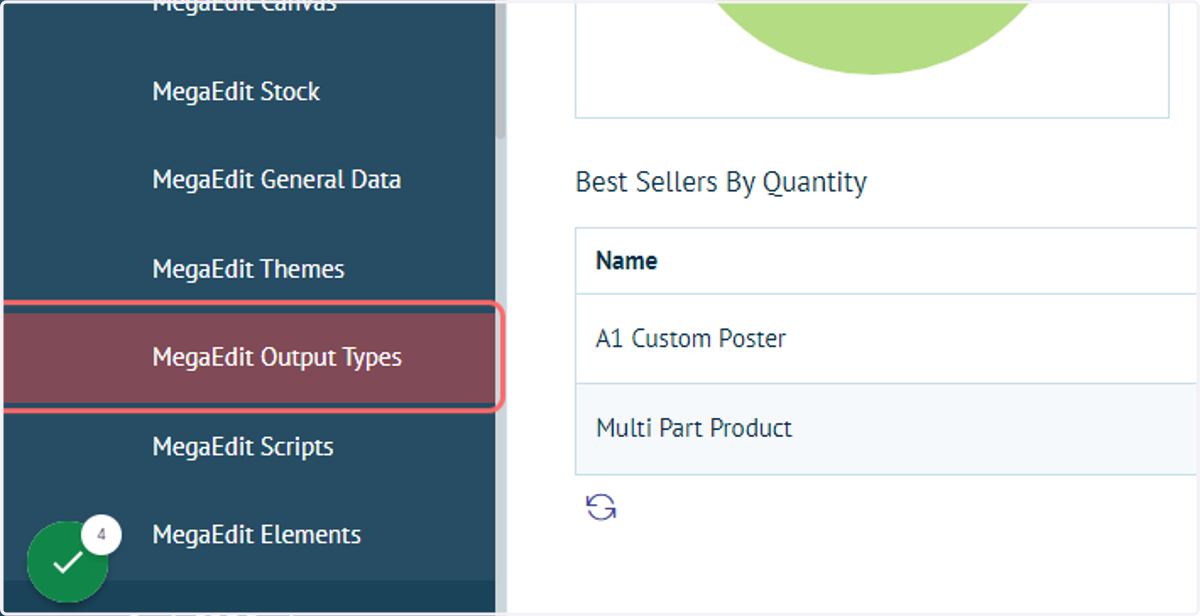
4. Click on MegaEdit Output Types
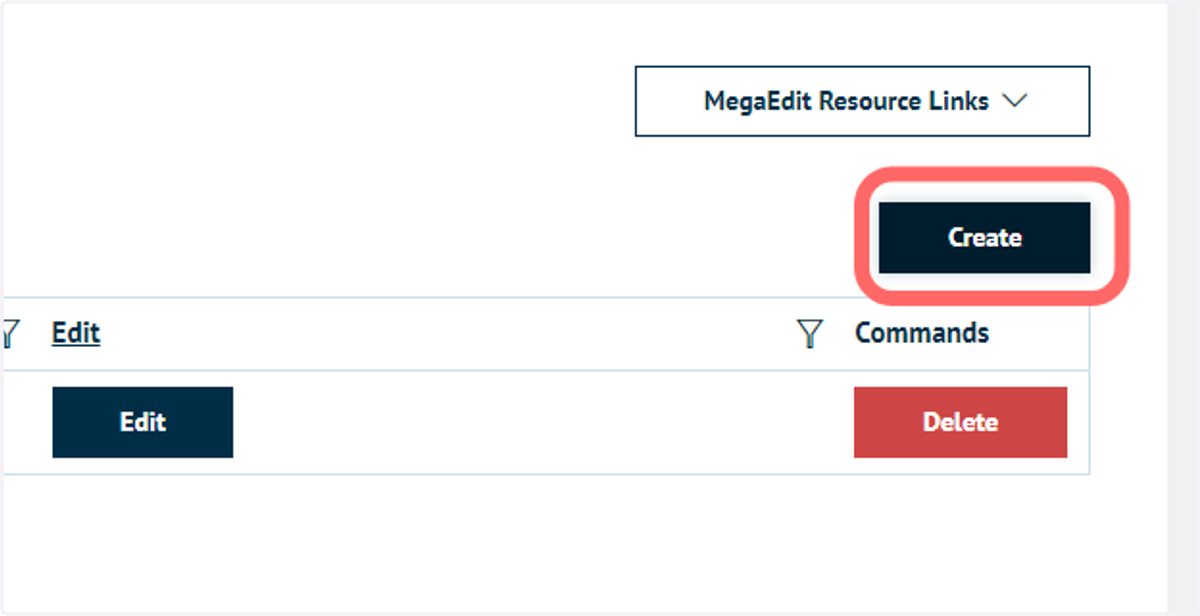
5. To add a new Output Type option, click on Create
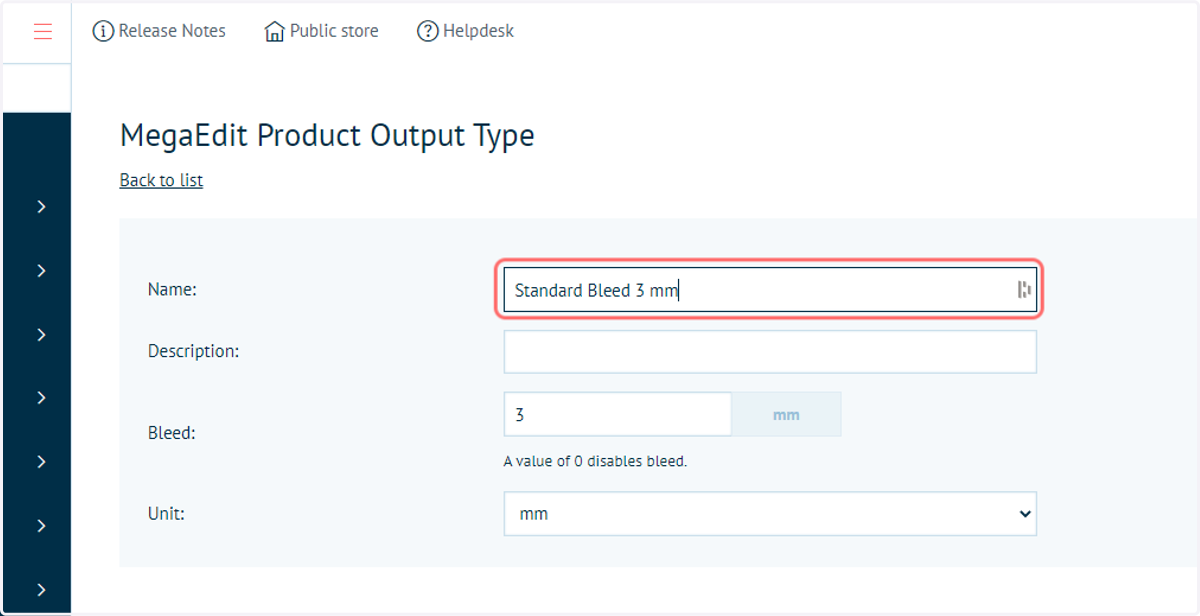
6. Complete bleed options
Name: this name can be whatever suits your workflow and is displayed under the output type list under the dynamic product properties tabs.
Description: used internally only for you as the administrator under the list of Output types.
Bleed: used as the main bleed added to the product/document. This can be either a multiple page document or inside page bleed for a booklet setup.
Unit: you can set different measures when configuring output type, Inches, Pts, Cm and Mm's can be used.
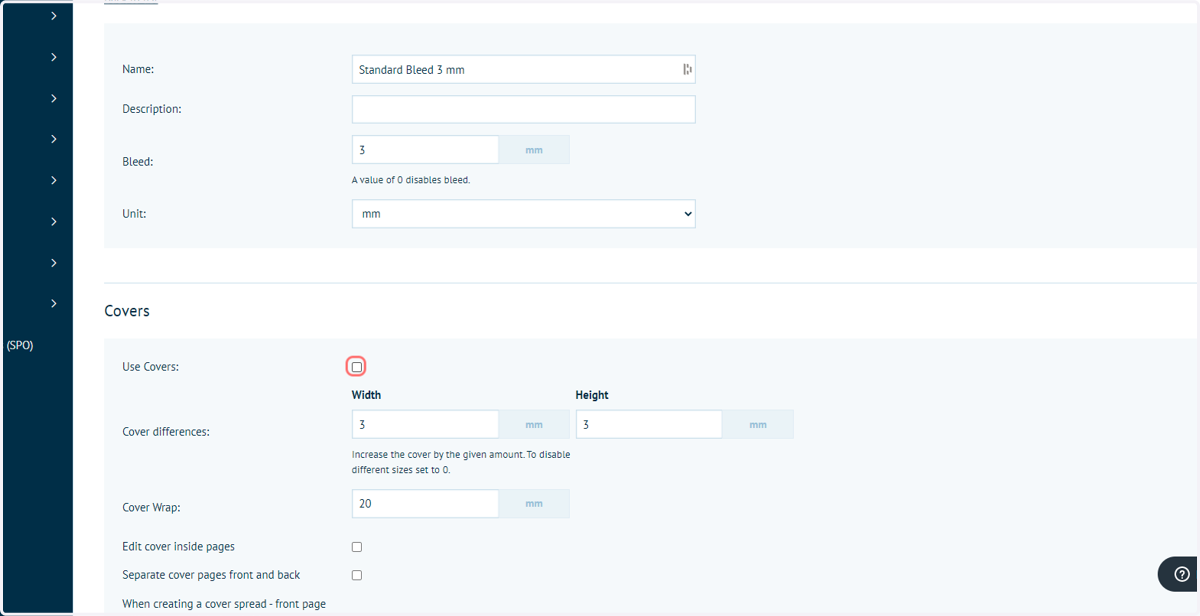
7. Complete cover settings
Use Covers: enables the use of covers.
Cover differences: used to add extra Height x Width to the cover. For example, if you were creating a hardcover output type.
Cover Wrap: this is the extra wrap you wish to allow on the cover that wraps inside the cover.
Edit cover inside pages: allows you to make the inside pages of a cover editable - if NOT ticked you will see a grayed out page, anything left on these pages will not print out.
Separate cover pages front and back: allows your booklet setup to display the covers as separate pages as opposed to spreads as is default. You would have a single cover page first, then all your spread pages and then the single back cover page at the end. If you are using this mode, there is an additional tick box to use to make sure that the front and back pages are swapped around when using a spread output cover.
In our example, we will remove the use of covers.
Infigosoftware
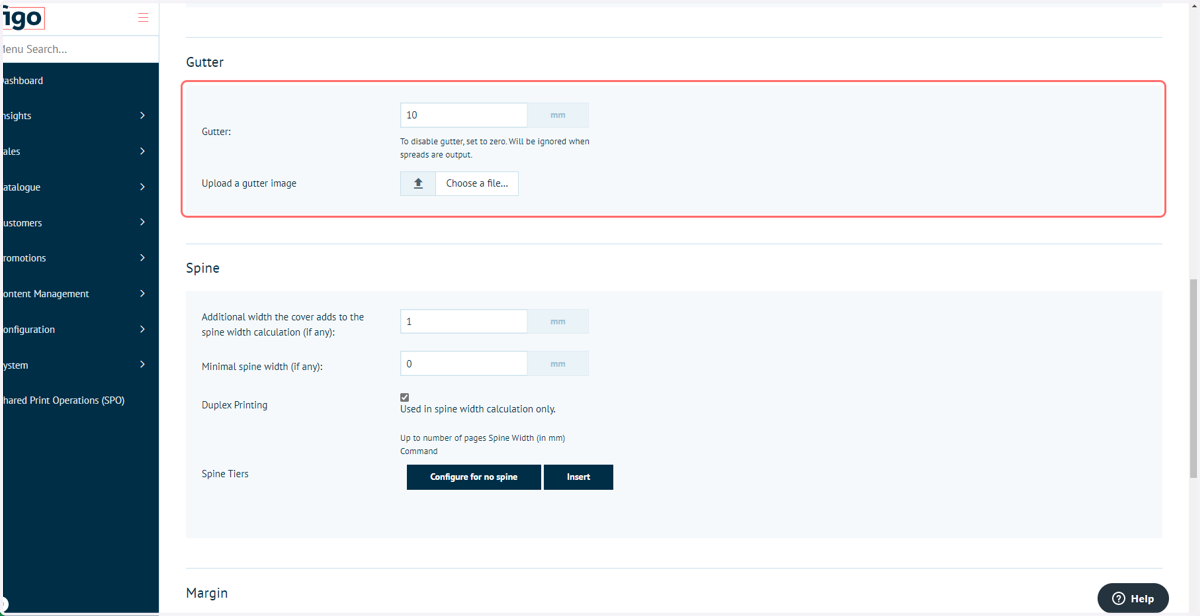
8. Complete gutter settings
Gutter: this is an additional size that is added to the inside pages ONLY. This ONLY appears on the final output's inside pages of the binding page edges.
Upload a gutter image: upload your own gutter to be used on the final output PDF. Here you click browse and upload your jpg/png.
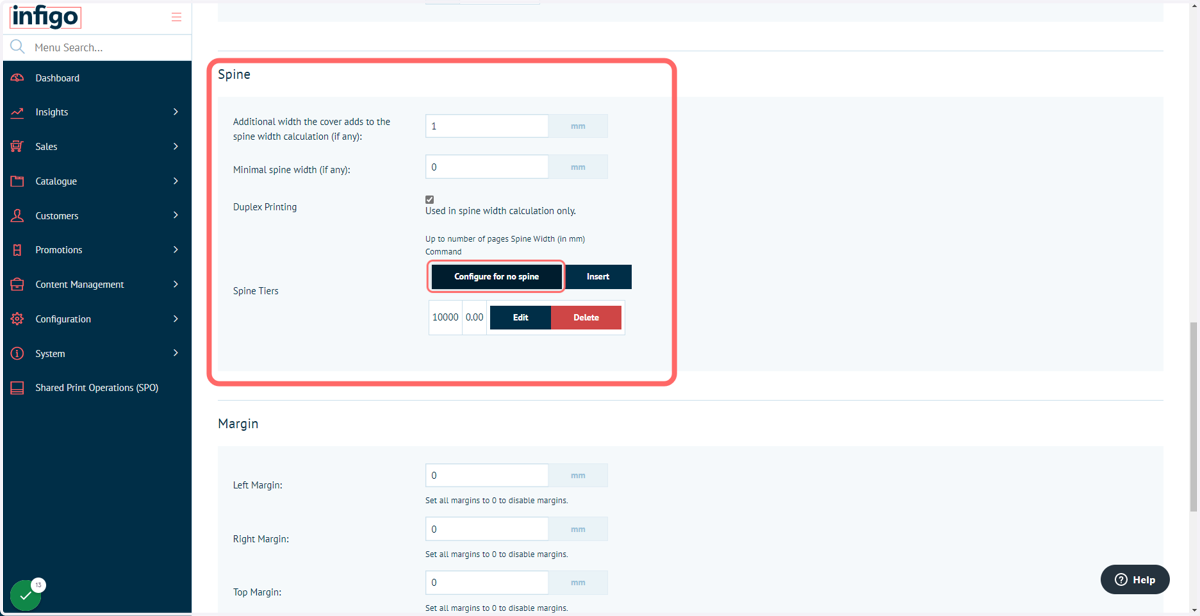
9. Configure spine settings
Additional width the cover adds to the spine: this allows you to add an extra amount of spine width on top of the spine calculation using the micron thickness of the stock. Example, if your have a 20 pp booklet and that page block adds up to 0.4 mm thickness you can then add additional amount for binding purposes. So if you added 10mm your total spine width would be 10.4 mm wide etc.
Minimal spine width: this setting allows you to set the smallest spine width amount if pages are deleted by the the end user.
Duplex Printing: used in spine width calculation only. For example, if you specified a booklet of 40 pp but you were printing duplex, then the spine width calculation would be halved to 20 pp.
Spine Tiers: are an option to set predefined page tiers where the spine width increases based on a page count value. For example by clicking "Insert" you could specify that up to 20 pp the spine width is 10 mm and then above 20 but up-to 32 pp the spine width increases to 20 mm and then when the pagination reaches 40 pp the spine width jumps to 30mm. So rather than the spine increasing dynamically on a per spread basis it increases at preset values.
In our example, configure for no spine.
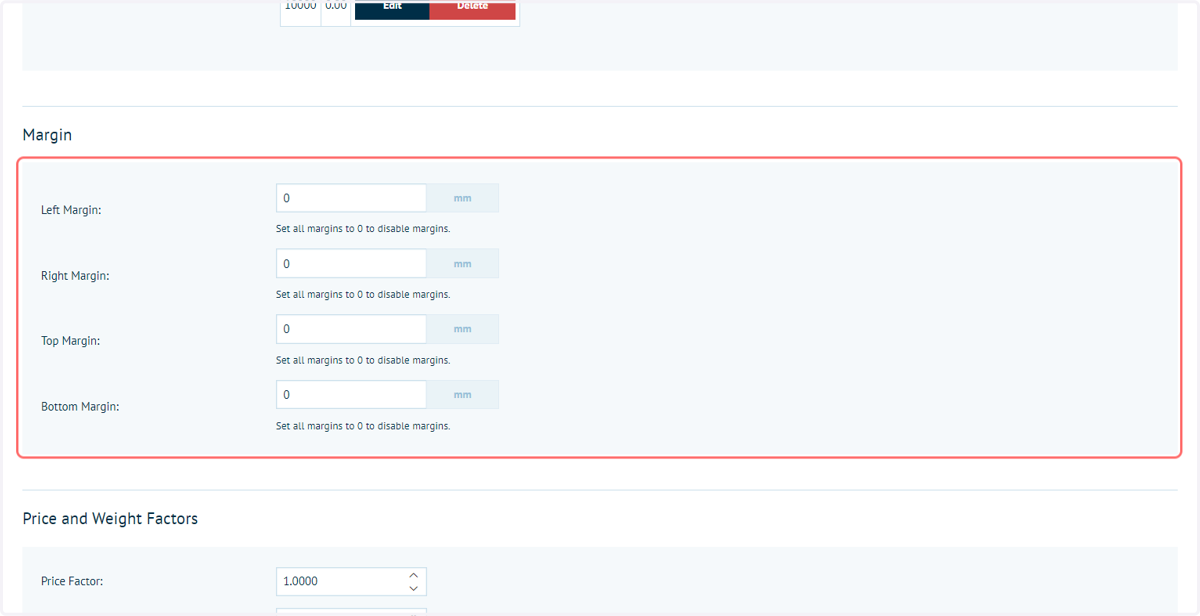
10. Configure margin options
You can add margins to your products in MegaEdit. These do not print out but are there purely as guidance for the end users. These can be useful in terms of helping the end user position their fields around the canvas. The margins are green by default but can be changed in color under the product options in the editor (admins ONLY).
Infigosoftware
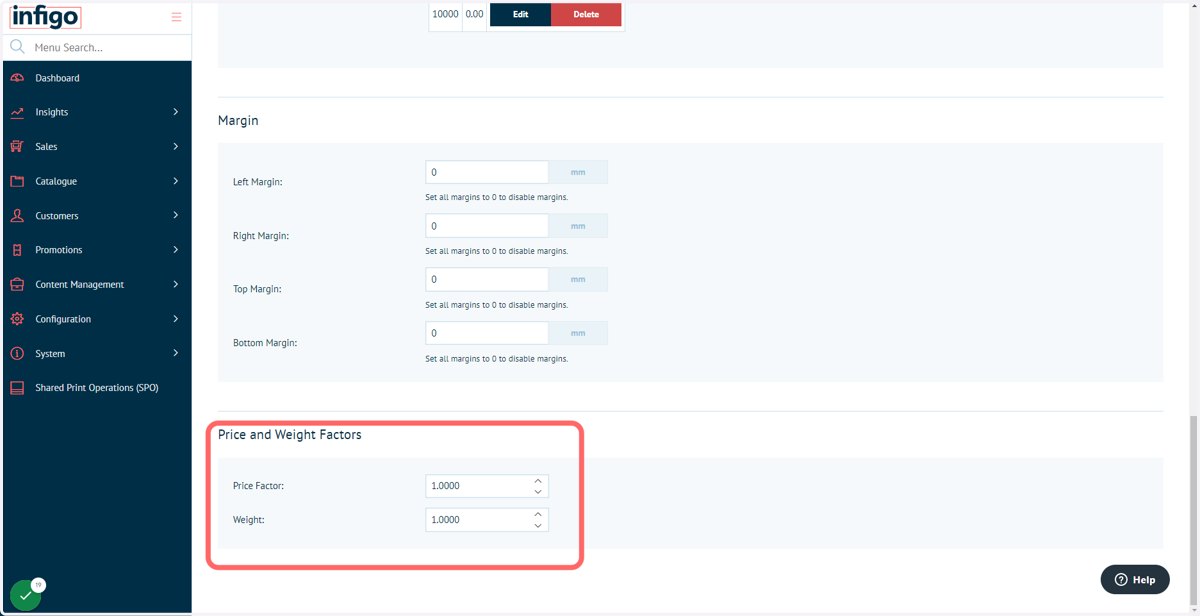
11. Configure price and weight factors
Under the Price and weight factors section you can specify a different price and weight option for each of your output types. For example if you had a booklet product that had both a Softcover AND Hardcover you may wish to offer the Hardcover option at a higher price, perhaps 50% more expensive. This is done using the factors, which are percentage based, so a factor of 1.5 would make that option 50% more expensive, 1.25 = 25% more expensive or 0.5 = -50% less expensive etc. For the Weight option this adds a weight to the final output product. For example a hardcover would weigh more than a softcover and if you were using the shipping by weight options in catfish then you need to ensure that your products are an accurate final weight so you are not under/over charging your end users etc.
12. Click on Save
13. Click on Catalogue
Next, we will apply this output type to our MegaEdit product.
Infigosoftware
14. Click on Product Types
15. Click on MegaEdit
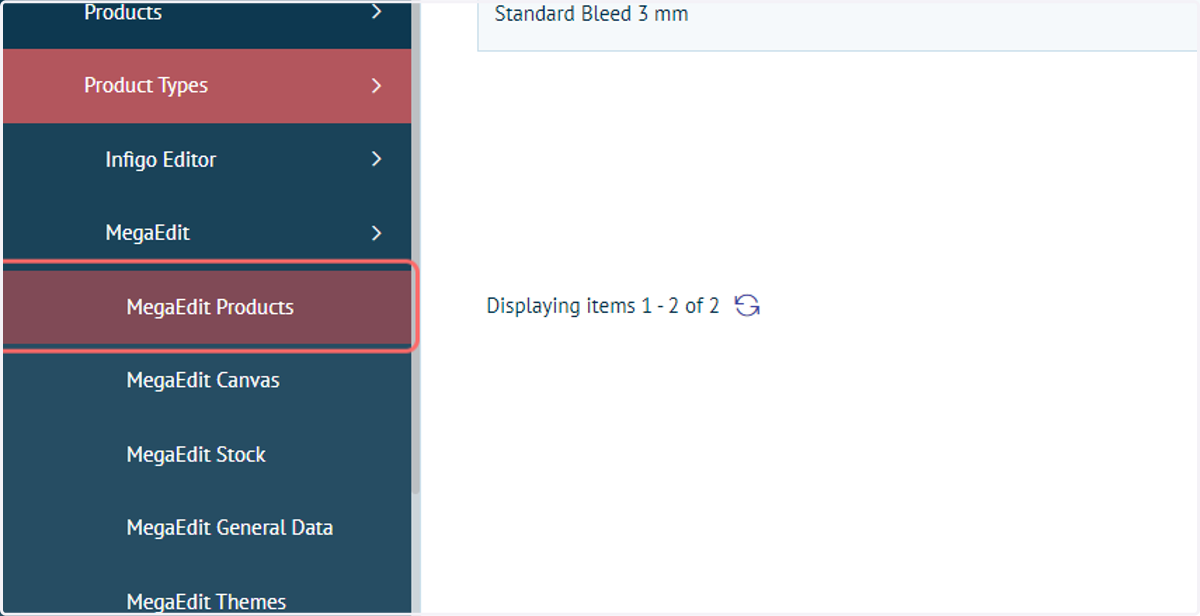
16. Click on MegaEdit Products
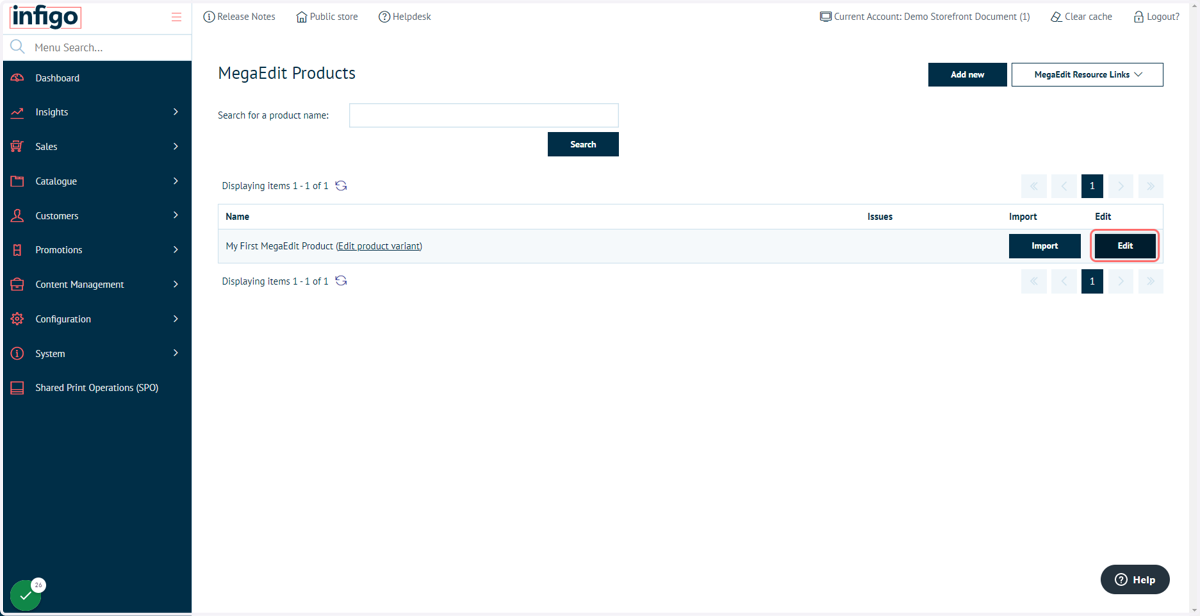
17. Locate the MegaEdit product and click on Edit
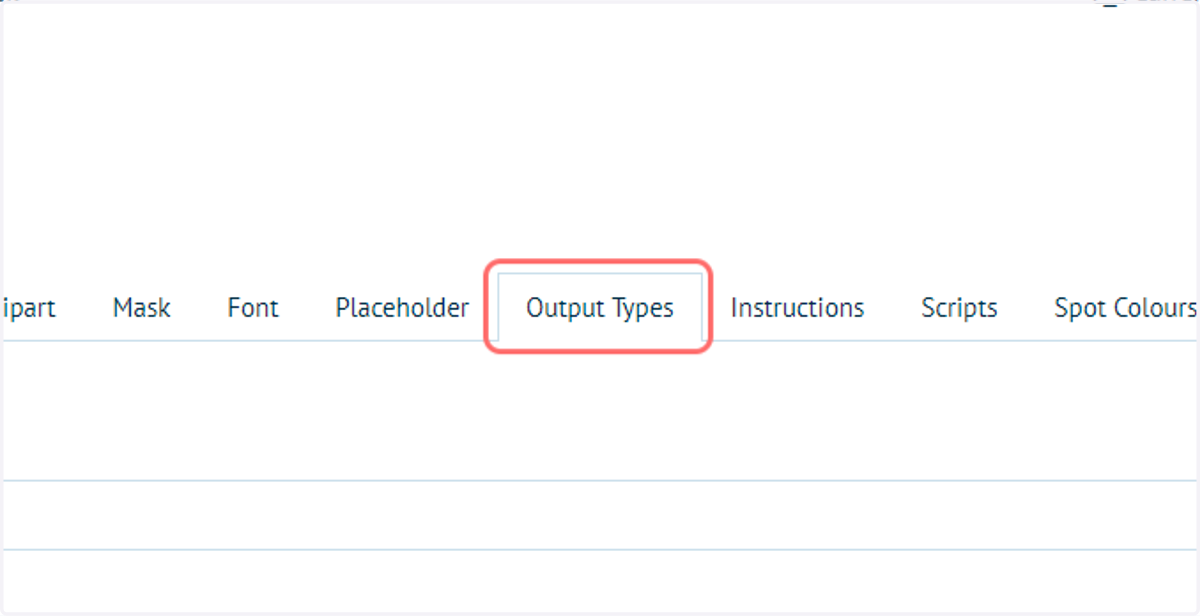
18. Click on Output Types
Infigosoftware
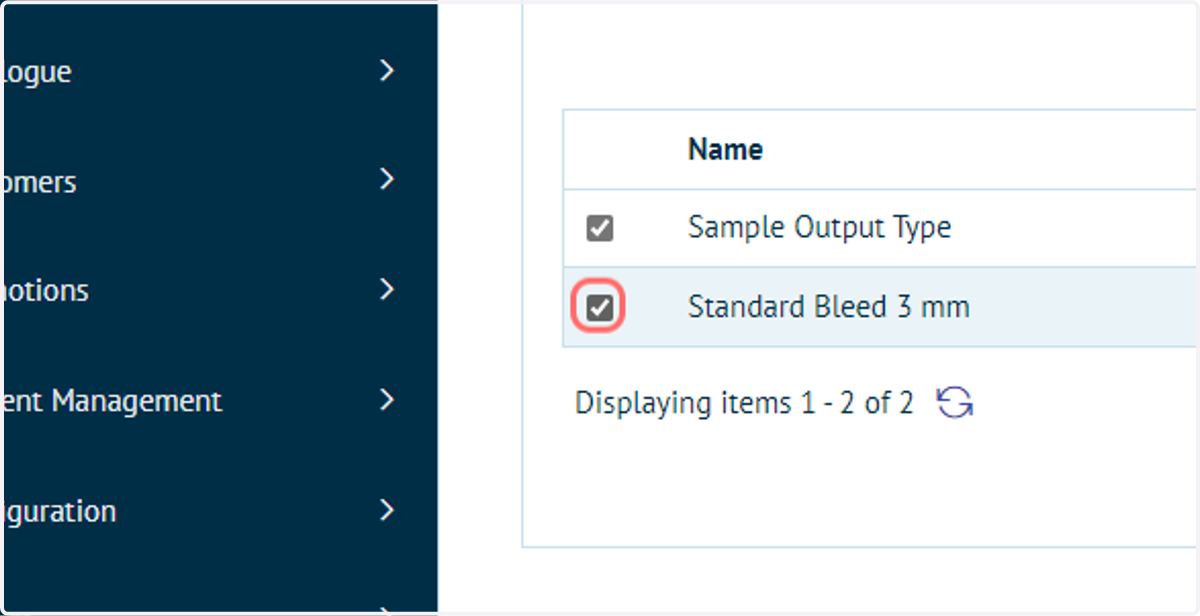
19. Select the appropriate Output Type specifications
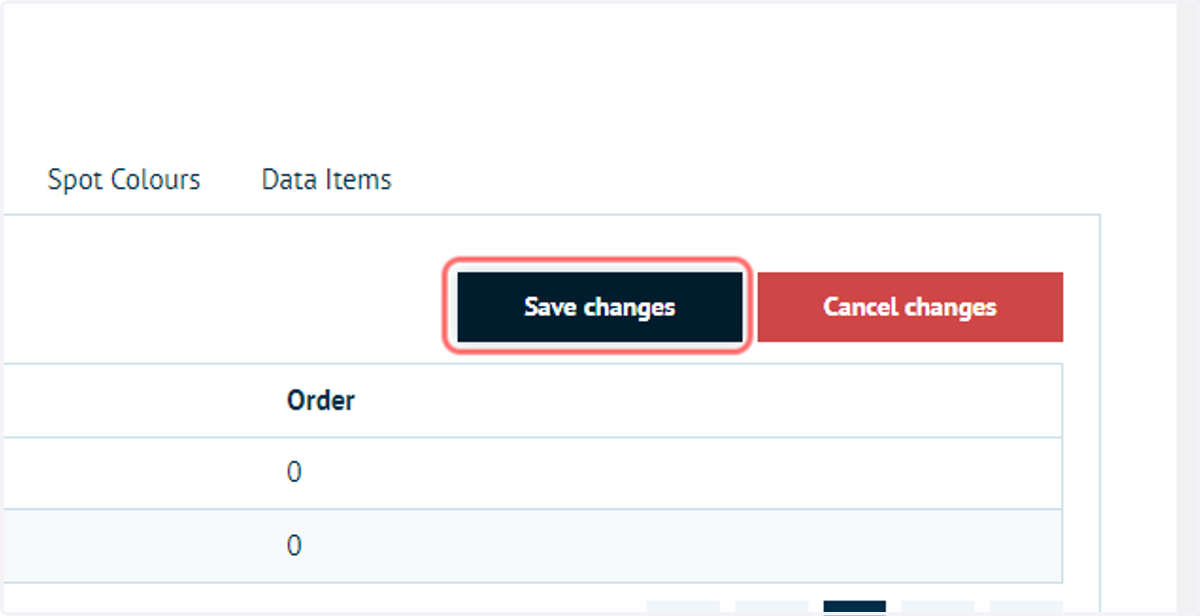
20. Click on Save changes
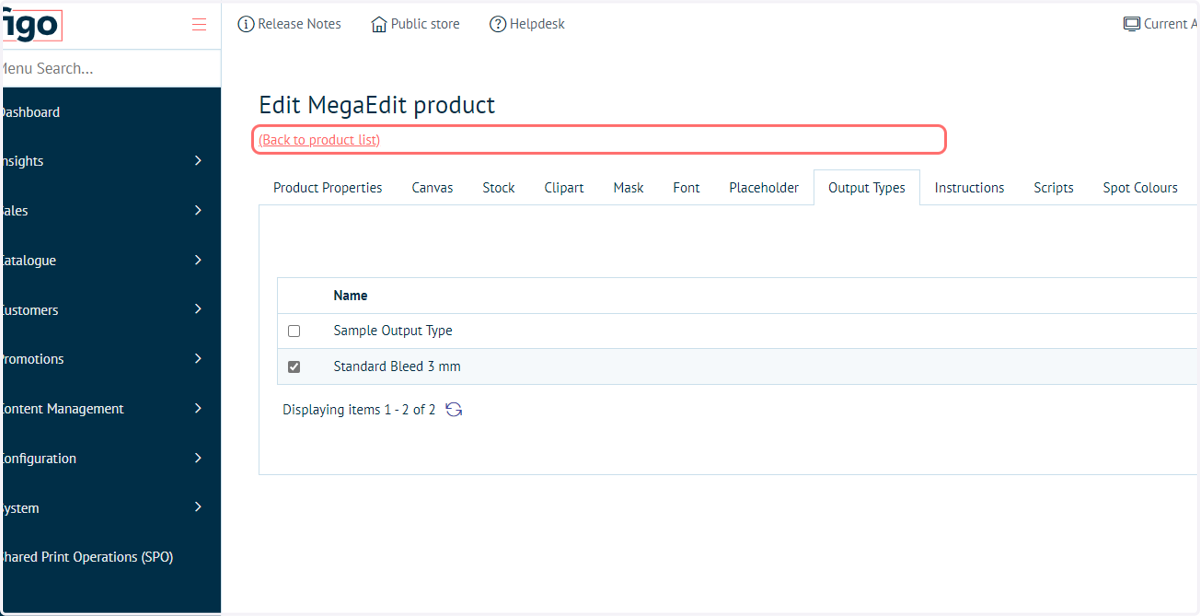
21. Click on (Back to product list)
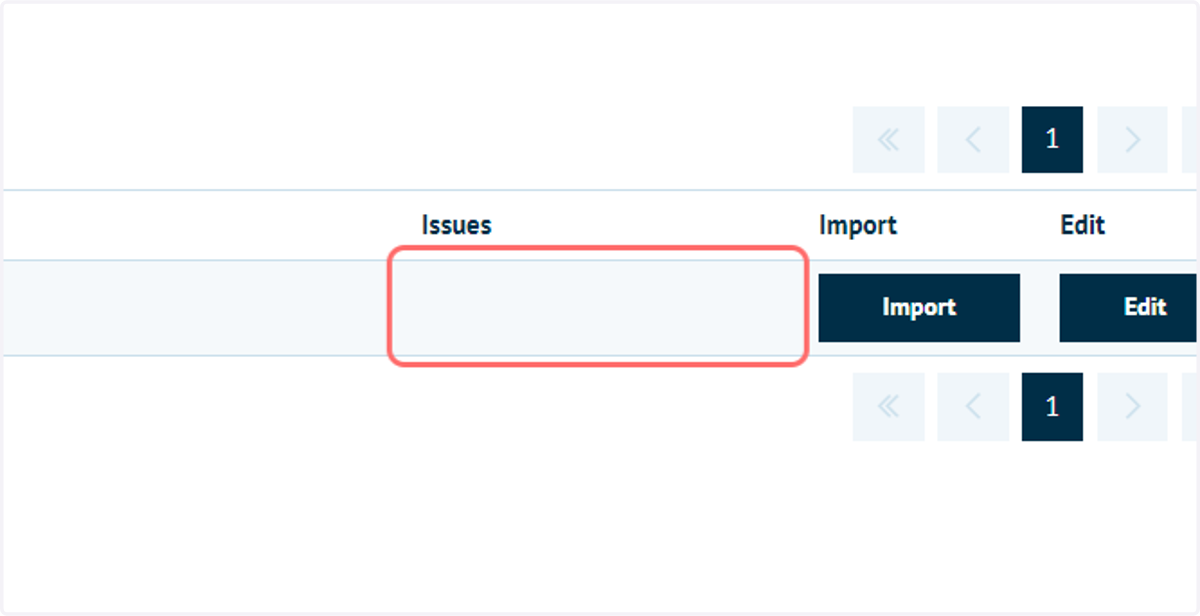
22. Check for issues
With a canvas, stock and output type specified, we should have no remaining issues on our MegaEdit product.