Batch import products
In this tutorial, we will learn how to batch import products from an external Excel document.
This is a powerful capability aimed at saving you time by importing large amounts of products in a few simple clicks.
1. Product Management
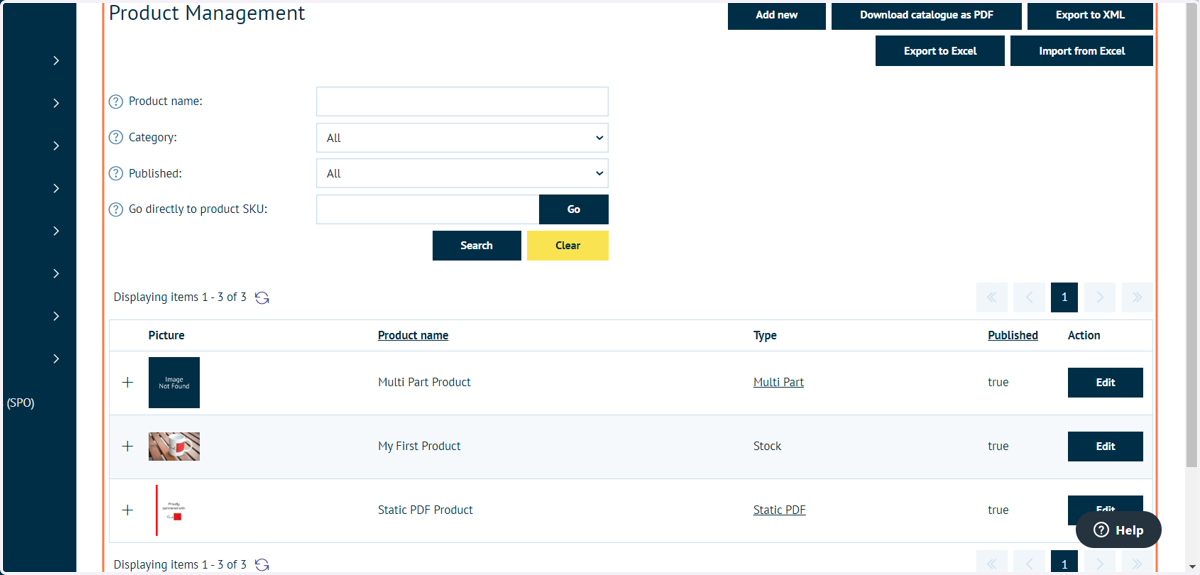
We begin on the Product Management screen
2. Click on Export to Excel
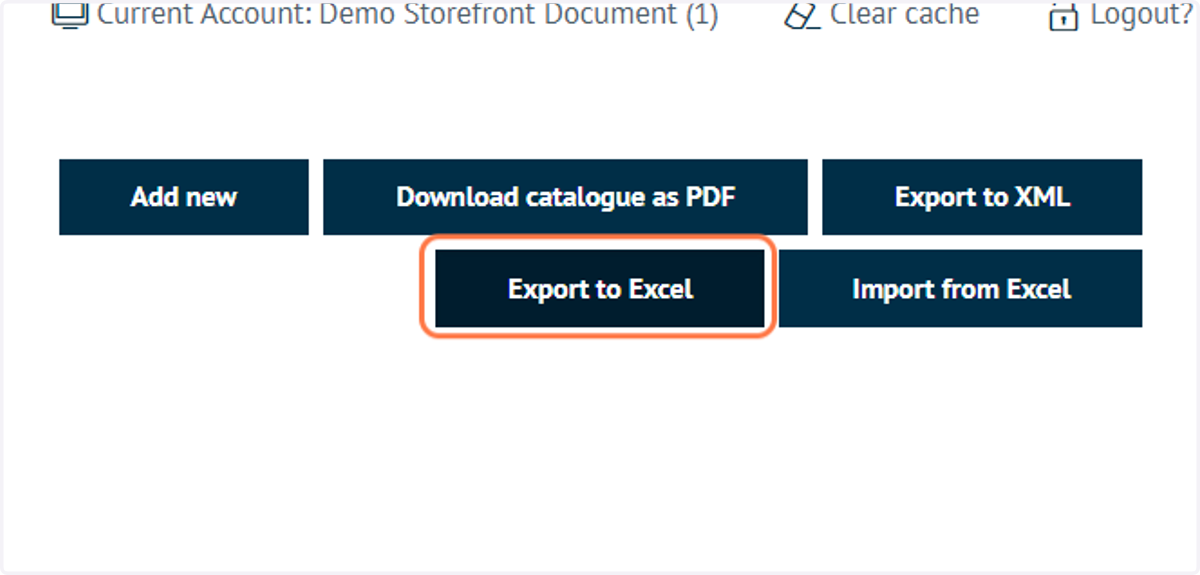
Exporting your current product range to Excel has the double benefit of giving you the most up to date Excel sheet format that Infigo can use to import your product range.
3. Exported product range
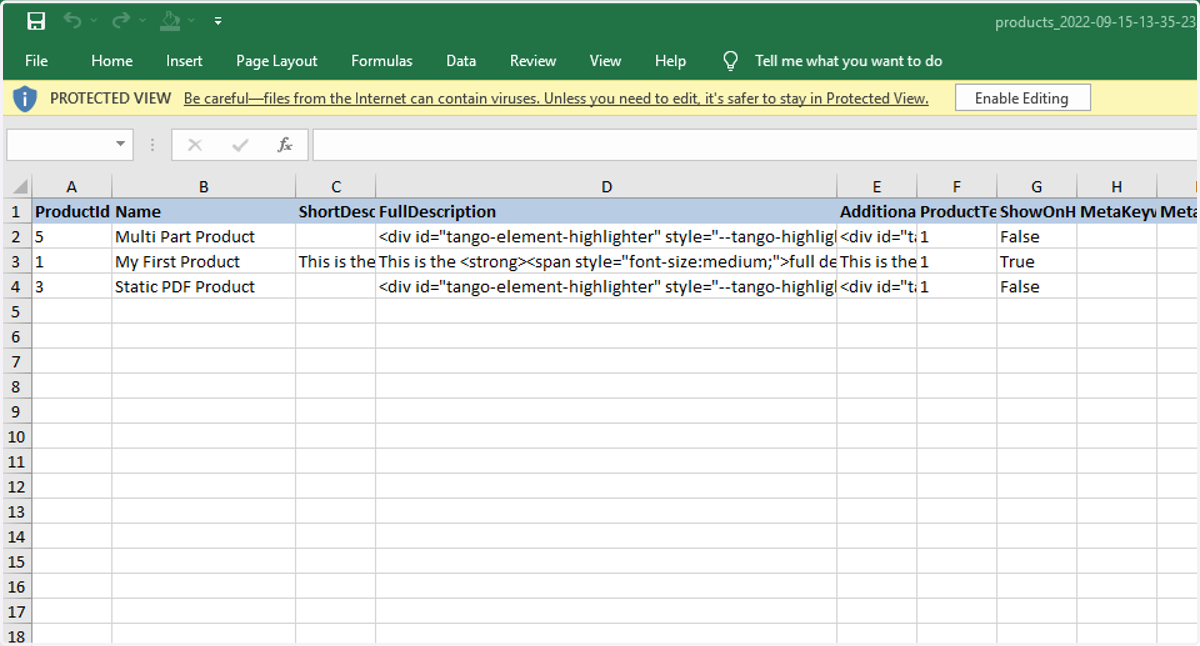
The exported Excel sheet will contain full details of all your current products.
Using this sheet as a template, populate the columns with information on additional products you wish to add.
You do not need to complete all columns, however using this template you will be able to add a large amount of detail to your product specifications. This includes data such as:
Attributes
Tags
Descriptions
Product type
Much more..
You MUST enter a ProductID (Column A). Imported products are distinguished by Product Id. If the Product Id already exists, then its corresponding product will be updated.
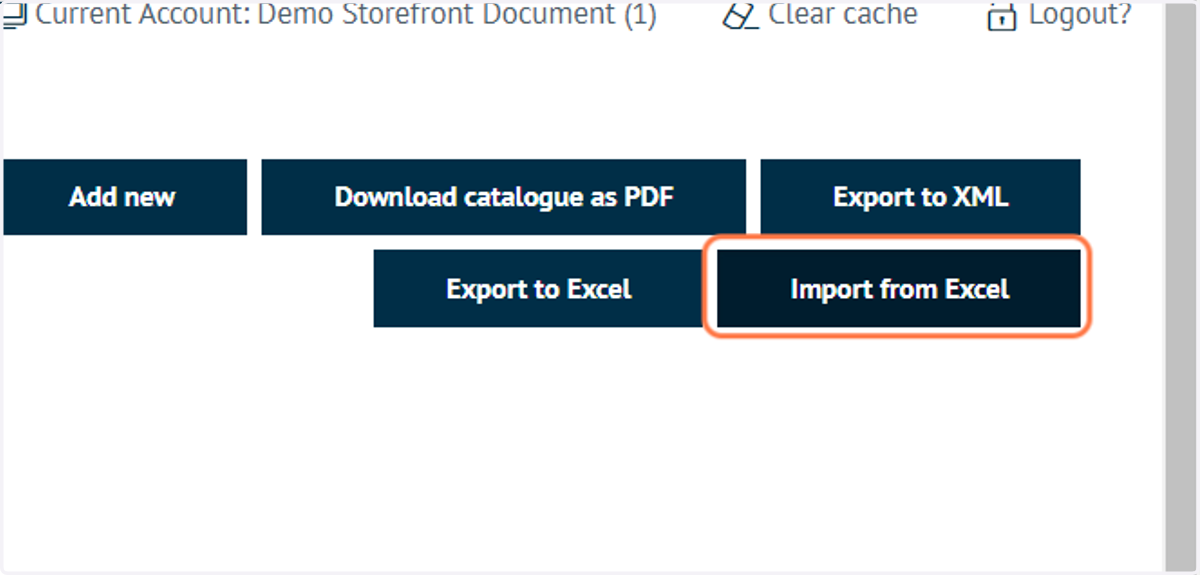
4. Click on Import from Excel
This begins the process of importing your Excel file detailing all products to be created or updated.
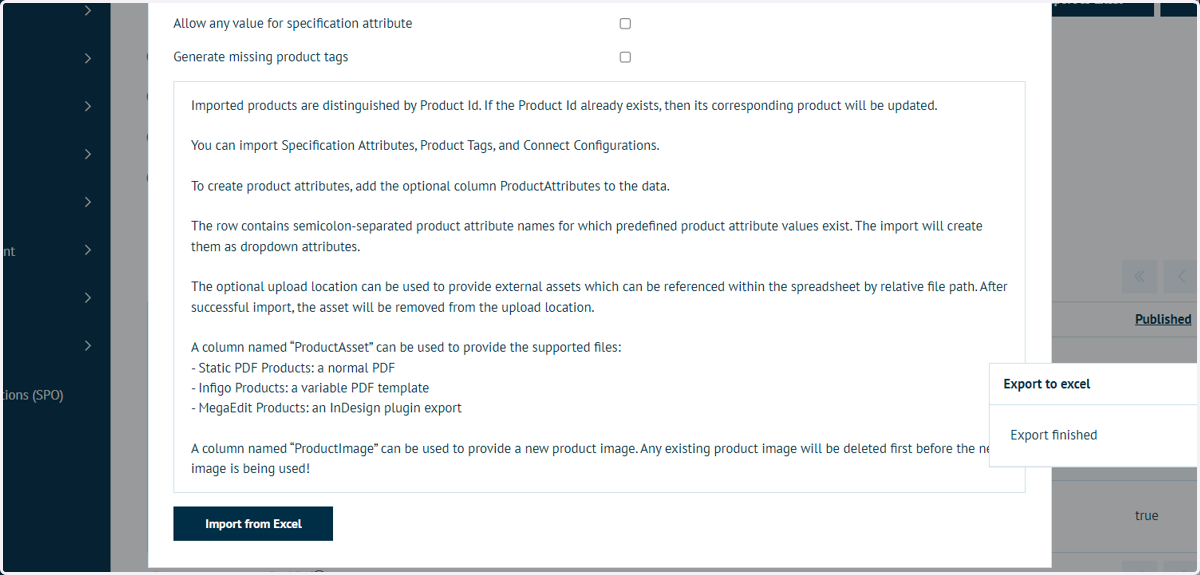
5. Import Guidance
The import tool has guidance on using the Excel template, including how to add additional data where necessary.
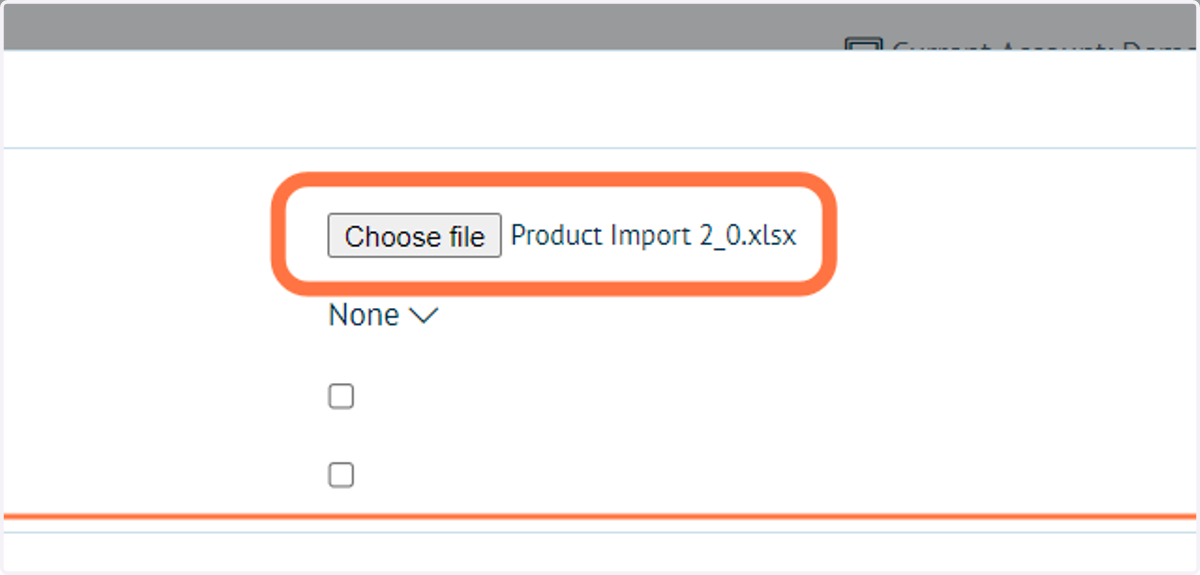
6. Select your Excel file to upload
7. Click on Import from Excel
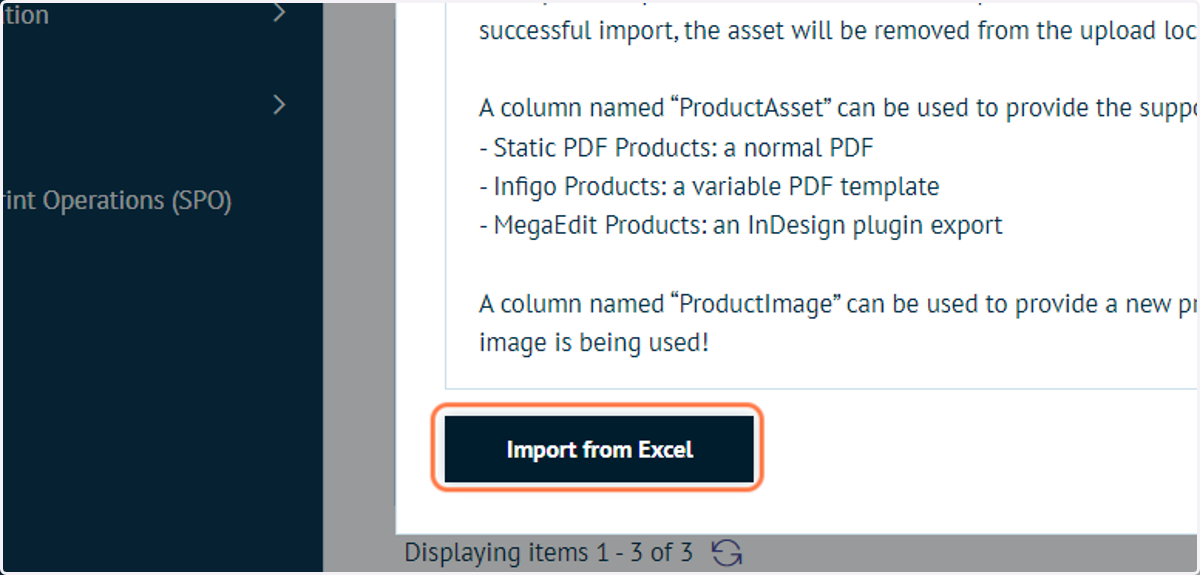
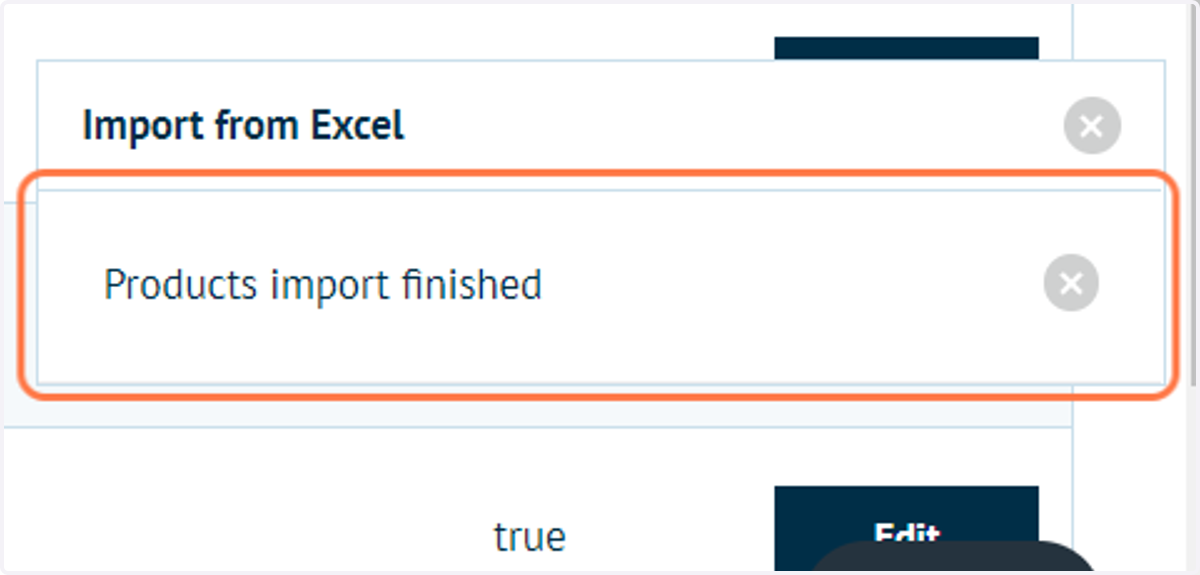
8. Informative pop ups will show you the status of the import
Infigo will also display any errors that occurred during the import, including products that couldn't be imported or relevant data that couldn't be found.
9. Choose a product and click on Edit
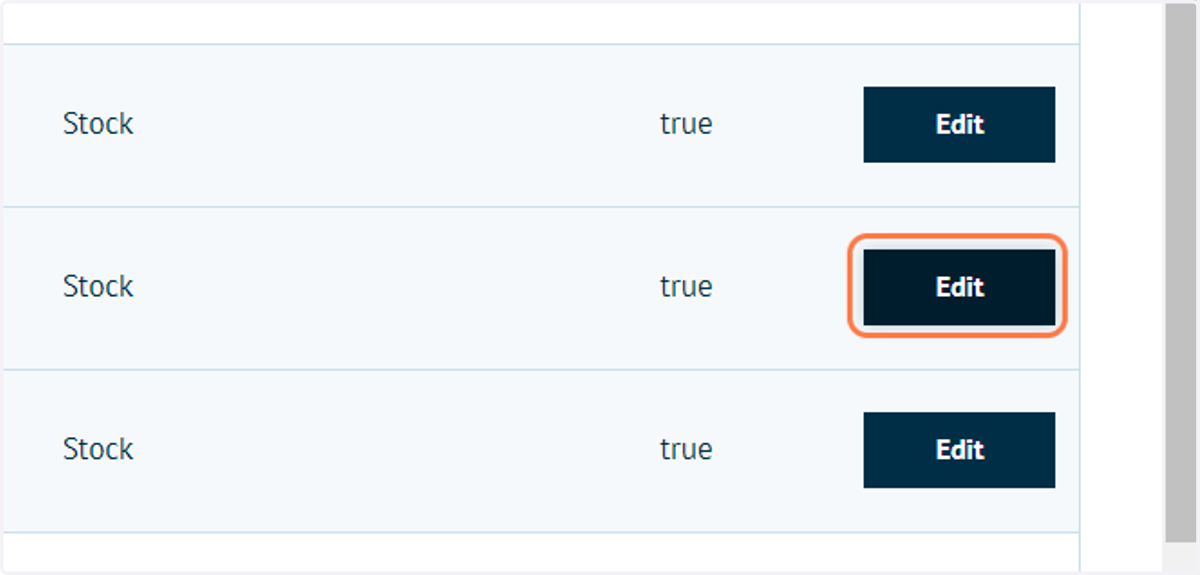
10. Note that the product details from the Excel sheet have been imported